Edgeimpulse
Edge Impulse
Edge Impulse é a principal plataforma de desenvolvimento para aprendizado de máquina em dispositivos de borda, gratuita para desenvolvedores e confiável por empresas em todo o mundo.
- Com o Edge Impulse, desenvolvedores de software, engenheiros e especialistas de domínio podem resolver problemas reais usando aprendizado de máquina em dispositivos de borda sem precisar de um Ph.D. ou habilidades avançadas em engenharia embarcada. Desde os primeiros passos até MLOps em produção, o Edge Impulse oferece máxima eficiência e velocidade em uma ampla variedade de hardwares, de MCUs a CPUs.
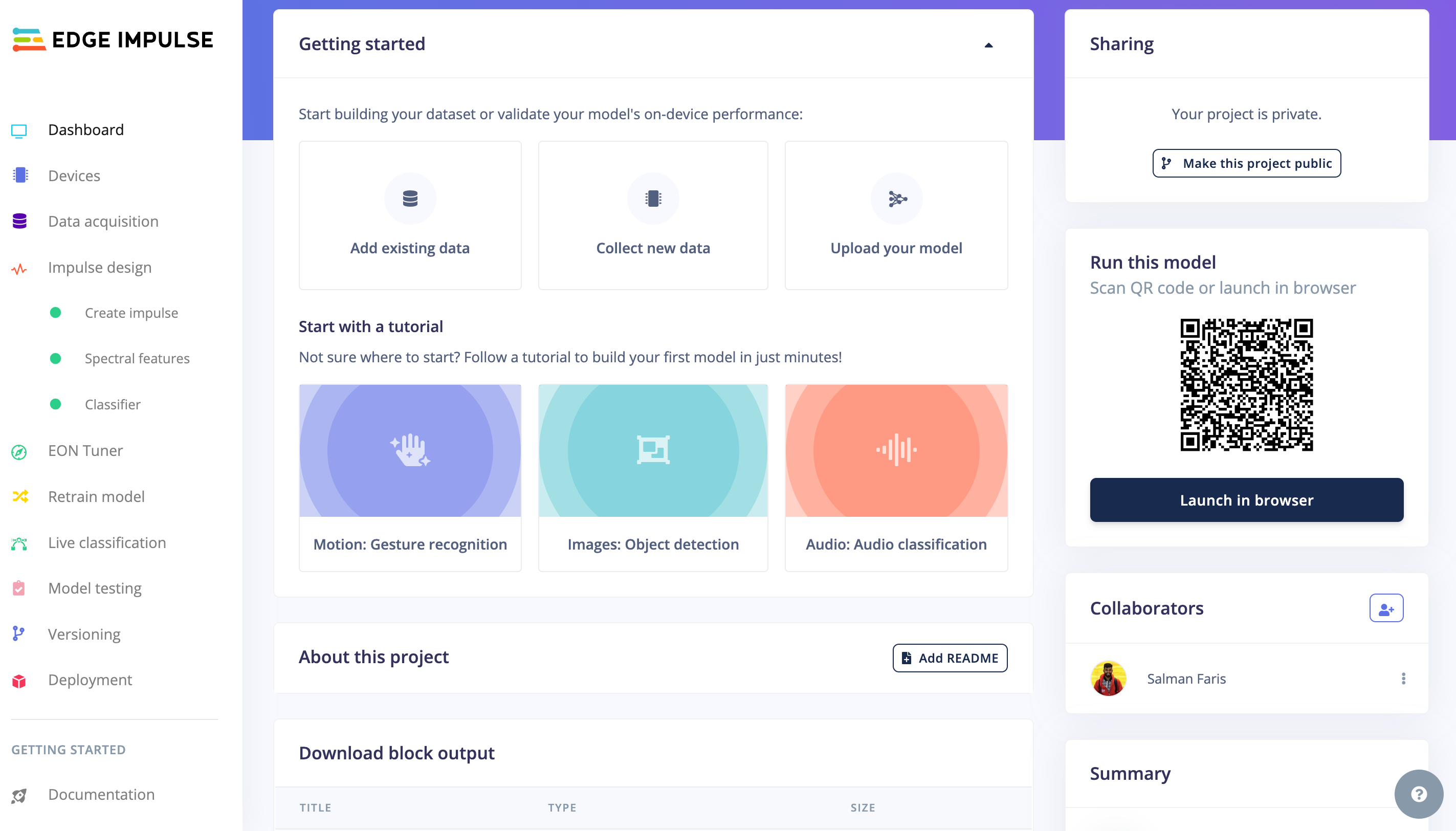
Com o EdgeImpulse podemos
- Coletar conjunto de dados diretamente do dispositivo
- Coletar conjunto de dados de outras fontes como arquivo .zip, via api ou outra ingestão em nuvem de terceiros
- Criar dados de teste e de treinamento e colocá-los em diferentes rótulos
- Treinar nosso modelo
- Ser capaz de selecionar algoritmos de ML apropriados - EI fornece algoritmos de ML recomendados com base em nosso conjunto de dados
- Implantá-lo em nosso hardware
- Colaboração em projetos TinyML com controle de versão
- e muito mais que ajuda você a criar aplicações tinyML.
Experiência prática rápida
Antes de passar por todo o processo de aprendizado do Edge Impulse, fornecemos as bibliotecas Arduino totalmente pré‑geradas e você pode ver os resultados gravando este programa Arduino do sketch diretamente na XIAO ESP32S3 Sense.
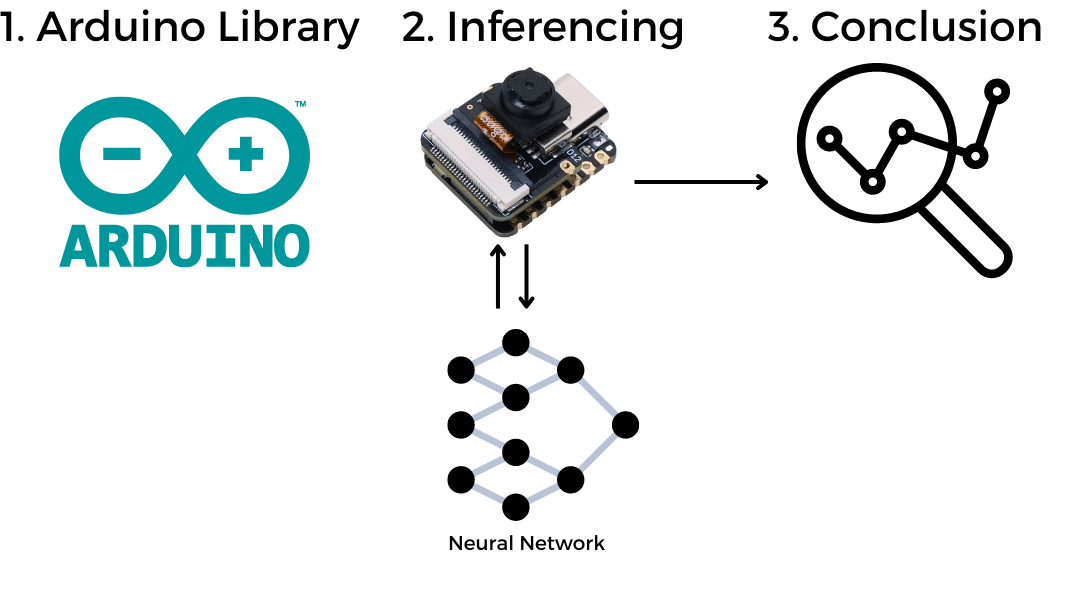
Configurar XIAO ESPS3 Sense no Arduino
Antes de começar a usar as bibliotecas do Edge impulse, precisamos configurar a XIAO ESPS3 na Arduino IDE, por favor siga o guia aqui
Compilar e enviar o exemplo Blink
// the setup function runs once when you press reset or power the board
void setup() {
  // initialize digital pin LED_BUILTIN as an output.
  pinMode(LED_BUILTIN, OUTPUT);
}

// the loop function runs over and over again forever
void loop() {
  digitalWrite(LED_BUILTIN, HIGH);  // turn the LED on (HIGH is the voltage level)
  delay(1000);                      // wait for a second
  digitalWrite(LED_BUILTIN, LOW);   // turn the LED off by making the voltage LOW
  delay(1000);                      // wait for a second
}
Certifique-se de selecionar a placa correta e a porta correta antes de enviar.
ToDO
- Instalar a placa XIAO ESPS3 na Arduino IDE
- Compilar e enviar o exemplo Blink na XIAO ESPS3
Bibliotecas Edge Impulse disponíveis
Também estamos avançando em paralelo, criando algumas bibliotecas Arduino exportadas do Edge Impulse que foram verificadas e editadas para funcionar diretamente com a XIAO ESP32S3 Sense. Quando usamos as bibliotecas, temos mais controle em nosso programa e podemos tomar decisões.
- Speech keyword recognition (Yes & No) Arduino Library
- Fruit identification (apples, bananas, grapes) Arduino Library
Como usar as bibliotecas Arduino do Edge Impulse
É como uma biblioteca Arduino genérica, precisamos instalá-la primeiro na Arduino IDE e usar o código de exemplo para executar a demonstração.
Biblioteca Arduino de reconhecimento de palavras-chave de fala (Yes & No)
Demo
Como funciona
/src/img/KWS_Diagram.png)
Passo 1. Baixar a biblioteca de demonstração KWS
Baixe a biblioteca Speech keyword recognition (Yes & No) Arduino Library como .Zip.
Passo 2. Adicionar biblioteca ZIP à Arduino IDE
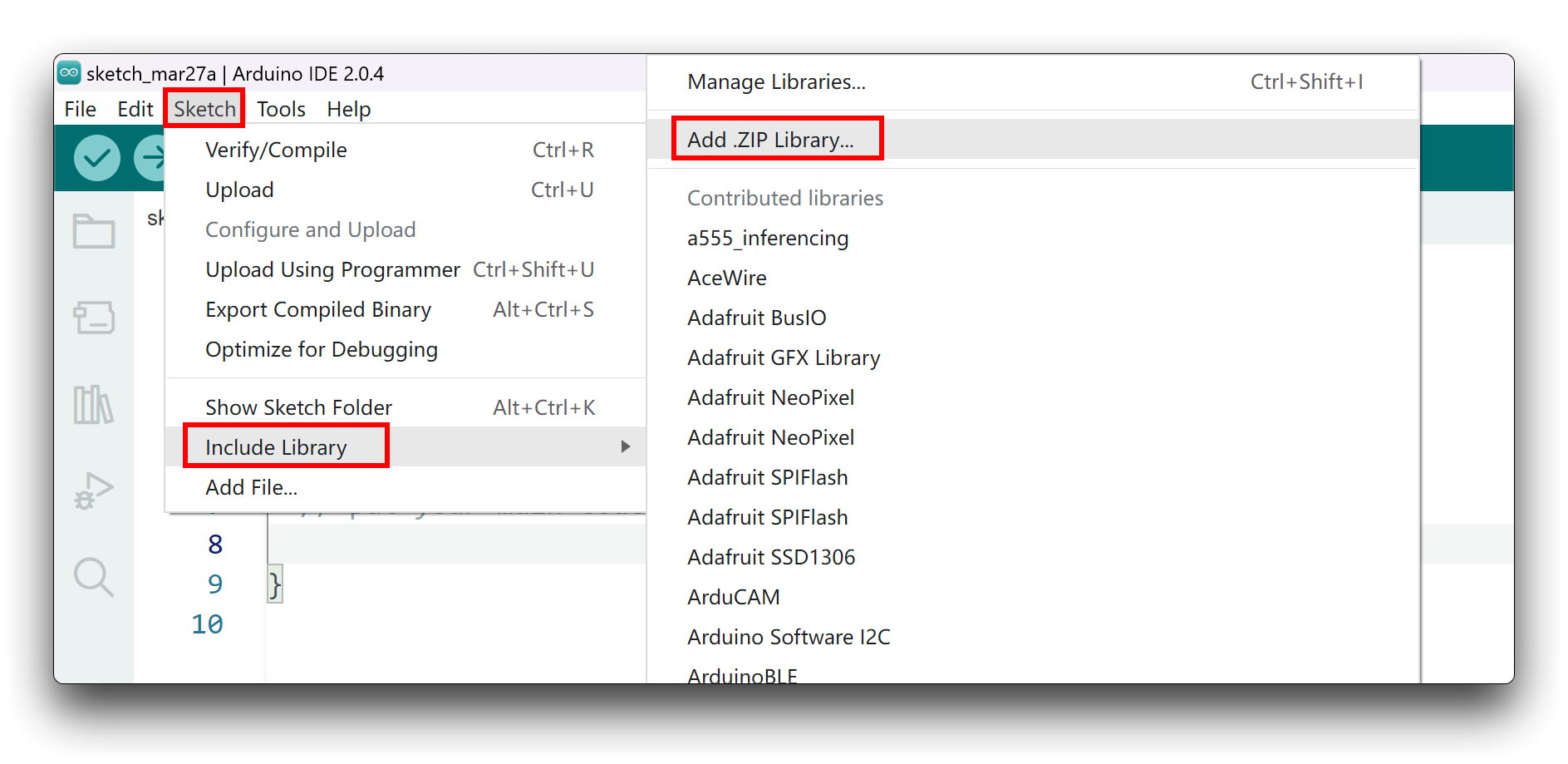
Como você fez o download da biblioteca zip, abra sua Arduino IDE, clique em Sketch > Include Library > Add .ZIP Library.
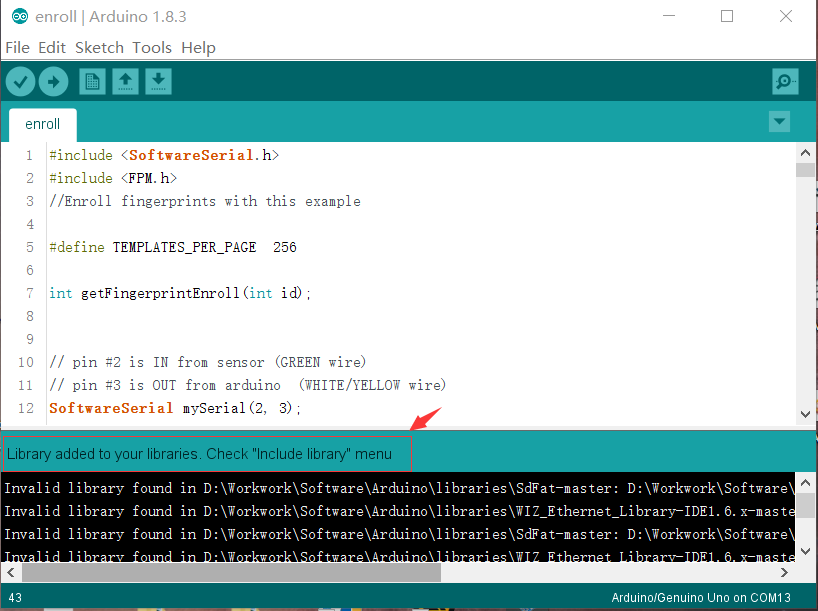
Escolha o arquivo zip que você acabou de baixar e, se a biblioteca for instalada corretamente, você verá Library added to your libraries na janela de aviso. Isso significa que a biblioteca foi instalada com sucesso.
Passo 3. Executar o Sketch de Inferência
/* Edge Impulse Arduino examples
* Copyright (c) 2022 EdgeImpulse Inc.
*
* Permission is hereby granted, free of charge, to any person obtaining a copy
* of this software and associated documentation files (the "Software"), to deal
* in the Software without restriction, including without limitation the rights
* to use, copy, modify, merge, publish, distribute, sublicense, and/or sell
* copies of the Software, and to permit persons to whom the Software is
* furnished to do so, subject to the following conditions:
*
* The above copyright notice and this permission notice shall be included in
* all copies or substantial portions of the Software.
*
* THE SOFTWARE IS PROVIDED "AS IS", WITHOUT WARRANTY OF ANY KIND, EXPRESS OR
* IMPLIED, INCLUDING BUT NOT LIMITED TO THE WARRANTIES OF MERCHANTABILITY,
* FITNESS FOR A PARTICULAR PURPOSE AND NONINFRINGEMENT. IN NO EVENT SHALL THE
* AUTHORS OR COPYRIGHT HOLDERS BE LIABLE FOR ANY CLAIM, DAMAGES OR OTHER
* LIABILITY, WHETHER IN AN ACTION OF CONTRACT, TORT OR OTHERWISE, ARISING FROM,
* OUT OF OR IN CONNECTION WITH THE SOFTWARE OR THE USE OR OTHER DEALINGS IN THE
* SOFTWARE.
*
* This code was adapted by Marcelo Rovai to run on a XIAO ESP32S3
* 29May23
* Modified by Salman Faris
* 14Aug23
*
*/
// If your target is limited in memory remove this macro to save 10K RAM
#define EIDSP_QUANTIZE_FILTERBANK 0
/*
** NOTE: If you run into TFLite arena allocation issue.
**
** This may be due to may dynamic memory fragmentation.
** Try defining "-DEI_CLASSIFIER_ALLOCATION_STATIC" in boards.local.txt (create
** if it doesn't exist) and copy this file to
** `<ARDUINO_CORE_INSTALL_PATH>/arduino/hardware/<mbed_core>/<core_version>/`.
**
** See
** (https://support.arduino.cc/hc/en-us/articles/360012076960-Where-are-the-installed-cores-located-)
** to find where Arduino installs cores on your machine.
**
** If the problem persists then there's not enough memory for this model and application.
*/
/* Includes ---------------------------------------------------------------- */
#include <XIAO_esp32S3_YesNo_inferencing.h>
#include <I2S.h>
#define SAMPLE_RATE 16000U
#define SAMPLE_BITS 16
/** Audio buffers, pointers and selectors */
typedef struct {
int16_t *buffer;
uint8_t buf_ready;
uint32_t buf_count;
uint32_t n_samples;
} inference_t;
static inference_t inference;
static const uint32_t sample_buffer_size = 2048;
static signed short sampleBuffer[sample_buffer_size];
static bool debug_nn = false; // Set this to true to see e.g. features generated from the raw signal
static bool record_status = true;
/**
* @brief Arduino setup function
*/
void setup() {
// put your setup code here, to run once:
Serial.begin(115200);
pinMode(LED_BUILTIN, OUTPUT);
// comment out the below line to cancel the wait for USB connection (needed for native USB)
while (!Serial)
;
Serial.println("Edge Impulse Inferencing Demo");
I2S.setAllPins(-1, 42, 41, -1, -1);
if (!I2S.begin(PDM_MONO_MODE, SAMPLE_RATE, SAMPLE_BITS)) {
Serial.println("Failed to initialize I2S!");
while (1)
;
}
// summary of inferencing settings (from model_metadata.h)
ei_printf("Inferencing settings:\n");
ei_printf("\tInterval: ");
ei_printf_float((float)EI_CLASSIFIER_INTERVAL_MS);
ei_printf(" ms.\n");
ei_printf("\tFrame size: %d\n", EI_CLASSIFIER_DSP_INPUT_FRAME_SIZE);
ei_printf("\tSample length: %d ms.\n", EI_CLASSIFIER_RAW_SAMPLE_COUNT / 16);
ei_printf("\tNo. of classes: %d\n", sizeof(ei_classifier_inferencing_categories) / sizeof(ei_classifier_inferencing_categories[0]));
ei_printf("\nStarting continious inference in 2 seconds...\n");
ei_sleep(2000);
if (microphone_inference_start(EI_CLASSIFIER_RAW_SAMPLE_COUNT) == false) {
ei_printf("ERR: Could not allocate audio buffer (size %d), this could be due to the window length of your model\r\n", EI_CLASSIFIER_RAW_SAMPLE_COUNT);
return;
}
ei_printf("Recording...\n");
}
/**
* @brief Arduino main function. Runs the inferencing loop.
*/
void loop() {
bool m = microphone_inference_record();
if (!m) {
ei_printf("ERR: Failed to record audio...\n");
return;
}
signal_t signal;
signal.total_length = EI_CLASSIFIER_RAW_SAMPLE_COUNT;
signal.get_data = µphone_audio_signal_get_data;
ei_impulse_result_t result = { 0 };
EI_IMPULSE_ERROR r = run_classifier(&signal, &result, debug_nn);
if (r != EI_IMPULSE_OK) {
ei_printf("ERR: Failed to run classifier (%d)\n", r);
return;
}
int pred_index = 0; // Initialize pred_index
float pred_value = 0; // Initialize pred_value
 // print the predictions
  ei_printf("Predictions ");
  ei_printf("(DSP: %d ms., Classification: %d ms., Anomaly: %d ms.)",
            result.timing.dsp, result.timing.classification, result.timing.anomaly);
  ei_printf(": \n");
  for (size_t ix = 0; ix < EI_CLASSIFIER_LABEL_COUNT; ix++) {
    ei_printf("    %s: ", result.classification[ix].label);
    ei_printf_float(result.classification[ix].value);
    ei_printf("\n");

    if (result.classification[ix].value > pred_value) {
      pred_index = ix;
      pred_value = result.classification[ix].value;
    }
  }

    // Display inference result
    if ((pred_index == 0 && (pred_value > 0.8))) {
      digitalWrite(LED_BUILTIN, HIGH);  //Turn on
    } else if ((pred_index == 2) && (pred_value > 0.8)) {
      digitalWrite(LED_BUILTIN, LOW);  //Turn off
    } else {
      //nothing to do.
    }
#if EI_CLASSIFIER_HAS_ANOMALY == 1
ei_printf(" anomaly score: ");
ei_printf_float(result.anomaly);
ei_printf("\n");
#endif
}
static void audio_inference_callback(uint32_t n_bytes) {
for (int i = 0; i < n_bytes >> 1; i++) {
inference.buffer[inference.buf_count++] = sampleBuffer[i];
if (inference.buf_count >= inference.n_samples) {
inference.buf_count = 0;
inference.buf_ready = 1;
}
}
}
static void capture_samples(void *arg) {
const int32_t i2s_bytes_to_read = (uint32_t)arg;
size_t bytes_read = i2s_bytes_to_read;
while (record_status) {
/* read data at once from i2s */
esp_i2s::i2s_read(esp_i2s::I2S_NUM_0, (void *)sampleBuffer, i2s_bytes_to_read, &bytes_read, 100);
if (bytes_read <= 0) {
ei_printf("Error in I2S read : %d", bytes_read);
} else {
if (bytes_read < i2s_bytes_to_read) {
ei_printf("Partial I2S read");
}
// scale the data (otherwise the sound is too quiet)
for (int x = 0; x < i2s_bytes_to_read / 2; x++) {
sampleBuffer[x] = (int16_t)(sampleBuffer[x]) * 8;
}
if (record_status) {
audio_inference_callback(i2s_bytes_to_read);
} else {
break;
}
}
}
vTaskDelete(NULL);
}
/**
* @brief Init inferencing struct and setup/start PDM
*
* @param[in] n_samples The n samples
*
* @return { description_of_the_return_value }
*/
static bool microphone_inference_start(uint32_t n_samples) {
inference.buffer = (int16_t *)malloc(n_samples * sizeof(int16_t));
if (inference.buffer == NULL) {
return false;
}
inference.buf_count = 0;
inference.n_samples = n_samples;
inference.buf_ready = 0;
// if (i2s_init(EI_CLASSIFIER_FREQUENCY)) {
// ei_printf("Failed to start I2S!");
// }
ei_sleep(100);
record_status = true;
xTaskCreate(capture_samples, "CaptureSamples", 1024 * 32, (void *)sample_buffer_size, 10, NULL);
return true;
}
/**
* @brief Wait on new data
*
* @return True when finished
*/
static bool microphone_inference_record(void) {
bool ret = true;
while (inference.buf_ready == 0) {
delay(10);
}
inference.buf_ready = 0;
return ret;
}
/**
* Get raw audio signal data
*/
static int microphone_audio_signal_get_data(size_t offset, size_t length, float *out_ptr) {
numpy::int16_to_float(&inference.buffer[offset], out_ptr, length);
return 0;
}
/**
* @brief Stop PDM and release buffers
*/
static void microphone_inference_end(void) {
free(sampleBuffer);
ei_free(inference.buffer);
}
#if !defined(EI_CLASSIFIER_SENSOR) || EI_CLASSIFIER_SENSOR != EI_CLASSIFIER_SENSOR_MICROPHONE
#error "Invalid model for current sensor."
#endif
Copie o código acima ou faça o download a partir de aqui e então envie o código para o XIAO.
// print the predictions
ei_printf("Predictions ");
ei_printf("(DSP: %d ms., Classification: %d ms., Anomaly: %d ms.)",
result.timing.dsp, result.timing.classification, result.timing.anomaly);
ei_printf(": \n");
for (size_t ix = 0; ix < EI_CLASSIFIER_LABEL_COUNT; ix++) {
ei_printf(" %s: ", result.classification[ix].label);
ei_printf_float(result.classification[ix].value);
ei_printf("\n");
if (result.classification[ix].value > pred_value) {
pred_index = ix;
pred_value = result.classification[ix].value;
}
}
// Display inference result
if ((pred_index == 0 && (pred_value > 0.8))) {
digitalWrite(LED_BUILTIN, HIGH); //Turn on
} else if ((pred_index == 2) && (pred_value > 0.8)) {
digitalWrite(LED_BUILTIN, LOW); //Turn off
} else {
//nothing to do.
}
No código acima, podemos ver onde tomamos as decisões para LIGAR o LED e DESLIGÁ-LO. Também podemos colocar outra lógica aqui e fazer o KWS controlar nossos projetos.
Identificação de frutas (maçãs, bananas, uvas) Biblioteca Arduino
Passo 1. Baixar a biblioteca de identificação de frutas
Baixe a biblioteca Fruit identification (apples, bananas, grapes) Arduino Library como arquivo .Zip.
Passo 2. Adicionar biblioteca ZIP à Arduino IDE
Como você baixou a biblioteca zip, abra a sua Arduino IDE, clique em Sketch > Include Library > Add .ZIP Library.
Escolha o arquivo zip que você acabou de baixar e, se a biblioteca for instalada corretamente, você verá Library added to your libraries na janela de aviso. Isso significa que a biblioteca foi instalada com sucesso.
Passo 3. Executar o sketch de exemplo
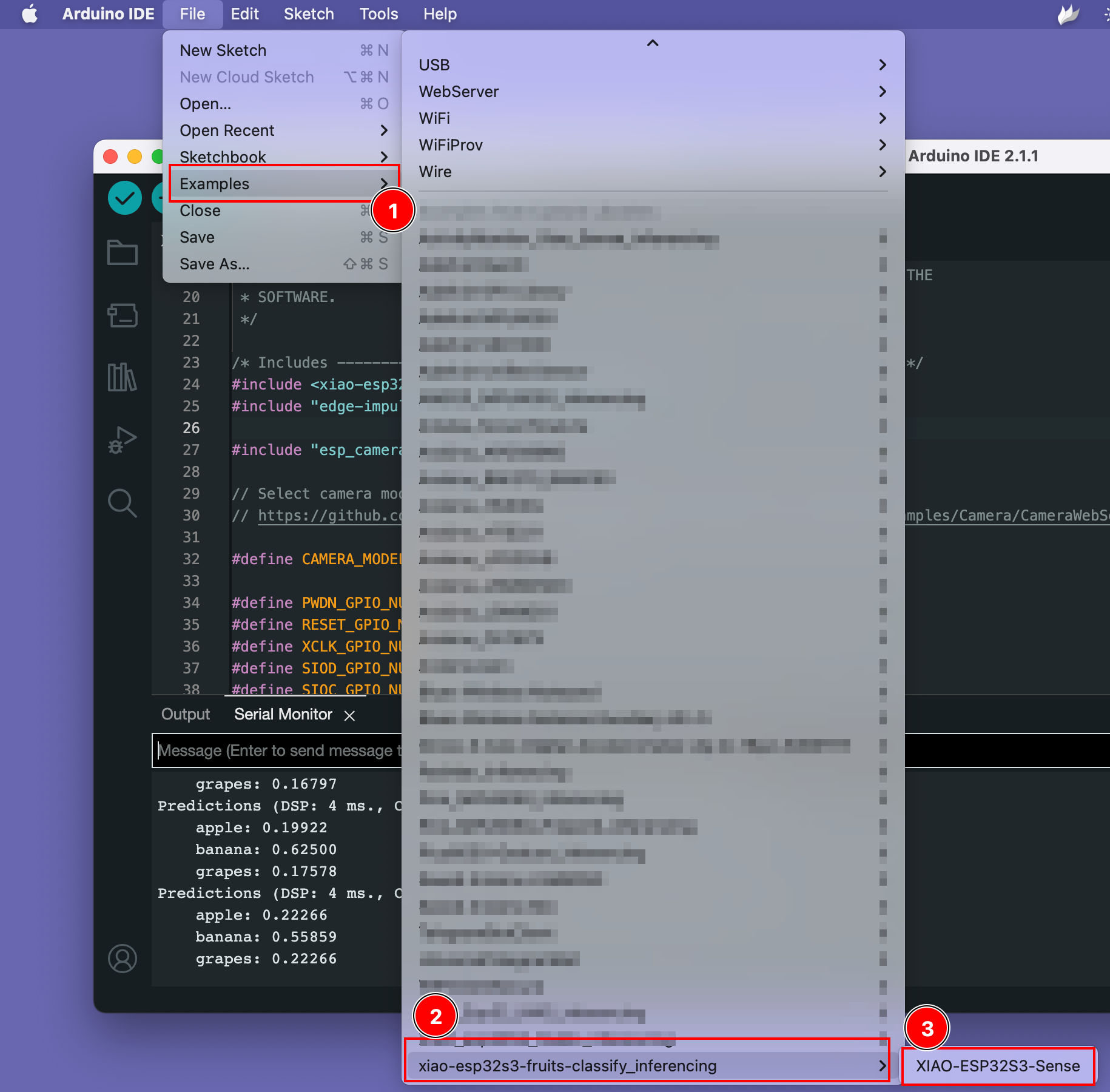
Você pode encontrar o sketch de exemplo em Files -> Examples -> xiao-esp323-fruits-classify_inferencing -> XIAO-ESP32S3-Sense
Teste a demonstração
Abra a página de amostras do conjunto de dados a partir de aqui e abra a imagem da fruta, depois aponte a câmera do XIAO ESP32S3 para a imagem da fruta e veja os resultados na tela.
A Fazer
- Instalar XIAO ESPS3 no Arduino
- Compilar e Enviar
- Instalar biblioteca KWS Arduino e executar o exemplo.
- Instalar biblioteca de Reconhecimento de Imagem e executar o exemplo.
Recursos
- [GITHUB] Modelos SenseCraft Model Assistant
- [GITHUB] Github do Projeto
- [EDGE-IMPULSE] demonstração de KWS no edge impulse
- [EDGE-IMPULSE] demonstração de classificação de frutas no edge impulse