Múltiplas Câmeras GMSL para Detecção de Objetos em Tempo Real e Reconstrução 3D no Jetson AGX Orin
Este wiki utilizará a reServer Industrial J501 Carrier Board com a placa de extensão GMSL para apresentar como implantar detecção de objetos em tempo real e reconstrução 3D em um sistema com múltiplas câmeras.
| Módulo NVIDIA Jetson AGX Orin | reServer Industrial J501 Carrier Board | Placa de extensão reServer Industrial J501-GMSL |
|---|---|---|
 |  |  |
Pré-requisitos
- Módulo NVIDIA Jetson AGX Orin 32GB/64GB
- Gravado com o JetPack 6.2 SDK mais recente (com suporte à placa de expansão GMSL)
- reServer Industrial J501 Carrier Board
- Placa de extensão reServer Industrial J501-GMSL
- GMSL Camera
Configuração da Câmera GMSL
Conexão de Hardware

Para obter a entrada da câmera GMSL, primeiro precisamos configurar os formatos dos serializadores e desserializadores. Adicione-os ao script de inicialização do sistema para que possam ser configurados automaticamente a cada vez que o sistema for iniciado.
Passo 1. Crie o script de configuração:
touch media-setup.sh
Passo 2. Cole o seguinte conteúdo em media-setup.sh:
#!/bin/bash
# Set Serializer & Deserializer Formats
media-ctl -d /dev/media0 --set-v4l2 '"ser_0_ch_0":1[fmt:YUYV8_1X16/1920x1536]'
media-ctl -d /dev/media0 --set-v4l2 '"ser_1_ch_1":1[fmt:YUYV8_1X16/1920x1536]'
media-ctl -d /dev/media0 --set-v4l2 '"ser_2_ch_2":1[fmt:YUYV8_1X16/1920x1536]'
media-ctl -d /dev/media0 --set-v4l2 '"ser_3_ch_3":1[fmt:YUYV8_1X16/1920x1536]'
media-ctl -d /dev/media0 --set-v4l2 '"ser_4_ch_0":1[fmt:YUYV8_1X16/1920x1536]'
media-ctl -d /dev/media0 --set-v4l2 '"ser_5_ch_1":1[fmt:YUYV8_1X16/1920x1536]'
media-ctl -d /dev/media0 --set-v4l2 '"ser_6_ch_2":1[fmt:YUYV8_1X16/1920x1536]'
media-ctl -d /dev/media0 --set-v4l2 '"ser_7_ch_3":1[fmt:YUYV8_1X16/1920x1536]'

media-ctl -d /dev/media0 --set-v4l2 '"des_0_ch_0":0[fmt:YUYV8_1X16/1920x1536]'
media-ctl -d /dev/media0 --set-v4l2 '"des_0_ch_1":0[fmt:YUYV8_1X16/1920x1536]'
media-ctl -d /dev/media0 --set-v4l2 '"des_0_ch_2":0[fmt:YUYV8_1X16/1920x1536]'
media-ctl -d /dev/media0 --set-v4l2 '"des_0_ch_3":0[fmt:YUYV8_1X16/1920x1536]'
media-ctl -d /dev/media0 --set-v4l2 '"des_1_ch_0":0[fmt:YUYV8_1X16/1920x1536]'
media-ctl -d /dev/media0 --set-v4l2 '"des_1_ch_1":0[fmt:YUYV8_1X16/1920x1536]'
media-ctl -d /dev/media0 --set-v4l2 '"des_1_ch_2":0[fmt:YUYV8_1X16/1920x1536]'
media-ctl -d /dev/media0 --set-v4l2 '"des_1_ch_3":0[fmt:YUYV8_1X16/1920x1536]'
Passo 3. Adicione permissão de execução ao media-setup.sh:
chmod +x media-setup.sh
Passo 4. Crie um serviço systemd:
sudo vim /etc/systemd/system/mediactl-init.service

# Add the following content:
[Unit]
Description=Set media-ctl formats at boot
After=multi-user.target

[Service]
Type=oneshot
ExecStart=/usr/local/bin/media-setup.sh
RemainAfterExit=true

[Install]
WantedBy=multi-user.target
Passo 5. Após salvar e sair, habilite o serviço:
sudo systemctl daemon-reexec
sudo systemctl daemon-reload
sudo systemctl enable mediactl-init.service
sudo systemctl start mediactl-init.service
Passo 5. Reinicie o dispositivo e verifique se o serviço está em execução:
sudo systemctl status mediactl-init.service

#Use the following command to quickly start the camera and open a window to display the video stream:
gst-launch-1.0 v4l2src device=/dev/video0  ! xvimagesink -ev
gst-launch-1.0 v4l2src device=/dev/video1  ! xvimagesink -ev
gst-launch-1.0 v4l2src device=/dev/video2  ! xvimagesink -ev
gst-launch-1.0 v4l2src device=/dev/video3  ! xvimagesink -ev
gst-launch-1.0 v4l2src device=/dev/video4  ! xvimagesink -ev
gst-launch-1.0 v4l2src device=/dev/video5  ! xvimagesink -ev
gst-launch-1.0 v4l2src device=/dev/video6  ! xvimagesink -ev
gst-launch-1.0 v4l2src device=/dev/video7  ! xvimagesink -ev

Nossa placa de extensão GMSL suporta até 8 entradas de vídeo de câmera e fornece uma precisão de timestamp PTP inferior a 1 ms para garantir a sincronização dos 8 fluxos de dados de vídeo.
Implantar rapidamente o YOLO11 para detecção de objetos em tempo real em oito câmeras
YOLOv11 é um modelo de detecção de objetos em tempo real lançado pela Ultralytics, oferecendo um poderoso equilíbrio entre velocidade, precisão e eficiência. Projetado com arquitetura aprimorada e estratégias de treinamento melhoradas, o YOLOv11 supera as versões anteriores tanto em desempenho quanto em flexibilidade de implantação. Ele é particularmente adequado para dispositivos de borda, sistemas autônomos e aplicações de IA industrial, suportando tarefas como detecção, segmentação e rastreamento com alta confiabilidade.
Instale o YOLO11 e execute a detecção de objetos em múltiplas câmeras
Passo 1. Baixe e instale os pacotes necessários:
Os pacotes a seguir foram compilados para o JetPack 6.2 com CUDA 12.6.
onnxruntime_gpu-1.22.0-cp310-cp310-linux_aarch64.whl
torch-2.7.0-cp310-cp310-linux_aarch64.whl
torchvision-0.22.0-cp310-cp310-linux_aarch64.whl
yolo11n-seg.pt pretrain weights
yolo11n-pose.pt pretrain weights
#Install the packages using pip:
sudo apt update
sudo apt install python3-pip -y
pip install -U pip
pip install onnxruntime_gpu-1.22.0-cp310-cp310-linux_aarch64.whl
pip install torch-2.7.0-cp310-cp310-linux_aarch64.whl
pip install torchvision-0.22.0-cp310-cp310-linux_aarch64.whl
pip install ultralytics
Exporte o modelo TensorRT:
yolo export model=./models/yolo11n.pt format=engine device=0 half=True dynamic=True
yolo export model=./models/yolo11n-seg.pt format=engine device=0 half=True dynamic=True
yolo export model=./models/yolo11n-pose.pt format=engine device=0 half=True dynamic=True
Executar o seguinte script em Python pode realizar rapidamente a detecção de objetos nas oito câmeras:
detect.py
import cv2
import time
import threading
import numpy as np
import torch
from ultralytics import YOLO

device = 'cuda' if torch.cuda.is_available() else 'cpu'
print(f"Using device: {device}")
model_detect = YOLO('./models/yolo11n.engine',task="detect")
model_seg = YOLO('./models/yolo11n-seg.engine',task="segment")
model_pose = YOLO('./models/yolo11n-pose.engine',task="pose")

camera_num = 8
frame_width, frame_height = 320, 240
frames = [np.zeros((frame_height, frame_width, 3), dtype=np.uint8) for _ in range(camera_num)]
locks = [threading.Lock() for _ in range(camera_num)]
running = True

def capture_thread(index):
    cap = cv2.VideoCapture(index)
    p_time = time.time()
    while running:
        detect_way = model_detect
        ret, frame = cap.read()
        frame_resized = cv2.resize(frame, (frame_width, frame_height))
        if index == 4 or index == 5:
            detect_way = model_seg
        if index ==6 or index == 7:
            detect_way = model_pose
        annotated = frame_resized.copy()
        results = detect_way.predict(
        source=frame_resized,
        device=device,
        verbose=False,
        stream=False,
        imgsz=640,
        conf=0.25
        )
        for r in results:
            annotated = r.plot()
        current_time = time.time()
        fps = 1 / (current_time - p_time)
        p_time = current_time
        cv2.putText(annotated, f"FPS: {fps:.2f}", (10, 25),
                        cv2.FONT_HERSHEY_SIMPLEX, 0.5, (0, 255, 255), 1, cv2.LINE_AA)

        with locks[index]:
            frames[index] = annotated

    cap.release()

def main():
    global running

    threads = []
    for i in range(camera_num):
        t = threading.Thread(target=capture_thread, args=(i,))
        t.start()
        threads.append(t)

    try:
        while True:
            frame_copy = []
            for i in range(camera_num):
                with locks[i]:
                    frame_copy.append(frames[i].copy())
            row1 = cv2.hconcat(frame_copy[:4])
            row2 = cv2.hconcat(frame_copy[4:8])
            result = cv2.vconcat([row1, row2])
            cv2.imshow("Multi-Camera", result)

            if cv2.waitKey(1) & 0xFF == ord('q'):
                break

    finally:
        running = False
        for t in threads:
            t.join()
        cv2.destroyAllWindows()

if __name__ == "__main__":
    main()
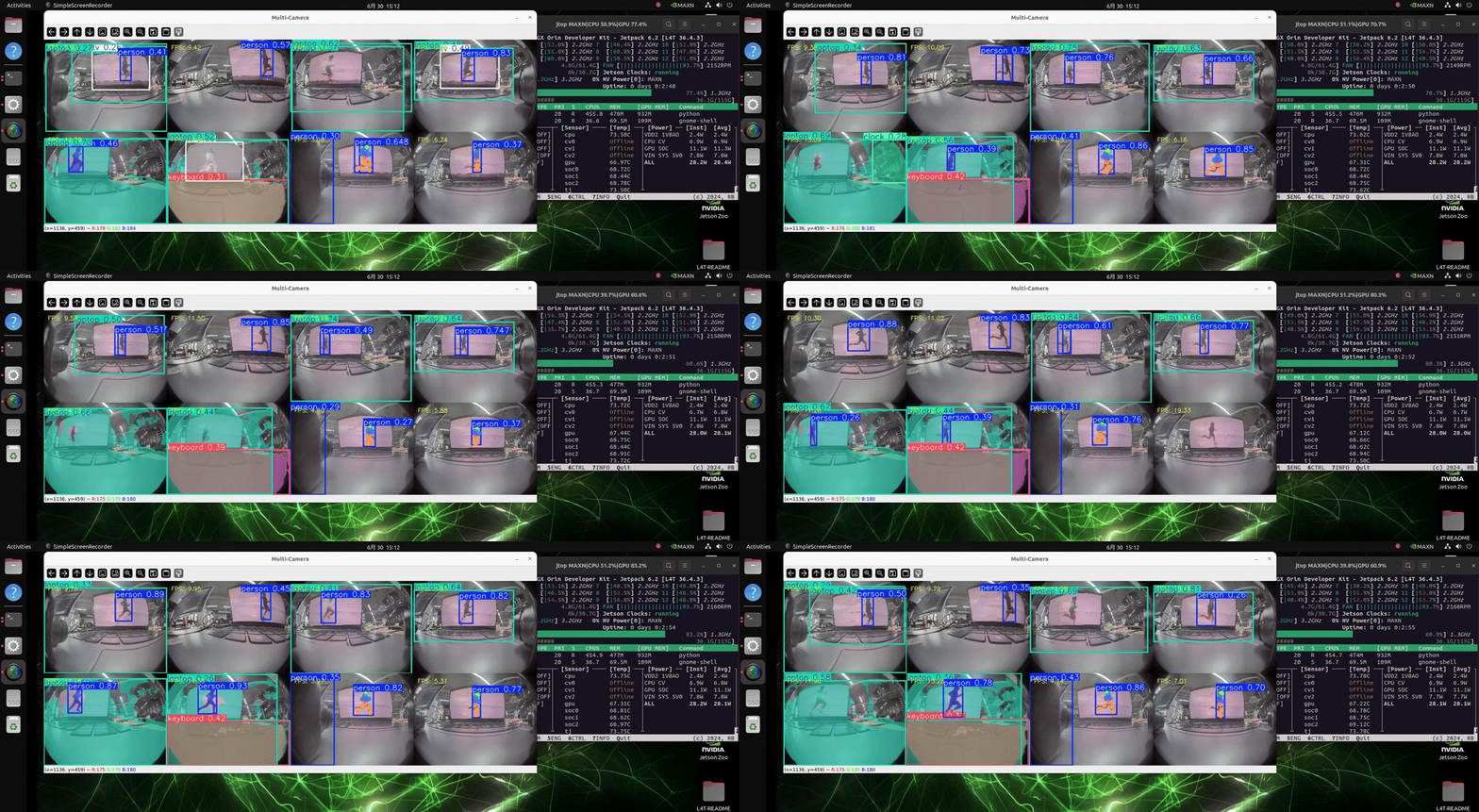
O J501 está equipado com o módulo NVIDIA AGX Orin, que conta com poder de computação extremamente alto. Ele pode lidar com até 8 câmeras e carregar modelos para três diferentes tarefas de detecção, possibilitando detecção de objetos em tempo real.
Implante rapidamente o VGGT para reconstrução 3D
VGGT é um modelo visão-linguagem projetado para compreensão e raciocínio 3D em ambientes complexos. Ele combina imagens de múltiplas visões e entradas de linguagem para gerar representações detalhadas de cenas 3D e responder a perguntas espaciais ou semânticas sobre o ambiente. Baseado em arquiteturas de transformer, o VGGT se destaca em tarefas como ancoragem visual, localização 3D de objetos e navegação guiada por linguagem, tornando-o altamente adequado para aplicações em robótica e IA incorporada.
Instale o ambiente VGGT e execute a reconstrução 3D com várias câmeras
git clone https://github.com/facebookresearch/vggt.git
cd vggt
pip install -r requirements.txt
pip install -r requirements_demo.txt
Execute o seguinte script para realizar rapidamente a reconstrução 3D em oito câmeras:
demo.py
import os
import glob
import time
import threading
import argparse
from typing import List, Optional

import numpy as np
import torch
from tqdm.auto import tqdm
import viser
import viser.transforms as viser_tf
import cv2
from PIL import Image
from defisheye import Defisheye

try:
    import onnxruntime
except ImportError:
    print("onnxruntime not found. Sky segmentation may not work.")

from visual_util import segment_sky, download_file_from_url
from vggt.models.vggt import VGGT
from vggt.utils.load_fn import load_and_preprocess_images
from vggt.utils.geometry import closed_form_inverse_se3, unproject_depth_map_to_point_map
from vggt.utils.pose_enc import pose_encoding_to_extri_intri


def viser_wrapper(
    pred_dict: dict,
    port: int = 8080,
    init_conf_threshold: float = 50.0,  # represents percentage (e.g., 50 means filter lowest 50%)
    use_point_map: bool = False,
    background_mode: bool = False,
    mask_sky: bool = False,
    image_folder: str = None,
):
    """
    Visualize predicted 3D points and camera poses with viser.

    Args:
        pred_dict (dict):
            {
                "images": (S, 3, H, W)   - Input images,
                "world_points": (S, H, W, 3),
                "world_points_conf": (S, H, W),
                "depth": (S, H, W, 1),
                "depth_conf": (S, H, W),
                "extrinsic": (S, 3, 4),
                "intrinsic": (S, 3, 3),
            }
        port (int): Port number for the viser server.
        init_conf_threshold (float): Initial percentage of low-confidence points to filter out.
        use_point_map (bool): Whether to visualize world_points or use depth-based points.
        background_mode (bool): Whether to run the server in background thread.
        mask_sky (bool): Whether to apply sky segmentation to filter out sky points.
        image_folder (str): Path to the folder containing input images.
    """
    print(f"Starting viser server on port {port}")

    server = viser.ViserServer(host="0.0.0.0", port=port)
    server.gui.configure_theme(titlebar_content=None, control_layout="collapsible")

    # Unpack prediction dict
    images = pred_dict["images"]  # (S, 3, H, W)
    world_points_map = pred_dict["world_points"]  # (S, H, W, 3)
    conf_map = pred_dict["world_points_conf"]  # (S, H, W)

    depth_map = pred_dict["depth"]  # (S, H, W, 1)
    depth_conf = pred_dict["depth_conf"]  # (S, H, W)

    extrinsics_cam = pred_dict["extrinsic"]  # (S, 3, 4)
    intrinsics_cam = pred_dict["intrinsic"]  # (S, 3, 3)

    # Compute world points from depth if not using the precomputed point map
    if not use_point_map:
        world_points = unproject_depth_map_to_point_map(depth_map, extrinsics_cam, intrinsics_cam)
        conf = depth_conf
    else:
        world_points = world_points_map
        conf = conf_map

    # Apply sky segmentation if enabled
    if mask_sky and image_folder is not None:
        conf = apply_sky_segmentation(conf, image_folder)

    # Convert images from (S, 3, H, W) to (S, H, W, 3)
    # Then flatten everything for the point cloud
    colors = images.transpose(0, 2, 3, 1)  # now (S, H, W, 3)
    S, H, W, _ = world_points.shape

    # Flatten
    points = world_points.reshape(-1, 3)
    colors_flat = (colors.reshape(-1, 3) * 255).astype(np.uint8)
    conf_flat = conf.reshape(-1)

    cam_to_world_mat = closed_form_inverse_se3(extrinsics_cam)  # shape (S, 4, 4) typically
    # For convenience, we store only (3,4) portion
    cam_to_world = cam_to_world_mat[:, :3, :]

    # Compute scene center and recenter
    scene_center = np.mean(points, axis=0)
    points_centered = points - scene_center
    cam_to_world[..., -1] -= scene_center

    # Store frame indices so we can filter by frame
    frame_indices = np.repeat(np.arange(S), H * W)

    # Build the viser GUI
    gui_show_frames = server.gui.add_checkbox("Show Cameras", initial_value=True)

    # Now the slider represents percentage of points to filter out
    gui_points_conf = server.gui.add_slider(
        "Confidence Percent", min=0, max=100, step=0.1, initial_value=init_conf_threshold
    )

    gui_frame_selector = server.gui.add_dropdown(
        "Show Points from Frames", options=["All"] + [str(i) for i in range(S)], initial_value="All"
    )

    # Create the main point cloud handle
    # Compute the threshold value as the given percentile
    init_threshold_val = np.percentile(conf_flat, init_conf_threshold)
    init_conf_mask = (conf_flat >= init_threshold_val) & (conf_flat > 0.1)
    point_cloud = server.scene.add_point_cloud(
        name="viser_pcd",
        points=points_centered[init_conf_mask],
        colors=colors_flat[init_conf_mask],
        point_size=0.001,
        point_shape="circle",
    )

    # We will store references to frames & frustums so we can toggle visibility
    frames: List[viser.FrameHandle] = []
    frustums: List[viser.CameraFrustumHandle] = []

    def visualize_frames(extrinsics: np.ndarray, images_: np.ndarray) -> None:
        """
        Add camera frames and frustums to the scene.
        extrinsics: (S, 3, 4)
        images_:    (S, 3, H, W)
        """
        # Clear any existing frames or frustums
        for f in frames:
            f.remove()
        frames.clear()
        for fr in frustums:
            fr.remove()
        frustums.clear()

        # Optionally attach a callback that sets the viewpoint to the chosen camera
        def attach_callback(frustum: viser.CameraFrustumHandle, frame: viser.FrameHandle) -> None:
            @frustum.on_click
            def _(_) -> None:
                for client in server.get_clients().values():
                    client.camera.wxyz = frame.wxyz
                    client.camera.position = frame.position

        img_ids = range(S)
        for img_id in tqdm(img_ids):
            cam2world_3x4 = extrinsics[img_id]
            T_world_camera = viser_tf.SE3.from_matrix(cam2world_3x4)

            # Add a small frame axis
            frame_axis = server.scene.add_frame(
                f"frame_{img_id}",
                wxyz=T_world_camera.rotation().wxyz,
                position=T_world_camera.translation(),
                axes_length=0.05,
                axes_radius=0.002,
                origin_radius=0.002,
            )
            frames.append(frame_axis)

            # Convert the image for the frustum
            img = images_[img_id]  # shape (3, H, W)
            img = (img.transpose(1, 2, 0) * 255).astype(np.uint8)
            h, w = img.shape[:2]

            # If you want correct FOV from intrinsics, do something like:
            # fx = intrinsics_cam[img_id, 0, 0]
            # fov = 2 * np.arctan2(h/2, fx)
            # For demonstration, we pick a simple approximate FOV:
            fy = 1.1 * h
            fov = 2 * np.arctan2(h / 2, fy)

            # Add the frustum
            frustum_cam = server.scene.add_camera_frustum(
                f"frame_{img_id}/frustum", fov=fov, aspect=w / h, scale=0.05, image=img, line_width=1.0
            )
            frustums.append(frustum_cam)
            attach_callback(frustum_cam, frame_axis)

    def update_point_cloud() -> None:
        """Update the point cloud based on current GUI selections."""
        # Here we compute the threshold value based on the current percentage
        current_percentage = gui_points_conf.value
        threshold_val = np.percentile(conf_flat, current_percentage)

        print(f"Threshold absolute value: {threshold_val}, percentage: {current_percentage}%")

        conf_mask = (conf_flat >= threshold_val) & (conf_flat > 1e-5)

        if gui_frame_selector.value == "All":
            frame_mask = np.ones_like(conf_mask, dtype=bool)
        else:
            selected_idx = int(gui_frame_selector.value)
            frame_mask = frame_indices == selected_idx

        combined_mask = conf_mask & frame_mask
        point_cloud.points = points_centered[combined_mask]
        point_cloud.colors = colors_flat[combined_mask]

    @gui_points_conf.on_update
    def _(_) -> None:
        update_point_cloud()

    @gui_frame_selector.on_update
    def _(_) -> None:
        update_point_cloud()

    @gui_show_frames.on_update
    def _(_) -> None:
        """Toggle visibility of camera frames and frustums."""
        for f in frames:
            f.visible = gui_show_frames.value
        for fr in frustums:
            fr.visible = gui_show_frames.value

    # Add the camera frames to the scene
    visualize_frames(cam_to_world, images)

    print("Starting viser server...")
    # If background_mode is True, spawn a daemon thread so the main thread can continue.
    if background_mode:

        def server_loop():
            while True:
                time.sleep(0.001)

        thread = threading.Thread(target=server_loop, daemon=True)
        thread.start()
    else:
        while True:
            time.sleep(0.01)

    return server


# Helper functions for sky segmentation


def apply_sky_segmentation(conf: np.ndarray, image_folder: str) -> np.ndarray:
    """
    Apply sky segmentation to confidence scores.

    Args:
        conf (np.ndarray): Confidence scores with shape (S, H, W)
        image_folder (str): Path to the folder containing input images

    Returns:
        np.ndarray: Updated confidence scores with sky regions masked out
    """
    S, H, W = conf.shape
    sky_masks_dir = image_folder.rstrip("/") + "_sky_masks"
    os.makedirs(sky_masks_dir, exist_ok=True)

    # Download skyseg.onnx if it doesn't exist
    if not os.path.exists("skyseg.onnx"):
        print("Downloading skyseg.onnx...")
        download_file_from_url("https://huggingface.co/JianyuanWang/skyseg/resolve/main/skyseg.onnx", "skyseg.onnx")

    skyseg_session = onnxruntime.InferenceSession("skyseg.onnx")
    image_files = sorted(glob.glob(os.path.join(image_folder, "*")))
    sky_mask_list = []

    print("Generating sky masks...")
    for i, image_path in enumerate(tqdm(image_files[:S])):  # Limit to the number of images in the batch
        image_name = os.path.basename(image_path)
        mask_filepath = os.path.join(sky_masks_dir, image_name)

        if os.path.exists(mask_filepath):
            sky_mask = cv2.imread(mask_filepath, cv2.IMREAD_GRAYSCALE)
        else:
            sky_mask = segment_sky(image_path, skyseg_session, mask_filepath)

        # Resize mask to match H×W if needed
        if sky_mask.shape[0] != H or sky_mask.shape[1] != W:
            sky_mask = cv2.resize(sky_mask, (W, H))

        sky_mask_list.append(sky_mask)

    # Convert list to numpy array with shape S×H×W
    sky_mask_array = np.array(sky_mask_list)
    # Apply sky mask to confidence scores
    sky_mask_binary = (sky_mask_array > 0.1).astype(np.float32)
    conf = conf * sky_mask_binary

    print("Sky segmentation applied successfully")
    return conf


parser = argparse.ArgumentParser(description="VGGT demo with viser for 3D visualization")
parser.add_argument(
    "--image_folder", type=str, default="examples/kitchen/images/", help="Path to folder containing images"
)
parser.add_argument("--use_point_map", action="store_true", help="Use point map instead of depth-based points")
parser.add_argument("--background_mode", action="store_true", help="Run the viser server in background mode")
parser.add_argument("--port", type=int, default=8080, help="Port number for the viser server")
parser.add_argument(
    "--conf_threshold", type=float, default=25.0, help="Initial percentage of low-confidence points to filter out"
)
parser.add_argument("--mask_sky", action="store_true", help="Apply sky segmentation to filter out sky points")


def main():
    """
    Main function for the VGGT demo with viser for 3D visualization.

    This function:
    1. Loads the VGGT model
    2. Processes input images from the specified folder
    3. Runs inference to generate 3D points and camera poses
    4. Optionally applies sky segmentation to filter out sky points
    5. Visualizes the results using viser

    Command-line arguments:
    --image_folder: Path to folder containing input images
    --use_point_map: Use point map instead of depth-based points
    --background_mode: Run the viser server in background mode
    --port: Port number for the viser server
    --conf_threshold: Initial percentage of low-confidence points to filter out
    --mask_sky: Apply sky segmentation to filter out sky points
    """
    args = parser.parse_args()
    device = "cuda" if torch.cuda.is_available() else "cpu"
    print(f"Using device: {device}")

    print("Initializing and loading VGGT model...")
    # model = VGGT.from_pretrained("facebook/VGGT-1B")

    model = VGGT()
    _URL = "https://huggingface.co/facebook/VGGT-1B/resolve/main/model.pt"
    model.load_state_dict(torch.hub.load_state_dict_from_url(_URL))

    model.eval()
    model = model.to(device)
    width=640
    height=480
    images = []
    camera_num = 8
    caps = [cv2.VideoCapture(i) for i in range(camera_num)]
    for cap in caps:
        ret, img = cap.read()
        img = cv2.resize(img, (width, height))
        obj = Defisheye(img)
        img = obj.convert(outfile=None)
        img = cv2.cvtColor(img, cv2.COLOR_BGR2RGB)
        img = Image.fromarray(img)
        images.append(img)
    images_tensor = load_and_preprocess_images(images).to(device)

    images = load_and_preprocess_images(images).to(device)
    print(f"Preprocessed images shape: {images.shape}")

    print("Running inference...")
    dtype = torch.bfloat16 if torch.cuda.get_device_capability()[0] >= 8 else torch.float16

    with torch.no_grad():
        with torch.cuda.amp.autocast(dtype=dtype):
            predictions = model(images)

    print("Converting pose encoding to extrinsic and intrinsic matrices...")
    extrinsic, intrinsic = pose_encoding_to_extri_intri(predictions["pose_enc"], images.shape[-2:])
    predictions["extrinsic"] = extrinsic
    predictions["intrinsic"] = intrinsic

    print("Processing model outputs...")
    for key in predictions.keys():
        if isinstance(predictions[key], torch.Tensor):
            predictions[key] = predictions[key].cpu().numpy().squeeze(0)  # remove batch dimension and convert to numpy

    if args.use_point_map:
        print("Visualizing 3D points from point map")
    else:
        print("Visualizing 3D points by unprojecting depth map by cameras")

    if args.mask_sky:
        print("Sky segmentation enabled - will filter out sky points")

    print("Starting viser visualization...")

    viser_server = viser_wrapper(
        predictions,
        port=args.port,
        init_conf_threshold=args.conf_threshold,
        use_point_map=args.use_point_map,
        background_mode=args.background_mode,
        mask_sky=args.mask_sky,
        image_folder=args.image_folder,
    )
    print("Visualization complete")


if __name__ == "__main__":
    main()
execute este script em python e abra o navegador para acessar o servidor viser. O tempo de carregamento do modelo vggt pode ser um pouco maior. Por favor, seja paciente e aguarde.
Se você estiver executando este script em um servidor remoto, substitua localhost pelo endereço IP do servidor.
http://localhost:8080

Como a câmera que estamos usando é uma câmera olho-de-peixe com forte distorção, a qualidade da imagem após a correção de distorção é ruim, o que afetará o resultado final da modelagem 3D. Se você usar uma câmera com menos distorção e maior qualidade de imagem, o efeito será melhorado.
Recursos
Suporte Técnico & Discussão de Produto
Obrigado por escolher nossos produtos! Estamos aqui para fornecer diferentes tipos de suporte para garantir que sua experiência com nossos produtos seja a mais tranquila possível. Oferecemos vários canais de comunicação para atender a diferentes preferências e necessidades.