LVGL para reTerminal

Introdução
LVGL fornece tudo o que você precisa para criar uma GUI embarcada com elementos gráficos fáceis de usar, belos efeitos visuais e baixo uso de memória. LVGL é uma biblioteca gráfica voltada para microcontroladores com recursos limitados. No entanto, é possível usá-la para criar GUIs embarcadas com microprocessadores de ponta e placas executando o sistema operacional Linux. Atualmente, há duas maneiras de fazer isso:
- Simulador para PC com biblioteca multiplataforma SDL 2
- simplesmente usando o dispositivo de frame buffer do Linux (normalmente /dev/fb0).
Neste artigo da Wiki usaremos o exemplo de simulador para PC com SDL2 e o modificaremos levemente para exibir a interface em tela cheia em vez de em uma janela.
Recursos
-
Poderosos blocos de construção: botões, gráficos, listas, controles deslizantes, imagens etc.
-
Motor gráfico avançado: animações, suavização de serrilhado, opacidade, rolagem suave, modos de mesclagem, etc.
-
Suporta vários dispositivos de entrada: tela sensível ao toque, mouse, teclado, codificador, botões etc.
-
Suporta múltiplas telas
-
Independente de hardware, pode ser usado com qualquer microcontrolador e display
-
Escalável para operar com pouca memória (64 kB de Flash, 16 kB de RAM)
-
Suporte multilíngue com tratamento UTF-8, CJK, bidirecional e suporte a escrita árabe
-
Elementos gráficos totalmente personalizáveis por meio de estilos semelhantes a CSS
-
SO, memória externa e GPU são suportados, mas não exigidos. (suporte embutido para STM32 DMA2D e NXP PXP e VGLite)
-
Renderização suave mesmo com um único frame buffer
-
Escrito em C e compatível com C++
-
Binding de Micropython expõe a API LVGL no Micropython
-
Simulador para desenvolver no PC sem hardware embarcado
-
Mais de 100 exemplos simples
-
Documentação e referências de API on-line e em PDF
Preparar ambiente de desenvolvimento
No reTerminal
No Raspberry Pi OS você pode instalar facilmente o SDL2 usando um terminal:
sudo apt-get update && sudo apt-get install build-essential libsdl2-dev cmake -y
Em seguida, clone o projeto do simulador e os submódulos relacionados:
git clone --recursive https://github.com/littlevgl/pc_simulator.git
No PC host
EdgeLine é um editor WYSIWYG para LVGL, que permite aos usuários criar interfaces e depois exportar código C/Micropython para uso no dispositivo-alvo. Atualmente está em estágio beta com funcionalidade limitada e disponível tanto para Windows quanto para Linux.
Versão para Windows: LINK Versão para Linux: LINK
Como o EdgeLine está em estágio beta, verifique a presença de versões mais novas no subfórum EdgeLine do fórum LVGL
Para a versão Linux, certifique-se de que Edgeline.x86_64 e server/micropython sejam executáveis. (chmod +x filename)
Depois disso, EdgeLine pode ser executado por
./Edgeline.x86_64
O código exportado não carrega nenhuma das telas por padrão, portanto você precisa chamar lv_scr_load(scr_name) manualmente na tela desejada.
Executar demos

Os seguintes passos podem ser usados com CMake em um Raspberry Pi OS.
Garanta que o CMake esteja instalado, ou seja, que o comando cmake funcione no terminal.
cd pc_simulator/
mkdir build
cd build.
cmake ..
make -j4
O binário estará em pc_simulator/build/bin/main e pode ser executado digitando esse comando:
DISPLAY=:0 ./bin/main
Isso exibirá a demonstração de widgets em modo de janela — para alterar para tela cheia, abra
pc_simulator/lv_drivers/sdl/sdl.c
and change #L344 to
static void window_create(monitor_t * m)
{
    m->window = SDL_CreateWindow("TFT Simulator",
                            SDL_WINDOWPOS_UNDEFINED, SDL_WINDOWPOS_UNDEFINED,
                            1280 , 720 , SDL_WINDOW_FULLSCREEN);       /*last param. SDL_WINDOW_BORDERLESS to hide borders*/
Additionally, change screen resolution in pc_simulator/lv_drv_conf.h #L90
/*-------------------
 *  Monitor of PC
 *-------------------*/
#ifndef USE_MONITOR
#  define USE_MONITOR         1
#endif

#if USE_MONITOR
#  define MONITOR_HOR_RES     1280
#  define MONITOR_VER_RES     720
Recompile and execute the binary to see demo application full screen!
make -j4
DISPLAY=:0 ./bin/main
If the touch direction is not correct, you need to change /boot/config.txt line 89 to dtoverlay=reTerminal,tp_rotate=0
Build your own GUI application

To see how can you build your own UI application for reTerminal with LVGL 8.0, you can have a look at the example code in this GitHub repository.
All the necessary components are imported and initialized in main.c, after that the main UI function is called. The UI description, callbacks and helper functions are located inside of lv_demo_reterminal_UI/lv_demo_reterminal_UI.c.
    tv = lv_tabview_create(lv_scr_act(), LV_DIR_TOP, tab_h);

    lv_obj_set_style_text_font(lv_scr_act(), font_normal, 0);

    lv_obj_t * tab_btns = lv_tabview_get_tab_btns(tv);
    lv_obj_set_style_pad_left(tab_btns, 0, 0);

    lv_obj_t * t1 = lv_tabview_add_tab(tv, "Assistant");
    lv_obj_t * t2 = lv_tabview_add_tab(tv, "Debug");
    lv_obj_t * t3 = lv_tabview_add_tab(tv, "Stats");
We create a Tabview widget on the active screen and populate it with three tabs: Assistant, Debug, and Stats.

The content of each tab is initialized separately in a corresponding function:
    assistant_create(t1);
    debug_create(t2);
    stats_create(t3);

    color_changer_create(tv);

    evdev_lis3dh_init();
Additionally color changer elements are created on the Tabview widget and built-in accelerometer is initialized. After that we create three timer callbacks with dummy input data:
    static uint32_t user_data = 10;
    lv_timer_t * time_timer = lv_timer_create(time_timer_cb, 1,  &user_data);
    lv_timer_t * system_timer = lv_timer_create(system_timer_cb, 500,  &user_data);
    lv_timer_t * accelerometer_timer = lv_timer_create(accelerometer_timer_cb, 50,  &user_data);
These are responsible for getting system time, system status (CPU, Mem, Disk Space, Ethernet current speed, etc) and accelerometer readings respectively. You can find these three callback functions at the bottom of the lv_demo_reterminal_UI.c.
void time_timer_cb(lv_timer_t * timer)
{

    time_t t = time(NULL);
    struct tm *local = localtime(&t);

    sprintf(timeString, "%02d:%02d:%02d", local->tm_hour, local->tm_min, local->tm_sec);
    sprintf(dateString, "%s\n%s %02d %04d", DAY[local->tm_wday], MONTH[local->tm_mon], local->tm_mday, local->tm_year + 1900);

    lv_label_set_text(clock_label, timeString);
    lv_label_set_text(date_label, dateString);

}

void system_timer_cb(lv_timer_t * timer)
{

    lv_meter_indicator_t *indic1 = timer->user_data;
    cpu_pct = 100 - lv_timer_get_idle();

    lv_mem_monitor_t mon;
    lv_mem_monitor(&mon);

    uint32_t used_size = mon.total_size - mon.free_size;;
    uint32_t used_kb = used_size / 1024;
    uint32_t used_kb_tenth = (used_size - (used_kb * 1024)) / 102;
    mem_pct = mon.used_pct;

    dsk_pct = get_available_space();
    eth0_num = get_current_network_speed();
    //light_num = get_light_sensor();

}

void accelerometer_timer_cb(lv_timer_t * timer)
{

    evdev_lis3dh_read(&data);

    lv_chart_set_next_value(chart1, x_ser, data.x_val);
    lv_chart_set_next_value(chart1, y_ser, data.y_val);
    lv_chart_set_next_value(chart1, z_ser, data.z_val);

}
For your particular application it might be more suitable to use other widgets, than Tabview. You can consult full description of LVGL 8.0 widgets for usage and examples.
If you decide to follow our demo application closely when creating your first UI application with LVGL for reTerminal, below you can find more detailed information about what happens inside of one of these functions (assistant_create()). Your workflow for creating new applications will be similar:
- Initialize widgets on the screen(s)
- Create timer-based or event-based callback to obtain the data from sensors/system
- Change the content of widgets based on data - normally that is done using global variables declared at the top of the code
assistant_create We create a panel object for the tab and set its height.
    lv_obj_t * panel1 = lv_obj_create(parent);
    lv_obj_set_height(panel1, lv_pct(100));

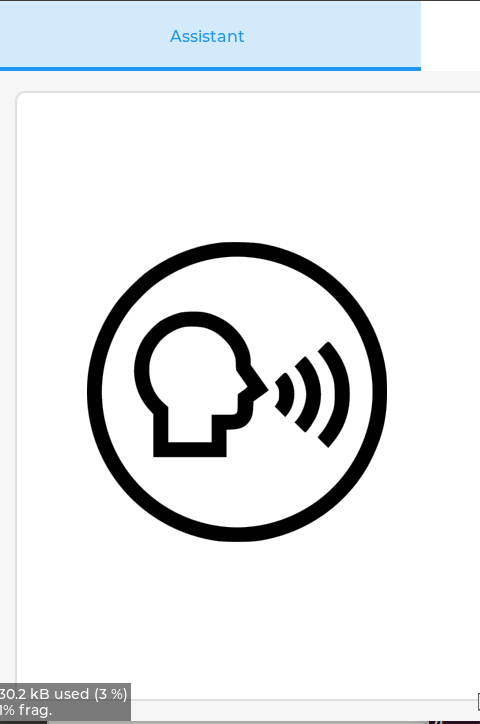
Then we create an image button object from C array located in assets folder, obtained with LVGL image conversion tool. We also initialize and assign button press style transformation to the image button object (button becomes green on press). Additionally an event callback speech_event_cb is assigned to button press - since it is just a mock example, that will only print out a text in the terminal. But in real application it can be used to start Intelligent Assistant.
    LV_IMG_DECLARE(speech_btn_img);

    /*Crie uma animação de transição na transformação de largura e recoloração.*/
    static lv_style_prop_t tr_prop[] = {LV_STYLE_IMG_RECOLOR_OPA, 0};
    static lv_style_transition_dsc_t tr;
    lv_style_transition_dsc_init(&tr, tr_prop, lv_anim_path_linear, 500, 0, NULL);

    static lv_style_t style_def;
    lv_style_init(&style_def);
    lv_style_set_text_color(&style_def, lv_color_white());
    lv_style_set_transition(&style_def, &tr);

    /*Escureça o botão quando pressionado e torne-o mais largo*/
    static lv_style_t style_pr;
    lv_style_init(&style_pr);
    lv_style_set_img_recolor_opa(&style_pr, LV_OPA_70);
    lv_style_set_img_recolor(&style_pr, lv_palette_main(LV_PALETTE_GREEN));

    /*Crie um botão de imagem*/
    lv_obj_t * speech_btn = lv_imgbtn_create(panel1);
    lv_imgbtn_set_src(speech_btn, LV_IMGBTN_STATE_RELEASED, NULL, &speech_btn_img, NULL);
    //lv_img_set_zoom(speech_btn, 128);
    lv_obj_set_size(speech_btn, 300, 300);
    lv_obj_add_event_cb(speech_btn, speech_event_cb, LV_EVENT_ALL, NULL);
    lv_obj_add_style(speech_btn, &style_def, 0);
    lv_obj_add_style(speech_btn, &style_pr, LV_STATE_PRESSED);
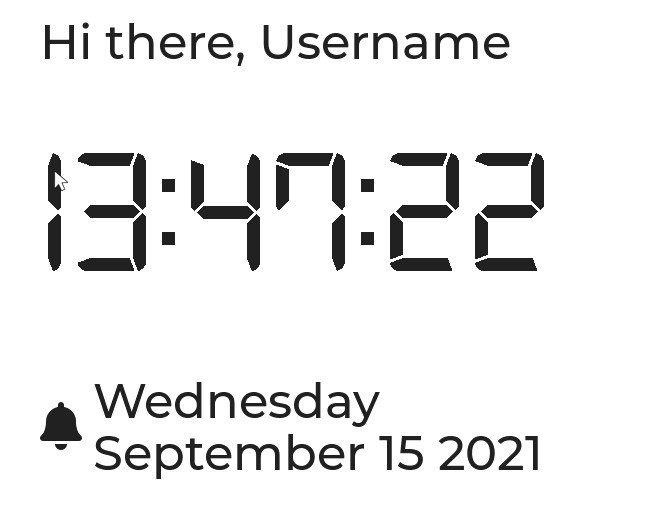
In the next code block we create text labels for time, date, user greeting. These are initialized with default text, which will be changed in time_timer callback every second.
    lv_obj_t * name = lv_label_create(panel1);
    lv_label_set_text(name, "Olá, Nome de Usuário");
    lv_obj_add_style(name, &style_large, 0);

    clock_label = lv_label_create(panel1);
    lv_obj_add_style(clock_label, &style_clock, 0);
    lv_label_set_text(clock_label, timeString);
    lv_label_set_long_mode(clock_label, LV_LABEL_LONG_WRAP);

    lv_obj_t * time_icn = lv_label_create(panel1);
    lv_obj_add_style(time_icn, &style_large, 0);
    lv_label_set_text(time_icn, LV_SYMBOL_BELL);

    date_label = lv_label_create(panel1);
    lv_label_set_text(date_label, dateString);
    lv_obj_add_style(date_label, &style_large, 0);
Finally, we structure the widgets we placed in this tab using Grid layout. The Grid layout is a subset of CSS Flexbox.
It can arrange items into a 2D "table" that has rows or columns (tracks). The item can span through multiple columns or rows. The track's size can be set in pixel, to the largest item (LV_GRID_CONTENT) or in "Free unit" (FR) to distribute the free space proportionally.
To make an object a grid container call lv_obj_set_layout(obj, LV_LAYOUT_GRID).
Note that the grid layout feature of LVGL needs to be globally enabled with LV_USE_GRID in lv_conf.h.
You can read about Layouts in LVGL in more detail by following this link.
    static lv_coord_t grid_main_col_dsc[] = {LV_GRID_FR(1), LV_GRID_FR(1), LV_GRID_TEMPLATE_LAST};
    static lv_coord_t grid_main_row_dsc[] = {LV_GRID_CONTENT, LV_GRID_CONTENT, LV_GRID_TEMPLATE_LAST};

    /*Crie o painel superior*/
    static lv_coord_t grid_1_col_dsc[] = {400, 50, LV_GRID_CONTENT, LV_GRID_FR(2), LV_GRID_FR(1), LV_GRID_FR(1), LV_GRID_TEMPLATE_LAST};
    static lv_coord_t grid_1_row_dsc[] = {200, 100, 100, LV_GRID_CONTENT, 10, LV_GRID_CONTENT, LV_GRID_CONTENT, LV_GRID_TEMPLATE_LAST};

    lv_obj_set_grid_dsc_array(parent, grid_main_col_dsc, grid_main_row_dsc);

    lv_obj_set_grid_cell(panel1, LV_GRID_ALIGN_STRETCH, 0, 2, LV_GRID_ALIGN_CENTER, 0, 1);

    lv_obj_set_grid_dsc_array(panel1, grid_1_col_dsc, grid_1_row_dsc);
    lv_obj_set_grid_cell(speech_btn, LV_GRID_ALIGN_CENTER, 0, 1, LV_GRID_ALIGN_CENTER, 0, 5);
    lv_obj_set_grid_cell(name, LV_GRID_ALIGN_START, 2, 2, LV_GRID_ALIGN_CENTER, 0, 1);
    lv_obj_set_grid_cell(clock_label, LV_GRID_ALIGN_STRETCH, 2, 4, LV_GRID_ALIGN_START, 1, 1);
    lv_obj_set_grid_cell(time_icn, LV_GRID_ALIGN_CENTER, 2, 1, LV_GRID_ALIGN_CENTER, 3, 1);
    lv_obj_set_grid_cell(date_label, LV_GRID_ALIGN_START, 3, 1, LV_GRID_ALIGN_CENTER, 3, 1);
The rest of the tabs have different widgets, but overall workflow is the same. If you need to find more about parameters or usage of a specific widget, consult LVGL documentation.
To compile the application, from your project folder (containing main.c source file)
mkdir build
cd build.
cmake ..
make -j4
The binary will be in ../bin/main, and can be run by typing that command:
DISPLAY=:0 ./../bin/main
If you add other folders to the project, make sure you change CMakeLists.txt accordingly and re-run cmake .. from build directory, otherwise you'll run into linking errors.
Resources
- [GitHub] LVGL
- [Webpage] Official LVGL Documentation
- [GitHub] PC Simulator Source Code
Tech Support & Product Discussion
Thank you for choosing our products! We are here to provide you with different support to ensure that your experience with our products is as smooth as possible. We offer several communication channels to cater to different preferences and needs.