Multiplexação de pinos com XIAO STM32C5
Visão geral
O XIAO STM32C5 possui recursos abundantes de pinos e oferece suporte nativo ao desenvolvimento com várias interfaces periféricas padrão, incluindo Digital, Analógica, SPI e IIC. Este artigo demonstra implementações relevantes com casos de aplicação prática.
Este tutorial foi desenvolvido com base no sistema de build PlatformIO e no Zephyr RTOS. Se você não estiver familiarizado com a criação de um projeto para o XIAO STM32C5 no PlatformIO, você pode ir para Getting Started With Seeed Studio XIAO STM32C5
Digital
Os pinos digitais realizam principalmente o controle liga-desliga de sensores e atuadores externos, por meio da saída de níveis lógicos alto e baixo. Combinado com a placa de expansão Grove Base for XIAO e módulos periféricos Grove padrão, esta seção detalha a lógica de driver de baixo nível e os métodos práticos de invocação dos pinos digitais no XIAO STM32C5.
Preparação de hardware
| Seeed Studio XIAO STM32C5 | Seeed Studio Grove Base for XIAO | Grove - LED Pack |
|---|---|---|
 |  |  |
Preparação de software
De acordo com o pinout do XIAO STM32C5, D1 pode ser selecionado como o pino de controle para o Grove - LED Pack
- Para o pinout do XIAO STM32C5, clique em XIAO STM32C5 Pin List para ver os detalhes.
Escreva o programa para main.c
/*
 * Copyright (c) 2026 Seeed Technology Co., Ltd.
 * SPDX-License-Identifier: Apache-2.0
 *
 * Blinky example for XIAO STM32C5 with TinyUF2 bootloader support.
 * Based on Zephyr samples/basic/blinky.
 *
 * The 1200-bps UF2 bootloader trigger is armed automatically by the
 * board support package — no code changes needed in this example.
 */

#include <zephyr/kernel.h>
#include <zephyr/drivers/gpio.h>

#define SLEEP_TIME_MS 1000

#define D1_PIN 1

static const struct device *const d1_gpio = DEVICE_DT_GET(DT_NODELABEL(gpioa));

int main(void)
{
	int ret;
	bool led_state = true;

	if (!device_is_ready(d1_gpio)) {
		return 0;
	}

	ret = gpio_pin_configure(d1_gpio, D1_PIN, GPIO_OUTPUT_ACTIVE);
	if (ret < 0) {
		return 0;
	}

	while (1) {
		ret = gpio_pin_toggle(d1_gpio, D1_PIN);
		if (ret < 0) {
			return 0;
		}

		led_state = !led_state;
		printk("LED state: %s\n", led_state ? "ON" : "OFF");
		k_msleep(SLEEP_TIME_MS);
	}

	return 0;
}
Resultado
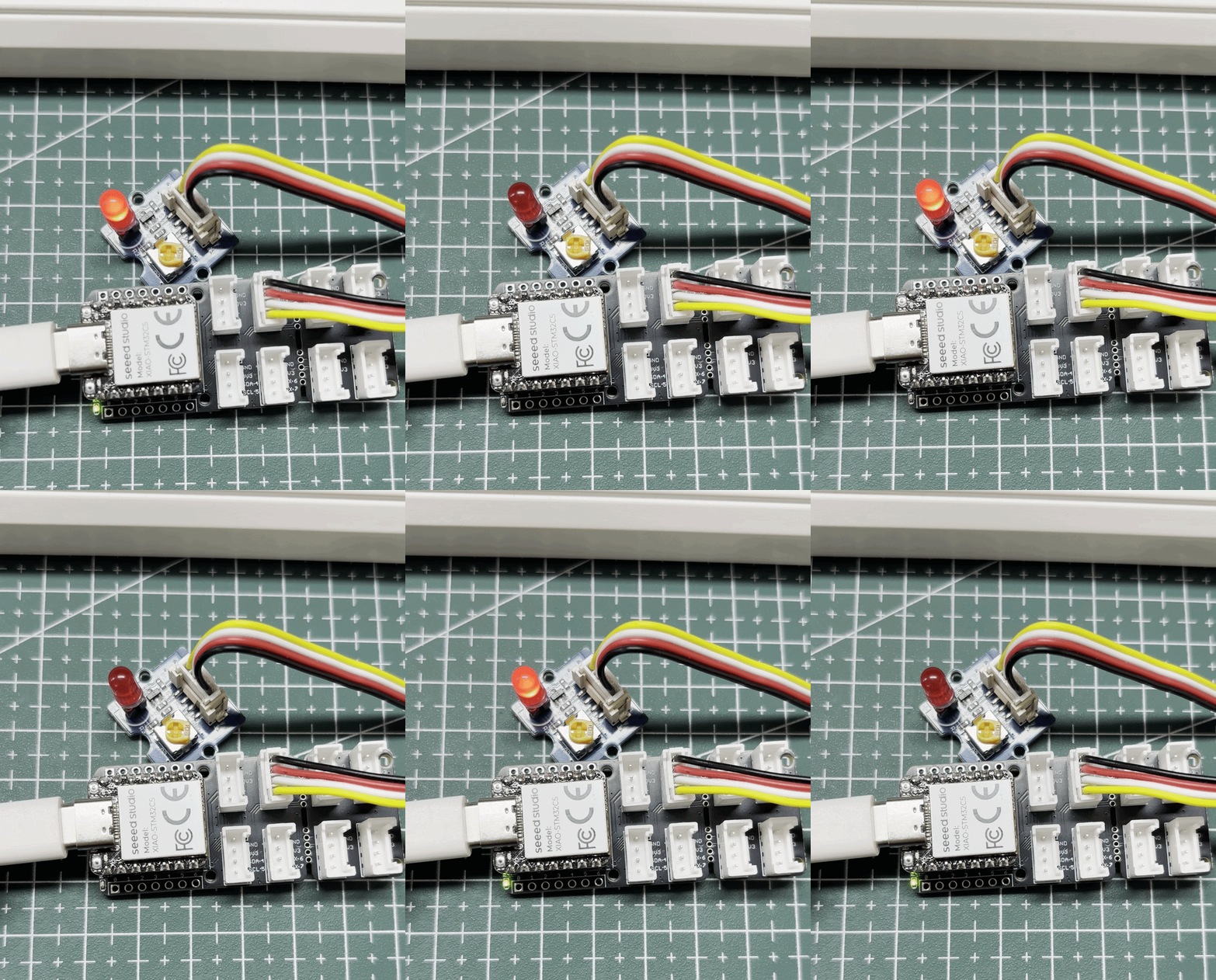
Após gravar o firmware, o LED vermelho pisca.
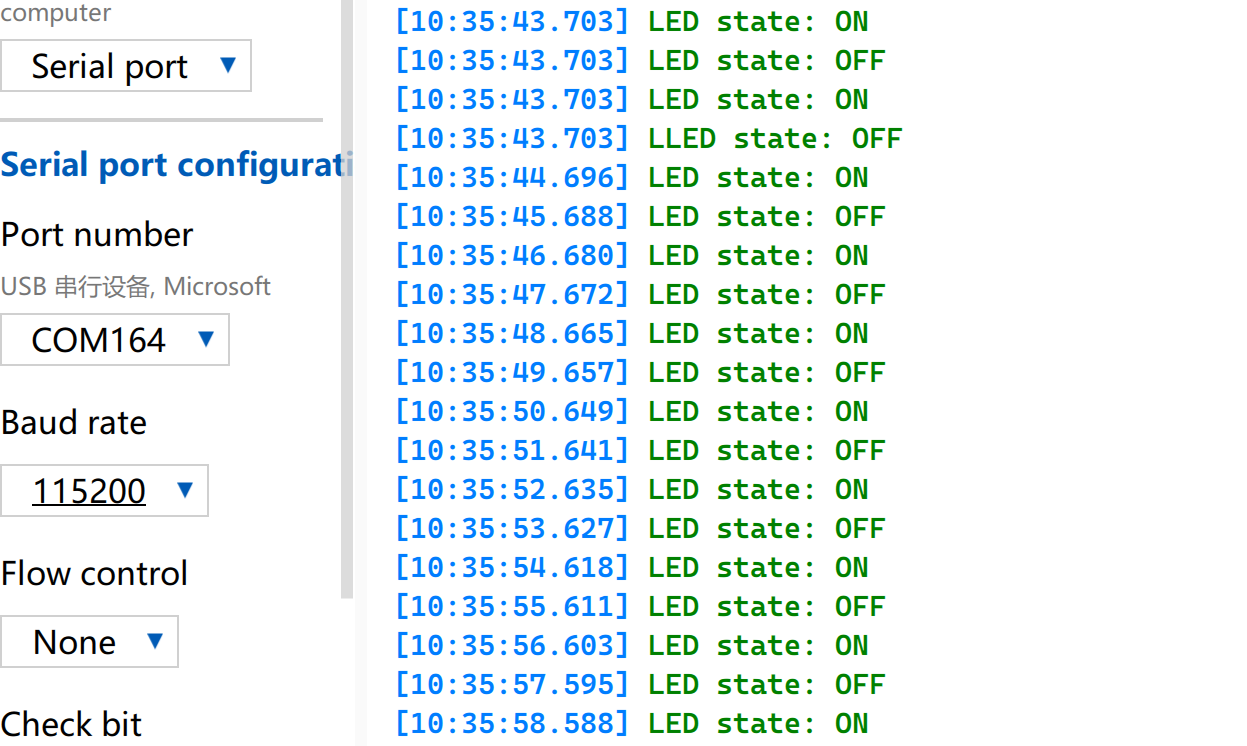
Abra o Serial Monitor e defina a taxa de baud para 115200.
PWM
PWM é uma função de saída de forma de onda temporizada implementada com base em GPIOs de saída digital. Ela alterna rapidamente os níveis do pino em uma frequência fixa e ajusta dinamicamente o ciclo de trabalho do nível alto dentro de um único ciclo, de modo a fornecer sinais analógicos equivalentes para os periféricos. Em aplicações de engenharia prática, o PWM é amplamente utilizado para controle preciso de ângulo de servomotores e ajuste suave de brilho de LEDs.
Acionar um servomotor
Preparação de hardware
| Seeed Studio XIAO STM32C5 | Seeed Studio Grove Base for XIAO | Grove - Servo |
|---|---|---|
| |  |
Preparação de software
De acordo com o pinout do XIAO STM32C5, D0 pode ser selecionado como o pino de controle para o Grove-Servo.
- Para o pinout do XIAO STM32C5, clique em XIAO STM32C5 Pin List para ver os detalhes.
- Modifique o arquivo
app.overlay. No XIAO STM32C5, D0 corresponde ao pino PA0. Ao configurar o PA0 como a função alternativa AF1 no DeviceTree, o TIM2_CH1 pode ser usado para gerar um sinal PWM.
app.overlay
#include <zephyr/dt-bindings/pwm/pwm.h>

&{/pwmleds} {
	servo: servo {
		pwms = <&pwm2 1 PWM_MSEC(20) PWM_POLARITY_NORMAL>;
	};
};

&timers2 {
	st,prescaler = <143>;
	status = "okay";

	pwm2: pwm {
		pinctrl-0 = <&tim2_ch1_pa0>;
		pinctrl-names = "default";
		status = "okay";
	};
};
- Modifique o arquivo
prj.confpara habilitar as configurações PWM relevantes.
CONFIG_PWM=y
- Escreva o programa main.c para implementar a função de controle do servo por PWM e configurar parâmetros como o período do PWM.
main.c
#include <zephyr/kernel.h>
#include <zephyr/device.h>
#include <zephyr/drivers/pwm.h>
#include <zephyr/sys/printk.h>

#define SERVO_PERIOD_NS PWM_MSEC(20)
#define SERVO_MIN_NS PWM_USEC(500)
#define SERVO_MAX_NS PWM_USEC(2500)
#define SERVO_CHANNEL 1
#define STEP_FWD_MS 10
#define STEP_RET_MS 30

static const struct device *pwm_dev = DEVICE_DT_GET(DT_NODELABEL(pwm2));

static int set_angle(int degrees)
{
	uint32_t pulse = SERVO_MIN_NS +
		(uint32_t)((uint64_t)degrees *
		(SERVO_MAX_NS - SERVO_MIN_NS) / 180U);

	return pwm_set(pwm_dev, SERVO_CHANNEL, SERVO_PERIOD_NS, pulse,
		PWM_POLARITY_NORMAL);
}

int main(void)
{
	printk("=== boot ===\n");

	if (!device_is_ready(pwm_dev)) {
		printk("Error: PWM device not ready\n");
		return -1;
	}

	printk("Servo control started on D0\n");

	while (1) {
		for (int angle = 0; angle <= 180; angle++) {
			if (set_angle(angle)) {
				printk("PWM error at %d deg\n", angle);
			} else {
				printk("Angle: %d deg\n", angle);
			}
			k_msleep(STEP_FWD_MS);
		}

		for (int angle = 180; angle >= 0; angle--) {
			if (set_angle(angle)) {
				printk("PWM error at %d deg\n", angle);
			} else {
				printk("Angle: %d deg\n", angle);
			}
			k_msleep(STEP_RET_MS);
		}
	}

	return 0;
}
Resultado
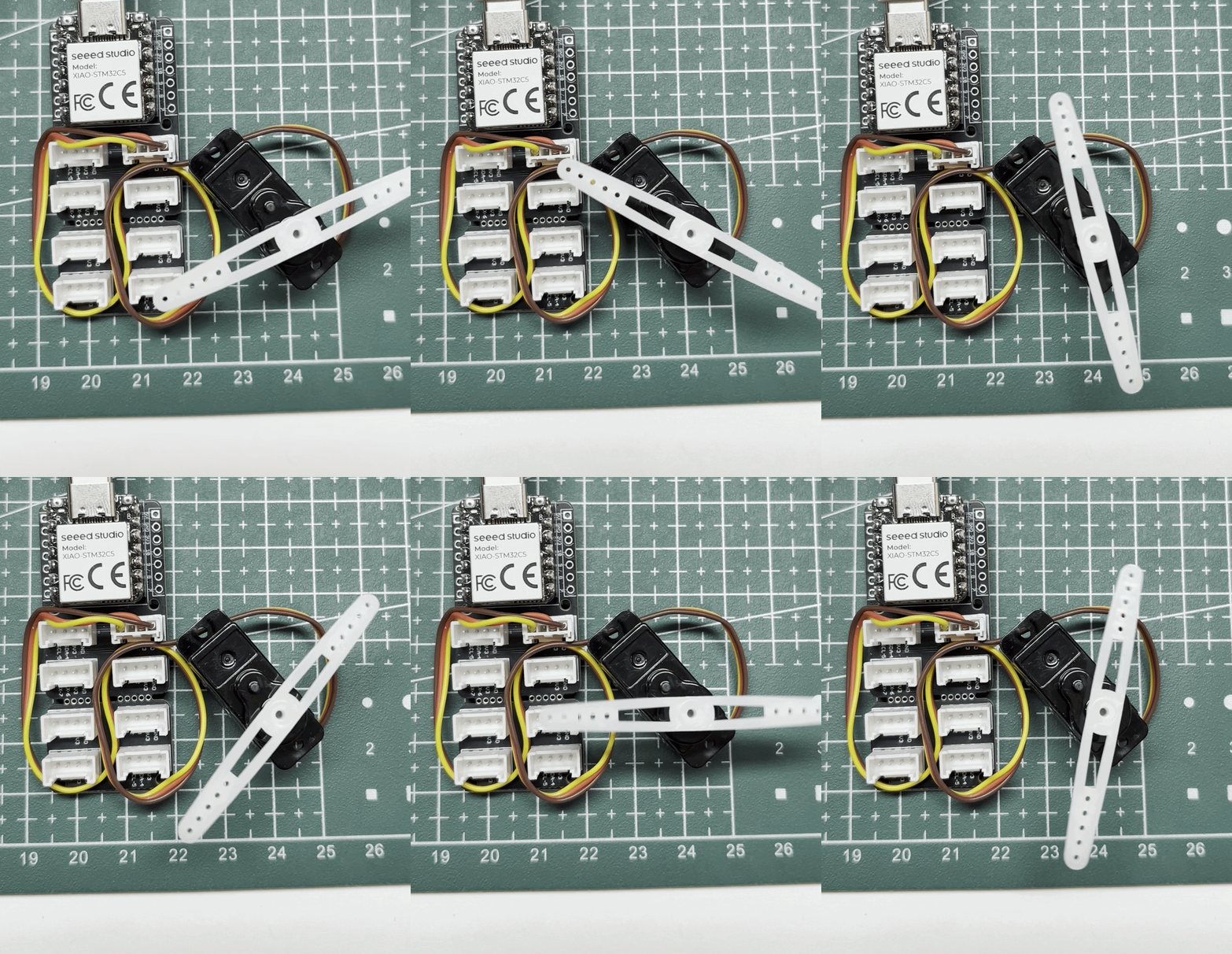
O ângulo comandado avança 1° a cada 10 ms de 0° a 180°, depois diminui 1° a cada 30 ms. A velocidade real de movimento depende do servo.
Controlar um buzzer
A Seeed Studio Expansion Board Base for XIAO está equipada com um buzzer eletromagnético passivo onboard que pode ser acionado por sinais PWM. Ajustando a frequência, o ciclo de trabalho e o tempo de saída do PWM, é possível controlar o tom, o volume e a duração do som do buzzer, permitindo assim funções como sons de aviso de tecla, alertas de status e alarmes.
Preparação de hardware
| Seeed Studio XIAO STM32C5 | Seeed Studio Expansion Board Base for XIAO |
|---|---|
|  |
Preparação de software
- Para o pinout do XIAO STM32C5, clique em XIAO STM32C5 Pin List para ver os detalhes.
- Modifique o arquivo
app.overlay. No XIAO STM32C5, A3/D3 corresponde ao pino PA3, que está conectado ao buzzer eletromagnético passivo LET5020CS-03L onboard por meio de um MOSFET 2N7002PW na Seeed Studio Expansion Board Base for XIAO. Configurando o PA3 como função alternativa AF1 no DeviceTree, o TIM2_CH4 pode gerar um sinal PWM de 4 kHz com período de 250 μs e ciclo de trabalho de 50% para acionar o buzzer.
app.overlay
#include <zephyr/dt-bindings/gpio/gpio.h>
#include <zephyr/dt-bindings/input/input-event-codes.h>
#include <zephyr/dt-bindings/pwm/pwm.h>

/ {
	buttons {
		compatible = "gpio-keys";

		expansion_button: button {
			gpios = <&xiao_d 1 (GPIO_PULL_UP | GPIO_ACTIVE_LOW)>;
			zephyr,code = <INPUT_KEY_0>;
		};
	};

	pwmleds {
		compatible = "pwm-leds";

		expansion_buzzer: buzzer {
			/* LET5020CS-03L: 4 kHz resonant frequency. */
			pwms = <&pwm2 4 PWM_USEC(250) PWM_POLARITY_NORMAL>;
		};
	};

	aliases {
		sw1 = &expansion_button;
		buzzer = &expansion_buzzer;
	};
};

&timers2 {
	st,prescaler = <143>;
	status = "okay";

	pwm2: pwm {
		pinctrl-0 = <&tim2_ch4_pa3>;
		pinctrl-names = "default";
		status = "okay";
	};
};
- Modifique o arquivo
prj.confpara habilitar as configurações relevantes de PWM.
CONFIG_GPIO=y
CONFIG_PWM=y
- Modifique o programa main.c.
main.c
/*
 * Copyright (c) 2026 Seeed Technology Co., Ltd.
 * SPDX-License-Identifier: Apache-2.0
 *
 * Expansion Board Base for XIAO buzzer demo:
 * press the onboard button (D1) to sound the onboard buzzer (A3/D3).
 */

#include <zephyr/kernel.h>
#include <zephyr/drivers/gpio.h>
#include <zephyr/drivers/pwm.h>
#include <zephyr/sys/printk.h>

static const struct gpio_dt_spec button =
	GPIO_DT_SPEC_GET(DT_ALIAS(sw1), gpios);
static const struct pwm_dt_spec buzzer =
	PWM_DT_SPEC_GET(DT_ALIAS(buzzer));

int main(void)
{
	bool buzzer_on = false;
	int ret;

	if (!gpio_is_ready_dt(&button) || !pwm_is_ready_dt(&buzzer)) {
		printk("Button or buzzer device not ready\n");
		return -1;
	}

	ret = gpio_pin_configure_dt(&button, GPIO_INPUT);
	if (ret < 0) {
		printk("Button configuration failed: %d\n", ret);
		return ret;
	}

	ret = pwm_set_dt(&buzzer, buzzer.period, 0);
	if (ret < 0) {
		printk("Buzzer configuration failed: %d\n", ret);
		return ret;
	}

	printk("Press the D1 button to sound the A3 buzzer\n");

	while (1) {
		int pressed = gpio_pin_get_dt(&button);

		if (pressed < 0) {
			printk("Button read failed: %d\n", pressed);
			return pressed;
		}

		if ((pressed != 0) != buzzer_on) {
			ret = pwm_set_dt(&buzzer, buzzer.period,
					 pressed ? buzzer.period / 2U : 0U);
			if (ret < 0) {
				printk("Buzzer control failed: %d\n", ret);
				return ret;
			}

			buzzer_on = pressed != 0;
			printk("Buzzer: %s\n", buzzer_on ? "ON" : "OFF");
		}

		k_msleep(20);
	}
}
Resultado
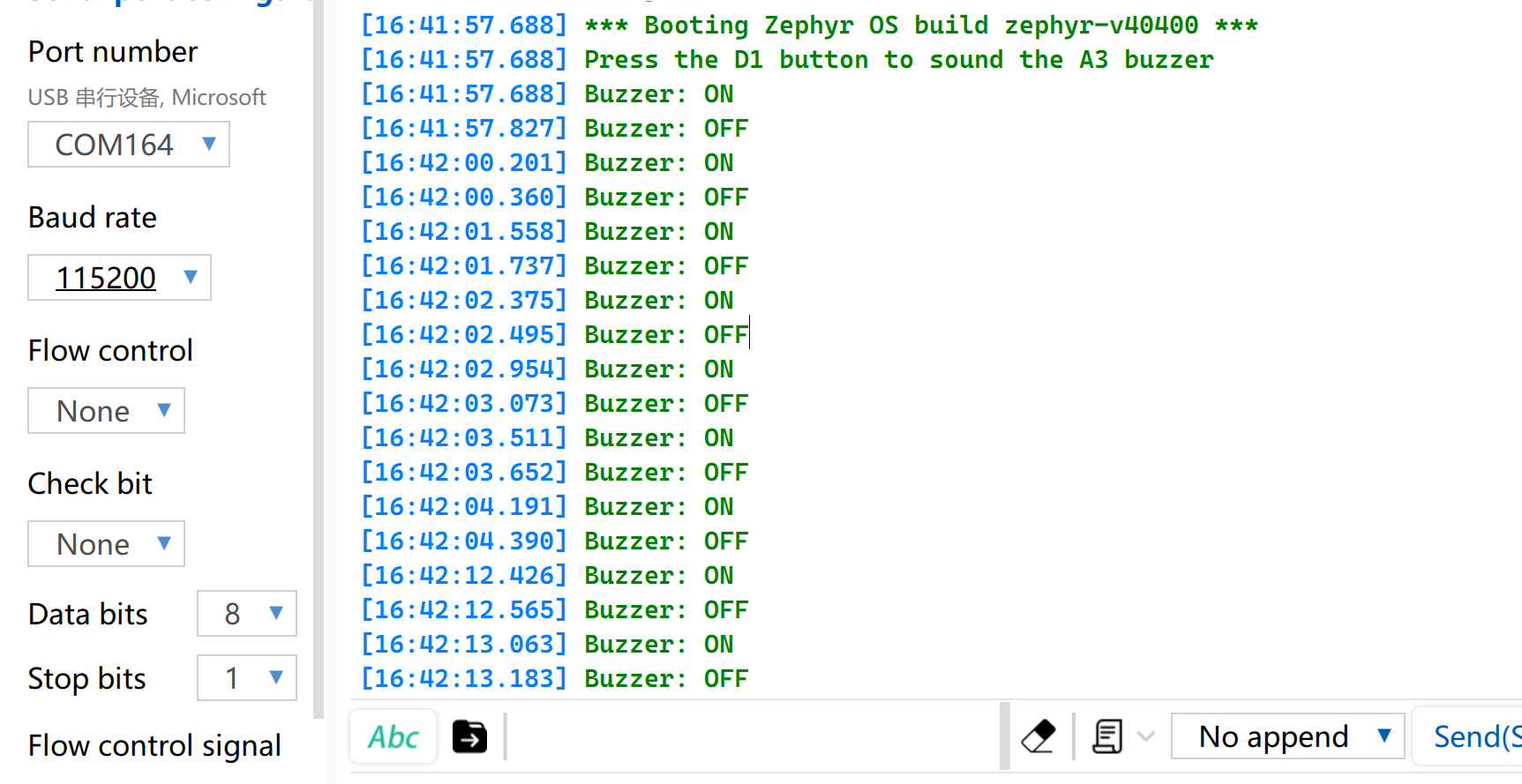
Quando o botão na Seeed Studio Expansion Board Base for XIAO for pressionado, o buzzer irá soar. Abra o Serial Monitor e defina a taxa de baud para 115200, e o status correspondente será impresso.
Analógico
A E/S analógica é baseada em um conversor analógico-digital (ADC) e é usada principalmente para capturar sinais contínuos de tensão analógica fornecidos por sensores externos. Após obter os valores digitais de amostragem brutos (Raw Data), eles podem ser mapeados para valores reais de medição de engenharia usando algoritmos específicos de conversão linear ou não linear. Essa função é amplamente utilizada em cenários como amostragem de tensão de bateria e monitoramento em tempo real de grandezas físicas, incluindo umidade do solo e temperatura ambiente.
Preparação de hardware
| Seeed Studio XIAO STM32C5 | Seeed Studio Grove Base for XIAO | Grove - Capacitive Soil Moisture Sensor |
|---|---|---|
| |  |
Preparação de software
- Modifique o arquivo
app.overlay. No DTS em nível de placa do XIAO STM32C5, A0 já está totalmente configurado como PA0, canal 0 do ADC1, com resolução de 12 bits. Portanto, emapp.overlay,zephyr,userdeve referenciar o canal 0 do ADC1.
/ {
	zephyr,user {
		io-channels = <&adc1 0>;
	};
};
- Modifique o arquivo
prj.confpara habilitar as configurações relacionadas ao ADC.
CONFIG_ADC=y
- Modifique o programa main.c.
main.c
#include <zephyr/kernel.h>
#include <zephyr/drivers/adc.h>
#include <zephyr/sys/printk.h>

static const struct adc_dt_spec adc_ch =
	ADC_DT_SPEC_GET(DT_PATH(zephyr_user));

int main(void)
{
	int ret;
	int16_t buffer;
	struct adc_sequence sequence = {
		.buffer = &buffer,
		.buffer_size = sizeof(buffer),
	};

	if (!adc_is_ready_dt(&adc_ch)) {
		printk("ADC not ready\n");
		return -1;
	}

	ret = adc_channel_setup_dt(&adc_ch);
	if (ret < 0) {
		printk("ADC channel setup failed: %d\n", ret);
		return ret;
	}

	adc_sequence_init_dt(&adc_ch, &sequence);
	printk("A0 ADC example started\n");

	while (1) {
		ret = adc_read_dt(&adc_ch, &sequence);
		if (ret < 0) {
			printk("ADC read error: %d\n", ret);
		} else {
			printk("ADC raw: %d\n", buffer);
		}

		k_msleep(500);
	}
}
Resultado
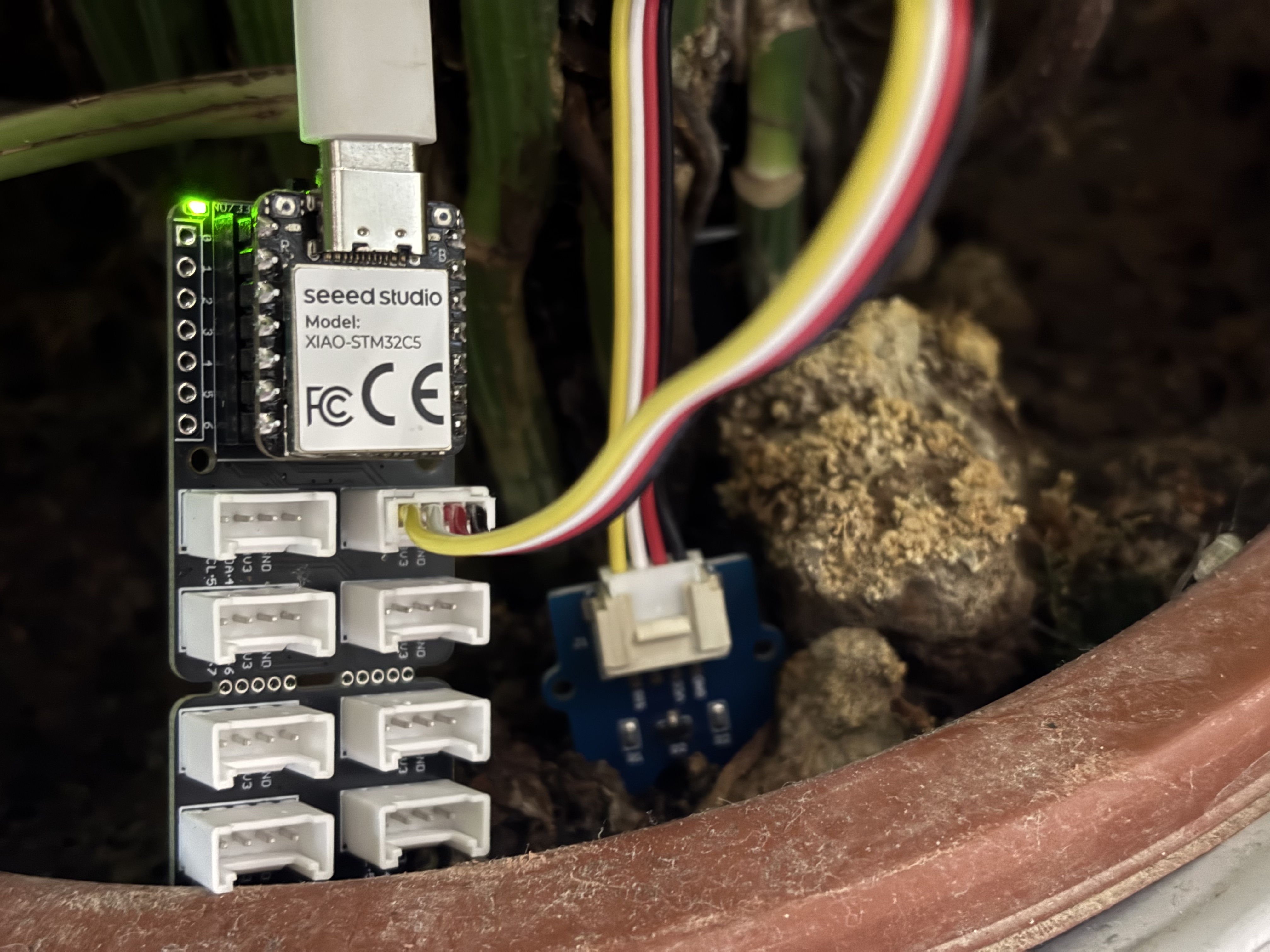
Após gravar o programa, insira o Grove-Capacitive Soil Moisture Sensor em plantas de vaso domésticas.
Abra o assistente de porta serial no seu computador e observe os valores de saída.
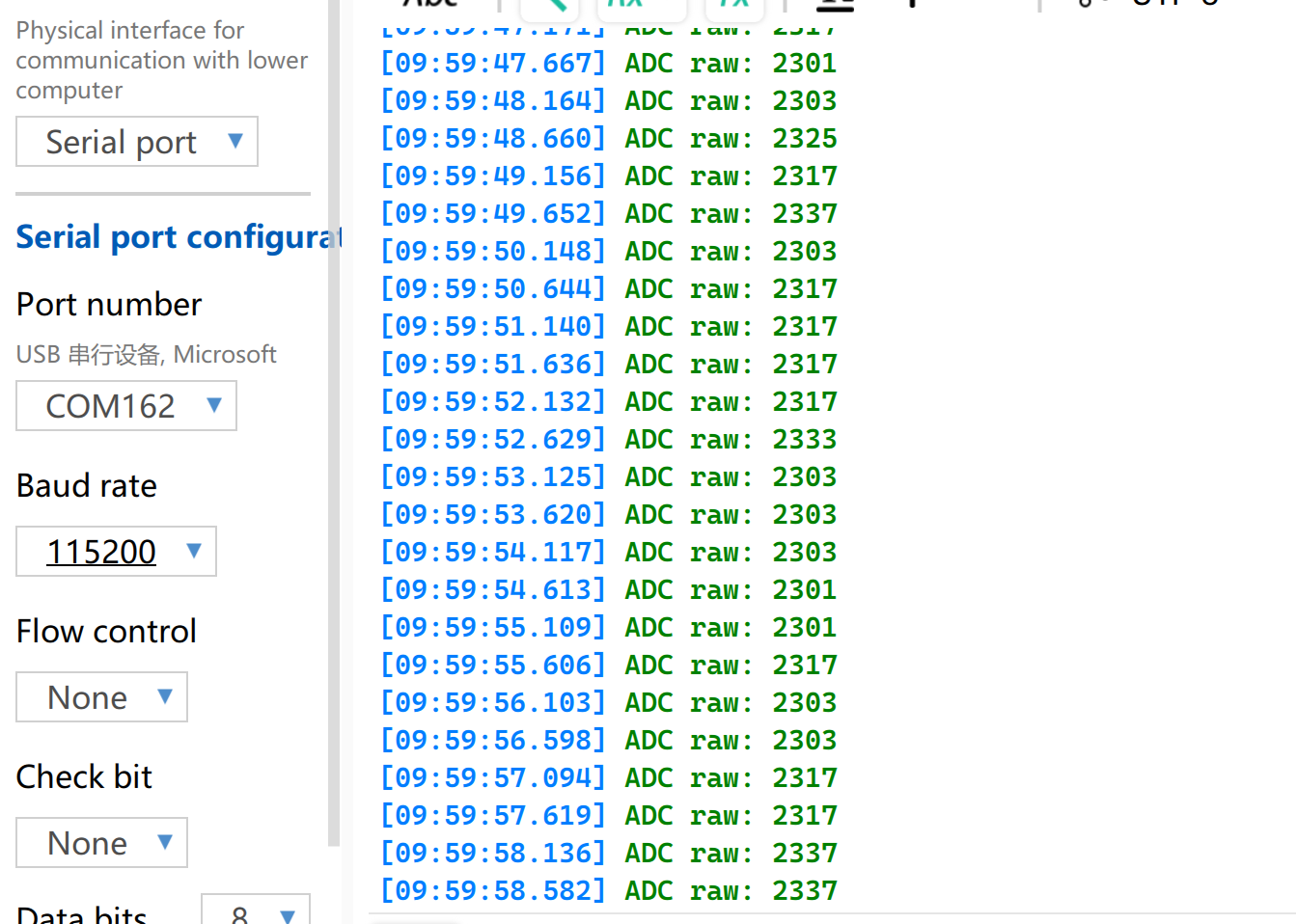
Tabela de leitura de referência de tensão
| Status | Tensão de saída do sensor | Valor bruto do ADC |
|---|---|---|
| No ar (seco) | ~2,0–2,4V | ~3400–4095 |
| Em solo úmido | ~1,3–1,8V | ~2200–3000 |
| Totalmente imerso em água | ~0,8–1,2V | ~1365–2048 |
Os resultados de medição podem variar sob diferentes condições ambientais. Consulte os valores realmente medidos.
UART
O Receptor/Transmissor Assíncrono Universal (UART) é um protocolo padrão de comunicação serial assíncrona. Ele não requer sinais de clock externos para sincronização e realiza a transmissão e recepção assíncronas de dados com base na taxa de baud predefinida por ambos os lados da comunicação. Em termos de fiação física, um enlace de dados full-duplex pode ser estabelecido simplesmente cruzando os pinos TX e RX dos dispositivos e conectando seus terras em comum. Com baixo custo de hardware e suporte para envio e recebimento simultâneos, o UART é amplamente adotado em sistemas embarcados para saída de logs de console, depuração de periféricos modulares e comunicação de dados ponto a ponto de baixa largura de banda.
Preparação de hardware
| Seeed Studio XIAO STM32C5 | Conversor USB para TTL |
|---|---|
|  |
Preparação de software
- Modifique o app.overlay. No XIAO STM32C5, D6 corresponde a PA9 / USART1_TX, e D7 corresponde a PA10 / USART1_RX. O nó correspondente no DeviceTree é usart1. Defina a taxa de baud padrão para 115200.
/ {
	chosen {
		zephyr,console = &usart1;
		zephyr,shell-uart = &usart1;
	};
};
- Modifique o prj.conf para habilitar o suporte ao console serial.
CONFIG_SERIAL=y
CONFIG_CONSOLE=y
CONFIG_UART_CONSOLE=y
CONFIG_UART_INTERRUPT_DRIVEN=y
CONFIG_PRINTK=y
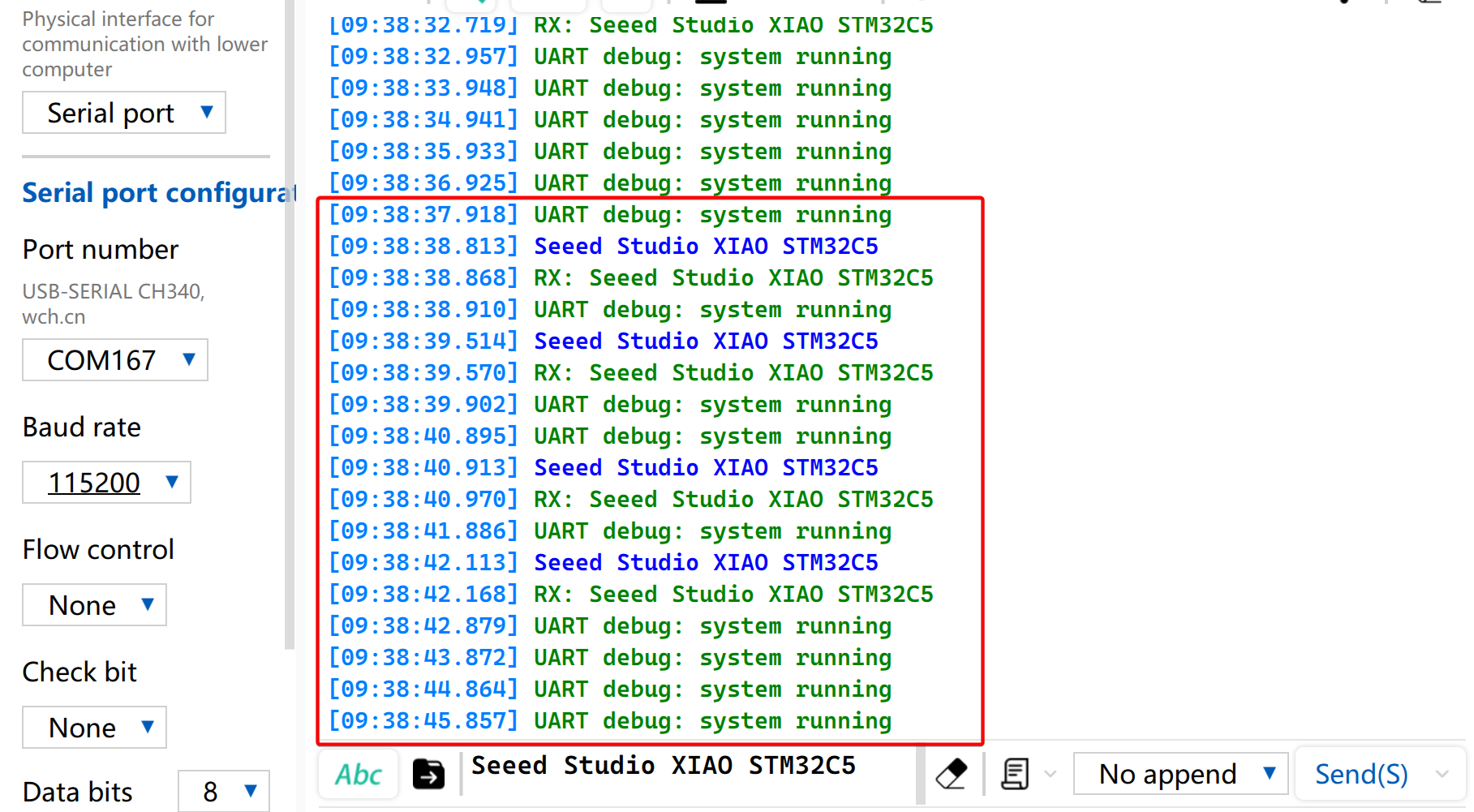
- O programa imprime o mapeamento dos pinos UART na inicialização, ecoa os dados recebidos e imprime uma mensagem periódica de status de execução.
main.c
#include <zephyr/kernel.h>
#include <zephyr/device.h>
#include <zephyr/drivers/uart.h>
#include <zephyr/sys/printk.h>

#define RX_BUFFER_SIZE 128
#define RX_TIMEOUT_MS  50

static const struct device *const uart = DEVICE_DT_GET(DT_NODELABEL(usart1));
K_MSGQ_DEFINE(rx_msgq, sizeof(uint8_t), RX_BUFFER_SIZE, 1);

static void uart_rx_isr(const struct device *dev, void *user_data)
{
	uint8_t data[16];
	int length;

	ARG_UNUSED(user_data);

	if (!uart_irq_update(dev)) {
		return;
	}

	while (uart_irq_rx_ready(dev)) {
		length = uart_fifo_read(dev, data, sizeof(data));
		if (length <= 0) {
			break;
		}

		for (int i = 0; i < length; i++) {
			(void)k_msgq_put(&rx_msgq, &data[i], K_NO_WAIT);
		}
	}
}

int main(void)
{
	char rx_buffer[RX_BUFFER_SIZE];
	size_t rx_length = 0;
	int64_t last_rx_time = 0;
	int64_t last_debug_time = k_uptime_get();

	if (!device_is_ready(uart)) {
		return -1;
	}

	if (uart_irq_callback_user_data_set(uart, uart_rx_isr, NULL) < 0) {
		return -1;
	}

	uart_irq_rx_enable(uart);

	printk("\r\nXIAO STM32C5 UART demo\r\n");
	printk("D6: TX, D7: RX, 115200 8N1\r\n");
	printk("Type a character to test RX and echo.\r\n");

	while (1) {
		uint8_t data;
		int64_t now;

		while (k_msgq_get(&rx_msgq, &data, K_NO_WAIT) == 0) {
			last_rx_time = k_uptime_get();

			if (data == '\r' || data == '\n') {
				if (rx_length > 0) {
					rx_buffer[rx_length] = '\0';
					printk("RX: %s\r\n", rx_buffer);
					rx_length = 0;
				}
			} else if (rx_length < RX_BUFFER_SIZE - 1) {
				rx_buffer[rx_length++] = (char)data;
			}
		}

		now = k_uptime_get();

		/* Also print strings sent without a trailing CR/LF. */
		if (rx_length > 0 && now - last_rx_time >= RX_TIMEOUT_MS) {
			rx_buffer[rx_length] = '\0';
			printk("RX: %s\r\n", rx_buffer);
			rx_length = 0;
		}

		if (now - last_debug_time >= 1000) {
			printk("UART debug: system running\r\n");
			last_debug_time = now;
		}

		k_msleep(1);
	}
}
Resultado
- Faça a fiação de acordo com a ordem da tabela
| XIAO STM32C5 | CH340 |
|---|---|
| GND | GND |
| D6 - TX | RX |
| D7 - RX | TX |
- Você pode usar um monitor serial para visualizar as informações de tempo de execução. Você também pode enviar dados pela porta serial, e os dados recebidos serão impressos no console.
I2C
I2C é um protocolo síncrono de comunicação de dados half-duplex. Ele permite a conexão de múltiplos dispositivos por meio de endereçamento via linha de clock SCL e linha de dados SDA, sendo comumente usado para ler dados de sensores que exigem taxas de transmissão relativamente altas, como IMUs e sensores de temperatura/umidade, ou para saída de exibição em OLED.
Preparação de hardware
| Seeed Studio XIAO STM32C5 | Placa de Expansão Seeed Studio Base para XIAO |
|---|---|
| |
Preparação de software
- No XIAO STM32C5, D4 corresponde a PB7 / I2C1_SDA, e D5 corresponde a PB6 / I2C1_SCL. Como o I2C1 já está habilitado no DTS em nível de placa, adicione um nó de display SSD1306 no endereço I2C 0x3C. Modifique o app.overlay da seguinte forma:
/ {
	chosen {
		zephyr,display = &oled;
	};
};

&i2c1 {
	oled: ssd1306@3c {
		compatible = "solomon,ssd1306";
		reg = <0x3c>;
		width = <128>;
		height = <64>;
		segment-offset = <0>;
		page-offset = <0>;
		display-offset = <0>;
		multiplex-ratio = <63>;
		segment-remap;
		com-invdir;
		prechargep = <0x22>;
	};
};
- Modifique o arquivo
prj.confpara habilitar as configurações relacionadas a I2C e display.
CONFIG_DISPLAY=y
CONFIG_CHARACTER_FRAMEBUFFER=y
CONFIG_HEAP_MEM_POOL_SIZE=2048
- Escreva a função principal para definir a posição de exibição e as funções para a string.
main.c
#include <zephyr/device.h>
#include <zephyr/display/cfb.h>
#include <zephyr/sys/printk.h>

int main(void)
{
	const struct device *display = DEVICE_DT_GET(DT_CHOSEN(zephyr_display));

	if (!device_is_ready(display)) {
		printk("OLED not ready\n");
		return -1;
	}

	if (cfb_framebuffer_init(display)) {
		return -1;
	}

	cfb_framebuffer_clear(display, true);
	cfb_framebuffer_set_font(display, 0);
	cfb_print(display, "XIAO STM32C5", 4, 8);
	cfb_print(display, "Hello World", 9, 32);
	cfb_framebuffer_finalize(display);
	display_blanking_off(display);

	return 0;
}
Resultado
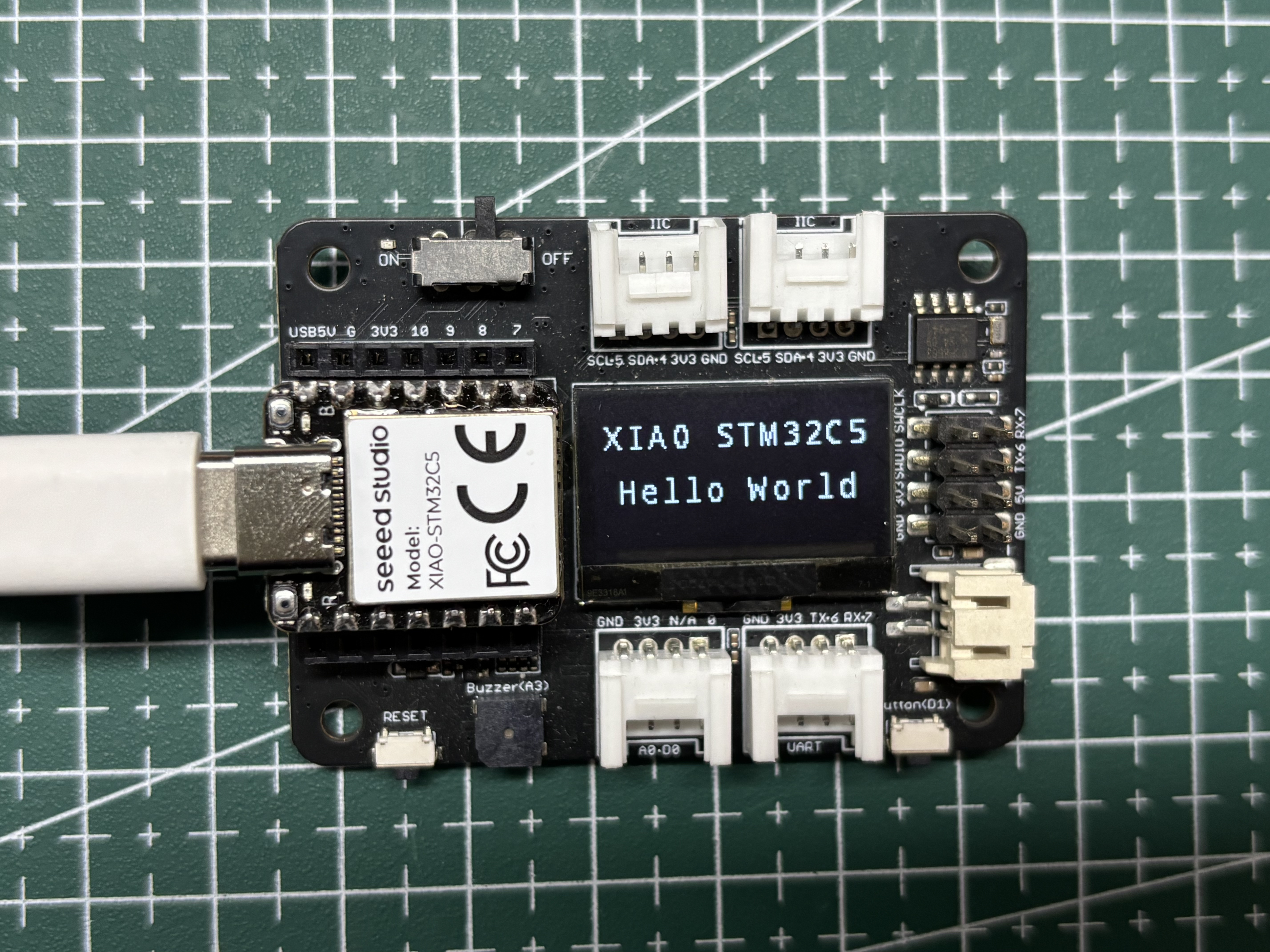
Após a execução do programa, o OLED exibe XIAO STM32C5 Hello World.
SPI
SPI é um protocolo de comunicação de alta velocidade, síncrono e full-duplex. Diferente da comunicação assíncrona, o SPI depende de uma linha de clock dedicada SCLK para sincronização precisa dos dados. Geralmente adota a topologia clássica de hardware de quatro fios, composta pelos pinos MOSI, MISO e de seleção de chip CS/SS. Equipado com canais independentes de envio e recebimento de dados e alta frequência de clock de barramento, o SPI oferece excelente taxa de transferência de dados. Ele é amplamente utilizado em cenários de acionamento de periféricos que exigem alta largura de banda, como dispositivos de armazenamento em massa, incluindo Flash e cartões SD, telas de alta resolução e alta taxa de atualização, e sensores de amostragem em alta frequência.
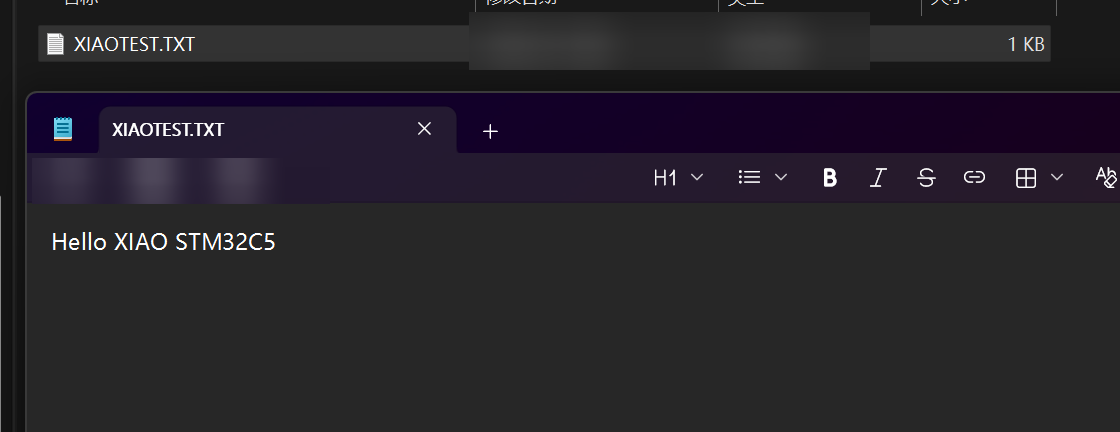
Em seguida, será demonstrado um exemplo com cartão SD: ler o tamanho do cartão SD e gravar nele um arquivo chamado XIAOTEST.TXT, com o conteúdo Hello XIAO STM32C5.
Preparação de hardware
| Seeed Studio XIAO STM32C5 | Placa de Expansão Seeed Studio Base para XIAO |
|---|---|
| |
Além disso, você também precisa preparar um cartão SD formatado como FAT32, com capacidade de armazenamento de 32 GB ou menos.
Preparação de software
- Os pinos padrão do barramento SPI do XIAO STM32C5 são D8 - SPI_SCK, D9 - SPI_MISO e D10 - SPI_MOSI. O nó correspondente no DTS em nível de placa é
SPI3. Além disso, é necessário selecionar um pino de seleção de chip CS, e aqui é selecionado o D2.
app.overlay
#include <zephyr/dt-bindings/gpio/gpio.h>

/ {
	chosen {
		zephyr,display = &oled;
	};
};

&i2c1 {
	oled: ssd1306@3c {
		compatible = "solomon,ssd1306";
		reg = <0x3c>;
		width = <128>;
		height = <64>;
		segment-offset = <0>;
		page-offset = <0>;
		display-offset = <0>;
		multiplex-ratio = <63>;
		segment-remap;
		com-invdir;
		prechargep = <0x22>;
	};
};

&spi3 {
	cs-gpios = <&gpioa 2 GPIO_ACTIVE_LOW>; /* D2: SD card CS */

	sdhc0: sdhc@0 {
		compatible = "zephyr,sdhc-spi-slot";
		reg = <0>;
		status = "okay";
		spi-max-frequency = <8000000>;

		mmc {
			compatible = "zephyr,sdmmc-disk";
			disk-name = "SD";
			status = "okay";
		};
	};
};
- Modifique o prj.conf para habilitar as configurações relacionadas a SPI.
CONFIG_DISK_ACCESS=y
CONFIG_FILE_SYSTEM=y
CONFIG_FAT_FILESYSTEM_ELM=y
CONFIG_SDHC=y
CONFIG_SDMMC_SUBSYS=y

CONFIG_DISPLAY=y
CONFIG_CHARACTER_FRAMEBUFFER=y

CONFIG_MAIN_STACK_SIZE=4096
CONFIG_HEAP_MEM_POOL_SIZE=4096
CONFIG_PRINTK=y
- Modifique o programa main.c.
main.c
/*
* XIAO STM32C5 SD card read/write example.
*
* SD card (SPI3, FAT32):
* D8 - SCK
* D9 - MISO
* D10 - MOSI
* D2 - CS
*
* 0.96-inch SSD1306 OLED (128x64, I2C address 0x3C):
* D4 - SDA
* D5 - SCL
*
* The example waits 500 ms after power-on, reads the SD card capacity,
* creates /XIAOTEST.TXT, writes "Hello XIAO STM32C5", then reads the file
* back for verification. Card size, write progress, and the final result
* are displayed on the OLED and printed through the USB CDC console.
*/
#include <errno.h>
#include <string.h>
#include <zephyr/device.h>
#include <zephyr/display/cfb.h>
#include <zephyr/fs/fs.h>
#include <zephyr/kernel.h>
#include <zephyr/storage/disk_access.h>
#include <zephyr/sys/printk.h>
#include <ff.h>
#define DISK_NAME "SD"
#define MOUNT_POINT "/SD:"
#define TEST_FILE MOUNT_POINT "/XIAOTEST.TXT"
#define TEST_TEXT "Hello XIAO STM32C5"
static const struct device *const oled = DEVICE_DT_GET(DT_CHOSEN(zephyr_display));
static FATFS fat_fs;
static struct fs_mount_t mount = {
.type = FS_FATFS,
.fs_data = &fat_fs,
.mnt_point = MOUNT_POINT,
};
static void oled_show(const char *line1, const char *line2,
const char *line3, const char *line4)
{
cfb_framebuffer_clear(oled, false);
cfb_print(oled, line1, 0, 0);
cfb_print(oled, line2, 0, 16);
cfb_print(oled, line3, 0, 32);
cfb_print(oled, line4, 0, 48);
cfb_framebuffer_finalize(oled);
}
int main(void)
{
uint32_t sector_count;
uint32_t sector_size;
uint64_t size_mb;
char size_line[24];
char readback[sizeof(TEST_TEXT)] = { 0 };
struct fs_file_t file;
int ret;
/* Allow the USB CDC console time to become available after power-on. */
k_msleep(500);
printk("\n=== XIAO STM32C5 SD Card Test ===\n");
printk("SD: D8=SCK, D9=MISO, D10=MOSI, D2=CS\n");
printk("OLED: D4=SDA, D5=SCL\n");
if (!device_is_ready(oled) || cfb_framebuffer_init(oled) != 0) {
printk("OLED initialization failed\n");
return -1;
}
cfb_framebuffer_set_font(oled, 0);
display_blanking_off(oled);
oled_show("SD Card Test", "Initializing...", "", "");
/* Initialize the SD card and read its physical capacity. */
ret = disk_access_ioctl(DISK_NAME, DISK_IOCTL_CTRL_INIT, NULL);
if (ret != 0) {
oled_show("SD Card Test", "SD init FAILED", "Check card/wires", "");
printk("SD card initialization failed: %d\n", ret);
return ret;
}
printk("SD card initialized\n");
ret = disk_access_ioctl(DISK_NAME, DISK_IOCTL_GET_SECTOR_COUNT,
§or_count);
ret |= disk_access_ioctl(DISK_NAME, DISK_IOCTL_GET_SECTOR_SIZE,
§or_size);
if (ret != 0) {
oled_show("SD Card Test", "Read size FAILED", "", "");
printk("Failed to read SD card capacity: %d\n", ret);
return ret;
}
size_mb = ((uint64_t)sector_count * sector_size) / (1024U * 1024U);
snprintk(size_line, sizeof(size_line), "Size: %llu MB", size_mb);
oled_show("SD Card Test", size_line, "Mounting FAT32", "");
printk("SD card size: %llu MB\n", size_mb);
printk("Mounting FAT32 file system...\n");
ret = fs_mount(&mount);
if (ret != 0) {
oled_show("SD Card Test", size_line, "Mount FAILED", "Use FAT32 card");
printk("FAT32 mount failed: %d\n", ret);
return ret;
}
printk("FAT32 mounted\n");
/* Create or replace the test file and write the requested text. */
oled_show("SD Card Test", size_line, "Writing file...", "");
printk("Writing %s...\n", TEST_FILE);
fs_file_t_init(&file);
ret = fs_open(&file, TEST_FILE, FS_O_CREATE | FS_O_WRITE | FS_O_TRUNC);
if (ret == 0) {
ret = fs_write(&file, TEST_TEXT, sizeof(TEST_TEXT) - 1);
if (ret == sizeof(TEST_TEXT) - 1) {
ret = fs_sync(&file);
} else if (ret >= 0) {
ret = -EIO;
}
fs_close(&file);
}
/* Read the file back so SUCCESS means the stored data was verified. */
if (ret == 0) {
fs_file_t_init(&file);
ret = fs_open(&file, TEST_FILE, FS_O_READ);
if (ret == 0) {
ret = fs_read(&file, readback, sizeof(readback) - 1);
fs_close(&file);
if (ret == sizeof(TEST_TEXT) - 1 &&
strcmp(readback, TEST_TEXT) == 0) {
ret = 0;
} else if (ret >= 0) {
ret = -EIO;
}
}
}
fs_unmount(&mount);
if (ret == 0) {
oled_show("SD Card Test", size_line, "Write: SUCCESS", "File verified");
printk("Write successful: %s\n", TEST_TEXT);
printk("Readback verification successful\n");
} else {
oled_show("SD Card Test", size_line, "Write: FAILED", "Check SD card");
printk("SD card write failed: %d\n", ret);
}
return ret;
}
Resultado
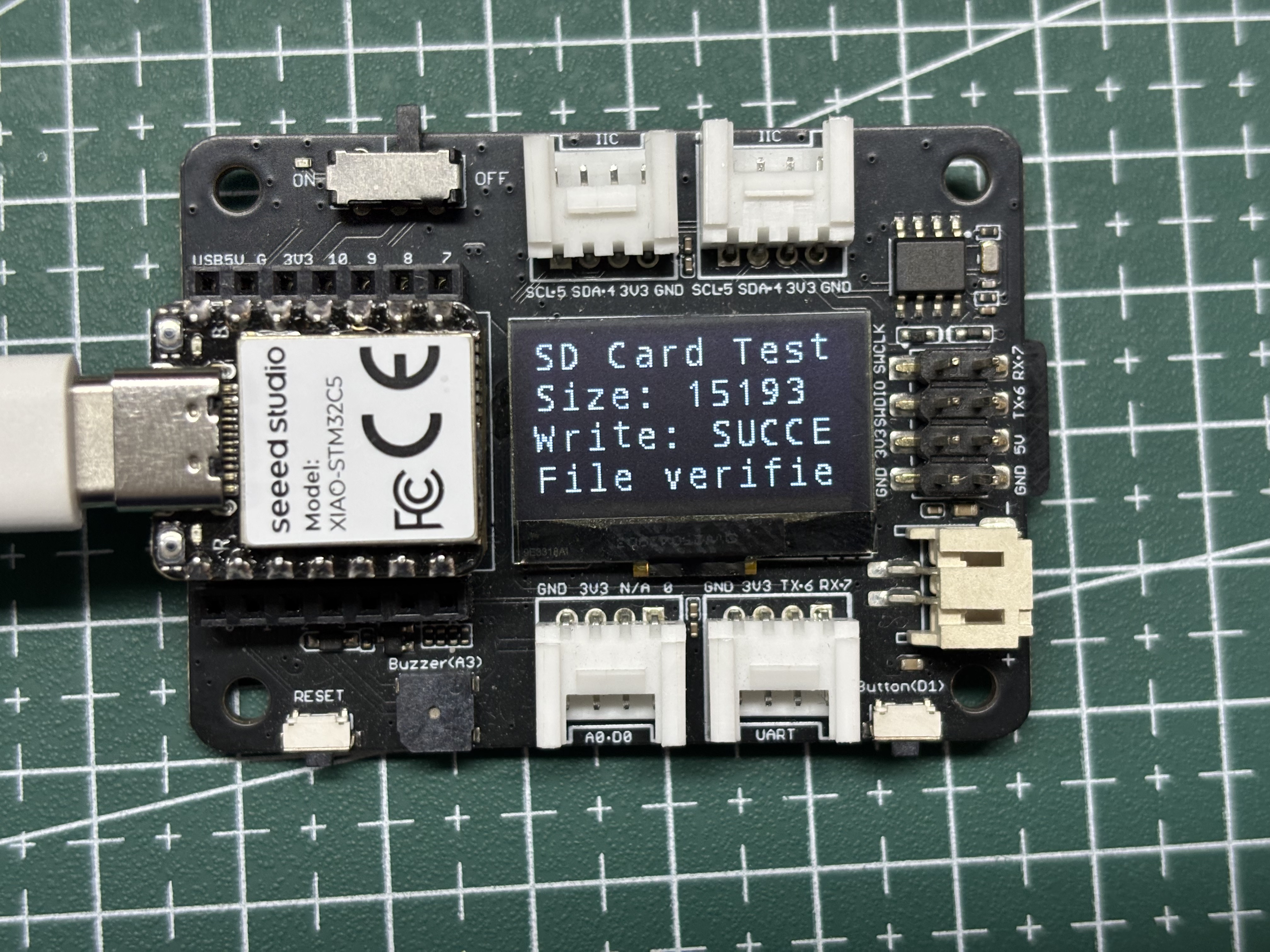
- A tela exibirá informações como o status de montagem do cartão SD, a capacidade do cartão SD e se o arquivo foi gravado com sucesso.
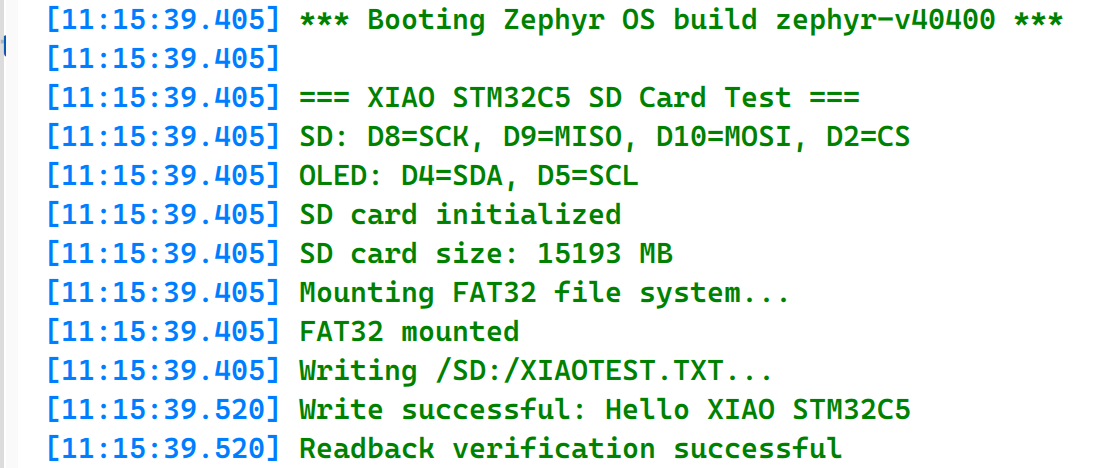
- Abra o Serial Monitor para visualizar as informações de gravação do arquivo.
- Remova o cartão SD e insira-o em um leitor de cartões conectado ao seu computador para inspecionar o arquivo gravado.
RTC
RTC (Real-Time Clock) é um periférico de temporização de hardware de baixo consumo de energia usado para manter continuamente informações precisas de hora e calendário. Ele normalmente opera a partir de uma fonte de clock independente de baixa frequência, como um oscilador de cristal de 32,768 kHz, e pode continuar funcionando através do domínio de alimentação de backup quando o sistema principal está desligado. Os periféricos RTC normalmente suportam segundos, minutos, horas, datas, dias da semana, meses e anos, bem como funções de alarme, despertar periódico e carimbo de data e hora. O RTC é amplamente utilizado em aplicações que exigem manutenção de tempo em longo prazo, despertar agendado, registro de eventos e operação de baixo consumo de energia, como registradores de dados, controladores industriais, dispositivos de casa inteligente e instrumentos portáteis.
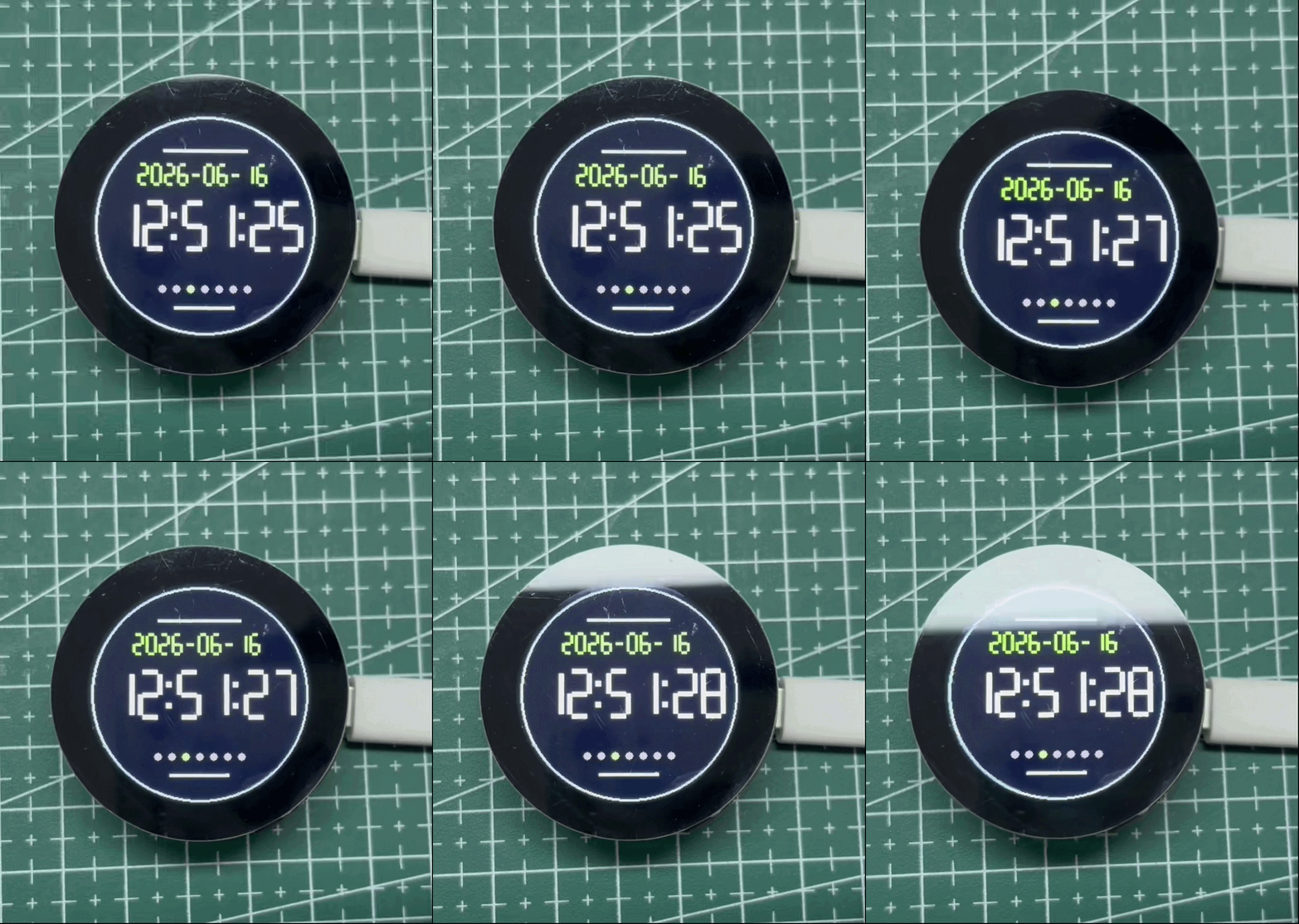
O Round Display for Seeed Studio XIAO possui um circuito RTC integrado. A seguir é demonstrada a função de relógio RTC funcionando com o XIAO STM32C5.
Preparação de hardware
| Seeed Studio XIAO STM32C5 | Round Display for Seeed Studio XIAO |
|---|---|
|  |
Preparação de software
- Modifique o app.overlay: o Round Display for Seeed Studio XIAO possui um LCD GC9A01 de 240 × 240. No XIAO STM32C5, o LCD usa D8 (SCK), D10 (MOSI), D1 (CS) e D3 (DC). Como D8 e D10 são mapeados para SPI3, o SPI3 deve ser habilitado e um nó de display GC9A01 deve ser adicionado. O RTC PCF8563 integrado se comunica via I²C usando D4 (SDA) e D5 (SCL), que são mapeados para I2C1. Portanto, o I2C1 também deve ser habilitado e um nó de dispositivo RTC PCF8563 deve ser adicionado.
app.overlay
#include <freq.h>
#include <zephyr/dt-bindings/display/panel.h>
#include <zephyr/dt-bindings/gpio/gpio.h>

/ {
	chosen {
		zephyr,display = &gc9a01_round_display;
	};

	aliases {
		rtc = &pcf8563_round_display;
	};

	backlight_leds {
		compatible = "gpio-leds";

		display_backlight: backlight {
			gpios = <&xiao_d 6 GPIO_ACTIVE_HIGH>;
		};
	};

	round_display_mipi_dbi {
		compatible = "zephyr,mipi-dbi-spi";
		spi-dev = <&spi3>;
		dc-gpios = <&xiao_d 3 GPIO_ACTIVE_HIGH>;
		write-only;
		#address-cells = <1>;
		#size-cells = <0>;

		gc9a01_round_display: gc9a01@0 {
			compatible = "galaxycore,gc9x01x";
			reg = <0>;
			status = "okay";
			mipi-max-frequency = <DT_FREQ_M(8)>;
			pixel-format = <PANEL_PIXEL_FORMAT_RGB_565>;
			width = <240>;
			height = <240>;
			display-inversion;
		};
	};
};

&usart1 {
	/* Release D6 (PA9) for the display backlight. */
	status = "disabled";
};

&i2c1 {
	clock-frequency = <I2C_BITRATE_FAST>;

	pcf8563_round_display: pcf8563@51 {
		compatible = "nxp,pcf8563";
		reg = <0x51>;
		status = "okay";
	};
};

&spi3 {
	/* D8=PE2 SCK, D9=PB0 MISO, D10=PB15 MOSI. */
	status = "okay";
	cs-gpios = <&xiao_d 1 GPIO_ACTIVE_LOW>;
};
- Modifique o prj.conf para ativar as configurações.
CONFIG_GPIO=y
CONFIG_SPI=y
CONFIG_I2C=y
CONFIG_RTC=y
CONFIG_RTC_PCF8563=y

CONFIG_DISPLAY=y
CONFIG_MIPI_DBI=y

CONFIG_MAIN_STACK_SIZE=4096
CONFIG_PRINTK=y
- Escreva o main.c para ler o RTC PCF8563 e exibir a data, a hora e o dia da semana na tela redonda.
main.c
/*
 * Copyright (c) 2026 Seeed Technology Co., Ltd.
 * SPDX-License-Identifier: Apache-2.0
 *
 * RTC clock demo for XIAO STM32C5 and Round Display for XIAO.
 *
 * Display: GC9A01, 240x240, hardware SPI3
 *          (D8 SCK, D10 MOSI, D1 CS, D3 DC)
 *          D8=PE2, D9=PB0 and D10=PB15.
 * RTC:     PCF8563 on the Round Display (D4 SDA, D5 SCL)
 * BL:      D6
 *
 * Reads the PCF8563 once per second and shows the date, time and weekday.
 * An invalid RTC value is initialized to 2026-06-16 12:00:00.
 */

#include <stdbool.h>
#include <zephyr/device.h>
#include <zephyr/drivers/display.h>
#include <zephyr/drivers/gpio.h>
#include <zephyr/drivers/rtc.h>
#include <zephyr/kernel.h>
#include <zephyr/sys/printk.h>

#define LCD_WIDTH  240
#define LCD_HEIGHT 240

#define COLOR_WHITE  0xFFFFU
#define COLOR_GREEN  0x07E0U
#define COLOR_CYAN   0x07FFU
#define COLOR_NAVY   0x0842U
#define COLOR_GRAY   0x8410U

static const struct device *const display =
	DEVICE_DT_GET(DT_CHOSEN(zephyr_display));
static const struct device *const rtc = DEVICE_DT_GET(DT_ALIAS(rtc));
static const struct gpio_dt_spec backlight =
	GPIO_DT_SPEC_GET(DT_NODELABEL(display_backlight), gpios);

/* Full RGB565 frame buffer, kept global to avoid using the thread stack. */
static uint16_t framebuffer[LCD_WIDTH * LCD_HEIGHT];
static const struct display_buffer_descriptor frame_desc = {
	.buf_size = sizeof(framebuffer),
	.width = LCD_WIDTH,
	.height = LCD_HEIGHT,
	.pitch = LCD_WIDTH,
};

static uint16_t rgb565_be(uint16_t color)
{
	return (uint16_t)((color >> 8) | (color << 8));
}

static void set_pixel(int x, int y, uint16_t color)
{
	if (x >= 0 && x < LCD_WIDTH && y >= 0 && y < LCD_HEIGHT) {
		framebuffer[y * LCD_WIDTH + x] = rgb565_be(color);
	}
}

static void fill_rect(int x, int y, int width, int height, uint16_t color)
{
	for (int py = y; py < y + height; py++) {
		for (int px = x; px < x + width; px++) {
			set_pixel(px, py, color);
		}
	}
}

static void draw_circle(int cx, int cy, int radius, uint16_t color)
{
	int x = radius;
	int y = 0;
	int error = 1 - radius;

	while (x >= y) {
		set_pixel(cx + x, cy + y, color);
		set_pixel(cx + y, cy + x, color);
		set_pixel(cx - y, cy + x, color);
		set_pixel(cx - x, cy + y, color);
		set_pixel(cx - x, cy - y, color);
		set_pixel(cx - y, cy - x, color);
		set_pixel(cx + y, cy - x, color);
		set_pixel(cx + x, cy - y, color);
		y++;
		if (error < 0) {
			error += 2 * y + 1;
		} else {
			x--;
			error += 2 * (y - x) + 1;
		}
	}
}

static void draw_filled_circle(int cx, int cy, int radius, uint16_t color)
{
	for (int y = -radius; y <= radius; y++) {
		for (int x = -radius; x <= radius; x++) {
			if (x * x + y * y <= radius * radius) {
				set_pixel(cx + x, cy + y, color);
			}
		}
	}
}

static void draw_digit(int x, int y, int width, int height, int thickness,
		       int digit, uint16_t color)
{
	static const uint8_t segments[10] = {
		0x3F, 0x06, 0x5B, 0x4F, 0x66,
		0x6D, 0x7D, 0x07, 0x7F, 0x6F
	};
	uint8_t mask = segments[digit];
	int half = height / 2;

	if (mask & BIT(0)) {
		fill_rect(x + thickness, y, width - 2 * thickness, thickness, color);
	}
	if (mask & BIT(1)) {
		fill_rect(x + width - thickness, y + thickness,
			  thickness, half - thickness, color);
	}
	if (mask & BIT(2)) {
		fill_rect(x + width - thickness, y + half,
			  thickness, half - thickness, color);
	}
	if (mask & BIT(3)) {
		fill_rect(x + thickness, y + height - thickness,
			  width - 2 * thickness, thickness, color);
	}
	if (mask & BIT(4)) {
		fill_rect(x, y + half, thickness, half - thickness, color);
	}
	if (mask & BIT(5)) {
		fill_rect(x, y + thickness, thickness, half - thickness, color);
	}
	if (mask & BIT(6)) {
		fill_rect(x + thickness, y + half - thickness / 2,
			  width - 2 * thickness, thickness, color);
	}
}

static void draw_colon(int x, int y, int size, uint16_t color)
{
	fill_rect(x, y, size, size, color);
	fill_rect(x, y + 23, size, size, color);
}

static int write_frame(void)
{
	return display_write(display, 0, 0, &frame_desc, framebuffer);
}

static void clear_frame(uint16_t color)
{
	uint16_t value = rgb565_be(color);

	for (int i = 0; i < LCD_WIDTH * LCD_HEIGHT; i++) {
		framebuffer[i] = value;
	}
}

static bool rtc_time_valid(const struct rtc_time *time)
{
	return time->tm_year >= (2024 - 1900) &&
	       time->tm_year <= (2099 - 1900) &&
	       time->tm_mon >= 0 && time->tm_mon <= 11 &&
	       time->tm_mday >= 1 && time->tm_mday <= 31 &&
	       time->tm_hour >= 0 && time->tm_hour <= 23 &&
	       time->tm_min >= 0 && time->tm_min <= 59 &&
	       time->tm_sec >= 0 && time->tm_sec <= 59;
}

static int render_clock(const struct rtc_time *time)
{
	int year = time->tm_year + 1900;
	int month = time->tm_mon + 1;
	int day = time->tm_mday;
	static const uint8_t date_x[] = { 48, 62, 76, 90, 118, 132, 160, 174 };
	static const uint8_t time_x[] = { 24, 54, 96, 126, 168, 198 };
	uint8_t date_digits[] = {
		(year / 1000) % 10, (year / 100) % 10,
		(year / 10) % 10, year % 10,
		month / 10, month % 10, day / 10, day % 10
	};
	uint8_t time_digits[] = {
		time->tm_hour / 10, time->tm_hour % 10,
		time->tm_min / 10, time->tm_min % 10,
		time->tm_sec / 10, time->tm_sec % 10
	};

	clear_frame(COLOR_NAVY);
	draw_circle(120, 120, 116, COLOR_CYAN);
	draw_circle(120, 120, 115, COLOR_CYAN);
	fill_rect(75, 39, 90, 3, COLOR_CYAN);

	for (int i = 0; i < ARRAY_SIZE(date_digits); i++) {
		draw_digit(date_x[i], 54, 12, 24, 3,
			   date_digits[i], COLOR_GREEN);
	}
	fill_rect(106, 65, 8, 3, COLOR_GREEN);
	fill_rect(148, 65, 8, 3, COLOR_GREEN);

	for (int i = 0; i < ARRAY_SIZE(time_digits); i++) {
		draw_digit(time_x[i], 94, 26, 54, 5,
			   time_digits[i], COLOR_WHITE);
	}
	draw_colon(84, 107, 6, COLOR_CYAN);
	draw_colon(156, 107, 6, COLOR_CYAN);

	for (int i = 0; i < 7; i++) {
		uint16_t color = (i == time->tm_wday) ? COLOR_GREEN : COLOR_GRAY;
		draw_filled_circle(75 + i * 15, 188, 4, color);
	}
	fill_rect(88, 207, 64, 3, COLOR_CYAN);

	return write_frame();
}

int main(void)
{
	struct rtc_time now = { 0 };
	int ret;

	if (!gpio_is_ready_dt(&backlight) || !device_is_ready(display) ||
	    !device_is_ready(rtc)) {
		printk("Display, backlight, or RTC device not ready\n");
		return -1;
	}

	ret = gpio_pin_configure_dt(&backlight, GPIO_OUTPUT_ACTIVE);
	if (ret < 0) {
		printk("Cannot enable display backlight: %d\n", ret);
		return ret;
	}

	ret = display_set_pixel_format(display, PIXEL_FORMAT_RGB_565);
	if (ret < 0) {
		printk("Cannot set RGB565 pixel format: %d\n", ret);
		return ret;
	}
	display_blanking_off(display);

	ret = rtc_get_time(rtc, &now);
	if (ret < 0 || !rtc_time_valid(&now)) {
		struct rtc_time initial_time = {
			.tm_year = 2026 - 1900,
			.tm_mon = 5,
			.tm_mday = 16,
			.tm_hour = 12,
			.tm_min = 0,
			.tm_sec = 0,
			.tm_wday = 2,
		};

		ret = rtc_set_time(rtc, &initial_time);
		if (ret < 0) {
			printk("Cannot set RTC time: %d\n", ret);
			return ret;
		}
		printk("RTC initialized to 2026-06-16 12:00:00\n");
	}

	printk("Round Display RTC clock started\n");

	while (1) {
		ret = rtc_get_time(rtc, &now);
		if (ret < 0) {
			printk("Cannot read RTC time: %d\n", ret);
		} else {
			ret = render_clock(&now);
			if (ret < 0) {
				printk("Display write failed: %d\n", ret);
			}
			printk("%04d-%02d-%02d %02d:%02d:%02d\n",
			       now.tm_year + 1900, now.tm_mon + 1, now.tm_mday,
			       now.tm_hour, now.tm_min, now.tm_sec);
		}
		k_msleep(1000);
	}
}
Resultado
Este exemplo define e lê a data e a hora do RTC PCF8563 no Round Display via I²C e mostra o resultado no LCD circular. Sem uma bateria de backup para o RTC, o PCF8563 mantém a contagem de tempo enquanto o sistema está ligado, mas não há garantia de que o horário será mantido após a remoção da alimentação. Com uma bateria tipo moeda CR927 instalada, o RTC pode continuar funcionando enquanto a alimentação principal está desconectada e manter o horário correto quando o sistema for ligado novamente. Se o RTC não contiver um horário válido, o exemplo o inicializa para 2026-06-16 12:00:00 para demonstração. Defina o RTC para o horário atual separadamente; este exemplo não o sincroniza automaticamente.
Suporte Técnico e Discussão de Produtos
Obrigado por escolher nossos produtos! Estamos aqui para oferecer diferentes tipos de suporte para garantir que sua experiência com nossos produtos seja a mais tranquila possível. Oferecemos vários canais de comunicação para atender a diferentes preferências e necessidades.