Primeiros Passos com o Adaptador Ethernet XIAO W5500
Introdução
Uma placa de desenvolvimento PoE compacta com XIAO ESP32S3 Plus, com um módulo PoE integrado e isolado e conversão de energia baseada em TPS563201 que fornece uma alimentação limpa de 5V para energizar o microcontrolador. Ideal para projetos de IoT, dispositivos de casa inteligente e automação industrial — onde uma combinação versátil de conectividade Ethernet confiável e processamento sem fio de baixo consumo simplifica a instalação e melhora o desempenho do sistema.

Recursos
-
Microcontrolador de Alto Desempenho: Baseada na plataforma XIAO ESP32S3 Plus, nossa placa oferece processamento robusto e conectividade sem fio eficiente, sendo ideal para aplicações IoT e embarcadas complexas.
-
PoE Integrado com Isolação e Conversão de Energia: Com um robusto módulo PoE com isolação integrada, a placa aceita com segurança uma entrada de alimentação Ethernet de 12V. Um conversor buck TPS563201 de alta eficiência reduz então os 12V para um trilho estável de 5V, fornecendo energia ideal para o XIAO ESP32S3 Plus.
-
Conectividade Ethernet Confiável: Equipada com um chip Ethernet W5500 onboard e um conector RJ45 padrão, a placa garante acesso de rede cabeado estável para transmissão de dados contínua e gerenciamento remoto.
-
Opções Versáteis de E/S: Com saídas de E/S em ambos os lados, você pode expandir facilmente a funcionalidade e interagir com uma variedade de sensores e periféricos para personalizar sua aplicação conforme as especificações desejadas.
-
Design Compacto e Pronto para Implantação: Combinando PoE integrado, circuito de isolação e conectividade Ethernet em um formato reduzido, esta placa simplifica a prototipagem e permite uma implantação eficiente em projetos de casa inteligente, automação industrial ou appliances de rede.
Especificações
| Parâmetro | Descrição |
|---|---|
| MCU | XIAO ESP32-S3 Plus |
| Antena | Antena de Haste 2,4GHz (2,81dBi) |
| USB Type-C | Tensão de entrada (Type-C): 5V |
| Chip PoE | MQ7813T120 |
| Fonte de Alimentação PoE | PoE IEEE802.3af Corrente de Saída: 12V/1,1A Alta eficiência 86% (Entrada 48V, Carga 12V@1,1A) |
| Chip Ethernet | WIZnet W5500 |
| Interface Ethernet | RJ45 Ethernet de 10 ou 100Mbps |
| Protocolos TCP/IP | TCP, UDP, ICMP, IPv4, ARP, IGMP, PPPoE |
| Indicador LED | Alimentação x 1 Usuário x 1 |
| Botão | Reset |
| Interface de E/S | |
| Tamanho do Produto | 83 x 118 x 26 mm |
| Peso do Produto | 75g |
| Gabinete | Impressão 3D em branco |
Visão Geral do Hardware
- Aparência do Produto
- Interior do Produto
As imagens abaixo mostram o design externo do Adaptador Ethernet XIAO W5500. Você pode ver o formato compacto, a porta Ethernet e a interface para conexão ao microcontrolador da série XIAO. Esse design permite uma integração fácil em vários projetos onde espaço e confiabilidade são importantes.


A imagem a seguir mostra o interior do Adaptador Ethernet XIAO W5500. Aqui você pode observar o layout interno da PCB, o chip controlador Ethernet W5500 e os circuitos de suporte que possibilitam comunicação Ethernet estável e a funcionalidade opcional de Power over Ethernet (PoE).

Primeiros Passos
Instruções de Fiação
Há duas maneiras recomendadas de conectar o seu Adaptador Ethernet XIAO W5500 à rede:
- Usando um Switch ou Roteador com PoE:
- Conecte o dispositivo diretamente a um switch ou roteador compatível com PoE usando um cabo Ethernet RJ45 padrão. Essa configuração permite que dados e alimentação sejam fornecidos pelo mesmo cabo, portanto você não precisa fornecer alimentação separada para a placa XIAO.

-
Usando um Cabo Ethernet Padrão:
- Se você estiver usando um cabo Ethernet comum (sem PoE), conecte uma extremidade à sua rede e a outra ao Adaptador Ethernet XIAO W5500. Nesse caso, você também deve alimentar a placa XIAO pela porta USB-C com uma fonte estável de 5V, pois o cabo Ethernet fornecerá apenas conectividade de dados.

Dica: Certifique-se de que o seu cabo Ethernet seja longo o suficiente para a sua configuração e esteja em boas condições para garantir uma comunicação confiável.
Botão de Reset
O Adaptador Ethernet XIAO W5500 está equipado com um botão de Reset. Se o programa do seu dispositivo não estiver sendo executado como esperado ou se você precisar reiniciar o sistema, basta pressionar o botão Reset uma vez. Isso irá reinicializar o dispositivo e recomeçar o programa, ajudando a recuperar de estados ou erros inesperados.
Biblioteca Ethernet ESP32 Arduino
O Adaptador Ethernet XIAO W5500 utiliza a biblioteca Ethernet do ESP32 para Arduino para conectividade de rede. Essa biblioteca fornece um conjunto de APIs e exemplos para gerenciar conexões Ethernet, lidar com eventos e construir aplicações em rede em placas baseadas em ESP32.
Para mais detalhes, uso avançado e as atualizações mais recentes, consulte a documentação oficial da Espressif: Documentação da Biblioteca Ethernet ESP32 Arduino
Exemplo com XIAO
Agora que você instalou as bibliotecas necessárias e entende as funções básicas, vamos explorar alguns exemplos práticos para o Adaptador Ethernet XIAO W5500. Esses demos vão ajudá-lo a começar e mostrar como adaptar o código para seus próprios projetos.
Passo 1. Inicie o aplicativo Arduino.
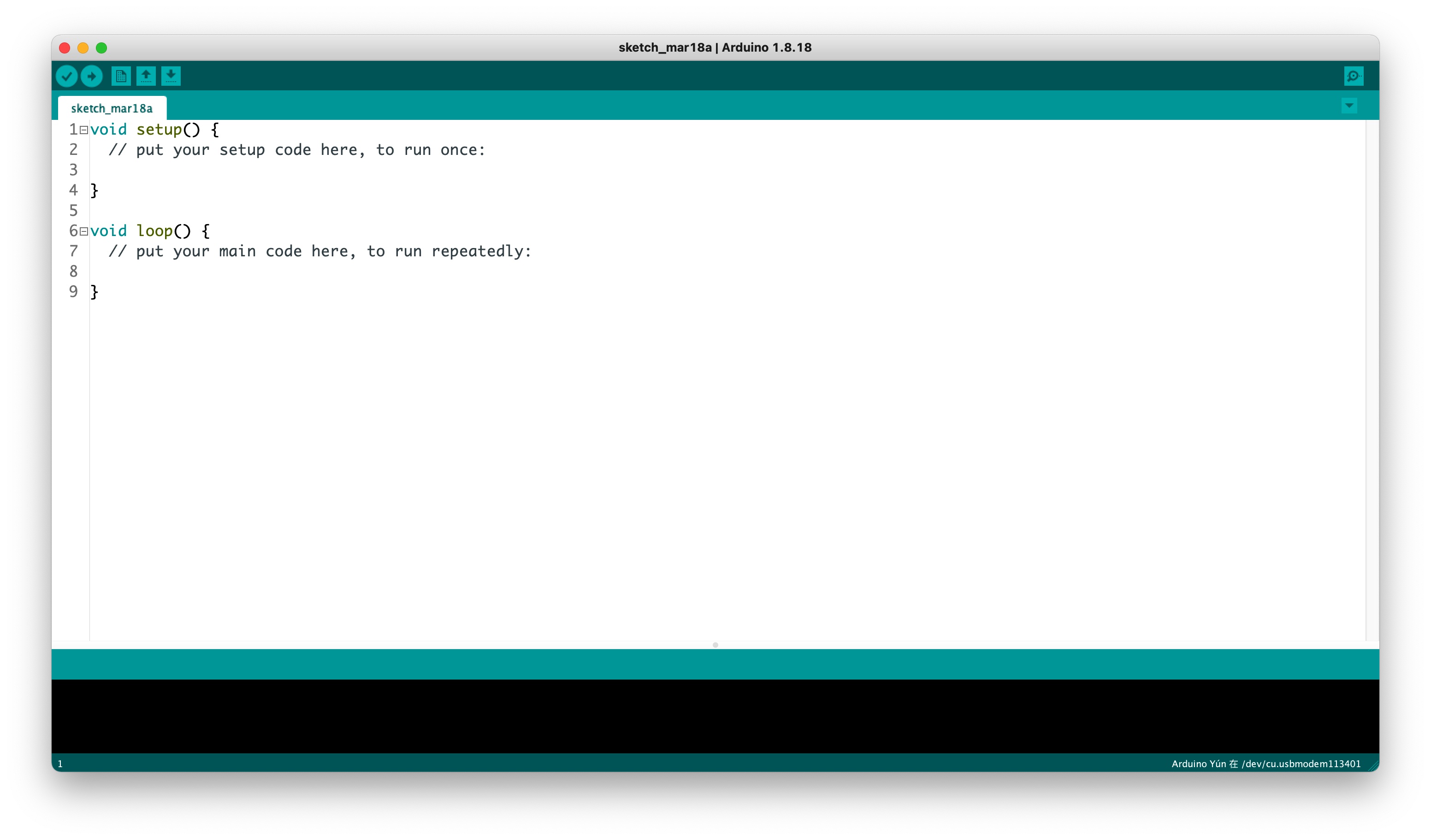
Passo 2. Selecione o modelo da sua placa de desenvolvimento e adicione-o à Arduino IDE.
- Para usar Seeed Studio XIAO ESP32-S3 Plus nos procedimentos a seguir, consulte este tutorial para concluir a adição.
Passo 3. Materiais Necessários
Para concluir os exemplos a seguir, você vai precisar do hardware listado abaixo. Além do Adaptador Ethernet XIAO W5500, certifique-se de ter um cabo Ethernet com comprimento suficiente para a sua configuração. Você pode usar um cabo com capacidade Power over Ethernet (PoE) ou um cabo Ethernet padrão. Se usar um cabo Ethernet padrão (sem PoE), garanta que sua placa XIAO seja alimentada separadamente com uma fonte estável de 5V.
| Adaptador Ethernet XIAO W5500 |
|---|
 |
Demo 1: Registrador de Eventos Ethernet
Objetivo: Este demo registra eventos Ethernet no console serial, incluindo o endereço MAC e o endereço IP atual (atribuído por DHCP). Ele demonstra como inicializar a interface Ethernet W5500 e monitorar seu status.
Caso de Uso Típico: Use isto como ponto de partida para verificar sua configuração de hardware e conectividade de rede. É útil para depuração e para projetos em que você precisa monitorar o status da Ethernet ou registrar eventos de rede.
#include <SPI.h>
#include <ETH.h>
#include <WiFi.h>

static bool eth_connected = false;

#ifndef ETH_PHY_CS
#define ETH_PHY_TYPE ETH_PHY_W5500
#define ETH_PHY_ADDR 1
#define ETH_PHY_CS   D1
#define ETH_PHY_IRQ  -1
#define ETH_PHY_RST  -1
#endif

// SPI pins
#define ETH_SPI_SCK  D8
#define ETH_SPI_MISO D9
#define ETH_SPI_MOSI D10


// React to Ethernet events:
void onEvent(arduino_event_id_t event, arduino_event_info_t info)
{
  switch (event) {

    case ARDUINO_EVENT_ETH_START:
      // This will happen during setup, when the Ethernet service starts
      Serial.println("ETH Started");
      //set eth hostname here
      ETH.setHostname("esp32-ethernet");
      break;

    case ARDUINO_EVENT_ETH_CONNECTED:
      // This will happen when the Ethernet cable is plugged
      Serial.println("ETH Connected");
      break;

    case ARDUINO_EVENT_ETH_GOT_IP:
    // This will happen when we obtain an IP address through DHCP:
      Serial.print("Got an IP Address for ETH MAC: ");
      Serial.print(ETH.macAddress());
      Serial.print(", IPv4: ");
      Serial.print(ETH.localIP());
      if (ETH.fullDuplex()) {
        Serial.print(", FULL_DUPLEX");
      }
      Serial.print(", ");
      Serial.print(ETH.linkSpeed());
      Serial.println("Mbps");
      eth_connected = true;

      // Uncomment to automatically make a test connection to a server:
      // testClient( "192.168.0.1", 80 );

      break;

    case ARDUINO_EVENT_ETH_DISCONNECTED:
      // This will happen when the Ethernet cable is unplugged
      Serial.println("ETH Disconnected");
      eth_connected = false;
      break;

    case ARDUINO_EVENT_ETH_STOP:
      // This will happen when the ETH interface is stopped but this never happens
      Serial.println("ETH Stopped");
      eth_connected = false;
      break;

    default:
      break;
  }
}

// Try to read something from a webserver:
void testClient(const char * host, uint16_t port)
{
  Serial.print("\nConnecting to ");
  Serial.print(host);
  Serial.print(":");
  Serial.println(port);

  NetworkClient client;
  if (!client.connect(host, port)) {
    Serial.println("connection failed");
    return;
  }
  client.printf("GET / HTTP/1.1\r\nHost: %s\r\n\r\n", host);
  while (client.connected() && !client.available());
  while (client.available()) {
    Serial.write(client.read());
  }

  Serial.println("closing connection\n");
  client.stop();
}

// Initializing everything at start up / after reset:
void setup()
{
  // Wait for the hardware to initialize:
  delay(500);

  // This sketch will log some information to the serial console:
  Serial.begin(115200); // Assuming computer will be connected to serial port at 115200 bauds
  Serial.println("Setup...");

  Serial.println("Registering event handler for ETH events...");
  Network.onEvent(onEvent);

  // Starth Ethernet (this does NOT start WiFi at the same time)
  Serial.println("Starting ETH interface...");
  SPI.begin(ETH_SPI_SCK, ETH_SPI_MISO, ETH_SPI_MOSI);
  ETH.begin(ETH_PHY_TYPE, ETH_PHY_ADDR, ETH_PHY_CS, ETH_PHY_IRQ, ETH_PHY_RST, SPI);

  Serial.println("Waiting for Ethernet connection");
  while (!eth_connected) {
    delay(500);
    Serial.print(".");
  }
}

void loop()
{
  if (eth_connected) {
    testClient("baidu.com", 80);
  }
  delay(20000);
}
Abra o Monitor Serial a 115200 baud para visualizar eventos de Ethernet e informações de IP. O código tentará se conectar a "baidu.com" a cada 20 segundos como um teste de conectividade.
Personalização:
- Altere o servidor de teste em
testClient("baidu.com", 80);para o seu próprio servidor ou dispositivo de rede local. - Use o manipulador de eventos para acionar ações personalizadas em eventos de rede.
Demo 2: Servidor Web Ethernet Simples
Objetivo: Este demo configura um servidor web HTTP básico no XIAO ESP32-S3 usando o W5500 Ethernet Adapter. Ele responde a requisições na URL raiz e fornece um manipulador 404 simples para rotas desconhecidas.
Caso de Uso Típico: Ideal para projetos de IoT em que você deseja servir páginas web ou APIs REST diretamente do seu dispositivo por meio de uma conexão Ethernet com fio.
#include <ETH.h>
#include <WebServer.h>
#include <ESPmDNS.h>


#ifndef ETH_PHY_CS
#define ETH_PHY_TYPE ETH_PHY_W5500
#define ETH_PHY_ADDR 1
#define ETH_PHY_CS   D1
#define ETH_PHY_IRQ  -1
#define ETH_PHY_RST  -1
#endif

// SPI pins
#define ETH_SPI_SCK  D8
#define ETH_SPI_MISO D9
#define ETH_SPI_MOSI D10

static bool eth_connected = false;
WebServer server(80);

// ESP32-POE doesn't have an onboard LED so if you want to use a LED you have to attach one to the extended pins on either UEXT or one of the 10 pin extentions.
// in this example the default value is 13 which is UEXT pin 6, or Extention 2 pin 1. If you want to attach the LED to another pin you need to change this value accordingly.
const int led_pin = 21;

// Web Server: handle a request to / (root of the server)
void handleRoot() {
  digitalWrite(led_pin, 1);
  server.send(200, "text/plain", "hello from esp32!");
  delay(100);    // Wait x ms so we have time to see the Led blinking
  digitalWrite(led_pin, 0);
}

// Web Server: handle a request to an unknown URI (unknown "File")
void handleNotFound() {
  digitalWrite(led_pin, 1);
  String message = "File Not Found\n\n";
  message += "URI: ";
  message += server.uri();
  message += "\nMethod: ";
  message += (server.method() == HTTP_GET) ? "GET" : "POST";
  message += "\nArguments: ";
  message += server.args();
  message += "\n";
  for (uint8_t i = 0; i < server.args(); i++) {
    message += " " + server.argName(i) + ": " + server.arg(i) + "\n";
  }
  server.send(404, "text/plain", message);
  // digitalWrite(led_pin, 0);  // If this is commented out, the LED will stay on in case of 404 error
}

// Handle Ethernet Events:
void onEvent(arduino_event_id_t event, arduino_event_info_t info)
{
  switch (event) {

    case ARDUINO_EVENT_ETH_START:
      // This will happen during setup, when the Ethernet service starts
      Serial.println("ETH Started");
      //set eth hostname here
      ETH.setHostname("esp32-ethernet");
      break;

    case ARDUINO_EVENT_ETH_CONNECTED:
      // This will happen when the Ethernet cable is plugged
      Serial.println("ETH Connected");
      break;

    case ARDUINO_EVENT_ETH_GOT_IP:
    // This will happen when we obtain an IP address through DHCP:
      Serial.print("Got an IP Address for ETH MAC: ");
      Serial.print(ETH.macAddress());
      Serial.print(", IPv4: ");
      Serial.print(ETH.localIP());
      if (ETH.fullDuplex()) {
        Serial.print(", FULL_DUPLEX");
      }
      Serial.print(", ");
      Serial.print(ETH.linkSpeed());
      Serial.println("Mbps");
      eth_connected = true;

      // Uncomment to automatically make a test connection to a server:
      // testClient( "192.168.0.1", 80 );

      break;

    case ARDUINO_EVENT_ETH_DISCONNECTED:
      // This will happen when the Ethernet cable is unplugged
      Serial.println("ETH Disconnected");
      eth_connected = false;
      break;

    case ARDUINO_EVENT_ETH_STOP:
      // This will happen when the ETH interface is stopped but this never happens
      Serial.println("ETH Stopped");
      eth_connected = false;
      break;

    default:
      break;
  }
}

// Try to read something from a webserver:
void testClient(const char * host, uint16_t port)
{
  Serial.print("\nConnecting to ");
  Serial.print(host);
  Serial.print(":");
  Serial.println(port);

  NetworkClient client;
  if (!client.connect(host, port)) {
    Serial.println("connection failed");
    return;
  }
  client.printf("GET / HTTP/1.1\r\nHost: %s\r\n\r\n", host);
  while (client.connected() && !client.available());
  while (client.available()) {
    Serial.write(client.read());
  }

  Serial.println("closing connection\n");
  client.stop();
}

// Initializing everything at start up / after reset:
void setup()
{
  // Wait for the hardware to initialize:
  delay(500);

  // This sketch will log some information to the serial console:


  Serial.begin(115200); // Assuming computer will be connected to serial port at 115200 bauds
  Serial.print("Setup...");


  Serial.print("Registering event handler for ETH events...");
  Network.onEvent(onEvent);

  // Starth Ethernet (this does NOT start WiFi at the same time)
  Serial.print("Starting ETH interface...");
  SPI.begin(ETH_SPI_SCK, ETH_SPI_MISO, ETH_SPI_MOSI, ETH_PHY_CS);
  ETH.begin(ETH_PHY_TYPE, ETH_PHY_ADDR, ETH_PHY_CS, ETH_PHY_IRQ, ETH_PHY_RST, SPI);


  // multicast DNS (mDNS) allows to resolve hostnames to IP addresses without a DNS server
  if (MDNS.begin("esp32")) {  // using mDNS name "esp32"
    Serial.println("MDNS responder started");
  }

  // Web Server handlers:
  // Handle a request to / (root of the server)
  server.on("/", handleRoot);
  // Minimalistic handling of another URI (LED will not flash on this one):
  server.on("/inline", []() {
    server.send(200, "text/plain", "this works as well");
  });
  // Handle all other URIs:
  server.onNotFound(handleNotFound);

  server.begin();
  Serial.println("HTTP server started");

  pinMode( led_pin, OUTPUT);  // Initialize the LED pin as a digital output (on/off)
}

void loop ()
{
  server.handleClient();
  delay(2);//allow the cpu to switch to other tasks
}
Assim que o dispositivo obtiver um endereço IP (mostrado no Monitor Serial), abra um navegador e acesse http://<your_device_ip>/. O endpoint raiz responderá com "hello from esp32!" e piscará um LED. Tente acessar /inline ou qualquer outro caminho para ver respostas diferentes.
Personalização:
- Adicione mais endpoints usando
server.on("/yourpath", handlerFunction);. - Integre leituras de sensores ou controles do dispositivo nas respostas do seu servidor web.
Demo 3: Servidor de Streaming de Câmera via Ethernet
Lembrete: Este demo requer o módulo de câmera da placa XIAO ESP32-S3 Sense. O XIAO W5500 Ethernet Adapter em si não inclui uma câmera, e o soquete da câmera não é atualmente vendido separadamente. Se você já adquiriu a placa XIAO ESP32-S3 Sense, pode usar a câmera dela com este demo. Para uma instalação organizada, consulte a seção Resources para um gabinete imprimível em 3D com um furo para câmera que é compatível com esta configuração.
Objetivo: Este demo avançado combina o módulo de câmera do XIAO ESP32-S3 com o W5500 Ethernet Adapter para transmitir imagens da câmera via Ethernet. Ele demonstra como inicializar a câmera, configurar a interface Ethernet e iniciar um servidor web para streaming de vídeo.
Caso de Uso Típico: Perfeito para vigilância, monitoramento remoto ou qualquer projeto que exija streaming de imagem em tempo real por meio de uma conexão com fio confiável.
O programa a seguir é apenas para arquivos .ino, alguns arquivos de cabeçalho são necessários para compilar este programa. Você pode obter o código-fonte completo do projeto no link abaixo.
#include "esp_camera.h"
#include <ETH.h>
#include <WiFi.h>  // For event handling

// Define the camera model being used
#define CAMERA_MODEL_XIAO_ESP32S3  // Has PSRAM

// Include camera pin definitions
#include "camera_pins.h"

#define USE_TWO_ETH_PORTS 0

// Ethernet PHY and SPI pin definitions (adjust according to your hardware)
#ifndef ETH_PHY_CS
#define ETH_PHY_TYPE ETH_PHY_W5500
#define ETH_PHY_ADDR 1
#define ETH_PHY_CS D1
#define ETH_PHY_IRQ -1
#define ETH_PHY_RST -1
#endif

#define ETH_SPI_SCK D8
#define ETH_SPI_MISO D9
#define ETH_SPI_MOSI D10

// Global variable to track Ethernet connection status
static bool eth_connected = false;

// Function declarations
void startCameraServer();
void setupLedFlash(int pin);
void onEvent(arduino_event_id_t event, arduino_event_info_t info);

void setup() {
  Serial.begin(115200);
  delay(2000);
  // Register Ethernet event handler
  Network.onEvent(onEvent);

  // Initialize SPI and Ethernet
  SPI.begin(ETH_SPI_SCK, ETH_SPI_MISO, ETH_SPI_MOSI, ETH_PHY_CS);
  ETH.begin(ETH_PHY_TYPE, ETH_PHY_ADDR, ETH_PHY_CS, ETH_PHY_IRQ, ETH_PHY_RST, SPI);

  // Wait for Ethernet connection
  Serial.print("Waiting for Ethernet connection");
  while (!eth_connected) {
    delay(500);
    Serial.print(".");
  }

  Serial.println("");
  Serial.println("Ethernet connected");

  Serial.setDebugOutput(true);
  Serial.println();

  // Camera configuration structure
  camera_config_t config;
  config.ledc_channel = LEDC_CHANNEL_0;
  config.ledc_timer = LEDC_TIMER_0;
  config.pin_d0 = Y2_GPIO_NUM;
  config.pin_d1 = Y3_GPIO_NUM;
  config.pin_d2 = Y4_GPIO_NUM;
  config.pin_d3 = Y5_GPIO_NUM;
  config.pin_d4 = Y6_GPIO_NUM;
  config.pin_d5 = Y7_GPIO_NUM;
  config.pin_d6 = Y8_GPIO_NUM;
  config.pin_d7 = Y9_GPIO_NUM;
  config.pin_xclk = XCLK_GPIO_NUM;
  config.pin_pclk = PCLK_GPIO_NUM;
  config.pin_vsync = VSYNC_GPIO_NUM;
  config.pin_href = HREF_GPIO_NUM;
  config.pin_sccb_sda = SIOD_GPIO_NUM;
  config.pin_sccb_scl = SIOC_GPIO_NUM;
  config.pin_pwdn = PWDN_GPIO_NUM;
  config.pin_reset = RESET_GPIO_NUM;
  config.xclk_freq_hz = 20000000;
  config.frame_size = FRAMESIZE_UXGA;
  config.pixel_format = PIXFORMAT_JPEG;  // Use JPEG for streaming
  config.grab_mode = CAMERA_GRAB_WHEN_EMPTY;
  config.fb_location = CAMERA_FB_IN_PSRAM;
  config.jpeg_quality = 12;
  config.fb_count = 1;

  // Adjust configuration based on PSRAM availability
  if (config.pixel_format == PIXFORMAT_JPEG) {
    if (psramFound()) {
      config.jpeg_quality = 10;
      config.fb_count = 2;
      config.grab_mode = CAMERA_GRAB_LATEST;
    } else {
      config.frame_size = FRAMESIZE_SVGA;
      config.fb_location = CAMERA_FB_IN_DRAM;
    }
  } else {
    config.frame_size = FRAMESIZE_240X240;
#if CONFIG_IDF_TARGET_ESP32S3
    config.fb_count = 2;
#endif
  }

#if defined(CAMERA_MODEL_ESP_EYE)
  // Special pin setup for ESP-EYE
  pinMode(13, INPUT_PULLUP);
  pinMode(14, INPUT_PULLUP);
#endif

  // Initialize the camera
  esp_err_t err = esp_camera_init(&config);
  if (err != ESP_OK) {
    Serial.printf("Camera init failed with error 0x%x", err);
    return;
  }

  // Adjust sensor settings for specific camera modules
  sensor_t *s = esp_camera_sensor_get();
  if (s->id.PID == OV3660_PID) {
    s->set_vflip(s, 1);        // Vertical flip
    s->set_brightness(s, 1);   // Increase brightness
    s->set_saturation(s, -2);  // Decrease saturation
  }
  if (config.pixel_format == PIXFORMAT_JPEG) {
    s->set_framesize(s, FRAMESIZE_QVGA);  // Lower initial frame size
  }

#if defined(CAMERA_MODEL_M5STACK_WIDE) || defined(CAMERA_MODEL_M5STACK_ESP32CAM)
  s->set_vflip(s, 1);
  s->set_hmirror(s, 1);
#endif

#if defined(CAMERA_MODEL_ESP32S3_EYE)
  s->set_vflip(s, 1);
#endif

  // Setup LED flash if the pin is defined
#if defined(LED_GPIO_NUM)
  setupLedFlash(LED_GPIO_NUM);
#endif

  // Start the camera web server
  startCameraServer();

  // Print the access URL to the serial monitor
  Serial.print("Camera Ready! Use 'http://");
  Serial.print(ETH.localIP());
  Serial.println("' to connect");
}

void loop() {
  // No additional processing needed; camera server runs in another task
  delay(10000);
}

// Ethernet event handler
void onEvent(arduino_event_id_t event, arduino_event_info_t info) {
  switch (event) {
    case ARDUINO_EVENT_ETH_START:
      Serial.println("ETH Started");
      // Set Ethernet hostname here
      ETH.setHostname("esp32-eth0");
      break;
    case ARDUINO_EVENT_ETH_CONNECTED:
      Serial.println("ETH Connected");
      break;
    case ARDUINO_EVENT_ETH_GOT_IP:
      Serial.printf("ETH Got IP: '%s'\n", esp_netif_get_desc(info.got_ip.esp_netif));
      Serial.println(ETH);
      eth_connected = true;
      break;
    case ARDUINO_EVENT_ETH_LOST_IP:
      Serial.println("ETH Lost IP");
      eth_connected = false;
      break;
    case ARDUINO_EVENT_ETH_DISCONNECTED:
      Serial.println("ETH Disconnected");
      eth_connected = false;
      break;
    case ARDUINO_EVENT_ETH_STOP:
      Serial.println("ETH Stopped");
      eth_connected = false;
      break;
    default:
      break;
  }
}
Abra o Monitor Serial para encontrar o endereço IP do dispositivo após ele se conectar à rede. Digite o endereço IP no seu navegador para acessar o stream da câmera.
Personalização:
- Ajuste as configurações da câmera (resolução, qualidade, tamanho do quadro) na estrutura
camera_config_t. - Modifique o código do servidor web para adicionar autenticação ou endpoints adicionais.
- Adapte as definições de pinos de Ethernet para corresponder ao seu hardware personalizado.
FAQ
P1: Por que o Adaptador W5500 apresenta sinal de rede fraco? Existe alguma solução?
É possível adicionar um segmento de código para ajuste de potência em todos os códigos que usam WiFi e, ajustando a potência de transmissão, a intensidade do sinal pode ser significativamente melhorada.
Como o seguinte trecho de código, que é adicionado para ajustar a potência da função dentro de Setup().
    // 1. Set WiFi to Station mode
    WiFi.mode(WIFI_STA);

    // 2. Adjust WiFi transmit power (Key correction)
    int8_t power_dbm = 15;
    int8_t power_param = (int8_t)(power_dbm / 0.25);
    esp_err_t err = esp_wifi_set_max_tx_power(power_param);

    if (err == ESP_OK) {
        Serial.print("Successfully set WiFi TX Power to: ");
        Serial.print(power_dbm);
        Serial.println(" dBm");
    } else {
        Serial.println("Failed to set WiFi TX Power.");
    }

    // 3. Start connecting to WiFi
    WiFi.begin(ssid, password);

    Serial.print("Connecting to WiFi network: ");
    Serial.println(ssid);
Foi verificado que definir a potência para o código acima oferece os melhores resultados.
Recursos
- [PDF] W5500 Datasheet
- [PDF] XIAO W5500 Ethernet Adapter SCH
- [STEP] XIAO W5500 Ethernet Adapter 3D STEP
- [STEP] XIAO W5500 Ethernet Adapter Shell 3D STEP (No pre-drilled camera holes)
- [STEP] XIAO W5500 Ethernet Adapter Covers 3D STEP
- [KICAD] XIAO W5500 Ethernet Adapter PCB
- [GITHUB] Repositório do XIAO W5500 Ethernet Adapter
Suporte Técnico & Discussão de Produto
Obrigado por escolher nossos produtos! Estamos aqui para fornecer diferentes tipos de suporte para garantir que sua experiência com nossos produtos seja a mais tranquila possível. Oferecemos vários canais de comunicação para atender a diferentes preferências e necessidades.