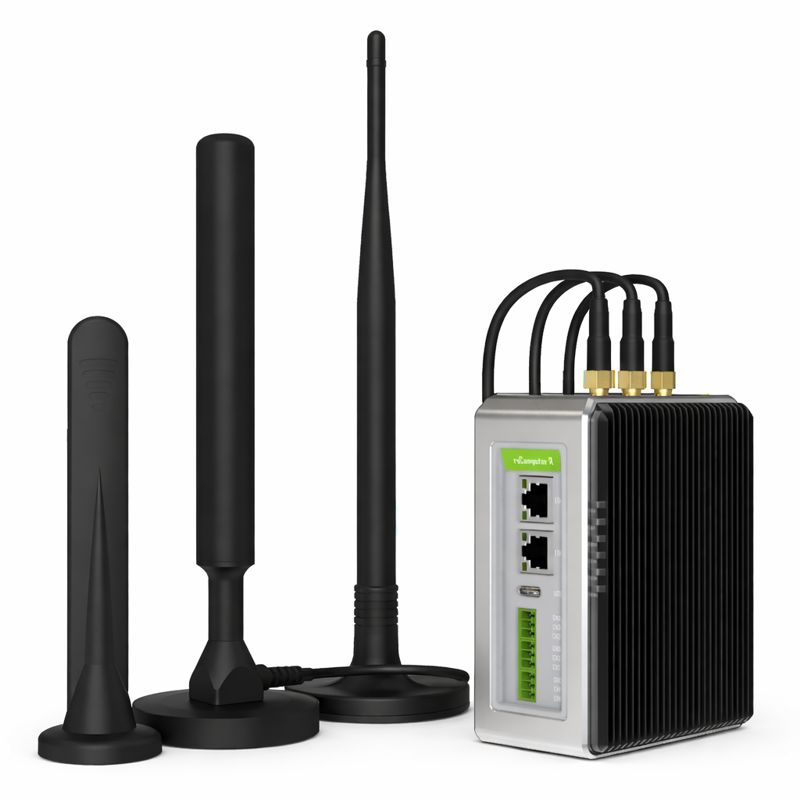
Overview
Description
The reComputer R1225 is a powerful and flexible industrial Raspberry Pi-based IoT LoRaWAN gateway and controller, powered by the CM4 and equipped with AI capabilities. It features 3 RS485 interfaces, dual Ethernet ports, and supports BACnet and Modbus protocols, providing all the functionality needed for a robust and reliable industrial edge IoT device. With support for AI NPU accelerators, it is an ideal solution for remote access control applications, especially in BMS, BAS, and iBMS systems.
Features
Designed for Building Automation Systems
-
Multiple isolated RS485 channels support both high-speed and low-speed communication
-
Supports BACnet, Modbus RTU, and Modbus TCP/IP protocols
-
Up to 4GB of RAM supports the processing of thousands of data points
-
Clear dual-sided LED indicators allow users to quickly check the operational status
-
High-quality metal case, compatible with DIN-rail and wall mounting
-
Open-source software including SenseCAP Gateway OS,ChirpStack, Basics™ Station, and a built-in packet forwarder. Supports customization and secondary development.
Powerful Performance
-
Powered by Raspberry Pi CM4
-
Broadcom BCM2711 quad-core Cortex-A72 (ARM v8) 64-bit SoC @ 1.5GHz
-
Up to 4GB RAM and 32GB eMMC
Rich Wireless Capabilities
-
On-chip Wi-Fi
-
On-chip BLE
-
Mini-PCle1: LTE
- 4G version pre-installed with LTE module:
- EU868: EC25-EUX-mini-PCIe (LTE Cat 4)
- US915: EC25-AFXGA-mini-PCIe (LTE Cat 4)
- 4G version pre-installed with LTE module:
-
Mini-PCle2: Pre-installed SPI LoRa® module
- EU868: Wio-WM1302 LoRaWAN Gateway Module (SPI) - EU868
- US915: Wio-WM1302 LoRaWAN Gateway Module (SPI) - US915
Rich Interfaces
- 3x RS485 (isolated)
- 1x 10M/100M/1000M Ethernet (Supports PoE)
- 1x 10M/100M Ethernet
- 1x HDMI 2.0
- 2x Type-A USB2.0
- 1x Type-C USB2.0 (USB console for OS update)
- 1x SIM card slot
Safety and Reliability
- Hardware Watchdog
- UPS supercapacitor (included)
- Metal casing with PC side panels
- ESD: EN61000-4-2, level 3
- EFT: EN61000-4-4, level 2
- Surge: EN61000-4-5, level 2
- Production Lifetime: reComputer R1225 will remain in production until at least December 2030
Naming Conventions

Specifications
| Parameter | Description | |
| Hardware Spec | ||
| CPU | Raspberry Pi CM4, Quad-core Cortex-A72@ 1.5GHz | |
| Operating System | Raspberry Pi OS, Ubuntu | |
| RAM | 4GB | |
| eMMC | 32GB | |
| System Spec | ||
| Input | 2-pin Terminal Block | |
| PoE(as a powered device) | IEEE 802.3af standard, 12.95W | |
| Supply Voltage(AC/DC) | 12~24 V AC/9~36 V DC | |
| Overvoltage Protection | 40V | |
| Power Switch | No | |
| Reboot Switch | Yes | |
| Interface | ||
| Ethernet | 1 x 10/100/1000 Mbps(supports PoE*) | |
| 1 x 10/100 Mbps IEEE802.3/802.3u | ||
| USB | 2 x USB-A 2.0 Host | |
| 1 x USB-C 2.0 (For flashing OS) | ||
| RS485 | 3 x 3-pin Terminal Block (isolated) | |
| HDMI | 1 x HDMI 2.0 | |
| SIM Card Slot | supports a standard SIM card | |
| M.2 Slot | supports M.2 NVMe SSD | |
| LED | 6 x LED indicators | |
| Buzzer | 1 | |
| Reset Button | 1 | |
| DSI (reserved) | supports LCD* (on board within the enclosure) | |
| Wireless Communication | ||
| Wi-Fi: 2.4/5.0 GHz | On-chip Wi-Fi | Yes |
| BLE: 5.0 | On-chip BLE | Yes |
| LoRa®(Occupied) | SPI LoRa® | |
| 4G Cellular(Optional) | 4G LTE* | |
| Standards | ||
| EMC | ESD: EN61000-4-2, Level 3 | |
| EFT: EN61000-4-4, Level 2 | ||
| Surge: EN61000-4-5, Level 2 | ||
| Certification | CE, FCC | |
| RoHS | ||
| Ambient Conditions | ||
| IP Rating | IP40 | |
| Operating Temperature | -30~70 °C | |
| Operating Humidity | 10~95% RH | |
| Storage Temperature | -40~80 °C | |
| Others | ||
| Supercapacitor UPS | SuperCAP UPS LTC3350 Module | |
| Hardware Watchdog | 1~255s | |
| RTC | High Accuracy RTC | |
| Security | Encryption Chip TPM 2.0* | |
| ATECC608A | ||
| Heat Dissipation | Fanless | |
| Warranty | 2 years | |
| Production Lifetime | Until December 2030 | |
| Component and Interface Status Statement | ||
| Reserved | Designated for future use or expansion. | |
| Optional | Non-essential components, users can choose to include or exclude. | |
| Occupied | Currently in use and integral to product functionality. | |
| Included | Essential components provided with standard package. | |
| Mechanical | ||
| Dimension(W x H x D) | 130 mm x 93 mm x 49.6 mm | |
| Enclosure | 6061 Aluminum Alloy Casing with Transparent PC Side Panels | |
| Mounting | DIN-rail/Wall | |
| Weight(Net) | 750 g; R1225 with 4G module: 800 g | |
Statement
Options marked with * require additional purchase according to the accessories list.
Hardware Overview
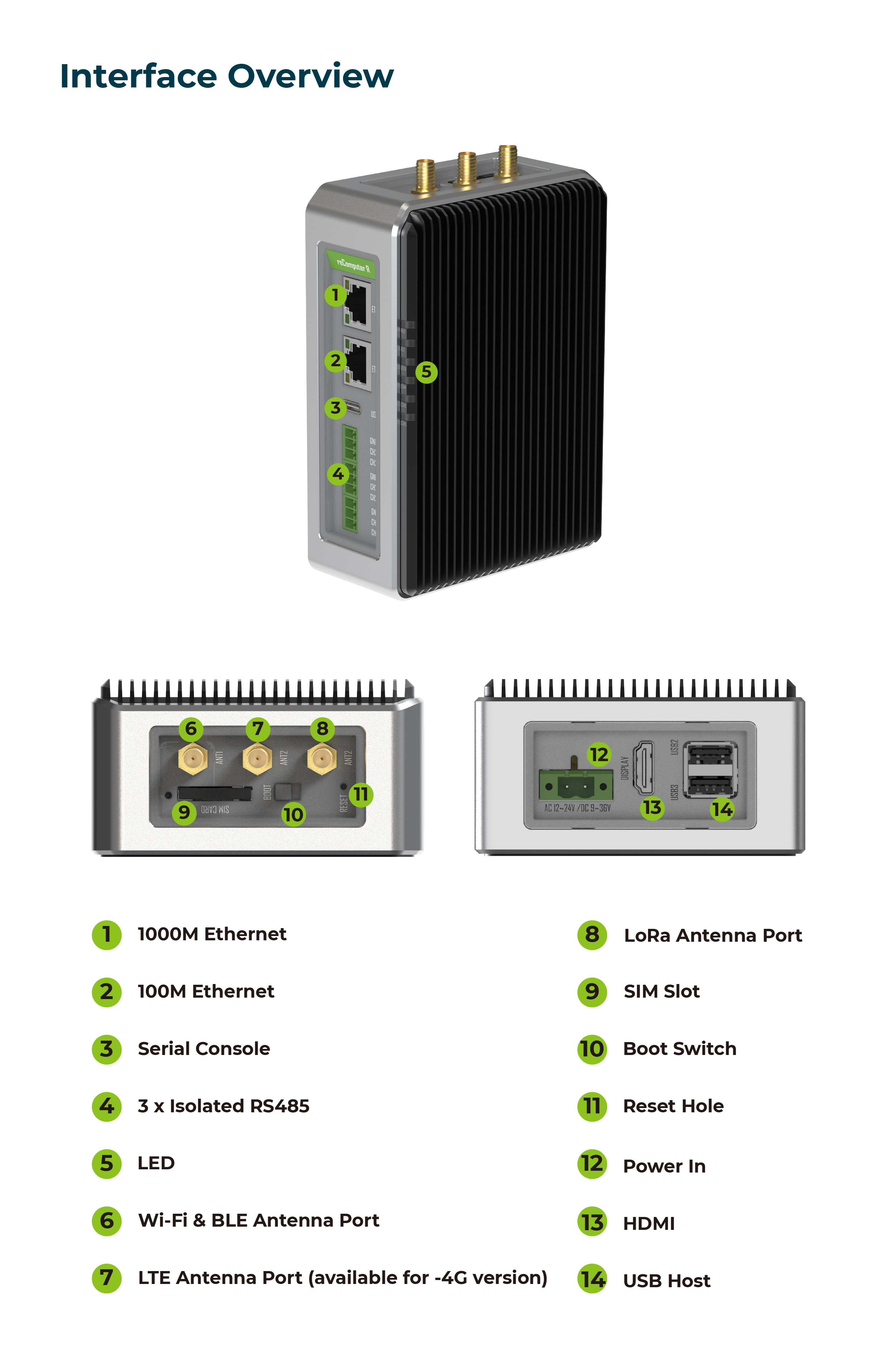
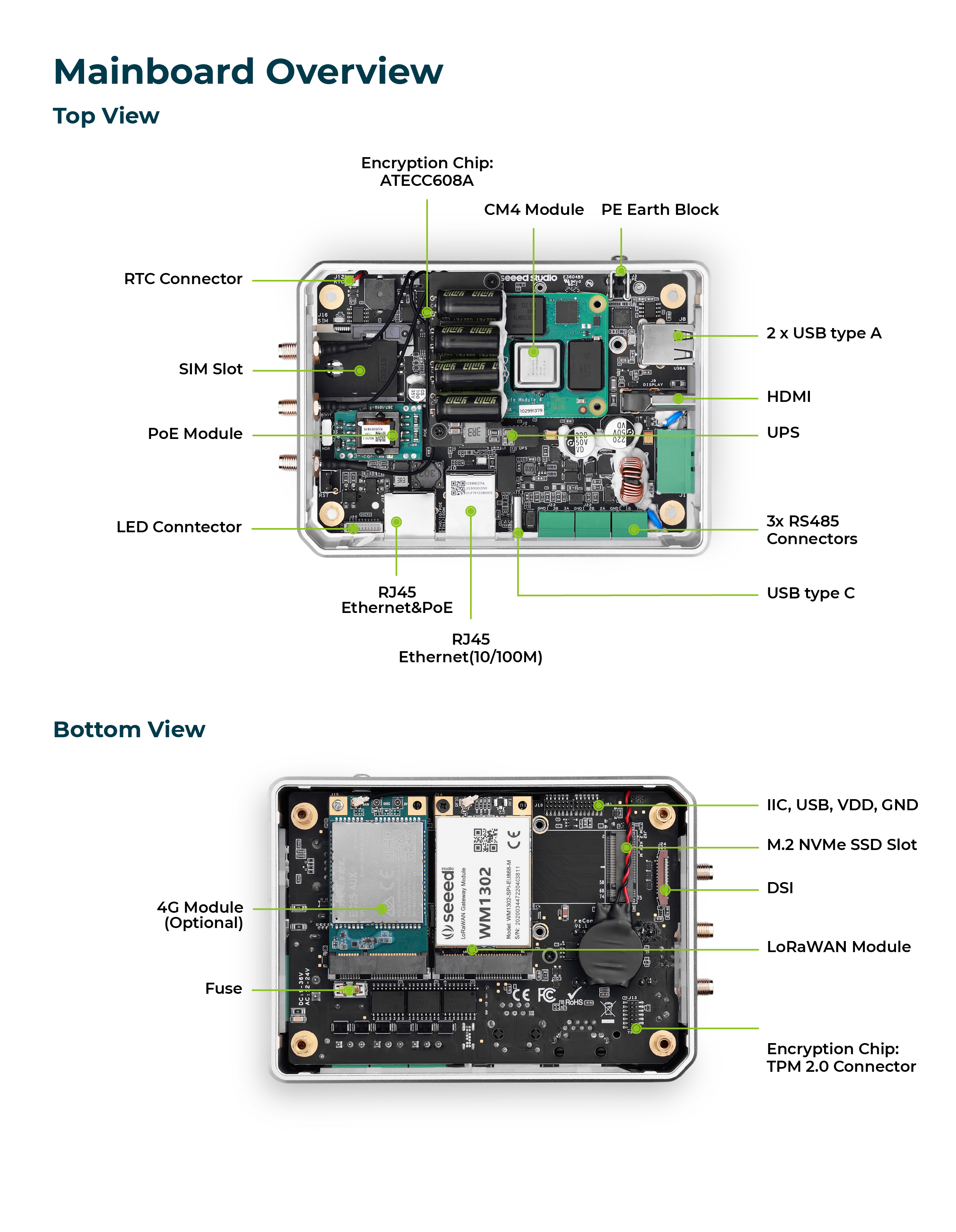
Mainboard Overview
Power Diagram
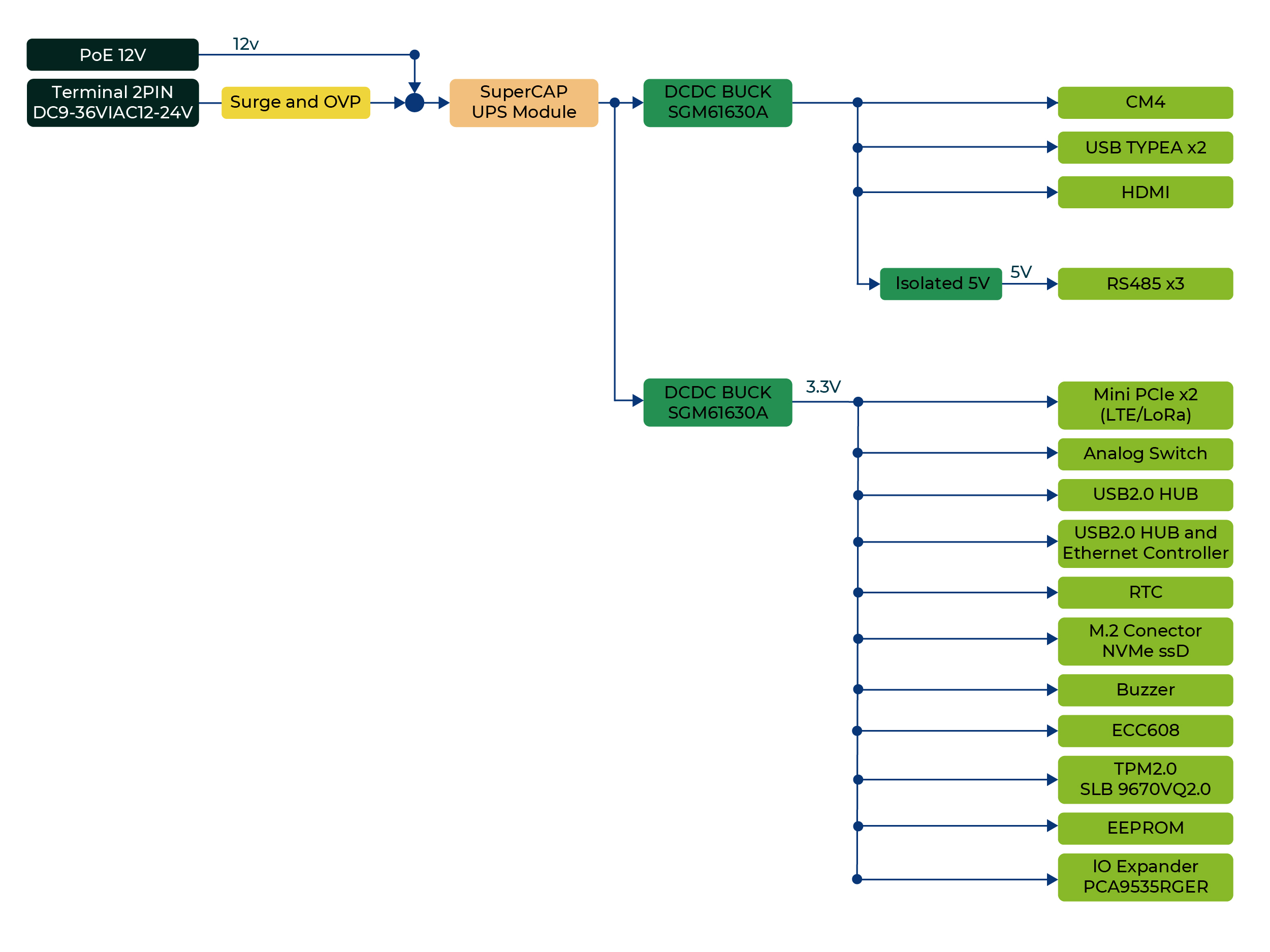
The reComputer R1225 supports three power supply options: AC, DC terminal and PoE . By default, the reComputer R1225 is powered through the AC/DC terminal (Official regional power adapter SKU:110061505/110061506). A PoE module (SKU:110991925) is included, providing additional power supply flexibility.
2-Pin Power Terminal
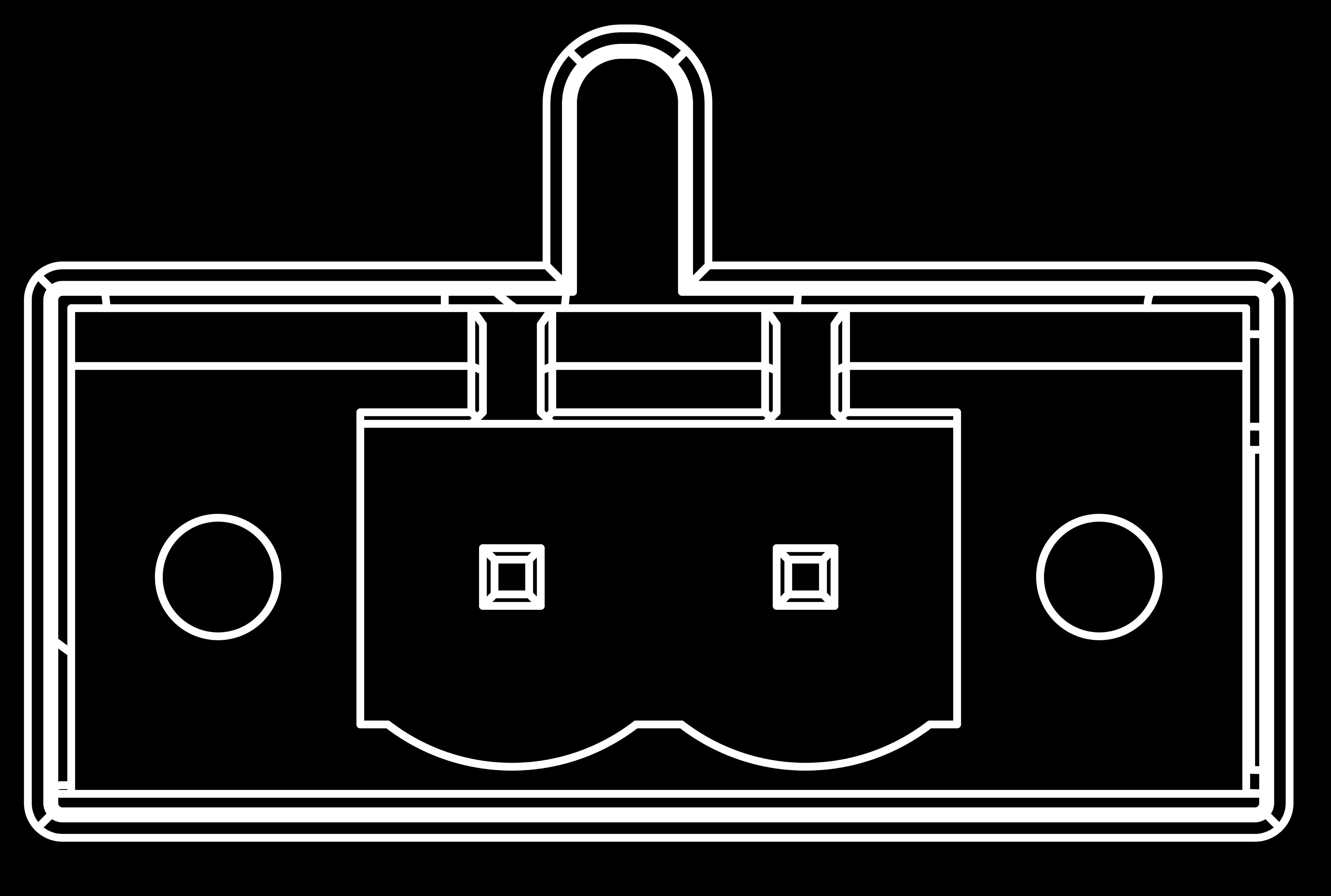
The reComputer R1225 supports a nominal input voltage of 12~24 V or DC voltage of 9~36V. The power supply is connected via the 2-pin power terminal block connector. To properly ground the device, the ground wire can be secured to the screw located at the top left corner of the power terminal.
The power solution utilizes a bridge rectifier diode for reverse polarity protection and is compatible with both AC and DC inputs. This ensures that regardless of how the power supply's positive and negative terminals are connected, the circuit will not be damaged. By using a bridge rectifier, the output voltage polarity remains fixed irrespective of the input DC polarity, providing effective reverse polarity protection.
POE (included)
With the PoE module installed, the ETH0 port of reComputer R1225 can support PoE power supply, providing a convenient and efficientway to power the device over Ethernet. This option simplifies the installation process and reduces the amount of cabling required, making it an ideal solution for applications with limited power sources or where power outlets are not readily available.
- PoE input: Range 44~57V; Typical 48V
- PoE output: 12V, 1.1A Max.
It's worth noting that the PoE module provided with the reComputer R1225 is compliant with the IEEE 802.3af standard and can provide a maximum power supply of 12.95W. Therefore, if there is a need to connect high-power peripherals such as SSD or 4G modules, the PoE power supply may not be sufficient. In this case, it's recommended to use the AC/DC terminal for power supply instead to ensure stable and reliable operation of the device.
Power Consumption
Please refer to the table below for the tested power consumption of reComputer R1225 in Seeed Studio's laboratory. Please note that this value is for reference only, as the test methods and environment can result in variations in the results.
Power On and Power Off
The reComputer R1225 does not include a power button by default. The system will automatically power on once power is connected. When shutting down, please select the shutdown option in the operating system and wait for the system to fully shut down before cutting off power. To restart the system, simply reconnect to the power.
Please note that after shutting down, please wait for at least 10 seconds before restarting the system to allow for the internal capacitors to fully discharge.
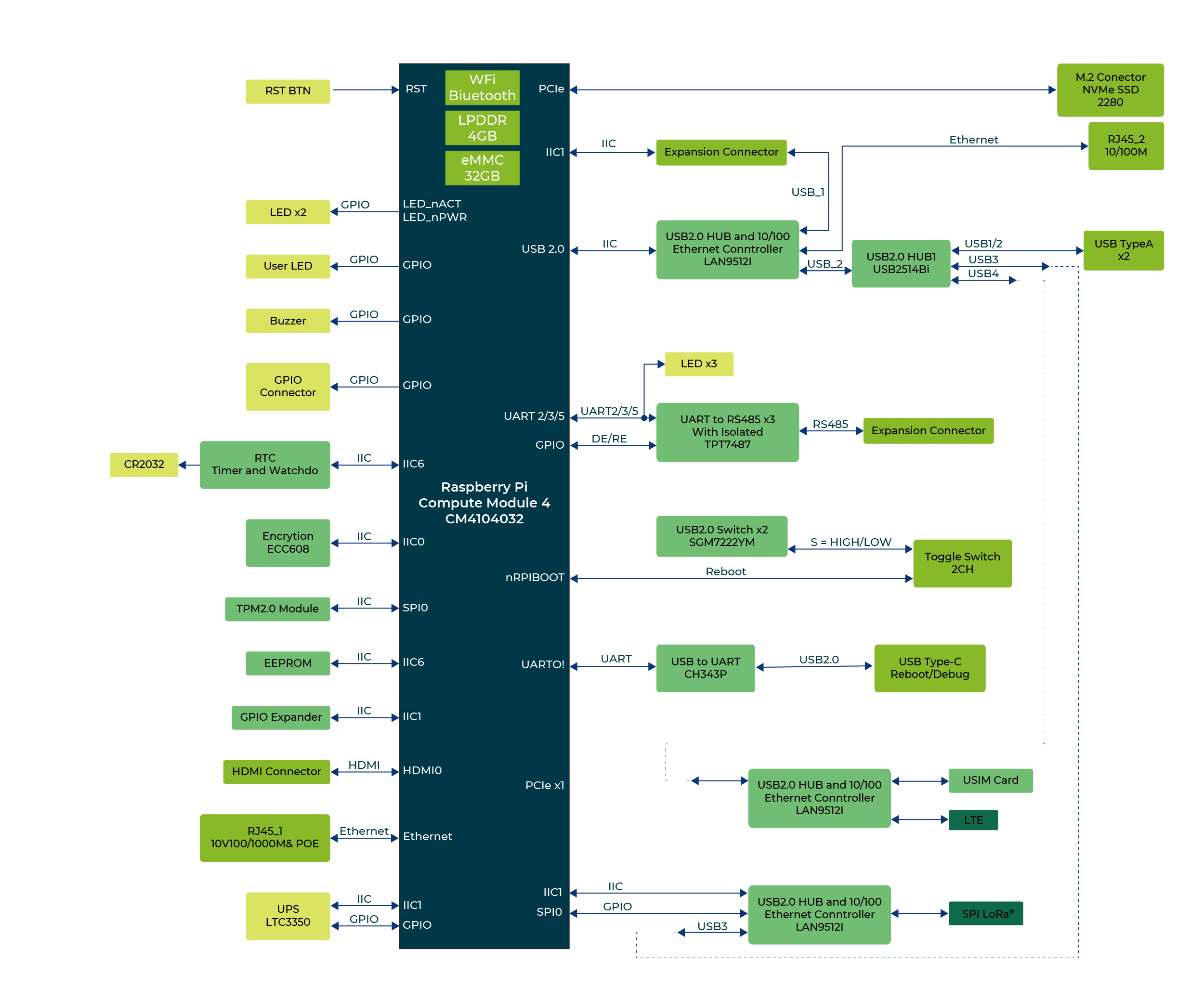
Block Diagram
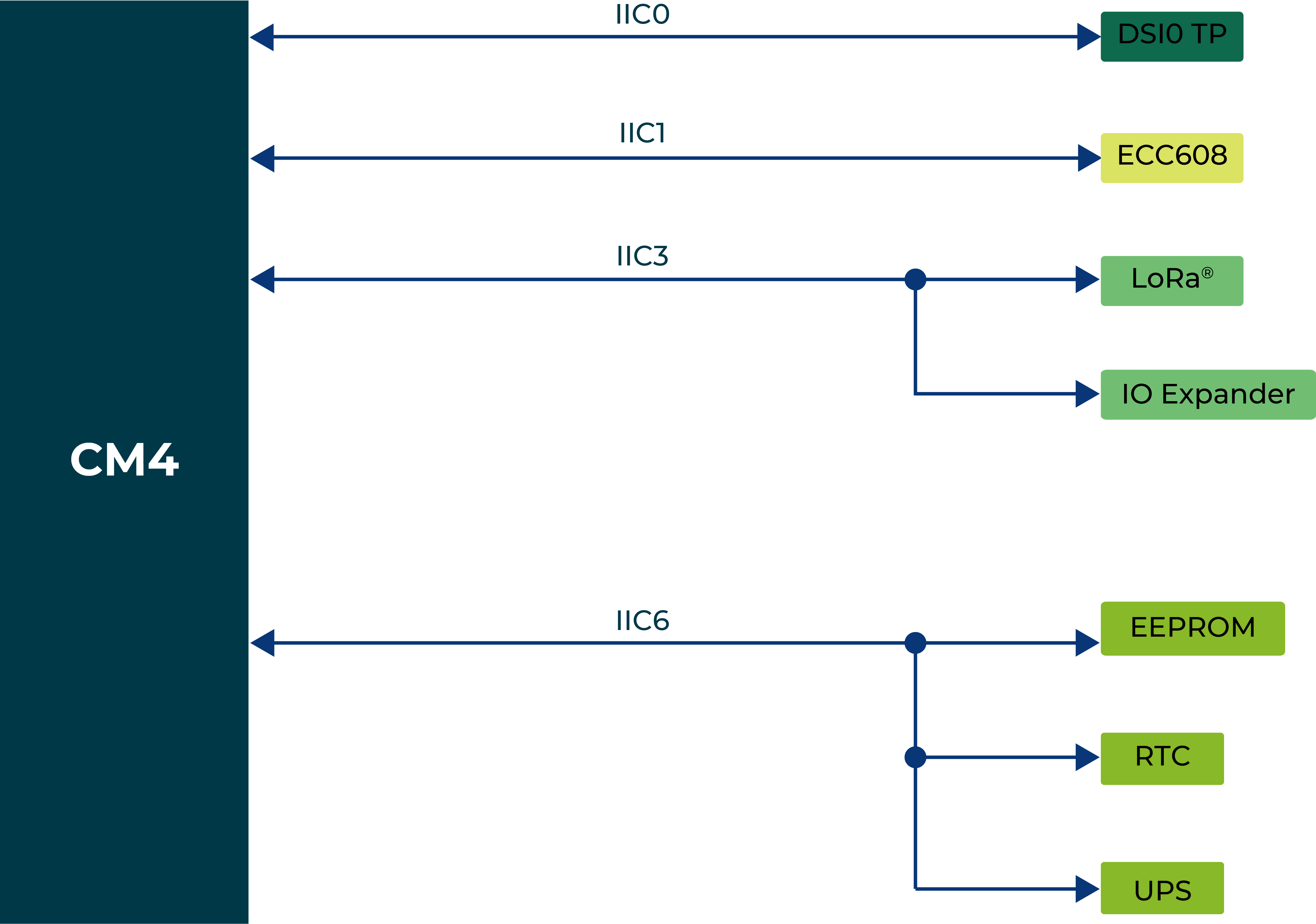
IIC Diagram
Interface
| Interface | ||
| Ethernet | 1 x 10/100/1000 Mbps IEEE 1588-2008(supports PoE) | |
| 1 x 10/100 Mbps IEEE802.3/802.3u | ||
| USB | 2 x USB-A 2.0 Host | |
| 1 x USB-C 2.0 (for flashing OS) | ||
| RS485 | 3 x 3-pin Terminal Block (isolated) | |
| HDMI | 1 x HDMI 2.0 | |
| SIM Card Slot | supports a standard SIM card | |
| M.2 Slot | supports M.2 NVMe SSD | |
| LED | 6 x LED indicators | |
| Buzzer | 1 | |
| Reset Button | 1 | |
| HDMI | 1 x HDMI 2.0 | |
| DSI | supports LCD*(on board within the enclosure) | |
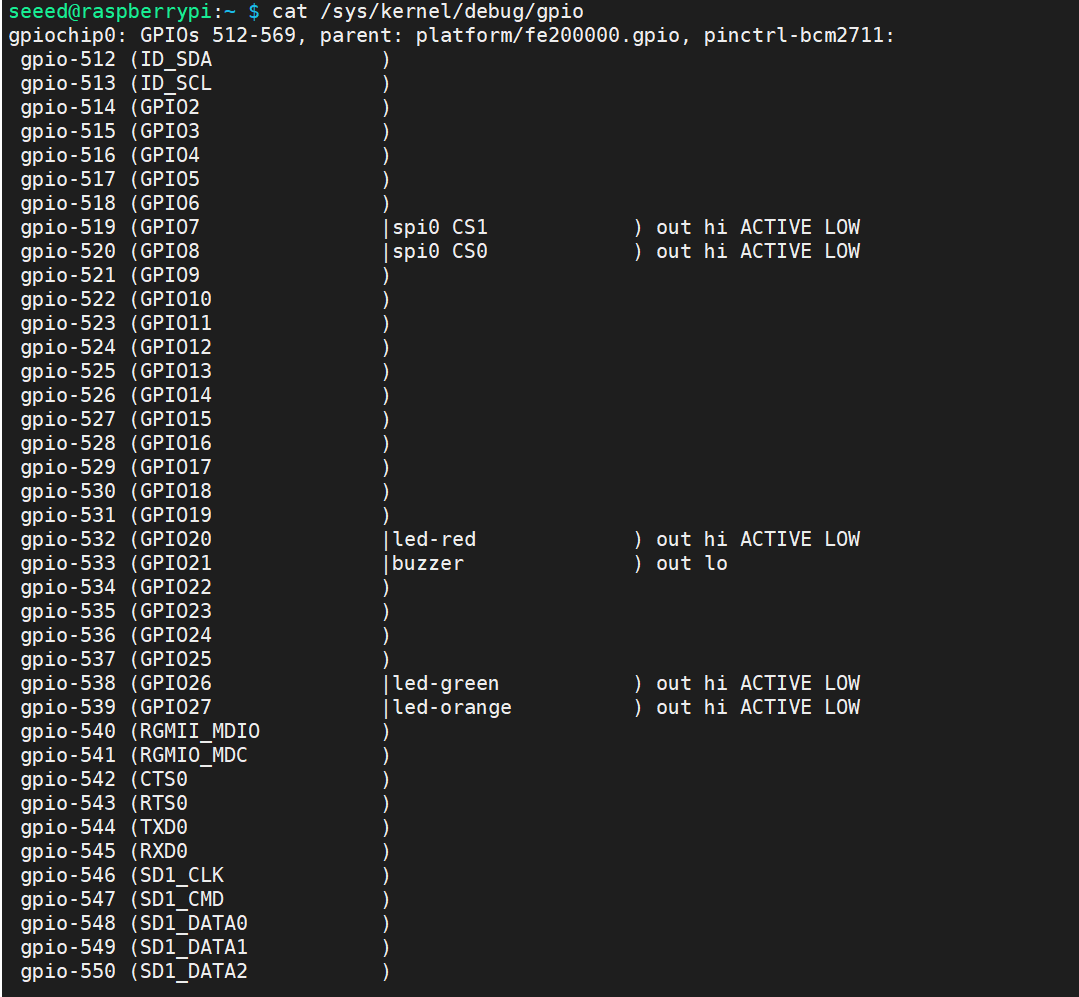
To query GPIO mappings and offsets, please use following command:
cat /sys/kernel/debug/gpio
LED Indicator Status
The reComputer R1225 features 6 LED indicators that serve to signal the machine's operational status. Please refer to the table below for the specific functions and status of each LED:
| LED Indicator | Color | Status | Description |
|---|---|---|---|
| PWR | Green | On | The device has been connected to power. |
| Off | The device is not connnected to power. | ||
| ACT | Green | Under Linux this pin will flash to signify eMMC access. If any error occurs during booting, then this LED will flash an error pattern which can be decoded using the look up table on the Raspberry Pi website. | |
| USER | Green/Red/Blue | Need to be defined by user. | |
| RS485-1 | Green | Off | No data transfer on RS485 channel 1. |
| Blink | RS485 channel 1 is receiveing or sending data. | ||
| RS485-2 | Green | Off | No data transfer on RS485 channel 2. |
| Blink | RS485 channel 2 is receiveing or sending data. | ||
| RS485-3 | Green | Off | No data transfer on RS485 channel 3. |
| Blink | RS485 channel 3 is receiveing or sending data. |
ACT Status table
| Long flashes | Short flashes | Status |
|---|---|---|
| 0 | 3 | Generic failure to boot |
| 0 | 4 | start*.elf not found |
| 0 | 7 | Kernel image not found |
| 0 | 8 | SDRAM failure |
| 0 | 9 | Insufficient SDRAM |
| 0 | 10 | In HALT state |
| 2 | 1 | Partition not FAT |
| 2 | 2 | Failed to read from partition |
| 2 | 3 | Extended partition not FAT |
| 2 | 4 | File signature/hash mismatch - Pi 4 |
| 4 | 4 | Unsupported board type |
| 4 | 5 | Fatal firmware error |
| 4 | 6 | Power failure type A |
| 4 | 7 | Power failure type B |
If the ACT LED blinks in a regular four blink pattern, it cannot find bootcode (start.elf) If the ACT LED blinks in an irregular pattern then booting has started. If the ACT LED doesn't blink, then the EEPROM code might be corrupted, try again without anything connected to make sure. For more detail please check the Raspberry Pi forum: STICKY: Is your Pi not booting? (The Boot Problems Sticky) - Raspberry Pi Forums For more detail please check the Raspberry Pi forum.
Customizable LED lights via the Luci interface
See the Quick Start Guide to access the Luci interface.
Navigate to System > LED Configuration
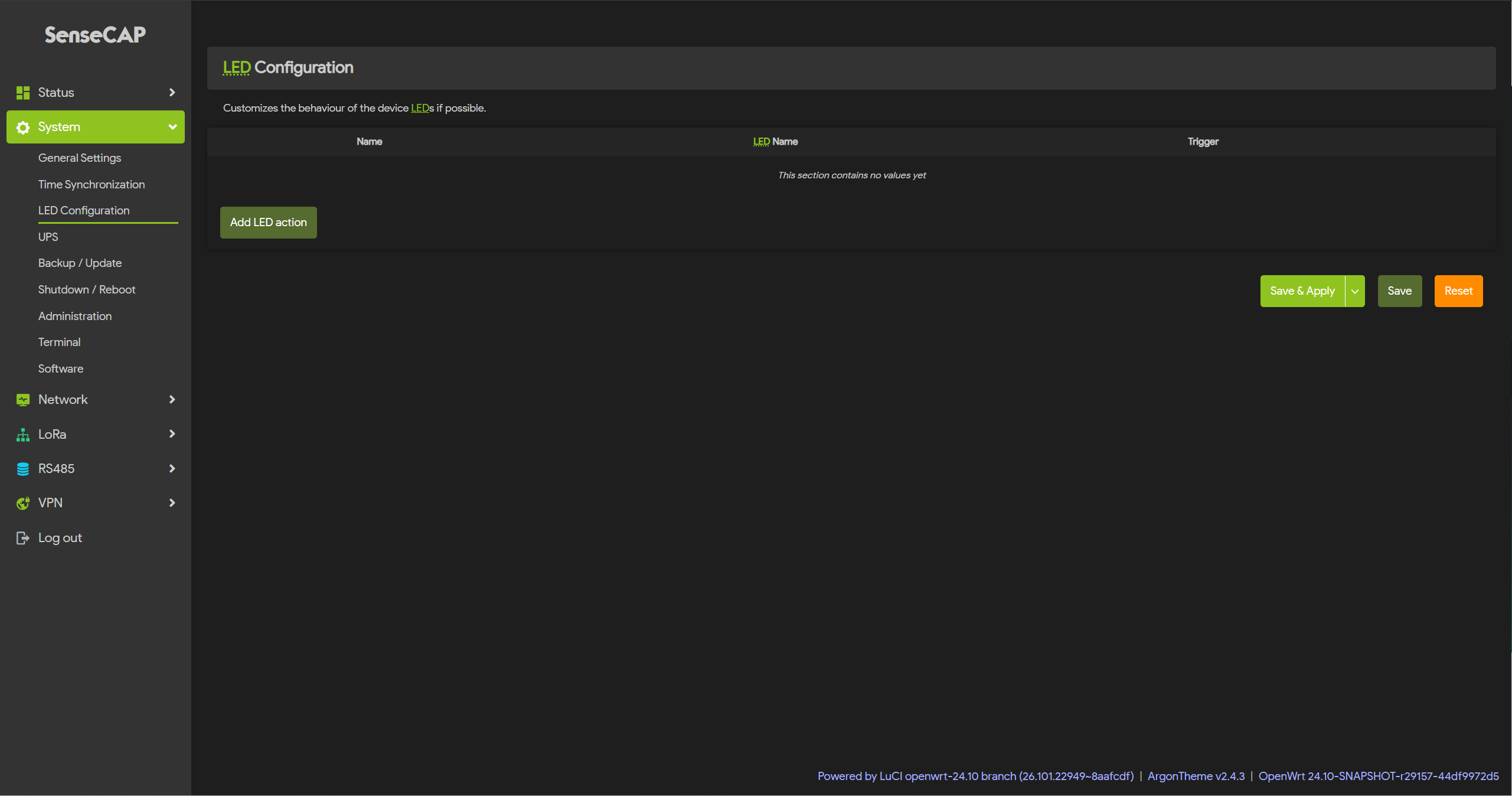
Control LED lights via commands
To control the user LEDs, we recommend using sysfs, a pseudo-filesystem provided by the Linux kernel that exposes information about various kernel subsystems, hardware devices, and their associated drivers. On the reComputer R1225, we have abstracted the user LED interface into three device files (led-red, led-blue, and led-green), enabling users to control the LED lights simply by interacting with these files. The examples are as follows:
- To turn on the red LED, please enter following command in the Terminal:
echo 1 | sudo tee /sys/class/leds/led-red/brightness
- To turn off the red LED, please enter following command in the Terminal:
echo 0 | sudo tee /sys/class/leds/led-red/brightness
- You can turn on red and green LED at the same time, please enter following command in the Terminal:
echo 1 | sudo tee /sys/class/leds/led-red/brightness
echo 1 | sudo tee /sys/class/leds/led-green/brightness
Buzzer
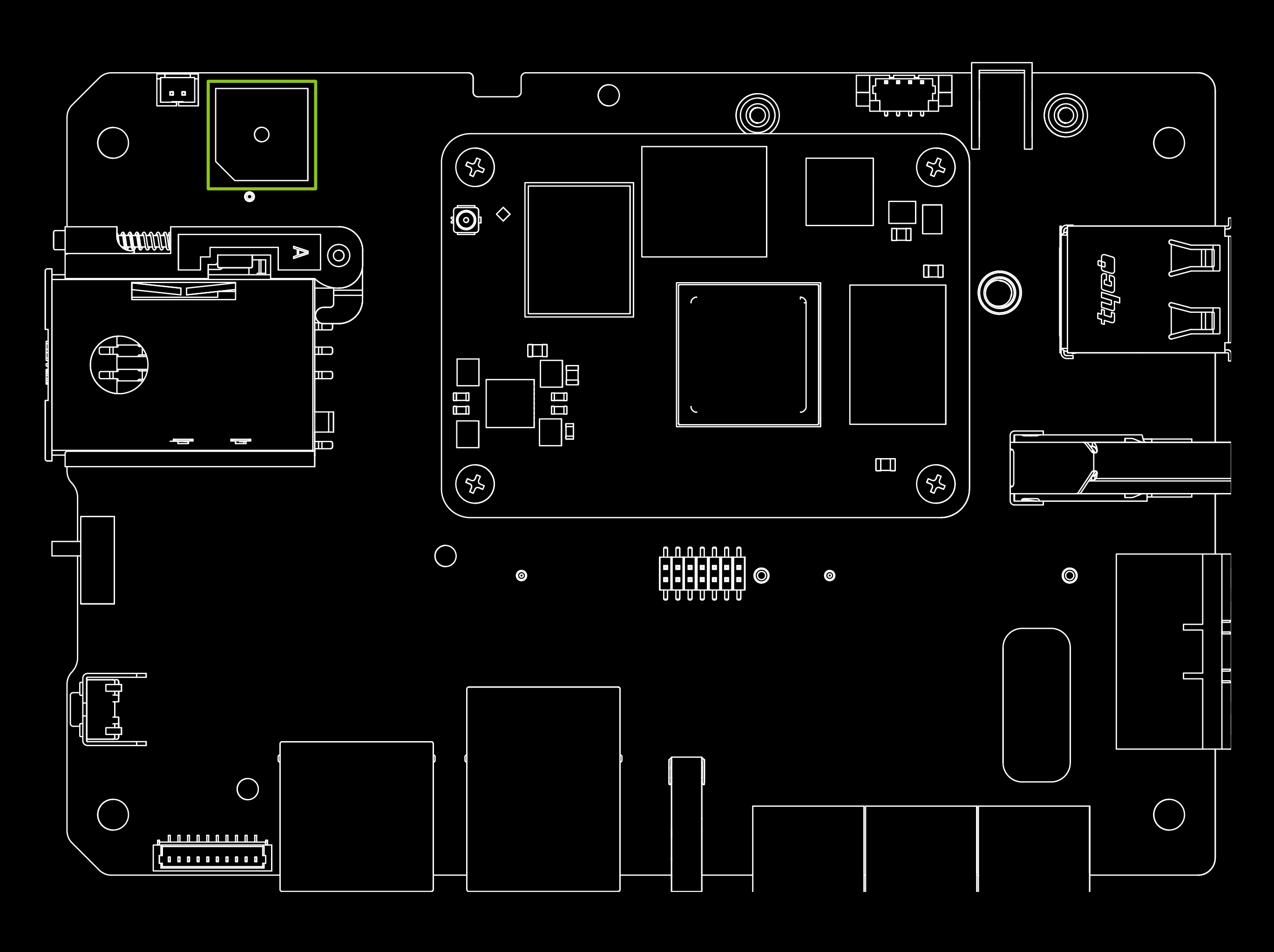
The reComputer R1225 features an active buzzer, which can be used for various purposes such as alarm and event notifications.
For reComputer R1225 users(R1225 is based on the R1000 v1.1 hardware platform), the buzzer is connected to PCA9535 P15, to turn off(on) the buzzer, Please enter following command in the Terminal :
echo 591 | sudo tee /sys/class/gpio/export
echo out | sudo tee /sys/class/gpio/gpio591/direction
echo 1 | sudo tee /sys/class/gpio/gpio591/value # turn on
echo 0 | sudo tee /sys/class/gpio/gpio591/value # turn off
RS485
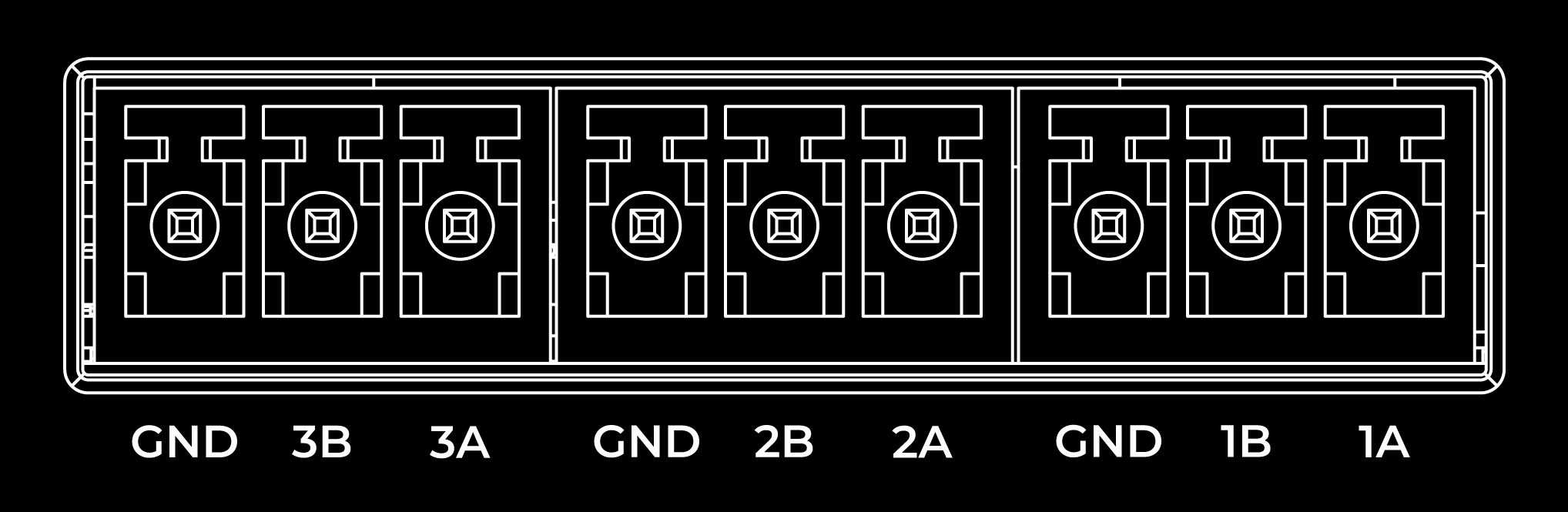
The reComputer R1225 is equipped with 3 sets of RS485 interface using 3-pin connector, which is isolated for both signal and power to ensure safe and reliable operation in industrial and automation applications. The RS485A and RS485B signals are isolated using capacitive isolation, which provides excellent EMI immunity and meets the high-speed communication requirements of the RS485 interface.
By default, the 120 Ω termination resistor is not installed. However, five through-hole resistors are included in the package. If required, users may secure the resistor by clamping it between the A and B terminals of the 3-pin terminal block connector.
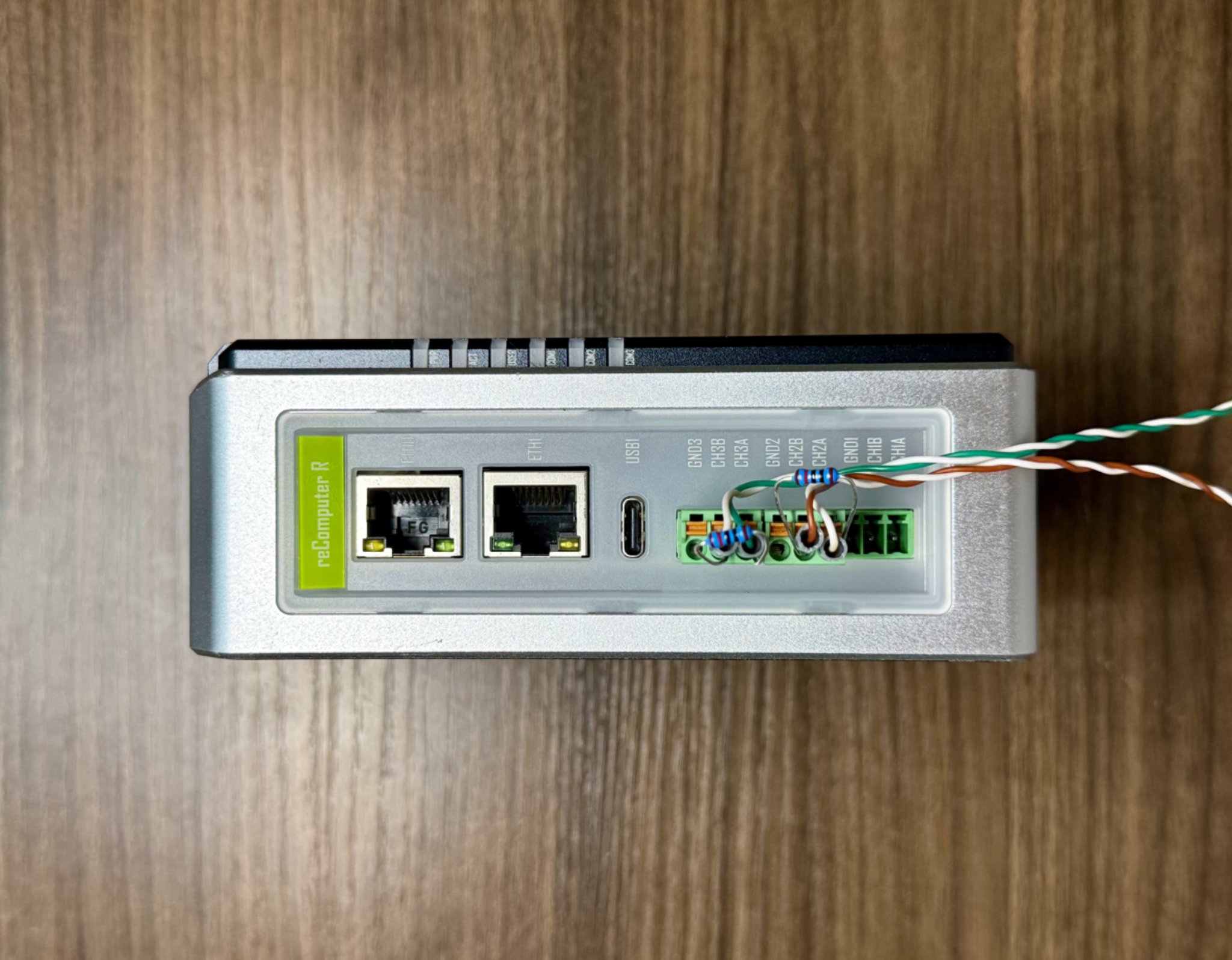
The RS485 interface uses an isolated power supply, which means that the ground signal for external devices connected to the RS485 interface should be connected to the GND_ISO pin.
These are the pins related to the 485 interface of reComputer for the data table.
| RS485 | RS485_POWER_EN | OS device file | P14 | default(High) |
|---|---|---|---|---|
| TX5 | /dev/ttyAMA5 | GPIO12 | ||
| RX5 | GPIO13 | |||
| TX2 | ID_SD | /dev/ttyAMA2 | GPIO0/ID_SD | |
| RX2 | ID_SC | GPIO1/ID_SC | ||
| TX3 | /dev/ttyAMA3 | GPIO4 | ||
| RX3 | GPIO5 | |||
| RS485_1_DE/RE | (Hight/DE || Low/RE) | /dev/ttyAMA2 | GPIO6 | default Low |
| RS485_2_DE/RE | /dev/ttyAMA3 | GPIO17 | default Low | |
| RS485_3_DE/RE | /dev/ttyAMA5 | GPIO24 | default Low |
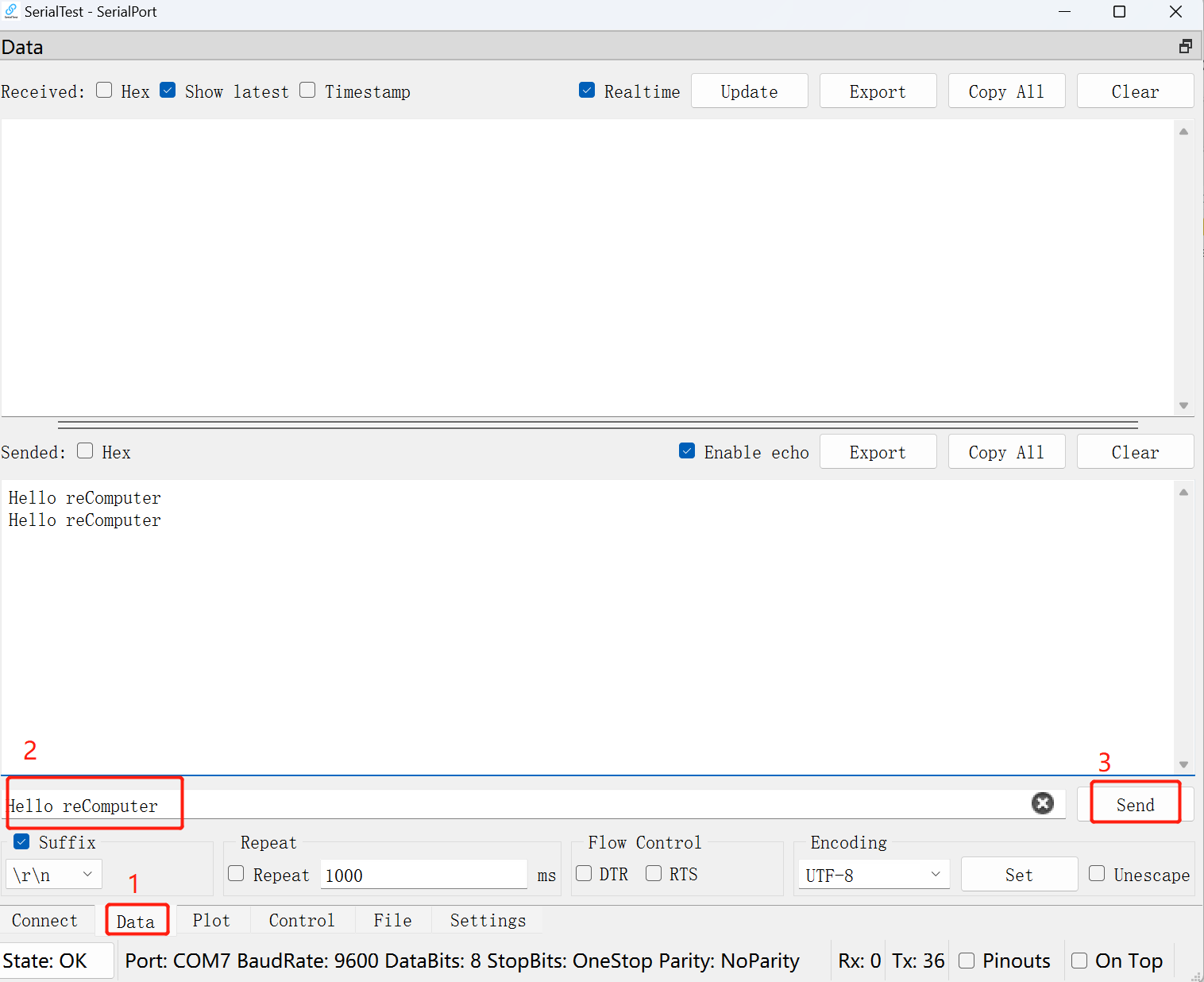
By default, the power enable port of the RS485 port is high. And each RS485 interface is in the accepting state. You can do a simple experiment.
The 485 port that connects the pc to the reComputer-R.
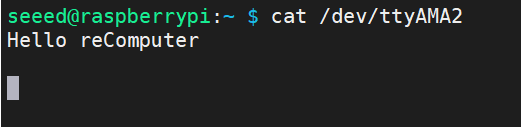
Enter in the terminal of reComputer:
cat /dev/ttyAMA2
Then send some data in the serial debugging tool of your computer, you can observe the data in the terminal window of reComputer.
Boot Switch

The Boot Switch of the reComputer R1225 is connected to the nRPI_BOOT pin of CM4. This switch provides users with the option to select the boot source between eMMC and USB. In normal mode, the switch should be set away from the side with the "BOOT" label, enabling the system to boot from eMMC. Conversely, when users need to flash the system image, they should set the switch towards the "BOOT" label, allowing the system to boot from the Type-C USB interface.
| Switch Position | Mode | Description | nRPI-BOOT |
|---|---|---|---|
 | Normal mode | Boot from eMMC | Low |
| Flash mode | Boot from USB | High |
In Boot mode, the POE power supply function is unavailable.
USB
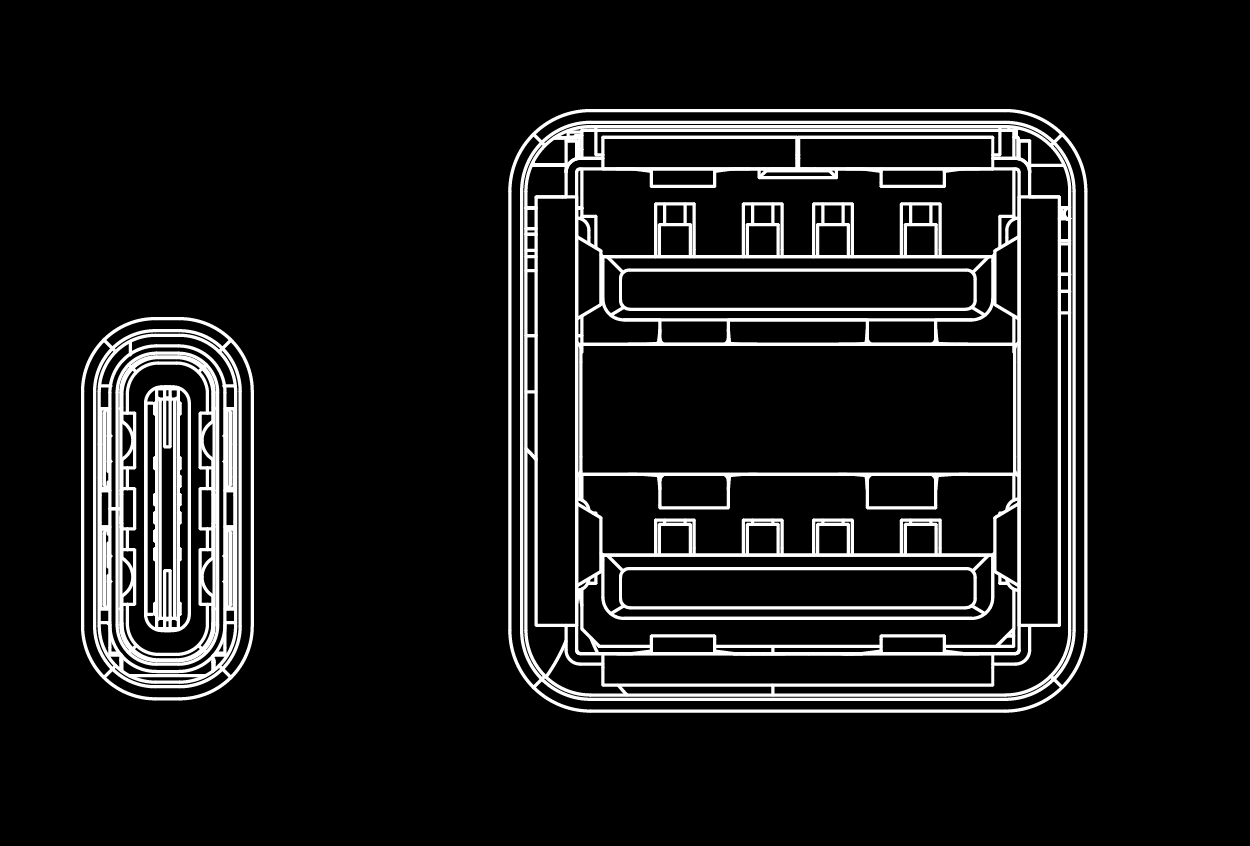
The reComputer R1225 is equipped with one USB Type-C port and two USB Type-A ports. Please refer to the table below for their functions and descriptions.
| Type | Quantity | Protocol | Function | Description |
|---|---|---|---|---|
| Type-C | *1 | USB2.0 | USB-Device | Used for serial debugging and firmware flashing, etc. |
| Type-A | *2 | USB2.0 | USB-Host | Connects various USB devices such as flash drives, USB keyboards, and mice. |
Check if the USB hub is detected by running the lsusb command. This command lists all connected USB devices, including hubs.
lsusb

Running this command should display information about the USB devices connected to your system, including any USB hubs that are present.
If the USB hub is functioning properly, you should see its details listed in the output of the lsusb command. If it's not listed, there may be an issue with the hub or its connection to the system. In such cases, you may need to troubleshoot the USB hub or its connections.
SIM Slot
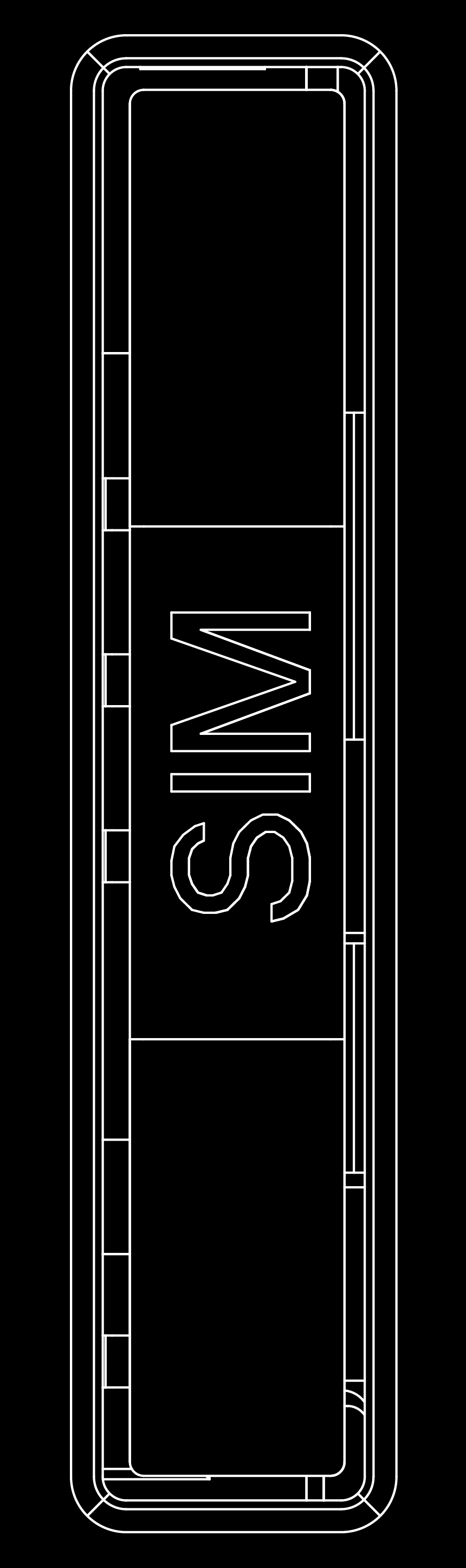
The reComputer R1225 uses a standard-size SIM card slot commonly found in industrial applications, which requires a standard SIM card with dimensions of 25mm x 15mm.
The reComputer R1225 is available in a 4G version. If you purchase the standard edition (without the 4G module), you can buy a 4G module separately for installation. Bazaar Mall currently offers two 4G modules:Europe(EMEA & Thai SKU 113991135) and America(North America SKU 113991134)
SSD Slot
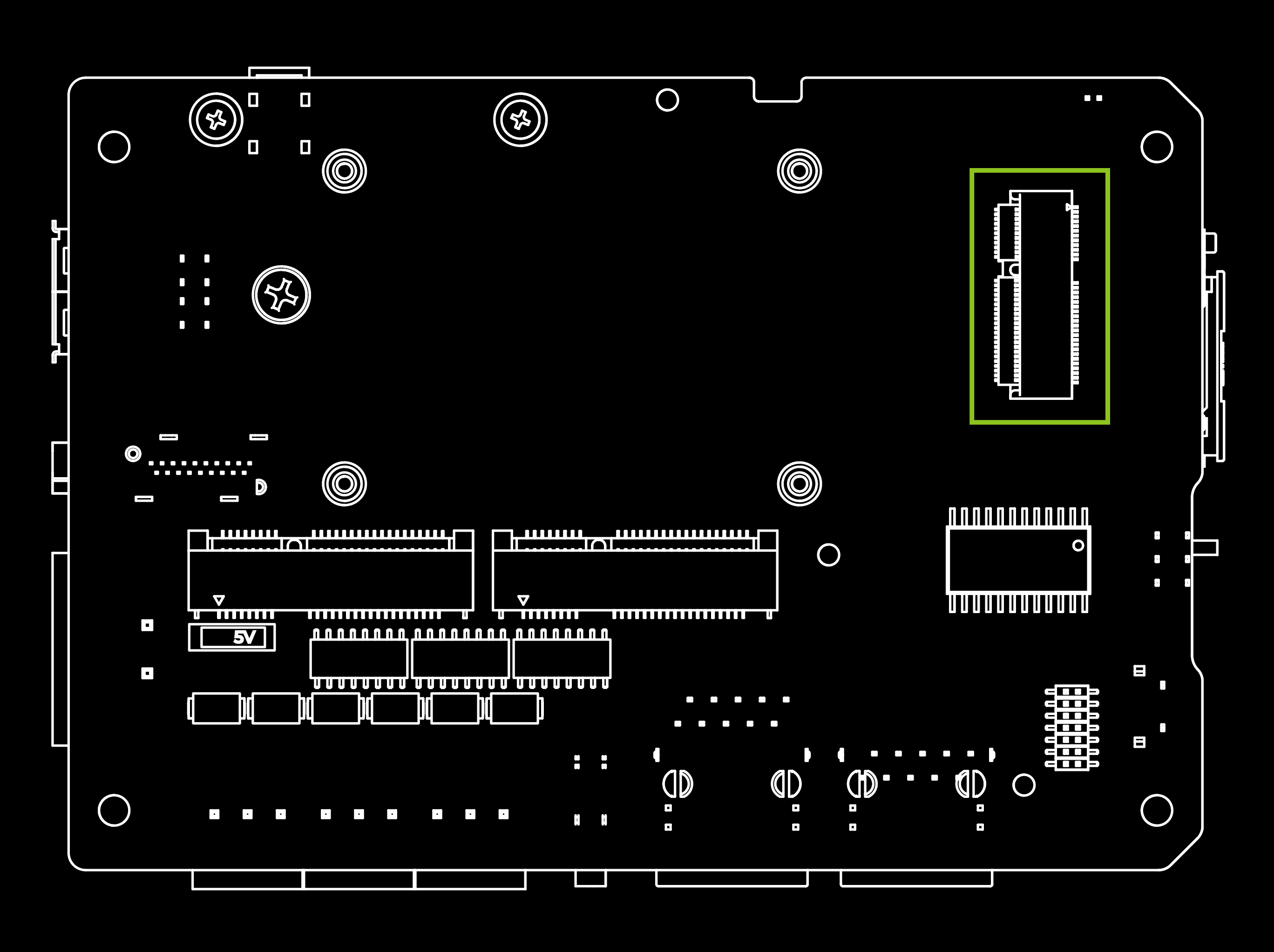
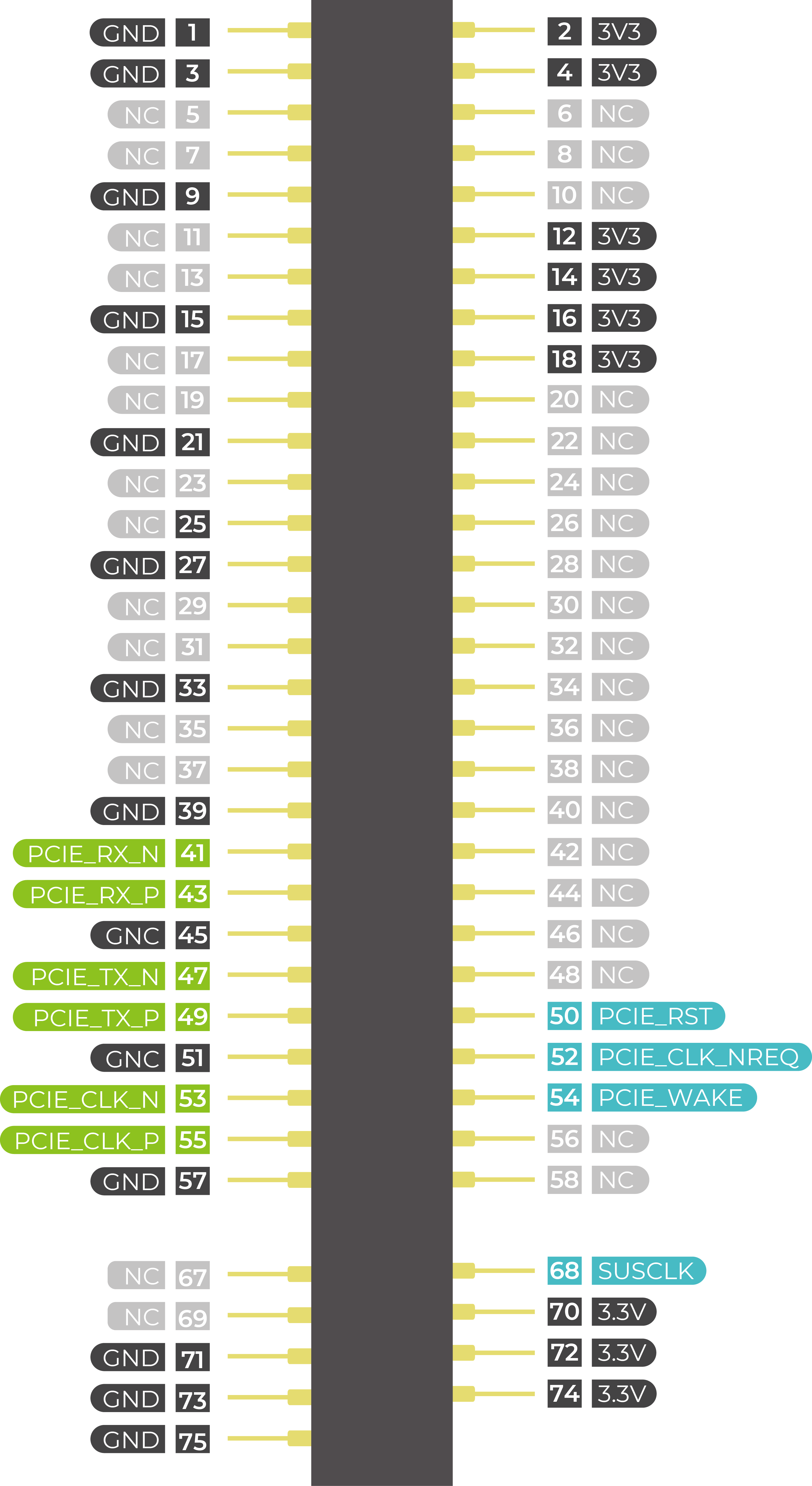
The SSD slot on the reComputer R1225 is designed to accommodate NVMe M.2 2280 SSDs for 128GB, 256GB, 512GB and 1TB in capacity. This slot allows for high-speed storage expansion, enabling users to enhance the performance and capacity of their system.
To list the disks, including the SSD, you can use the fdisk -l command. Here's how:
sudo fdisk -l
This command will display a list of all disks connected to your system, including the SSD if it's properly detected. Look for entries that represent your SSD. They typically start with /dev/sd followed by a letter (e.g., /dev/sda, /dev/sdb, etc.). Once you identify the entry corresponding to your SSD, you can proceed with partitioning or formatting it as needed.
There are two main uses for SSD cards:
1.High Capacity Storage: SSD cards can be utilized for high-capacity storage needs.
2.Boot Drive with Image: Another usage involves using the SSD both as a high-capacity storage and for storing system images, allowing booting directly from the SSD card.
It's important to note that not all SSD cards available in the market support the second usage. Therefore, if you intend to use it as a boot drive and are unsure about which model to purchase, we recommend opting for our recommended 1TB SSD(SKU 112990267). This model has been tested and verified for boot functionality, reducing the risk of compatibility issues and minimizing trial and error costs.
Mini-PCle Slot
| Slot | Supported Protocol |
|---|---|
| Mini-PCIe 1 | 4G LTE |
| Mini-PCIe 2 | SPI LoRa® |
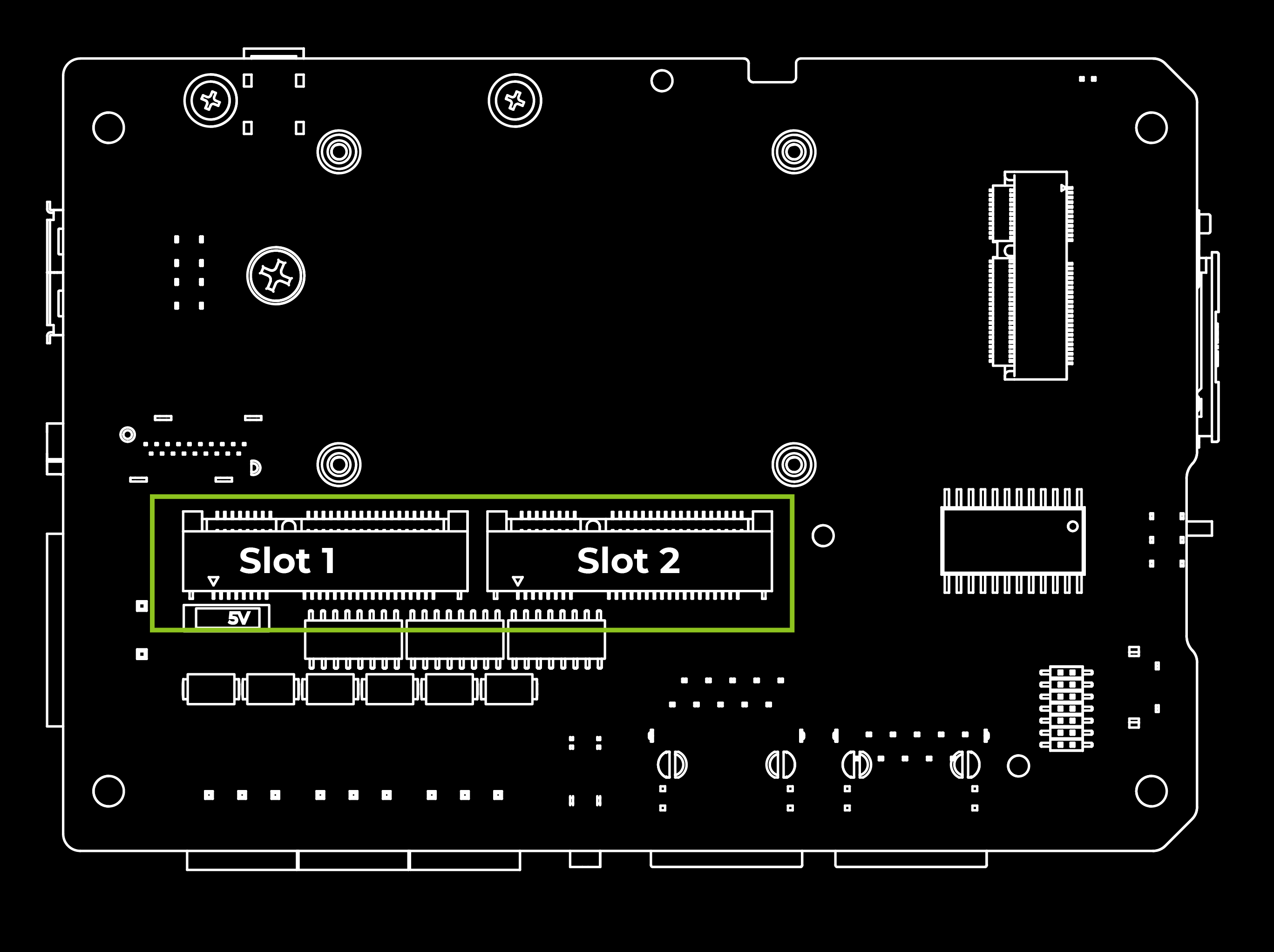
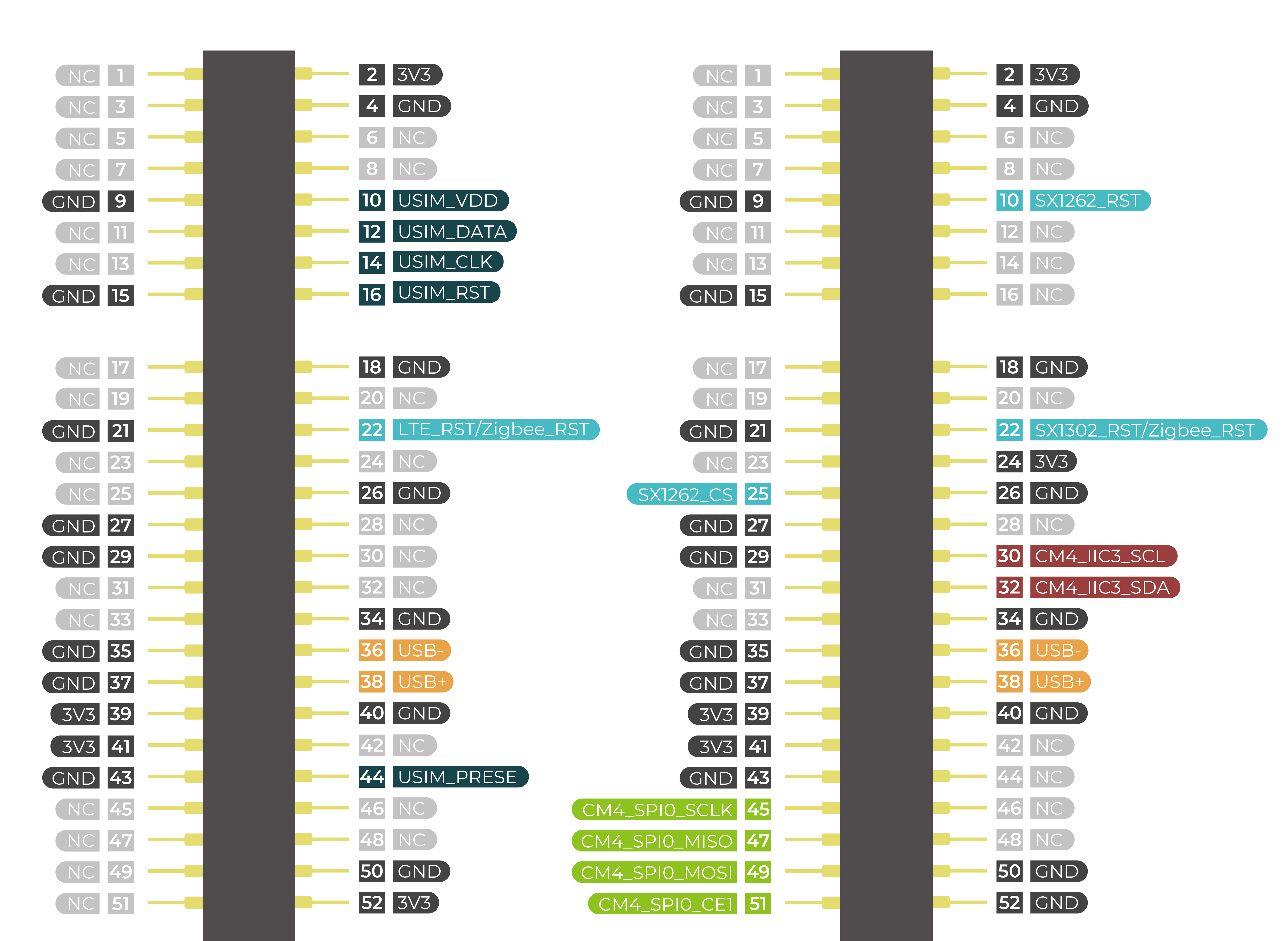
The reComputer R1225 comes in standard and 4G versions: For the standard version, Mini-PCIe 1 is left vacant; For the 4G version, Mini-PCIe 1 is pre-installed with 4G LTE.
This device features two Mini-PCIe interfaces, namely Mini-PCIe Slot 1 and Mini-PCIe Slot 2. Slot 1 connects to SIM card slot and supports USB protocols, while Slot 2 supports both USB and SPI protocols but doesn't connect to SIM card slot. Therefore, devices such as 4G LTE can be connected through Slot 1, while SPI LoRa® devices can be connected through Slot 2.
Reset Hole

There is a Mini Push Button Switch located in the reset hole of reComputer R1225. By pressing this button with a thin object, the CM4 can be reset. This pin when high signals that the CM4 has started. Driving this pin low resets the module.
Ethernet RJ45
| Name | Type | Speeds | PoE |
|---|---|---|---|
| ETH0 | CM4 native Gigabit Ethernet | 10/100/1000 Mbit/s | Pre-installed |
| ETH1 | Converted from USB | 10/100 Mbit/s | Not Supported |
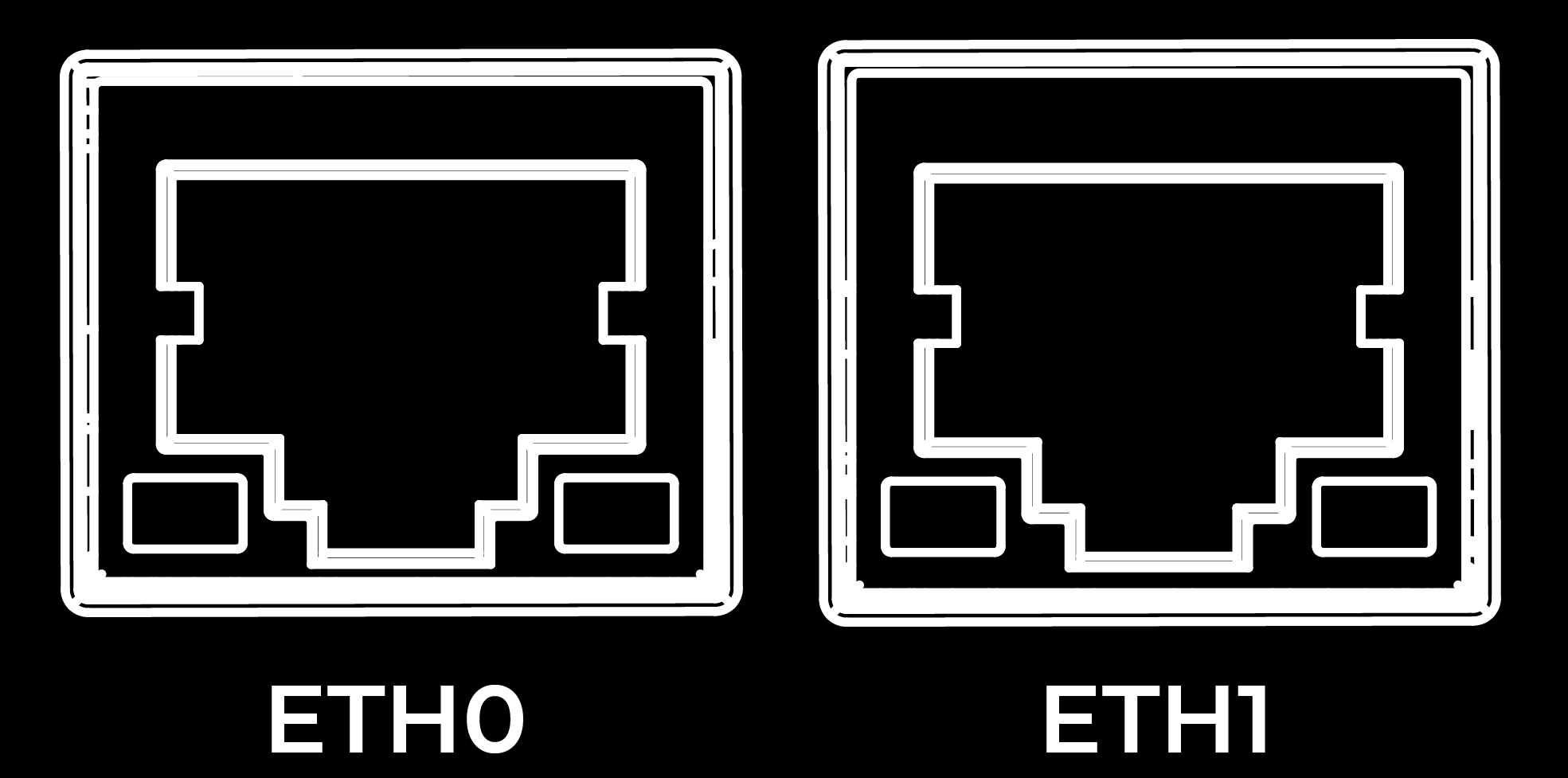
The reComputer R1225 comes with two Ethernet RJ45 ports. ETH0 is a CM4 native Gigabit Ethernet interface that supports three different speeds: 10/100/1000 Mbit/s. An additional PoE module can be purchased to enable power-over-Ethernet (PoE) delivery through this interface, providing power to the reComputer R1225. Another one ETH1 supports 10/100 Mbit/s which is converted from USB.
Network Interface Architecture
The reComputer R1225 is equipped with two physical Ethernet ports (ETH0 and ETH1). These two ports serve different roles based on the host-container architecture:
| Port | Role | Description |
|---|---|---|
| ETH0 | Container (LXC) interface | This interface is directly mapped (passthrough) from the hardware into the LXC container via the host's LXC network configuration. The OpenWrt container has full control over this interface, managing it as a standard WAN or LAN port. All application-level traffic (LoRaWAN uplink, MQTT, Web UI access, etc.) flows through this port. |
| ETH1 | Host (Debian) interface | This interface is managed by the Debian host system. It is used for host-level management tasks such as SSH access to the host, container management operations, firmware updates, and UPS monitoring communication. It remains isolated from the container network stack. |
This separation ensures that even if the container network is misconfigured or unreachable, the host management interface remains accessible for recovery and maintenance.
HDMI
The reComputer R1225 features a native HDMI interface from CM4, supporting up to 4K @ 60 fps video output. It is ideal for applications that require multiple displays, allowing users to output their content to external large screens.
RTC
The reComputer R1225 features an RTC circuit that comes pre-installed with a CR2032 battery, enabling it to maintain timekeeping functionality even in the event of power loss.
To test the Real-Time Clock (RTC) functionality, follow these steps:
- Disable automatic time synchronization:
sudo systemctl stop systemd-timesyncd
sudo systemctl disable systemd-timesyncd
- Set the time to 12:00 PM on March 20, 2024:
sudo hwclock --set --date "2024-03-20 12:00:00"
- Synchronize the RTC time to the system:
sudo hwclock --hctosys
- Check the RTC time:
sudo hwclock -r
This command will read and display the time stored in the RTC. 5. Disconnect the power source from the RTC, wait a few minutes, then reconnect it and check the RTC time again to see if it retained the correct time.
Watchdog
The reComputer R1225 comes equipped with an independent hardware watchdog circuit that ensures automatic system reboot in case of abnormal system crashes. The watchdog circuit is implemented through RTC and allows for flexible feeding times from 1 to 255 seconds.
To perform a watchdog test, follow these steps:
- Install the watchdog software:
sudo apt install watchdog
- Edit the watchdog configuration file:
# make sure you install vim already, if haven't, can install by the command below
sudo apt-get install vim
sudo vim /etc/watchdog.conf
Modify the configuration as follows:
watchdog-device  = /dev/watchdog
# Uncomment and edit this line for hardware timeout values that differ
# from the default of one minute.vi
watchdog-timeout = 120
# If your watchdog trips by itself when the first timeout interval
# elapses then try uncommenting the line below and changing the
# value to 'yes'.
#watchdog-refresh-use-settimeout = auto
# If you have a buggy watchdog device (e.g. some IPMI implementations)
# try uncommenting this line and setting it to 'yes'.
#watchdog-refresh-ignore-errors = no
# ====================== Other system settings ========================
#
# Interval between tests. Should be a couple of seconds shorter than
# the hardware time-out value.
interval  = 15
max-load-1  = 24
#max-load-5  = 18
#max-load-15  = 12
realtime  = yes
priority  = 1
You can adjust other settings as needed. 3. Ensure the watchdog service is running:
sudo systemctl start watchdog
- To test the watchdog functionality, execute the following command to simulate a system hang:
sudo su
echo 1 > /proc/sys/kernel/sysrq
echo "c" > /proc/sysrq-trigger
This command triggers a kernel crash and should cause the watchdog to reboot the system.
- Monitor the system to confirm that it reboots after the specified timeout period. These steps will help you test and ensure the functionality of the watchdog timer on your system.
Optional Interfaces and Modules
Wi-Fi/BLE(included)
The reComputer R1225 is powered by the CM4 with an onboard Wi-Fi/BLE version, providing the same Wi-Fi/BLE parameters as the CM4. For detailed parameter information, please refer to the Raspberry Pi official website.
It is important to note that due to the reComputer R1225's metal casing, Wi-Fi/BLE signals may have difficulty penetrating the metal exterior. Therefore, if you require this feature, we recommend installing the external antenna we have prepared for you.
Connect Wi-Fi
Connect to Wi-Fi via the Luci UI
See the Quick Start Guide for Wi-Fi Connection
Command to connect to Wi-Fi
step1. To scan for Wi-Fi networks:
nmcli dev wifi list
step2. Connect to the Wi-Fi network:
sudo nmcli dev wifi connect network-ssid password "network-password"
sudo nmcli --ask dev wifi connect network-ssid
step3. After the device is powered on, it will automatically connect to Wi-Fi.
If you want to delete the saved Wi-Fi information:
nmcli con del network-ssid
After the connection is disconnected, connect to another Wi-Fi.
Connect bluetooth devices
Before adding a Bluetooth device, the Bluetooth service on your computer must be started and running. You can check this with the systemctl command.
sudo systemctl status bluetooth
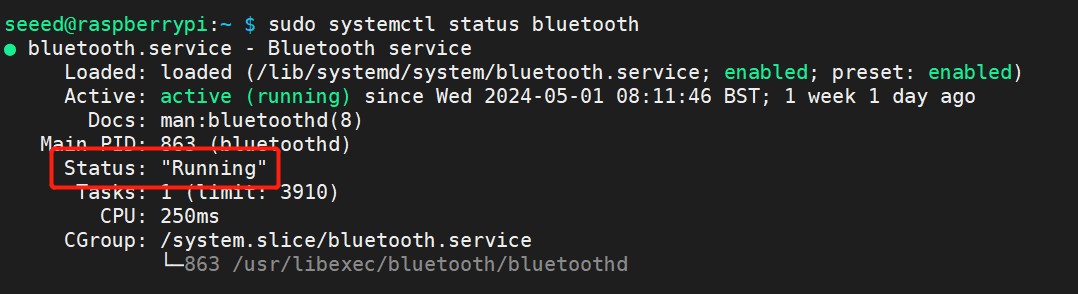
If the Bluetooth service status is not active, you must enable it first. Then start the service so that it starts automatically when you start your device.
sudo systemctl enable bluetooth
sudo systemctl start bluetooth
You can use the bluetoothctl tool to connect and manage Bluetooth, the following are some common commands and comments:
#Scan attachments to the device
bluetoothctl scan on

#To make your Bluetooth adapter discoverable to other devices, use the following command:
bluetoothctl discoverable on


#Replace A4:C1:38:F4:83:2E below with the Media Access Control (MAC) address you want to connect to
#Pair a new Bluetooth device
bluetoothctl pair A4:C1:38:F4:83:2E

#Connect previously paired devices
bluetoothctl connect A4:C1:38:F4:83:2E

#View the list of devices paired with the system
bluetoothctl paired-devices

#When a Bluetooth device is trusted, the system automatically connects to it after discovering it
bluetoothctl trust A4:C1:38:F4:83:2E

#Cancel trust
bluetoothctl untrust A4:C1:38:F4:83:2E

#Remove a paired Bluetooth device
bluetoothctl remove A4:C1:38:F4:83:2E

#Disconnect the Bluetooth connection, but do not remove it from the paired list
bluetoothctl disconnect A4:C1:38:F4:83:2E

#Block specific devices from connecting to your system
bluetoothctl block A4:C1:38:F4:83:2E

#Unblock device
bluetoothctl unblock A4:C1:38:F4:83:2E


#Use interactive mode and exit
bluetoothctl
exit
4G Module(optional)
The reComputer R1225 LoRaWAN Gateway is available in Standard and 4G versions. The Mini-PCIe Slot 1 on the Standard version is vacant, while the 4G version comes with a pre-installed Mini-PCIe module tailored for Europe(EMEA & Thai SKU 113991135) and America(North America SKU 113991134) respectively.
LoRa® Module(included)
The Mini-PCIe Slot 2 on the reComputer R1225 LoRaWAN Gateway is occupied by the SPI LoRa® module.
PoE(included)
The reComputer R1225 LoRaWAN Gateway comes equipped with a PoE module, eliminating the need for users to purchase, solder, and assemble one themselves.
M.2 Slot(optional)
The reComputer R1225 supports 2280 NVMe SSD and AI accelerator(Hailo) through the use of a PCIe slot(J62) below two Mini-PCIe slots on board. It is important to note that the CM4's PCIe is gen2.0 with a maximum theoretical speed of 5Gbps. If you are using a Gen3.0 or higher SSD, it may not be able to achieve the SSD's maximum speed. After testing, the reTerminal DM with installed SSD can achieve a maximum write speed of 230MB/s and a maximum read speed of 370MB/s. If you are unsure which SSDs are compatible, you can purchase following the accessories list below.
Please click here for assemble instruction.
| SSD card | NVMe M.2 2280 SSD 1TB | 112990267 |
| 512GB NVMe M.2 PCle Gen3x4 2280 Internal SSD | 112990247 | |
| 256GB NVMe M.2 PCle Gen3x4 2280 Internal SSD | 112990246 | |
| 128GB NVMe M.2 PCle Gen3x4 2280 Internal SSD | 112990226 |
Please note that:
1- The speed test results may vary depending on the SSD model, testing method, and testing environment. The values provided here are for reference purposes only and were obtained in Seeed's laboratory.
There are two main uses for SSD cards:
1.High Capacity Storage: SSD cards can be utilized for high-capacity storage needs.
2.Boot Drive with Image: Another usage involves using the SSD both as a highcapacity storage and for storing system images, allowing booting directly from the SSD card.
It's important to note that not all SSD cards available in the market support the second usage. Therefore, if you intend to use it as a boot drive and are unsure about which model to purchase, we recommend opting for our recommended 1TB SSD(SKU [112990267]). This model has been tested and verified for boot functionality, reducing the risk of compatibility issues and minimizing trial and error costs.
Encryption Chip TPM 2.0(optional)
The TPM features Infineon’s OPTIGA™ TPM SLB9670 which is compliant to the Trusted Computing Group (TCG) TPM 2.0 specification is recommened as encryption chip to the reComputer R1225. The chip features an SPI interface applied for port J13 on board, to enable a root of trust for platform integrity, remote attestation, and cryptographic services.
If you connect TPM 2.0 module to device, the following code can help check TPM connection.
ls /dev | grep tpm
If you see tpm0 and tpmrm0 in the output, it means that TPM (Trusted Platform Module) devices are detected and available on your system. This indicates that the TPM hardware is recognized and accessible, which is a good sign. You can proceed with using TPM-related functionalities or applications knowing that the devices are present and accessible.
UPS(included)
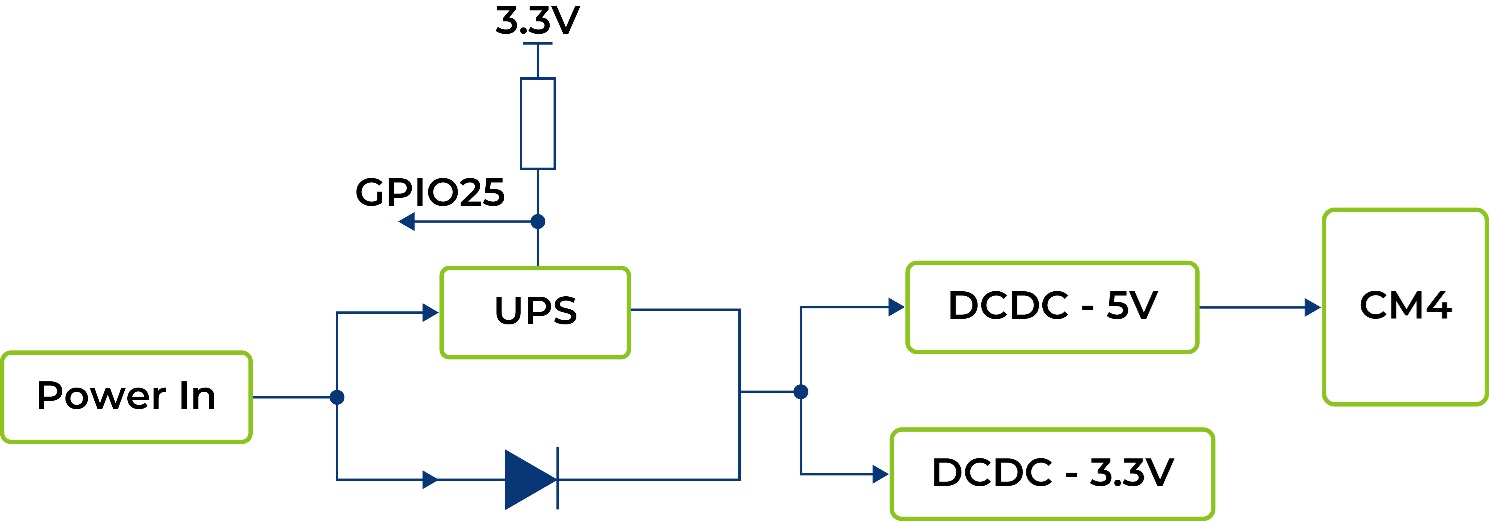
The UPS is 7F, which operates in series. The UPS module is positioned between the DC5V and CM4 components, with a GPIO signal utilized to alert the CPU in the event of a power loss from the 5V supply. Upon receiving this signal, the CPU executes an urgent script before the super capacitor's energy is depleted, initiating a "$ shutdown" command.
The backup duration provided by the UPS heavily relies on the system load. Below are some typical scenarios tested with a CM4 module featuring 4GB RAM, 32GB eMMC storage, and a Wi-Fi module.
| Mode of Operation | Time(s) | Remark |
|---|---|---|
| Idle | 37 | Testing under idle conditions with official driver program loaded |
| Full load of CPU | 18 | stress -c 4 -t 10m -v & |
For UPS function please contact us for more information, and the alarm signal is active LOW.
A GPIO25 between CPU and DC/AC power in is used to alarm CPU when the 5V power supply is down. Then the CPU should do something urgent in a script before energy exhaustion of super capacitor and run a $ shutdown
Another way to use this function is Initiate a shutdown when GPIO pin changes. The given GPIO pin is configured as an input key that generates KEY_POWER events. This event is handled by systemd-logind by initiating a shutdown.
Use /boot/overlays/README as reference, then modify /boot/config.txt.
dtoverlay=gpio-shutdown,gpio_pin=25,active_low=1
The python code below is a demo for detecting the working mode of supercapacitor UPS through GPIO25, and automatically saving data and shut down when the system is powered off.
import RPi.GPIO as GPIO
import time,os

num = 0

GPIO.setmode(GPIO.BCM)
#set GPIO25 as input mode
#add 500ms jitter time for software stabilization
GPIO.setup(25,GPIO.IN,pull_up_down = GPIO.PUD_UP)
GPIO.add_event_detect(25,GPIO.FALLING, bouncetime = 500)
while True:
  if GPIO.event_detected(25):
    print('...External power off...')
    print('')
    os.system('sync')
    print('...Data saving...')
    print('')
    time.sleep(3)
    os.system('sync')
    #saving two times
    while num<5:
      print('-----------')
      s = 5-num
      print('---' + str(s) + '---')
      num = num + 1
      time.sleep(1)
    print('---------')
    os.system('sudo shutdown -h now')
DSI(optional)
One DSI (J24) are reserved on board, for special usage. Users are requested to purchase plug-ins according to your own needs.
Additional Resources
- reComputer R1225 3D File
- reComputer R1225 Schematic Desing, PCB Desing
- reComputer R1225 (R1000 v1.1) Pin Assignment
- R1225 Power Consumption Table
Tech Support & Product Discussion
Thank you for choosing our products! We are here to provide you with different support to ensure that your experience with our products is as smooth as possible. We offer several communication channels to cater to different preferences and needs.