reBot Arm B601-DM Visual Grasping Demo
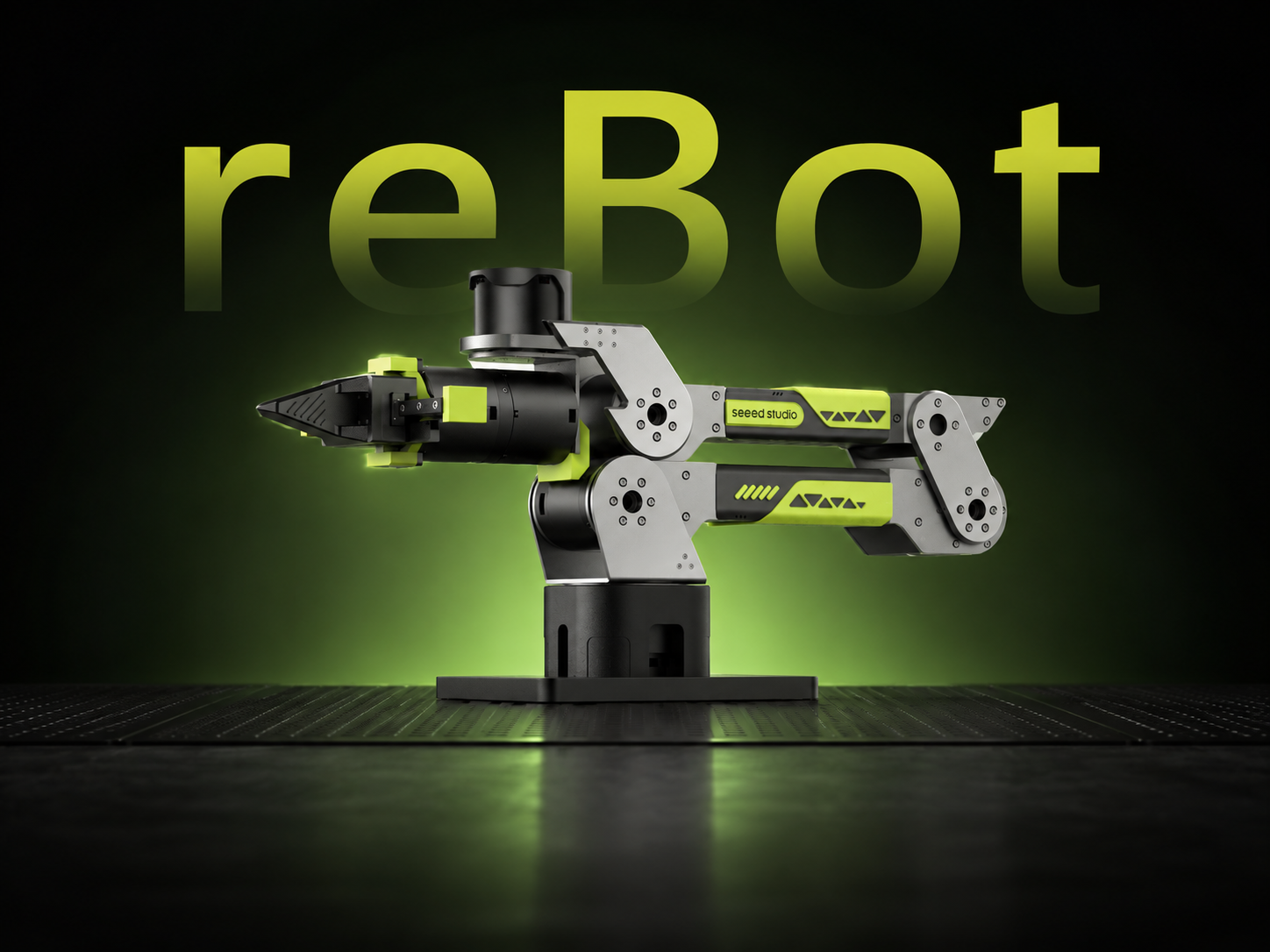





Depth Perception · Object Detection · Hand-Eye Calibration · Autonomous Grasping · Fully Open Source
YOLO is a widely used family of real-time object detection models that can localize and classify targets in a single forward pass. This tutorial uses YOLO, an RGB-D depth camera, and the reBot Arm B601-DM to build a working desktop visual grasping demo, covering environment setup, camera integration, hand-eye calibration, and grasping validation.
Project Introduction
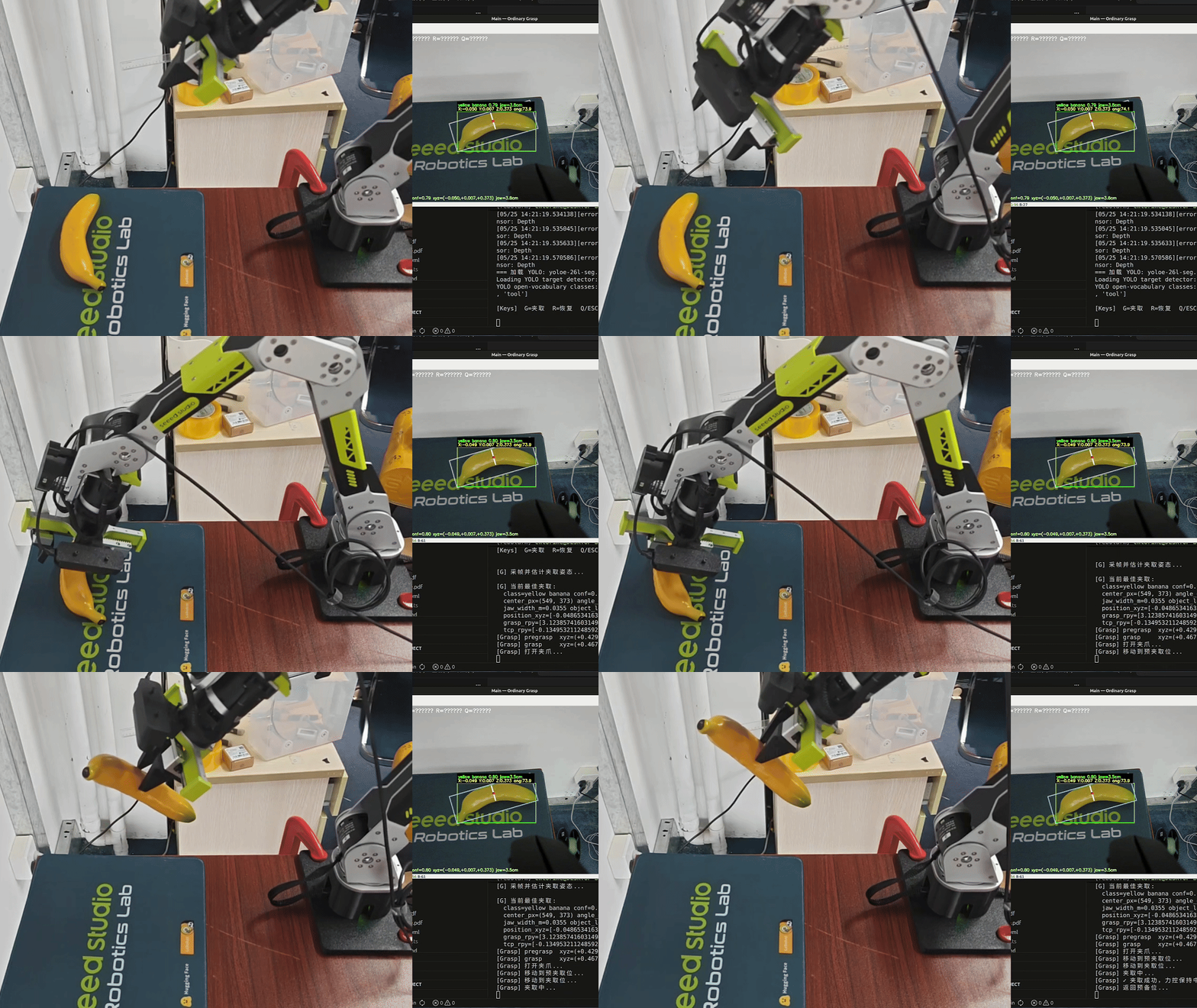
reBot Arm B601-DM Visual Grasping Demo is a visual grasping algorithm demonstration project based on the reBot Arm B601 robotic arm control library and RGB-D depth camera. The system supports both DM and RS configurations for the B601 arm. It uses the YOLO model for real-time desktop object detection, estimates grasp poses via OBB minimum-area rectangles, performs hand-eye calibration to transform grasp points from the camera frame to the robot base frame, and drives the robotic arm to complete autonomous grasping.
Core Features
- 📷 Depth Perception — Supports RGB-D depth cameras such as Orbbec Gemini 2 and Intel RealSense D435i / D405
- 🔍 Object Detection — YOLO-based recognition with open-vocabulary custom class support
- 📐 Pose Estimation — OBB minimum-area rectangle short axis for gripper orientation, depth quantile for grasp height estimation
- 🔄 Coordinate Transformation — TSAI hand-eye calibration (Eye-in-Hand), transforming camera frame grasp points to robot base frame
- 🦾 Motion Execution — reBotArm_control_py IK + trajectory controller with built-in gripper force control state machine
Hardware Configuration
| Component | Model / Requirements |
|---|---|
| Robotic Arm | reBot Arm B601 (DM / RS configurations) |
| Depth Camera | Orbbec Gemini 2, Intel RealSense D435i / D405 |
| Communication Interface | USB2CAN serial bridge (arm); USB 3.0 (camera) |
| Host | Ubuntu 22.04+, Python 3.10, x86_64 |
Wiring Instructions
- Connect the depth camera to the host via USB 3.0.
- Connect the USB2CAN adapter to the arm CAN bus.
- Make sure the 24V power supply, camera, and robotic arm are all connected securely.
- Set permissions:
sudo chmod a+rw /dev/bus/usb/*/*   # Depth camera USB permissions
sudo chmod 666 /dev/ttyUSB0        # USB2CAN (adjust port number as needed)
Environment Installation
Step 1. Clone the Repository
Prefer the official Seeed-Projects repository:
git clone https://github.com/Seeed-Projects/reBot-DevArm-Grasp.git rebot_grasp
cd rebot_grasp
Step 2. Create and Configure the conda Environment
conda env create -f environment.yml
conda activate rebotarm
If you want to use a different environment name, replace rebotarm in the command with your custom name.
Step 3. Install the Robotic Arm Control Library
git clone https://github.com/Seeed-Projects/reBotArm_control_py.git sdk/reBotArm_control_py
cd sdk/reBotArm_control_py
pip install -e .
cd ../..
If pip install -e . reports Multiple top-level packages discovered in a flat-layout, add explicit package discovery configuration to reBotArm_control_py's pyproject.toml, then re-run pip install -e .:
[build-system]
requires = ["setuptools>=61.0", "wheel"]
build-backend = "setuptools.build_meta"

[tool.setuptools.packages.find]
include = ["reBotArm_control_py*"]
The visual grasping program reads the SDK configuration and automatically selects the corresponding arm control mode and gripper parameters.
Step 4. Install the Depth Camera SDK
This project supports RGB-D depth cameras such as Orbbec Gemini 2 and RealSense D435i / D405. Please install the corresponding SDK for your actual camera; if the camera driver can already be imported normally in the current environment, you may skip this step.
Orbbec Gemini 2
Orbbec Gemini 2 depends on pyorbbecsdk (Python version of Orbbec SDK v2). It is recommended to install the prebuilt Python package directly:
Option 1: Install via pip (recommended)
pip install pyorbbecsdk2
Option 2: Get from GitHub
# Install build dependencies
sudo apt-get install -y cmake build-essential libusb-1.0-0-dev

cd sdk
git clone https://github.com/orbbec/pyorbbecsdk.git
cd pyorbbecsdk
pip install -e .
For mainland China users, you can use:
git clone https://gitee.com/orbbecdeveloper/pyorbbecsdk.git
When installing from source, build the native extension with CMake first to ensure install/lib contains pyorbbecsdk*.so and Orbbec shared libraries, then run pip install -e ..
Note: If all installation methods above fail, please refer to the official Orbbec documentation below for installation.
For first-time use, it is recommended to install udev rules:
sudo bash scripts/install_udev_rules.sh
sudo udevadm control --reload-rules
sudo udevadm trigger
Verify Installation
python -c "import pyorbbecsdk; print('pyorbbecsdk OK')"
OrbbecViewer (optional, for camera verification)
After downloading the prebuilt package and running OrbbecViewer, you can verify the camera connection and depth stream are working properly before running the Demo.
- GitHub: https://github.com/orbbec/OrbbecSDK_v2/releases
- Gitee: https://gitee.com/orbbecdeveloper/OrbbecSDK_v2/releases
RealSense D435i / D405
RealSense cameras depend on pyrealsense2. You can usually install it directly via pip:
pip install pyrealsense2
python -c "import pyrealsense2; print('pyrealsense2 OK')"
If the system needs the complete RealSense toolkit or udev rules, please refer to the RealSense SDK official documentation to install librealsense2.
SDK Resource Summary
| Resource | Link |
|---|---|
| Gemini 2 Product Page | https://www.orbbec.com.cn/index/Product/info.html?cate=38&id=51 |
| Development Resources | https://www.orbbec.com.cn/index/Download2025/info.html?cate=121&id=1 |
| Orbbec SDK v2 | https://github.com/orbbec/OrbbecSDK_v2 |
| SDK v2 API Documentation | https://orbbec.github.io/docs/OrbbecSDKv2_API_User_Guide/ |
| pyorbbecsdk | https://github.com/orbbec/pyorbbecsdk |
| pyorbbecsdk Documentation | https://orbbec.github.io/pyorbbecsdk/index.html |
| ROS2 Wrapper | https://github.com/orbbec/OrbbecSDK_ROS2/tree/v2-main |
| Intel RealSense SDK | https://github.com/realsenseai/librealsense |
Step 5. Configure GraspNet (optional)
To achieve more accurate grasp pose estimation for objects, this project adapts graspnet-baseline to improve robotic arm grasping performance.
The GraspNet pointnet2 / knn extensions require a CUDA compiler. Before starting, confirm that nvcc is available in the current environment and check that the CUDA version reported by nvcc matches the CUDA version used to build PyTorch:
nvcc --version
python -c "import torch; print(torch.__version__, torch.version.cuda)"
If nvcc is missing, or if the CUDA version reported by nvcc does not match torch.version.cuda, install a CUDA compiler that matches your current PyTorch CUDA version. For example, when PyTorch shows 13.0:
conda install -c nvidia cuda-nvcc=13.0
You can also install a PyTorch build that matches your current nvcc version instead. The two versions must match, otherwise building pointnet2 / knn will fail with The detected CUDA version (...) mismatches the version that was used to compile PyTorch (...).
cd sdk
git clone https://github.com/graspnet/graspnet-baseline.git
cd graspnet-baseline

# Install PyTorch for your CUDA version first, then install GraspNet runtime dependencies
pip install open3d tensorboard Pillow tqdm

# Configure CUDA build paths before building the local operators.
export CUDA_HOME=$CONDA_PREFIX
export TORCH_CUDA_ARCH_LIST="12.0"
export CPATH=$CONDA_PREFIX/lib/python3.10/site-packages/nvidia/cu13/include:$CPATH
export CPLUS_INCLUDE_PATH=$CONDA_PREFIX/lib/python3.10/site-packages/nvidia/cu13/include:$CPLUS_INCLUDE_PATH
export LD_LIBRARY_PATH=$CONDA_PREFIX/lib/python3.10/site-packages/nvidia/cu13/lib:$CONDA_PREFIX/lib:$LD_LIBRARY_PATH

# Build CUDA operators
cd pointnet2
pip install . --no-build-isolation
cd ../knn
pip install . --no-build-isolation
cd ..

# Install GraspNet API
git clone https://github.com/graspnet/graspnetAPI.git
cd graspnetAPI
sed -i "s/'sklearn'/'scikit-learn'/" setup.py
pip install .
cd ../../..
Note: If you directly follow the official graspnet-baseline repository documentation and use python setup.py install, CUDA / PyTorch related errors may occur. It is recommended to use pip install . --no-build-isolation so the extension is built against the PyTorch and CUDA configuration already installed in the current conda environment.
If building fails with fatal error: cusparse.h: No such file or directory, run find $CONDA_PREFIX -name cusparse.h and add the directory containing cusparse.h to CPATH / CPLUS_INCLUDE_PATH. If the CUDA headers come from conda cuda-toolkit, the path is usually $CONDA_PREFIX/targets/x86_64-linux/include, not the pip nvidia/cu13/include path shown above.
Additionally, older GraspNet API dependencies may still use the deprecated sklearn package name. The sed command above replaces it with scikit-learn to avoid package name issues during installation. Unless you also upgrade the GraspNet API dependency stack, keep its numpy==1.23.4 constraint because transforms3d==0.3.1 still uses NumPy aliases such as np.float.
Configure Pretrained Model
Download the official GraspNet pretrained weights from the graspnet-baseline official repository Google, Baidu, and place the downloaded checkpoint-rs.tar at:
sdk/graspnet-baseline/checkpoints/checkpoint-rs.tar
Then verify in config/default.yaml:
graspnet:
  checkpoint: "checkpoint-rs.tar"
The checkpoint field supports three forms: a filename only is resolved under sdk/graspnet-baseline/checkpoints/; a relative path is resolved from the project root; an absolute path is used directly.
Directory Structure
rebot_grasp/
├── config/
│   ├── default.yaml              # Main configuration file
│   └── calibration/
│       └── <camera_type>/
│           ├── intrinsics.npz    # Camera intrinsics
│           └── hand_eye.npz      # Hand-eye calibration results
├── drivers/
│   ├── camera/
│   │   ├── base.py               # Camera abstract base class
│   │   ├── orbbec_gemini2.py     # Gemini 2 driver
│   │   └── realsense.py          # RealSense driver (alternative)
│   └── robot/
│       └── grasp_driver.py       # Lightweight grasping helper based on arm SDK
├── calibration/
│   ├── aruco_pose.py             # ArUco pose estimation
│   └── hand_eye.py               # Hand-eye calibration solver
├── utils/
│   ├── ordinary_grasp.py         # OBB grasp pose estimation and visualization
│   └── transforms.py             # Coordinate transformation utilities
├── scripts/
│   ├── main.py                   # Main grasping program
│   ├── set.py                    # Grasp and place program
│   ├── ordinary_grasp_pipeline.py
│   ├── object_detection.py
│   └── collect_handeye_eih.py
├── sdk/
│   ├── pyorbbecsdk/              # Orbbec SDK Python wrapper
│   └── reBotArm_control_py/      # reBot Arm SDK
└── environment.yml               # Recommended conda environment file
Running and Debugging
0. Confirm Arm Version and SDK Configuration
Before running scripts that connect to the robotic arm, confirm that the arm version, power supply, and SDK configuration are consistent:
- Please complete the basic arm preparation first: B601-DM Quick Start or B601-RS Quick Start.
- In
sdk/reBotArm_control_py/config/rebotarm.yaml, select the corresponding hardware configuration:
hardware_yaml: rebotarm_dm.yaml
Or:
hardware_yaml: rebotarm_rs.yaml
- B601-DM uses 24V DC power, B601-RS uses 48V DC power. Please confirm the power adapter and wiring match the arm version.
- When using B601-DM, confirm the serial bridge device path in the SDK configuration matches the actual device.
- When using B601-RS, start the CAN interface before running calibration or grasping scripts:
sudo ip link set can0 down 2>/dev/null
sudo ip link set can0 type can bitrate 1000000
sudo ip link set can0 up
ip -details link show can0
1. Hand-Eye Calibration (Required Before Grasping)
python scripts/collect_handeye_eih.py
In automatic mode, the arm automatically traverses 50 preset poses, and automatically samples when ArUco is detected stably. When finishing normally or being interrupted midway, the script tries to compute and save the calibration result; at least 5 samples are required, with 15 or more recommended for more stable results.
If you want to manually move the arm for collection, use:
python scripts/collect_handeye_eih.py --manual
In manual mode, the arm enters gravity-compensation mode. Push the end effector to a suitable viewing angle and press Enter to capture, press c or q to finish and compute.
If you find that the robotic arm's grasping accuracy cannot meet your requirements after calibration, you can set the X (front-back), Y (left-right), Z (up-down) parameters in config/default.yaml under calibration.hand_eye_compensation_m to provide positional compensation.
2. scripts/main.py — Main Grasping Program
Complete visual grasping pipeline:
- Initialize RGB-D camera, confirm image stream is available
- Enable arm and gripper, move to ready position
- Real-time camera preview + YOLO object detection and instance segmentation
- OBB short axis estimates gripper orientation, depth quantile estimates grasp height
- Press
Gto freeze frame, compute arm target pose via hand-eye transformation - Arm moves to pre-grasp point → descends → gripper closes → lifts → returns to ready position
3. scripts/set.py — Grasp and Place Program
Function: Grasp the banana and place it in the box
Completed flow:
- Camera and arm initialization, move to ready position
- Real-time camera preview + YOLO object detection and instance segmentation
- Press
Gto freeze frame, compute arm target pose via hand-eye transformation - Arm moves to grasp banana and lift
- Arm places banana in the box and returns to initial pose
- Press
Qto exit system, arm returns to zero position
4. scripts/ordinary_grasp_pipeline.py — Simplified Grasp Testing
Does not depend on the robotic arm; only verifies OBB grasp pose estimation and visualization effects, suitable for debugging the perception module.
5. scripts/graspnet_camera_demo.py — GraspNet Camera Estimation Demo
Does not connect to the robotic arm; only runs GraspNet 6D grasp pose estimation using the RGB-D camera. The script keeps a live camera preview, uses YOLO detection boxes to select the target area, then filters feasible grasp candidates from GraspNet full-scene candidates within the target bbox. Press G or Space to run inference on the current frame, press R to resume live preview, press Q or Esc to exit; after inference, you can view the point cloud and grasp candidates via Open3D.
python scripts/graspnet_camera_demo.py
6. scripts/grasp.py — GraspNet Robotic Arm Grasping Program
Connects GraspNet estimation results to the robotic arm execution flow based on graspnet_camera_demo.py: YOLO selects the target, GraspNet outputs 6D grasp pose, hand-eye calibration transforms it to the robot base frame, then checks IK reachability and executes pre-grasp, grasp, and retreat motions. For debugging, it is recommended to first use --dry-run to only print target pose and candidate filtering results.
python scripts/grasp.py --dry-run
python scripts/grasp.py --target-class "light blue coffee cup"
7. scripts/object_detection.py — Basic Detection Demo
Pure YOLO detection demonstration with real-time display of detection boxes and confidence scores, no grasping logic.
default.yaml Parameter Description
1. Camera and Calibration Configuration (camera & calibration)
| Parameter | Type / Options | Meaning and Description |
|---|---|---|
camera.type | realsense_d435irealsense_d405orbbec_gemini2 | Camera Type: Specifies the camera hardware connected to the current system. |
camera.serial | string / null | Device Serial Number: Specifies the device SN number. Set to null to use the first available device detected by the system. |
calibration.aruco.marker_length_m | float | ArUco Marker Size: The actual physical side length of the ArUco calibration marker used for hand-eye calibration, in meters (m). |
calibration.hand_eye_compensation_m | array | Hand-Eye Calibration Translation Compensation: XYZ manual translation compensation (format [X, Y, Z]) executed in the robot base frame after hand-eye calibration is complete, in meters (m). If all three values are 0.0, the compensation matrix is the identity matrix. |
2. Object Detection Configuration (detection)
| Parameter | Type | Meaning and Description |
|---|---|---|
detection.conf_threshold | float | YOLO Detection Confidence Threshold: Detection boxes with scores below this value will be filtered out. |
detection.iou_threshold | float | YOLO NMS IoU Threshold: The Intersection over Union (IoU) threshold used in Non-Maximum Suppression (NMS) to filter overlapping boxes. |
3. Robot and Gripper Configuration (robot)
| Parameter | Type / Options | Meaning and Description |
|---|---|---|
robot.repo_root | string / null | Repository Root Directory: Path to the reBotArm_control_py repository. When null, defaults to the internal relative path sdk/reBotArm_control_py. |
robot.ready_pose | array | Ready Pose: The ready position the system arm moves to on startup. After each grasping task completes, the arm also automatically returns to this position. |
robot.gripper.dmrobot.gripper.rs | struct object | Gripper Hardware Parameters: The system automatically selects and applies one of these two parameter groups based on the current actual hardware configuration in the SDK. |
Gripper Internal Core Parameter Description
For sub-parameters inside robot.gripper.dm or robot.gripper.rs:
angle_open,close_torque,default_force: Correspond to open angle, close torque, and default control force respectively; all must be填写positive numbers.counterclockwise: Boolean value. Indicates the motor rotation direction used when closing (whether counterclockwise). The code automatically derives the signs of the open angle and close torque based on this logic.tau_max: Torque upper limit.
Note: For other advanced gripper control behavior parameters, refer to and define them in the drivers/robot/grasp_driver.py file.
4. Grasp Pipeline and GraspNet Configuration (grasp_pipeline & graspnet)
| Parameter | Type | Meaning and Description |
|---|---|---|
grasp_pipeline.infer_every_live | int | Inference Frame Interval: During real-time video preview, run object detection every N frames to effectively reduce CPU/GPU real-time computation load. |
grasp_pipeline.grasp.depth_quantile | float | Depth Quantile: The depth calculation quantile used by the short-axis grasping pipeline. A larger value typically results in a deeper grasp point. |
grasp_pipeline.grasp.pregrasp_offset_m | float | Pre-grasp Position Offset: The distance to retreat along the end effector feed direction relative to the final target grasp position, in meters (m). |
grasp_pipeline.grasp.insertion_depth_m | float | Insertion Depth: The additional forward push or insertion depth along the feed direction when GraspNet executes grasping, in meters (m). |
grasp_pipeline.grasp.min_base_z_m | float | Minimum Grasp Height Limit: The minimum allowable grasp Z-axis height in the robot base frame, in meters (m) (used as a底层防碰撞safety boundary). |
graspnet | struct config | GraspNet Runtime Parameters: All sub-parameters under this configuration item are loaded when running scripts/graspnet_camera_demo.py and scripts/grasp.py. |
Model Selection Library
The YOLO model loads from the rebot_grasp/models/ directory; if the model file does not exist, Ultralytics usually attempts to download it automatically.
Common models:
| Model | Description |
|---|---|
yoloe-26l-seg.pt | Open vocabulary + segmentation, current default |
yoloe-26s-seg.pt | Lighter weight, faster |
yolov8n-seg.pt | Closed-category segmentation, small model |
yolov8s-seg.pt | Closed-category segmentation, higher precision |
When the model name contains world / yoloe and yolo.use_world=true, the program calls model.set_classes(custom_classes) to inject yolo.custom_classes as open-vocabulary classes. Regular yolov8*-seg.pt models ignore this set of open-vocabulary classes.
❓ FAQ
1. ModuleNotFoundError: No module named 'motorbridge'
This usually means the robotic arm SDK dependencies are not installed in the current Python environment. Confirm that the project environment is activated and resynchronize the environment and install the robotic arm SDK:
conda activate rebotarm
conda env update -n rebotarm -f environment.yml
cd sdk/reBotArm_control_py && pip install -e .
2. Pressing G does not execute grasping
Common causes:
hand_eye.npzdoes not exist- The hand-eye calibration mode is not
eye_in_hand - The current target pose is not IK reachable
It is recommended to first use dry-run mode to verify perception results and target pose:
python scripts/main.py --dry-run
3. Grasp point depth is unstable
Priority can be given to checking and adjusting:
grasp_pipeline.grasp.depth_quantile- The installation height of the camera relative to the target workspace
- Reflectivity of the target surface
4. GraspNet reports pointnet2_utils cannot be imported from pointnet2
This is usually because the local CUDA extension under sdk/graspnet-baseline/pointnet2 was not properly built and installed in the current conda environment, or Python is resolving to a wrong pointnet2 package. It is recommended to confirm the project environment is activated and rebuild and install both pointnet2 and knn in the same environment:
conda activate rebotarm
cd sdk/graspnet-baseline/pointnet2
pip install . --no-build-isolation

cd ../knn
pip install . --no-build-isolation
Verify:
python -c "from pointnet2 import pointnet2_utils; print('Submodule import works')"
5. CUDA architecture incompatibility when running GraspNet on the current graphics card
If you see no kernel image is available for execution on the device or PyTorch reports that the current GPU's CUDA capability is unsupported, this usually means the current PyTorch wheel does not include CUDA kernels for that graphics card architecture. It is recommended to install a PyTorch version that supports the current CUDA/graphics card architecture, then rebuild the GraspNet local CUDA extensions.
python -c "import torch; print(torch.__version__, torch.version.cuda, torch.cuda.get_device_name(0))"

cd sdk/graspnet-baseline/pointnet2
pip install . --no-build-isolation

cd ../knn
pip install . --no-build-isolation
If you need to manually specify the build architecture, set TORCH_CUDA_ARCH_LIST before rebuilding, with the specific value confirmed according to your current graphics card architecture and PyTorch/CUDA version.
6. GraspNet inference reports RuntimeError: CPU not supported
The sampling operators in pointnet2 only support CUDA tensors. Confirm that CUDA is available, the GraspNet network and input point cloud are on GPU, and pointnet2 / knn were built against the current environment and PyTorch version.
python -c "import torch; print(torch.cuda.is_available())"
If the output is False, you need to fix the CUDA / PyTorch installation first; if the output is True but the error persists, it is recommended to rebuild pointnet2 and knn.
📄 References
- reBotArm_control_py — Robotic arm control library
- reBot-DevArm — reBot robotic arm open source project
- Orbbec Gemini 2 Product Page
- Orbbec SDK v2
- pyorbbecsdk
- RealSense SDK
- graspnet/graspnet-baseline
- Ultralytics YOLOv11
☎ Contact Us
- Technical Support: Submit an Issue
🌟 If this project is helpful to you, please give it a Star!