reBot Arm B601-RS in LeRobot
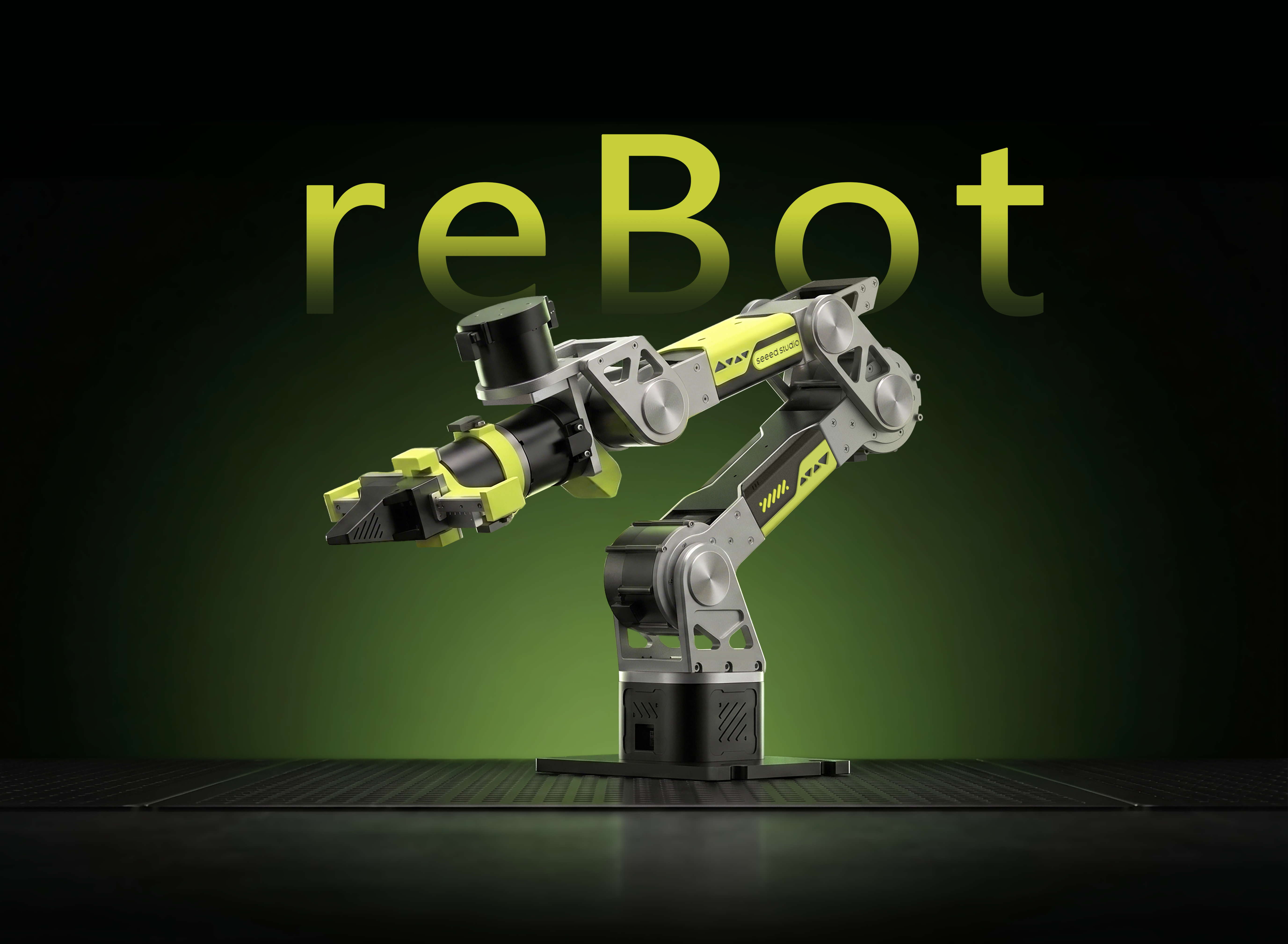




6-DOF Robotic Arm · Multi-Motor Support · Kinematics Solver · Trajectory Planning · Fully Open Source
reBot Arm B601-RS is an open-source robotic arm project launched by Seeed, dedicated to lowering the threshold for learning embodied intelligence. We open-source all structural designs and code without reservation, making robotics technology accessible to everyone.
LeRobot is committed to providing models, datasets and tools for real-world robotics in PyTorch. Its aim is to reduce the entry barrier of robotics, enabling everyone to contribute and benefit from sharing datasets and pretrained models. LeRobot integrates cutting-edge methodologies validated for real-world application, centering on imitation learning and reinforcement learning. It has furnished a suite of pre-trained models, datasets featuring human-gathered demonstrations, and simulation environments, enabling users to commence without the necessity of robot assembly.
This wiki provides debugging tutorials for reBot-DevArm and implements data collection and training within the LeRobot framework.
Seeed Studio tutorials are strictly updated according to official documentation. If you encounter software or environmental issues that cannot be resolved, please check the FAQ at the end of the article first, or contact customer service to join the SeeedStudio LeRobot discussion group. You can also ask questions here: LeRobot GitHub or Discord Channel.
Initial System Environment
- Ubuntu x86
- Jetson Orin
- Ubuntu 22.04/Ubuntu 24.04
- NVIDIA GPU with CUDA 12+ (optional, for GPU-accelerated training and inference)
- Python 3.12
- Torch 2.6 (CPU builds can run basic workflows; CUDA builds are required for GPU acceleration)
- Jetson JetPack 6.0 and 6.1, 6.2 is not supported
- Python 3.12
- Torch 2.3+
Install LeRobot
LeRobot can be installed and run on CPU-only machines for basic workflows. If you need GPU-accelerated training or inference, confirm that your computer has an NVIDIA GPU, then install PyTorch and Torchvision versions matching your CUDA version.
1. Install Miniforge
cd ~
wget "https://github.com/conda-forge/miniforge/releases/latest/download/Miniforge3-$(uname)-$(uname -m).sh"
bash Miniforge3-$(uname)-$(uname -m).sh

~/miniforge3/bin/conda init bash
source ~/.bashrc
2. Clone the LeRobot Repository
mkdir ~/rebot_lerobot
cd ~/rebot_lerobot
git clone https://github.com/Seeed-Projects/lerobot.git
3. Create a Conda Environment and Install LeRobot
For details about the function packages, refer to:
The LeRobot repository includes a pyproject.toml. Create a Conda environment and install all dependencies.
cd ~/rebot_lerobot

# Create the conda environment (Python 3.12)
conda create -y -n lerobot python=3.12

# Activate the environment
conda activate lerobot

# Install the main LeRobot project in editable mode
pip install -e ./lerobot

# Add the dependency packages
pip install lerobot-teleoperator-rebot-arm-102
pip install lerobot-robot-seeed-b601
pip install motorbridge
4. Install Video Dependencies
ffmpeg is a video decoding dependency. Install it with Conda:
conda install ffmpeg -c conda-forge
Version Notes:
-
By default, ffmpeg 7.X will be installed, which supports the
libsvtav1encoder. -
If you encounter version compatibility issues, install ffmpeg 7.1.1:
conda install ffmpeg=7.1.1 -c conda-forge -
Check whether the
libsvtav1encoder is supported withffmpeg -encoders | grep svtav1.
- Ubuntu x86
- Jetson Orin
Ubuntu x86 requires no other video dependency configuration. Continue with step 5.
On a Jetson JetPack 6.0+ device, make sure you have installed GPU-enabled PyTorch and Torchvision by following step 5 of this tutorial before running the following commands.
conda install -y -c conda-forge "opencv>=4.10.0.84"  # Install OpenCV and other dependencies via conda, for Jetson JetPack 6.0+ only
conda remove opencv   # Uninstall OpenCV
pip3 install opencv-python==4.10.0.84  # Install the specified OpenCV version with pip3
conda uninstall numpy
pip3 install numpy==1.26.0  # This version must be compatible with torchvision
5. Check PyTorch and Torchvision
Installing the LeRobot environment with pip may replace the original PyTorch and Torchvision with CPU builds, so check the result in Python.
python3
import torch
print(torch.cuda.is_available())
exit()
If the output is False, the current environment is using the CPU version of PyTorch. This is expected on computers without an NVIDIA GPU, and you can continue with CPU-based basic workflows, although training will be much slower. If your computer has an NVIDIA GPU and you need GPU acceleration, install PyTorch and Torchvision versions matching your CUDA version from the official PyTorch guide. In that case, the final check should return True.
If you are using a Jetson device, install GPU-enabled PyTorch and Torchvision according to this tutorial.
NVIDIA RTX 50-series GPUs require the PyTorch preview version with CUDA 12.8 or later:
pip install --pre torch torchvision torchaudio --index-url https://download.pytorch.org/whl/nightly/cu128
Calibrate the Robotic Arm
Next, you need to connect the power supply and data cable to your reBot B601-RS robot for calibration to ensure that the leader and follower arms have the same position values when they are in the same physical position. This calibration is essential because it allows a neural network trained on one reBot B601-RS robot to work on another. If you need to recalibrate the robotic arm, please completely delete the files under ~/.cache/huggingface/lerobot/calibration/robots or ~/.cache/huggingface/lerobot/calibration/teleoperators and recalibrate the robotic arm. Otherwise, an error prompt will appear. The calibration information for the robotic arm will be stored in the JSON files under this directory.
- Follower Arm
- Leader Arm
If you cannot connect to the follower, please navigate to the getting started wiki and try using the motorbridge-provided interface to test whether the robotic arm is functioning properly.
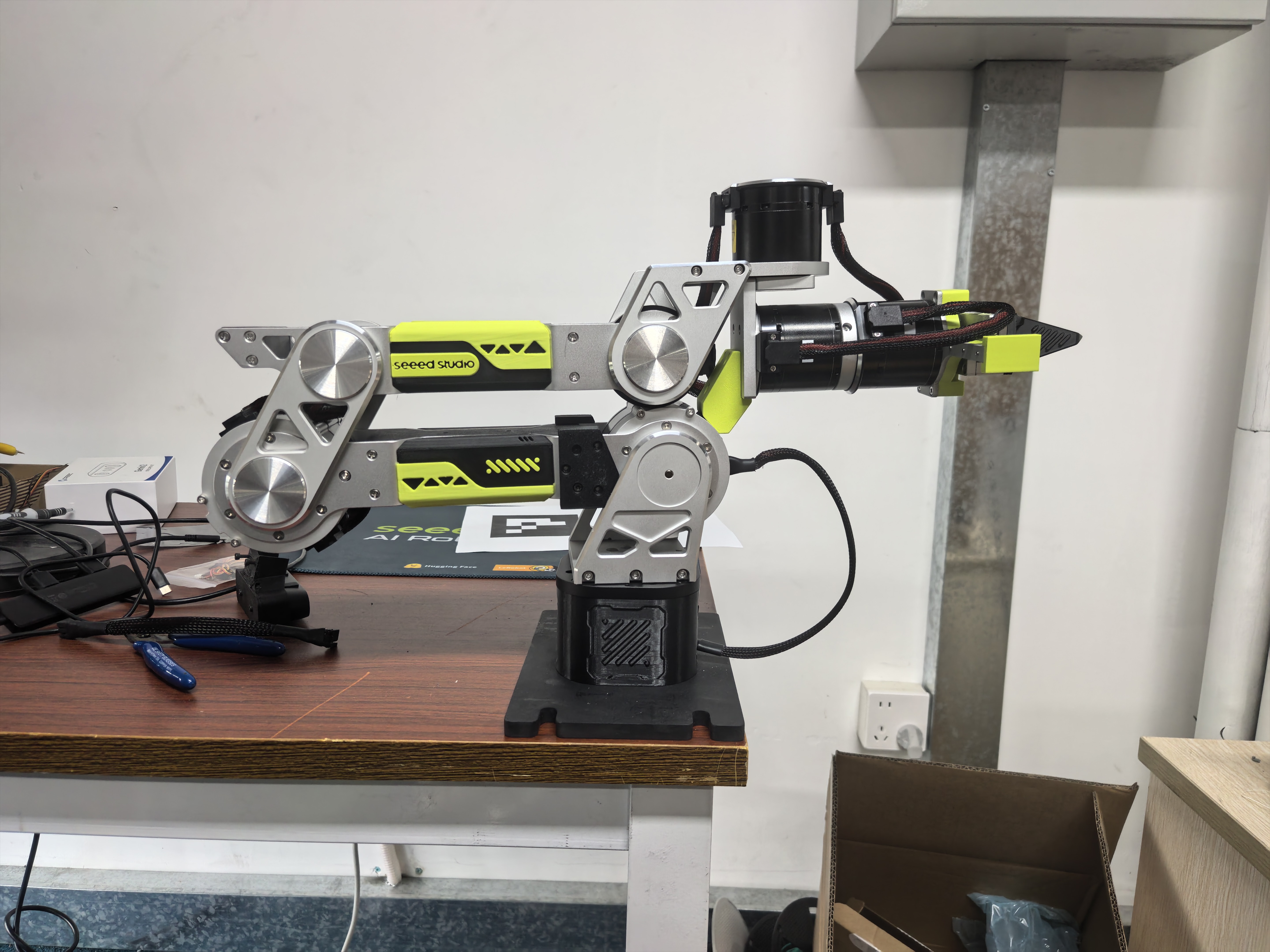
B601-RS only needs to be calibrated once after assembly. Here is the calibration command. Refer to the figure for the zero position (gripper fully closed).
# follower
sudo ip link set can0 down 2>/dev/null
sudo ip link set can0 type can bitrate 1000000
sudo ip link set can0 up

lerobot-calibrate \
    --robot.type=seeed_b601_rs_follower \
    --robot.port=can0 \
    --robot.id=follower1 \
    --robot.can_adapter=socketcan
If you use Jetson (Jetpack 6.x), please use the following instructions to find the CAN port number corresponding to your Jetson.
for i in /sys/class/net/can*; do
    [ "$(basename "$(readlink -f "$i/device/driver" 2>/dev/null)")" = "pcan" ] && basename "$i"
done
output:
cam2 # also maybe can0,can1,can x
The port number for all subsequent follower commands must match the output here.
If your Jetson lacks the PCAN driver, communication will consistently fail. Refer to the Jetson PCAN driver installation guide in the Quick Start section.
The calibration steps are crucial and will directly affect whether the robotic arm runs normally. Please follow the process strictly.
reBot 102 leader Calibration Notes:
- When calibration starts, each servo's current position on reBot Arm 102 will be reset to zero
joint_ranges(joint limits) are taken from the configuration fileconfig_rebot_arm_102_leader.py, not from calibration data- If a joint always seems stuck near a limit, check the
joint_rangesconfiguration first - Joint directions are defined in the configuration file. If directions don't match, modify the configuration rather than recalibrating
- reBot 102 leader uses a USB-to-UART module, typically mapped to
/dev/ttyUSB* - Use
ls /dev/ttyUSB*to check the actual port number
If this is the first connection, you may get an error that /dev/ttyACM0 cannot be found. This is because brltty is occupying the serial port. Please execute the following steps:
sudo dmesg | grep ttyUSB #Check the last line shows "disconnected"
sudo apt remove brltty #Remove brltty
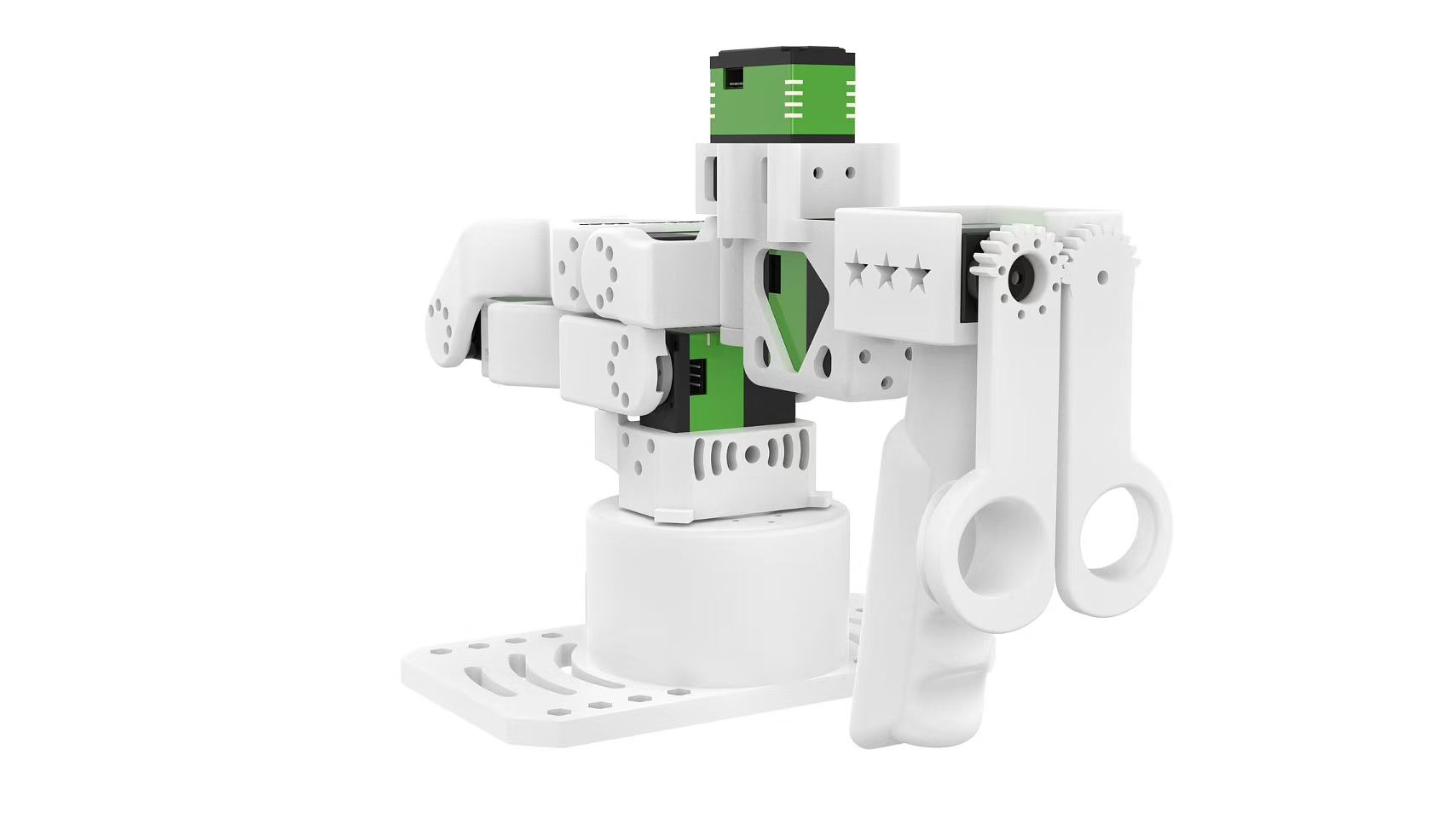
Following the prompts, move the leader arm to the zero position shown above,
sudo chmod 666 /dev/ttyUSB0

lerobot-calibrate \
    --teleop.type=rebot_arm_102_leader \
    --teleop.port=/dev/ttyUSB0 \
    --teleop.id=rebot_arm_102_leader
Keep it still, then press Enter until calibration is complete. After calibration, enter the following command to test the leader arm.
python ./lerobot-teleoperator-rebot-arm-102/examples/read_raw_angles.py \
      --port /dev/ttyUSB0

#If you observe terminal output similar to the following printing continuously, and when at the zero position shown above, all joint output values are 0, then leader calibration is complete.
#shoulder_pan=    0.00  shoulder_lift=    0.00  elbow_flex=    0.00  wrist_flex=    0.00  wrist_yaw=    0.00  wrist_roll=    0.00  gripper=    0.00
Teleoperate
All robotic arm movement scenarios require the same attention!
During teleoperation, if the master-slave robotic arm experiences power disconnection, poor power contact, or signal line detachment, you must first stop the program code and return the robotic arm to its home zero position. Only then reconnect the power supply and restart the program. This prevents data disorder from causing robotic arm runaway and potential safety hazards.
First grant permissions to the serial ports:
# leader
sudo chmod 666 /dev/ttyUSB*
# follower
sudo ip link set can0 down 2>/dev/null
sudo ip link set can0 type can bitrate 1000000
sudo ip link set can0 up
Run teleoperation:
lerobot-teleoperate \
    --robot.type=seeed_b601_rs_follower \
    --robot.port=can0 \
    --robot.id=follower1 \
    --robot.can_adapter=socketcan \
    --teleop.type=rebot_arm_102_leader \
    --teleop.port=/dev/ttyUSB0 \
    --teleop.id=rebot_arm_102_leader
Add Cameras
- RealSense D435i / D405
- Orbbec Gemini2
- Generic Camera
- Camera Mount
RealSense depth cameras can provide RGB-D perception for LeRobot and are suitable for tasks such as object recognition, point cloud reconstruction, and tabletop manipulation. The recommended models here are RealSense D405 and RealSense D435i.
RealSense D405
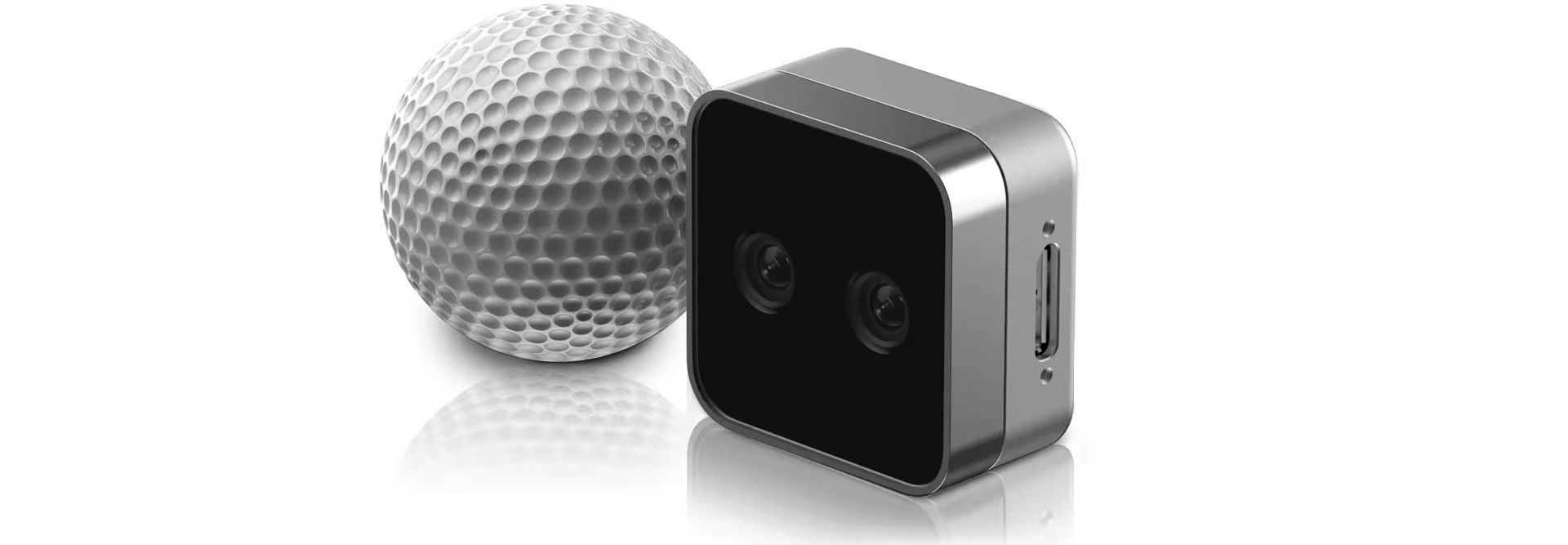
The RealSense D405 is a short-range stereo depth camera designed for high-precision close-range tasks such as tabletop robotic manipulation, with a typical working range of 7 cm to 50 cm.
RealSense D435i
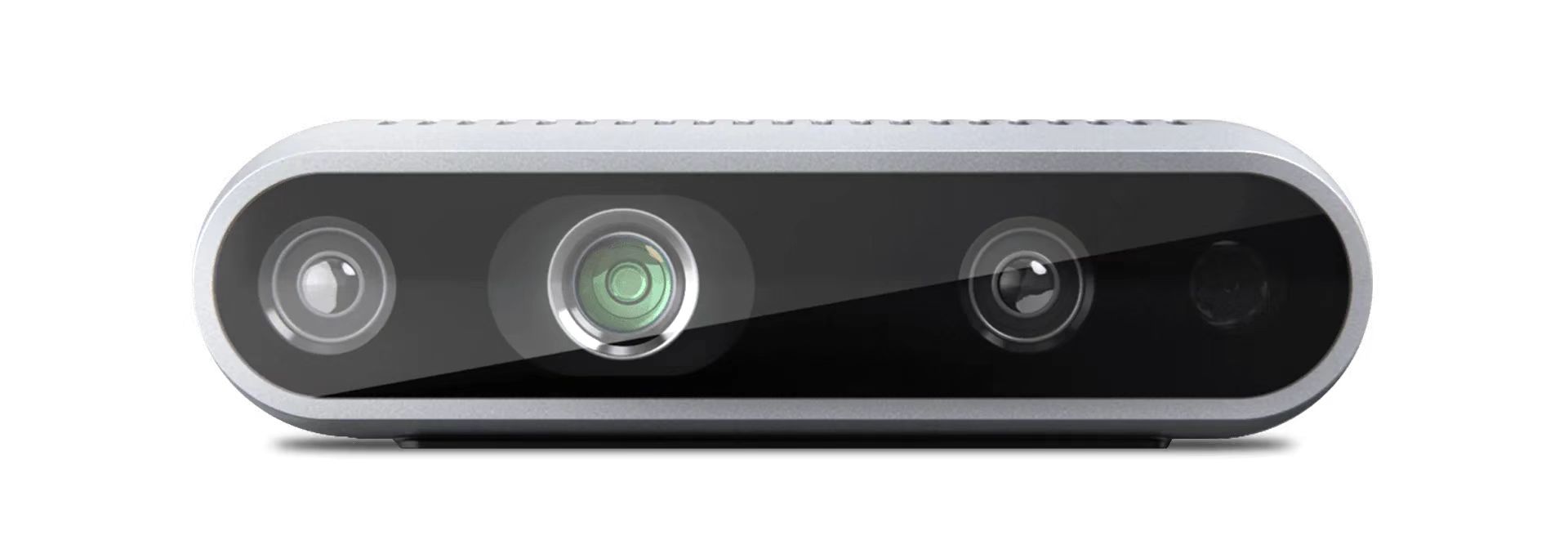
The RealSense D435i combines depth sensing, RGB imaging, and an IMU, making it suitable for mid- to close-range applications such as 3D reconstruction, SLAM, and robotic environment perception.
Switch to the Camera Branch
Step 1
Current camera support is available on the DepthCameraSupport branch:
git checkout DepthCameraSupport
git pull origin DepthCameraSupport
Confirm the current branch:
git branch --show-current
Expected output:
DepthCameraSupport
Install RealSense
Step 2
If you only use RealSense:
pip install -e ".[realsense]"
Grant USB Device Permissions
Step 3
sudo chmod a+rw /dev/bus/usb/*/*
Detect Cameras
Step 4
lerobot-find-cameras realsense
This step will output:
- Camera model
- Serial number
- USB information
- Default stream configuration
Run the RealSense Example
Step 5
Dual RealSense test:
lerobot-teleoperate \
    --robot.type=seeed_b601_rs_follower \
    --robot.port=can0 \
    --robot.id=follower1 \
    --robot.can_adapter=socketcan \
    --robot.cameras='{
    d435i_color: {
      type: realsense_d435i_color,
      serial_number_or_name: "419522072950",
      width: 640,
      height: 480,
      fps: 30,
      color_mode: rgb,
      color_stream_format: rgb8,
      rotation: 0,
      warmup_s: 1
    },
    d435i_depth: {
      type: realsense_d435i_depth,
      serial_number_or_name: "419522072950",
      width: 640,
      height: 480,
      fps: 30,
      max_depth_m: 2.0,
      depth_alpha: 0.2,
      rotation: 0,
      warmup_s: 5
    },
    d405_color: {
      type: realsense_d405_color,
      serial_number_or_name: "409122273421",
      width: 640,
      height: 480,
      fps: 30,
      color_mode: rgb,
      color_stream_format: rgb8,
      rotation: 0,
      warmup_s: 1
    },
    d405_depth: {
      type: realsense_d405_depth,
      serial_number_or_name: "409122273421",
      width: 640,
      height: 480,
      fps: 30,
      depth_alpha: 0.03,
      rotation: 0,
      warmup_s: 5
    }
  }' \
    --teleop.type=rebot_arm_102_leader \
    --teleop.port=/dev/ttyUSB0 \
    --teleop.id=rebot_arm_102_leader \
    --display_data=true
Review the Parameter Settings
Step 6
depth_alphacontrols the scaling factor of the depth image and can be adjusted based on the display result and target distance range.- If you connect three or more depth cameras, it is recommended to reduce
fpsto15to improve overall stability. - It is recommended to keep the resolution at
640x480for a better balance of stability and real-time performance.

providing synchronized RGB and depth streams with precise depth-to-color alignment. Combined with stereo depth sensing and a built-in 6-axis IMU, it is well suited for robotic tasks such as object detection, 3D perception, mapping, and navigation. Its compact design and full Orbbec SDK support make it suitable for both research and real-world deployment.
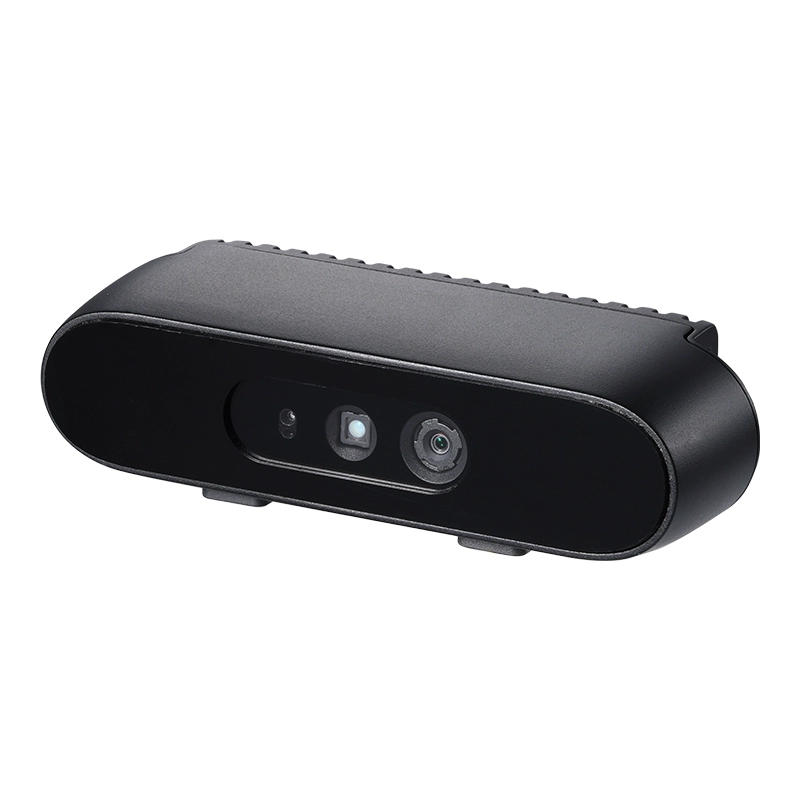
Gemini 336 is a new member of the Gemini 330 series. It inherits the strong depth performance of Gemini 335 and further improves depth imaging quality in reflective indoor areas, dark regions in high-dynamic scenes, and bright outdoor environments. For robotics applications, it can provide more stable, high-quality depth data for tasks such as perception, localization, and manipulation.
Switch to the Camera Branch
Step 1
Current camera support is available on the DepthCameraSupport branch:
git checkout DepthCameraSupport
git pull origin DepthCameraSupport
Confirm the current branch:
git branch --show-current
Expected output:
DepthCameraSupport
Install Orbbec
Step 2
pip install -e ".[orbbec]"
Grant USB Device Permissions
Step 3
sudo chmod a+rw /dev/bus/usb/*/*
Detect Cameras
Step 4
lerobot-find-cameras orbbec
This step will output:
- Camera model
- Serial number
- USB information
- Default stream configuration
Run the Orbbec Example
Step 5
Single Orbbec test:
lerobot-teleoperate \
    --robot.type=seeed_b601_rs_follower \
    --robot.port=can0 \
    --robot.id=follower1 \
    --robot.can_adapter=socketcan \
    --robot.cameras="{
    orbbec_color: {
      type: orbbec_color,
      serial_number_or_name: "CP9JA530003A",
      width: 640,
      height: 480,
      fps: 30,
      color_mode: rgb,
      rotation: 0,
      warmup_s: 1
    },
    orbbec_depth: {
      type: orbbec_depth,
      serial_number_or_name: "CP9JA530003A",
      width: 640,
      height: 400,
      fps: 30,
      depth_alpha: 0.2,
      rotation: 0,
      warmup_s: 5
    }
  }" \
    --teleop.type=rebot_arm_102_leader \
    --teleop.port=/dev/ttyUSB0 \
    --teleop.id=rebot_arm_102_leader \
    --display_data=true
Review the Parameter Settings
Step 6
depth_alphacontrols the scaling factor of the depth image. A good starting point is0.2, then you can fine-tune it based on the display result.- If you connect three or more depth cameras, it is recommended to reduce
fpsto15for better stability. - It is recommended to keep the resolution at
640x480for more stable display and data transfer.
Troubleshoot Common Issues
Step 7
If you see the following error:
No Orbbec camera found for 'XXXX'
it usually means the serial number in the configuration does not match the currently connected device. Run:
lerobot-find-cameras orbbec
Then confirm the actual serial and update serial_number_or_name in your command.
💡 Author and Contribution
- Author: Zhang Jiaquan, Wang Wenzhao - South China Normal University
To instantiate a camera, you need a camera identifier. This identifier might change if you reboot your computer or re-plug your camera, a behavior mostly dependant on your operating system.
To find the camera indices of the cameras plugged into your system, run the following script:
lerobot-find-cameras opencv # or realsense for Intel Realsense cameras
The terminal will print relevant camera information.
--- Detected Cameras ---
Camera #0:
  Name: OpenCV Camera @ 0
  Type: OpenCV
  Id: 0
  Backend api: AVFOUNDATION
  Default stream profile:
    Format: 16.0
    Width: 1920
    Height: 1080
    Fps: 15.0
--------------------
(more cameras ...)
You can find the pictures taken by each camera in the ~/lerobot/outputs/captured_images directory.
When using Intel RealSense cameras in macOS, you could get this error: "Error finding RealSense cameras: failed to set power state". This can be solved by running the same command with sudo permissions. Note that using RealSense cameras in macOS is unstable.
After that, you will be able to display the cameras on your computer while you are teleoperating by running the following code. This is useful to prepare your setup before recording your first dataset.
lerobot-teleoperate \
    --robot.type=seeed_b601_rs_follower \
    --robot.port=can0 \
    --robot.id=follower1 \
    --robot.can_adapter=socketcan \
    --robot.cameras="{ front: {type: opencv, index_or_path: 0, width: 640, height: 480, fps: 30, fourcc: "MJPG"}}" \
    --teleop.type=rebot_arm_102_leader \
    --teleop.port=/dev/ttyUSB0 \
    --teleop.id=rebot_arm_102_leader \
    --display_data=true
Images in the fourcc: "MJPG" format are compressed. You can try higher resolutions, and you may also attempt the YUYV format. However, the latter will reduce the image resolution and FPS, leading to lag in the robotic arm's operation. Currently, under the MJPG format, it can support 3 cameras at a resolution of 1920*1080 while maintaining 30FPS. However, connecting 2 cameras to a computer via the same USB HUB is still not recommended.
If you have more cameras, you can change the --robot.cameras parameter to add them. You should note the format of the index_or_path, which is determined by the last digit of the camera ID output by python -m lerobot.find_cameras opencv.
For example, if you want to add a camera:
lerobot-teleoperate \
    --robot.type=seeed_b601_rs_follower \
    --robot.port=can0 \
    --robot.id=follower1 \
    --robot.can_adapter=socketcan \
    --robot.cameras="{ front: {type: opencv, index_or_path: 0, width: 640, height: 480, fps: 30, fourcc: "MJPG"}, side: {type: opencv, index_or_path: 2, width: 640, height: 480, fps: 30, fourcc: "MJPG"}}" \
    --teleop.type=rebot_arm_102_leader \
    --teleop.port=/dev/ttyUSB0 \
    --teleop.id=rebot_arm_102_leader \
    --display_data=true
Camera Mount Installation
Fix the camera position for clean data collection. It supports free multi-angle adjustment, including top-down + wrist and top-down + side views. It works with regular USB cameras and depth cameras such as D435i, D405, and Gemini 2. Compatible with SO-ARM101 and reBot robotic arms. It can be used with the data collection experiment box, and you can reuse downloaded datasets and models out of the box.
Dataset Collection
- Save Locally
- Upload to Hugging Face Hub
lerobot-record \
    --robot.type=seeed_b601_rs_follower \
    --robot.port=can0 \
    --robot.id=follower1 \
    --robot.can_adapter=socketcan \
    --robot.cameras="{ front: {type: opencv, index_or_path: 0, width: 640, height: 480, fps: 30, fourcc: "MJPG"}, side: {type: opencv, index_or_path: 2, width: 640, height: 480, fps: 30, fourcc: "MJPG"}}" \
    --teleop.type=rebot_arm_102_leader \
    --teleop.port=/dev/ttyUSB0 \
    --teleop.id=rebot_arm_102_leader \
    --display_data=true \
    --dataset.repo_id=seeed_rebot_b601_rs/test \
    --dataset.num_episodes=5 \
    --dataset.single_task="Grab the black cube" \
    --dataset.push_to_hub=false \
    --dataset.episode_time_s=30 \
    --dataset.reset_time_s=30
Among them, repo_id can be modified customarily, and push_to_hub=false. Finally, the dataset will be saved in the ~/.cache/huggingface/lerobot directory in the home folder, where the aforementioned seeed_rebot_b601_rs/test folder will be created.
- If you want to use the Hugging Face Hub features for uploading your dataset and you haven't previously done it, make sure you've logged in using a write-access token, which can be generated from the Hugging Face settings:
huggingface-cli login --token ${HUGGINGFACE_TOKEN} --add-to-git-credential
Store your Hugging Face repository name in a variable to run these commands:
HF_USER=$(huggingface-cli whoami | head -n 1)
echo $HF_USER
Record 5 episodes and upload your dataset to the Hub:
lerobot-record \
    --robot.type=seeed_b601_rs_follower \
    --robot.port=can0 \
    --robot.id=follower1 \
    --robot.can_adapter=socketcan \
    --robot.cameras="{ front: {type: opencv, index_or_path: 0, width: 640, height: 480, fps: 30, fourcc: "MJPG"}, side: {type: opencv, index_or_path: 2, width: 640, height: 480, fps: 30, fourcc: "MJPG"}}" \
    --teleop.type=rebot_arm_102_leader \
    --teleop.port=/dev/ttyUSB0 \
    --teleop.id=rebot_arm_102_leader \
    --display_data=true \
    --dataset.repo_id=${HF_USER}/record-test \
    --dataset.num_episodes=5 \
    --dataset.single_task="Grab the black cube" \
    --dataset.push_to_hub=true \
    --dataset.episode_time_s=30 \
    --dataset.reset_time_s=30
You will see a lot of lines appearing like this one:
INFO 2024-08-10 15:02:58 ol_robot.py:219 dt:33.34 (30.0hz) dtRlead: 5.06 (197.5hz) dtWfoll: 0.25 (3963.7hz) dtRfoll: 6.22 (160.7hz) dtRlaptop: 32.57 (30.7hz) dtRphone: 33.84 (29.5hz)
Record Function
The record function provides a suite of tools for capturing and managing data during robot operation.
1. Data Storage
- Data is stored using the
LeRobotDatasetformat and is stored on disk during recording. - By default, the dataset is pushed to your Hugging Face page after recording.
- To disable uploading, use:
--dataset.push_to_hub=False.
2. Checkpointing and Resuming
- Checkpoints are automatically created during recording.
- To resume after an interruption, re-run the same command with:
--resume=true
⚠️ Important Note: When resuming, set --dataset.num_episodes to the number of additional episodes to record (not the targeted total number of episodes in the dataset).
- To start recording from scratch, manually delete the dataset directory.
3. Recording Parameters
Set the flow of data recording using command-line arguments:
| Parameter | Description | Default |
|---|---|---|
| --dataset.episode_time_s | Duration per data episode (seconds) | 60 |
| --dataset.reset_time_s | Environment reset time after each episode (seconds) | 60 |
| --dataset.num_episodes | Total episodes to record | 50 |
4. Keyboard Controls During Recording
Control the data recording flow using keyboard shortcuts:
| Key | Action |
|---|---|
| → (Right Arrow) | Early-stop current episode/reset; move to next. |
| ← (Left Arrow) | Cancel current episode; re-record it. |
| ESC | Stop session immediately, encode videos, and upload dataset. |
If your keyboard presses are not responding, you may need to downgrade your pynput version, such as installing version 1.6.8.
pip install pynput==1.6.8
Tips for Gathering Data
- Task Suggestion: Grasp objects at different locations and place them in a bin.
- Scale: Record ≥50 episodes (10 episodes per location).
- Consistency:
- Keep cameras fixed.
- Maintain identical grasping behavior.
- Ensure manipulated objects are visible in camera feeds.
- Progression:
- Start with reliable grasping before adding variations (new locations, grasping techniques, camera adjustments).
- Avoid rapid complexity increases to prevent failures.
💡 Rule of Thumb: You should be able to do the task yourself by only looking at the camera images on the screen.
If you want to dive deeper into this important topic, you can check out the blog post we wrote on what makes a good dataset.
Troubleshooting
Linux-specific Issue: If Right Arrow/Left Arrow/ESC keys are unresponsive during recording:
- Verify the
$DISPLAYenvironment variable is set (see pynput limitations).
Visualize the Dataset
echo ${HF_USER}/rebot_test
If you uploaded the data, you can also visualize it locally with the following command:
lerobot-dataset-viz \
  --repo-id ${HF_USER}/rebot_test \
  --episode-index 0 \
  --display-compressed-images=false
If you used --dataset.push_to_hub=false and didn't upload the data, you can also visualize it locally with:
lerobot-dataset-viz \
  --repo-id seeed_rebot_b601_rs/test \
  --episode-index 0 \
  --display-compressed-images=false
Here, seeed_rebot_b601_rs/test is the custom repo_id name defined during data collection.
Replay an Episode
Unstable, can be skipped or tried.
Now, try replaying the first dataset on your robot:
lerobot-replay \
    --robot.type=seeed_b601_rs_follower \
    --robot.port=can0 \
    --robot.can_adapter=socketcan \
    --robot.id=follower1 \
    --dataset.repo_id=seeed_rebot_b601_rs/test \
    --dataset.episode=0
At this point, the robot should perform the same actions as when you teleoperated during recording.
Training and Evaluation
- ACT
- SmolVLA
- Pi0
- Pi0.5
- GR00T N1.5
- PEFT (Optional)
- Multi-GPU (Optional)
- Async Inference (Optional)
Refer to the official tutorial ACT
Training
To train a policy to control your robot, use the python -m lerobot.scripts.train script. Some parameters are required. Here is an example command:
lerobot-train \
  --dataset.repo_id=${HF_USER}/rebot_test \
  --policy.type=act \
  --output_dir=outputs/train/act_rebot_test \
  --job_name=act_rebot_test \
  --policy.device=cuda \
  --wandb.enable=false \
  --steps=300000
If you want to train on a local dataset, make sure the repo_id matches the name used during data collection and add --policy.push_to_hub=false.
lerobot-train \
  --dataset.repo_id=seeed_rebot_b601_rs/test \
  --policy.type=act \
  --output_dir=outputs/train/act_rebot_test \
  --job_name=act_rebot_test \
  --policy.device=cuda \
  --wandb.enable=false \
  --policy.push_to_hub=false \
  --steps=300000
If you are using an RTX 50 series GPU, you need to add --dataset.video_backend=pyav to bypass missing APIs in the preview version of torchvision. The training command becomes:
lerobot-train \
  --dataset.repo_id=seeed_rebot_b601_rs/test \
  --dataset.video_backend=pyav \
  --policy.type=act \
  --output_dir=outputs/train/act_rebot_test \
  --policy.device=cuda \
  --wandb.enable=false \
  --policy.push_to_hub=false \
  --steps=300000
Command Explanation
- Dataset specification: We provide the dataset via the parameter
--dataset.repo_id=${HF_USER}/rebot_test. - Training steps: We modify the number of training steps using
--steps=300000. The algorithm defaults to 800000 steps; adjust based on your task difficulty. You can set it higher if unsure, since checkpoints are generated during training and evaluation can resume from any checkpoint. - Policy type: We provide the policy with
policy.type=act. Similarly, you can switch between policies such as [act,diffusion,pi0,pi0fast,sac,smolvla]. This will load the configuration fromconfiguration_act.py. Importantly, this policy will automatically adapt to your robot's motor states, motor actions, and the number of cameras, as this information is already stored in your dataset. - Device selection: We provide
policy.device=cudabecause we are training on an Nvidia GPU, but you can usepolicy.device=mpsfor training on Apple Silicon. - Visualization tool: We provide
wandb.enable=trueto visualize training charts using Weights and Biases. This is optional, but if you use it, ensure you have logged in by runningwandb login.
Evaluation
You can use the record function from lerobot/record.py but with a policy checkpoint as input. For instance, run this command to record 10 evaluation episodes:
lerobot-record \
  --robot.type=seeed_b601_rs_follower \
  --robot.port=can0 \
  --robot.can_adapter=socketcan \
  --robot.cameras='{ front: {type: opencv, index_or_path: 0, width: 640, height: 480, fps: 30, fourcc: "MJPG"}, side: {type: opencv, index_or_path: 2, width: 640, height: 480, fps: 30, fourcc: "MJPG"} }' \
  --robot.id=follower1 \
  --display_data=false \
  --dataset.repo_id=seeed/eval_test123 \
  --dataset.single_task="Put lego brick into the transparent box" \
  --policy.path=outputs/train/act_rebot_test/checkpoints/last/pretrained_model
- The
--policy.pathparameter indicates the path to the weight file of your policy training results (e.g.,outputs/train/act_rebot_test/checkpoints/last/pretrained_model). If you upload the model training result weight file to Hub, you can also use the model repository (e.g.,${HF_USER}/act_rebot_test). - The dataset name
dataset.repo_idstarts witheval_. This operation will separately record videos and data during evaluation, which will be saved in the folder starting witheval_, such asseeed/eval_test123. - If you encounter
File exists: 'home/xxxx/.cache/huggingface/lerobot/xxxxx/seeed/eval_xxxx'during the evaluation phase, please delete the folder starting witheval_first and then run the program again. - When encountering
mean is infinity. You should either initialize with stats as an argument or use a pretrained model, please note that keywords likefrontandsidein the--robot.camerasparameter must be strictly consistent with those used when collecting the dataset.
Refer to the official tutorial SmolVLA.
SmolVLA is a lightweight robot foundation model provided by Hugging Face. It is designed to let you take your own recorded LeRobot dataset and fine-tune it quickly to get results on real robots.
Simply put, its inputs/outputs are:
- Input: multi-camera footage + robot's current state (sensors/joints, etc.) + a natural language task instruction
- Output: a continuous action chunk to drive the robotic arm to execute the task
pip install -e ".[smolvla]"
Collecting Datasets (Recommended)
SmolVLA is a "foundation model". To perform well on your tabletop, with your cameras, gripper, and objects, you typically need to fine-tune it with your own data.
- Start with ~50 episodes (too few may lead to poor learning/generalization).
- If your task has "variables" (e.g., different cube positions on the table), ensure each variation has enough demonstrations:
- Example: 5 positions × 10 episodes each = 50 episodes
- Experience: Recording only 25 episodes is often insufficient. Both data quality and quantity matter.
Training
Use smolvla_base (the pretrained 450M model) as a starting point and fine-tune on your dataset. The official example trains for 20k steps; on a single A100 this takes about 4 hours (for reference only; actual time varies by hardware).
If you don't have a GPU available, consider training via a Colab notebook (see the official tutorial).
lerobot-train \
  --policy.path=lerobot/smolvla_base \
  --dataset.repo_id=${HF_USER}/mydataset \
  --batch_size=64 \
  --steps=20000 \
  --output_dir=outputs/train/my_smolvla \
  --job_name=my_smolvla_training \
  --policy.device=cuda \
  --wandb.enable=true
Tips:
- If you run out of memory, reduce
--batch_sizefirst. Once it runs, gradually increase it. - For available parameters:
lerobot-train --help
Evaluation
The evaluation phase loads your fine-tuned model, lets the robot perform the task, and records the evaluation process as a new dataset (for reviewing videos and analyzing results).
lerobot-record \
  --robot.type=seeed_b601_rs_follower \
  --robot.port=can0 \
  --robot.can_adapter=socketcan \
  --robot.id=follower1 \
  --robot.cameras='{ front: {type: opencv, index_or_path: 0, width: 640, height: 480, fps: 30, fourcc: "MJPG"}, side: {type: opencv, index_or_path: 2, width: 640, height: 480, fps: 30, fourcc: "MJPG"} }' \
  --dataset.single_task="Grasp a lego block and put it in the bin." \
  --dataset.repo_id=${HF_USER}/eval_DATASET_NAME_test \
  --dataset.episode_time_s=50 \
  --dataset.num_episodes=10 \
  --policy.path=${HF_USER}/FINETUNE_MODEL_NAME
How to fill in parameters:
--robot.port: Change to the serial port recognized on your machine (commonlycan0or/dev/ttyACM0).--robot.id: Your robot ID (must match what you used during calibration/recording).--robot.cameras: Change to your real cameraindex_or_path, and ensure camera keys (e.g.,front,side) match exactly what you used when recording the dataset.--dataset.single_task: Should match the task description used when recording the dataset.--dataset.repo_id: The evaluation output dataset name; if you are logged into Hugging Face, it will be created/uploaded under your account.--policy.path:- If the model is local: fill in the weight path under the training output directory (e.g.,
outputs/train/my_smolvla/checkpoints/last/pretrained_model) - If the model is on Hub: fill in
${HF_USER}/FINETUNE_MODEL_NAME
- If the model is local: fill in the weight path under the training output directory (e.g.,
Optional: If you want to "manually teleoperate to adjust" between evaluation episodes, you can add teleop (fill in according to your device and configuration):
--teleop.type=rebot_arm_102_leader \
--teleop.port=/dev/ttyUSB0 \
--teleop.id=rebot_arm_102_leader
Refer to the official tutorial Pi0.
π₀ (Pi0) is a Vision-Language-Action model proposed by Physical Intelligence for more "general" robot control. You can think of it as: it can both see camera images and understand a natural language instruction, then output actions to control the robotic arm.
Using it in LeRobot is simply: just set the policy type to --policy.type=pi0 during training (no need to repeat the general training/evaluation concepts covered in the ACT section).
pip install -e ".[pi]"
If you are using an older version of LeRobot (e.g., 0.4.0), you may need to install the pi dependency from the GitHub source (the official documentation will fix this in a subsequent patch):
pip install "lerobot[pi]@git+https://github.com/huggingface/lerobot.git"
Training
lerobot-train \
  --policy.type=pi0 \
  --dataset.repo_id=${HF_USER}/my_dataset \
  --job_name=pi0_training \
  --output_dir=outputs/pi0_training \
  --policy.pretrained_path=lerobot/pi0_base \
  --policy.repo_id=${HF_USER}/my_pi0_policy \
  --policy.compile_model=true \
  --policy.gradient_checkpointing=true \
  --policy.dtype=bfloat16 \
  --policy.freeze_vision_encoder=false \
  --policy.train_expert_only=false \
  --steps=3000 \
  --policy.device=cuda \
  --batch_size=32 \
  --wandb.enable=false
Common parameters (only Pi0-specific / most frequently adjusted):
--policy.pretrained_path=lerobot/pi0_base: Base model. Official also provideslerobot/pi0_libero(Libero dataset-oriented version), you can try switching based on your task.--policy.compile_model=true: Enables compilation optimization, training may be faster (first compilation is slower).--policy.gradient_checkpointing=true: Significantly saves VRAM, suitable when VRAM is tight.--policy.dtype=bfloat16: Mixed precision, more friendly for speed/VRAM (recommended when hardware supports it).--policy.train_expert_only=true(VRAM saving trick): Freezes the large model (VLM) part, only trains the "action expert" and projection layers; saves more VRAM but trainable capacity is more limited, suitable for getting started first or quick experiments with small data.
Evaluation
lerobot-record \
  --robot.type=seeed_b601_rs_follower \
  --robot.port=can0 \
  --robot.can_adapter=socketcan \
  --robot.cameras='{ front: {type: opencv, index_or_path: 0, width: 640, height: 480, fps: 30, fourcc: "MJPG"}, side: {type: opencv, index_or_path: 2, width: 640, height: 480, fps: 30, fourcc: "MJPG"} }' \
  --robot.id=follower1 \
  --display_data=false \
  --dataset.repo_id=${HF_USER}/eval_my_pi0_test \
  --dataset.single_task="Put lego brick into the transparent box" \
  --dataset.episode_time_s=50 \
  --dataset.num_episodes=10 \
  --policy.path=outputs/pi0_training/checkpoints/last/pretrained_model
Refer to the official tutorial Pi0.5.
π₀.₅ (Pi0.5) is also a Vision-Language-Action model proposed by Physical Intelligence, which can be understood as an "upgraded version" of π₀, with a focus on enhanced open-world generalization capability: not only performing well in fixed scenarios seen during training, but also completing tasks more reliably in new rooms, with new objects, and in new arrangements.
The "generalization" it addresses can be roughly divided into three levels (examples for understanding):
- Physical layer: Grasping an unfamiliar spoon/plate by knowing how to hold it (handle/edge), and operating in cluttered environments.
- Semantic layer: Understanding "where to put things / which tool to use", e.g., shoes should go in the shoe cabinet, clothes in the laundry basket.
- Environmental layer: Adapting to more realistic "messy" scenarios, such as homes, offices, hospitals, etc.
To use it in LeRobot: just set the policy type to --policy.type=pi05.
pip install -e ".[pi]"
If you are using an older version of LeRobot (e.g., 0.4.0), you may need to install the pi dependency from the GitHub source (the official documentation will fix this in a subsequent patch):
pip install "lerobot[pi]@git+https://github.com/huggingface/lerobot.git"
Training
lerobot-train \
  --dataset.repo_id=${HF_USER}/my_dataset \
  --policy.type=pi05 \
  --output_dir=outputs/pi05_training \
  --job_name=pi05_training \
  --policy.repo_id=${HF_USER}/my_pi05_policy \
  --policy.pretrained_path=lerobot/pi05_base \
  --policy.compile_model=true \
  --policy.gradient_checkpointing=true \
  --policy.dtype=bfloat16 \
  --policy.freeze_vision_encoder=false \
  --policy.train_expert_only=false \
  --steps=3000 \
  --policy.device=cuda \
  --batch_size=32 \
  --wandb.enable=false
Common parameters (Pi0.5 related):
--policy.pretrained_path=lerobot/pi05_base: Base model. Official also provideslerobot/pi05_libero.--policy.train_expert_only=true(VRAM saving trick): Freezes the large model (VLM) part, only trains the "action expert" and projection layers.--policy.normalization_mapping=...: If your dataset normalization statistics don't match / are missing, you can use this mapping to force a normalization method.
If your dataset doesn't have quantile statistics (required by some versions/formats), the official also provides a conversion script approach: complete/convert the dataset statistics before training (refer to official docs for details).
Evaluation
lerobot-record \
  --robot.type=seeed_b601_rs_follower \
  --robot.port=can0 \
  --robot.can_adapter=socketcan \
  --robot.cameras='{ front: {type: opencv, index_or_path: 0, width: 640, height: 480, fps: 30, fourcc: "MJPG"}, side: {type: opencv, index_or_path: 2, width: 640, height: 480, fps: 30, fourcc: "MJPG"} }' \
  --robot.id=follower1 \
  --display_data=false \
  --dataset.repo_id=${HF_USER}/eval_my_pi05_test \
  --dataset.single_task="Put lego brick into the transparent box" \
  --dataset.episode_time_s=50 \
  --dataset.num_episodes=10 \
  --policy.path=outputs/pi05_training/checkpoints/last/pretrained_model
Please refer to the official tutorial GR00T N1.5.
GR00T N1.5 is an open foundation model provided by NVIDIA for more general robot reasoning and skill learning. It is a cross-embodiment model: it can take multimodal inputs such as language and images, and execute manipulation tasks across different environments.
The key to using it in LeRobot is setting the policy type to --policy.type=groot. Note: GR00T N1.5 currently has higher environment requirements (depends on FlashAttention and requires a CUDA GPU). It is recommended to get ACT / Pi0 working first before trying GR00T.
Installation (Important)
As per the official documentation, GR00T N1.5 requires flash-attn to work, and can only be used on CUDA-capable devices.
Recommended steps (execute in order):
- Set up the base environment first (Python, CUDA, drivers, etc.) following the installation guide. Do not install
lerobotin this step. - Install PyTorch (version range as per official requirements):
pip install "torch>=2.2.1,<2.8.0" "torchvision>=0.21.0,<0.23.0"
If you are using RTX 50 series, you need: Python=3.10, CUDA=12.8, Torch=2.7.1
pip install torch==2.7.1 torchvision==0.22.1 torchaudio==2.7.1 --index-url https://download.pytorch.org/whl/cu128
- Install flash-attn dependency and flash-attn itself:
pip install ninja "packaging>=24.2,<26.0"
pip install "flash-attn>=2.5.9,<3.0.0" --no-build-isolation
python -c "import flash_attn; print(f'Flash Attention {flash_attn.__version__} imported successfully')"
If you are using RTX 50 series, you need: flash_attn=2.8.0
pip install flash_attn==2.8.0.post2 torch==2.7.1 --no-build-isolation
- Install LeRobot's groot dependency:
pip install "lerobot[groot]"
If flash-attn installation fails, it's usually related to (1) PyTorch/CUDA version mismatch, (2) missing build dependencies, or (3) environment being too new/too old. In this case, refer to the official GR00T documentation and PyTorch installation guide first.
Training (Fine-tuning)
The official provides a multi-GPU training example (accelerate launch --multi_gpu ...). If you only have one GPU, you can also try running it in single-process mode first (support / parameter details are subject to the official documentation).
Multi-GPU (variables need to be replaced):
accelerate launch \
  --multi_gpu \
  --num_processes=$NUM_GPUS \
  $(which lerobot-train) \
  --output_dir=$OUTPUT_DIR \
  --save_checkpoint=true \
  --batch_size=$BATCH_SIZE \
  --steps=$NUM_STEPS \
  --save_freq=$SAVE_FREQ \
  --log_freq=$LOG_FREQ \
  --policy.push_to_hub=true \
  --policy.type=groot \
  --policy.repo_id=$REPO_ID \
  --policy.tune_diffusion_model=false \
  --dataset.repo_id=$DATASET_ID \
  --wandb.enable=true \
  --wandb.disable_artifact=true \
  --job_name=$JOB_NAME
Parameter explanation (most commonly modified):
--dataset.repo_id: Your training dataset (username/dataset_nameon Hub or local cache correspondingrepo_id).--output_dir: Training output directory (weights/checkpoints will be placed here).--steps,--batch_size: Training steps and batch size. Large models are sensitive to VRAM; if it doesn't run, reducebatch_sizefirst.--policy.repo_id: If you want to push the model to Hub, fill in the model repository name you want to create.
Evaluation (Running on the Robot)
After training, you can use lerobot-record for evaluation/recording just like other policies. For reBot B601-RS single-arm users, refer to the following command:
lerobot-record \
  --robot.type=seeed_b601_rs_follower \
  --robot.port=can0 \
  --robot.can_adapter=socketcan \
  --robot.cameras='{ front: {type: opencv, index_or_path: 0, width: 640, height: 480, fps: 30}, side: {type: opencv, index_or_path: 2, width: 640, height: 480, fps: 30} }' \
  --robot.id=follower1 \
  --display_data=true \
  --dataset.repo_id=${HF_USER}/eval_groot_rebot \
  --dataset.num_episodes=10 \
  --dataset.single_task="Grab the black cube and put it in the box" \
  --policy.path=${HF_USER}/groot-rebot \
  --dataset.episode_time_s=30 \
  --dataset.reset_time_s=10
License: This model follows the Apache 2.0 license (consistent with the original GR00T repository).
PEFT (Parameter-Efficient Fine-Tuning) is a set of "parameter-efficient adaptation" methods and tools for adapting large pretrained models to new tasks without updating all model parameters. For LeRobot's pretrained policies (e.g., SmolVLA, π₀, etc.), you can typically train only a small number of "adapter" parameters (e.g., LoRA) to achieve near full fine-tuning results while reducing VRAM usage and training cost.
Installation
Install LeRobot's optional peft dependency to use PEFT-related parameters:
# Method 1: Source installation (in the lerobot root directory)
pip install -e ".[peft]"
# Method 2: pip installation
pip install "lerobot[peft]"
For more adaptation methods and concept explanations, refer to the official documentation: 🤗 PEFT Documentation
Example: Fine-tuning SmolVLA with LoRA (Libero's libero_spatial subtask)
The following example shows how to perform LoRA fine-tuning of lerobot/smolvla_base on the HuggingFaceVLA/libero dataset. Parameter names are based on the current LeRobot version; also refer to lerobot-train --help.
lerobot-train \
  --policy.path=lerobot/smolvla_base \
  --policy.repo_id=${HF_USER}/my_libero_smolvla_peft \
  --dataset.repo_id=HuggingFaceVLA/libero \
  --env.type=libero \
  --env.task=libero_spatial \
  --output_dir=outputs/train/my_libero_smolvla_peft \
  --job_name=my_libero_smolvla_peft \
  --policy.device=cuda \
  --steps=10000 \
  --batch_size=32 \
  --optimizer.lr=1e-3 \
  --peft.method_type=LORA \
  --peft.r=64
Key PEFT Parameters
--peft.method_type: Select the PEFT method. LoRA (Low-Rank Adapter) is one of the most commonly used methods.--peft.r: LoRA rank. Generally, higher rank means stronger expressive capacity, but also more parameters and VRAM usage.
Specifying Layers to Inject LoRA (Optional)
By default, PEFT typically injects LoRA into the most critical projection layers of the model (e.g., attention's q_proj, v_proj, etc.), and may additionally cover state/action-related projection layers. If you need to target different layers, use --peft.target_modules to specify target layers.
Common patterns include:
- By module name suffix list (example):
--peft.target_modules="['q_proj', 'v_proj']"
- Using a regular expression (example, adjust according to actual module names):
--peft.target_modules='(model\\.vlm_with_expert\\.lm_expert\\..*\\.(down|gate|up)_proj|.*\\.(state_proj|action_in_proj|action_out_proj|action_time_mlp_in|action_time_mlp_out))'
Specifying Certain Layers for Full Training (Optional)
If you want certain modules to be "fully trained" (instead of only injecting LoRA), use --peft.full_training_modules to specify them. For example, only fully train state_proj:
--peft.full_training_modules="['state_proj']"
Learning Rate Recommendations (Experience Values)
LoRA's learning rate can typically be an order of magnitude larger than full fine-tuning (common experience: ~10x). For example, full fine-tuning commonly uses 1e-4, while LoRA can start from 1e-3; if you have learning rate decay (scheduler) enabled, the final learning rate is also commonly set around 1e-4 as a reference.
1. Training Steps
Method One: Multi-GPU Training via Command-Line Arguments
First, install the training acceleration system in your lerobot environment:
pip install accelerate
Then run the following command to start multi-GPU training:
accelerate launch \
  --multi_gpu \
  --num_processes=2 \
  $(which lerobot-train) \
  --dataset.repo_id=${HF_USER}/my_dataset \
  --policy.type=act \
  --policy.repo_id=${HF_USER}/my_trained_policy \
  --output_dir=outputs/train/act_multi_gpu \
  --job_name=act_multi_gpu \
  --wandb.enable=true
Key accelerate parameter explanation:
--multi_gpu: Enable multi-GPU training--num_processes=2: Number of GPUs to use (usually equals the number of GPUs)--mixed_precision=fp16: Use fp16 mixed precision (or bf16 if your hardware supports it)
Note that bf16 requires hardware support and is not available on all GPUs.
| Precision Type | Hardware Support |
|---|---|
| fp16 | Supported by almost all NVIDIA GPUs |
| bf16 | Only supported on newer GPUs (Ampere architecture and newer) |
If your GPU does not support bf16, choose fp16 in your accelerate configuration, or explicitly specify fp16 on the command line.
Method Two: Using an Accelerate Configuration File (Optional)
If you frequently perform multi-GPU training, you can save the above training configuration to avoid repetitive command-line input.
Tip: If you don't understand this section, or just want to get started quickly, you can skip this section and use Method One (command-line arguments).
The purpose of accelerate config is to:
Save your hardware environment (GPU count, mixed precision, etc.) as a configuration file,
so you don't need to repeatedly fill in these parameters when running accelerate launch in the future.
It does not change any LeRobot training logic; it just reduces repetitive parameter input.
If you only occasionally use multi-GPU, or this is your first attempt, it's perfectly fine not to use it.
Run:
accelerate config
In the interactive configuration process, for the common single-machine multi-GPU scenario, you can select as follows:
- Compute environment: This machine
- Number of machines: 1
- Number of processes: Number of GPUs to use (usually equals the number of GPUs)
- GPU ids to use: Press Enter directly (means use all GPUs)
- Mixed precision:
- Prefer fp16
- If you confirm the GPU supports bf16, you can also choose bf16
After configuration, you can train with:
accelerate launch $(which lerobot-train) \
  --dataset.repo_id=${HF_USER}/my_dataset \
  --policy.type=act \
  --policy.repo_id=${HF_USER}/my_trained_policy \
  --output_dir=outputs/train/act_multi_gpu \
  --job_name=act_multi_gpu \
  --wandb.enable=true
Impact of Multi-GPU Training on Training Parameters and Adjustment Strategies
LeRobot does not automatically adjust learning rate or training steps based on the number of GPUs, to avoid changing training behavior without the user's knowledge. This differs from other commonly used distributed training frameworks.
If you want to adjust hyperparameters for multi-GPU training, you need to do it manually following these steps.
Impact on Steps and Adjustment Strategy
Since multi-GPU increases the effective batch size (batch_size × num_gpus):
(To understand this intuitively: if training is like walking, one GPU takes one step of one meter, two GPUs take one step of two meters. To reach the same distance (total data learned by the model), dual-GPU training should halve the steps. Similarly, n GPUs = 1/n.)
Therefore, when training with multiple GPUs, you should appropriately reduce the number of training steps.
Single-GPU training:
- batch_size = 8
- steps = 100000
Dual-GPU training (effective batch size becomes 16):
- batch_size, if still set to 8
- steps can be reduced to 50000
accelerate launch --num_processes=2 $(which lerobot-train) \
  --batch_size=8 \
  --steps=50000 \
  --dataset.repo_id=lerobot/pusht \
  --policy=act
Impact on Learning Rate and Adjustment Strategy
When using multiple GPUs, each step update uses more samples.
If you want to keep the model's "learning speed" similar to single-GPU, you typically need to increase the learning rate proportionally to the number of GPUs.
- New learning rate = single-GPU learning rate × number of GPUs
For example:
If the single-GPU learning rate (optimizer.lr) is 1e-4, when using 2 GPUs, you can change it to 2e-4:
accelerate launch --num_processes=2 $(which lerobot-train) \
  --optimizer.lr=2e-4 \
  --dataset.repo_id=lerobot/pusht \
  --policy=act
Note:
These are not mandatory rules, but common best practices.
If you are unsure how to adjust, you can also:
- Keep the learning rate unchanged
- Keep the training steps unchanged
As long as the training process is stable, the results are still usable.
For more advanced configuration and troubleshooting, please refer to the Accelerate documentation. If you want to learn more about training on large numbers of GPUs, check out this excellent guide: Ultrascale Playbook.
Without async inference, LeRobot's control flow can be understood as conventional sequential/synchronous inference: the policy predicts an action chunk, then executes it, then waits for the next prediction. For larger models, this can cause noticeable pauses while the robot waits for new action chunks. The goal of async inference is to let the robot execute the current action chunk while pre-computing the next one, reducing idle time and improving responsiveness. Async inference applies to LeRobot-supported policies that output action chunks, such as ACT, OpenVLA, Pi0, SmolVLA. Since inference and actual control are decoupled, async inference also enables using more powerful machines for robot inference remotely.
You can read more about async inference in this blog post from Hugging Face.
Let's introduce some basic concepts:
- Client: Connects to the robotic arm and cameras, collects observations (images, robot pose, etc.), sends them to the server; also receives action chunks from the server and executes them in order.
- Server: The device providing compute power. Receives camera and robot data, infers (computes) action chunks, and sends them back to the client. It can be the same device connected to the robot and cameras, another computer on the same LAN, or a cloud server.
- Action chunk: A series of robotic arm action commands, produced by the policy through server-side inference.
- Synchronous inference: Predict one chunk, execute one chunk; the robot will have idle gaps waiting for the next chunk to be inferred. When the model is larger and compute is insufficient, the inference gap is significant — the arm moves, then pauses (inference), then moves again.
- Asynchronous inference: Unlike synchronous inference, while the robot executes the current chunk, the server is already computing the next chunk; overlapping parts are aggregated for more responsive control.
Three Async Inference Deployment Scenarios
1. Single-Machine Deployment
Robot, cameras, client, and server are all on the same device. This is the simplest case — the server listens on 127.0.0.1, and the client also connects to 127.0.0.1:port. The command examples in the official documentation follow this scenario.
2. LAN Deployment
Robot and cameras connect to a lightweight device, and the policy server runs on another high-compute device on the same LAN. In this case, the server must listen on an address accessible to other machines, and the client must connect to the server's LAN IP, not 127.0.0.1.
3. Cross-Network / Cloud Deployment
The policy server runs on a publicly accessible cloud host, and the client connects via a public network. This approach can leverage stronger GPUs on cloud hosts. With good network conditions, the round-trip time (network latency) may be relatively small compared to inference time, but this depends on your actual network environment.
Security note: The LeRobot async inference pipeline has unauthenticated gRPC + pickle deserialization risks. If the server hosts important information or services, it is not recommended to expose the service directly to the public internet when deploying on a public network. A safer approach is VPN, SSH tunneling, or at least restricting security group source IPs to your client's public IP.
Starting Async Inference Deployment
Step 1: Environment Configuration
First, install the additional dependencies required for async inference using pip. Both client and server need lerobot installed with the extra dependency:
pip install -e ".[async]"
Step 2: Network Configuration and Check
1. Proxy Issues
If your terminal has proxy environment variables configured and connection issues occur, you can temporarily unset them:
unset http_proxy https_proxy ftp_proxy all_proxy HTTP_PROXY HTTPS_PROXY FTP_PROXY ALL_PROXY
Note: The above command only affects the current terminal session. If you open a new terminal window, you need to run it again.
2. Allow Ports in Firewall / Security Groups
- Single-machine deployment: Usually can be skipped.
- LAN deployment: You need to allow the listening port on the server side. Example of allowing a listening port on LAN (run on the server):
sudo ufw allow 8080/tcp
- Cloud deployment: You need to allow the port in the cloud server's security group, and ideally restrict source IPs.
If running on a cloud server: Allow port 8080 in the security group on the server management page, or use another already-allowed port. Methods vary by cloud provider.
3. Confirm IP Address
Single-machine deployment can skip this step (IP is always 127.0.0.1).
4. Connection Test
- Single-machine deployment: Skip this step.
- LAN / Cloud deployment: It's recommended to test whether the client can access the server port:
nc -vz <LAN_IP_address> 8080
nc -vz <server_public_IP> 8080
Step 3: Start the Service
Scenario A: Single-Machine Deployment
Start the local service in one terminal:
python -m lerobot.async_inference.policy_server \
  --model_path=outputs/train/act_rebot_test/checkpoints/last/pretrained_model \
  --server_address=127.0.0.1:8080
After it starts successfully, you need to keep this terminal open and create a new terminal to run other commands.
Scenario B: LAN Deployment
Run on the server:
python -m lerobot.async_inference.policy_server \
  --model_path=outputs/train/act_rebot_test/checkpoints/last/pretrained_model \
  --server_address=0.0.0.0:8080
When the client connects, --server_address should use the server's LAN IP address: <LAN_IP_address>:8080.
Scenario C: Cloud Server Deployment
Run on the server:
python -m lerobot.async_inference.policy_server \
  --model_path=outputs/train/act_rebot_test/checkpoints/last/pretrained_model \
  --server_address=0.0.0.0:8080
When the client connects, --server_address should use the server's public IP address: <server_public_IP>:8080.
Step 4: Choose Inference Parameters
Run on the client:
python -m lerobot.async_inference.robot_client \
  --robot.type=seeed_b601_rs_follower \
  --robot.port=can0 \
  --robot.can_adapter=socketcan \
  --robot.cameras='{ front: {type: opencv, index_or_path: 0, width: 640, height: 480, fps: 30, fourcc: "MJPG"}, side: {type: opencv, index_or_path: 2, width: 640, height: 480, fps: 30, fourcc: "MJPG"} }' \
  --robot.id=follower1 \
  --server_address=127.0.0.1:8080 \
  --actions_per_chunk=50 \
  --chunk_size_threshold=0.5 \
  --fixed_update_fps=30 \
  --visualize_action_queue=false
Key parameter explanation:
--server_address: Server address. Use127.0.0.1:portfor single-machine, and the server IP for LAN/cloud.--actions_per_chunk: Size of each action chunk (number of actions). Larger values mean lower inference frequency but more stable per-inference results; smaller values mean smoother motion but more server inference pressure.--chunk_size_threshold: Blending threshold between old and new action chunks. When the old chunk is executed to this ratio, blending with the new chunk begins.--fixed_update_fps: Control command sending frequency, corresponding to the smoothness of the robotic arm's motion.--visualize_action_queue: Whether to visualize the action queue size at runtime. When enabled, you can more intuitively see if the queue frequently hits bottom, helping you adjust actions_per_chunk and chunk_size_threshold.
Step 5: Adjust Parameters Based on Robot Behavior
In async inference, there are two additional parameters not present in synchronous inference that need adjustment:
--actions_per_chunk: Size of each action chunk. If the robot motion is choppy/jerky, increase this value; if the robot response has noticeable delay, decrease this value.--chunk_size_threshold: Blending threshold between old and new action chunks. Usually start trying from0.5.
Async inference needs to balance: the server's action chunk generation speed must be greater than or equal to the client's consumption speed. Otherwise, the action queue will empty and the robot will start stuttering (this can be seen in the queue visualization curve hitting bottom).
FAQ
-
If you are following this documentation tutorial, please git clone the recommended GitHub repository
https://github.com/Seeed-Projects/lerobot.git. The repository recommended in this documentation is a verified stable version; the official LeRobot repository is continuously updated to the latest version, which may cause unforeseen issues such as different dataset versions, different commands, etc. -
If you encounter:
Could not connect on port "/dev/ttyUSB0" or "/dev/ttyACM0"And you can see the device exists when running
ls /dev/ttyUSB*orls /dev/ttyACM*, it means you forgot to grant serial port permissions. Entersudo chmod 666 /dev/ttyUSB* /dev/ttyACM*in the terminal to fix it. -
If you encounter:
No valid stream found in input file. Is -1 of the desired media type?Please install ffmpeg 7.1.1 using
conda install ffmpeg=7.1.1 -c conda-forge. -
Training ACT on 50 sets of data takes approximately 6 hours on a laptop with an RTX 3060 (8GB), and about 2-3 hours on computers with RTX 4090 or A100 GPUs.
-
During data collection, ensure the camera position, angle, and ambient lighting are stable. Reduce the amount of unstable background and pedestrians captured by the camera, as excessive changes in the deployment environment may cause the robotic arm to fail to grasp properly.
-
For the data collection command, ensure the
num-episodesparameter is set to collect sufficient data. Do not manually pause midway, as the mean and variance of the data are calculated only after data collection is complete, which are necessary for training. -
If the program indicates it cannot read image data from the USB camera, ensure the USB camera is not connected through a hub. The USB camera must be directly connected to the device to ensure fast image transmission speed.
If you encounter software issues or environment dependency problems that cannot be resolved, in addition to checking the FAQ section at the end of this tutorial, please promptly report the issue to the LeRobot platform or the LeRobot Discord channel.
References
Seeed Studio English Wiki: How to use the SO100Arm robotic arm in Lerobot
TheRobotStudio Project: SO-ARM10x
Huggingface Project: LeRobot
Dnsty: Jetson Containers
Tech Support & Product Discussion
Thank you for choosing our products! We are here to provide you with different support to ensure that your experience with our products is as smooth as possible. We offer several communication channels to cater to different preferences and needs.