reBot Arm B601-RS Quick Start
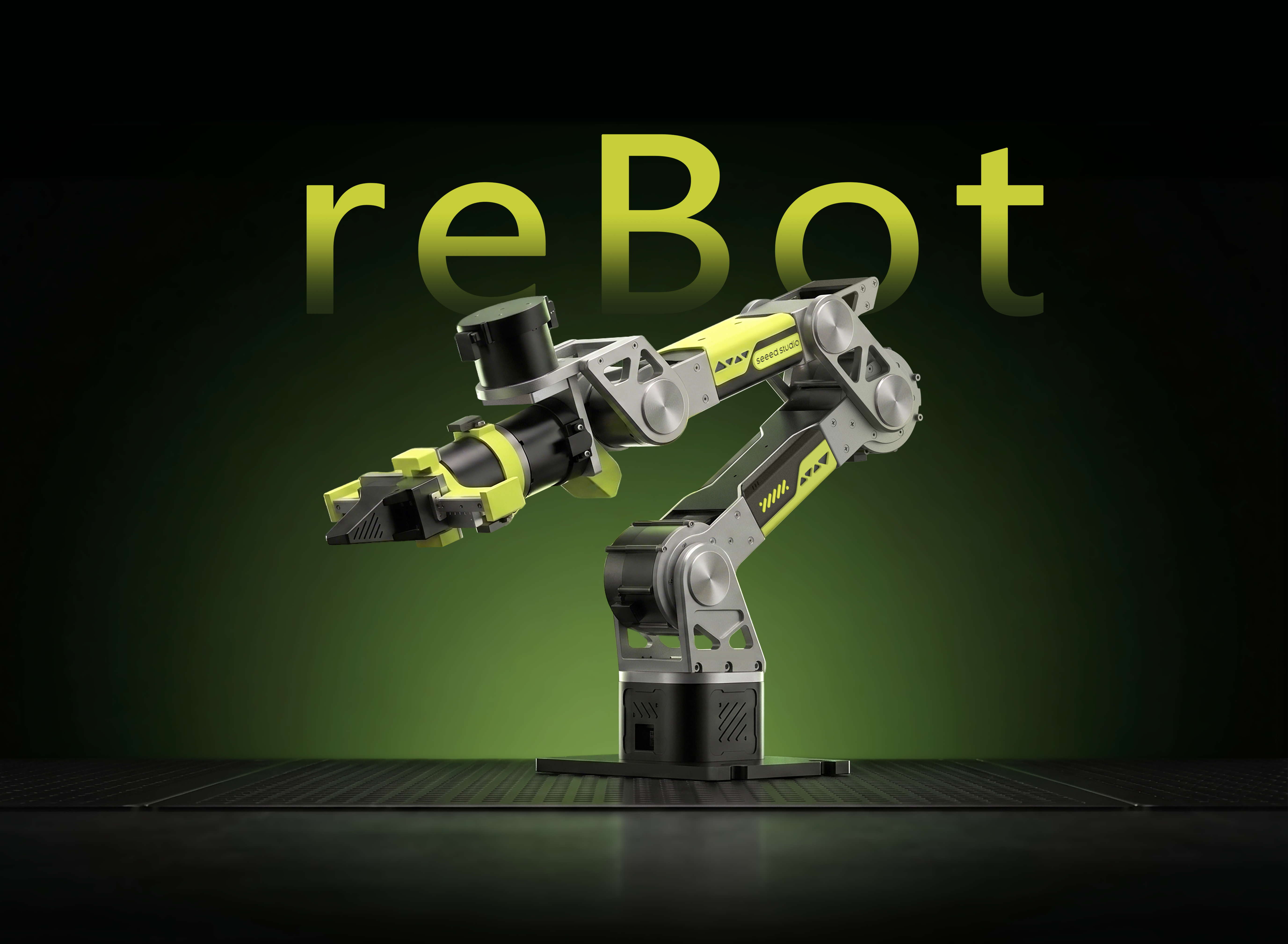




6-DOF Robotic Arm · Multi-Motor Support · Kinematics Solver · Trajectory Planning · Fully Open Source
The reBot Arm project is open source on GitHub—please visit the repository and give it a Star! The repository contains the complete BOM. This guide will help you get started with the B601-RS, from assembly to operation.
Project Introduction
reBot-DevArm (reBot Arm B601 DM and reBot Arm B601 RS) is a robotic arm project dedicated to lowering the threshold for learning embodied intelligence. We focus on "True Open Source" — not just code, we open-source all of the following without reservation:
- 🦾 Open-source robotic arms with two motor versions: We provide all open-source files for RoboStride and Damiao motor versions of the same appearance.
- 🛠️ Hardware blueprints: Sheet metal and 3D printed part source files.
- 🔩 BOM (Bill of Materials): Detailed to every screw's specification and purchase link.
- 💻 Software and algorithms: Python SDK, ROS1/2, Isaac Sim, LeRobot, etc.
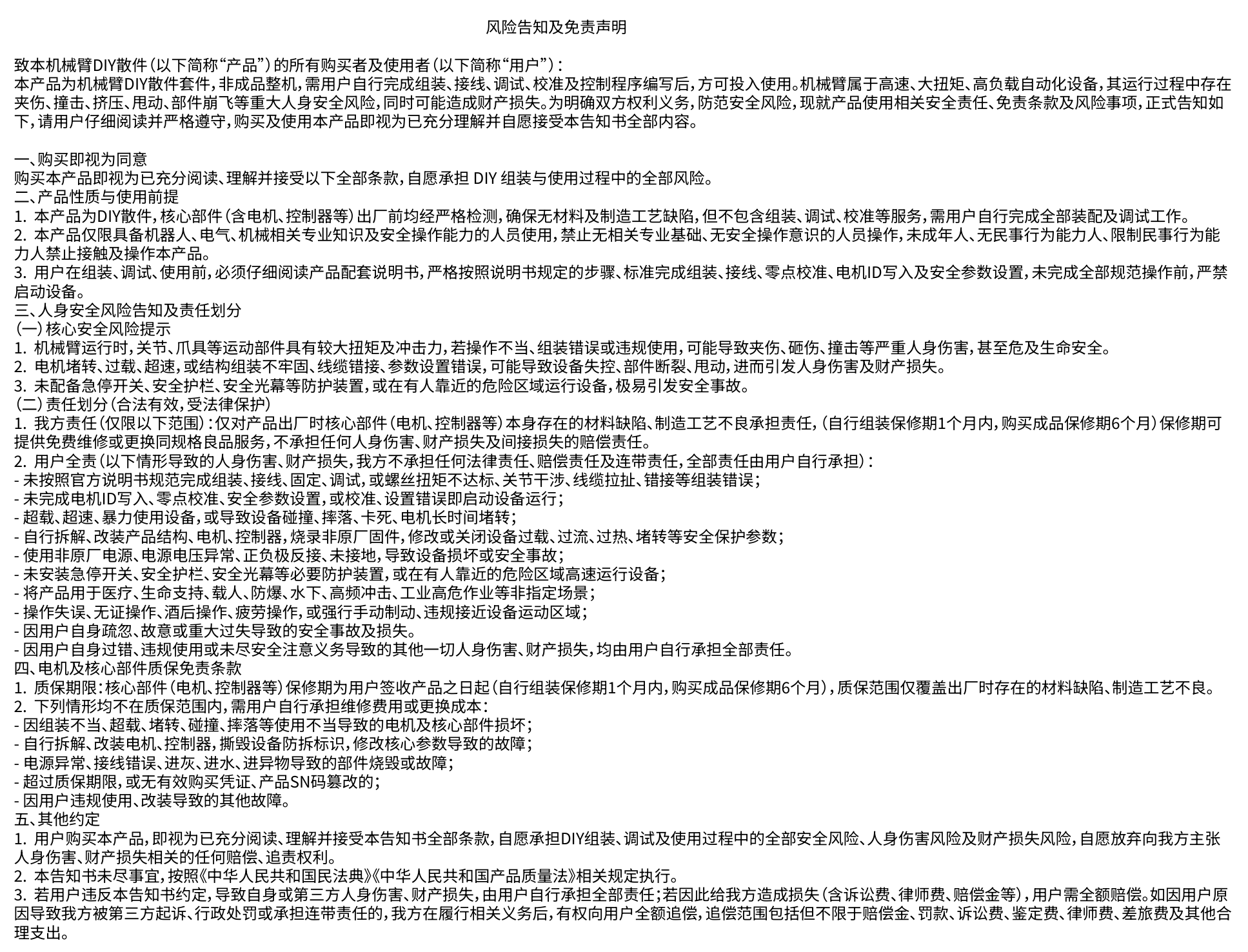
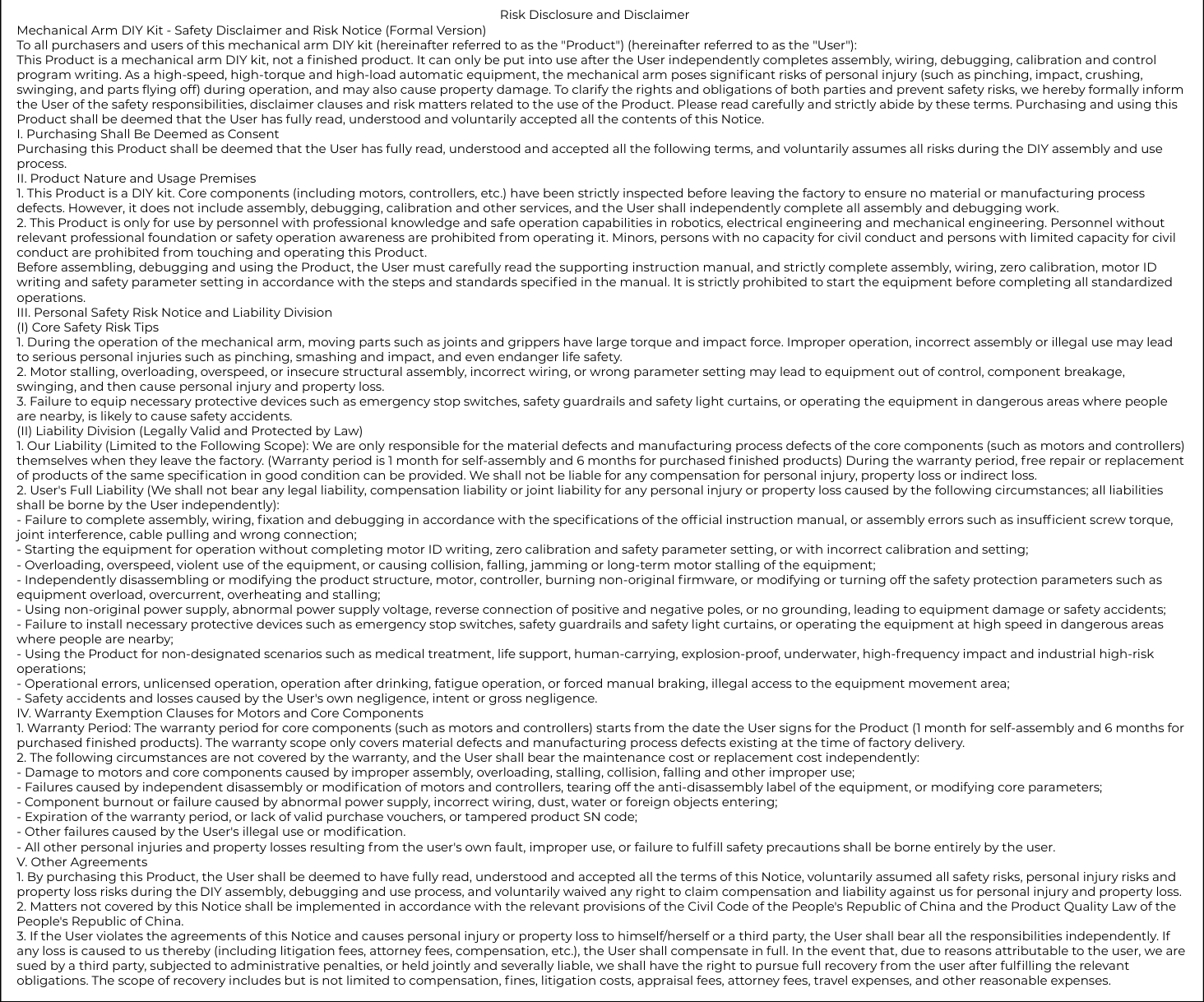
Safety Disclaimer and Risk Notice
About Power Supply
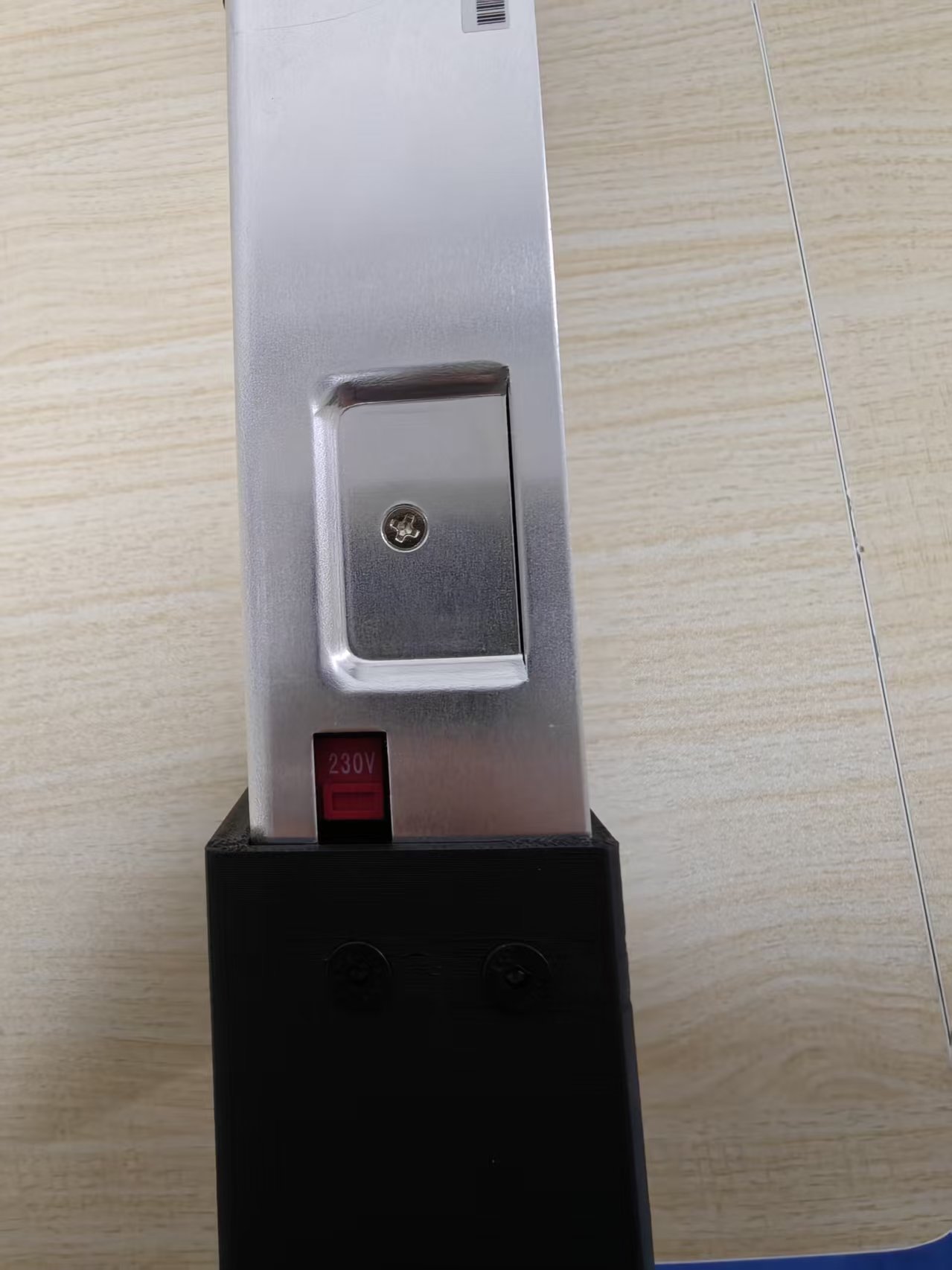
- The robotic arm is not shipped with a power supply / does not include a power supply by default. You can connect a battery yourself, or purchase our open-source 48V 12.5A MeanWell Power Supply or Amazon, Please do not purchase power supplies from unbranded manufacturers or unsafe channels. Any risks or consequences arising therefrom shall be borne by the individual.
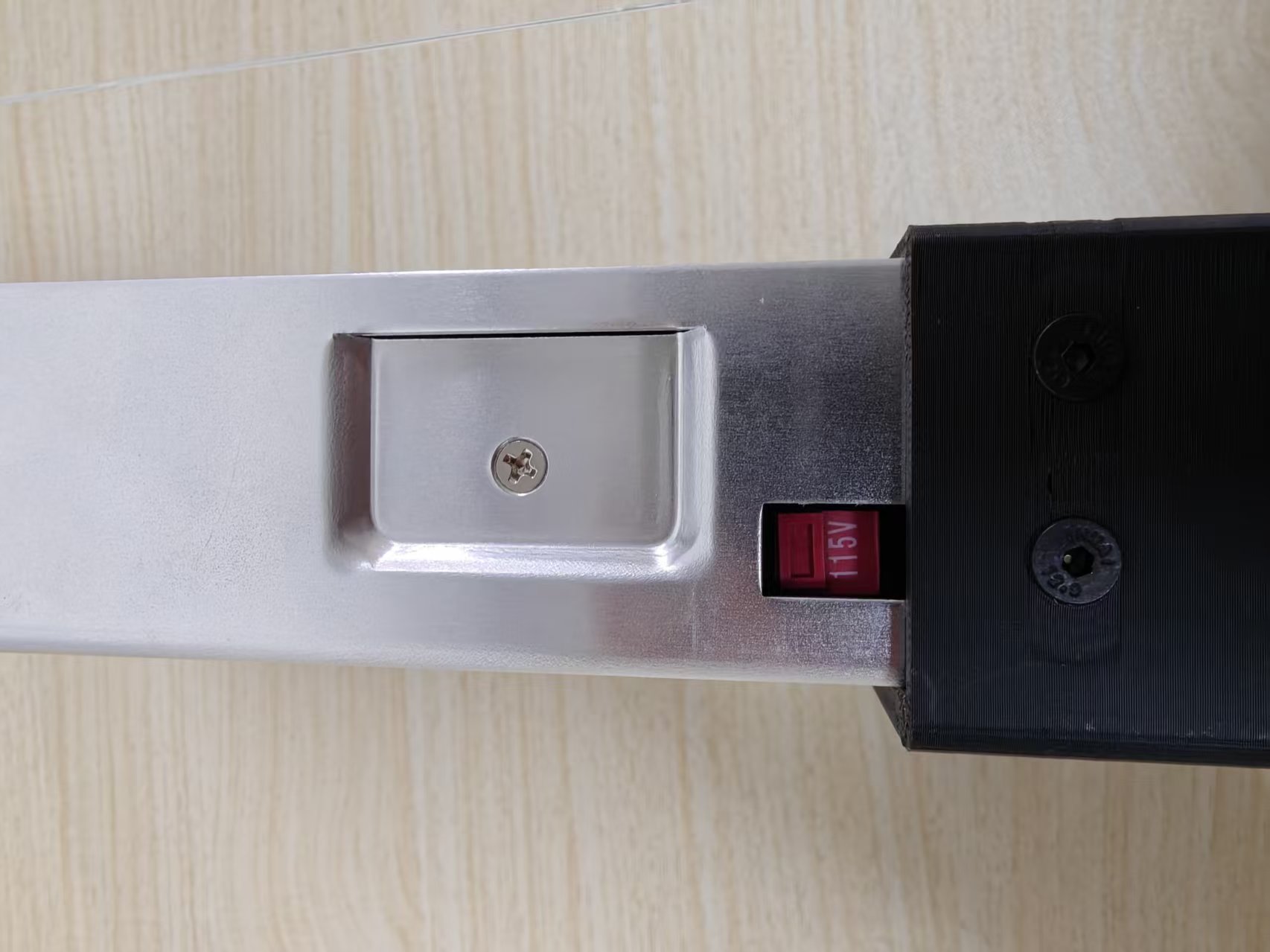
If your household voltage is 220V, set the voltage selector switch on the side of the power supply to 230V. If your household voltage is 110V, switch it to 115V.

Assemble the Power Supply
Alternatively, you can choose our open-source 24V 14.6A MeanWell power supply enclosure for self-assembly. The text instructions and BOM are open-sourced in the GitHub repository (recommended only for developers with relevant power supply assembly experience).
Assembly reference video:
Assembly Guide
Assemble the reBot Arm
Step 1
- Unassembled Version
- Assembled Version
- Before assembly, please read the following instructions carefully. To ensure a smooth assembly process and a complete hands-on experience, please be patient, stay focused, and always follow these key points:
- This kit includes numerous screws and structural parts, some of which look similar. Please carefully verify the screw specifications and part models, and confirm the installation orientation before fastening.
- The video was recorded in early April. There may be minor adjustments to parts later, but this does not affect the assembly quality when following the video. The final parts are subject to what is shipped.
- For ease of screw installation and removal, the open-source BOM specifies standard screws. However, the screws shipped with the kit have thread-lock applied. You may also use your own preferred tools or an electric screwdriver (highly recommended to have one ready). If using an electric tool, be sure to set the torque to a low-to-medium level (3–6 kgf·cm) to avoid excessive torque that could strip the screws, causing irreversible damage where parts cannot be removed. If there is any sign of stripping, immediately replace the screw or realign and retry. Stripped thread-lock screws cannot be removed with a screw extractor and will scrap the entire part. Therefore, please proceed with caution.
- Please prioritize safety during assembly to avoid pinched fingers or crush injuries. Children should complete this project with the accompaniment of a parent or guardian.
Connect the robotic arm cables, then use MotorBridge Studio to write the motor parameters and set the zero position.
Refer to the reBot Arm B601-RS unboxing and getting-started video below for this step.
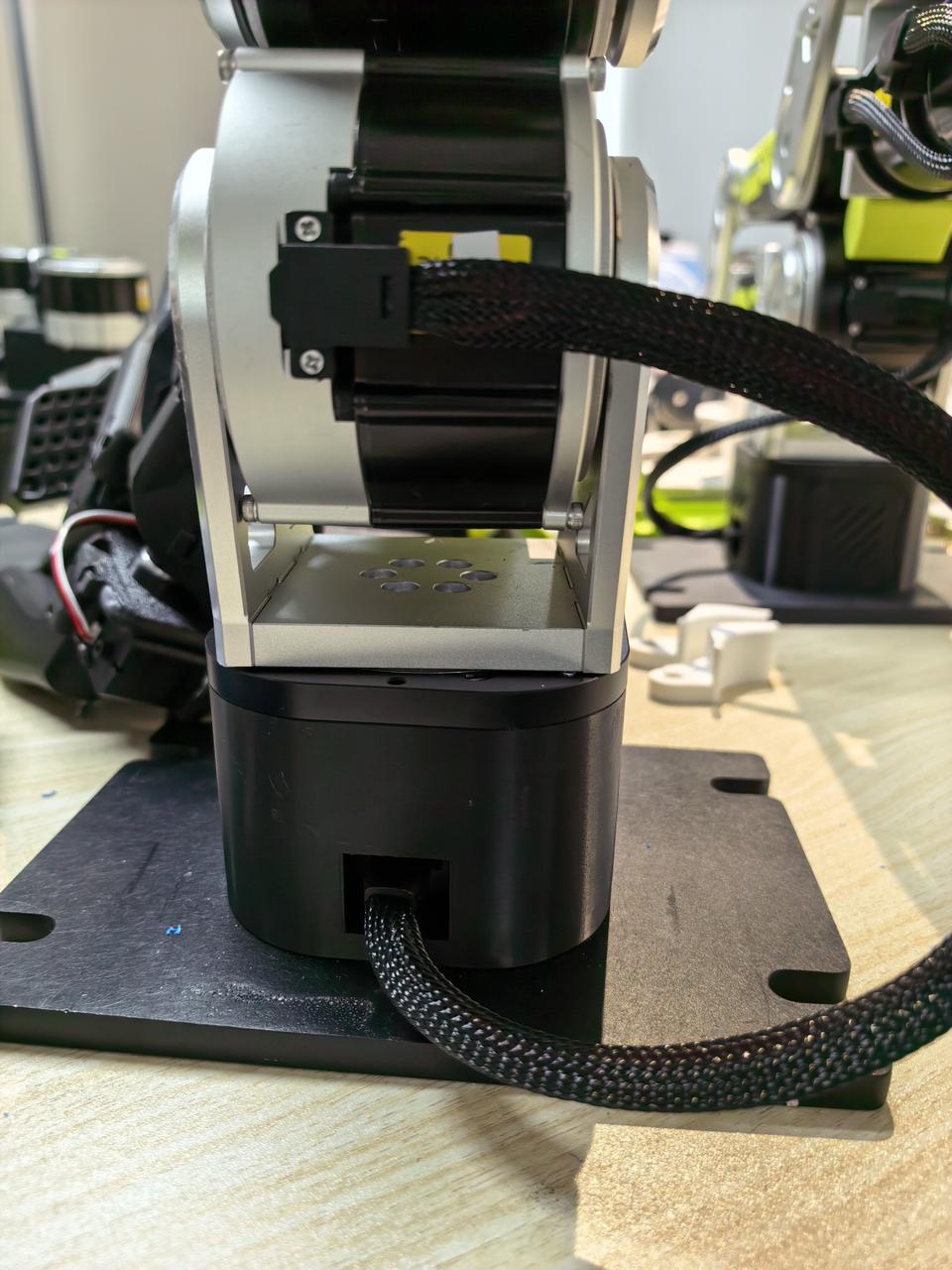
Connect Motor 1 and Motor 2 as shown below.
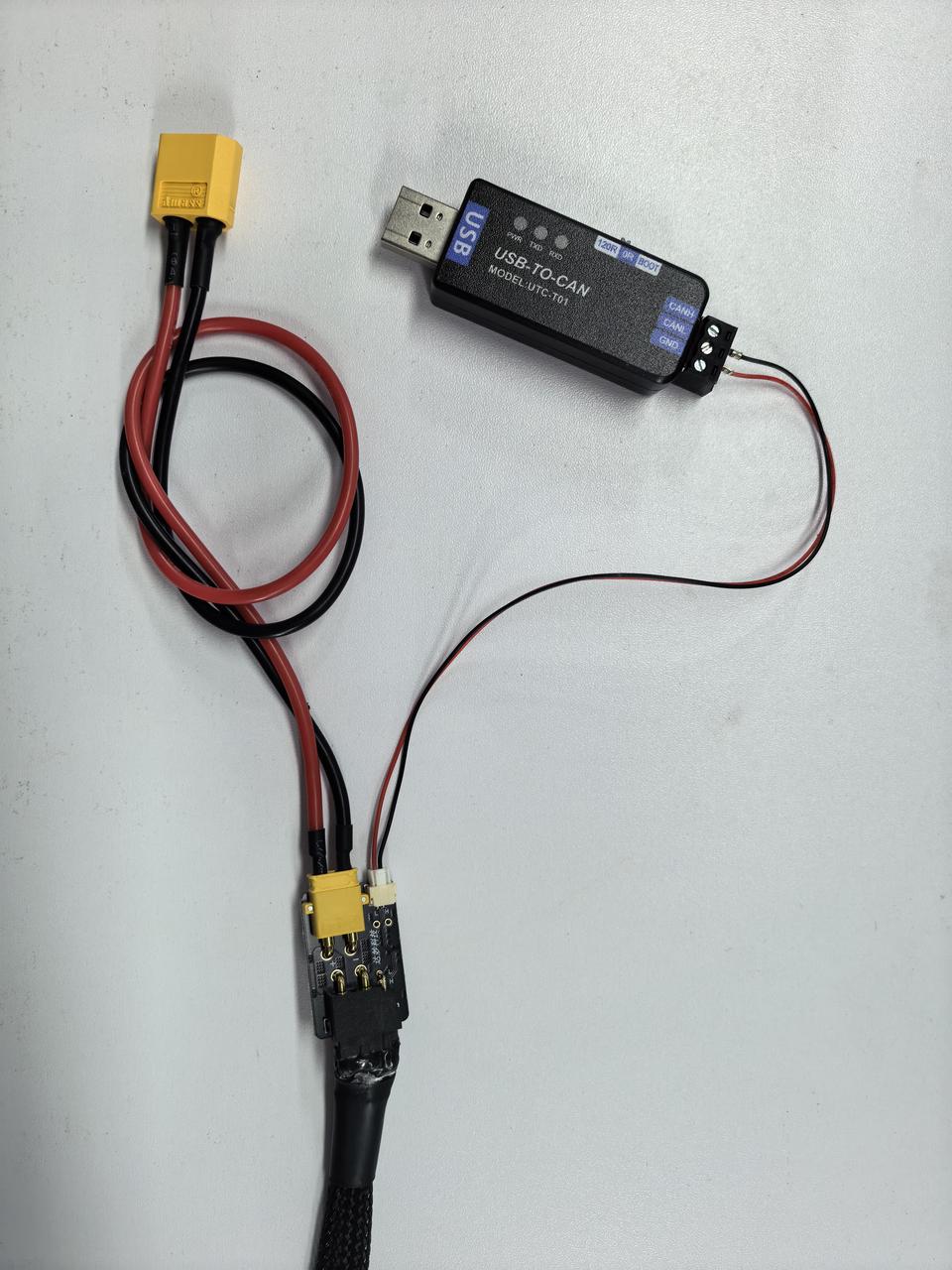
Then connect the USB-to-CAN module, power-signal splitter board, XT30 power cable, and XT30 2+2 cable as shown below, and set the PCAN DIP switch to 120R. Connect the other end of the XT30 2+2 cable to Motor 1 and connect the power cable to the 48 V power supply.
Flexible Gripper Installation
You should have completed the preliminary preparation for the robotic arm assembly by following the video. Next, we will introduce the steps for writing motor IDs and calibrating the robotic arm.
Please refer to the video and text tutorial. Before controlling the robotic arm, you need to reset the zero point again.
Use MotorBridge to Calibrate the Arm and Complete the First Run
-
Explore our MotorBridge platform. This one-stop solution supports an expanding range of motors, including Damiao, RobStride, HighTorque, MyActuator, Hexfellow, and continuously updated robotic arms such as reBot. It is beginner-friendly and provides developers with a Python SDK matching the Web UI features.
-
MotorBridge features tailored for reBot include one-click zero calibration, parameter writing, drag-and-drop motor control, and built-in model visualization.
-
MotorBridge supports Windows, Ubuntu, and macOS.
-
Virtual machines do not provide sufficient performance for reliable demo operation and may introduce configuration issues. Use a physical Ubuntu machine whenever possible.
We recommend installing Ubuntu 24.04 LTS.
-
(Beta) You can ask an agent to initialize the robotic arm. Send it the following prompt:
Please follow the process in AGENTS.md (https://github.com/Welt-liu/reBot-B601-Agent-Guide/blob/main/en/AGENTS.md) to help the user complete the initialization of a new robotic arm.
If you purchased a pre-assembled kit, tell the agent during the motor ID step: "I purchased a pre-assembled kit. Scan motors 1–7 and verify that they are online. Do not rewrite the motor IDs."
- The agent writes motor IDs through CLI commands, while this Wiki uses the Web UI. Both methods work.
Software Setup and Calibration Workflow
Follow these steps in order to install Miniforge and create an isolated Python environment for reBot development.
Install Miniforge
Step 1
Download and install Miniforge for your operating system:
- Ubuntu\Jetson\Raspberry Pi
- macOS
- Windows
wget "https://github.com/conda-forge/miniforge/releases/latest/download/Miniforge3-$(uname)-$(uname -m).sh"
bash Miniforge3-$(uname)-$(uname -m).sh
During installation, press Enter to continue, enter yes to accept the terms, and enter yes when asked whether to initialize Conda.
Restart the terminal and verify the installation with conda --version.
conda is not foundLoad Miniforge and initialize Bash:
source ~/miniforge3/etc/profile.d/conda.sh
conda init bash
curl -L -O "https://github.com/conda-forge/miniforge/releases/latest/download/Miniforge3-MacOSX-$(uname -m).sh"
bash Miniforge3-MacOSX-$(uname -m).sh
During installation, press Enter to continue, enter yes to accept the terms, and enter yes when asked whether to initialize Conda.
Restart the terminal and verify the installation with conda --version.
conda is not foundLoad Miniforge and initialize Zsh, the default shell on current macOS versions:
source ~/miniforge3/etc/profile.d/conda.sh
conda init zsh
Open the Miniforge Releases page, find the latest Miniforge3-Windows-x86_64.exe, and download it.
Git Bash users: If conda is not found, load Conda first:
# Temporary: replace <install_path> with the actual path
source <install_path>/etc/profile.d/conda.sh

# Permanent: add it to bashrc once
echo 'source <install_path>/etc/profile.d/conda.sh' >> ~/.bashrc
source ~/.bashrc
For PowerShell, initialize Conda with:
conda init powershell
Disable Automatic Base Activation (Optional)
Step 2
After Miniforge initializes Conda, each new terminal automatically activates the (base) environment. If you prefer to start in the system environment, disable automatic base activation:
conda config --set auto_activate_base false
Verify: Close the current terminal and open a new one. The (base) prefix should no longer appear. Activate the reBot environment manually when needed with conda activate rebot.
Restore the default: Run conda config --set auto_activate_base true to enable automatic base activation again.
Create the Python Environment
Step 3
Create the Python 3.12 environment:
conda create -y -n rebot python=3.12
Activate the Environment
Step 4
Run this command whenever you open a new terminal for reBot:
conda activate rebot
Install Motorbridge
Step 5
After activating the reBot virtual environment, run the following command to install motorbridge:
If you experience low frame rates during teleoperation on macOS, it may be caused by an outdated WCH CH34x driver version. For macOS 10.14 and later, the system includes a built-in AppleUSBCHC0M driver. You can uninstall the old driver and switch to the macOS built-in driver, which should effectively improve frame rates.
pip install motorbridge
Configure PCAN-USB
Step 6
Get the PCAN-USB device working on the CAN bus at 1Mbps for robotic arm communication.
- Ubuntu\Raspberry Pi
- Jetson
- macOS
- Windows
# The kit includes PCAN-USB, which should normally show up as can0 or can1
sudo modprobe peak_usb
ip -br link

# If can0 appears, set the bitrate
sudo ip link set can0 down 2>/dev/null
sudo ip link set can0 type can bitrate 1000000
sudo ip link set can0 up
If the PCAN device has incorrect firmware after driver installation, expand the section below, download the PCAN firmware, and follow the recovery steps.
PCAN Firmware Download & Driver Repair Steps - Ubuntu
Ubuntu users please refer to this guide
1.> 📦 Click to download USB2CAN.zip
2.Switch USB2CAN to BOOT
3.Please extract the USB2CAN.zip from step 1, and place flash_pcan_ubuntu.sh and pcan_canable_hw.bin (from inside USB2CAN.zip) in the same directory
Click to download flash_pcan_ubuntu.sh
If transferring from another computer (e.g. scp):
scp flash_pcan_ubuntu.sh pcan_canable_hw.bin seeed@your_Ubuntu_IP:~/Downloads/
Or simply copy it onto a USB flash drive and plug it into the Ubuntu machine — as long as the files end up in ~/Downloads, the current directory, or /tmp, the script will find them automatically.
4.Execute:
bash flash_pcan_ubuntu.sh
Enter your password; wait for completion
After completion, switch back to "120R"
Re-plug the USB.
Download the file: peak-linux-driver-9.2.0.tar.gz
- Remove brltty On Jetson, brltty may occupy the USB serial port used by the leader. Remove it first:
sudo apt remove -y brltty
- Install Dependencies
sudo apt update
sudo apt install -y \
    build-essential \
    gcc \
    g++ \
    make \
    libpopt-dev \
    can-utils \
    ethtool
Verify that the current kernel headers directory exists:
ls -l /lib/modules/$(uname -r)/build
- Compile the PEAK SocketCAN Driver Download and extract PEAK Linux Driver 9.2.0, then enter the source directory:
tar -xvf peak-linux-driver-9.2.0.tar.gz
cd ~/peak-linux-driver-9.2.0
Clean previous build artifacts:
make clean
Compile in netdev mode:
make netdev
Netdev mode registers PCAN-USB as a Linux SocketCAN network interface.
Do not use plain make. Plain make builds chardev mode, while LeRobot and motorbridge-cli rely on SocketCAN interfaces.
- Install and Load the Driver Install the driver:
sudo make install
sudo depmod -a
Load the pcan kernel module:
sudo modprobe pcan
Enable automatic loading on boot:
echo pcan | sudo tee /etc/modules-load.d/pcan.conf
Confirm the driver is loaded:
ip -br link | grep can
Expected output:
can0             DOWN           <NOARP,ECHO>
can1             DOWN           <NOARP,ECHO>
.....
- Find which PCAN interface corresponds to your robotic arm
for i in /sys/class/net/can*; do [ "$(basename "$(readlink -f "$i/device/driver" 2>/dev/null)")" = "pcan" ] && basename "$i"; done
Interfaces listed here are PEAK PCAN-USB devices, e.g.:
can2
- Persist the
pcan_refreshcommand Linux environment variables do not survive reboot, and PCAN interface numbering may change. A more reliable approach is to permanently define a refresh function and run it after opening a terminal.
Append the function to ~/.bashrc:
grep -q '^pcan_refresh()' ~/.bashrc || cat >> ~/.bashrc <<'EOF'

pcan_refresh() {
    local iface
    iface=$(sudo setup-pcan-if) || return 1
    export PCAN_IF="$iface"
    echo "PCAN_IF=$PCAN_IF"
}
EOF
source ~/.bashrc
Run this after rebooting or re-plugging PCAN-USB:
pcan_refresh
On success, it outputs:
PCAN_IF=can1
Use $PCAN_IF in all subsequent commands instead of hardcoding can1 or can2.
sudo modprobe peak_usb
ip -br link

# If $PCAN_IF appears, set the bitrate
sudo ip link set $PCAN_IF down 2>/dev/null
sudo ip link set $PCAN_IF type can bitrate 1000000 restart-ms 100
sudo ip link set $PCAN_IF up
If libPCBUSB.dylib cannot be loaded, install PCBUSB first:
curl -L -o macOS_Library_for_PCANUSB_v0.13.tar.gz \
  https://raw.githubusercontent.com/tianrking/motorbridge/main/third_party/pcan/macos/macOS_Library_for_PCANUSB_v0.13.tar.gz
tar -xzf macOS_Library_for_PCANUSB_v0.13.tar.gz
cd PCBUSB
sudo ./install.sh
install.sh only creates libPCBUSB.dylib. motorbridge's native loader dlopens the bare name PCBUSB, so add this symlink. Without it, connecting the arm fails with load PCBUSB failed even when a libPCBUSB.dylib ctypes check would pass:
sudo ln -sf /usr/local/lib/libPCBUSB.dylib /usr/local/lib/PCBUSB
Configure DYLD_FALLBACK_LIBRARY_PATH so motorbridge-gateway can find PCBUSB at runtime. Prefer FALLBACK over DYLD_LIBRARY_PATH: the latter overrides dyld's default search order for the whole process and can break unrelated software. Create an activation script in the conda environment so it takes effect automatically each time you run conda activate rebot:
mkdir -p "$CONDA_PREFIX/etc/conda/activate.d"
cat > "$CONDA_PREFIX/etc/conda/activate.d/env_vars.sh" << 'EOF'
export DYLD_FALLBACK_LIBRARY_PATH="/usr/local/lib${DYLD_FALLBACK_LIBRARY_PATH:+:$DYLD_FALLBACK_LIBRARY_PATH}"
EOF

echo $DYLD_FALLBACK_LIBRARY_PATH
Optional, no sudo (shared machines): install into ~/.local/lib. If you have the motorbridge source tree:
./scripts/setup_pcbusb_macos.sh --user-local
ln -sf "$HOME/.local/lib/libPCBUSB.dylib" "$HOME/.local/lib/PCBUSB"
Point the conda activate script at $HOME/.local/lib instead of /usr/local/lib.
Check if ready. Plug in the PCAN adapter first. ctypes.CDLL('libPCBUSB.dylib') is not a valid runtime check — motorbridge never loads that name.
# Check Python package and CLI are ready
python3 -c "import motorbridge; print('motorbridge OK')"
motorbridge-cli --help

# Native loader dlopens the bare name PCBUSB
python3 -c "import ctypes; ctypes.CDLL('PCBUSB'); print('PCBUSB load OK')"

# Real runtime check (can0 maps to PCAN_USBBUS1 on macOS)
motorbridge-cli scan --vendor robstride --channel can0 --start-id 1 --end-id 7 --timeout-ms 300
If the PCAN device has incorrect firmware after driver installation, expand the section below, download the PCAN firmware, and follow the recovery steps.
PCAN Firmware Download & Driver Repair Steps - macOS
MAC users please refer to this guide
1.> 📦 Click to download USB2CAN.zip
2.Switch USB2CAN to BOOT
3.Please extract the USB2CAN.zip from step 1, and place flash_pcan_mac.sh and pcan_canable_hw.bin (from inside USB2CAN.zip) in the same directory
Click to download flash_pcan_mac.sh
If transferring from another computer (e.g. scp):
scp flash_pcan_mac.sh pcan_canable_hw.bin seeed@your_MAC_IP:~/Downloads/
Or simply copy it onto a USB flash drive and plug it into the MAC — as long as the files end up in ~/Downloads, the current directory, or /tmp, the script will find them automatically.
4.Execute:
bash /Users/"your_username"/Downloads/flash_pcan_mac.sh "/Users/"your_username"/Downloads/pcan_canable_hw.bin"
The above command assumes the files are placed in the Mac Downloads path; adjust according to your actual path
Enter your password; wait for completion
After completion, switch back to "120R"
Re-plug the USB.
Download PEAK-System_Driver-Setup.zip and install the PCAN-USB driver.
If PCAN-USB is not detected in Device Manager after installing the driver, expand the section below, download the PCAN firmware, and follow the recovery steps.
PCAN Firmware Download & Driver Repair Steps - Windows
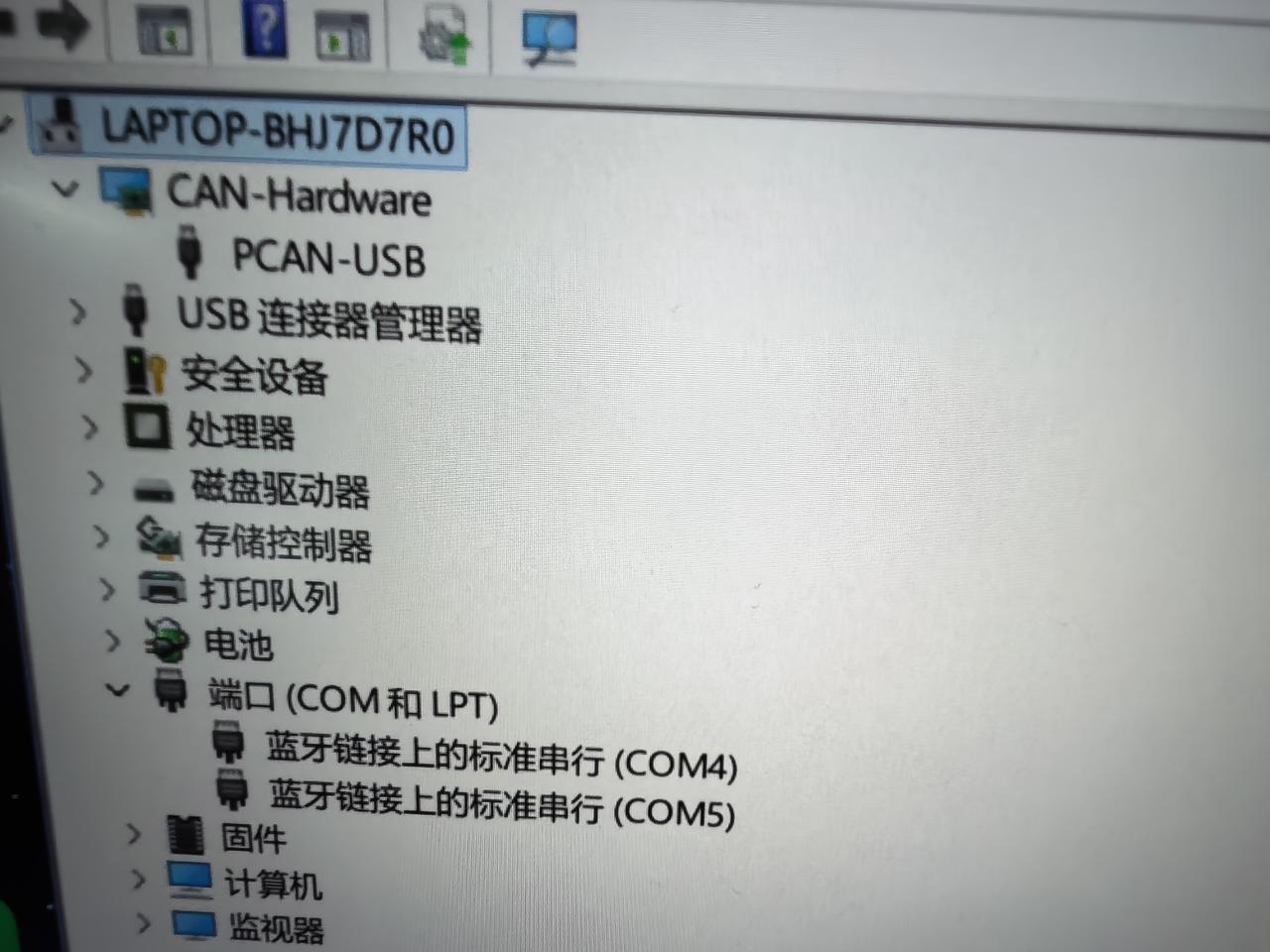
If PCAN-USB still does not work after installing the driver and Device Manager does not show the PCAN-USB device illustrated below, download the PCAN firmware package and follow these steps to install the DFU driver and reflash the firmware.
Install the DFU Driver
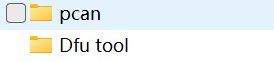
- Extract the downloaded package. It contains the
Dfu toolandpcanfolders.
- Open the
Dfu toolfolder and run the.exeinstaller. After installation, record the driver installation path, for example:
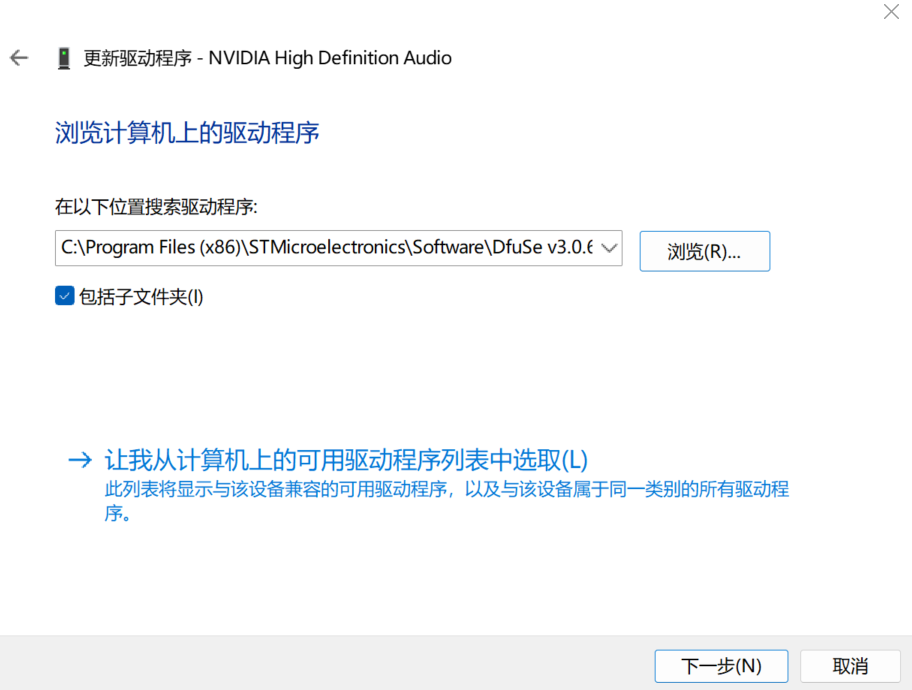
C:\Program Files (x86)\STMicroelectronics\Software\DfuSe v3.0.6\Bin\Driver

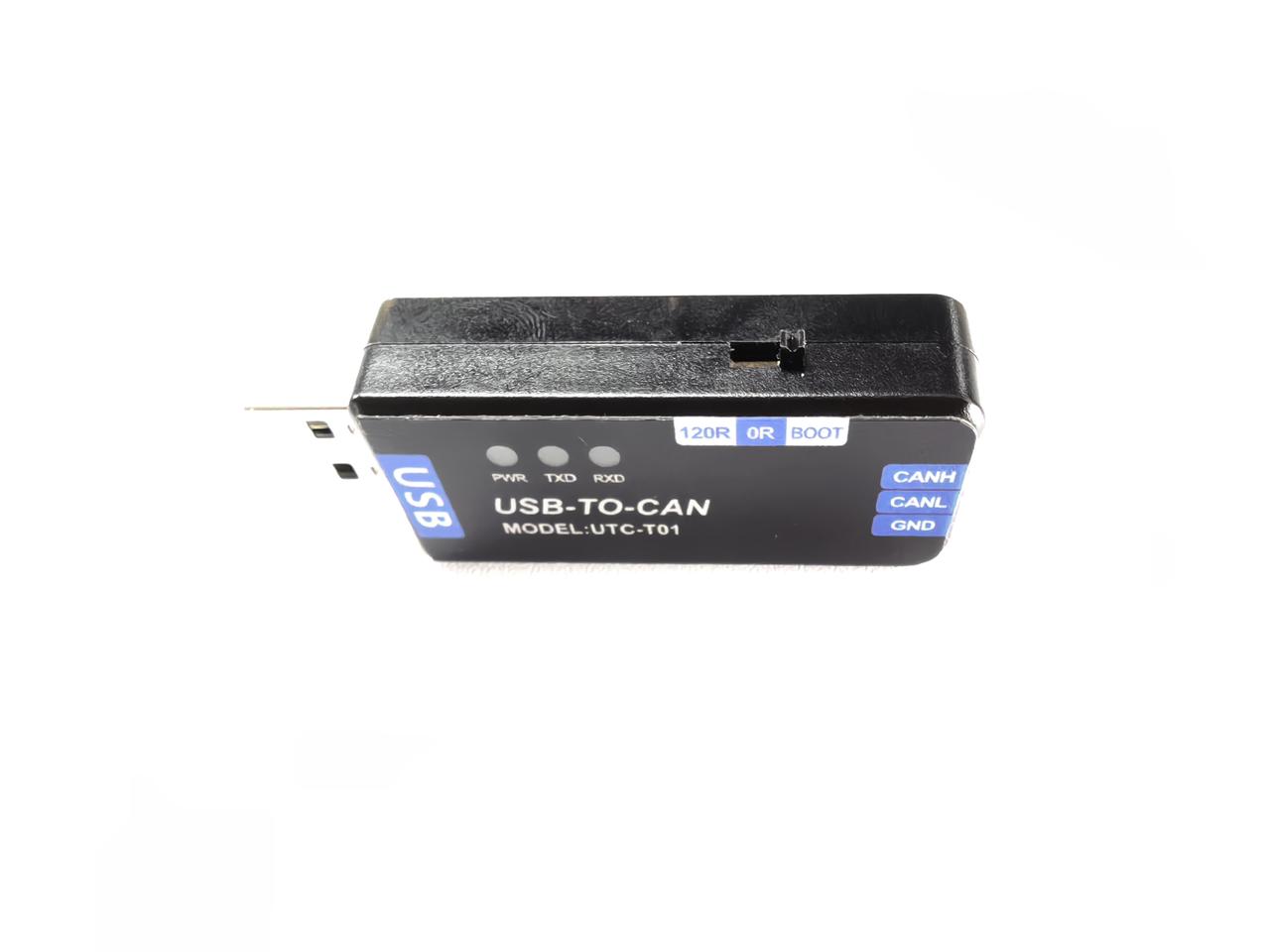
- Set the DIP switch on the USB2CAN module to BOOT, then connect the module to your computer.
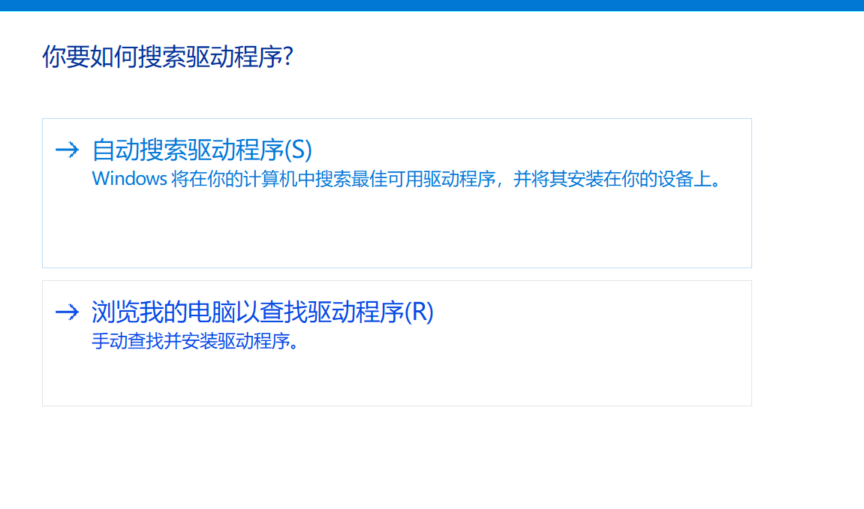
- Open Device Manager, locate Other devices → STM32 BOOTLOADER, right-click it, select Update driver, and then select Browse my computer for drivers.

- Paste the DfuSeDemo driver path recorded earlier into the location field, select Include subfolders, and click Next.
-
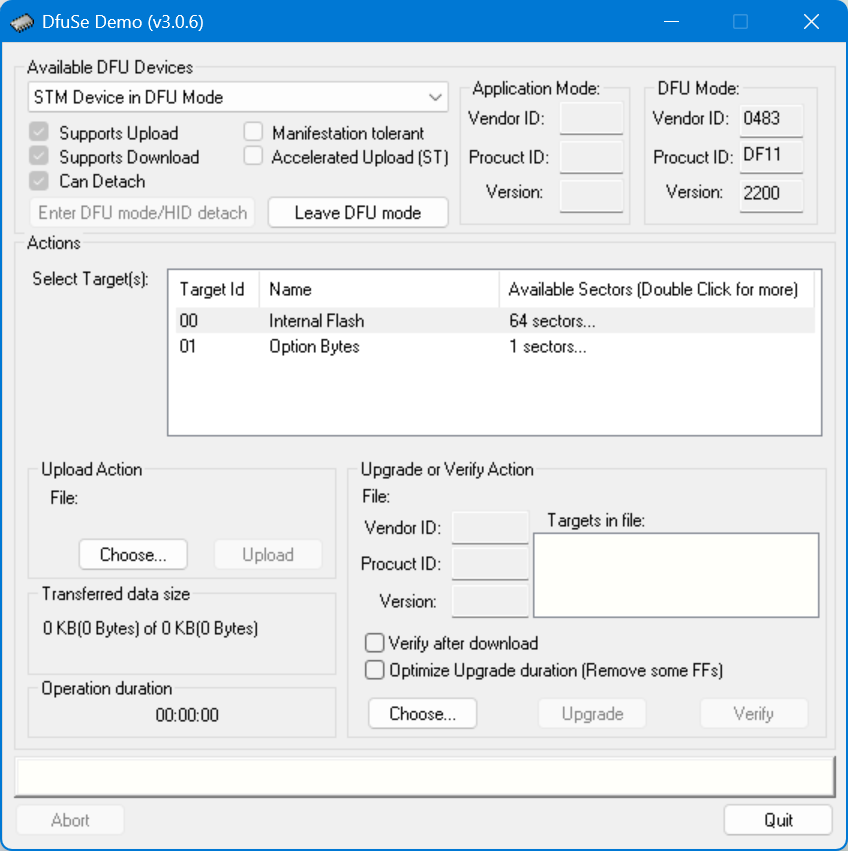
Disconnect and reconnect the USB2CAN module. If it is now identified as STM Device in DFU Mode, the driver update was successful.
-
Open DfuSeDemo and confirm that it correctly detects the USB2CAN module.
Flash the PCAN Firmware
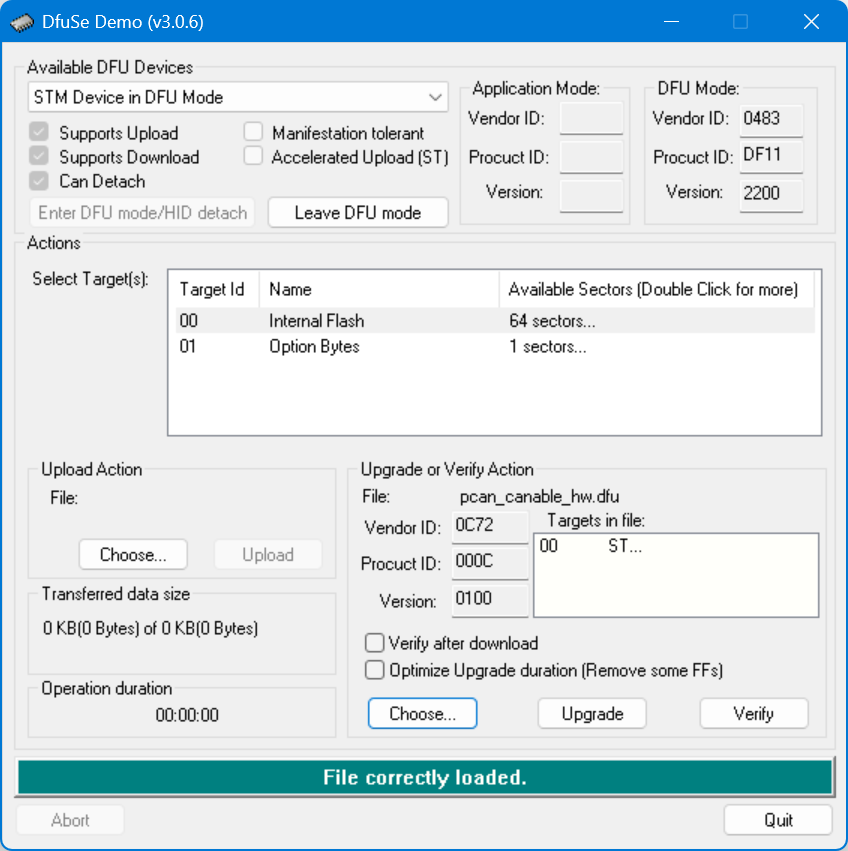
- In DfuSeDemo, click Upgrade or Verify Action → Choose..., and select the firmware from the extracted
pcanfolder. - Click Upgrade, click Yes in the confirmation dialog, and wait for the firmware flashing process to finish. You can then close DfuSeDemo.

Restore and Verify the Device
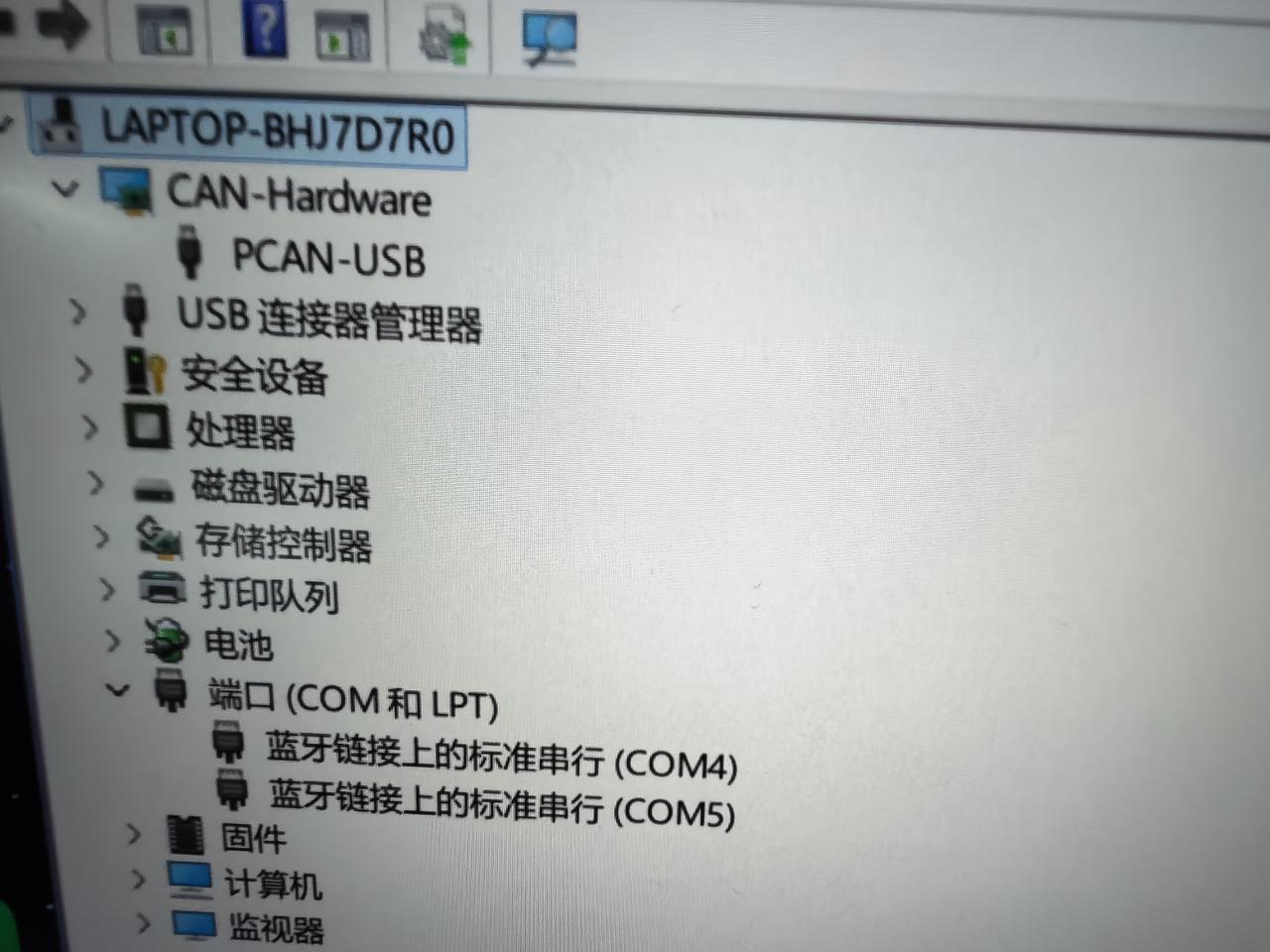
Disconnect the USB2CAN module, set the DIP switch to 120R, and reconnect it to the computer. Open Device Manager. If the device is identified as PCAN-USB, the issue has been resolved and you can continue with this guide.
Write Zero Points and Debug with MotorBridge Gateway
Step 7
Before Motor Reset
Before motor parameter configuration, please note the following preparations and safety rules:
- Prepare 2 tooling clamps (size ≥3 inches) and a 48V XT30-output switching power supply (please choose a reputable brand; do not use inferior power supplies).
- During debugging and operation, maintain a safe distance of at least 1 meter.
- Do not hot-plug motors; disconnect the power supply before plugging/unplugging the XT30 2+2 connector.
- Do not overload or overspeed the motors; check wiring and fasteners before startup; do not use in humid, high-temperature, or dusty environments.
- Set reasonable program parameters and emergency stop function to prevent equipment runaway.
- Please strictly follow the above rules. The seller is not liable for any risks and losses caused by non-compliant operations or human errors.
Web UI Zero Point Writing and Debugging
Open the address motorbridge-studio in your browser, click the Help option, copy the corresponding command based on your operating system and driver board, verify the IP address and port number, then press Enter in the terminal to run it.
motorbridge-gateway --bind 127.0.0.1:9002
macOS:
motorbridge-gateway --bind 127.0.0.1:9002
or
DYLD_FALLBACK_LIBRARY_PATH=/usr/local/lib motorbridge-gateway --bind 127.0.0.1:9002
Initialize RS Motor Control Parameters
Most reBot Arm B601-RS examples run in MIT mode. Native Position (pos_vel) mode directly uses the position-loop gain loc_kp and maximum velocity vel_max. Its motion behavior is also affected by the speed-loop gain spd_kp and acceleration parameter acc_rad. If the recommended B601-RS parameters have not been initialized, or if the parameters saved on each joint are inconsistent, Position mode may show abnormal response, speed, or acceleration and deceleration behavior.
First select rebot-arm-robstride under Robot Model in MotorBridge Studio, scan and confirm that Joints 1-7 are all online, and complete the robotic arm zero calibration described above. Then perform the following steps:
- Click Read Parameters to read the parameters currently saved on all online joints. This operation only reads data and does not modify the motors. Wait until the page reports that the control parameters have been read successfully, and retain the current values as a record.
- Click Apply Default Template and confirm that the page reports the reBot Arm RobStride default parameter template has been applied to Joints 1-7. This operation only loads the recommended values into the page; it does not write them to the motors yet.
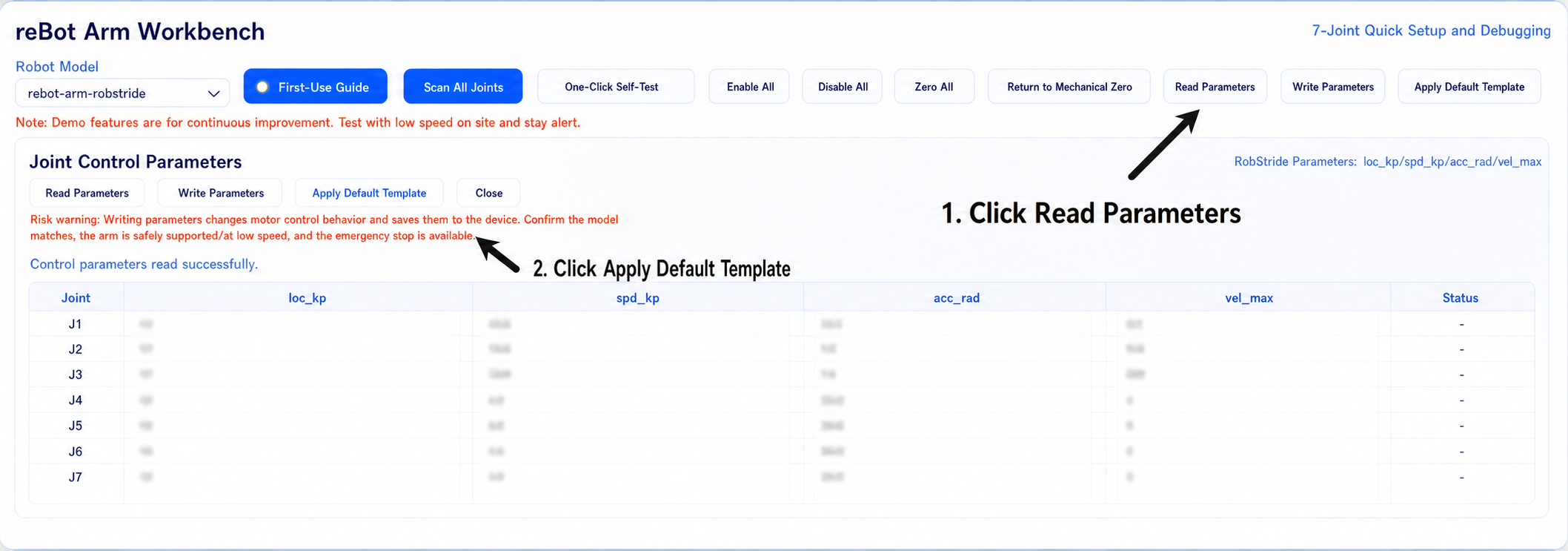
- Click Write Parameters. Confirm that the robotic arm is safely supported and that no people or obstacles are nearby, then confirm the write operation in the dialog. Do not disconnect the power or plug or unplug motor cables while parameters are being written.
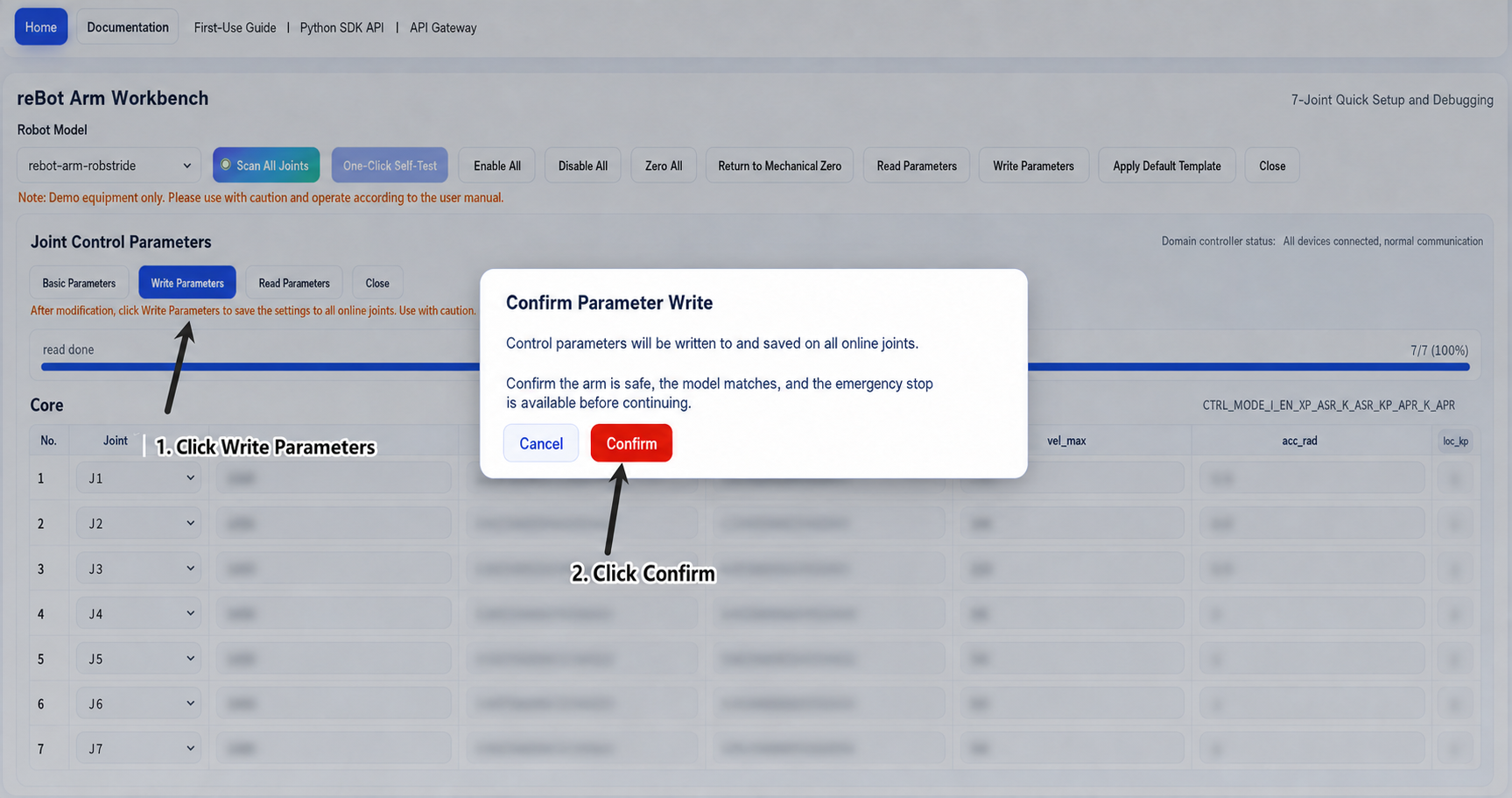
- After writing is complete, MotorBridge Studio automatically reads the parameters back. Initialization is successful when the page reports that the post-write readback verification matches.