16. Training Your First ACT Policy
Chapter 16 of the Seeed Physical AI Beginner's Course — batch size, learning rate and steps, checkpoint management, starting training, monitoring loss and GPU status, and resuming interrupted training.
16.1 Three Key Configs: Batch Size, Learning Rate, Steps
16.1 Three Key Configs: Batch Size, Learning Rate, Steps
In the terminal, run nvidia-smi to check your GPU and VRAM; consumer GPUs (e.g., 3050) can also train.
Batch Size
If you have VRAM headroom, increase it to speed up convergence, but don't force it beyond available VRAM.
| Config | Scenario |
|---|---|
| 8 GB VRAM or less | Can train; use small batch size: 8 GB → batch size 4, 4 GB → batch size 2. |
| 12 GB+ VRAM | Comfort zone; use default batch size; if VRAM is large, set batch size=16 |
| Only integrated GPU / no NVIDIA GPU | Train on a cloud server |
Learning Rate
The "step size" per update. ACT comes with presets: AdamW optimizer, learning rate 1e-5, weight decay 1e-4, visual backbone at 1e-5. Policy presets are enabled by default (use_policy_training_preset), so these values apply automatically; you don't need to write anything. Too large a step causes loss oscillation or divergence; too small doubles training time. Don't touch it for your first training — these are tuned values from the original paper and extensive practice.
- If you change Batch Size or Steps, no need to adjust learning rate.
- If fine-tuning/resuming from a trained checkpoint, reduce learning rate to
1e-6–3e-6(3–10x smaller). - If train loss barely drops (flatlined), don't raise LR yet; first add steps/data, then try
2e-5.
Add the following code; change both together to the same value:
--policy.optimizer_lr=1e-6 \
--policy.optimizer_lr_backbone=1e-6
Training Steps
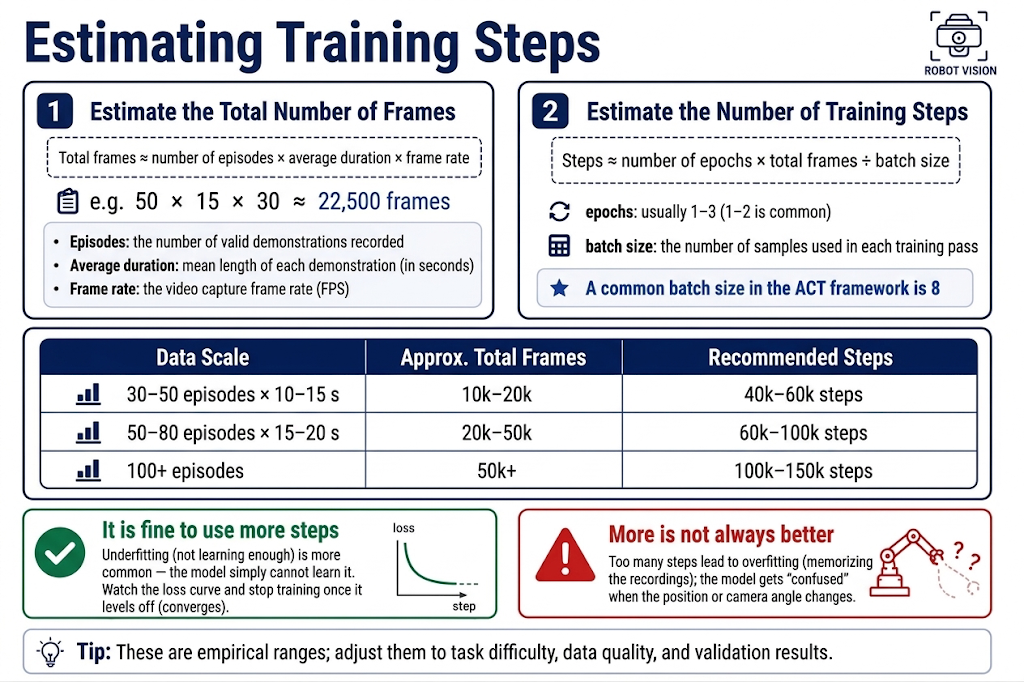
For 50 Episodes, if you don't want to read the steps explanation below, just run it at 80,000 (50 Episodes).
Steps scale proportionally: if batch size is halved, samples seen per step are halved; to give the model the same number of passes (epochs), steps must double. E.g., default batch size=8, steps=80000; batch size=4 → steps=160000; batch size=2 → steps×4; batch size=16 → steps÷2.
You can also set more steps — during training you can press Ctrl+C to stop at any time, choosing whether to stop based on loss and other parameters; the model generated so far is saved automatically.
- Total frames ≈ total length of the video recordings.
- epoch (one pass) = the student watches the entire recording from start to finish.
- steps = how many segments the student watched in total.
16.2 Saving and Managing Checkpoints
16.2 Saving and Managing Checkpoints
No manual saving needed: a checkpoint is saved every 20,000 steps (save_freq), plus a final one at the end. So it's fine to set a large step count — you can pick the model from lower steps and discard under-trained or over-fitted ones.
outputs/train/act_grab_cube_v1/
├── train_config.json              ← Full config for this run (needed to resume)
└── checkpoints/
    ├── 0020000/pretrained_model/  ← Model archive at each step count
    ├── 0040000/pretrained_model/
    ├── ...
    └── last/pretrained_model/     ← Last checkpoint, used in Chapter 17
- Disk usage: each checkpoint is a complete model weight file; dozens of them add up. Once training stabilizes, early/mid checkpoints can be deleted, keeping only
last. - During inference,
--policy.pathpoints tocheckpoints/last/pretrained_model.
16.3 Starting Training
16.3 Starting Training
All checks passed — start (in the conda lerobot environment):
lerobot-train \
    --dataset.repo_id=seeed_rebot_b601_rs/test \
    --policy.type=act \
    --output_dir=outputs/train/act_rebot_test \
    --job_name=act_rebot_test \
    --policy.device=cuda \
    --wandb.enable=false \
    --policy.push_to_hub=false \
    --steps=100000
If using an RTX 50-series GPU, add --dataset.video_backend=pyav to work around missing APIs in the torchvision preview.
If VRAM is insufficient or you want to set more at once, add --batch_size to set batch size.
Parameter notes:
| Parameter | Meaning |
|---|---|
--dataset.repo_id | Dataset name from Chapter 13 (use local name directly; for Hub use ${HF_USER}/xxx) |
--policy.type=act | Policy type; can also use diffusion, smolvla, etc. This stage uses ACT |
--output_dir | Directory for all training outputs |
--job_name | Name for this run, used in logs to distinguish runs |
--policy.device=cuda | Train on GPU |
--wandb.enable=false | Disable wandb online dashboard (register and enable if you want; not required) |
--policy.push_to_hub=false | Don't upload to Hub yet; wait until Chapter 17 evaluation is satisfactory |
--steps | Training steps |
--batch_size | Batch size |
Time estimate: 100k steps on a consumer GPU typically takes a few hours, depending on GPU and batch size.
16.4 Monitoring Loss and GPU Status
16.4 Monitoring Loss and GPU Status
After pressing Enter, the terminal starts scrolling training logs. LeRobot prints a summary line every 200 steps (controlled by --log_freq), like this:
step: 10000 smpl: 80K ep: 35.6 loss: 1.832 grdn: 12.4 lr: 1.0e-05 updt_s: 0.21 data_s: 0.003 eta: 3:42:10
Field by field (field names may vary slightly between versions):
| Field | Meaning | What to Look For |
|---|---|---|
step | Current step | Compare with --steps to check progress |
ep | Epochs trained | Corresponds to "how many times watched the recording" |
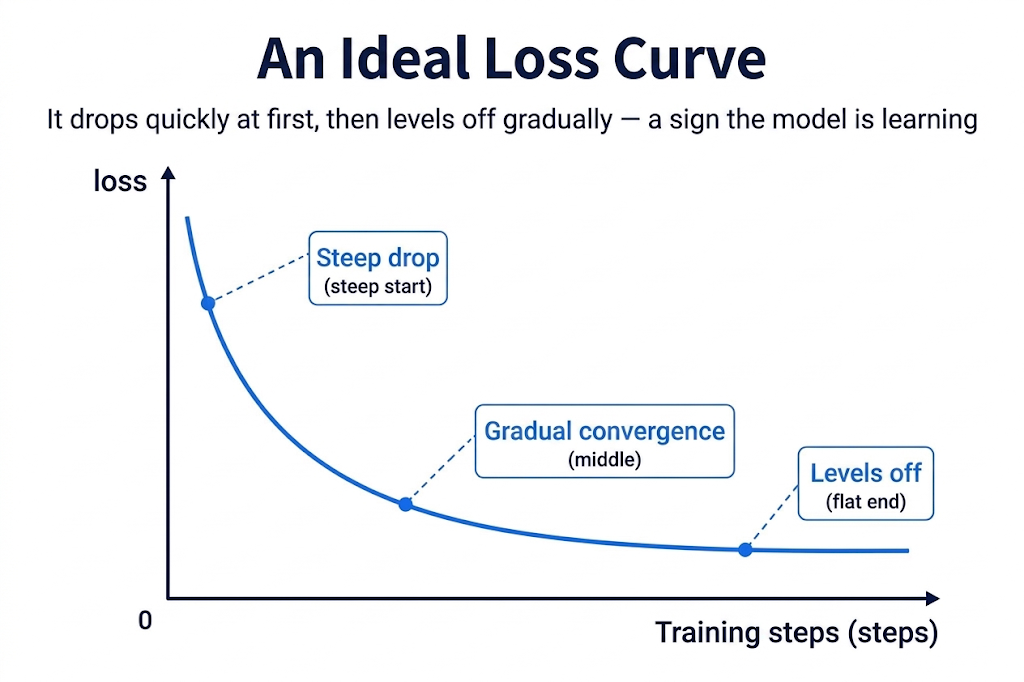
loss | Training loss | Fast drop early, slow decline later, small fluctuations is normal shape |
grdn | Gradient norm | Sudden spike to hundreds/thousands indicates unstable training |
lr | Current learning rate | Confirm it's the expected value |
updt_s / data_s | Per-step update/data-loading time | Large data_s means data loading is the bottleneck |
eta | Estimated time remaining | Decide whether to go eat or sleep |
Normal trends for these metrics, in three categories:
- Should keep declining —
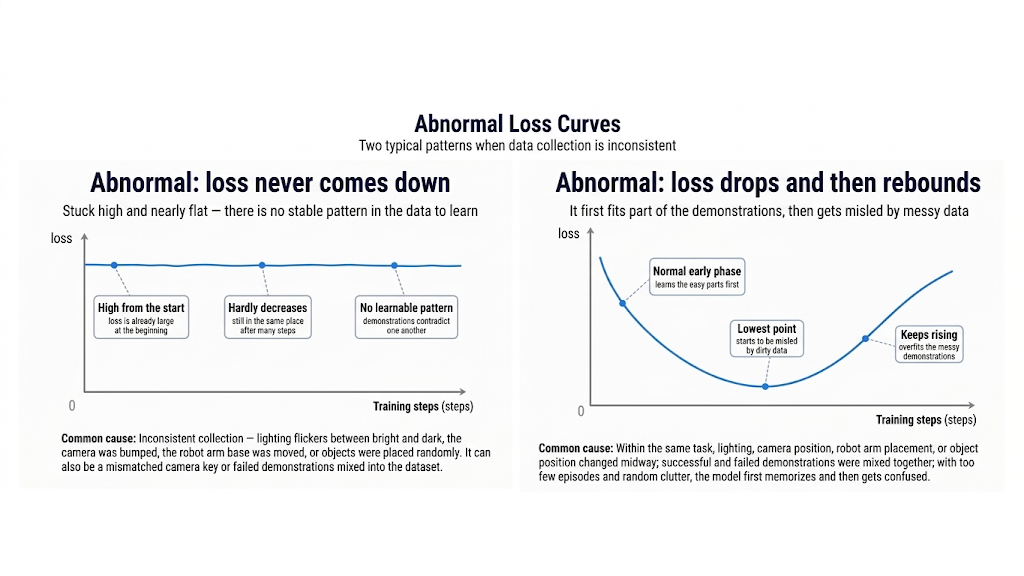
loss. The decline has three phases: initial steep drop, mid gradual decline, late small fluctuations at a low level, overall flattening. This "fast then slow then flat" curve is a healthy convergence curve. Two abnormal shapes to watch: never drops (data/config problem — check camera keys); drops then bounces back (training divergence — halve LR and retrain). - Should overall converge with allowed jitter —
grdn(gradient norm). The overall trend follows loss downward and stabilizes, but spikes are normal — an occasional spike that recovers is fine; what's dangerous is continuous amplification, wave after wave higher — that's a divergence precursor; handle as above: lower LR. - Should stay constant —
lr,updt_s,data_s, GPU utilization.lrstays at your set value throughout, just for your confirmation; per-step time (updt_s/data_s) andwatch -n 1 nvidia-smiGPU utilization should both be stable — persistently low or fluctuating utilization means the GPU is waiting for data; the bottleneck is data loading, not the GPU.
16.5 Resuming Interrupted Training
16.5 Resuming Interrupted Training
If training loses power, network, or terminal mid-run, no need to start over — as long as at least one checkpoint has been saved (i.e., training has run past 20,000 steps):
lerobot-train \
    --config_path=outputs/train/act_rebot_test/train_config.json \
    --resume=true
- Resume uses the saved config: resumed training uses the config saved in
train_config.json; command-line parameters are ignored. To change parameters (e.g., steps, batch size), start a new run; don't use resume. - Continue from latest checkpoint: optimizer state and step count are restored; the loss curve continues seamlessly.