YOLO11n Edge Benchmarking on reCamera
1. Introduction
With the continuous deepening of edge AI scenarios, how to run the latest generation of vision models under extremely limited power consumption has become the core demand of developers. This WIKI will hardcore demonstrate the baseline performance (Benchmark) of reCamera when deploying the YOLO11n model. Here, you will see how reCamera smoothly drives the YOLO11n object detection and instance segmentation models with only 1.5W of power consumption.
Hardware Preparation
- One reCamera
- One PC
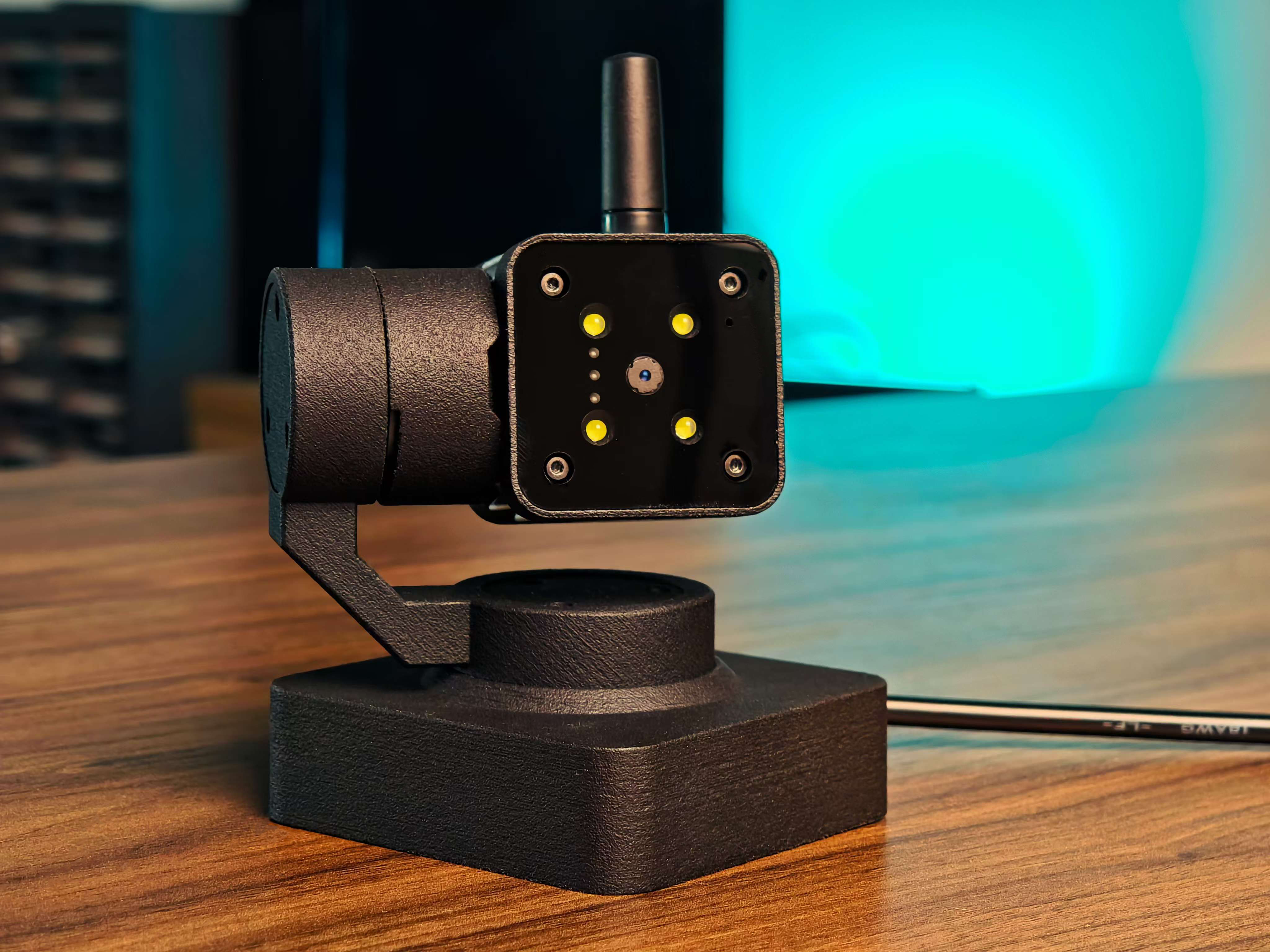
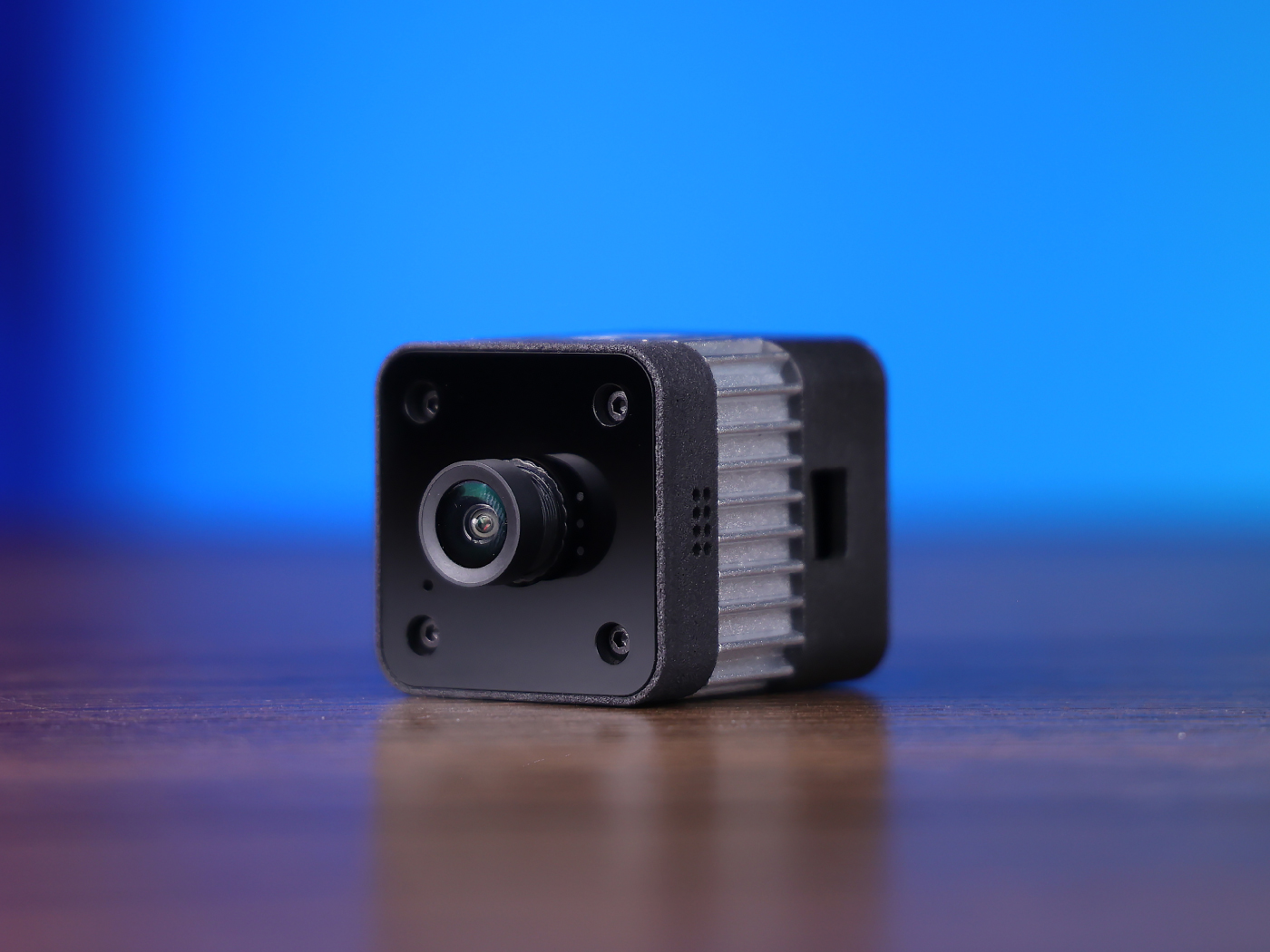
| reCamera 2002 Series | reCamera Gimbal | reCamera HQ POE |
|---|---|---|
 |  |  |
2. Real-time Effect Display
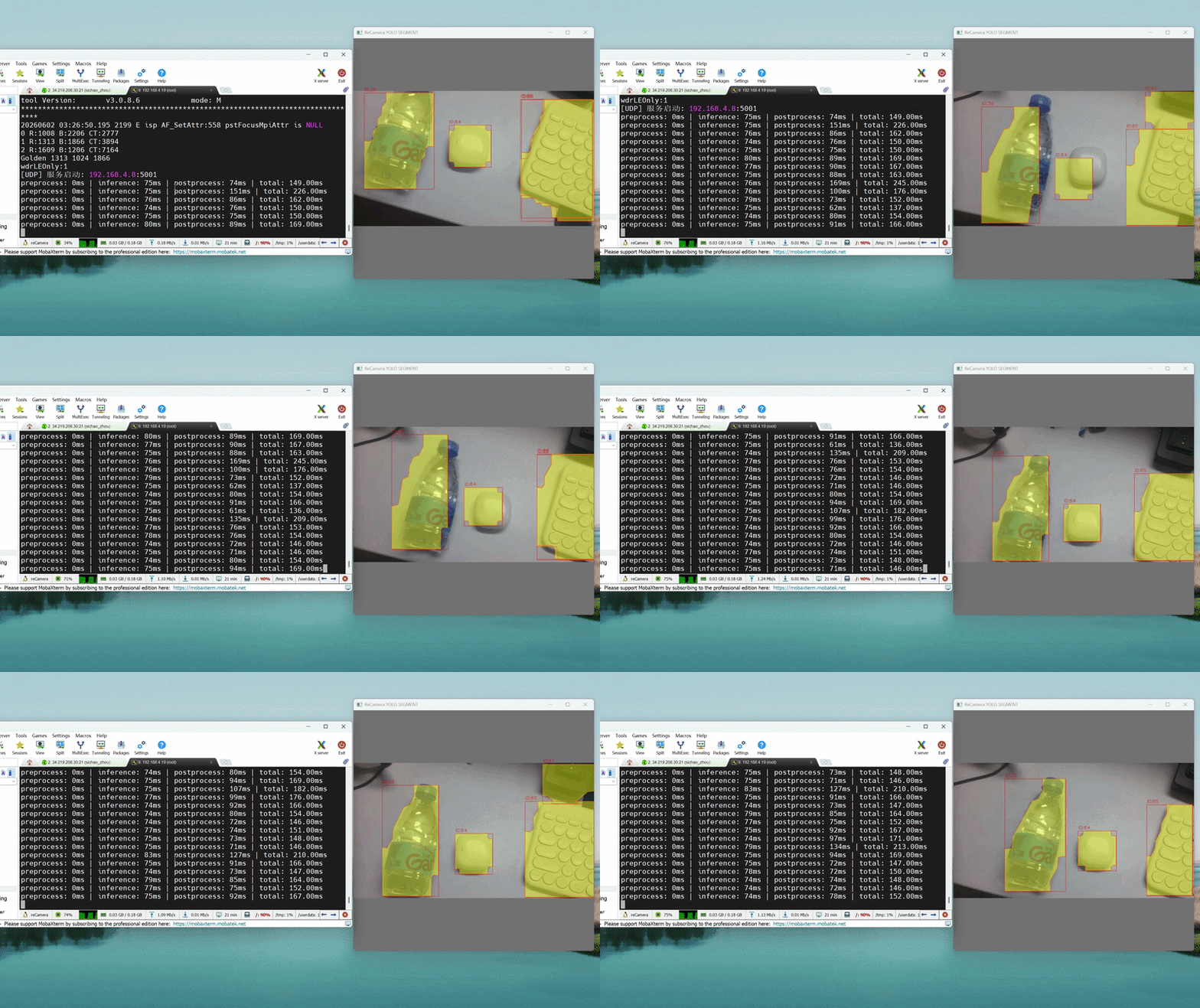
Seeing is believing. We ran the YOLO11n detection and segmentation models locally on the reCamera and used the UDP protocol to stream the processed video and computing data to the PC in real-time.
The OSD information in the upper left corner of the screen displays the rigorous hardware time consumption breakdown in real-time: Pre-process, Inference, Post-process, and Total time consumption.
YOLO11n Instance Segmentation Real-time Streaming
YOLO11n Object Detection Real-time Streaming
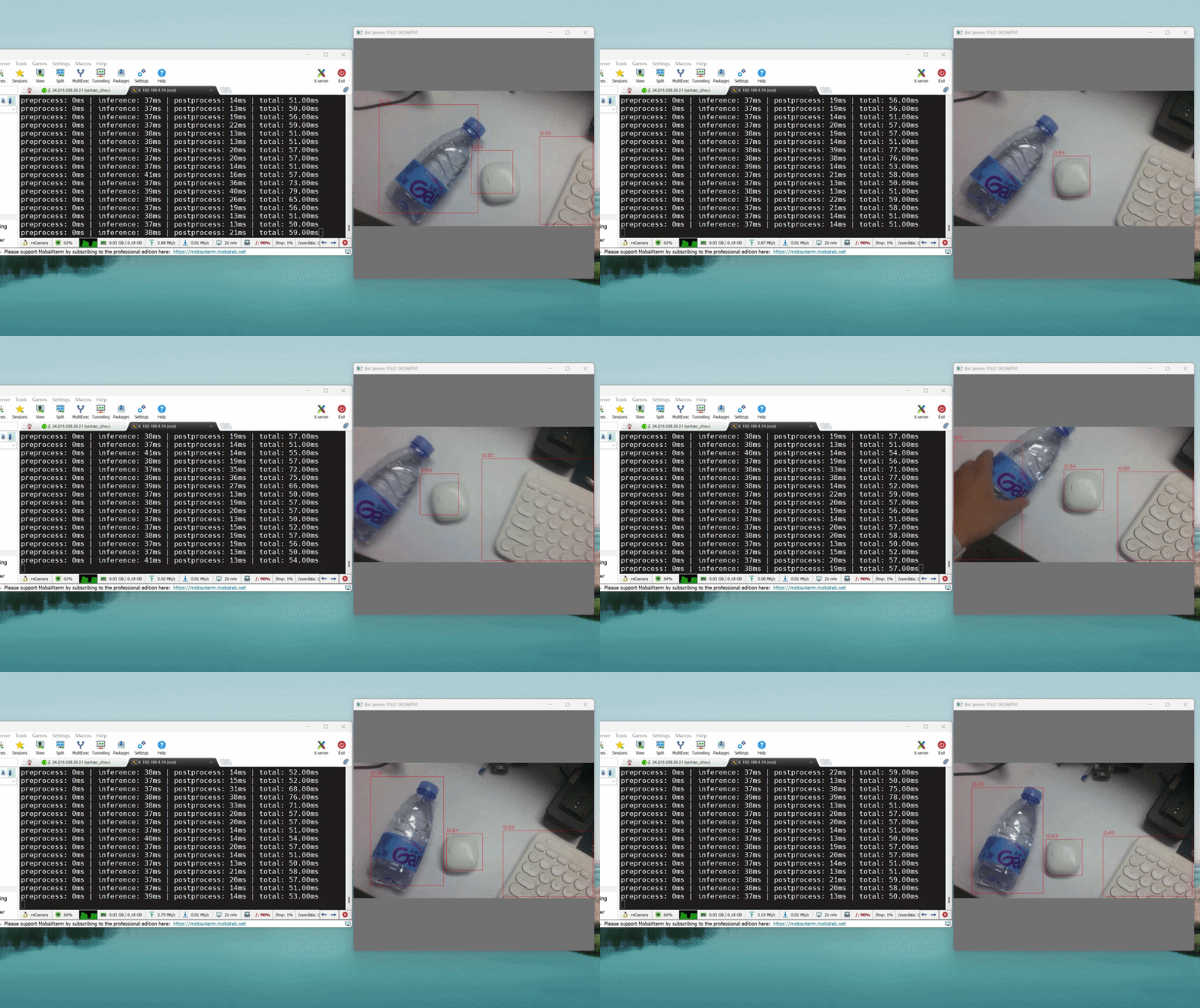
The animations above show actual screen recordings. The test results are affected by the model input resolution (640x640) and quantization precision (INT8), and are for engineering deployment reference only.
3. Core Benchmark Results
Under long-term full-load stress testing, reCamera demonstrated extremely excellent "performance-to-power ratio". The following is the extreme performance of the YOLO11n INT8 quantized model on the NPU:
| Model Task Type | Input Resolution | Quantization Format | Peak Frame Rate (FPS) | Single Frame End-to-End Latency | Average Operating Power |
|---|---|---|---|---|---|
| YOLO11n Object Detection | 640 x 640 | INT8 | 20 FPS | 50 ms | 1.5 W |
| YOLO11n Instance Segmentation | 640 x 640 | INT8 | 10 FPS | 100 ms | 1.5 W |
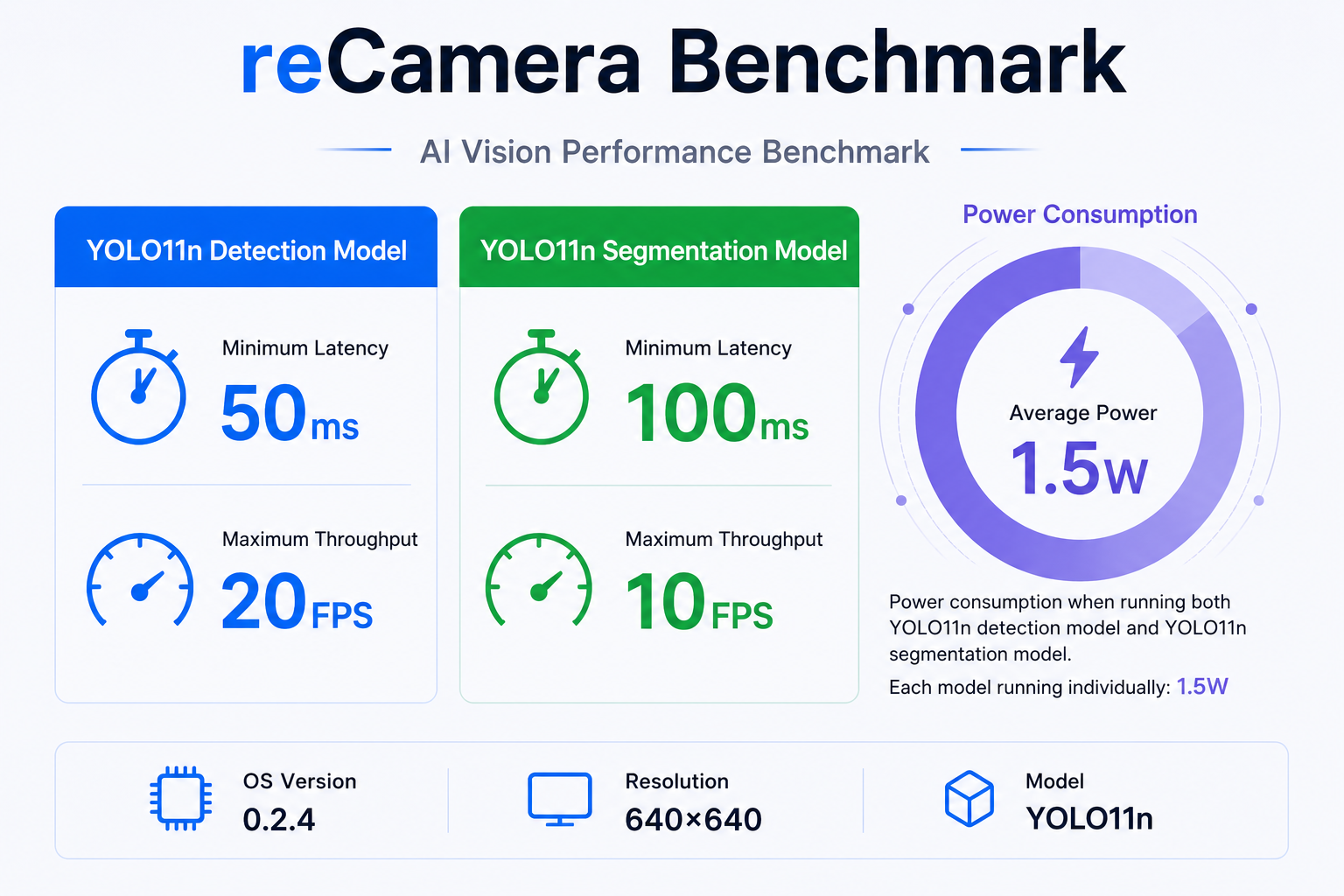
- FPS (Frames Per Second): Refers to the number of frames the device can process per second. 20 FPS means the system can continuously complete 20 image AI recognitions in 1 second. The larger the value, the smoother the real-time monitoring video.
- ms (Milliseconds): i.e., one-thousandth of a second. Here it refers to the total end-to-end time consumption for processing a single image. 50 ms means the device takes a minimum of only 0.05 seconds to process a frame of video (including pre-processing, NPU inference, post-processing, and all other steps).
- W (Watt): The unit of measurement for device power consumption. Here 1.5W refers to the average power consumption of the entire reCamera device when running AI models at full load.
💡 In-depth Data Analysis
- Extreme Energy Efficiency: The 1.5W power consumption is almost equivalent to a normal single-board computer in sleep mode, but reCamera can achieve a detection frame rate of 20 FPS/S at this power consumption, perfectly fitting outdoor monitoring scenarios powered by batteries or long-distance PoE.
- Latency Performance: The ultra-low end-to-end latency of minimum 50ms for the detection model means it can easily capture fast-moving objects; while the segmentation model, despite adding the high-load Mask decoding operator, can still maintain a smooth experience of up to 10 FPS/S.
4. Hands-on Practice: Reproduce the Benchmark
If you already own a reCamera device, you can easily reproduce the above test results locally with just a few simple steps.
Step 1: Get the Benchmark Executable and Model
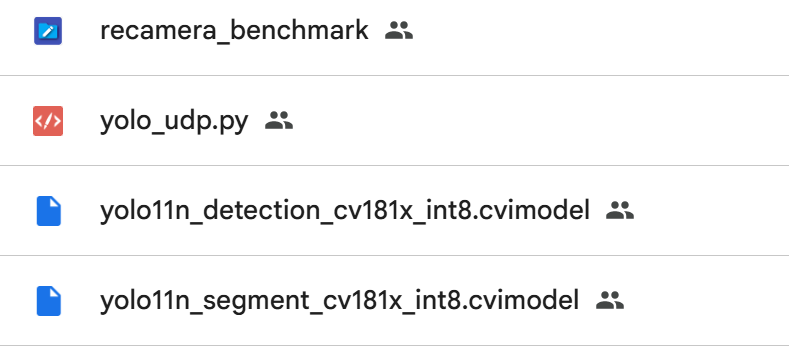
First, download the compiled bin file, the converted .cvimodel model file, and the python script through the link below:
[https://drive.google.com/drive/folders/10QfxxT2BkIVX3-DojtMnnyvPfwMESC_6?usp=drive_link](https://drive.google.com/drive/folders/10QfxxT2BkIVX3-DojtMnnyvPfwMESC_6?usp=drive_link)
Step 2: Upload Files to the reCamera Device
Upload the downloaded bin file and model file to the /userdata/ directory of the reCamera device.

Step 3: Run the Benchmark Test
Run the following command on the reCamera device to start the benchmark test:
# The first parameter is the model file path, and the second parameter is the IP address of the streaming target
./recamera_benchmark ./yolo11n_detection_cv181x_int8.cvimodel 192.168.4.35
If you want to view the test results, you can run the following command on the Windows terminal to run the udp script to receive the video stream of the reCamera:
python.exe .\yolo_udp.py
Technical Support and Product Discussion
Thank you for choosing our products! We will provide you with various support to ensure that you have the smoothest experience possible when using our products. We offer multiple communication channels to meet different preferences and needs.