Integrate reCamera into Frigate
Frigate is an open-source NVR and video-analysis platform that can pull standard RTSP video streams for object detection, recording and alerts. The reCamera 2002 series can publish a stable RTSP stream, so integrating it with Frigate only takes two steps: make the reCamera publish an RTSP stream, then add that stream as a camera in Frigate.
This guide applies to the reCamera 2002 series only. The reCamera Pro uses a different connection method; see the Pro connection documentation.
The whole integration consists of two steps:
- Enable RTSP streaming on the reCamera (choose any one of the three methods);
- Add that RTSP stream as a camera in the Frigate web UI.
Prerequisites
- A reCamera 2002 series device, powered on and connected to your LAN over Ethernet / Wi-Fi, with its IP address known (this guide uses
192.168.4.82as the example). - A host on the same LAN with Frigate installed (a Docker deployment is fine) and its web UI reachable.
- A computer with
ffprobe/ffplayor VLC installed, used to verify the stream (optional).
Configure the reCamera video stream output
The reCamera 2002 series supports the following three ways of publishing an RTSP stream. Pick any one of them. The resulting RTSP URL is used in exactly the same way in the Frigate configuration below; just substitute your own address.
| Method | Stream URL (default parameters) | Highlights |
|---|---|---|
| Method 1: Node-RED | rtsp://admin:admin@<device-ip>:554/live | Graphical configuration, no compiling, shipped with the firmware |
| Method 2: C++ publisher | rtsp://<device-ip>:8554/live0 | 1080p@30fps, no authentication, one-command install |
| Method 3: Flash the ONVIF app | rtsp://<username>:<password>@<device-ip>:8554/onvif | Discoverable by NVR / VMS over ONVIF |
All three methods take exclusive ownership of the camera pipeline, so only one of them can run at a time. Stop the currently running method before switching to another.
Method 1: Enable the RTSP stream with Node-RED
The reCamera firmware ships with Node-RED and the SSCMA nodes (node-red-contrib-sscma). The stream node publishes the camera feed as RTSP. For the full Node-RED development tutorial (node reference, importing flows, deploying, etc.) see:
Quick steps:
- Open the Node-RED editor in a browser:
http://<device-ip>:1880. - Drag a camera node and a stream node from the left palette (both under the
Vision AIcategory) and wire the camera output to the stream input. - Double-click each node and, in the
Clientfield, click the add button to create an sscma config node (the defaultshost=localhost,mqttport=1883,apiport=80are fine). Once saved, the red triangle on the nodes disappears. - In the stream node confirm the protocol is
RTSPand adjust port, session name and credentials as needed (defaults are port554, sessionlive, usernameadmin, passwordadmin). - Click Deploy in the top-right corner.
You can also paste the minimal flow JSON below into Node-RED's Import dialog to create the wiring in one step:
[
    {"id":"tab-recamera-rtsp","type":"tab","label":"reCamera RTSP","disabled":false,"info":""},
    {"id":"cfg-sscma","type":"sscma","host":"localhost","mqttport":"1883","apiport":"80","clientid":"recamera","username":"","password":""},
    {"id":"node-camera","type":"camera","z":"tab-recamera-rtsp","name":"camera","client":"cfg-sscma","audio":false,"volume":80,"option":0,"fps":15,"mirror":false,"flip":false,"x":220,"y":200,"wires":[["node-stream"]]},
    {"id":"node-stream","type":"stream","z":"tab-recamera-rtsp","name":"stream","protocol":0,"port":554,"session":"live","username":"admin","password":"admin","onvif":false,"client":"cfg-sscma","x":460,"y":200,"wires":[]}
]
After deploying, verify the stream from a computer (the output is 1080p; the recommended ceiling for Node-RED streaming is 1080p@15fps):
ffplay rtsp://admin:admin@192.168.4.82:554/live
The URL to use in Frigate is: rtsp://admin:admin@<device-ip>:554/live.
Method 2: Deploy the C++ RTSP publisher
The community provides a ready-made publisher for the reCamera 2002 (SG2002 / CV181X, riscv64) that fixes the stock video_demo 10 fps limitation and outputs a 1920x1080 H.264 30fps RTSP stream. It requires no compiling and installs with a single command. Project repository:
Because the reCamera cannot reach GitHub directly, run the install script from a computer that has GitHub access and can reach the device over the network. The script prompts for the device IP, SSH username and password, then uploads the binary to the device, stops the services that occupy the camera (Node-RED / sscma), configures boot autostart and starts the stream:
# Linux
curl -fLO https://raw.githubusercontent.com/yyling0101-a11y/recamera-rtsp30/main/scripts/install-linux.sh
chmod +x install-linux.sh
./install-linux.sh
# Windows PowerShell
Invoke-WebRequest https://raw.githubusercontent.com/yyling0101-a11y/recamera-rtsp30/main/scripts/install-windows.ps1 -OutFile install-windows.ps1
powershell -ExecutionPolicy Bypass -File .\install-windows.ps1
Once installed the stream is available at rtsp://<device-ip>:8554/live0 (no authentication). Verify it from a computer:
ffplay rtsp://192.168.4.82:8554/live0
On the device you can manage the service and inspect its health with:
/etc/init.d/S99rtsp30 start|stop|restart   # service control (stop uses SIGTERM; never kill -9)
sh /root/rtsp30-status.sh                  # process / pipeline / port / measured fps
tail -f /tmp/rtsp30.log                    # runtime log
This publisher is mutually exclusive with the Node-RED and ONVIF methods: installing it disables the Node-RED and sscma services and takes exclusive ownership of port 8554 and the camera pipeline. To uninstall run sh /root/uninstall-rtsp30.sh; the stock behaviour returns after a reboot.
Method 3: Flash the ONVIF app onto the device
Using Seeed's SenseCraft Solution software you can flash an ONVIF app onto the reCamera, so the device both provides an RTSP stream and can be auto-discovered by ONVIF-capable NVR / VMS platforms. For the flashing and configuration steps see:
ONVIF flashing and configuration guide
After flashing, the stream URL is rtsp://<username>:<password>@<device-ip>:8554/onvif, where the username and password are the credentials you set during flashing.
Verify the stream
Whichever method you chose, confirm the stream works from a computer before configuring Frigate, Different setup methods correspond to different video stream URLs.
# Inspect codec / resolution / frame rate
ffprobe -rtsp_transport tcp rtsp://192.168.4.82:8554/live0

# Play it directly
ffplay  -rtsp_transport tcp rtsp://192.168.4.82:8554/live0
You should see an h264, 1920x1080 video stream (15fps for Method 1, 30fps for Methods 2 and 3).
Add the camera in the Frigate UI
The walkthrough below uses the Method 2 address rtsp://192.168.4.82:8554/live0 as the example. If you used Method 1 or Method 3, substitute the corresponding URL from the table above (include the username and password in the URL when required).
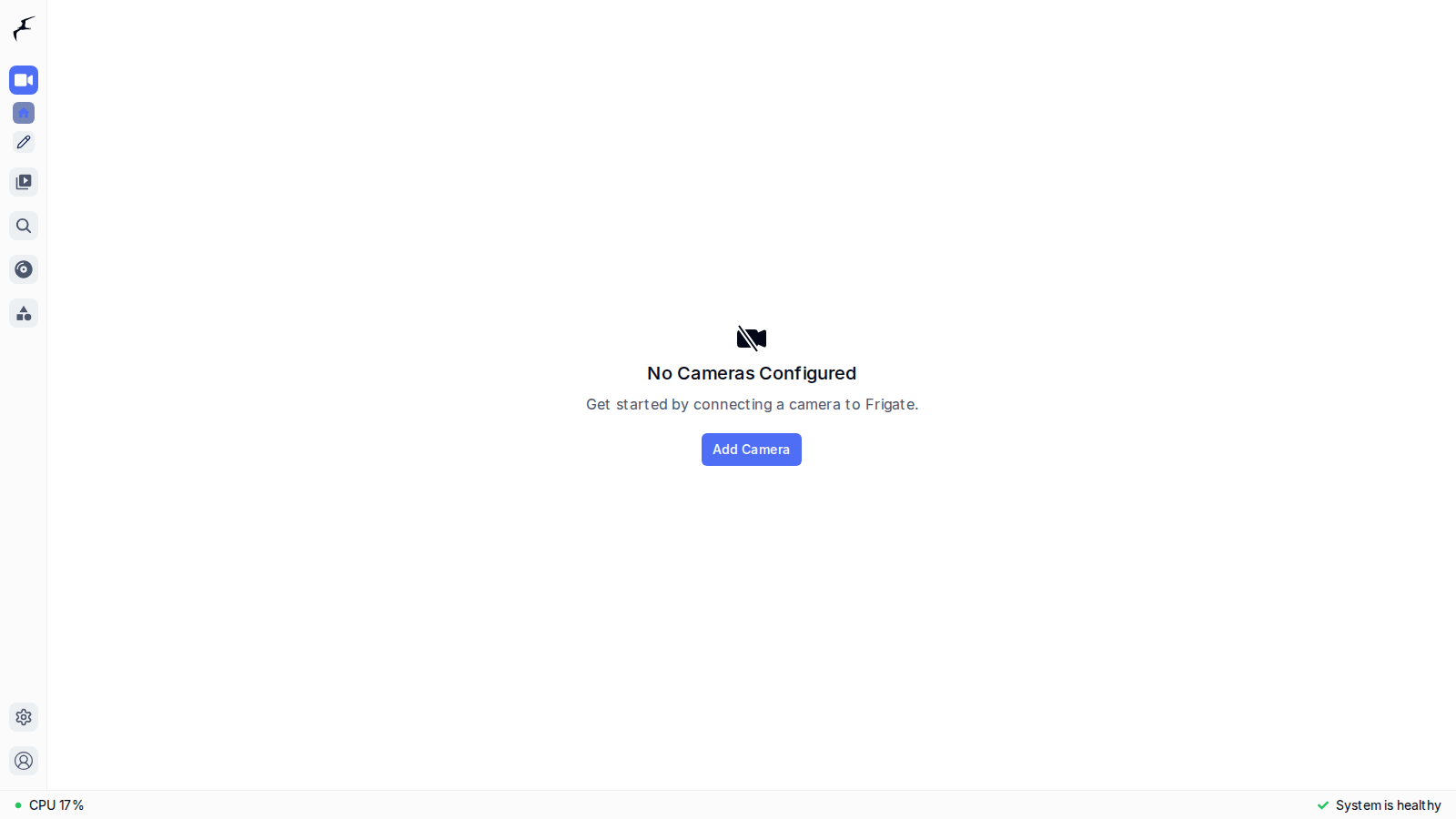
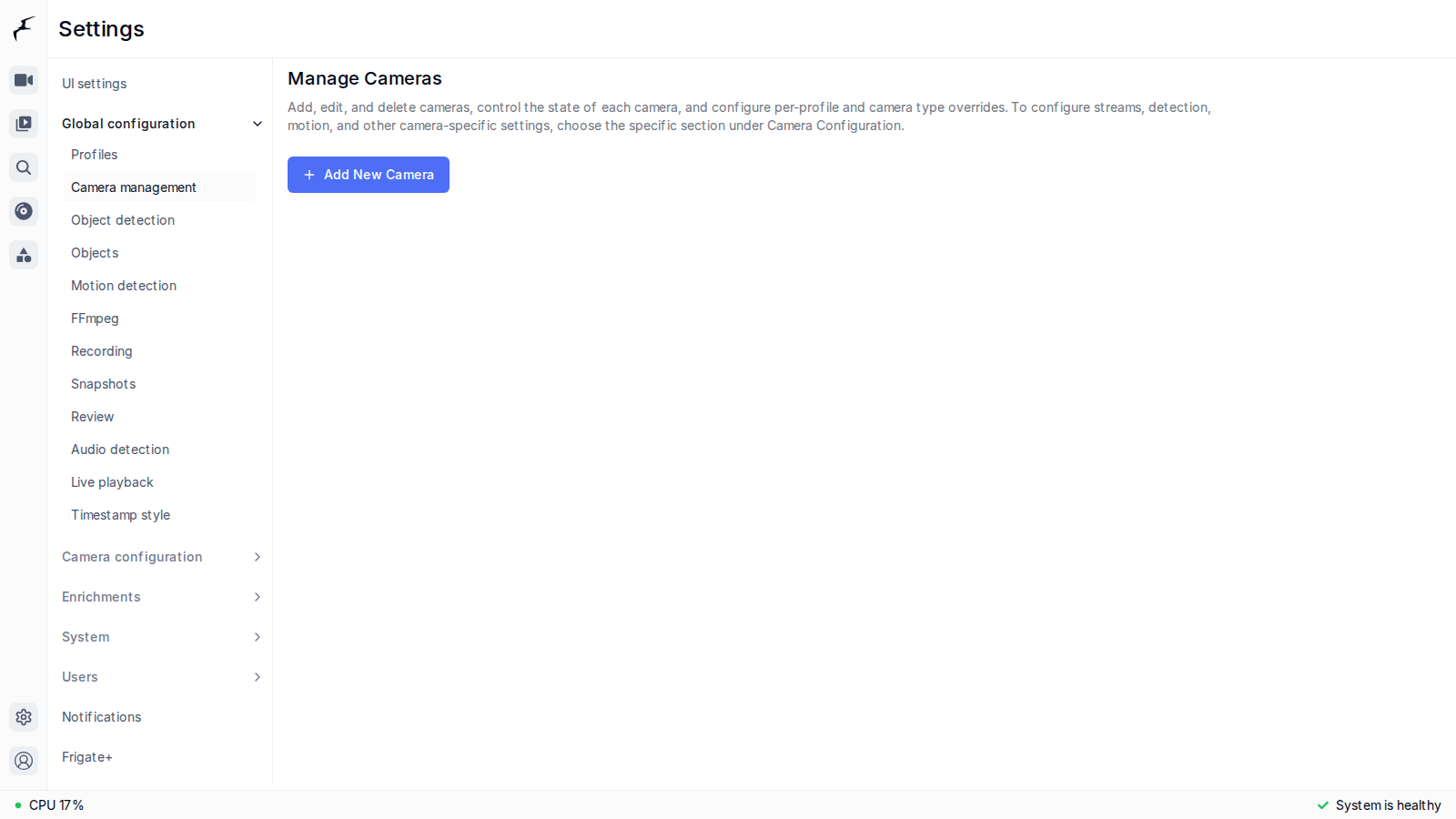
- Open the Frigate web UI and log in. If no cameras are configured yet, the dashboard shows "No Cameras Configured"; click Add Camera to open the wizard. You can also reach it from Settings → Global configuration → Camera management and click Add New Camera.
- In the "Add Camera" wizard enter a camera name and the device IP. For Stream Detection Method choose Manual selection, set Camera Brand to Other, then paste the reCamera RTSP URL into Custom Stream URL.
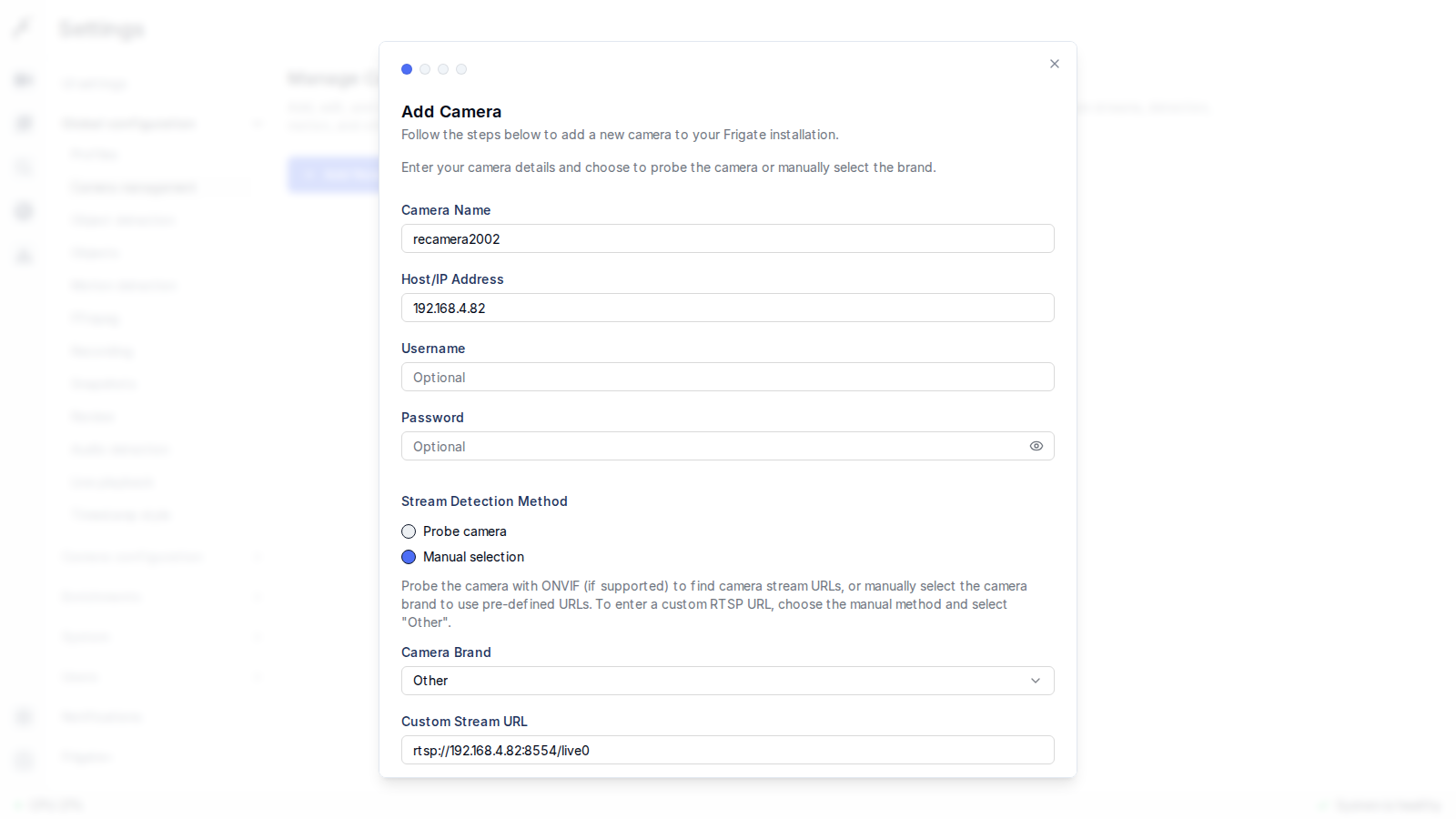
If you used Method 3 (ONVIF) you can instead keep the default Probe camera, fill in the username / password and the ONVIF port, and let Frigate discover the stream URLs over ONVIF. Entering the RTSP URL manually works for all three methods.
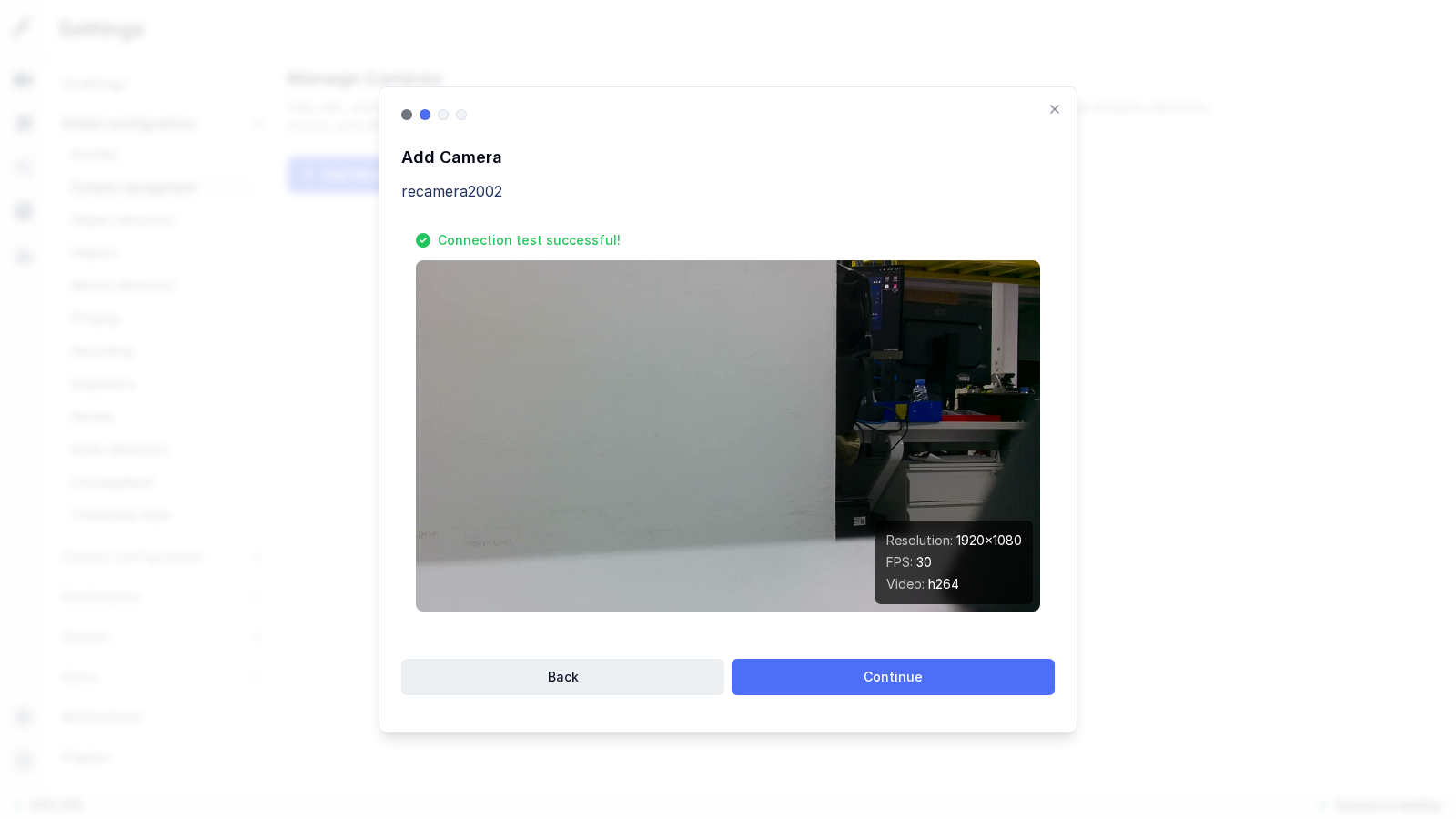
- Click Continue. Frigate connects to the address and tests the stream. On success it shows a frame together with the resolution, frame rate and codec; confirm and click Continue again.
- On the stream configuration page enable the roles you need for this stream: turn on detect (object detection) and record (recording). Then click Next.
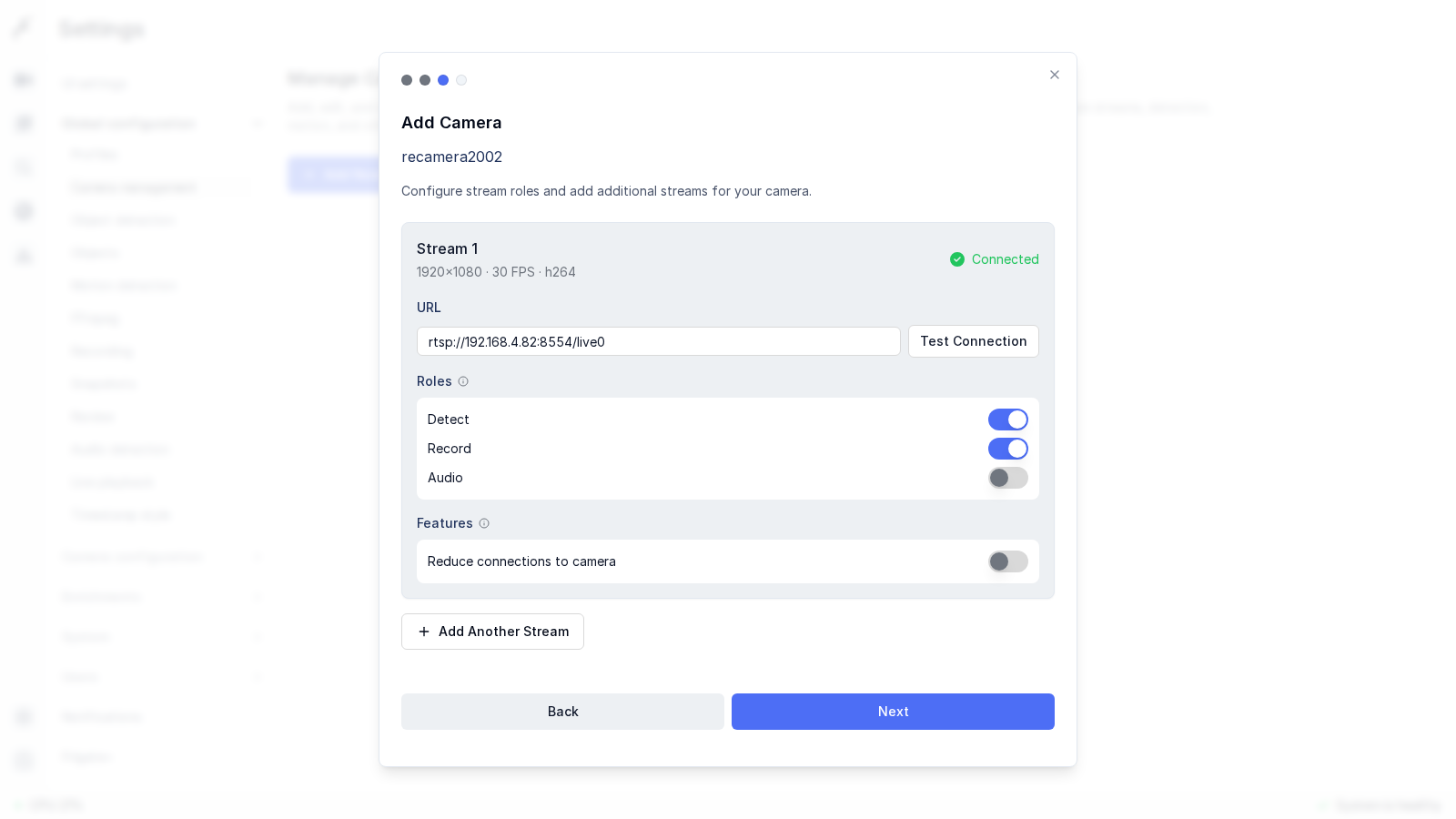
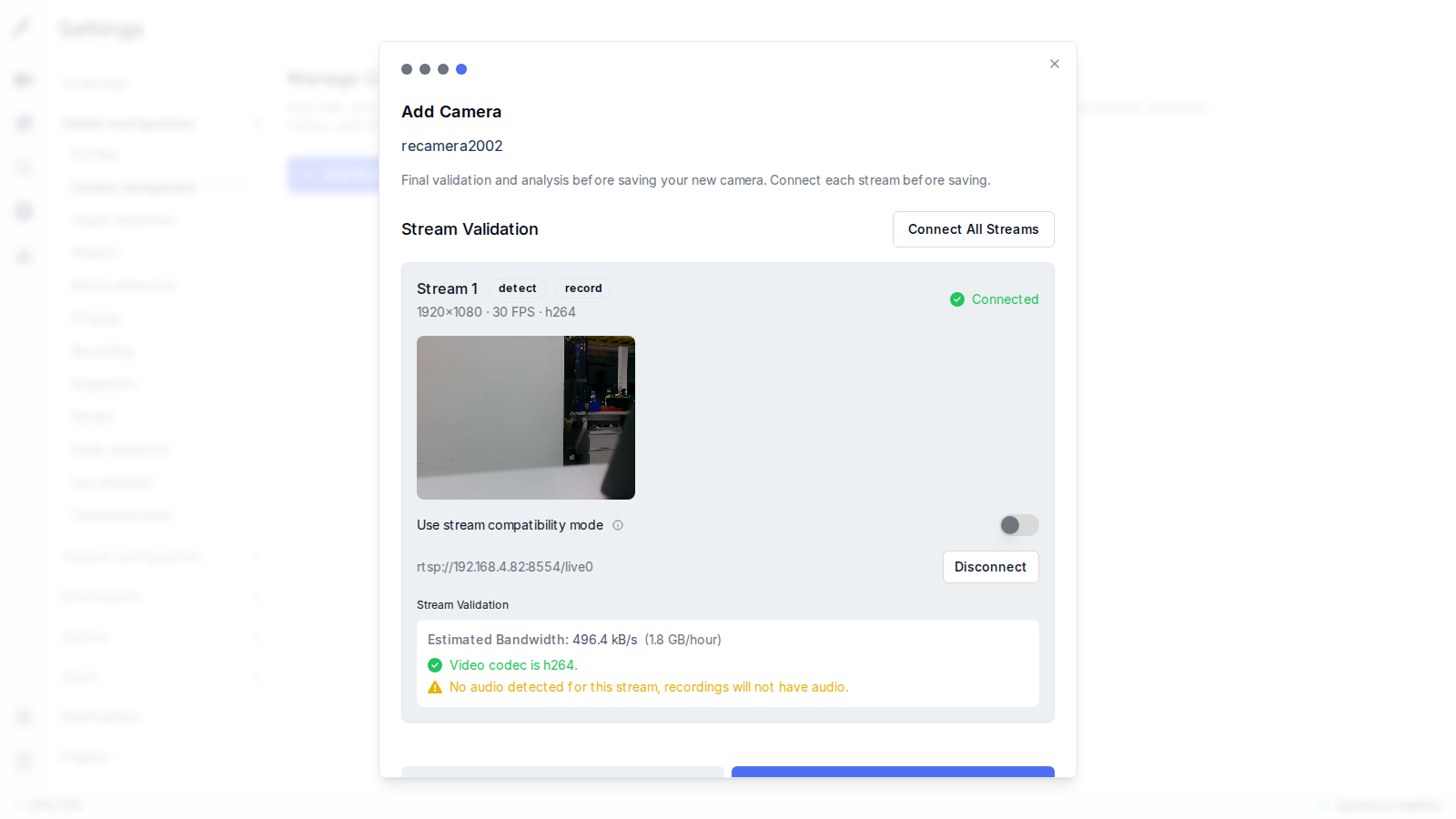
- The final step validates the stream before saving and reports the estimated bandwidth plus codec / audio notes. Once the status reads Connected, click Save New Camera.
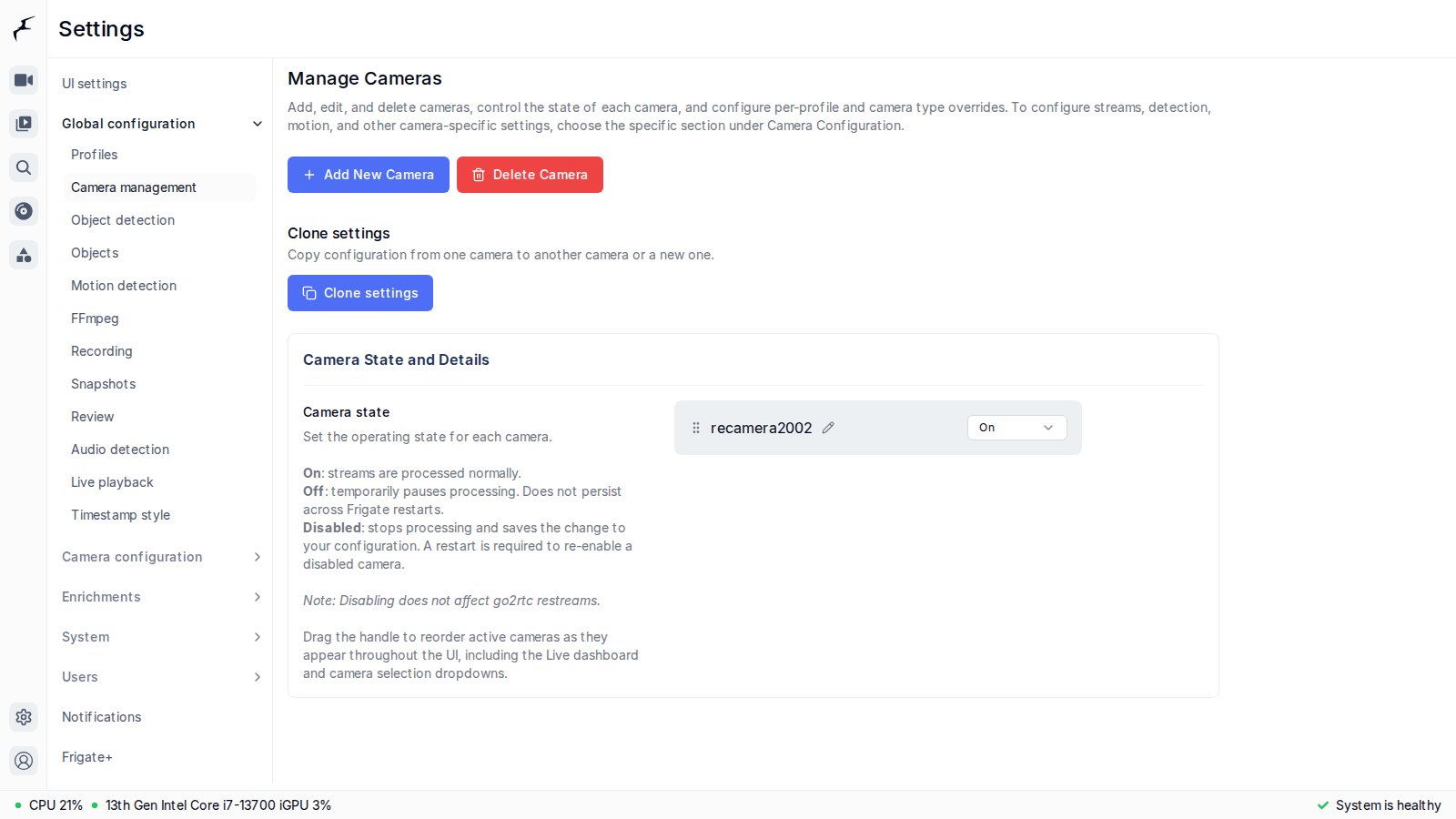
- After saving, the camera appears in the camera management list with its state set to On.
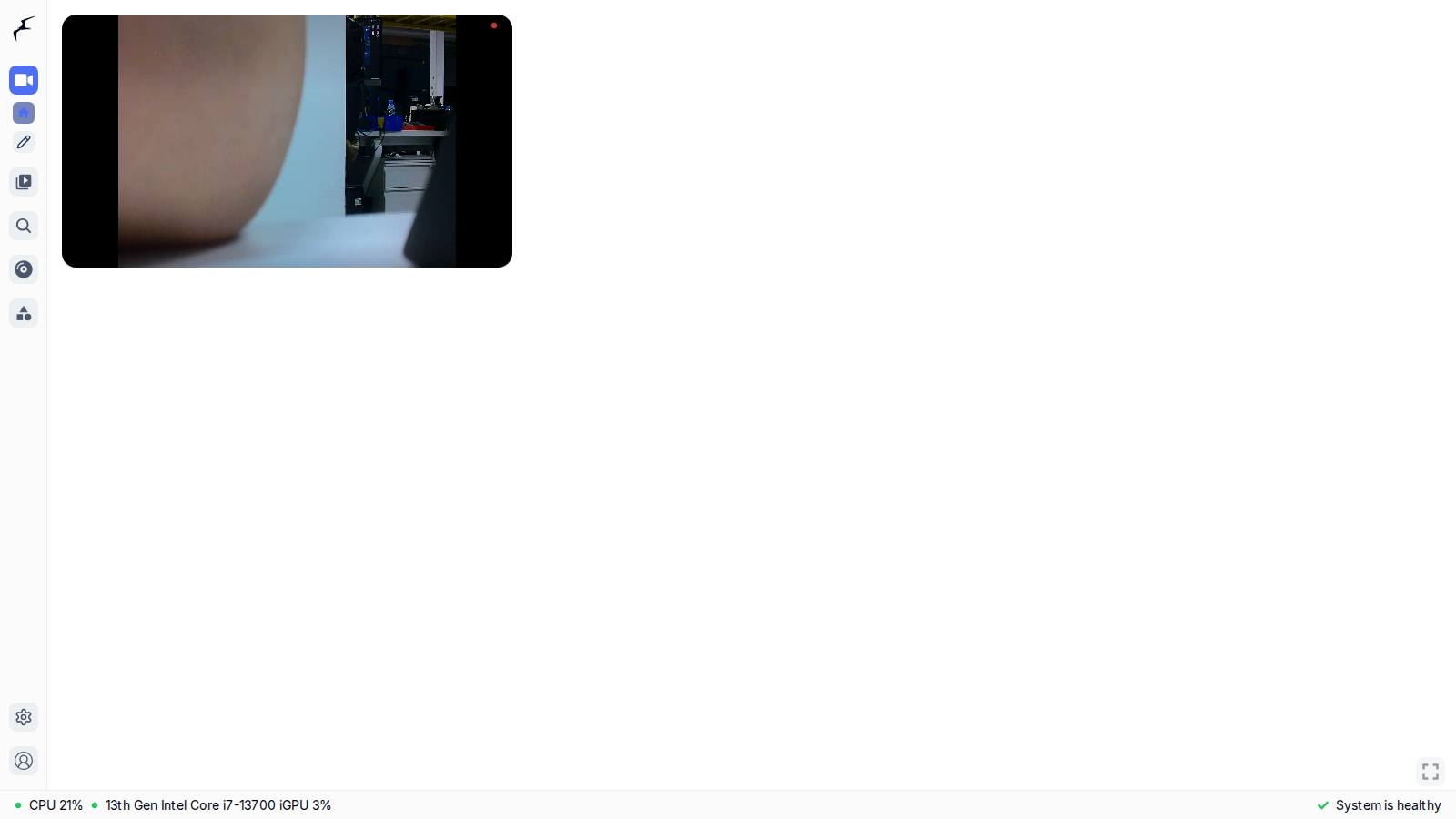
- Return to the dashboard to see the live reCamera feed; Frigate now runs object detection and recording on this stream.
Optional: tune the detection parameters
Under Settings → Camera configuration → camera name → Object detection you can adjust the detect resolution and frame rate. The reCamera outputs 1080p, but detection does not need the full resolution: keeping the defaults of 1280x720 at 5 fps gives stable detection in most scenes while keeping host CPU / GPU usage low.
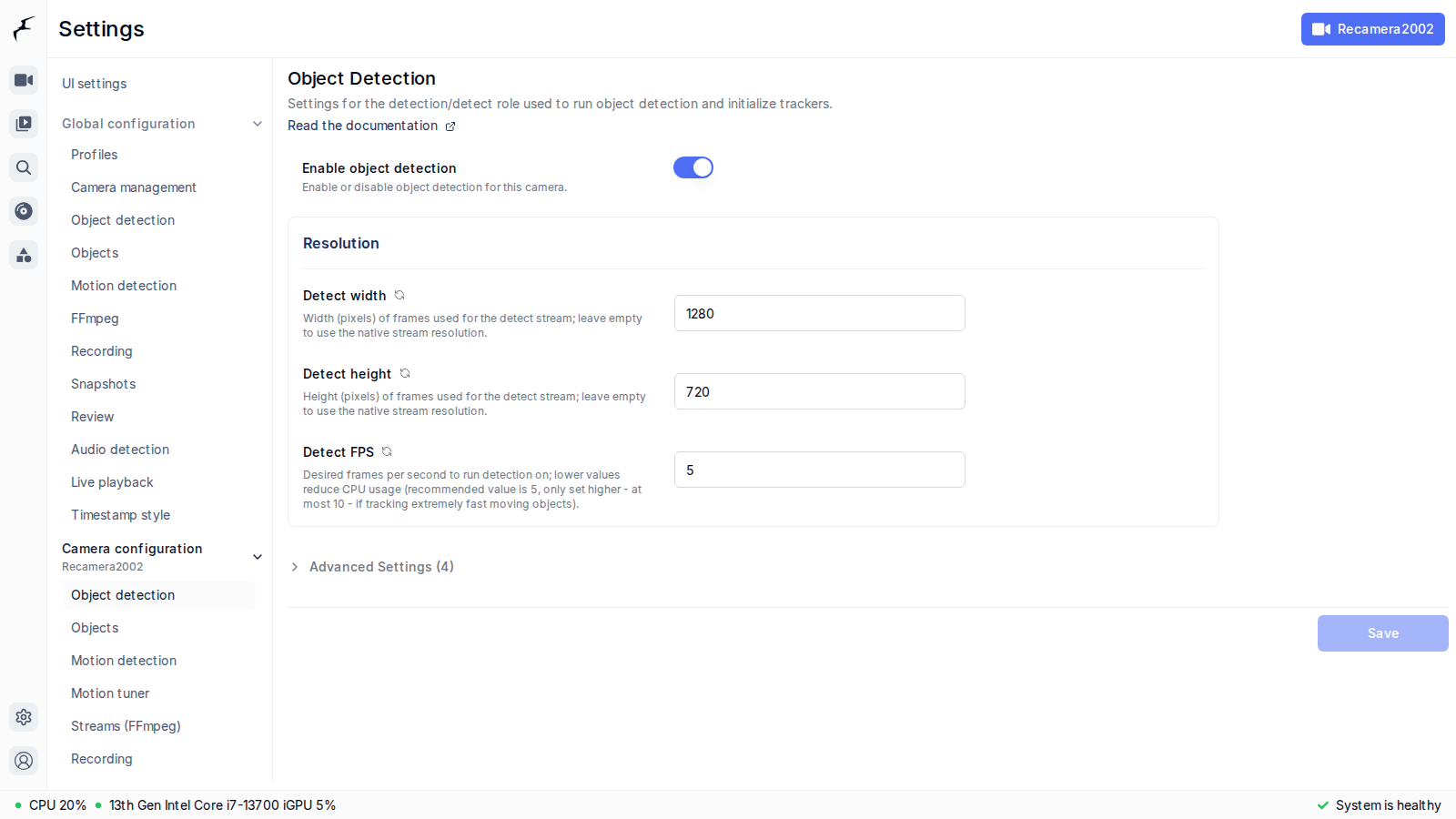
The UI steps above are equivalent to writing the following into config.yaml, which users familiar with the config file may edit directly:
go2rtc:
  streams:
    recamera2002:
      - rtsp://192.168.4.82:8554/live0

cameras:
  recamera2002:
    enabled: true
    ffmpeg:
      inputs:
        - path: rtsp://192.168.4.82:8554/live0
          roles:
            - detect
            - record
    detect:
      width: 1280
      height: 720
Technical Support and Product Discussion
Thank you for choosing our products! We are here to provide you with different support to ensure that your experience with our products is as smooth as possible. We offer several communication channels to cater to different preferences and needs.