Motion detection for a selected area based on recamera2002
I. Project Introduction
This is motion detection for a selected area based on recamera2002. All computational power for this detection is completed within reCamera, without relying on external computation. The external system only needs to render the image and select the detection area. You can clone the demo from the following GitHub repository:
reCamera Motion Detection Demo
II. reCamera Configuration Guide
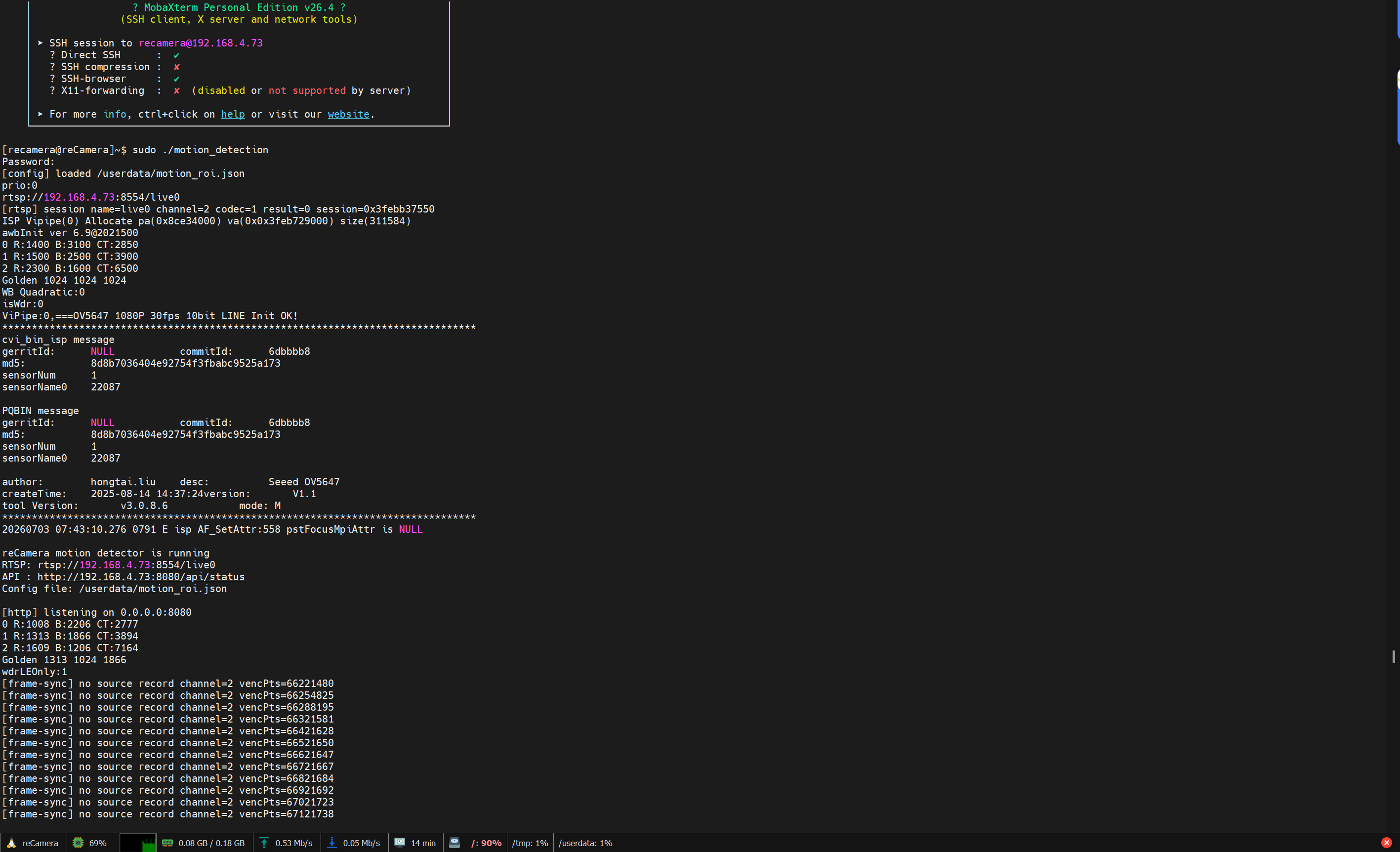
After compiling the motion_detection executable program on a Linux system, push it to reCamera via SCP. Then, after remotely accessing the reCamera's SSH terminal, run the program directly using the following command:
./motion_detection
III. Win Rendering Interface Configuration
In the same directory, there is a windows_ui directory. This is the Win interface rendering project. It is recommended to configure the environment using a conda virtual environment.
conda create -n motion_detection python=3.10

conda activate motion_detection

# Download corresponding environment dependencies
cd ./windows_ui
pip install -r requirements.txt
Once the environment is ready, run the app.py file directly:
python app.py --rtsp=rtsp://192.168.42.1:8554/live0 --api=http://192.168.42.1:8080
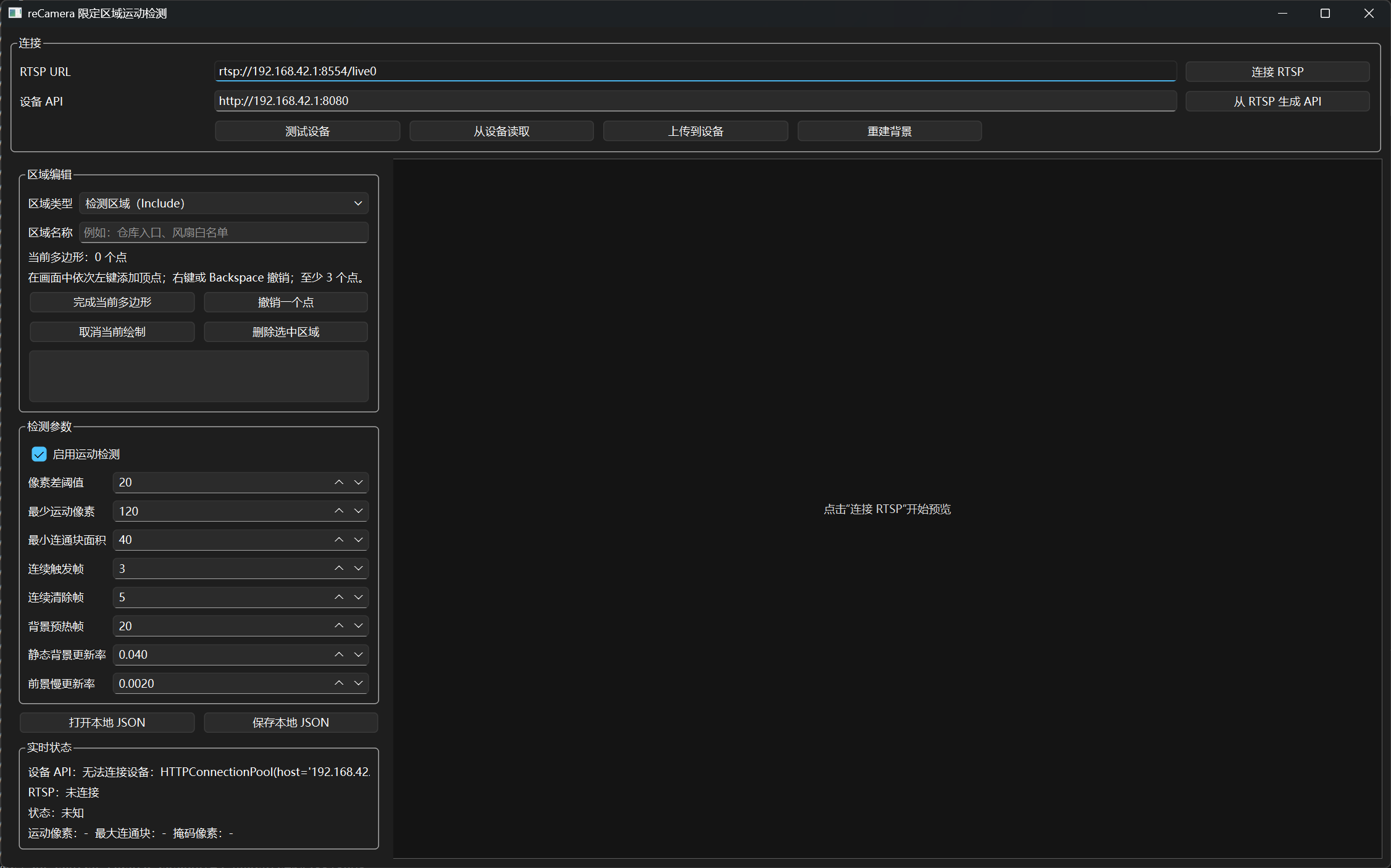
The interface after starting is:
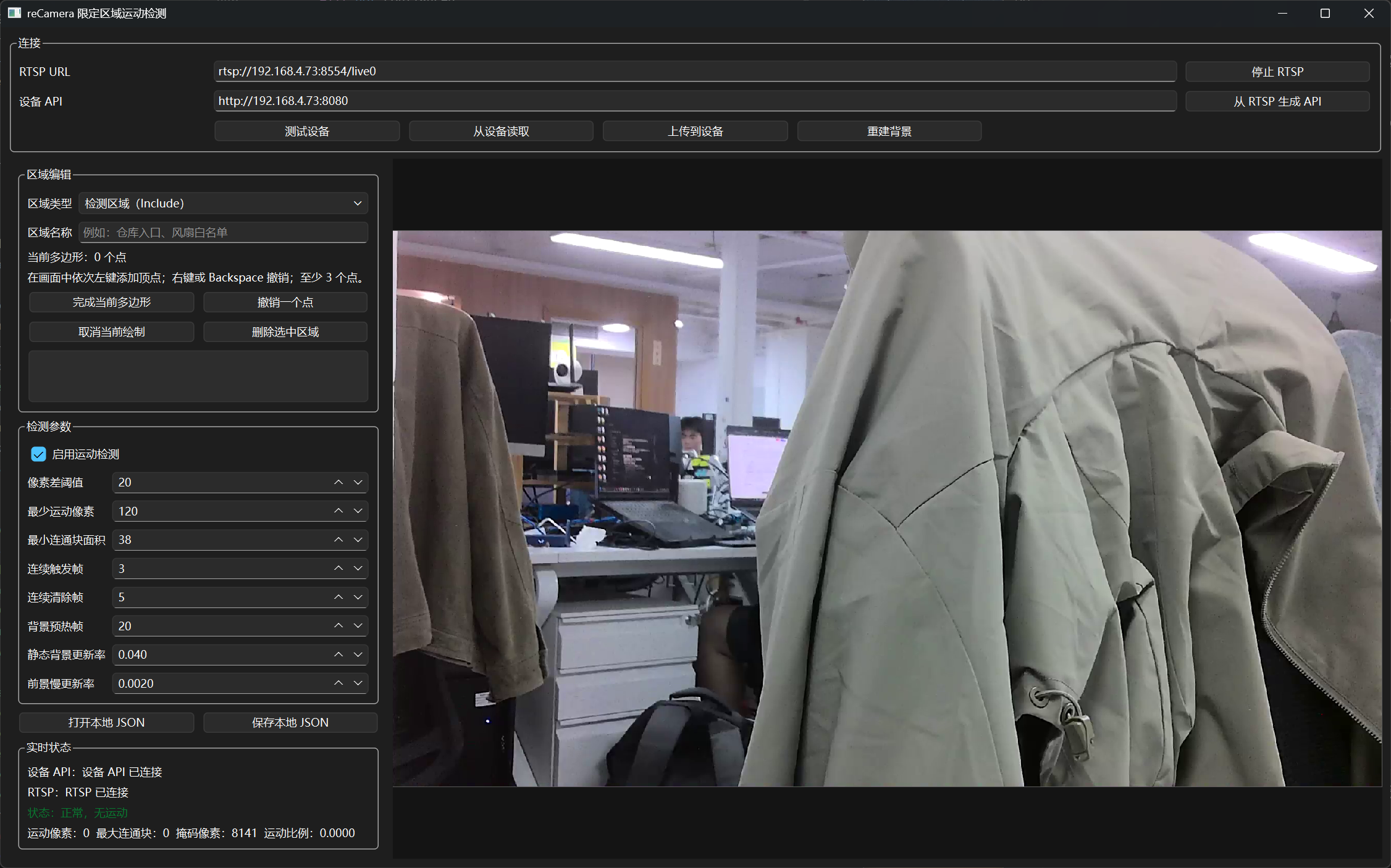
After entering the correct URL, you can click "Connect RTSP" to get the video stream.
1. Define Detection Area
In the "Area Editing" on the left, select the area type. There are two types: one is the "Detection Area" type, used to define the detection region, and the other is "Whitelist," used to define areas within the detection region where detection should not occur, filtering out items that might naturally move within the detection area, such as swaying tree branches, fountains, etc. After selecting the type and entering the area name, you can click on the image to select points. Right-click to undo a point.
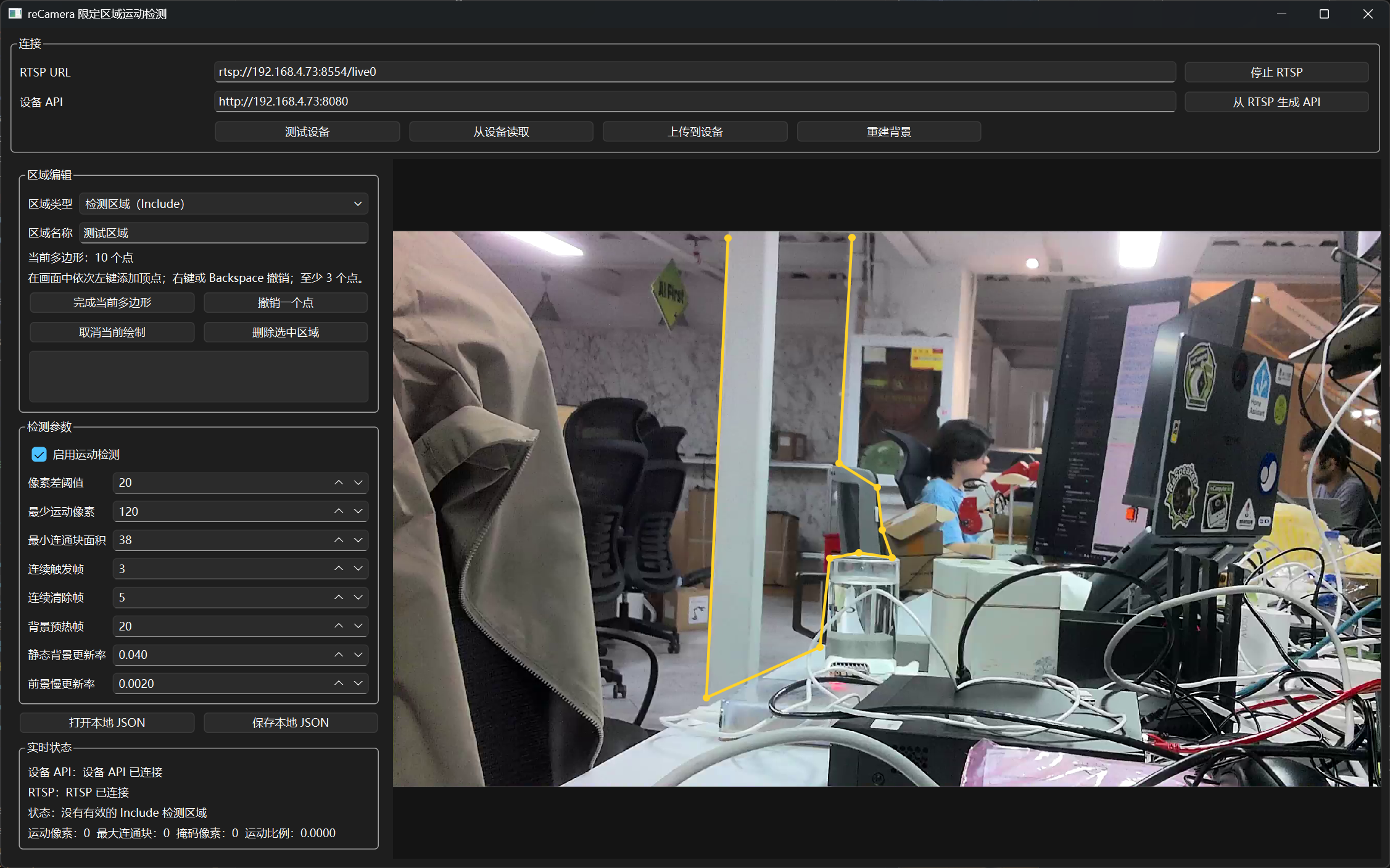
After selecting the points, click "Complete Current Polygon."
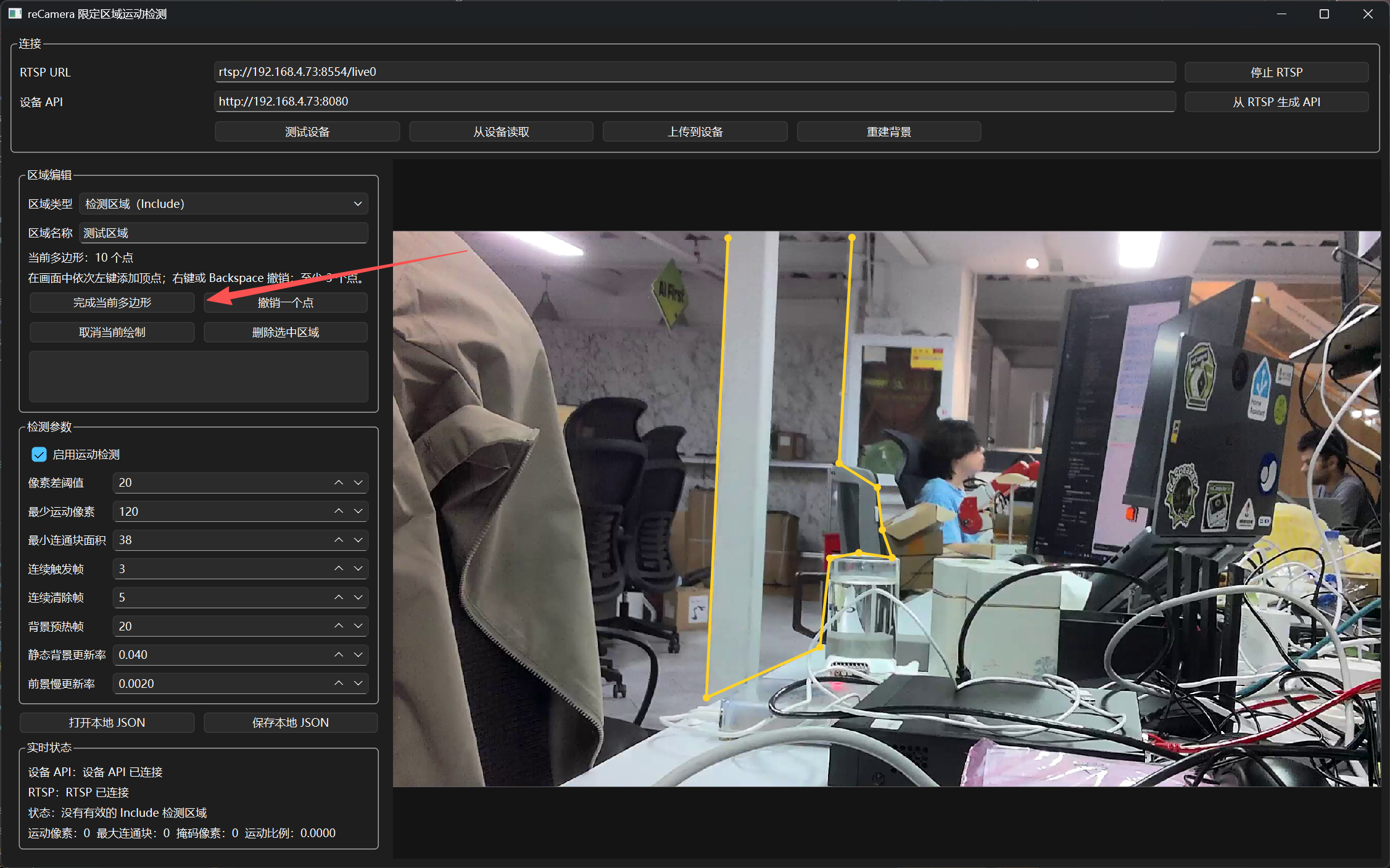
2. Enable Detection Box
Then, select "Upload to Device" to save the interface settings.
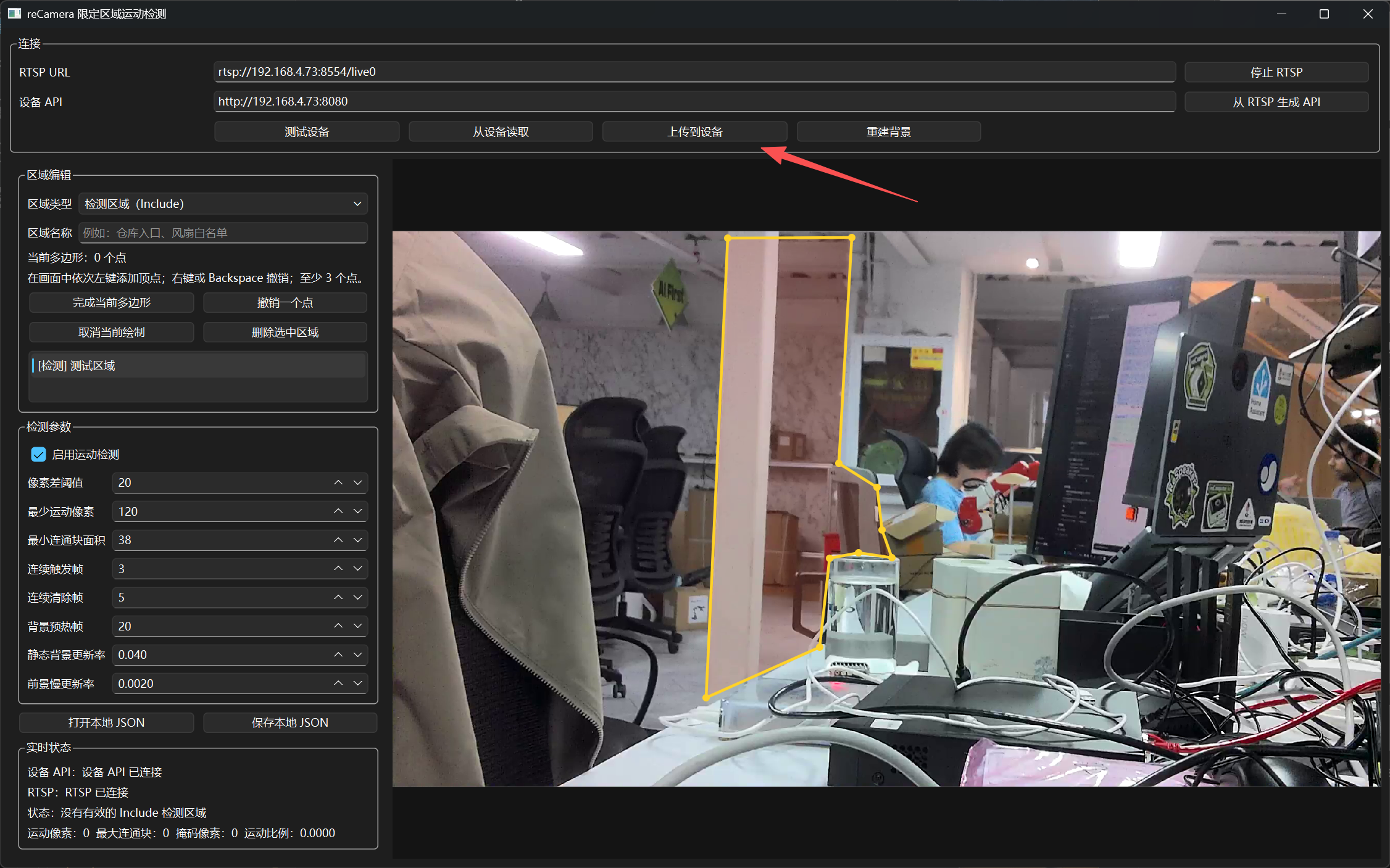
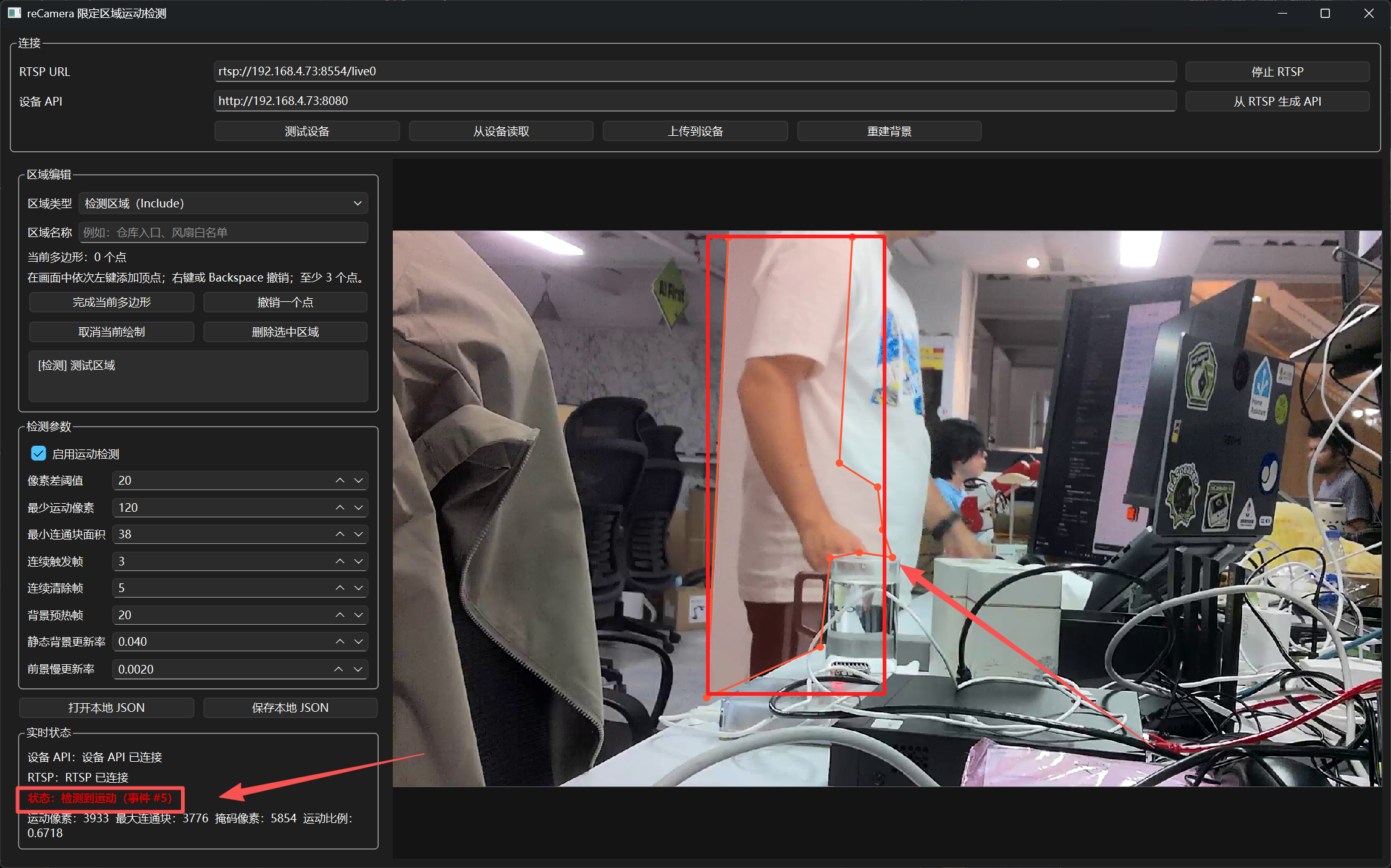
If motion is detected in the image, an alert message will appear in the bottom left corner, and a motion box will be drawn on the image.
After restarting the Win interface, existing selected boxes may be lost. You need to click "Read from Device" to retrieve the existing detection boxes. If the current camera moves or the scene changes, and you don't need to modify the detection area, you can click "Reconstruct Background" to redefine the static image.
Tech Support & Product Discussion
Thank you for choosing our products! We are here to provide you with different support to ensure that your experience with our products is as smooth as possible. We offer several communication channels to cater to different preferences and needs.