Back Up and Restore Configuration
reCamera Pro can export its current settings to a file (a tar archive) that your browser downloads, and import that file on the same or another device. This is the fastest way to:
- replicate a proven configuration across a fleet of devices,
- recover quickly after a factory reset or firmware recovery,
- keep a known-good snapshot before changing detection, recording, or network settings.
Export a configuration backup
- Log in to the Web UI and open Device Info → System Settings.
- Click Export Configuration.
- The browser automatically downloads a
tarfile containing the current settings. Store it somewhere safe, named with the device and date (e.g.recamera-frontdoor-2026-09-21.tar).
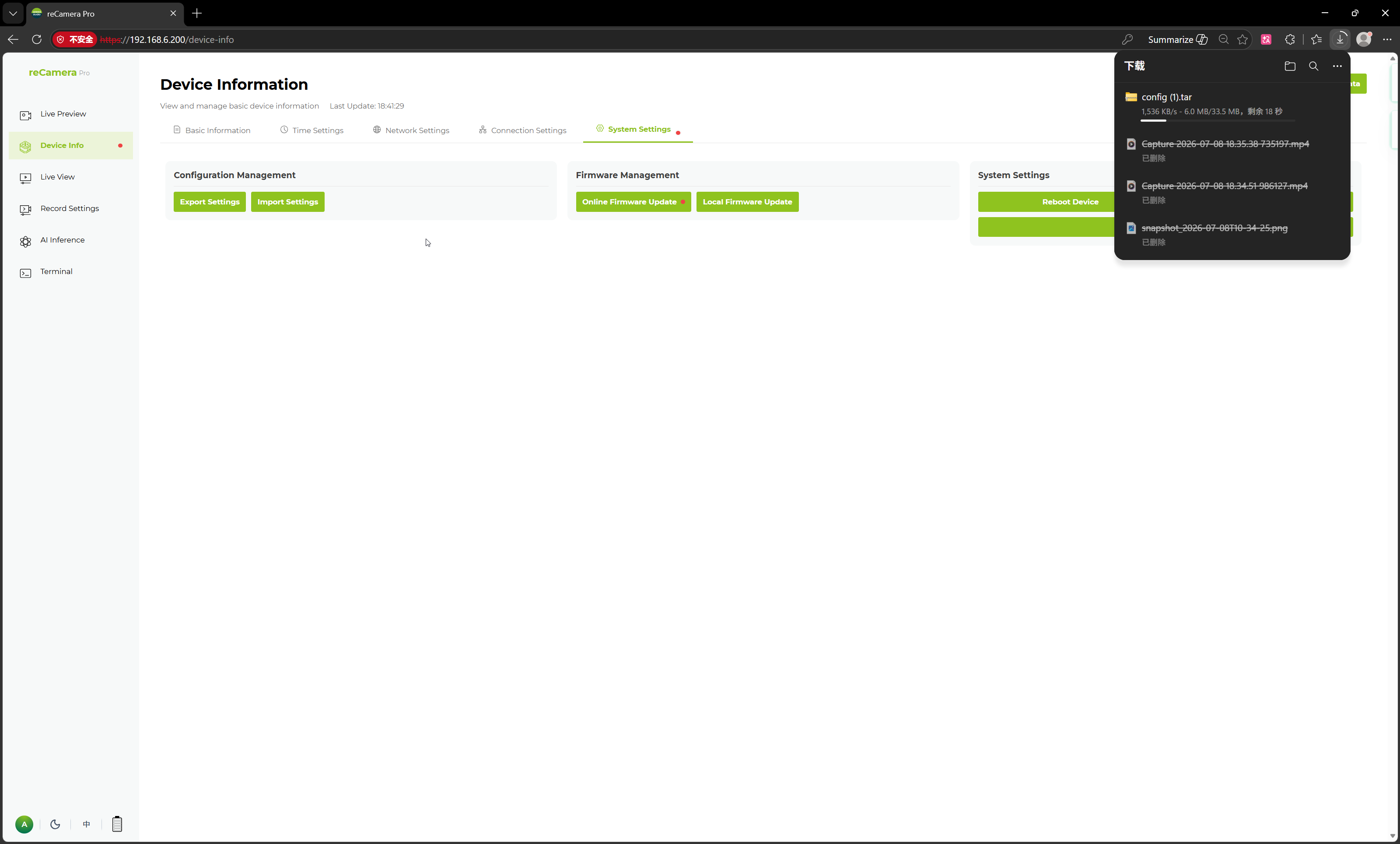
The exported file contains the device's current settings. Before relying on it, verify on your own device which items are included (network, time, connection, password, recording rules, AI model configuration, sound models) — and note that uploaded model files and recorded video are large data, not settings.
Restore (import) a configuration
- Open Device Info → System Settings on the target device.
- Choose the import option and select a previously exported
tarfile (same file extension as the export). - After importing, the configuration loads automatically and the device restarts. Wait for the reboot to finish — the imported settings are active afterwards.
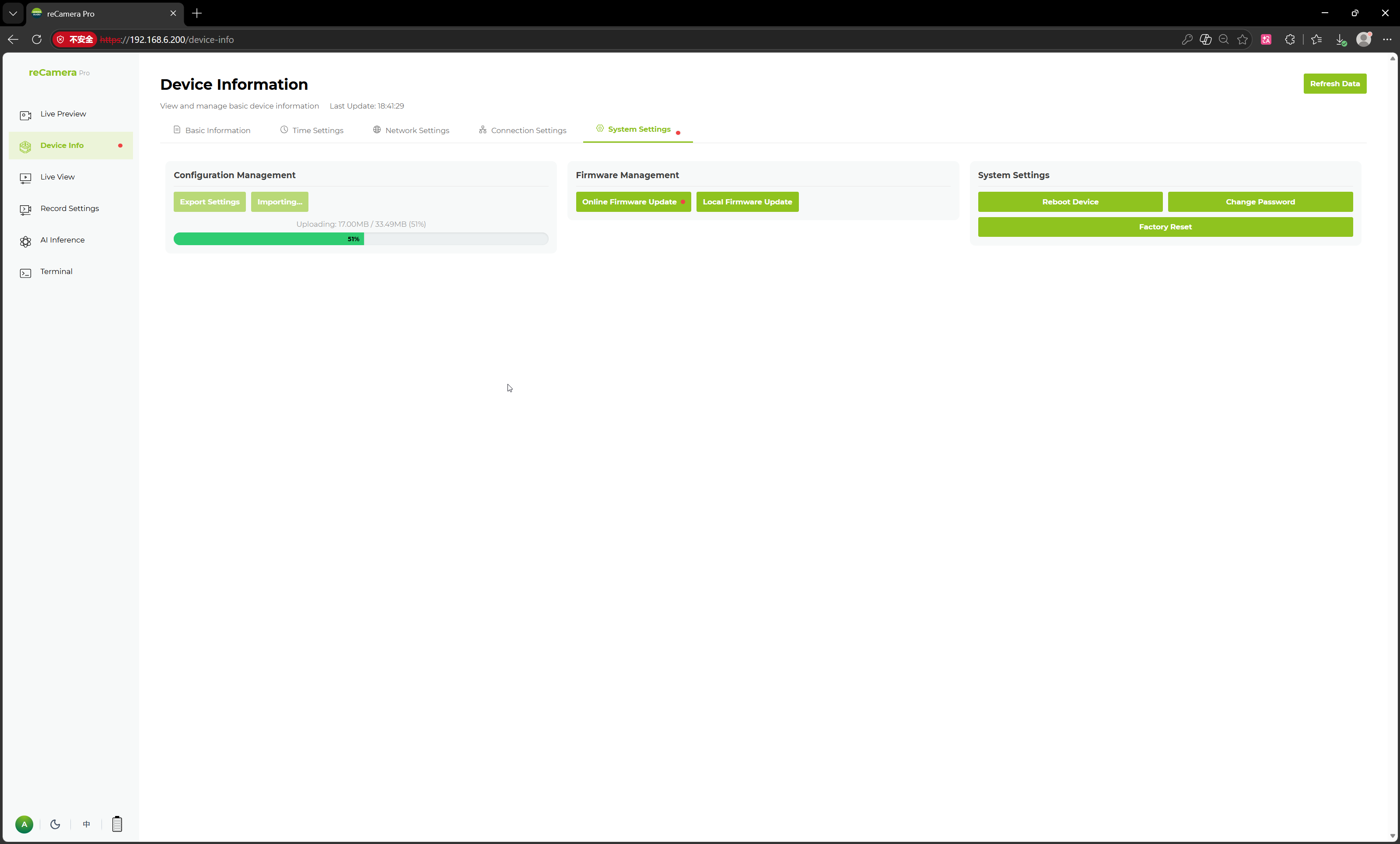
Importing replaces the device's existing configuration with the contents of the file. If the target device has settings worth keeping, export them first.
Verify a restore
After the device reboots, confirm the restore actually took effect:
- Web UI login works with the expected password.
- Network/Wi-Fi state matches the backup (the device may reconnect to the Wi-Fi recorded in the file — make sure that network is reachable at the new location).
- Time settings are correct (see Network, time and access control).
- Recording rules and schedules are present under Recording Settings.
- AI inference runs the expected model and detects a real target.
Fleet and lifecycle tips
- Export a backup after every configuration change you want to keep, and after passing the pre-deployment checklist.
- To clone one device to many: configure a golden device, export once, then import on each unit — afterwards adjust per-device items (e.g. Wi-Fi, time) as needed.
- Keep backups off the device (computer or file server); a backup stored only on the device is lost when the device is reset or replaced.
Tech Support & Product Discussion
Thank you for choosing our products! We are here to provide you with different support to ensure that your experience with our products is as smooth as possible. We offer several communication channels to cater to different preferences and needs.