Collect Logs for Support
When Troubleshoot by symptom does not resolve an issue, the next step is to collect logs and device information. Support will ask for:
- Firmware version and basic device info — what the device is running.
- System logs — what the device was doing when the problem occurred.
- Steps to reproduce — how to trigger the problem reliably.
1. Firmware version and basic device info
Open Device Info in the left navigation bar:
- Basic Information — hardware/software version information and system resource usage.
- System Settings — current firmware version.
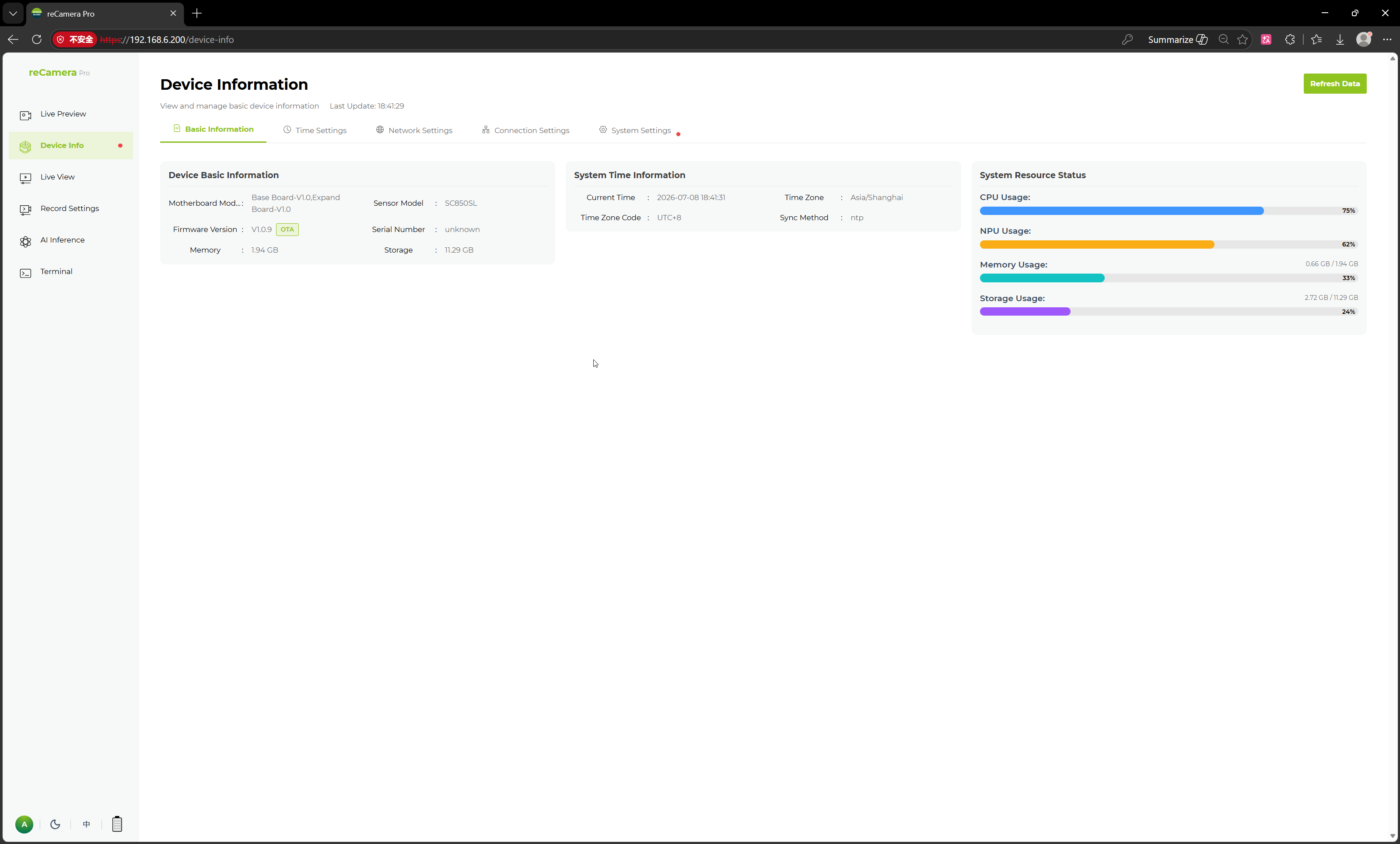
Record the following and include them in your support request:
| Item | Where to find it |
|---|---|
| Firmware version | Device Info → System Settings |
| Hardware model / SKU | Basic Information |
| Software versions | Basic Information |
| System resource usage (CPU, memory, storage) | Basic Information |
2. System logs
Open Terminal in the left navigation bar, then switch to the System Log area.
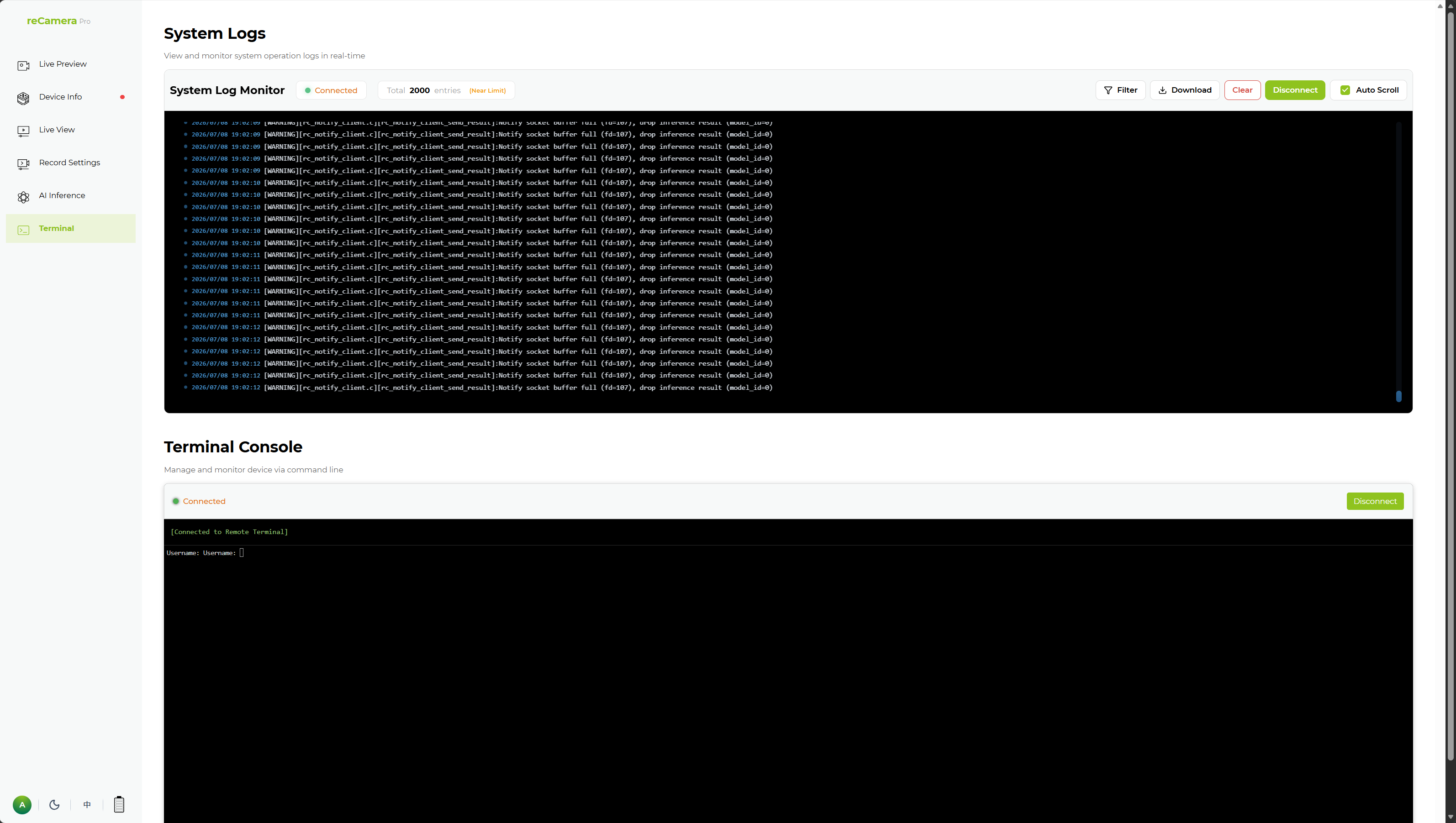
From here you can:
- View system log output in real time.
- Filter logs by log level or keywords.
- Clear the current display.
- Download the log files — this is what support needs.
What to capture in the logs
- Reproduce the problem while the system log is streaming.
- Download the log immediately after the problem occurs, so the relevant entries are still in the buffer.
- If the problem is intermittent, download logs after each occurrence and note the timestamp of each event.
3. Terminal console (optional, for advanced users)
The Terminal console within Terminal lets you log in to the reCamera Pro system shell directly from the Web UI, without a separate SSH tool.
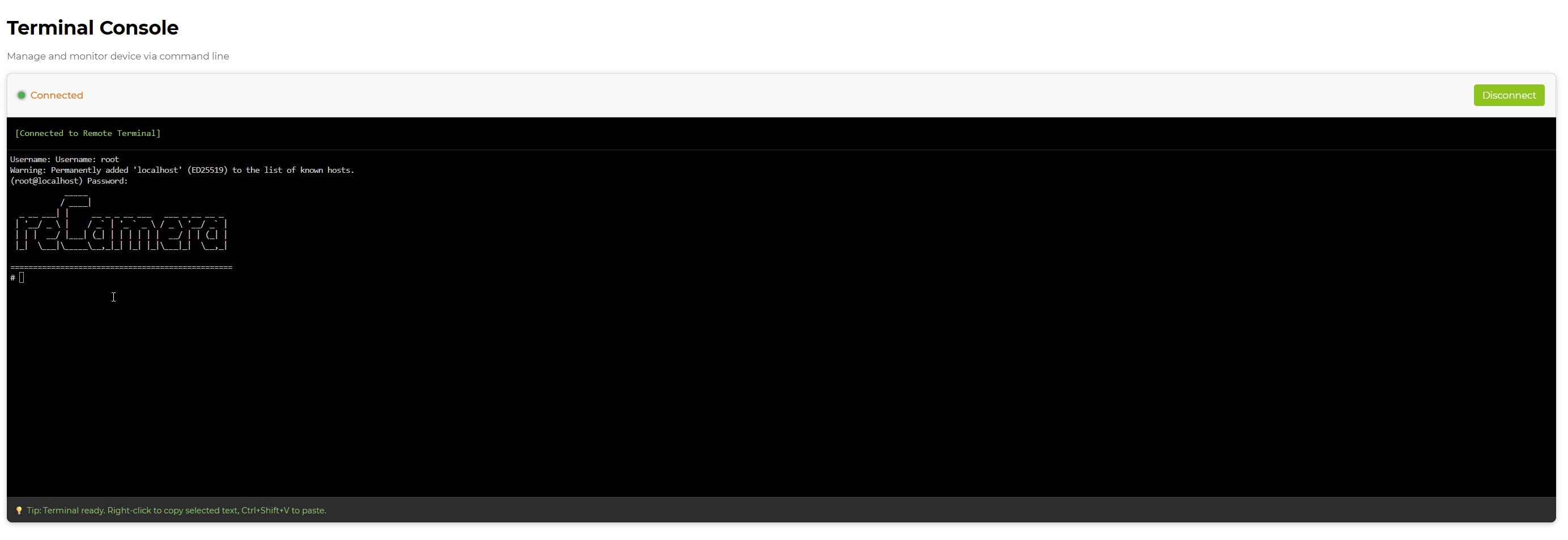
Default credentials for the terminal console:
Username: root
Password: recamera
The terminal console gives full system access. Only run commands you understand, and do not modify system files unless instructed by support.
If you have enabled SSH in Connection Settings, you can also connect over SSH to collect logs — useful if the WebUI itself is unresponsive.
4. Steps to reproduce
Support will ask how to trigger the problem. Write down:
- What you were doing when the problem appeared (e.g. uploading a model, starting recording, connecting to Wi-Fi).
- What you expected to happen vs what actually happened.
- Whether the problem is reproducible, intermittent, or one-time.
- The firmware version and any recent changes (model upload, configuration import, firmware update).
Submitting to support
A complete support request includes:
| Item | Source |
|---|---|
| Firmware version | Step 1 |
| Basic device info screenshot | Step 1 |
| Downloaded system log file | Step 2 |
| Steps to reproduce | Step 4 |
Attach these when opening a ticket. The more complete the initial information, the faster the resolution.
Tech Support & Product Discussion
Thank you for choosing our products! We are here to provide you with different support to ensure that your experience with our products is as smooth as possible. We offer several communication channels to cater to different preferences and needs.