Firmware Update and Recovery
This page covers the lifecycle operations in Device Info → System Settings: checking the firmware version, updating firmware, restarting the system — and the recovery path when the device misbehaves: factory reset.
Export a configuration backup and record the current firmware version before any update or reset. Keep the device on stable power throughout — an interrupted update can leave the device unbootable.
Check the current firmware version
Open Device Info → System Settings: the page shows the device's current firmware version (basic hardware/software versions also appear under Basic Information). Record this version in your asset list — support and bug reports always need it.
Update the firmware
In Device Info → System Settings, choose whether to update to new firmware and follow the on-screen flow. During an over-the-air update the green status LED blinks at ~100 ms — do not power off the device in this state. When the update completes and the device reboots, the LED returns to solid green.
After updating:
- Re-check the firmware version in System Settings to confirm the new version is running.
- Verify the device still detects and records as expected (pre-deployment checklist items 5–6 are a good quick test).
- If you imported a configuration from an older version, re-run the restore verification steps.
Restart the system
System Settings also offers a remote restart. Use it after configuration imports, network changes, or to clear a stuck service. The device reboots and should come back to a solid green LED within its normal boot time.
Recovery: factory reset
If the device is stuck, unreachable with the configured password, or misbehaving after an update, restore factory settings. There are two methods:
Method 1: hardware button
Press and hold the side button for about 15 seconds until you hear a prompt sound — the device has entered reset mode. Wait for the green status LED to stay on continuously, then log in again (first-login flow with the initial password applies, as on a new device).
Method 2: Web UI
Click Device Info → System Settings → Factory Reset.
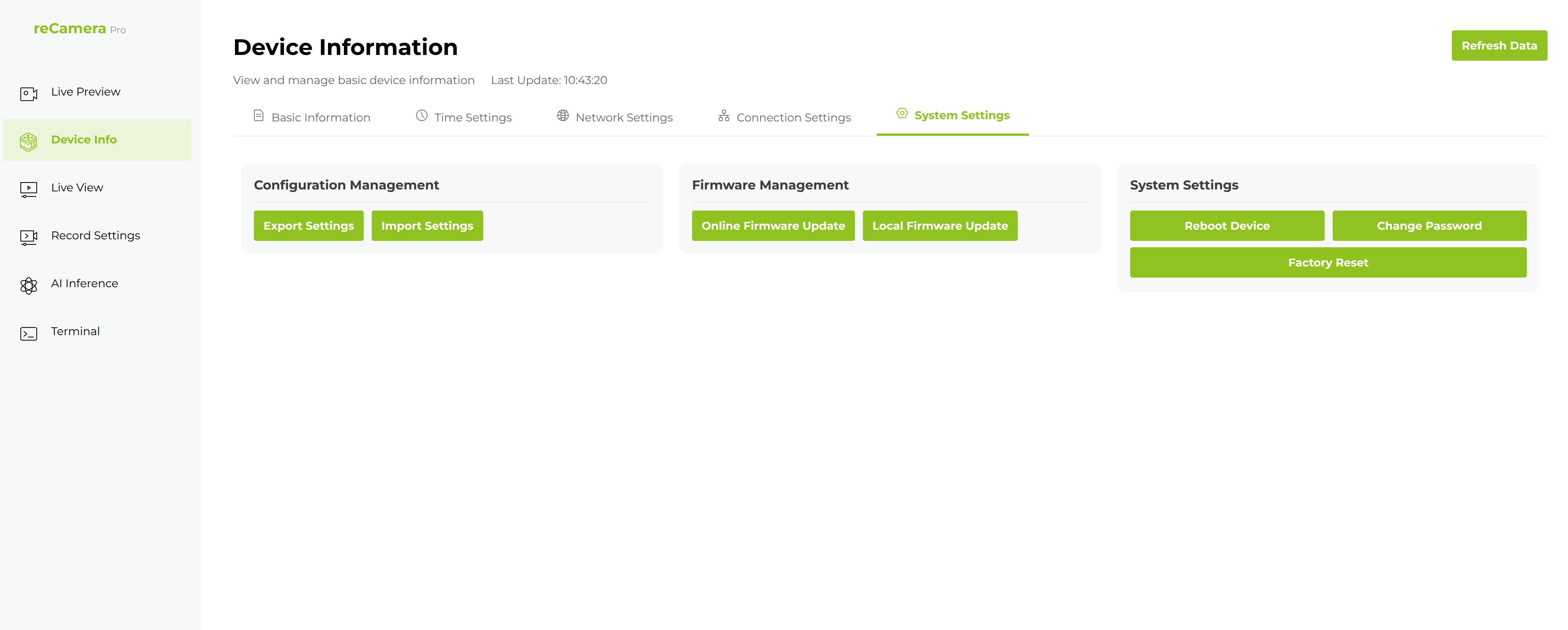
Settings are wiped — plan to re-import your configuration backup afterwards, then re-verify network access, time, and detection.
If the device will not boot at all
- Check power first: green LED off means the core process is not running; a short green blink means a dirty-filesystem SD card was detected — reseat or reformat the SD card.
- A breathing LED that never turns solid means boot is stuck — power-cycle the device, then try the button factory reset.
- LED state reference: quick start, status indicator. Further symptoms: Troubleshoot by symptom.
Tech Support & Product Discussion
Thank you for choosing our products! We are here to provide you with different support to ensure that your experience with our products is as smooth as possible. We offer several communication channels to cater to different preferences and needs.