Integrate reCamera Pro into Frigate
Frigate is an open-source NVR and video-analysis platform that can pull standard RTSP video streams for object detection, recording and alerts. The reCamera Pro can publish an RTSP stream directly from its web UI, so integrating it with Frigate only takes two steps: enable RTSP streaming on the reCamera Pro, then add that stream as a camera in Frigate.
This guide applies to the reCamera Pro. The reCamera 2002 series uses a different connection method; see the reCamera 2002 connection documentation.
The whole integration consists of two steps:
- Enable the RTSP stream in the reCamera Pro web UI;
- Add that RTSP stream as a camera in the Frigate web UI.
Prerequisites
- A reCamera Pro device, powered on and connected to your LAN, with its IP address known (this guide uses
192.168.3.207as the example). - The web UI login of the device (default username
admin; the password is the one set on the device,recamera.1in this guide). - A host on the same LAN with Frigate installed (a Docker deployment is fine) and its web UI reachable.
- A computer with
ffprobe/ffplayor VLC installed, used to verify the stream (optional).
Enable RTSP streaming on the reCamera Pro
- Open the reCamera Pro web UI in a browser, e.g.
https://192.168.42.1/, and log in with the device username and password. - Open Live View from the left navigation.
- In the settings panel on the right, select the Stream Settings tab.
- Turn on the Streaming Settings switch. The panel then shows the streaming protocol (RTSP), the Stream URL, and the Authentication credentials. Keep the defaults or adjust them, then click Apply Settings.
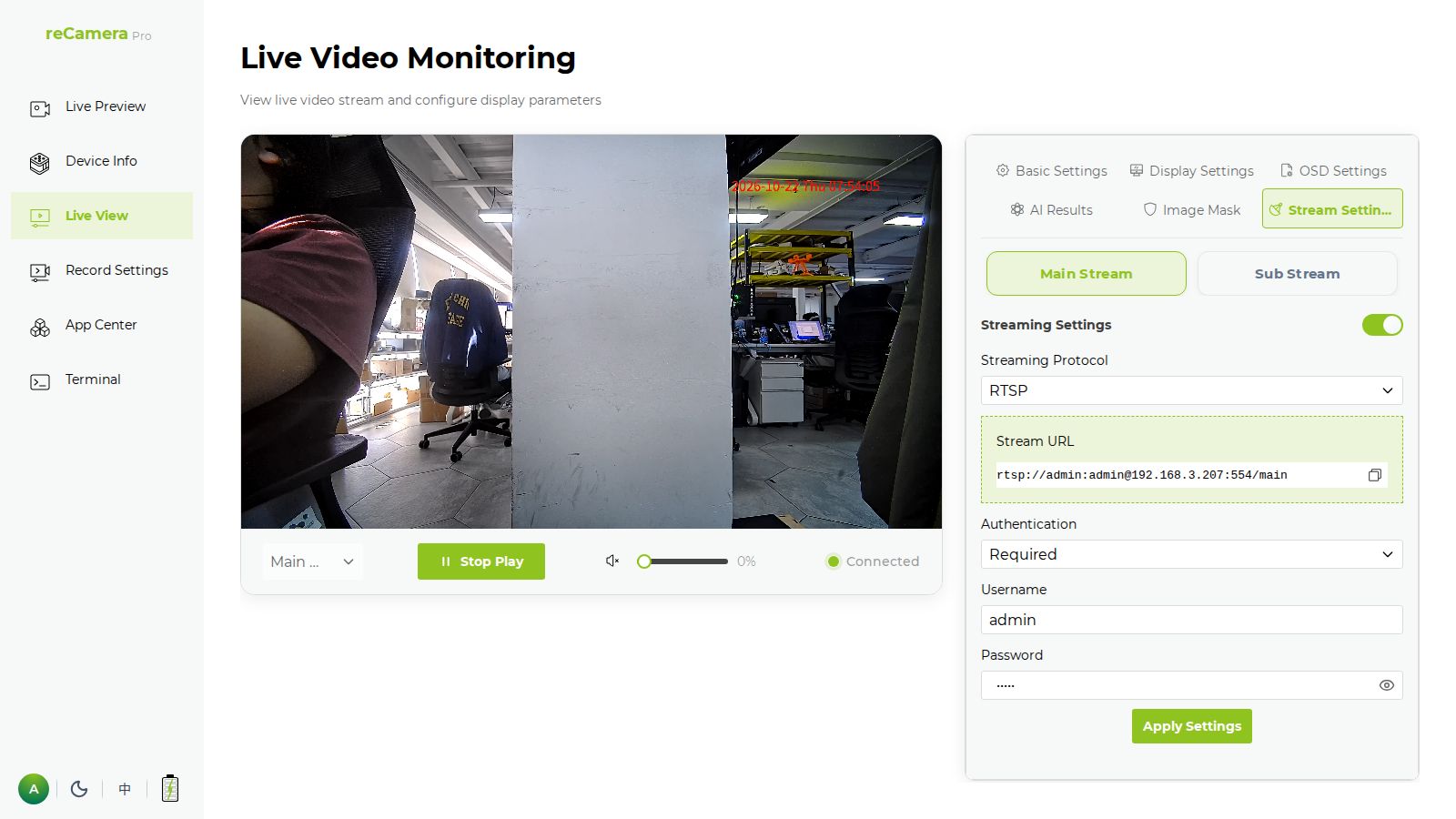
- Copy the Stream URL shown in the panel; this is the address Frigate will pull. With the default settings it is:
rtsp://admin:admin@<device-ip>:554/main
The RTSP username / password in the Stream Settings panel are independent of the web UI login. In this guide the web UI uses admin / recamera.1 while the RTSP stream uses admin / admin. If you change the RTSP credentials here, use the new values in Frigate.
The reCamera Pro exposes two streams:
| Stream | URL | Default format |
|---|---|---|
| Main | rtsp://<user>:<password>@<device-ip>:554/main | 3840x2160 (4K) @ 30fps, H.264, G.711A audio |
| Sub | rtsp://<user>:<password>@<device-ip>:554/sub | 640x480, H.265 |
For Frigate the main stream is the right choice: use it for both detection and recording. Verify it from a computer before configuring Frigate:
# Inspect codec / resolution / frame rate
ffprobe -rtsp_transport tcp "rtsp://admin:admin@192.168.3.207:554/main"

# Play it directly
ffplay  -rtsp_transport tcp "rtsp://admin:admin@192.168.3.207:554/main"
You should see an h264, 3840x2160, 30fps video stream plus a pcm_alaw audio track.
Add the camera in the Frigate UI
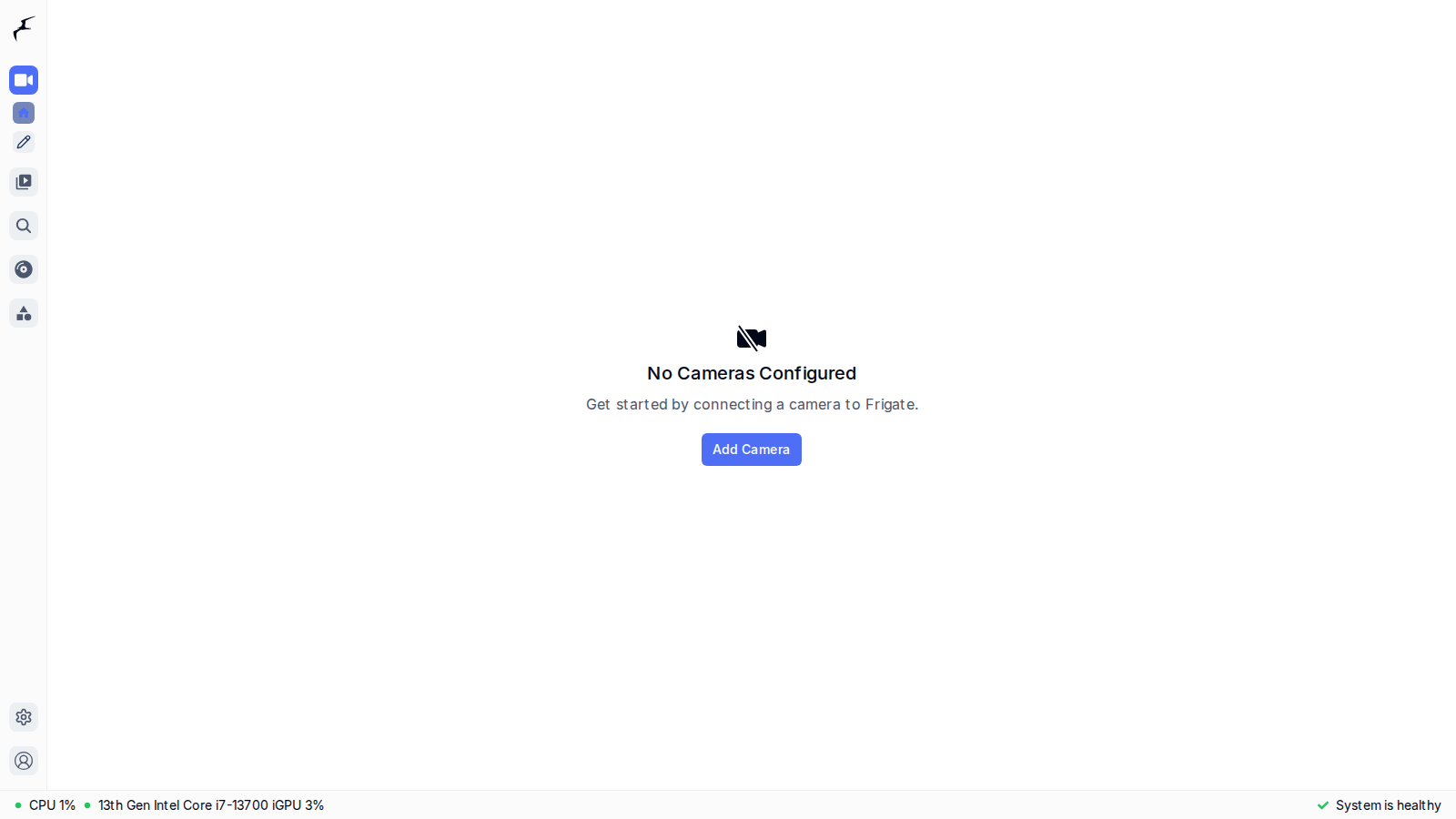
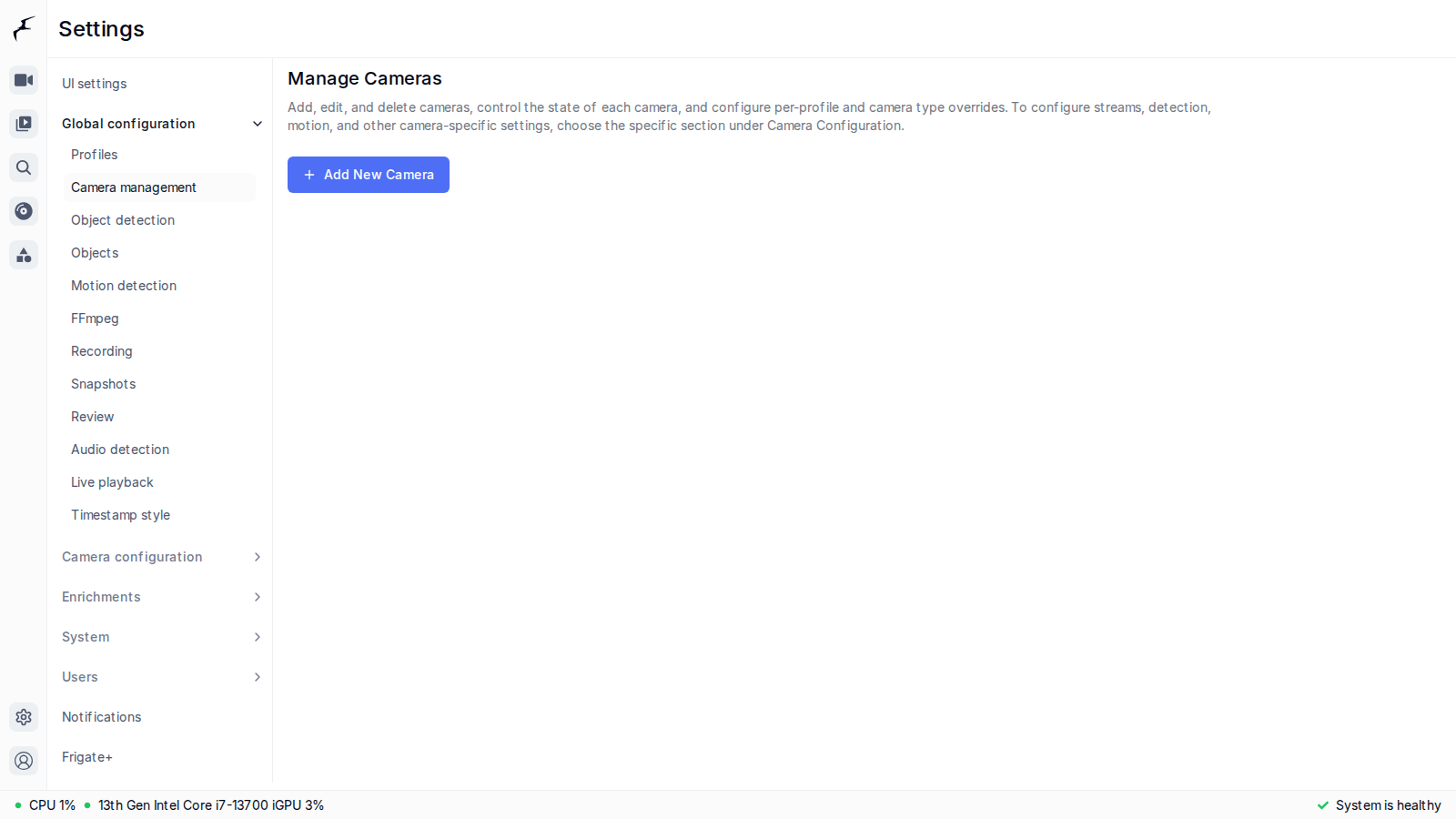
- Open the Frigate web UI and log in. If no cameras are configured yet, the dashboard shows "No Cameras Configured"; click Add Camera to open the wizard. You can also reach it from Settings → Global configuration → Camera management and click Add New Camera.
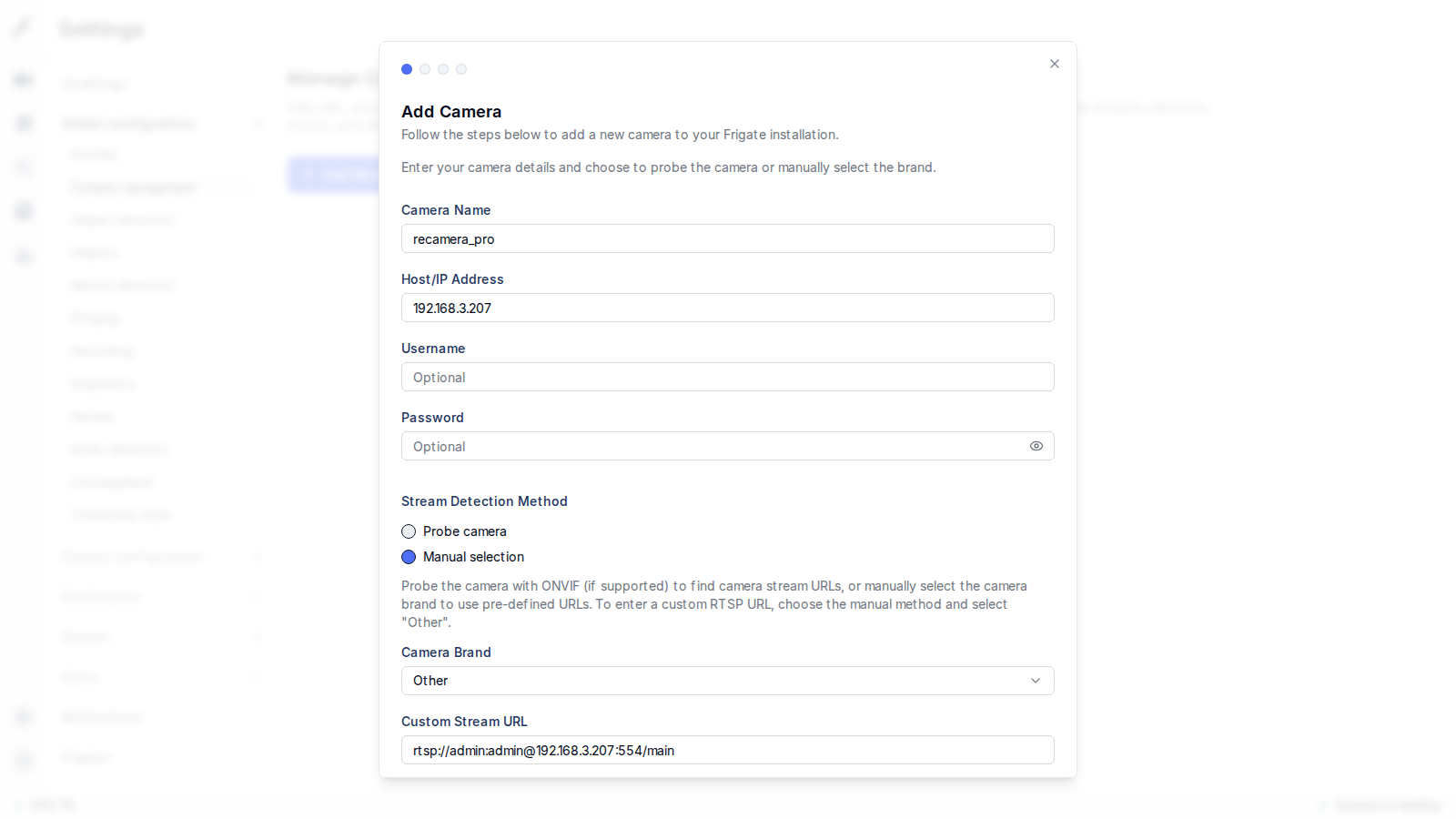
- In the "Add Camera" wizard enter a camera name and the device IP. For Stream Detection Method choose Manual selection, set Camera Brand to Other, then paste the reCamera Pro main-stream URL (including the RTSP credentials) into Custom Stream URL.
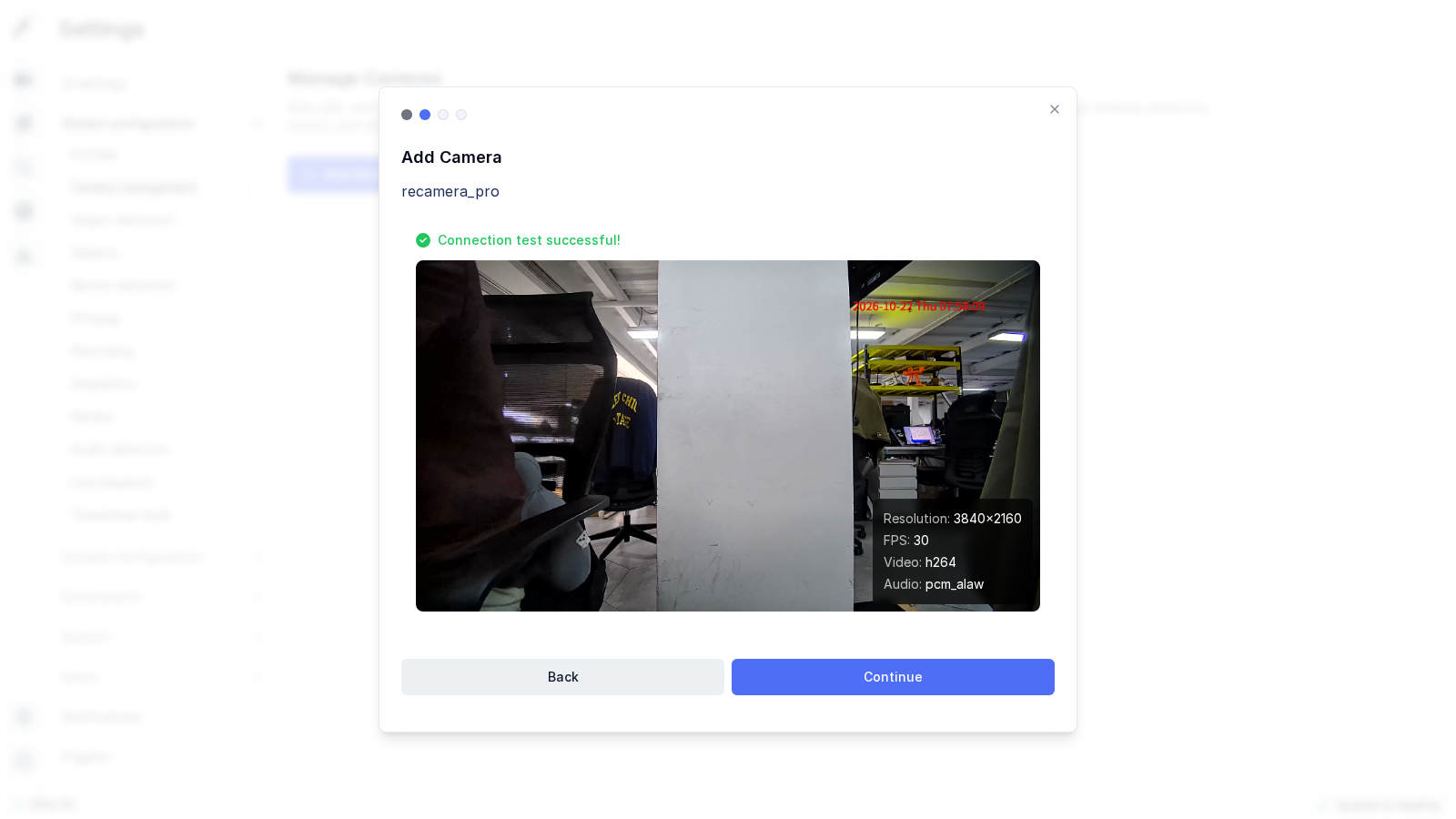
- Click Continue. Frigate connects to the address and tests the stream. On success it shows a frame together with the resolution, frame rate, codec and audio (3840x2160, 30 FPS, h264, pcm_alaw); confirm and click Continue again.
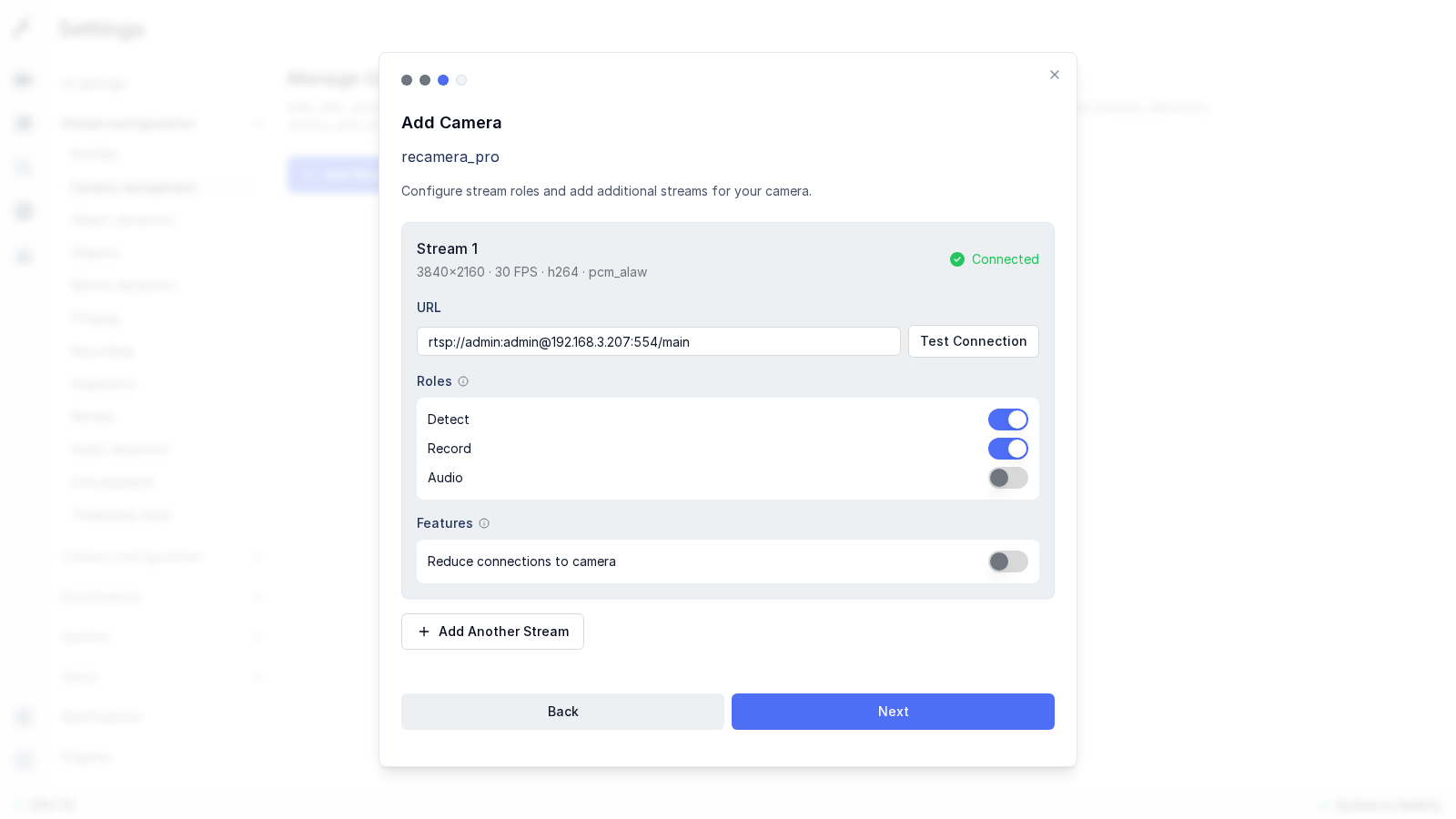
- On the stream configuration page enable the roles you need for this stream: turn on detect (object detection) and record (recording). Leave audio off (see the note below). Then click Next.
-
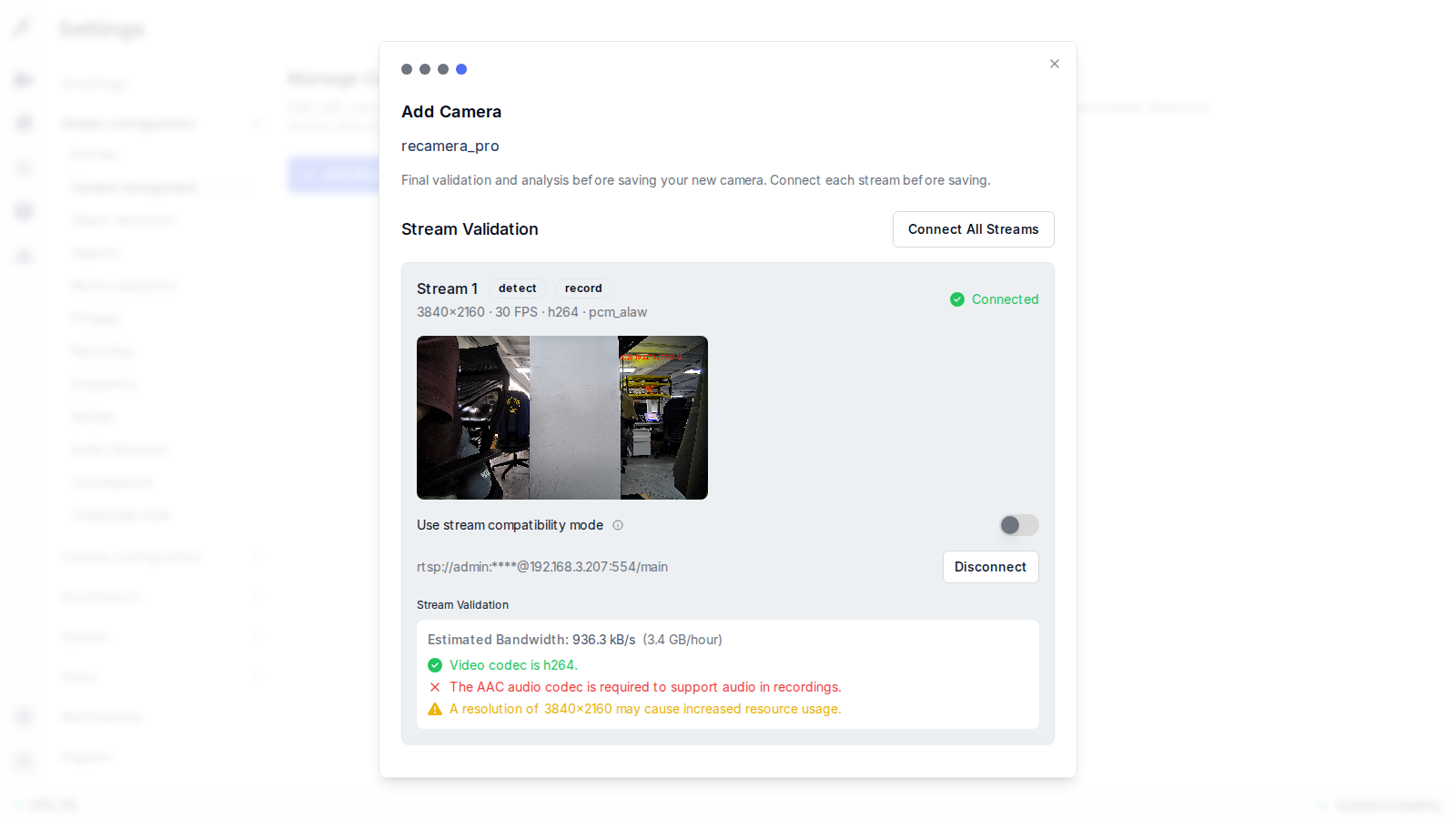
The final step validates the stream before saving. It reports the estimated bandwidth (about 3.4 GB per hour for the 4K main stream) and two hints you can safely acknowledge:
- The AAC audio codec is required to support audio in recordings: the Pro main stream carries G.711A (
pcm_alaw) audio, which Frigate cannot store in recordings. Since the audio role is off, recordings simply contain no sound; nothing else is affected. - A resolution of 3840x2160 may cause increased resource usage: expected for a 4K stream. Detection runs on a downscaled 1280x720 frame (see below), and hardware-accelerated decoding keeps the host load moderate.
Once the status reads Connected, click Save New Camera.
- The AAC audio codec is required to support audio in recordings: the Pro main stream carries G.711A (
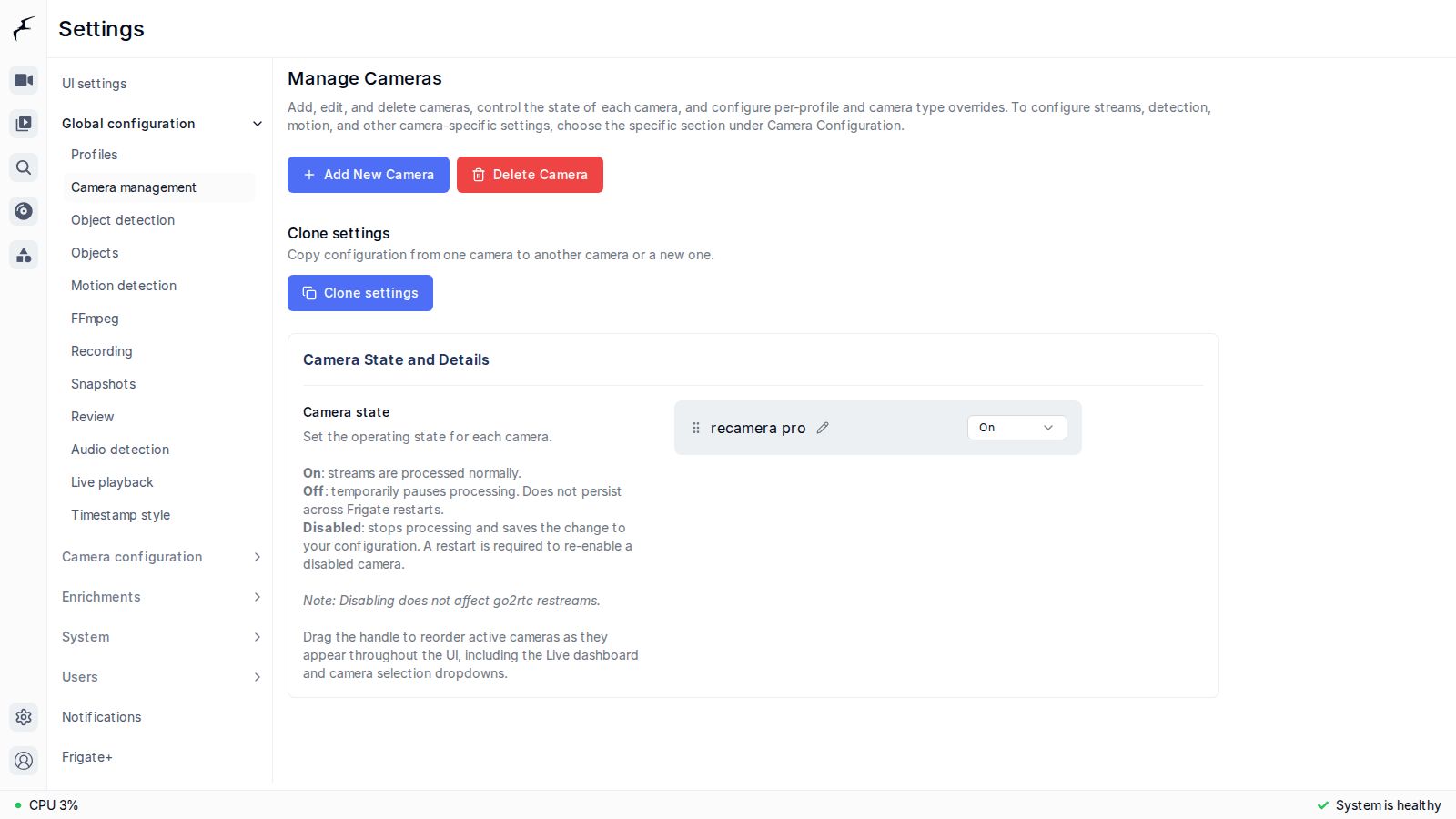
- After saving, the camera appears in the camera management list with its state set to On.
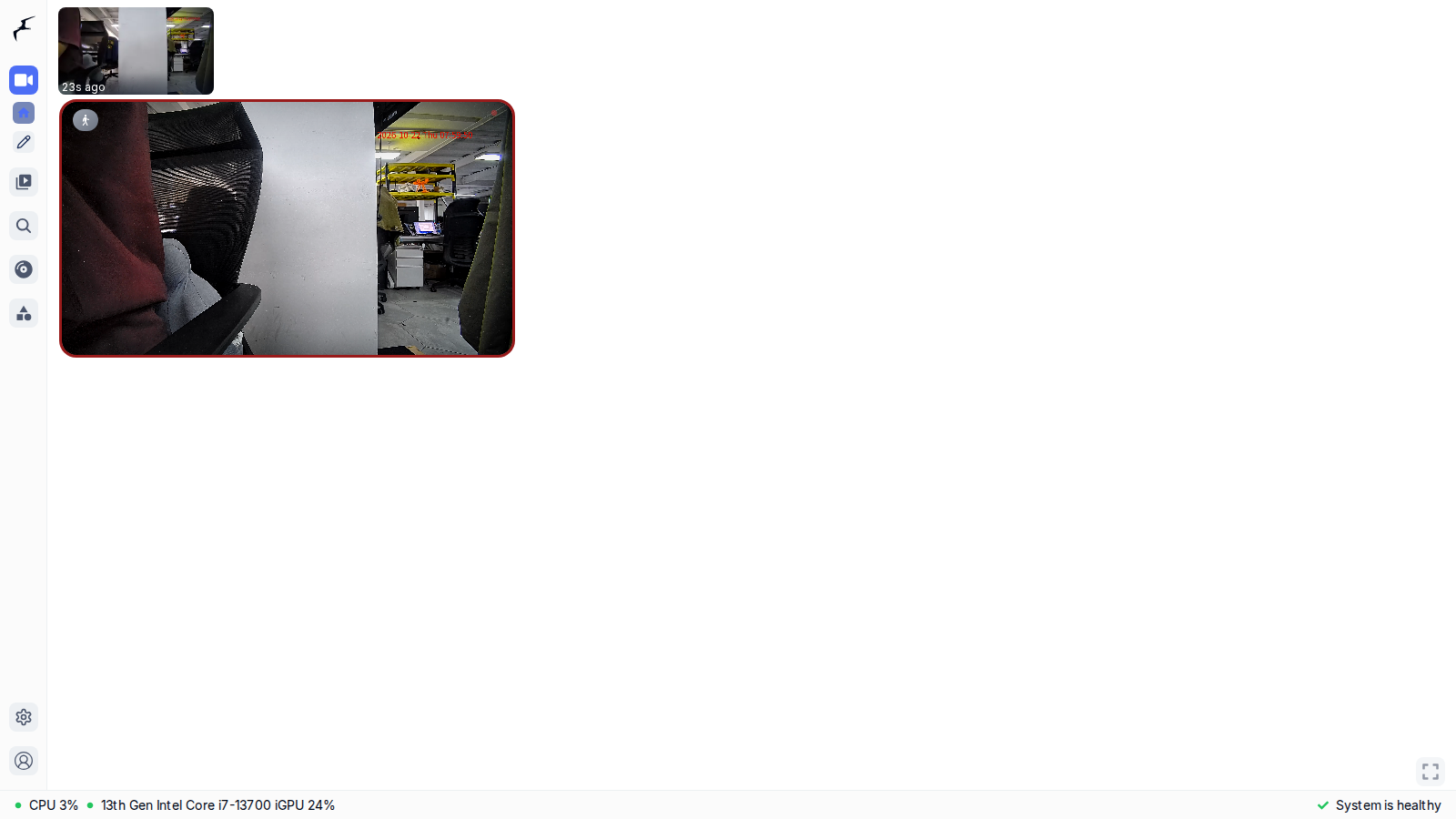
- Return to the dashboard to see the live reCamera Pro feed; Frigate now runs object detection and recording on this stream.
Optional: tune the detection parameters
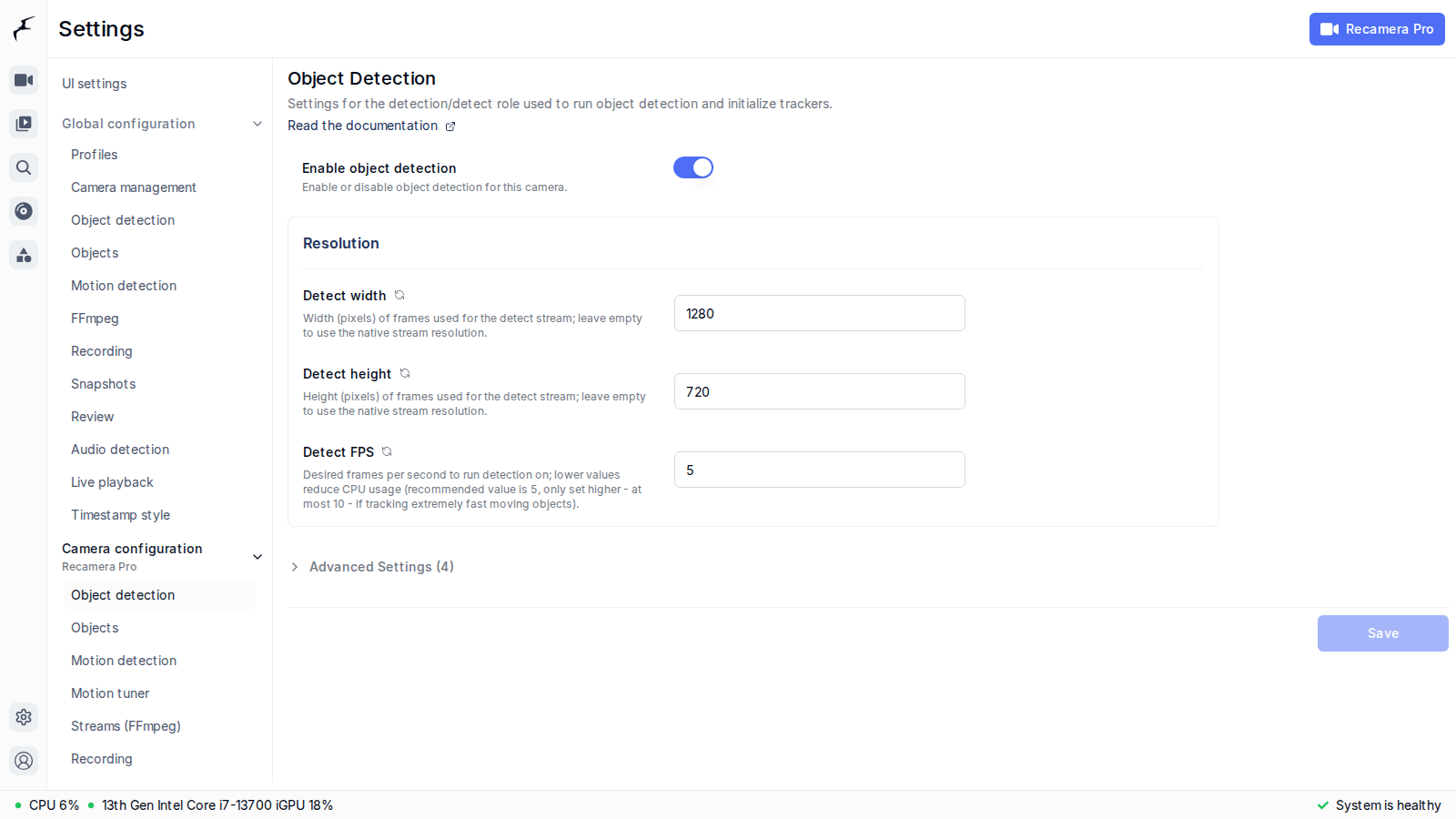
Under Settings → Camera configuration → <camera name> → Object detection you can adjust the detect resolution and frame rate. The Pro outputs 4K, but detection does not need the full resolution: keeping the defaults of 1280x720 at 5 fps gives stable detection in most scenes while keeping host CPU / GPU usage low.
If your host struggles with the 4K decode, either lower the main-stream resolution in the reCamera Pro web UI (Live View → Basic Settings), or add the sub stream (rtsp://<user>:<password>@<device-ip>:554/sub) as a second input dedicated to the detect role while keeping the main stream for record.
The UI steps above are equivalent to writing the following into config.yaml, which users familiar with the config file may edit directly:
go2rtc:
  streams:
    recamera_pro:
      - rtsp://admin:admin@192.168.3.207:554/main

cameras:
  recamera_pro:
    enabled: true
    ffmpeg:
      inputs:
        - path: rtsp://admin:admin@192.168.3.207:554/main
          roles:
            - detect
            - record
    detect:
      width: 1280
      height: 720
Technical Support and Product Discussion
Thank you for choosing our products! We are here to provide you with different support to ensure that your experience with our products is as smooth as possible. We offer several communication channels to cater to different preferences and needs.