Quick Start: See Your First AI Detection
This guide takes you from an unboxed reCamera Pro to a live video preview with AI detection results, in about 10 minutes:
Guide video
Watch this quick-start video for an overview of the full setup flow before you begin:
1. Connect the hardware
Before you start, make sure you have:
- Power supply: the DC power cable (specification: 12 V, 1 A minimum; the factory power supply is 12 V, 3 A).
- Data cable: a USB Type-C cable that supports data transfer (not a charge-only cable), for the initial direct connection to your computer.
Connection steps:
- Plug the 12 V DC power cable into the device's power interface. Connect one end of the USB Type-C cable to reCamera Pro and the other end to your computer (Windows host shown below).
- Watch the status indicator: when the green LED is solid, the device has finished booting.
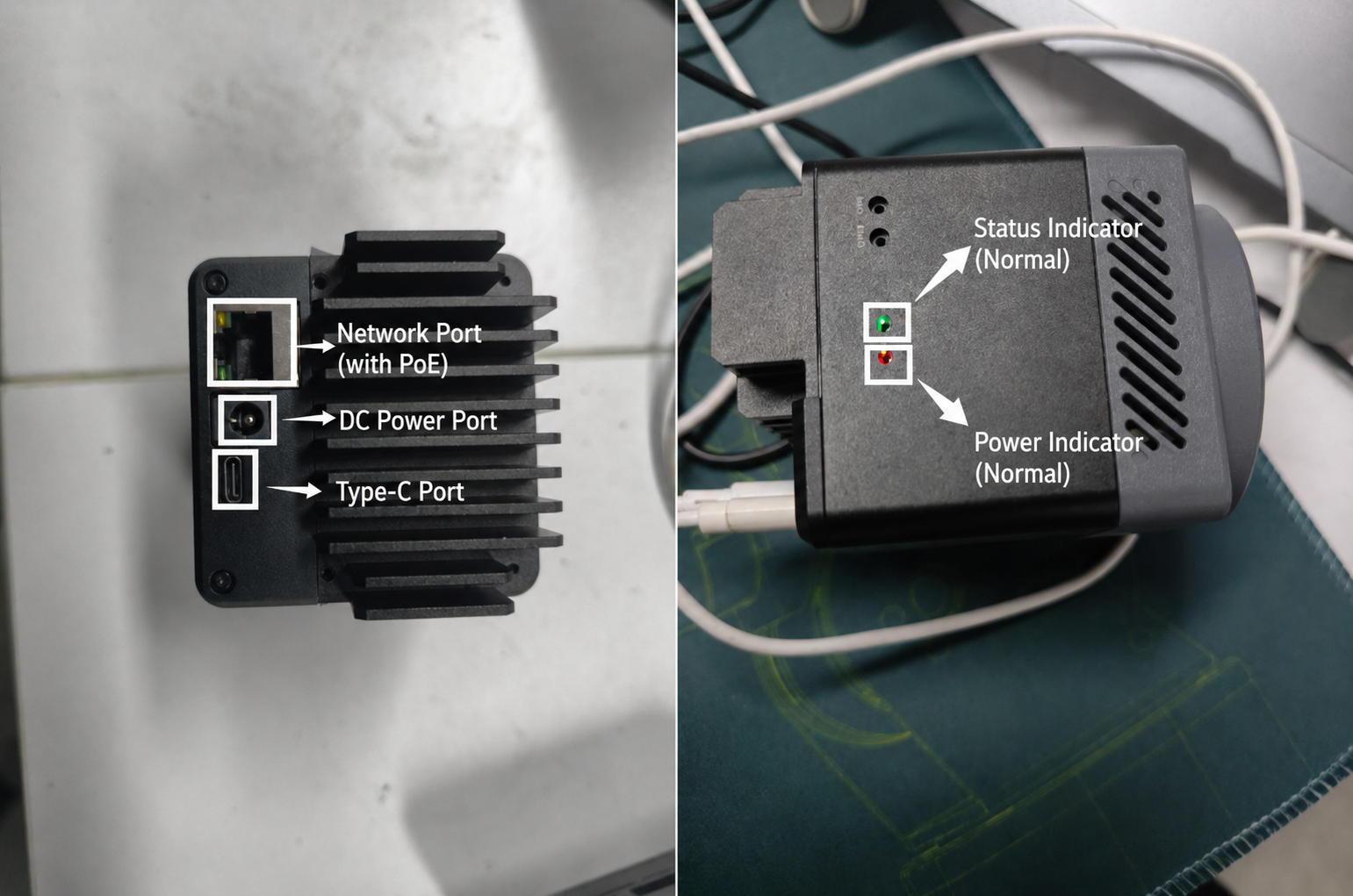
Status indicator reference
The green LED shows system status; the red LED is the power indicator.
| Green LED state | Meaning |
|---|---|
| Breathing | Device is powering on |
| Solid on | Device is running normally |
| Off | Abnormal state — the core process is not running |
| 100 ms blink | OTA update in progress |
| Short blink | An SD card with a dirty filesystem was detected |
2. Log in to the Web UI
reCamera Pro has a built-in Web UI — no client software to install. With the USB cable connected, your computer reaches the device directly at its default address.
Make sure the USB Type-C cable is properly connected and the green LED is solid before logging in.
- Open a browser on your computer (Chrome or Edge recommended).
- Go to the default IP address:
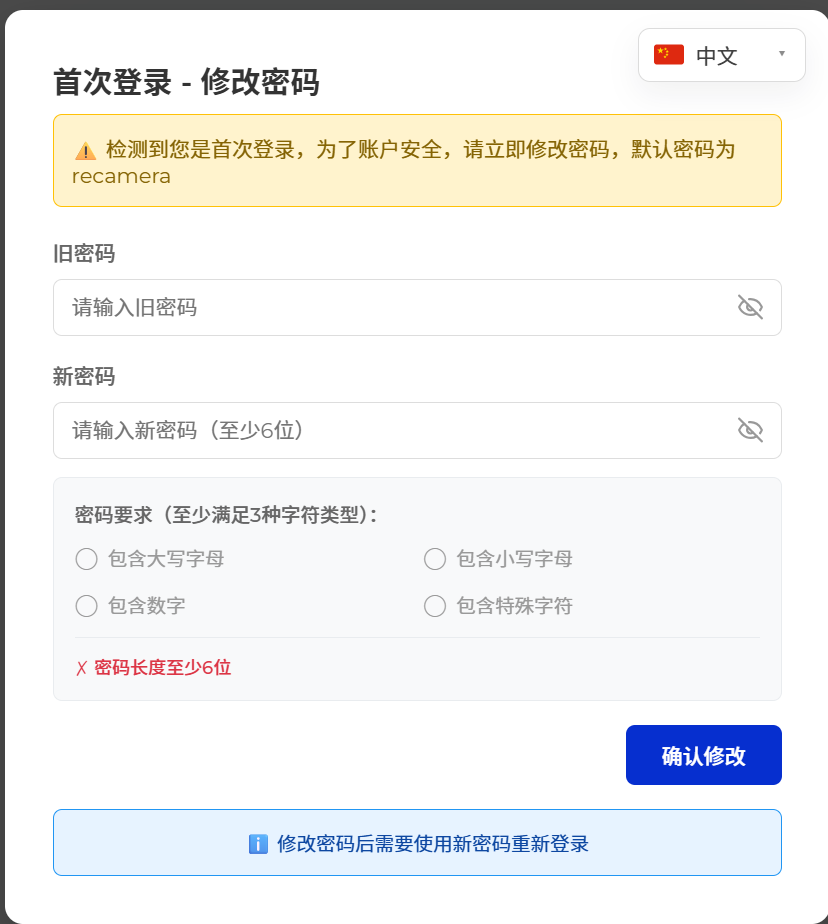
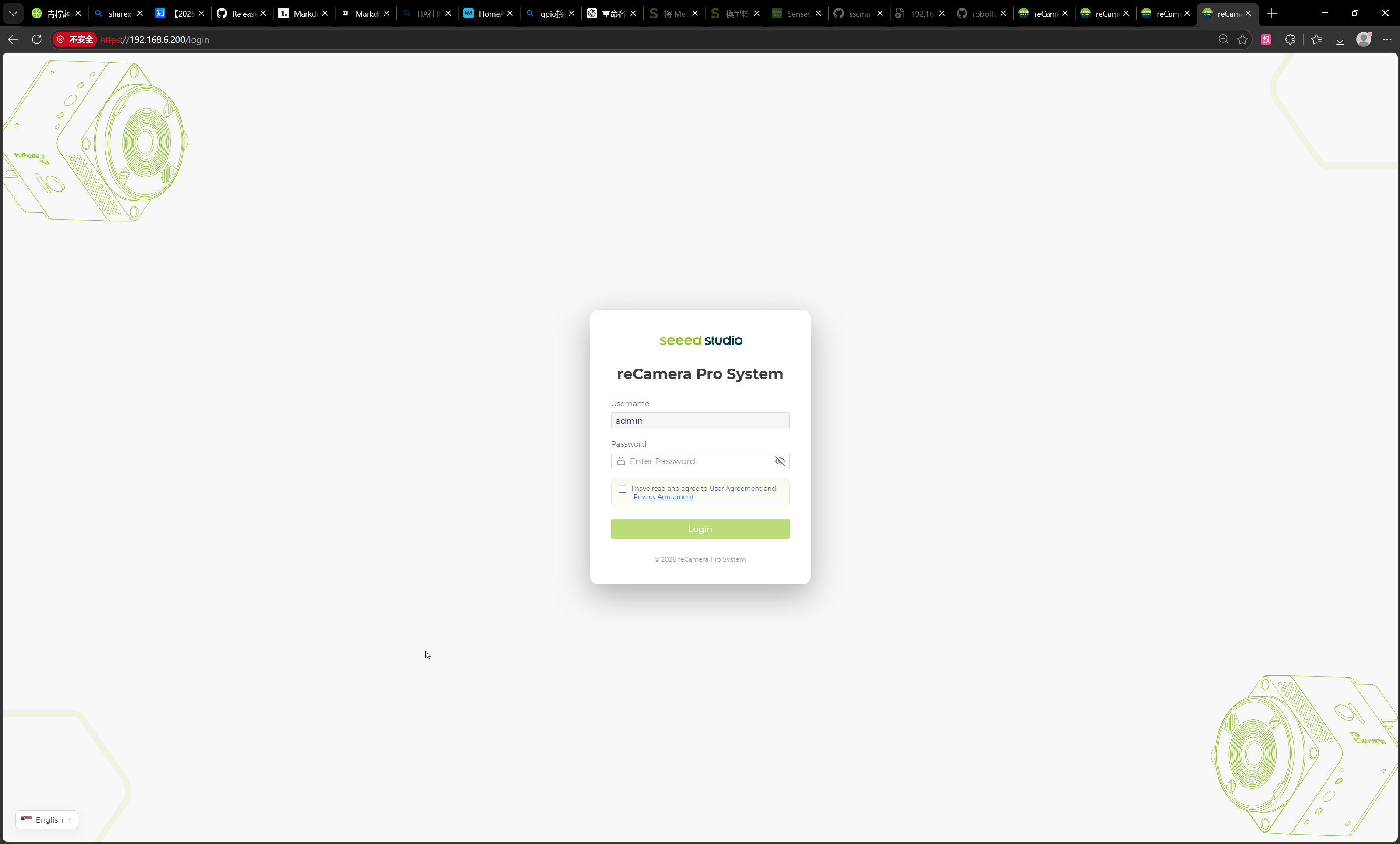
http://192.168.42.1. - First login: the initial password is
recamera. You will be asked to set a new password — enter it, then log in with usernameadminand your new password.
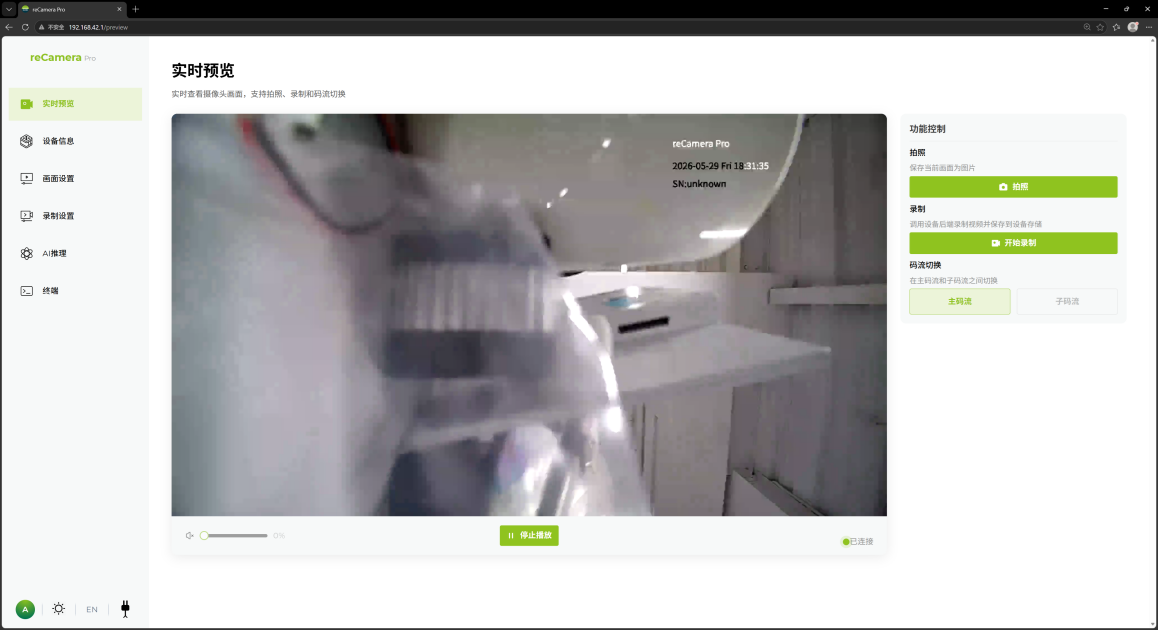
- After login you land on the main interface (the Real-time Preview page by default).
If the page fails to load, the Windows virtual network adapter usually did not obtain an IP address automatically. See Troubleshoot by symptom for the step-by-step adapter fix.
The USB connection is only needed for the first setup. To manage the device over your local network instead, follow Access the device over Wi-Fi.
3. Start the live preview
On the Real-time Preview page, click Start to begin playback. You should see the camera's live video feed in your browser — use this to aim the camera, adjust the lens, and confirm image quality.
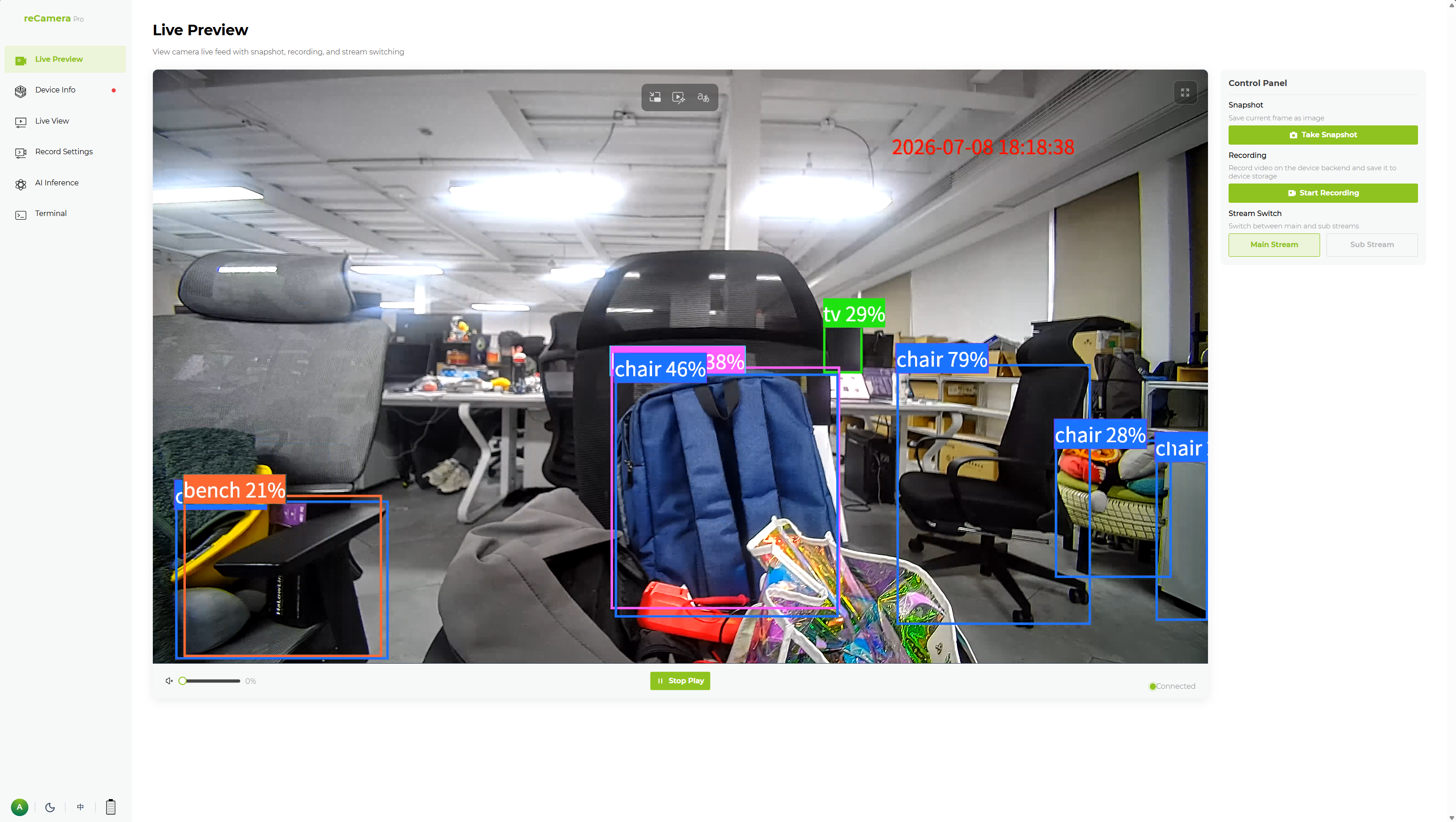
The preview page also supports taking photos, manual recording, and switching between the main stream and sub-stream. Details: Preview, capture and manual recording.
4. Confirm AI detection is working
The live preview alone only proves the video path works. To confirm the AI detection path, run the inference task and watch its output:
- Open AI Inference in the left navigation bar.
- In Inference Configuration, make sure Inference Enable is on, select the running model (a detection model is preloaded on the device), and click Save Configuration.
- Check Inference Status shows Running and the real-time FPS is non-zero.
- Look at the Real-time Inference Monitoring area: when a target appears in view, detection results stream in as logs with
class_name,score,bbox, anddetection_countfields.
How to verify: stand in front of the camera (or hold up a phone/person image). Within a second or two you should see entries such as class_name: person with a confidence score — and a bounding box drawn on the preview. If results appear, your first AI detection is confirmed.
The full inference configuration reference (model selection, detection categories, confidence/IOU thresholds, inference frequency, monitoring controls) is on the AI Inference configuration page.
Next steps
- First task: detect and record — turn a detection into an event recording and play it back.
- Access the device over Wi-Fi — unplug the USB cable and manage the device wirelessly.
- Pre-deployment checklist — before installing the device in the field.
Tech Support & Product Discussion
Thank you for choosing our products! We are here to provide you with different support to ensure that your experience with our products is as smooth as possible. We offer several communication channels to cater to different preferences and needs.