Using the MIPI DSI Interface on reCamera Pro
There is a MIPI DSI interface on the rear side of the device for connecting MIPI screens.
Connect the MIPI Screen
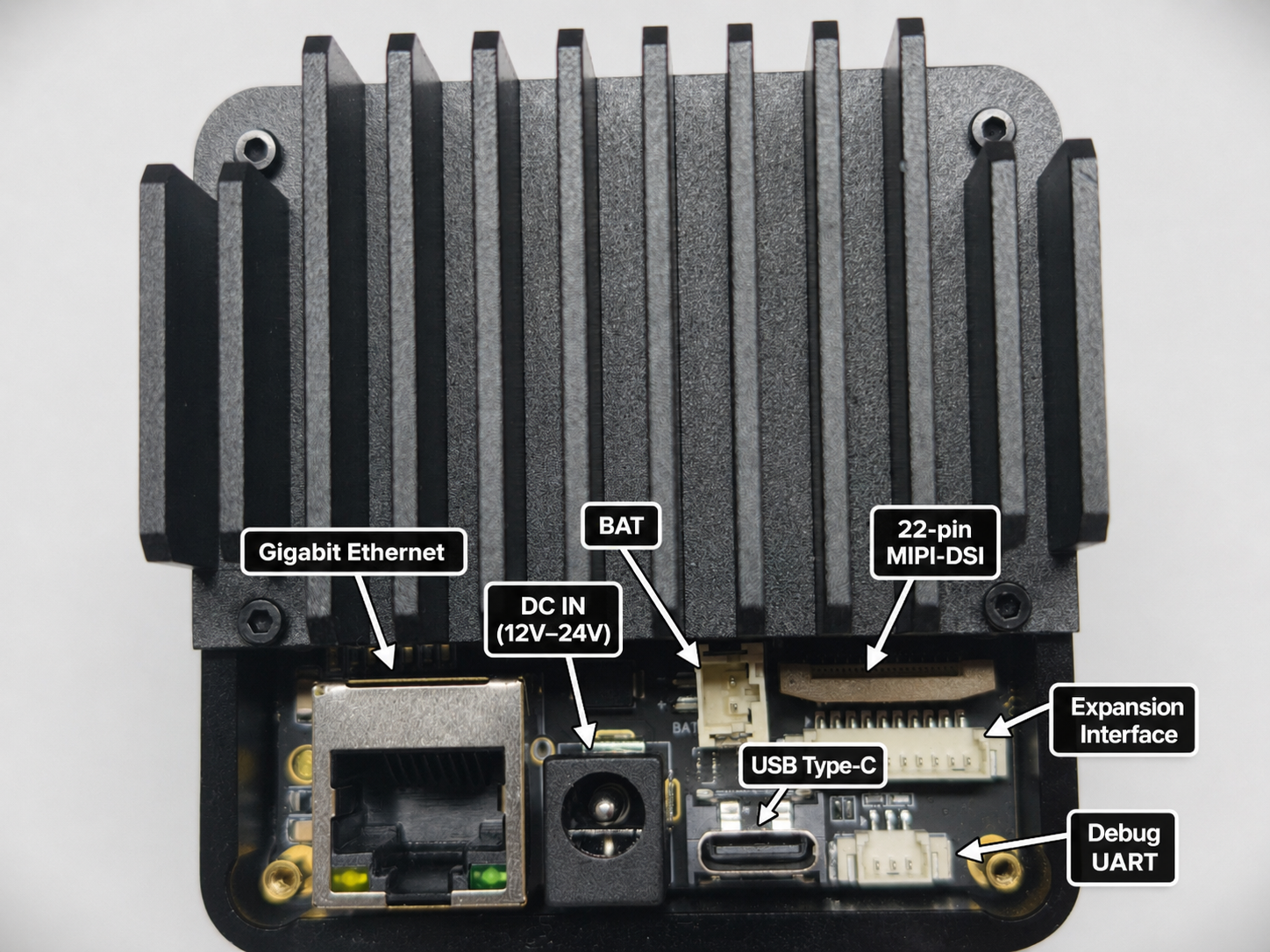
Open the rear cover of the base board, locate the 22PIN MIPI DSI interface as shown below.
Please power off the device before plugging in the MIPI screen!!!
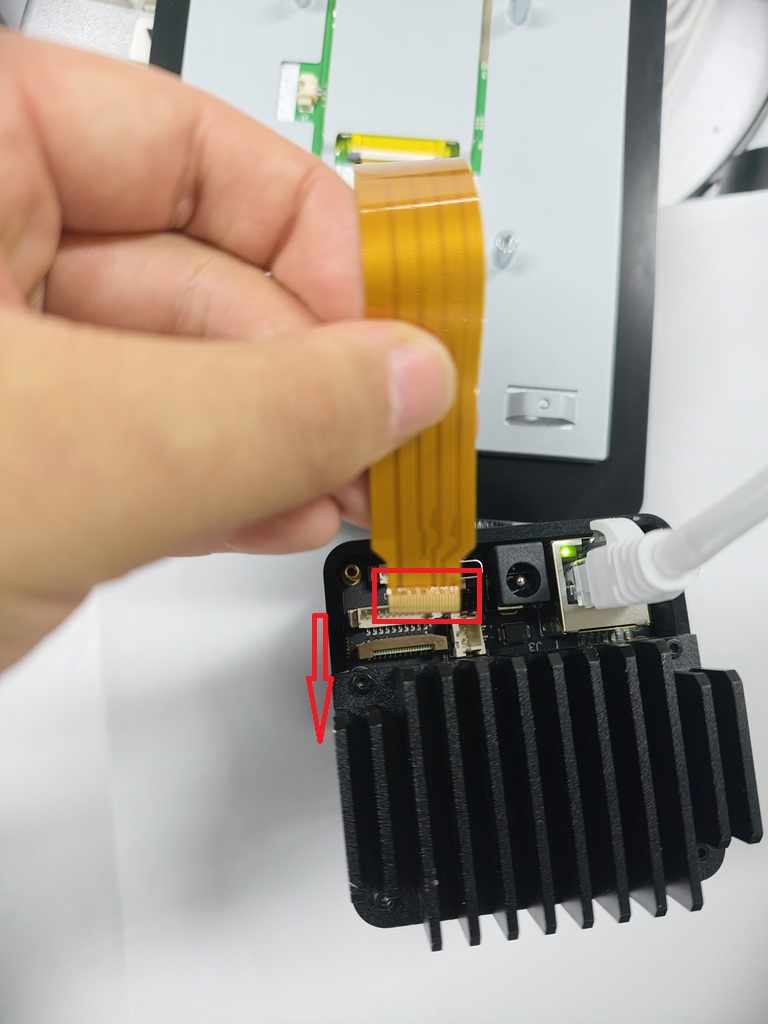
Locate the TCON end of the MIPI screen cable and insert it inward as shown in the figure below:
Power On
After connecting the MIPI screen, power on the device, and the real-time camera image will be displayed on the MIPI screen.
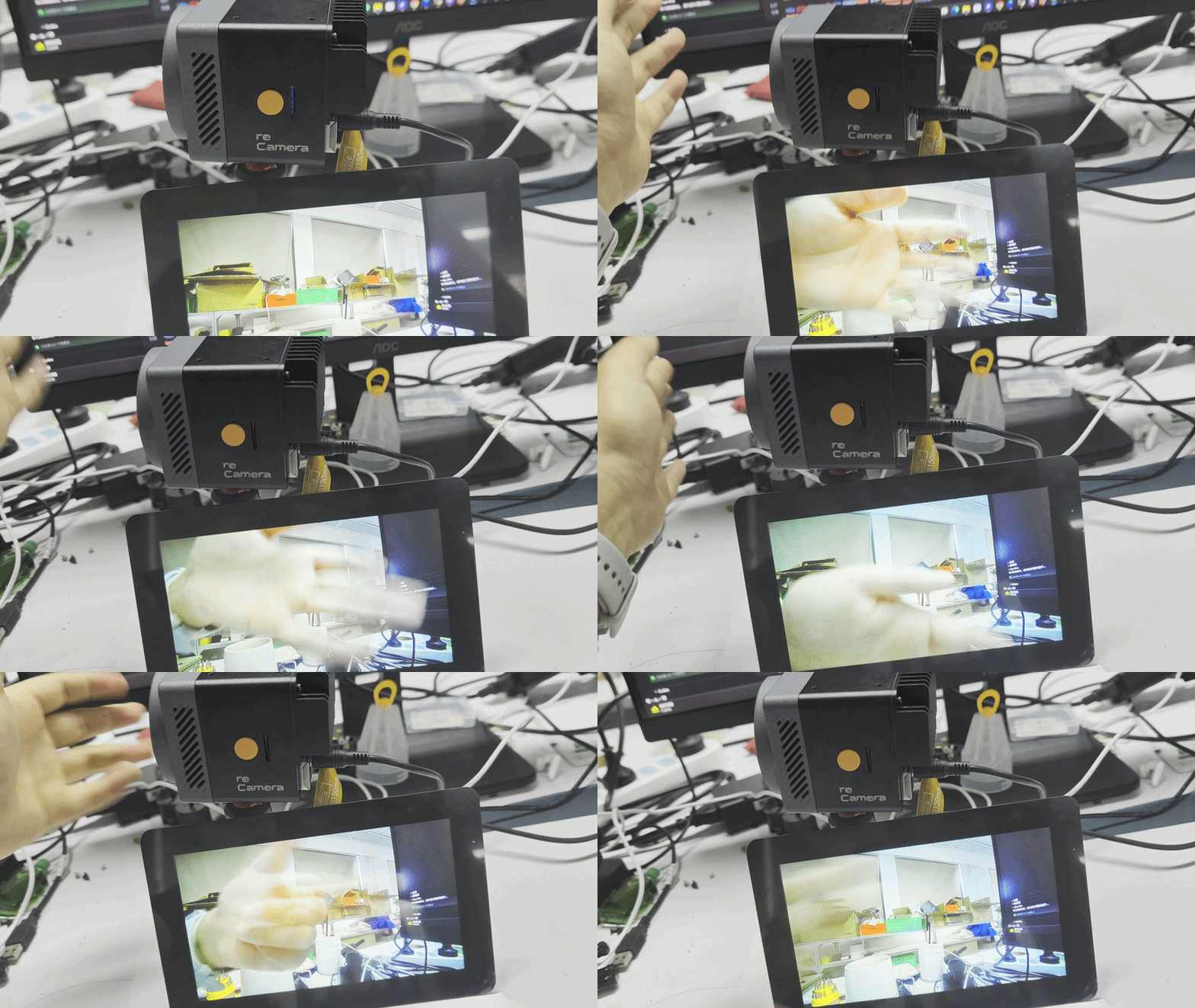
The screen requires separate power supply; the device does not provide dedicated power output for the screen.
The screen link is as follows:
| Raspberry Pi Touch Display 2 |
|---|
 |
Technical Support and Product Discussion
Thank you for choosing our products! We are here to provide you with various support to ensure your experience with our products is as smooth as possible. We offer multiple communication channels to meet different preferences and needs.