OSD Overlays and Privacy Masks
Both features are configured from the live view page in the Web UI: OSD Settings adds text overlays to the video, and Image Masking hides sensitive areas.
OSD Settings
OSD (On-Screen Display) overlays information such as the channel name, date and time, and device serial number on the video feed — useful for surveillance, playback review, and identifying devices.
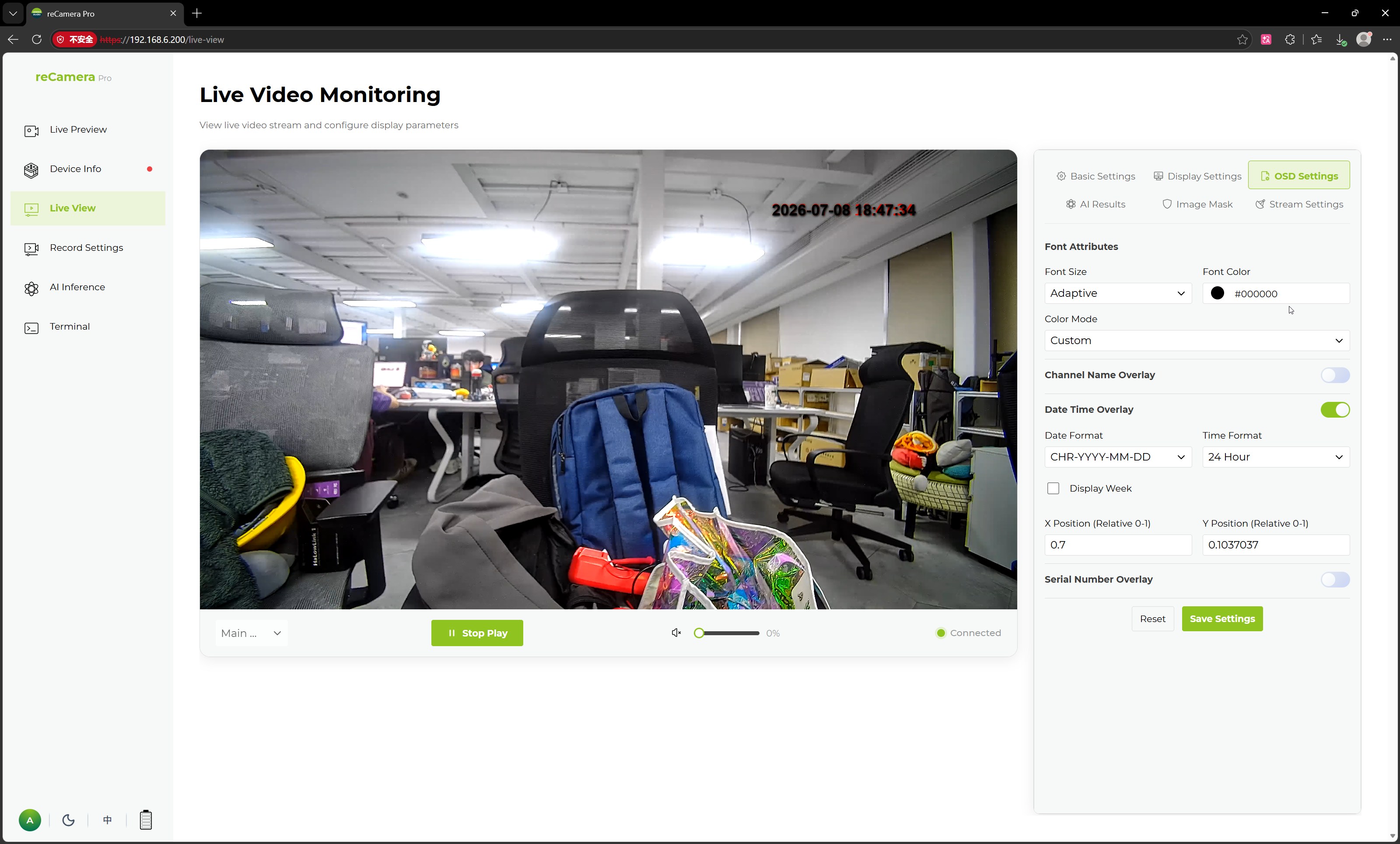
| Configuration Item | Description |
|---|---|
| Font Size | OSD text size |
| Font Color | OSD text color |
| Color Mode | OSD color mode, with a custom color option |
| Channel Name Overlay | Show the channel name on screen |
| Channel Name | Custom channel name, e.g. Camera 01 |
| Channel Name Coordinates | Where the channel name appears on screen |
| Date and Time Overlay | Show date and time on screen |
| Date Format | Date display format |
| Time Format | Time display format, e.g. 24-hour |
| Show Weekday | Whether to display the weekday |
| Date and Time Coordinates | Where the date/time appears on screen |
| Serial Number Overlay | Whether to display the device serial number |
OSD positions use relative coordinates, so you can place text anywhere the layout allows — or simply drag the text to the position you prefer in the preview.
After configuring, click Save Settings to apply the OSD parameters.
Image Masking (privacy masks)
Image Masking configures privacy mask areas that obscure sensitive parts of the scene, so private information never appears in live previews, recordings, or streams.
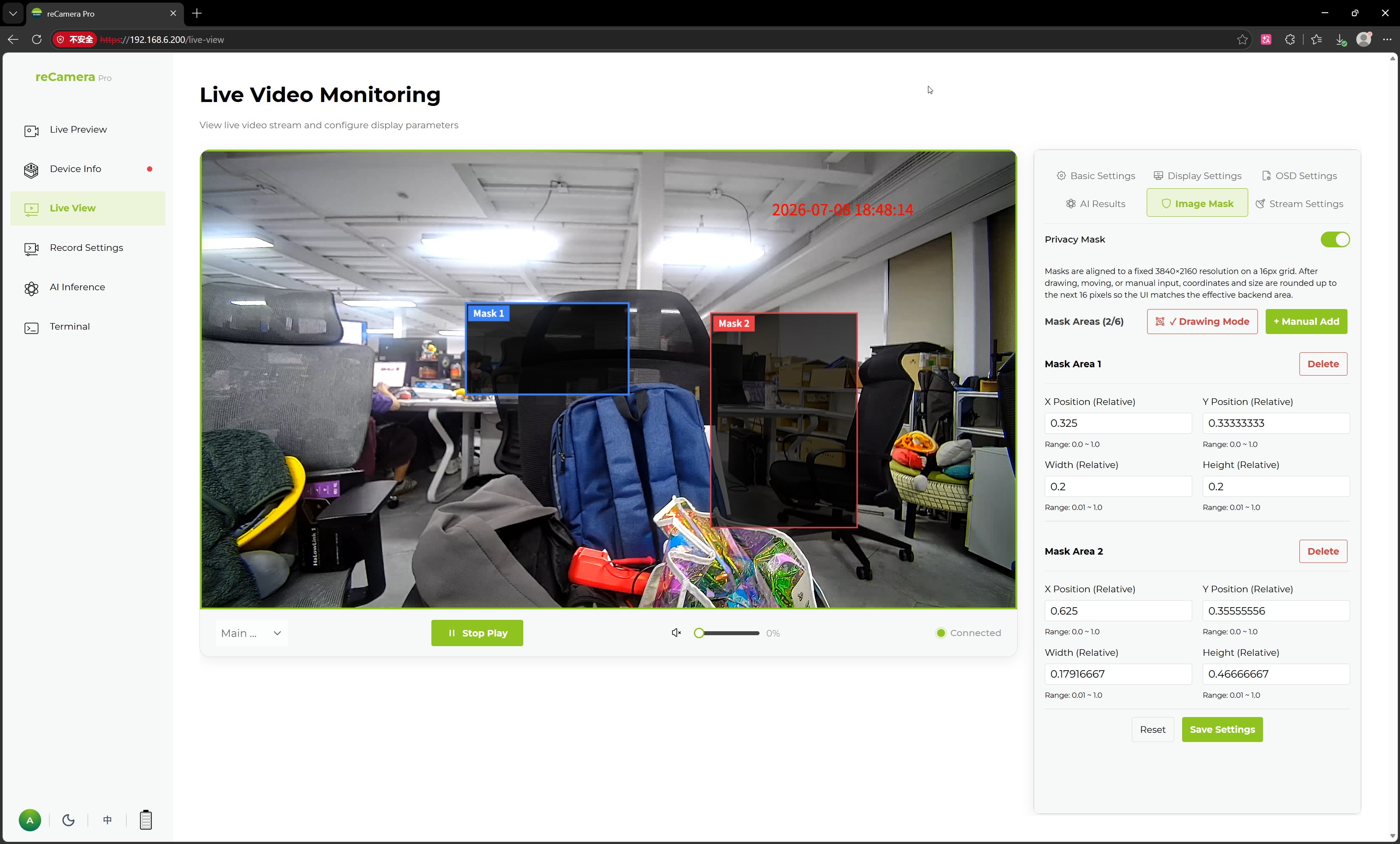
You can add masks manually or let the Web UI draw them automatically. After adding them, save the settings — the effect shows immediately in the preview.
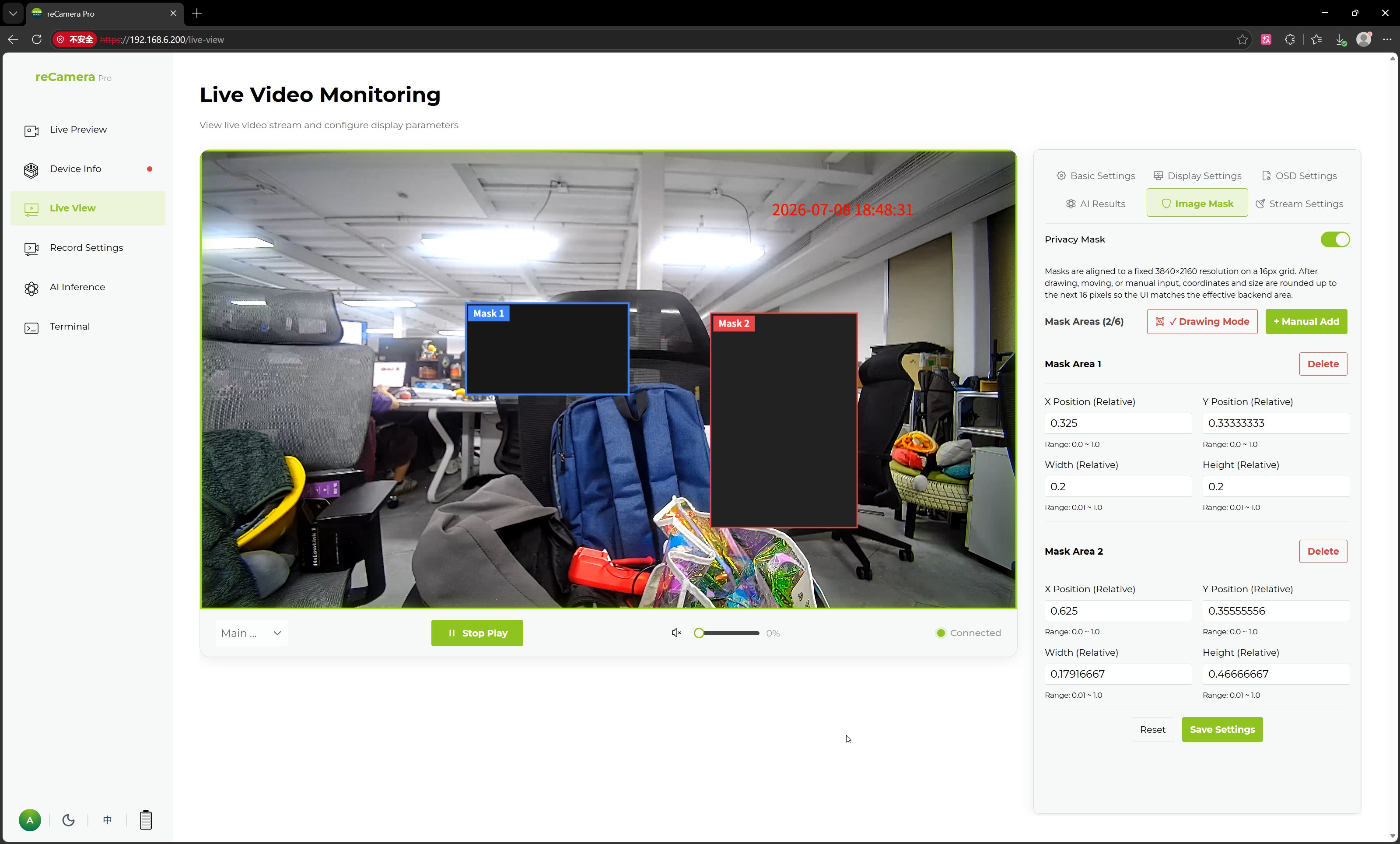
Typical scenarios:
- Masking sensitive information in office areas
- Masking private areas such as residences, door numbers, and screens
- Meeting video privacy protection requirements in public or shared spaces
Verify the result
After saving, check both places the image can end up:
- Live preview — confirm the OSD text is readable and the masks fully cover the intended areas at the current resolution.
- Recordings and streams — take a photo, make a short recording, and (if enabled) watch the RTSP stream to confirm the overlays/masks are burned into the output, not only shown in the browser.
Related pages
- Preview, Capture and Manual Recording
- Image Quality and Low Light
- Configure Detection: Classes, Thresholds and Rate
Tech Support & Product Discussion
Thank you for choosing our products! We are here to provide you with different support to ensure that your experience with our products is as smooth as possible. We offer several communication channels to cater to different preferences and needs.