Record Settings

reCamera Pro has built-in rule-triggered video recording. Users can customize rules to set the time for video recording and capturing.

Recording Configuration

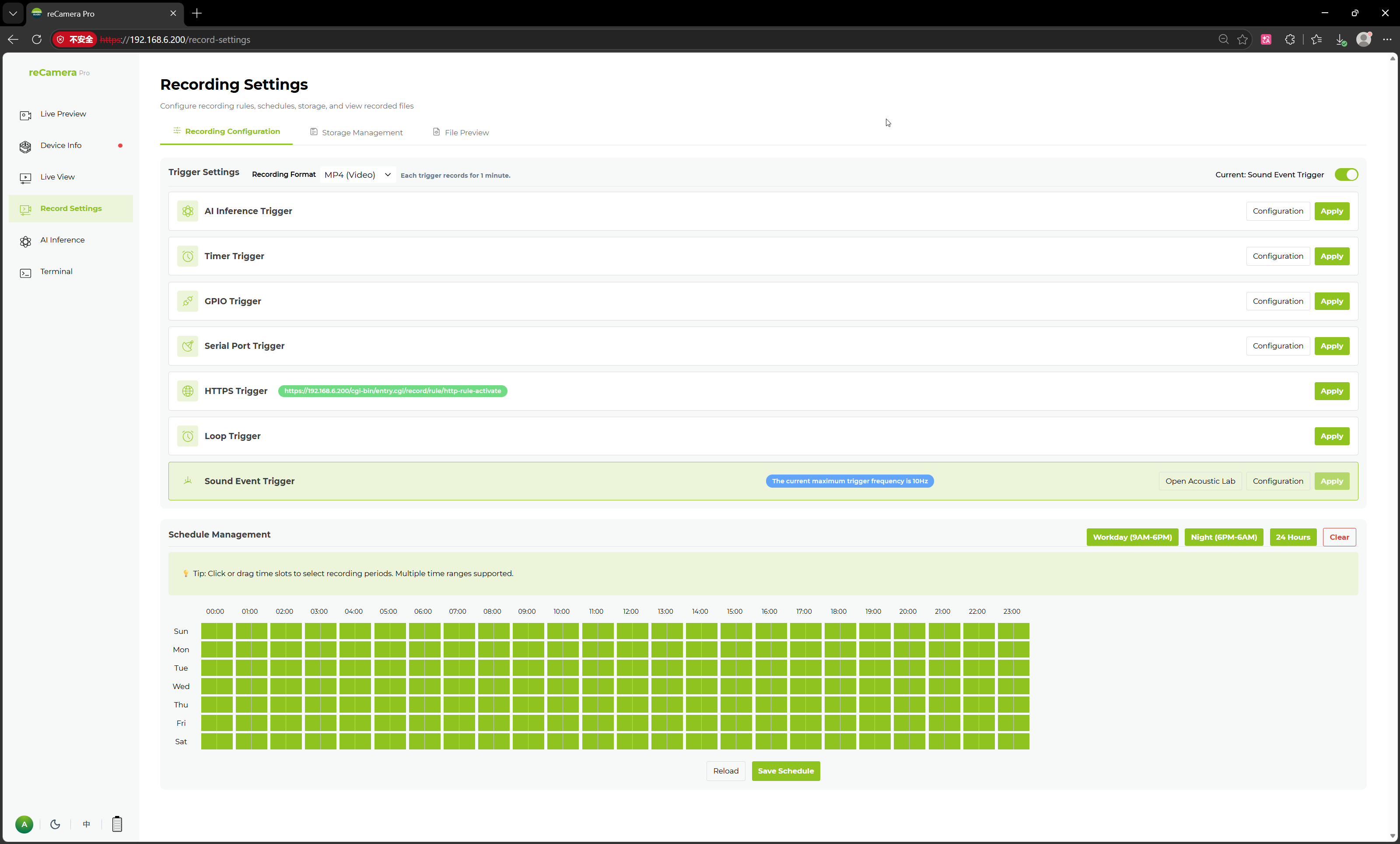
reCamera Pro provides a recording settings page where users can configure video recording rules, trigger methods, recording formats, and recording schedules in the Web UI, as well as manage storage and preview files. This feature is suitable for scenarios such as security surveillance, evidence recording, AI detection result logging, and scheduled recording.

After entering the Web UI, click Recording Settings in the left-side menu to access the recording configuration page.

Page Function Overview

The recording settings page primarily includes the following functional modules:

  • Recording Configuration: Configure video recording trigger rules, video formats, and recording schedules.
  • Storage Management: View and manage the device's storage space.
  • File Preview: View recorded video files.
  • Schedule Management: Set the effective time periods for recording rules.

On the recording configuration page, users can select different trigger methods and apply them to recording tasks.

Recording Format

The top of the page supports selecting the recording file format, for example:

ParameterDescription
Recording FormatSets the format for saving video files, such as MP4 (video), JPG image data, and RAW original image data.
If MP4 format is selected for recording, each recording will have a fixed duration of 1 minute.

Trigger Methods

reCamera Pro supports multiple video recording trigger methods. Users can choose the appropriate trigger rules based on their actual application scenarios.

AI Inference Trigger

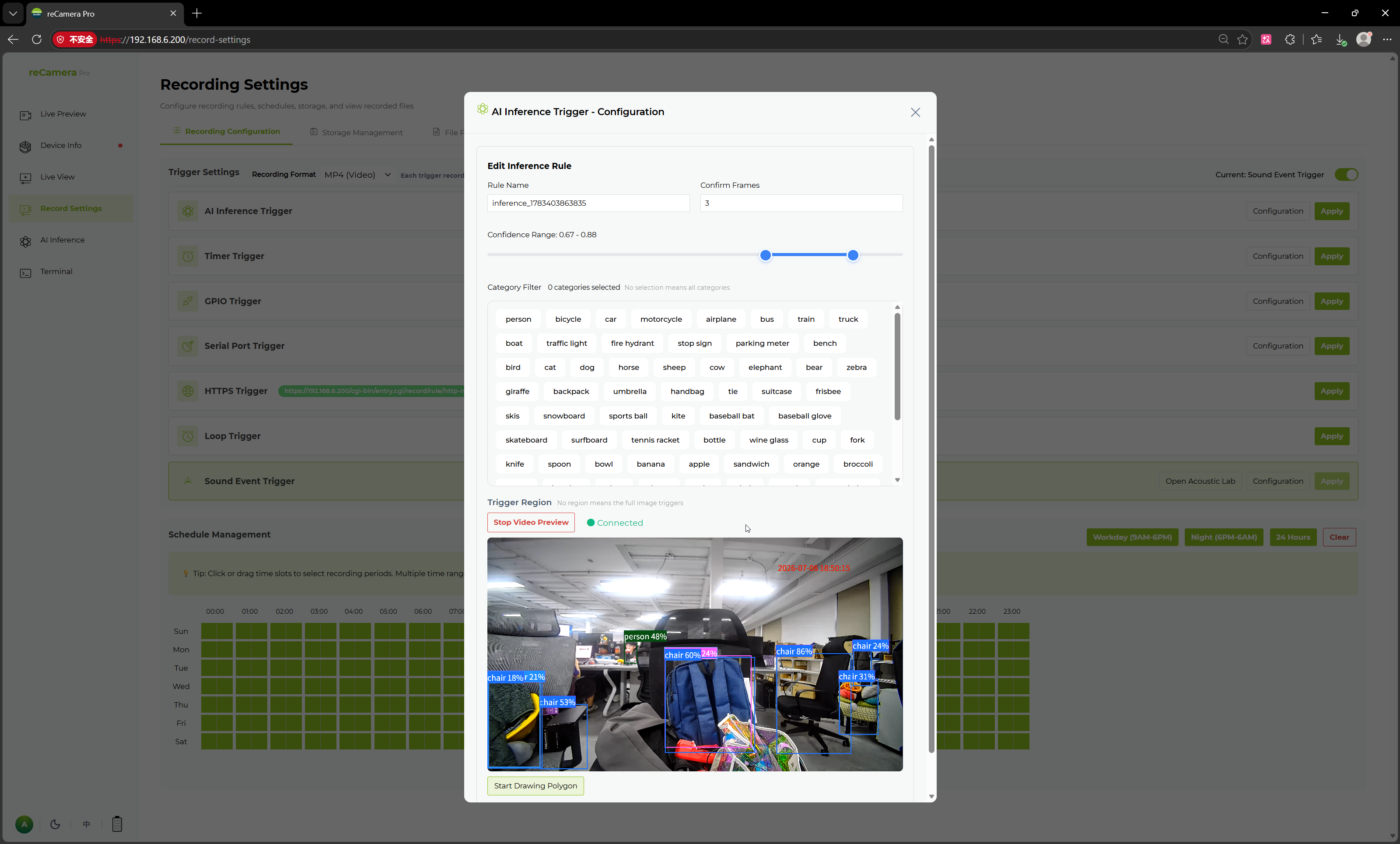
AI Inference Trigger is used to automatically trigger recording based on the results of AI model recognition. Users can configure detection categories, confidence score ranges, and trigger areas. When a target that meets the conditions appears in the camera's view, the system will automatically start recording.

The configuration items supported by AI Inference Trigger include:

Configuration ItemDescription
Inference TaskSelect the AI inference task to trigger recording
Confidence RangeSet the confidence threshold range for AI recognition results
Category FilterSelect the target categories to trigger recording
Trigger AreaDefine the screen area for triggering detection

Category filtering supports selection based on model output categories, such as Person, Vehicle, Hardhat, Mask, Safety Vest, Machinery, etc. Users can select only the categories they are interested in to reduce irrelevant event triggers.

Trigger area supports drawing polygonal regions on the video frame. When no region is drawn, it defaults to triggering across the entire screen. After drawing a region, the system will only trigger recording within the specified area. This feature is suitable for key monitoring scenarios such as entrances/exits, hazardous areas, and equipment zones.

Scheduled Trigger

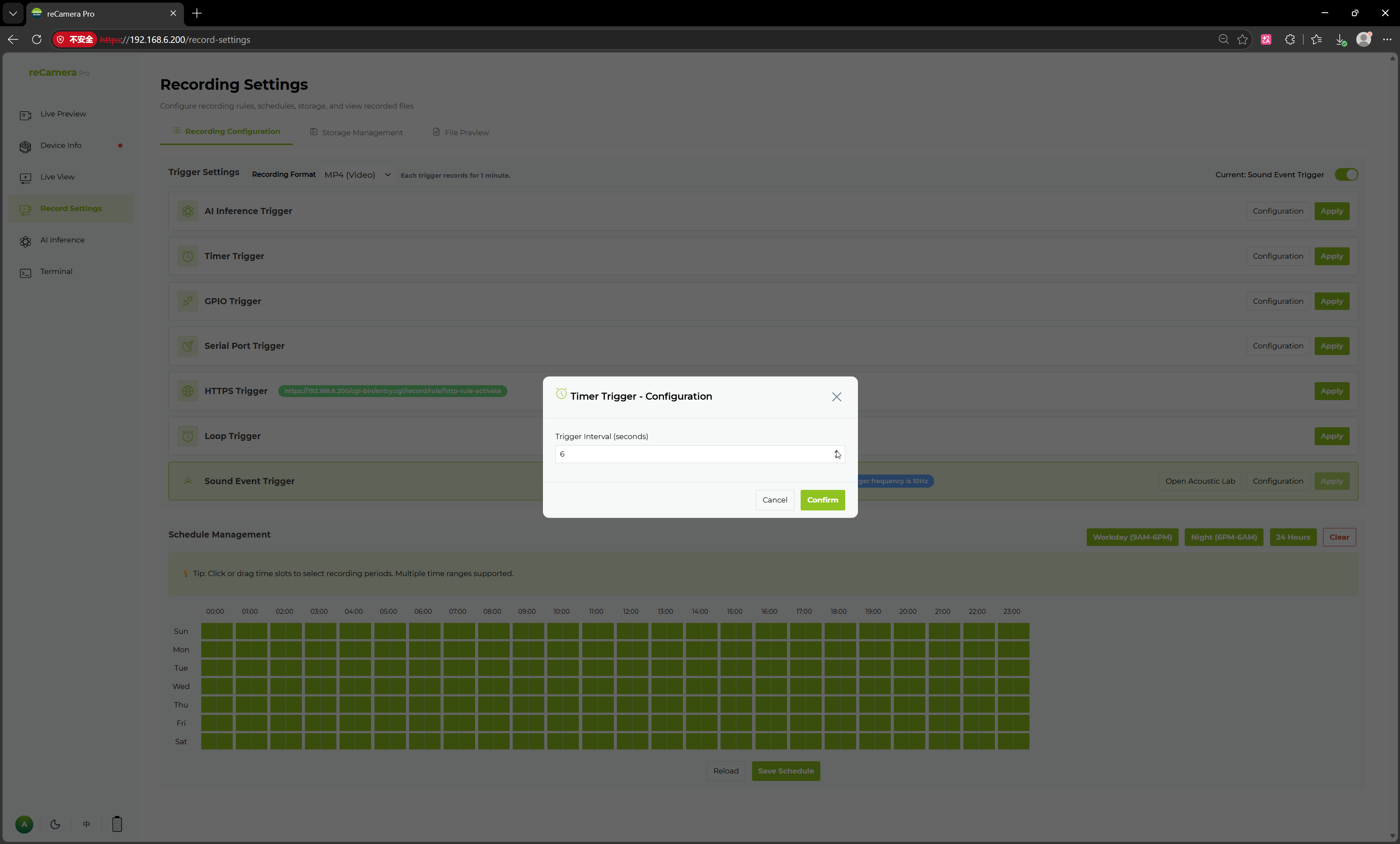
Scheduled Trigger is used to trigger recording at fixed time intervals. Users can configure the trigger interval, and the system will automatically execute recording tasks at the set time cycles.

Configuration ItemDescription
Trigger IntervalSet the time interval for scheduled triggers, in seconds

This method is suitable for periodic recording scenarios, such as capturing site videos at fixed intervals, recording equipment operating status, or for inspection and archiving.

GPIO Trigger

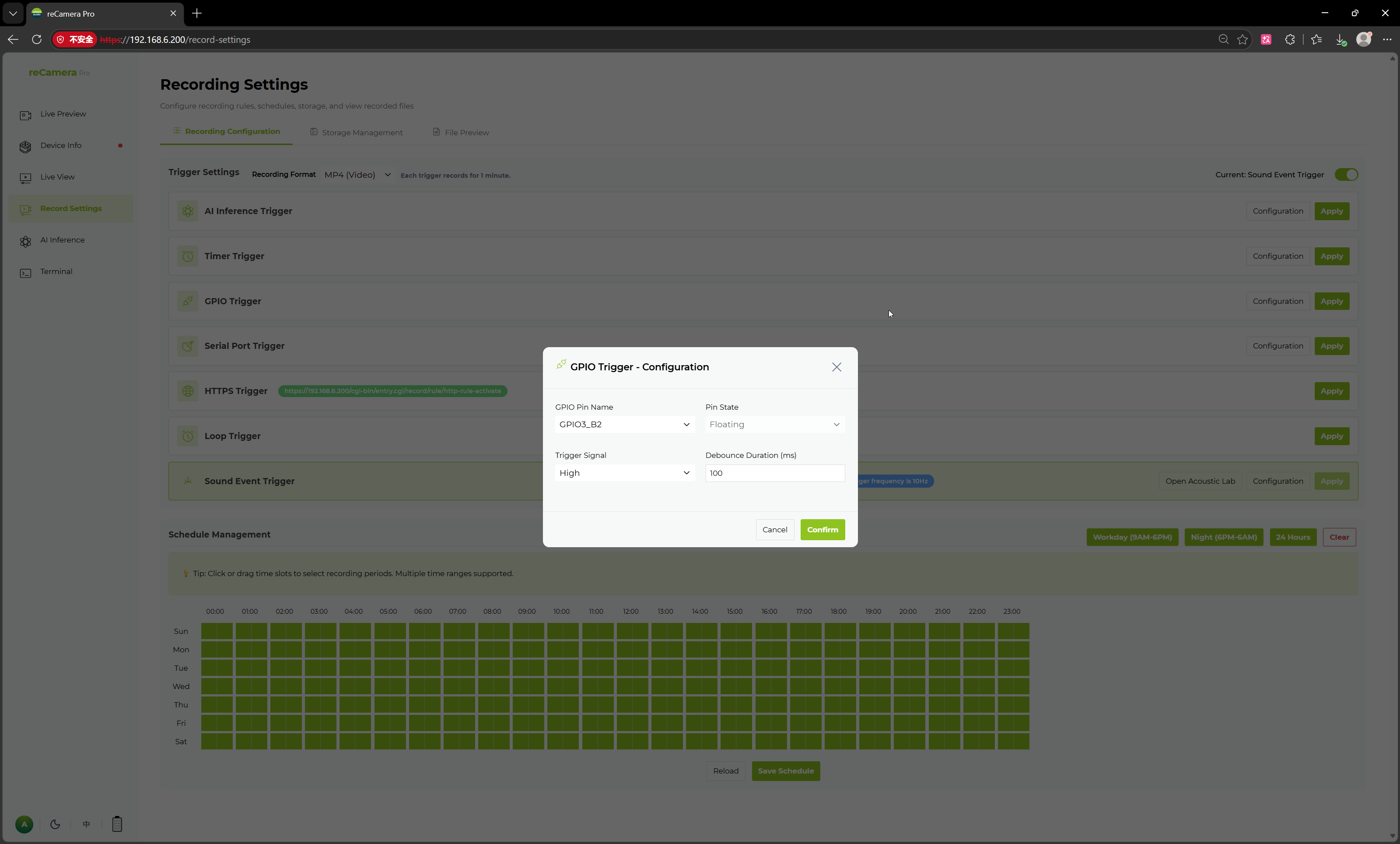
GPIO Trigger is used to trigger recording through external hardware signals. Users can select the GPIO pin, pin state, trigger signal, and debounce duration.

Configuration ItemDescription
GPIO Pin NameSelect the GPIO pin for triggering
Pin StateSet the default pin state, e.g., floating
Trigger SignalSet the trigger level, e.g., high level
Debounce DurationSet the debounce time for the trigger signal, in milliseconds

GPIO Trigger is suitable for integration with external sensors, buttons, door magnets, PIR sensors, relays, and other devices. When an external device outputs a specified level signal, reCamera Pro can automatically start recording.

Serial Trigger

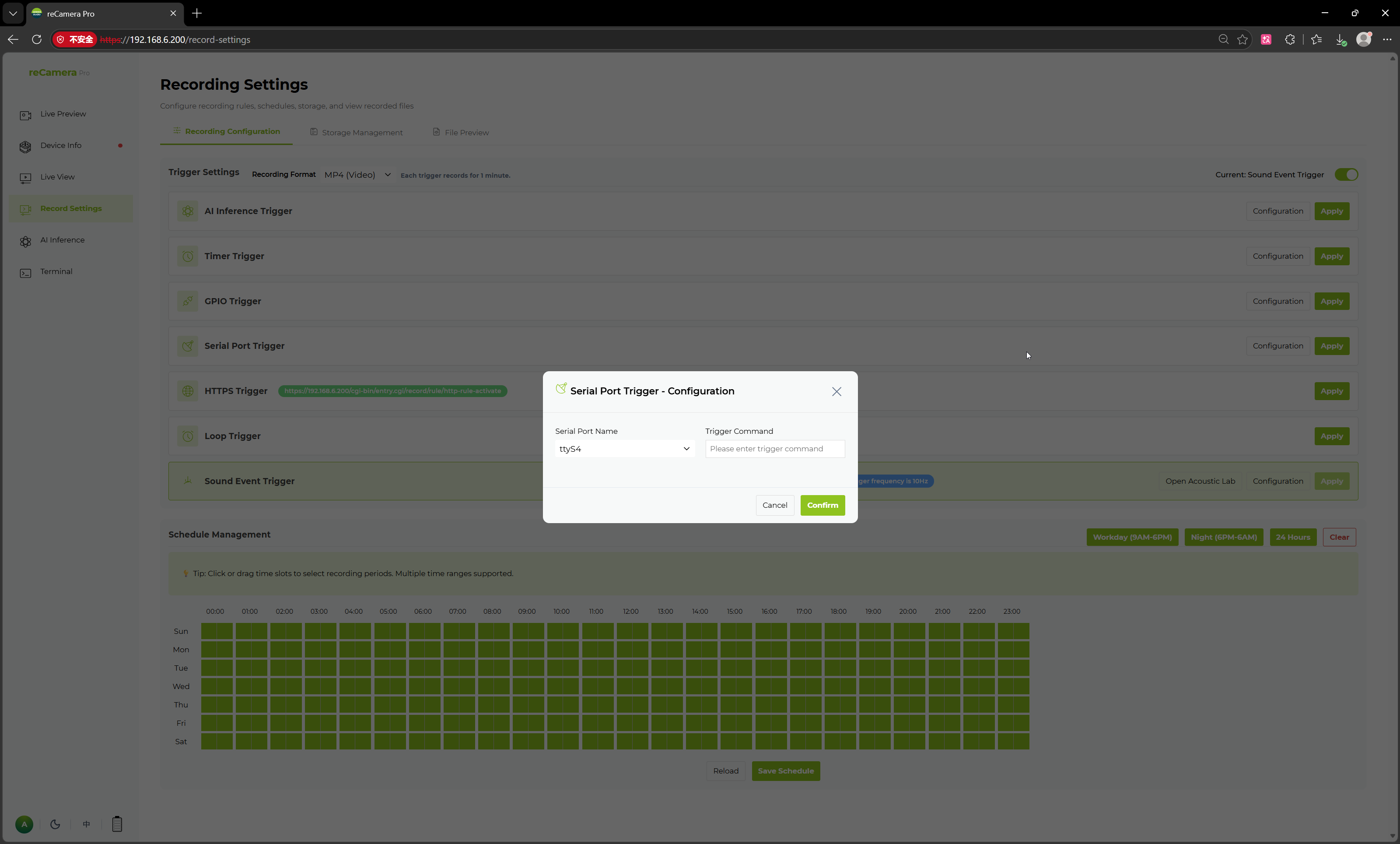
Serial Trigger is used to trigger recording via serial commands. Users can select the serial port name and configure the trigger command. When the device receives a matching command through the specified serial port, it can trigger the recording task.

Configuration ItemDescription
Serial Port NameSelect the serial port to listen on, e.g., ttyS4
Trigger CommandSet the serial command to trigger recording

This method is suitable for integration with external controllers, MCUs, industrial equipment, or custom host systems.

HTTPS Trigger

HTTPS Trigger provides a network request-based recording trigger method. The page will display the corresponding HTTPS trigger address, which external systems can access to trigger recording.

This method is suitable for integration with third-party platforms, business systems, alarm systems, or automation scripts. For example, when an external system detects an event, it can notify reCamera Pro to start recording via an HTTPS request.

Loop Trigger

Loop Trigger is used for continuous or cyclical execution of recording tasks. This method is suitable for scenarios requiring long-term continuous recording, such as all-day monitoring, on-site guarding, and continuous data acquisition.

Sound Event Trigger

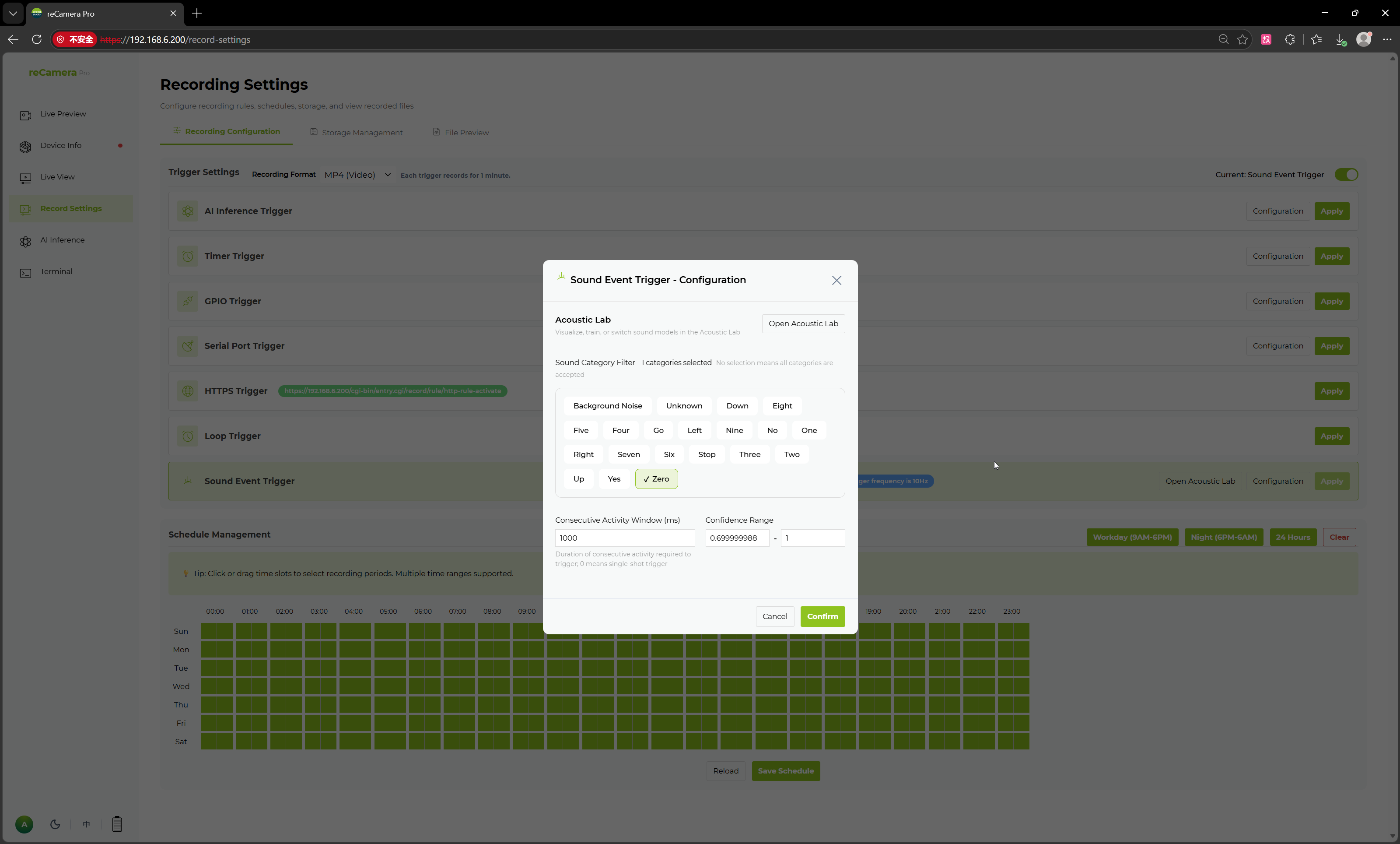
Sound Event Trigger is used to trigger recording based on audio events. Users can enter the Sound Lab to visualize, train, or switch sound models and select the sound categories that should trigger recording.

The configuration items supported by Sound Event Trigger include:

Configuration ItemDescription
Sound Category FilterSelect the sound categories to trigger recording
Continuous Activity WindowSet the duration of continuous activity required for triggering, in milliseconds
Confidence RangeSet the confidence threshold range for sound recognition results

The sound categories that can be selected on the page include Background Noise, Unknown, Stop, Yes, No, Zero, One, Two, etc. The specific categories depend on the currently loaded sound recognition model.

This feature is suitable for scenarios such as abnormal sound detection, equipment status sound recognition, and voice command triggering.

Schedule Management

The recording settings page provides a schedule management function, allowing users to set the effective time for recording rules using a timetable.

The schedule is displayed by day of the week and hour. Users can click or drag time cells to select recording time periods, and multiple time periods can be set.

The page provides shortcut buttons:

Shortcut OptionDescription
Weekdays (9 AM - 6 PM)Quickly select daytime working hours
Night (6 PM - 6 AM)Quickly select nighttime recording hours
All Day (24 Hours)Quickly set all-day recording
ClearClear the currently selected time periods

Through schedule management, users can make recording rules effective only during specified time periods, for example, enabling recording only at night or logging events only during working hours.

Application Configuration

On the right side of each trigger method, there are Configure and Apply buttons.

  • Click Configure: Enter the detailed parameter settings for this trigger method.
  • Click Apply: Enable the current trigger method and apply it to the recording task.
  • The status at the top will display the currently used trigger method, e.g., "Current: Sound Event Trigger".

After configuration, the system will automatically execute recording tasks according to the current trigger method, recording format, and schedule.

Typical Use Cases

The recording settings function is suitable for the following scenarios:

  • Automatic recording when people, vehicles, or specified targets are detected.
  • Scheduled recording within specified time periods.
  • Triggering recording via external GPIO sensors.
  • Interfacing with industrial equipment via serial commands.
  • Integrating with third-party alarm systems via HTTPS interfaces.
  • Automatic recording upon detection of specified sound events.
  • Setting up all-day or nighttime recording schedules.

Through the recording settings page, users can flexibly configure reCamera Pro's recording strategy, achieving a complete closed loop from real-time preview to event-triggered recording.

Storage Management

On this page, you can view the current disk usage of the device and the location where files are saved, making it easy to quickly check the device status and the storage location of materials.

In the storage configuration, you can also set the available storage size and configure quotas. You can also set whether to overwrite old files to ensure that the latest recorded files are always saved.

File Preview

Here you can see the files that have been recorded. Each file is saved in a different directory according to the date.

Opening the corresponding file allows for online preview and operations on the material.

Tech Support & Product Discussion

Thank you for choosing our products! We are here to provide you with different support to ensure that your experience with our products is as smooth as possible. We offer several communication channels to cater to different preferences and needs.

Loading Comments...