Build a Visual Wake and Offline Speech Recognition System with reCamera Pro
Introduction
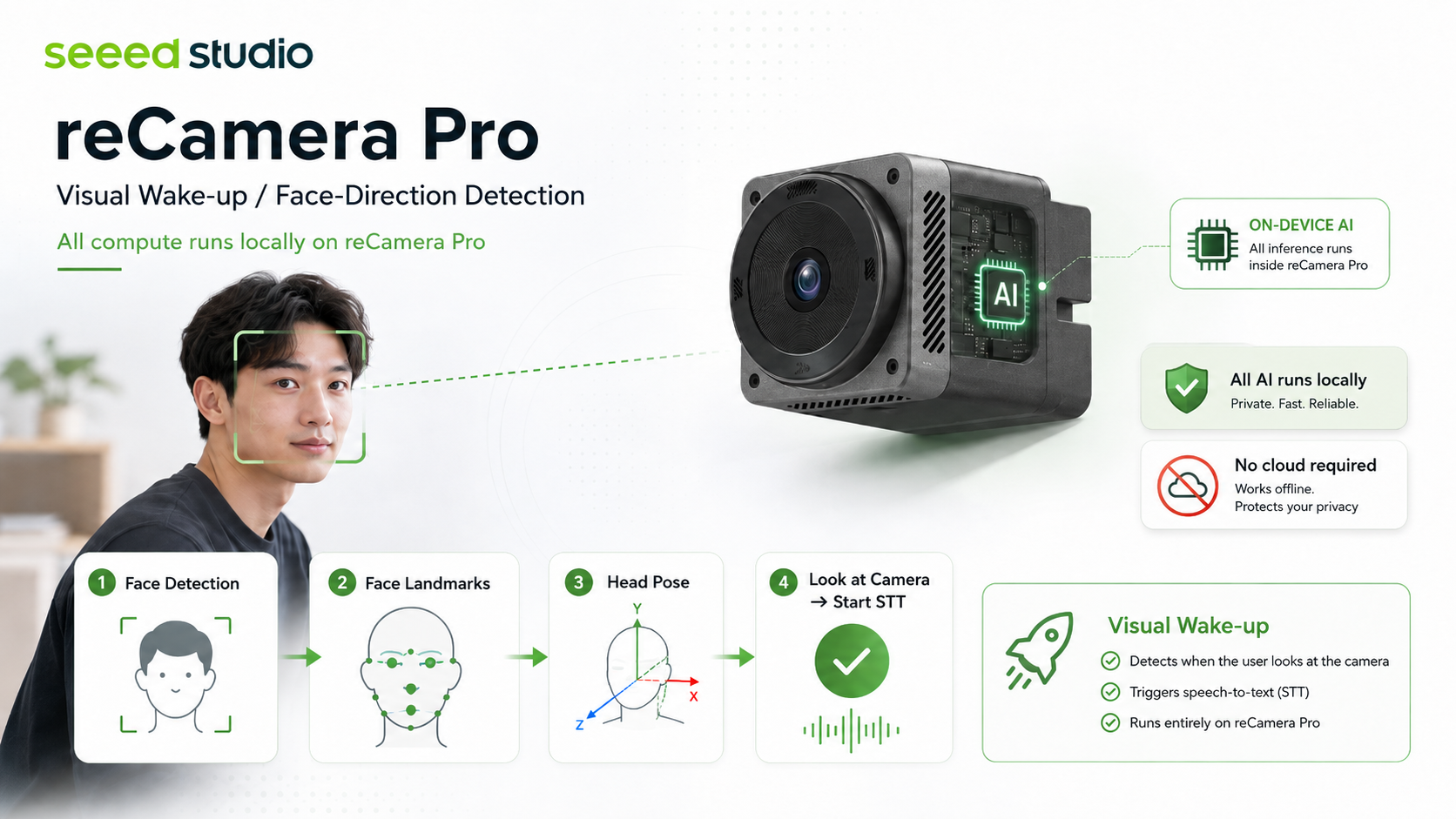
This project implements a natural, fully on-device interaction flow for reCamera Pro (RV1126B). The camera detects a face and estimates head pose. Only after a person has looked at the camera continuously does the application open the microphone and start streaming speech recognition. It then enters a brief cooldown period to prevent repeat triggers.
It is suitable for voice assistants, exhibition kiosks, and privacy-first edge voice entry points. Vision, pose evaluation, speech features, and Zipformer inference run locally. The web dashboard requires no cloud service, Node.js process, CDN, or external font.
Source code and future releases are available in the recamera_pro_face_stt GitHub repository. The repository will contain the complete project after this directory is pushed.
Features and pipeline
GStreamer camera
  -> SCRFD face detection (RKNN)
  -> IoU tracking + PFLD 98-point landmarks (RKNN)
  -> OpenCV solvePnP head-pose estimation
  -> EMA smoothing, hysteresis, and continuous-look timer
  -> visual-wake event
  -> bilingual streaming Zipformer STT (RKNN)
The default states are IDLE, FACE_DETECTED, ATTENTION_PENDING, LISTENING, and COOLDOWN. A look is accepted when absolute yaw is at most 18° and absolute pitch is at most 13°. Holding that pose for 700 ms triggers LISTENING. Audio capture starts only in the listening state, so the application does not record continuously.
Hardware requirements
- A reCamera Pro (RV1126B, aarch64)
- A computer that can reach the device through USB virtual Ethernet or a LAN
- A working reCamera Pro SDK
- Firmware GStreamer elements:
appsrc,videoconvert,jpegenc, andrtpjpegpay - The firmware-provided
ai_asrPCM audio device
The default audio input is ai_asr: 16 kHz, S16_LE, four channels, channel 0 selected. This avoids competing with the vendor process that owns hw:0,0.
Get the project
After the project is published, clone it on the development host:
git clone https://github.com/yyling0101-a11y/recamera_pro_face_stt.git
cd recamera_pro_face_stt
The repository contains vision models, Zipformer models, the web dashboard, and the cross-build script. Do not mix arbitrary RKNN Runtime versions: this project uses RKNN 2.3.2 and targets rv1126b.
Build and deploy
1. Configure the reCamera Pro SDK
The build script looks for the SDK at /home/yylin/recamera_pro/recamera-pro-sdk by default. Set this variable when yours is elsewhere:
export RECAMERA_PRO_SDK=/absolute/path/to/recamera-pro-sdk
scripts/build_recamera.sh also validates librknnrt.so. If your SDK or runtime uses another location, update qualified_rknnrt in the script to a verified RKNN 2.3.2 runtime while retaining the checksum-validation step.
2. Cross-compile
From the project root, run:
bash scripts/build_recamera.sh
The script validates the SDK, loads its build environment, and creates build-recamera/deploy/:
deploy/
├── visual_wake_app
├── models/
│   ├── scrfd_500m_640_fp16.rknn
│   ├── pfld_98_112_fp16.rknn
│   └── stt/                         # encoder, decoder, joiner, and vocabulary
└── web/dashboard.html
3. Copy the deployment bundle to the device
Copy the contents of the deployment directory into one directory on reCamera Pro. For a device at 192.168.42.1:
scp -r build-recamera/deploy/* root@192.168.42.1:/userdata/visual-wake/
ssh root@192.168.42.1
cd /userdata/visual-wake
chmod +x visual_wake_app
Keep the models/ and web/ directories at the shown relative paths. The application uses those default relative paths to load its assets.
Run the application
Run the application from its deployment directory:
./visual_wake_app
During normal operation, actionable events appear in the terminal:
VISUAL_WAKE track=1
STT_RESULT 打开灯
Launch options
Use the following command to see every option supported by the executable on the device:
./visual_wake_app --help
Options can be combined. For example, this command verifies only the visual pipeline and disables network services:
./visual_wake_app --no-stt --no-rtsp --no-web --debug
Camera and visual wake
| Option | Default | Description |
|---|---|---|
--detector FILE | models/scrfd_500m_640_fp16.rknn | Path to the SCRFD face-detection RKNN model. |
--landmark FILE | models/pfld_98_112_fp16.rknn | Path to the PFLD 98-landmark RKNN model. |
--camera DEVICE | /dev/video13 | Camera device read by GStreamer. |
--width N | 1920 | Requested camera-capture width. |
--height N | 1080 | Requested camera-capture height. |
--fps N | 30 | Requested camera frame rate; processing rate depends on inference time. |
--attention-dropout-ms N | 250 | Grace period, in milliseconds, for a brief invalid pose after attention begins. Set 0 to disable it. |
--no-stt | STT enabled | Do not start speech recognition; test only the visual-wake state machine. |
Speech recognition and endpointing
| Option | Default | Description |
|---|---|---|
--stt-encoder FILE | models/stt/encoder-epoch-99-avg-1-rv1126b.rknn | Zipformer encoder-model path. |
--stt-decoder FILE | models/stt/decoder-epoch-99-avg-1-rv1126b.rknn | Zipformer decoder-model path. |
--stt-joiner FILE | models/stt/joiner-epoch-99-avg-1-rv1126b.rknn | Zipformer joiner-model path. |
--stt-vocab FILE | models/stt/vocab.txt | Vocabulary path. It must match the selected model set. |
--audio-device NAME | ai_asr | ALSA/arecord audio-device name. |
--audio-channels N | 4 | Total number of channels in the input PCM. |
--audio-channel N | 0 | Channel to use; set -1 to average every channel. |
--stt-chunk-ms N | 160 | Duration of each audio chunk passed to STT, in milliseconds. |
--speech-rms-threshold F | 0.006 | RMS threshold that detects speech start; increase it in noisier rooms. |
--stt-min-speech-ms N | 160 | Minimum speech duration accepted in a recognition session, in milliseconds. |
--stt-end-silence-ms N | 2500 | Silence duration that ends recognition after speech starts, in milliseconds. |
--stt-start-timeout-ms N | 4000 | Timeout if speech does not start after visual wake, in milliseconds. |
--stt-max-ms N | 30000 | Maximum duration of one listening/recognition session, in milliseconds. |
RTSP, web, and terminal display
| Option | Default | Description |
|---|---|---|
--no-rtsp | RTSP enabled | Disable the annotated RTSP stream with face boxes, landmarks, and pose. |
--rtsp-port PORT | 8554 | RTSP server port. |
--rtsp-mount PATH | /visual-wake | RTSP mount path; for example, /demo gives rtsp://DEVICE_IP:8554/demo. |
--rtsp-width N | 960 | RTSP output width. |
--rtsp-height N | 540 | RTSP output height. |
--rtsp-fps N | 15 | Declared RTSP output frame rate; actual rate depends on inference throughput. |
--no-web | Web service enabled | Disable the HTTP and WebSocket dashboard. |
--web-port PORT | 8080 | Port for the web dashboard and health endpoint. |
--web-page PATH | web/dashboard.html | Path to a custom dashboard page. |
--dashboard | Off | Show a dashboard in the local interactive terminal. It cannot be combined with --debug. |
--debug | Off | Print startup, per-frame-pose, audio-level, RTSP, tensor-contract, and STT-performance logs. It cannot be combined with --dashboard. |
Two ways to monitor the system
Terminal dashboard
Use --dashboard in an interactive terminal:
./visual_wake_app --dashboard
The terminal must be at least 80×18 characters. The left pane shows STT status, partial text, and final results; the right pane shows face count, camera-facing status, pose angles, RTSP-client status, and vision latency. Press Ctrl-C to restore the normal terminal. --dashboard cannot be combined with --debug.

Web dashboard
By default, the application starts an HTTP/WebSocket service on every network interface. Open this address from a computer or phone:
http://DEVICE_IP:8080/
For a USB virtual-network connection, for example:
http://192.168.42.1:8080/
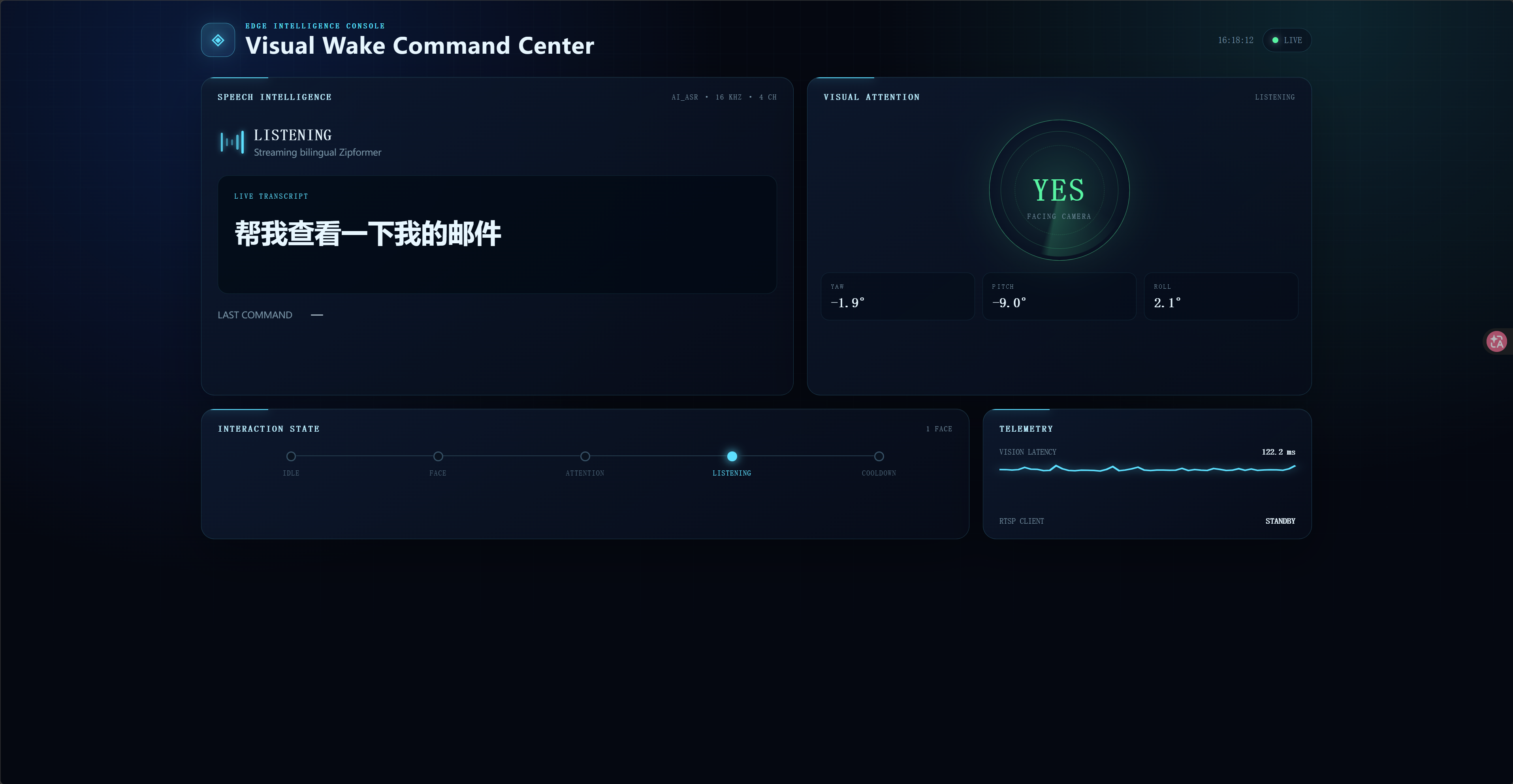
The page automatically connects to ws://DEVICE_IP:8080/ws and reconnects after interruptions. It shows partial and final transcripts, visual state, face count, yaw/pitch/roll, RTSP status, and a latency chart. The health endpoint is http://DEVICE_IP:8080/health. Use --web-port 8081 for another port, or --web-page PATH for a custom page.
View the annotated video stream
The application starts an RTSP server by default:
rtsp://DEVICE_IP:8554/visual-wake
On the host computer, use:
ffplay -rtsp_transport tcp rtsp://192.168.42.1:8554/visual-wake
The overlay shows face boxes, all 98 landmarks, raw yaw/pitch, facing=YES/NO, and the current state. Green means the pose is inside the entry thresholds, orange means it is valid but outside the thresholds, and red means the pose is invalid.
Tuning
Camera placement, lens characteristics, and room noise affect the experience. Tune in this order:
- Use
--debugto observe yaw/pitch while facing the camera, then adjust the entry thresholds. - Adjust
--attention-dropout-msfor brief occlusions; use0to disable the grace period. - Observe audio RMS in the target environment and adjust
--speech-rms-threshold. - Use
--stt-end-silence-ms,--stt-start-timeout-ms, and--stt-max-msto balance responsiveness against longer commands.
The controller uses EMA smoothing and enter/leave hysteresis. A single invalid pose never triggers listening and does not immediately clear an active attention timer, while face-track loss resets the state immediately.
Troubleshooting
| Issue | Likely cause | Resolution |
|---|---|---|
| Build cannot find OpenCV or RKNN | SDK environment is missing or the runtime is incompatible | Verify RECAMERA_PRO_SDK, load the SDK env.sh, and use RKNN 2.3.2. |
| Model files cannot be found | Deployment layout was not preserved | Confirm that models/ and web/dashboard.html exist in the execution directory. |
| Visual wake never triggers | Incorrect camera, strict thresholds, or small face | Use --debug and the RTSP overlay to check /dev/video13, landmarks, and yaw/pitch. |
| STT reports an audio error | ai_asr is unavailable or its format differs | On the device, test arecord -D ai_asr -f S16_LE -r 16000 -c 4 -d 5 /tmp/test.wav. |
| Web page is unavailable | Port is unreachable or web serving was disabled | Do not use --no-web; test http://DEVICE_IP:8080/health. |
| RTSP cannot be played | Network, port, or GStreamer plugin issue | Use TCP playback and verify the required firmware GStreamer elements. |
Tech Support & Product Discussion
Thank you for choosing our products! We are here to provide you with different levels of support to ensure your experience with our products is as smooth as possible. We offer multiple communication channels to cater to different preferences and needs.