Real-Time QR Code Recognition on reCamera
Introduction
This example demonstrates how to set up a real-time QR code recognition system using reCamera. The system captures real-time video frames with the camera, decodes QR codes using the Quirc library, and pushes the video frames and recognition results to a PC for display via RTSP and HTTP protocols.
Key Features:
- Real-time camera capture and QR code recognition
- Supports video stream mode and single image mode
- Pushes JPEG frames + recognition results to PC via RTSP
- PC-side Python script for real-time video and result display
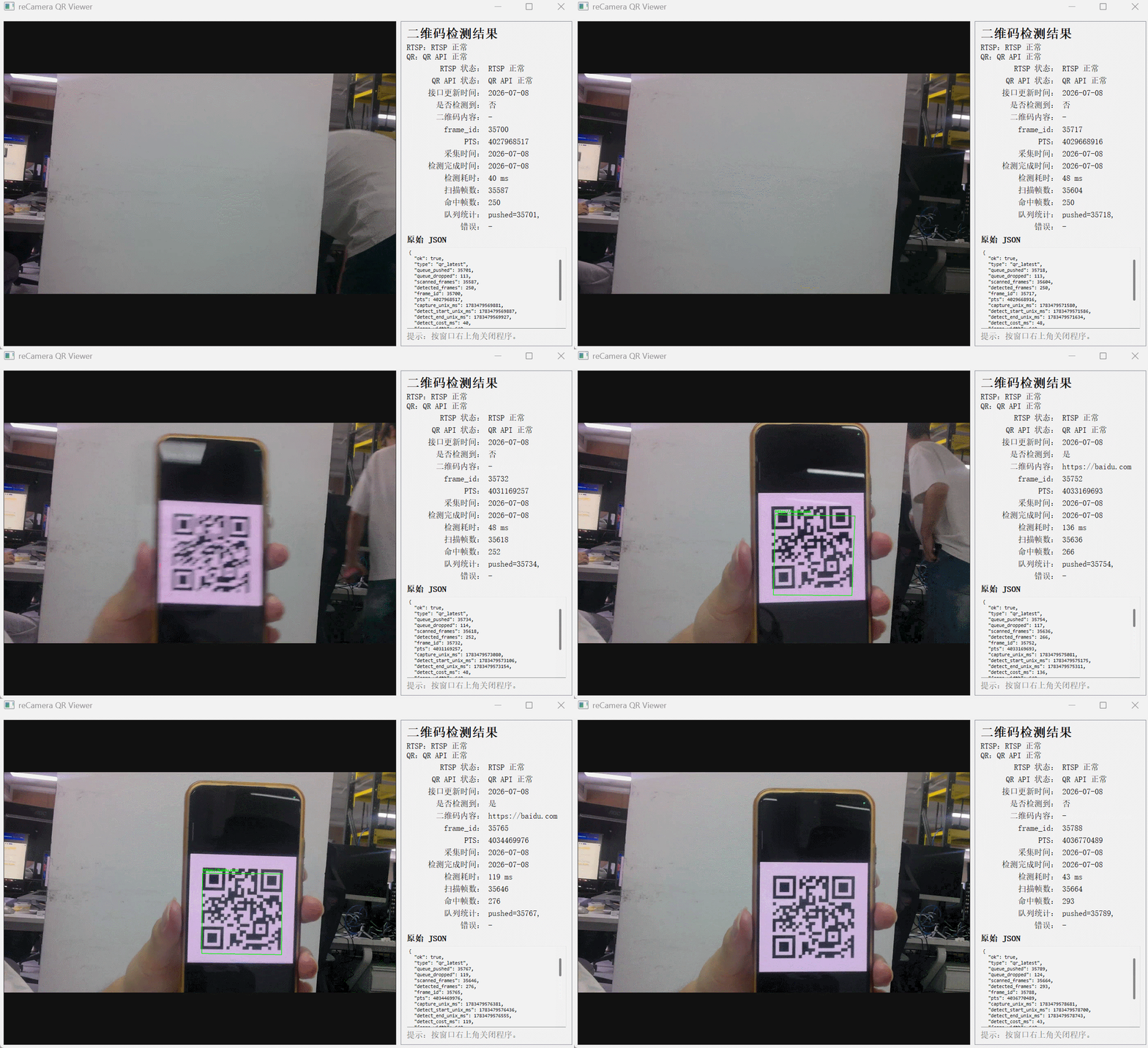
How it Works
Video Stream + QR Code Detection Result Separation Mode
This example adopts an architecture that separates "real-time video transmission" and "asynchronous QR code detection result query." The reCamera side is responsible for capturing camera images, pushing the RTSP video stream, and running a separate QR code detection thread within the device. The PC side obtains the real-time video via RTSP and simultaneously accesses the latest QR code detection results through an HTTP interface.
The real-time recognition process is as follows:
- Camera Capture: reCamera captures camera images via the SG2002 video interface and configures two video channels simultaneously.
- RTSP Video Streaming: One video channel is encoded as H.264 and streamed in real-time via RTSP to devices on the same network segment. The PC can directly pull and display the real-time video stream using the RTSP address.
- QR Code Detection Frame Acquisition: The other video channel outputs low-resolution NV21 image frames for QR code detection. The program uses only the Y plane of the NV21 as a grayscale image input to the QR code detector, avoiding additional RGB conversion overhead.
- Latest Frame Queue Caching: The QR code detection thread is decoupled from the video capture callback. The capture callback does not directly perform QR code detection but places the latest grayscale frame into a queue of length 1. When the detection thread's processing speed is slower, new frames overwrite old frames, ensuring that only the latest frame is always kept in the queue, preventing increased latency due to detection task backlog.
- Asynchronous QR Code Detection: The QR code detection thread retrieves an image from the latest frame queue and uses the quirc QR code recognition library for detection and decoding. Since the detection process runs in a separate thread, it does not block the RTSP video streaming.
- Result Caching: After each detection, the program updates the latest QR code detection results, including whether a QR code was detected, the QR code content, detection duration, frame_id, PTS, capture time, detection completion time, and QR code bounding box coordinates.
- HTTP Result Query: Devices on the same network segment can obtain the latest QR code detection result by GETting
/api/qr/latest. This interface only returns the status of the most recent detection and does not block the video stream or actively transmit historical detection queues. - PC-side Display: The Windows client displays the real-time video stream on the left side via RTSP and periodically polls
/api/qr/lateston the right side via HTTP to display the latest QR code detection results and detection time. If the returned results include QR code bounding box coordinates, the client will scale and overlay the detection boxes onto the RTSP video stream.
The data link is as follows:
reCamera
├── RTSP Video Stream
│   └── Address:
│       rtsp://<device-ip>:8554/live0
│
└── QR Code Detection Result HTTP API
    └── Address:
        http://<device-ip>:8080/api/qr/latest
This design decouples the high-real-time video transmission from the relatively time-consuming QR code detection. The RTSP video stream can maintain continuous output, while the QR code detection thread only processes the latest frame. Even if QR code detection takes a long time, it will not cause video stuttering or detection queue backlog.
Demo Setup
To set up this demo, you will need:
- Cross-compile the C++ program on your PC.
- Run the compiled executable on ReCamera.
- Run the Python receiving script on your PC.
1. Compile the C++ Program
Before building this solution, you need to configure the recamera environment. You can directly download the corresponding pre-compiled libraries from:
https://codeload.github.com/Seeed-Studio/sscma-example-sg200x/tar.gz/refs/tags/0.2.4
Unzip and set the environment variables:
export SG200X_SDK_PATH=<PATH_TO_RECAMERA-OS>/output/sg2002_recamera_emmc/
export PATH=<PATH_TO_RECAMERA-OS>/host-tools/gcc/riscv64-linux-musl-x86_64/bin:$PATH
Clone the QR code recognition repository and navigate to the corresponding solution directory for compilation. Execute the following commands sequentially in your PC's terminal.
git clone https://github.com/yyling0101-a11y/qrcode_rec.git
cd /qrcode_rec/
The repository directory after cloning will look like this:
(base) yylin@LAPTOP-TI348HL9:~/qrcode_rec$ tree -L 2 -I "build"
.
├── CMakeLists.txt
├── main
│   ├── CMakeLists.txt
│   ├── frame_sei.cpp
│   ├── frame_sei.hpp
│   ├── frame_sync.cpp
│   ├── frame_sync.hpp
│   ├── http_server.cpp
│   ├── http_server.hpp
│   ├── latest_frame_queue.hpp
│   ├── main.cpp
│   ├── placeholder
│   ├── qr_detector.cpp
│   ├── qr_detector.hpp
│   ├── qr_result_store.cpp
│   ├── qr_result_store.hpp
│   ├── qr_worker.cpp
│   ├── qr_worker.hpp
│   ├── rtsp_demo.cpp
│   ├── rtsp_demo.h
│   └── third_party
└── recamera_qr_win_client
    ├── README.md
    ├── recamera_qr_viewer.py
    └── requirements.txt
The main directory contains the source code to run on recamera, and recamera_qr_win_client contains the source code for the visualization results to run on x86 devices. Before compiling, you need to modify the directory specified in the CMakeLists.txt file in the main directory to point to the directory where you unzipped the pre-compiled package downloaded in the previous step.
Start compilation:
mkdir build && cd build
cmake ..
make
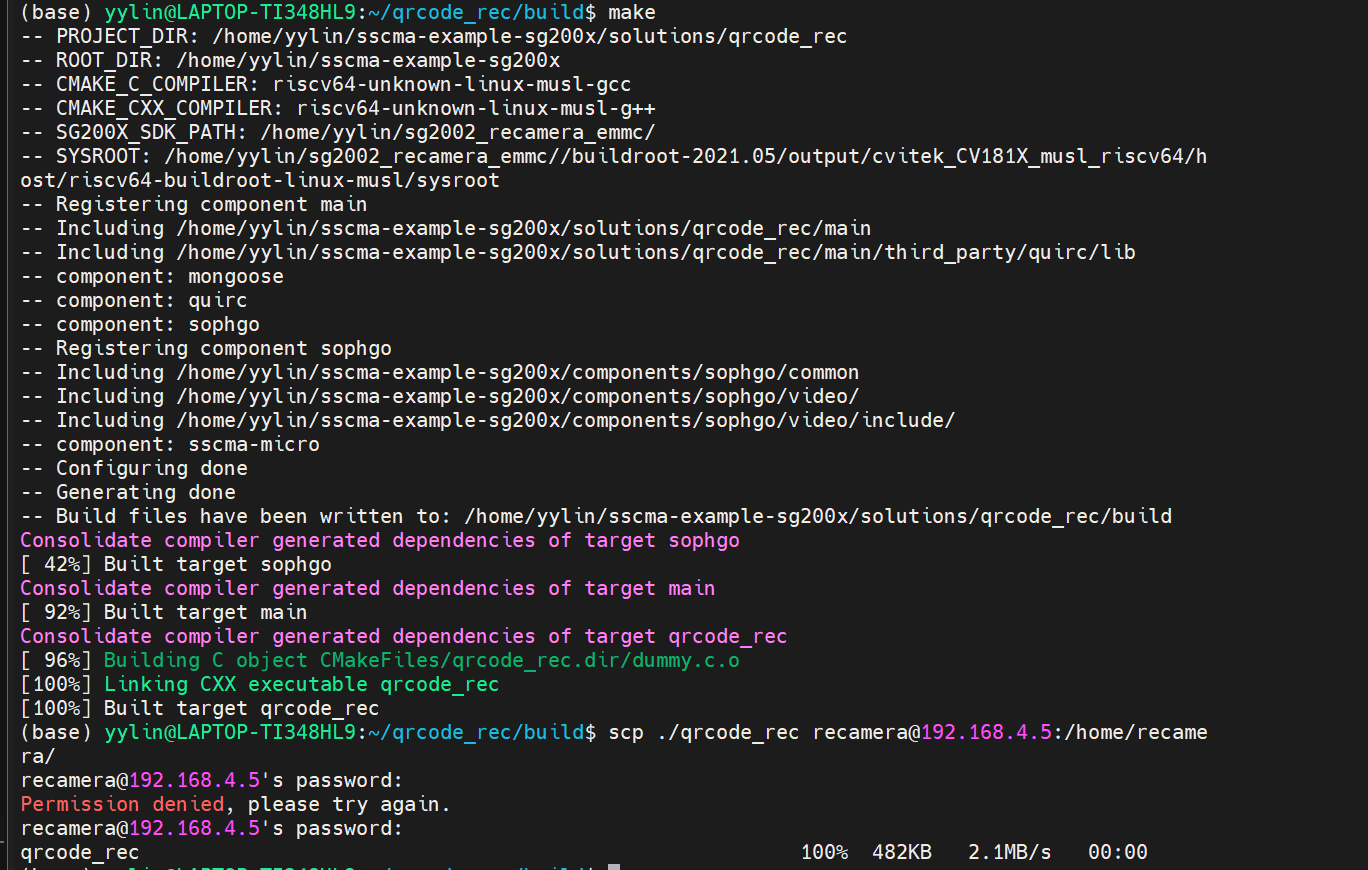
After successful compilation, the executable file will be located at build/qrcode_rec. Use the scp command to upload it to the /home/recamera/ directory on your ReCamera:
sudo scp qrcode_rec [email protected]:/home/recamera/ # Replace 192.168.4.53 with your reCamera's IP address
Enter the password for the corresponding platform when prompted to complete the transfer of qrcode_rec.
2. Configure ReCamera
Before running the C++ program, you must stop the default Node-RED services as they will occupy camera resources. Please run the following commands via SSH:
sudo /etc/init.d/S03node-red stop
sudo /etc/init.d/S91sscma-node stop
sudo /etc/init.d/S93sscma-supervisor stop
3. Run the Executable on ReCamera
Then, run the following command to grant execute permissions:
chmod +x qrcode_udp
Example Command
You can start the program by running this command directly in the reCamera's terminal.
sudo ./qrcode_rec
The successful startup logs will look something like this:
[recamera@reCamera]~$ sudo  ./qrcode_rec
Password:
prio:0
rtsp://192.168.4.5:8554/live0
[rtsp] session name=live0 channel=2 codec=1 result=0 session=0x3fe0c53210
ISP Vipipe(0) Allocate pa(0x8cf31000) va(0x0x3fe072f000) size(311584)
awbInit ver 6.9@2021500
0 R:1400 B:3100 CT:2850
1 R:1500 B:2500 CT:3900
2 R:2300 B:1600 CT:6500
Golden 1024 1024 1024
WB Quadratic:0
isWdr:0
ViPipe:0,===OV5647 1080P 30fps 10bit LINE Init OK!
********************************************************************************
cvi_bin_isp message
gerritId:      NULL           commitId:      6dbbbb8
md5:           8d8b7036404e92754f3fbabc9525a173
sensorNum      1
sensorName0    22087

PQBIN message
gerritId:      NULL           commitId:      6dbbbb8
md5:           8d8b7036404e92754f3fbabc9525a173
sensorNum      1
sensorName0    22087

author:        hongtai.liu    desc:          Seeed OV5647
createTime:    2025-08-14 14:37:24version:       V1.1
tool Version:       v3.0.8.6            mode: M
********************************************************************************
20260708 03:45:31.704 2248 E isp AF_SetAttr:558 pstFocusMpiAttr is NULL

reCamera QR scanner is running
RTSP      : rtsp://192.168.4.5:8554/onvif
QR latest : http://192.168.4.5:8080/api/qr/latest
Health    : http://192.168.4.5:8080/api/health

[http] listening on 0.0.0.0:8080
0 R:1008 B:2206 CT:2777
1 R:1313 B:1866 CT:3894
2 R:1609 B:1206 CT:7164
Golden 1313 1024 1866
wdrLEOnly:1
4. Run the Python Receiver on the PC
On your PC, you need to install the corresponding environment dependencies for the visualization tool.
cd qrcode_rec/recamera_qr_win_client
pip install -r ./requirements.txt
Then, directly run the Python program with the following command. You need to change the corresponding IP address to your reCamera's IP address.
# in powershell
python recamera_qr_pyqt_viewer.py --rtsp rtsp://192.168.4.5:8554/live0 --qr-url http://192.168.4.5:8080/api/qr/latest

# in linux
python3 recamera_qr_pyqt_viewer.py --rtsp rtsp://192.168.4.5:8554/live0 --qr-url http://192.168.4.5:8080/api/qr/latest
Python Receiver Parameters
| Parameter | Description | Default |
|---|---|---|
--rtsp | RTSP address | 192.168.4.5 |
--qr-url | URL to get recognition results | http://192.168.4.5:8080/api/qr/latest |
In the Python Receiver Window
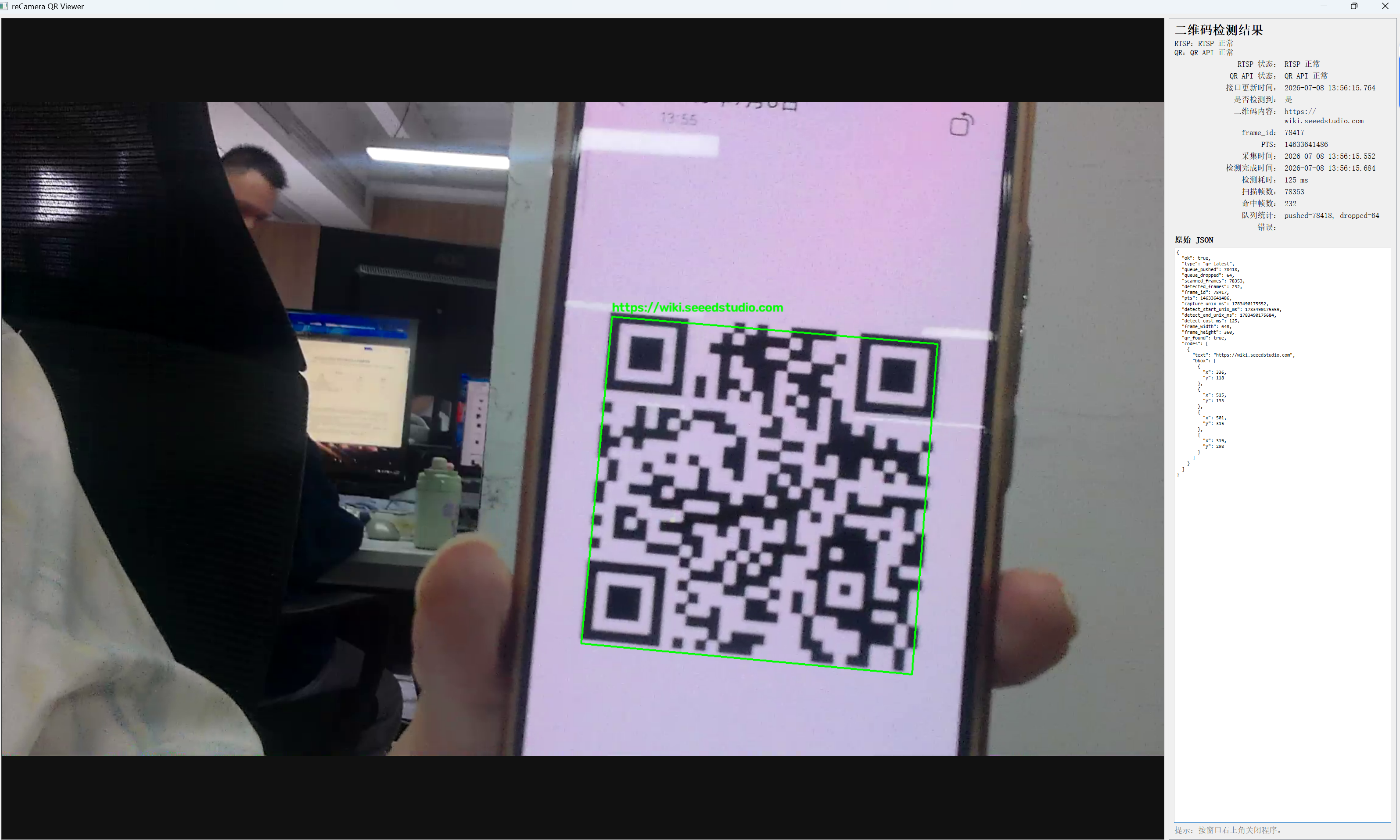
The PC will display a real-time video window, which includes:
- JPEG video stream
- Recognition results
- The raw JSON returned by HTTP
Technical Support and Product Discussion
Thank you for choosing our product! We are committed to providing you with various forms of support to ensure your experience is as smooth as possible. We offer multiple communication channels to cater to different preferences and needs.