reComputer Industrial R22xx Flash OS

reComputer Industrial R22xx series is powered by Raspberry Pi CM5 and Hailo-8 AI accelerator, this compact edge AI system delivers 26 TOPS for real-time multi-channel vision processing. With a quad-core Cortex-A76 CPU, up to 16GB RAM, 64GB eMMC, and a versatile interface, it ensures seamless integration into industrial AI applications.
Hardware Requirements
You need to prepare the following hardware
- reComputer Industrial R22xx x 1
- Host Computer (Windows/Mac/Linux) x 1
- Ethernet cable x 1
- Power adapter (12V-24V) BYO
Software Requirements
Flash OS
For Windows host computer
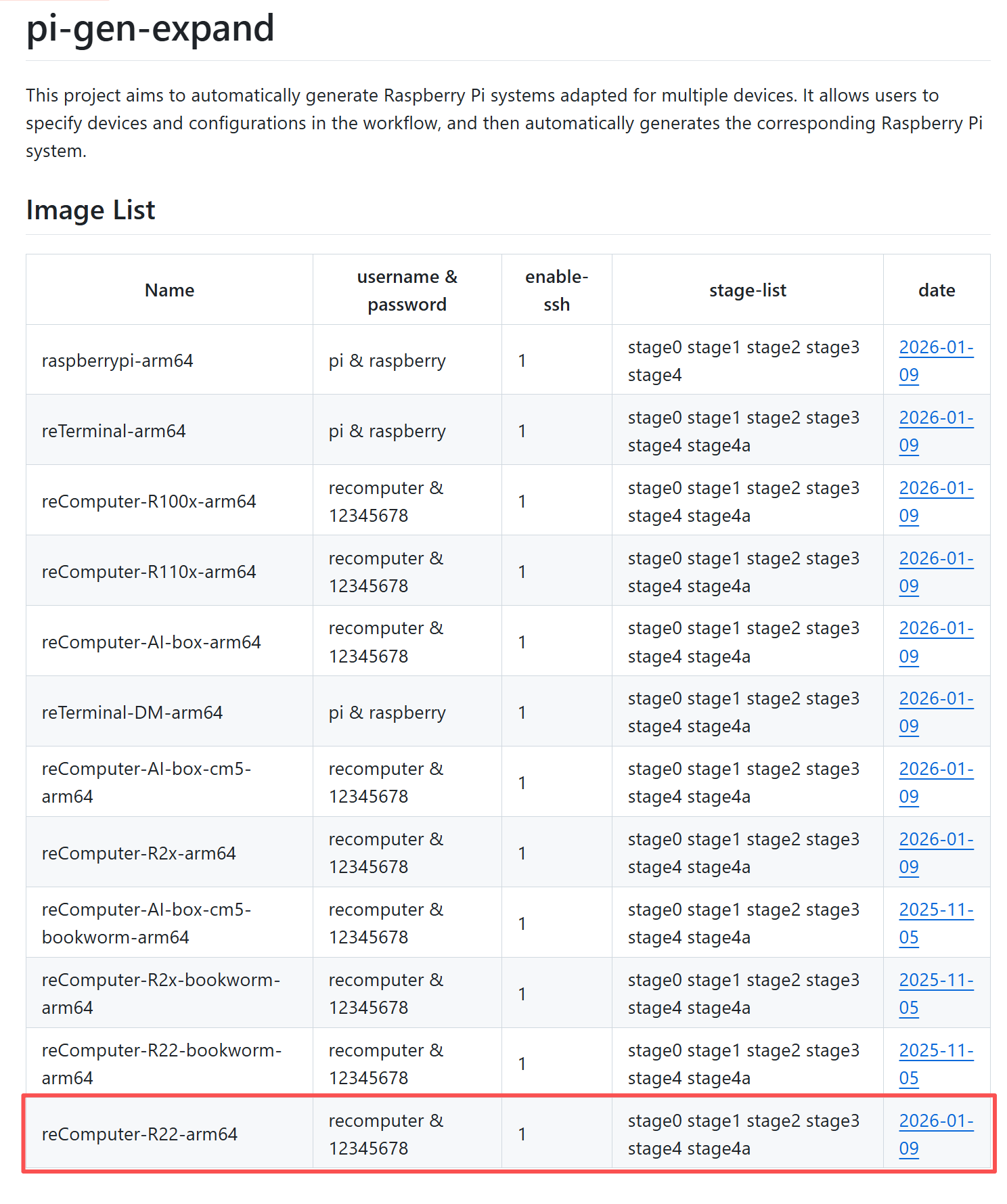
- Step 1. Click the link below to download the device image file Select the last one and click the date link to download:
-
Step 2. Download Raspberry Pi Imager software from here
-
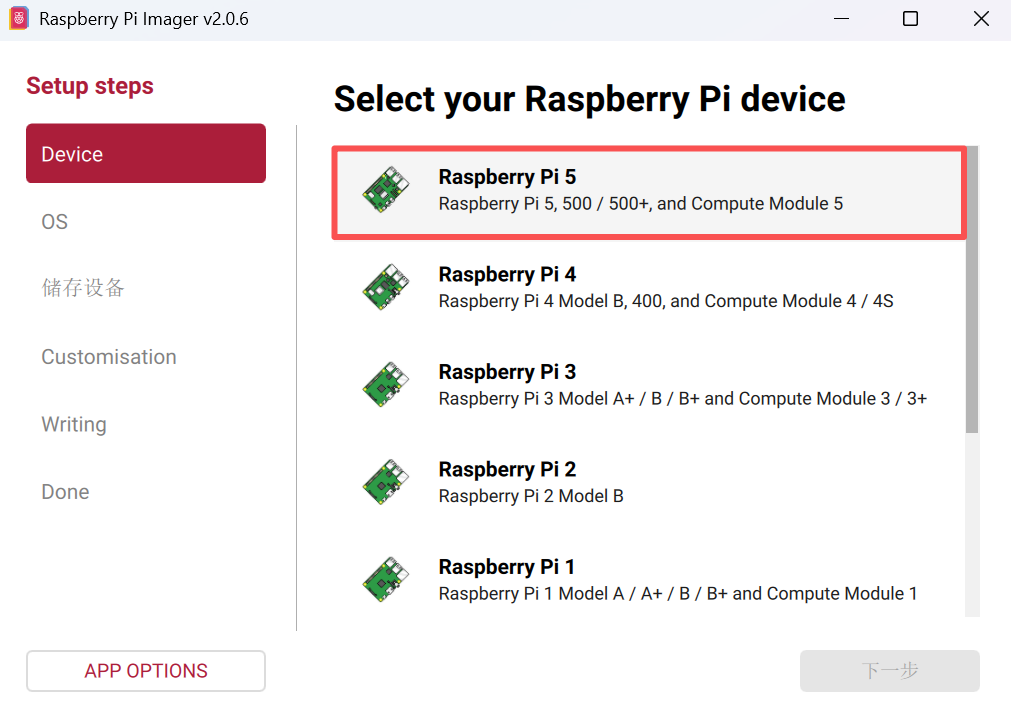
Step 3. Open Raspberry Pi Imager software
-
a.Download the rpiboot setup installer by click here to install the necessary drivers and the boot tool.
-
b.Connect reComputer R2200 the PC via USB Type-C cable.
-
c.Windows will now find the hardware and install the necessary drivers.
-
d.Search for rpiboot tool that we installed before and open it.
-
e.Open file explorer and you will see the eMMC of the Computer Module 5 shown as a USB mass storage device.
-
f.Download Raspberry Pi Imager software from https://www.raspberrypi.org/software/ .
-
g.Open Raspberry Pi Imager software.
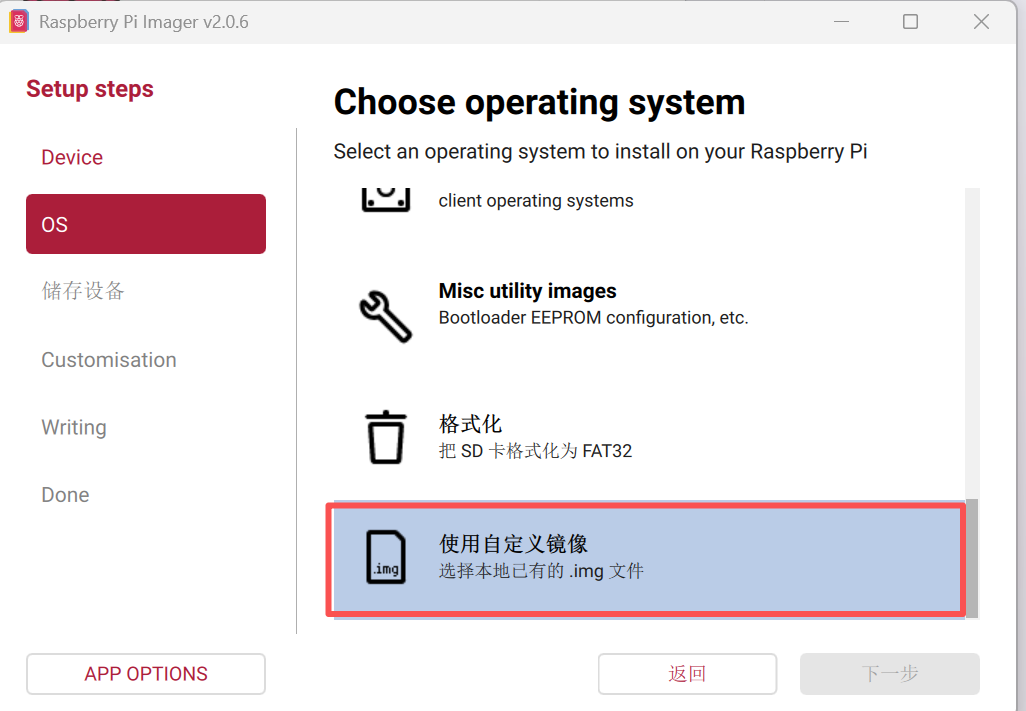
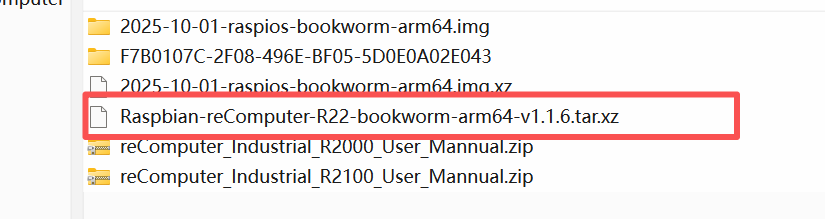
- Step 4. Select the downloaded image file.
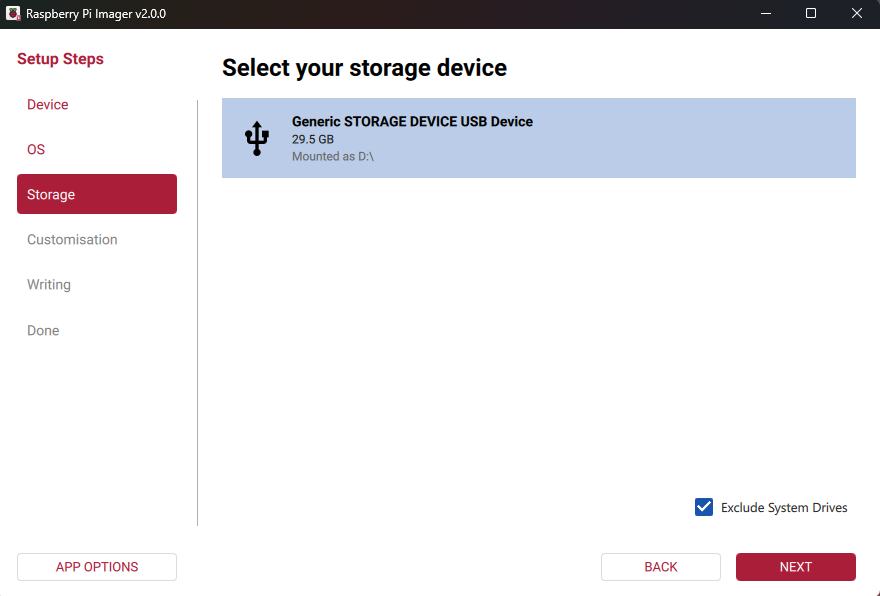
- Step 5. In the Storage tab, select the storage device to write the image to. Select Next.
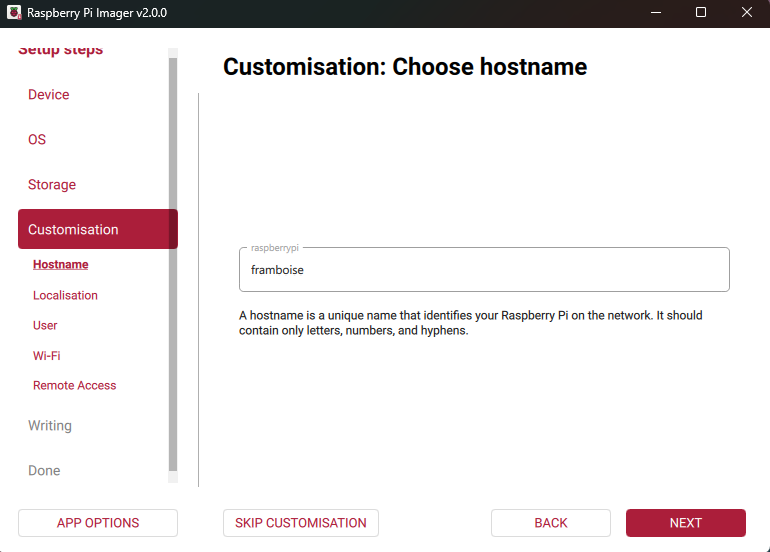
- Step 6. Raspberry Pi OS and some third-party operating systems support customisation. If you’re installing one of these operating systems, you can use the next set of steps in Imager to customise it. These steps are optional and can be skipped by choosing Skip customisation.For further configuration instructions, please refer to here
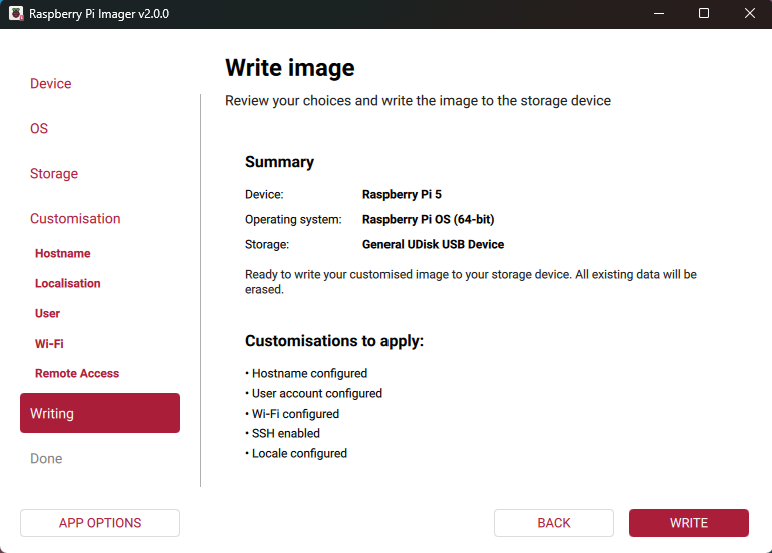
Continue burning the image until it succeeds.
Unplug the USB-C port, press the boot button again, and power on/off. If you can log in to the system normally, the image has been burned successfully and can be used normally.
For MAC host computer
You need to install homebrew before proceed the following steps.
Please open a terminal and type brew -V to check if you have setup the correct homebrew environment, you should see the version of the homebrew environment you have installed.
-
Step 1. Download and Install Raspberry Pi Imager Application by visiting this link
-
Step 2. Open the Raspberry Pi Imager Application

- Step 3. Press CTRL + SHIFT + X on the keyboard to open Advanced options window

Here you can set a hostname, enable SSH, set a password, configure wifi, set local settings and more
- Step 4. Click CHOOSE OS and select your preferred OS

NOTE: You can select other OS such as 64-bit Ubuntu by navigating into Other general purpose OS
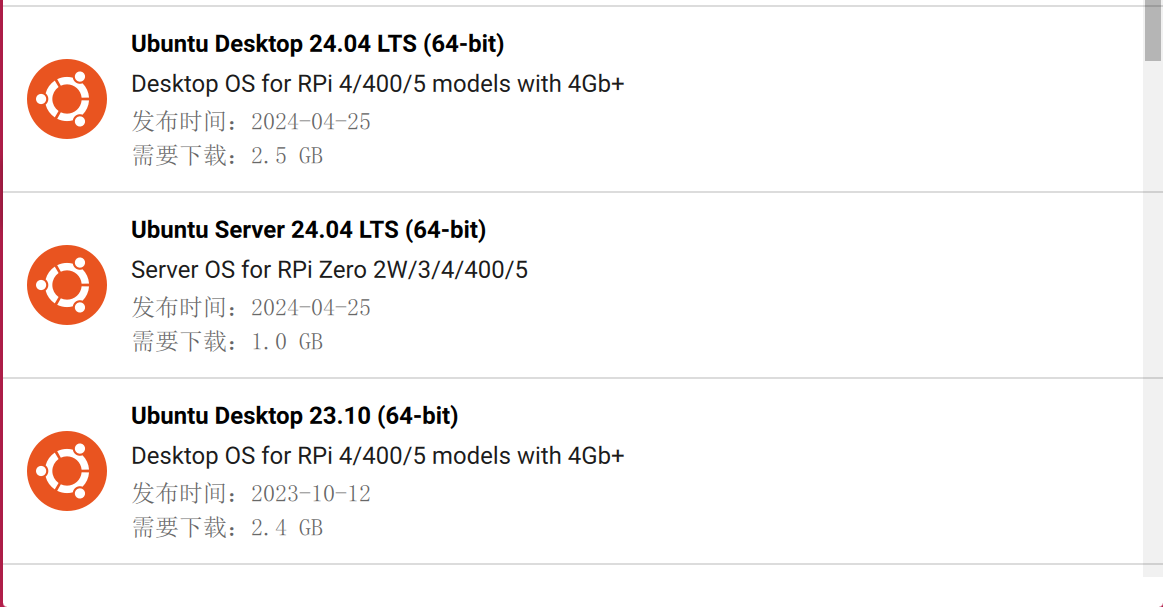
Or you can use this link to download the image file:
-
Step 5. Click CHOOSE STORAGE
-
Step 6. Finally, click WRITE

For Linux host computer
- Step 1. Download snap
sudo apt install snap
- Step 2. Download rpi-imager
snap install rpi-imager
- Step 3. Open Raspberry Pi Imager software
rpi-imager
The result is shown as below:

- Step 4. Press CTRL + SHIFT + X on the keyboard to open Advanced options window
Here you can set a hostname, enable SSH, set a password, configure wifi, set local settings and more
- Step 5. Click CHOOSE OS and select your preferred OS
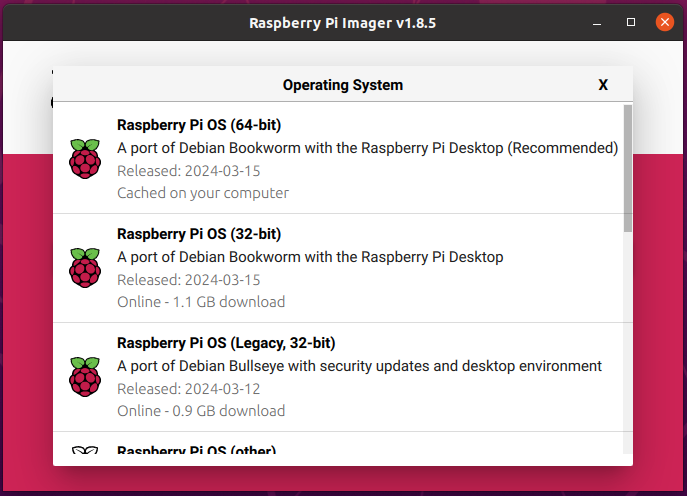
NOTE: You can select other OS such as 64-bit Ubuntu by navigating into Other general purpose OS
Or you can use this link to download the image file:
-
Step 6. Click CHOOSE STORAGE and select the connected eMMC drive
-
Step 7. Finally, click NEXT and YES

Please wait a few minutes until the flashing process is complete. The result is shown as below:

Boot from NVME
Update EEPROM
This method works if you have an SSD and have booted the device successfully with emmc. Please make sure your system is the latest Raspberry Pi system (Bookworm or later) and and your RPi 5 firmware is updated to 2023-12-06 (Dec 6th) or newer, otherwise it may not recognize the NVME-related configurations.
Step 1:Ensure that your Raspberry Pi system is up-to-date (Bookworm or later), enter the following command to update the RPi 5 firmware:
  sudo apt update && sudo apt upgrade -y
  sudo rpi-eeprom-update  # If it is not post-December 2023 type the following into a terminal to start the configuration tool
  sudo raspi-config
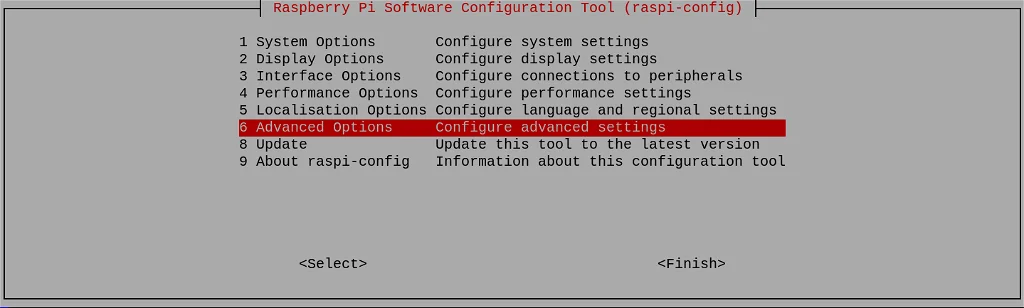
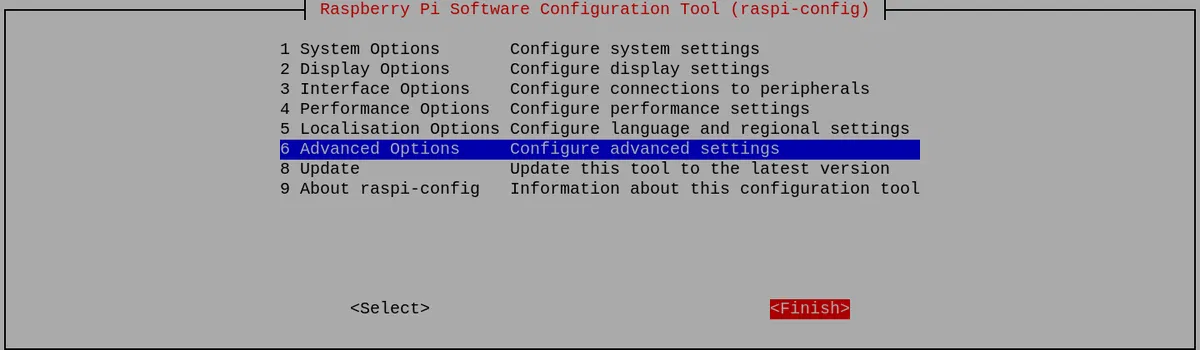
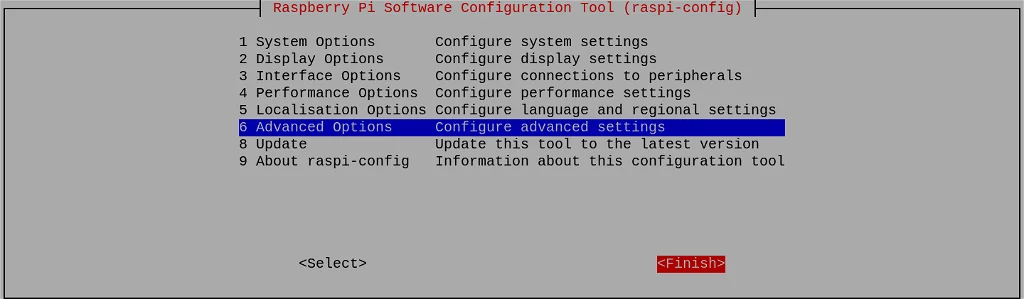
Scroll down to Advanced Options and press Enter:
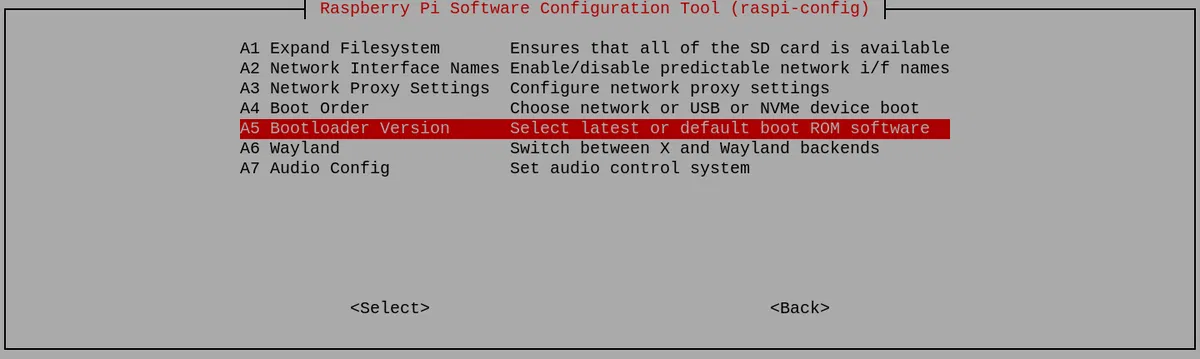
Scroll down to Bootloader Version and press Enter:
And finally choose Latest, and press Enter:
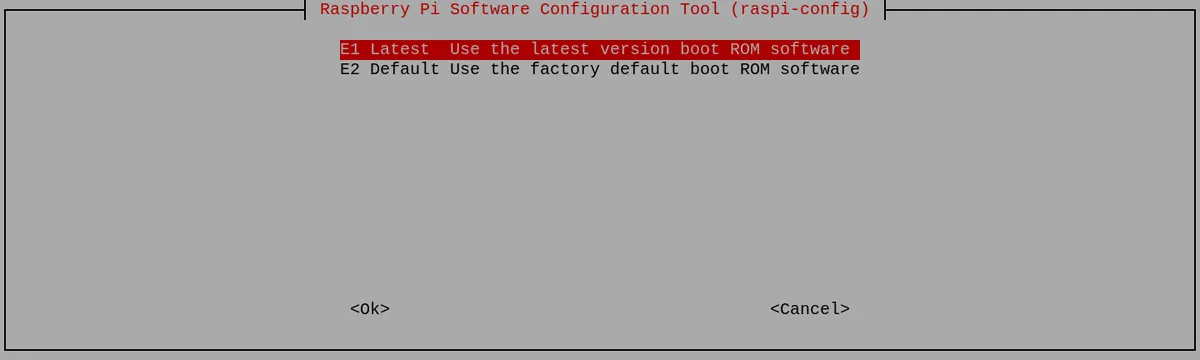
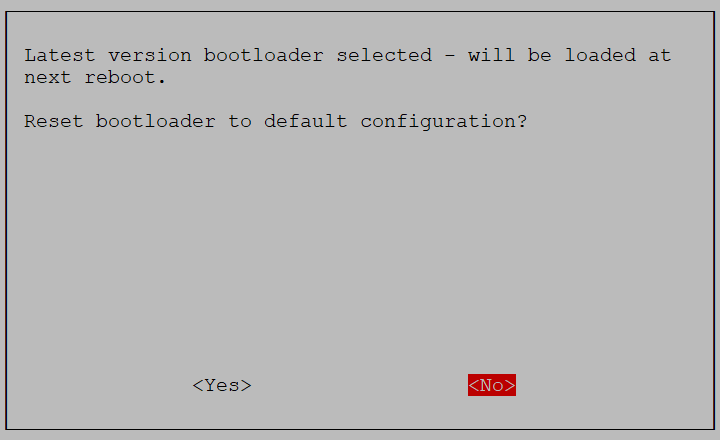
Select No here - you want the latest bootloader.
And exit from the tool by selecting Finish:
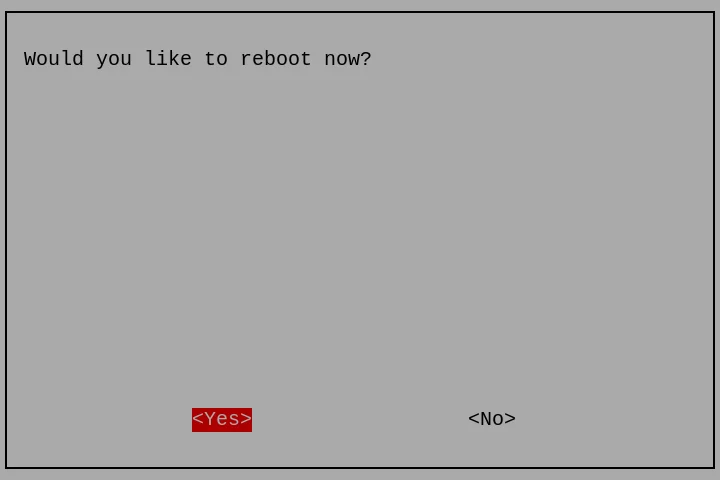
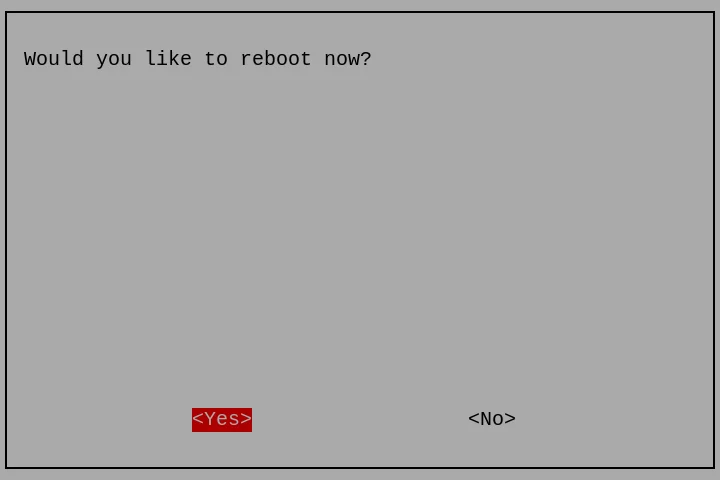
If asked to reboot, select Yes.
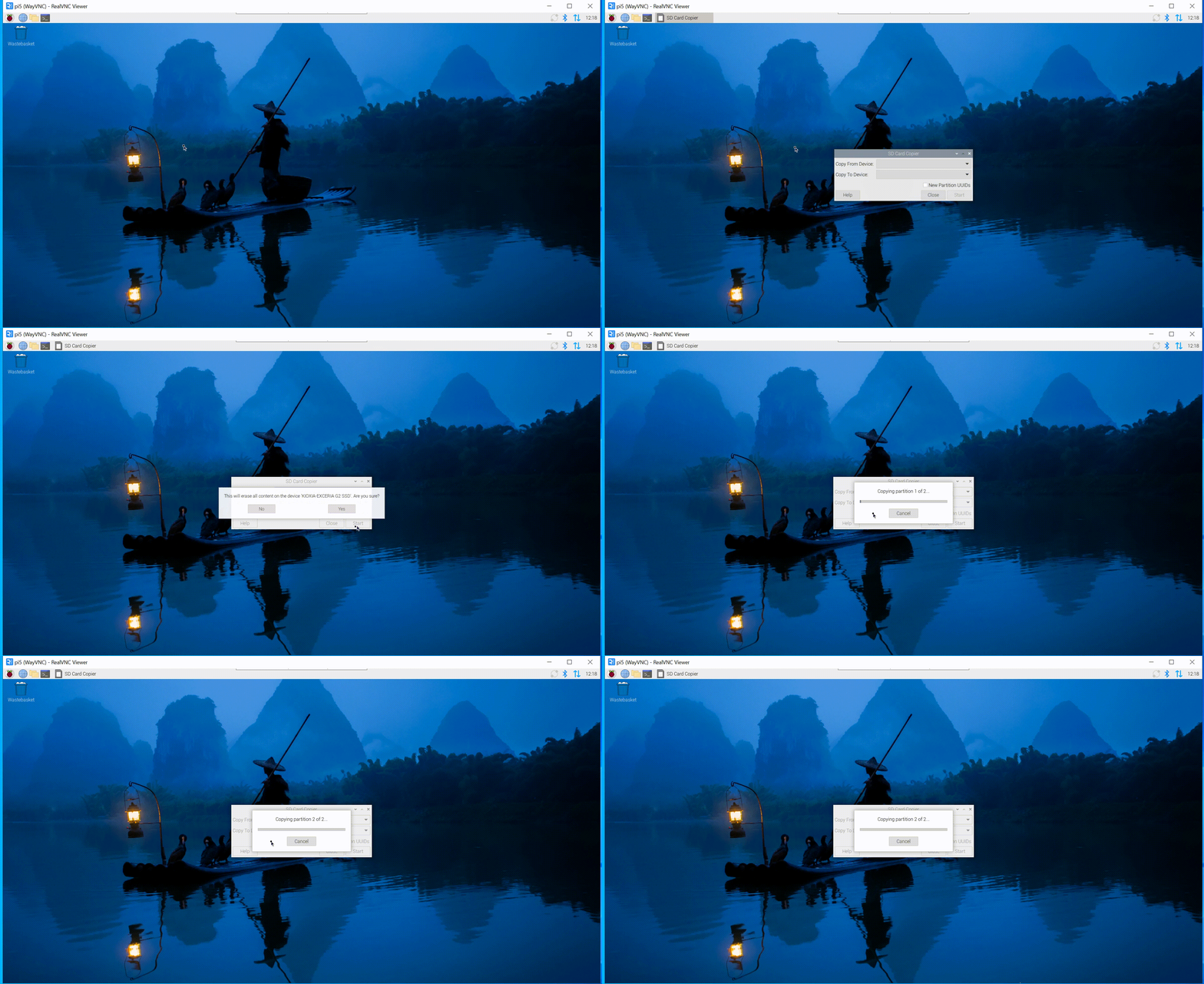
Step 2:Cick Applications =>Accessories =>SD Card Copier on the main screen, run the SD Card Copier program, and copy the OS to the NVME ssd as shown in the figure below.
Setting the Raspberry Pi to boot from the NVMe SSD
If you have easy access to your SD card slot you could turn off your Pi, pop out the SD card and (if everything's working as expected) it should automagically boot from your NVMe drive the next time you start it up. If you want to leave the SD card where it is and still boot from NVMe though, you'll need to change the boot order.
Step 1:Enter the following command:
sudo raspi-config
Scroll down to Advanced Options and press Enter:
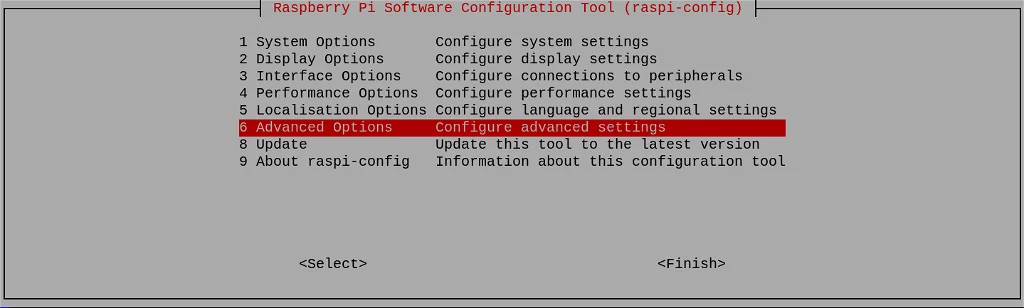
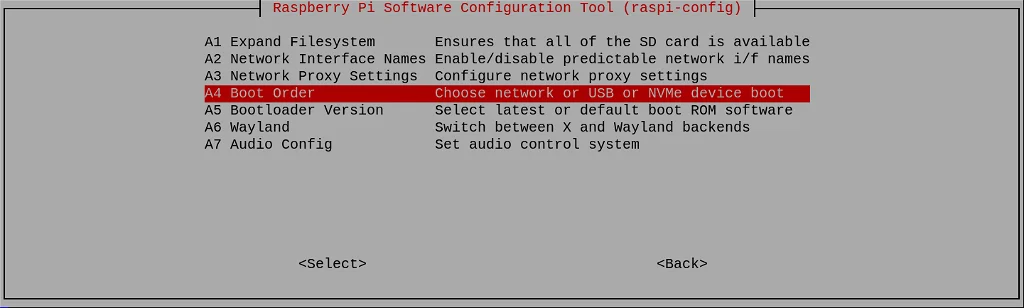
Step 2:Scroll down to Boot Order and press Enter:
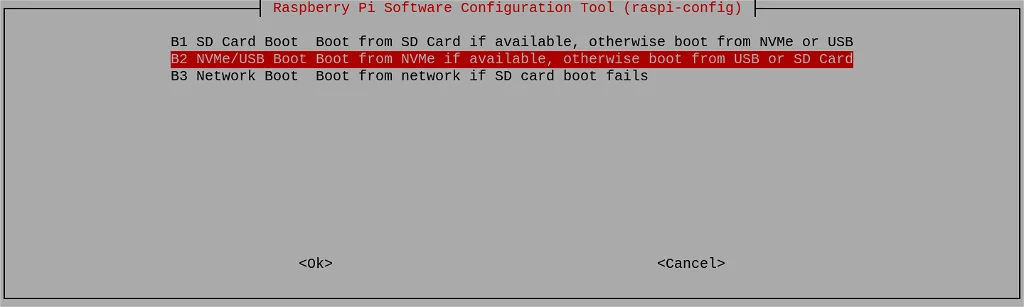
Step 3:Choose NVMe/USB Boot and press Enter:
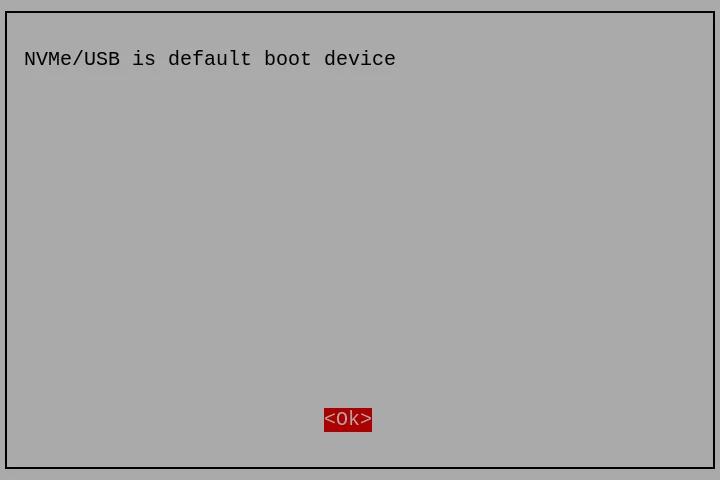
Configuration will be confirmed. Press Enter:
Step 4:Return to the first screen by selecting Back or pressing the Esc key. Then navigate to Finish using the right cursor key.
You will be asked whether you want to reboot now. Click Yes:
Tech Support & Product Discussion
Thank you for choosing our products! We are here to provide you with different support to ensure that your experience with our products is as smooth as possible. We offer several communication channels to cater to different preferences and needs.