PoE Camera Usage on reServer Industrial
reServer Industrial is designed as an edge AI NVR with 4 PoE PSE Ethernet ports (LAN1–LAN4) and 1 uplink port (LAN0). You can power and connect network IP cameras (RTSP/ONVIF) and industrial PoE cameras directly over a single Ethernet cable — no separate power adapter required.
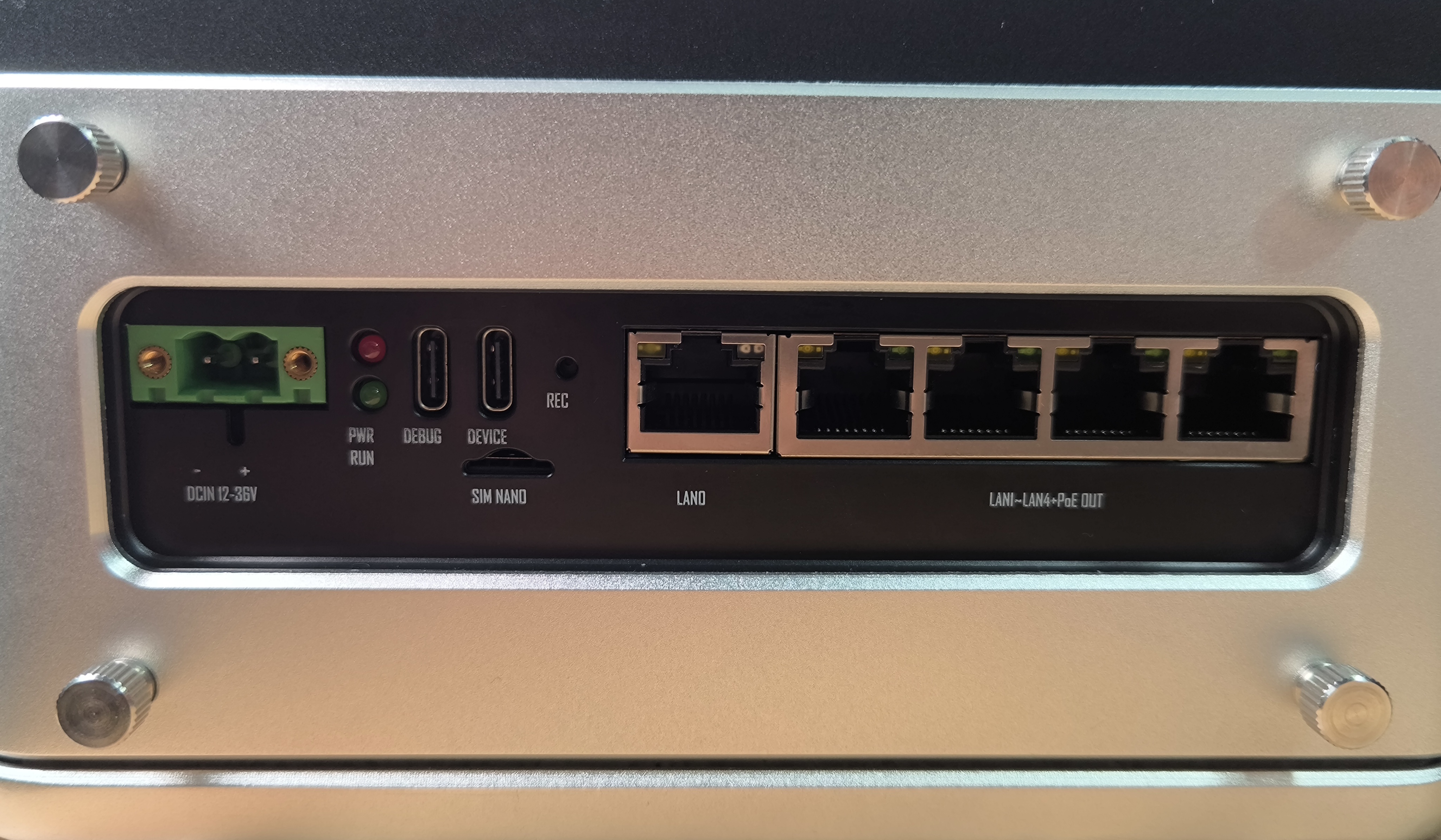
For a full overview of all Ethernet ports and PoE specifications, see reServer Industrial Hardware Interface Usage — Gigabit Ethernet Connectors.
Port Overview
| Port | Role | PoE Output | Typical Use |
|---|---|---|---|
| LAN1 – LAN4 | Camera | Yes (802.3af, 15 W max each) | IP camera, industrial PoE camera |
| LAN0 | Uplink | No | Router/switch for Internet and management |
The physical label on the chassis (LAN0–LAN4) is fixed. The Linux interface name (eth0, enP1p1s0, etc.) depends on JetPack version and kernel — do not assume a fixed mapping. Use Step 2 to match each physical port to its interface.
Each PoE port should use a separate subnet when connecting multiple cameras, so factory-default addresses do not conflict (see the table in Step 3).
Step 1: Enable PoE Power
Enable PoE output on the four PSE ports before connecting a PoE camera. The procedure matches Hardware Interface Usage — Gigabit Ethernet.
- Jetpack 5.1.x
- Jetpack 6
sudo -i
cd /sys/class/gpio
echo 315 > export
cd gpio315
echo "out" > direction
echo 1 > value
sudo apt update
sudo apt install gpiod
gpioset gpiochip2 15=1
If gpiochip2 is not found, the GPIO chip name can differ by image or kernel. Run gpioinfo and locate the line used for PoE control (gpio-315 on the I2C expander at i2c/1-0021 on many reServer Industrial units). Use that chip name and line offset in gpioset instead. See the GPIO table in Hardware Interface Usage.
To disable PoE, set the GPIO value to 0 instead of 1.
To enable PoE automatically on every boot, add the commands above to a systemd service or /etc/rc.local (before exit 0).
Step 2: Map Physical Ports to Linux Interfaces
Each physical PoE port maps to one Linux interface (eth0, eth1, …). On reServer Industrial, PoE interfaces are down by default until NetworkManager brings them up — plugging in a camera alone will not show LOWER_UP in ip -br link until the interface is activated.
Map one physical port at a time to keep variables controlled:
Step 1. With PoE enabled, list interfaces and note the candidate Ethernet names (ignore lo, docker0, l4tbr0, rndis0, and usb0):
ip -br link
Step 2. For each candidate PoE interface, create a link-only NetworkManager profile (no IP required) and bring it up. Example for eth0:
sudo nmcli connection add type ethernet ifname eth0 con-name POE1 \
  ipv4.method disabled connection.autoconnect yes
sudo nmcli -w 5 connection up POE1
ipv4.method disabled keeps the profile link-only. -w 5 limits the wait to 5 seconds — the command may report a timeout if no camera is connected yet, but the interface is still activated.
To bring up a single interface without NetworkManager:
sudo ip link set eth0 up
This is enough for one-time port mapping, but the setting is lost after reboot unless you add a persistent profile as above.
Step 3. Plug the camera into one physical port only (for example LAN1).
Step 4. Run ip -br link again. The interface that shows UP with LOWER_UP is the Linux interface for that physical port. Record the mapping (for example LAN1 → eth0).
Step 5. Unplug the camera, repeat Steps 3–4 for LAN2, LAN3, and LAN4.
| Physical port | Linux interface | Notes |
|---|---|---|
| LAN1 | fill in | |
| LAN2 | fill in | |
| LAN3 | fill in | |
| LAN4 | fill in | |
| LAN0 | fill in | Uplink — usually connected to a router |
Keep LAN0 connected to your router or switch when Internet access on reServer Industrial is required.
Step 3: Configure IP on reServer
The reServer interface and the camera must each have an IP address on the same subnet to communicate. Obtain the camera address from its documentation or factory label (many cameras ship with a fixed default such as 192.168.1.64). If the address is unknown, you can run tcpdump on the mapped interface while power-cycling the camera — some models broadcast their IP once at boot.
If you already created a link-only profile in Step 2 (for example POE1), add the static IP to it. Otherwise create the profile in one step. Example for LAN1 (eth0), camera 192.168.1.64, reServer 192.168.1.10/24:
# Option A — profile already exists from Step 2
sudo nmcli connection modify POE1 ipv4.addresses 192.168.1.10/24
sudo nmcli connection modify POE1 ipv4.method manual
sudo nmcli -w 10 connection up POE1

# Option B — create profile with static IP in one command
sudo nmcli connection add type ethernet ifname eth0 con-name POE1 \
  ipv4.addresses 192.168.1.10/24 ipv4.method manual connection.autoconnect yes
sudo nmcli -w 10 connection up POE1
For multiple cameras, use one camera per PoE port and a different subnet on each port:
| PoE port | Connection name | Example reServer IP | Example camera subnet |
|---|---|---|---|
| LAN1 | POE1 | 192.168.1.10/24 | 192.168.1.0/24 |
| LAN2 | POE2 | 192.168.2.10/24 | 192.168.2.0/24 |
| LAN3 | POE3 | 192.168.3.10/24 | 192.168.3.0/24 |
| LAN4 | POE4 | 192.168.4.10/24 | 192.168.4.0/24 |
Replace eth0, connection names, and addresses to match your port mapping and camera documentation.
Step 4: Verify Connectivity
ping -c 4 192.168.1.64
Replace the address with your camera IP. A successful ping means the PoE link and IP configuration on reServer Industrial are correct.
Once connectivity is confirmed, refer to your camera manufacturer's documentation for the next steps — for example RTSP stream URLs, ONVIF setup, industrial SDK integration, or NVR ingestion. For multi-camera AI pipelines on reServer Industrial, see AI NVR with reServer Jetson.
Troubleshooting
| Issue | Possible Cause | Solution |
|---|---|---|
gpiochip2 not found (JetPack 6) | GPIO chip name differs by image | Run gpioinfo; use the chip and line for PoE (gpio-315). See GPIO table |
| Camera does not power on | PoE GPIO not enabled | Re-run Step 1; confirm GPIO value is 1 |
| Camera reboots repeatedly | Power draw exceeds 15 W | Use a camera rated for 802.3af (≤ 15 W) or an external power supply |
ip -br link shows no LOWER_UP after plugging camera | PoE interface not activated | Create a link-only profile and run nmcli -w 5 connection up (Step 2), or sudo ip link set <if> up |
nmcli connection up hangs or times out | No carrier yet (camera not connected) | Expected with an empty port — use -w 5; link still activates. Plug in the camera and check ip -br link |
| Cannot identify which interface is UP | Multiple cables connected | Disconnect all PoE ports; map one physical port at a time (Step 2) |
| Cannot ping camera | Subnet mismatch or wrong interface | Confirm reServer IP is on the same subnet as the camera; verify the port mapping from Step 2 |
| Camera IP unknown | Not documented on label | Run sudo tcpdump -i <poe-interface> -n on the mapped interface, then power-cycle the camera |
| Multiple cameras conflict | Same default IP | Use one PoE port per camera with isolated subnets (see Step 3 table) |
Related Resources
- reServer Industrial Getting Started
- reServer Industrial Hardware Interface Usage
- AI NVR with reServer Jetson
- reServer Industrial Datasheet
Tech Support & Product Discussion
Thank you for choosing our products! We are here to provide you with different support to ensure that your experience with our products is as smooth as possible. We offer several communication channels to cater to different preferences and needs.