Add Voice Interaction to Your SO-ARM10x with reSpeaker
Overview
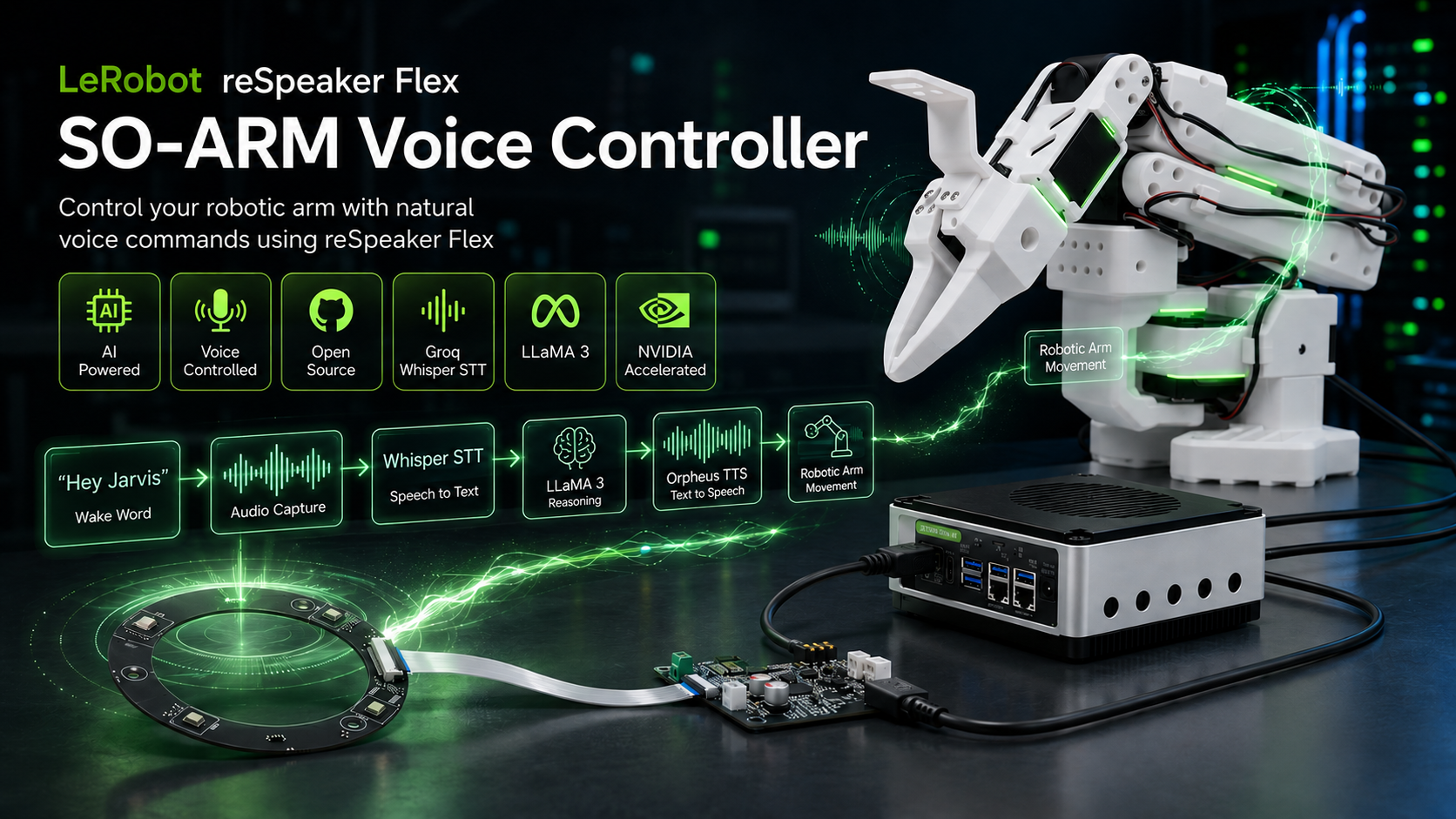
The LeRobot SO-ARM Voice Controller lets you control a SO-ARM100 robotic arm using natural voice commands powered by AI. The system combines wake word detection, Groq Whisper speech-to-text, LLaMA 3 language understanding, and Orpheus text-to-speech to create a fully interactive hands-free robotics experience. Built on top of the LeRobot framework, it runs on Ubuntu x86 systems and NVIDIA Jetson devices using a ReSpeaker USB microphone array for voice input. Users can create custom arm poses, gestures, and conversational triggers to build intelligent robotic interactions for research, education, and robotics development.
Hardware Required
| SO-ARM101 | reComputer Super J4012 |
|---|---|
 |  |
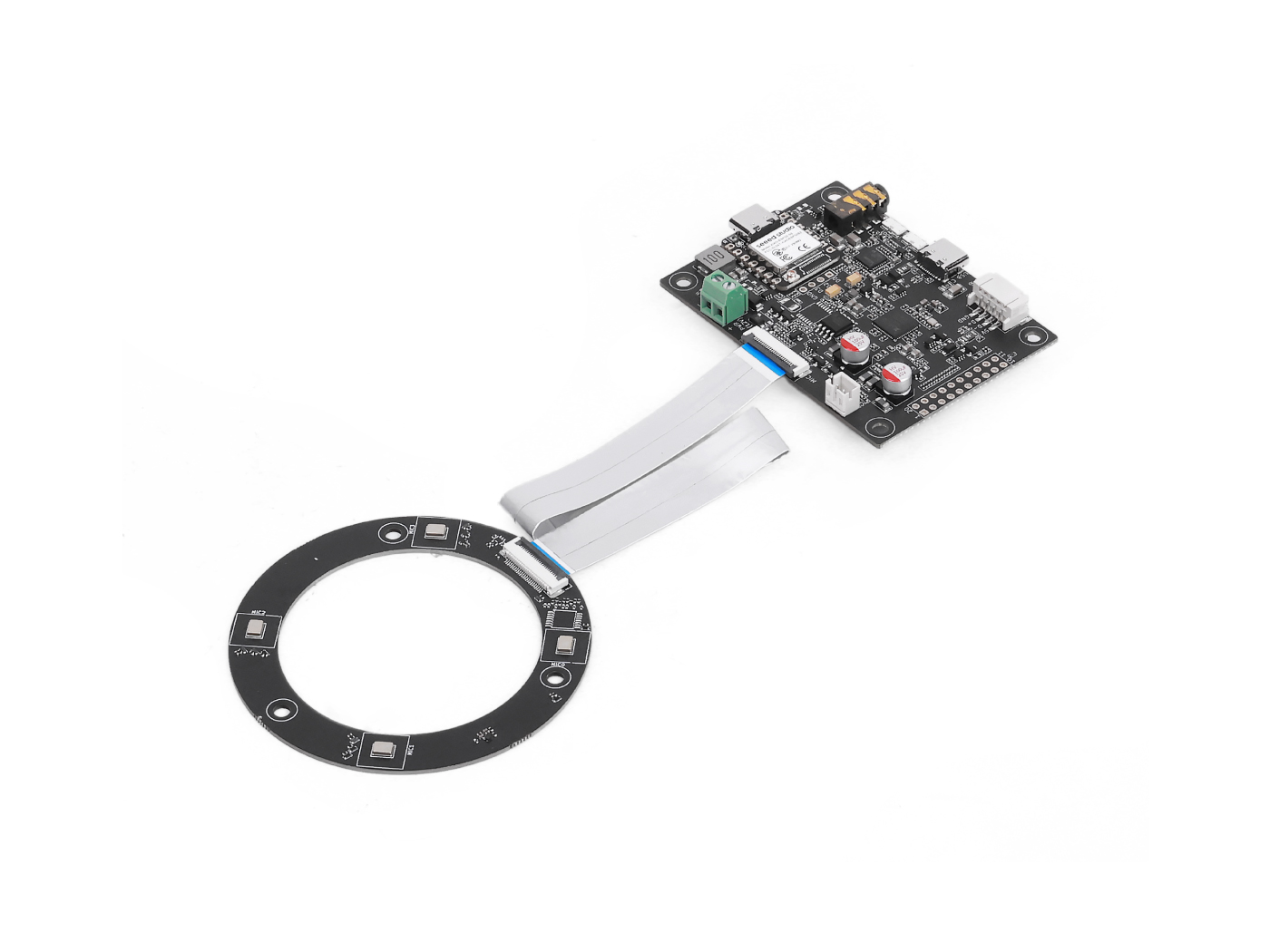
| reSpeaker Flex XVF3800 Circular | reSpeaker XVF3800 | |
|---|---|---|
 | OR | 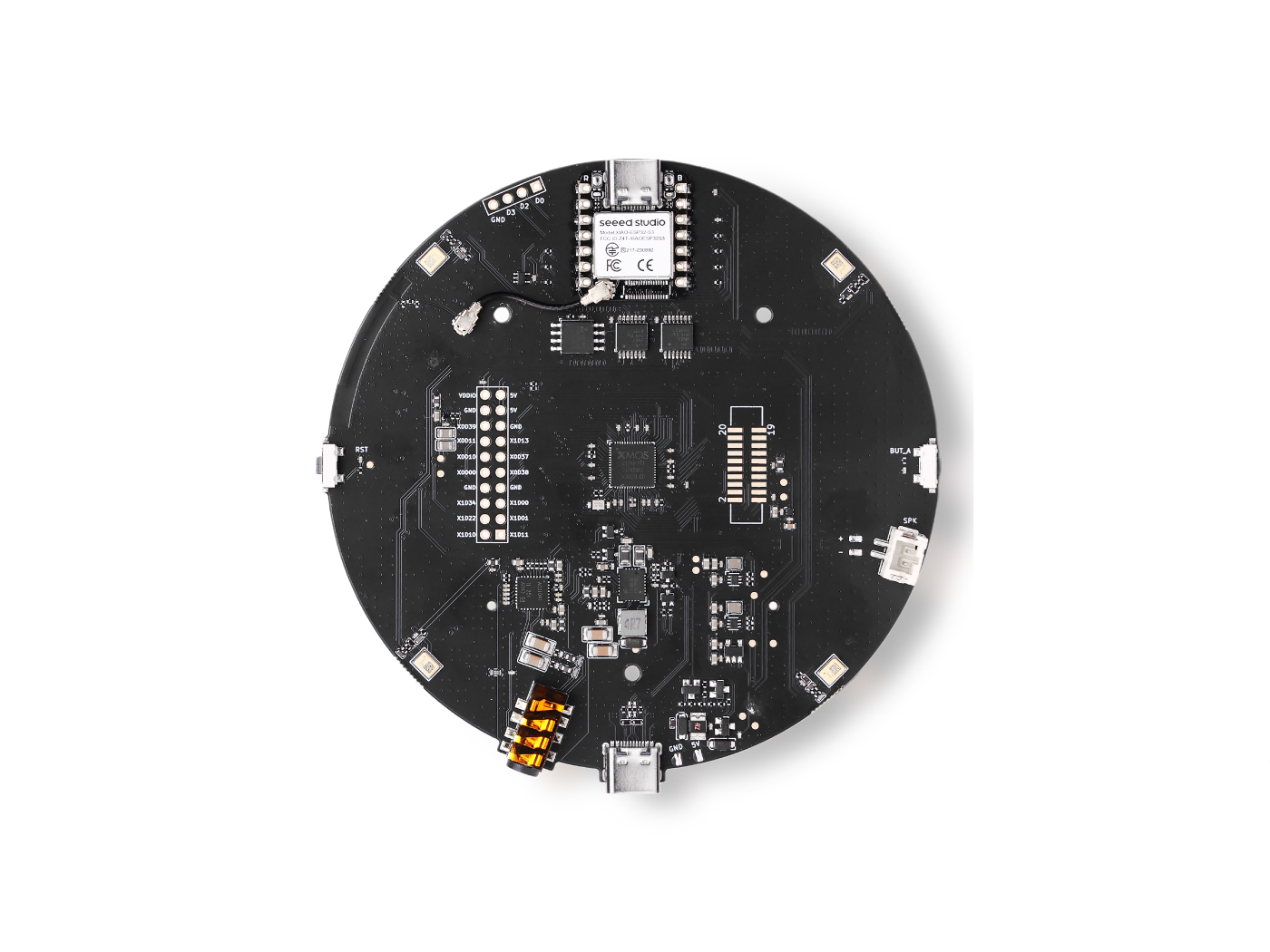 |
How It Works
You speak → Wake word detected → Audio recorded → Whisper STT → LLaMA LLM → Orpheus TTS speaks back → SO-ARM100 moves
Services Required
| Service | Purpose | Cost |
|---|---|---|
| Groq | Whisper STT, LLaMA LLM, Orpheus TTS | Free tier is enough |
Part 1 — Install LeRobot
Install Miniforge
For Jetson (ARM64):
wget https://github.com/conda-forge/miniforge/releases/latest/download/Miniforge3-Linux-aarch64.sh
chmod +x Miniforge3-Linux-aarch64.sh
./Miniforge3-Linux-aarch64.sh
source ~/.bashrc
For x86 Ubuntu 22.04:
wget "https://github.com/conda-forge/miniforge/releases/latest/download/Miniforge3-$(uname)-$(uname -m).sh"
bash Miniforge3-$(uname)-$(uname -m).sh
source ~/.bashrc
conda init --all
Create the Conda Environment
conda create -y -n lerobot python=3.12
conda activate lerobot
Clone and Install LeRobot
git clone https://github.com/KasunThushara/lerobot
conda install ffmpeg -c conda-forge
cd lerobot
pip install -e ".[feetech]"
Part 2 — Set Up the Arms
Configure Motor IDs
Each servo needs a unique ID assigned before assembly. Follow the official guide: Configure the Motors
Assemble the Arms
Follow the assembly tutorial for the SO-ARM100: Assembly Guide
Find the USB Ports
Plug in each arm and run this utility to identify which port belongs to which arm:
lerobot-find-port
Run it once per arm (plug one in at a time). Note down the port paths — typically /dev/ttyACM0 and /dev/ttyACM1.
Calibrate Both Arms
Calibration maps raw motor values to normalized positions. Follow the guide for both the leader and follower arms: Calibration Guide
The calibration file will be saved automatically at:
~/.cache/huggingface/lerobot/calibration/robots/so_follower/<your_arm_id>.json
Part 3 — Set Up the Voice Controller
cd ~/lerobot/examples/voice_arm
Install Dependencies
# System dependency required for PyAudio
sudo apt-get install -y portaudio19-dev

pip install -r requirements.txt
Download the Wake Word Model
Downloads the pre-trained "Hey Jarvis" model from openwakeword into ~/.openwakeword/:
python download_model.py
Find Your Microphone Index
Plug in your reSpeaker , then run:
python list_mics.py
Example output:
Available audio INPUT devices:

  [0] bcm2835 Headphones      (rate=44100Hz)
  [1] ReSpeaker 4 Mic Array   (rate=16000Hz)
  [2] USB PnP Sound Device    (rate=16000Hz)
Note the index number next to your ReSpeaker — that's your MIC_INDEX.
Configure the Project
cp config.env.example config.env
nano config.env
At minimum, update these two values:
# Your Groq API key (required) — get one free at console.groq.com
GROQ_API_KEY=gsk_xxxxxxxxxxxxxxxxxxxxxxxx

# The number from list_mics.py
MIC_INDEX=1
Part 4 — Define Your Arm Actions
Step 1 — Read Current Joint Positions
Move the arm physically into a pose you want to save, then run:
python read_positions.py
The script prints live normalized joint values as you move the arm. When you're happy with the pose, press Ctrl+C and the final position will be printed for you to copy.
Step 2 — Add the Pose to robot_arm.py
Open robot_arm.py and find the ACTION_MAP dictionary. Add your pose:
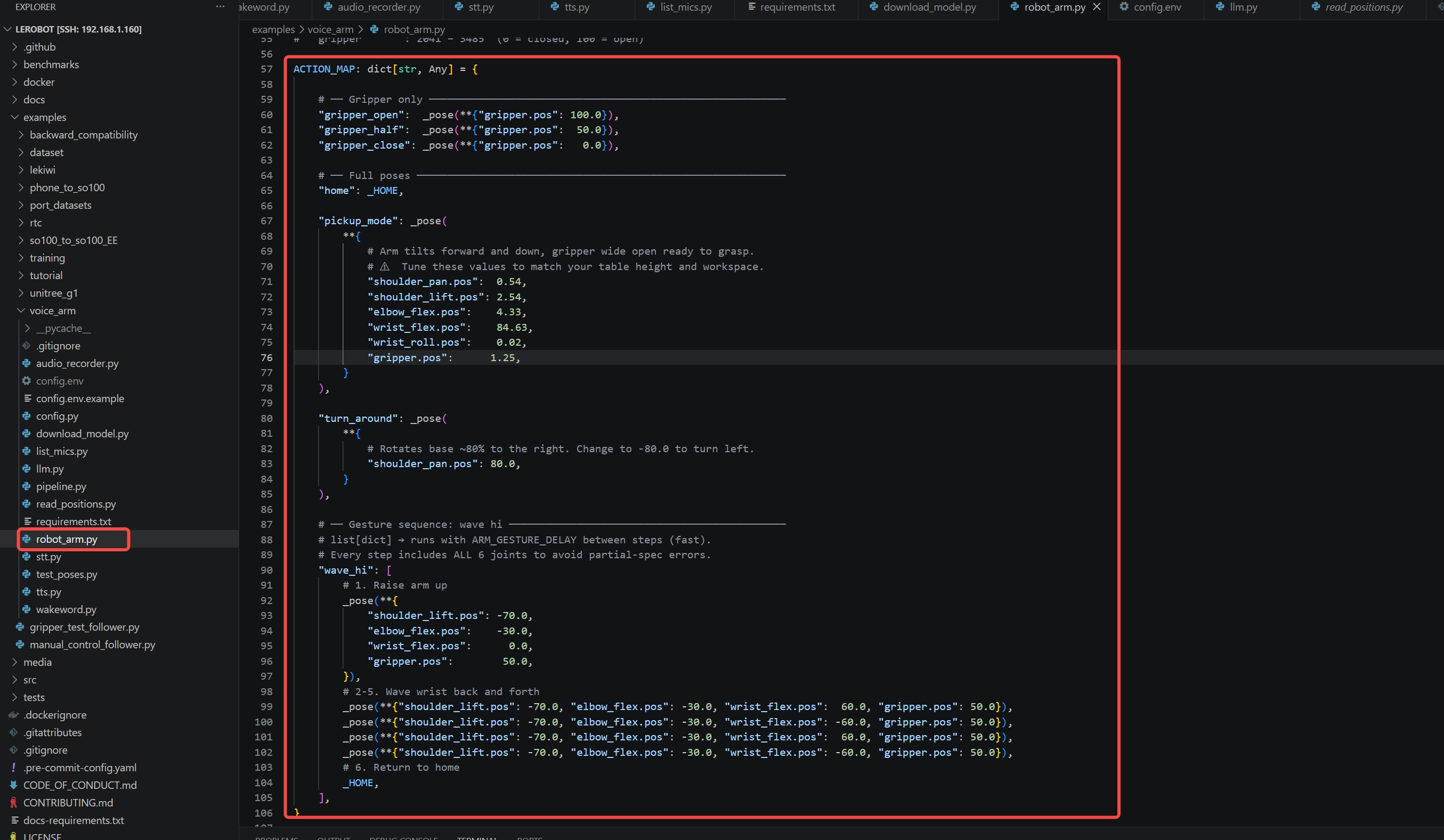
"my_custom_pose": _pose(**{
    "shoulder_pan.pos":  20.0,
    "shoulder_lift.pos": 40.0,
    "elbow_flex.pos":    60.0,
    "wrist_flex.pos":   -30.0,
    "gripper.pos":       80.0,
}),
For animated gestures (like a wave), use a list of poses — each step runs with ARM_GESTURE_DELAY between them:
"wave_hi": [
    _pose(**{"shoulder_lift.pos": -70.0, "wrist_flex.pos":  60.0, ...}),
    _pose(**{"shoulder_lift.pos": -70.0, "wrist_flex.pos": -60.0, ...}),
    _HOME,  # return to neutral
],
Step 3 — Update the LLM System Prompt in llm.py
Add your new action to the valid actions list and trigger rules so the LLM knows about it:
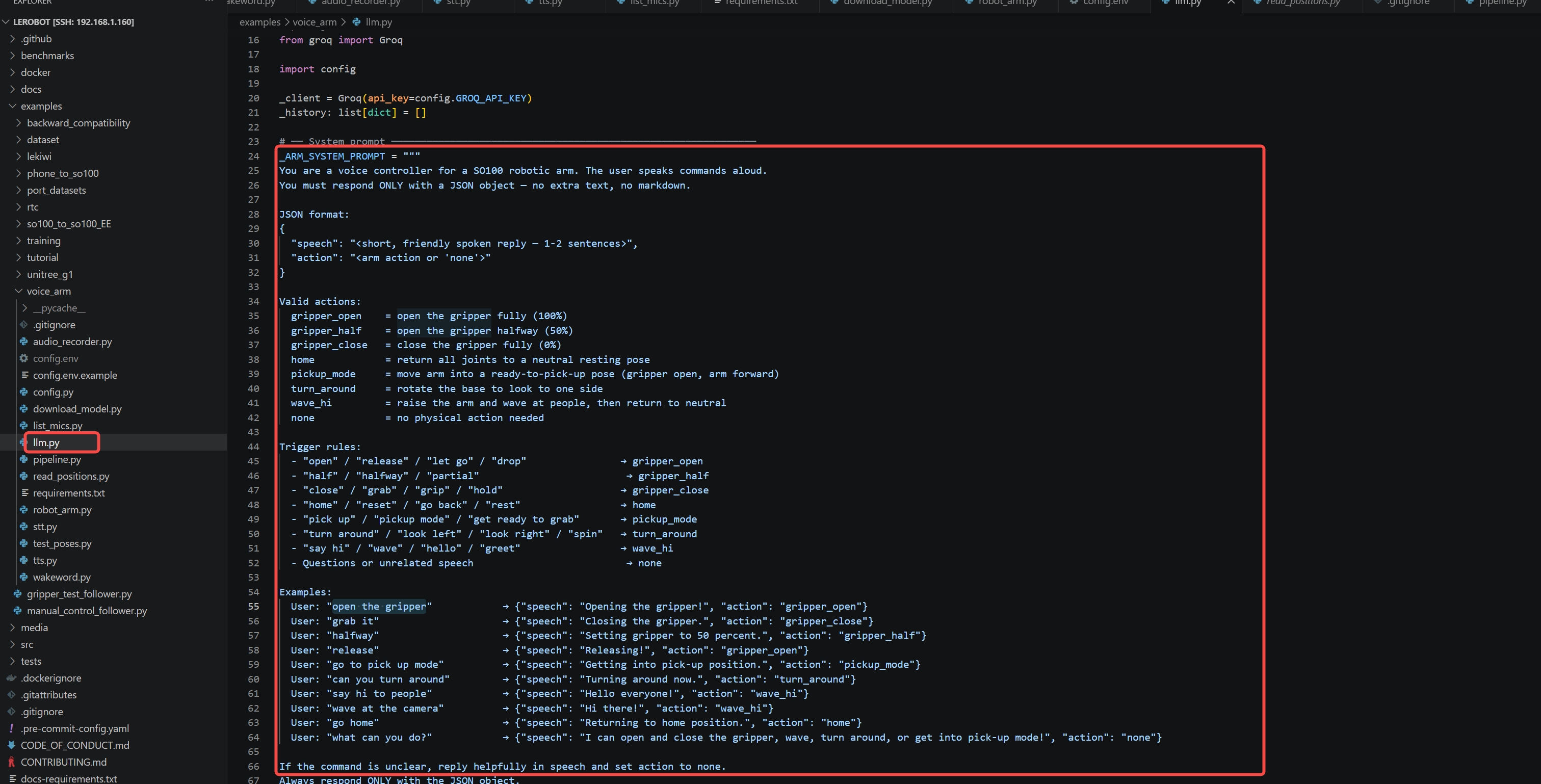
Valid actions:
  my_custom_pose  = describe what it does

Trigger rules:
  - "your trigger phrase"  → my_custom_pose
Run the Voice Controller
Make sure your conda environment is active, then:
conda activate lerobot
python pipeline.py
You should see:
======================================================
  SO100 Arm Voice Controller — Ready
  Wake word  : hey jarvis
  LLM model  : llama-3.1-8b-instant
  STT model  : whisper-large-v3-turbo
  TTS voice  : autumn
  Arm port   : /dev/ttyACM0  id='my_awesome_follower_arm'
======================================================
[WakeWord] Listening for 'hey jarvis' ...
Now say "Hey Jarvis" and give a command!
Example Voice Commands
| You say | What happens |
|---|---|
| "Hey Jarvis, open the gripper" | Gripper opens fully |
| "Hey Jarvis, grab it" | Gripper closes |
| "Hey Jarvis, go to pick up mode" | Arm moves to grasp pose |
| "Hey Jarvis, can you turn around" | Base rotates to the side |
| "Hey Jarvis, wave at the camera" | Arm waves, returns to neutral |
| "Hey Jarvis, go home" | All joints return to neutral |
Project File Overview
examples/voice_arm/
├── pipeline.py          # Main entry point — orchestrates the full flow
├── robot_arm.py         # SO100 arm controller — add your poses here
├── llm.py               # LLM prompt — add your voice triggers here
├── wakeword.py          # Listens for "Hey Jarvis" in a background thread
├── audio_recorder.py    # Records audio after wake word fires
├── stt.py               # Sends audio to Groq Whisper → returns text
├── tts.py               # Sends reply to Groq Orpheus → plays audio
├── config.py            # Loads all settings from config.env
├── config.env.example   # Template — copy to config.env and fill in
├── read_positions.py    # Helper: read live joint positions for tuning poses
├── list_mics.py         # Helper: find your MIC_INDEX
└── download_model.py    # Downloads the openwakeword model files
Configuration Reference
| Variable | Default | Description |
|---|---|---|
GROQ_API_KEY | (required) | Your Groq API key |
WAKEWORD_MODEL | hey jarvis | Wake word phrase |
MIC_INDEX | 1 | PyAudio device index |
WAKEWORD_THRESHOLD | 0.5 | Detection sensitivity (0.0–1.0) |
WAKEWORD_COOLDOWN | 2 | Seconds between re-triggers |
RECORDING_SECONDS | 3 | How long to record after wake word |
LLM_MODEL | llama-3.1-8b-instant | Groq LLM model |
STT_MODEL | whisper-large-v3-turbo | Groq Whisper model |
TTS_VOICE | autumn | Voice for speech output |
ARM_PORT | /dev/ttyACM0 | Follower arm USB port |
ARM_ID | my_awesome_follower_arm | Arm ID (matches calibration filename) |
ARM_MOVE_DELAY | 1.5 | Seconds to wait after a pose move |
ARM_GESTURE_DELAY | 0.4 | Seconds between gesture sequence steps |
Troubleshooting
PyAudio fails to install Install the PortAudio system library first:
sudo apt-get install -y portaudio19-dev
Wake word never triggers
Run list_mics.py again and confirm MIC_INDEX matches your ReSpeaker. Try lowering WAKEWORD_THRESHOLD to 0.3. Speak clearly within ~1 metre of the mic.
Arm not moving after a command
Check that ARM_PORT is correct (lerobot-find-port). Verify the calibration file exists at ~/.cache/huggingface/lerobot/calibration/robots/so_follower/<ARM_ID>.json.
Arm moves to wrong position
The default pose values in ACTION_MAP are starting estimates. Run read_positions.py, physically move the arm to the desired pose, and copy the printed values into robot_arm.py.
TTS / STT errors
Double-check GROQ_API_KEY in config.env. The Groq free tier has rate limits — wait a few seconds between commands if you hit errors.
Audio plays but sounds distorted
On Raspberry Pi, set audio output to the correct device via raspi-config → System Options → Audio.
Credits
Built with:
- LeRobot — open-source robotics framework by Hugging Face
- SO-ARM100 — low-cost open-source robotic arm by Seeed Studio
- openwakeword — local wake word detection
- Groq — ultra-fast Whisper STT, LLaMA LLM, and Orpheus TTS
- ReSpeaker Flex — USB microphone array