reSpeaker XVF3800 USB 4-Mic Array FAQ
This page contains verified answers for the reSpeaker XVF3800 USB 4-Mic Array. Each answer states the product variant and firmware mode it applies to, together with the date it was last verified against current official sources.
Before you begin
- Confirm the exact product variant and the firmware mode (USB or I2S) the device is running.
- Check the current firmware version before applying version-specific steps.
- Answers on this page were last verified on 2026-08-31; re-check the linked official sources if you are reading this later.
Documentation & Usage
How do I open the XVF3800 casing without damaging it?
Applies to: ReSpeaker XVF3800 USB 4-Mic Array supplied with the clip-fit enclosure
Last verified: 2026-09-01
Power and disconnect the device first, then gently lift along an enclosure edge with a fingernail. Release one of the three locking clips before working around the remaining clips; do not force the cover or use a sharp metal tool.
Prerequisites:
- The device is fully disconnected from USB, speaker wiring, and all other power sources
- A clean work surface where the board and enclosure will not be scratched
- Disconnect all cables and place the enclosure on a clean surface.
- Use a fingernail to lift gently along one edge until the first locking clip releases.
- Continue around the edge and release the other two clips without twisting the cover.
- Stop if a clip does not move with gentle pressure; reposition at the clip instead of forcing the enclosure.
Success criteria:
- The cover separates with all three clips intact
- The PCB, connectors, and enclosure show no tool or pry damage
Notes:
- The official Wiki identifies three locking clips and recommends lifting the edges gently with fingernails.
- Opening the casing is separate from any unsupported PCB modification.
References:
Where can I get XVF3800 mechanical files for an enclosure design?
Applies to: Mechanical integration of the ReSpeaker XVF3800 USB 4-Mic Array and its published enclosure
Last verified: 2026-09-01
Use the official Wiki Resources section. It publishes a 2D mechanical drawing, a board-level 3D STEP model, and separate upper and lower enclosure STEP files. These are the public mechanical references; the page does not publish a component BOM or guarantee that every component part number is included.
Prerequisites:
- A PDF viewer for the 2D drawing or STEP-compatible CAD software for the 3D files
- Confirmation of the exact board and enclosure variant being integrated
- Open the Resources section of the current XVF3800 getting-started page.
- Download the 2D mechanical drawing and the relevant board or enclosure STEP files.
- Import the files into the CAD tool and verify mounting holes, connector clearances, and enclosure halves against the intended product variant.
- Request clarification before release if the design depends on a component part number or tolerance that is absent from the public files.
Success criteria:
- The official 2D or STEP file opens in the selected viewer or CAD tool
- The enclosure design is based only on dimensions actually present in the published file
Notes:
- The public Resources section is authoritative for the available 2D and 3D files.
- Do not claim unpublished component part numbers, acoustic tolerances, or board-to-cover distance limits.
References:
Where is the XVF3800 I2C command list, and how do I verify I2C control?
Applies to: ReSpeaker XVF3800 connected to XIAO ESP32S3 or another supported embedded I2C host
Last verified: 2026-09-01
Use the official XVF3800 I2C command reference. The host is the I2C master, the XVF3800 is the slave at 7-bit address 0x2C, and reads use a command byte with bit 7 set followed by a response whose first byte is status. Start with the documented VERSION read before sending tuning or routing writes.
Prerequisites:
- Firmware and wiring for the intended I2S or embedded operating mode
- An I2C master configured for the board's documented SDA and SCL pins
- The current official I2C command reference
- Configure the host for the XVF3800 7-bit I2C address
0x2C. - Use the documented write frame
[resid] [cmd] [write_byte_num] [data...]; for reads, send[resid] [cmd | 0x80] [read_len + 1]before requesting the response. - Implement the
VERSIONexample with resource ID 48, command ID 0, and a three-byte payload. - Treat response status
0as success and status64as retry; do not parse payload data as valid when the status is not successful. - After
VERSIONworks, copy only the required command's resource ID, command ID, type, value count, and direction from the current command table.
Success criteria:
- The I2C transaction returns status 0 and a three-byte firmware version
- The reported version is plausible for the firmware image installed on the XVF3800
Notes:
- I2C is the control plane; PCM audio uses I2S in the embedded mode and is not transported as I2C parameter traffic.
- Parameter byte count, type, and value range are command-specific and must come from the current official table.
References:
Connectivity & Detection
Why is my XVF3800 not detected over USB on Raspberry Pi 5 or Linux?
Applies to: ReSpeaker XVF3800 USB 4-Mic Array connected to Raspberry Pi 5 or another Linux host
Last verified: 2026-08-31
First verify the data cable, the XMOS USB-C port, and host enumeration. If the device is running I2S firmware or its normal firmware no longer responds, enter Safe Mode and flash an official USB firmware image through USB DFU.
Prerequisites:
- A known-good USB data cable connected to the XMOS USB-C port near the 3.5 mm jack
- dfu-util installed on the Linux host
- The complete official firmware repository downloaded or cloned
- Run
lsusbandarecord -l. If neither command shows the device, try a known-good data cable and a direct host USB port before changing firmware. - Power the XVF3800 off. Hold the Mute button while reconnecting power. A blinking red LED confirms Safe Mode.
- Run
sudo dfu-util -l. Safe Mode should expose the DFU Upgrade and Factory partitions. - Flash an official USB image with
sudo dfu-util -R -e -a 1 -D /path/to/respeaker_xvf3800_usb_dfu_firmware.bin. - After the automatic restart, repeat
lsusbandarecord -l, then readVERSIONwith the official host-control tool.
Success criteria:
- Linux enumerates the XVF3800 as a USB device and lists it as an ALSA capture device
- The official host-control tool can read the firmware version
Notes:
- I2S firmware is intended for an I2S host and does not provide normal USB audio enumeration.
- If Safe Mode is also absent from
dfu-util -l, continue with cable, power, and host-port isolation; do not assume firmware recovery can fix a device that never enumerates.
References:
Firmware & Software
How do I recover an XVF3800 after flashing the wrong firmware?
Applies to: ReSpeaker XVF3800 USB 4-Mic Array that no longer boots or enumerates normally after a firmware or saved-configuration change
Last verified: 2026-08-31
Use the factory Safe Mode, then reflash the correct official image through the update method supported by that mode. For recovery back to USB audio, use USB DFU from Safe Mode.
Prerequisites:
- A known-good USB data cable connected to the XMOS USB-C port near the 3.5 mm jack
- dfu-util installed
- The correct official firmware image for the intended USB or I2S operating mode
- Disconnect power completely.
- Hold the Mute button and reconnect power. Keep holding until the red LED blinks; this indicates the factory Safe Mode is active.
- Run
dfu-util -lon Windows or macOS, orsudo dfu-util -lon Linux. Confirm that DFU Upgrade and DFU Factory interfaces are present. - To restore USB operation, flash the selected official USB image with
dfu-util -R -e -a 1 -D /path/to/firmware.bin(usesudoon Linux). - Let the board restart, then verify USB audio enumeration and read
VERSIONwith the official host-control tool.
Success criteria:
- The board leaves Safe Mode and enumerates in its intended operating mode
- The reported firmware version matches the image that was flashed
Notes:
- USB firmware supports USB DFU; I2S firmware supports I2C DFU; factory Safe Mode supports both.
- Download the complete official repository or clone it. Do not save a GitHub HTML page as a firmware binary.
References:
Why does LED_EFFECT 5 return an out-of-range error on XVF3800?
Applies to: ReSpeaker XVF3800 USB 4-Mic Array using USB firmware and the official Python host-control tool
Last verified: 2026-08-31
Ring mode (LED_EFFECT = 5) and LED_RING_COLOR require USB firmware v2.0.7 or later plus a current host-control command map. Older firmware or an older tool only recognizes effects 0 through 4.
Prerequisites:
- USB firmware v2.0.7 or later; v2.1.0 is the current changelog version as of verification
- The current
python_control/xvf_host.pyfrom the official repository
- Run
python xvf_host.py VERSIONand confirm the USB firmware is v2.0.7 or later. - If it is older, flash a current official USB image and restart the device.
- Set all 12 ring colors with
python xvf_host.py LED_RING_COLOR --valuesfollowed by exactly 12 color values. - Enable ring mode with
python xvf_host.py LED_EFFECT --values 5.
Success criteria:
- The tool accepts effect value 5 without an out-of-range error
- All 12 LEDs display the supplied ring colors
Notes:
LED_RING_COLORrequires exactly 12 values, one per LED.- Updating only the script does not add the command to old firmware; the firmware and command map must both support it.
References:
- XVF3800 USB firmware changelog
- Official XVF3800 Python host-control tool
- Official host-control usage guide
Must I enter Safe Mode before updating XVF3800 USB firmware?
Applies to: ReSpeaker XVF3800 USB 4-Mic Array being updated from a responsive USB firmware on Windows, macOS, or Linux
Last verified: 2026-09-01
No, not when the currently running USB firmware exposes the normal DFU Upgrade interface. Run dfu-util -l; if it lists the XVF3800 DFU Upgrade target, flash the selected official USB image directly. Use Safe Mode when the device is running I2S firmware, the normal firmware does not respond, or recovery is otherwise required.
Prerequisites:
- A known-good data cable connected to the XMOS USB-C port near the 3.5 mm jack
dfu-utilinstalled and permitted to access the device- The complete official repository and the exact USB image selected for the required profile
- Run
dfu-util -l(sudo dfu-util -lon Linux when required). - If
reSpeaker DFU Upgradeappears as alternate setting 1, flash withdfu-util -R -e -a 1 -D /path/to/official_usb_firmware.bin. - Wait for the automatic restart caused by
-R, then rundfu-util -land the officialVERSIONcommand to verify the device. - If the DFU Upgrade interface is absent because I2S firmware is active or normal firmware is unresponsive, stop and follow the published Safe Mode recovery procedure instead.
Success criteria:
- The DFU transfer completes without an error and the board restarts
- The device reports the intended firmware version and enumerates in its intended USB profile
Notes:
- Safe Mode is a recovery path, not a mandatory pre-step for every responsive USB-firmware update.
- I2S firmware does not expose normal USB DFU; factory Safe Mode supports both USB DFU and I2C DFU.
- Do not use a browser 'Save as' operation on a GitHub file page; clone or download the complete repository.
References:
- Official XVF3800 DFU guide
- XVF3800 Safe Mode and firmware update guide
- Current XVF3800 USB firmware directory
Audio Issues
Why are some inputs silent with the XVF3800 six-channel USB firmware?
Applies to: ReSpeaker XVF3800 USB 4-Mic Array running an official six-channel USB firmware profile on Linux
Last verified: 2026-09-01
On Linux, the six capture controls can be muted or set to zero even when the firmware is working. Use the current six-channel USB image, enable all capture switches in ALSA, set nonzero capture levels, and save the mixer state. The current firmware changelog defines USB channels 3 through 6 as independently routable and records the older six-channel profile's raw-microphone mapping.
Prerequisites:
- The current official repository and a six-channel USB image selected deliberately
- ALSA utilities including
arecord,amixer, andalsactl - The actual ALSA card number assigned to the XVF3800
- Run
arecord -land record the XVF3800 ALSA card number asN. - Run
amixer -c N cset numid=8 on,on,on,on,on,onto enable all six capture switches. - Run
amixer -c N cset numid=10 60,60,60,60,60,60, adjusting the nonzero level if required. - Run
sudo alsactl store N, then make a new six-channel test recording and inspect every channel. - If silence returns after a USB reset, verify that the flashed image is current; the official changelog records USB reset recovery fixes in v2.0.10 and newer images supersede that release.
Success criteria:
- A new six-channel recording contains nonzero samples on every enabled channel that has an active source
- The mixer controls remain enabled after reconnecting or rebooting the Linux host
Notes:
- Channel numbering can be shown as 1-based channel numbers or 0-based software indices; state the convention when inspecting a recording.
- Do not use the stale claim that a standard six-channel profile exposes a playback-reference channel: the current official changelog documents raw microphone signals on channels 3 through 6 of the older six-channel profile.
- The FAQ does not prescribe custom
AUDIO_MGR_OP_CH3throughAUDIO_MGR_OP_CH6routing values because the public changelog announces the commands but does not publish a complete source-value recipe.
References:
- XVF3800 six-channel troubleshooting
- Current XVF3800 USB firmware changelog
- Current XVF3800 USB firmware directory
How do I increase low XVF3800 playback volume on Linux?
Applies to: ReSpeaker XVF3800 USB 4-Mic Array used as a playback device on an ALSA-based Linux host
Last verified: 2026-09-01
Select the XVF3800 sound card in alsamixer, raise its PCM-1 control to 100%, and save the ALSA state before disconnecting the device. If the output is still too quiet, verify the external output device first and then use the documented PulseAudio control as an optional host-side adjustment.
Prerequisites:
- An external headphone, active speaker, or compatible speaker connected to a documented XVF3800 output
- ALSA mixer utilities installed
- The XVF3800 visible as a Linux playback sound card
- Run
alsamixer, press F6, and select the XVF3800 sound card. - Navigate to
PCM-1and raise it to 100% while playing a known test sample. - Press Esc, then run
sudo alsactl storebefore unplugging the XVF3800. - If output remains low, verify the connected output device and cable; optionally install
pavucontroland inspect the host playback level.
Success criteria:
- The known test sample is audible at an appropriate level through the external output device
- The ALSA
PCM-1level remains set after the host or device is restarted
Notes:
- This procedure is for USB playback on Linux; it is not an I2S codec-register tuning procedure.
- Increasing software volume beyond 100% can clip audio; use it only after confirming the normal mixer and hardware path.
References:
Why is reSpeaker XVF3800 USB 4-Mic Array speech recognition accuracy low, and how can I improve it?
Applies to: reSpeaker XVF3800 USB 4-Mic Array running the official 16 kHz six-channel USB firmware, capturing through the two processed output channels (Ch0 Conference and Ch1 ASR) on the host
Last verified: 2026-10-13
Recognition accuracy on the XVF3800 depends mainly on the acoustic conditions the array is used in, not on a single fixed setting: in Seeed's benchmark the same device and firmware produced English word error rates from about 6% to about 35% depending on how much noise reached the array. Improve the capture conditions first, and do not assume that one of the two processed output channels is always better — choose the channel by measuring in your own environment.
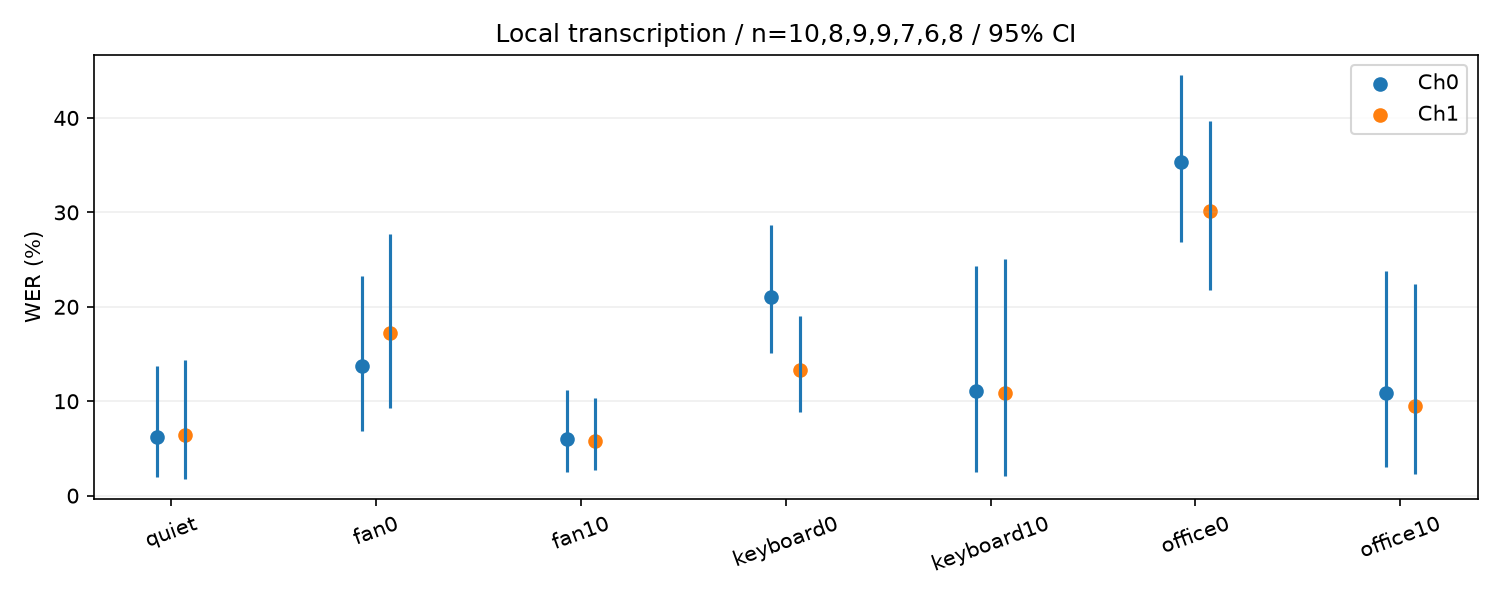
In that benchmark, raising the signal-to-noise ratio from 0 dB to +10 dB lowered the error rate in both processed output channels and for both languages, while the difference between the two channels changed direction depending on the condition and was mostly not resolvable at 95% confidence. The benchmark is exploratory and its absolute figures apply only to the tested setup.
Prerequisites:
- Confirm the firmware image in use and which host capture index maps to Ch0 and Ch1
- Keep one fixed reference recording and one fixed transcription setup so that before and after results stay comparable
- Record the same reference audio through both processed output channels (Ch0 and Ch1) in the conditions where accuracy is poor, and transcribe both with the same model and settings.
- Score both channels against the same reference transcript — word error rate for English, character error rate for Chinese — so that the two channels are compared on identical material.
- Reduce the noise reaching the array or increase the speech level so that the speech-to-noise ratio at the device improves, then repeat the same recording and scoring. In Seeed's benchmark this step produced the largest and most consistent error-rate reduction.
- Adopt the channel that measures better in your own environment, and re-check that choice whenever the acoustic conditions or the firmware change.
Success criteria:
- Both channels are scored against the same reference transcript, and the error-rate change after each adjustment is measurable
- The channel used in the application is the one that measured better in your own environment, not an assumed default
Notes:
- In Seeed's benchmark the direction of the Ch1 − Ch0 difference changed with the acoustic condition, and only a minority of the pairwise comparisons had 95% confidence intervals that excluded zero; a channel preference cannot be generalised from that data.
- The benchmark is exploratory: it covers two capture sessions with 6–10 repeats per condition, it did not apply multiple-comparison correction, and the planned wider matrix is not complete.
- The benchmark excluded every capture in which any language or channel scored 80% or higher, so its published figures do not describe the worst cases.
- The 0 dB and +10 dB points in the benchmark come from different samples, and no paired interval was computed for that change; the channel comparison reflects the whole processed output plus the recognition pipeline, not a single DSP module.
References:
- reSpeaker XVF3800 USB 4-Mic Array official firmware and USB profiles
- reSpeaker XVF3800 USB 4-Mic Array product documentation
Hardware Issues
Does the XVF3800 have a built-in speaker?
Applies to: ReSpeaker XVF3800 USB 4-Mic Array, with or without XIAO ESP32S3
Last verified: 2026-09-01
No. The XVF3800 is a microphone array and audio-processing device; it requires an external output device. Use the 3.5 mm headphone jack for headphones or active speakers, or the onboard JST speaker interface for a compatible amplified speaker.
Prerequisites:
- An external headphone, active speaker, or compatible speaker for the documented JST output
- A playback source configured for the active USB or I2S operating mode
- Choose the 3.5 mm headphone output or the onboard JST speaker interface shown in the official hardware overview.
- Connect the external output device before starting playback.
- Play a known audio sample and select the XVF3800 output on the host when USB mode is in use.
Success criteria:
- Audio is heard from the connected external output device
- No sound is expected from the microphone-array enclosure by itself
Notes:
- The public hardware overview documents a 3.5 mm headphone jack and a JST speaker interface, but no built-in speaker.
- Do not infer a specific connector pinout or third-party speaker model beyond the current official hardware documentation.
References:
Product & Business
Does the XVF3800 USB 4-Mic Array support 48 kHz over USB?
Applies to: ReSpeaker XVF3800 USB 4-Mic Array used for USB capture on Windows, Linux, or macOS
Last verified: 2026-08-31
Yes. Use the dedicated official respeaker_xvf3800_usb_dfu_firmware_v2.1.0_48k2ch.bin image. Its filename identifies the intended 48 kHz, two-channel USB profile; do not infer 48 kHz support from the generic v2.1.0 image.
Prerequisites:
- The complete current official firmware repository, including the exact
_v2.1.0_48k2ch.binimage - A known-good USB data connection to the XMOS USB-C port and
dfu-utilinstalled on the host - A recording application that can display and select the formats exposed by the active USB device
- Clone or download the complete official repository and select
xmos_firmwares/usb/respeaker_xvf3800_usb_dfu_firmware_v2.1.0_48k2ch.bin. - Flash that image through USB DFU with the official XVF3800 update procedure, then allow the device to restart.
- Inspect the formats reported by the restarted USB audio device. Select 48,000 Hz and two capture channels only if the host exposes that combination.
- Start a short test recording and confirm that capture begins without a format-negotiation error.
Success criteria:
- The host reports a 48,000 Hz, two-channel capture mode for the flashed XVF3800 image
- A two-channel recording starts at 48,000 Hz without a format-negotiation error
Notes:
- The official USB changelog marks v2.1.0 as current, and the current directory also contains dedicated
v2.1.0_16k6chandv2.1.0_48k2chimages. - The repository directory and changelog do not publish a USB Audio Class descriptor dump for these binaries. This FAQ therefore does not claim a USB sample width or any additional sample-rate/channel combinations.
- The XVF3800 Wiki firmware/sample-rate section must be corrected with or before publication of this FAQ because its older all-16-kHz statement conflicts with the current firmware directory.
References:
- Current official XVF3800 USB firmware directory
- Official XVF3800 USB firmware changelog
- Official commit adding 48 kHz USB support
Does the XVF3800 expose a unique device serial number?
Applies to: ReSpeaker XVF3800 USB 4-Mic Array enumerated by a supported USB host
Last verified: 2026-09-01
Yes. The current official hardware overview describes a built-in unique device serial number for identification and multi-device management. In USB or DFU enumeration, use the host-reported device serial field rather than the product SKU when associating a physical unit with an application record.
Prerequisites:
- A supported Windows, macOS, or Linux host
- A data-capable connection to the XMOS USB-C port
- A host enumeration tool such as
dfu-util -lwhen the DFU interface is available
- Connect one XVF3800 to the host through the XMOS USB-C port.
- Run the host's USB enumeration tool;
dfu-util -lshows aserial=field when the DFU interface is visible. - Store the reported serial as the device identifier, not as a firmware version or SKU.
- For a multi-device deployment, enumerate each unit separately and verify that the application associates the intended physical unit with its reported serial.
Success criteria:
- The host reports a nonempty device serial for the connected XVF3800
- The application can distinguish the intended unit using the reported serial rather than USB bus position
Notes:
- The official product page calls this a unique device serial number and presents it as a multi-device-management feature.
- This FAQ does not claim Android compatibility or full-duplex behavior; those were separate, unsupported parts of the source question.
References:
Tech Support & Product Discussion
Thank you for choosing our products! We are here to provide you with different support to ensure that your experience with our products is as smooth as possible. We offer several communication channels to cater to different preferences and needs.