Getting Started with ReSpeaker XVF3800
Overview
The ReSpeaker XVF3800 USB 4-Mic Array is a professional 4-mic circular array with XMOS XVF3800, featuring AEC, AGC, DoA, beamforming, VAD, noise suppression, de-reverberation, 360° voice capture (up to 5m), and dual operation modes for advanced voice applications.
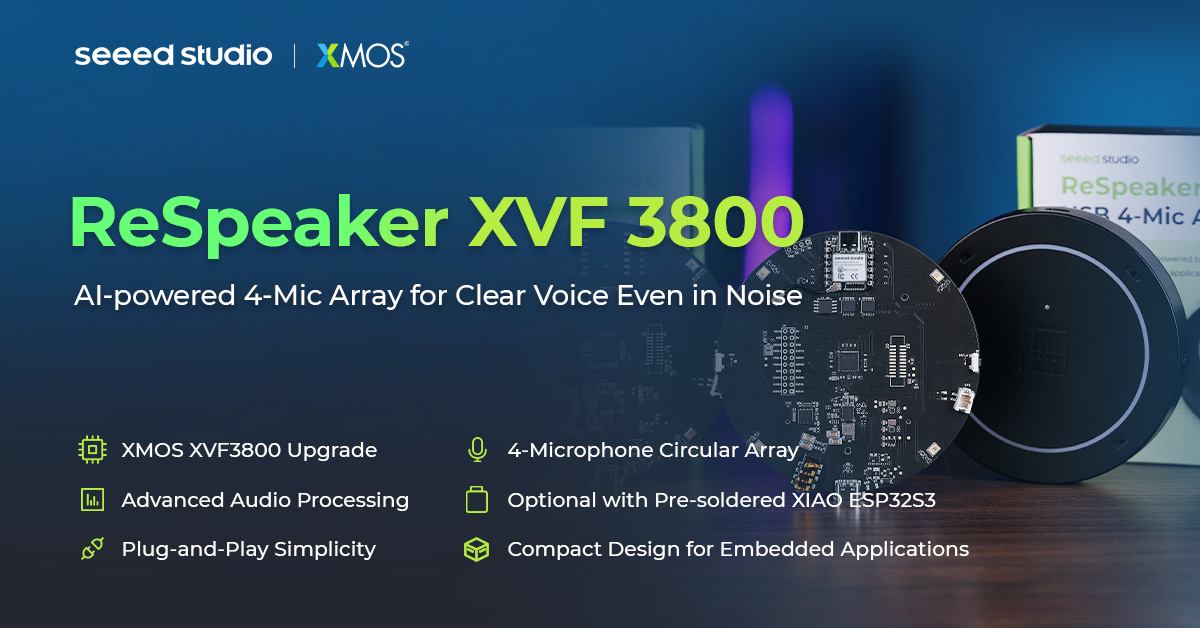
Features
-
Chip upgrade :From XVF3000 to XVF3800
-
Quad Microphone Array :4 high-performance mics in circular pattern for 360° far-field voice capture up to 5 meters
-
Advanced Audio Processing :Powered by XVF3800 with AEC, multi-beamforming, de-reverberation, DoA detection, dynamic noise suppression, 60dB AGC range
-
Unique Device Serial Number :Built-in SN enables multi-device deployments and advanced device management
-
Dual Operation Modes :USB plug-and-play mode for instant PC connectivity and INT-Device (I2S) mode for integration with embedded systems—configurable via USB or I2C commands by switching the firmware accordingly
-
Open Source Compatible :Works with USB hosts (Windows, macOS, Raspberry Pi OS) and I2S hosts (XIAO Series, ESP32, Arduino).
-
Visual Feedback :Programmable RGB LEDs and status indicators show device states and voice activity
-
Equal or better audio quality :compared to previous model
Hardware Overview
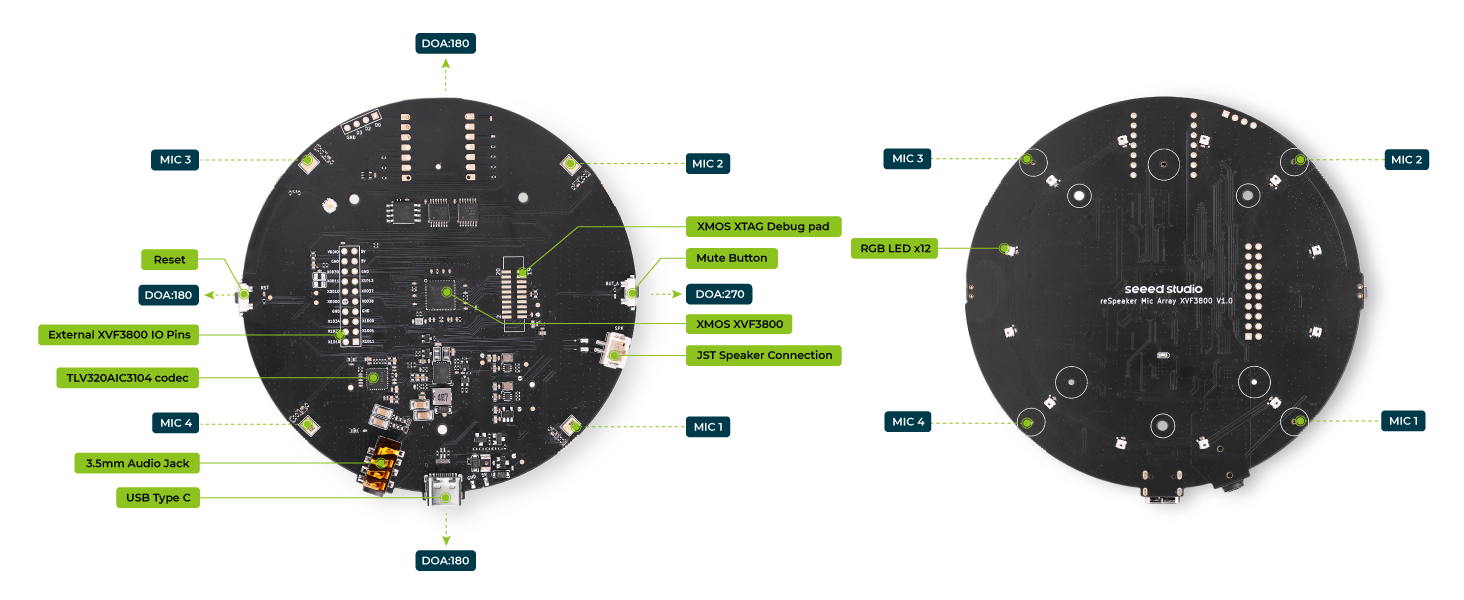
Main Components
| Component / Feature | Description |
|---|---|
| Main Audio Processor | XMOS XVF3800, handles audio processing including AEC, beamforming, noise suppression, etc. |
| Microphone Array | Quad PDM MEMS microphones in circular pattern, supporting 360° far-field voice capture (5m). |
| Audio Codec | TLV320AIC3104, handles audio conversion and output. |
| RGB LEDs | 12x WS2812 individually-addressable RGB LEDs for visual feedback (e.g., status, voice activity). |
| Mute Button | Press to mute/unmute the microphone input. |
| Mute Indicator LED | Lights up (typically red) to show that audio is muted. |
| Reset Button | Hardware reset for the board/system. |
| USB Type-C Port | Used for both power and data (USB Audio Class 2.0 compliant). |
| 3.5mm AUX Headphone Jack | Audio output for headphones or active speakers. |
| Speaker Connector | JST speaker interface, supports 5W amplified speakers. |
| Debug Pads | Debug access for XTAG4 or other programmers. |
| I2C & I2S Headers | Exposed headers for I2C and I2S communication with external devices. |
| Unused IO Pads (XIAO) | Additional I/O solder pads connected to XIAO module. |
| I2S & I2C Communication | Supports connection to external hosts like Raspberry Pi, PC, etc. using these protocols. |
| USB & INT-Device Modes | Dual-mode operation: plug-and-play USB or internal INT device mode via I2S. |
| Unique Serial Number | Built-in device SN for identification and multi-device management. |
| Open Source Compatibility | Works with Arduino, Raspberry Pi, PC/Mac, and compatible with XIAO Series. |
| Advanced Audio Features | AEC, beamforming, dereverberation, DoA detection, DNN-based noise suppression, 60dB AGC. |
| Visual Feedback | Device state and audio activity shown via RGB LED patterns and status indicators. |
| Audio Quality | Equal or better than the previous XVF3000-based designs. |
The ReSpeaker XVF3800 is offered in two variants—one without XIAO and another with the XIAO ESP32S3 onboard. The version without XIAO operates with default USB firmware. To use the XIAO-integrated version, you must flash firmware built for INT-Device (I2S) mode. For detailed setup instructions, refer to the official wiki guide.
XIAO ESP32S3 support
- Stereo I2S input/output with multiple output options; I2C interface for configuring and managing XVF3800 parameters.
- XIAO reset via IO pin
- Interface and solder pads
Pin Out
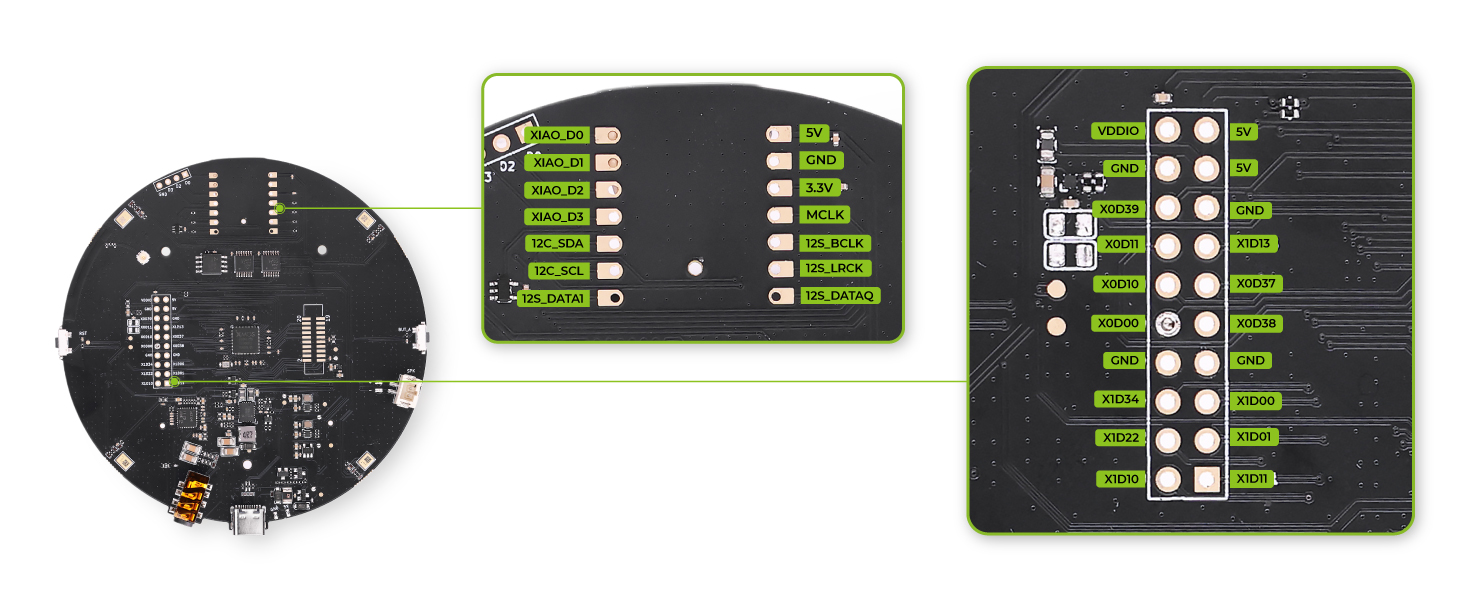
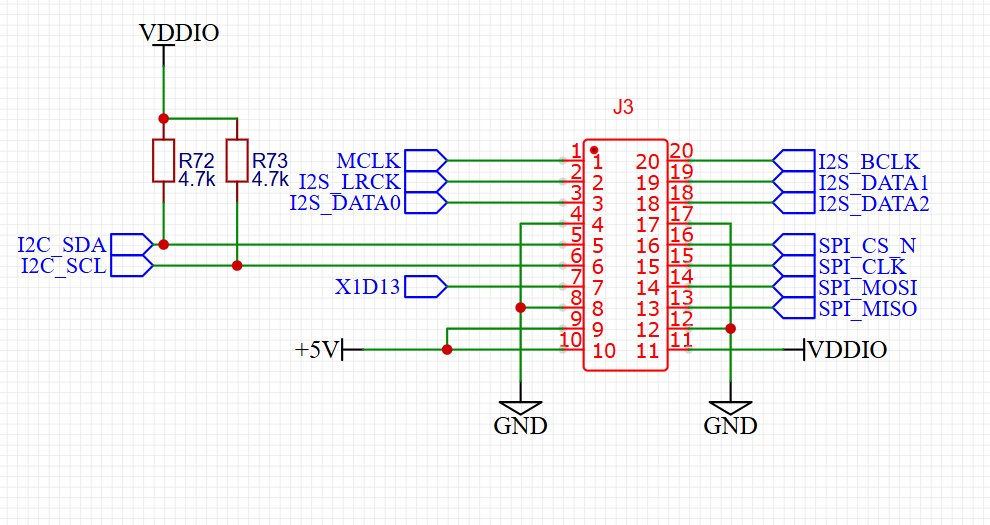
GPIO Overview
The reSpeaker XVF3800 exposes 3 input pins (GPI) and 5 output pins (GPO) for external control. You can use these to read button states or control hardware like the mute LED, amplifier, or LEDs.
| Pin Name | Direction | Function |
|---|---|---|
| X1D09 | Input (RO) | Mute button status (high when released) |
| X1D13 | Input (RO) | Floating |
| X1D34 | Input (RO) | Floating |
| X0D11 | Output (RW) | Floating |
| X0D30 | Output (RW) | Mute LED + mic mute control (high = mute) |
| X0D31 | Output (RW) | Amplifier enable (low = enabled) |
| X0D33 | Output (RW) | WS2812 LED power control (high = on) |
| X0D39 | Output (RW) | Floating |
Getting Started
Hardware Preparation
- USB Type-C cable
- Host computer or Raspberry Pi
Software Preparation
Out of Box Usage
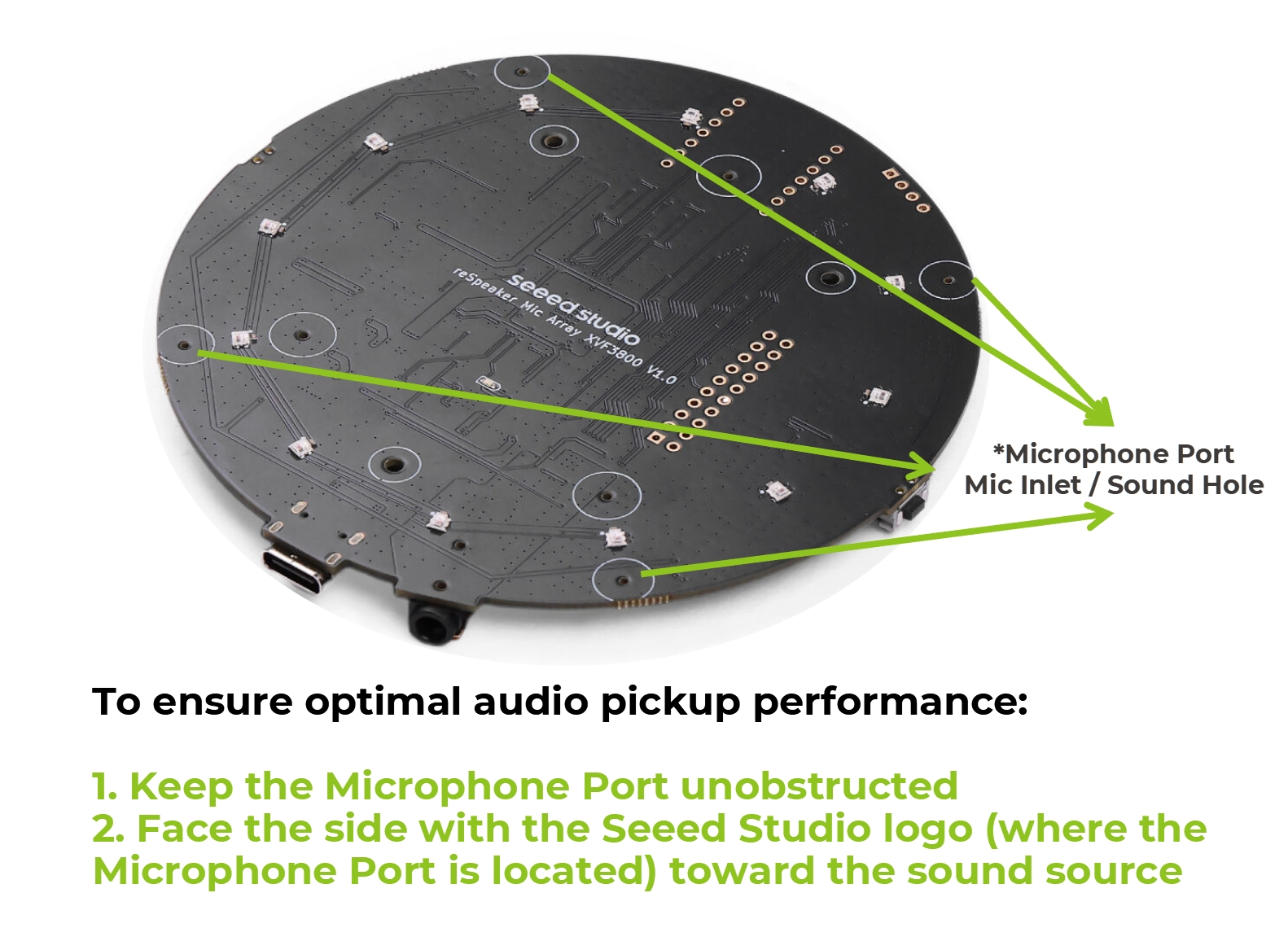
To ensure optimal voice pickup performance and proper operation of the audio algorithms, please make sure the Microphone Port (Mic Inlet / Sound Hole) on the back side of the device is facing toward the sound source. The microphone port is located on the side with the Seeed Studio logo printed on it.
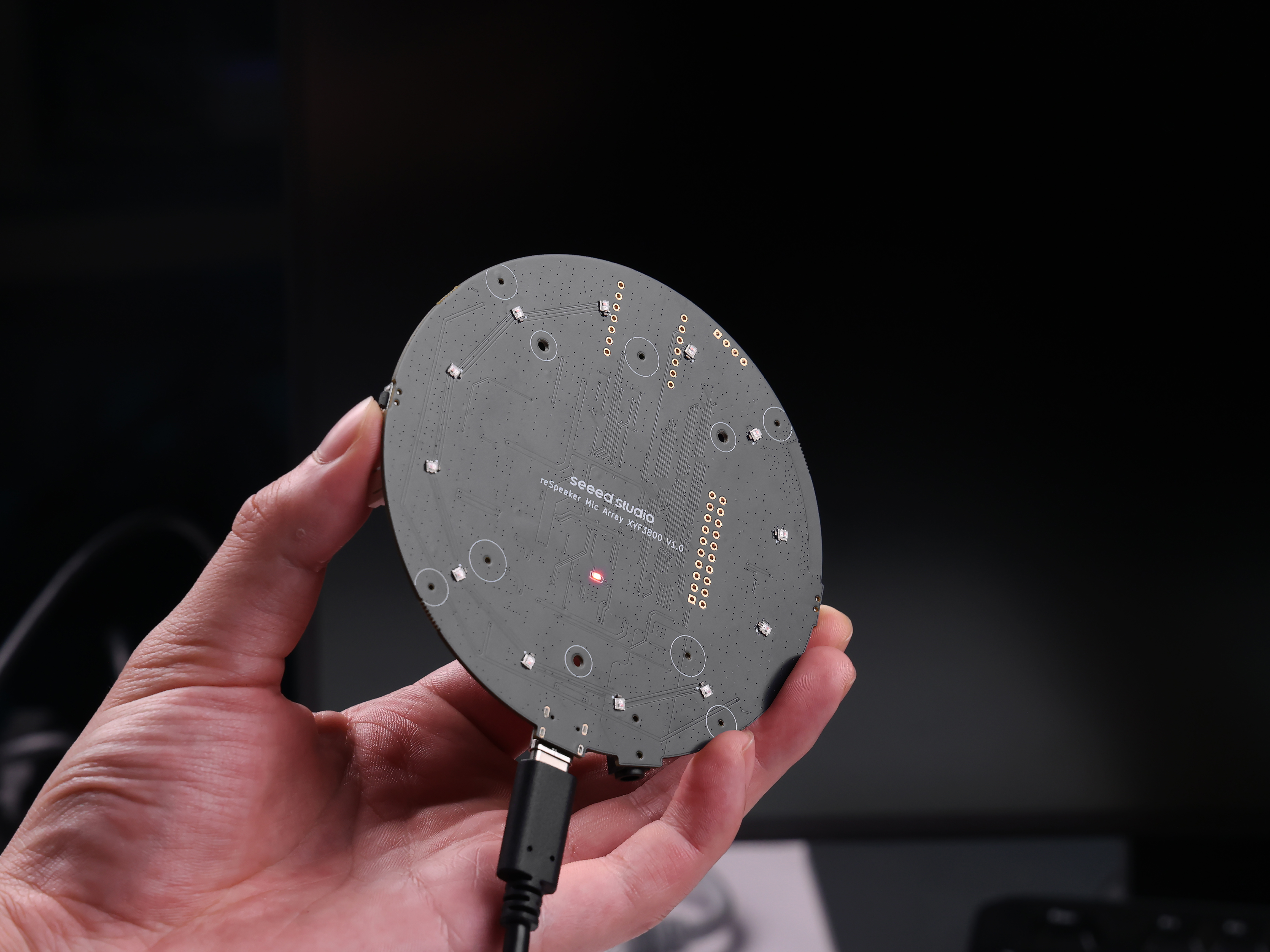
DOA (Direction of Arrival)
You can experience the LED array following the direction of the incoming voice.
Mute Button
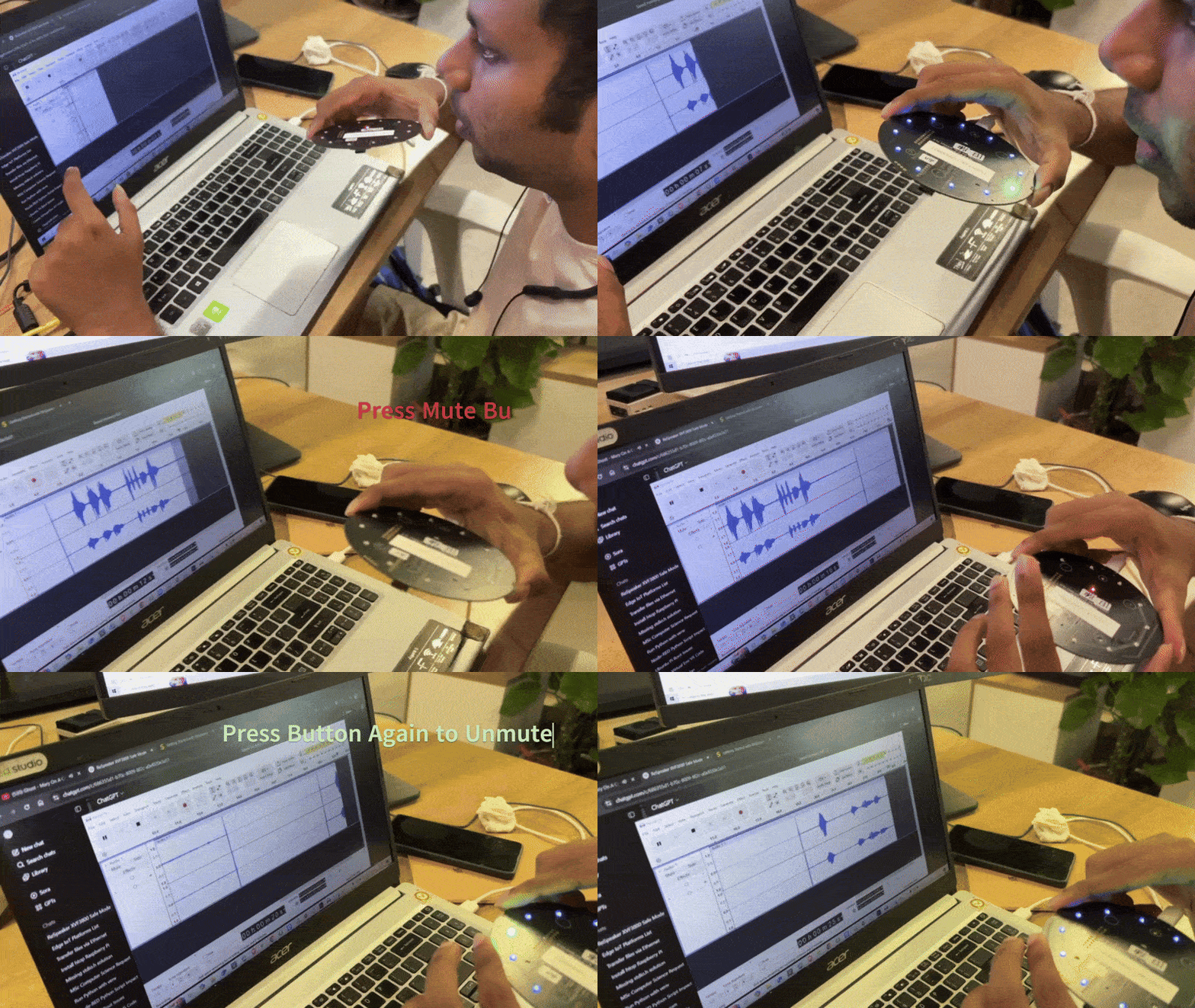
The Mute button on your ReSpeaker is used to temporarily disable voice capture from the microphone array. What happens when you press the Mute button?
- The microphones are muted — external voices will no longer be captured or processed.
- A red LED lights up to indicate that mute mode is active.
- This means the ReSpeaker will not send any audio input to your computer or host device.
Try It Yourself with Audacity
Reset Button
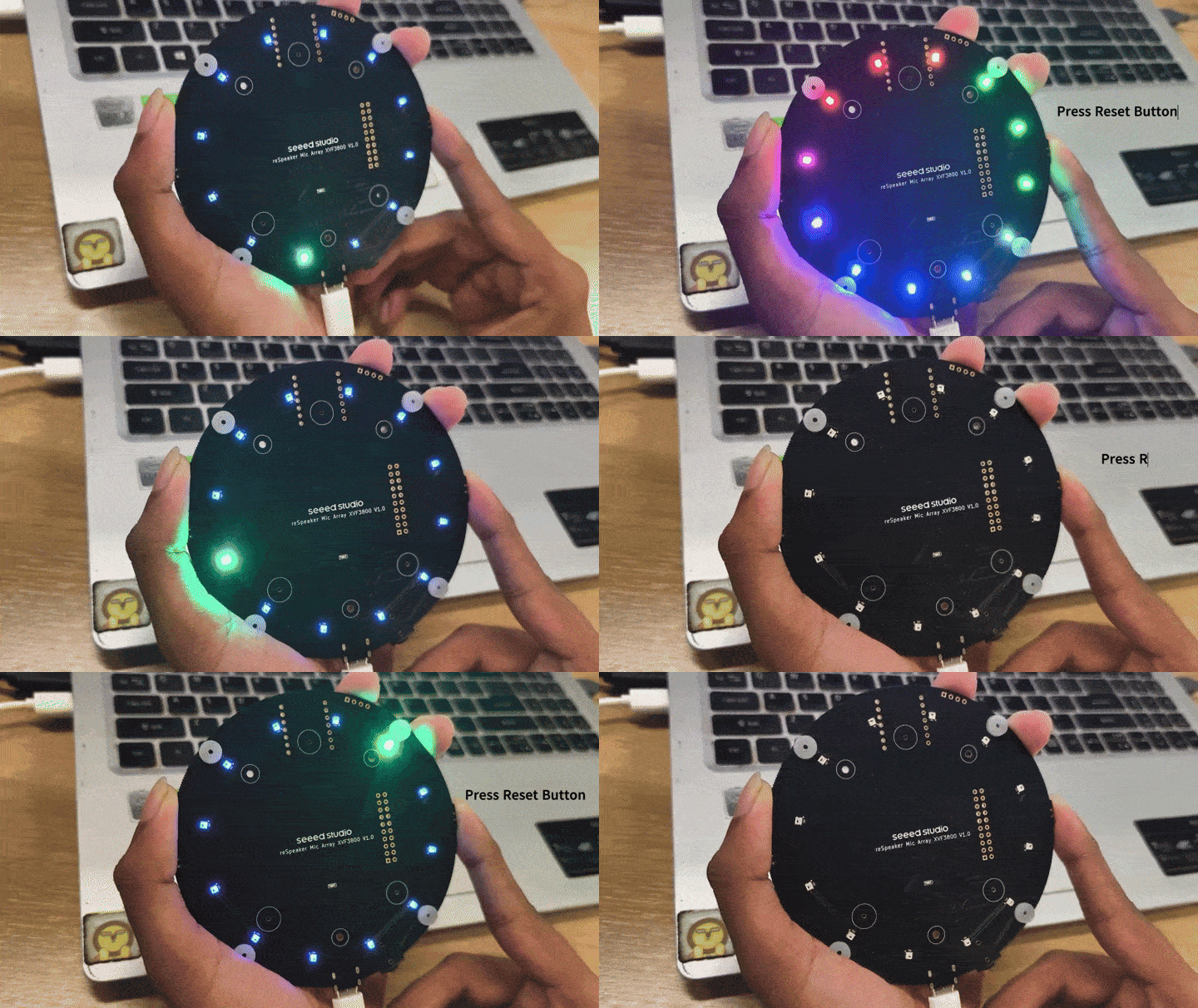
The reset (RST) button provides a hardware reset for the XVF3800—when pressed, it restarts the chip and reinitializes the system from the very beginning, just like a full power cycle.
Speaker Connection
Here you can see how to connect speakers using either the 3.5mm AUX headphone jack or the onboard JST speaker interface, depending on your audio output preference.
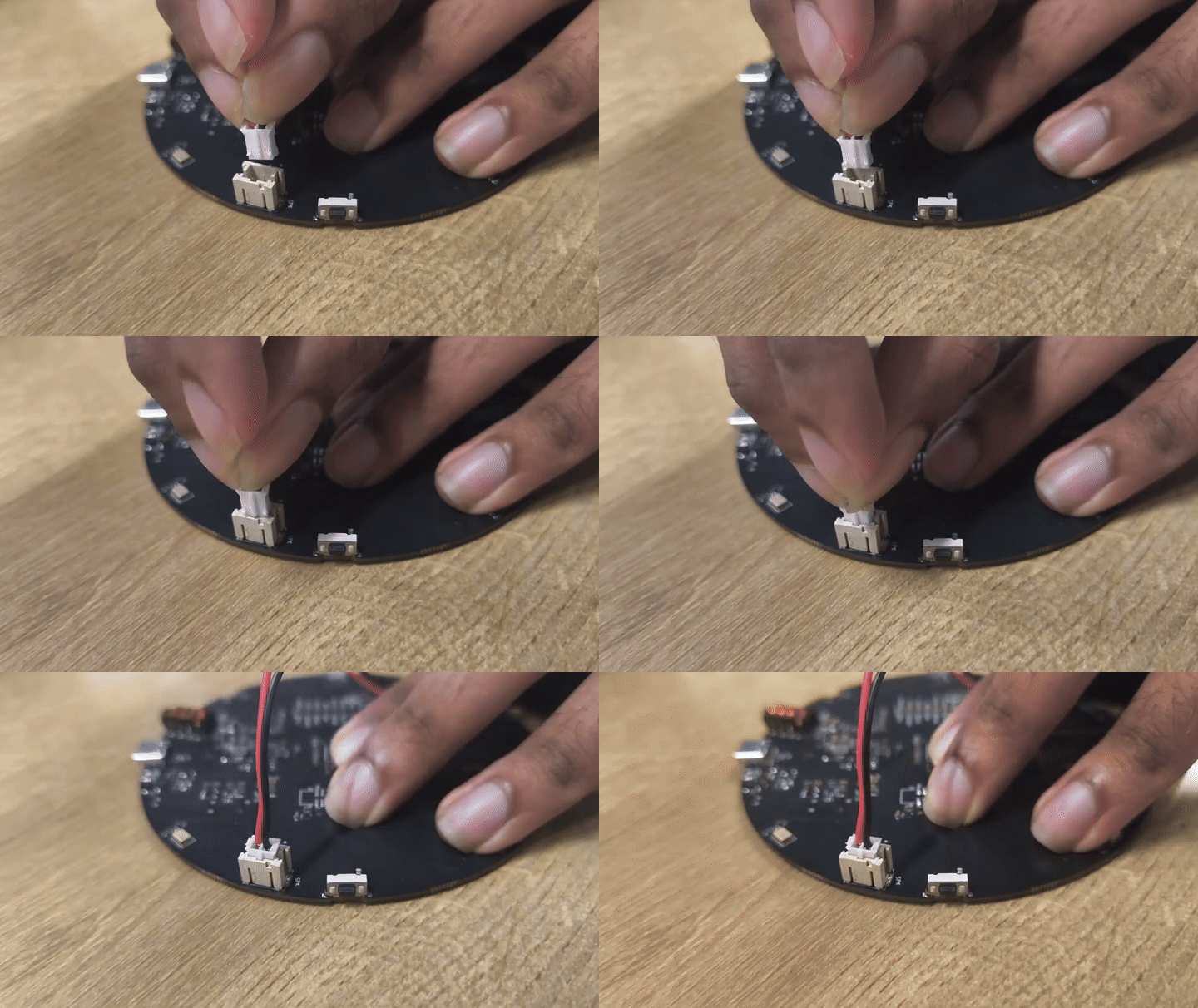
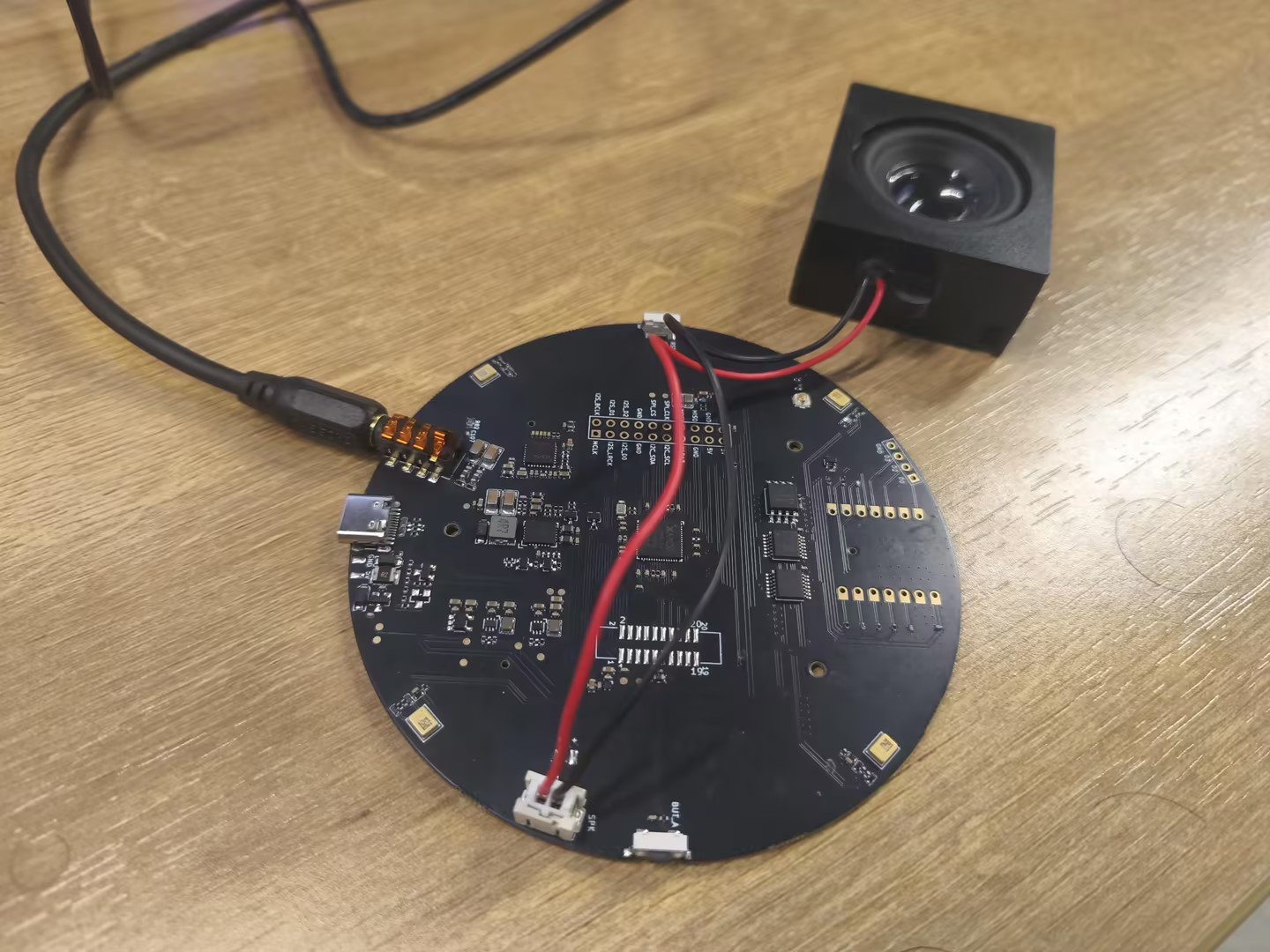
Safe Mode
Safe Mode is a special recovery mode on the ReSpeaker XVF3800 that allows you to flash firmware via USB DFU or I2C—for devices like the Raspberry Pi and ESP32. If you've previously flashed the I2S firmware and want to switch back to the USB firmware, you can enter Safe Mode and reflash the USB firmware using USB DFU.
Each type of firmware on the ReSpeaker XVF3800 supports different update methods:
-
The USB firmware only supports USB DFU, which means you can update the device using a USB connection. However, it does not support I2C DFU.
-
The I2S firmware is the opposite—it supports I2C DFU, allowing firmware updates over an I2C interface, but it does not support USB DFU.
-
The Safe Mode firmware, which is stored in the Factory partition, is the most flexible. It supports both USB DFU and I2C DFU.
When to Use Safe Mode
- Your firmware isn't working properly (e.g. USB not detected, LED not lighting up as expected).
- You need to re-flash a new firmware but the current one won’t respond.
- You accidentally flashed something wrong and want to recover.
How to Enter Safe Mode
- Power off the device completely.
- Press and hold the Mute button.
- While holding the mute button, reconnect the power.
- The red LED will start blinking — this confirms the device is now in Safe Mode.
- Now the device runs the Safe Mode firmware stored in the Factory partition.
Update Firmware
Three firmware versions are available in the official GitHub repository. You can choose and flash the appropriate firmware depending on your application requirements. For more details and downloads, please refer to the Github Link
Do NOT use "save as" to download the firmware files from GitHub as they will get corrupt. Clone the repository or use "Download as ZIP" to download the whole repository (and all included files) as ZIP file.
- USB
- I2S
- HA
USB firmware
The USB firmware is intended for host systems such as Windows, Linux, and macOS. The official USB firmware changelog marks v2.1.0 as the current release, and the current firmware directory contains these v2.1.0 images:
| Firmware image | Repository-labeled USB profile |
|---|---|
respeaker_xvf3800_usb_dfu_firmware_v2.1.0.bin | Standard v2.1.0 USB image. Its filename does not state a sample rate or channel count. |
respeaker_xvf3800_usb_dfu_firmware_v2.1.0_16k6ch.bin | 16 kHz, 6-channel USB image. |
respeaker_xvf3800_usb_dfu_firmware_v2.1.0_48k2ch.bin | 48 kHz, 2-channel USB image. |
Choose the image whose labeled profile matches your application. For 48 kHz, two-channel USB capture, use the exact _48k2ch image; do not infer 48 kHz support from the generic v2.1.0 filename.
The firmware directory and changelog do not publish a USB Audio Class descriptor dump for these binaries. After flashing, verify the formats reported by the host before configuring the recording application. Do not state a USB sample width or any additional sample-rate/channel combinations without device-descriptor evidence.
The I2S firmware is intended for use when the device is connected to a microcontroller host such as the XIAO ESP32S3. In this configuration, voice data is transmitted using the I2S protocol.
The firmware file respeaker_xvf3800_i2s_dfu_firmware_v1.0.x.bin is available in here. This firmware supports 2-channel audio with a 32-bit depth.
| Firmware | Channels | Notes |
|---|---|---|
| respeaker_xvf3800_i2s_dfu_firmware_v1.0.x.bin | 2 | Processed 2-channel output Channel 0: Conference Channel 1: ASR |
The Home Assistant firmware is another I2S-based firmware specifically designed for integration with Home Assistant. This optimized firmware uses 2-channel audio with a 48 kHz sampling rate, providing better compatibility and performance within the Home Assistant environment. You can view the firmware from here
| Firmware | Channels | Notes |
|---|---|---|
| respeaker_xvf3800_i2s_master_dfu_firmware_v1.0.x_48k.bin | 2 | Processed 2-channel output Channel 0: ASR Channel 1: Wake word |
Connect the reSpeaker XVF3800 to your PC via the USB cable. Note that you need to use the XMOS USB-C port(close to 3.5mm jack port) to flash XMOS’s firmware.
Install DFU Util
dfu-util is a command line tool for Device Firmware Upgrade via USB.
- Windows
- macOS
- Linux
-
Download
dfu-util-0.11-binaries.tar.xzand extract it, e.g.,D:\dfu-util-0.11-binaries\win64\
Download Link -
Add the path to
dfu-util.exeto your systemPathvariable:
My Computer > Properties > Advanced > Environment Variables > Path -
Open Command Prompt (
cmd) and verify installation:
dfu-util -V
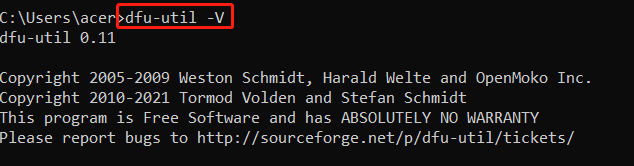
- Connect the ReSpeaker XVF3800 and check device detection:
dfu-util -l
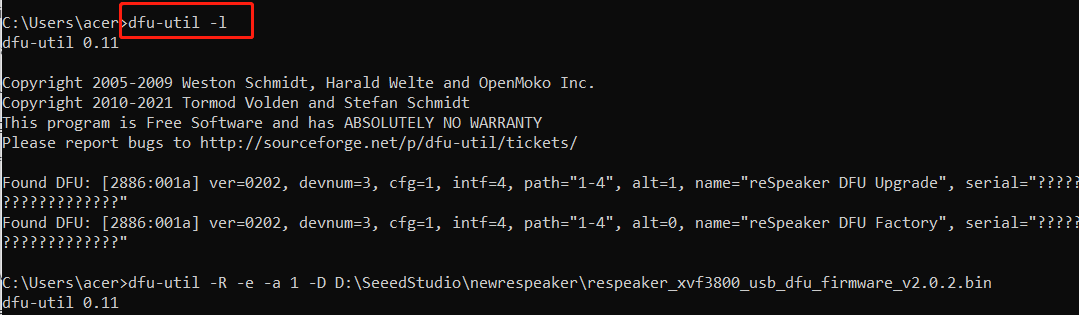
If you get:
Cannot open DFU device 2886:001a ... (LIBUSB_ERROR_NOT_SUPPORTED)
Proceed with the driver installation step below.
- Install Zadig
- Open Zadig →
Options > List All Devices - Select
reSpeaker 3800orreSpeaker XVF3800 4-Mic Array - Install WinUSB driver
- Power-cycle the device
- Run
dfu-util -lagain to confirm detection.
- Open Zadig →
- Install dfu-util with Homebrew:
brew install dfu-util
- Check if the device is detected:
dfu-util -l
Expected Output:
dfu-util -l
dfu-util 0.11

Copyright 2005-2009 Weston Schmidt, Harald Welte and OpenMoko Inc.
Copyright 2010-2021 Tormod Volden and Stefan Schmidt
This program is Free Software and has ABSOLUTELY NO WARRANTY
Please report bugs to http://sourceforge.net/p/dfu-util/tickets/

Found DFU: [2886:001a] ver=0202, devnum=3, cfg=1, intf=4, path="2-1.1.4", alt=1, name="reSpeaker DFU Upgrade", serial="101991441000000001"
Found DFU: [2886:001a] ver=0202, devnum=3, cfg=1, intf=4, path="2-1.1.4", alt=0, name="reSpeaker DFU Factory", serial="101991441000000001"
- Install dfu-util:
sudo apt install dfu-util
- Connect the XVF3800 and check detection:
sudo dfu-util -l
Expected Output:
pi@raspberrypi:~ $ sudo dfu-util -l
dfu-util 0.9

Copyright 2005-2009 Weston Schmidt, Harald Welte and OpenMoko Inc.
Copyright 2010-2016 Tormod Volden and Stefan Schmidt
This program is Free Software and has ABSOLUTELY NO WARRANTY
Please report bugs to http://sourceforge.net/p/dfu-util/tickets/

Found DFU: [2886:001a] ver=0202, devnum=5, cfg=1, intf=3, path="1-1.1", alt=1, name="reSpeaker DFU Upgrade", serial="101991441000000001"
Found DFU: [2886:001a] ver=0202, devnum=5, cfg=1, intf=3, path="1-1.1", alt=0, name="reSpeaker DFU Factory", serial="101991441000000001"
Flash Firmware
Download the complete firmware repository from GitHub hereXMOS XVF 3800
- Run the following command to flash the firmware
dfu-util -R -e -a 1 -D /path/to/dfu_firmware.bin
- On Linux, run it with sudo
sudo dfu-util -R -e -a 1 -D /path/to/dfu_firmware.bin
- The
-Roption will automatically restart the board after flashing.
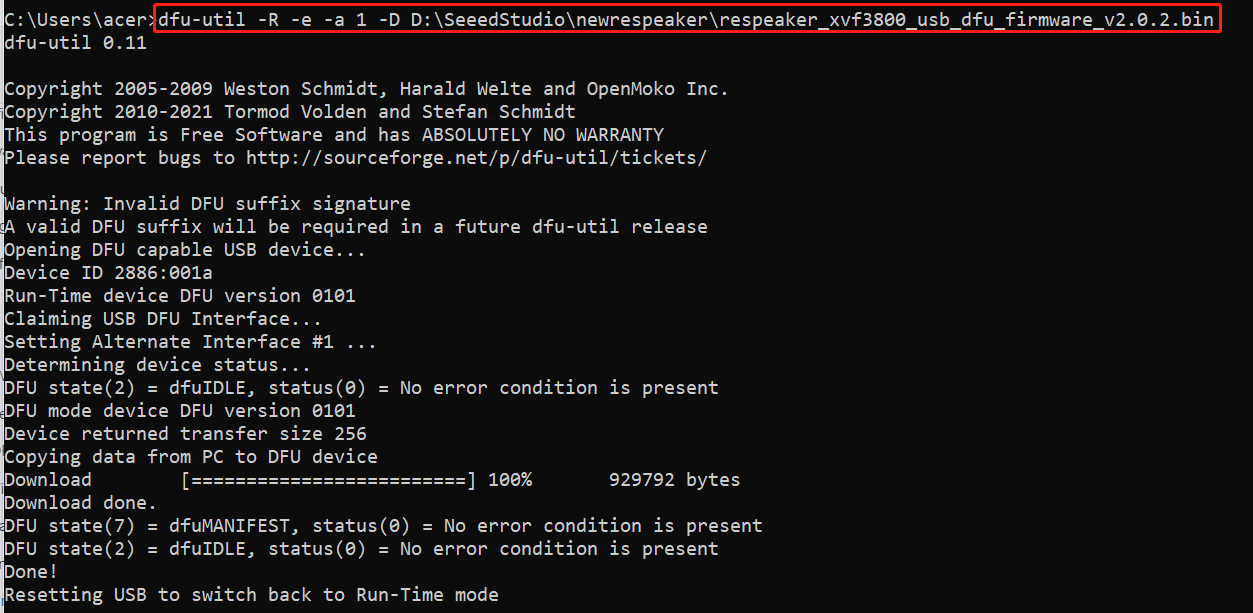
- Check the firmware version again with
dfu-util -lcommand, to make sure the new firmware is flashed
Recording and Playback
- Windows
- macOS
- Raspberry Pi / Linux
Setup Audacity (Windows)
- Open Audacity
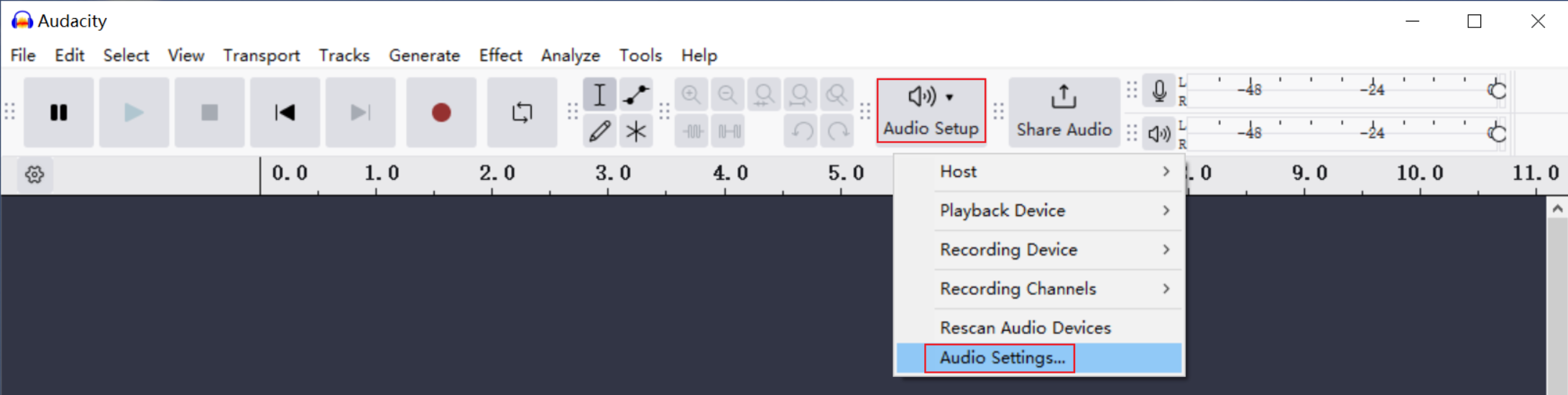
- Go to Audio Setup > Audio Settings
- Set:
- Host:
Windows WASAPI - Recording Device:
reSpeaker 3800 - Channels:
2 (Stereo) - Sample Rate:
16000 Hz(for both Project and Default Sample Rate) - Sample Format:
24-bit
- Host:
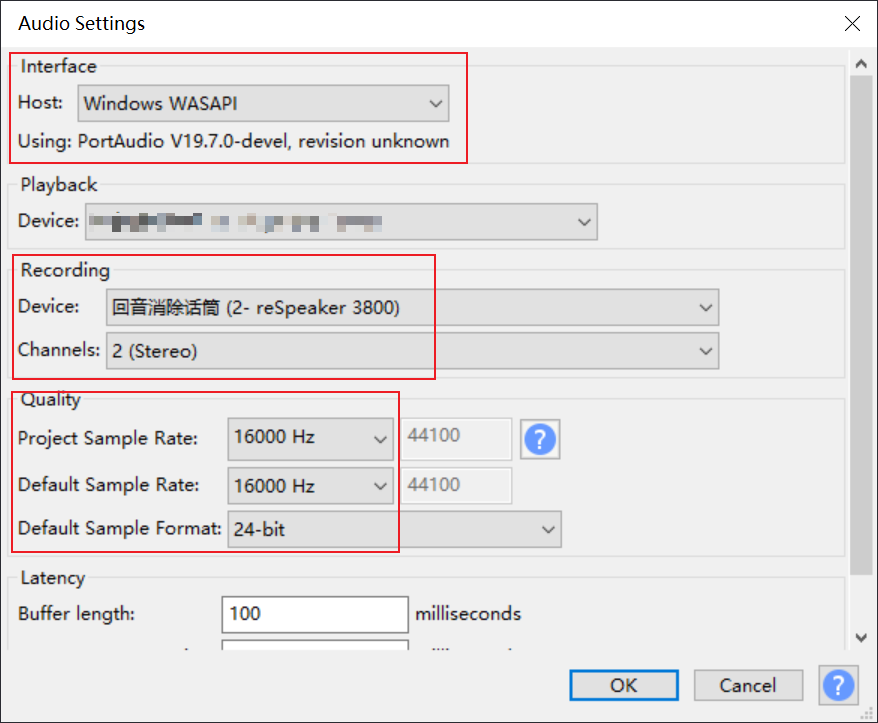
- Click OK
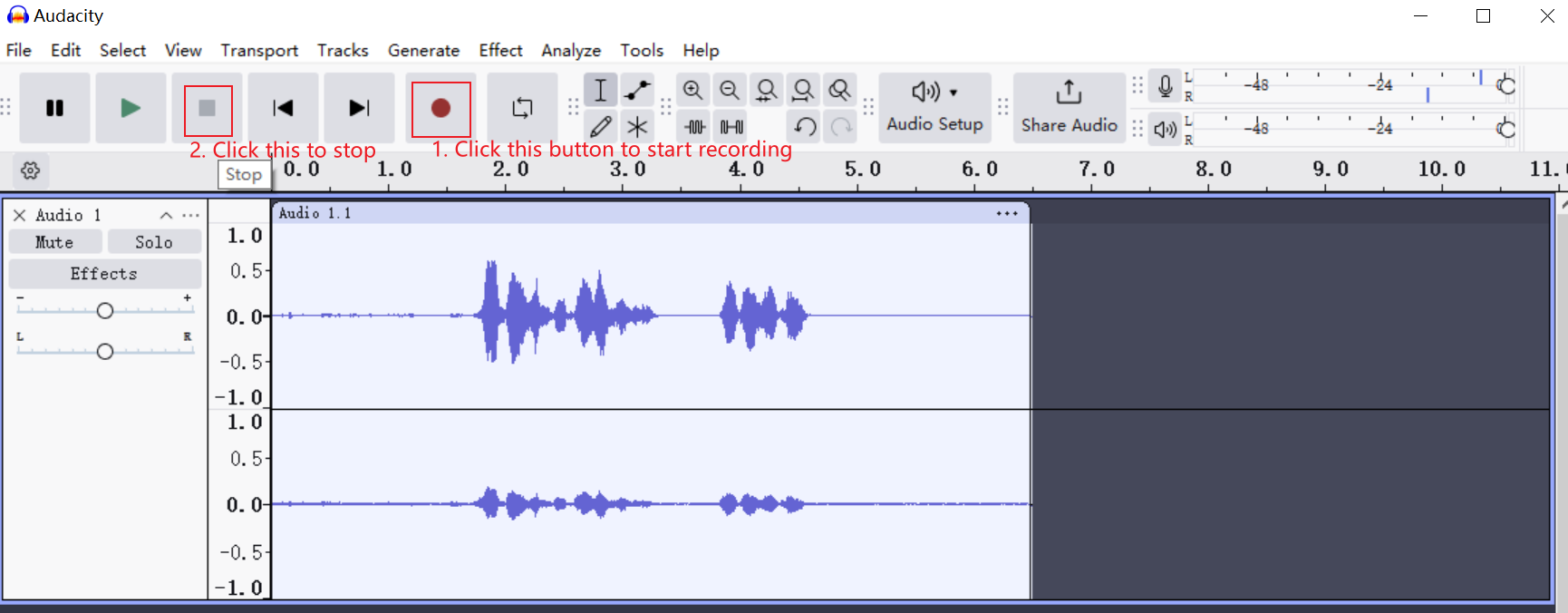
- You’re ready — start recording!
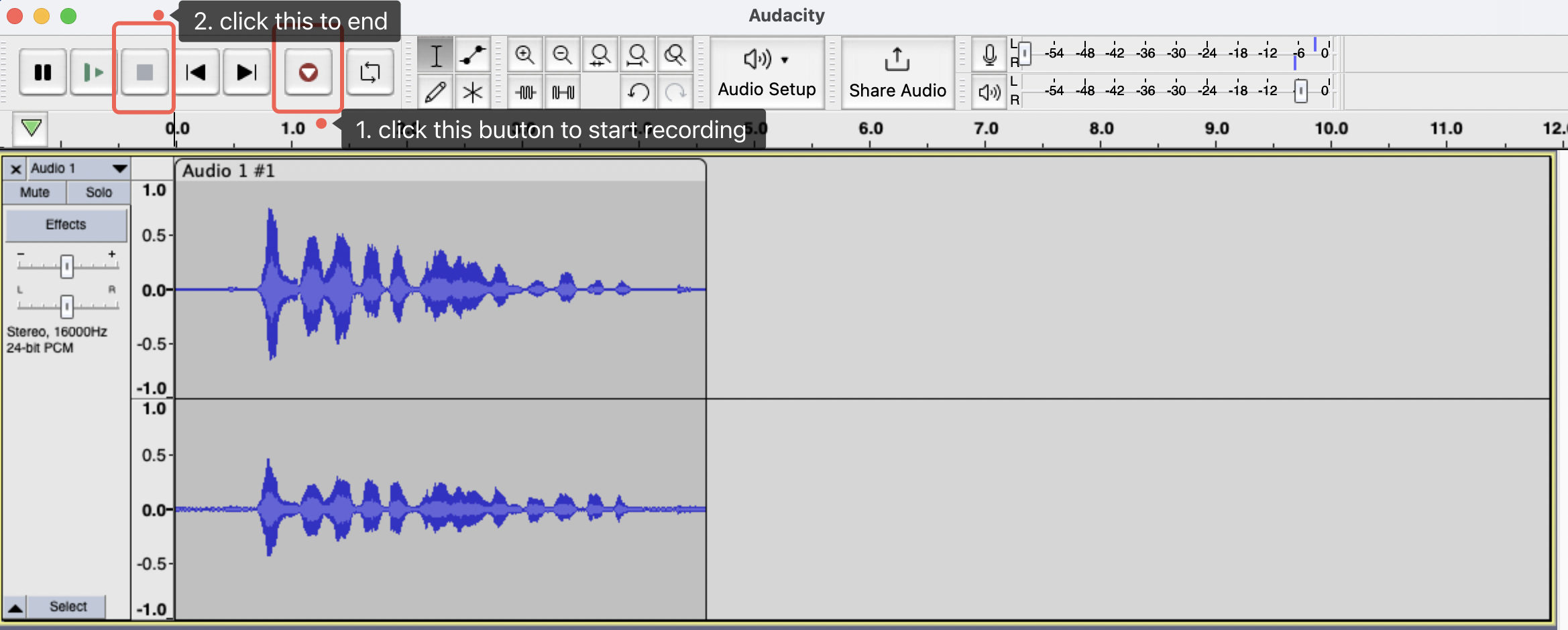
Setup Audacity (macOS)
- Open Audacity
- Go to Audio Setup and select Recording Device as reSpeaker 3800
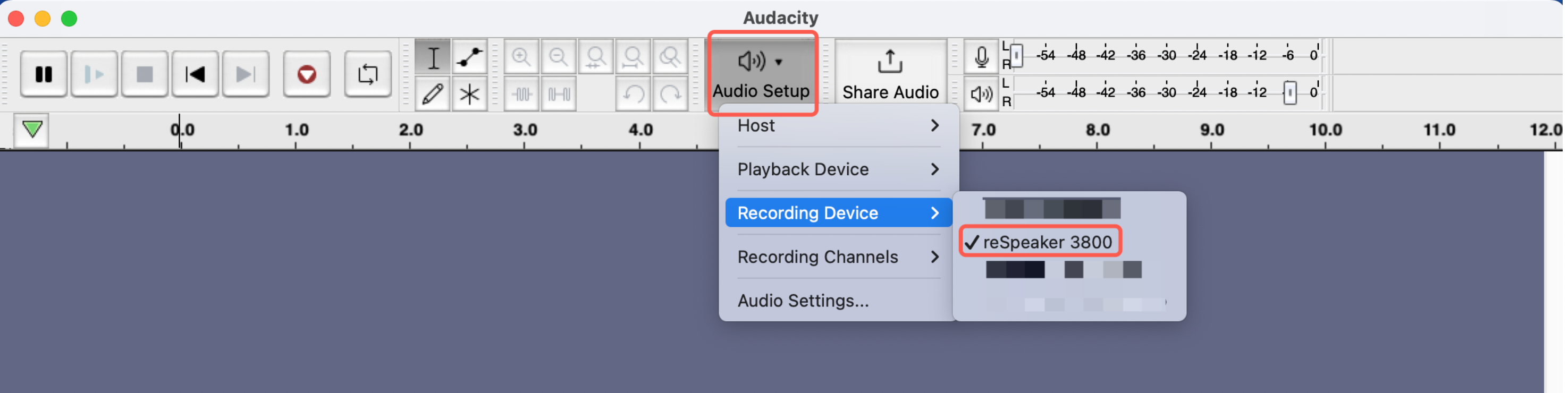
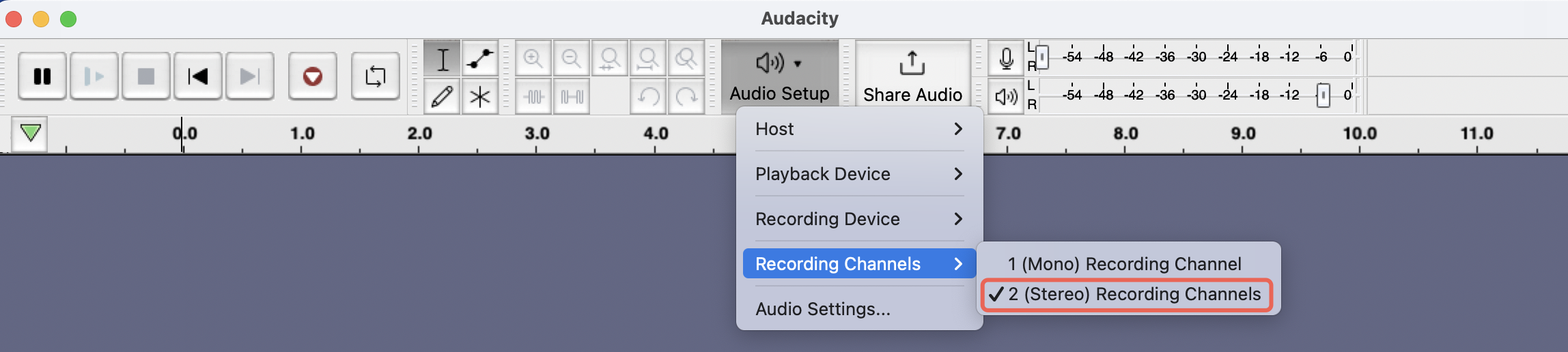
- Go to Audio Setting Set:
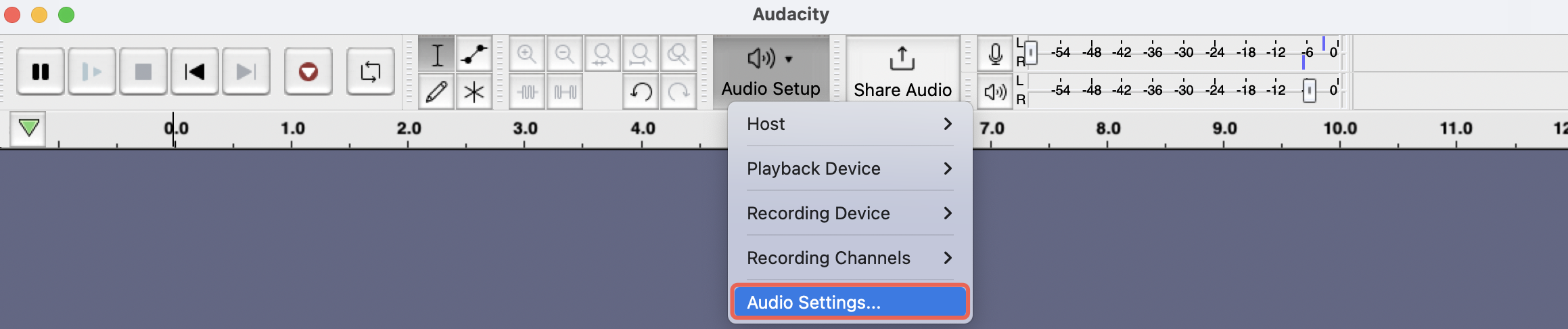
- Recording Device:
reSpeaker 3800 - Channels:
2 (Stereo) - Sample Rate:
16000 Hz(for both Project and Default Sample Rate) - Sample Format:
24-bit
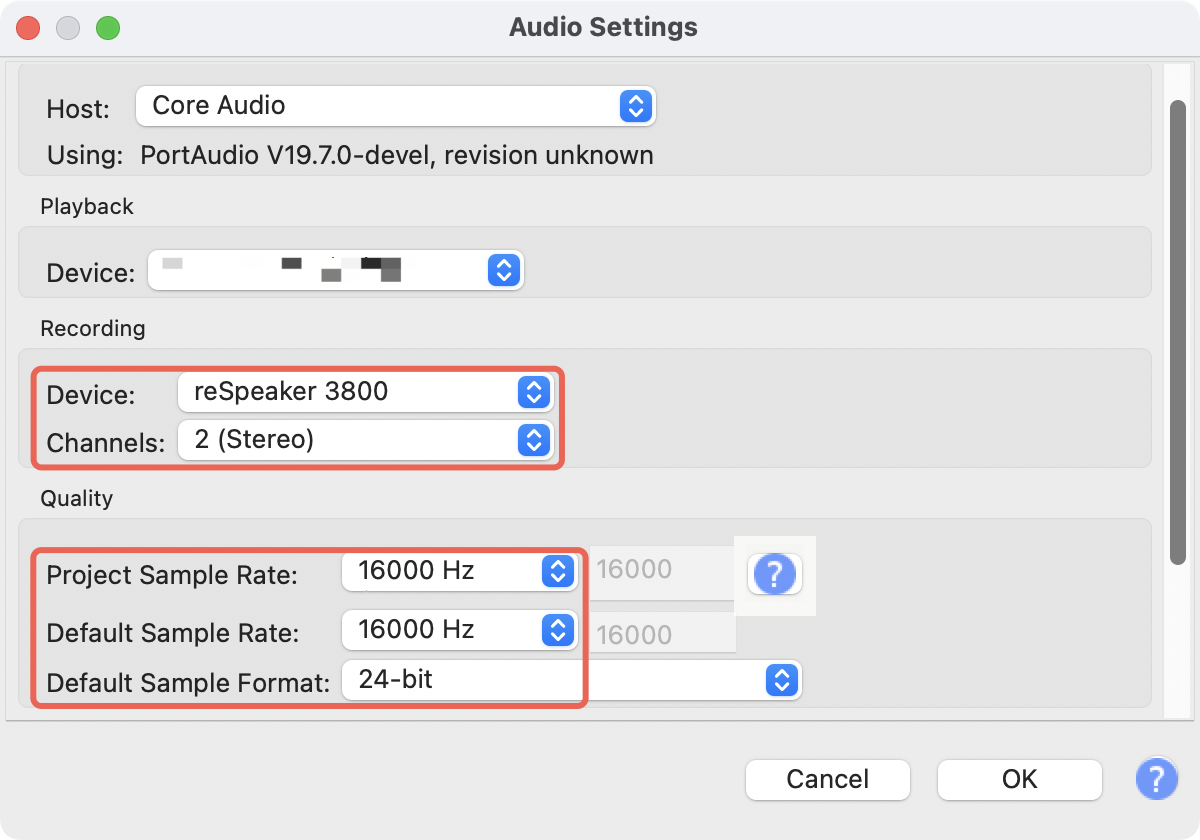
- Click OK
- Ready to record!
Recording on Raspberry Pi (Command Line)
- Find sound card number:
arecord -l
Example output:
**** List of CAPTURE Hardware Devices ****
card 4: Array [reSpeaker XVF3800 4-Mic Array], device 0: USB Audio [USB Audio]
  Subdevices: 1/1
  Subdevice #0: subdevice #0
In this case, card number is 4
- Record audio (5 seconds):
arecord -D plughw:4,0 -c 2 -r 16000 -f S16_LE -d 5 output.wav
Replace 4 with your actual sound card number
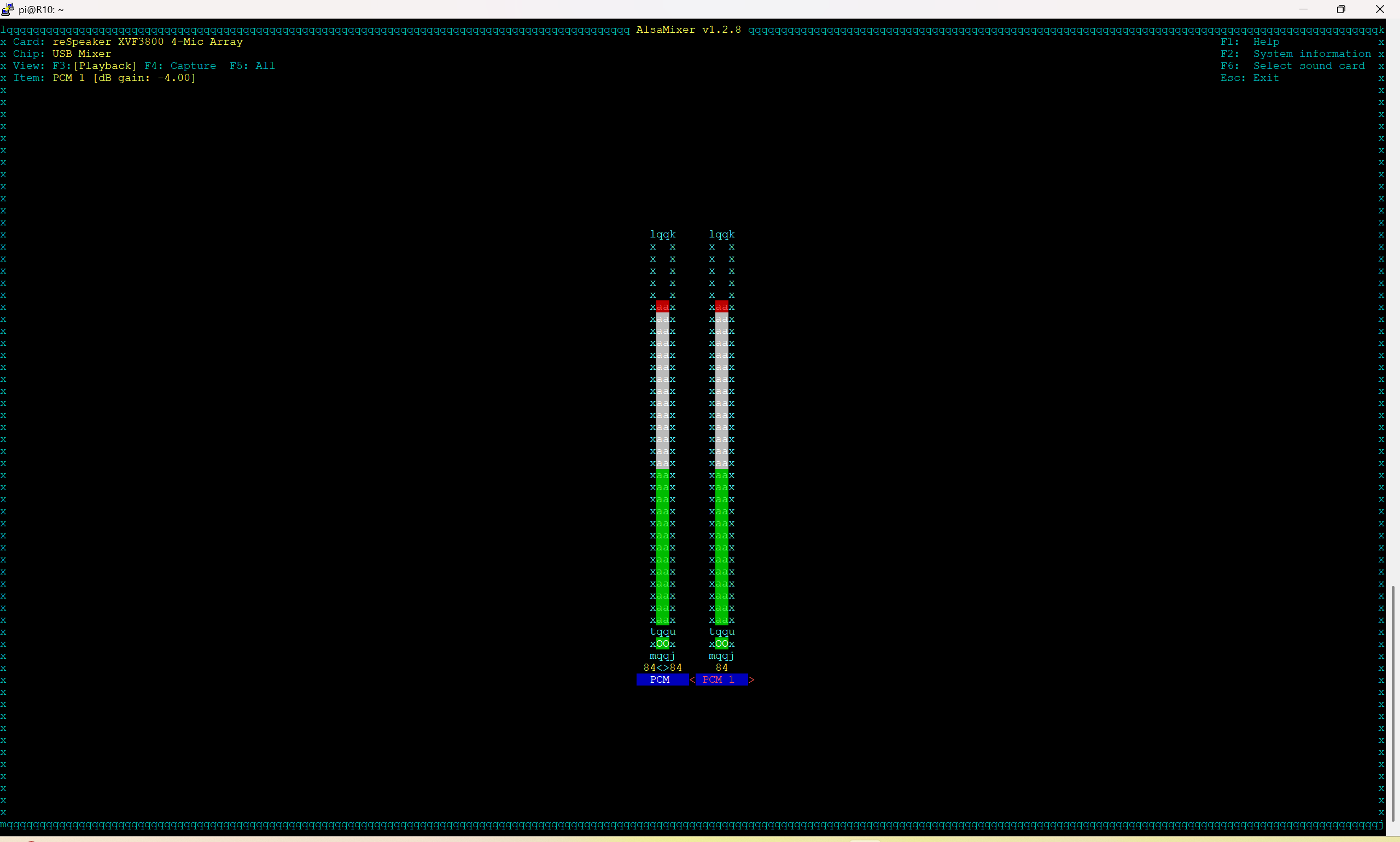
- Adjusting Volume for ReSpeaker XVF3800 on ALSA
alsamixer
In alsamixer, use the left/right arrow keys to navigate to the correct sound device.Use the up arrow key to increase the volume.
- Playback:
aplay -D plughw:4,0 output.wav
Recording on Raspberry Pi (Audacity)
- Install Pi-Apps (if not already installed)
Open a terminal on your Raspberry Pi.Run the following command to install Pi-Apps
wget -qO- https://raw.githubusercontent.com/Botspot/pi-apps/master/install | bash
Wait for the installation to complete. A new Pi-Apps icon will appear in your menu.
-
Install Audacity via Pi-Apps
-
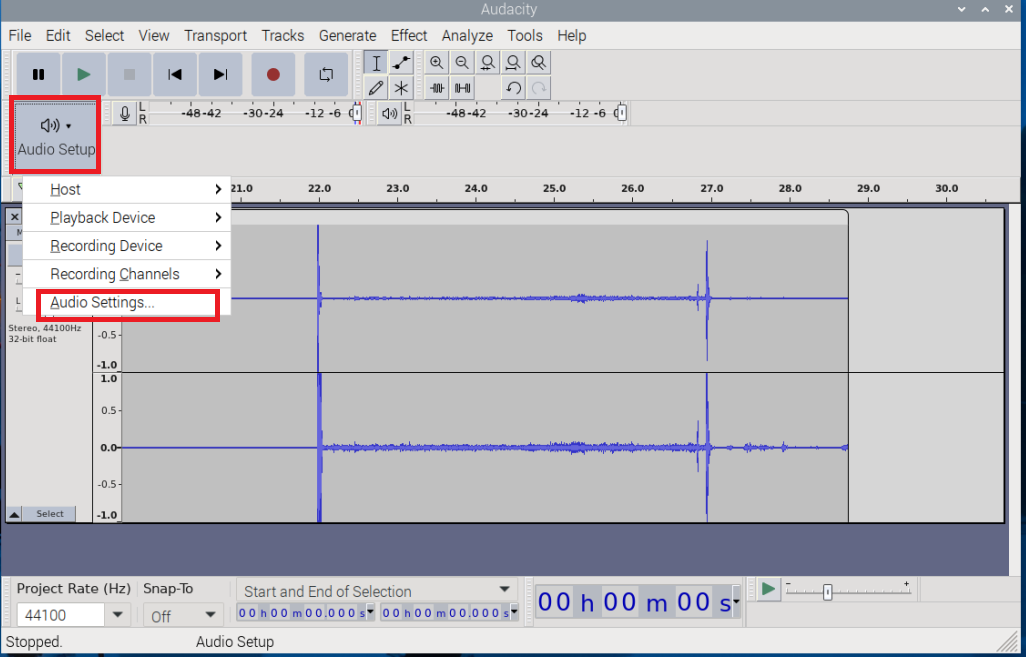
Set Up Audio Input and Output
- Click on "Audio Setup" in the toolbar.
- Select "Audio Settings" from the dropdown menu.
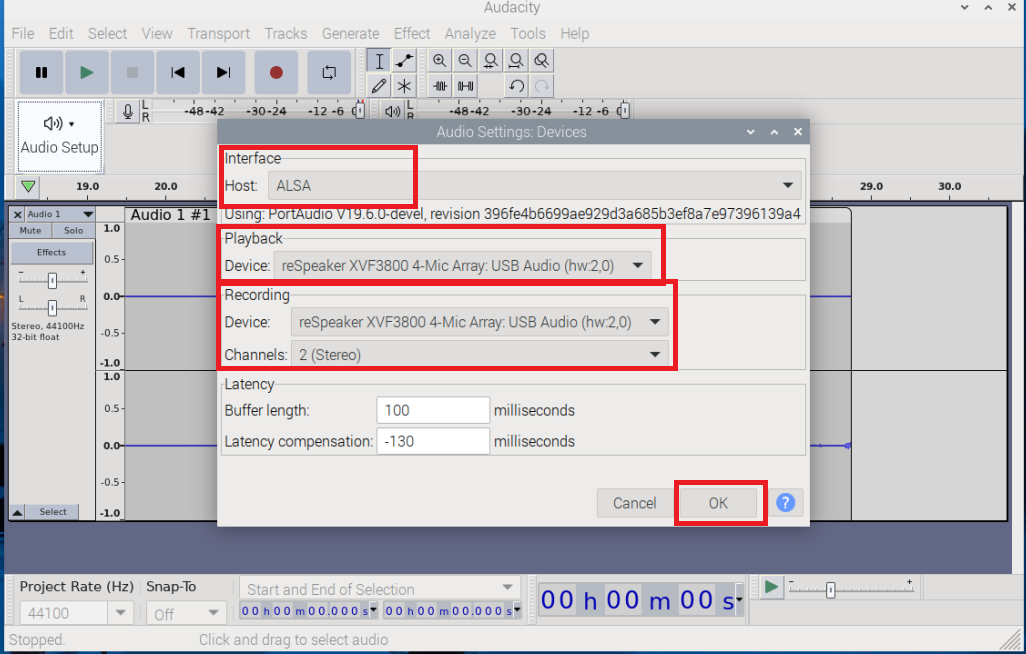
- In the Audio Settings window:
- Choose the correct Recording Device (e.g., reSpeaker XVF3800).
- Choose the appropriate Playback Device (e.g., reSpeaker XVF3800).
- Make sure Host is set to ALSA for best compatibility on Raspberry Pi.
- Click OK to apply the settings.
- Record and Playback Audio
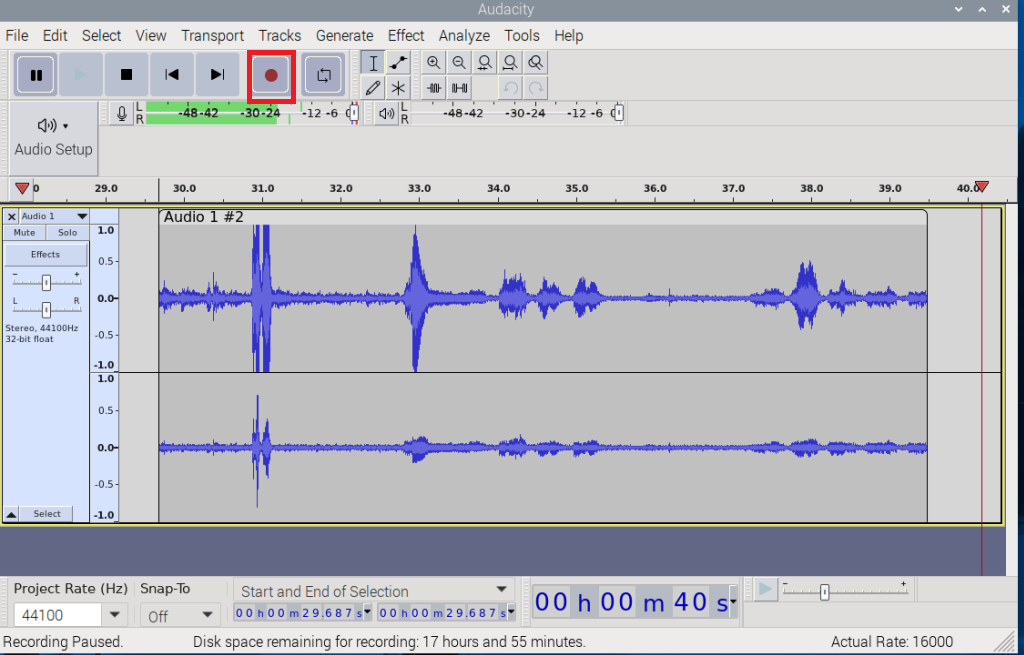
How to Tuning parameters?
Tuning allows users to configure parameters of the built-in audio algorithms and communicate directly with the XMOS chip.
A dedicated Python control interface is provided for parameter configuration and device interaction.
Using the provided Python scripts, you can:
- Configure built-in audio algorithm parameters
- Retrieve DoA (Direction of Arrival) data
- Retrieve VAD (Voice Activity Detection) data
- Control onboard LEDs
- Control the voice processing pipeline
- Communicate directly with the XMOS device
System Requirements
The following dependencies are required to use the Python control interface:
- Python 3.6 or later
pyusbPython librarylibusbsystem library
Installation & Dependencies
Install the required Python dependency using:
pip install pyusb
Depending on your operating system, you may also need to install the libusb package separately.
Usage
Basic Syntax
python xvf_host.py [options] command [value(s)...]
Command Options
| Option | Description |
|---|---|
-l, --list | List all supported commands with detailed information |
--vid | Set USB Vendor ID (default: 0x2886) |
--pid | Set USB Product ID (default: 0x001A) |
--values | Provide values for write commands (optional) |
Usage Examples
List Available Commands
Display all supported firmware commands.
python xvf_host.py --list
Read Firmware Version
Retrieve the firmware version currently running on the device.
python xvf_host.py VERSION
Example Output
VERSION: [2, 0, 7]
Read Direction of Arrival (DOA)
Retrieve the detected sound source direction.
python xvf_host.py DOA_VALUE
Example Output
DOA_VALUE: [135]
Set LED Color
Configure the LED color using a hexadecimal RGB value.
python xvf_host.py LED_COLOR --values 0xFF0000
Set LED Brightness
Adjust LED brightness percentage.
python xvf_host.py LED_BRIGHTNESS --values 50
Read Microphone Array Geometry
Retrieve the microphone coordinates used by the acoustic processing algorithms.
python xvf_host.py AEC_MIC_ARRAY_GEO
Example Output
AEC_MIC_ARRAY_GEO:
[0.033, -0.033, 0.000,
 0.033,  0.033, 0.000,
-0.033,  0.033, 0.000,
-0.033, -0.033, 0.000]
reSpeaker XVF_HOST Application
The xvf_host application is a host-side utility used to communicate with the reSpeaker XVF3800 through USB. It can be used to read or modify XVF3800 control parameters, check the firmware version, read GPIO values, and access functions such as Direction of Arrival (DoA).
Host Controller application can be find in here
Host Application Files
The host application is located under the host_control directory of the repository.
Typical platform directories include:
host_control/
├── linux_x86_64/
├── mac_arm64/
├── win32/
└── ...
Each platform directory contains the host application and the libraries required by that application.
For example:
Windows
host_control/win32/
├── command_map.dll
├── device_usb.dll
└── xvf_host.exe
Linux
host_control/linux_x86_64/
├── libcommand_map.so
├── libdevice_usb.so
└── xvf_host
macOS
host_control/mac_arm64/
├── libcommand_map.dylib
├── libdevice_usb.dylib
├── libusb-1.0.0.dylib
└── xvf_host
Important: Keep the complete platform directory together when copying the host application to another computer. The executable depends on the libraries located in the same directory.
- Windows
- Linux
- macOS
1. Connect the XVF3800
Connect the reSpeaker XVF3800 to the Windows PC using USB.
2. Open Command Prompt or PowerShell
Navigate to the Windows host application directory:
cd C:\path\to\reSpeaker_XVF3800_USB_4MIC_ARRAY\host_control\win32
3. Check the Host Application
Run:
xvf_host.exe --help
If the application is working correctly, the help information will be displayed.
To display all available control commands:
xvf_host.exe --list-commands
The --list-commands option shows the commands supported by the host application.
4. Check the XVF3800 Connection
Run:
xvf_host.exe VERSION
A successful connection should produce output similar to:
Device (USB)::device_init() -- Found device VID: 10374 PID: 26 interface: 3
VERSION 2 0 10
The firmware version will depend on the firmware installed on the XVF3800.
The VERSION command is a simple way to verify that xvf_host.exe can communicate with the XVF3800.
5. Read GPI Values
xvf_host.exe GPI_READ_VALUES
6. Read GPO Values
xvf_host.exe GPO_READ_VALUES
7. Read Direction of Arrival (DoA)
xvf_host.exe AEC_AZIMUTH_VALUES
The returned azimuth value can be used to determine the detected direction of the sound source.
8. List Available Commands
To see all available XVF3800 host commands:
xvf_host.exe --list-commands
You can then use any supported command with:
xvf_host.exe <COMMAND>
For example:
xvf_host.exe VERSION
1. Connect the XVF3800
Connect the reSpeaker XVF3800 to the Linux computer using USB.
2. Navigate to the Linux Host Application Directory
For an x86-64 Linux system:
cd ~/reSpeaker_XVF3800_USB_4MIC_ARRAY/host_control/linux_x86_64
3. Give the Application Execute Permission
Run:
chmod +x xvf_host
4. Check the Host Application
Run:
./xvf_host --help
To display all available control commands:
./xvf_host --list-commands
5. Check the XVF3800 Connection
Run:
./xvf_host VERSION
A successful connection should produce output similar to:
Device (USB)::device_init() -- Found device VID: 10374 PID: 26 interface: 3
VERSION 2 0 10
The firmware version will depend on the firmware installed on the XVF3800.
The VERSION command is a simple way to verify that xvf_host can communicate with the XVF3800.
6. If USB Permission Is Denied
If the application cannot access the USB device because of Linux USB permissions, you can test the application with:
sudo ./xvf_host VERSION
If the command works with sudo but not without it, the issue is likely related to the Linux USB device permissions or udev rules.
7. Read GPI Values
./xvf_host GPI_READ_VALUES
8. Read GPO Values
./xvf_host GPO_READ_VALUES
9. Read Direction of Arrival (DoA)
./xvf_host AEC_AZIMUTH_VALUES
10. List Available Commands
./xvf_host --list-commands
You can then execute a supported command using:
./xvf_host <COMMAND>
For example:
./xvf_host VERSION
1. Connect the XVF3800
Connect the reSpeaker XVF3800 to the Mac using USB.
2. Navigate to the macOS Host Application Directory
For an Apple Silicon Mac:
cd ~/reSpeaker_XVF3800_USB_4MIC_ARRAY/host_control/mac_arm64
3. Give the Application Execute Permission
Run:
chmod +x xvf_host
4. Check the Host Application
Run:
./xvf_host --help
To display all available control commands:
./xvf_host --list-commands
5. Check the XVF3800 Connection
Run:
./xvf_host VERSION
A successful connection should produce output similar to:
Device (USB)::device_init() -- Found device VID: 10374 PID: 26 interface: 3
VERSION 2 0 10
The firmware version will depend on the firmware installed on the XVF3800.
6. Read GPI Values
./xvf_host GPI_READ_VALUES
7. Read GPO Values
./xvf_host GPO_READ_VALUES
8. Read Direction of Arrival (DoA)
./xvf_host AEC_AZIMUTH_VALUES
9. List Available Commands
./xvf_host --list-commands
Common Commands
The following commands are useful for basic XVF3800 testing:
| Command | Description |
|---|---|
--help | Display host application help |
--list-commands | Display available XVF3800 commands |
VERSION | Read the XVF3800 firmware version |
GPI_READ_VALUES | Read GPI values |
GPO_READ_VALUES | Read GPO values |
AEC_AZIMUTH_VALUES | Read the current DoA/azimuth value |
More Commands can be find in here
reSpeaker Console Application
We have prepared a desktop application to control and configure your reSpeaker device.
With this application, you can:
- Connect to your reSpeaker device
- Configure audio settings (Noise Suppression, Gain, AEC, and Channel Configuration)
- Monitor Direction of Arrival (DoA) and Voice Activity Detection (VAD)
- Control LED effects
- Adjust device parameters
Installing the Application
Download the latest release from:
https://github.com/respeaker/respeaker-console/releases
| Platform | Architecture | Package Type |
|---|---|---|
| Windows | x64 | .msi / .exe |
| macOS | Apple Silicon | .dmg (aarch64) |
| macOS | Intel | .dmg (x86_64) |
| Linux | x64 | .deb / .AppImage |
Windows: USB Driver Setup
Before using the application for the first time, install the WinUSB driver using Zadig.
Step 1: Download and run Zadig.
Step 2: Select Options → List All Devices.
Step 3: Select reSpeaker 3800 or reSpeaker XVF3800 4-Mic Array from the device list.
Step 4: Choose WinUSB as the driver.
Step 5: Click Install Driver.
Step 6: Unplug and reconnect the device.
Step 7: Run the following command to verify that the device is detected:
dfu-util -l
dfu-util.exe is bundled with the application, so no separate installation is required.
Linux: Install dfu-util and Configure USB Permissions
Install dfu-util:
sudo apt install dfu-util
USB access also requires a udev rule.
Create the following file:
/etc/udev/rules.d/99-respeaker.rules
Add the following line:
SUBSYSTEM=="usb", ATTRS\{idVendor\}=="2886", MODE="0666", GROUP="plugdev"
Reload the udev rules:
sudo udevadm control --reload-rules && sudo udevadm trigger
Finally, disconnect and reconnect your device.
macOS: Install dfu-util
Install dfu-util before using the firmware update feature.
brew install dfu-util
Using the Application
After installing the application, launch it to access the reSpeaker Console.
Let's go through each section of the sidebar.
Device Connection
First, connect your reSpeaker device.
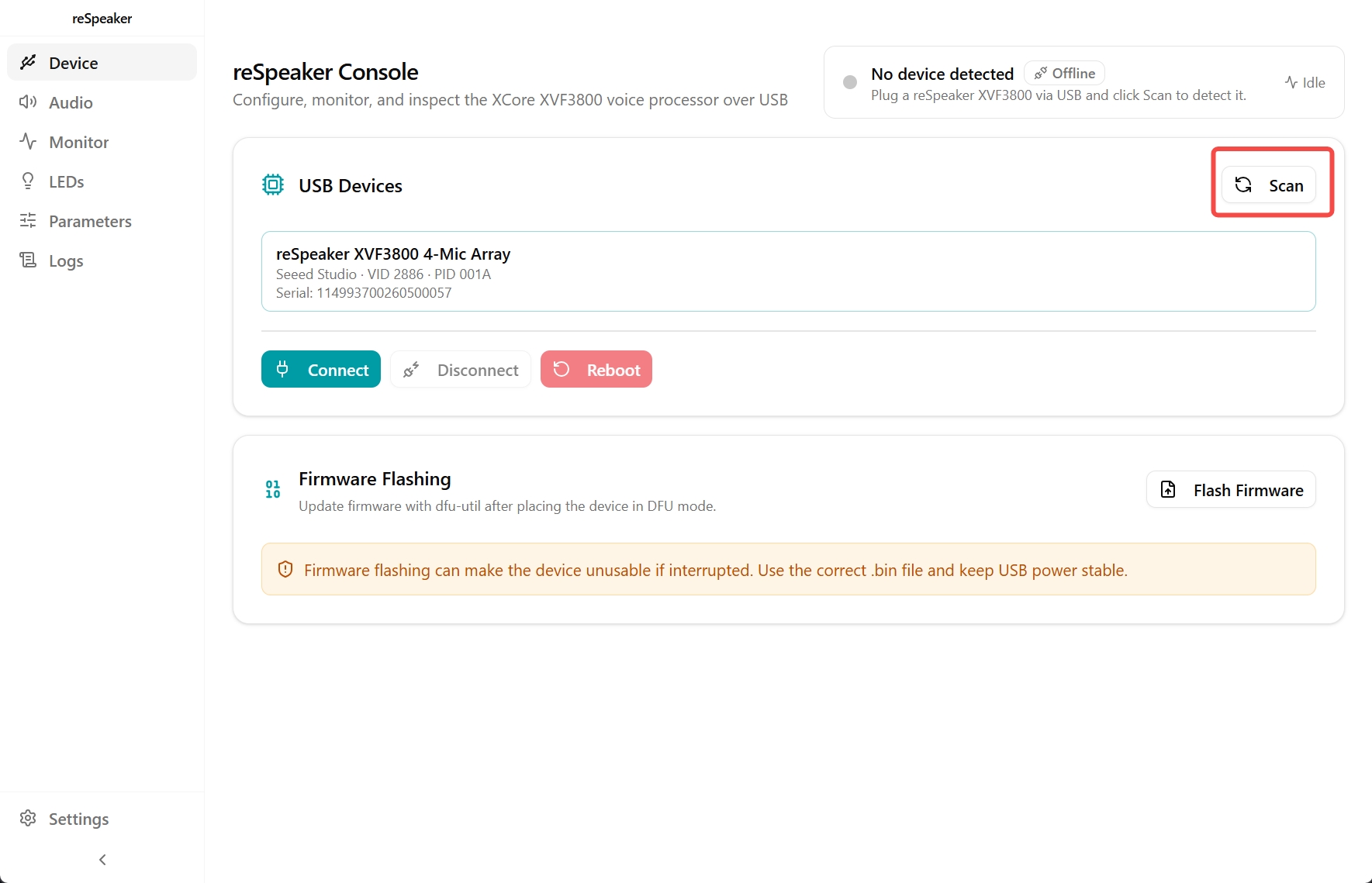
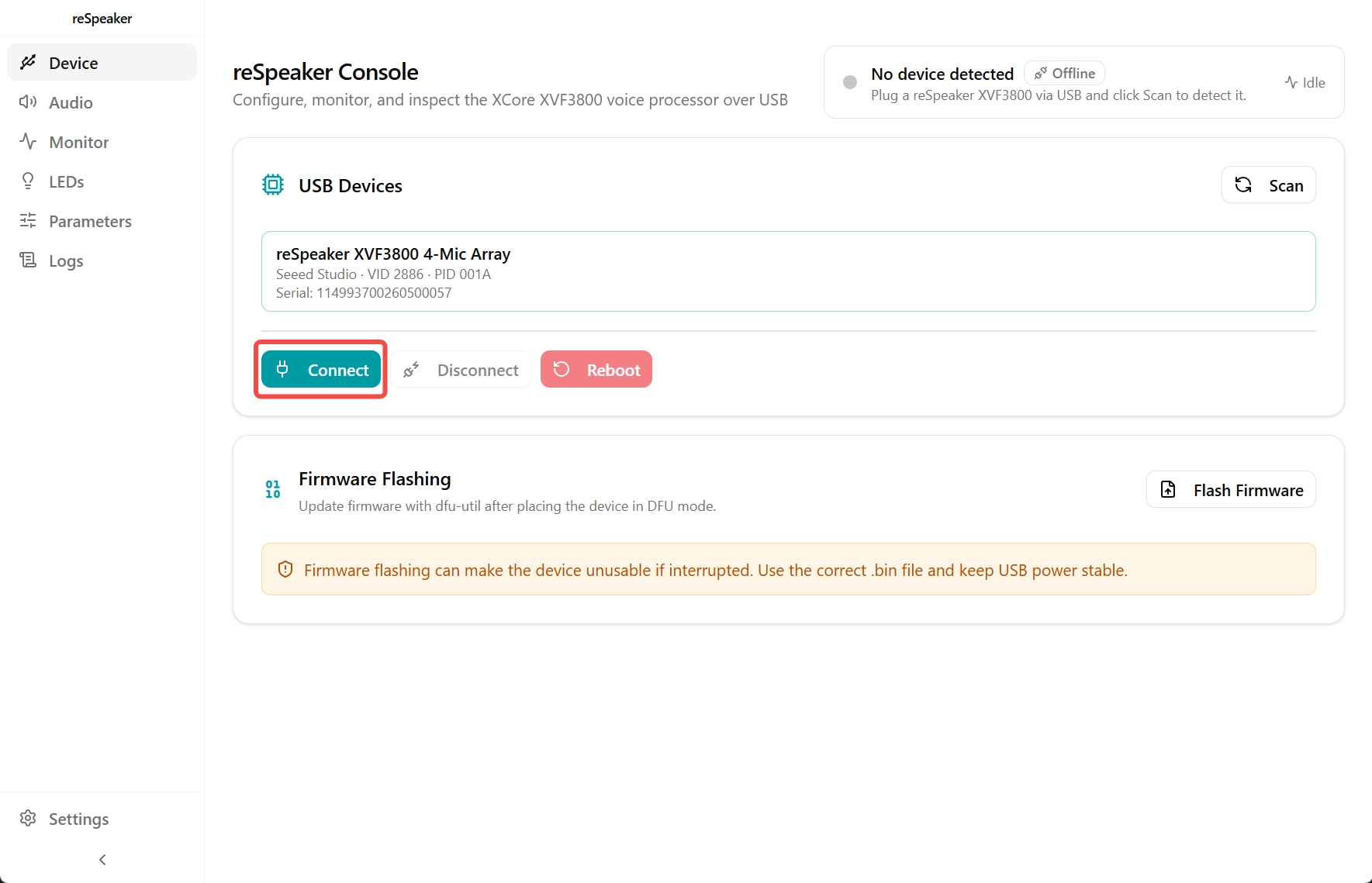
- Click Scan Devices.
- The application will list all detected devices.
- Select your device.
- Click Connect to establish the connection.
Audio
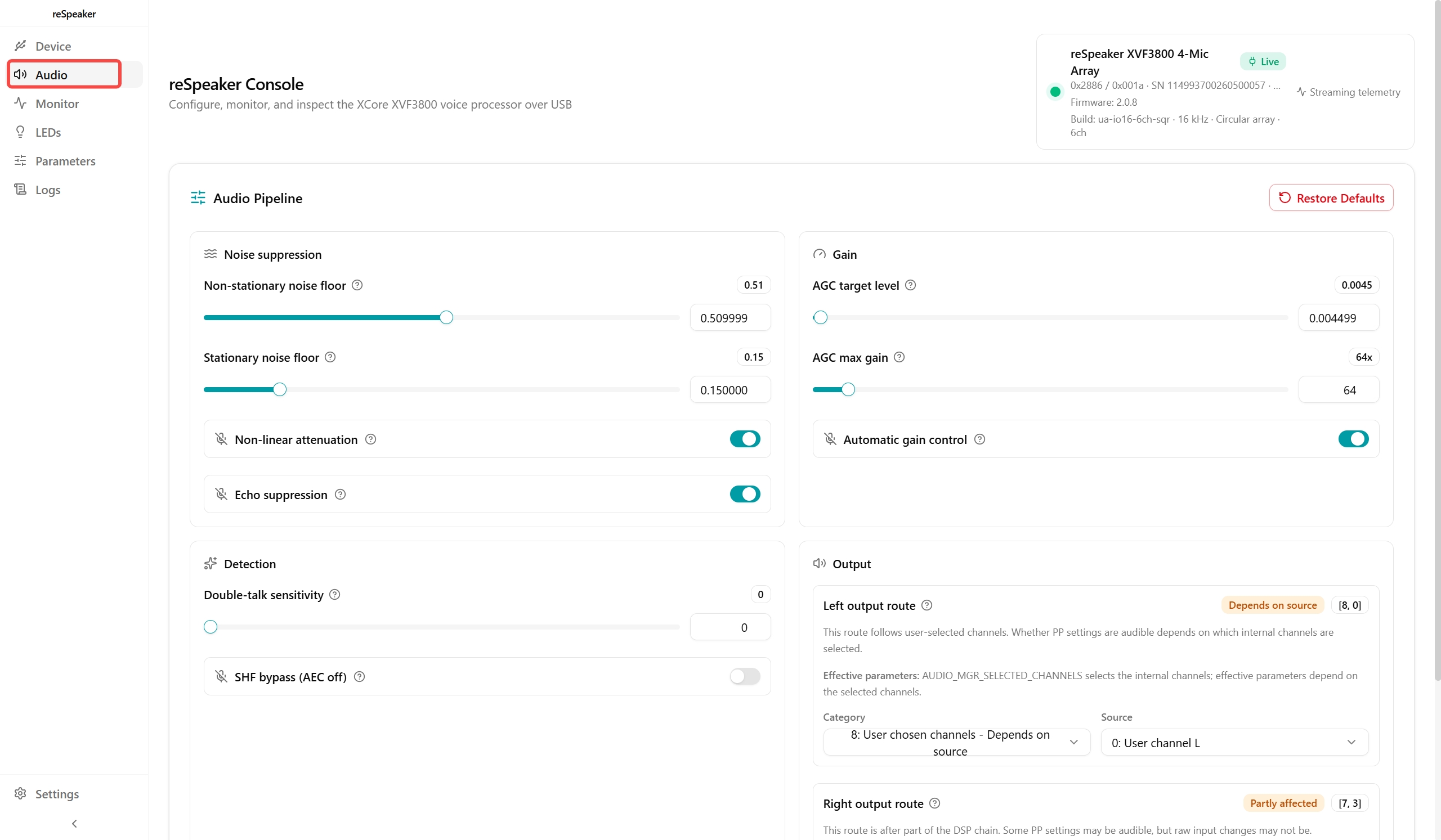
The Audio tab allows you to configure and enhance the audio processing pipeline.
Here you can configure:
- Non-stationary Noise Suppression
- Stationary Noise Suppression
- Automatic Gain Control (AGC)
- Acoustic Echo Cancellation (AEC)
- Output channel configuration
- Left and right channel mapping
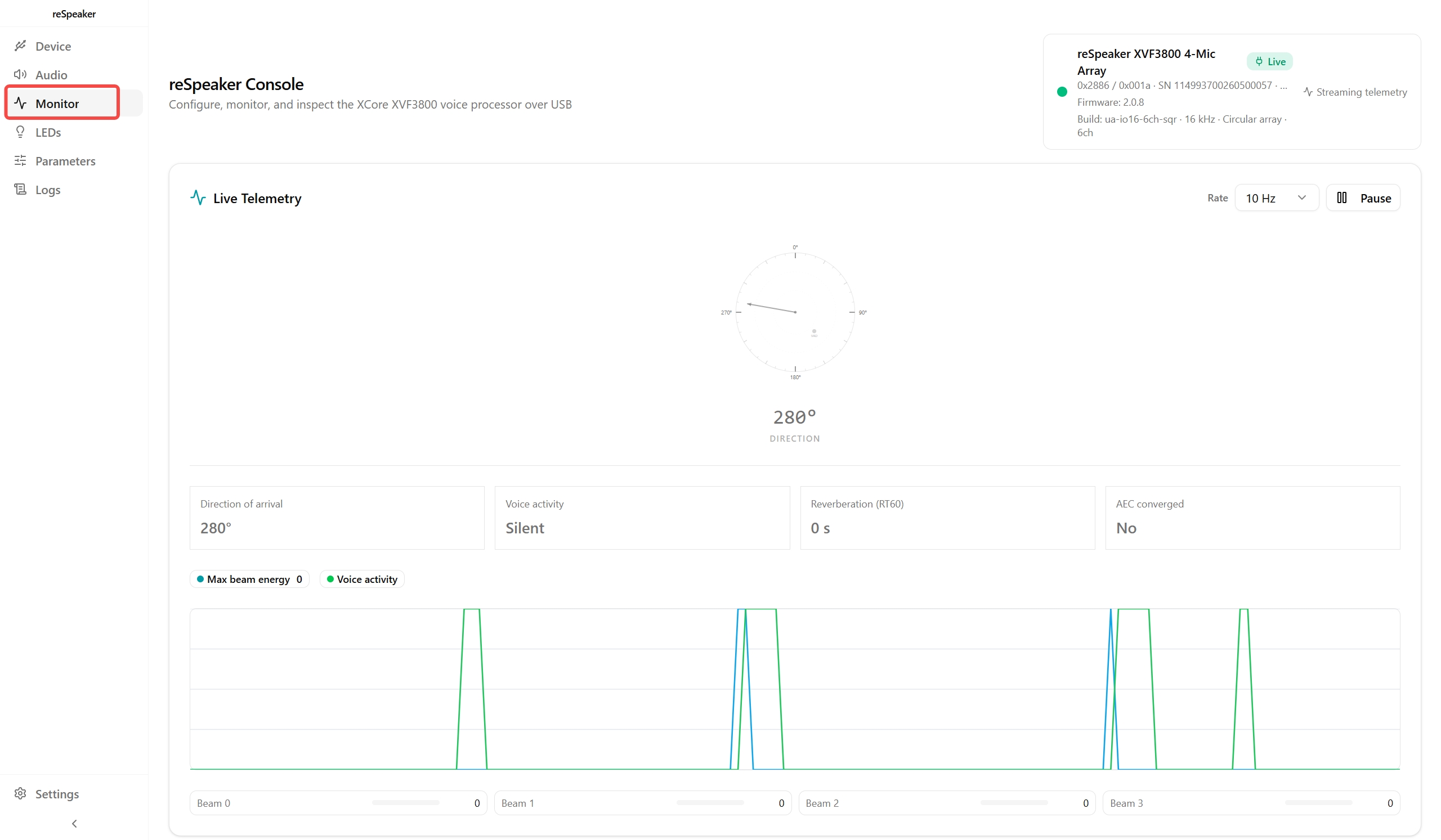
Monitor
The Monitor tab provides real-time visualization of the microphone processing.
You can monitor:
- Direction of Arrival (DoA)
- Voice Activity Detection (VAD)
- Beam energy levels
These indicators help you verify that the device is detecting speech correctly.
LEDs
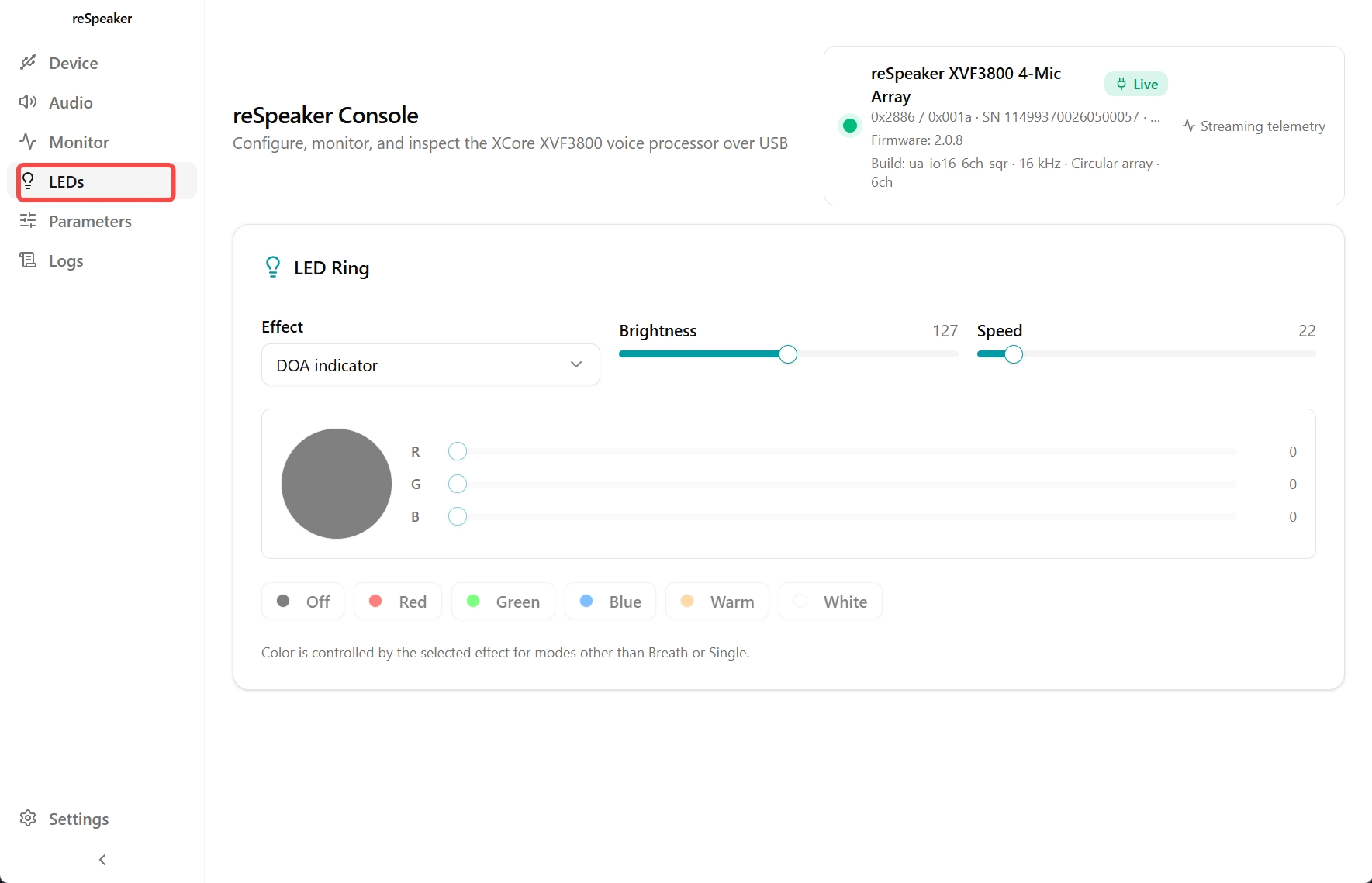
The LEDs tab lets you customize the LED ring.
Available features include:
- Breathing effect
- Rainbow effect
- Ring effect
- Brightness adjustment
- Animation speed control
- RGB color selection
Parameters
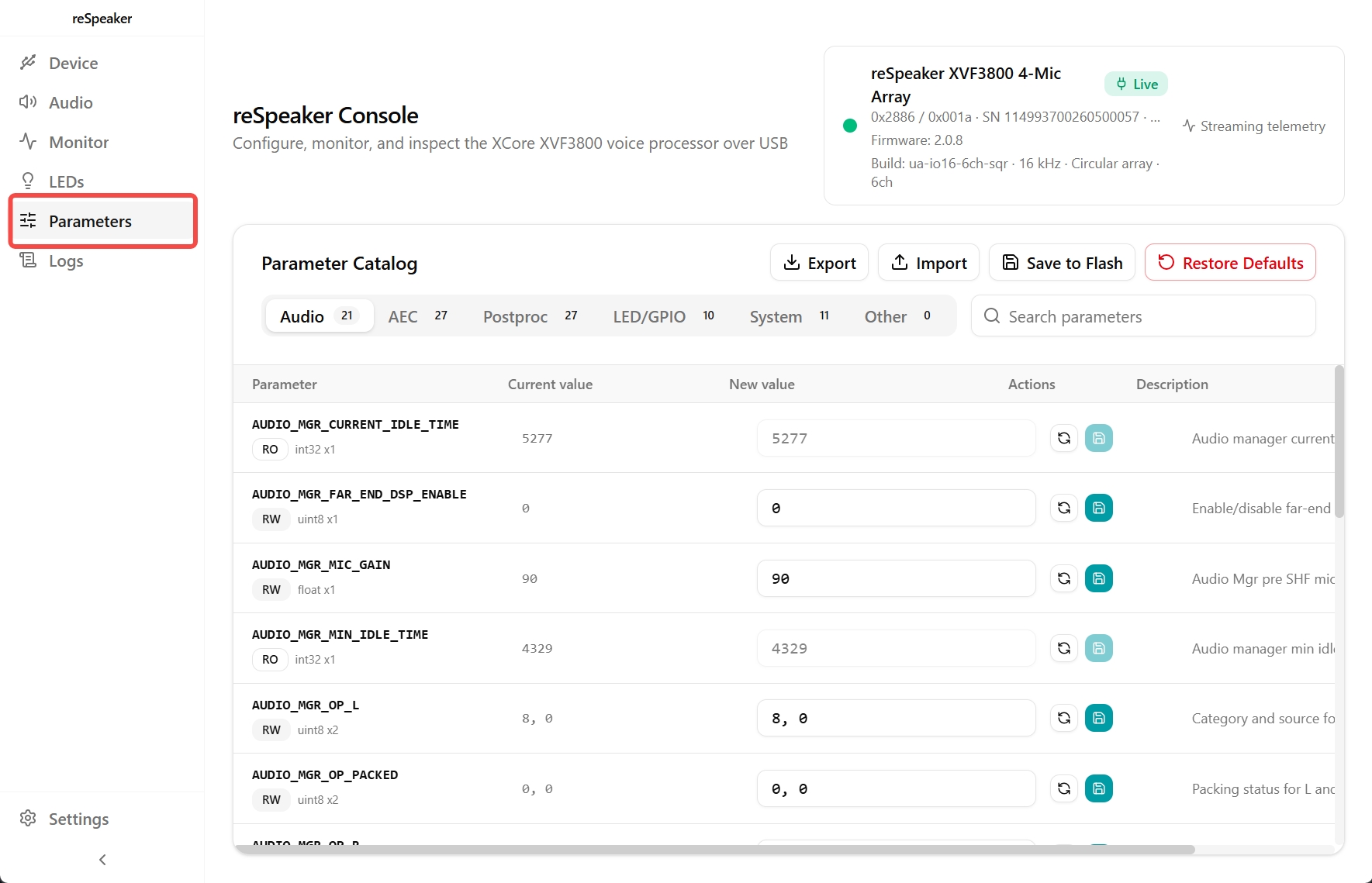
The Parameters tab provides access to all configurable device parameters.
The settings are organized into categories such as:
- Audio
- Acoustic Echo Cancellation (AEC)
- Post Processing
- LEDs / GPIO
- System
From this interface, you can update parameter values directly.
Each parameter includes a description to help you understand its purpose and the recommended value range.
Troubleshooting
Does playback sound from speaker output not enough ?
If the speaker output volume of the ReSpeaker XVF3800 is too low on Linux, you may need to adjust the ALSA mixer levels for the XVF3800 sound card. Follow the steps below to increase the output volume.
Step 1: Open ALSA Mixer
-
Open a terminal.
-
Type the following command and press Enter:
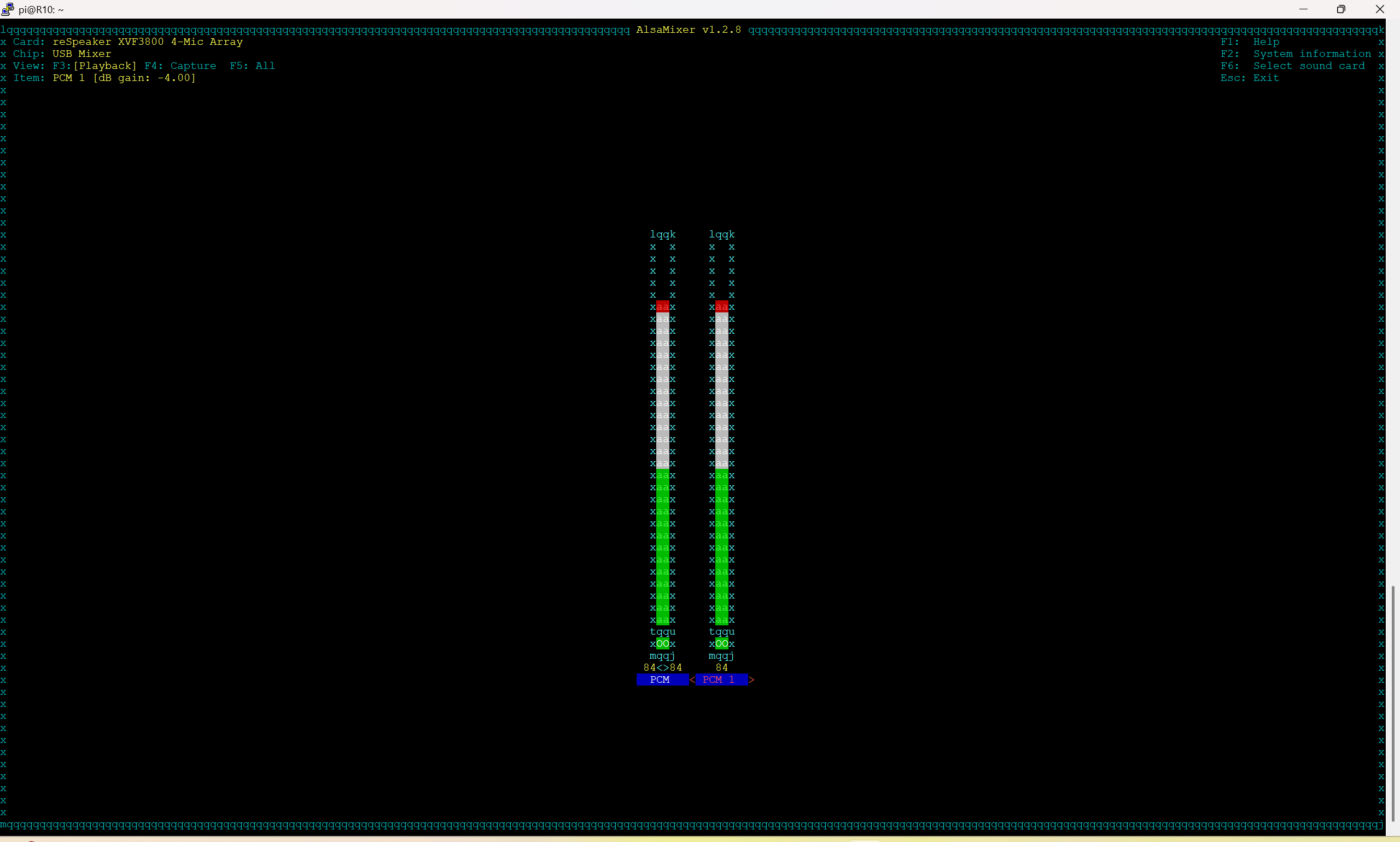
alsamixer
Step 2: Select the XVF3800 Sound Card
- Press F6 to open the sound card selection menu.
- Use the up/down arrow keys to highlight the XVF3800 sound card.
- Press Enter to confirm the selection.
Step 3: Adjust the PCM-1 Volume
- Use the left/right arrow keys to navigate to PCM-1.
- Use the up arrow key to increase the volume level up to 100%.
Step 4: Save ALSA Settings
- Press ESC to exit
alsamixer. - Before unplugging the XVF3800, run the following command to save your settings:
sudo alsactl store
Step 5: Additional Option (Using PulseAudio)
If you still cannot hear sound clearly after adjusting ALSA levels, try installing PulseAudio Volume Control for more detailed volume adjustments:
sudo apt install pavucontrol -y
You can then open pavucontrol and increase the output volume beyond 100% if needed.
After reinstalling the USB drivers, my ReSpeaker doesn’t record and playback
Uninstall all drivers associated with the ReSpeaker in Device Manager. This resolved the issue.
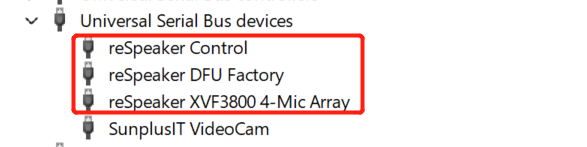
Cannot use as sound devices in Windows after flashing firmware ?
Open the start menu and type Device manager. Find related reSpeaker XVF 3800 devices, right click them and select Uninstall devices. After that, restart the device (usb plug and unplugged) and Windows will re-install the right sound card driver for it.
How can I open the casing without damaging it?
You can use your fingernails to gently lift the edges of the casing. There are three locking clips securing the cover. Once you release one of the clips, the casing can be opened relatively easily. Please handle the casing carefully to avoid damaging the clips or enclosure.
Why is my reSpeaker XVF3800 not detected as a sound device?
The reSpeaker XVF3800 ESP32 version is shipped with I2S firmware by default, so it will not appear as a USB audio device when connected to a PC. This information is mentioned on our Bazaar product page and official documentation.
If you want to use the device as a USB audio device, you need to reflash it with the USB firmware. Please follow these steps:
-
Enter Safe Mode first: Safe Mode instructions
-
Flash the USB firmware: Firmware update instructions
Why are some channels silent with the XVF3800 6-channel firmware?
The raw microphone channels may need to be enabled through the system’s audio mixer controls after flashing the 6-channel firmware.
On Linux, first check the audio card ID:
arecord -l
For example, if the XVF3800 appears as card 1, enable the capture channels and set their volume:
amixer -c 1 cset numid=8 on,on,on,on,on,on
amixer -c 1 cset numid=10 60,60,60,60,60,60
Adjust the volume values as needed, then save the settings:
sudo alsactl store 1
After applying these settings, all six channels should capture non-zero audio.
Windows: If some channels remain silent, try uninstalling the XVF3800 device driver from Device Manager, then unplug and reconnect the device. This allows Windows to reconfigure the device and driver.
How to Use I2C Commands to Control reSpeaker XVF3800 USB Mic Array with XIAO ESP32S3?
We provide a detailed I2C command list and code examples. Please refer to the Using I2C Commands to Control reSpeaker XVF3800 USB Mic Array with XIAO ESP32S3 section.
Resources
- ReSpeaker XVF3800 2D File
- ReSpeaker XVF3800 3D File
- ReSpeaker XVF3800 3D-Enclosure-Up File
- ReSpeaker XVF3800 3D-Enclosure-Down File
Reference
Tech Support & Product Discussion
Thank you for choosing our products! We are here to provide you with different support to ensure that your experience with our products is as smooth as possible. We offer several communication channels to cater to different preferences and needs.