Work with EEZ Studio
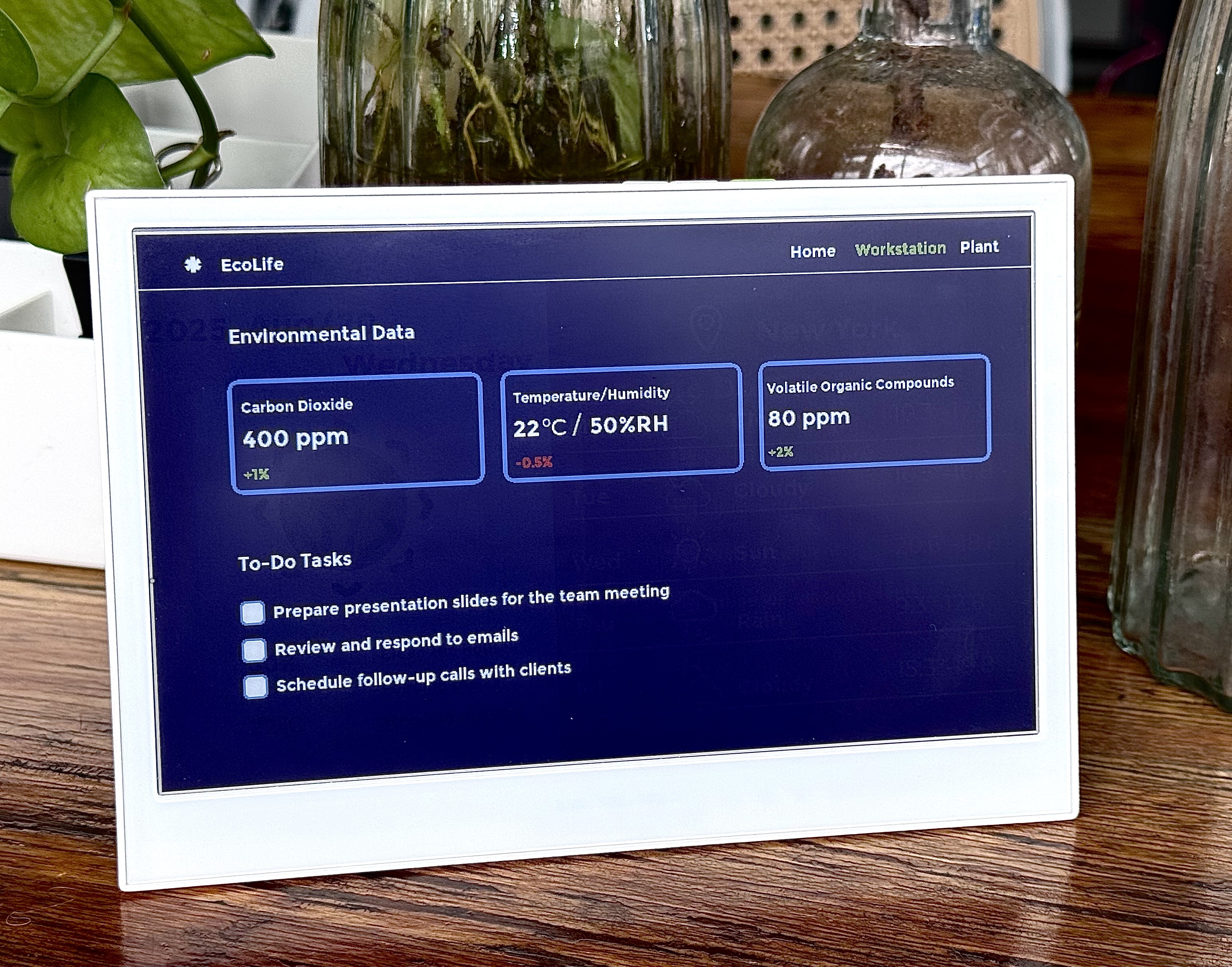
This guide walks you through designing a professional user interface with the visual design tool EEZ Studio, generating LVGL code, and deploying it to a Seeed ePaper product with PlatformIO. The flow is the same for every supported board — the only differences are display resolution and the board environment, which we surface in tabs.
Compatible Hardware
| reTerminal E1001 / E1002 / E1003 / E1004 | XIAO ePaper Display Board (ESP32-S3) – EE04 |
|---|---|
 | 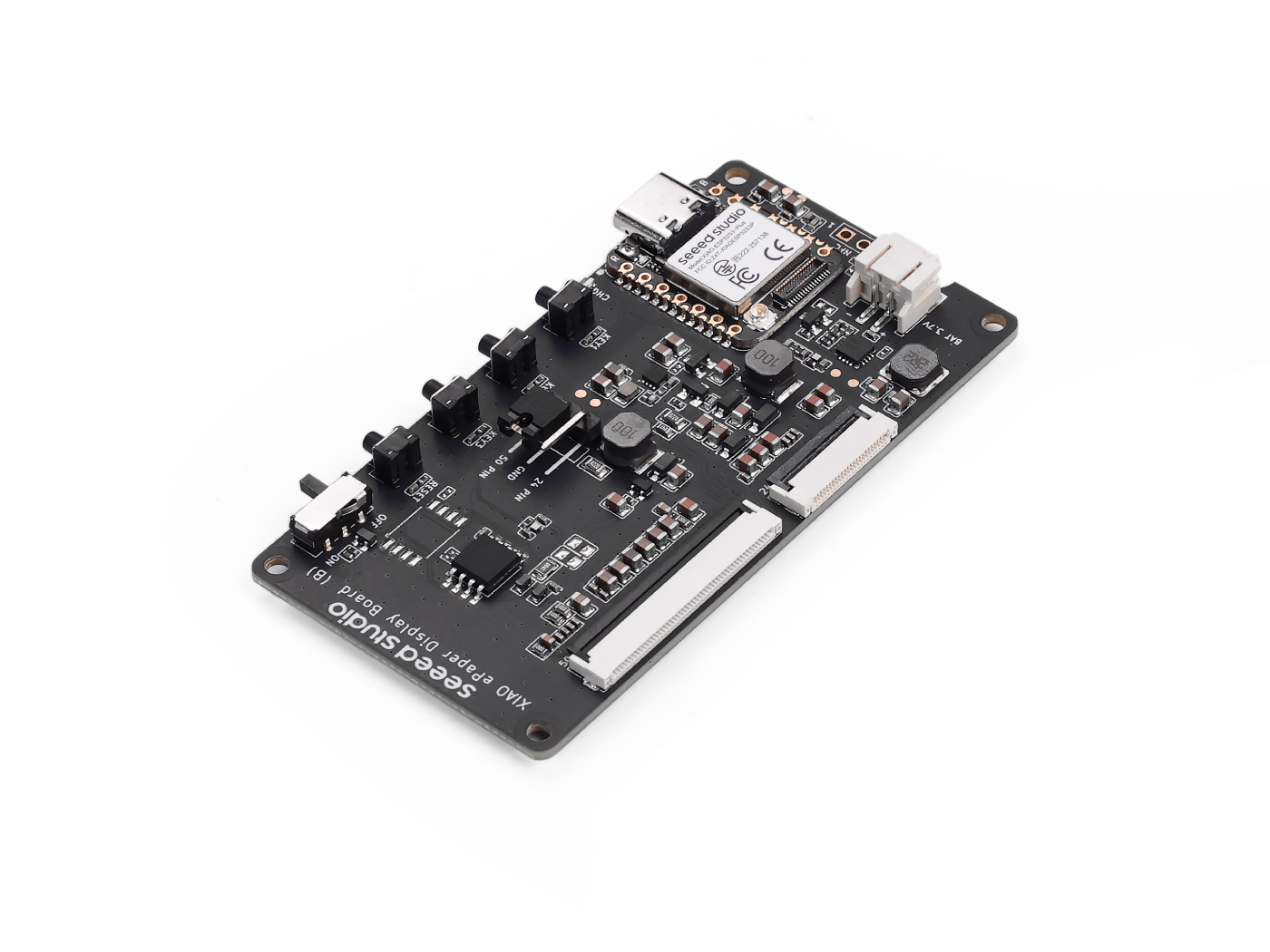 |
| 7.5" mono / 7.3" Spectra 6 / 10.3" mono / 13.3" Spectra 6 | Universal driver — pair with any of our 24-pin or 50-pin Seeed ePaper screens |
What is EEZ Studio?
EEZ Studio is a modern visual programming and UI design environment originally built for test & measurement instruments and embedded devices. It combines drag-and-drop GUI design, scripting, and device integration tools, allowing developers, engineers, and makers to quickly create professional interfaces without starting from scratch.
In short, EEZ Studio acts as a bridge between hardware and software, enabling you to design, prototype, and deploy user experiences more efficiently.
Why use EEZ Studio?
- Visual interface design — create complex UIs with a WYSIWYG editor.
- Rapid prototyping — quickly test and validate design ideas.
- Cross-platform — build apps that run on multiple OSs and embedded targets.
- Hardware integration — directly connect lab instruments, IoT devices, and custom boards.
- Open source — community-driven toolset with optional premium support.
EEZ Studio vs. SquareLine Studio
Both are GUI design tools but they target slightly different audiences:
| Aspect | EEZ Studio | SquareLine Studio |
|---|---|---|
| Primary purpose | Test & measurement instruments, embedded systems, hardware/software integration | Embedded GUIs, especially with LVGL |
| Target users | Engineers, product developers, makers, lab/test instrument designers | Embedded UI developers, hobbyists, IoT product designers |
| Hardware integration | Direct integration with instruments, measurement devices, automation | UI generation focused, less external device integration |
| Open source | Community-driven, transparent, extensible (premium support available) | Closed-source, commercial product with licensing |
| Workflow | Prototype, simulate, and control real devices from one environment | Primarily generates UI code to be compiled into an embedded project |
Step 1: Install EEZ Studio
Download EEZ Studio for your operating system from the official site.
Step 2: Create an LVGL Project
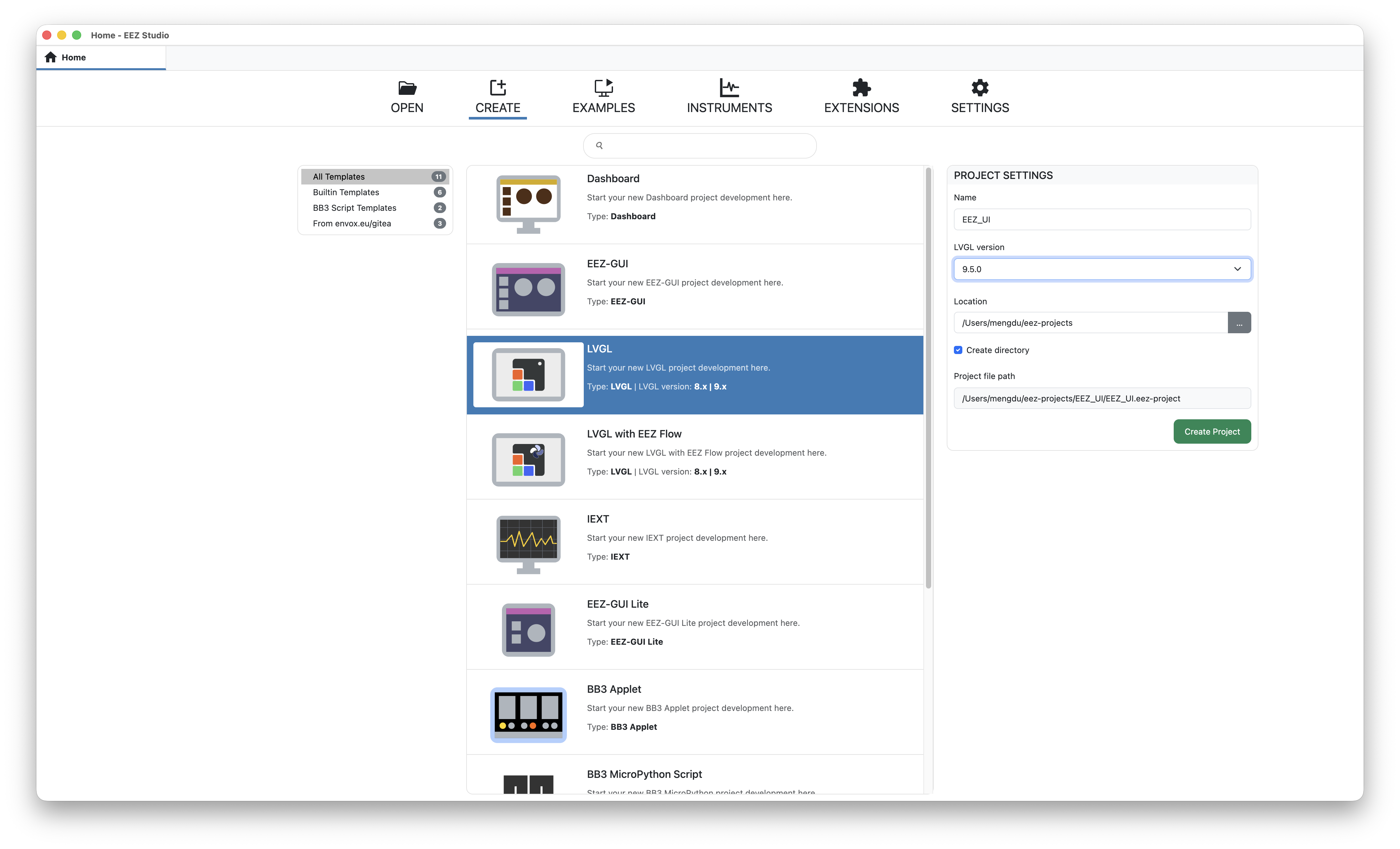
At the top of the EEZ Studio interface, click CREATE. Select the LVGL template on the left:
- Name — give your project a name (we'll use
EEZ_UIin this article). - LVGL Version — pick
9.5.0from the dropdown. - Location — choose where to save the project files.
Project Settings
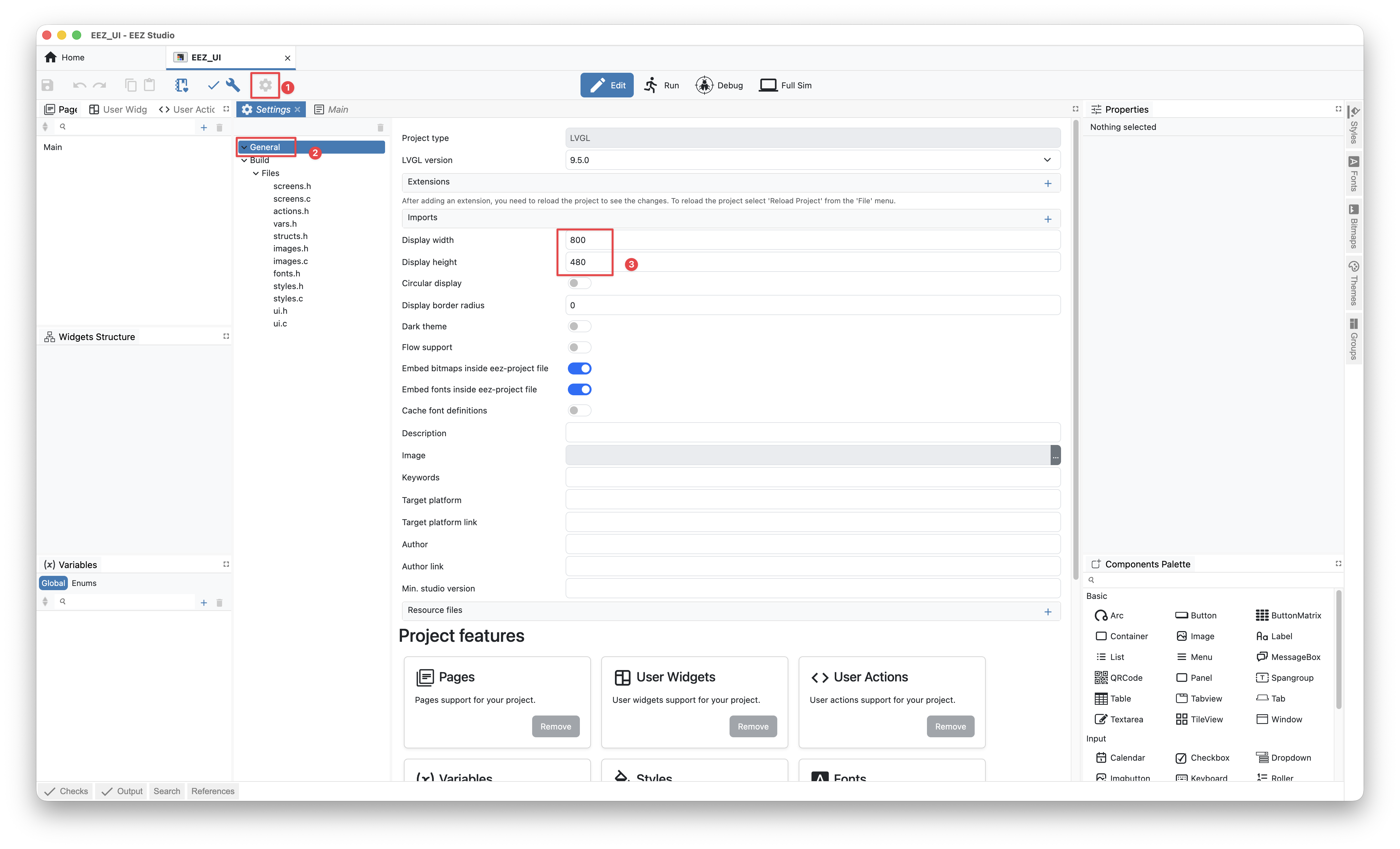
Click the ⚙️ icon on the toolbar to open Project Settings.
Under General → Display, set the resolution for your hardware:
- reTerminal E1001 / E1002
- reTerminal E1003
- reTerminal E1004
- EE04 + 5.83" mono
- Display width: 800
- Display height: 480
(7.5" mono on E1001 and 7.3" Spectra 6 on E1002 share the same 800×480 resolution.)
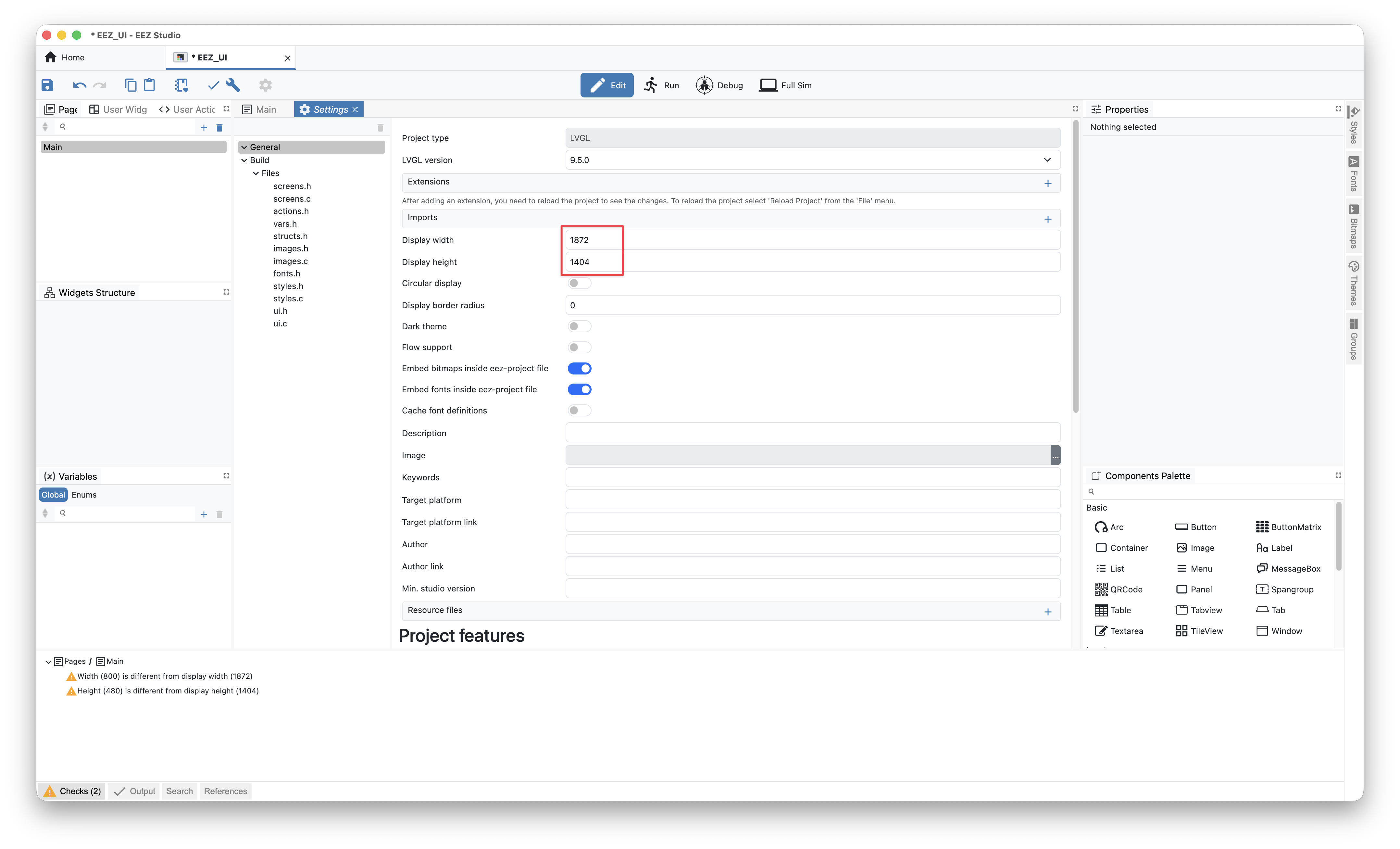
- Display width: 1872
- Display height: 1404
(The 10.3" mono panel on E1003 uses a 1872×1404 resolution.)
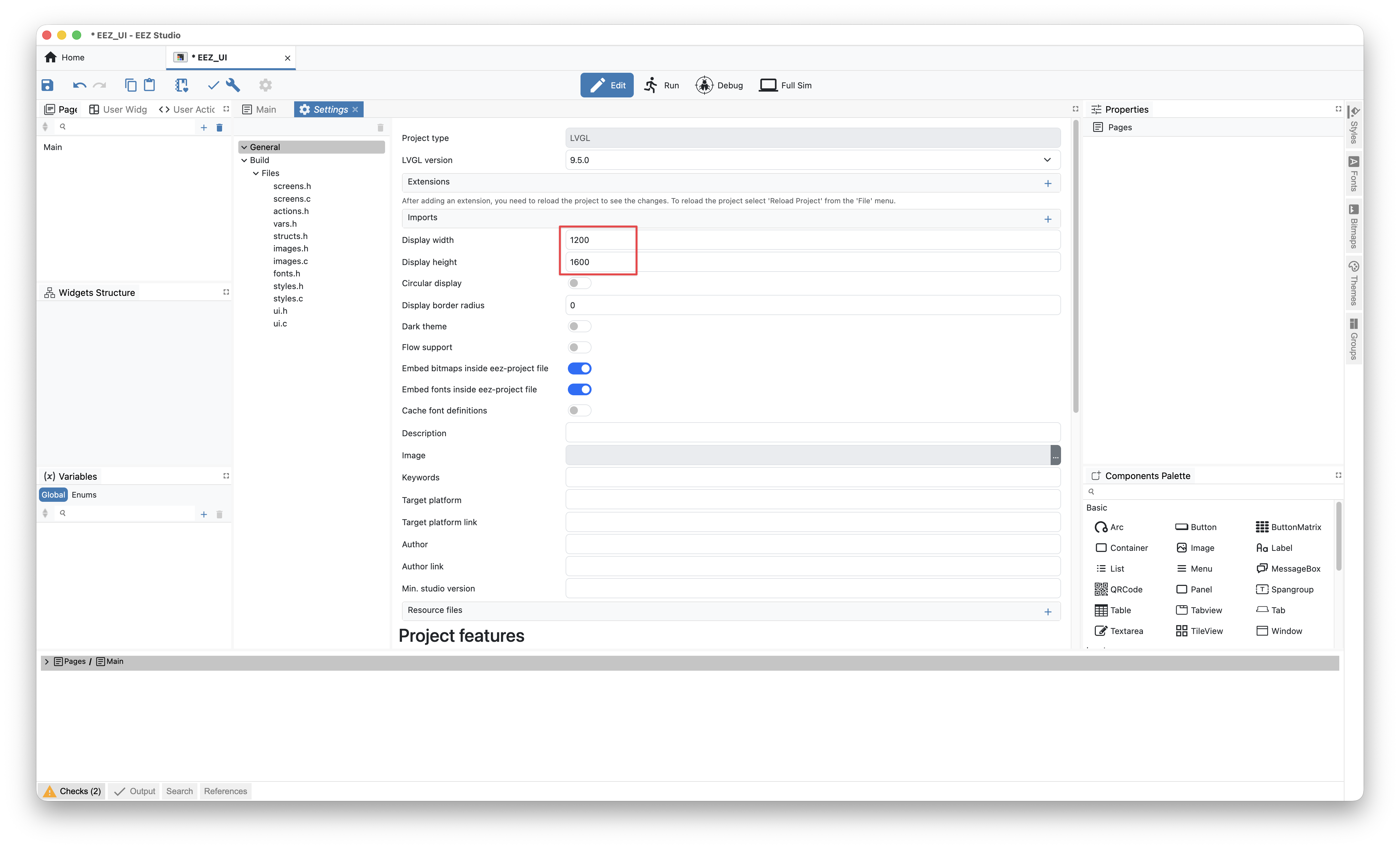
- Display width: 1200
- Display height: 1600
(The 13.3" Spectra 6 panel on E1004 uses a 1200×1600 resolution.)
- Display width: 648
- Display height: 480
(Match the values to whichever Seeed ePaper screen you have plugged into the EE04. The example below uses the 5.83" 648×480 monochrome screen.)
Step 3: Design the UI
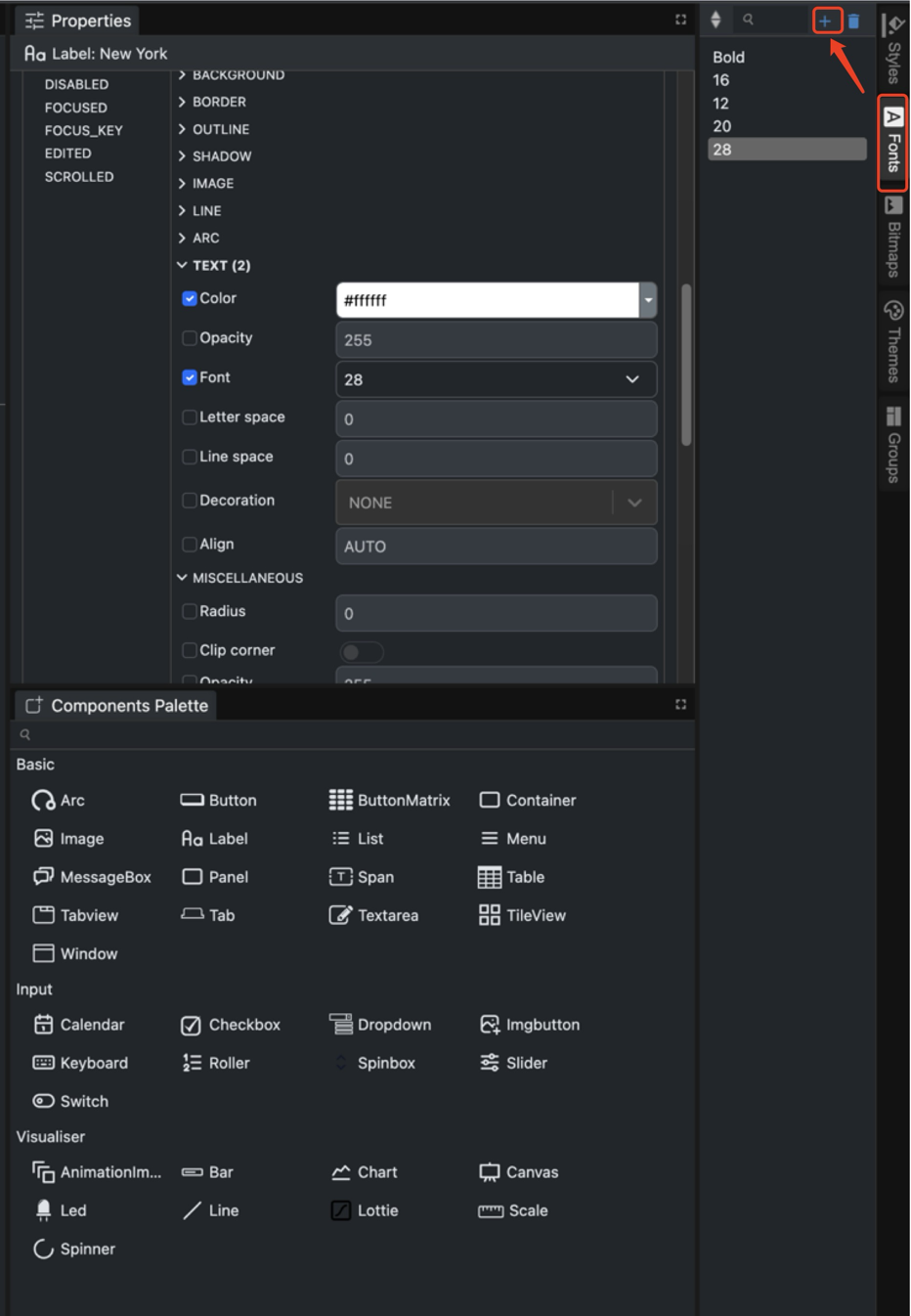
UI design directly determines the user experience. EEZ Studio lets you rapidly assemble interfaces by dragging and dropping components and using Styles, Fonts, Bitmaps, Themes, and Groups to control the visual result.
Recommended online resources:
- Coolors — color palette generator
- PeisekA — color chart
- iconfont — icon library
- Google Fonts — free fonts
The right-hand sidebar:
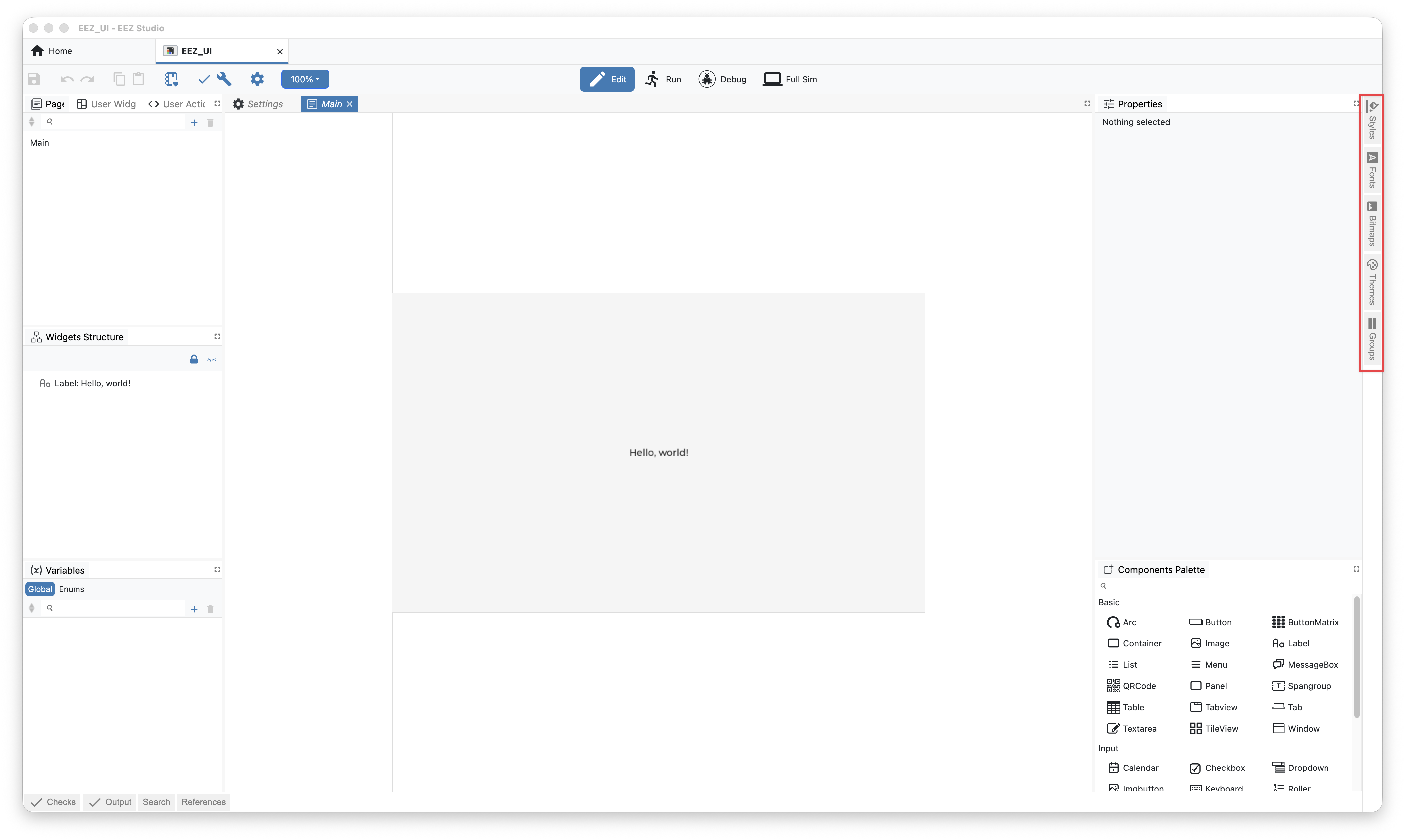
- Styles — visual attributes for unifying and reusing interface elements.
- Bitmaps — backgrounds, icons, logos.
- Fonts — text rendering and multilingual support.
- Themes — light/dark and other top-level styles.
- Groups — layout helpers.
Example layout (Hello World + Panel + Image + Line + Label)
For this tutorial we'll build a simple homepage from five components:
- Panel
- Label
- Line
- Checkbox
- Image
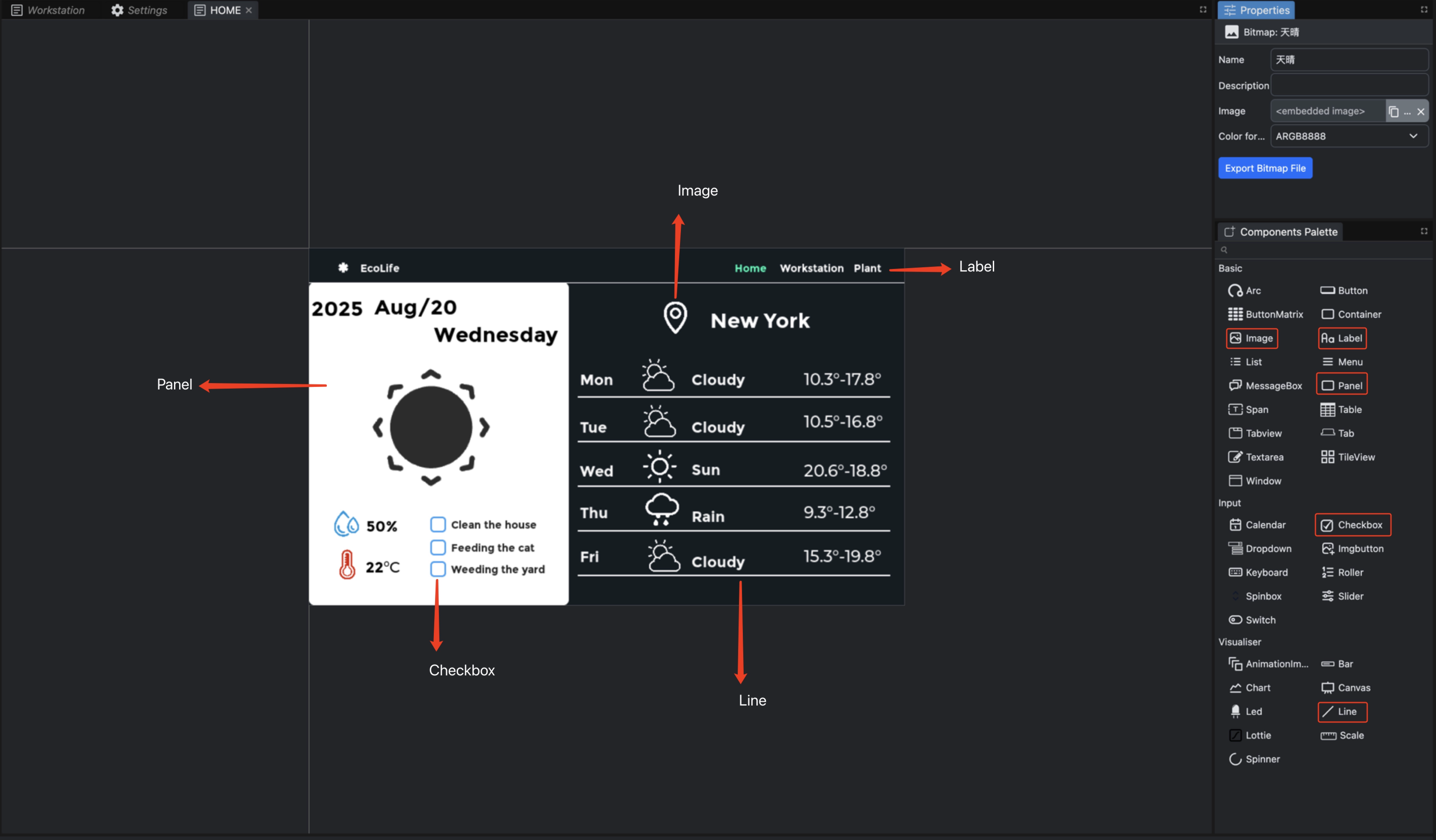
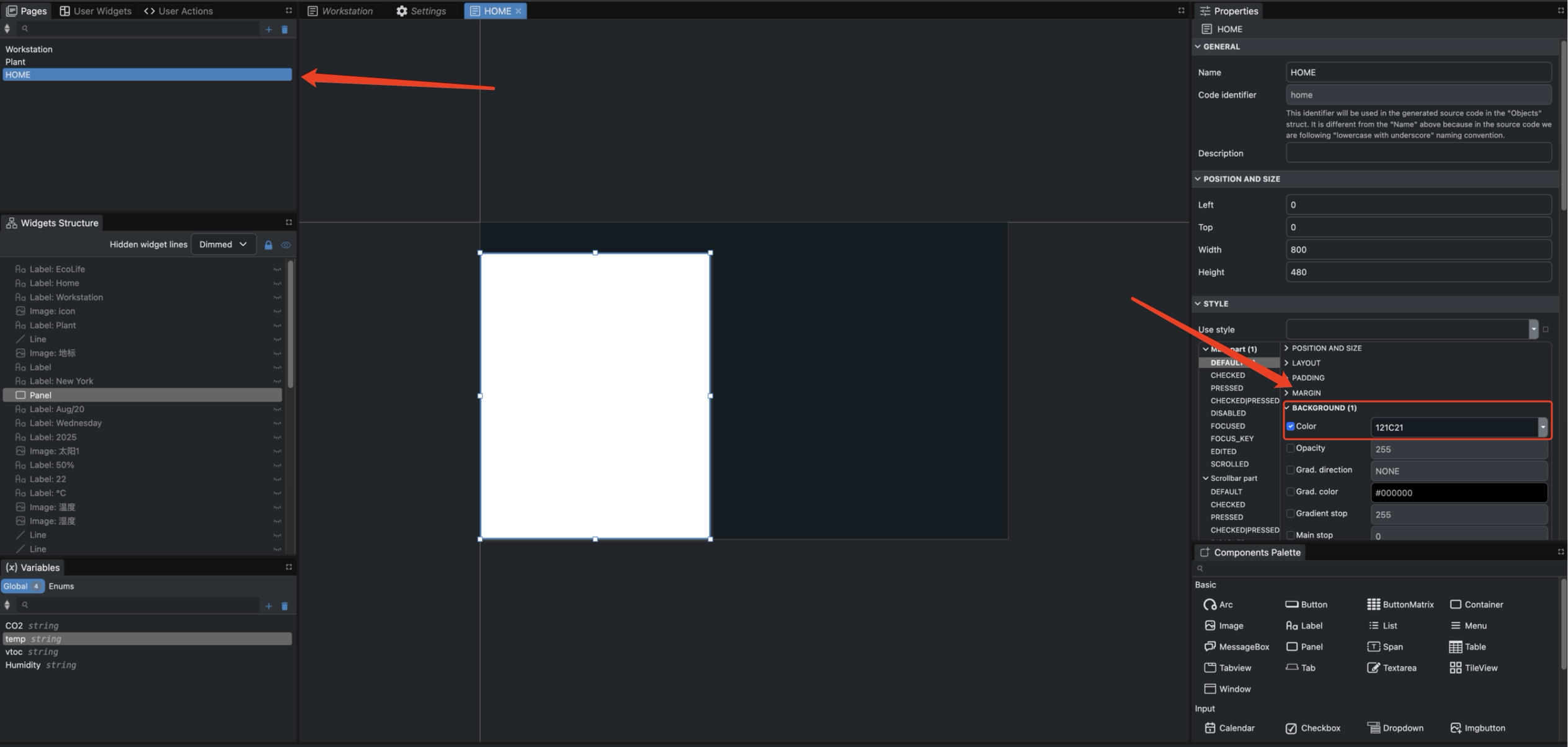
Step 1. Change the canvas background colour — select the canvas, check Color, pick a hex value.
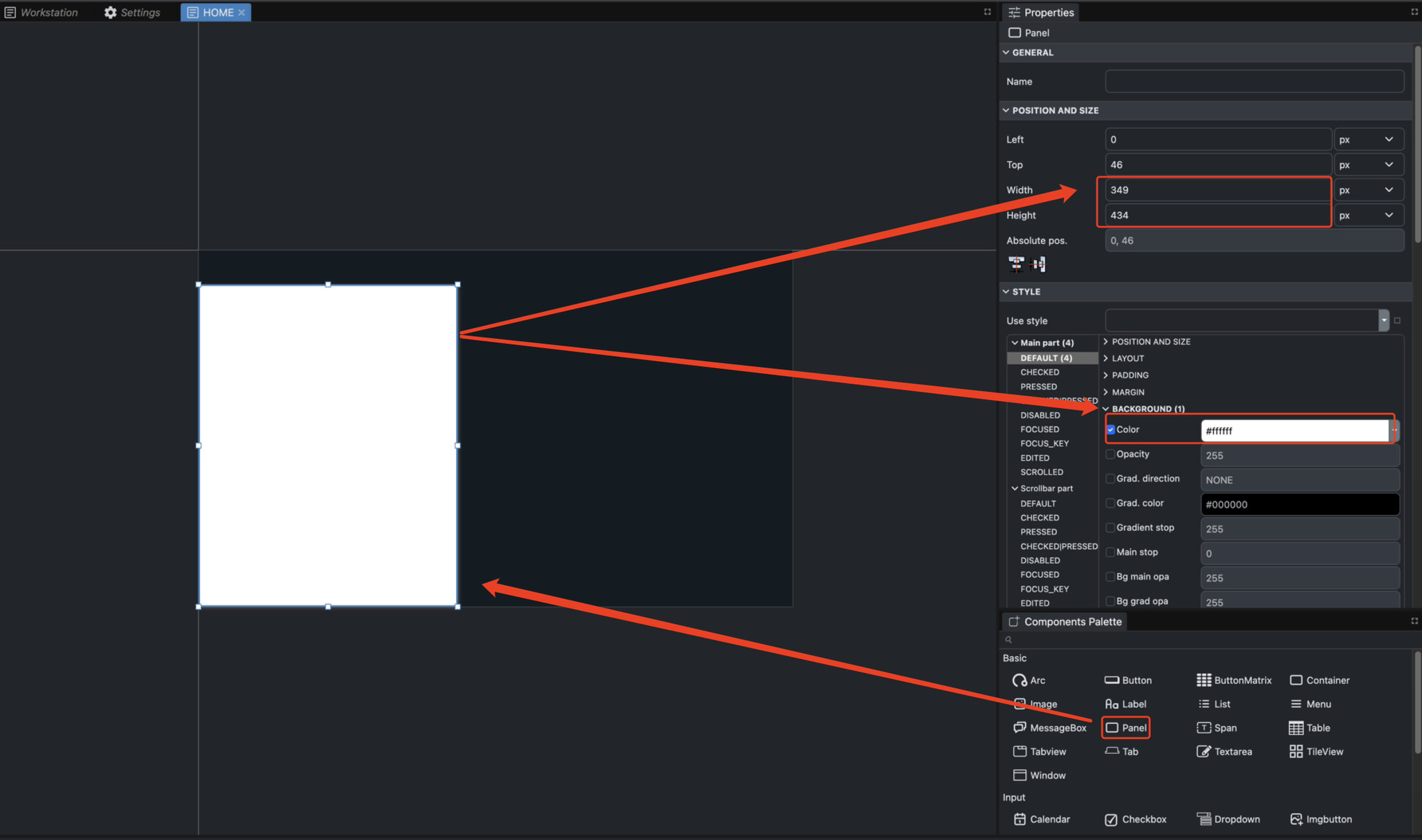
Step 2. Drag a Panel onto the canvas, adjust its width/height, and pick a colour.
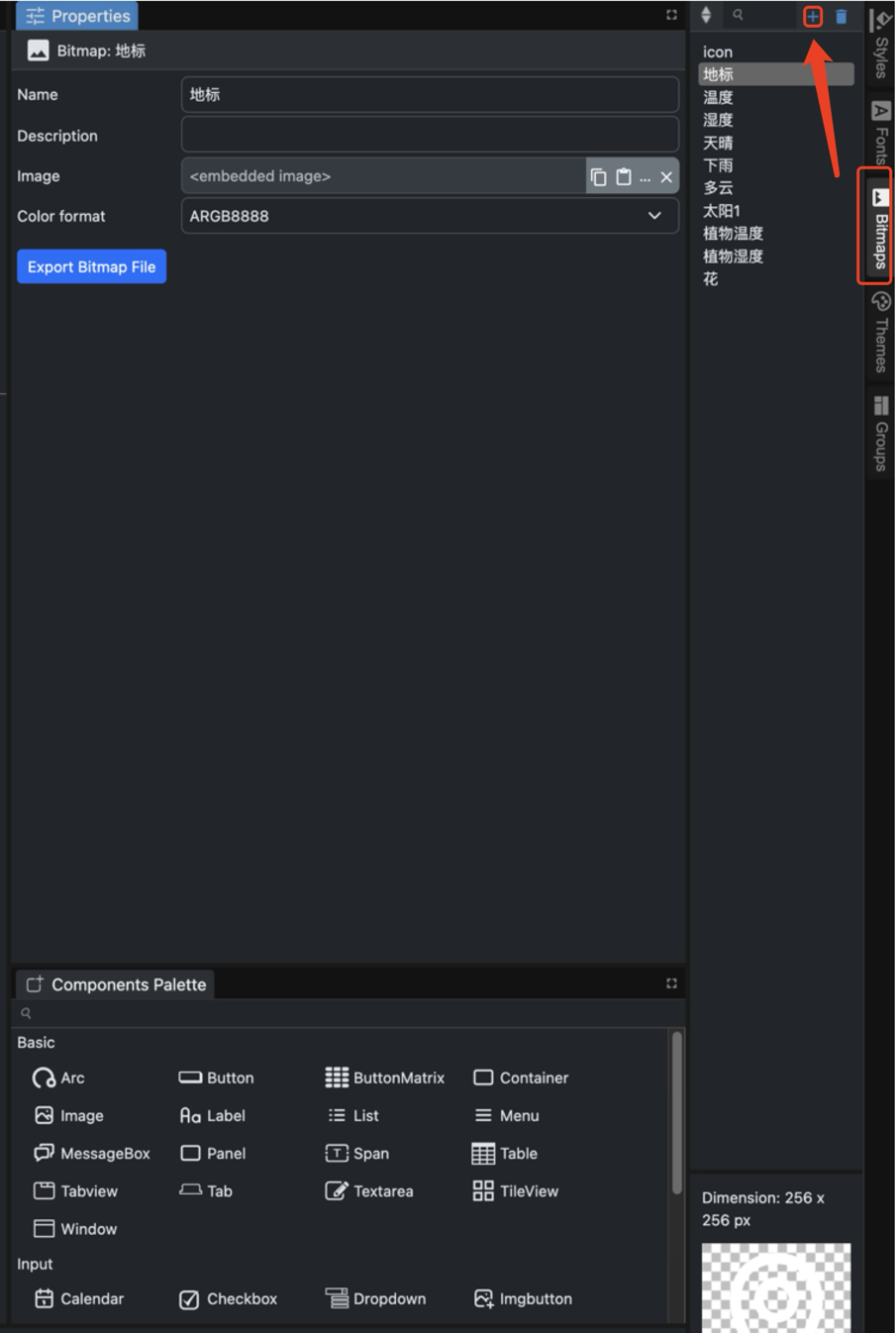
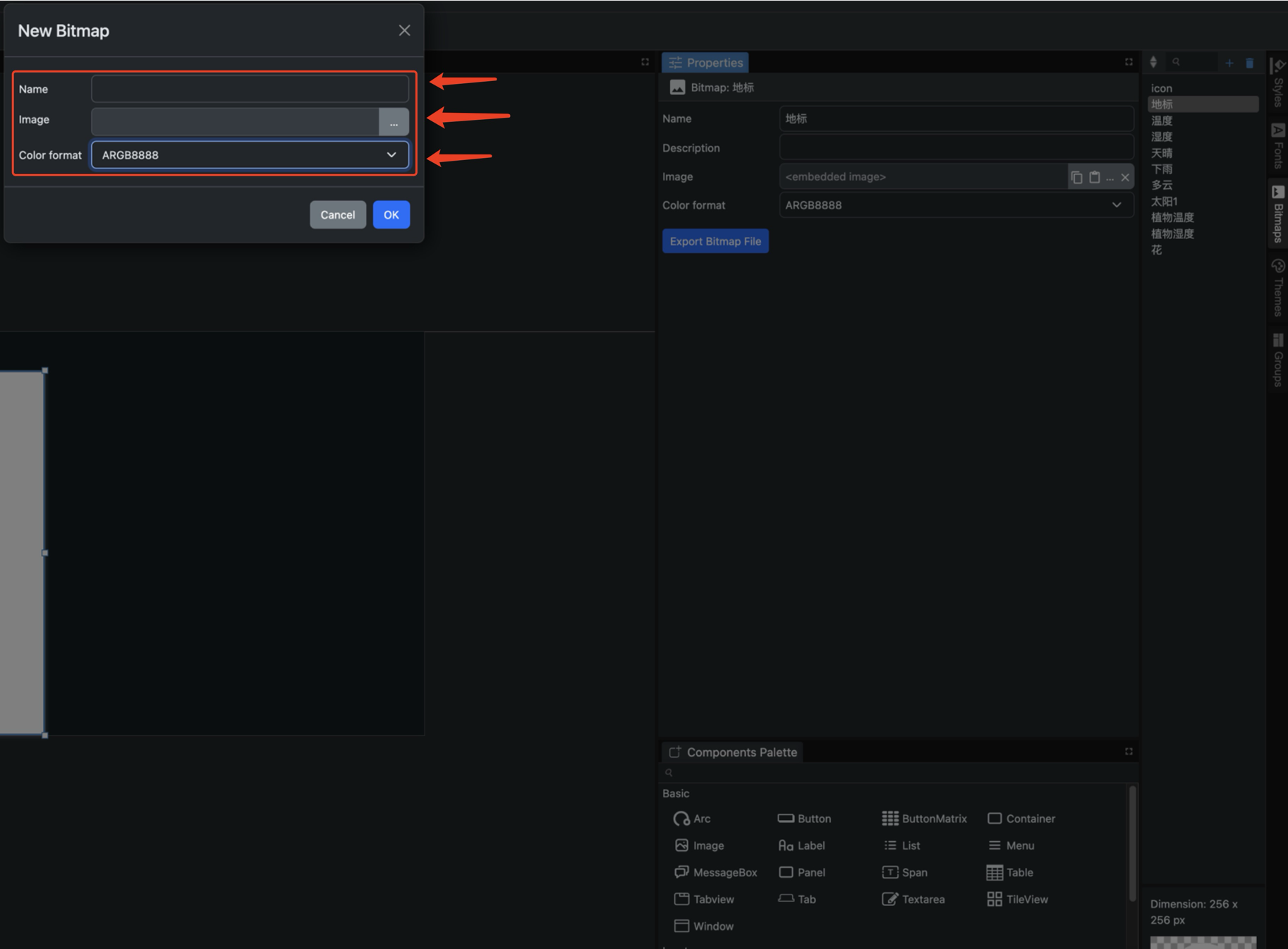
Step 3. Add bitmaps via the right-hand Bitmaps panel, name them, then drag the Image widget to the canvas and bind your bitmap.
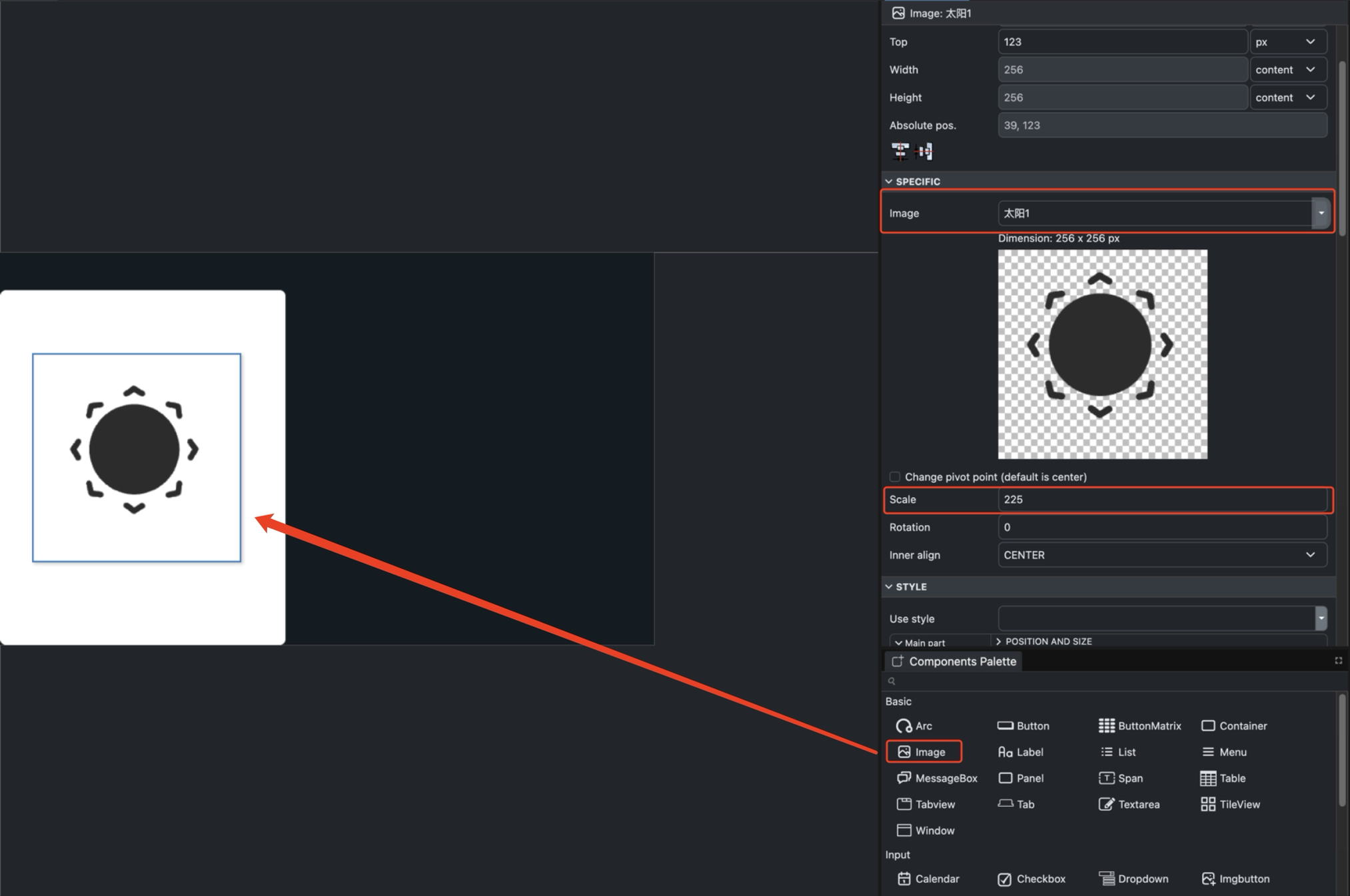
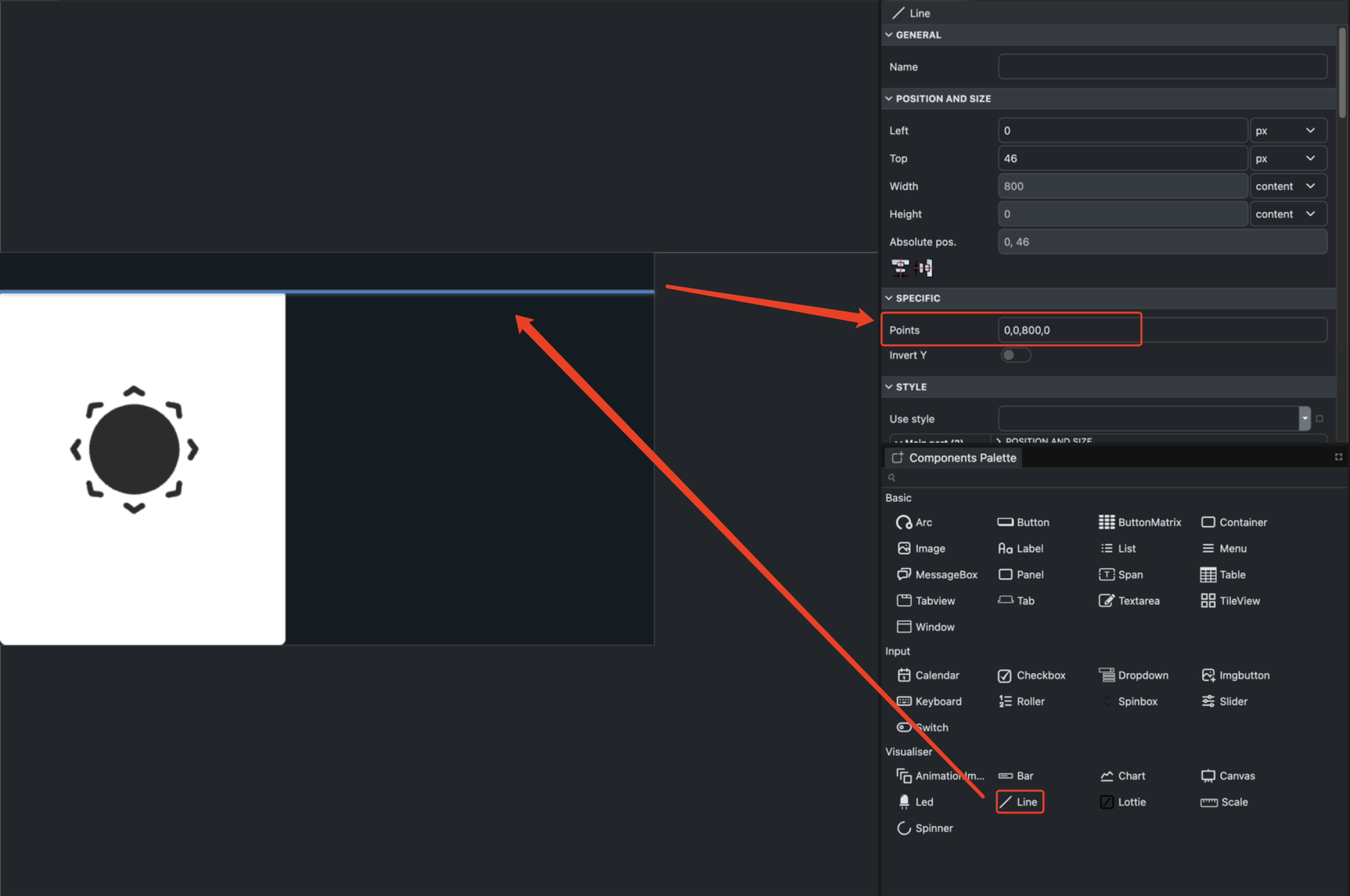
Step 4. Add a Line from the Visualiser group and configure its Points.
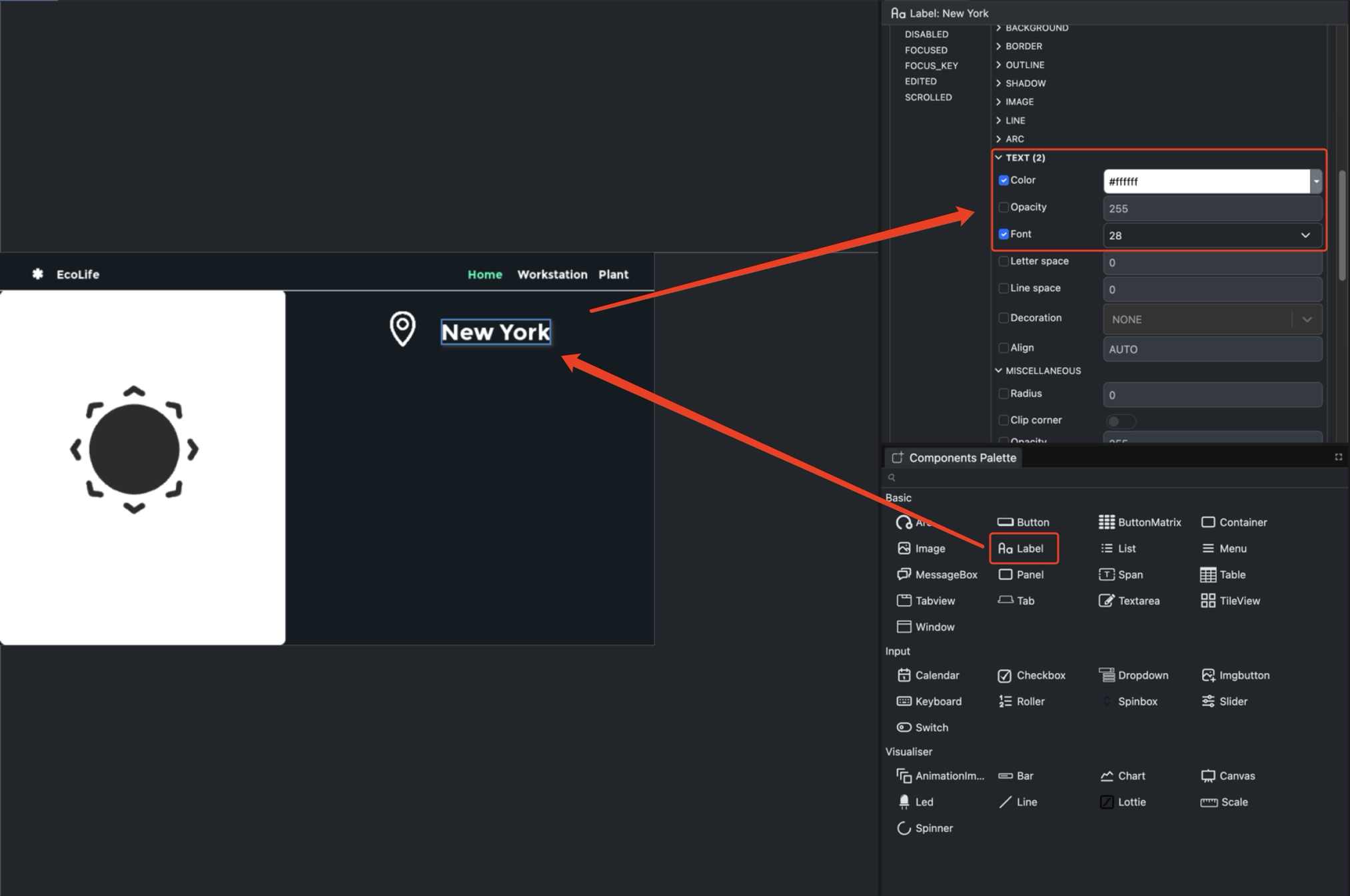
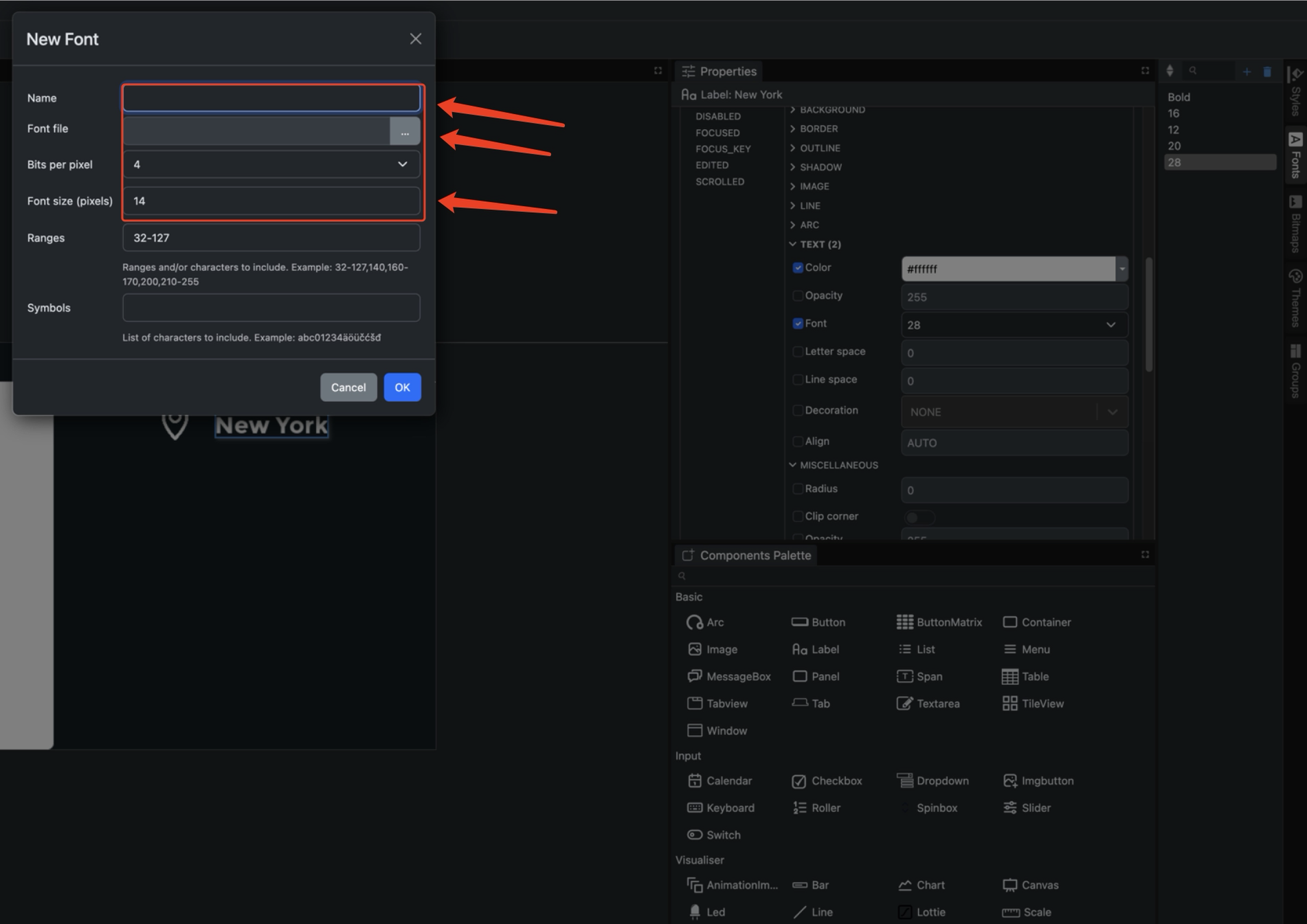
Step 5. Add a Label, pick the colour, then add fonts via the right-hand Fonts panel.
Step 4: Generate Code
After the design is complete:
- Save — press Control + S to save. If you are on macOS, press Command + S to save.
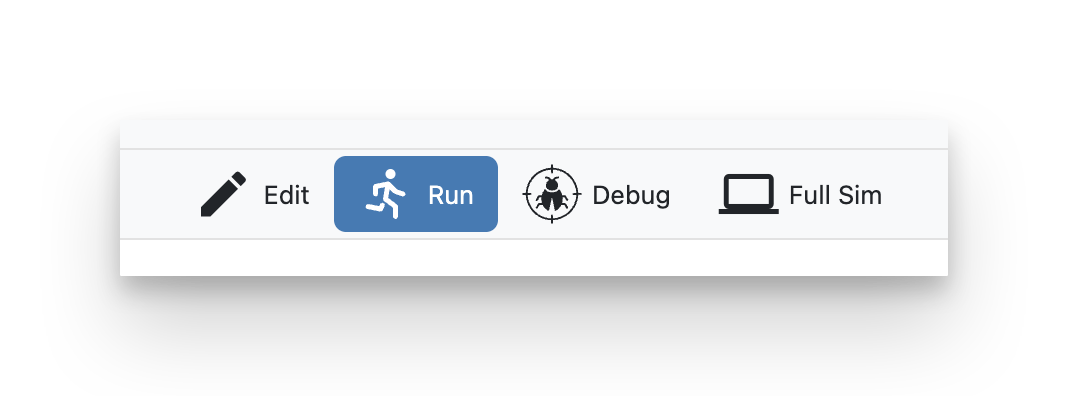
- Preview — click Run to launch the simulator and preview the UI.
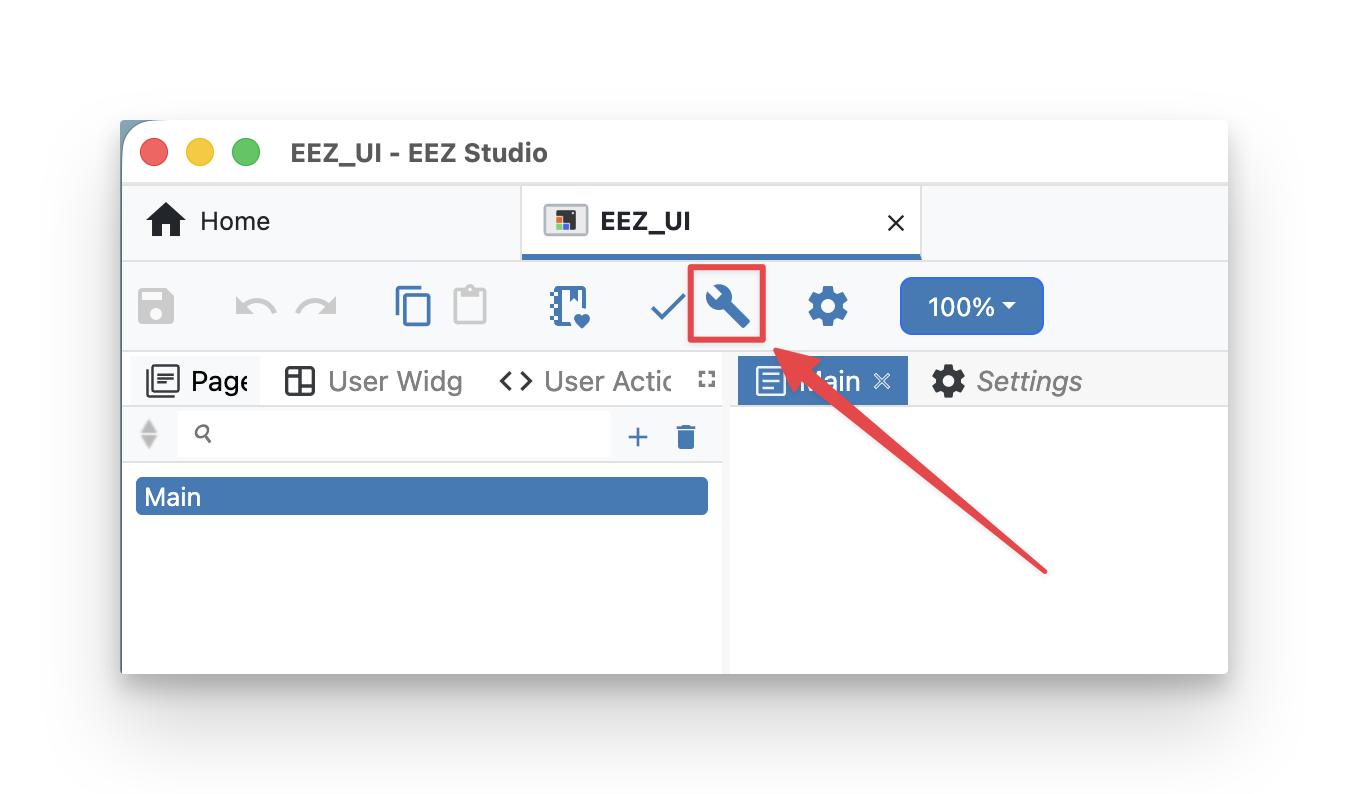
- Compile / Build — click the ✓ icon to check for errors, then the wrench icon to generate UI code, image data, and font data.
A green Build successful message confirms code generation. The output goes to the src/ui folder of your project (you can rename it to src/EEZ_UI if you prefer).
Step 5: Set up PlatformIO
Deploy the EEZ Studio output with PlatformIO. PlatformIO provides the project structure, board environment, library dependencies, and build settings needed for Seeed ePaper products.
If this is your first time using PlatformIO with Seeed ePaper products, follow the setup guide linked below to configure your development environment.
The PlatformIO setup guide covers board definitions, library dependencies, and build configuration — once complete, return here to continue.
Step 6: Download the EEZ Studio PlatformIO Template
Open the reTerminal E-Series Firmware Hub:
On the Firmware Hub page:
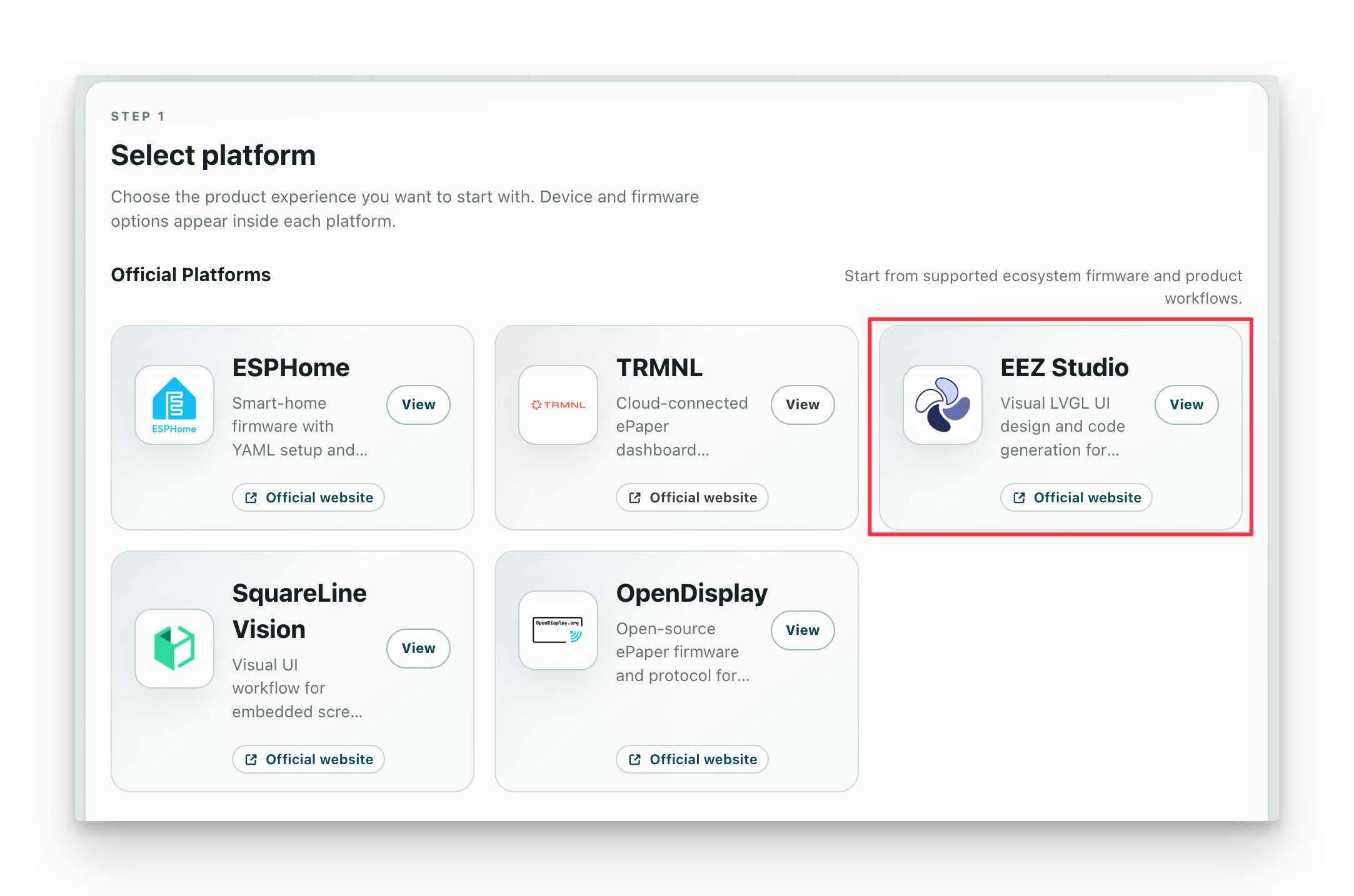
- Under Official Platforms, find the EEZ Studio card and click it to expand.
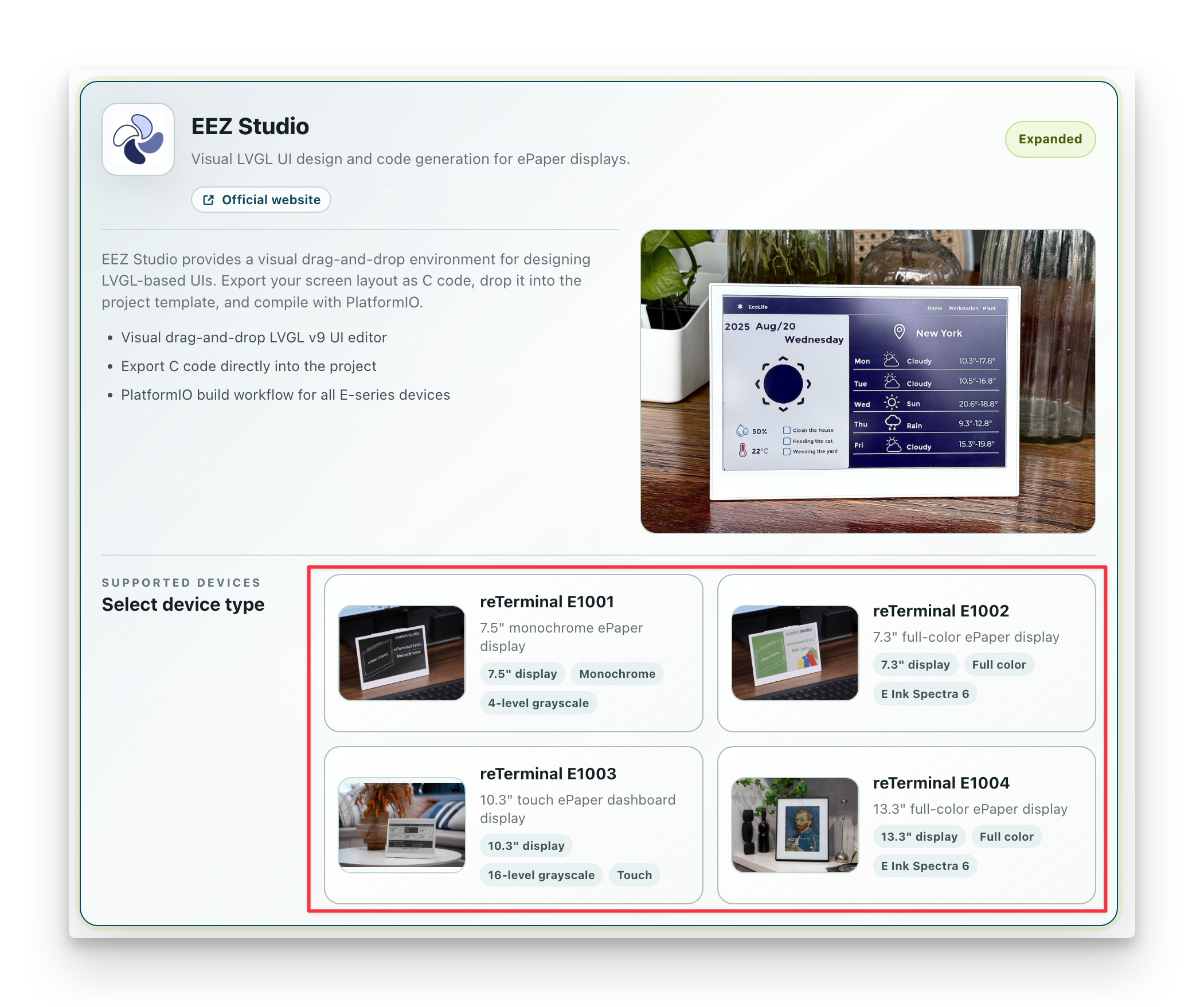
- Select your device — E1001, E1002, E1003, or E1004.
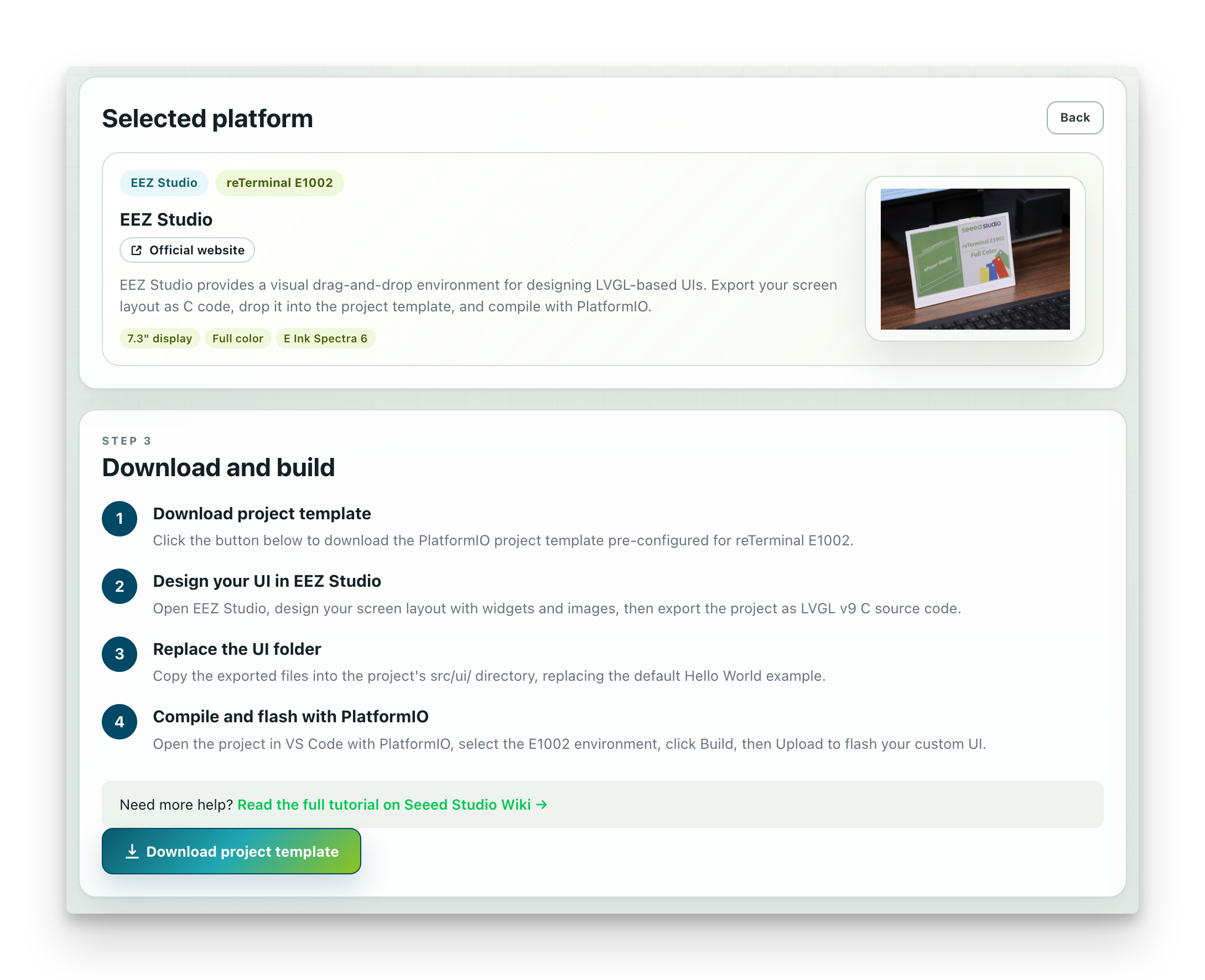
- The page displays a step-by-step usage guide for the template. Click the Download project template button to get the PlatformIO project ZIP.
Step 7: Deploy the EEZ Studio Project
After downloading the template, replace the template UI with the files generated by EEZ Studio.
- Unzip the downloaded template.
- Open the unzipped project folder in VS Code with the PlatformIO extension installed.
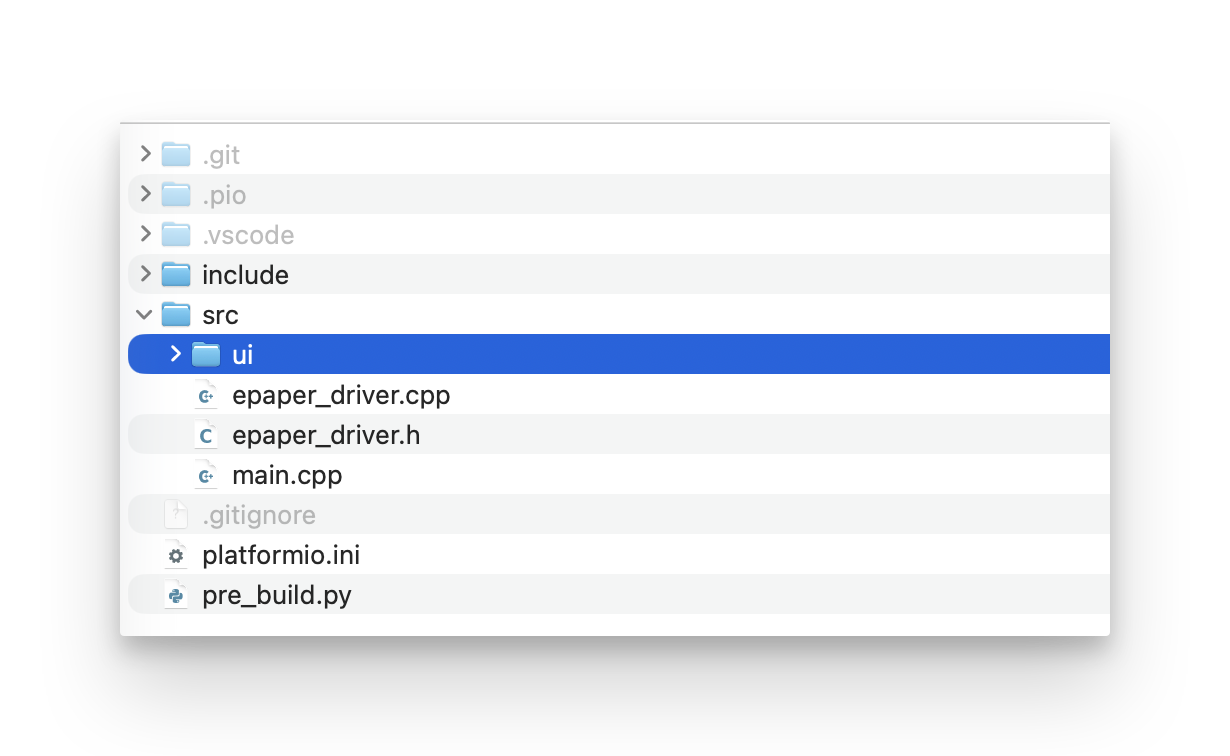
- Navigate to the
src/uidirectory inside the template project. - Replace all files in
src/uiwith the files exported by EEZ Studio in Step 4.
- In the PlatformIO toolbar, select the correct environment for your board.
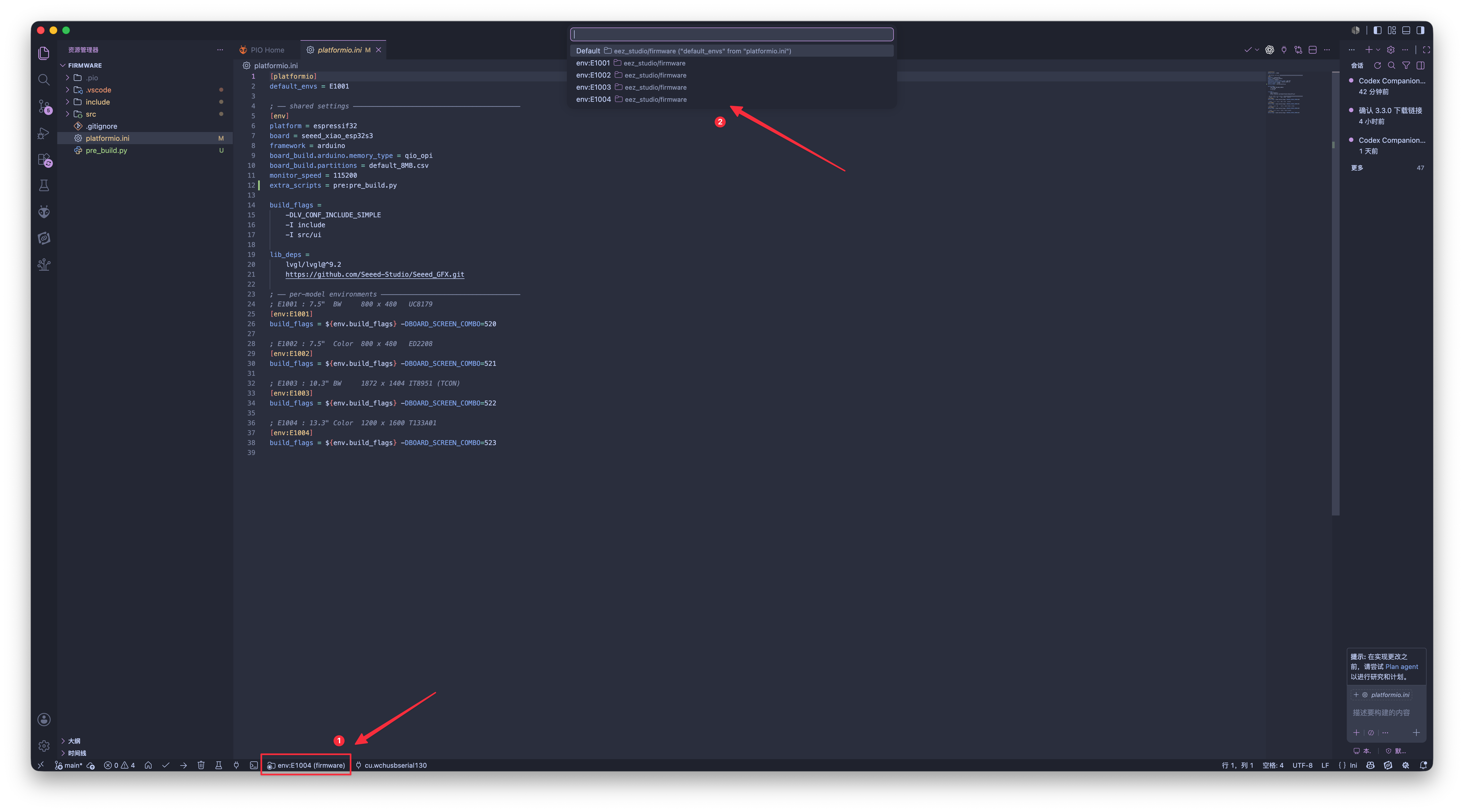
- Click Build to compile, then Upload to flash the firmware to your device.
The template already includes all necessary drivers and LVGL configuration for your device. You only need to replace the UI files.
Resulting screens
| Home Page | Workstation Page | Photo Page |
|---|---|---|
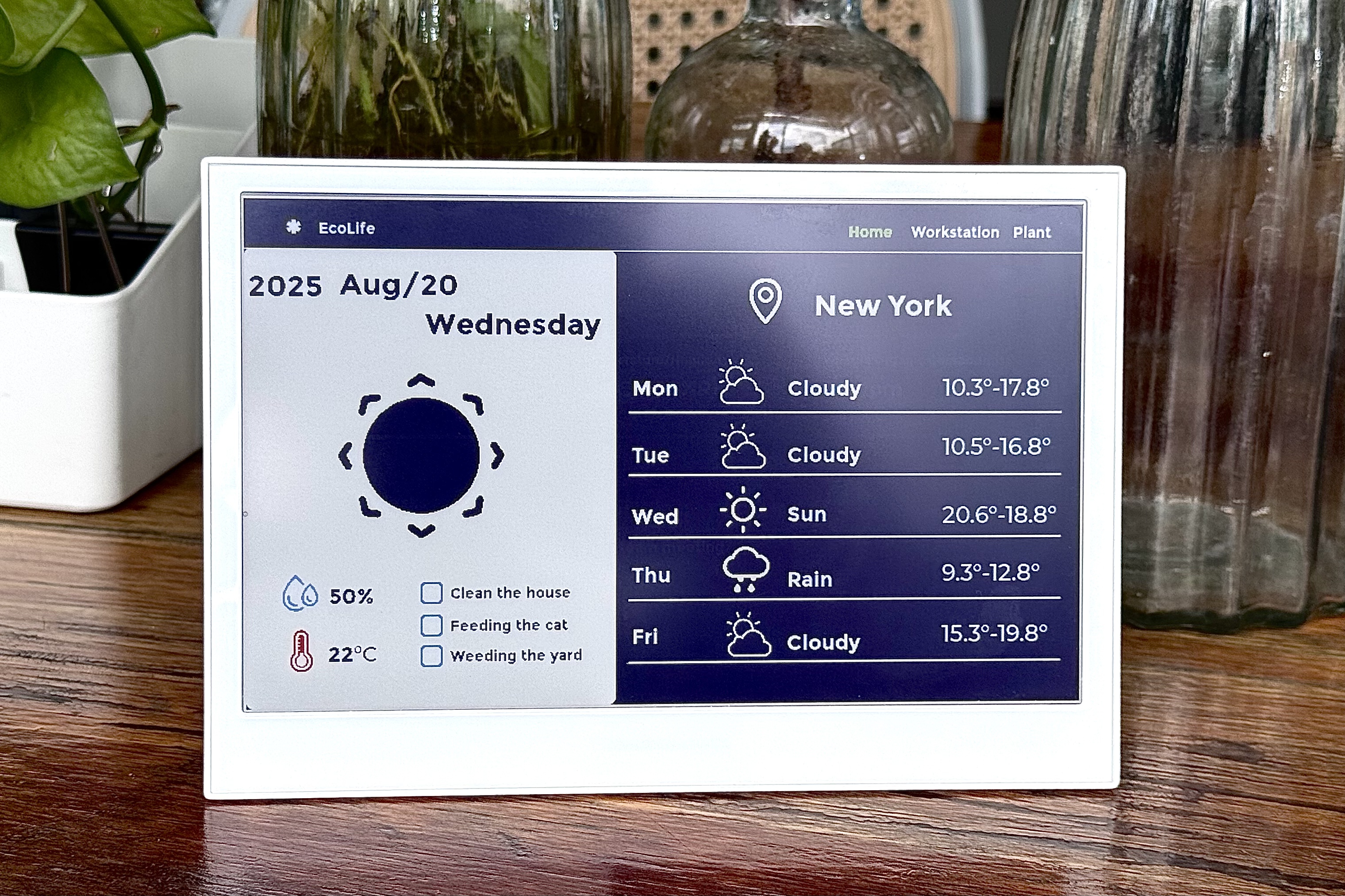 | | 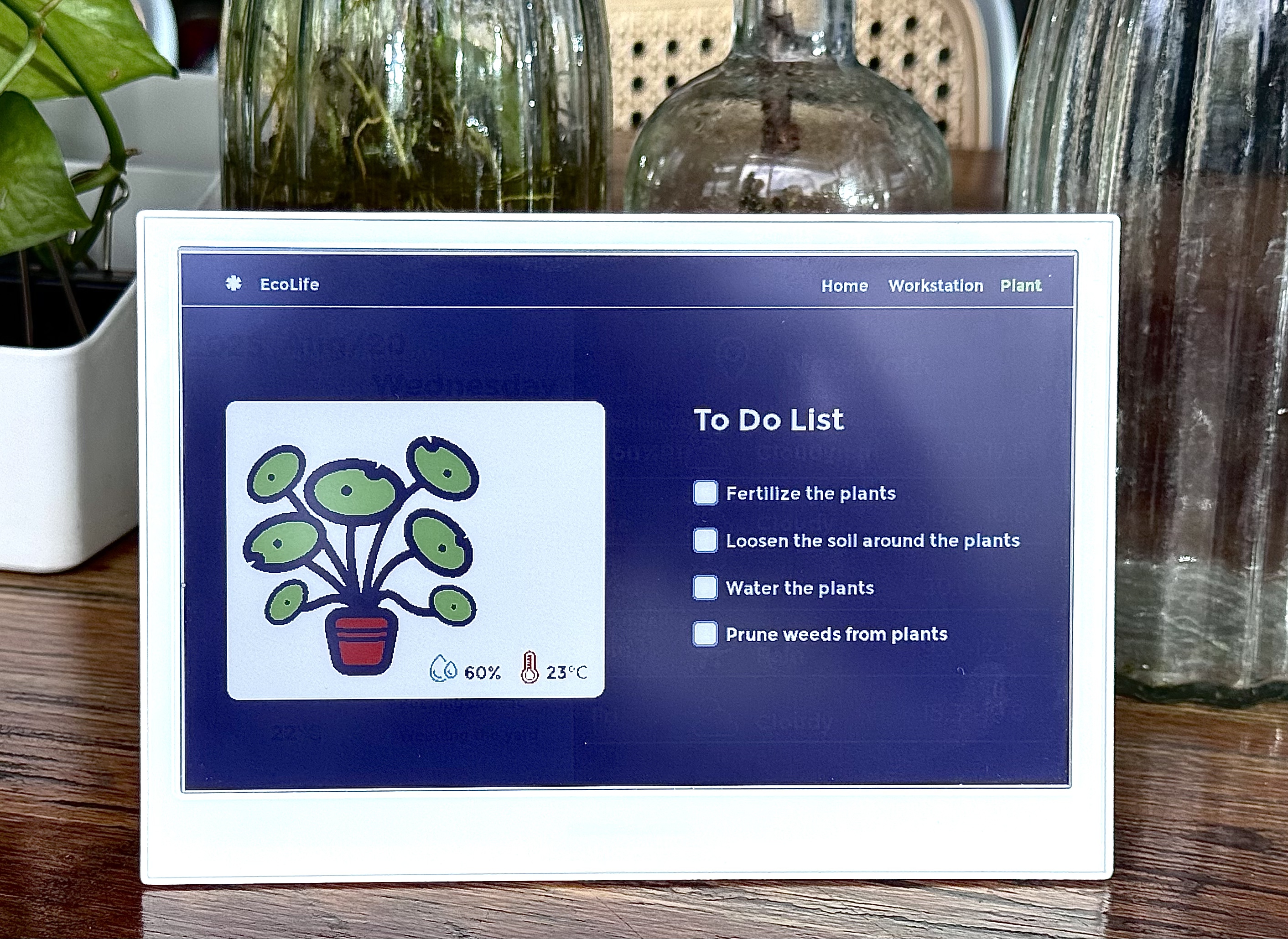 |
Reference & Resources
Tech Support & Product Discussion
Thank you for choosing our products! We are here to provide you with different support to ensure that your experience with our products is as smooth as possible. We offer several communication channels to cater to different preferences and needs.