Reticulum on the L2 Pro with Reticulous
What is Reticulum?
Reticulum is a transport-agnostic mesh network stack, allowing for mesh networks going way beyond the sole use of LoRa: With Reticulum, nodes interconnect over LoRa, Wifi, bluetooth BLE, any other available type of radio (FM, AM, UHF, etc.), but also via the internet, or anything that will come in the future, all at the same time.
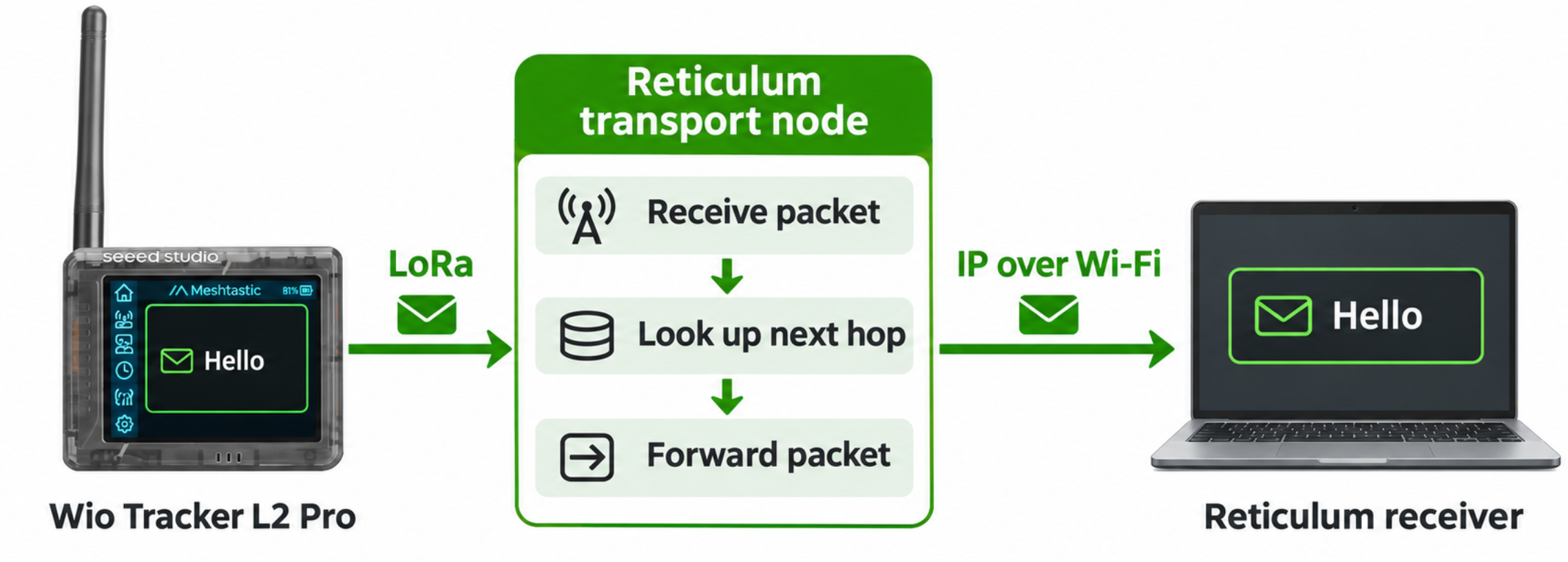
Reticulum is also different from previous attempts at LoRa-only mesh networks as it is a full network stack, not just a messaging protocol. Protocols and applications can be built and used with no limits on top of Reticulum itself. Reticulum is truly a new philosophy for mesh networks and communications, for post-internet networking.
Reticulum Network Stack (RNS) has immense set of possibilities that is now just barely starting to be explored. Its documentation is extensive, and the place to start for anyone who would like to understand it in depth and build upon it.
Anyone willing to explore Reticulum can do so using any computer running any OS. Using a package manager (apt, pip, pipx) to easily install the base reticulum package, and its terminal-based companion app nomadnet or graphical program sideband is a good start. Some may prefer a more modern, integrated ways of connecting to Reticulum, such as ratspeak or meshchatX. Many such applications exist to allow for phones and computers to connect to the Reticulum network, via local wifi or the internet for instance.
Reticulous.
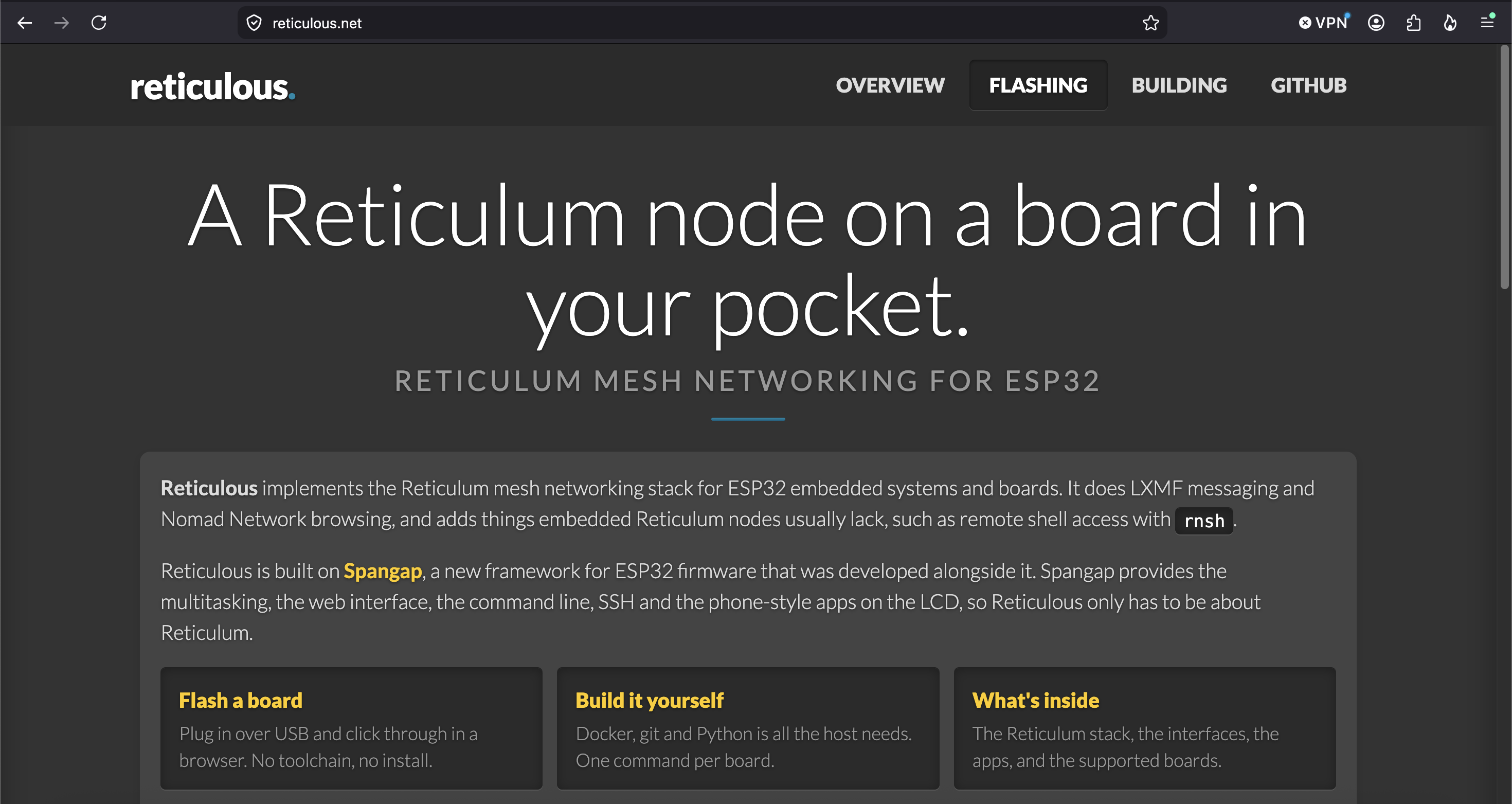
One simple, integrated way of connecting to Reticulum that require little-to-no prior technical knowledge is Reticulous, that is the object of this quick tutorial.
Reticulous is a fully-integrated suite for the ESP32 series of microcontrollers, running a full Reticulum stack, a graphical OS (including a web UI) and numerous easy-to-use apps to send messages, browse nomadnet pages, place voice calls, participate to voice conferences, and much much more, using lora, bluetooth and wifi.
Reticulous is mainly developped by Rop Gonggrijp, a Dutch pioneer of the internet. It has been carefully engineered and exclusively programmed through the use of LLM.
Installing Reticulous on the L2 Pro
-
Use a web browser compatible with WebSerial protocol. That is FireFox with a version more recent than v.151 (previous versions require the installation of a Webserial addon.), or any Chrome-based browser.
-
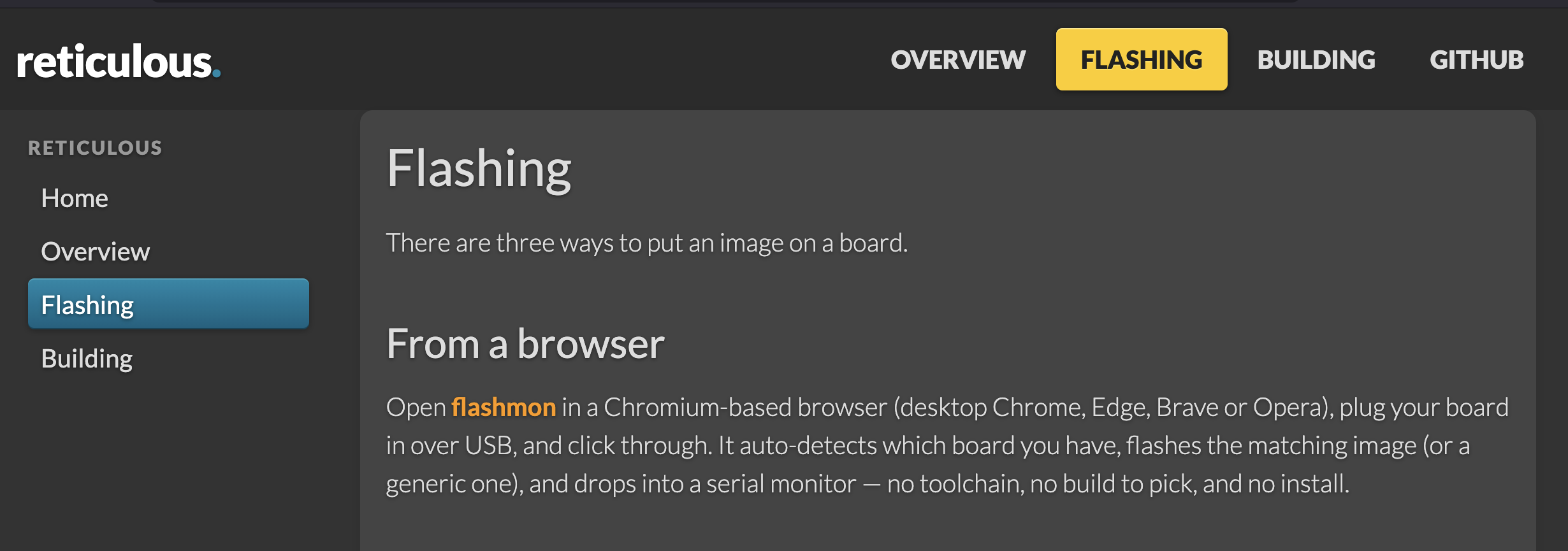
Connect your browser to the reticulous website, click "flashing" and the link open flashmon, or connect directly to flashmon, the flashing application for Reticulous.
- Make sure your device is connected via USB. you may have to authorize the browser to access the serial port in different ways, depending on the browser and your OS.
For users of linux-based OS, your user must be added to the dialout group, by issuing the command:
sudo adduser [name-of-your-user] dialout
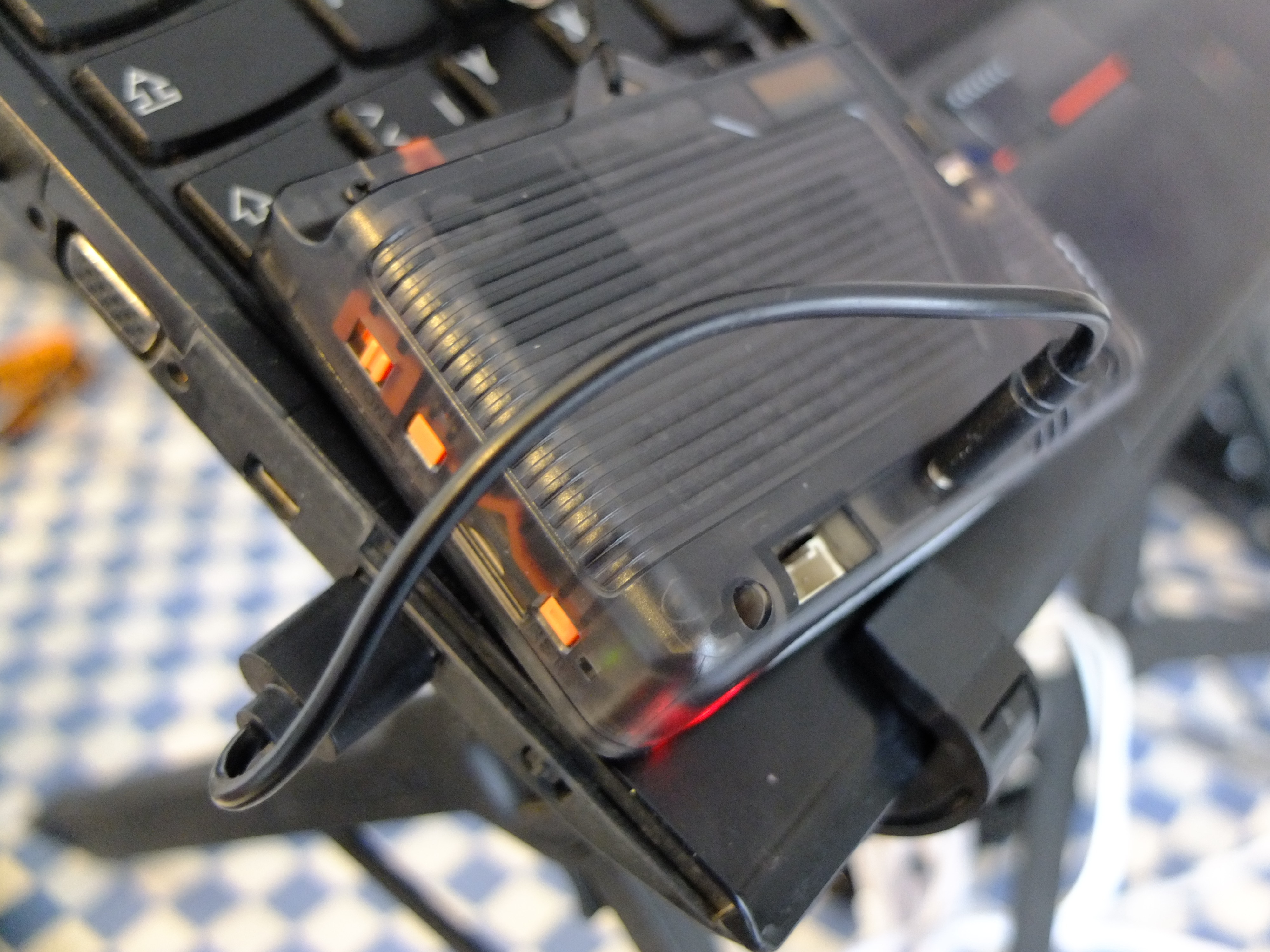
- The device has to be put in DFU mode for the flashing to be possible. Press the user ("U/B") button, located at the center on the right of the device and keep it pressed while turning the device on, or while pressing the reset button if it was already on. The screen will be black, the device is now in DFU mode, ready for flashing.
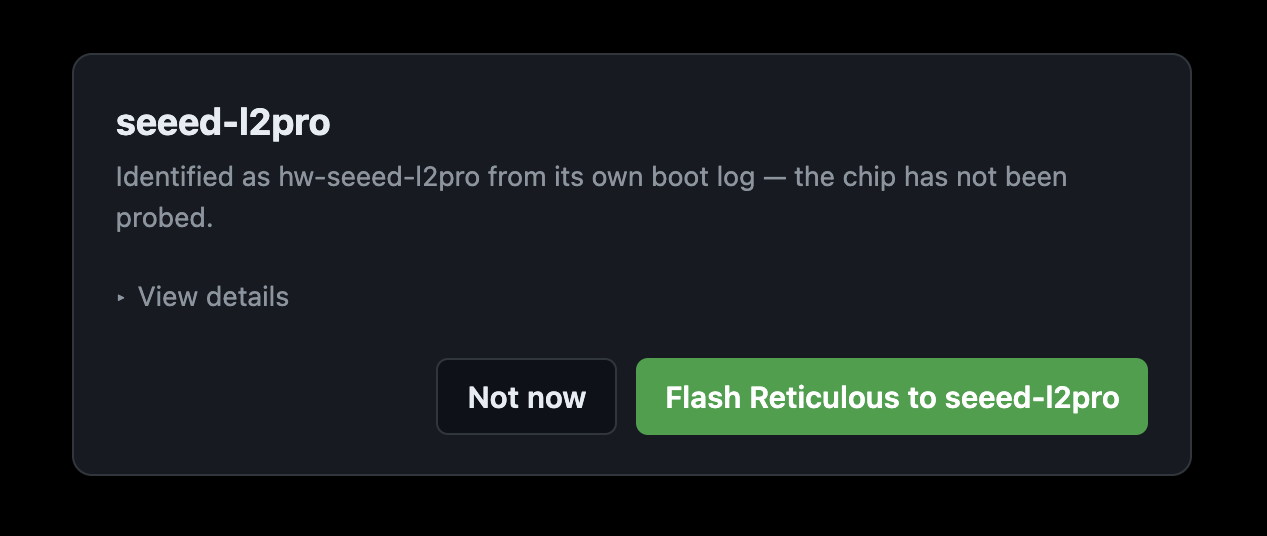
- Reticulous Flashmon should detect the correct model of device and present you with a dialog box. Press "Flash Reticulous to seeed-l2pro".
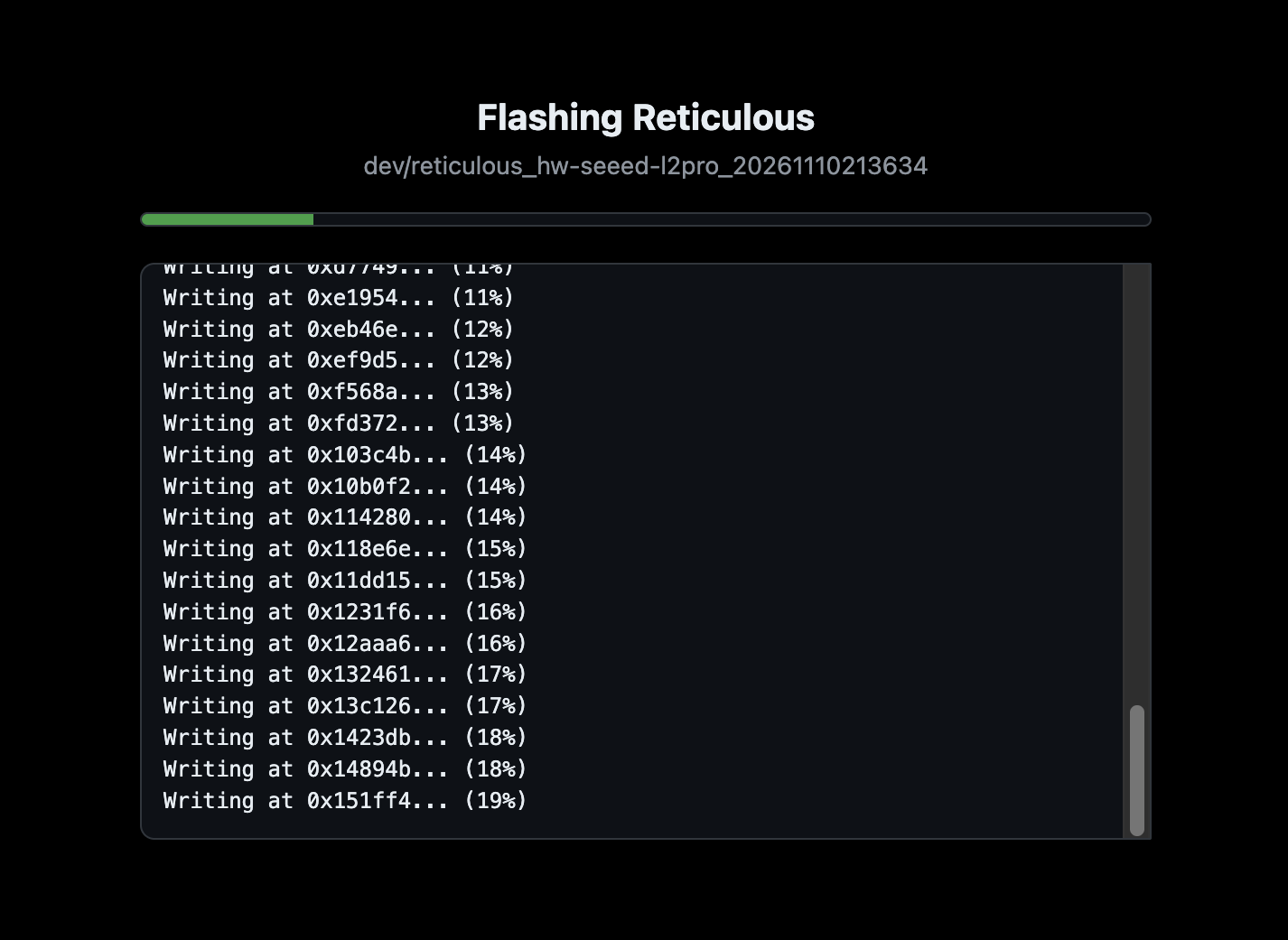
- Wait for flash to finish, and the device shall reboot.
Configuring Reticulous
After the successful flashing, there are several ways of configuring Reticulous:
Through the on-screen onboarding app
The screen of the device will invite you to configure basic parameters: connect to a wifi network, choose a master password for the device, input some LoRa parameters.
Through the WebUI
A useful feature of Reticulous is its webUI. One can from a web browser control all the functions of reticulous, with more ease and more space than on the device's own screen. This can also be used remotely (in the case of embedded devices like a Xiao sitting in an enclosure on a rooftop or a balcony) and for devices (such as a the Xiao) that do not even have a screen or an interface.
During the first 10 minutes after booting, reticulous will create a wifi network with a name starting with "reticulous". Connect to it, and open your web browser to https://reticulous.local (It may complain about the certificate, this is normal, just connect anyways).
Here you will be presented with the same onboarding options as if you were on the device itself: master password, wifi configuration, LoRa parameters, etc.
Interfaces
One key notion in Reticulum is the notion of interfaces. As Reticulum is transport-agnostic, it means it can connect through any possible mean. Each interface is one connection mean. It must be properly configured, then Reticulum will route information seemlessly through all interfaces, depending on where a destination is located. When one interface is down, traffic will continue through the remaining interfaces.
Interfaces can be configured in the "settings" / "reticulum mesh" / "interfaces" menu, and can be of many different types:
-
TCP: a type of interface that connects to Reticulum through the Internet. A good place to start if you want to connect to a wider portion of the Reticulum network. Find addresses to use as TCP interfaces on the RNS recipes directory
-
auto: the "auto" interface uses available connectivity (wifi, bluetooth BLE) to automatically connect to other devices within range having an "auto" interface connected. It's the simplest to get two devices connected in a local network.
-
LoRa: configuring shared settings for LoRa such as a base frequency, bandwidth and a spread factor (SF) enables multiple devices to connect together over long distances. Those settings must be the object of a local consensus, depending on local regulations, frequency occupation and your specific needs.
-
Bluetooth: if activated, the device can connect to other devices with bluetooth interfaces activated. It is quite limited compared to wifi or LoRa, but can be useful in some cases (nRF52-based devices do not have a bluetooth connection for instance...)
-
rnode: a special type of interface that connects a LoRa-capable device to another device that is NOT LoRa capable, in order to provide it with LoRa capability (like a "LoRa modem" somehow). Reticulous allows this function, so your L2 Pro device can be used to provide a rnode interface to a laptop or a phone, enabling it to connect to Reticulum through LoRa, through an USB cable or through a Bluetooth connection. You can provide connectivity to a device (laptop, phone) using a rnode interface, while at the same time using all the other functionalities of Reticulous.
Using Reticulous
Through the webUI
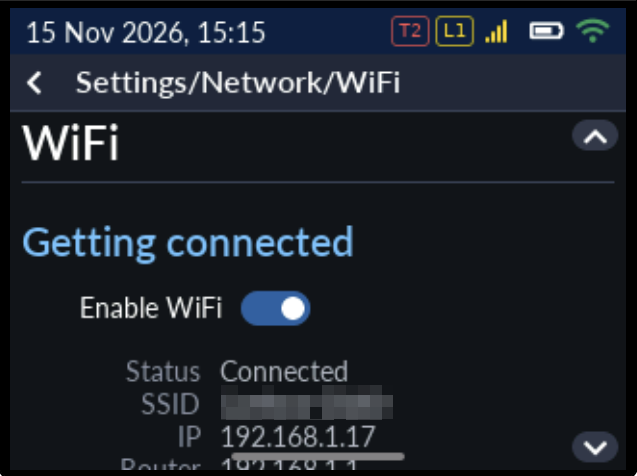
Once your wifi network has been configured, you can return into the wifi configuration screen (by going to the "settings" menu, then "wifi" sub-menu), to check the IP address of the L2 Pro, and type its IP address in your web browser from a computer connected to the same network, in order to access the WebUI.
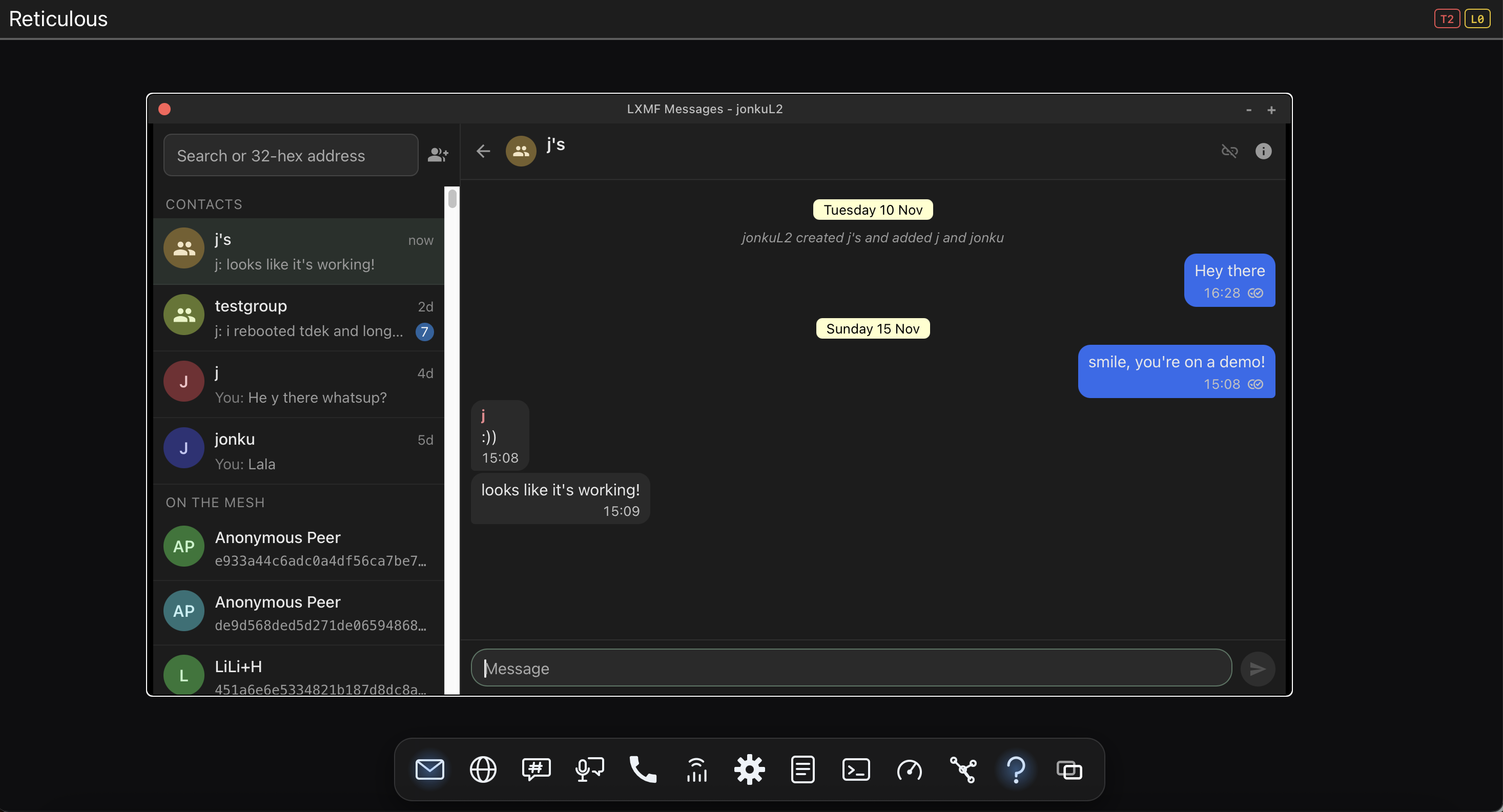
After you input your master password you can access all the functionalities of Reticulous in your browser, in a windowed environment.
On the device using the touch screen
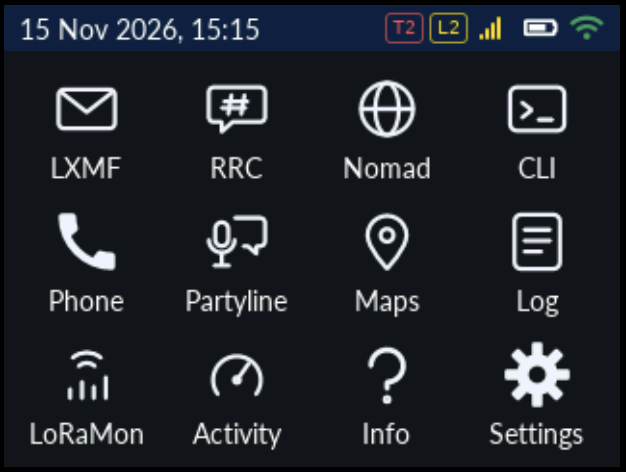
Reticulous present a "phone-like" interface, with a bunch of dedicated applications for using different protocols over the Reticulum network. Click every app to use it, and use the user button (on the middle on the right of the device) to come back to the app drawer at any time. Here are a few examples of applications:
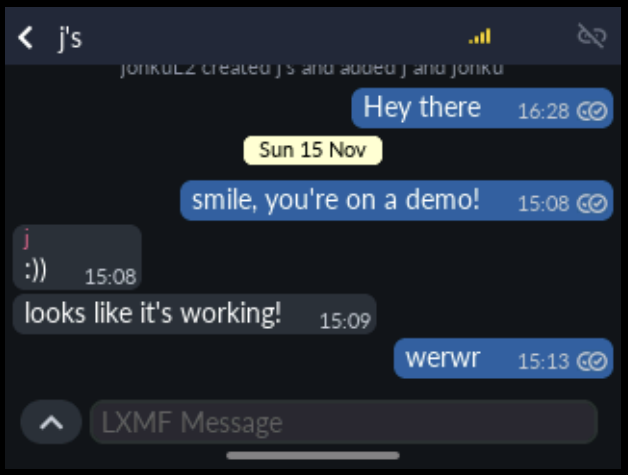
LXMF
LXMF (the Lightweight Extensible Message Format) is the protocol used to send encrypted messages via Reticulum. Enter the LXMF address of someone, or wait for their destination to be announced and displayed in the "on the mesh" section of the LXMF app, and start chatting!
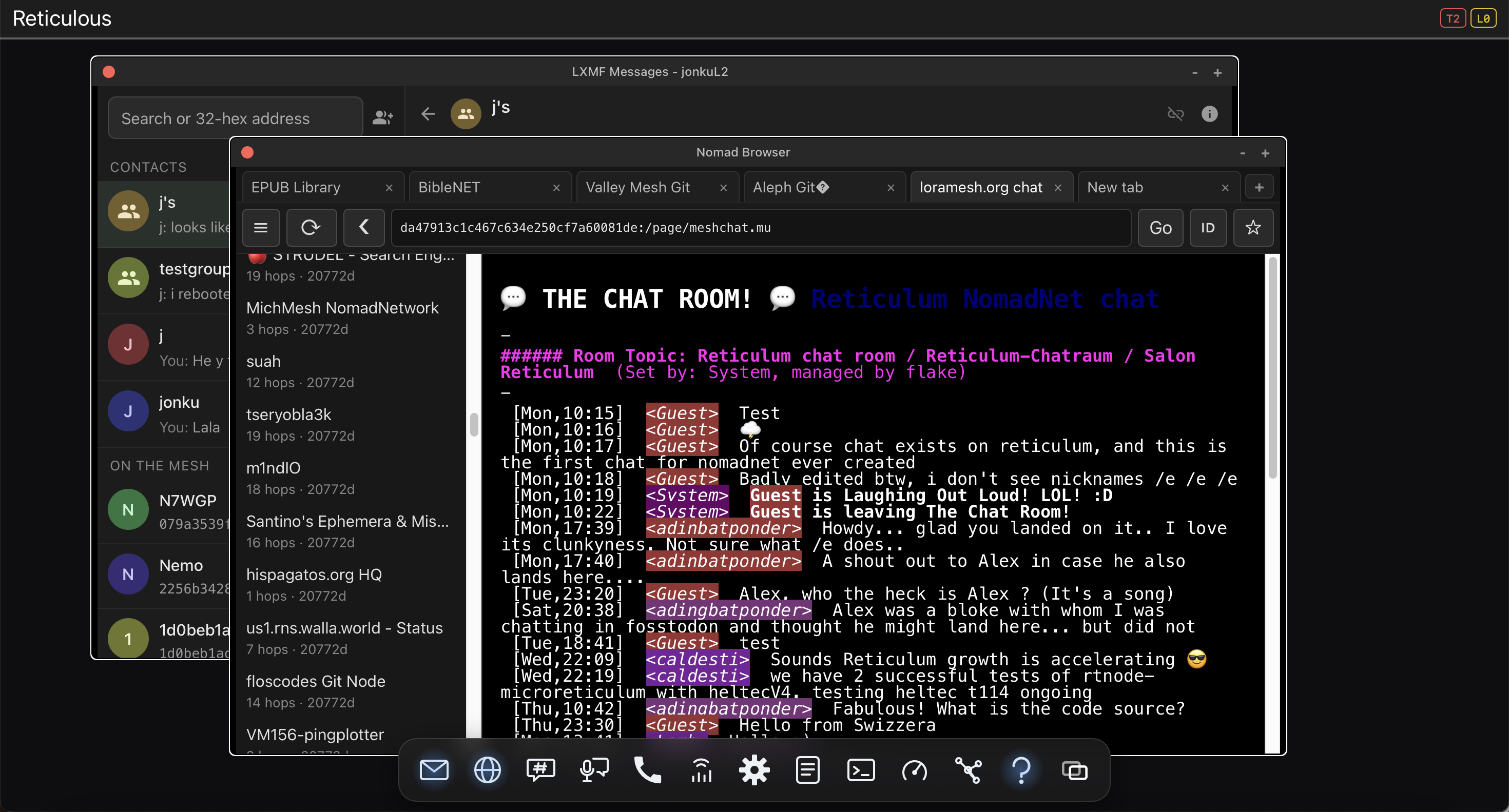
Nomadnet
Some nodes on Reticulum are Nomadnet Nodes, serving very simple text-based pages, using the Micron markup. Use the Nomadnet app to either input manually the destination of one such page (for instance the Aleph Rngit page is where the main source code of Reticulum is being distributed by its author, Mark Qvist, on the following destination: "a8d24177d946de4f1f0a0fe1af9a1338"), or wait for some destinations to appear as announces in the on the mesh section of the Nomadnet app.
RRC
RRC is the Reticulum Relay Chat, a protocol like the antique IRC protocol used on the internet, that allows for group chats in rooms.
Add the destination of a known hub (for instance the popular rnscommunity hub's destination is "28c7c1a68c735693aa8e6b8193ed44b2"), or wait for one to appear announced in the on the mesh section of the app, then connect to it and select a room to join, or create your own.
The only limit is the sky!
Explore many other applications within the Reticulous suite, learn more about Reticulum and its endless possibilities, join a community of thousands of users, call for public local meetups with your friends and witness the birth of the post-internet network! You may want to develop your own protocols and applications for Reticulum... but this would be beyond the scope of this tutorial.
Connect to other devices
In order to connect locally to other devices, or to build a mesh network (whether it is connected or not to the rest of the Reticulum network), you need to ensure the following:
-
The original Reticulum software is so minimal and frugal that it can run on any computer that is less than 20 years old. Use any old laptop or an old Raspberry Pi or any other SBC for a node. Any phone would do. Any other microcontroller-based device such as another L2 Pro, or a Xiao, would make a perfect Reticulum node as well...
-
Install Reticulum on the other device (or Reticulous if it's an ESP32-based device);
-
Make sure both devices have either similar LoRa parameters if you want to use LoRa, or that both are using Wifi on networks that are interconnected, or that both are using the "auto" interface and have their wifi or bluetooth activated, or that both have a TCP interface connecting them to the internet;
-
Wait until both devices have announced their destination to each other, and use the LXMF application on one device to click the destination of the other device, once it appeared in the "on the mesh" list, to start a chat;
TIP: The Reticulum Network Stack relies for its routing on announces by nodes of their destination, and path requests sent by a node to its neighbors to attempt to find a path to a specific destination. In order to connect to another device running Reticulum, make sure that both devices have announced their destination to their neighbors. Usually it is done automatically when Reticulous boots, and then every 30 minutes afterwards.
Tech Support & Product Discussion