Multi-View Data Collection
Configure one or two cameras, identify devices, record LeRobot demonstrations, visualize and replay datasets, and add or remove episodes.
- Camera setup
- Data recording
- Visualization and replay
- Add and remove episodes
One-Camera and Two-Camera Setups
-
One camera: use only the overhead camera. This is useful for an initial environment check because it removes one variable from troubleshooting.
-
Two cameras (the main setup for this course): overhead + wrist. The ACT configuration also uses these two inputs by default.
- An overhead + side view is another option.
You can collect data and train with three or four cameras as well. ACT itself does not impose a fixed camera count: each view passes through a shared ResNet18 backbone to produce a feature-token sequence, and the sequences are concatenated for the Transformer encoder. The original ACT paper's bimanual ALOHA setup used four cameras: two overhead and two wrist cameras.
- Cost: GPU memory and computation grow approximately linearly with camera count, and additional views can increase data requirements. Keep every view synchronized and its mounting position fixed.
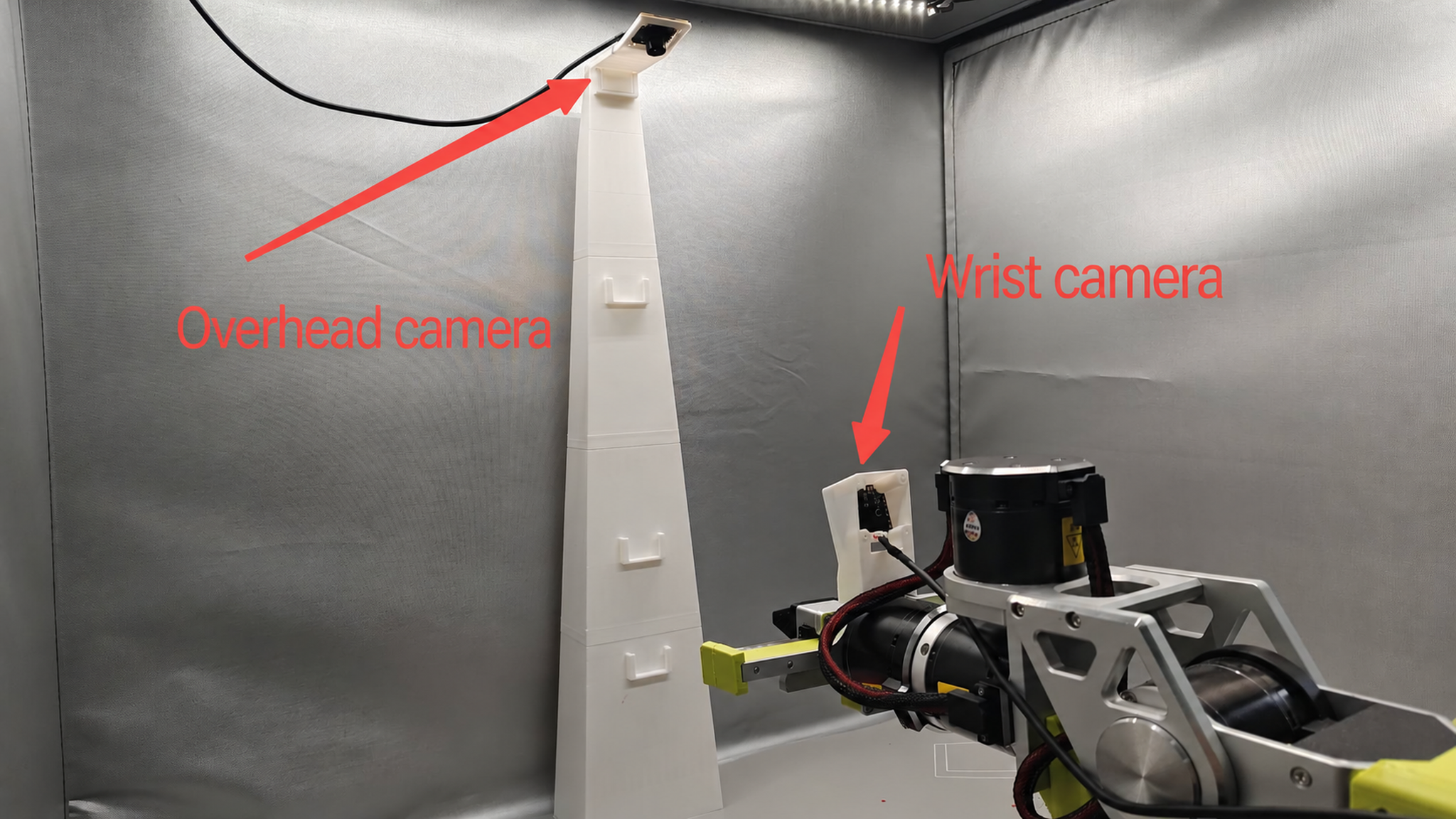
Overhead and Wrist Cameras
-
Overhead camera (
front): fixed on a mount above the workspace, showing the model where the target is and the arm's overall configuration. -
Wrist camera (
wrist): mounted near the end effector and moving with the gripper, showing its position relative to the target and when to close.
Find Camera Device IDs
First, run the following command to find the camera indices:
lerobot-find-cameras opencv
The output shows Id: 0; here, 0 is the camera index.
--- Detected Cameras ---
Camera #0:
  Name: OpenCV Camera @ 0
  Type: OpenCV
  Id: 0
  Backend api: AVFOUNDATION
  Default stream profile:
    Format: 16.0
    Width: 1920
    Height: 1080
    Fps: 15.0
--------------------
(more cameras ...)
The command lists each camera's name, ID, and default resolution. Captured images are saved in ~/rebot_lerobot/outputs/captured_images/. Inspect them to check camera position and framing.
On a laptop, the scan also detects its built-in camera, often at index 0. Unplug and reconnect external cameras to identify the correct overhead and wrist indices.
-
Reconnecting cameras can change their indices. A camera that is 0 today may receive a different index next time. Run
lerobot-find-camerasbefore every recording session to confirm. -
Connect USB cameras directly to the computer. Avoid hubs: bandwidth contention on an unpowered hub can cause missing images and dropped frames. If possible, connect the two cameras to different USB controllers.
Synchronize Images and Actions
- For one camera:
RS version:
lerobot-teleoperate \
    --robot.type=seeed_b601_rs_follower \
    --robot.port=can0 \
    --robot.id=follower1 \
    --robot.can_adapter=socketcan \
    --robot.cameras="{ front: {type: opencv, index_or_path: 0, width: 640, height: 480, fps: 30, fourcc: "MJPG"}}" \
    --teleop.type=rebot_arm_102_leader \
    --teleop.port=/dev/ttyUSB0 \
    --teleop.id=rebot_arm_102_leader \
    --display_data=true
DM version:
lerobot-teleoperate \
    --robot.type=seeed_b601_dm_follower \
    --robot.port=/dev/ttyACM0 \
    --robot.id=follower1 \
    --robot.can_adapter=damiao \
    --robot.cameras="{ front: {type: opencv, index_or_path: 0, width: 640, height: 480, fps: 30, fourcc: "MJPG"}}" \
    --teleop.type=rebot_arm_102_leader \
    --teleop.port=/dev/ttyUSB0 \
    --teleop.id=rebot_arm_102_leader \
    --display_data=true
SO-ARM version:
lerobot-teleoperate \
    --robot.type=so101_follower \
    --robot.port=/dev/ttyACM0 \
    --robot.id=my_awesome_follower_arm \
    --robot.cameras="{ front: {type: opencv, index_or_path: 0, width: 640, height: 480, fps: 30, fourcc: "MJPG"}}" \
    --teleop.type=so101_leader \
    --teleop.port=/dev/ttyACM1 \
    --teleop.id=my_awesome_leader_arm \
    --display_data=true
To add more cameras, edit --robot.cameras. Set index_or_path using the camera ID reported by python -m lerobot.find_cameras opencv.
- For two cameras:
RS version:
lerobot-teleoperate \
    --robot.type=seeed_b601_rs_follower \
    --robot.port=can0 \
    --robot.id=follower1 \
    --robot.can_adapter=socketcan \
    --robot.cameras="{ front: {type: opencv, index_or_path: 0, width: 640, height: 480, fps: 30, fourcc: "MJPG"}, side: {type: opencv, index_or_path: 2, width: 640, height: 480, fps: 30, fourcc: "MJPG"}}" \
    --teleop.type=rebot_arm_102_leader \
    --teleop.port=/dev/ttyUSB0 \
    --teleop.id=rebot_arm_102_leader \
    --display_data=true
DM version:
lerobot-teleoperate \
    --robot.type=seeed_b601_dm_follower \
    --robot.port=/dev/ttyACM0 \
    --robot.id=follower1 \
    --robot.can_adapter=damiao \
    --robot.cameras="{ front: {type: opencv, index_or_path: 0, width: 640, height: 480, fps: 30, fourcc: "MJPG"}, side: {type: opencv, index_or_path: 2, width: 640, height: 480, fps: 30, fourcc: "MJPG"}}" \
    --teleop.type=rebot_arm_102_leader \
    --teleop.port=/dev/ttyUSB0 \
    --teleop.id=rebot_arm_102_leader \
    --display_data=true
SO-ARM version:
lerobot-teleoperate \
    --robot.type=so101_follower \
    --robot.port=/dev/ttyACM0 \
    --robot.id=my_awesome_follower_arm \
    --robot.cameras="{ front: {type: opencv, index_or_path: 0, width: 640, height: 480, fps: 30, fourcc: "MJPG"}, side: {type: opencv, index_or_path: 2, width: 640, height: 480, fps: 30, fourcc: "MJPG"}}" \
    --teleop.port=/dev/ttyACM1 \
    --teleop.id=my_awesome_leader_arm \
    --display_data=true
The preview shows the camera views inside the collection sandbox.
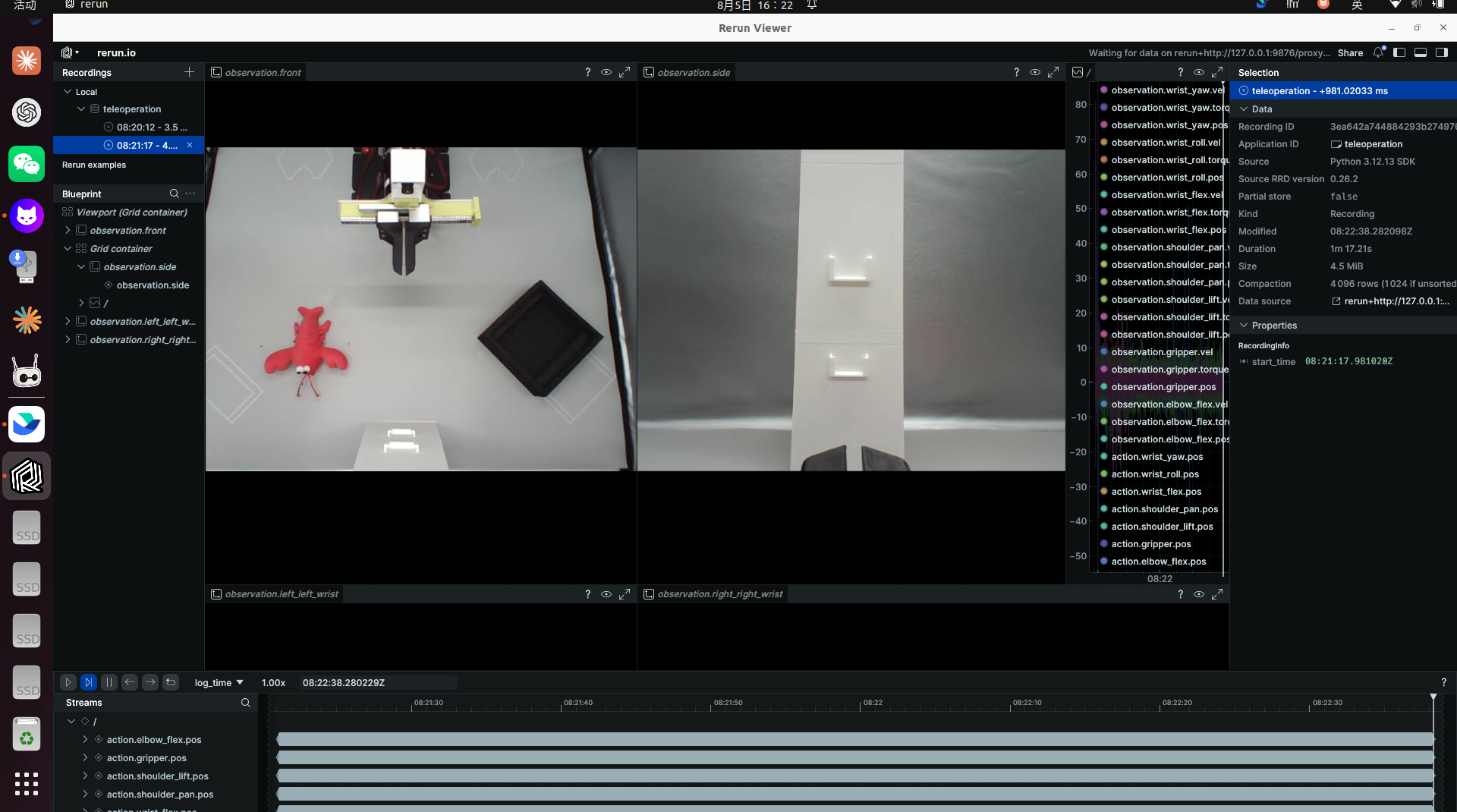
Recommended settings: 640 × 480 at 30 fps, fourcc: "MJPG". Each setting has a purpose:
-
640 × 480 resolution balances detail and real-time performance. Doubling both dimensions quadruples USB bandwidth and storage costs, while the model resizes inputs anyway, limiting the benefit.
-
30 fps: match the collection rate (Section 12.3 explains logical timestamps). If the camera runs more slowly, recording will repeatedly reuse old frames.
-
fourcc: "MJPG"compresses images before transfer and substantially reduces USB bandwidth use. You can tryYUYV, but its higher bandwidth requirements can force lower resolution or frame rates and cause stuttering. The setup described here supports three cameras at1920*1080and30FPSwithMJPG.
Create a LeRobot Dataset
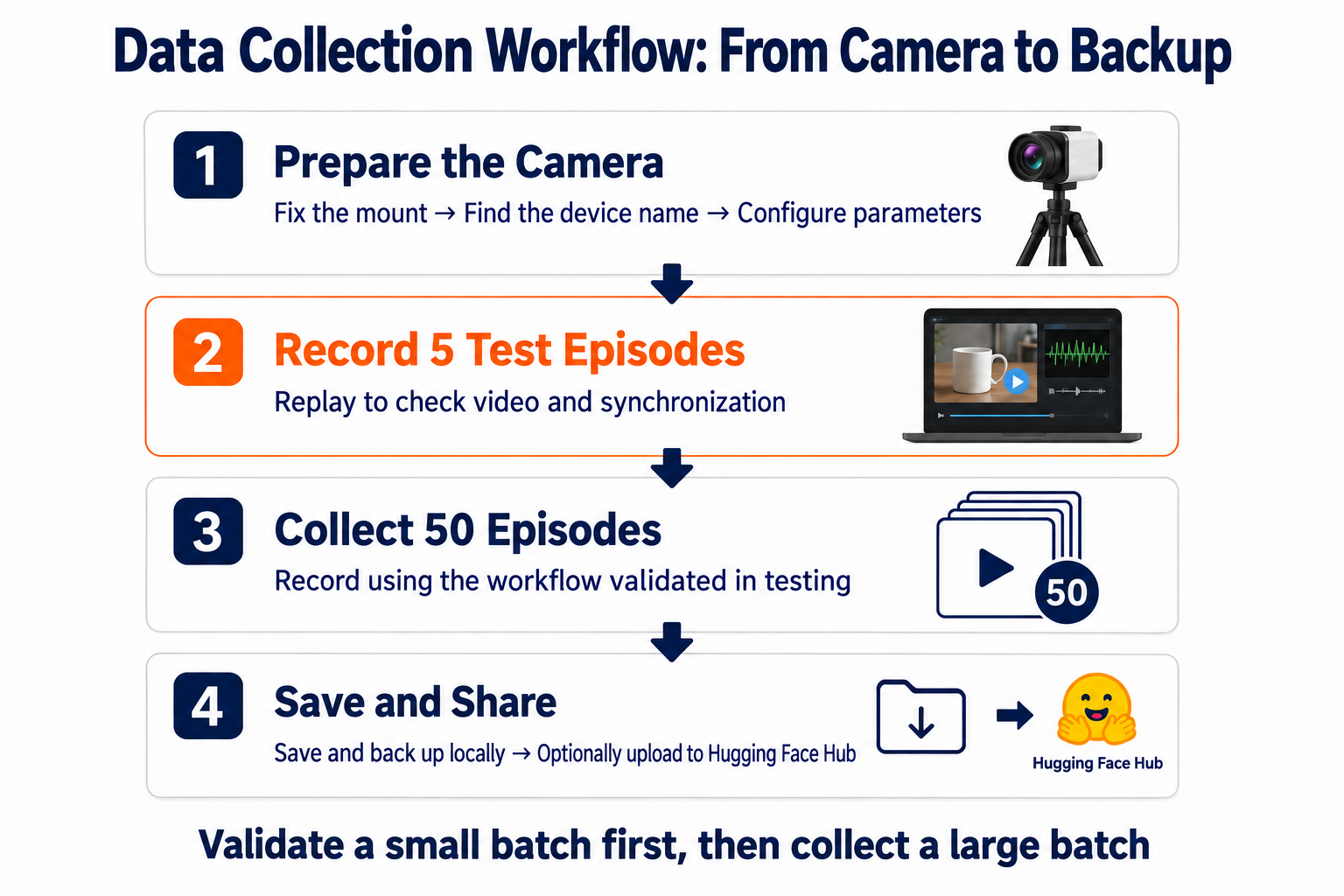
Be ready to demonstrate the task before running the following command. An audio prompt signals recording; if sound is unavailable, watch the terminal to see when recording starts.
RS version:
lerobot-record \
    --robot.type=seeed_b601_rs_follower \
    --robot.port=can0 \
    --robot.id=follower1 \
    --robot.can_adapter=socketcan \
    --robot.cameras="{ front: {type: opencv, index_or_path: 0, width: 640, height: 480, fps: 30, fourcc: "MJPG"}, side: {type: opencv, index_or_path: 2, width: 640, height: 480, fps: 30, fourcc: "MJPG"}}" \
    --teleop.type=rebot_arm_102_leader \
    --teleop.port=/dev/ttyUSB0 \
    --teleop.id=rebot_arm_102_leader \
    --display_data=true \
    --dataset.repo_id=seeed_rebot_b601_rs/test \
    --dataset.num_episodes=5 \
    --dataset.single_task="Grab the crayfish into the box" \
    --dataset.push_to_hub=false \
    --dataset.episode_time_s=30 \
    --dataset.reset_time_s=20
DM version:
lerobot-record \
    --robot.type=seeed_b601_dm_follower \
    --robot.port=/dev/ttyACM0 \
    --robot.id=follower1 \
    --robot.can_adapter=damiao \
    --robot.cameras="{ front: {type: opencv, index_or_path: 0, width: 640, height: 480, fps: 30, fourcc: "MJPG"}, side: {type: opencv, index_or_path: 2, width: 640, height: 480, fps: 30, fourcc: "MJPG"}}" \
    --teleop.type=rebot_arm_102_leader \
    --teleop.port=/dev/ttyUSB0 \
    --teleop.id=rebot_arm_102_leader \
    --display_data=true \
    --dataset.repo_id=seeed_rebot_b601_dm/test \
    --dataset.num_episodes=5 \
    --dataset.single_task="Grab the crayfish into the box" \
    --dataset.push_to_hub=false \
    --dataset.episode_time_s=30 \
    --dataset.reset_time_s=20
SO-ARM version:
lerobot-record \
    --robot.type=so101_follower \
    --robot.port=/dev/ttyACM0 \
    --robot.id=my_awesome_follower_arm \
    --robot.can_adapter=damiao \
    --robot.cameras="{ front: {type: opencv, index_or_path: 0, width: 640, height: 480, fps: 30, fourcc: "MJPG"}, side: {type: opencv, index_or_path: 2, width: 640, height: 480, fps: 30, fourcc: "MJPG"}}" \
    --teleop.type=so101_leader \
    --teleop.port=/dev/ttyACM1 \
    --teleop.id=my_awesome_leader_arm \
    --display_data=true \
    --dataset.repo_id=seeed_soarm101/test \
    --dataset.num_episodes=5 \
    --dataset.single_task="Grab the crayfish into the box" \
    --dataset.push_to_hub=false \
    --dataset.episode_time_s=30 \
    --dataset.reset_time_s=20
The following parameters control the dataset and recording session:
| Parameter | Meaning | Recommendation |
|---|---|---|
--dataset.repo_id | Dataset name and local folder name | Use separate test and production names, such as rebot_b601/grab_cube_test and rebot_b601/grab_cube_v1. |
--dataset.single_task | Task description stored in the dataset | Write an accurate description in English. |
--dataset.num_episodes | Number of episodes to record | Use 5 for a test and 50 for the full collection; 50 is the default. |
--dataset.push_to_hub | Whether to upload after recording | false keeps the dataset local. |
--dataset.episode_time_s=30 | Recording time per episode | Adjust to task complexity. |
--dataset.reset_time_s=20 | Time to reset the scene between episodes | Allow enough time to restore the initial scene. |
--display_data=true | Show camera views live |
The dataset is stored under ~/.cache/huggingface/lerobot, in the specified folder such as seeed_rebot_b601_rs/test.
Upload to the Hugging Face Hub (Optional)
To manage datasets on the Hugging Face Hub, log in with a token that has write permission. Create one in Hugging Face settings.
huggingface-cli login --token ${HUGGINGFACE_TOKEN} --add-to-git-credential
Save your Hugging Face username in a variable for later commands:
HF_USER=$(huggingface-cli whoami | head -n 1)
echo $HF_USER
Run the collection command again with two changes: --dataset.repo_id=${HF_USER}/grab_cube_v1 and --dataset.push_to_hub=true. Recording then uploads the result to your Hub repository. Use that repository name with lerobot-dataset-viz --repo-id to visualize it.
Tip: Uploading is optional. Local datasets recorded with
push_to_hub=falsecan be used directly for training in Chapter 16. Uploading changes where the data lives, not whether it can be trained on.
Record, Stop, and Re-record Episodes
Recording
Keyboard controls during collection:
| Key | Action |
|---|---|
| → (Right arrow) | End the current episode early and proceed to reset / the next episode. |
| ← (Left arrow) | Discard the current episode and record it again. |
| ESC | End the collection session, encode videos, compute statistics, and save the dataset. |
If the keys do not respond, the pynput version may be the cause. Downgrade with pip install pynput==1.6.8.
Re-recording
After recording five test episodes and checking that replay works, begin full collection. Change repo_id to the final dataset name and set num_episodes=50. Follow the pencil-marked five-point method in Chapter 12: one episode per point, five points per round, and ten rounds.
Stopping recording
Use Esc, rather than Ctrl+C, to stop recording; interrupting with Ctrl+C can cause an abnormal exit.
Visualize and Replay a Dataset
Visualize the dataset
If you uploaded the dataset, visualize it locally with:
echo ${HF_USER}/rebot_test
lerobot-dataset-viz \
  --repo-id ${HF_USER}/rebot_test \
  --episode-index 0 \
  --display-compressed-images=false
If you used --dataset.push_to_hub=false, visualize the local dataset with:
RS version:
lerobot-dataset-viz \
  --repo-id seeed_rebot_b601_rs/test \
  --episode-index 0 \
  --display-compressed-images=false
DM version:
lerobot-dataset-viz \
  --repo-id seeed_rebot_b601_dm/test \
  --episode-index 0 \
  --display-compressed-images=false
SO-ARM version:
lerobot-dataset-viz \
  --repo-id seeed_soarm101/test \
  --episode-index 0 \
  --display-compressed-images=false
Here, seeed_rebot_b601_rs/test is the repo_id chosen during recording.
Replay a dataset
Now replay the first episode on your robot. --dataset.episode=0 selects the first recorded episode; increment the index to replay others.
RS version:
lerobot-replay \
    --robot.type=seeed_b601_rs_follower \
    --robot.port=can0 \
    --robot.can_adapter=socketcan \
    --robot.id=follower1 \
    --dataset.repo_id=seeed_rebot_b601_rs/test \
    --dataset.episode=0
DM version:
lerobot-replay \
    --robot.type=seeed_b601_dm_follower \
    --robot.port=/dev/ttyACM0 \
    --robot.can_adapter=damiao \
    --robot.id=follower1 \
    --dataset.repo_id=seeed_rebot_b601_dm/test \
    --dataset.episode=0
SO-ARM version:
lerobot-replay \
    --robot.type=so101_follower \
    --robot.port=/dev/ttyACM0 \
    --robot.id=my_awesome_follower_arm \
    --dataset.repo_id=seeed_soarm101/test \
    --dataset.episode=0
The robot should reproduce the movements recorded during teleoperation.
Add and Remove Episodes
-
Checkpoints are created automatically during recording.
-
Add
--resume=trueto the original command to continue recording additional data. -
When resuming, set
--dataset.num_episodesto the number of additional episodes, rather than the desired total dataset size. -
To start over, manually delete the dataset directory.
Use the following commands to remove selected episodes. --operation.episode_indices "[0]" removes the first episode; change the indices as needed. Replace the dataset name and allow time for the operation to finish.
RS version:
lerobot-edit-dataset \
  --repo_id seeed_rebot_b601_rs/test \
  --operation.type delete_episodes \
  --operation.episode_indices "[0]"
DM version:
lerobot-edit-dataset \
  --repo_id seeed_rebot_b601_dm/test \
  --operation.type delete_episodes \
  --operation.episode_indices "[0]"
SO-ARM version:
lerobot-edit-dataset \
  --repo_id seeed_soarm101/test \
  --operation.type delete_episodes \
  --operation.episode_indices "[0]"