29. reBot Arm Autonomous Visual Grasping
Chapter 29 of the Seeed Physical AI Beginner's Course — hands-on autonomous visual grasping on the reBot Arm: installing the RGB-D camera SDK and the grasping repository, running the grasp and grasp-and-place programs, position compensation, and an optional GraspNet point-cloud grasping track.
29.1 Chapter Overview
This chapter uses the reBot Arm visual grasping demo as a case study to build a complete robot visual grasping system.
Final result: the arm observes the workspace through an RGB-D camera, recognizes the target object with a detection model, computes the target's spatial position from depth, and controls the arm to automatically grasp and place it.
This practice covers:
- RGB-D camera deployment;
- Running the detection model;
- Visual localization;
- Hand-eye calibration;
- Grasp pose computation;
- Arm grasp control.
29.2 Hardware Setup
| Component | Model / Requirements |
|---|---|
| Robotic Arm | reBot Arm B601 (2 configurations: DM / RS) |
| Depth Camera | Orbbec Gemini 2, Intel RealSense D435i / D405 |
| Communication Interface | USB2CAN serial bridge (for robotic arm); USB 3.0 (for camera) |
| Host PC | Ubuntu 22.04+, Python 3.10+, x86_64 |
Wiring
-
Connect the depth camera to the host via USB 3.0.
-
Connect the USB2CAN adapter to the arm's CAN bus.
-
Confirm the 24V power, camera, and arm are all securely connected.
-
Configure permissions:
sudo chmod a+rw /dev/bus/usb/*/*   # depth camera USB permission
sudo chmod 666 /dev/ttyUSB0        # USB2CAN (adjust port as needed)
29.3 Environment Setup
Step 1: Clone the visual grasping repository
-
Prefer the official Seeed-Projects repository; it contains only the visual grasping part, and the arm control SDK must be installed separately.
git clone https://github.com/Seeed-Projects/reBot-DevArm-Grasp.git rebot_grasp
cd rebot_grasp
Step 2: Create and configure the conda environment
conda env create -f environment.yml
conda activate rebotarm
- Tip: to use a different environment name, replace
rebotarmin the commands with your chosen name.
Step 3. Install the arm control library
git clone https://github.com/vectorBH6/reBotArm_control_py.git sdk/reBotArm_control_py
cd sdk/reBotArm_control_py
pip install -e .
cd ../..
-
If
pip install -e .reportsMultiple top-level packages discovered in a flat-layout, add explicit package discovery toreBotArm_control_py/pyproject.tomland rerunpip install -e .:[build-system]
requires = ["setuptools>=61.0", "wheel"]
build-backend = "setuptools.build_meta"
[tool.setuptools.packages.find]
include = ["reBotArm_control_py*"] -
The visual grasping program reads this SDK config and automatically selects the matching arm control mode and gripper parameters.
Step 4. Configure the arm model
-
Under
/rebot_grasp/sdk/reBotArm_control_py/config/, find the arm'srebotarm.yaml. Sethardware_yaml:to match the arm model; the program then loads the corresponding motor hardware parameters.# reBotArm global config
# Hardware config (motor type, comm params, PID, etc.)
hardware_yaml: "rebotarm_rs.yaml"
# rebotarm_rs.yaml is B601 RS
# rebotarm_dm.yaml is B601 DM
Step 5. Install the depth camera SDK
- This project supports RGB-D cameras such as Orbbec Gemini 2 and RealSense D435i / D405. Install the matching SDK for your camera; skip this step if the camera driver already imports correctly in the current environment.
- Orbbec Gemini 2
- Orbbec Gemini 2 requires pyorbbecsdk (the Python version of the Orbbec SDK v2). Prefer installing the prebuilt Python package:
-
Option 1: install via pip (recommended)
pip install pyorbbecsdk2 -
Option 2: build from GitHub
# install build deps
sudo apt-get install -y cmake build-essential libusb-1.0-0-dev

cd sdk
git clone https://github.com/orbbec/pyorbbecsdk.git
cd pyorbbecsdk
pip install -e . -
For users in mainland China, you may use
git clone https://gitee.com/orbbecdeveloper/pyorbbecsdk.git -
When installing from source, first use CMake to build the native extension and ensure
install/libcontainspyorbbecsdk*.soand the Orbbec shared library, then runpip install -e .. -
Note: if all the above attempts fail, refer to the official Orbbec documentation.
-
Verify installation
python -c "import pyorbbecsdk; print('pyorbbecsdk OK')" -
OrbbecViewer (optional, to verify the camera)
- Download the prebuilt package and run
OrbbecViewerto confirm camera connection and depth stream before running the demo. - GitHub: https://github.com/orbbec/OrbbecSDK_v2/releases
- Gitee: https://gitee.com/orbbecdeveloper/OrbbecSDK_v2/releases
- Download the prebuilt package and run
-
- Orbbec Gemini 2 requires pyorbbecsdk (the Python version of the Orbbec SDK v2). Prefer installing the prebuilt Python package:
- RealSense D435i / D405
-
RealSense cameras require
pyrealsense2, usually installed directly via pip:pip install pyrealsense2
python -c "import pyrealsense2; print('pyrealsense2 OK')"
-
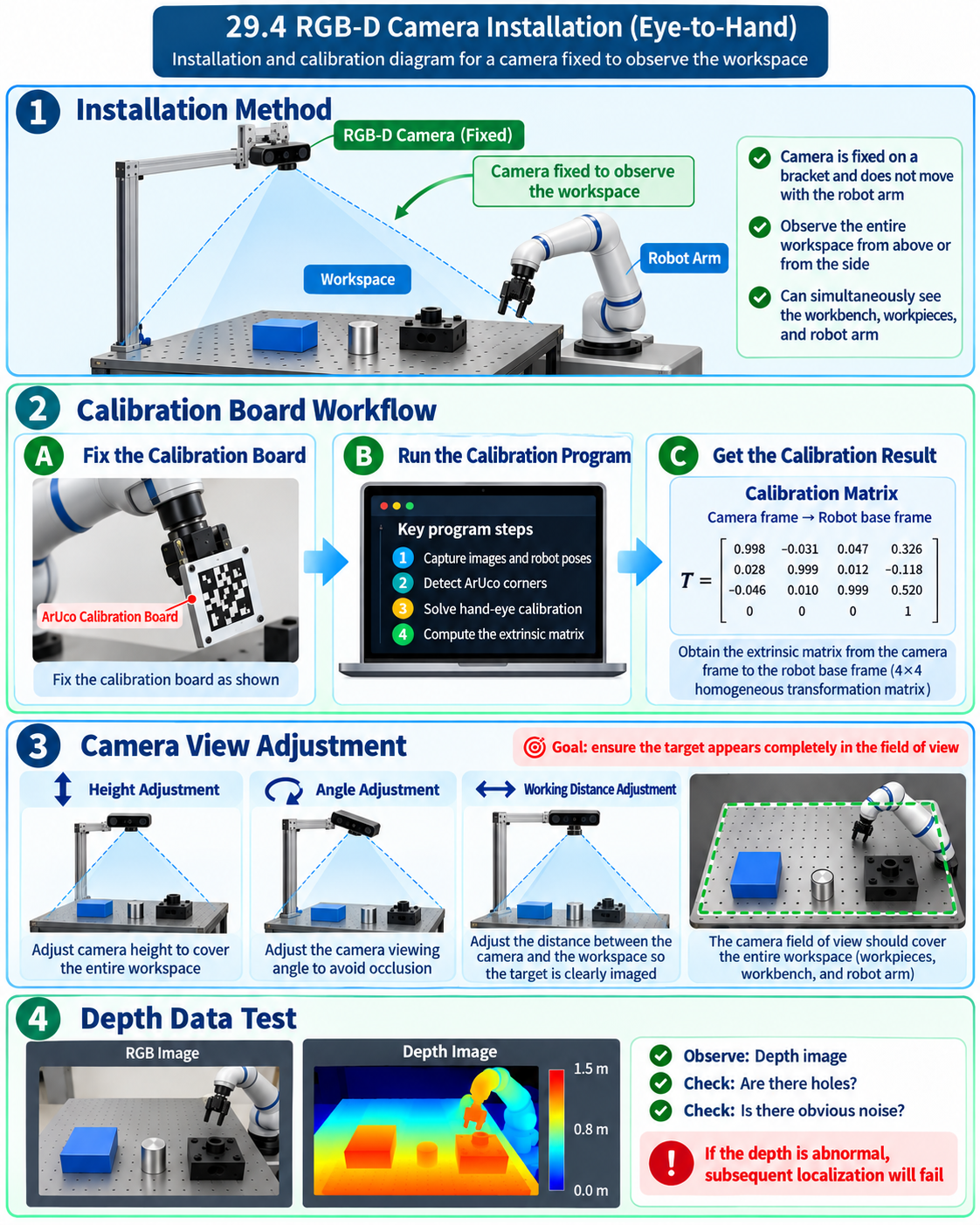
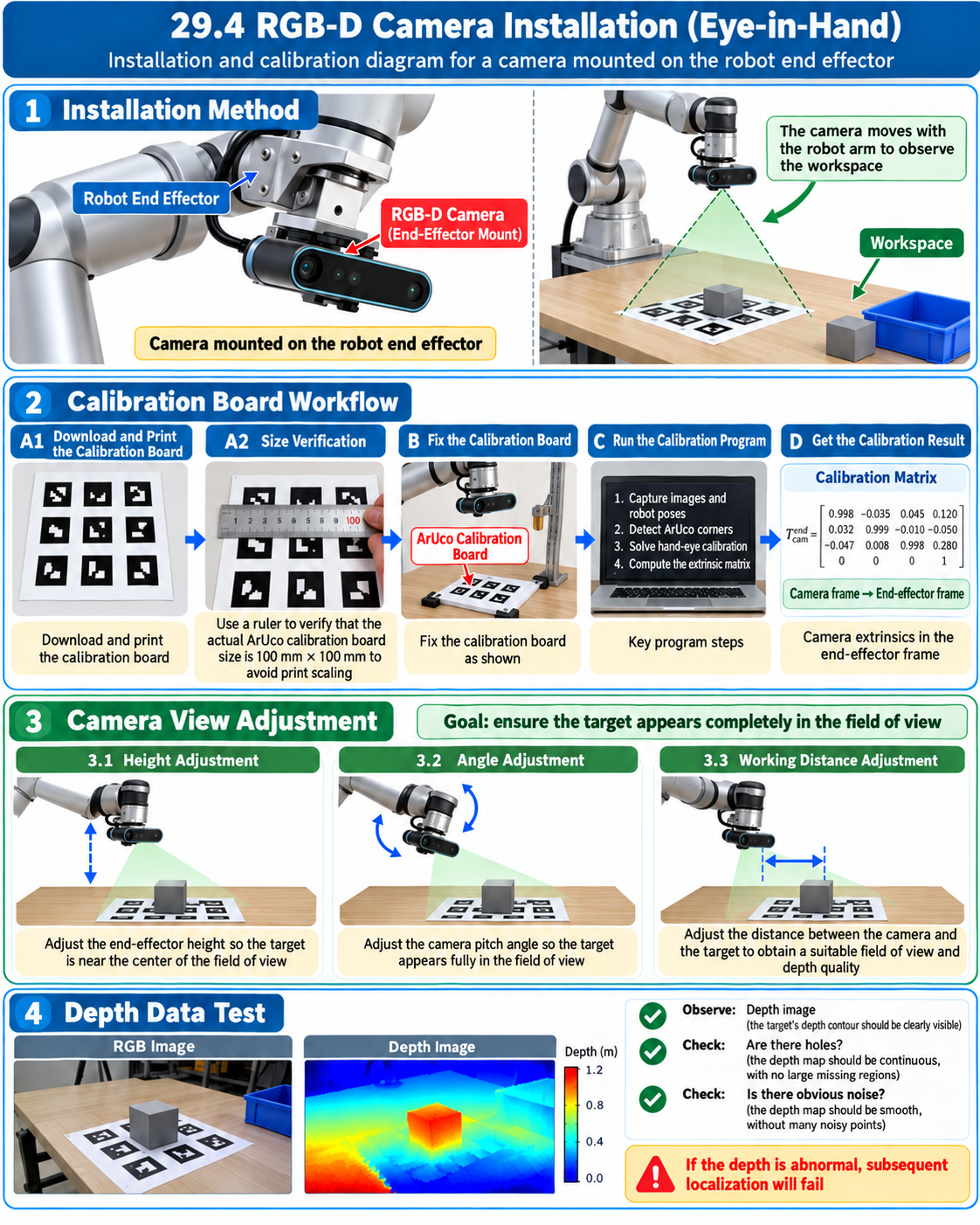
29.4 RGB-D Camera Installation
29.5 Visual Grasping
Main Grasp Program
scripts/main.py — the main grasp program, a complete visual grasping pipeline:
-
Initialize the RGB-D camera and confirm the image stream is available
-
Enable the arm and gripper, move to the pre-height position
-
Real-time camera preview + YOLO detection and instance segmentation
-
Estimate gripper orientation from the OBB short axis; estimate grasp height from the depth quantile
-
Press
Gto freeze the frame; compute the arm target pose via hand-eye transform -
Arm moves to pre-grasp point -> descend -> close gripper -> lift -> return to pre position
python scripts/main.py
Grasp-and-Place Program
scripts/set.py — grasp and place program: grasp a banana and place it in a box.
-
Initialize camera and arm; move to the pre-position
-
Real-time camera preview + YOLO detection and instance segmentation
-
Press
Gto freeze the frame; compute the arm target pose via hand-eye transform -
Arm grasps the banana and lifts
-
Arm places the banana in the box and returns to the initial pose
-
Press
Qto exit; the arm returns to zero.python scripts/set.py
Position Compensation
If after calibration the arm's grasp accuracy is not good enough, open config/default.yaml and adjust the X (forward/back), Y (left/right), Z (up/down) values in calibration.hand_eye_compensation_m for position compensation.
------------------------------------
calibration:
  aruco:
    marker_length_m: 0.1
    dict_id: 0
    target_marker_id: 0
  hand_eye_method: TSAI
  hand_eye_compensation_m:
    x: 0.00
    y: 0.00
    z: -0.02
------------------------------------
29.6 3D Point-Cloud Grasping [Elective]
What is GraspNet?
GraspNet mainly answers: given the object's 3D shape, where should the robot grasp, and in what pose?
GraspNet is a point-cloud-based robot grasping method—more precisely, a 6-DoF grasp pose generation and evaluation framework for 3D point clouds. In short, the point cloud is "the 3D world data the robot sees," and GraspNet is "how the robot finds the best grasp pose from that 3D data."
Input: RGB-D data -> point cloud -> GraspNet -> grasp pose
Output: a 6-DoF grasp pose G=(x,y,z,R), including:
-
Position, where the arm gripper should go:
x,y,z -
Pose, which direction the gripper should face:
roll,pitch,yaw -
Finally telling the arm: grasp from this direction
Configure GraspNet
To more accurately estimate object grasp poses, this project adapts graspnet-baseline to improve arm grasping performance.
GraspNet's pointnet2 / knn extensions need a CUDA compiler. Before starting, confirm nvcc is found and that its CUDA version matches the one PyTorch was built with:
nvcc --version
python -c "import torch; print(torch.__version__, torch.version.cuda)"
If nvcc is missing or its CUDA version differs from torch.version.cuda, install the CUDA compiler matching the PyTorch CUDA version. For example, when PyTorch shows 13.0:
conda install -c nvidia cuda-nvcc=13.0
The two must match; otherwise compiling pointnet2 / knn raises The detected CUDA version (...) mismatches the version that was used to compile PyTorch (...).
cd sdk
git clone https://github.com/graspnet/graspnet-baseline.git
cd graspnet-baseline

# after installing PyTorch for your CUDA version, install GraspNet runtime deps
pip install open3d tensorboard Pillow tqdm

# configure CUDA build paths before compiling local ops.
export CUDA_HOME=$CONDA_PREFIX
export TORCH_CUDA_ARCH_LIST="12.0"
export CPATH=$CONDA_PREFIX/lib/python3.10/site-packages/nvidia/cu13/include:$CPATH
export CPLUS_INCLUDE_PATH=$CONDA_PREFIX/lib/python3.10/site-packages/nvidia/cu13/include:$CPLUS_INCLUDE_PATH
export LD_LIBRARY_PATH=$CONDA_PREFIX/lib/python3.10/site-packages/nvidia/cu13/lib:$CONDA_PREFIX/lib:$LD_LIBRARY_PATH

# compile CUDA ops
cd pointnet2
pip install . --no-build-isolation
cd ../knn
pip install . --no-build-isolation
cd ..

# install GraspNet API
git clone https://github.com/graspnet/graspnetAPI.git
cd graspnetAPI
sed -i "s/'sklearn'/'scikit-learn'/" setup.py
pip install .
cd ../../..
Three pitfalls worth knowing about before you start:
| Symptom | What to do |
|---|---|
python setup.py install raises CUDA/PyTorch version errors | Use pip install . --no-build-isolation so the extension reuses the PyTorch and CUDA already in the conda env |
Compilation reports fatal error: cusparse.h: No such file or directory | Run find $CONDA_PREFIX -name cusparse.h and add that directory to CPATH / CPLUS_INCLUDE_PATH; with the conda cuda-toolkit it is usually $CONDA_PREFIX/targets/x86_64-linux/include, not the pip nvidia/cu13/include path above |
A sklearn package-name warning | The sed above renames it to scikit-learn. Keep the numpy==1.23.4 pin unless the dependency stack changes, because transforms3d==0.3.1 still uses NumPy aliases like np.float |
Configure the pretrained model
-
Download the official GraspNet pretrained weights from the graspnet-baseline repository (Google, Baidu), and place
checkpoint-rs.tarat:sdk/graspnet-baseline/checkpoints/checkpoint-rs.tar -
Then confirm in
config/default.yaml:graspnet:
checkpoint: "checkpoint-rs.tar" -
checkpointsupports three forms: a bare filename is looked up undersdk/graspnet-baseline/checkpoints/; a relative path is resolved from the project root; an absolute path is used directly.
Running and Debugging
- GraspNet camera estimation demo —
scripts/graspnet_camera_demo.py
-
Without connecting the arm, run GraspNet 6D grasp estimation using only the RGB-D camera. The script keeps a live camera preview, uses the YOLO box to select the target region, and filters feasible grasps within that bbox from GraspNet's scene-wide candidates. Press
GorSpaceto infer the current frame,Rto resume live preview,QorEscto exit. After inference, view the point cloud and grasp candidates via Open3D.python scripts/graspnet_camera_demo.py
- GraspNet arm grasp program —
scripts/grasp.py
-
Based on
graspnet_camera_demo.pyestimates, drive the arm execution: YOLO selects the target, GraspNet outputs a 6D grasp pose, hand-eye calibration transforms it into the arm base frame, then IK reachability is checked and pre-grasp/grasp/retreat execute. During debugging, prefer--dry-runto print only target poses and candidate filtering.python scripts/grasp.py --dry-run
python scripts/grasp.py --target-class "light blue coffee cup"