36. Running the reBot Arm in MuJoCo
Chapter 36 of the Seeed Physical AI Beginner's Course — running the reBot Arm in MuJoCo: installing the MuJoCo development environment, reading the MJCF model structure, importing the reBot Arm model through the ROS2 packages, launching the full simulation and driving the joints from the ROS2 slider GUI.
Chapter 35 covered the simulation theory; this chapter is hands-on. The goal is simple: get the reBot Arm running in MuJoCo, watch it move, and understand the relationship between the model, joints, and control commands.
Teaching goal: let users complete the first run of the reBot Arm in MuJoCo and understand the relationship between the robot model,
joints, and control commands.
36.1 Installing the MuJoCo Development Environment
MuJoCo's Python bindings are installed via pip; no C library compilation is needed. The reBot Arm workspace
uses a virtual environment (.venv) to manage Python dependencies, and MuJoCo is installed inside it.
Method 1: use the workspace's built-in virtual environment (recommended)
#RS:
cd ~/ReBot_Arm_DigitalTwin_RS
source scripts/rs_env.sh
python3 -c "import mujoco; print(mujoco.__version__)"

#DM:
cd ~/ReBot_Arm_DigitalTwin_DM/reBotArmController_ROS2-main
source scripts/source_rebotarm_env.sh
python3 -c "import mujoco; print(mujoco.__version__)"
If the output is something like 3.10.0, MuJoCo is ready. source_rebotarm_env.sh automatically loads ROS2, the virtual environment, and PYTHONPATH; all subsequent commands need to source it first.
Method 2: manual installation
If you are not in the workspace's virtual environment, you can pip install directly:
pip3 install mujoco
#MuJoCo 3.x is a pure pip package with built-in binary libraries; no extra system dependencies needed. After installation, `import mujoco` and `mujoco.viewer` are ready to use.
Verify the mujoco installation
python3 -c "
import mujoco
print('MuJoCo version:', mujoco.version)
print('GPU rendering:', mujoco.GL_CONTEXT_BACKENDS if hasattr(mujoco, 'GL_CONTEXT_BACKENDS') else 'auto')
"
Expected result
- Success: if the environment is configured correctly, you will see output similar to the following (version number may differ):
MuJoCo version: 3.2.0
GPU rendering: ['egl', 'glfw']
- Or
GPU rendering: auto(depending on compile options). - Failure: if
mujocois not installed or the path is not configured, aModuleNotFoundErroris raised, indicating an installation problem.
36.2 Understanding the MJCF Model Structure
MJCF (MuJoCo XML) is MuJoCo's native model format. An MJCF file consists of the following top-level elements:
| Element | Role | Embodiment in the reBot Arm |
|---|---|---|
<compiler> | Compile options: angle unit, coordinate frame, mesh path | angle="radian" coordinate="local" meshdir="../meshes" |
<option> | Physics parameters: time step, gravity, solver | timestep="0.001" gravity="0 0 -9.81" |
<visual> | Rendering parameters: lights, fog, global view | headlight, azimuth="135" |
<asset> | Resource declarations: meshes, materials, textures | 10 STL meshes + multiple materials |
<default> | Default values: joint damping, geom collision | damping="0.8" armature="0.01" |
<worldbody> | World body: ground, lights, cameras, robot | Table, objects, arm kinematic chain |
The reBot Arm's MJCF files are located at:
RS version (rebotarm_mujoco_rs package):
src/rebotarm_mujoco_rs/models/
  rs_arm.xml                   # physics model (STL mesh + full inertia + 7 actuators)
  rs_grasp_scene.xml            # grasping scene (with objects)
DM version (rebotarm_mujoco package):
src/rebotarm_mujoco/models/
  rebotarm_b601_stl.xml        # physics model (STL mesh + full inertia)
  rebotarm_b601_kinematic.xml  # kinematics model (simplified geometry + no inertia)
  rebotarm_b601_stl.xml         # physics model (STL mesh + full inertia, with scene objects)
  rebotarm_b601_kinematic.xml   # kinematics model (simplified geometry + no inertia)
  rebotarm_b601_colored.xml     # colored model (multi-material STL)
  simple_rebotarm.xml           # simplified model (primitive geometries)
The two models share the same kinematic structure (joint names, axes, limits). The differences are:
| Feature | STL model | Kinematics model |
|---|---|---|
| Visual | STL mesh (detailed) | capsule/sphere/cylinder (simplified) |
| Inertial | Defined for every link | Mostly omitted |
| Collision | Gripper has box collision | No collision |
| timestep | 0.001 s | 0.002 s |
| Use | Physics simulation, real2sim | Lightweight visualization |
This chapter uses the STL model, because it looks good and supports physics simulation.
36.3 Importing the reBot Arm Model into MuJoCo
Build the ROS2 packages
#RS:
cd ~/ReBot_Arm_DigitalTwin_RS/rebotarm_ros2
source /opt/ros/jazzy/setup.bash
colcon build --symlink-install
source install/setup.bash

#DM:
cd ~/ReBot_Arm_DigitalTwin_DM/reBotArmController_ROS2-main
source /opt/ros/jazzy/setup.bash
colcon build --symlink-install
source install/setup.bash
After building, the MuJoCo package's share directory will contain the model files and STL meshes:
# Verify the share directory (RS)
ros2 pkg prefix rebotarm_mujoco_rs
# output: ~/ReBot_Arm_DigitalTwin_RS/rebotarm_ros2/install/rebotarm_mujoco_rs
ls $(ros2 pkg prefix rebotarm_mujoco_rs)/share/rebotarm_mujoco_rs/models/
# meshes/  rs_arm.xml  rs_grasp_scene.xml

# Verify the share directory (DM)
ros2 pkg prefix rebotarm_mujoco
ls $(ros2 pkg prefix rebotarm_mujoco)/share/rebotarm_mujoco/models/
# rebotarm_b601_stl.xml  rebotarm_b601_kinematic.xml  rebotarm_b601_colored.xml  simple_rebotarm.xml
Start via launch
#RS:
ros2 launch rebotarm_mujoco_rs mujoco_rs.launch.py use_viewer:=true
#DM:
ros2 launch rebotarm_mujoco real2sim.launch.py
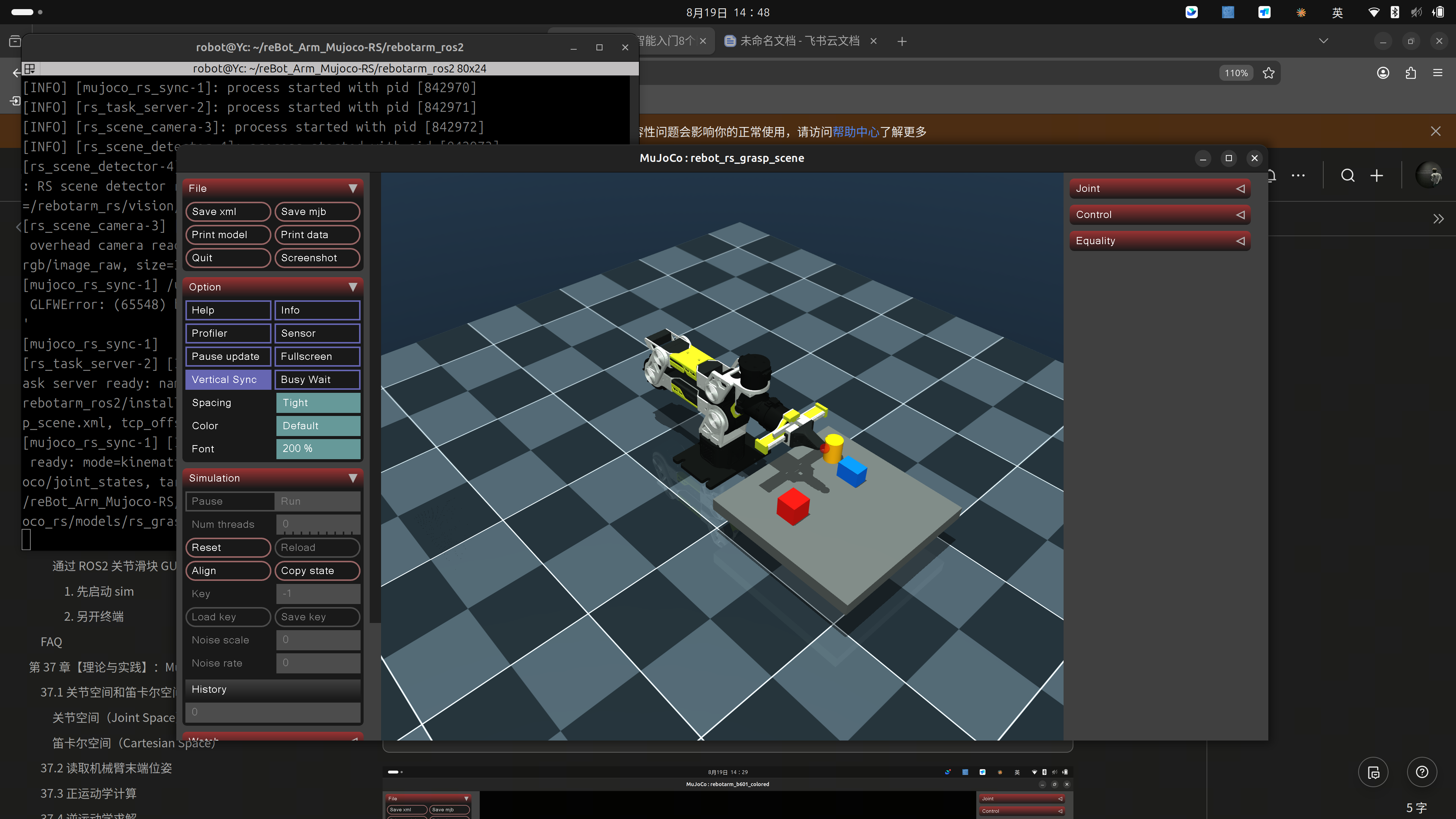
Start via ROS2 launch (with the full environment)
#RS:
./scripts/start_rs_sim.sh
#DM:
./rebotarm start sim
or call the script directly:
~/ReBot_Arm_DigitalTwin_DM/reBotArmController_ROS2-main/scripts/start_rebot_mujoco_all.sh
Controlling via the ROS2 joint slider GUI
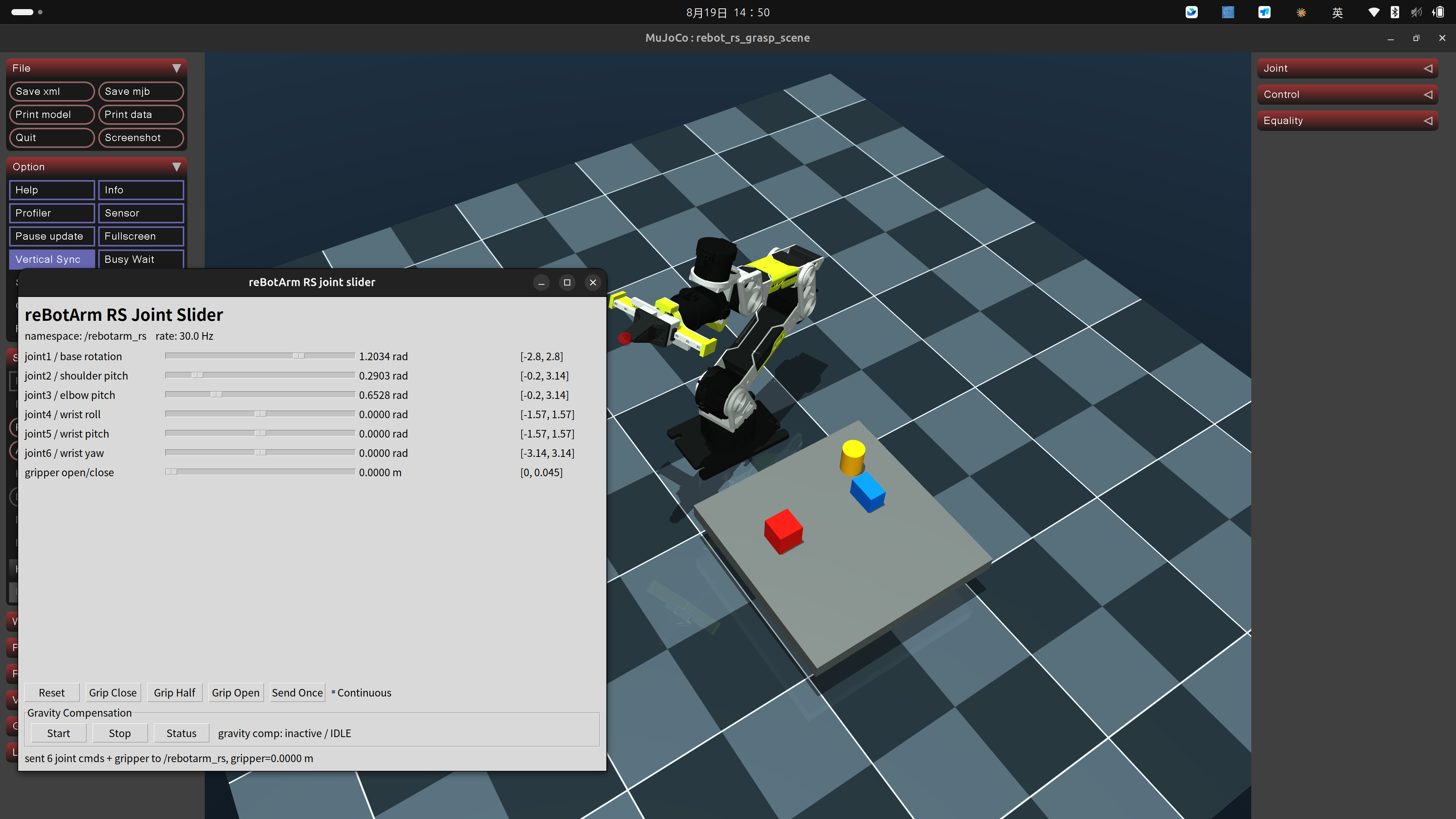
The reBot Arm provides a Tkinter joint slider GUI (joint_slider_gui.py) to control each joint through a graphical interface:
1. Start the sim first
#1. First start the sim (full physics simulation)
#RS:
cd ~/ReBot_Arm_DigitalTwin_RS
./scripts/start_rs_sim.sh
#DM:
cd ~/ReBot_Arm_DigitalTwin_DM
./rebotarm start sim
2. Open another terminal
#The slider GUI defines 7 joint controls:
#RS:
source /opt/ros/jazzy/setup.bash
source ~/ReBot_Arm_DigitalTwin_RS/rebotarm_ros2/install/setup.bash
ros2 launch rebotarm_mujoco_rs joint_slider_gui.launch.py

#DM:
source /opt/ros/jazzy/setup.bash
source ~/ReBot_Arm_DigitalTwin_DM/reBotArmController_ROS2-main/install/setup.bash
ros2 launch rebotarm_mujoco joint_slider_gui.launch.py
36.4 FAQ
Q1: The MuJoCo viewer shows a black screen or crashes after opening. What should I do?
This is usually a GPU rendering issue. Try setting the rendering backend:
export MUJOCO_GL=egl    # use EGL (recommended, no display needed)
export MUJOCO_GL=glfw    # use GLFW (requires a desktop environment)
export MUJOCO_GL=osmesa  # use software rendering (slowest but most compatible)
On headless servers (e.g., over SSH), use egl or osmesa.
Q2: "mesh file not found" when loading MJCF. What should I do?
In MJCF, meshdir="../meshes" is a relative path. If you run the script from another directory, the mesh
files may not be found. Solutions:
- After building the ROS2 packages, load from the share directory (recommended): ros2 pkg prefix rebotarm_mujoco_rs (RS) or ros2 pkg prefix rebotarm_mujoco (DM)
- Or make sure to run the script from the models/ directory (its parent directory contains meshes/)
- RS's mujoco_sync.py automatically resolves mesh paths; DM needs to load from the install directory
Q3: After dragging the joint slider GUI, the arm in MuJoCo does not move. What should I do?
Check the three links:
- Is the fake driver running? RS: ros2 topic echo /rebotarm_rs/joint_states --once; DM: ros2 topic echo /rebotarm/joint_states --once
- Is the sync node subscribed to the correct topic? RS subscribes to /rebotarm_rs/joint_states by default; DM subscribes to /rebotarm/joint_states by default
- Is the viewer open? The terminal should show the sync node is ready
If the topic name does not match, specify it with a parameter:
RS: REAL2SIM_JOINT_STATE_TOPIC=/rebotarm_rs/joint_states ./scripts/start_rs_sim.sh
DM: REAL2SIM_JOINT_STATE_TOPIC=/rebotarm/joint_states ./rebotarm start sim
Q4: Only one side of the gripper moves. What should I do?
RS: check whether the equality constraint is configured correctly (joint_left and joint_right should follow joint7).
DM: check whether both finger_left and finger_right receive commands. If only finger_left is sent without a target for finger_right, only one side will move.
Q5: Objects fly away in physics grasping mode. What should I do?
The PD parameters may be too aggressive. Try lowering arm_kp and arm_kd:
RS: ros2 launch rebotarm_mujoco_rs mujoco_rs.launch.py simulation_mode:=physics arm_torque_limit:=10.0
DM: ros2 launch rebotarm_mujoco mujoco_physics_grasp.launch.py arm_torque_limit:=10.0
Lowering the torque limit from the default 30.0 to 10.0 prevents objects from being knocked away by excessive joint torques. You can also lower control_hz to reduce the control loop's aggressiveness.