12. Camera Configuration and LeRobot Data Collection
Chapter 12 of the SO-ARM Physical AI Beginner's Course — connect and verify front and side cameras, understand image/action synchronization, then record your first LeRobot dataset with lerobot-record and manage episodes with the keyboard controls.
Clear valuable items and unrelated people within 1 meter of the robotic arm workspace. Make sure the arm is firmly mounted and that power and cables are connected properly before running this chapter.
12.1 Single-Camera vs. Dual-Camera Setup
12.1 Single-Camera vs. Dual-Camera Setup
Two cameras and two views are required for data collection and model training in this course. Depending on the mounting position, the common layouts are:
| Layout | Installation and purpose | Suitable scenarios |
|---|---|---|
| Gripper view | Top-view camera mounted above the front of the workbench to cover the work area; gripper camera mounted near the gripper to observe grasping details | Fine operations that require observing contact between the gripper and the object |
| Side-view assistance | Top-view camera mounted above the front of the workbench; side-view camera mounted at the front side of the workbench to observe arm height and gripper motion | Tasks such as grasping, handling, and placing |
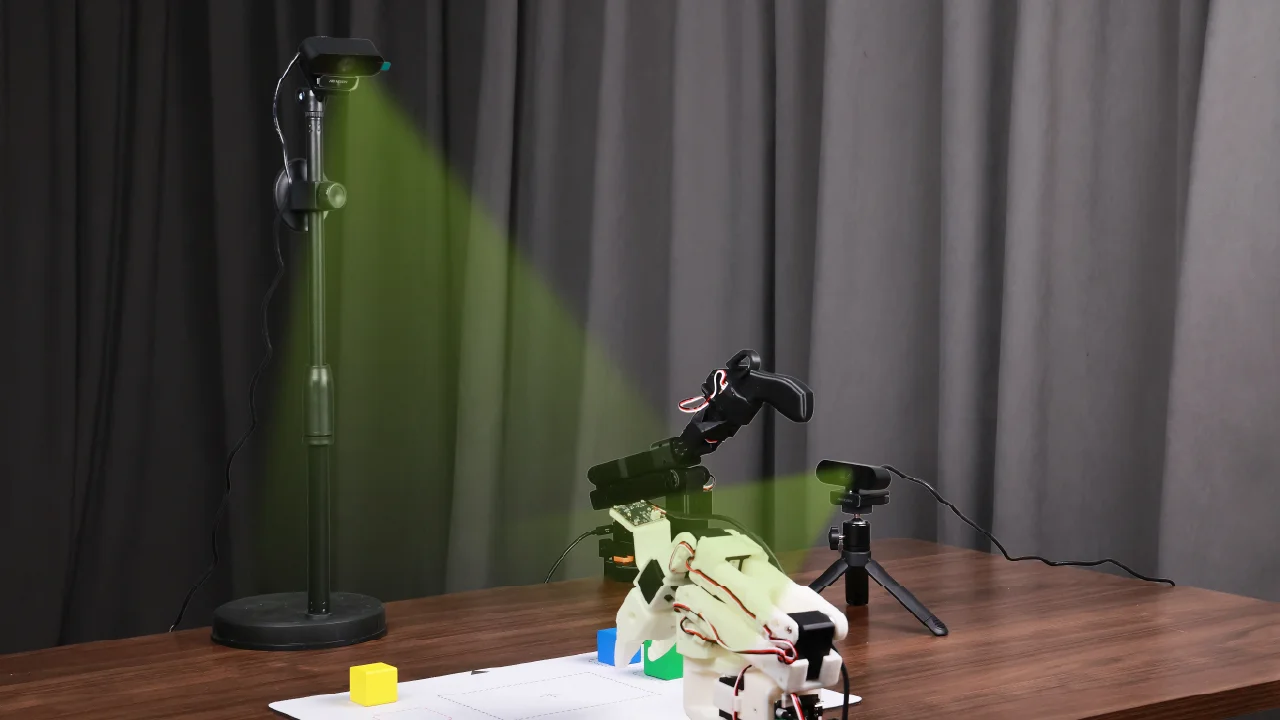
This course uses the side-view assistance layout (a front camera plus a side camera), which is also the layout used by the Chapter 22 no-code workflow.
12.2 Finding Camera Device Names
12.2 Finding Camera Device Names
A camera's index can change if you reboot or re-plug — a behavior mostly dependent on your operating system. Before every recording session, detect the cameras plugged into your system:
lerobot-find-cameras opencv
The terminal prints something like:
--- Detected Cameras ---
Camera #0:
  Name: OpenCV Camera @ 0
  Type: OpenCV
  Id: 0
  Backend api: AVFOUNDATION
  Default stream profile:
    Width: 1920
    Height: 1080
    Fps: 15.0
--------------------
(more cameras ...)
You can find the pictures taken by each camera in the outputs/captured_images directory — open them to confirm which index is your front camera and which is the side camera.
Avoid connecting USB cameras through a hub. Connect them directly, preferably to USB 3.0 ports, to ensure sufficient image transmission bandwidth.
12.3 Verify Cameras While Teleoperating
12.3 Verify Cameras While Teleoperating
Before recording, confirm both views are live and framed correctly by teleoperating with camera display enabled:
lerobot-teleoperate \
    --robot.type=so101_follower \
    --robot.port=/dev/ttyACM0 \
    --robot.id=my_awesome_follower_arm \
    --robot.cameras="{ front: {type: opencv, index_or_path: 0, width: 640, height: 480, fps: 30, fourcc: "MJPG"}, side: {type: opencv, index_or_path: 2, width: 640, height: 480, fps: 30, fourcc: "MJPG"}}" \
    --teleop.type=so101_leader \
    --teleop.port=/dev/ttyACM1 \
    --teleop.id=my_awesome_leader_arm \
    --display_data=true
The index_or_path values come from the last digit of each camera ID reported by lerobot-find-cameras opencv.
fourcc: "MJPG" requests compressed frames. Under MJPG this setup supports 3 cameras at 1920×1080 @ 30FPS. YUYV is uncompressed — it lowers usable resolution and FPS and can lag the arm. Do not connect two cameras through the same USB hub.
12.4 Optional: Depth Cameras (RealSense / Orbbec)
12.4 Optional: Depth Cameras (RealSense / Orbbec)
- RealSense D435i / D405
- Orbbec Gemini 2 / Gemini 336
RealSense depth cameras provide RGB-D perception for tasks such as object recognition and close-range manipulation. The recommended models are D405 (short-range stereo depth, 7-50 cm working range, ideal for tabletop manipulation) and D435i (depth + RGB + IMU).
1. Switch to the camera branch — depth camera support lives on DepthCameraSupport:
git checkout DepthCameraSupport
git pull origin DepthCameraSupport
git branch --show-current   # expect: DepthCameraSupport
2. Install the RealSense extra in editable mode:
pip install -e ".[realsense]"
3. Grant camera permissions and detect:
chmod a+rw /dev/bus/usb/*/*
lerobot-find-cameras realsense
4. Example: teleoperate with a D435i color+depth pair (use the serial number from the detection output in serial_number_or_name):
lerobot-teleoperate \
  --robot.type=so101_follower \
  --robot.port=/dev/ttyACM0 \
  --robot.id=my_awesome_follower_arm \
  --robot.cameras='{
    d435i_color: {
      type: realsense_d435i_color,
      serial_number_or_name: "419522072950",
      width: 640, height: 480, fps: 30,
      color_mode: rgb, color_stream_format: rgb8,
      rotation: 0, warmup_s: 1
    },
    d435i_depth: {
      type: realsense_d435i_depth,
      serial_number_or_name: "419522072950",
      width: 640, height: 480, fps: 30,
      max_depth_m: 2.0, depth_alpha: 0.2,
      rotation: 0, warmup_s: 5
    }
  }' \
  --teleop.type=so101_leader \
  --teleop.port=/dev/ttyACM1 \
  --teleop.id=my_awesome_leader_arm \
  --display_data=true
Parameter notes: depth_alpha scales the depth image (start at 0.2); with 3+ depth cameras reduce fps to 15; keep 640×480 for stability.
Orbbec Gemini 2 is a high-performance RGB-D camera providing synchronized RGB and depth streams, and Gemini 336 improves depth imaging in reflective and dark indoor areas.
1. Switch to the camera branch:
git checkout DepthCameraSupport
git pull origin DepthCameraSupport
2. Install the Orbbec extra:
pip install -e ".[orbbec]"
3. Permissions and USBFS cache (the default 16MB is too small for depth streams):
chmod a+rw /dev/bus/usb/*/*
cat /sys/module/usbcore/parameters/usbfs_memory_mb                 # check
sudo sh -c 'echo 128> /sys/module/usbcore/parameters/usbfs_memory_mb'  # raise to 128MB
4. Detect cameras and copy the serial number:
lerobot-find-cameras orbbec
5. Example: teleoperate with one Orbbec color+depth pair:
lerobot-teleoperate \
  --robot.type=so101_follower \
  --robot.port=/dev/ttyACM0 \
  --robot.id=my_awesome_follower_arm \
  --robot.cameras='{
    orbbec_color: {
      type: orbbec_color,
      serial_number_or_name: "CP9JA530003A",
      width: 640, height: 480, fps: 30,
      color_mode: rgb, rotation: 0, warmup_s: 1
    },
    orbbec_depth: {
      type: orbbec_depth,
      serial_number_or_name: "CP9JA530003A",
      width: 640, height: 400, fps: 30,
      depth_alpha: 0.2, rotation: 0, warmup_s: 5
    }
  }' \
  --teleop.type=so101_leader \
  --teleop.port=/dev/ttyACM1 \
  --teleop.id=my_awesome_leader_arm \
  --display_data=true
An Orbbec camera occupies 3 consecutive /dev/video numbers. When mixing one Orbbec with regular USB cameras, plug the Orbbec in first and the regular cameras last, so their indices land at the end. If frames time out (Timed out waiting for frame ...), unplug and reconnect the camera.
12.5 Image and Action Synchronization
12.5 Image and Action Synchronization
During recording, LeRobot runs one control loop per frame:
- read both cameras (front, side);
- read leader joints → actions;
- read follower joints → state;
- timestamp everything and append one row.
Because cameras deliver frames on their own schedule, the loop aligns by timestamp, not by wish: each dataset row pairs the freshest camera images with the joint data from the same instant. This is why --dataset.fps should not exceed what your cameras can stably deliver (30 fps at 640×480 MJPG is the safe choice).
12.6 Recording Your First Dataset
12.6 Recording Your First Dataset
Record the Chapter 11 task (pick-and-place A to B) locally — the dataset stays on your machine:
lerobot-record \
    --robot.type=so101_follower \
    --robot.port=/dev/ttyACM0 \
    --robot.id=my_awesome_follower_arm \
    --robot.cameras="{ front: {type: opencv, index_or_path: 0, width: 640, height: 480, fps: 30, fourcc: "MJPG"}, side: {type: opencv, index_or_path: 2, width: 640, height: 480, fps: 30, fourcc: "MJPG"}}" \
    --teleop.type=so101_leader \
    --teleop.port=/dev/ttyACM1 \
    --teleop.id=my_awesome_leader_arm \
    --display_data=true \
    --dataset.repo_id=seeedstudio123/test \
    --dataset.num_episodes=5 \
    --dataset.single_task="Grab the black cube" \
    --dataset.push_to_hub=false \
    --dataset.episode_time_s=30 \
    --dataset.reset_time_s=30
repo_id can be customized; with push_to_hub=false the dataset lands in ~/.cache/huggingface/lerobot/seeedstudio123/test/.
Recording Parameters
| Parameter | Description | Default |
|---|---|---|
--dataset.episode_time_s | Duration per data episode (seconds) | 60 |
--dataset.reset_time_s | Environment reset time after each episode (seconds) | 60 |
--dataset.num_episodes | Total episodes to record | 50 |
Keyboard Controls During Recording
| Key | Action |
|---|---|
| → (Right Arrow) | Early-stop current episode/reset; move to next |
| ← (Left Arrow) | Cancel current episode; re-record it |
| ESC | Stop session immediately, encode videos, and save the dataset |
If the keyboard shortcuts do not respond, first check that $DISPLAY is set, or downgrade pynput: pip install pynput==1.6.8
While recording you will see streaming stats like:
INFO ol_robot.py:219 dt:33.34 (30.0hz) dtRlead: 5.06 (197.5hz) dtWfoll: 0.25 (3963.7hz) dtRfoll: 6.22 (160.7hz) dtRlaptop: 32.57 (30.7hz) dtRphone: 33.84 (29.5hz)
dt near 33 ms means the loop holds 30 Hz — that's a healthy session.
Checkpointing and Resuming
- Checkpoints are created automatically during recording.
- To resume after an interruption, re-run the same command with
--resume=true. --dataset.num_episodesthen counts the episodes to record THIS session, not the grand total — 15 recorded of a 50 target → set 35.- To start over from scratch, delete the dataset directory manually.
Recording on the Hugging Face Hub (Optional)
Log in once with a write-access token from HF settings:
huggingface-cli login --token ${HUGGINGFACE_TOKEN} --add-to-git-credential
HF_USER=$(huggingface-cli whoami | head -n 1)
Then set --dataset.repo_id=${HF_USER}/record-test and --dataset.push_to_hub=true to publish the dataset.
12.7 Tips for Gathering Good Data
12.7 Tips for Gathering Good Data
- Task: grasp objects at different marked points and place them at Point B (Chapter 11's cross pattern).
- Scale: record ≥50 episodes (10 episodes per point).
- Consistency:
- Keep cameras fixed;
- Maintain identical grasping behavior;
- Ensure the manipulated object is visible in both camera feeds.
- Progression: start with reliable grasping before adding variations (new positions, techniques, camera adjustments). Avoid rapid complexity increases.
- Environment: keep camera positions, angles, and ambient lighting stable; avoid unstable backgrounds or people walking through the camera view — large differences between recording and deployment environments cause policies to fail.
💡 Rule of thumb: you should be able to do the task yourself by only looking at the camera images. If you can't, the model can't either.
Set --dataset.num_episodes high enough before starting, and don't stop midway unless necessary — dataset statistics (mean and variance) are computed after collection finishes and are required for training.