22. No-Code VLA with SenseCraft Robotics
Chapter 22 of the SO-ARM Physical AI Beginner's Course — the no-code VLA path: connect and calibrate the arms in SenseCraft Robotics, verify teleoperation, bind cameras, collect and clean datasets, train in the cloud or locally, and run inference — all without a terminal or a training GPU.
SenseCraft Robotics is Seeed's no-code platform for the SO-ARM101 (and the reBot arms). Connect the arms, calibrate, collect demonstrations, train and run inference from a guided interface — no Python environment, no terminal. This chapter is the GUI counterpart of everything you did in Stages 3-4.
22.1 Preparation
22.1 Preparation
Hardware
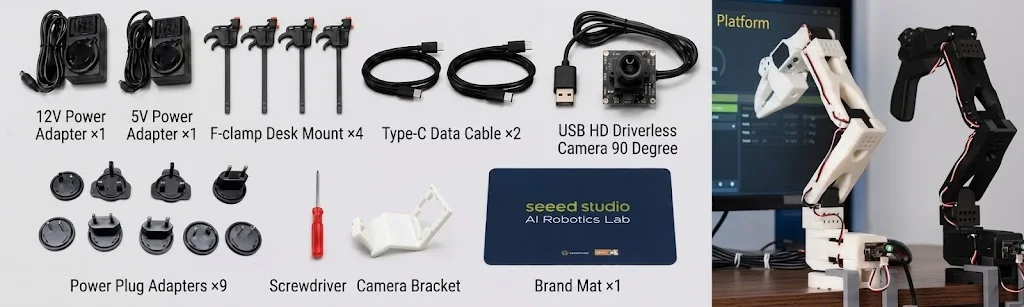
| Item | Leader | Follower |
|---|---|---|
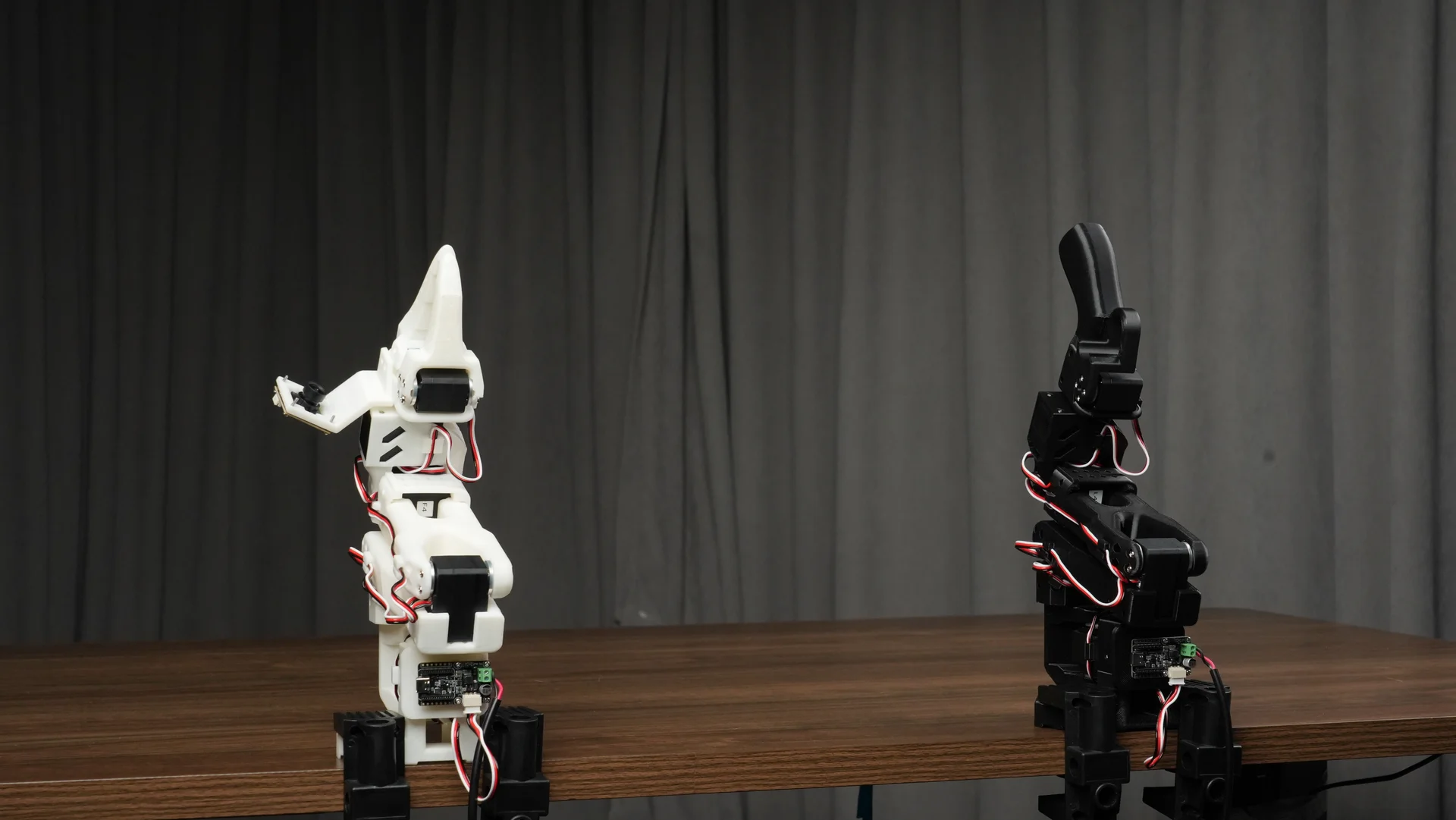
| Arm | Black assembled Leader arm ×1 | White assembled Follower arm ×1 |
| LeRobot servo control board | ×1 | ×1 |
| Power cable | 5V power cable ×1 | Pro: 12V ×1; Standard: 5V |
| Data cable | USB-C ×1 | USB-C ×1 |
| Mounting clamp | ×2 | ×2 |
Shared: flexible gripper parts, two 32 × 32 mm USB cameras (the kit includes one; prepare a second separately — training data must contain two views), screwdriver, mouse mat.
The arms must be assembled, mounted, powered, and connected by USB. If assembly is not complete, return to Chapter 6.
Computer and software
- Windows or macOS computer; local training requires a compatible GPU;
- Stable network for downloads, login, cloud training, and inference;
- SenseCraft Robotics installed, and a registered SenseCraft account signed in.
Scene and safety
- Mark two fixed positions on the table: Point A for the object's start, Point B for its destination;
- Prepare an easy-to-grasp object (a red block or soft object);
- Make sure Point A, Point B, both arms, and the object are visible in the camera views and unobstructed;
- Clear the workspace of people, clutter, cables, and fragile objects. Keep the Leader away from the Follower and out of the Follower's camera view.
Interface names, button locations, and training backends may change with SenseCraft Robotics versions. Serial ports and dataset names shown here are examples — always use the devices your computer detects.
22.2 Connect the Arms
22.2 Connect the Arms
Safety notice: disconnect power before installing, connecting, or removing the arms. Confirm the arms are secure, the cables are correct, and the workspace is clear before restoring power. Never connect or disconnect power while powered.
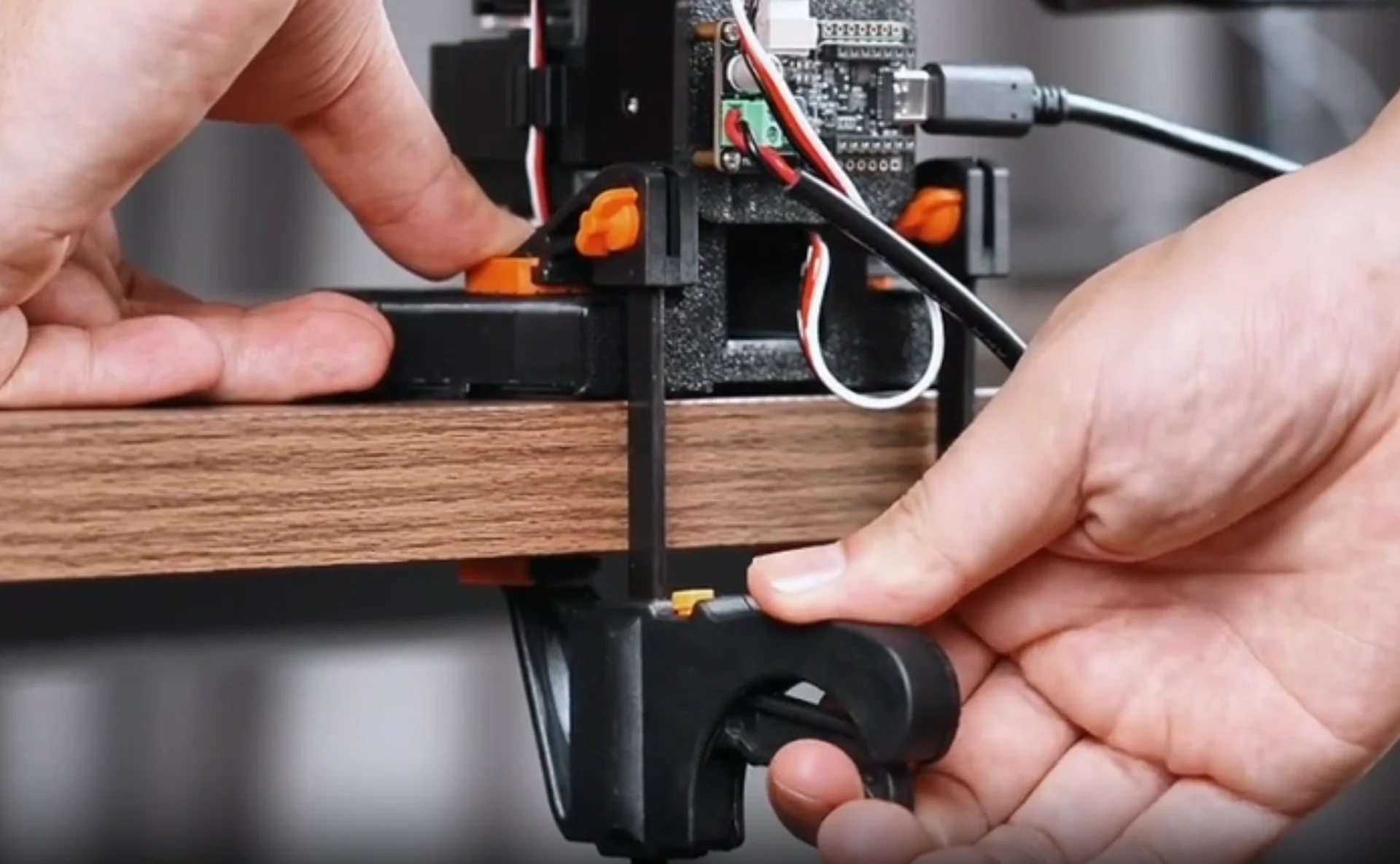
Install the arm bodies. Place the Leader and Follower on a stable table; secure each with two clamps; keep a safe distance between arms; with power off, move each joint by hand to confirm smooth motion without collisions.
Install the control boards. One LeRobot servo control board per arm: align with the base slot, check connector orientation, seat it securely; verify every servo cable is fully home and not sharply bent or pinched.
Connect the data cables. Leader → USB-C → computer; Follower → USB-C → computer. For easier serial identification, connect the arm ends first and plug the computer ends one at a time during binding (22.3).
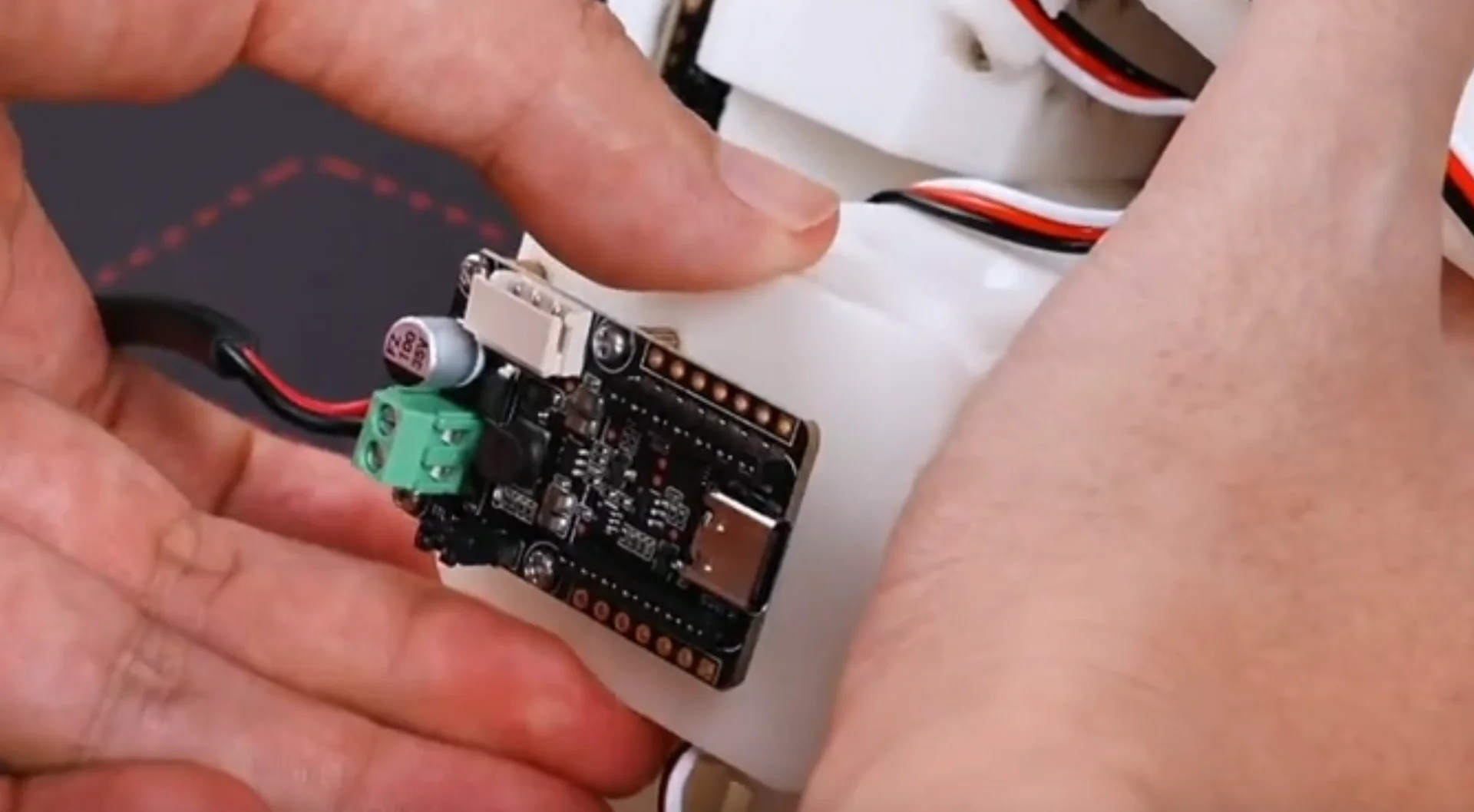
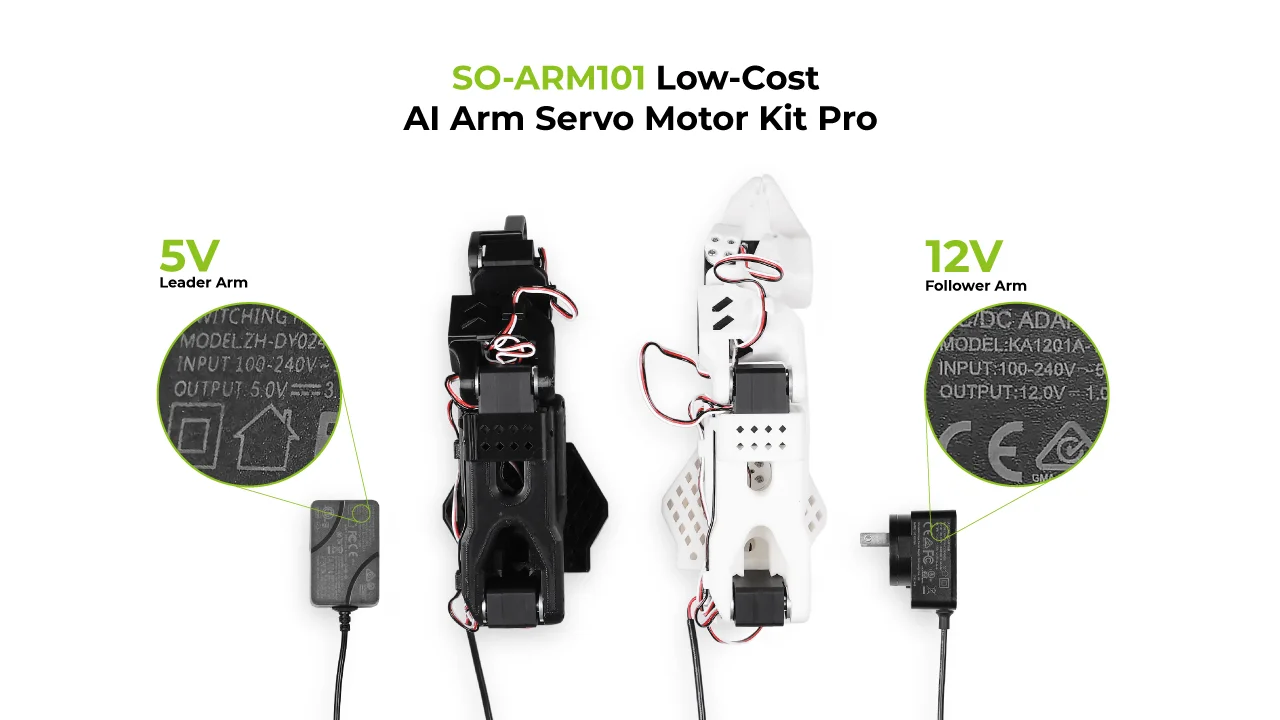
Install the power interfaces and power on. With adapters unplugged from AC: insert each DC cable, tighten the locking collar; Pro = Leader 5V / Follower 12V, Standard = both 5V — do not mix; route cables clear of joint motion. Then connect power, watch the board indicators, and confirm both USB-C (data) and DC (power) are attached.
22.3 Device Setup in the App
22.3 Device Setup in the App
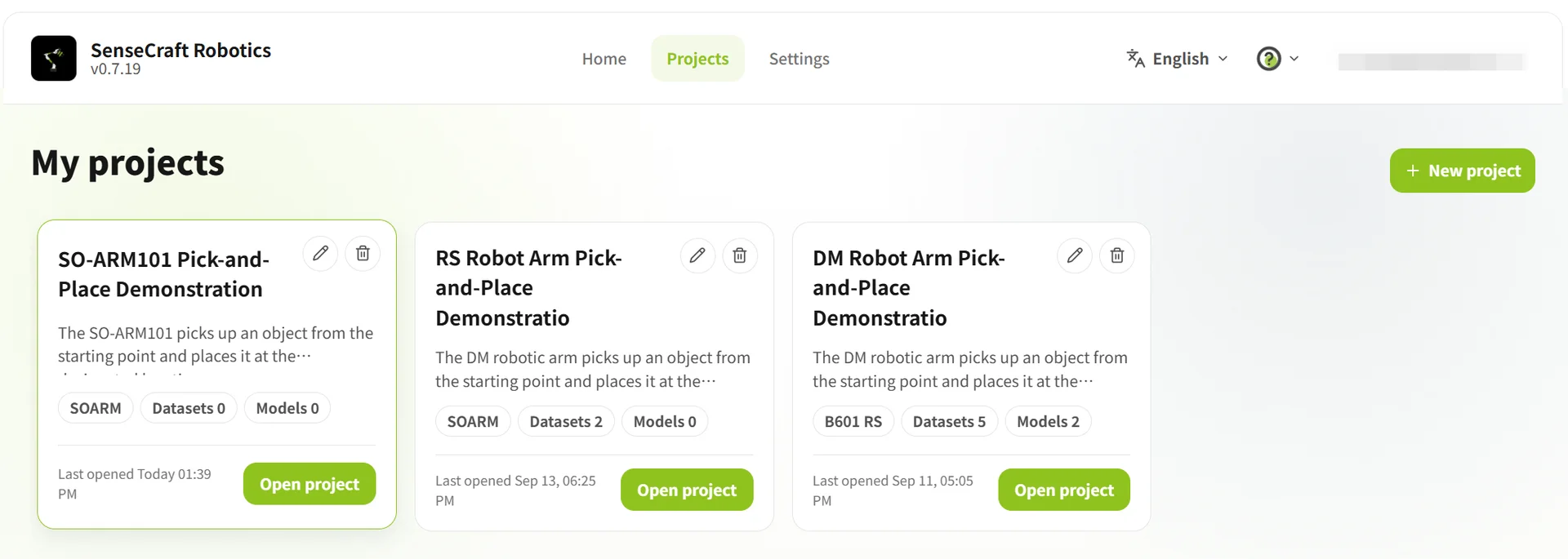
After signing in, open Projects → New Project, enter a name and description, and create it. The project overview gives access to device setup, action replay, datasets, training, models, and operation; if it shows "To be configured" or "Not connected", click Go to Device Setup.
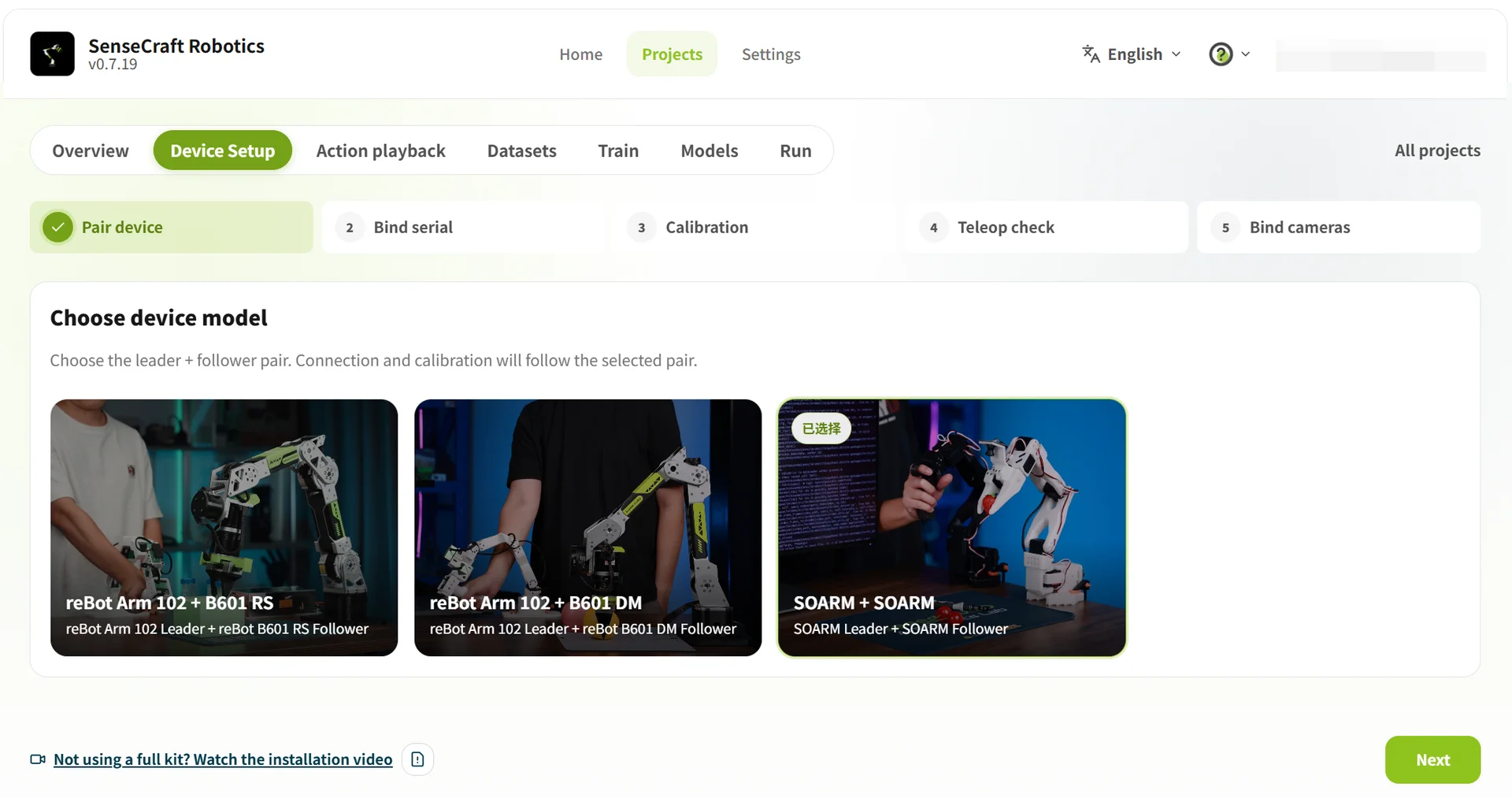
Select the device model
In Device Pairing, select SO-ARM101 + SO-ARM101, then click Next.
Bind the USB serial ports
- Initial scan: disconnect both USB cables, click Rescan, note the ports shown;
- Bind the Leader: connect the Leader, Rescan, bind the newly appearing port to the Leader;
- Bind the Follower: connect the Follower, Rescan, bind the new port to the Follower;
- Both arms show Connected → Next.
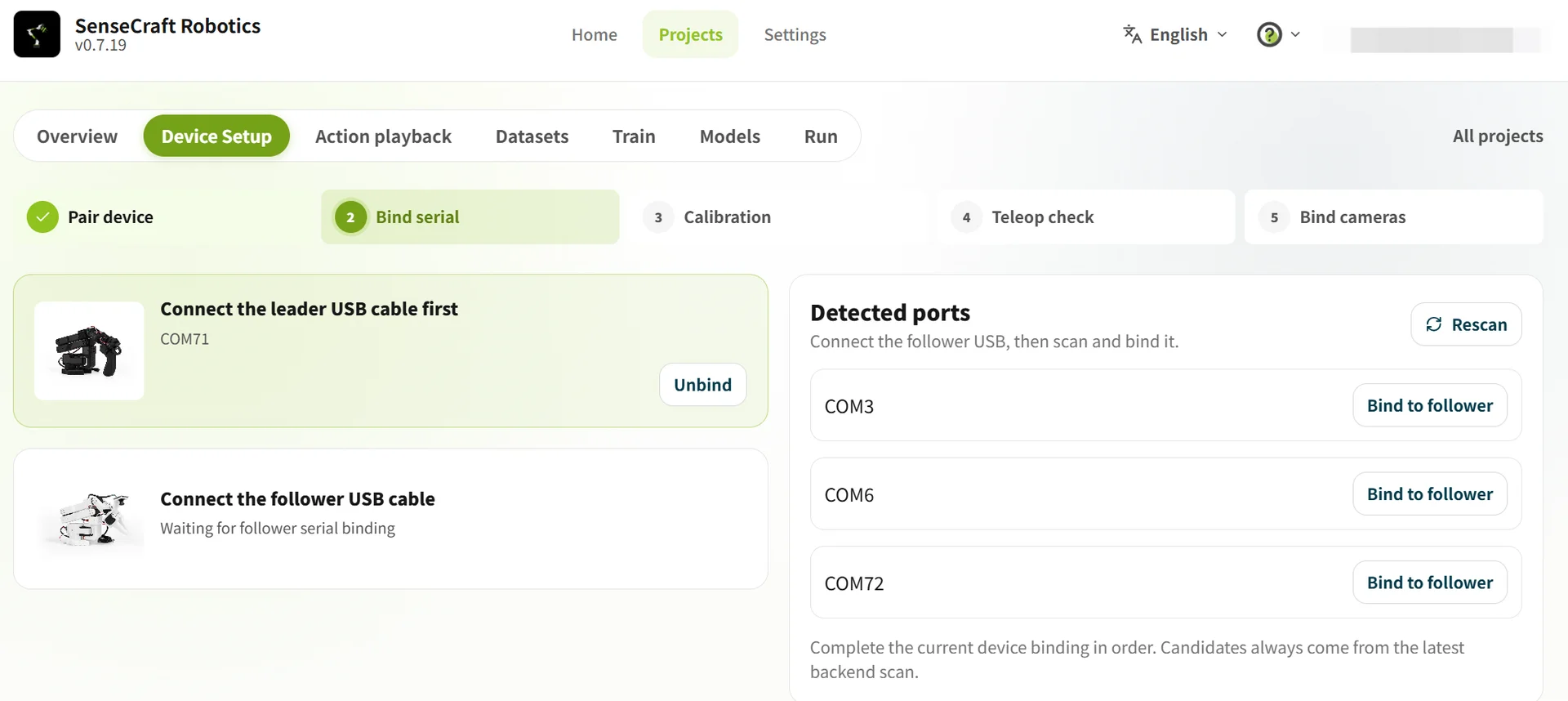
Serial-port troubleshooting: after each scan, bind only the newly appearing port — never identify devices by COM number alone. If a port is missing, reconnect the USB cable and scan again; if only one port appears, check the other cable and the arm's power.
Arm calibration verification
Move the Leader and Follower to the middle posture shown on screen and clear the workspace. Two modes:
- Automatic Calibration — the system identifies each joint's travel range by driving the arm. Requires all joints to have reliable physical stops. Remove loads, align both arms roughly vertical, tick the confirmation checkbox, click Start Calibration, and wait.
- Manual Calibration — for joints without reliable stops, or to verify step by step: keep the Leader powered, move its joints to mid-range, click Start Calibration, and follow the on-screen guidance for each joint of both arms.
Do not teleoperate or collect data during calibration. If the posture looks abnormal, a joint is obstructed, or calibration fails — stop, check the arm and workspace, and retry.
Teleoperation verification
- Click Start Teleoperation;
- Move the Leader slightly — the Follower must follow synchronously, in the same direction, smoothly;
- Click End Teleoperation, then Confirm Teleoperation Normal (or Abnormal, Return to Recalibrate).

Gravity compensation (optional): the arms have some weight, so hand-adjusting the Follower takes effort. Gravity compensation offsets part of the weight to make adjustment easier — turn it off after adjustment and before teleoperation verification. It assists manual movement only; it does not make the Follower follow the Leader.
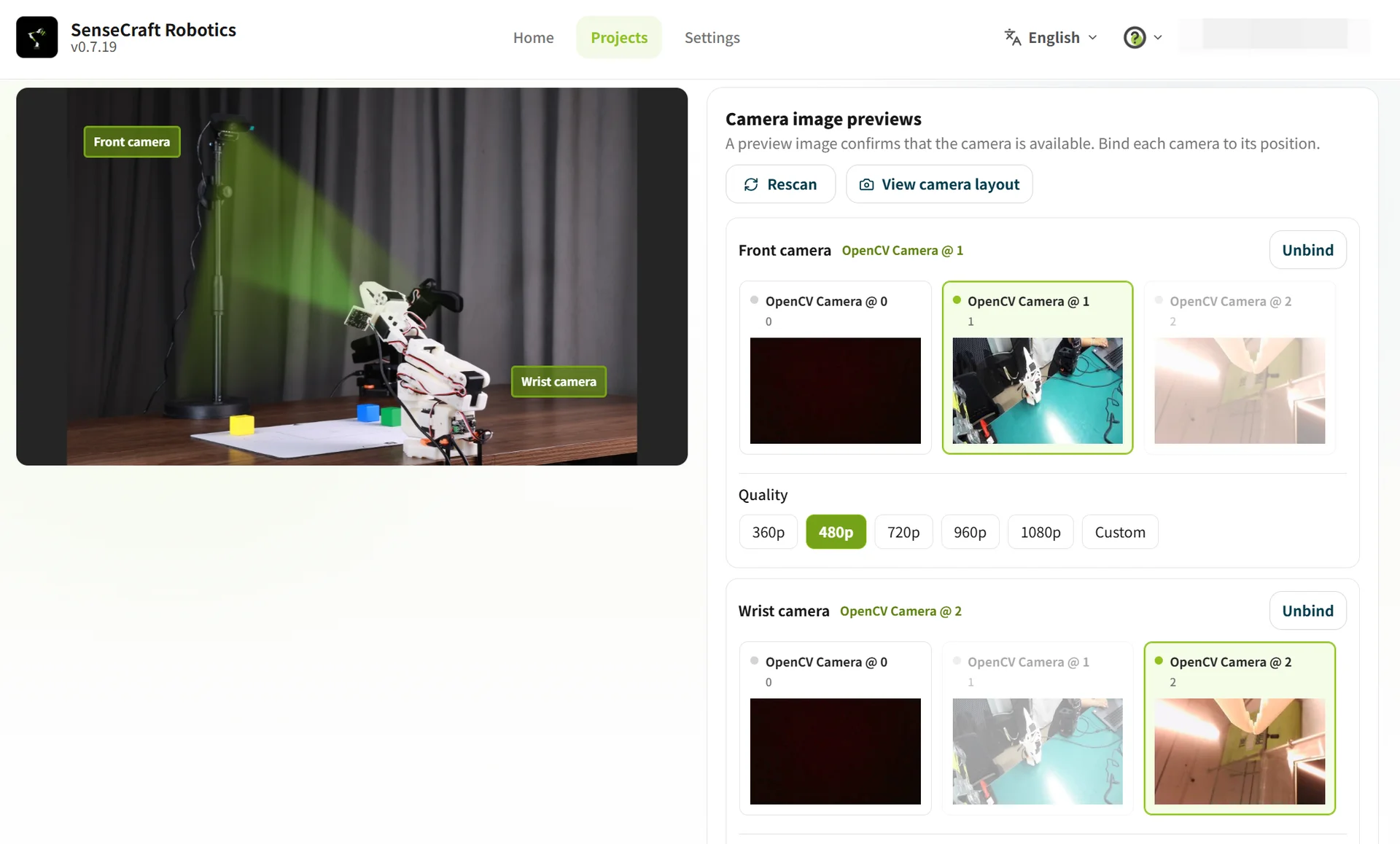
Bind the cameras
Two cameras and two views are required. Common layouts (Chapter 12 discussed the same choice): gripper view (top camera + gripper camera, for fine contact-sensitive operations) or side-view assistance (top camera + side camera, for grasping/handling/placing — what this course uses).
- Connect both cameras, click Rescan;
- Assign the streams to Front Camera and Side Camera;
- Check both previews: arms, object, and target position clearly visible → Next.
22.4 Action Replay (Optional Warm-Up)
22.4 Action Replay (Optional Warm-Up)
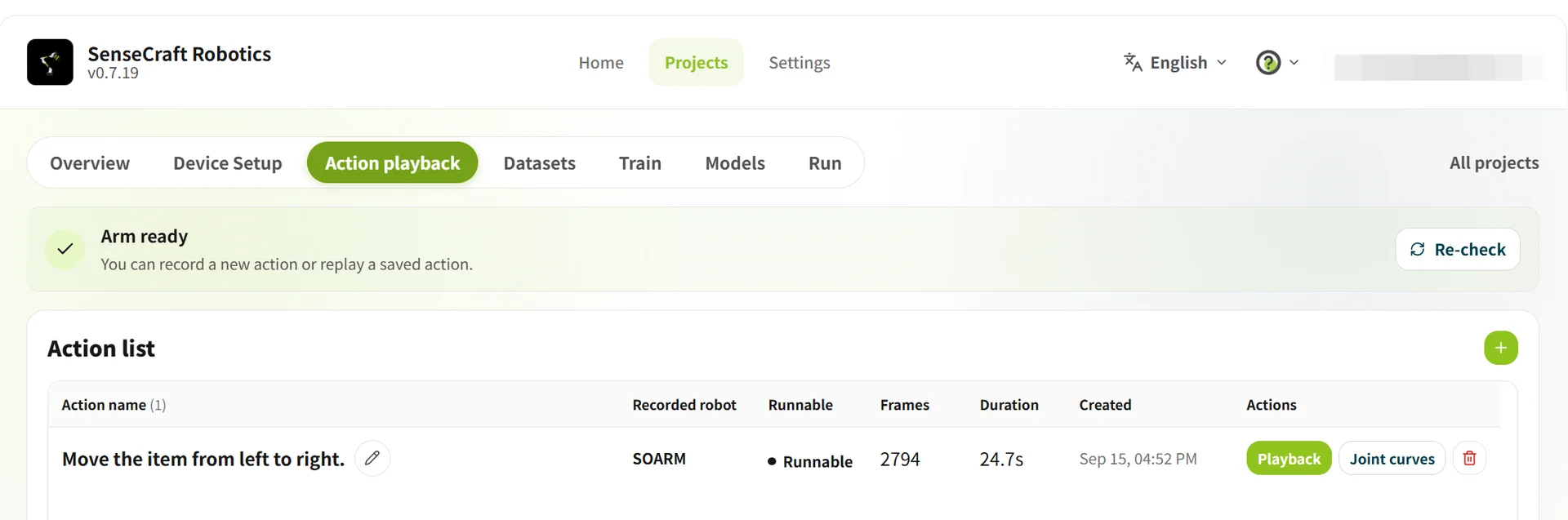
Action Replay records arm motions through Leader teaching and saves them to an action list for replay — a handy way to verify the chain before committing to a dataset:
| Function | Operation | Purpose |
|---|---|---|
| Record an action | Click + → teach with the Leader → Stop Recording | Record grasp / move / place actions |
| Replay an action | Click Replay | Check continuity, direction, gripper open/close |
22.5 Dataset: Configure, Record, Clean
22.5 Dataset: Configure, Record, Clean
A small-batch, multi-session approach is recommended, exactly as Chapter 11 planned: ~10 episodes per batch; after 2-3 batches keep ~20-30 valid episodes for the first training; add data for complex variants later.
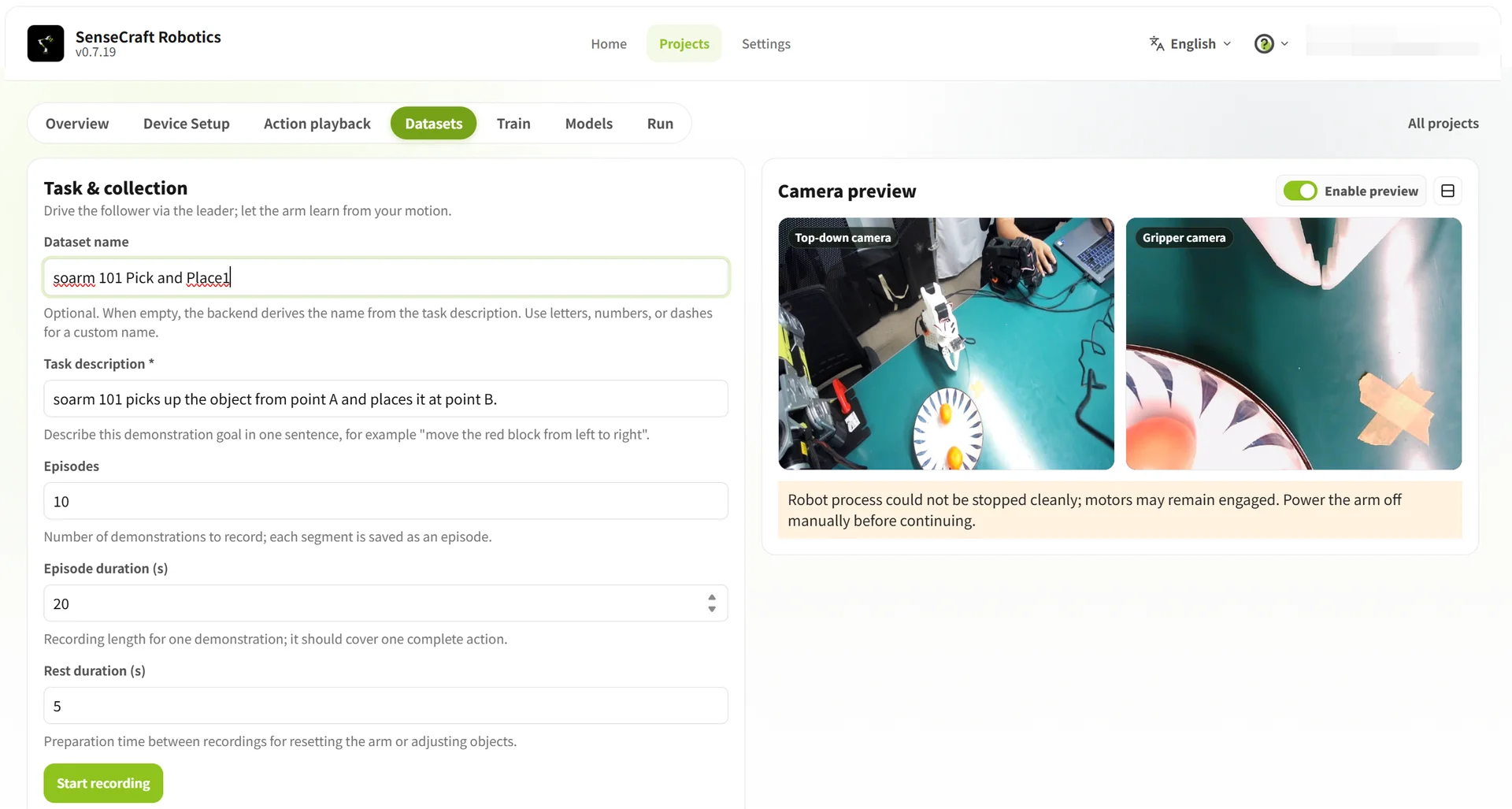
Configure a data-collection task
Open Dataset → Collect Data and enter the task information:
| Field | Example | Guidance |
|---|---|---|
| Dataset name | SO-ARM101 pick-and-place A-to-B-01 | "device + task + batch" naming |
| Task description | Move the object from the left to the right | State the goal clearly; descriptions must match exactly when merging |
| Number of episodes | 10 | Each episode completes one full task |
| Duration per episode | 20-30 seconds | Cover the complete action |
| Rest duration | 5 seconds | Reset arms and scene |
Record task episodes
Each episode records the complete grasp at A → move → release at B flow. Keep the procedure consistent; add small position/angle variations only when more generalization is needed.
- Place the object at Point A, confirm the initial posture, click Start Recording;
- Teach the task with the Leader, then return the arm to the initial posture;
- Wait out the remaining time or click ➡ (or press Space) to end the episode early;
- During the rest period, return the object to Point A and prepare the next episode.
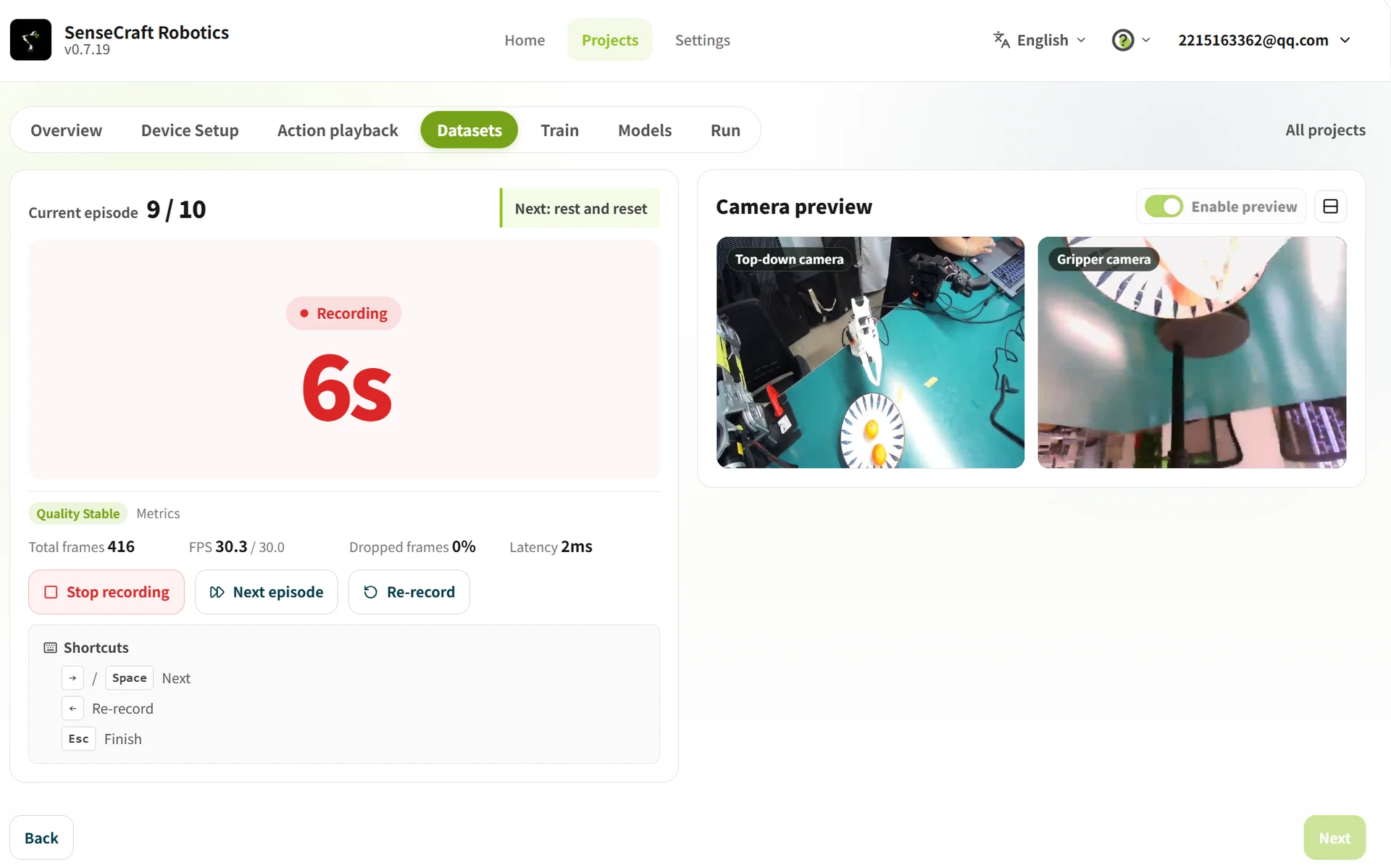
Important:
- Secure the cameras; arms, gripper, object, and Points A and B must stay visible in both views;
- Don't let key actions be blocked or leave the camera views;
- On failure, dropped object, video stutter, or a blocked camera — click Record Again or press
Esc; - You can finish the batch first, then inspect and delete abnormal episodes;
- Stop immediately on any loss-of-control or collision risk.
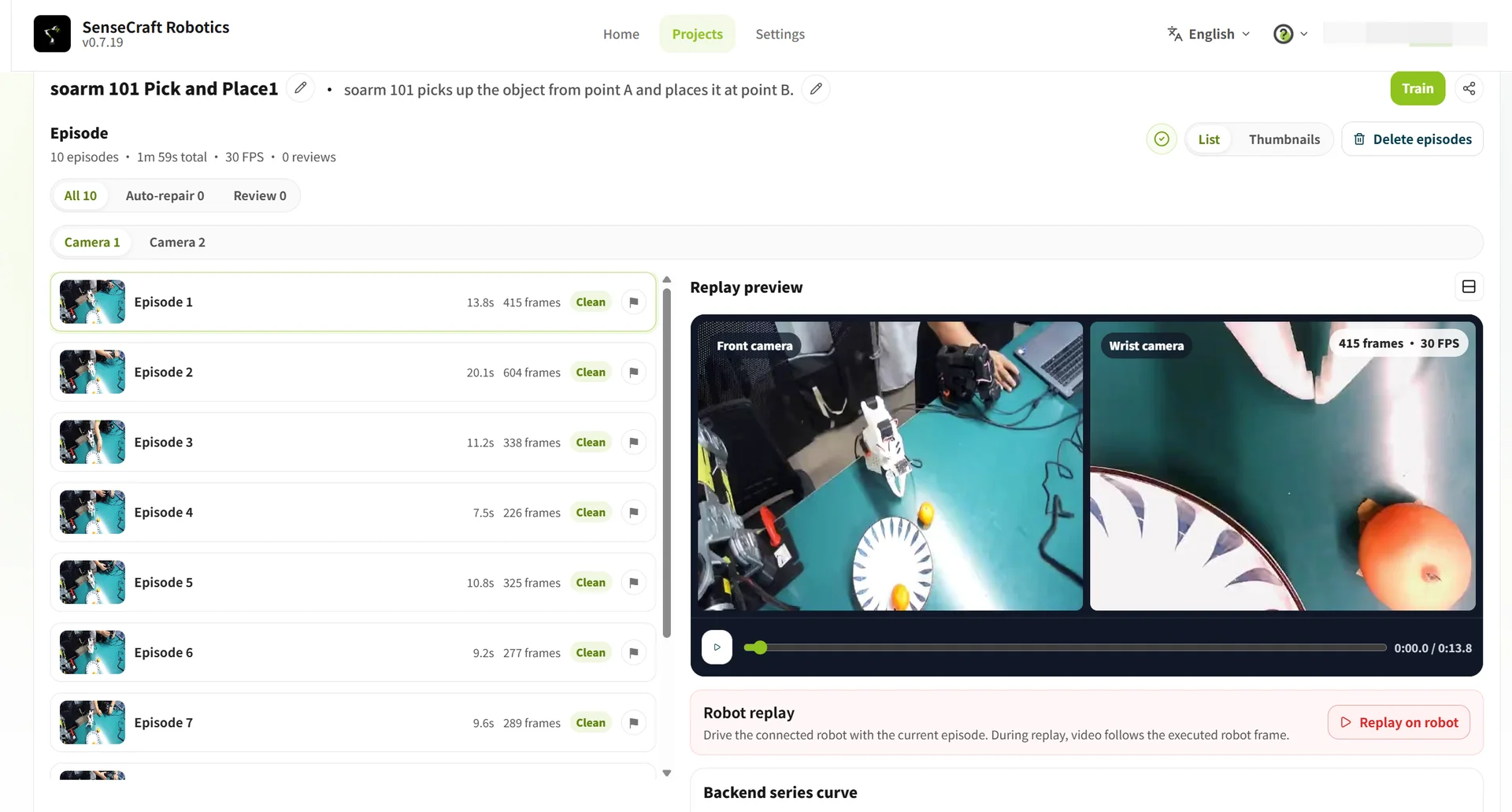
Inspect, delete, and merge
| Operation | Method |
|---|---|
| Inspect episodes | Select an episode, play the video / action replay; check task completion and gripper motion |
| Delete abnormal episodes | Batch Delete Episodes → select → confirm → Generate Deleted Copy (originals are not overwritten) |
| Merge datasets | Merge → select datasets → new name (task descriptions, device combos, and camera configs must match) |
22.6 Training
22.6 Training
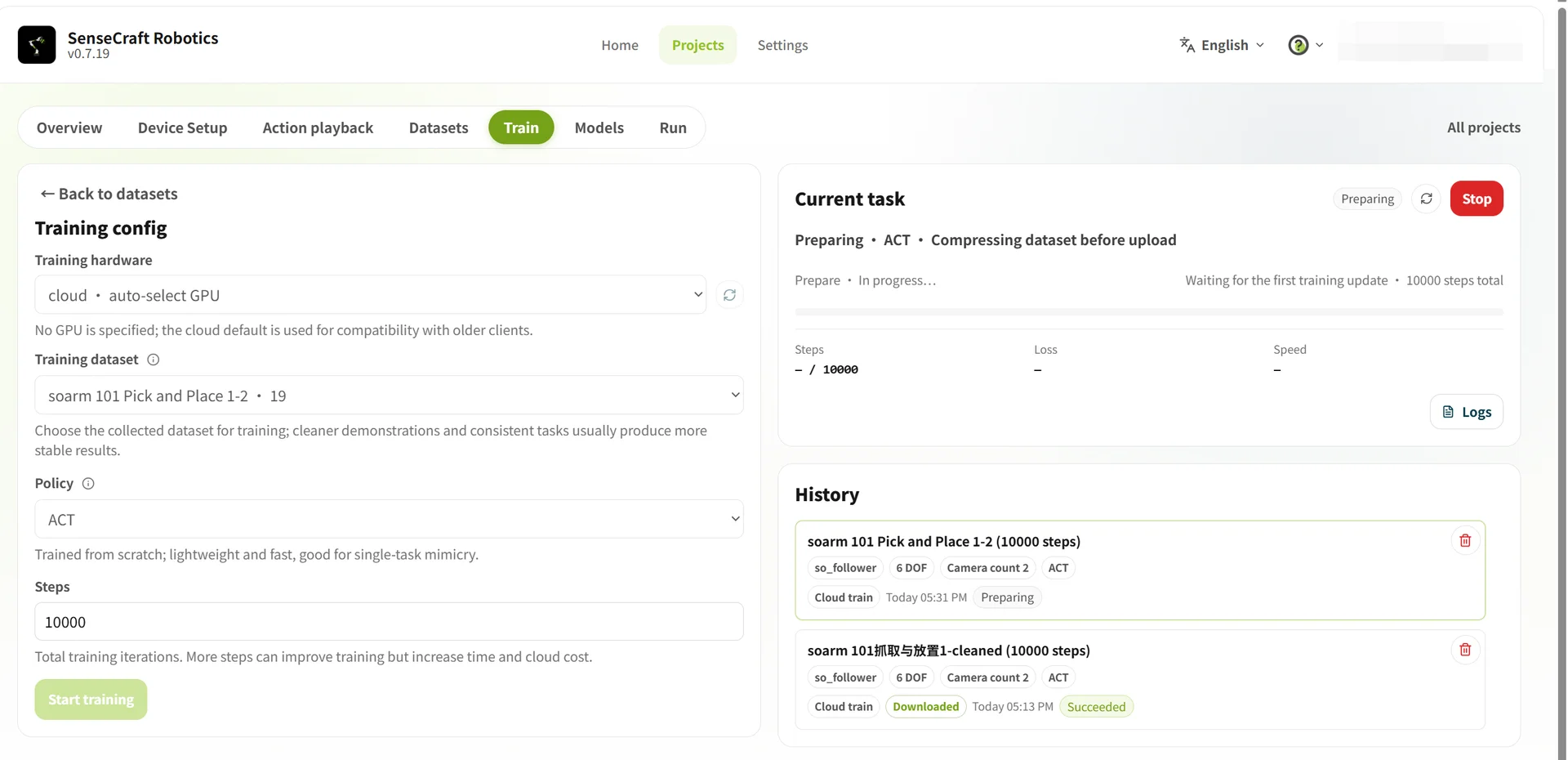
Training turns the teaching data into an action model — the GUI equivalent of Chapter 15.
| Parameter | Option / value | Details |
|---|---|---|
| Training hardware | Cloud · automatically select GPU | Cloud server, consumes credits |
| Local · free | Current computer, requires a compatible local GPU | |
| Training dataset | Select the target dataset | Your cleaned dataset from 22.5 |
| Policy | ACT | Current default action-control policy |
| Training steps | 10000 | Initial value; adjust by results |
Recommended steps and episode counts (matches Chapter 11's guidance):
| Task difficulty | Task description | Episodes | Steps |
|---|---|---|---|
| Beginner | Fixed Point A to Point B | ~20 | 10,000-15,000 |
| Intermediate | Grasp and place at random positions | ~50 | 30,000-40,000 |
| Advanced | Multiple steps or long duration | ~100 | 80,000-100,000 |
Training duration depends on the GPU and steps — 20,000 cloud steps may take minutes to tens of minutes; 100,000 about five times as long. Click Start Training and watch progress under Current Training Tasks.
22.7 Model and Operation (Inference)
22.7 Model and Operation (Inference)
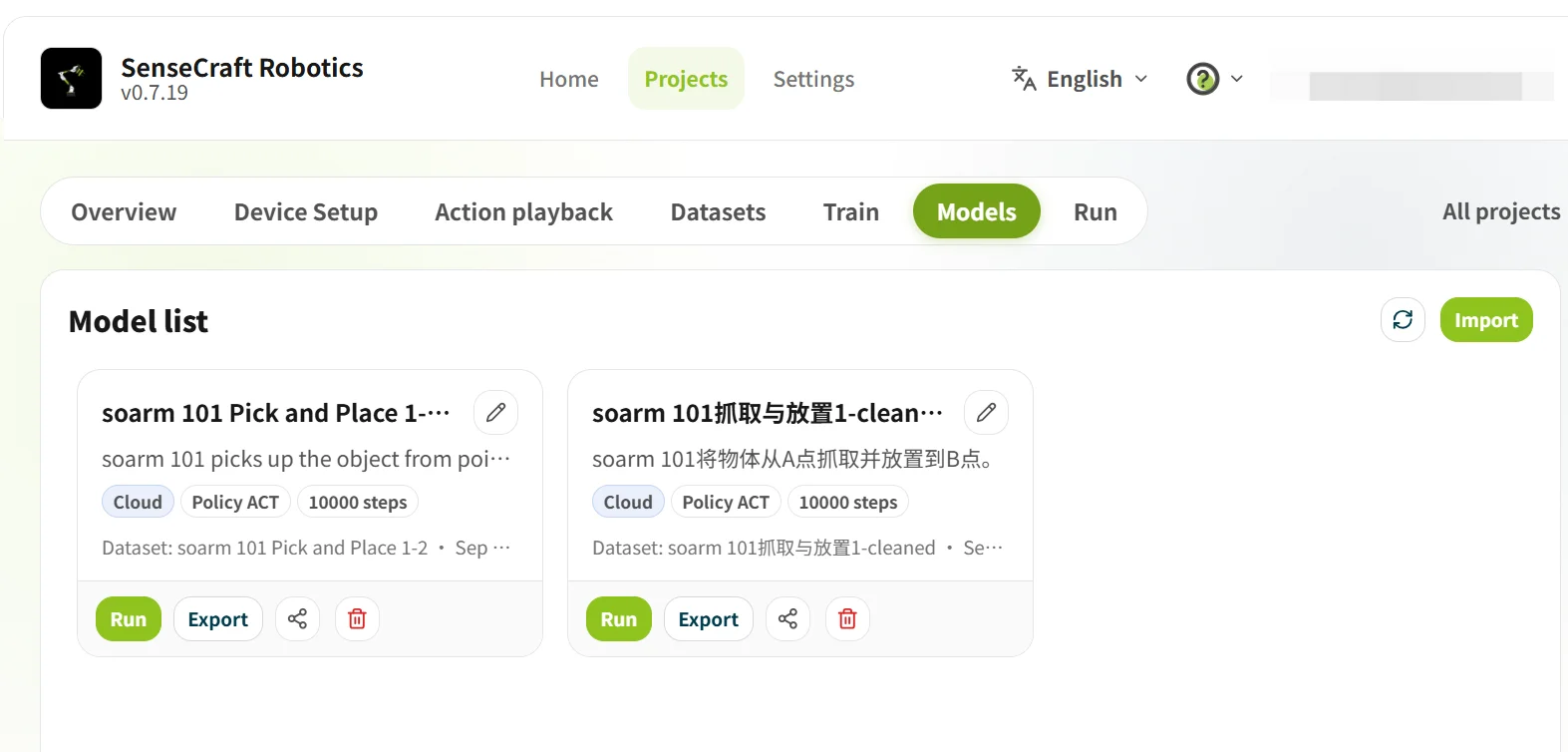
Open Model to see training results; confirm the task and device combination match your project. Then Operation loads the model onto the arms:
- Select a model marked as supporting the current arms;
- Select an inference method: Cloud Inference or Local Inference;
- Start inference and watch the task run.
Cloud vs. local inference:
| Comparison | Cloud inference | Local inference |
|---|---|---|
| Compute | High-performance cloud GPU | Local CPU (GPU not supported currently) |
| Performance depends on | Network quality | Local CPU performance |
| Parameters | Action count (default 120); chunk threshold (default 0.9 — higher is more cautious, lower smoother) | Run count; time limit per run |
| Data output | Inference verification only | Auto-generates a dataset from the runs |
| Cost | Subject to platform credits | Usually free, CPU-limited |
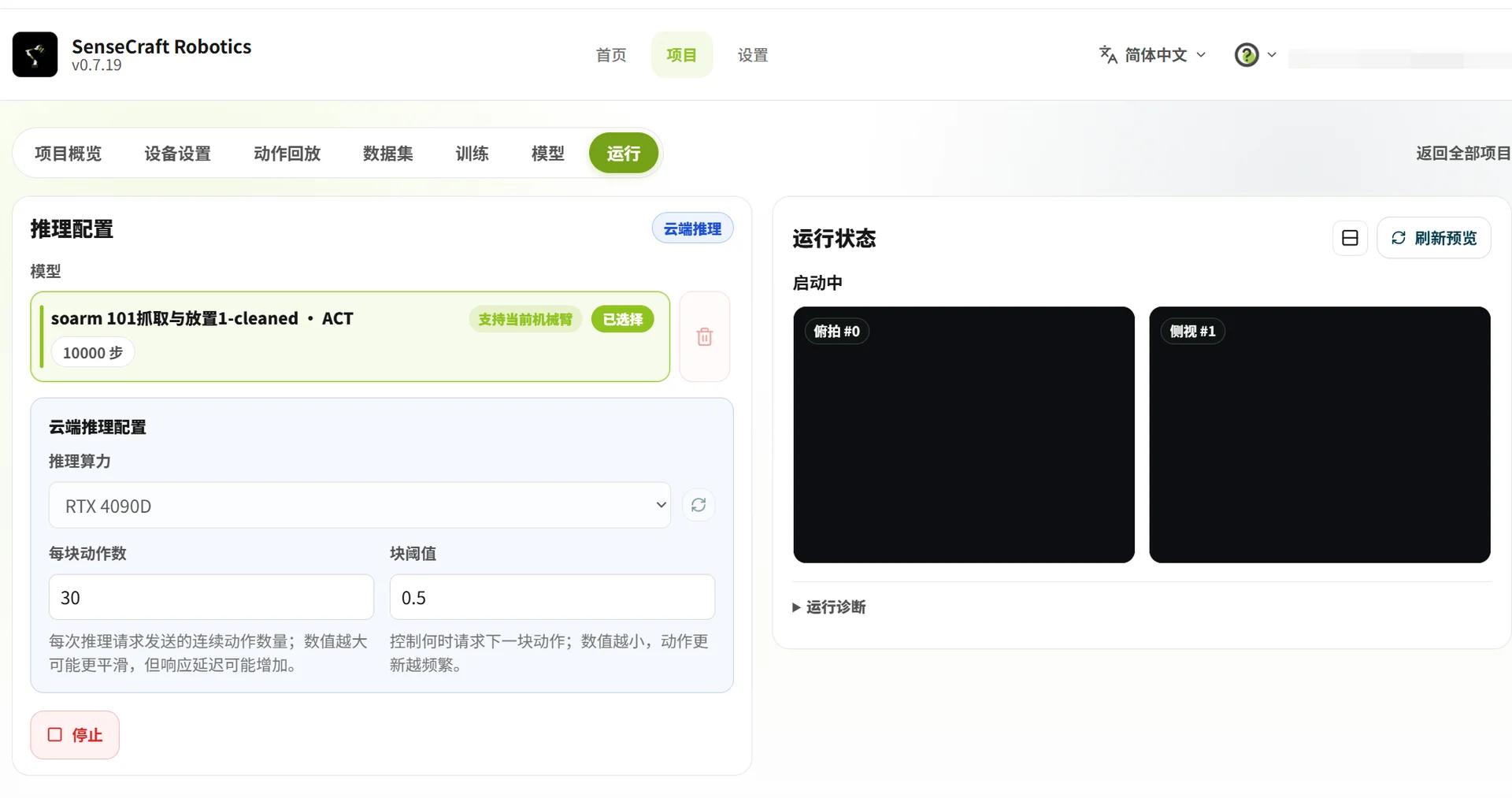
Before operation, confirm the arms are connected and the workspace is safe. During operation, do not disconnect or disassemble the arms. If results disappoint, return to Dataset — delete abnormal episodes, add valid data, and train again. That is Chapter 16's iteration loop, one more time.
22.8 Course Conclusion
22.8 Course Conclusion
You have now walked the SO-ARM from cardboard box to a trained, deployed policy — twice:
- The code path (Stages 2-3): assemble, calibrate, teleoperate, record, train ACT, evaluate, iterate;
- The VLA paths (Stage 4): fine-tune GR00T on your own GPU pipeline, or run the whole loop no-code on SenseCraft Robotics.
Where to go next:
- Chapter 17's double-arm setup if you skipped it;
- The Robotics Wiki for the wider SO-ARM ecosystem: GR00T on Jetson Thor, AmazingHand, Isaac Lab RL, LeIsaac simulation;
- Your own tasks — the entire course was scaffolding for them.
If the course helped you, star SO-ARM100 and Seeed-Projects/lerobot on GitHub, and share what you build in the community groups from the course introduction.