7. Servo Debugging with the Steering Gear Tool
Chapter 7 of the SO-ARM Physical AI Beginner's Course — use the Seeed_RoboController Steering Gear Debugging Tool to detect servos, recalibrate servo IDs, write neutral values, control single servos, and read servo status.
7.1 What the Tool Is For
7.1 What the Tool Is For
The Steering Gear Debugging Tool (Seeed_RoboController) is a graphical debugging tool for LeRobot / SO-ARM robotic arms. With this tool, you can:
- Quickly detect servo status;
- Recalibrate duplicated or wrong servo IDs;
- Write neutral (middle-position) values;
- Control individual servos and read their voltage, temperature, speed, load, and current;
- Manage advanced servo register data, baud rate, and factory reset.
It runs on Windows, Ubuntu, and Mac, and it is your first stop whenever an arm behaves strangely — before recalibrating in LeRobot, before reassembling, and before assuming a servo is broken.
7.2 Installation
7.2 Installation
1. Clone the repository:
git clone https://github.com/Seeed-Projects/Seeed_RoboController.git
2. Install dependencies. It is recommended to install the tool inside the LeRobot conda environment from Chapter 5. If you prefer a standalone installation, create a new virtual environment to avoid polluting the system Python:
pip install -r requirements.txt
3. Check the environment. If it returns [OK] Environment check passed, the project is ready to run:
python setup.py
4. Launch the tool:
python -m src.gui.factory_calibration_tool
This starts interactive port selection. (Optional) If ports are occupied, specify them manually:
python -m src.gui.factory_calibration_tool --port1 /dev/ttyUSB0 --port2 /dev/ttyUSB1
7.3 Check Whether the Servos Are Normal
7.3 Check Whether the Servos Are Normal
First, select the corresponding port in the serial-port selector. If servos 1-6 are all detected successfully, the servos are recognized normally and the basic functions are working.
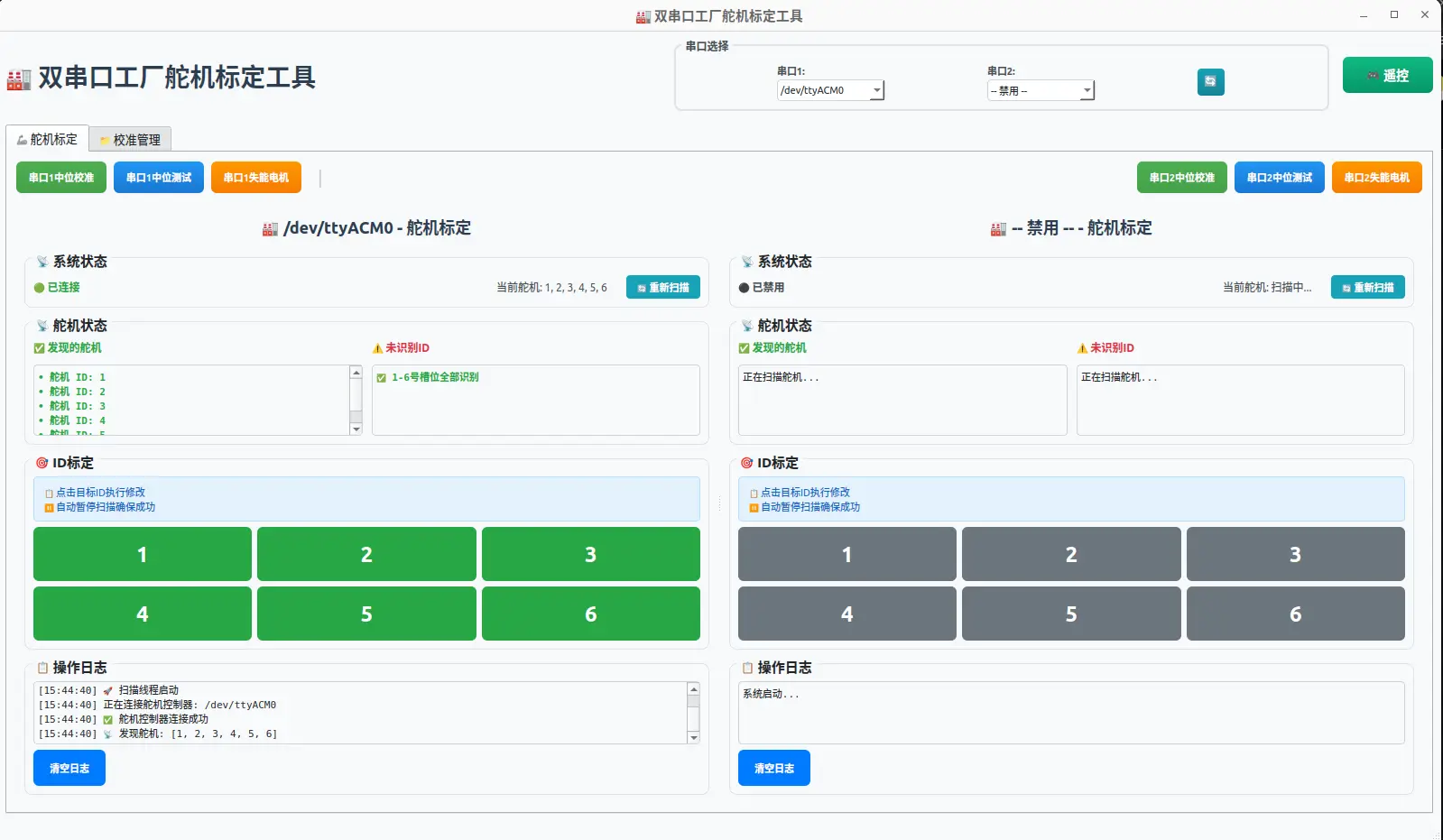
If some servos show as not detected:
- Check whether the wiring is correct; close the page and reopen it.
- If they are still not detected, the servo IDs may be duplicated — possibly because a servo-calibration command was accidentally run as the arm-calibration command. In that case, recalibrate the IDs of these servos (next section).
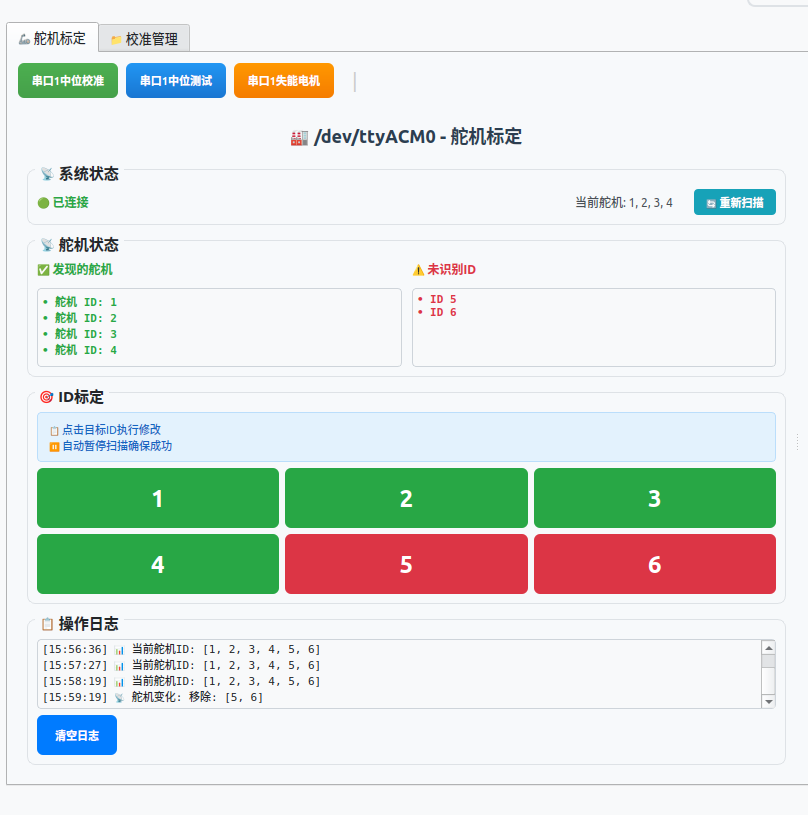
7.4 Recalibrate Servo IDs
7.4 Recalibrate Servo IDs
From Chapter 4: all servos share one bus, so flashing an ID affects every servo with that ID. Therefore, all other servos must be disconnected and reprogrammed one by one.
Step 1 — remove the servo wire harnesses between adjacent servos, from the gripper down to the base:
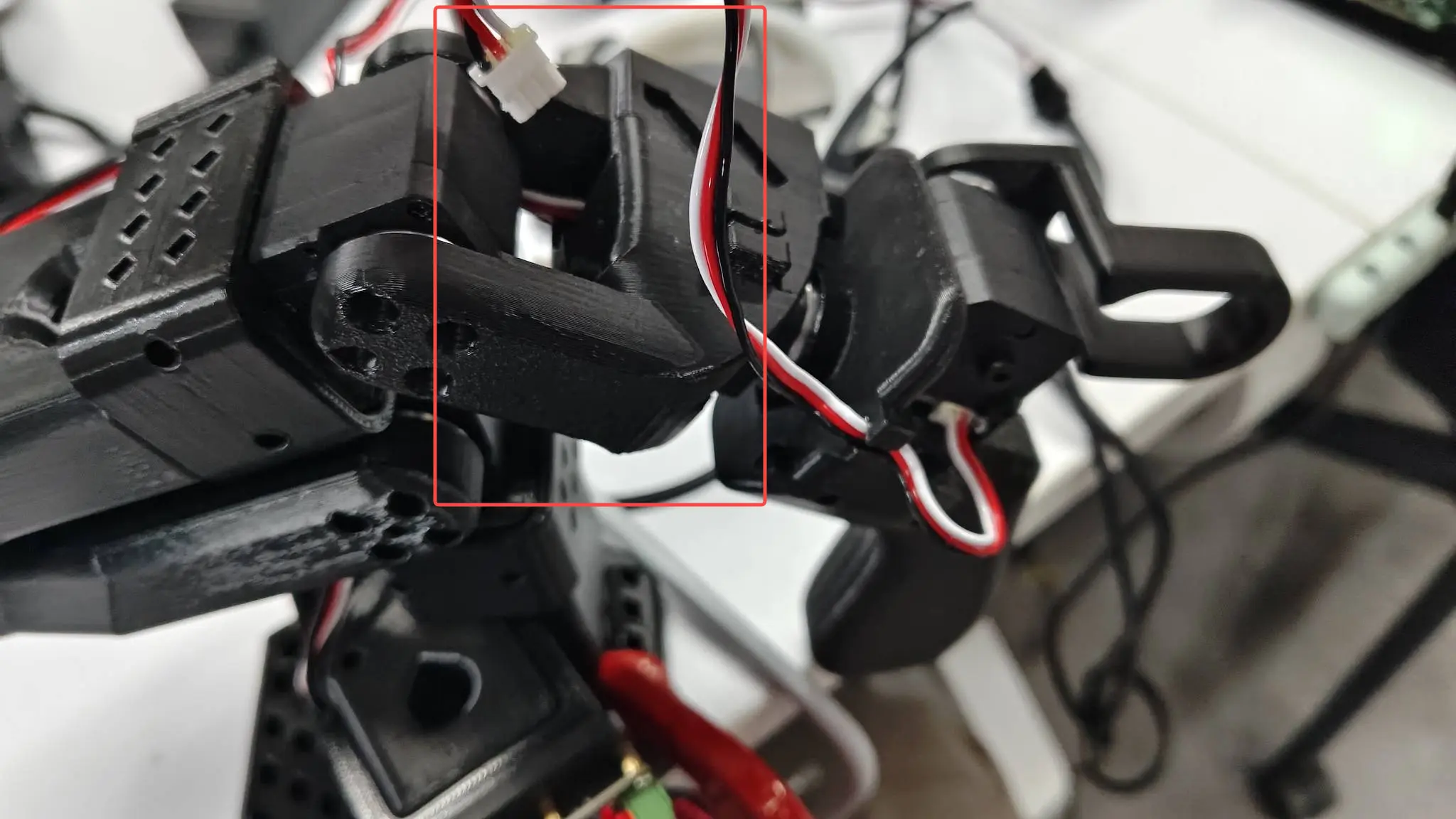
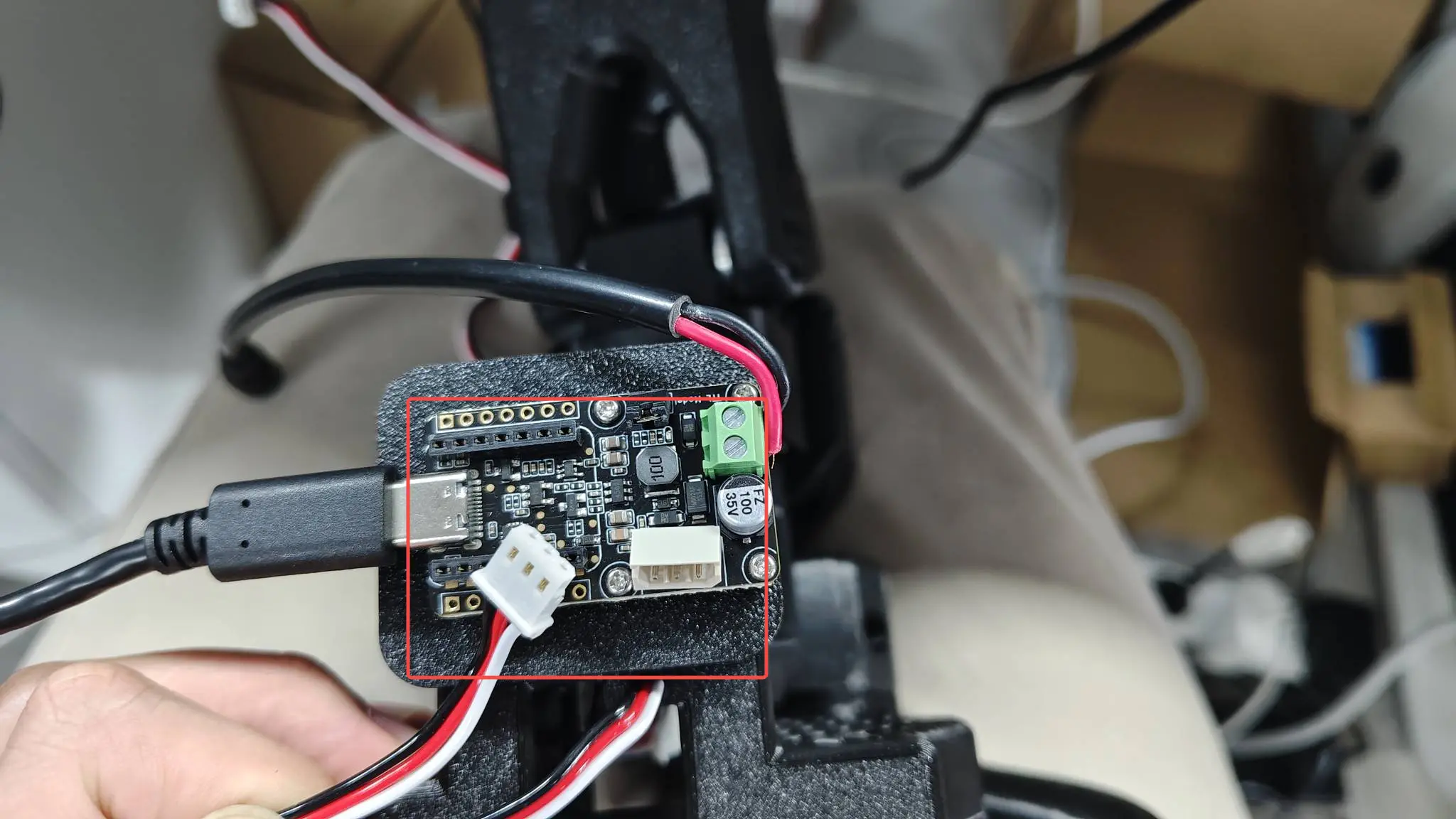
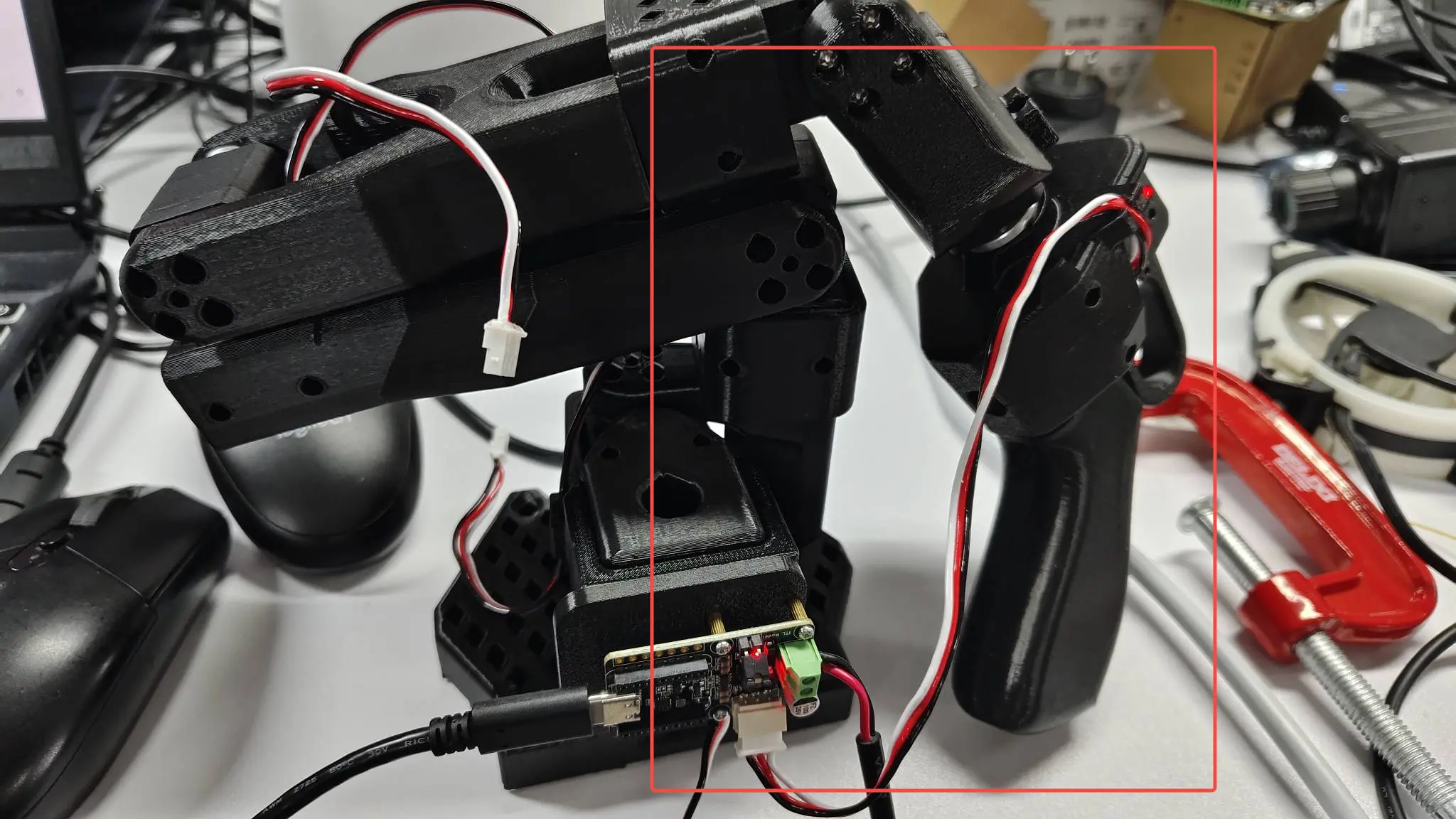
Step 2 — connect one servo at a time. Make sure only one servo is connected to the control board. For example, connect the #6 servo to the driver board as shown below — other servos are connected the same way, so you can fix IDs without disassembling the arm.
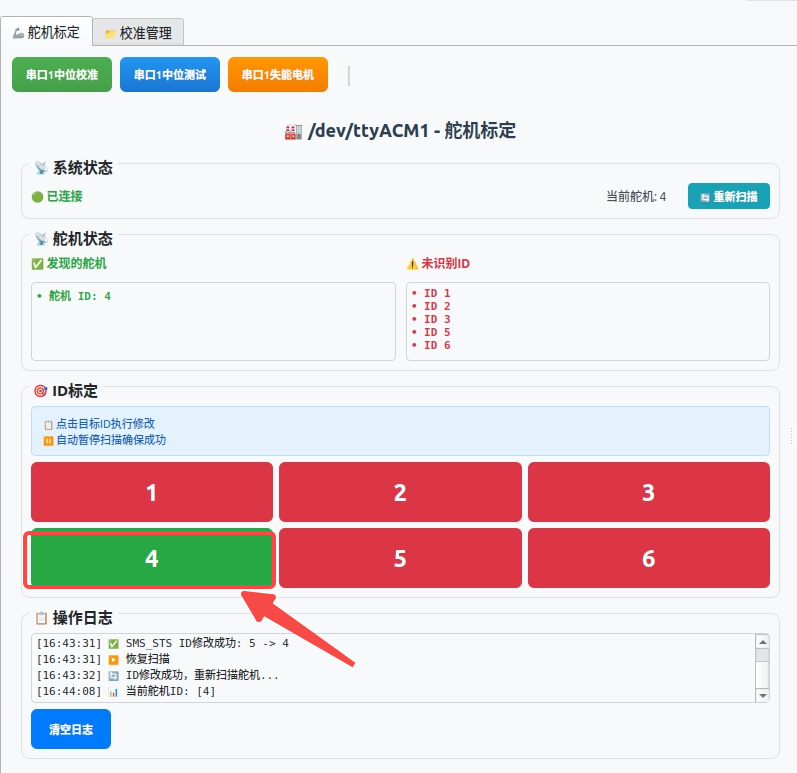
Step 3 — rewrite the ID. In the example below, only servo #4 is recognized, but the servo actually connected is #6 — the ID is wrong and needs to be changed back to 6.
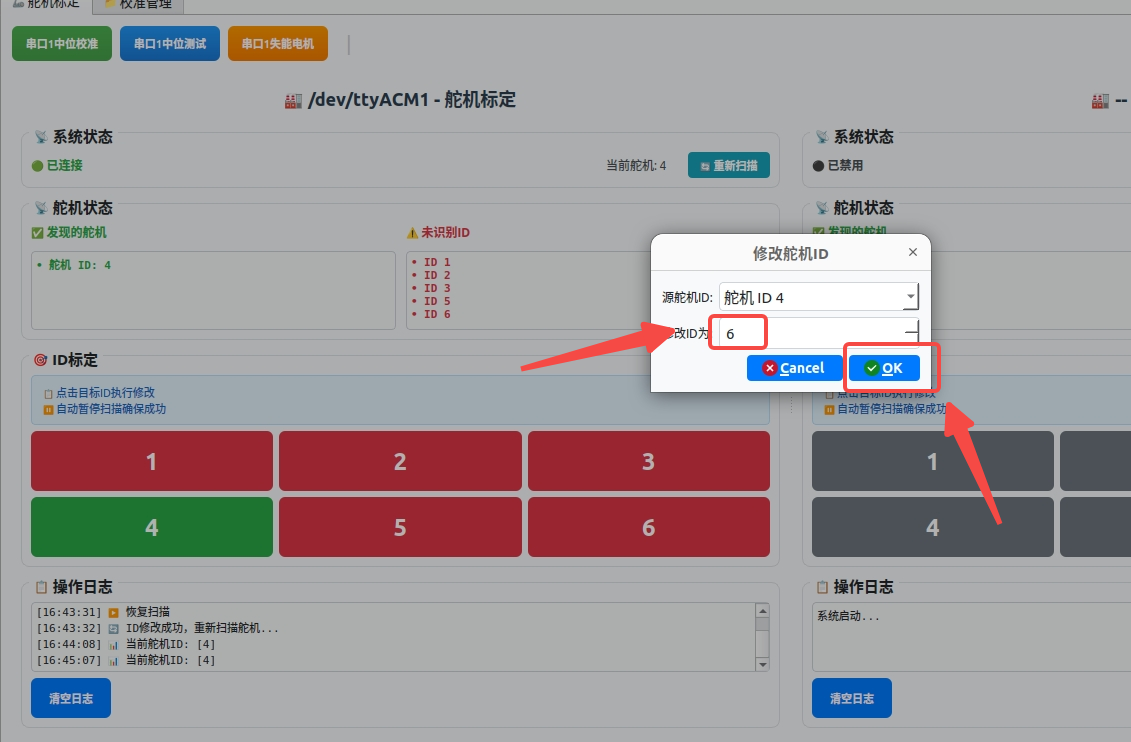
Click on servo #4 and change its ID to 6. Repeat the same operation for the other servos.
After the servo calibration is complete, plug the wires back in one by one to finish.
7.5 Write the Neutral Value to the Servo
7.5 Write the Neutral Value to the Servo
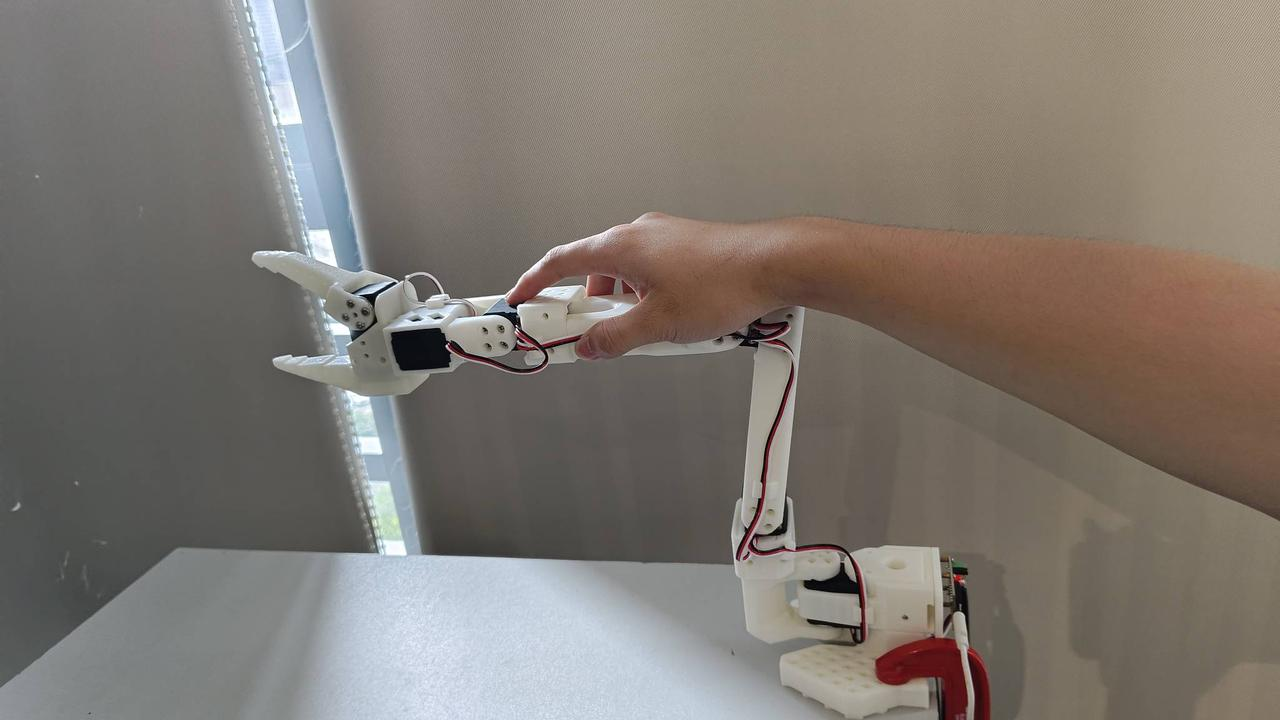
The neutral (middle) position is the "straight" posture all later calibration is measured from — internally it is the value 2048.
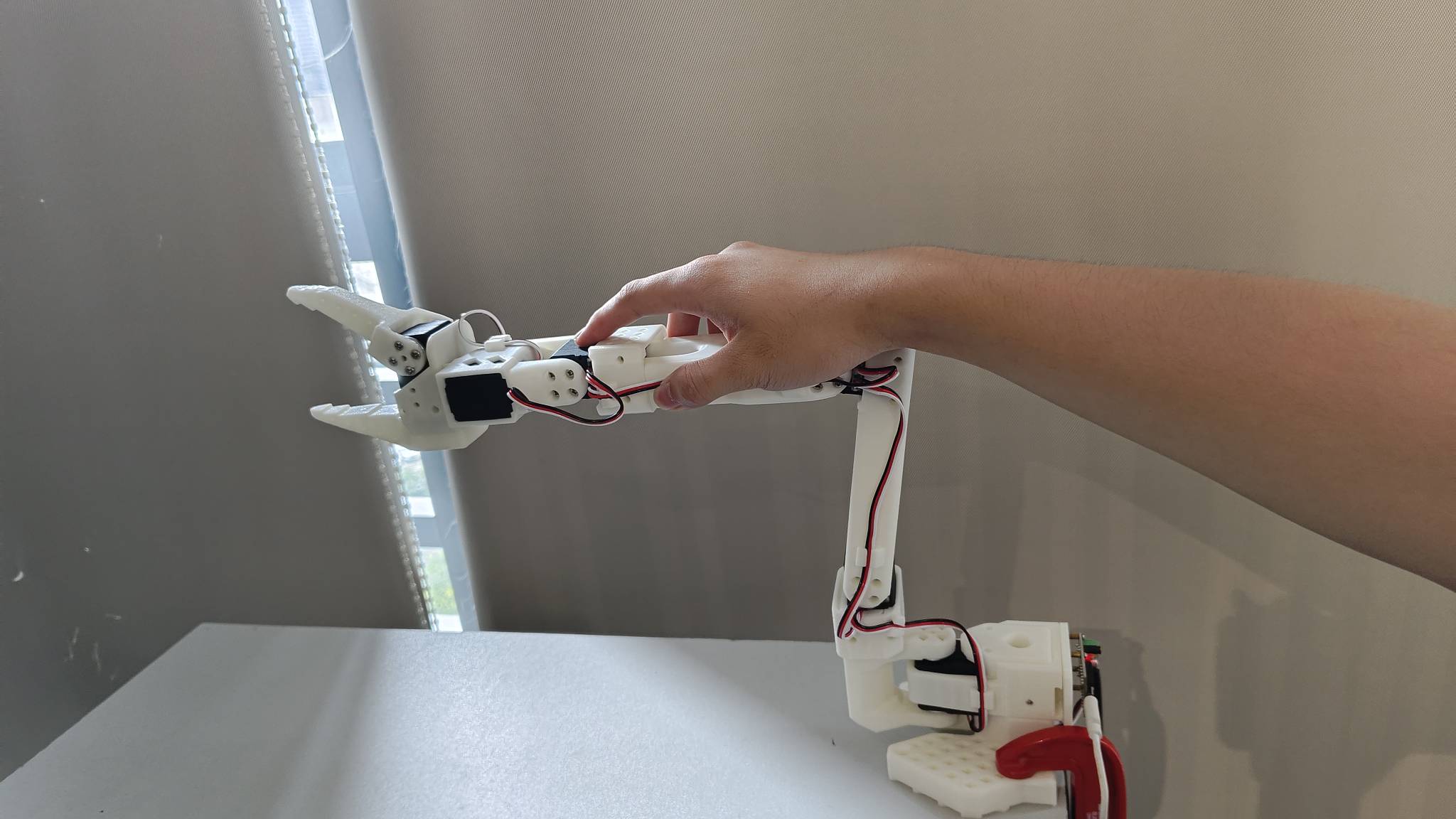
- Click Serial Port Neutral Test to check whether the arm's neutral position matches the reference above. If it is roughly the same, the neutral value is normal.
- If not, move the arm to the neutral position, then click Serial Port Neutral Calibration — the current position is written into the servo as the neutral value.
- Click Serial Port Disable Motors, and the arm will go limp — support it by hand.
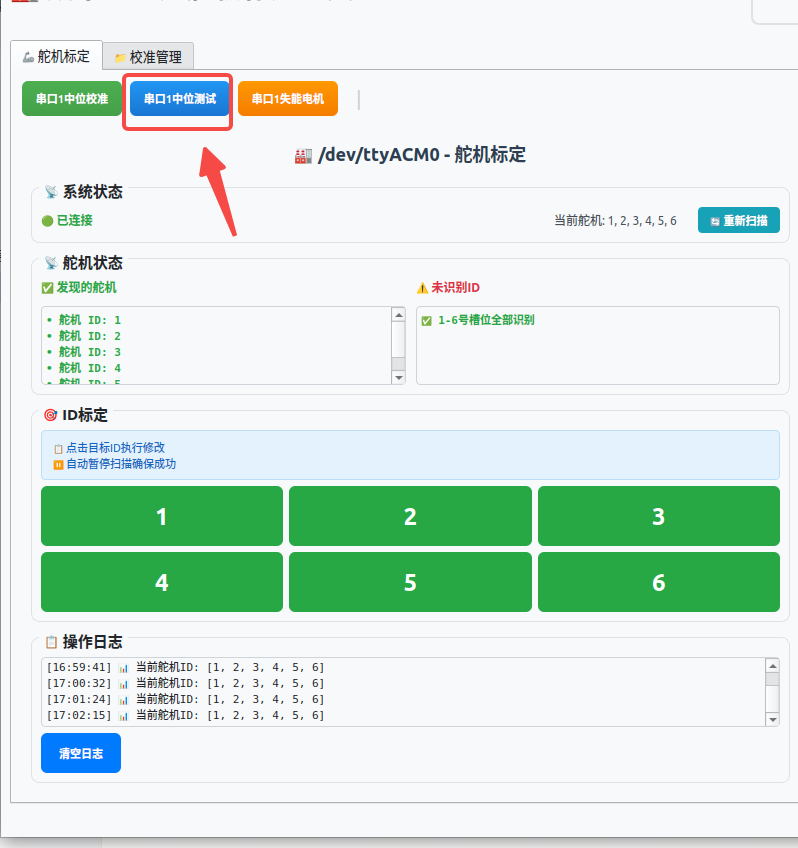
This is also the fix for the LeRobot error Magnitude 30841 exceeds 2047 (max for sign_bit_index=11): that message means a servo's zero offset is abnormal. Run a middle-position calibration here (or with the servo_middle_calibration.py script in the same repository), then redo the full-arm calibration in Chapter 10.
7.6 Single Servo Control and Status
7.6 Single Servo Control and Status
By default, all servos on the page are at their neutral positions.
1. Enable torque and move one servo. Enable all torques with one click, or enable a single servo, then slide the slider to move it. Move slowly: the printed parts physically block certain positions, so do not slide the slider to 0 or the maximum. After disabling torque, the arm goes limp.
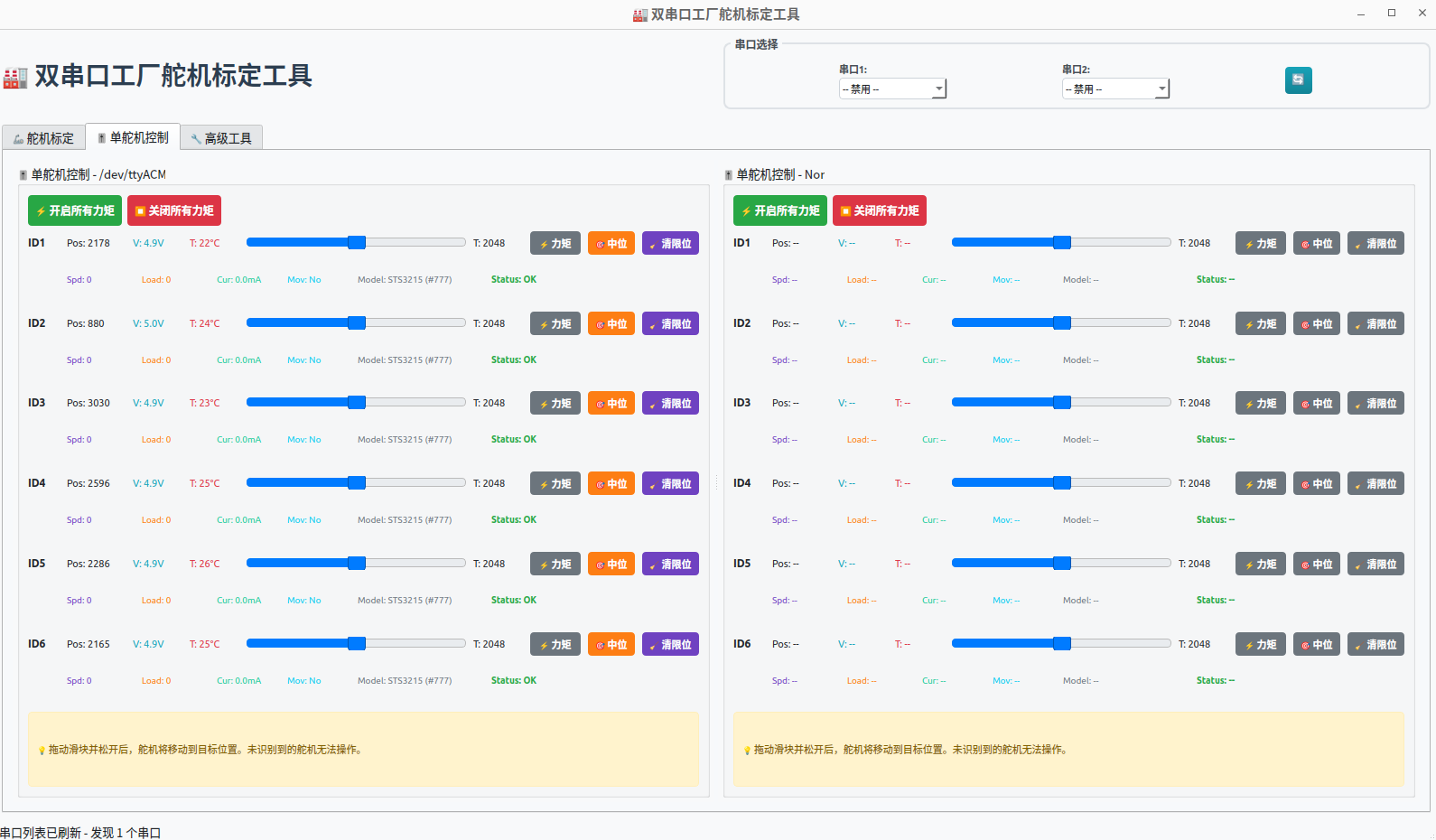
2. Per-servo maintenance. You can run neutral calibration for a single servo and clear its internal neutral, maximum, and minimum positions.
3. Read the servo status panel:
| Field | Meaning |
|---|---|
| Pos | Position |
| V | Voltage |
| T | Temperature |
| Spd | Speed |
| Load | Torque |
| Cur | Current |
| Mov | Motion status |
| Model | Model, authority |
| Status | Normal / Overcurrent / Overload |
Rising temperature with high load during long teleoperation sessions is normal on the follower; persistent Overcurrent or Overload at rest usually means a jammed joint or a wrong neutral value.
7.7 Advanced Tools
7.7 Advanced Tools
For deeper debugging you can read and write raw register data, modify the baud rate, and restore factory settings.
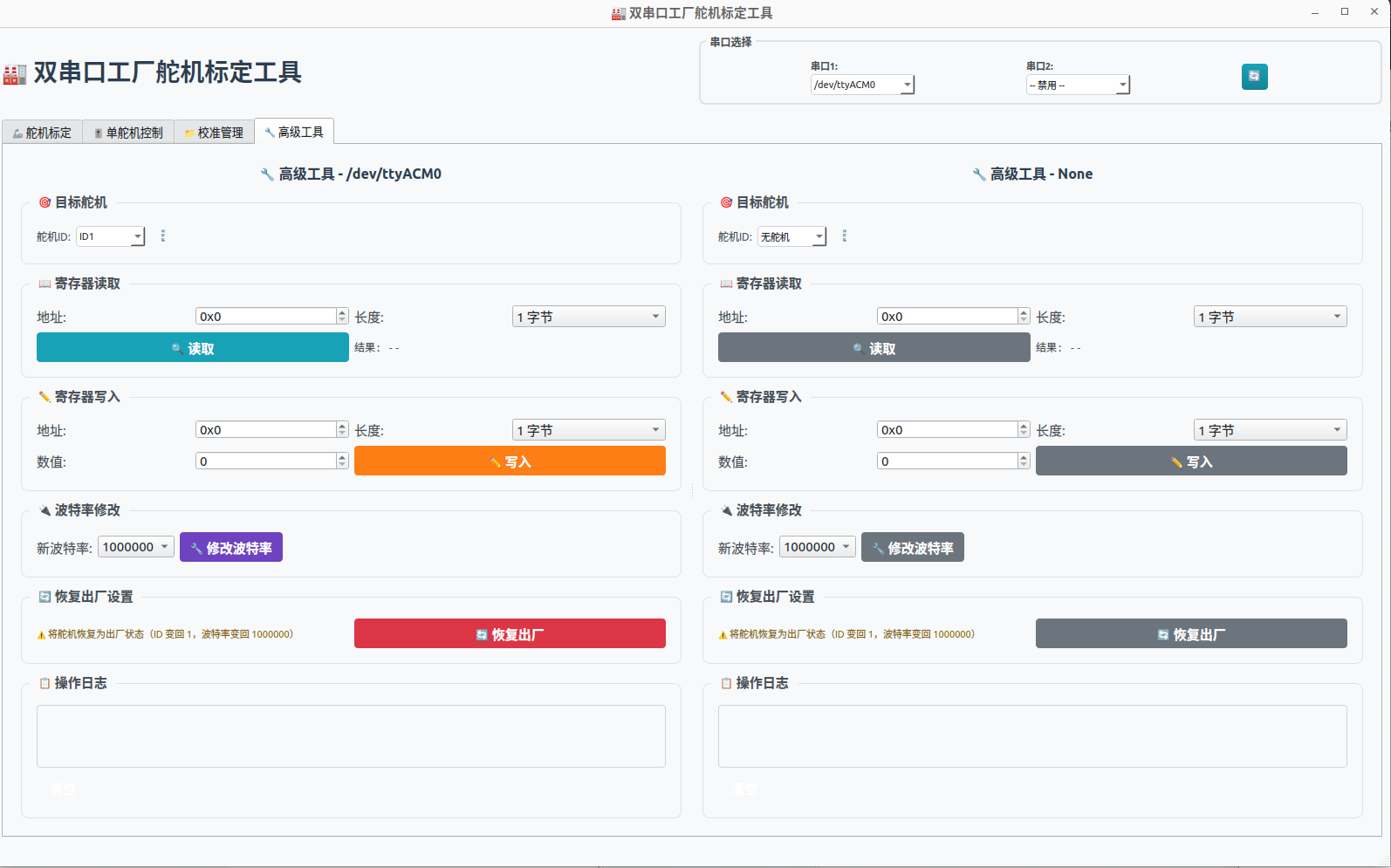
Register writes and factory reset can brick a servo's configuration if done blindly. Prefer the guided functions (Sections 7.3-7.6) and only touch raw registers when a specific guide tells you to.
7.8 Summary
7.8 Summary
- The Steering Gear Debugging Tool is the maintenance console for the servo bus: detect, fix IDs, set neutrals, move single servos, read status.
- Servo IDs are always rewritten one connected servo at a time.
- A correct neutral value (2048) is the foundation of all later calibration.
With the arms assembled and every servo verified, Stage 2 is complete. Stage 3 starts by explaining why robot arms need to learn at all — and then puts your SO-ARM to work collecting data and training policies.