RTSP to WebRTC Real-Time Video Streaming with reCamera
Introduction
When you want to integrate reCamera's video stream into your own Web application, or remotely view the camera feed with low latency through a browser, you can refer to this demo. This project streams reCamera's video through the RTSP protocol, transmits inference results to the PC via the mqtt out node, then merges the RTSP stream with inference results on the PC side and converts it to WebRTC format, allowing any browser to play the inference video stream in real time without plugins. It provides a way to "liberate" the reCamera video stream — once the video stream can be output via RTSP, you can easily:
-
Integrate into your own Web application or management platform: Embed the live video feed into existing dashboards, monitoring systems, or IoT platforms.
-
Multi-device video aggregation: View multiple reCamera feeds simultaneously on the same web page to build a multi-channel video surveillance wall.
-
Remote access and cross-network traversal: Through WebRTC's NAT traversal capability, you can view reCamera's live feed with low latency even in different network environments.
-
Provide a transport channel for AI inference result visualization: After reCamera performs edge AI inference, output the inference results along with the video, and the PC can display AI analysis results in real time in the browser, suitable for building remote inspection, smart security, and other applications.
This demo demonstrates an approach to transform reCamera from a standalone visual device into a video source that can be integrated by any Web system. We hope this project inspires you to explore more possibilities of combining reCamera with Web technologies.
System Architecture
The entire system is collaboratively completed by two parts: reCamera side and PC server side. The architecture is as follows:
| Stage | Execution Location | Technology/Protocol Used | Description |
|---|---|---|---|
| Video Capture & Encoding | reCamera | Camera + H.264 Encoding | Captures video and encodes it |
| AI Inference | reCamera | YOLO11n Model | Performs AI object detection inference on video frames |
| RTSP Streaming | reCamera | RTSP Protocol (Port 554) | Streams video via RTSP protocol to the network |
| MQTT Inference Result Transmission | reCamera → PC Server | MQTT Protocol (Port 1883) | Transmits inference results (bounding boxes, labels) to PC via MQTT |
| Video Reception & Decoding | PC Server | OpenCV + FFmpeg | Receives RTSP stream and decodes to raw frames |
| Inference Result & Video Fusion | PC Server | detection_store + OpenCV | Overlays AI detection boxes and labels onto video frames |
| WebRTC Encoding & Transmission | PC Server | aiortc | Encodes fused video frames to WebRTC format and transmits |
| Real-Time Playback | PC Browser | WebRTC | Plays video with inference results in browser with low latency |
Hardware Preparation
To run this demo, you need the following hardware:
- One reCamera device (supports all reCamera variants)
- One PC computer (for running the WebRTC bridging service, must be on the same LAN as reCamera)
You can choose any version of reCamera based on your deployment needs:
- reCamera 2002 Series (Wi-Fi)
- reCamera Gimbal
- reCamera HQ PoE (Ethernet + PoE)
Note: The PoE version does not support Wi-Fi and must be connected to the same local network through a PoE-enabled switch.
| reCamera 2002 Series | reCamera Gimbal | reCamera HQ PoE |
|---|---|---|
 | 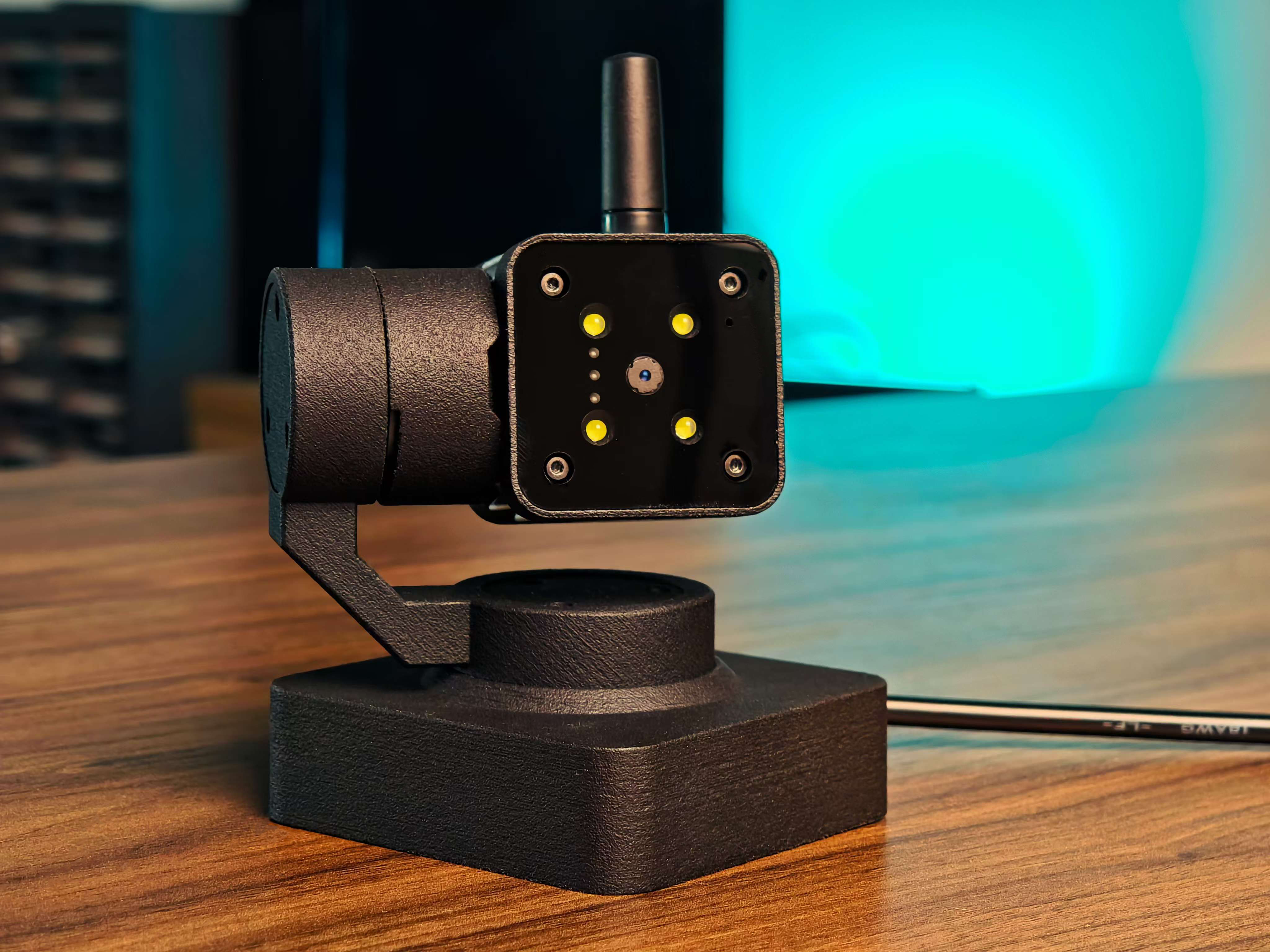 | 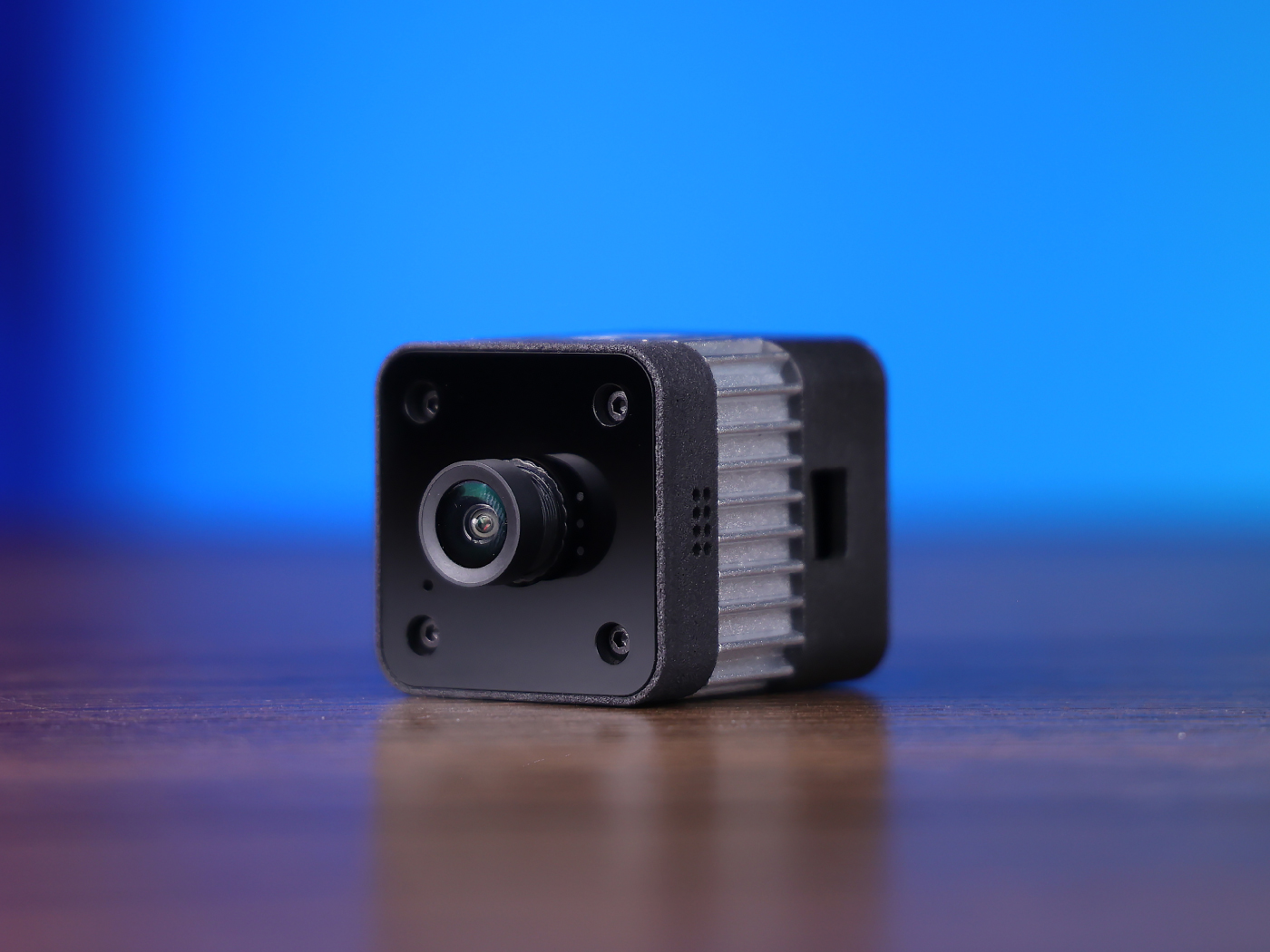 |
Setting Up the Demo
Step 1: Configure reCamera
First, follow the official getting started guide to complete the basic configuration of reCamera: reCamera Getting Started
After completing the initial setup, ensure the device is powered on and properly connected to the network. Then, access the address 192.168.42.1 through a browser to log in to reCamera and enter the Node-RED workspace.
If you can successfully access the Node-RED workflow interface as shown below, the configuration is complete.

Step 2: Configure RTSP Streaming
reCamera has built-in RTSP streaming functionality that can be easily configured through the Node-RED workflow. You only need to deploy two nodes in the workflow. For SenseCraft AI tutorials, please refer to the link Access SenseCraft AI reCamera Dashboard.
2.1 Import and Configure the Camera Node
Drag the Camera Node from the left side to the workspace, and double-click to enter the configuration interface. You can set parameters such as resolution and frame rate as needed. Import and configure the camera node according to the workflow shown below.
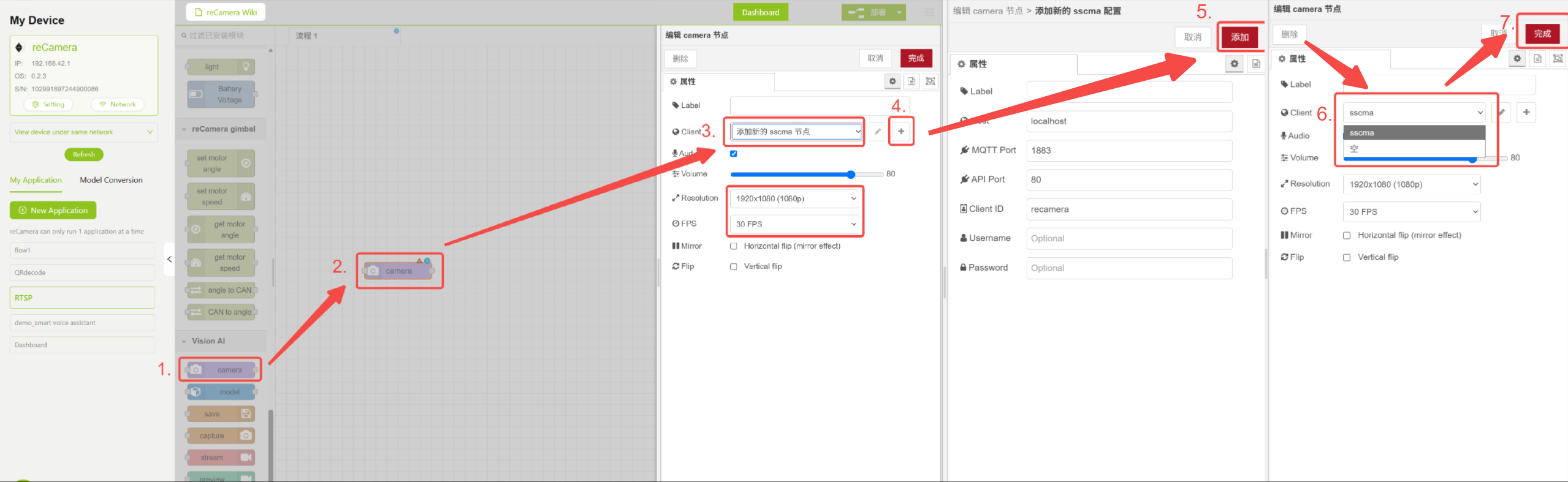
Camera Parameter Configuration
2.2 Import and Configure the Stream Node
Drag the Stream Node from the left side to the workspace, select the RTSP protocol and configure the stream address and port. The default RTSP stream address for reCamera is:
rtsp://admin:admin@192.168.42.1:554/live
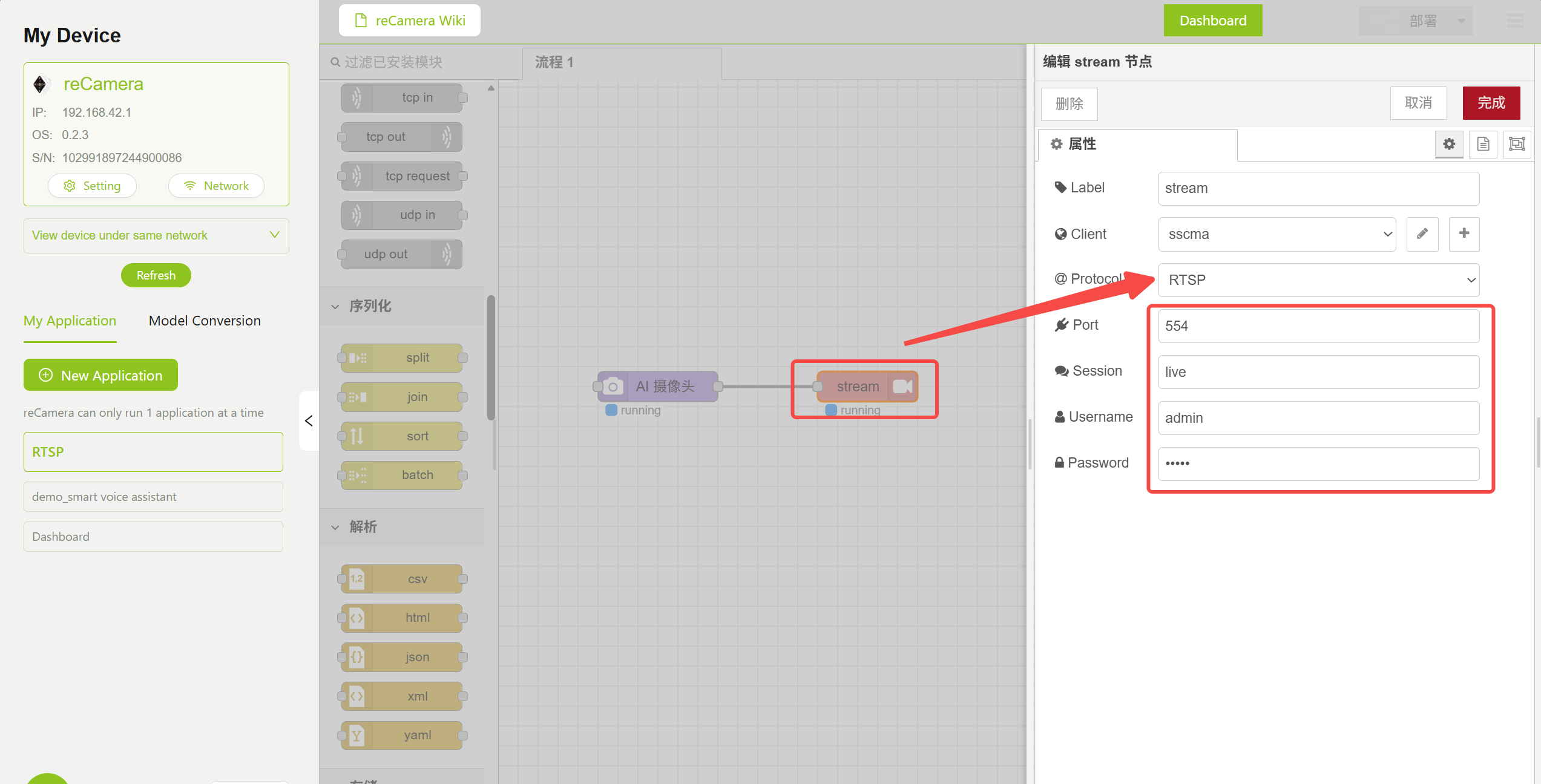
RTSP Streaming Parameter Configuration
2.3 Import the Model Node
Drag the Model Node from the left side to the workspace, click Device and select the YOLO11n Detection model.
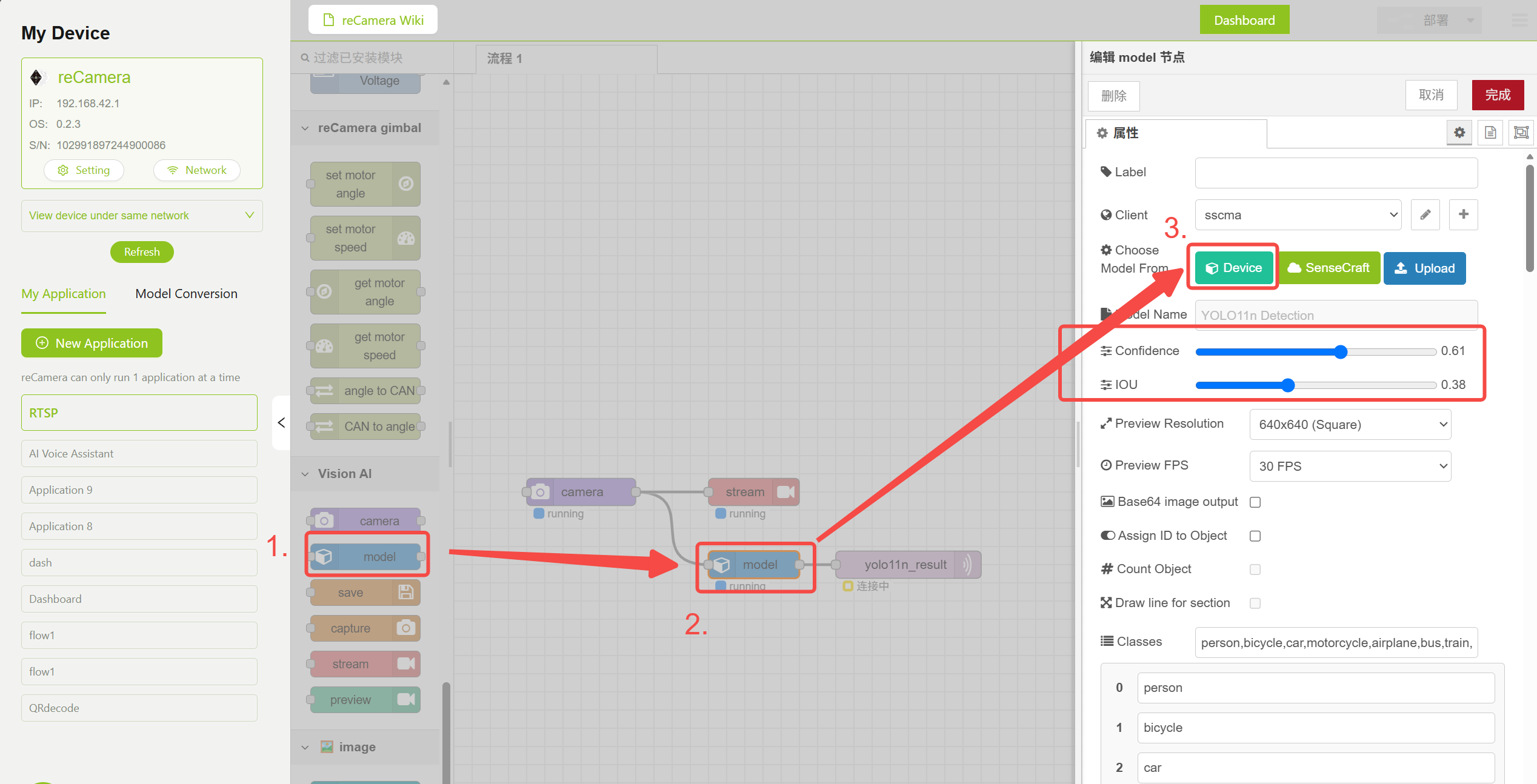
2.4 Import the MQTT Out Node
Drag the MQTT Out Node from the left side to the workspace, and follow the diagram below to set the MQTT broker address and the topic for communicating with the server.
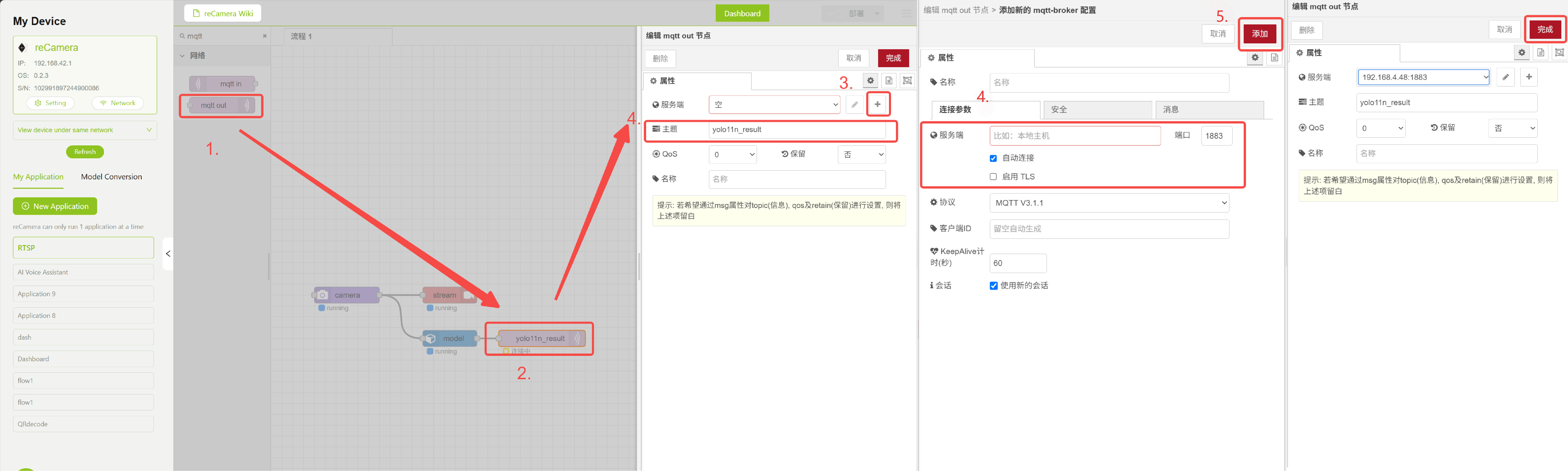
After configuration is complete, click Deploy in the upper right corner to deploy the workflow, and reCamera will start streaming via the RTSP protocol.
Step 3: Deploy the WebRTC Conversion Service on PC
The WebRTC bridging service runs on the PC and is responsible for receiving the RTSP stream and MQTT messages, merging the inference results with the video stream, and converting it to WebRTC format for real-time browser playback.
3.1 Prerequisites
Ensure the following environment is installed on your PC:
- Python 3.8+
- pip package manager
Note: Installing
aiortcon Windows may require Microsoft C++ Build Tools to be installed first. You can download and install them from Visual Studio Build Tools.
3.2 Get the Code and Install Dependencies
Get the RTSP to WebRTC Python project code from the repository. After downloading the project code to your PC, enter the project directory and install the Python dependencies:
cd rtsp_to_webrtc
pip install -r requirements.txt
3.3 Project File Description
The project contains the following core files:
| File | Description |
|---|---|
server.py | WebRTC signaling server, starts embedded MQTT Broker, handles browser connection requests and establishes WebRTC sessions |
mqtt_broker.py | Embedded MQTT 3.1.1 Broker (pure asyncio implementation) and subscription client, receives YOLO inference results pushed from reCamera's Node-RED |
detection_store.py | Inference result storage module, caches the latest detection box and label data for video frame overlay rendering |
video_sources.py | Video protocol abstraction layer |
index.html | Frontend player page, provides protocol selection and WebRTC video playback functionality |
requirements.txt | Python dependency list |
3.4 Start the Service
Start the service with default configuration:
python server.py
After the service starts, you will see the following log output:
INFO:webrtc-server:Starting server on http://0.0.0.0:8080
INFO:webrtc-server:Default source: rtsp://admin:admin@192.168.42.1:554/live
INFO:webrtc-server:Supported protocols: rtsp, onvif, gb28181, rtmp, hls
INFO:webrtc-server:MQTT Broker: 0.0.0.0:1883, topic: yolo11n_result
INFO:webrtc-server:Open http://localhost:8080 in your browser
You can also customize the configuration via command-line arguments:
# Specify the default video source address
python server.py --source rtsp://admin:admin@192.168.42.1:554/live

# Specify the service port
python server.py --port 9090

# Specify both address and port
python server.py --source rtsp://admin:admin@192.168.42.1:554/live --port 8080
Command-Line Argument Description:
| Argument | Default Value | Description |
|---|---|---|
--host | 0.0.0.0 | Server bind address |
--port | 8080 | Server listen port |
--source | rtsp://admin:admin@192.168.42.1:554/live | Default video source address |
Note: Please ensure that the PC's firewall allows inbound connections on port 8080 (or your specified port) and that the PC and reCamera are on the same LAN.
Step 4: Run the Demo
- Ensure that reCamera has been configured for RTSP streaming and the workflow has been deployed
- Ensure that
server.pyon the PC is started and running - Access
http://localhost:8080in the PC browser - Select the protocol (RTSP) on the page and enter the reCamera's RTSP stream address (filled in by default)
- Click the "Start Playing" button
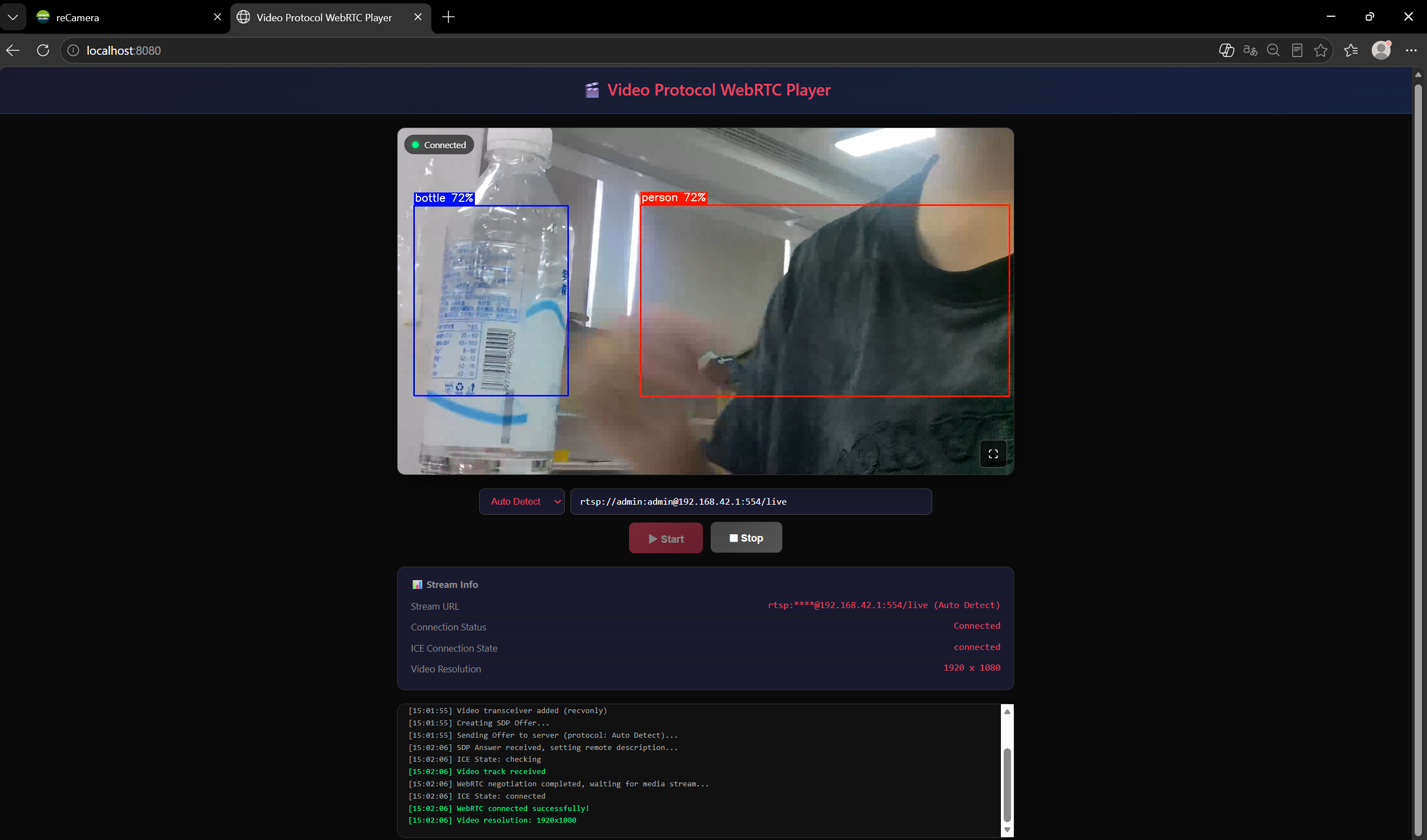
Real-time playback of reCamera video in browser
After a successful connection, the page will display the following information:
- Video Feed: Real-time display of reCamera's video
- Connection Status: Green connection status indicator in the upper left corner of the page
- Stream Information: Displays video stream address, connection status, ICE connection status, and video resolution
- Operation Log: Detailed connection logs displayed at the bottom of the page
How It Works
The high-level workflow of the entire system is as follows:
-
Video Capture and AI Inference reCamera continuously captures video through the camera, uses the YOLO11n model for object detection inference, and obtains bounding box and label results.
-
RTSP Streaming and MQTT Result Transmission reCamera streams encoded video via RTSP protocol to the network, while simultaneously publishing inference results via MQTT protocol (topic:
yolo11n_result) to the embedded MQTT Broker on the PC. -
Video Reception and Inference Result Fusion The PC service uses an OpenCV + FFmpeg background thread to continuously read the latest video frames from the RTSP stream, retrieves the latest inference results from detection_store, and overlays bounding boxes and labels onto the video frames.
-
WebRTC Encoding and Transmission When the browser initiates a connection request, the PC encodes the fused video frames into WebRTC format through the aiortc library, establishing a WebRTC PeerConnection for transmission.
-
Browser Real-Time Playback The browser receives the video stream via WebRTC and plays the video with AI inference annotations in real time without installing any plugins.
Notes
- reCamera's RTSP stream supports only 1-2 concurrent connections by default. If other programs (such as VLC) have already occupied the RTSP connection, the WebRTC service may not be able to receive the video stream. Please close other programs connected to the RTSP stream before use.
- If you encounter
aiortcinstallation failures, ensure that Microsoft C++ Build Tools (Windows) orgcc/maketools (Linux) are installed. - If
non-existing PPSerrors appear in the server log, this is because a keyframe has not been received yet, which is normal. It will automatically recover after the keyframe arrives (approximately 1 second). - To change the service port, use
python server.py --port <port_number>to specify a different port. - If you experience high video latency, please check whether the network bandwidth is sufficient and ensure a stable network connection between the PC and reCamera.
Tech Support & Product Discussion
Thank you for choosing our products! If you need guidance on specific customization goals or want to further extend the workflow, please feel free to contact us. We are here to provide you with different levels of support to ensure your experience with our products is as smooth as possible. We offer various communication channels to meet different preferences and needs.