Get Started with MeshCore on SenseCAP T1000-E
Firmware Flashing
Method1 via Web Flasher
Connect your device with a USB cable to the computer.
Please keep the USB cable connected while the data transmission, or else the device can be damaged.
Go to the Meshcore Web Flasher.
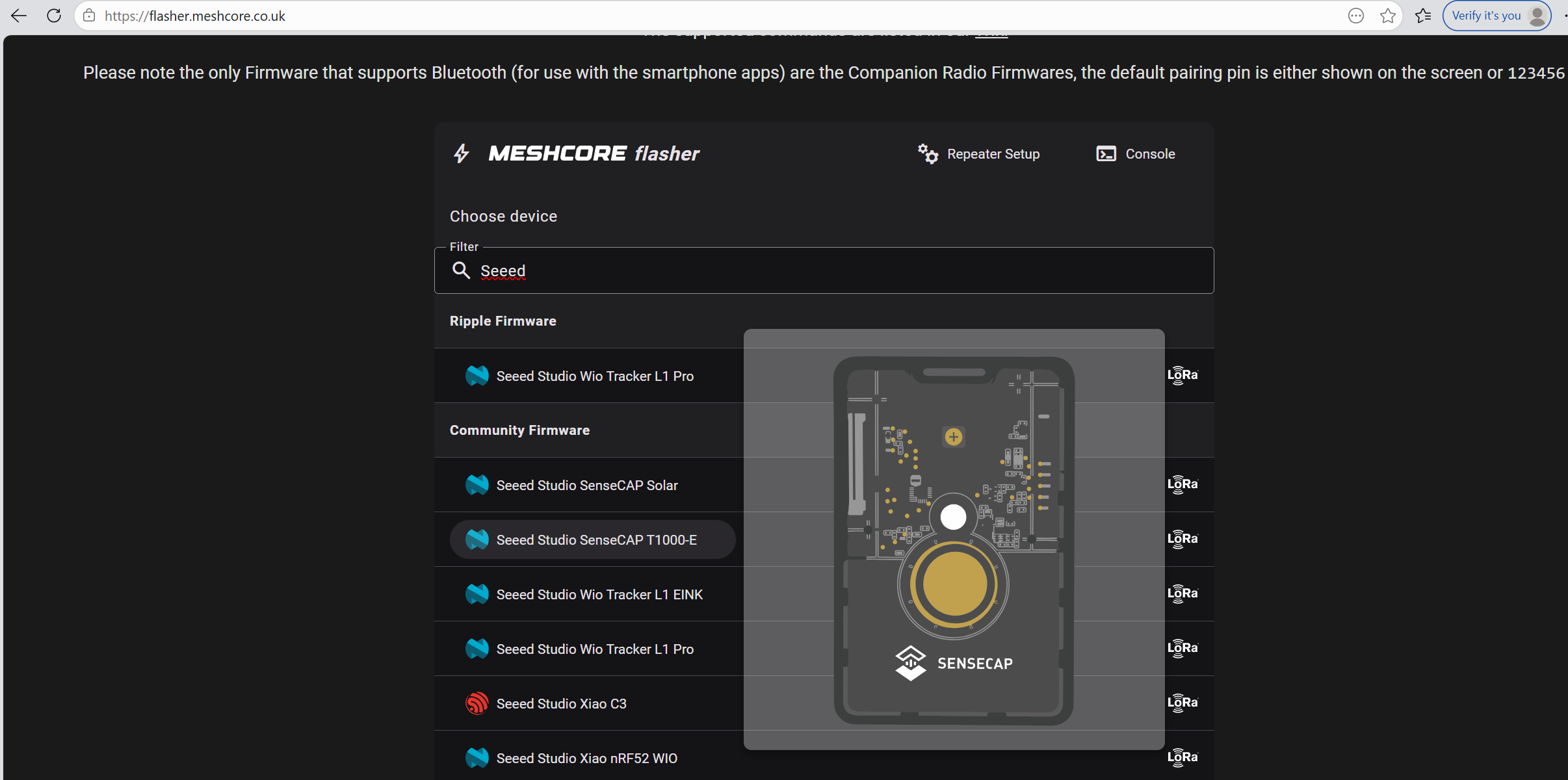
Choose Seeed Studio SenseCAP T1000-E in the Community Firmware group.
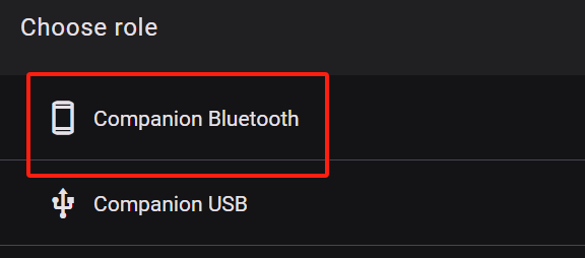
Choose Companion Bluetooth. Devices flashed with Bluetooth companion firmware can be connected to the APP. If you want to flash other firmware, please click here to see the tutorial.
Flash Erase
Click Enter DFU Mode, choose the serial port named "nRF xxx" or "TinyUSB" serial. Then click Erase Flash and choose the serial port.
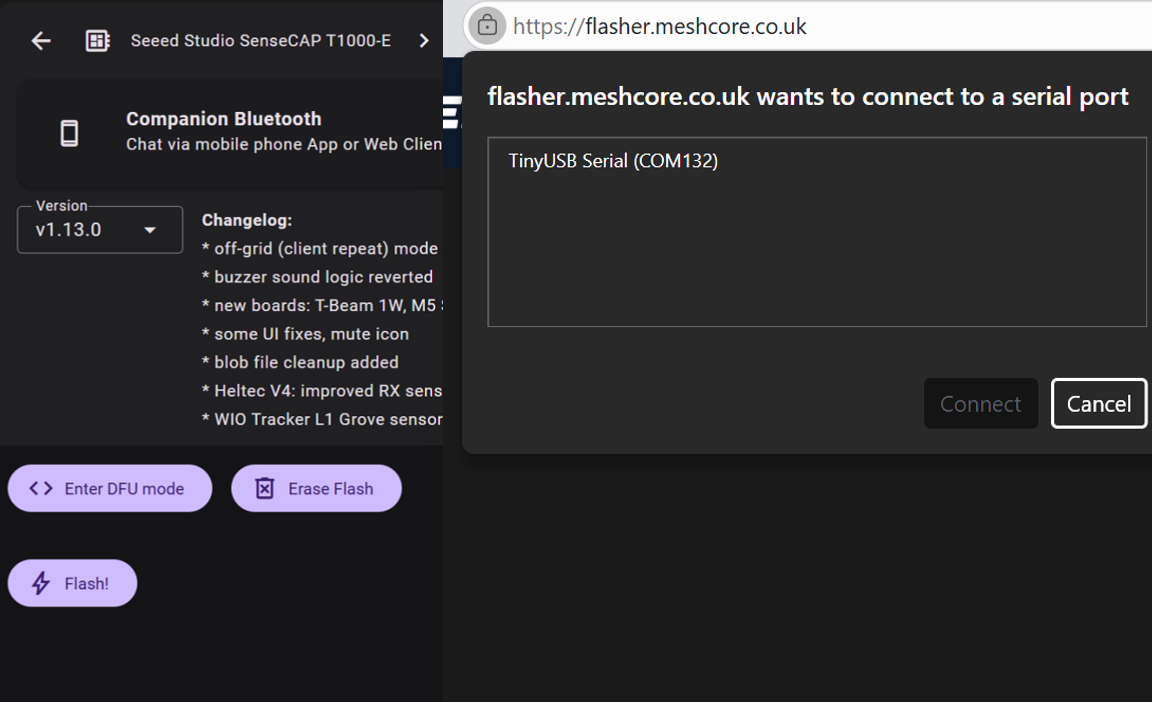
If you have clicked Erase Flash but there is no response, click Enter DFU again and then click Erase Flash to make sure you have successfully entered DFU.
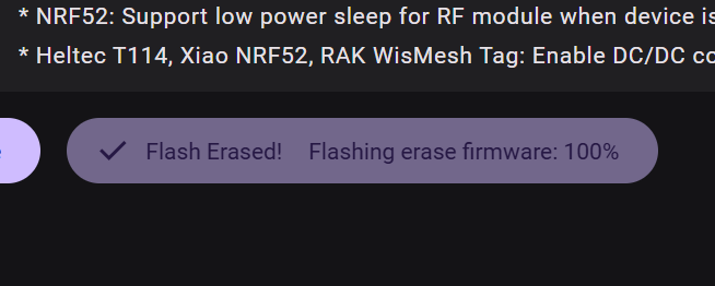
If you see "Flashing erase firmware:100%", the device has been successfully erased.
Flash Firmware
Click Enter DFU Mode, choose the serial port named "nRF xxx" or "TinyUSB" serial. Then click Flash and choose the serial port.
If you have clicked Flash but there is no response, click Enter DFU again and then click Flash to make sure you have successfully entered DFU.
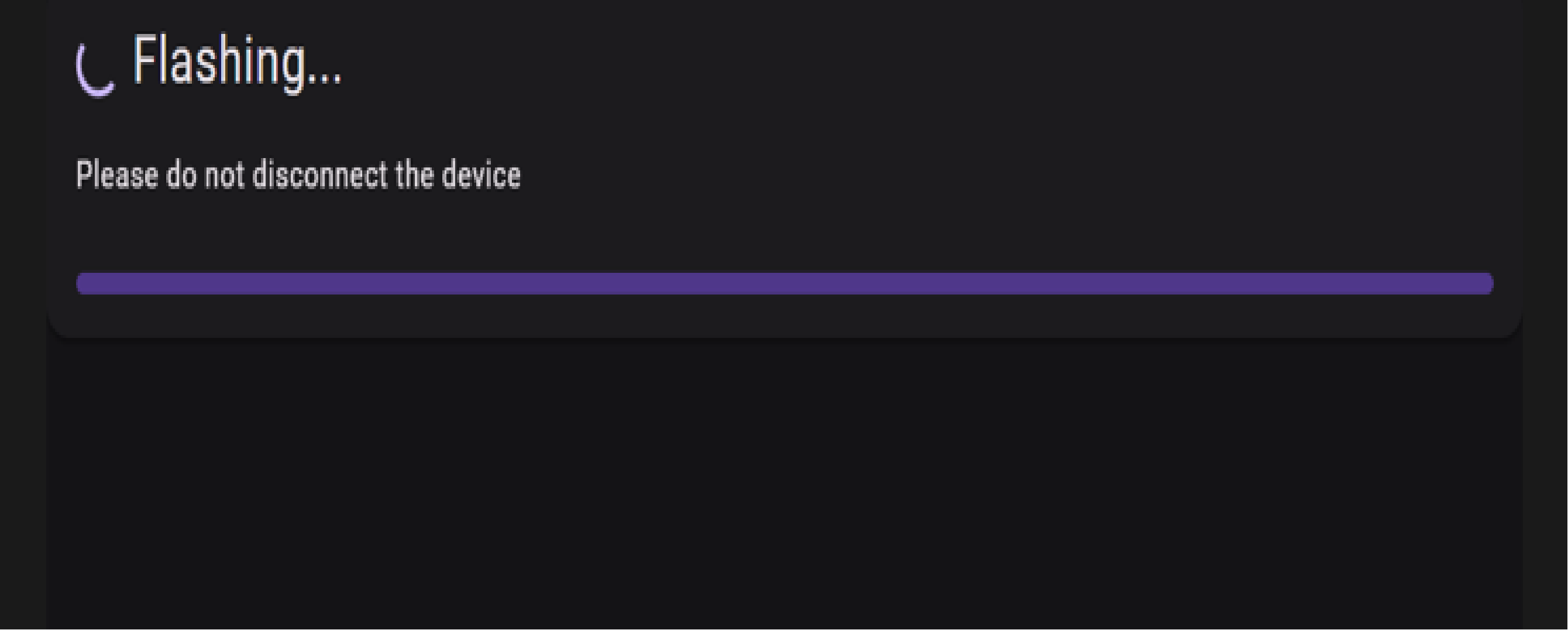
When the progress bar is completely filled, it indicates that Flash has completed. Then the device will automatically reboot.
Method2 Drag and Drop
Connect your device with a USB cable to the computer.
Please keep the USB cable connected while the data transmission, or else the device can be damaged.
Go to the Meshcore Web Flasher.
Choose Seeed Studio Wio Tracker T1000-E in the Community Firmware group.
Choose Companion Bluetooth. Devices flashed with Bluetooth companion firmware can be connected to the APP. If you want to flash other firmware, please click here to see the tutorial.
Flash Erase
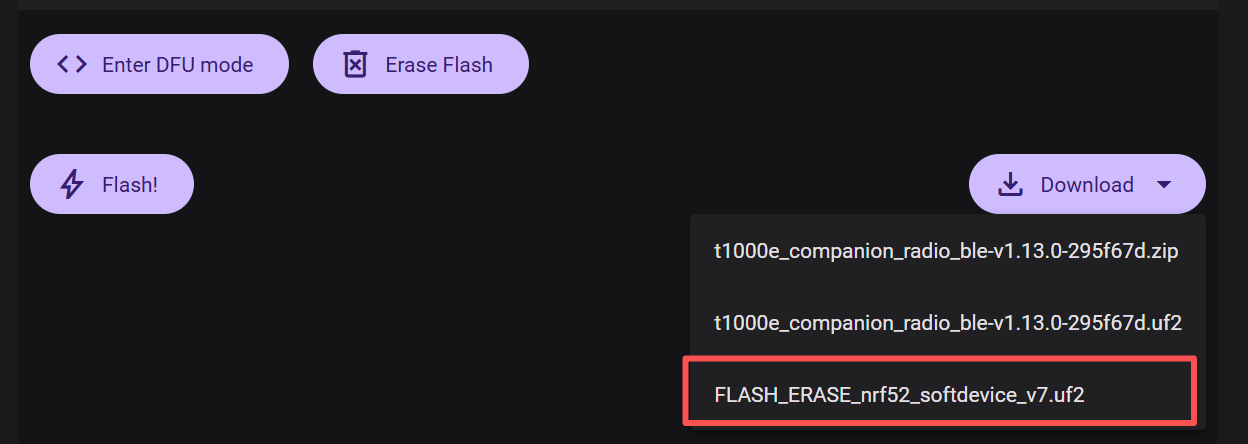
Download the UF2 file.
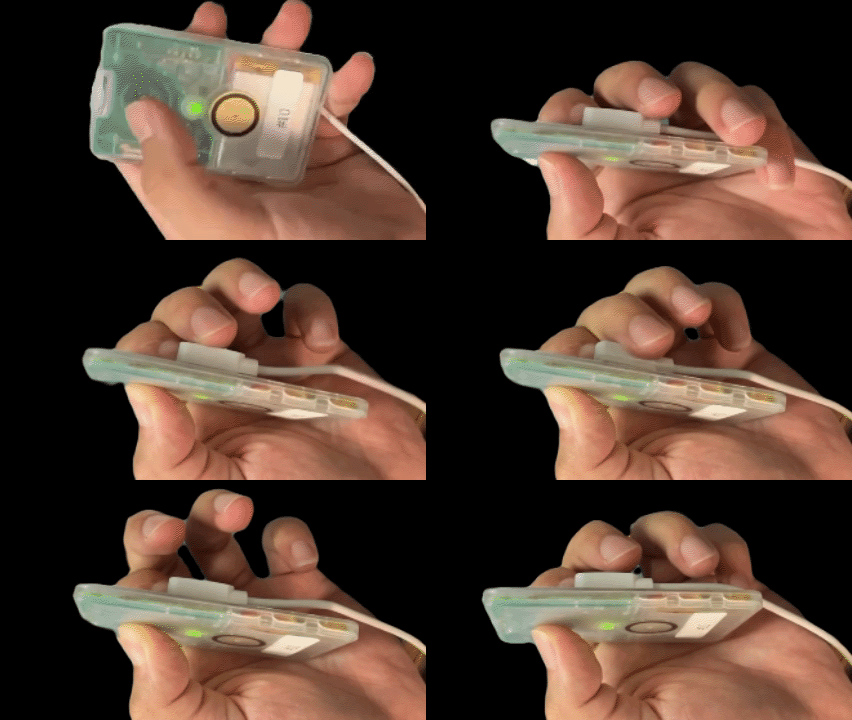
Enter DFU mode manually: press and hold the device button, then quickly connect the charging cable twice, the green LED will be solid on.
To successfully enter the DFU mode, you need to perform this operation quickly. You may need to try multiple times.
You can see a disk named T1000-E will pop out after 10~15 s.
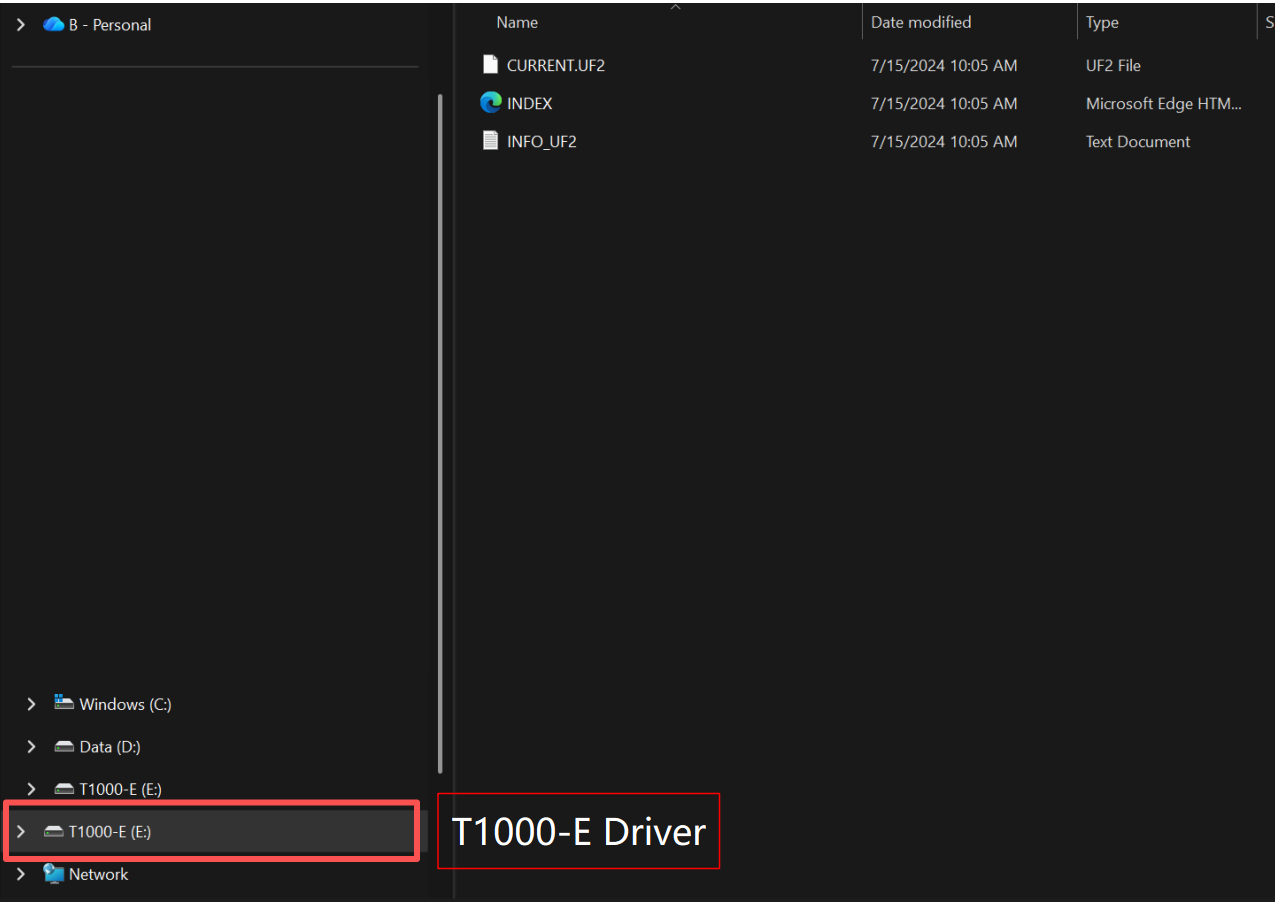
Drag the downloaded UF2 file to the pop-out disk.
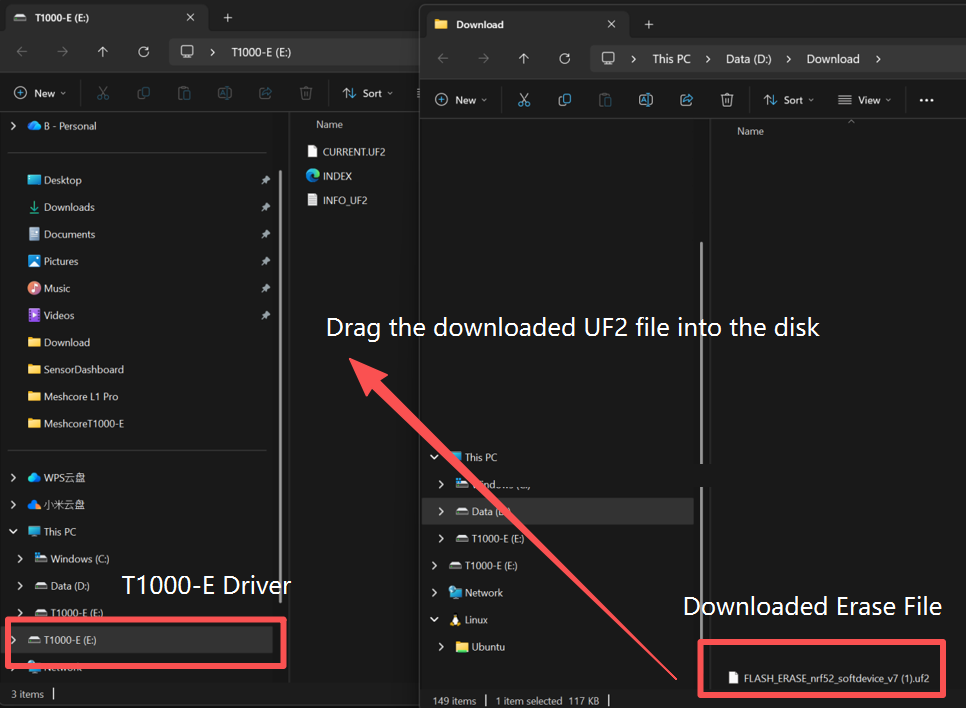
The disk will disappear after the firmware is successfully flashed. At this point there is no firmware in the device, so the device will NOT automatically reboot.
Flash Firmware
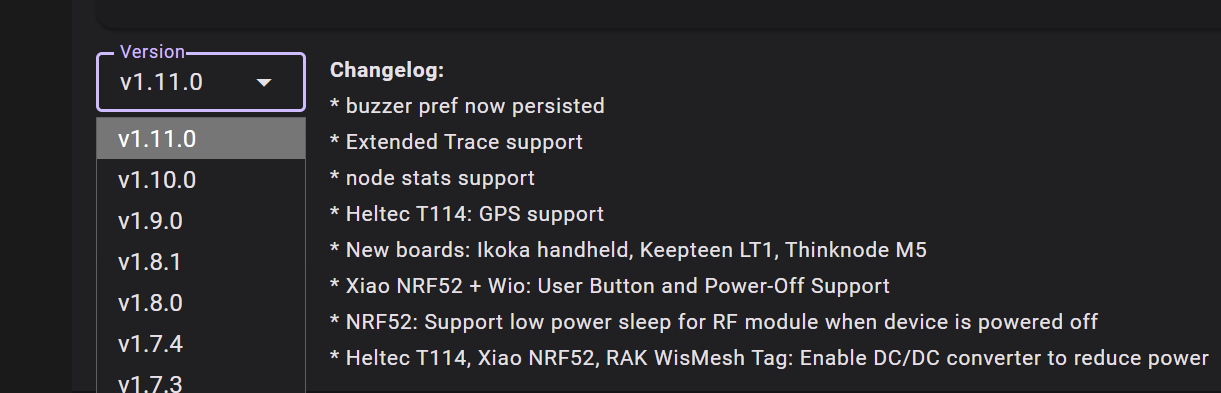
Choose the latest firmware version.
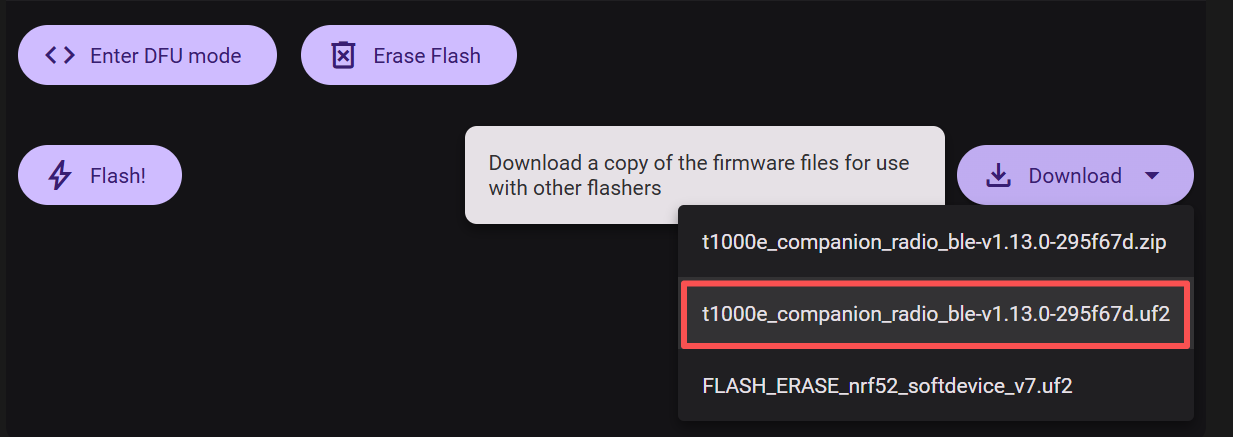
Download the UF2 file.
Try to enter DFU mode manually: press and hold the device button, then quickly connect the charging cable twice, the green LED will be solid on.
To successfully enter the DFU mode, you need to perform this operation quickly. You may need to try multiple times.
You can see a disk named T1000-E will pop out after 10~15 s.
Drag the downloaded UF2 file to the pop-out disk.
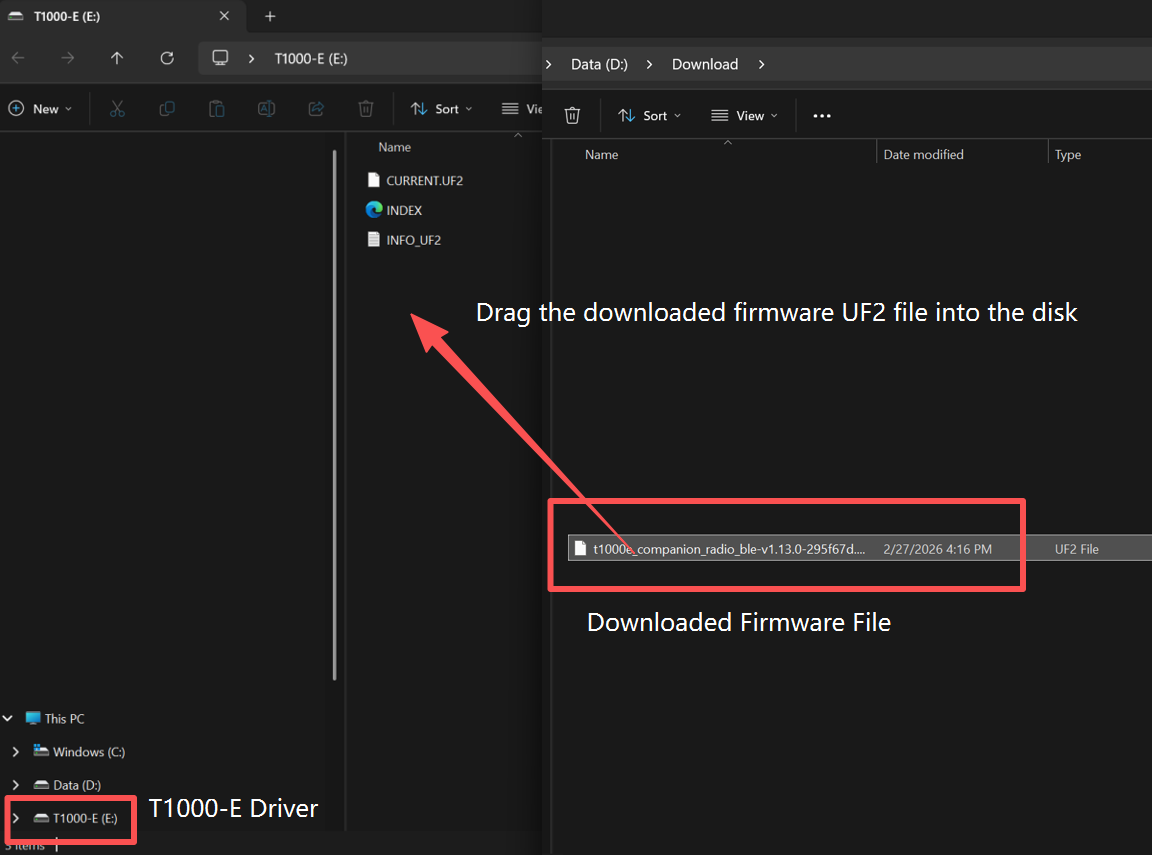
The disk will disappear after the firmware is successfully flashed. At this point there is no firmware in the device, so the device will automatically reboot.
Configuration
Power on the device
Press the button to turn it on. The LED will be on and there is a descending melody melody.
Power off the device
Press the button for 3s to turn it off. The LED will be off and there is a dec melody.
If the device doesn't respond when you press the button, please charge it first. Do not use the fast-charging charger.
Get APP
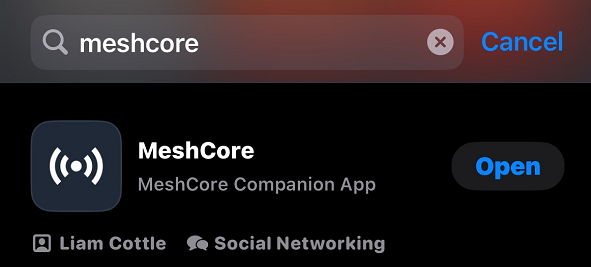
Download from the Google Store or Apple Store. Or click here to get the Meshcore APP.
Connect via App
Click Connect and choose the target device. The default device ID is Meshcore-MAC Address. The MAC address can be seen on the back of the device.
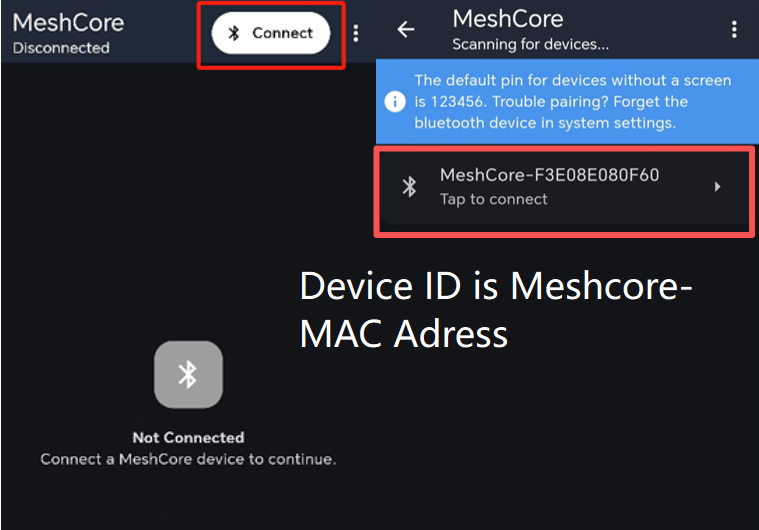
Enter the default pin code 123456 and then click Pair to connect the device.
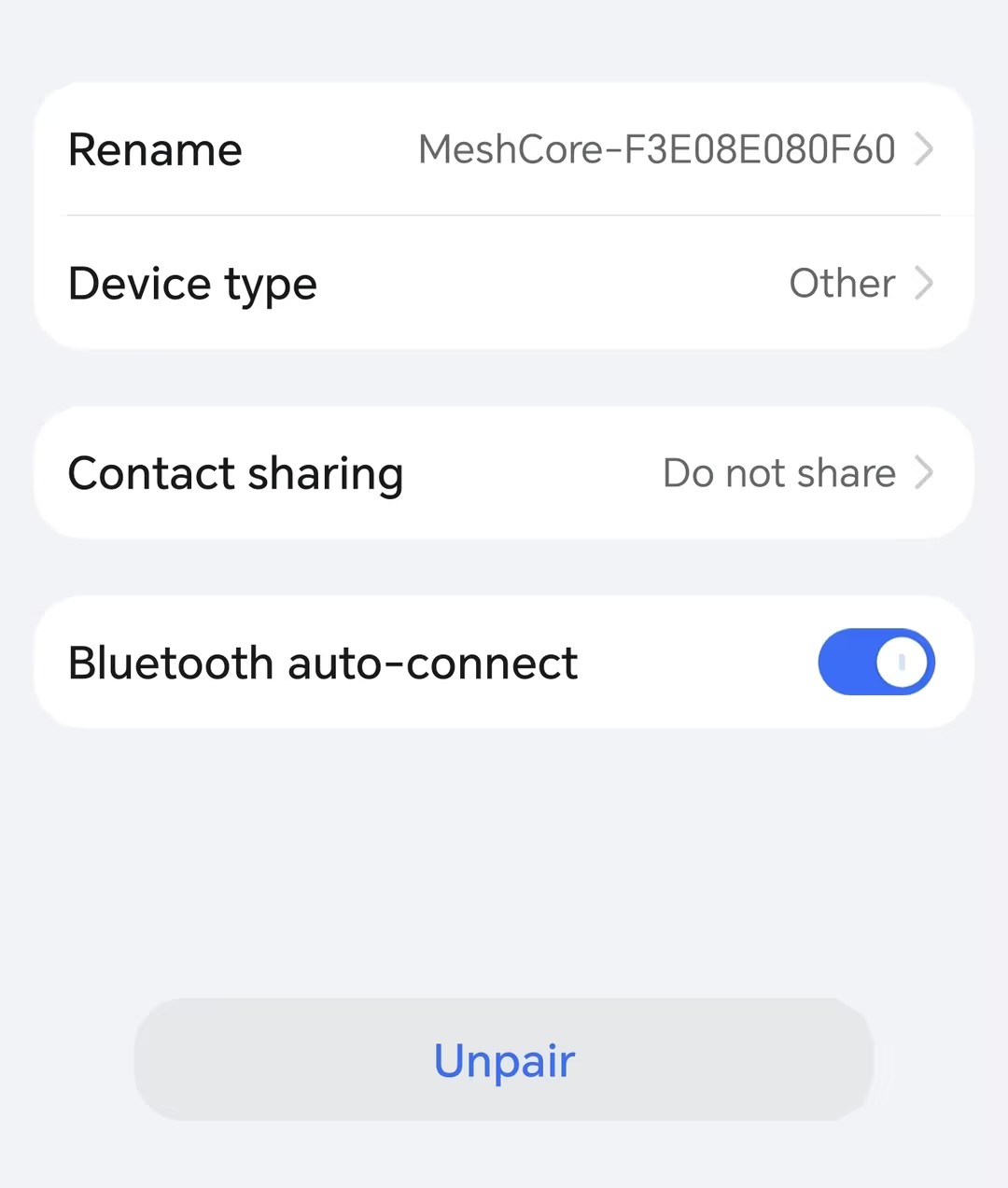
If the connection fails, open your phone's Bluetooth list and forget or Unpair the device. Then try to reconnect again.
Connect via the web interface(BLE)
- Open the MeshCore Web App and click the Settings icon.
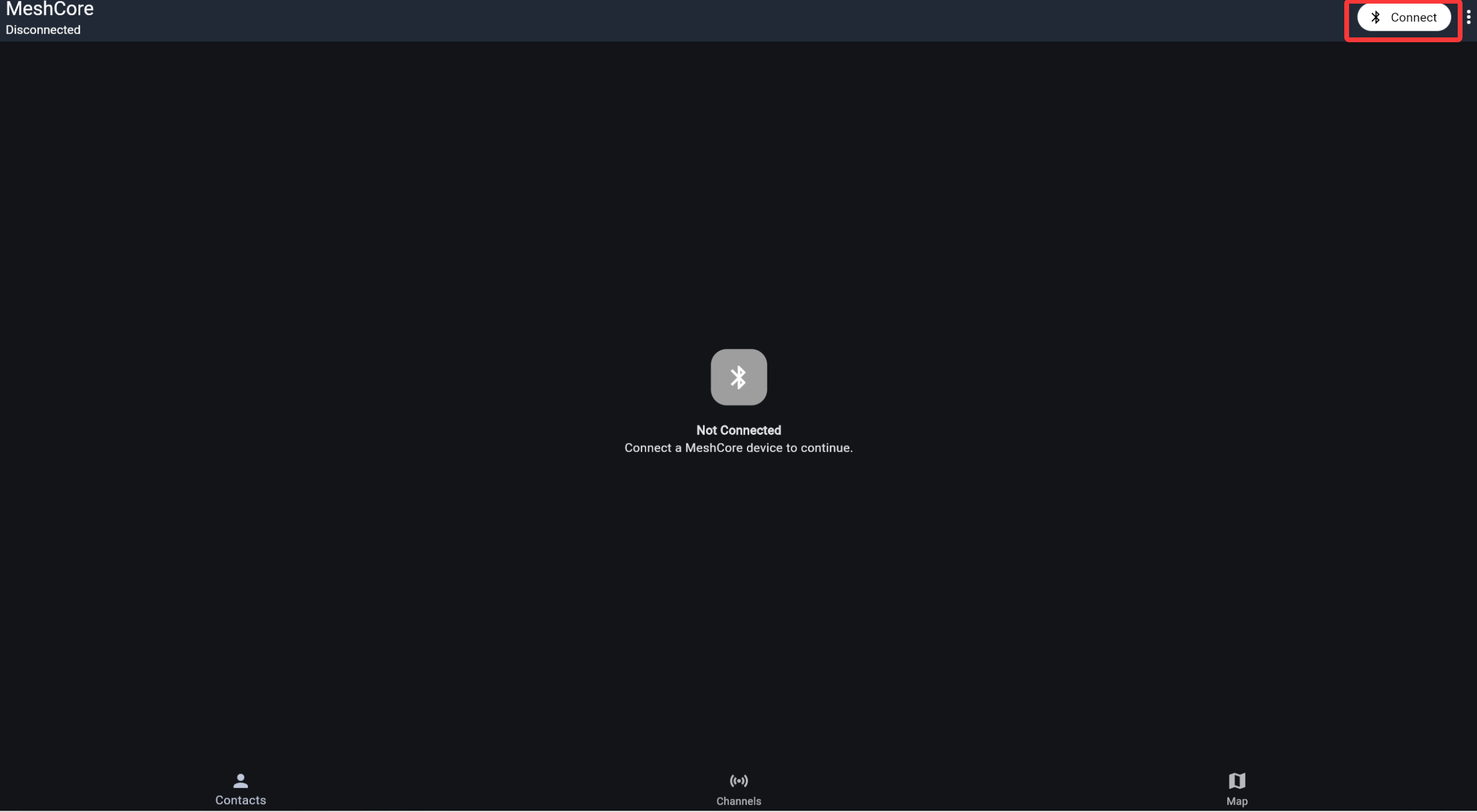
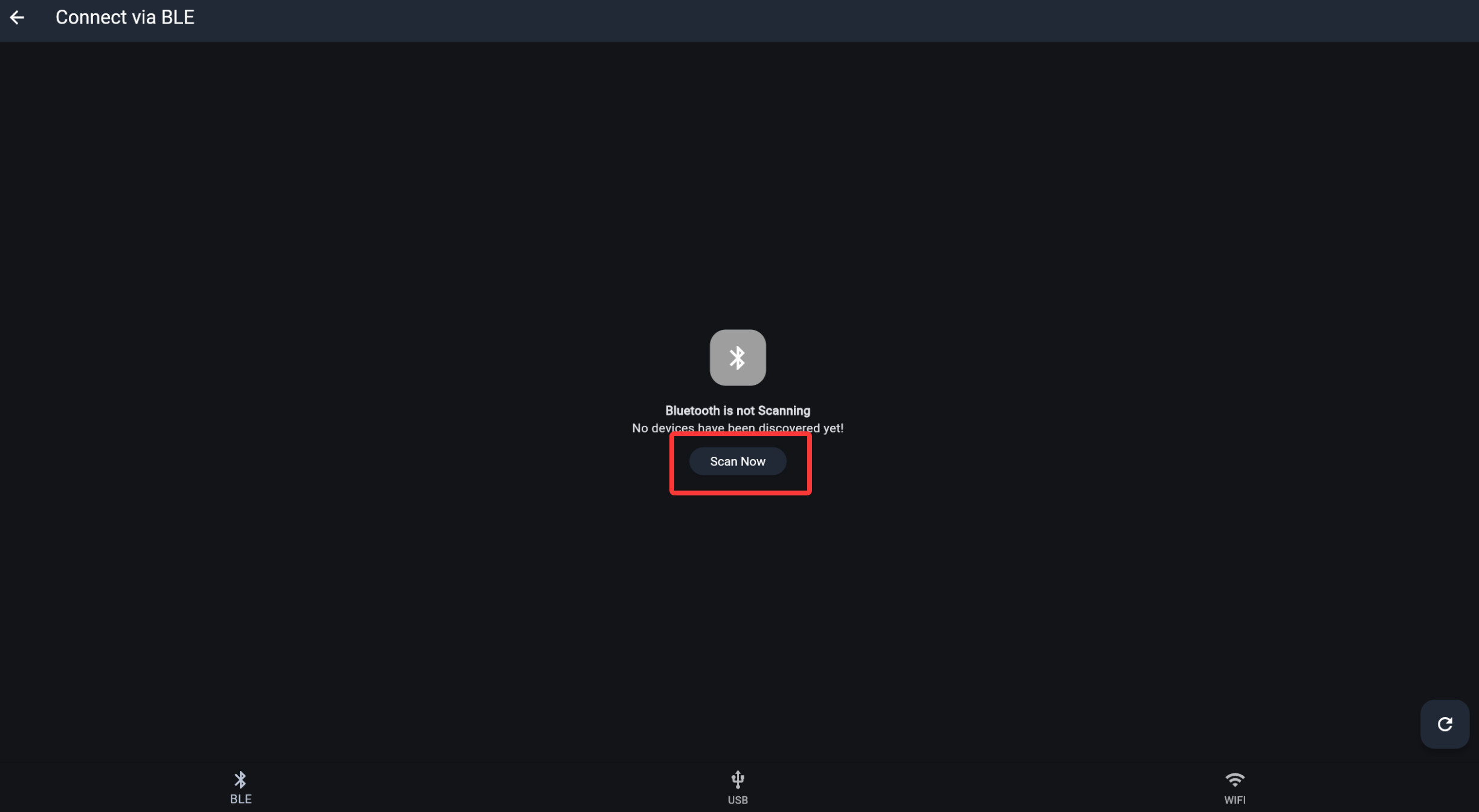
- Select the BLE tab, then click Scan Now.
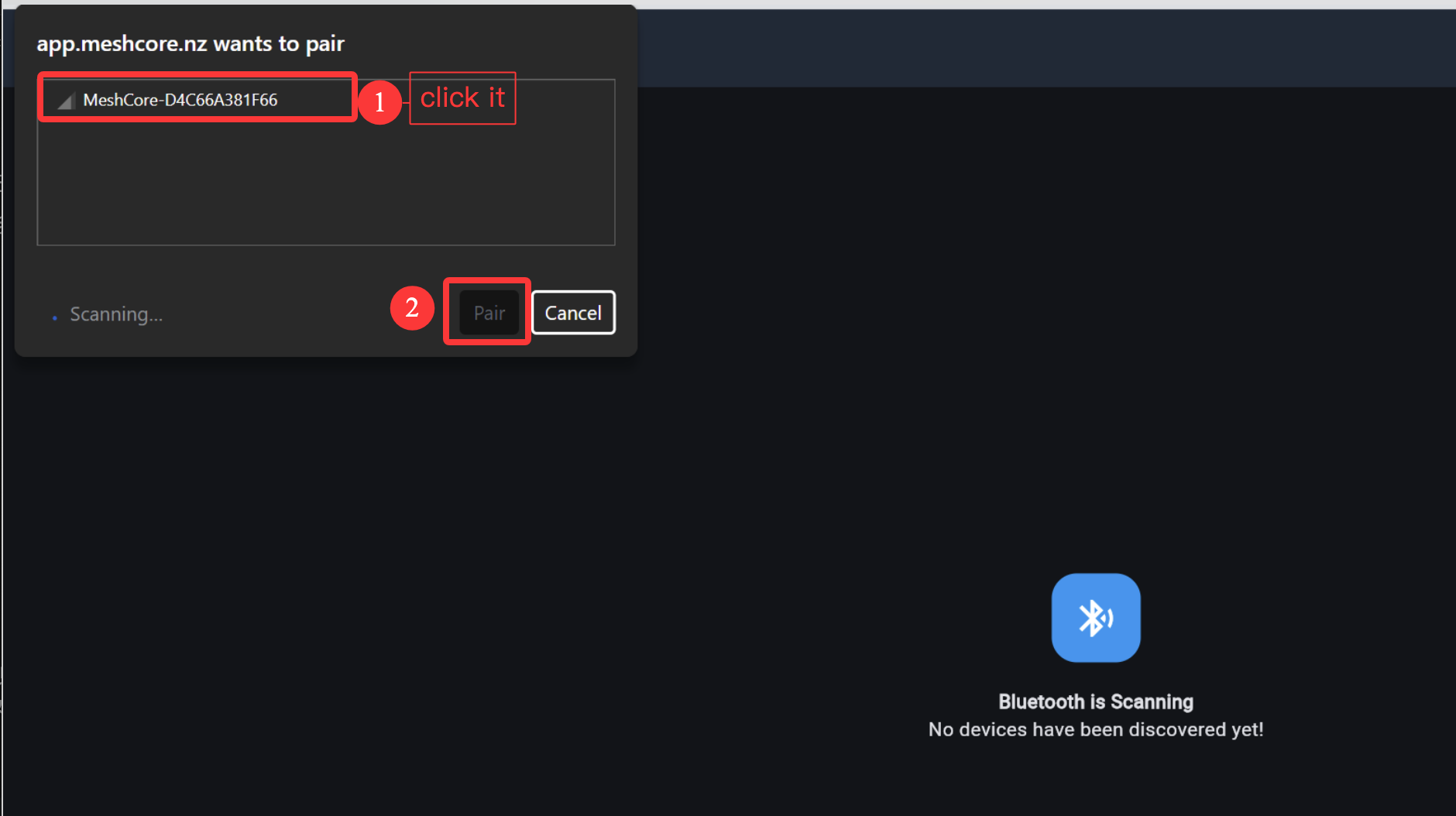
- In the system Bluetooth popup, select your device (for example, Meshcore-xxxxxx) and click Pair.
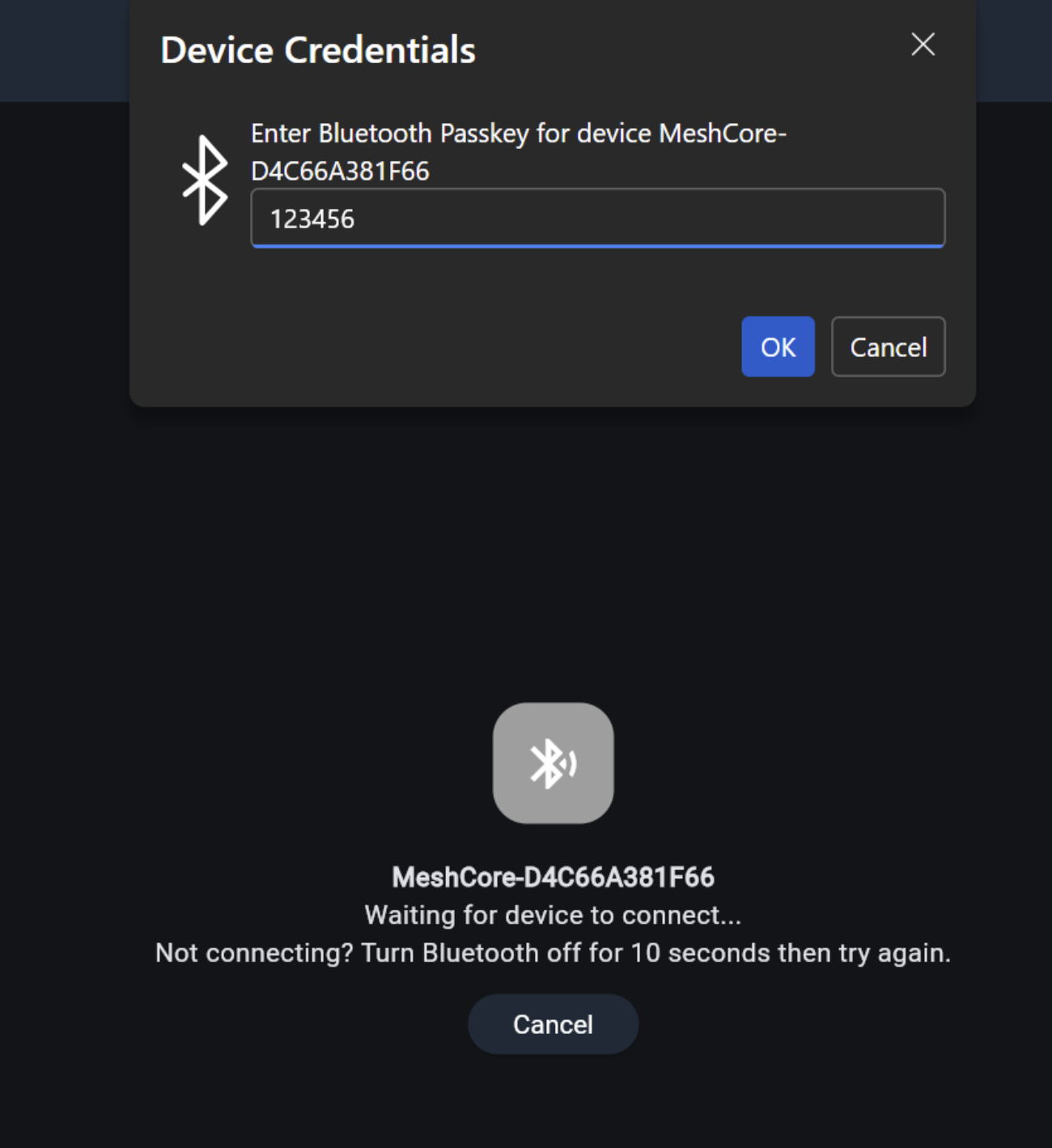
- When prompted, enter the default Bluetooth passkey
123456, then click OK.
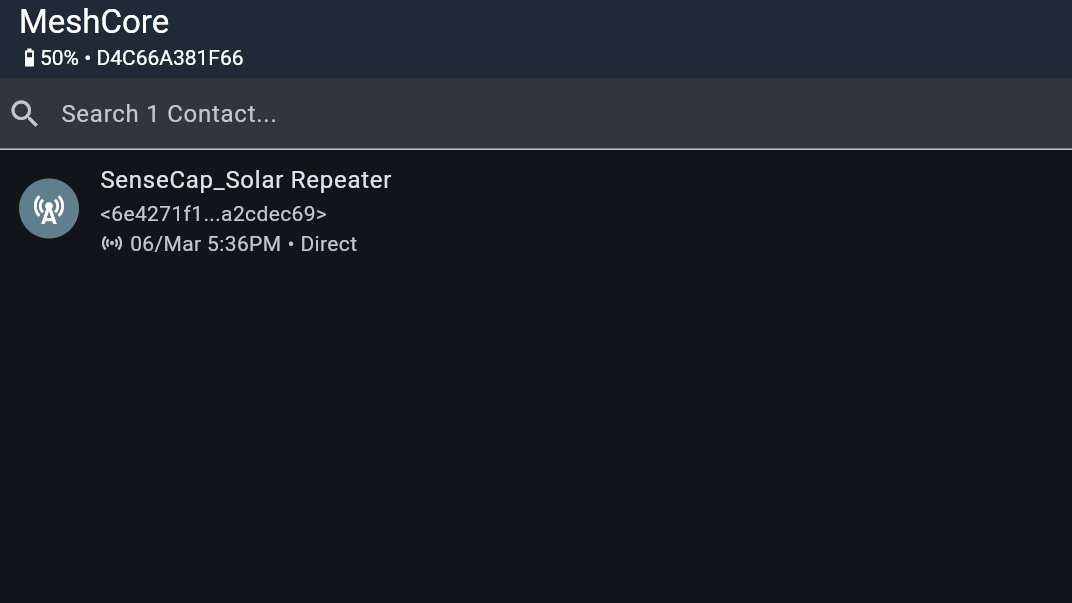
- Wait until the status changes to connected and your node appears in the MeshCore interface.
Configure the LoRa
In order to start communicating over the mesh, you must set your region. This setting controls which frequency range your device uses and should be set according to your regional location.
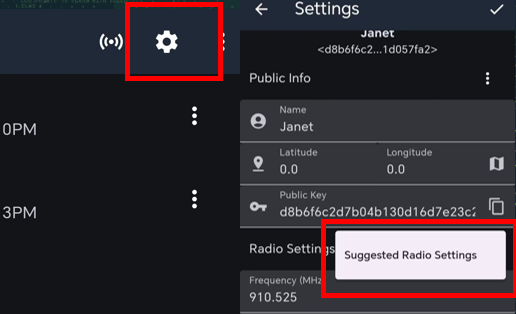
Then reboot the device, or else the configuration will not take effect.
Region List
| Region Code | Description | Frequency Range (MHz) | Duty Cycle (%) | Power Limit (dBm) |
|---|---|---|---|---|
| UNSET | Unset | N/A | N/A | N/A |
| US | United States | 902.0 - 928.0 | 100 | 30 |
| EU_868 | European Union 868 MHz | 869.4 - 869.65 | 10 | 27 |
Now that you have set the LoRa region on your device, you can continue with configuring any LoRa parameter to suit your needs.
Configure GPS
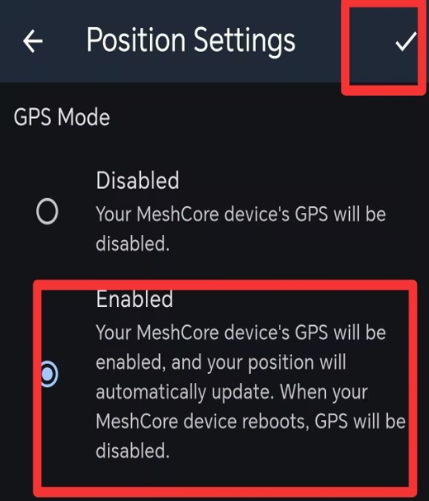
If you want to use GPS, please set it enabled.
You can go to APP Position Settings to enable GPS.
Button
| Button Action | Description |
|---|---|
| Press for 3s | Power on/off |
| Double-click | broadcast advert |
| Triple-click | Buzzer switch |
| Quadruple-click | GPS switch |
Message Transmission
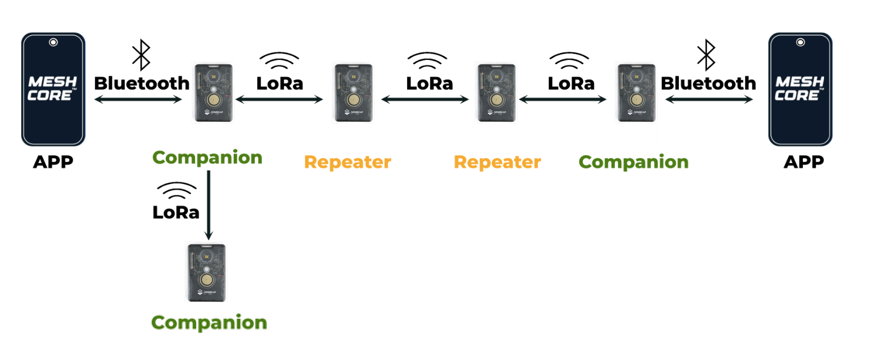
If you have two supported devices, and there are not many MeshCore users near you, flash both to BLE Companion firmware so you can use your devices to communicate with your nearby friends and family.
Advert
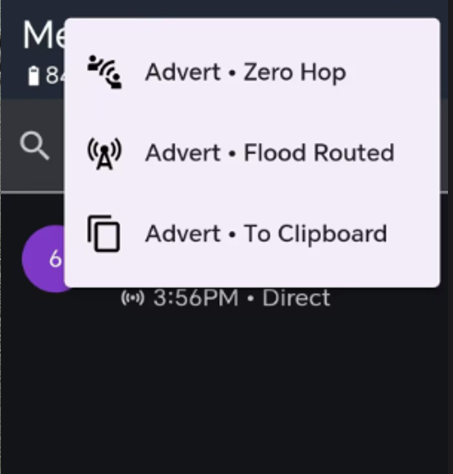
MeshCore allows you to manually broadcast your name, position and public encryption key, which is also signed to prevent spoofing. When you click the advert button, it broadcasts that data over LoRa. MeshCore calls that an Advert. There's two ways to advert, "zero hop" and "flood".
- Zero hop means your advert is broadcast out to anyone that can hear it, and that's it.
- Flooded means it's broadcast out and then repeated by all the repeaters that hear it.
You can send advert on the APP. Also you can send advert directly on the device advert page.
Public Message
After you configure the LoRa, you can send messages in the primary channel. All nearby people in the same frequency band will hear it.
Private Message
The two devices only establish a connection when they have both received each other's advert.
FAQ
How to reboot the device
Press and hold the button, then connect the charging cable.
Troubleshooting
Device never turns on
-
Charge the device for 1~2 hours
-
Change the charging cable
-
If still no luck, press and hold the device button, then connect the charging cable, see whether or not the a disk pop out in your PC. If so, click here to re-install the bootloader.
Device stuck in boot loop
Description:
The device will restart repeatedly, and the serial port connects and disconnects repeatedly.
Solution:
- Step 1: Try to enter DFU mode manually: press and hold the device button, then quickly connect the charging cable twice, the green LED will be solid on.
To successfully enter the DFU mode, you need to perform this operation quickly. You may need to try multiple times.
-
Step 2: Erase Flash
-
Step 3: Flash Firmware
Device bricked
Description
The device not responding, no LED, can not pair with your App.
1) Device can still enter the DFU mode, then try to flash the bootloader.
Flash the Bootloader
When you are flashing the bootloader, please make sure the cable connection is stable and DO NOT disconnect it during the flash process.
Step1: Adafruit-nrfutil Installation
For window user, press "Win" key and "r" key, then enter "cmd" in the pop-oyt window, click "Enter". This can open the command line.
For MAC user, press "Command" key and "Space" key, so that you can open Spotlight. Then enter "termial", click "Return". This can open the command line.
Prerequisites
Check in your command line that whether or not the python and pip are installed successfully.
python --version
python -m pip --version
Then "Python xxx" and "pip xxx" should appear. If it does not, please try install python again.
- Installing from PyPI
- Installing from Source
This is recommended method, to install latest version:
pip3 install --user adafruit-nrfutil
Check the installation path:
python -m pip show adafruit-nrfutil
This is the installation location:
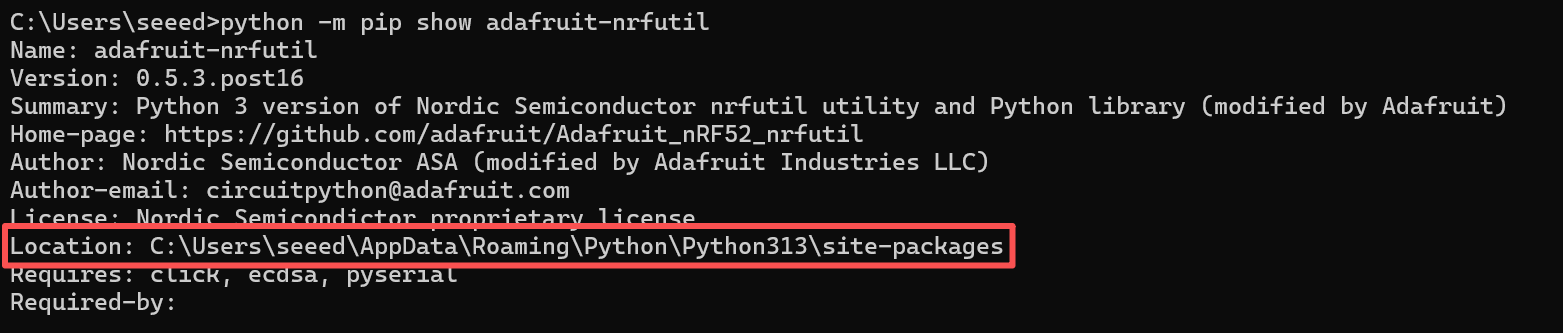
For window user, you may need to add the path manually. Copy the installation location showed in the last step. Then add it as followed:

Use this method if you have issue installing with PyPi or want to modify the tool. First clone this repo and go into its folder.
git clone https://github.com/adafruit/Adafruit_nRF52_nrfutil.git
cd Adafruit_nRF52_nrfutil
Note: following commands use python3, however if you are on Windows, you may need to change it to python since windows installation of python 3.x still uses the name python.exe
To install in user space in your home directory:
pip3 install -r requirements.txt
python3 setup.py install
If you get permission errors when running pip3 install, your pip3 is older or is set to try to install in the system directories. In that case use the --user flag:
pip3 install -r --user requirements.txt
python3 setup.py install
If you want to install in system directories (generally not recommended):
sudo pip3 install -r requirements.txt
sudo python3 setup.py install
To generate a self-contained executable binary of the utility (Windows and MacOS), run these commands:
pip3 install pyinstaller
cd Adafruit_nRF52_nrfutil
pip3 install -r requirements.txt
cd Adafruit_nRF52_nrfutil\nordicsemi
pyinstaller __main__.py --onefile --clean --name adafruit-nrfutil
You will find the .exe in Adafruit_nRF52_nrfutil\nordicsemi\dist\adafruit-nrfutil ( with .exe if you are on windows).
Copy or move it elsewhere for your convenience, such as directory in your %PATH%.
Step2: Check your port number
Connect your device to your PC, and check the port number.
For Window user, for example:
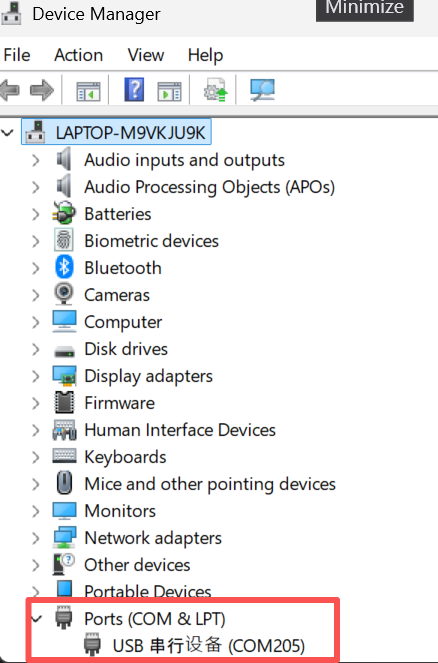
For Mac user, for example:

Step3: Flash the bootloader
In the terminal or command prompt, navigate to the directory where you downloaded the bootloader zip package and execute the following command, replacing the correct port for your device:
- For Windows:
adafruit-nrfutil --verbose dfu serial --package t1000_e_bootloader-0.9.1-5-g488711a_s140_7.3.0.zip -p COMxx -b 115200 --singlebank --touch 1200
Please change COMXX to your com number. For example, if your device is on com6, change the command to be:
adafruit-nrfutil --verbose dfu serial --package t1000_e_bootloader-0.9.1-5-g488711a_s140_7.3.0.zip -p **COM6** -b 115200 --singlebank --touch 1200
Some of the device will change their port number after you enter this command. So if the installation fail, check the port number again.
- For others:
adafruit-nrfutil --verbose dfu serial --package t1000_e_bootloader-0.9.1-5-g488711a_s140_7.3.0.zip -p /dev/tty.SLAB_USBtoUART -b 115200 --singlebank --touch 1200
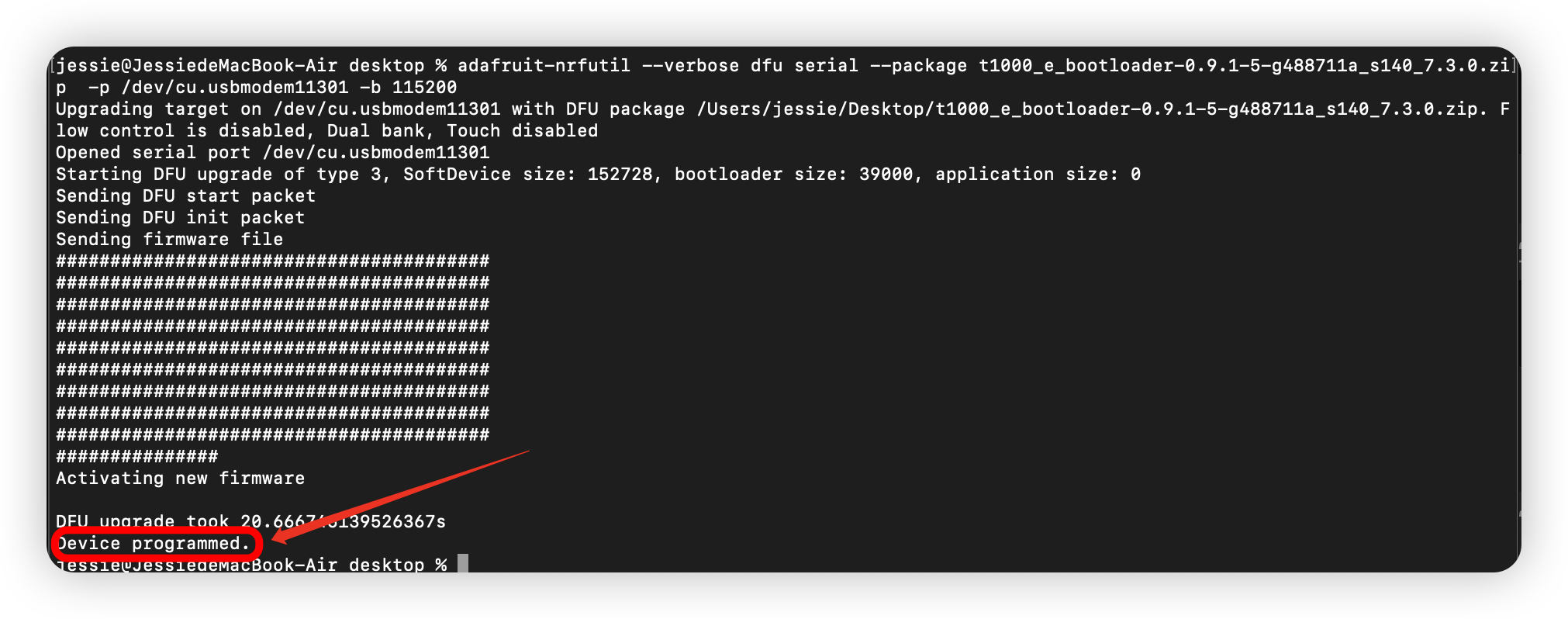
When you have completed the above steps, then click here to flash the application firmware.
2) Device can not enter DFU mode, but the serial port can be detected.
-
Open a serial port tool
-
Set the baud rate to
1200. -
Connect the device. The light will flash briefly when you connect it. Keep trying this until the light stays on, means the device can back to DFU mode, then flash bootloader-> Erase flash -> flash the firmware
3) Device can not enter DFU mode and no serial port display
-
press and hold the device button, then connect the charging cabl. After a disk pop out in your PC, you may see the serial port.
-
If still no luck, please disconnect the charging cable and leave the device for a few days until the battery is completely drained, then connect the charging cable and try to pair it again.
4) If none of the above steps work, please contact the tech support: [email protected]
Firmware flashing failed
- No data received on serial port

Check if the device is in the DFU mode, the green light will be solid when the device is in DFU mode.
- Can't open serial port

Check if the port is correct, or try another port.
Device automatically turn off
Description
- After the device turning on, it will turn off or reboot automatically after a while.
- The serial port log ran for a while and then stopped.
This is possibly caused by manually and forcely rebooting or turning off the device when the device is in the following states:not finishing the messages transmission process, being configured......
Troubleshoot
Perform a flash-erase.
Factory Reset
If you want to restore to the default settings, you can do the factory reset. There are two methods for you to do the factory reset.
-
Flash erase the device. And then re-flash the latest firmware.
-
Click the
Factory ResetButton on the App. The device will reboot with the factory configuration automatically.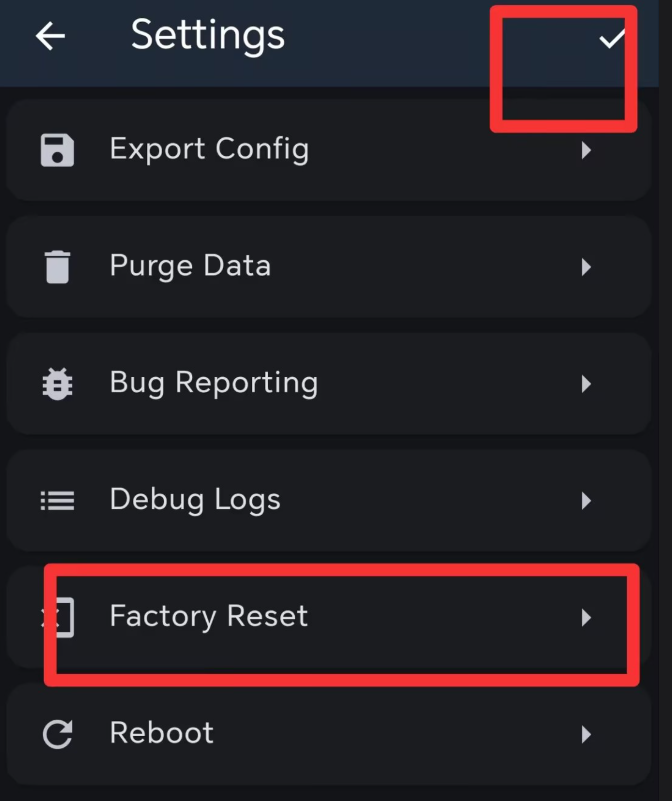
Signal Quality
-
SNR reflects the quality of the communication link. Normal device usually operates above -7 dB. Device with a SNR lower than -10 dB indicates poor performance.
-
RSSI is determined jointly by the device and its surrounding environment. Normal device usually operates above -110 dBm. Device with an RSSI lower than -115 dBm is considered to have poor performance.
To achieve the best signal effect, please use the device in an open, unobstructed area with minimal interference for use.
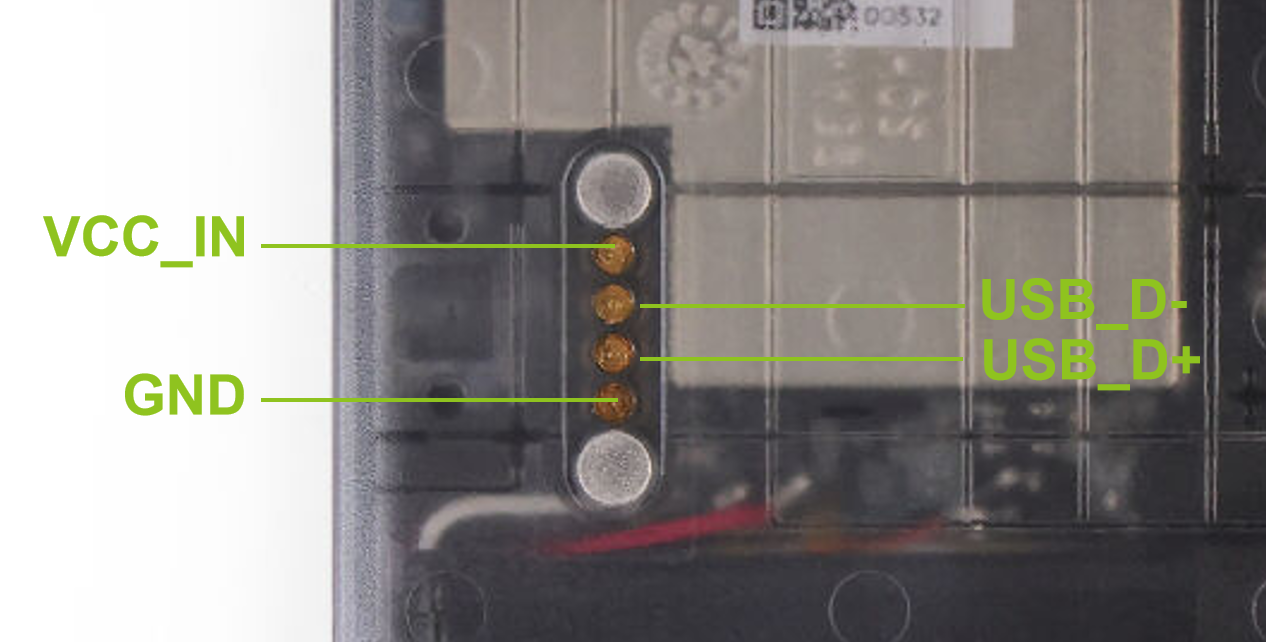
Pogo Pin Definition
Resource
- SenseCAP T1000 Tracker Datasheet
- T1000-E for Meshtastic Consumption Test and Battery Life Calculation
- UN38.3
Tech Support & Product Discussion
Thank you for choosing our products! We are here to provide you with different support to ensure that your experience with our products is as smooth as possible. We offer several communication channels to cater to different preferences and needs.