SenseCAP Mate App was officially renamed to SenseCraft App.
SenseCraft App Overview
SenseCraft App is a mobile application for data visualization and device management.
App Highlights
- Save time - provides a scan-and-play experience to enable users to complete the whole configuration in 4 steps
- Works for people with less or no technical background to get started with sensor data easily
- Acquire and view data on clean user interfaces
- Set time intervals: improve the battery efficiency
- Set threshold values: focus on the data you need to take action for - coming soon
- Send alarms if data is out of the safe range - coming soon
Download
SenseCraft App is available in both iOS and Android versions.
Download SenseCraft App from the official SenseCraft Download Center.
Account
SenseCraft supports device configuration and remote management. To use SenseCraft Data Platform (formerly SenseCAP Portal) and other functions, register an account.
Select Global as the Server Location. You can also create an account through SenseCraft Data Platform.

Device
- On the device page, you can add new devices by clicking the
+in the upper right corner.

- Click the target device to view the data.

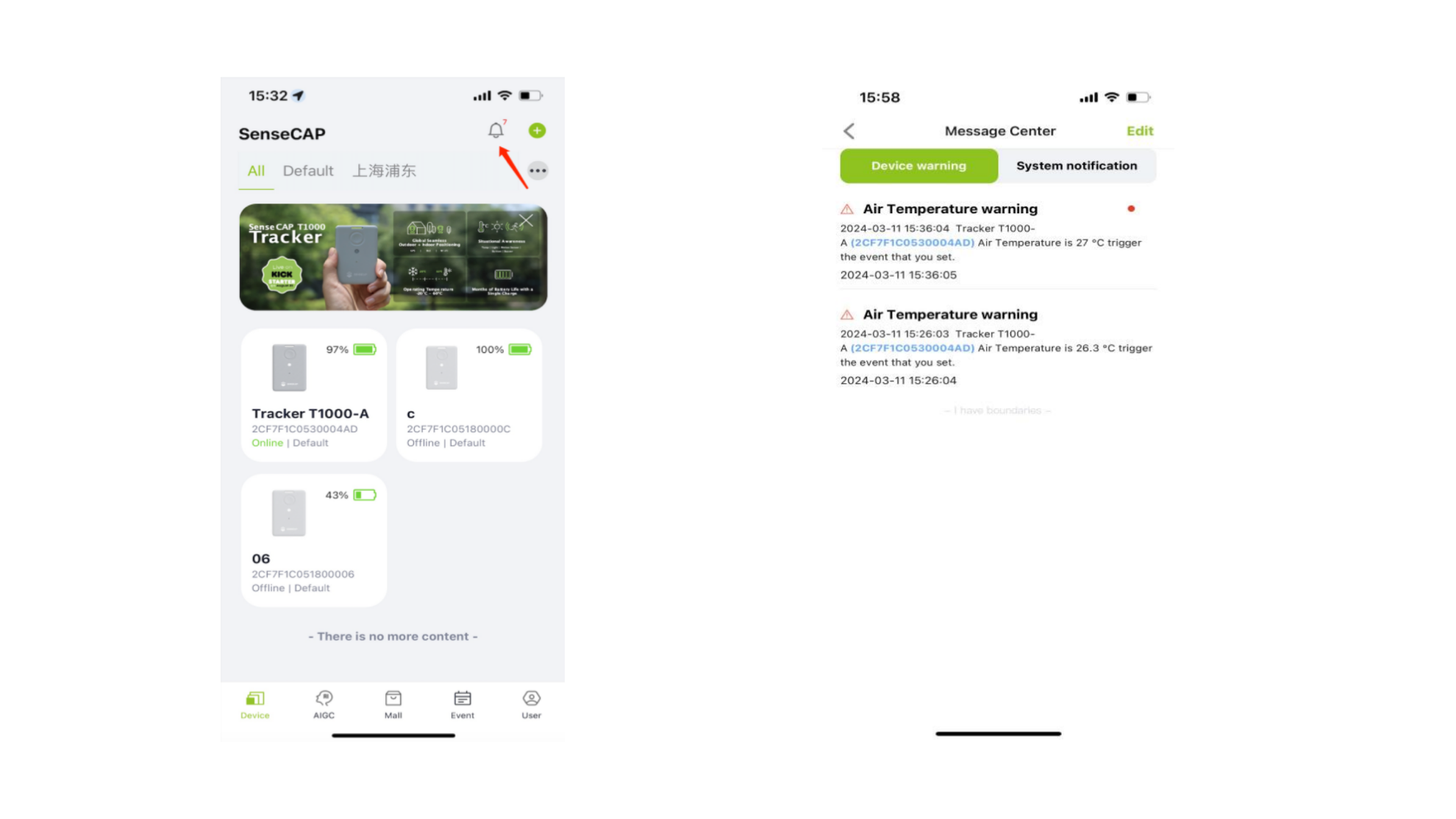
- Click the bell icon in the upper right corner to enter the message center.

MALL

Event
Add Events to get notification.

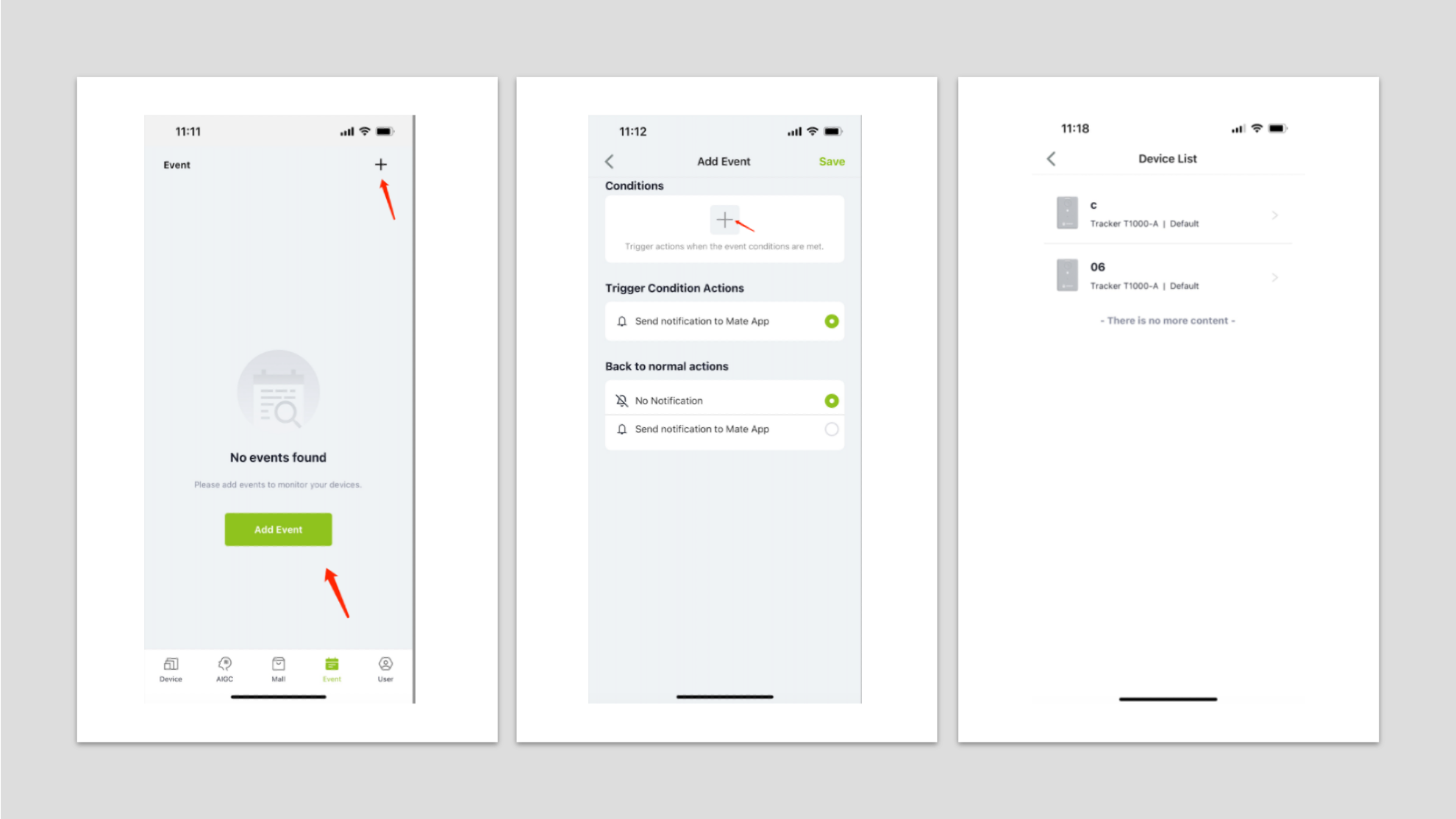
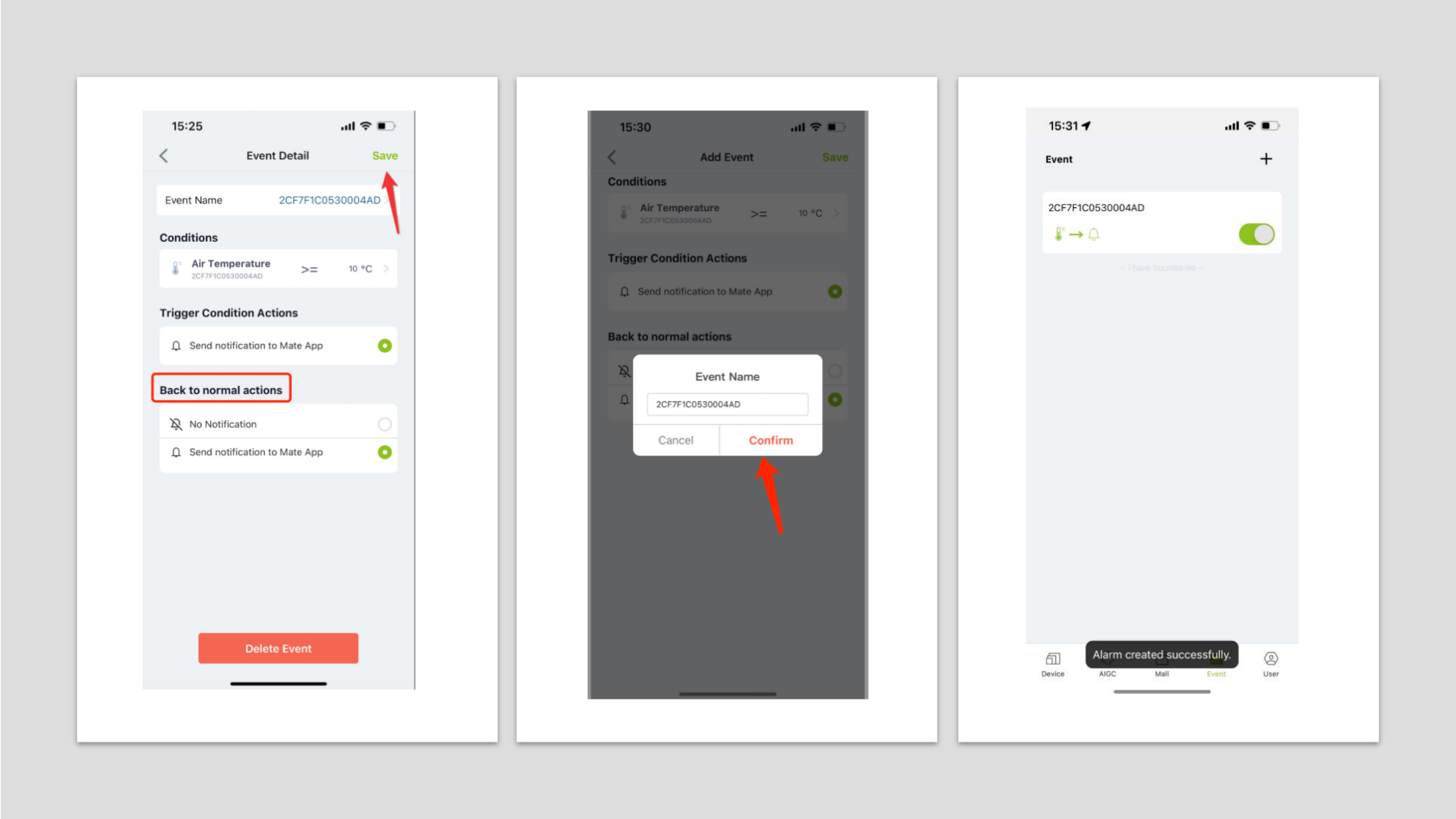
- Click the Add icon or Add Event button to create an Event alert, Add Event page Conditions to add condition options, and click the Add button to select a device.
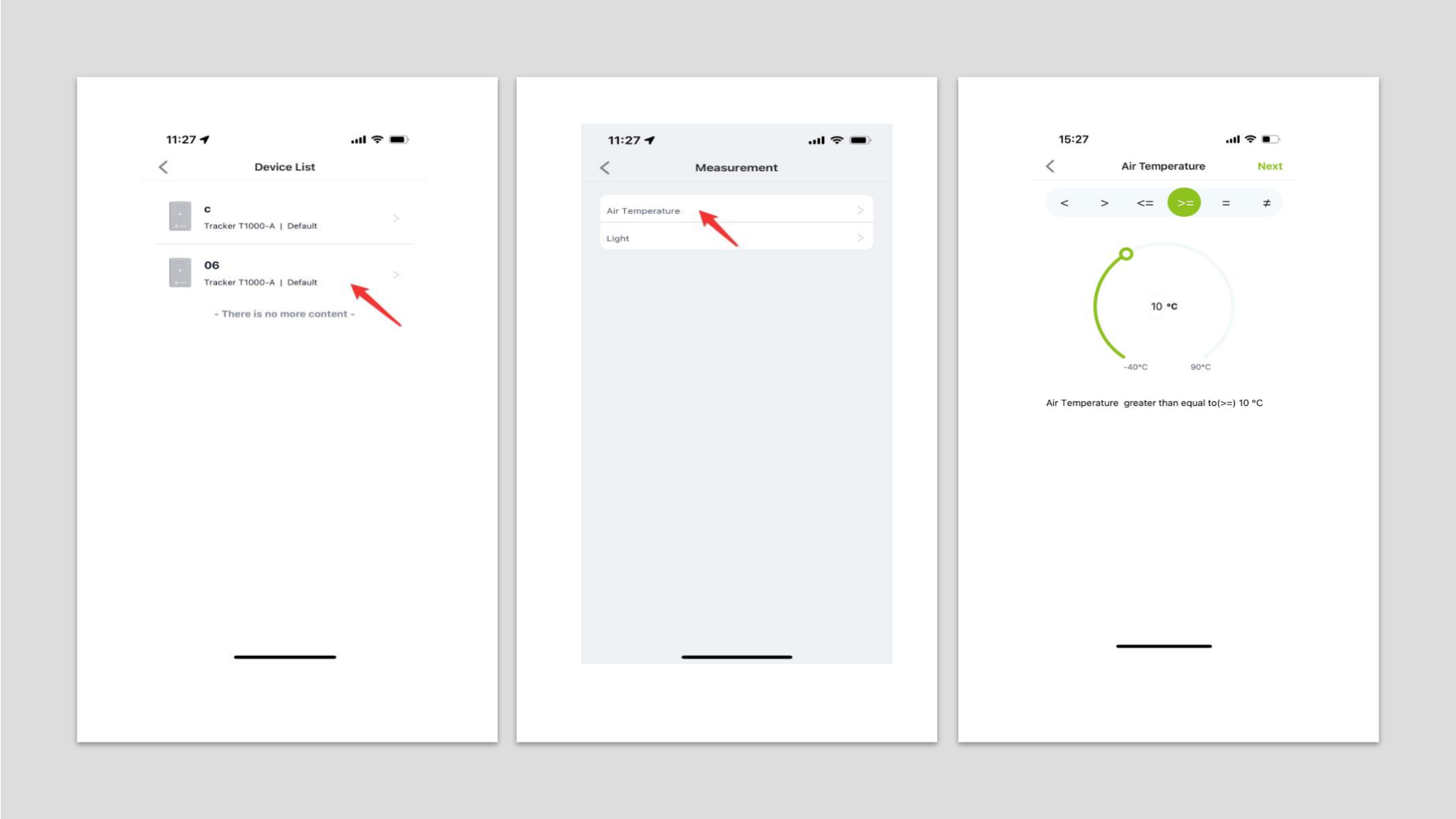
- Select the device, select the type of measurement, set the alarm conditions, select the conditions such as greater than or less than drag the progress bar to set the value, click on the next step.
- Add Event page Back to normal actions device back to normal, select whether to send a notification, click Save, enter Event name, click Submit to add an Event alarm successfully return to Event list.
- Device page, click Message Center to view alarm messages, showing Device warning device triggered alarm push messages, System notification system messages.
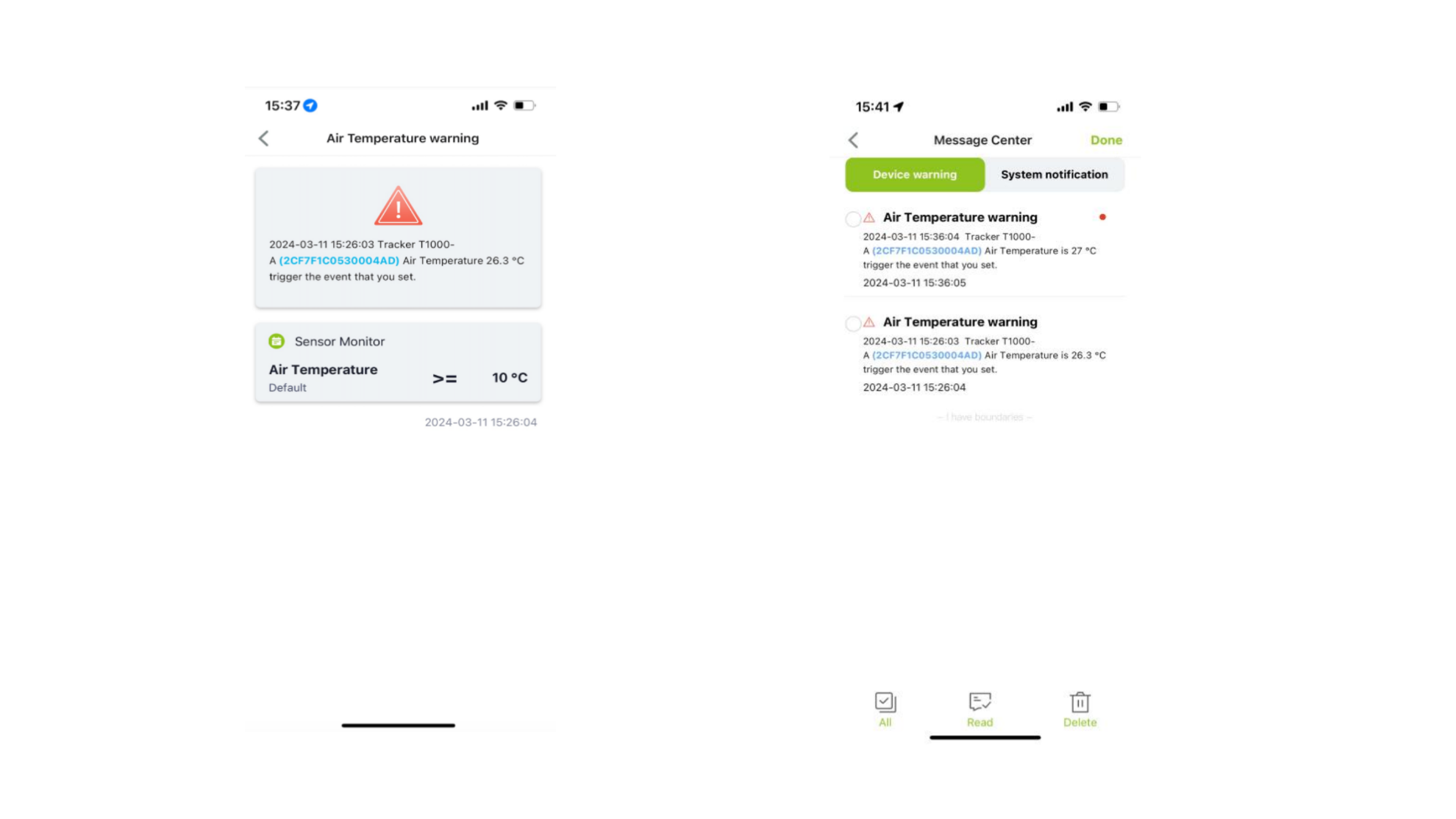
- Click the alarm message, the device triggers the condition item, push the alarm message, click to view the alarm details. Return to the alarm list status changes to read, click the edit button to select the message, you can read, delete and other operations.
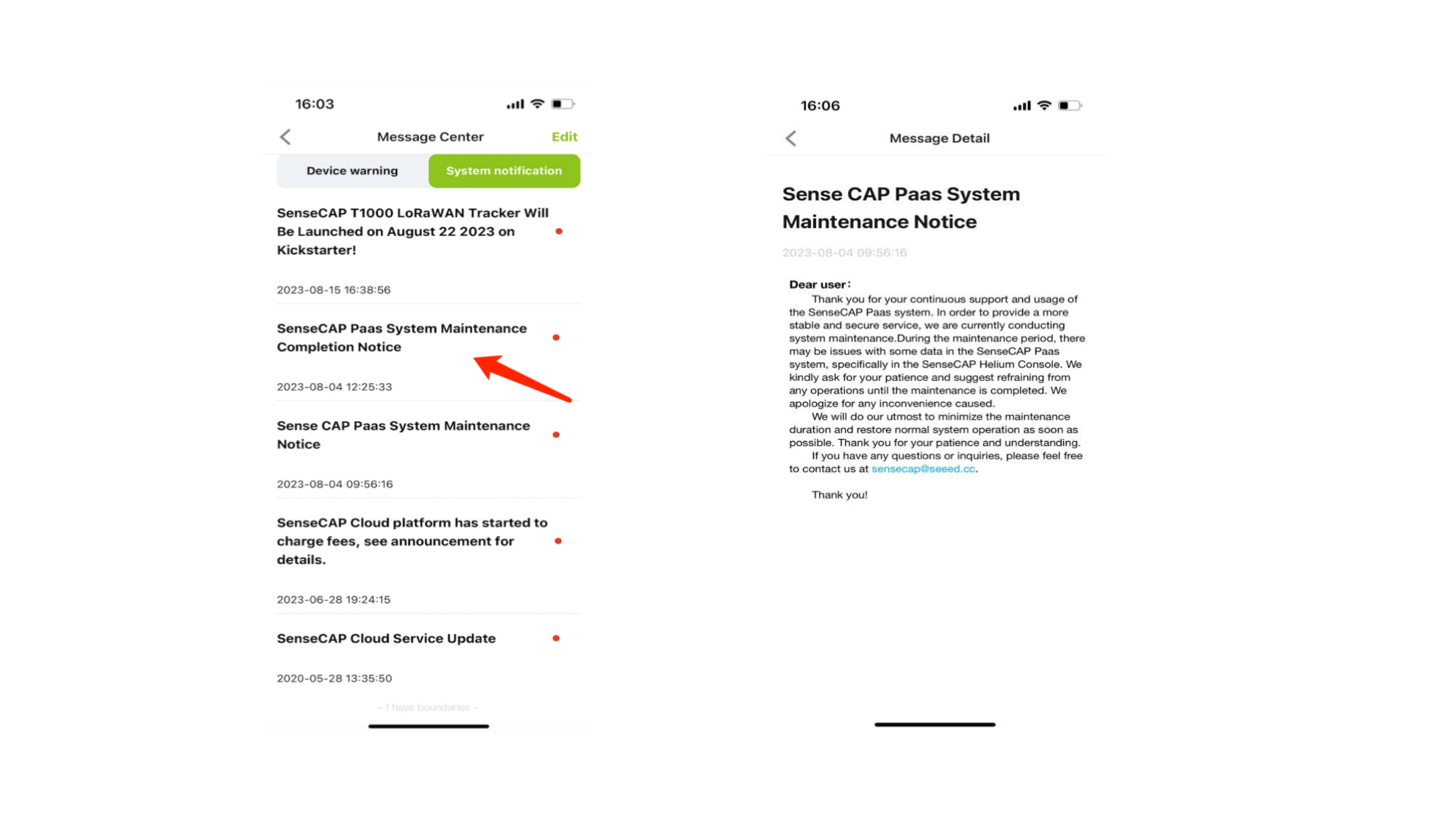
- Toggle system messages, click to view system push message details.
User
Account details and settings, app version, etc.

Delete Account

Bluetooth Configuration
Select the corresponding product for quick binding.

Template
The SenseCraft app provides a set of template functions, including Add New Template, Import Template, Download Template and Apply Preset Template, to simplify and accelerate device configuration. These functions efficiently help users reduce setup time, and streamline deployment for large-scale installations.
Add New Template
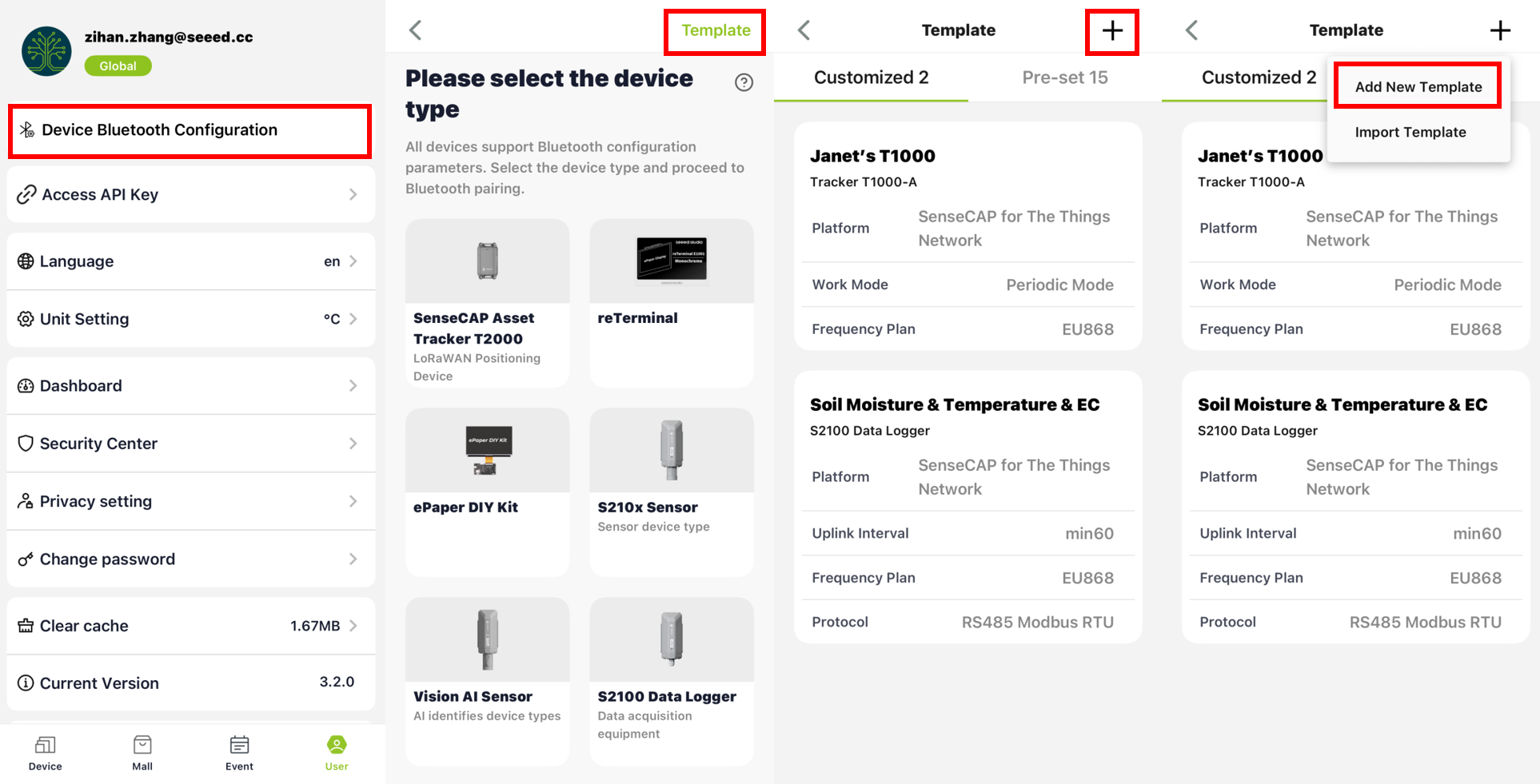
There are two ways to add a new template.
Method 1
- Go to
User→Device Bluetooth Configuration. - Tap the
Templatebutton in the upper-right corner. - Tap the
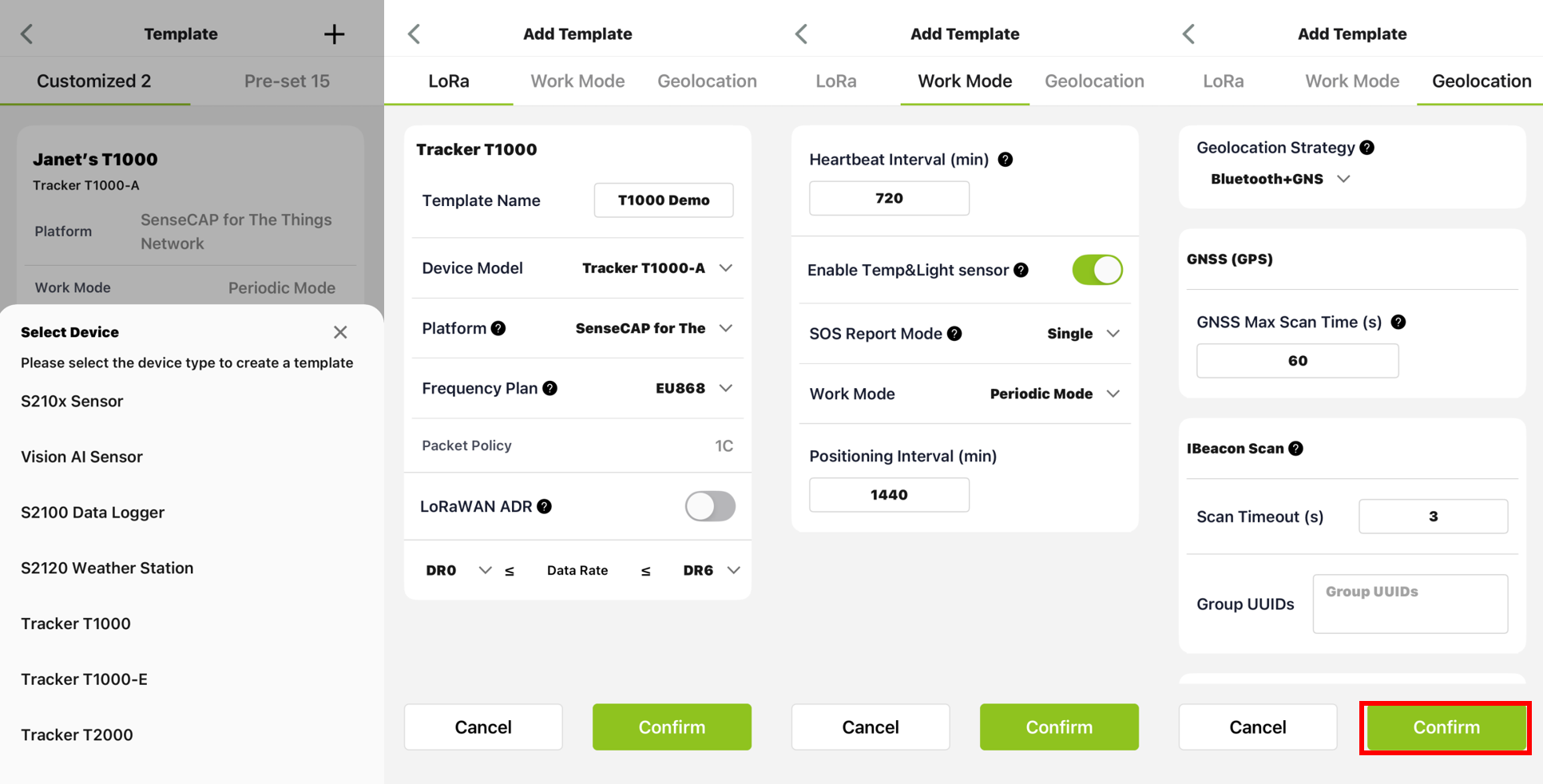
+icon →Add New Template. - Select the Device Type.
- Configure the template parameters according to your needs.
- Tap
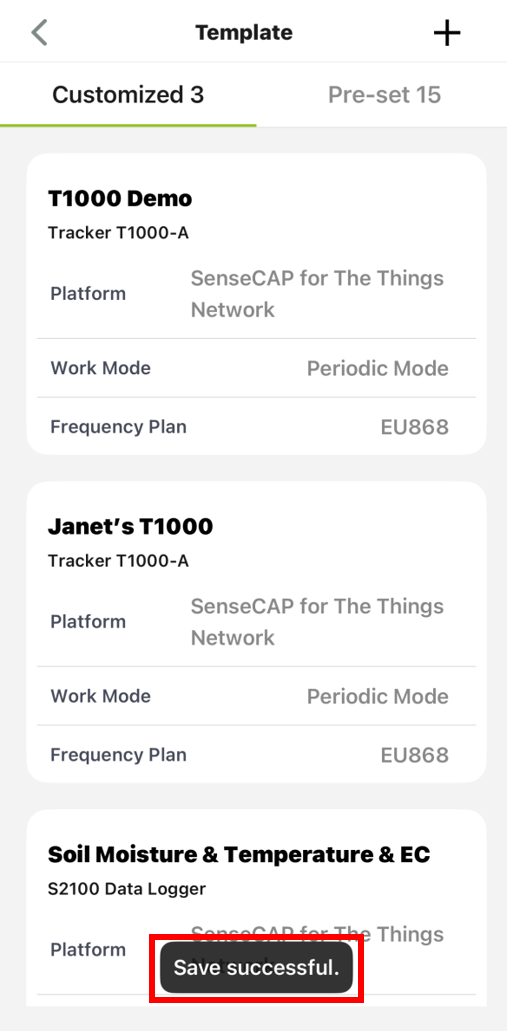
Confirmto save the template. - Return to the Template page, you can see
Save successful.
Method 2
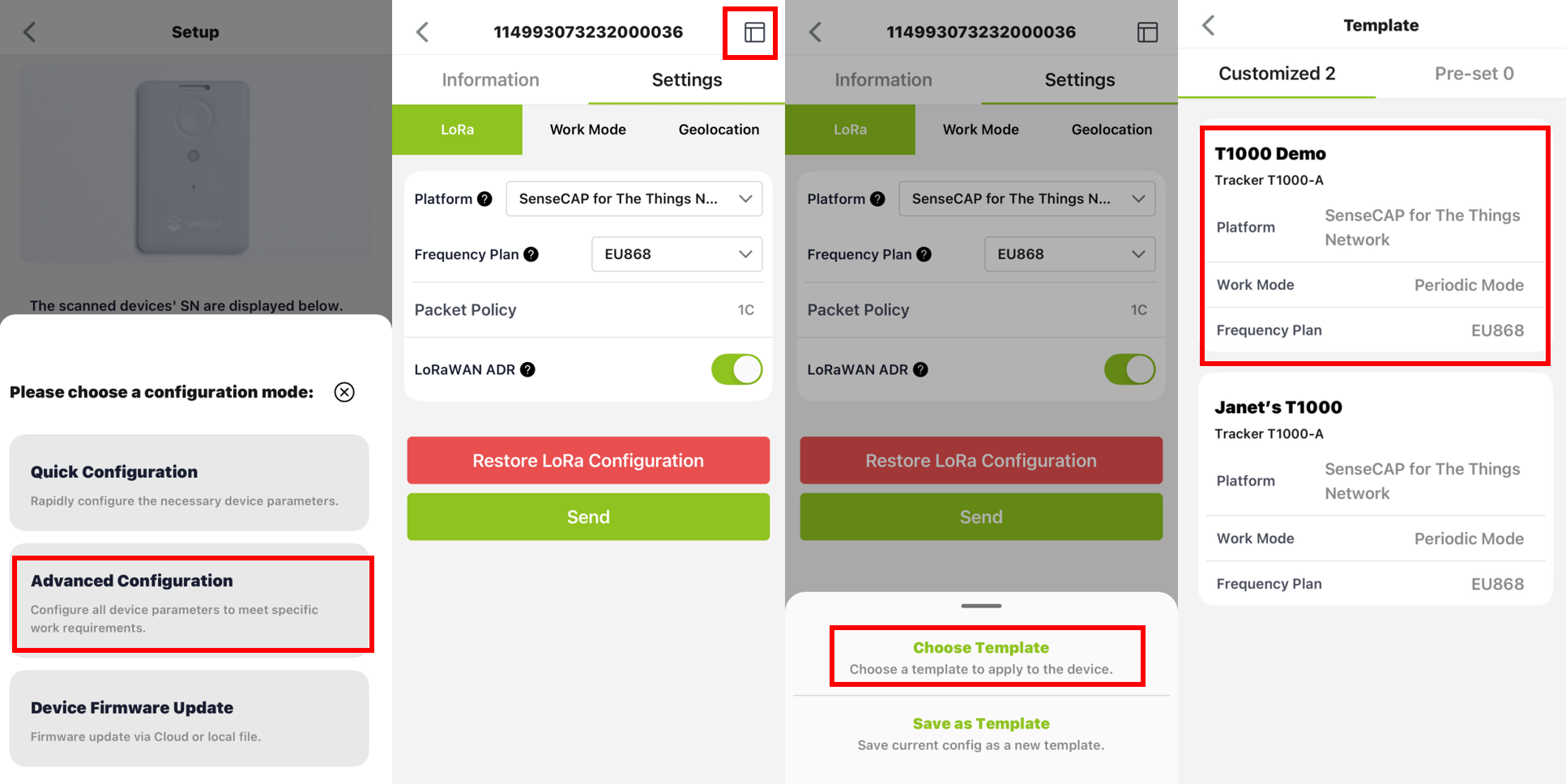
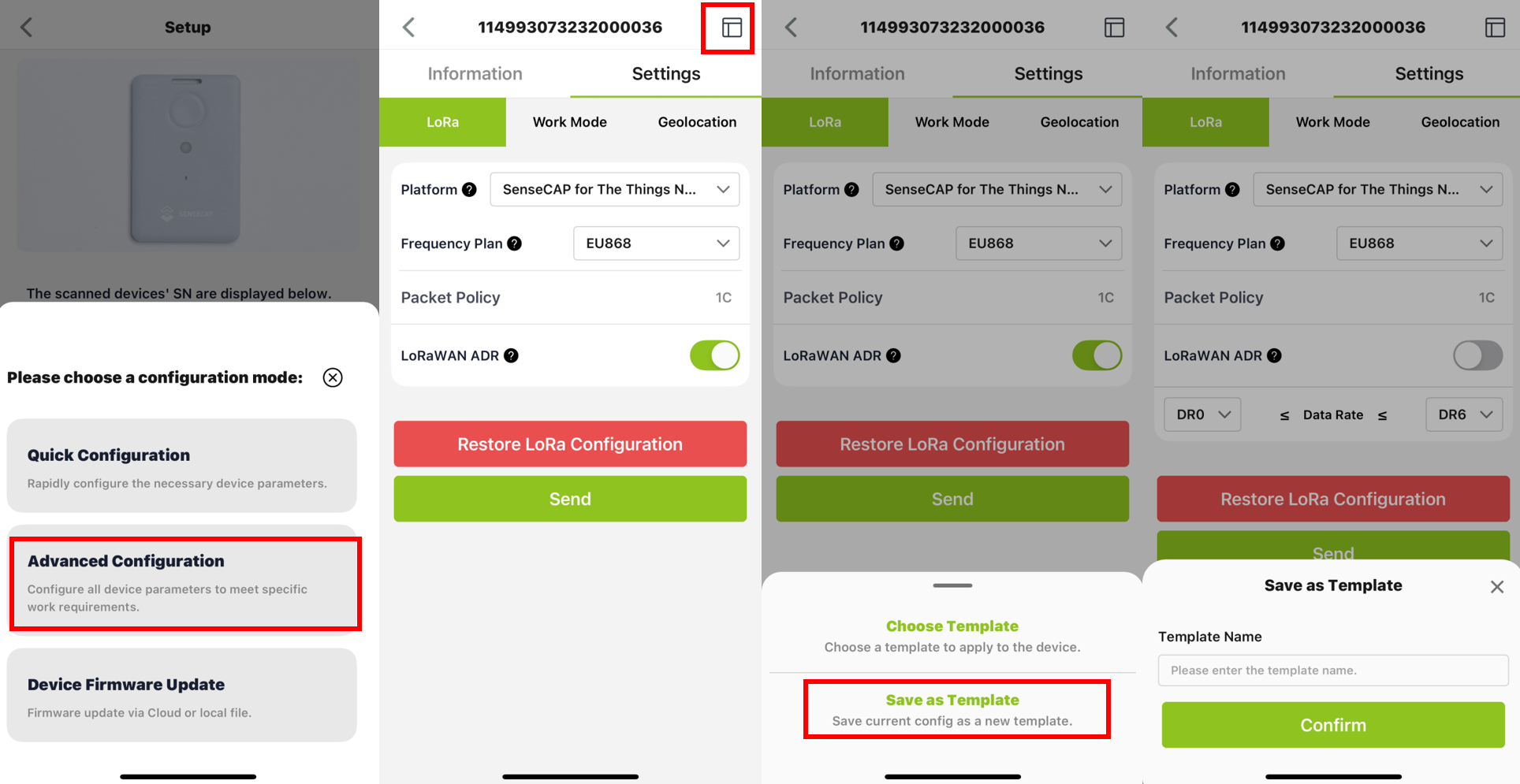
- Enter Bluetooth Configuration Mode and select
Advanced Configuration. - Go to the
Settingpage. - Tap the
Templateicon in the upper-right corner. - Adjust the template parameters as needed.
- Select
Save as Template. - Enter a Template Name.
- Tap
Confirmto save.
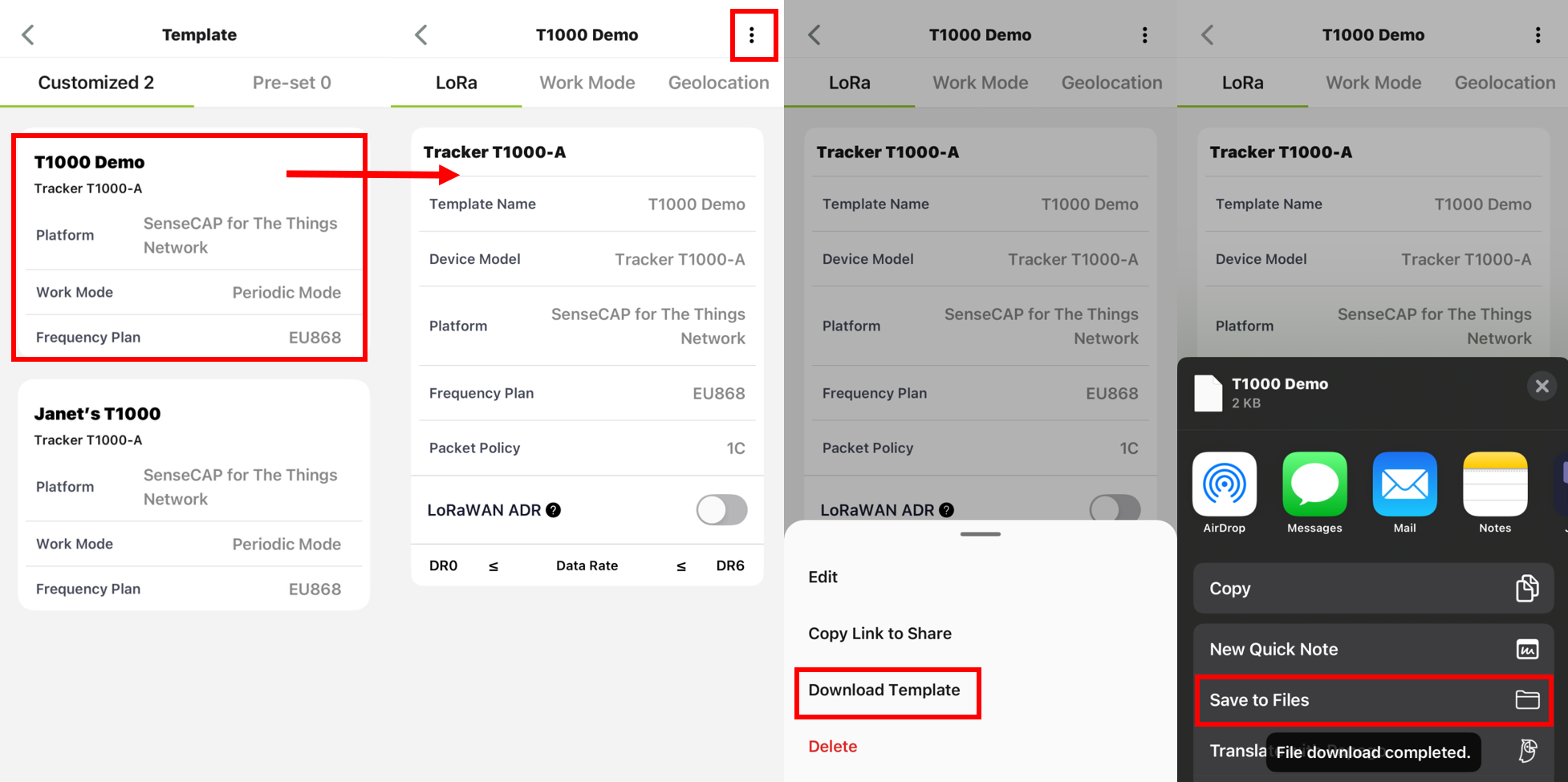
Download Template
- Navigate to the
Templatepage, select the template you want to download. - Tap the three-dot menu in the upper-right corner.
- Select
Download Template. - Save the file to your mobile device storage.
Import Template
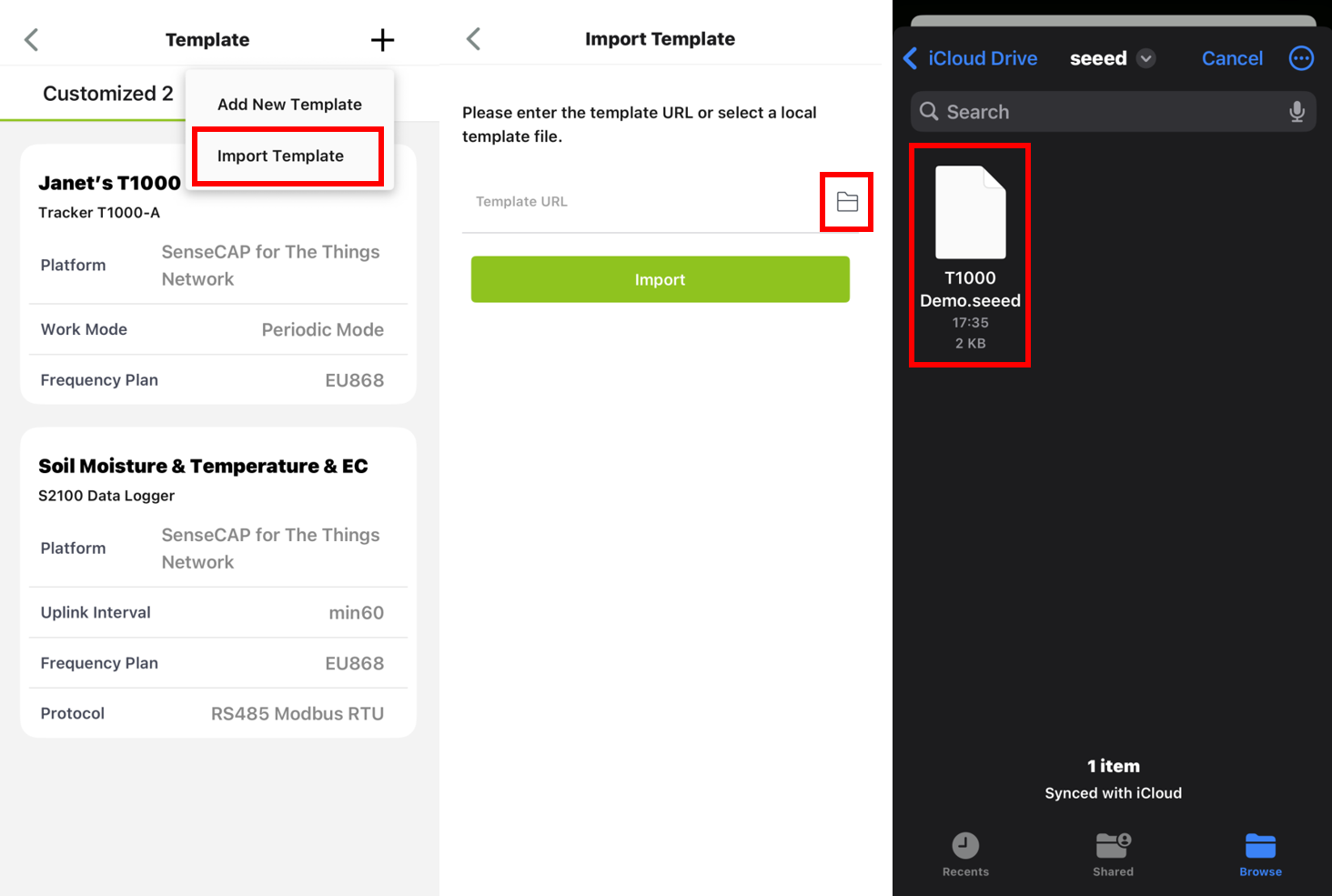
- Go to
User→Device Bluetooth Configuration. - Tap
Templatein the upper-right corner. - On the Template page, tap the
+icon. - Select
Import Template. - Tap the
fileicon. - In the system file manager, select the configuration file with the
“.seeed”extension.
Apply Preset Template
- Enter the device’s Bluetooth Configuration mode and select
Advanced Configuration. - Open the
Settingspage and tap theTemplateicon in the top-right corner. - Select
Choose Template. - On the Preset Template page, select the desired template.
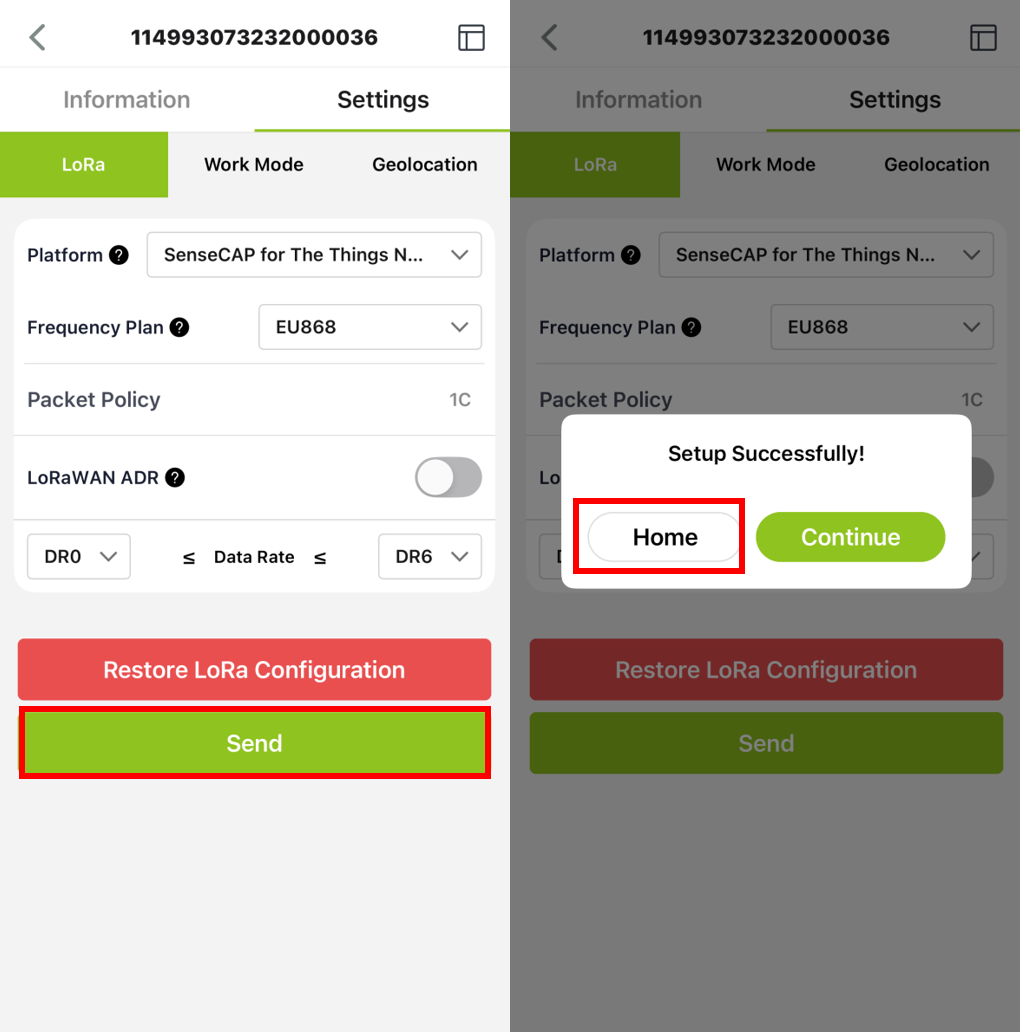
- Return to the Settings page and tap
Sendto apply the configuration.