SenseCraft Robotics Software Overview
1. Software Introduction
SenseCraft™ Robotics is a training and runtime platform for real-world robotic arm tasks. It provides an integrated workflow covering device connection, calibration, data collection, model training, and validation, helping users in education, research, and robotics applications move more quickly from demonstration data to physical actions.
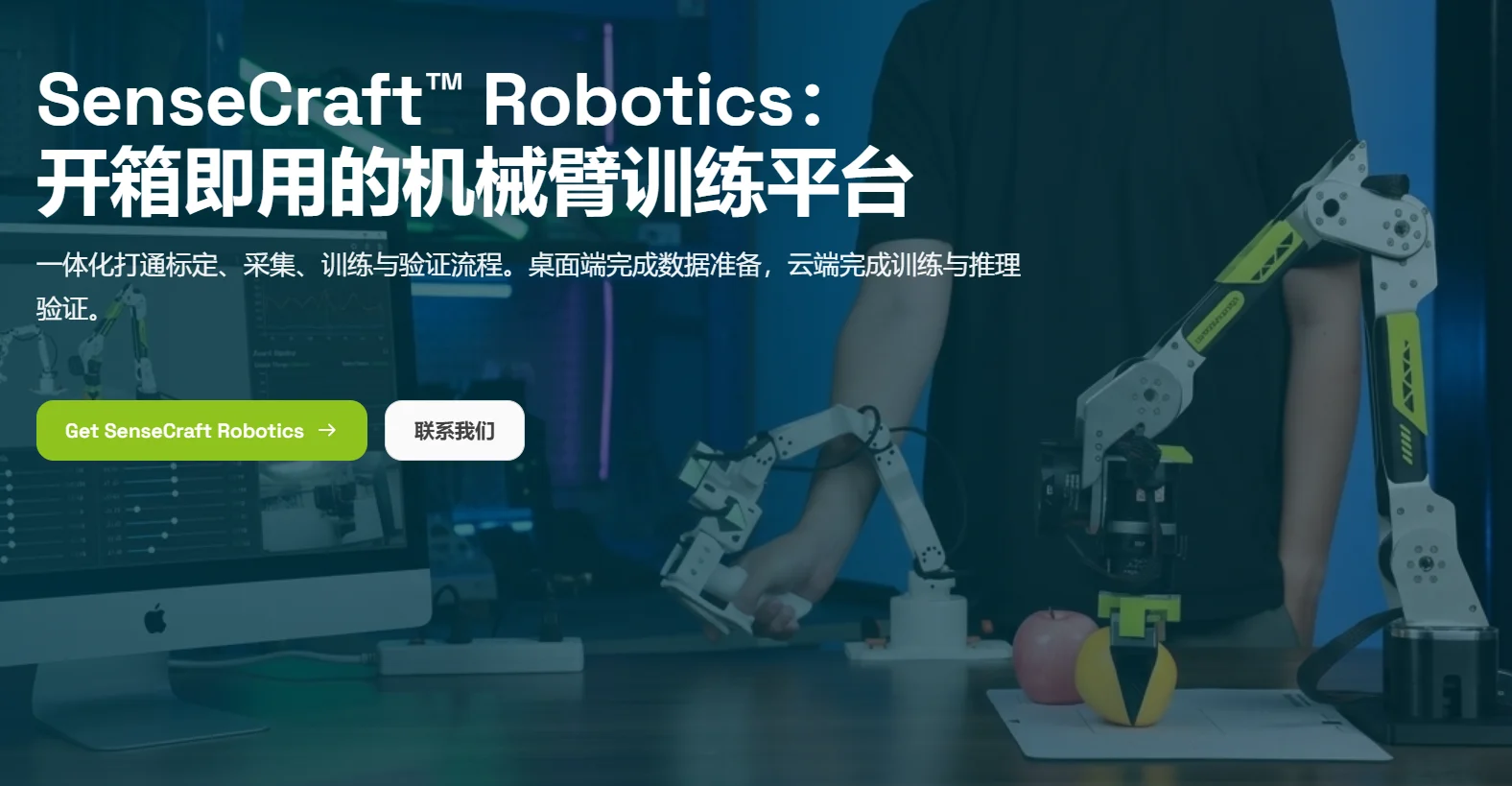
1.1 Software Overview
The main platform workflow is as follows:
- Device Setup: Select the robotic arm model, bind the Leader arm, Follower arm, and cameras, then complete calibration and teleoperation verification.
- Data Collection: Use the Leader arm to control the Follower arm during task demonstrations and record multiple data segments.
- Action Library: Record, manage, and replay independently executable action segments.
- Dataset Management: Preview videos, and repair, merge, or upload datasets.
- Training: Select a dataset and perform cloud or local training.
- Run: Select a trained model and perform local or cloud inference so that the robotic arm can execute tasks autonomously.
1.2 Key Features
- Guided workflow: Complete device setup, data collection, training, and runtime verification step by step.
- Cloud training: Submit major training tasks to the cloud to reduce local computing requirements.
- Project management: Manage projects, datasets, and models in one place for reuse and continuous iteration.
Official entrance: SenseCraft Robotics
1.3 Use Cases
- Education and training / STEM education organizations: Organize AI robotics courses, project-based learning, and student project demonstrations.
- Universities / research institutions / laboratories: Support embodied intelligence, imitation learning, robotic data collection, and model validation.
- Innovation centers / demonstration and solution teams: Build demonstrable AI robotics application prototypes for public education, customer experiences, and scenario-based solution design.
2. Supported Devices
2.1 Supported Robotic Arms
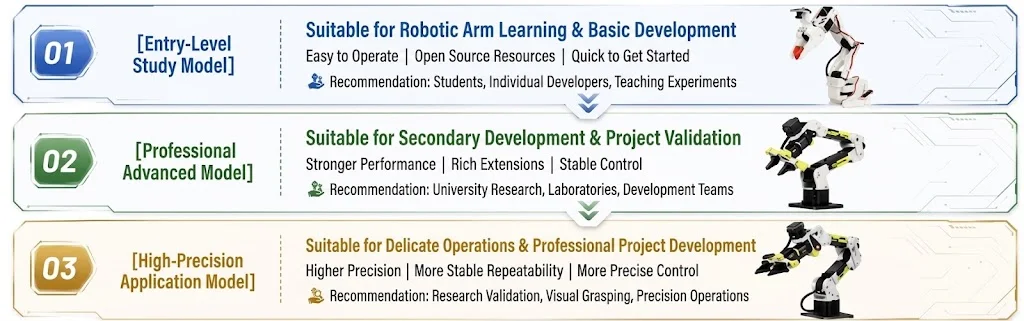
Choose a device according to your goals: select an entry-level model for introductory learning and basic development; choose an advanced model when stronger performance and secondary development capabilities are required; select a high-precision application model when positioning accuracy and motion stability are important.
| Model | Device combination (Leader + Follower) | Purchase link | Dedicated guide |
|---|---|---|---|
| 01 | SO-ARM101 + SO-ARM101 | Buy now | SO-ARM101 Guide |
| 02 | reBot Arm 102 + B601 DM | Buy now | DM Guide |
| 03 | reBot Arm 102 + B601 RS | Buy now | RS Guide |
This article describes the common software workflow for the three device combinations. For robotic arm installation, wiring, and power requirements, refer to the dedicated guide for the applicable device combination.
2.2 Computer and Software Requirements
- A Windows or macOS computer.
- A stable network connection for login, project management, cloud training, and inference verification.
- The latest version of the SenseCraft Robotics client.
- A registered SenseCraft account. Refer to the official software download page for specific operating system and hardware requirements.
3. Software Download and Installation
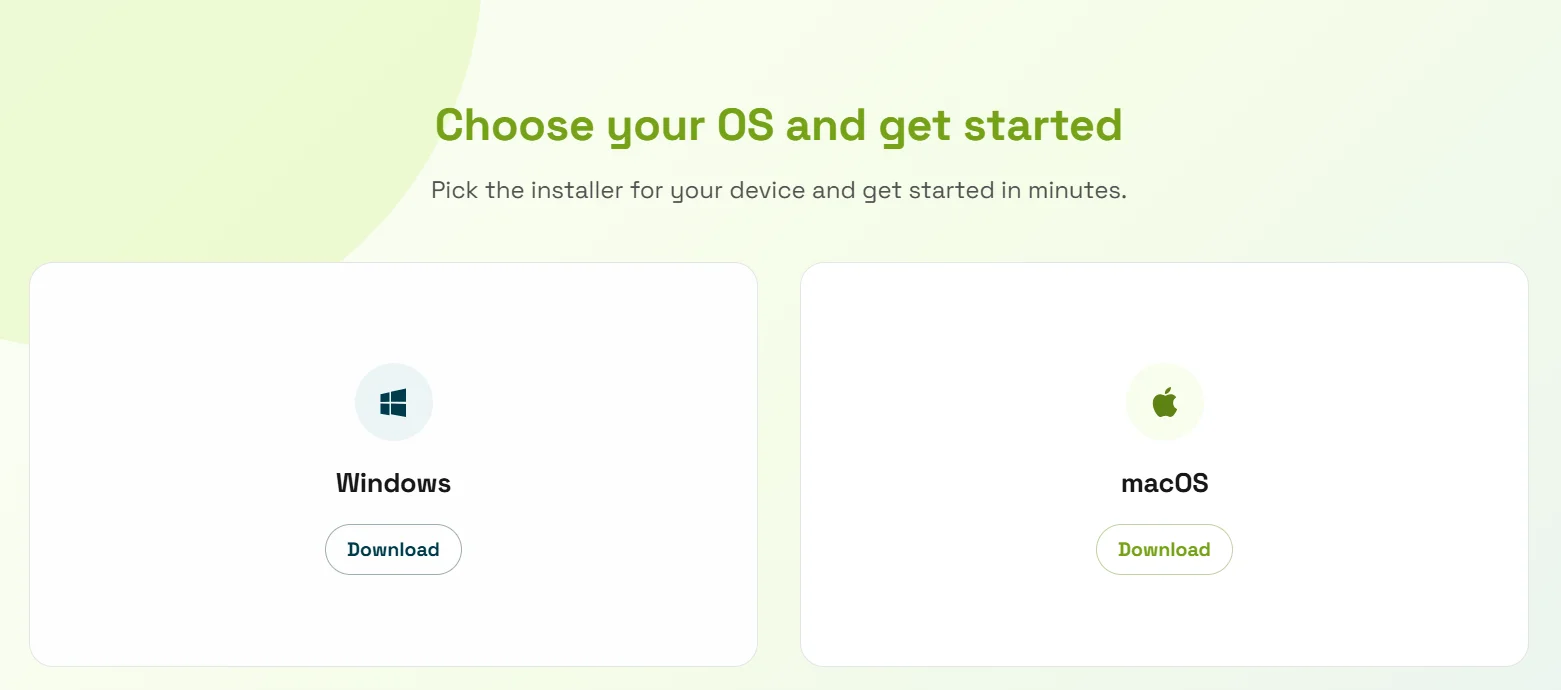
3.1 Download the Software
Open the SenseCraft Robotics official page, go to the software download section, and select the installer for your operating system.
3.2 Install the Software
Run the installer and follow the installation wizard. After installation, launch the SenseCraft Robotics client. We recommend reserving sufficient disk space for videos, datasets, and model files.
3.3 Create an Account
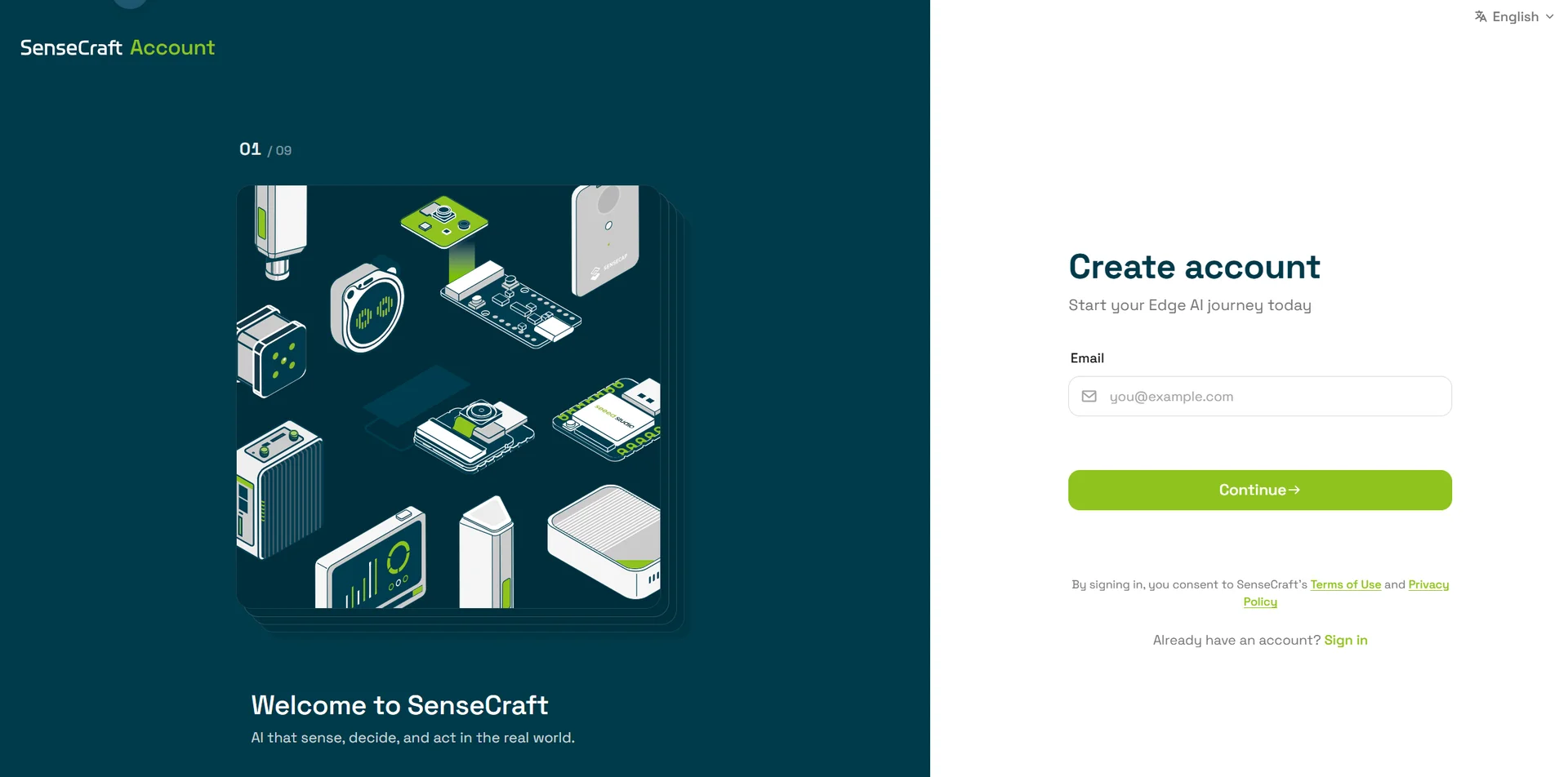
In the user center, select Sign up or Create account, then follow the on-screen instructions to verify your email address and set a password. After registration, return to the SenseCraft Robotics client.
3.4 Log In to the Software
The SenseCraft Robotics client opens the SenseCraft user center in your system browser to complete sign-in. The client itself does not directly collect your password.
- Launch the SenseCraft Robotics client and click Log in in the login window.
- The system browser opens the SenseCraft user center. Sign in with your registered email address and password, and complete any account verification or authorization steps shown.
- After signing in, you will enter the Projects page, where you can create a new project or open an existing one.
4. Software at a Glance
4.1 Home
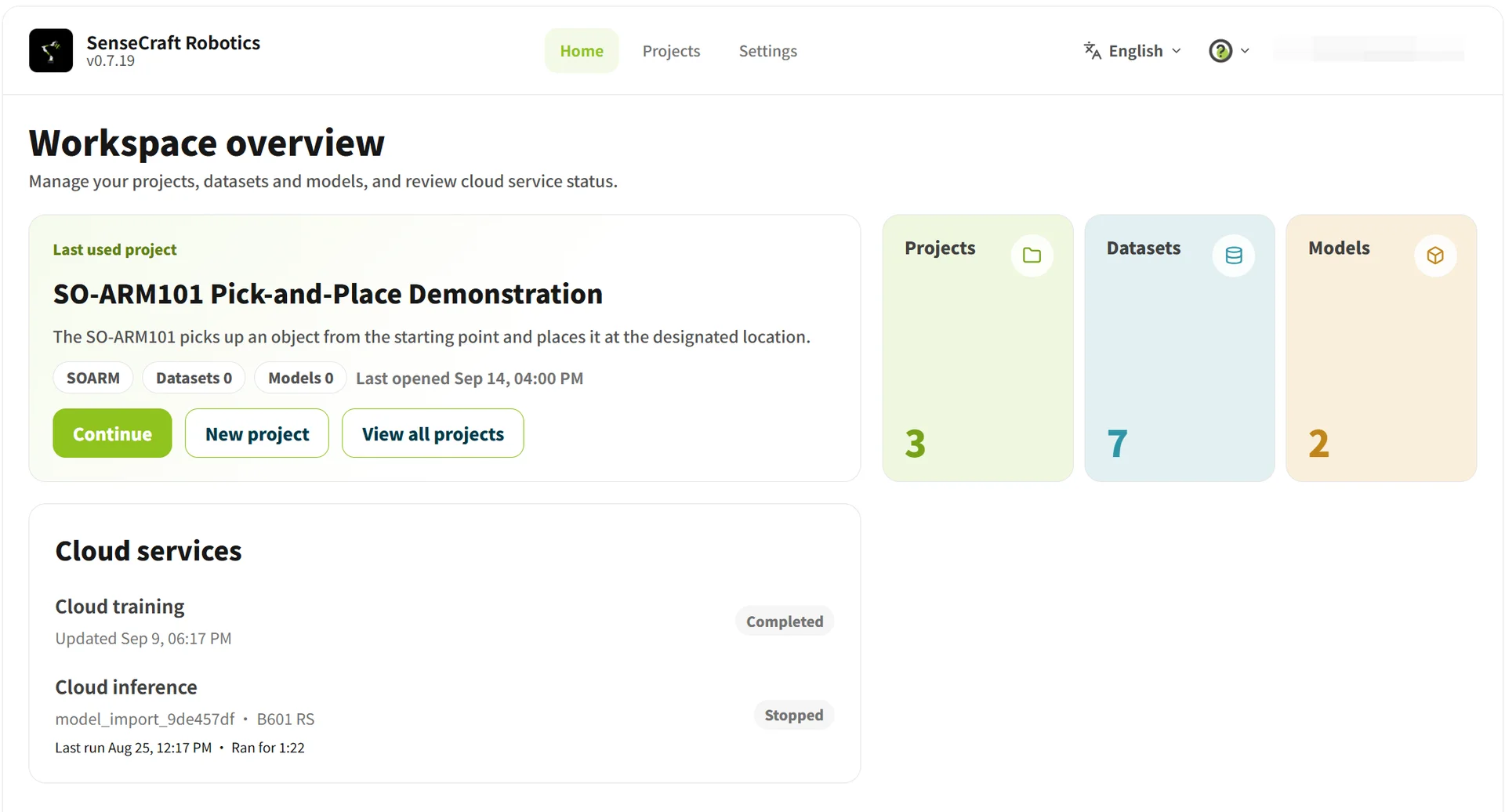
The Home page provides access to the platform, project status, and commonly used features. When using the platform for the first time, you can enter a project or view help information from the Home page.
4.2 Projects
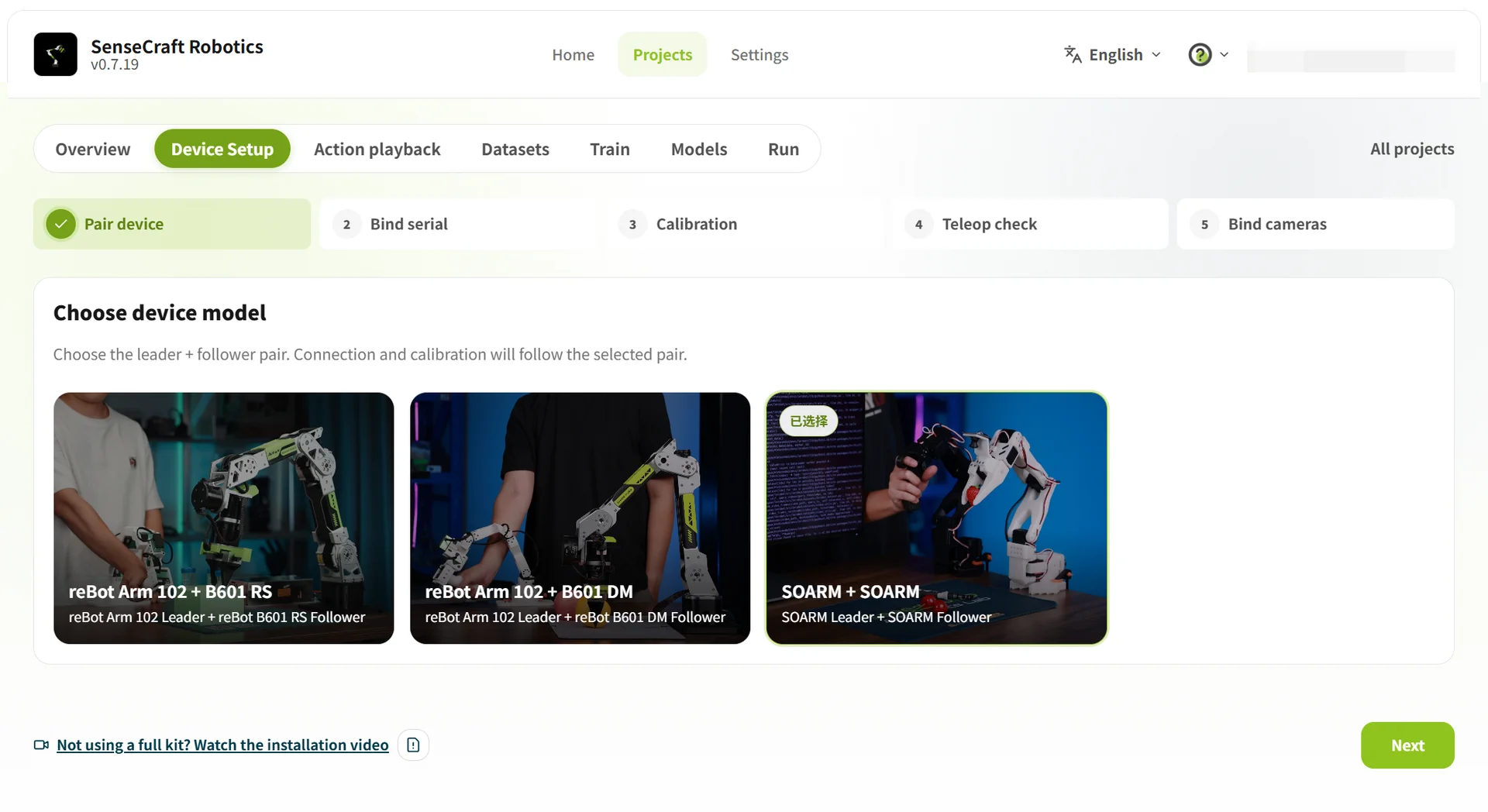
A project is a unified workspace for managing devices, tasks, datasets, and models. After signing in, follow these steps for your first use:
- Create a project and select a robotic arm combination.
- Connect the Leader arm, Follower arm, and cameras.
- Complete device calibration and teleoperation verification.
- Record a demonstration data segment.
- Check the dataset and upload it or use it for training.
- Select a model for runtime verification.
4.3 Settings
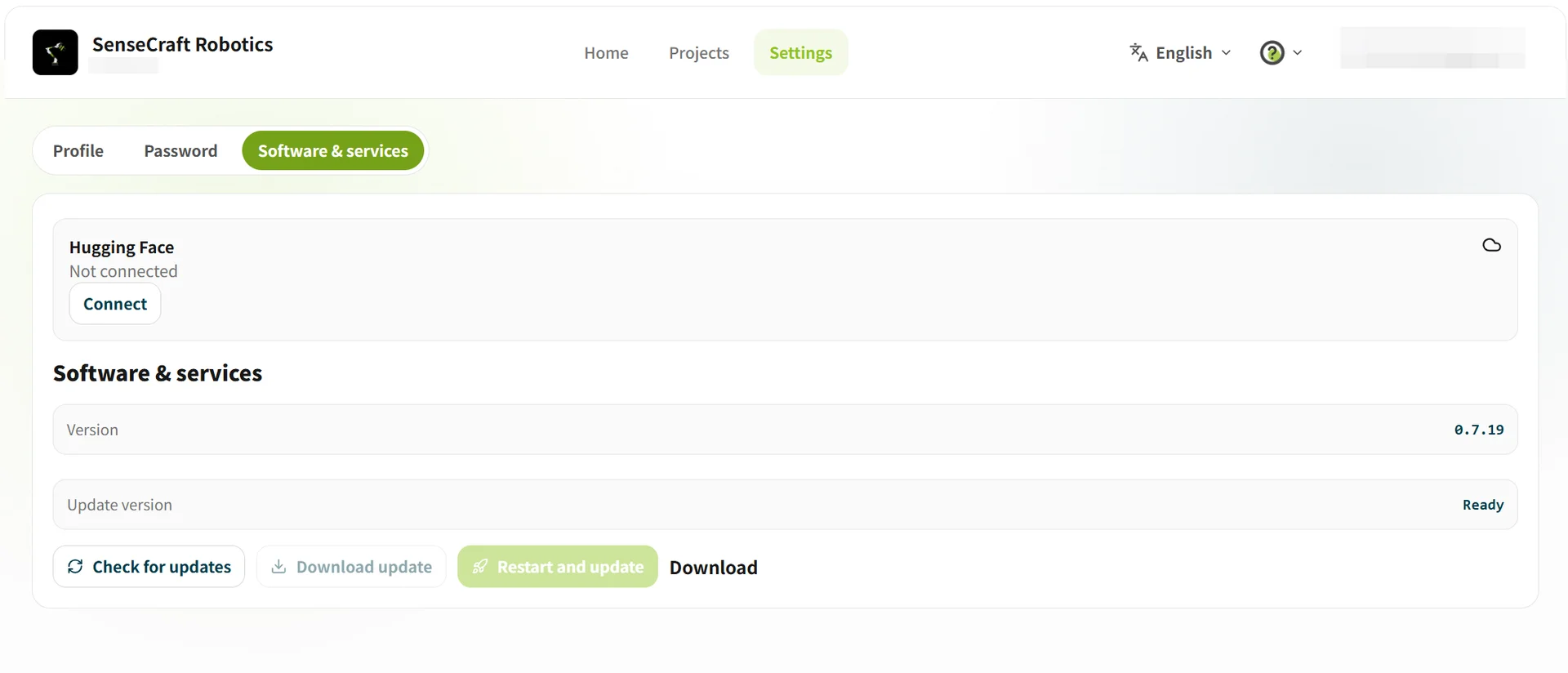
Click Settings in the top navigation bar to open the Settings page. It mainly contains the following three modules:
- Personal Information: View and edit your basic account information, including your avatar, username, bound email address, and occupation.
- Password Settings: Change your account password. Enter your current password to verify your identity, then set and confirm a new password.
- Software and Services:
- Service Connections: Manage authorized connections to third-party AI platforms such as Hugging Face.
- Version Management: View the current software version and check for updates. You can Check for updates, Download update, or Restart and update. If verification problems occur, use the prompt to visit the official download page.
5. Credits and Billing
5.1 Billing Model
SenseCraft Robotics uses a credits-based model in which GPU usage is charged according to actual usage.
Credit prices, expiration dates, billing timing, refund rules, and education offers may vary by region, software version, and promotion. This section is provided for functional reference only. For the latest rules, refer to the current SenseCraft Robotics billing page, task confirmation page, and terms of service.
- Purchased or redeemed credits can be used for training and inference tasks.
- Charges are based on the selected GPU model and actual runtime.
- Queueing and resource preparation generally do not incur charges; billing begins when the task actually runs.
- Refer to the current platform page for specific prices.
5.2 Adding Credits
Users can obtain credits through platform top-ups, redemption codes, or education course codes.
- Higher top-up amounts may include more bonus credits.
- New users may receive a one-time credit bonus.
- Education users may use shared credits provided by a school or organization through a course code.
- Different types of credits may have different expiration and refund rules.
5.3 Training and Inference Charges
When a task is created, the platform estimates the expected consumption based on the task type, GPU model, and number of training steps. The final charge is settled according to actual runtime.
- Training tasks estimate runtime based on the number of training steps.
- Inference tasks are charged according to actual runtime.
- The final charge may be lower or higher than the estimate.
- If the balance is insufficient, the task may stop automatically. The account will not incur a negative credit balance.
5.4 Credit Refunds and Expiration
- Purchased, bonus, and education credits are managed according to platform rules.
- If a task fails to start or an issue occurs with the platform or GPU, unused credits may generally be returned.
- If a user cancels a task, the portion that has already run is charged according to actual usage.
- Used credits are generally non-refundable.
- Refer to the current platform information for specific expiration and refund rules.