BLE + LoRaWAN Indoor and Outdoor Positioning: Build, Deploy, and Measured Results
This is not a safety-certified system: LoRaWAN uplinks can be lost, GNSS does not work indoors and BLE positioning degrades around metal, so a position can be late, wrong or missing. Do not use it as the only safeguard for people's safety.
What this solution does
A site usually has both a building and an outdoor area, and the question is the same in both: where is that forklift, that instrument, that person, right now. Battery-powered BLE beacons mark positions inside; the tracker's own GNSS takes over outside; both come back over LoRaWAN, and a web dashboard draws them on one map. A floor plan can be georeferenced onto the outdoor map, so a trail that starts in a building and continues in the yard stays on one screen.
- Open-source implementation: github.com/Seeed-Solution/Solution_IndoorPositioning_H5
- Picking a configuration and deploying: reference design page
No cabling on the sensing side
Beacons are battery powered and stick to a wall; a tracker reports for months on one charge. What needs mains power and a network drop is the gateway and the host.
Indoor and outdoor are one map, switched automatically
When a tracker enters or leaves a building, a server-side state machine switches the layer; nothing to toggle by hand, and a tracker standing by a window does not flip back and forth.
Open source, data stays on your host
The application source is on GitHub and runs as a Docker image on your own host. The only thing that reaches the internet is the basemap, which can be replaced by an offline PMTiles archive.
Measured server capacity
200 concurrent tags at end-to-end P95 828 ms with 0% loss; 500 tags at P95 2.35 s. Tested with replayed uplinks, no tracker or gateway connected.
Live output
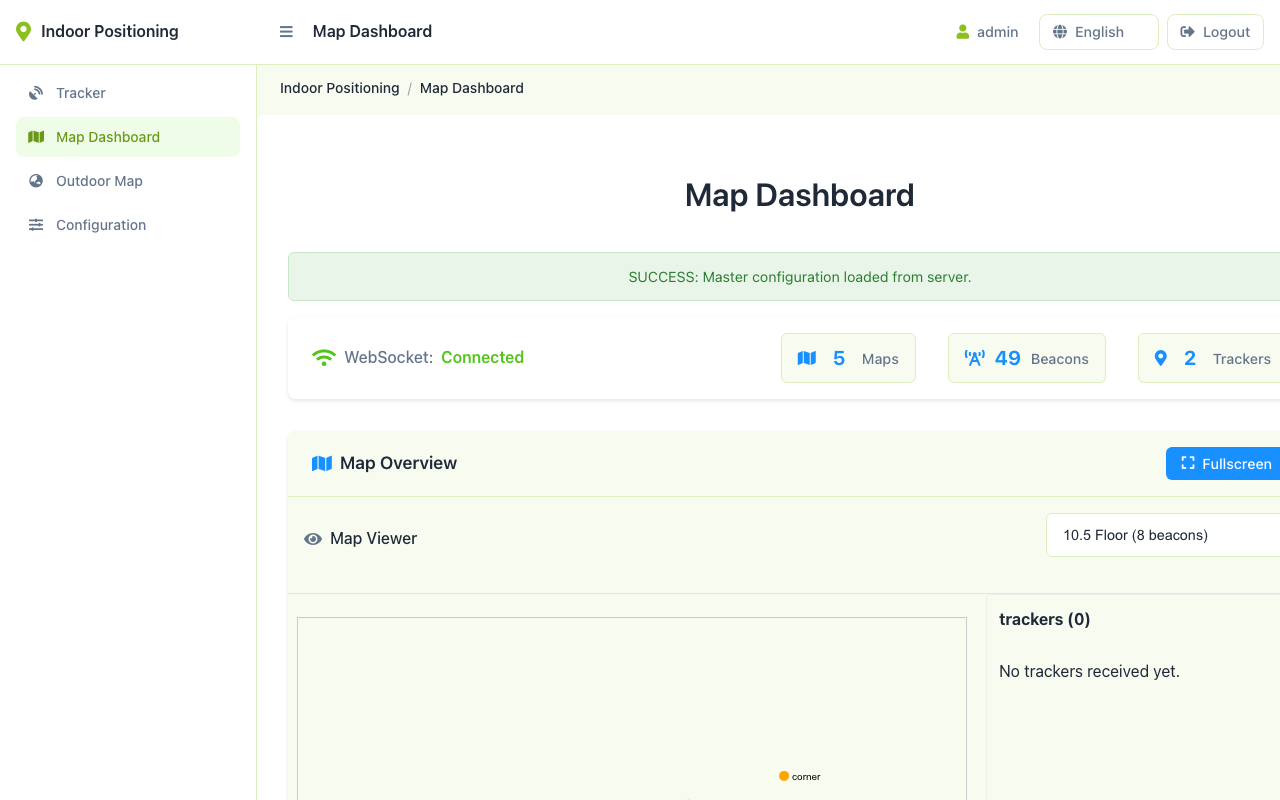
The indoor layer draws trackers on the registered floor plan:
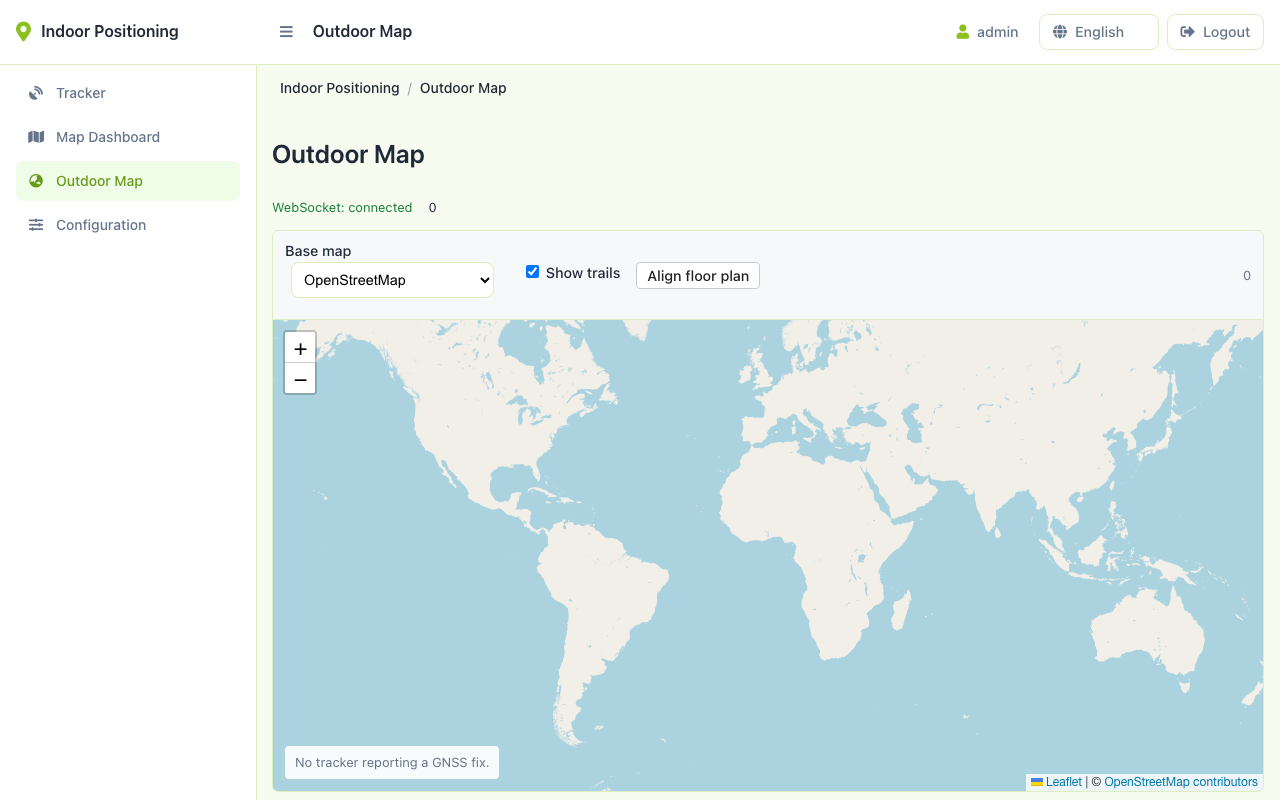
The outdoor layer is the same page on the same WebSocket, with map tiles as the base:
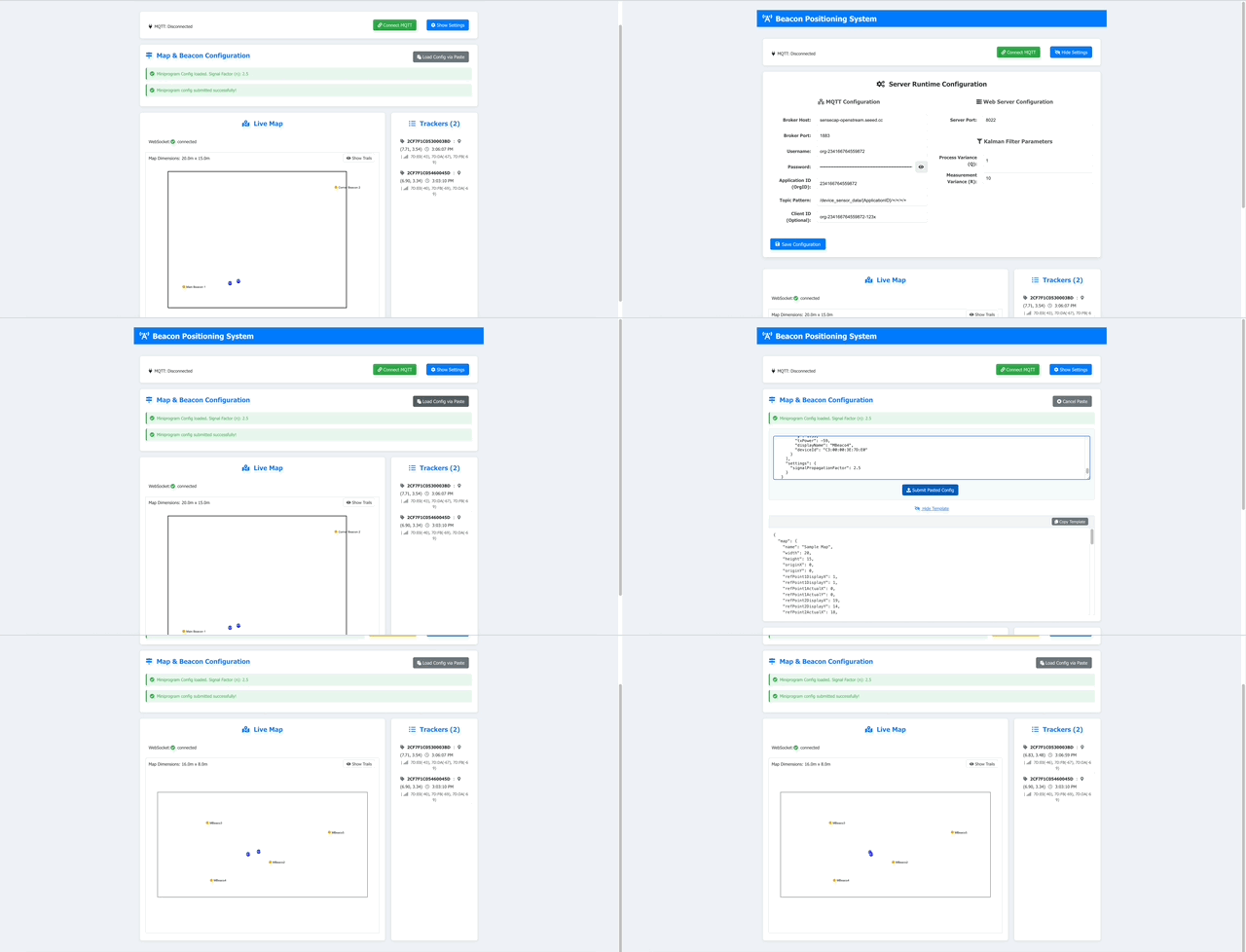
One tracker moving between the two:
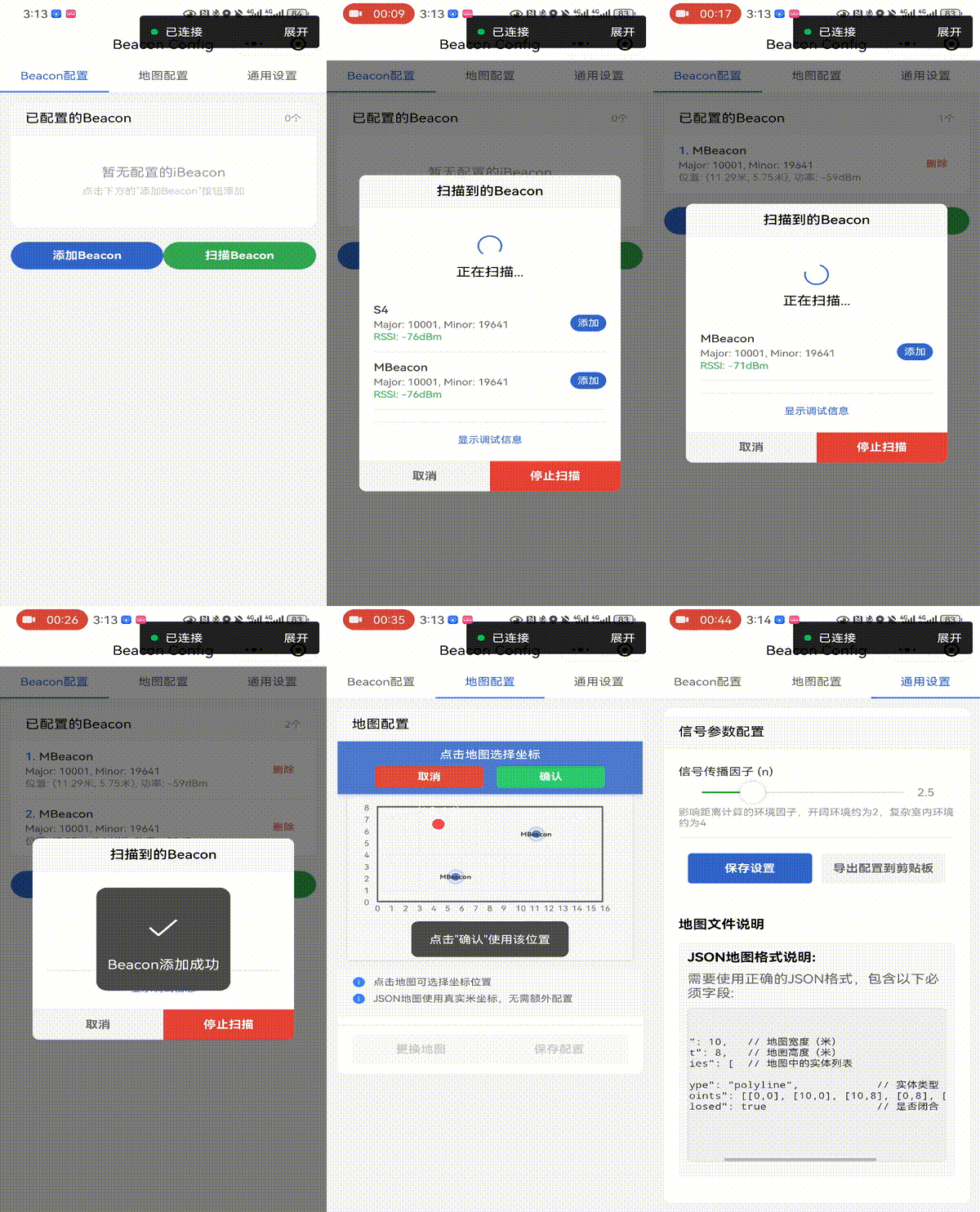
The phone client shows the same data:
The dashboard is a single page at /web/map with an explicit layer switch between Indoor and Outdoor; /web/map?layer=outdoor is a direct link suitable for a wall display and subscribes to the same WebSocket. A tracker is drawn on exactly one of the two views at a time. Which one is decided by the state machine, and the decision is carried in the message as position.coordSystem — metric for a floor-plan {x, y}, wgs84 for a {lat, lon}.
What hardware you need
Three kinds of device on site; the number of beacons and trackers scales with the deployment.
① BLE beacons — the indoor position reference. Battery powered, wall mounted, no wiring. Areas covered by GNSS only (yards, roads, parking) need none at all.
② The tracker — carried by the person or attached to the asset. It scans BLE indoors and uses its own GNSS outdoors, and has an SOS button.
③ The LoRaWAN gateway — collects the uplinks and forwards them to a network server. Order gateway and tracker for the same regional band.
| Device | Nominal capacity | When to pick it | |
|---|---|---|---|
 | SenseCAP BC03 Indoor Bluetooth Beacon Indoor position reference, Bluetooth LE 5.0 | 2–3 m with 3+ per zone; room level with 1 | Any indoor area that needs to be resolved better than "in the building" |
 | SenseCAP LoRaWAN Card Tracker T1000-A BLE scan, GNSS, motion detection, SOS | One per tracked person or asset | The badge or asset tag; the same unit covers indoors and outdoors |
 | SenseCAP M2 LoRaWAN Indoor Gateway SX1302, regional frequency variants | Up to 2 km line of sight; 100–200 trackers | One or two per site; skip it if you already run LoRaWAN |
All capacity figures in the table are nominal, from the device datasheets and deployment practice with this hardware. Beacon accuracy depends on the installation described below.
Besides the devices you need a host for the application (any machine that runs Docker; the server-side measurements used a reComputer J30 series unit as a plain arm64 host), a network server — SenseCAP OpenStream or your own ChirpStack — and, unless you build the offline basemap, internet access on the host for OpenStreetMap raster tiles.
Negative Selection Boundaries
- Sub-Meter Continuous Tracking: BLE beacon accuracy is 2–3 meters. For high-speed AGV navigation or automated machinery requiring sub-meter continuous tracking, choose UWB instead of BLE.
- Real-Time Safety Interlocks: LoRaWAN communication involves latency and duty-cycle constraints with a 15-minute offline threshold; do not use for sub-second safety interlocks.
Deploying on site
1. Install the hardware
Mount beacons at 2.5–3 m height with 5–10 m spacing (BC03's recommended spacing), and add beacons where there is metal shelving. Three or more beacons per zone is what the nominal 2–3 m figure assumes; a single beacon per zone resolves to room level. Record every beacon's MAC address and location — indoor positions are computed from the beacon-to-zone mapping, so update the mapping whenever a beacon is moved, or every position derived from it shifts.
Size gateways by coverage: nominal line-of-sight range is 2 km, so one or two cover a typical site; whether to add a second depends on walls and distance, not tag count. The gateway comes in per-band SKUs (US915 / EU868 / AS923, etc.); confirm the frequency band for the country before ordering and match the tracker to it.
2. Install the software: 7 steps
Per-device steps and application packages are on the reference design page. Outline:
- Deploy the BLE beacons — place, mount, and record MAC addresses.
- Set up the LoRaWAN gateway — bring it online against SenseCAP OpenStream or your ChirpStack.
- Deploy the positioning application — a Docker deployment, targeting either the machine you are on or a remote host over SSH.
- Configure and activate the tracker — join it to the network and set the uplink interval.
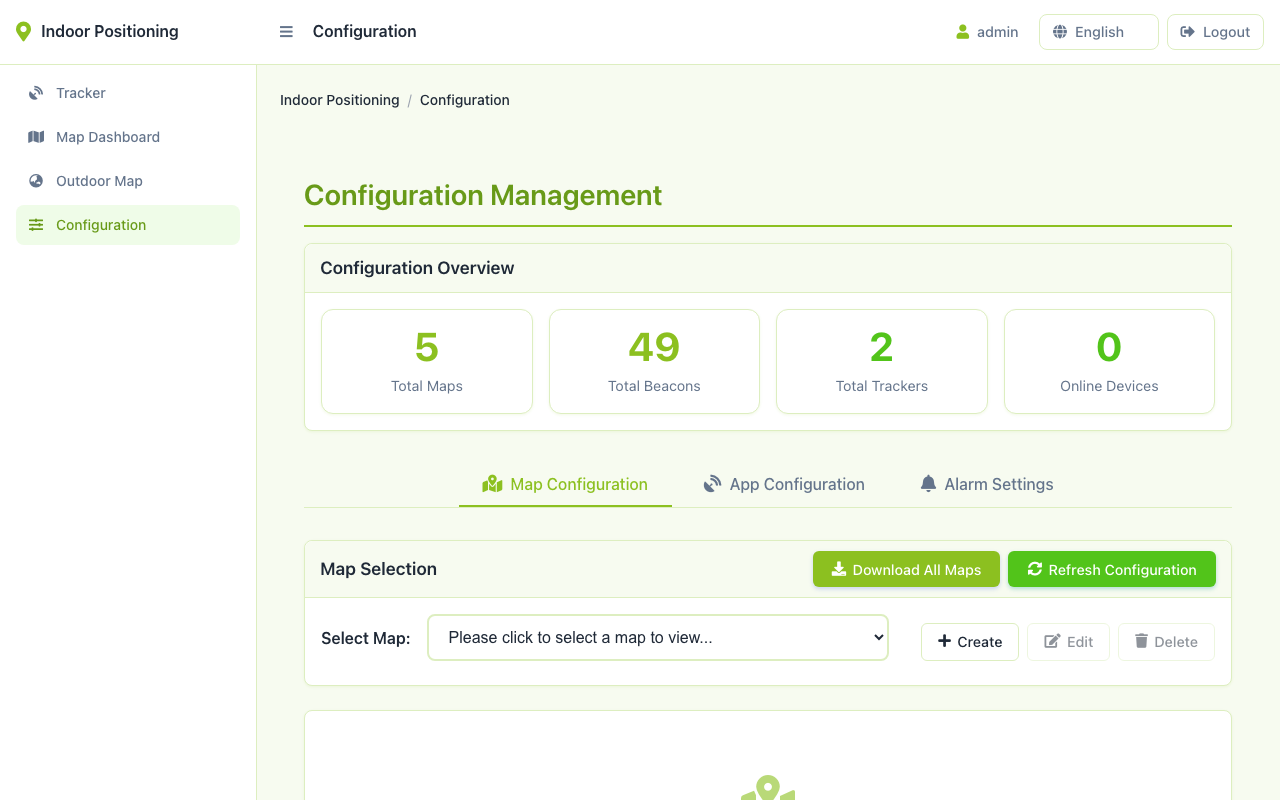
- Georeference the floor plan — upload the plan, then set origin, rotation and scale so it lands in the right place on the outdoor map. Georeferencing and geofences are both on the configuration page:
- Set up a geofence alarm — draw the fence in WGS84 and attach an alarm rule.
- Open the dashboard — verify a tracker appears, moves, and raises the alarms you configured.
Difficulty intermediate, about 60 minutes. Steps 5 and 6 are software configuration only and need no extra hardware.
The image is available for linux/arm64 and linux/amd64. The dashboard's default login is admin / 12345678; change it under Configuration → Authentication after the first login.
Available interfaces
Everything the application exposes is served on port 5173 of the host you deployed it to. Three ways in, depending on who is integrating.
- A wall display or a second screen — open
/web/map?layer=outdoor(or?layer=indoor). It is the same page and the same WebSocket, so nothing extra has to be configured. - An existing security, dispatch or attendance system — subscribe to the WebSocket and act on two message types:
tracker_sosfor the emergency button, andtracker_checkin/tracker_position_detectionwhen they carry ageofenceblock withtransition: enterorexit. Those are the events; the rest is telemetry. - Your own service — take the full payload. Each update carries either a metric position on a floor plan or a WGS84 position, tagged by
coordSystem, and the REST endpoints let you create fences and read or write the georeferencing parameters programmatically.
Full interface and payload
| Interface | Endpoint | Payload |
|---|---|---|
| WebSocket | ws://<host>:5173/ws | tracker_update with position = {x, y, coordSystem: "metric"} or {lat, lon, accuracy, coordSystem: "wgs84"}; tracker_checkin / tracker_position_detection carry an extra geofence block on enter/exit; also tracker_sos and tracker_offline |
| REST | GET/PUT /api/configuration/dashboard/maps/{mapName}/registration | {origin_lat, origin_lon, rotation_deg, scale}. Rejects |lat| > 85° and scale ≤ 0. Admin session required; a guest session gets 403 |
| REST | POST /api/geofences, POST /api/events | Fence geometry (GeoJSON polygon, or a point plus radius_m) and the alarm rule that references it |
| LoRaWAN uplink in | SenseCAP OpenStream, or a ChirpStack MQTT topic | Field mapping is in the deployment guide |
A geofence alarm rides on the same message as a check-in rather than on a channel of its own:
{"type": "tracker_checkin", "data": {"2CF7F1C0530004AD": {
  "timestamp": 1788582647214, "map": "Plant A",
  "geofence": {"id": 1, "name": "Plant A", "transition": "enter"},
  "position": {"lat": 22.5362, "lon": 113.9432, "accuracy": null, "coordSystem": "wgs84"},
  "last_detected_beacons": []}}}
Two fields to handle carefully: branch on coordSystem, not on whether lat is present, because the same message type can carry either coordinate form. accuracy is always null on this hardware (neither the SenseCAP nor the ChirpStack uplink carries a GNSS accuracy measurement); treat it as unknown.
Performance and measured data
Everything below was measured on the server side: synthetic uplinks were published to a local MQTT broker and results captured from the dashboard WebSocket, with no T1000 tracker and no gateway in the loop. The application ran on a reComputer J30 series unit (as a plain arm64 host, GPU unused), 2–4 minutes per tier.
Capacity and latency
| Metric | Measured | Conditions |
|---|---|---|
| Capacity, stable | 200 concurrent tags, P95 end-to-end 828 ms, 0% uplink loss | 1 uplink per tag per 30 s, 800 uplinks, 2 min |
| Capacity, degrading | 500 tags, P95 2.35 s, 0% loss | Same, 2000 uplinks, 2 min; only the 2 s latency budget is missed |
| Capacity, at 1000 tags | P95 4.1 s, 0% loss, process still serving | Same; still serving normally, load was not pushed further |
| Update rate | 50 tags at a 2 s uplink interval, P95 220 ms, 0% loss over 4500 uplinks | 3 min; 30 / 10 / 5 s intervals also stable at P95 89 / 163 / 146 ms |
| SOS alarm latency | P50 24 ms, P95 29 ms, max 29 ms, n=20 | Single tag, no concurrent load; uplink timestamp to WebSocket broadcast |
| Offline detection | 903 s and 950 s | 2 repetitions; expected window [900 s, 960 s] from the 15 min threshold and 60 s poll |
Capacity and update rate cover the server only; how fast a tracker can report depends on uplink interval and LoRaWAN duty cycle.
Reproduce: runs/2026-09-05-orin-nano/boundary.capacity.yaml, boundary.update_frequency.yaml, boundary.sos_latency.yaml, boundary.offline_latency.yaml in upstream indoor_positioning_ble_lorawan (application code feature/outdoor @ 443bce6)
Geofence and georeferencing
| Metric | Measured | Conditions |
|---|---|---|
| Geofence alarm latency | P50 14 ms, max 14 ms, 2 alarms | Replay tool and server on the same host over loopback, single tag, 17 uplinks |
| Geofence hysteresis | 6 in-and-out flips at the fence line produced 0 alarms; enter and exit each fired on the third consecutive point | Same |
| Georeferencing error | ≤ 0.21 m anywhere within 2 km of the origin, |lat| ≤ 60° | Worst case of an azimuth sweep, every 15°, radii 500 / 1000 / 2000 m, lat0 ∈ 60; budget was 0.7 m; projection math only, no field survey |
Reproduce: runs/2026-09-05-geofence-smoke/results.md, runs/2026-09-05-georef/results.md
Runtime and key parameters
The tracker only reports what it observed (the configured beacons it saw, or a GNSS fix); the server resolves that into a position. These three server-side parameters set the pace of indoor/outdoor switching and alarms:
- Indoor ↔ outdoor switching: going outdoor needs 3 GNSS fixes within 20 s and no configured beacon seen for 15 s; coming back indoor needs two consecutive scans, each seeing 2 or more configured beacons. A tracker next to a window does not flip back and forth.
- Geofence transition:
enter/exitfires only after 3 consecutive points within 10 s. In geo mode an alarm rule'stime_rangefield has no effect; this confirmation replaces a time range set in the UI. - Offline detection: no uplink for 15 min, 60 s poll, hard-coded.
- Offline basemap: a site without internet builds a local PMTiles archive with
go-pmtiles extract(it pulls only the tiles inside the bounding box); build the archive and load it once before delivery.
Known degradation
- Indoor accuracy follows the beacon layout. The 2–3 m figure is nominal (BC03 wiki) and assumes 3 or more beacons per zone at 2.5–3 m height and 5–10 m spacing. One beacon per zone gives room level. Metal shelving degrades trilateration; add beacons there.
- Latency grows with tag count: end-to-end P95 is 2.35 s at 500 tags and 4.1 s at 1000.
- Georeferencing error grows with radius and latitude: the useful range is about 2 km, and the API refuses
\|lat\|above 85°. accuracyandaltcarry no data: logic that branches on accuracy always takes the null path on this hardware, and the geofence engine treats a missingaccuracyas passing.
Data and asset provenance
- Measured data — all figures under Performance and measured data come from
description.mdofindoor_positioning_ble_lorawanin the upstreamsensecraft-solutionsrepository, which cites per-run report files by path. Data are synthetic replay traces generated for the runs; no customer site data is involved. - Device EUIs shown in the screenshots and traces are the synthetic ones used by the replay tool.
- Basemap tiles in any outdoor screenshot are © OpenStreetMap contributors, licensed under the ODbL. This attribution travels with the page.
- Floor plans in the georeferencing screenshots are synthetic test images (a 1000×800 px plan on a 50 m × 40 m demo map), created for the evaluation run and deleted afterwards.
- Application source is at Seeed-Solution/Solution_IndoorPositioning_H5; check the repository for its licence terms before shipping a derived product.
- Dashboard captures and demo GIFs — taken from the application's own UI (
docs/ui/andassets/insolution-indoor-positioning). The outdoor layer's basemap is OpenStreetMap tiles, attributed under ODbL; provenance is in the upstream package'sgallery/ATTRIBUTION.md.