Sound source localization of reCamera Gimbal
Introduction
We decided to have a little fun and experiment with combining audio and visual edge AI! 🤖
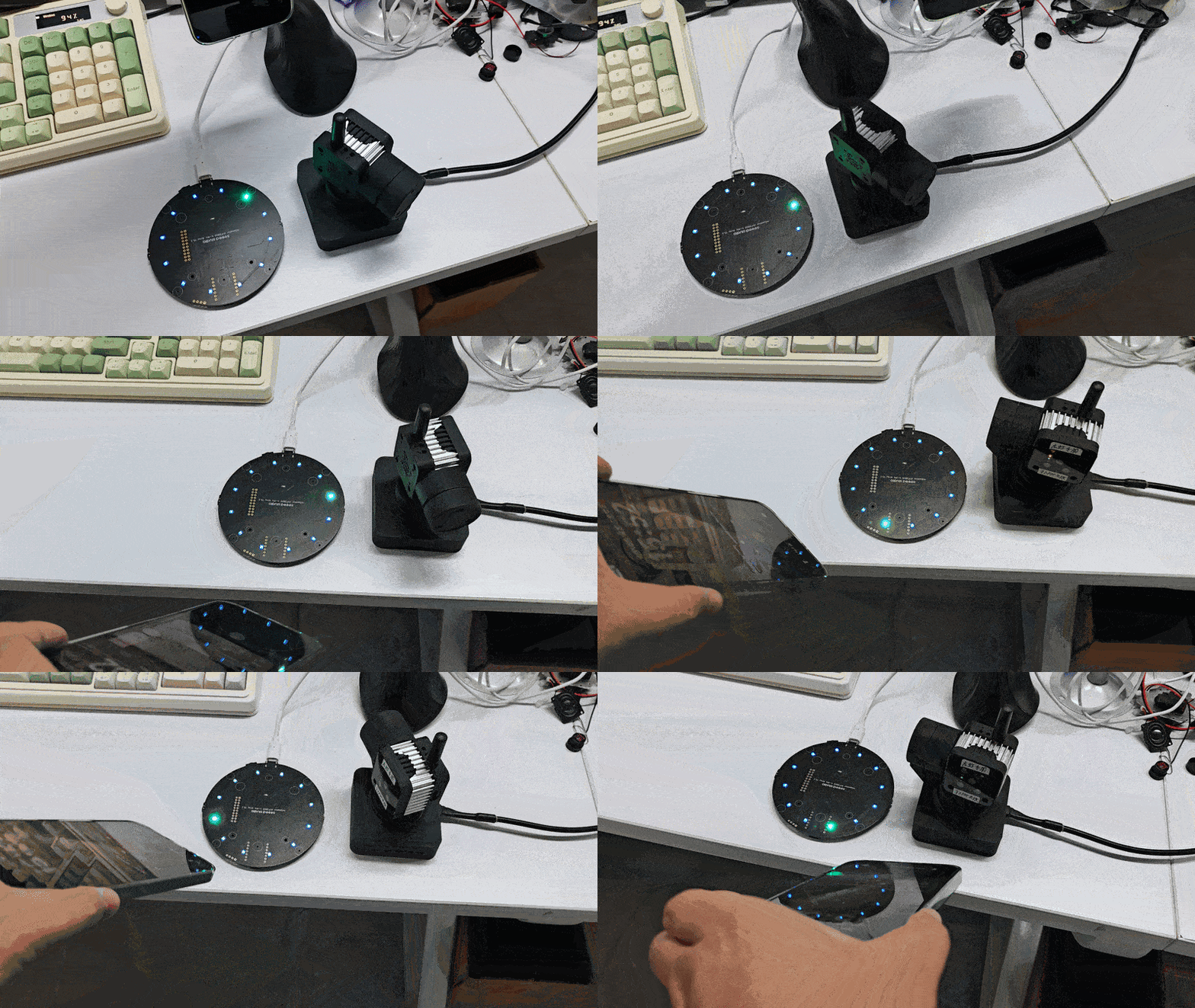
In this demo, we connected the Seeed Studio reSpeaker USB Mic Array to our RISC-V powered reCamera Gimbal. By utilizing Sound Source Localization (DOA), the system enables the gimbal's brushless motors to automatically rotate and face the direction of the speaker in real-time. It’s a super fun exploration into how our multi-modal edge devices can seamlessly interact!
Here is the usage effect after completing this demo.
Hardware Preparation
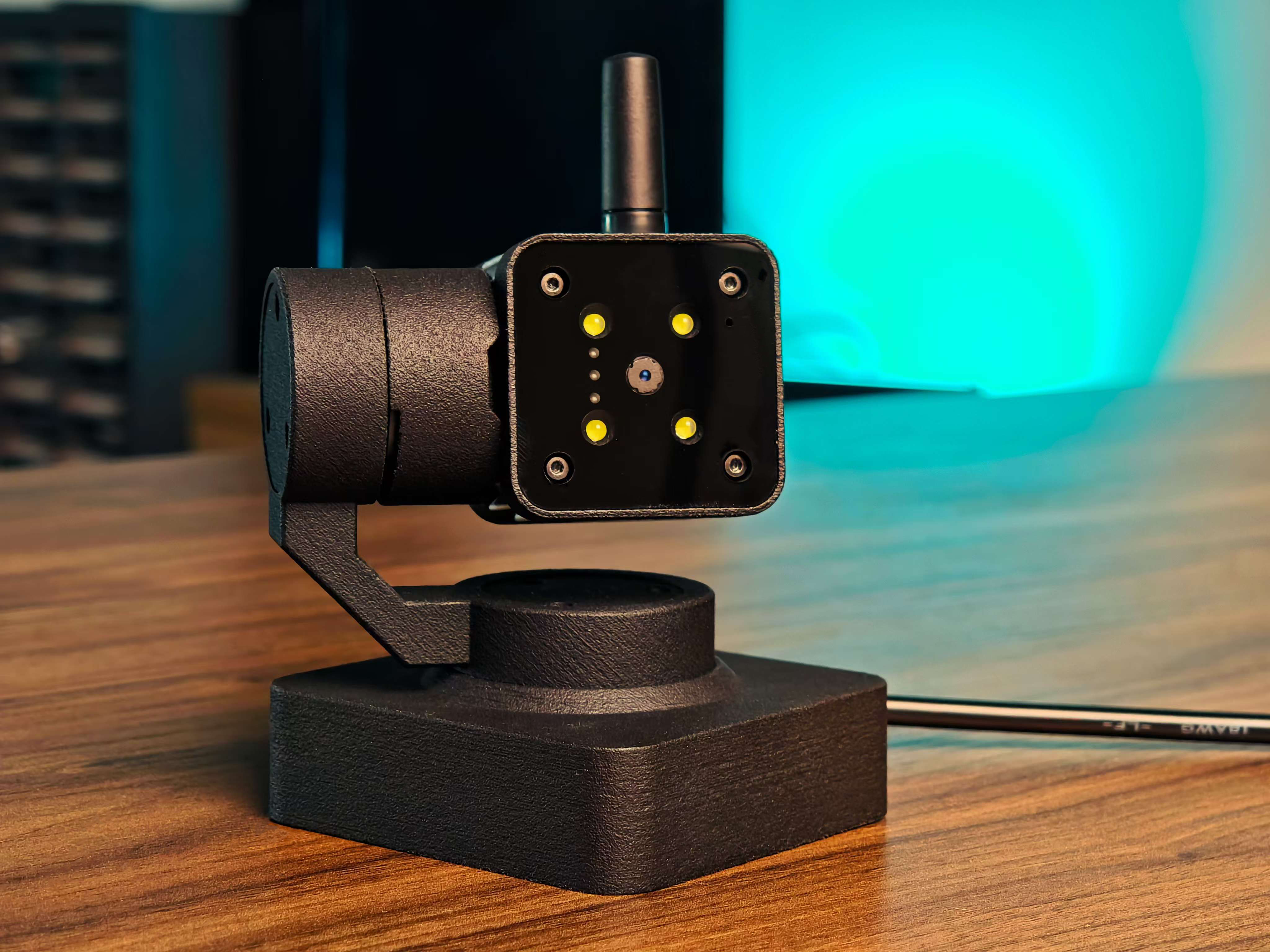
one reCamerab Gimbal
one reSpeaker XVF3800
one computer
| reCamera Gimbal | reSpeaker XVF3800 |
|---|---|
 |  |
1. Open the SenseCraft to deploy the application
1.1 Set reCamera Gimbal
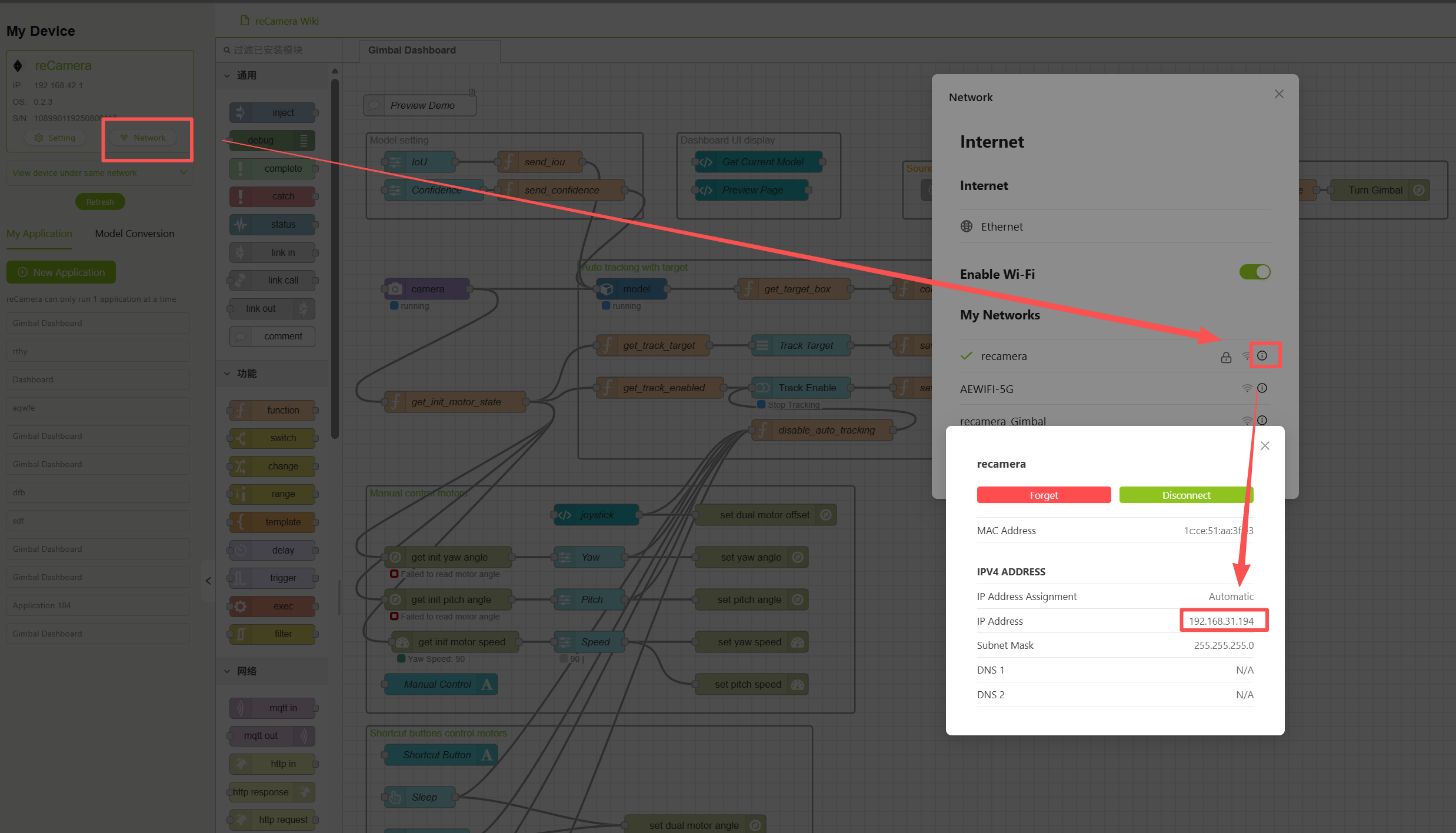
First, do not connect reCamera Gimbal's power supply, directly connect the Type-C to the computer, access 192.168.42.1, click "Login to SenseCraft" in the lower left corner after entering, then connect WiFi to it after logging in, make sure that the connected WiFi is the same as your computer, then check the IP address of reCamera Gimbal, copy the IP address and access it to see if it can be accessed normally, then unplug the Type-C cable and insert 12V power supply, after the automatic calibration of reCamera Gimbal is completed, revisit the IP address just now in the browser and enter the interface of reCamera Gimbal to ensure that Node-RED has started to run normally.
1.2 deployment application
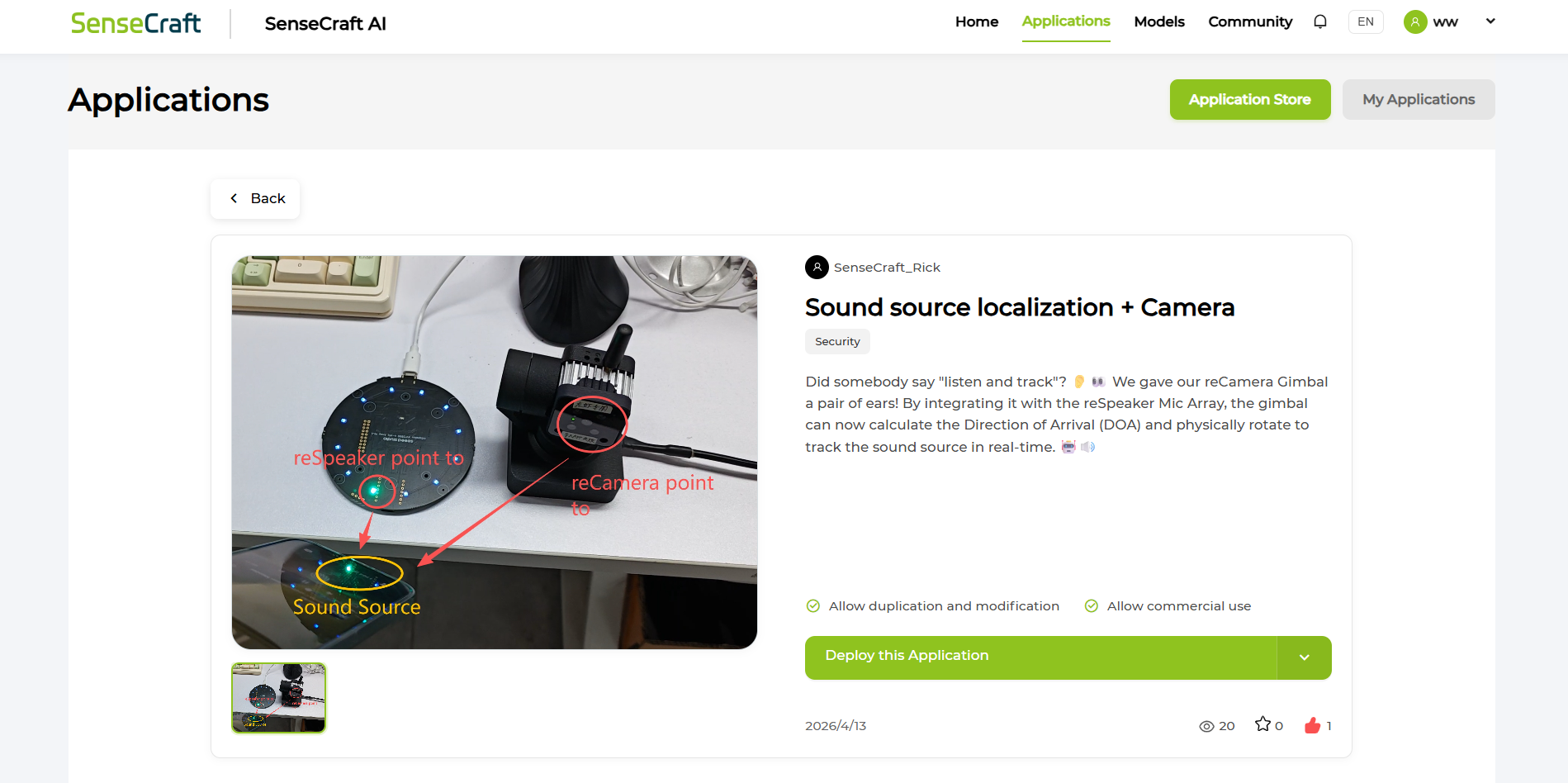
Enter SenseCraft, click "Applications" to find the application named "Sound source localization Camera", click "Deploy this Application" after entering, and then select "Option 1: Deploy via USB"
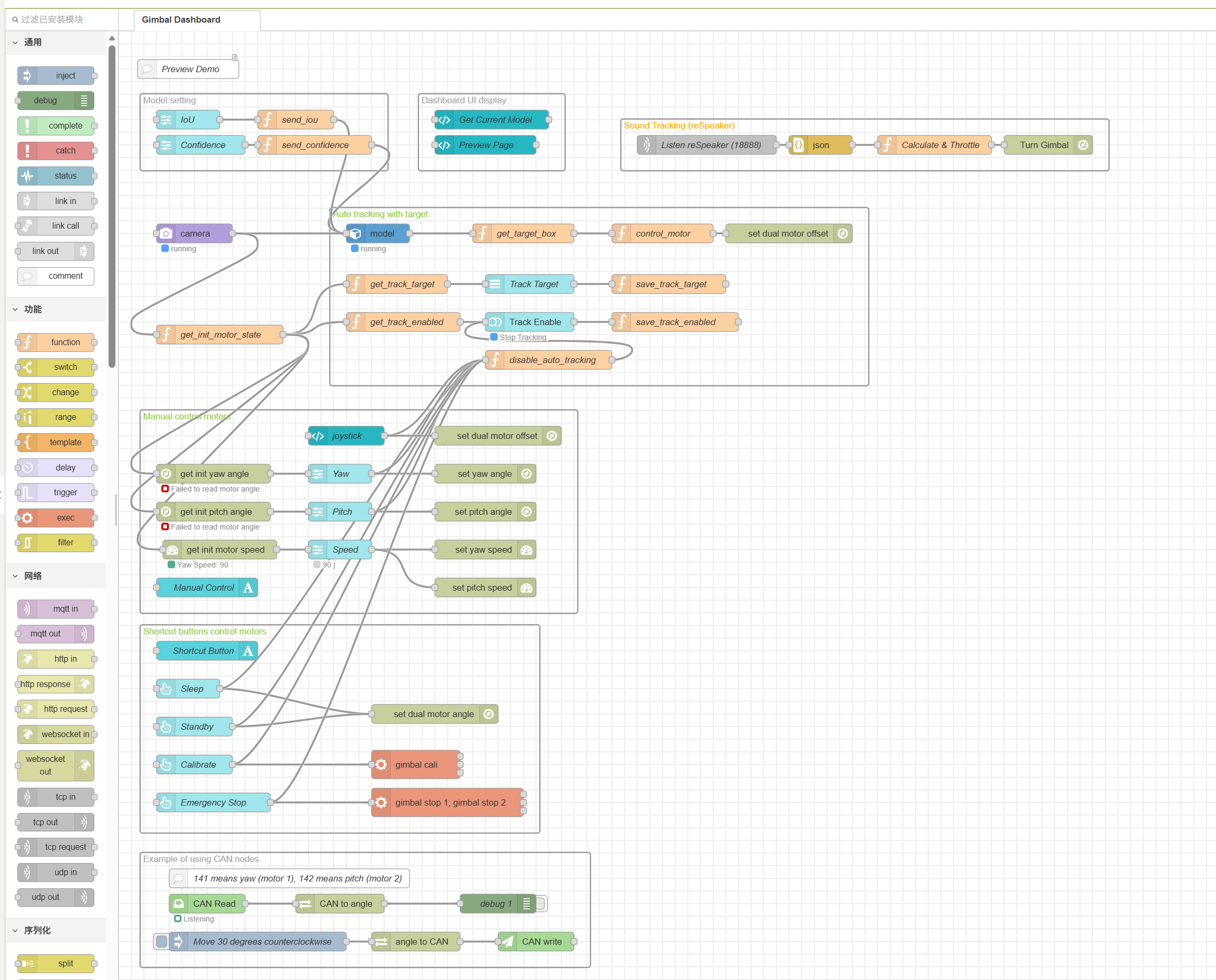
The workflow you see after deployment should look like this:
2. Get the source code and configure the Python working environment
Visit the GitHub project, download the package, and then unzip it.
To communicate with the reSpeaker via USB, install the dependency on your computer:
# Install the required Python package from the provided requirements file
pip install -r Sound-Tracking/requirements.txt
# Install libusb via Conda (essential for back-end driver support)
conda install -c conda-forge libusb
Please replace "192.168.31.198" in code reSpeaker.py with the real IP address of your reCamera Gimbal after connecting WiFi!
3. Testing
Run the Python script on your computer to do the following:
python Sound-Tracking/reSpeaker.py
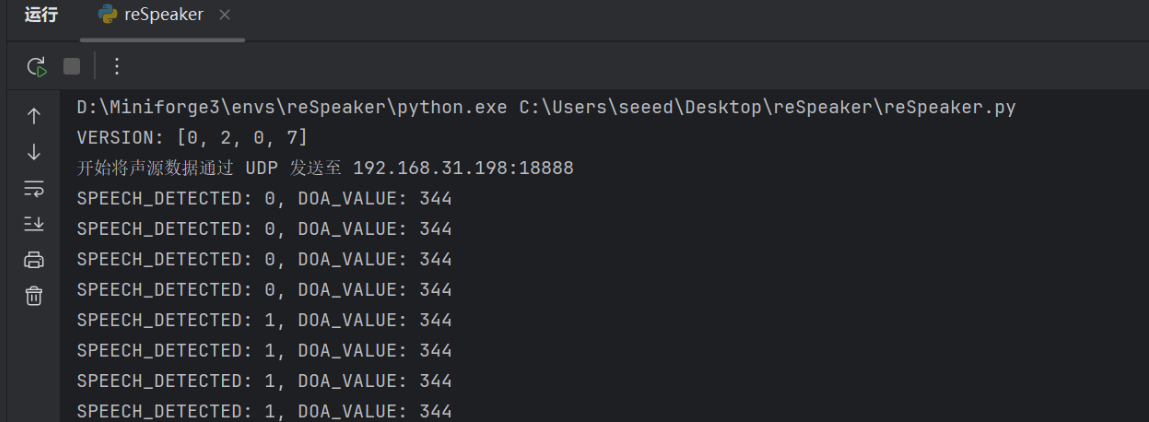
Speak into the microphone-you should see the Python terminal continuously print SPEECH_DETECTED:1, while the reCamera quickly turns to the angle of your voice.
Expand more play!
This Demo is just the beginning. We very much encourage everyone to carry out secondary development on this basis and expand more hardcore gameplay! For example:
-** Trigger linkage **: You can modify the Node-RED or Python script to make reCamera Gimbal start recording ** or take photos * immediately after turning to the sound source position.
-Intelligent Security: Combined with Home Assistant, it can automatically track and record when abnormal noise occurs in the room.
-Visual and auditory dual confirmation: Combine YOLO11n target detection with auditory tracking (for example: hear a sound-> turn to see-> visual recognition to confirm whether it is a "person").
Looking forward to seeing your ideas!🎉
Operation instructions and precautions
-
Confirm deployment: After Node-RED imports the preceding node, click **Deploy in the upper-right corner to take effect.
-
Test Mechanism: Start Node-RED first to make sure it is running in the background, and then execute the following command on the PC to run the Python script:
Please replace "192.168.31.198" in the reSpeaker.py code with the actual IP address after reCamera Gimbal to connect to WiFi!
python Sound-Tracking/reSpeaker.py
Speaking into the microphone, you should be able to see the Python terminal constantly printing:
SPEECH_DETECTED: 1
At the same time, the reCamera will quickly turn to the physical angle of the sound.
-
Physical Orientation Calibration: The '0 de' orientation of the reSpeaker microphone array may not be exactly the same as the reCamera default '0 de' straight ahead. If you find that the pan-tilt always deviates from a fixed angle after turning (for example, it always deviates by 90 degrees), you can directly double-click the newly new' Calculate & Throttle' function node in Node-RED, uncomment the relevant code and modify the offset calculation: 'targetYaw = (targetYaw +90)% 360;'.
-
-
- Anti-shake Design **: Because Python code refreshes and sends data every 0.1 seconds, if all these high-frequency signals are pushed to the motor controller (CAN bus), it is easy to cause the device bus to overload and jam. So I have written the anti-shake logic in the function node of Node-RED (the generator will only be triggered when the angle changes '>5 °' or the time interval '>1 second').
-
Tech Support & Product Discussion
Thank you for choosing our products! We are here to provide you with different support to ensure that your experience with our products is as smooth as possible. We offer several communication channels to cater to different preferences and needs.