Update LR1110 Firmware on Wio Tracker 1110
Overview
The Wio Tracker 1110 development board is built around the Wio-WM1110 wireless module, which integrates Semtech’s LR1110 LoRa® transceiver and a multi-purpose radio front‑end for geolocation. This guide explains how to update the firmware on the LR1110 chip embedded in the Wio Tracker 1110 using the official Semtech LR11xx Updater tool.
The LR11xx Updater tool is a reference implementation provided by Semtech for updating the program memory of LR1110 / LR1120 / LR1121 chips, based on Application Note AN1200.57 – “LR1110: Upgrade of the Program Memory”.
Do NOT manually restart or power off the device during the update process, as this may permanently damage the chip.
Prerequisites
Hardware Required
- Wio Tracker 1110 development board × 1
- Computer (Windows / Linux / macOS) × 1
- USB Type‑C cable × 1
- (Optional) J‑Link debug probe – for programming via the SWD interface
Please note that there is a difference between the Wio Tracker 1110 dev board (SKU:114993186) and the LPWAN Asset Tracker Dev Kit for Amazon Sidewalk (SKU:114993187). If you plan to use the dev board for Sidewalk development, please note that you'll need to upgrade the LR1110 firmware following this guide, as the default version differs from the Sidewalk requirements.
Updating LR1110 Firmware
- Obtain the source code, and prepare the Zephyr workspace environment:
# obtain the manifest repository from Seeed Studio's GitHub
git clone https://github.com/Seeed-Studio/SWSD006/tree/Wenzy/dev/samples/SWTL001_wio_tracker

# initialize the zephyr workspace
cd <your_workspace_path>/SWSD006-Wenzy-dev/
west init
west update
-
Download your desired firmware from Here and place it into the
includesubdirectory. Only "transceiver" firmware will work with sidewalk; do not use "modem" firmware. -
Edit
app.cto include this downloaded header file. (Here we use the defaultlr1110_transceiver_0401.h)
# The target project path is: /samples/SWTL001_nrf52840_wm1110/src/swtl001/app.c
#include <lr1110_transceiver_0401.h>
- Compile the targeted firmware:
west build -p auto -b nrf52840_wm1110 -- -DRADIO=LR1110
You should be able to find the compiled file under: /SWSD006-Wenzy-dev/samples/SWTL001_nrf52840_wm1110/build/zephyr/
- You have two options to flash the compiled firmware:
-
The Wio Tracker 1110 supports UF2 bootloader mode (recommended):
- Connect the board to your computer using a USB Type‑C cable.
- Double‑press the Reset button on the board. A mass‑storage drive named WM1110_BOOT should appear.
- Drag the compiled .uf2 file into that drive.
- Programming starts automatically and the drive will unmount when finished.
-
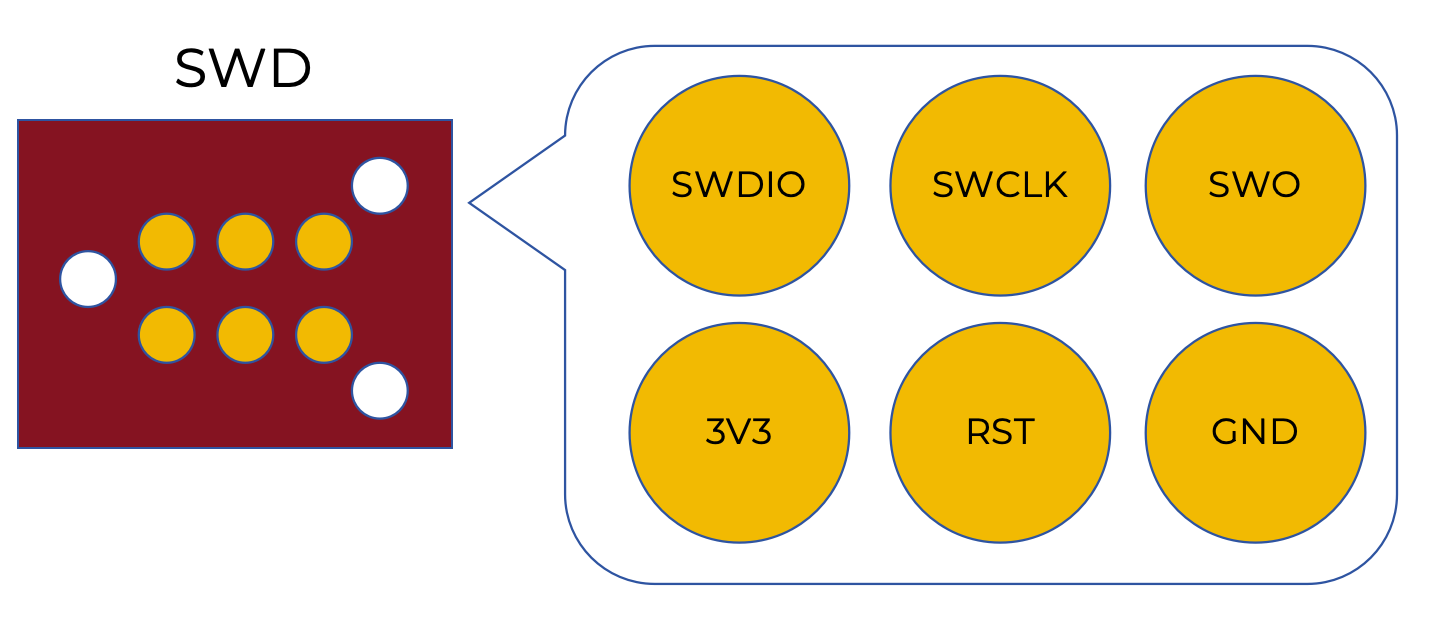
If you prefer programming over SWD using a J-Link:
- Use 2×3 probes with a 1.2 mm pitch to connect to the SWD debug port on the back of the development board.
- Flash the compiled firmware:
west flash
- When connected via USB, a COM port (or /dev/ttyACM*) appears. Open a terminal emulator (e.g., PuTTY, Screen, Minicom) with:
-
Baud rate: 115200
-
Live log messages from the update process will be displayed.
Resources
-
[.uf2] Pre-compiled Firmware
Tech Support & Product Discussion
Thank you for choosing our products! We are here to provide you with different support to ensure that your experience with our products is as smooth as possible. We offer several communication channels to cater to different preferences and needs.