Using Stream Deck to Control reCamera Gimbal
Introduction
This wiki demonstrates how to control the reCamera Gimbal using a Stream Deck. By sending commands via the HTTP protocol from the Stream Deck, you can control the reCamera Gimbal to rotate to specific angles, turn the fill light on/off, play audio, and perform other operations.
Demonstration
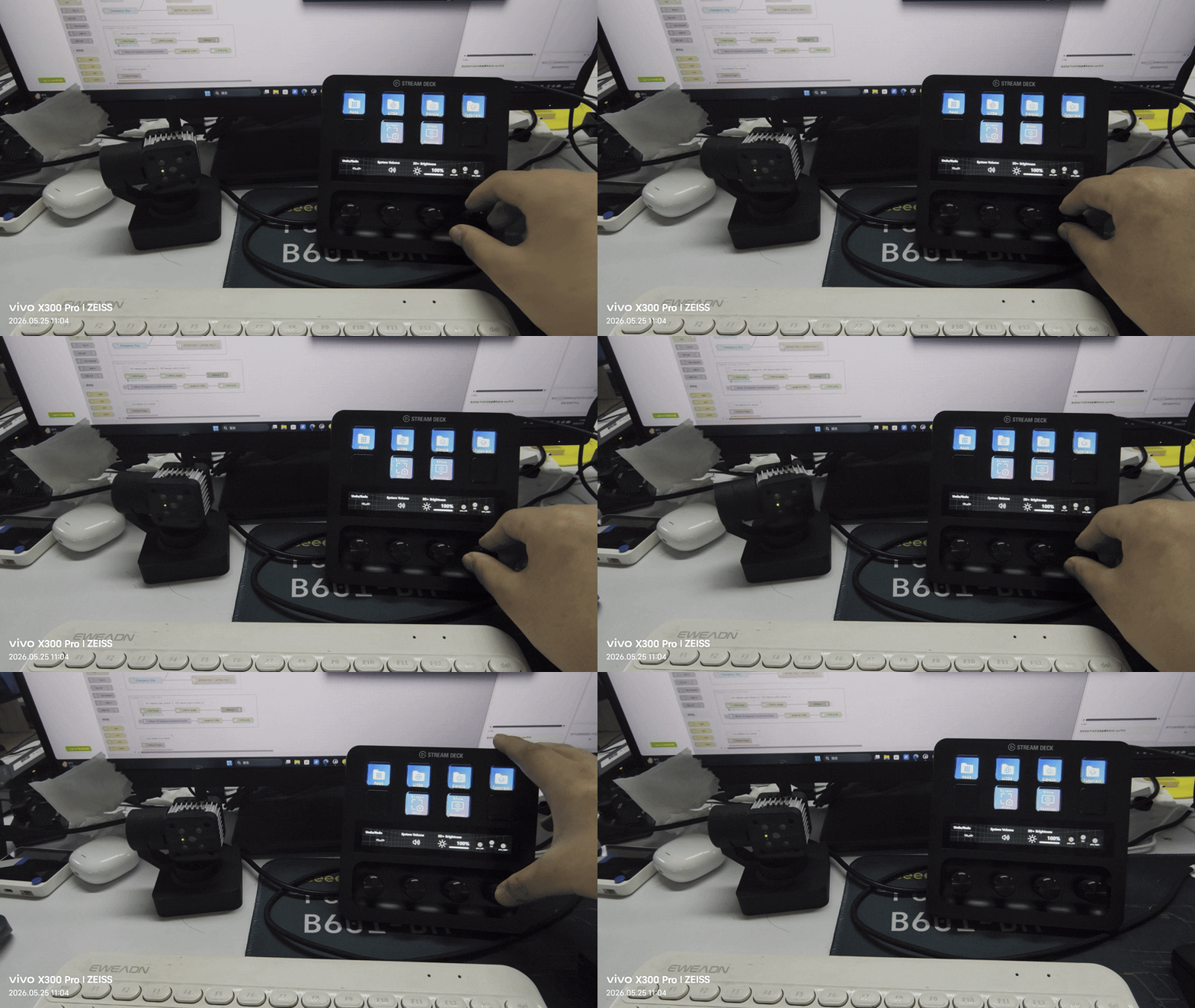
Rotate the dial on the Stream Deck to control the X-axis of the reCamera Gimbal for left and right rotation, and press the dial to toggle the LED light.
Hardware Preparation
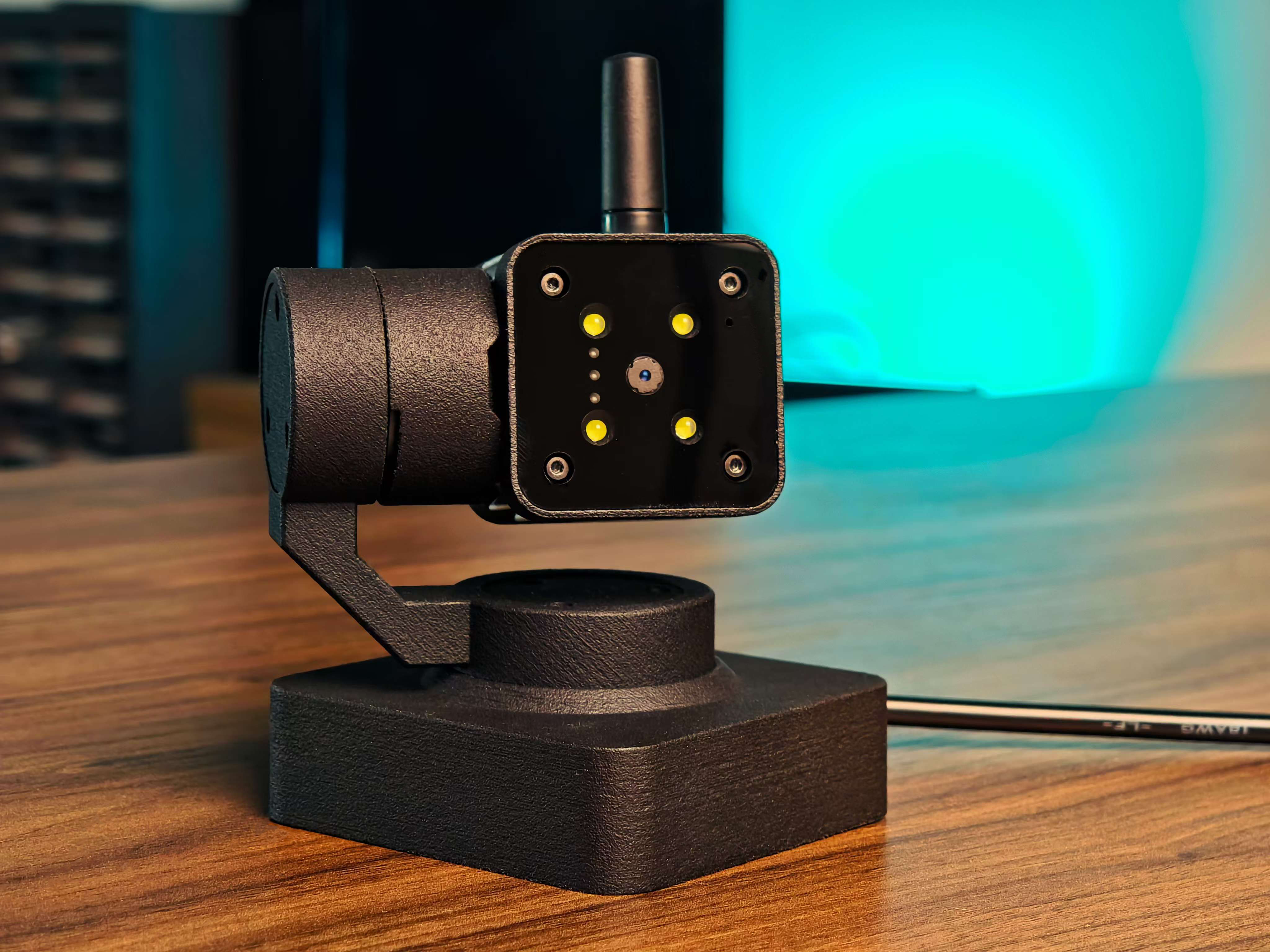
- one reCamera Gimbal
- one Stream Deck
| reCamera Gimbal |
|---|
 |
reCamera Configuration
Enter the IP address of the reCamera Gimbal in your browser to log into the Dashboard. Next, configure the HTTP communication nodes to receive commands sent from the Stream Deck.
1. Dial Event Handling (reCamera Webhook)
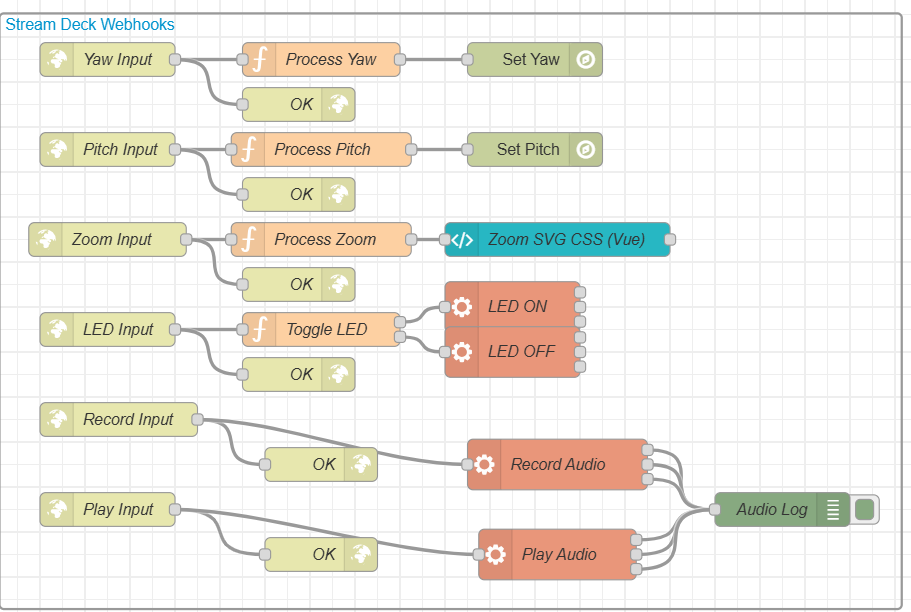
Yaw Axis Processing (Process Yaw)
-
Node Type:
http in->function->set-motor-angle -
Logic Summary:
- The default angle is set to
180°. - Increments or decrements the angle by steps of 10° upon receiving clockwise (cw) or counterclockwise (ccw) actions.
- Resets the angle to zero when a reset trigger is received.
- Restricts the safe motion range between 0° ~ 345°.
- The default angle is set to
Pitch Axis Processing (Process Pitch)
-
Node Type:
http in->function->set-motor-angle -
Logic Summary:
- The default angle is set to
90°. - Increments or decrements the angle by steps of 10° upon receiving clockwise (cw) or counterclockwise (ccw) actions.
- Resets the angle to zero when a reset trigger is received.
- Restricts the safe motion range between 0° ~ 180°.
- The default angle is set to
Digital Zoom Processing (Process Zoom)
-
Node Type:
http in->function->ui-template -
Logic Summary:
- The default zoom ratio is
1.0. - Adjusts the zoom level by steps of 0.1 during rotation (increment for cw / decrement for ccw), and restores it to
1.0when pressed to reset. - Limits the zoom range between 0.5x ~ 5.0x.
- Passes the final zoom coefficient to the front-end Vue template to dynamically scale the SVG canvas in the Dashboard via CSS
scale().
- The default zoom ratio is
The final Node-RED configuration node diagram is shown below:
2. Basic Button Event Handling
| Button Function | Node Type Link | Logic Summary Description |
|---|---|---|
| Toggle LED | http in -> function -> exec | Maintains an internal ledState variable to toggle between 0 and 1. When the state is 1, it writes to brightness via the Linux command line to turn on the white LED, and turns it off when the state is 0. |
| Record Audio | http in -> exec | Invokes the system-level arecord tool to record 5 seconds of audio at a 16000Hz sampling rate in mono format, saving it locally to /home/recamera/test.wav. |
| Play Audio | http in -> exec | Invokes the system-level aplay tool to directly play the newly recorded test.wav audio file. |
Stream Deck Configuration
To ensure smooth operations on the Stream Deck without opening a new browser window each time an action is triggered, we will use the built-in "System -> Website" action and enable background silent execution.
⚠️ Prerequisite: Please ensure that your computer can successfully ping the device IP address:
192.168.31.198(make sure to replace this with your actual device IP address).
1. Dial Area Configuration (Stream Deck)
In the dial section of the Stream Deck software, drag 3 separate "System -> Website" actions for each dial and configure them as follows:
Dial 1: Control Yaw Axis (Yaw)
-
Clockwise Rotation (Dial Operation):
- URL:
http://192.168.31.198:1880/deck/yaw?action=cw - Setting: Check
GET request in background
- URL:
-
Counterclockwise Rotation (Dial Operation):
- URL:
http://192.168.31.198:1880/deck/yaw?action=ccw - Setting: Check
GET request in background
- URL:
-
Press (Press Operation):
- URL:
http://192.168.31.198:1880/deck/yaw?action=reset - Setting: Check
GET request in background
- URL:
Dial 2: Control Pitch Axis (Pitch)
-
Clockwise Rotation:
- URL:
http://192.168.31.198:1880/deck/pitch?action=cw - Setting: Check
GET request in background
- URL:
-
Counterclockwise Rotation:
- URL:
http://192.168.31.198:1880/deck/pitch?action=ccw - Setting: Check
GET request in background
- URL:
-
Press:
- URL:
http://192.168.31.198:1880/deck/pitch?action=reset - Setting: Check
GET request in background
- URL:
Dial 3: Digital Zoom (Zoom)
Note: The zoom mechanism controls the SVG display box ratio in the Dashboard using CSS.
- Clockwise Rotation:
- URL:
http://192.168.31.198:1880/deck/zoom?action=cw - Setting: Check
GET request in background
- URL:
- Counterclockwise Rotation:
- URL:
http://192.168.31.198:1880/deck/zoom?action=ccw - Setting: Check
GET request in background
- URL:
- Press (Restore to Default):
- URL:
http://192.168.31.198:1880/deck/zoom?action=reset - Setting: Check
GET request in background
- URL:
2. Button Area Configuration (LED, Record, Play)
In the basic button section of the Stream Deck, drag 3 "System -> Website" actions and configure them as follows:
| Button Function | Request URL | Required Settings |
|---|---|---|
| Toggle LED | http://192.168.31.198:1880/deck/led | Check GET request in background |
| Record Audio (Press to record for 5s) | http://192.168.31.198:1880/deck/record | Check GET request in background |
| Play Audio | http://192.168.31.198:1880/deck/play | Check GET request in background |
Deploying Node-RED Flow to reCamera
First, follow this guide to upgrade your reCamera to the latest version 0.2.4: reCamera OS Upgrade Tutorial. If your device is already running version 0.2.4, you can skip this step. Then, click the "Deploy" button in the top right corner to deploy our newly created nodes to the board.
Tech Support & Product Discussion
Thank you for choosing our products! If you need guidance on specific customization goals or wish to further extend your workflow, please feel free to contact us. We offer multiple support options to ensure your experience with our products is as smooth as possible. We provide a variety of communication channels to meet different preferences and needs.