Wifi Halow Getting Started Guide
Before starting the configuration, please make sure you have the following hardware ready:
- Data Cable: A USB Type-C cable with data transfer capabilities (do not use cables that only have charging functions).
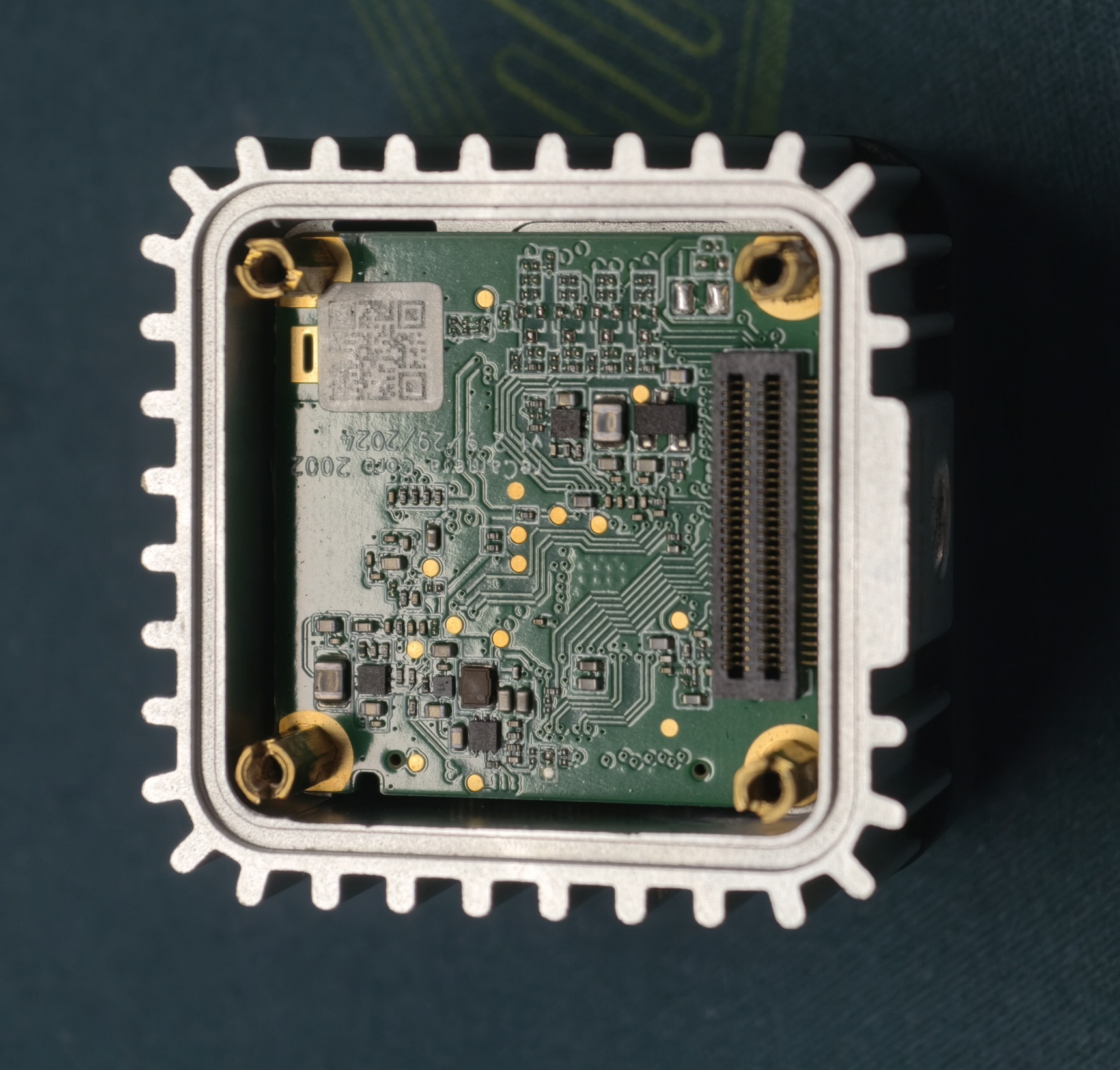
- reCamera: A reCamera 2002 device with the bottom board removed.
Introduction
Wifi Halow is a wireless network module for reCamera, which allows you to connect the reCamera to a wireless network for remote monitoring and management. Compared to traditional Wifi connections, Wifi Halow has stronger wall-penetrating and signal-penetrating capabilities, ultra-long transmission distance, extremely low power consumption, and massive device connection capacity advantages.
Unboxing and Assembly
After receiving the goods, there will be the following three items in the box:
- Wifi Halow module
- Back cover
- Screws
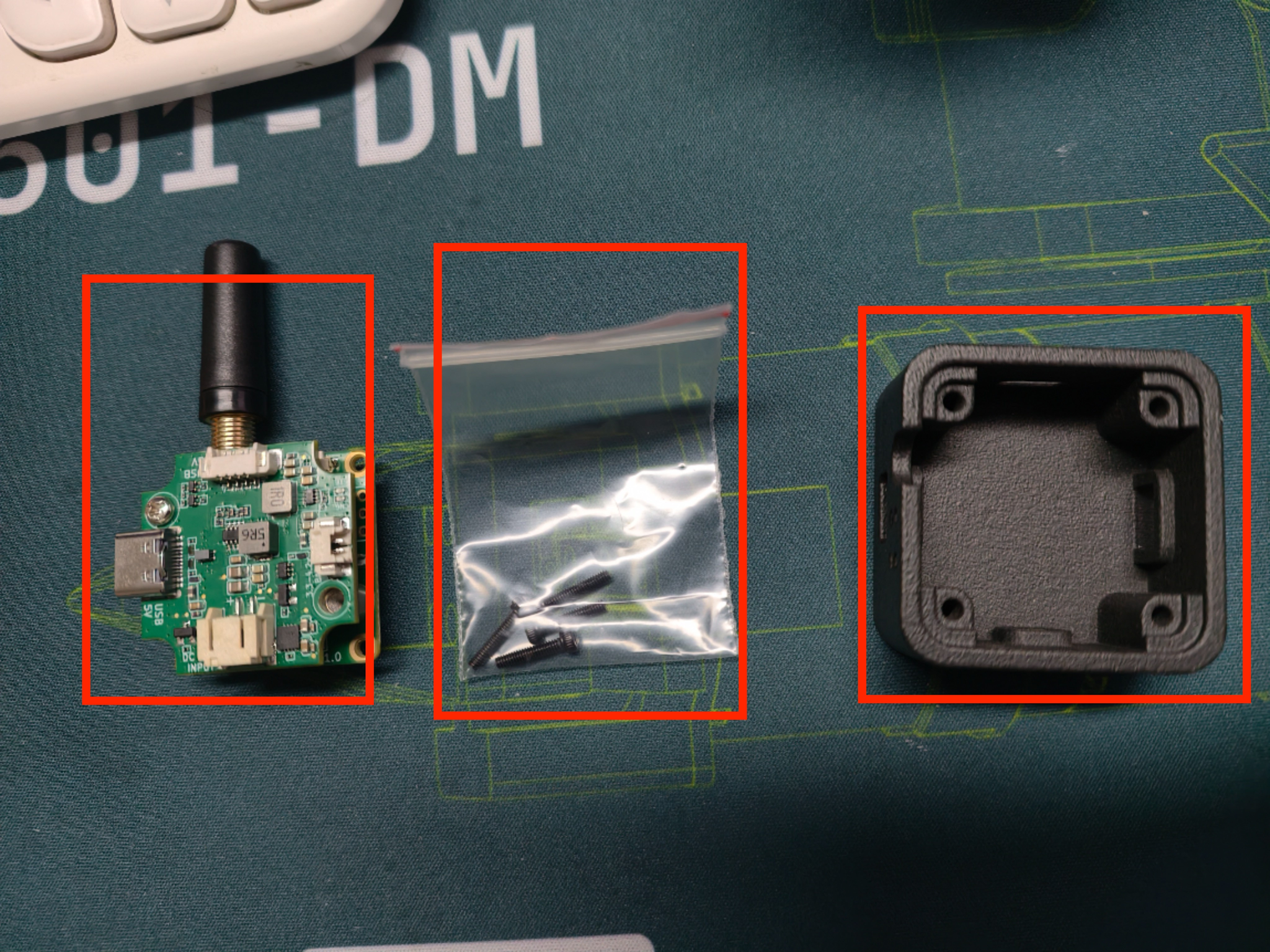
Then you need to prepare a reCamera with the back cover removed, as shown in the figure below:
Installation tutorial video:
Your reCamera's OS version must be the latest version, otherwise the Wifi Halow module will not be recognized properly. For OS version updates, please refer to Upgrade OS Version.
Hardware Interfaces
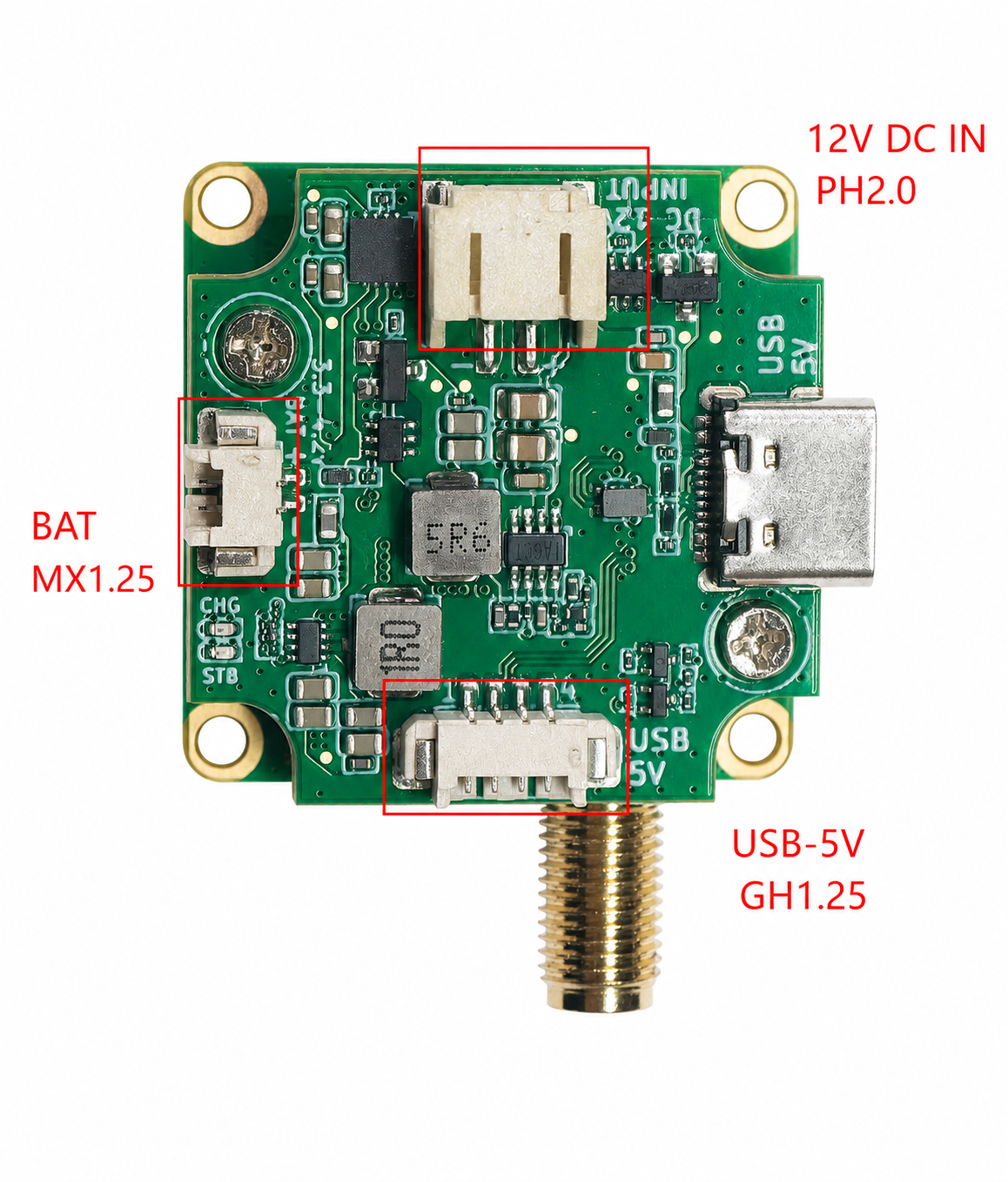
There are multiple interfaces on the Wifi Halow module, which are:
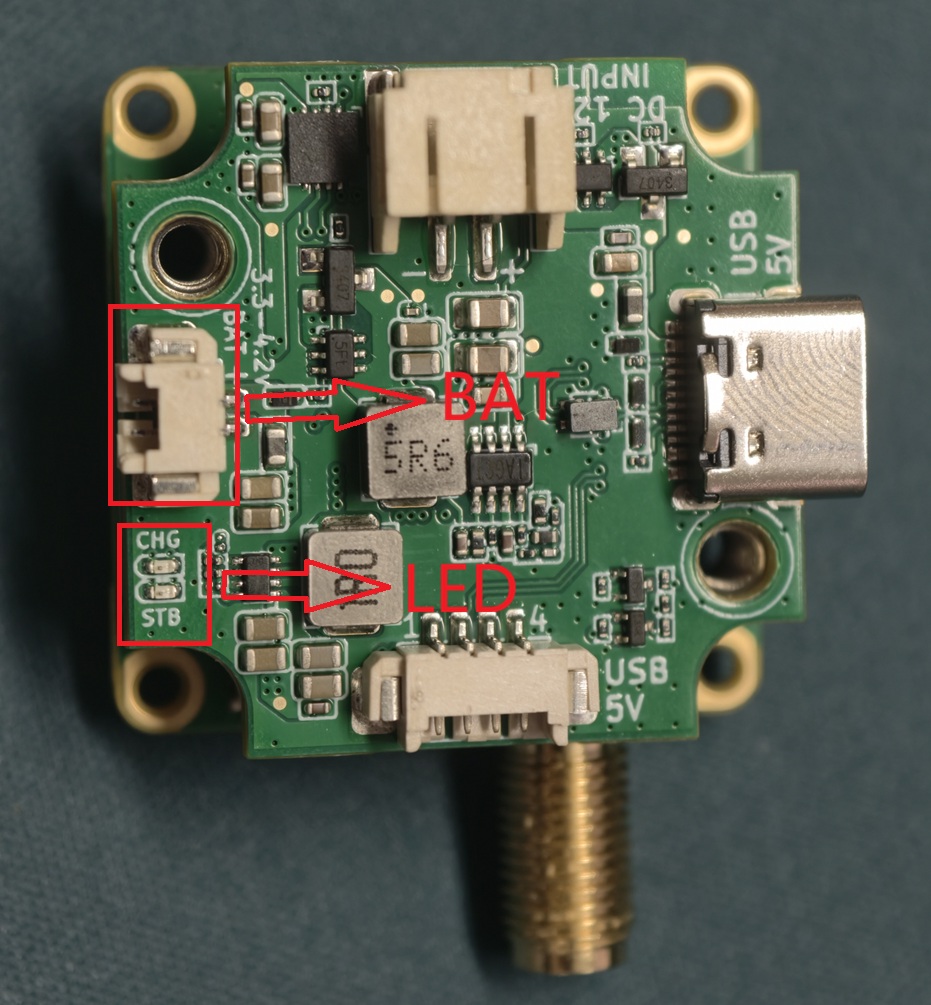
- BAT interface: Used to connect a battery, the package specification is MX1.25-2P
- DC interface: Used to connect a 12V DC power supply, the package specification is PH2.0-2P
- USB adapter cable port: Used to connect the reCamera device, the package specification is GH1.25-4P
Web Connection Interface Introduction
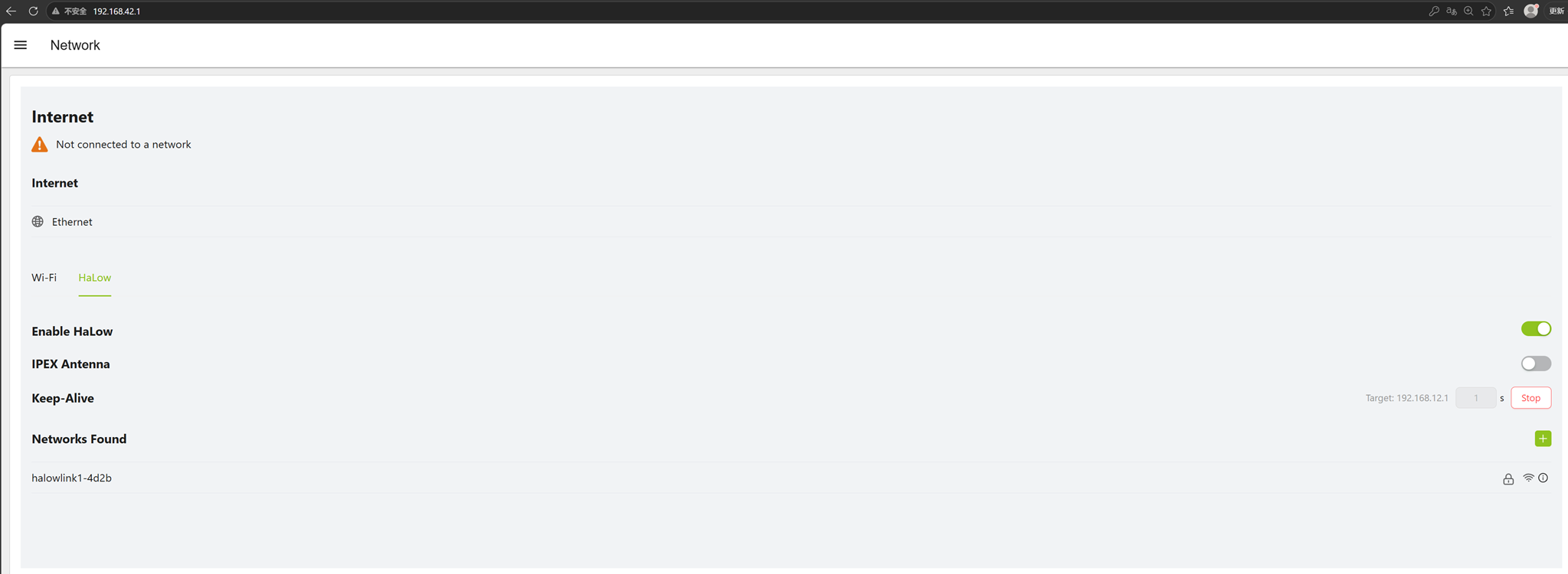
After connecting the USB cable and logging into the Web interface through the IP address 192.168.42.1, click Network on the left to enter the network settings interface, as shown below:
-
Enable Halow: Switch to enable the Wifi Halow module
-
Keep-Alive: Switch for the Keep-Alive function to maintain connection with the server (the Keep-Alive time interval can be adjusted in the settings to a minimum of 1s) to avoid disconnection
-
Networks Found: Displays the list of currently scanned wireless networks (if the wifi you want to connect to is not scanned, you can click the '+' button on the right to manually add a network)
-
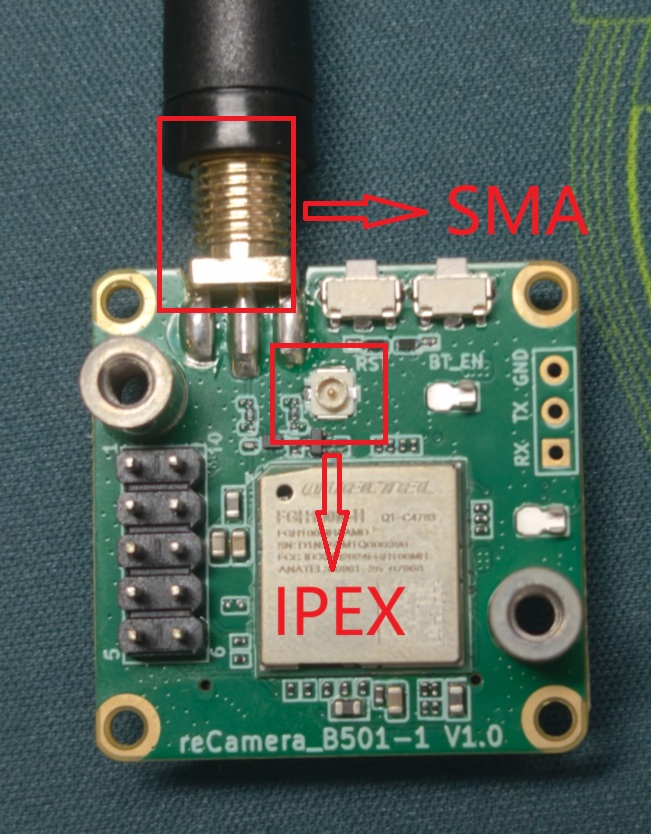
IPEX Antenna: Switch antennas (there are two antennas on the Wifi Halow module: an external SMA antenna and an internal IPEX antenna). Turning this on enables the internal antenna, see the figure below for details:
Connecting to a Wi‑Fi HaLow Network
- Select the Wifi Halow network you want to join under Networks Found
- Click the network you want to connect to, keep the same configuration as your network, enter the password, and click Confirm to connect
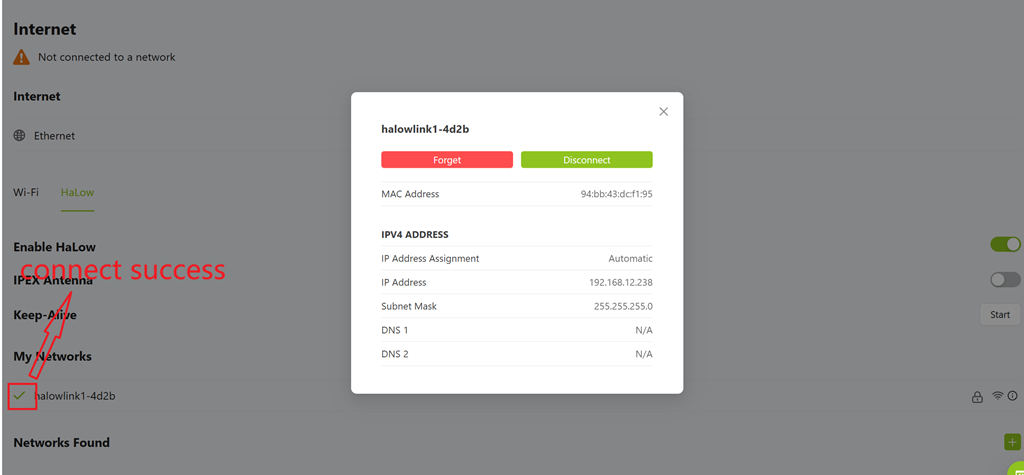
- After a successful connection, click the network under My Networks to view detailed information such as the IP, as shown in the figure below:
Checking Battery Voltage
There is a PH interface on the Wifi Halow module for connecting a battery, and next to it are two LED indicators. The red light is on when the battery is charging, and the green light is on when it is fully charged, as shown in the figure below:
1. Check Battery Voltage via Node-Red Module
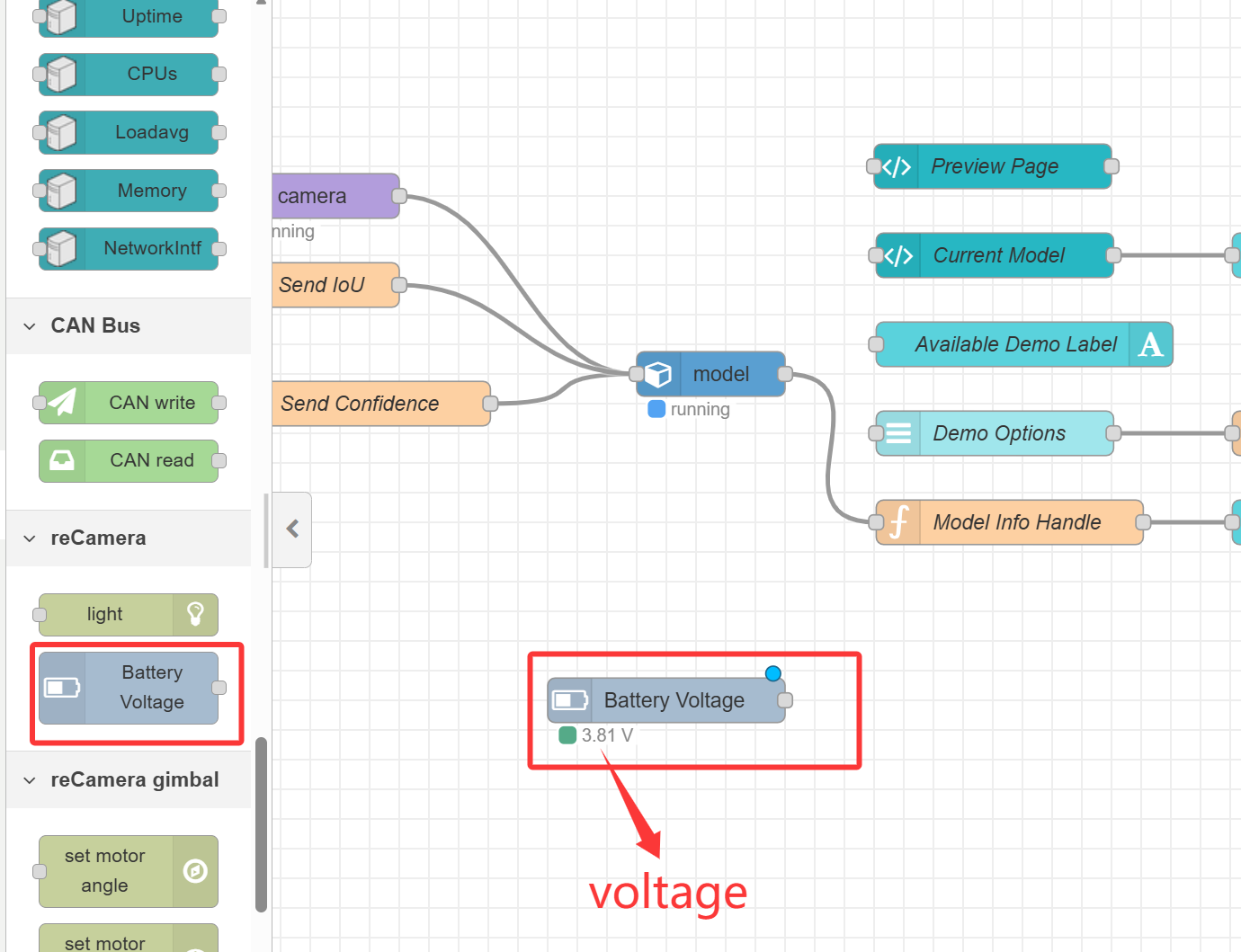
Find the reCamera section in the list on the left side of the node-red panel. Under it, there is a Battery Voltage module. The purpose of this module is to check the battery level. Drag it to the panel and then click deploy in the upper right corner. After a successful deployment, the battery voltage will be displayed below it, as shown in the figure below:
2. Check Battery Voltage via Linux Command
After connecting to the reCamera using the ssh command, enter the following command in the terminal to view the battery voltage (the value obtained is in mV units):
curl -s [http://192.168.42.1/api/deviceMgr/queryBatteryInfo](http://192.168.42.1/api/deviceMgr/queryBatteryInfo) | python3 -c 'import sys,json; print(json.load(sys.stdin)["data"]["voltage"])'
The effect is shown in the figure below:

- When no battery is connected, the values displayed by the above two methods will fluctuate erratically.
- When continuous long-distance video transmission is carried out, due to the high power consumption of the antenna at this time, the entire board will heat up more severely.
Technical Support and Product Discussion
Thank you for choosing our products! We are here to provide you with different kinds of support to ensure your experience using our products is as smooth as possible. We offer multiple communication channels to meet different preferences and needs.