Connect to Home Assistant via the XIAO ESP32-C5 Zigbee
The integration of Zigbee devices into smart home ecosystems has become increasingly popular due to Zigbee's low power consumption, reliability, and ease of use. In this wiki, we’ll guide you through connecting the XIAO ESP32-C5 to Home Assistant via its Zigbee functionality. By the end of this guide, you’ll have a working demo where the XIAO ESP32-C5 acts as a Zigbee device that can be controlled directly from Home Assistant's dashboard.
This tutorial highlights the use of Espressif's Zigbee SDK (Arduino) and demonstrates how to develop and integrate your own Zigbee devices into Home Assistant.
Hardware Preparation
To follow along with this guide, you’ll need the following:
- Home Assistant Green: A dedicated Home Assistant hardware device for managing your smart home.
- Sonoff Zigbee 3.0 USB Dongle Plus–ZBDongle-E: A Zigbee coordinator to enable Zigbee network creation and communication.
- XIAO ESP32-C5: A development board with Zigbee functionality enabled via Espressif’s SDK.
| Sonoff Zigbee 3.0 USB Dongle Plus–ZBDongle-E | XIAO ESP32-C5 | Home Assistant Green |
|---|---|---|
 |  |  |
If you don't have a Sonoff Zigbee 3.0 USB Dongle Plus–ZBDongle-E on hand, you can also choose the Home Assistant Connect ZBT-2.
Integrating Zigbee with Home Assistant
We will show you how to use the XIAO ESP32-C5 as a Zigbee device to connect to Home Assistant.
Connect ZBDongle-E
Insert the Sonoff Zigbee 3.0 USB Dongle Plus–ZBDongle-E into a USB extension cable. Plug the extension cable into Home Assistant Green.
USB 3.0 ports and USB 3.0 drives can cause interference with 2.4 GHz protocols, including the ones provided by Home Assistant Connect ZBDongle-E. It is important to use the USB extension cable and to position the Home Assistant Connect ZBDongle-E away from possible interference sources.
Step 1. Discovering Zigbee Devices
- Setting -> Devices & services
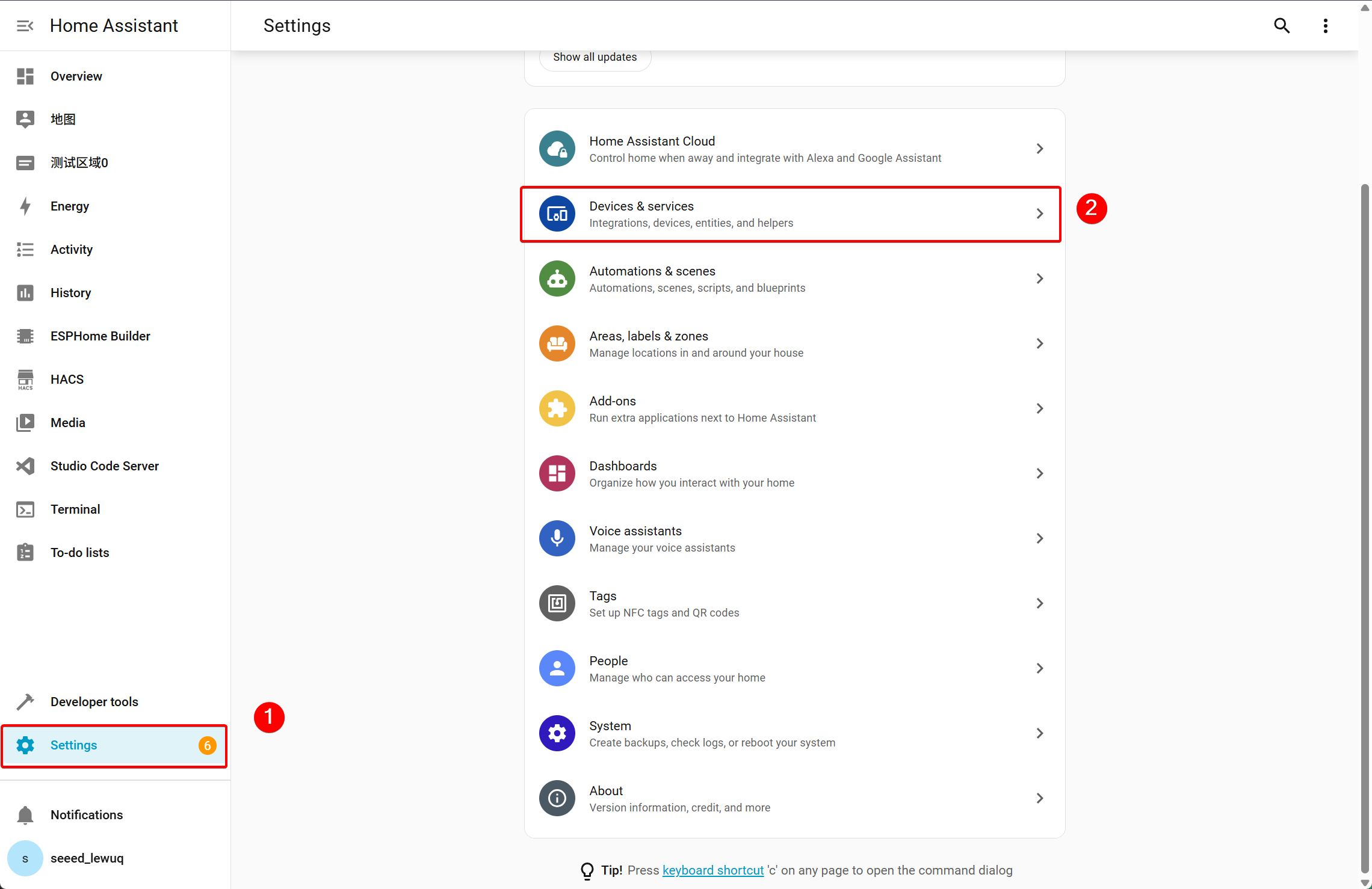
-Under Integrations, you will find the SONOFF Zigbee 3.0 USB Dongle Plus V2 device, it is Sonoff Zigbee 3.0 USB Dongle Plus–ZBDongle-E.
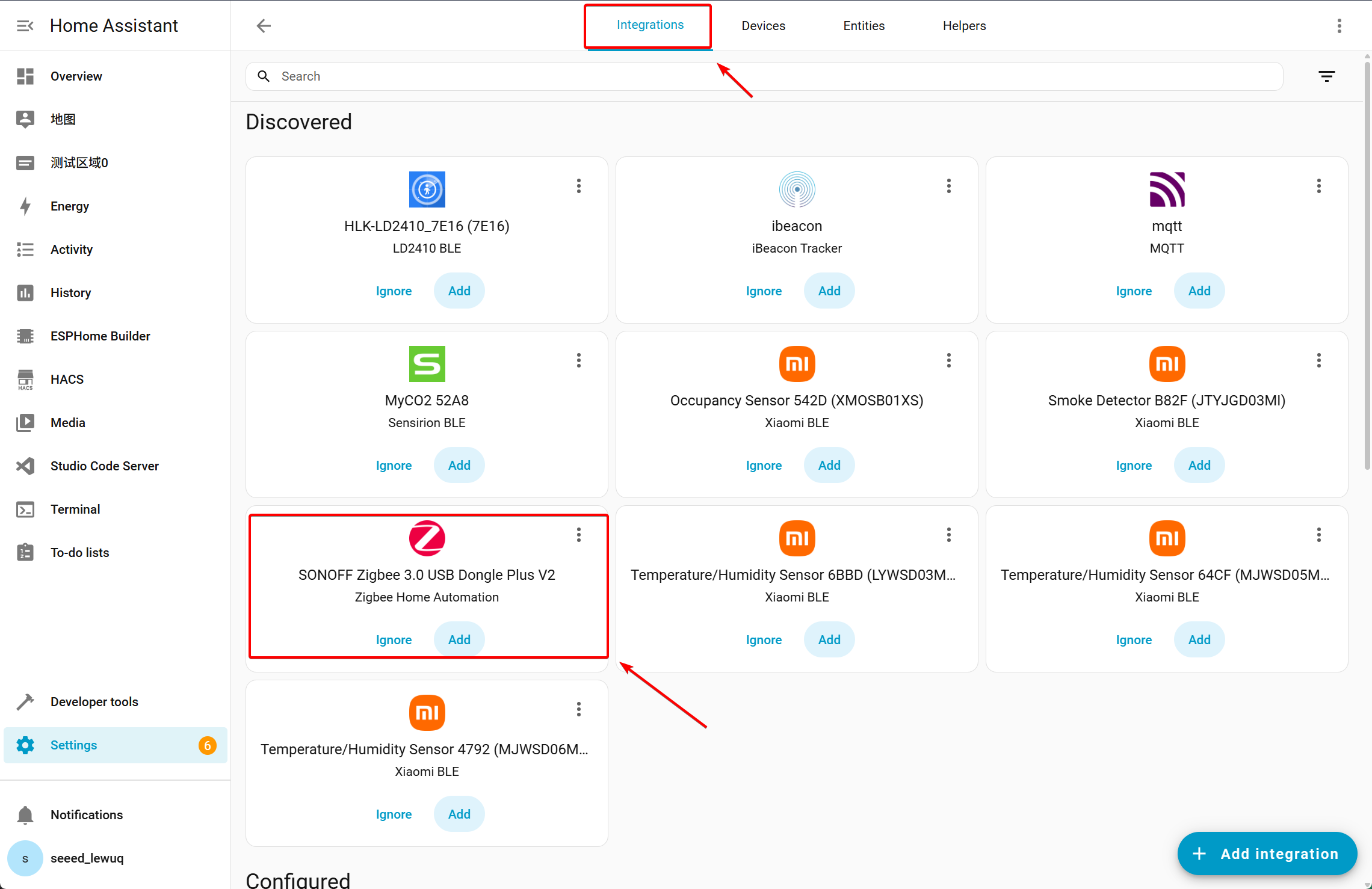
Step 2. Adding Zigbee Devices
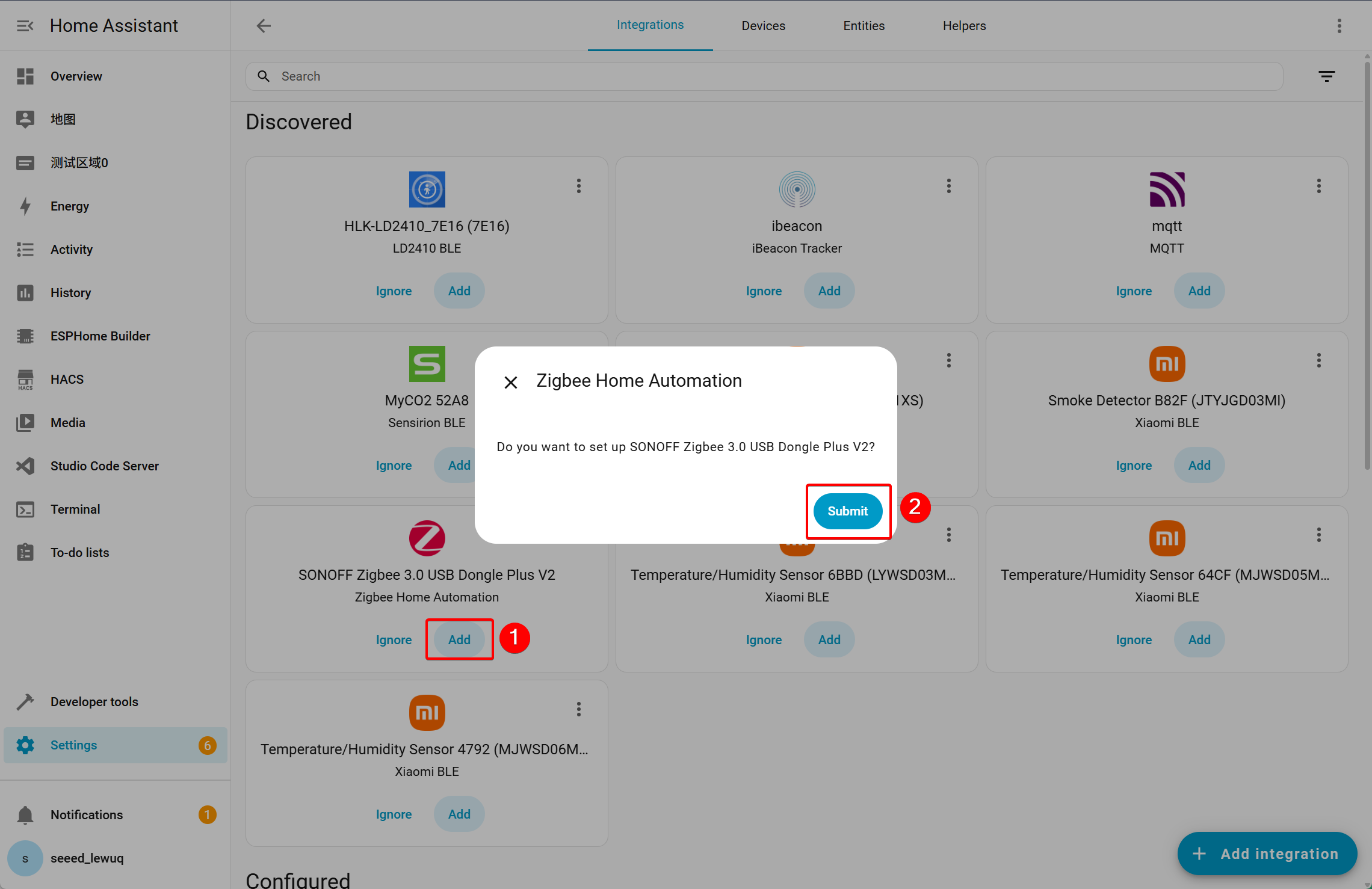
Step 3. Creating a Zigbee Network
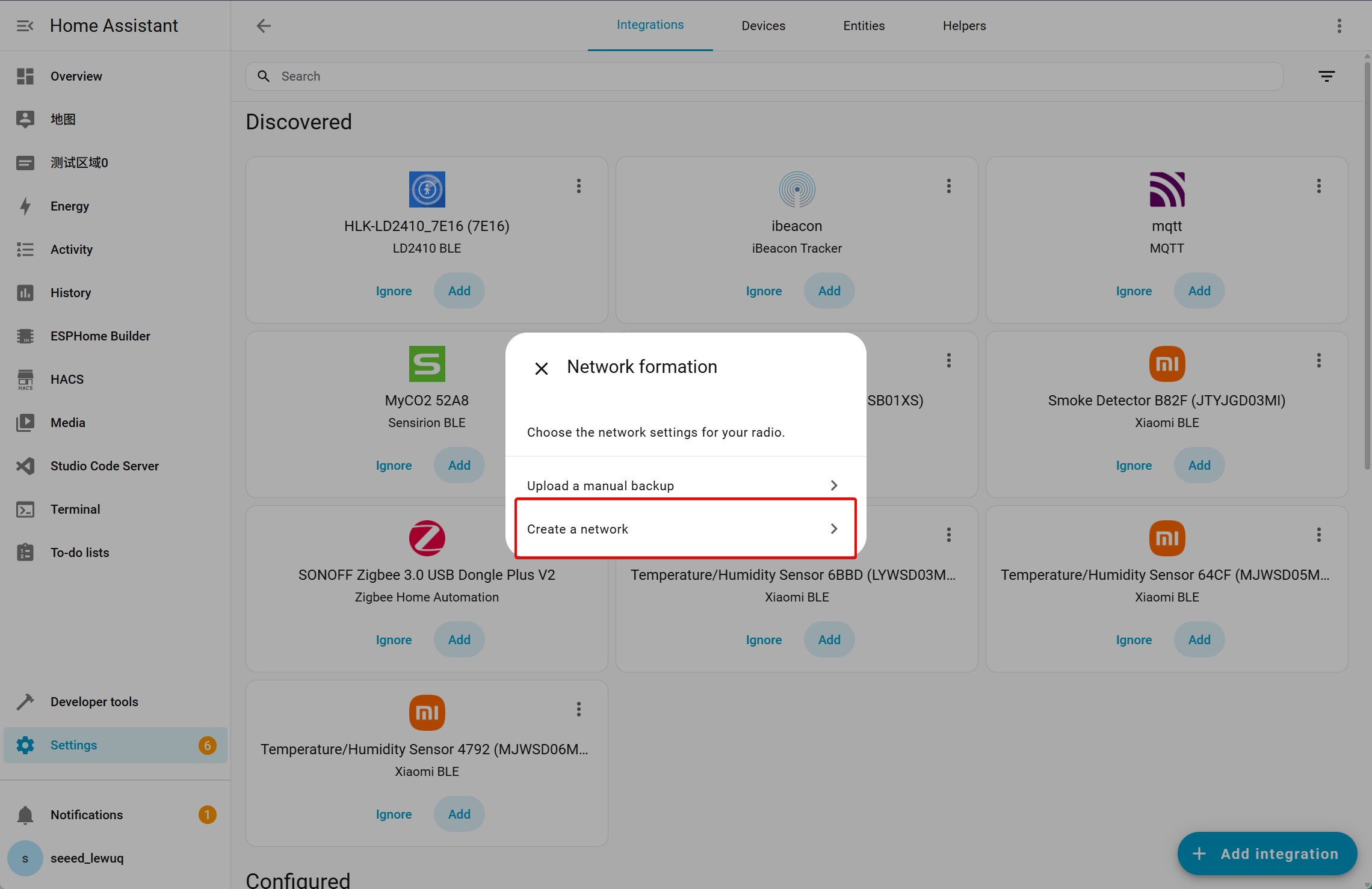
- After clicking Submit, you will be prompted to select the Zigbee device mode. Choose to create a Zigbee network in Home Assistant.
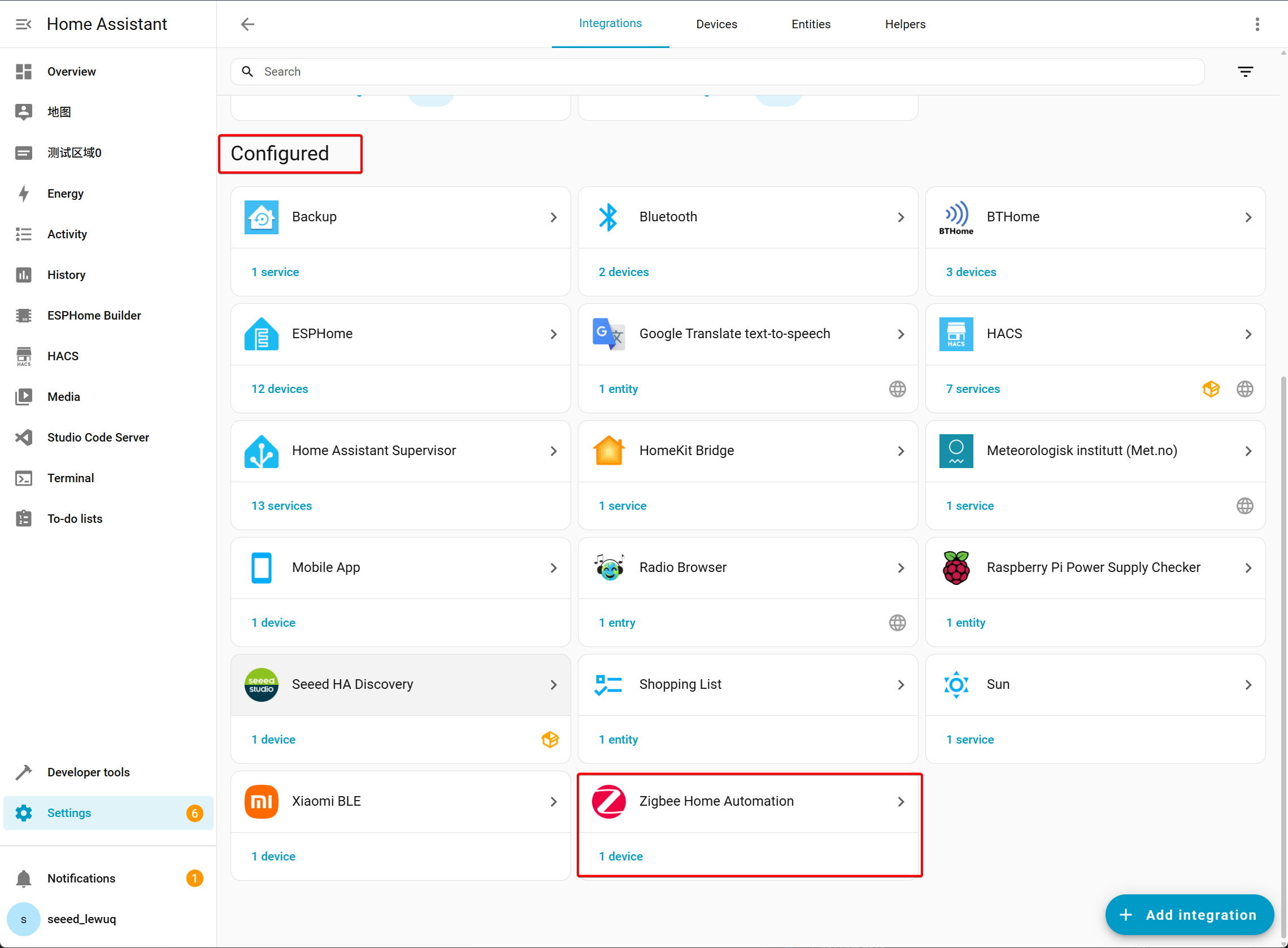
- Once successful, you will find the Zigbee device has been added under Configured.
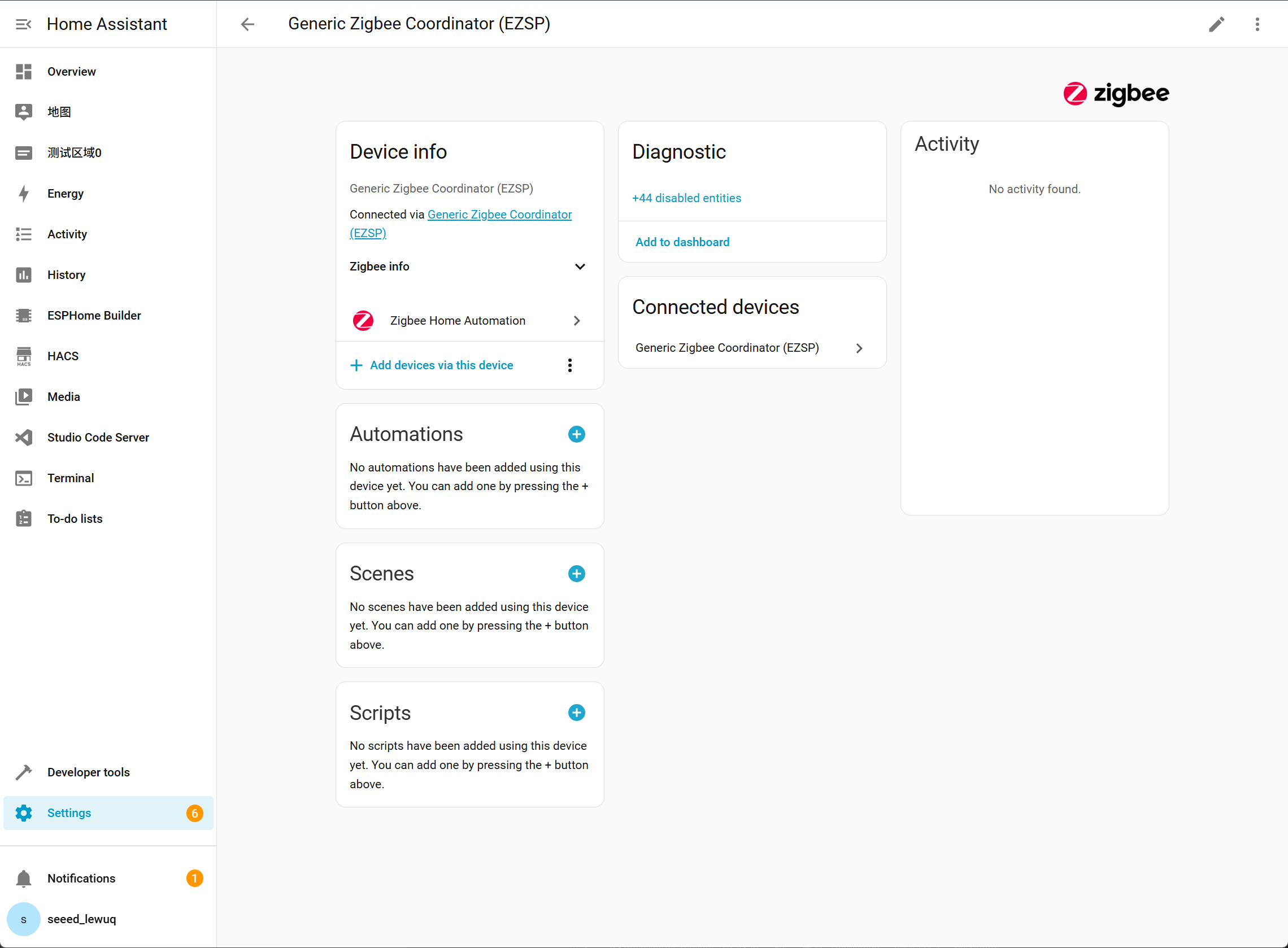
- The ZBDongle-E is set as the coordinator, which can control Zigbee end devices.
Flash the Zigbee Example
We will use the HA_On_Off_Light Zigbee example from the Arduino IDE for this demonstration.
If you haven't used the Arduino IDE before, please refer to Getting Started with Seeed Studio XIAO ESP32-C5 to get started.
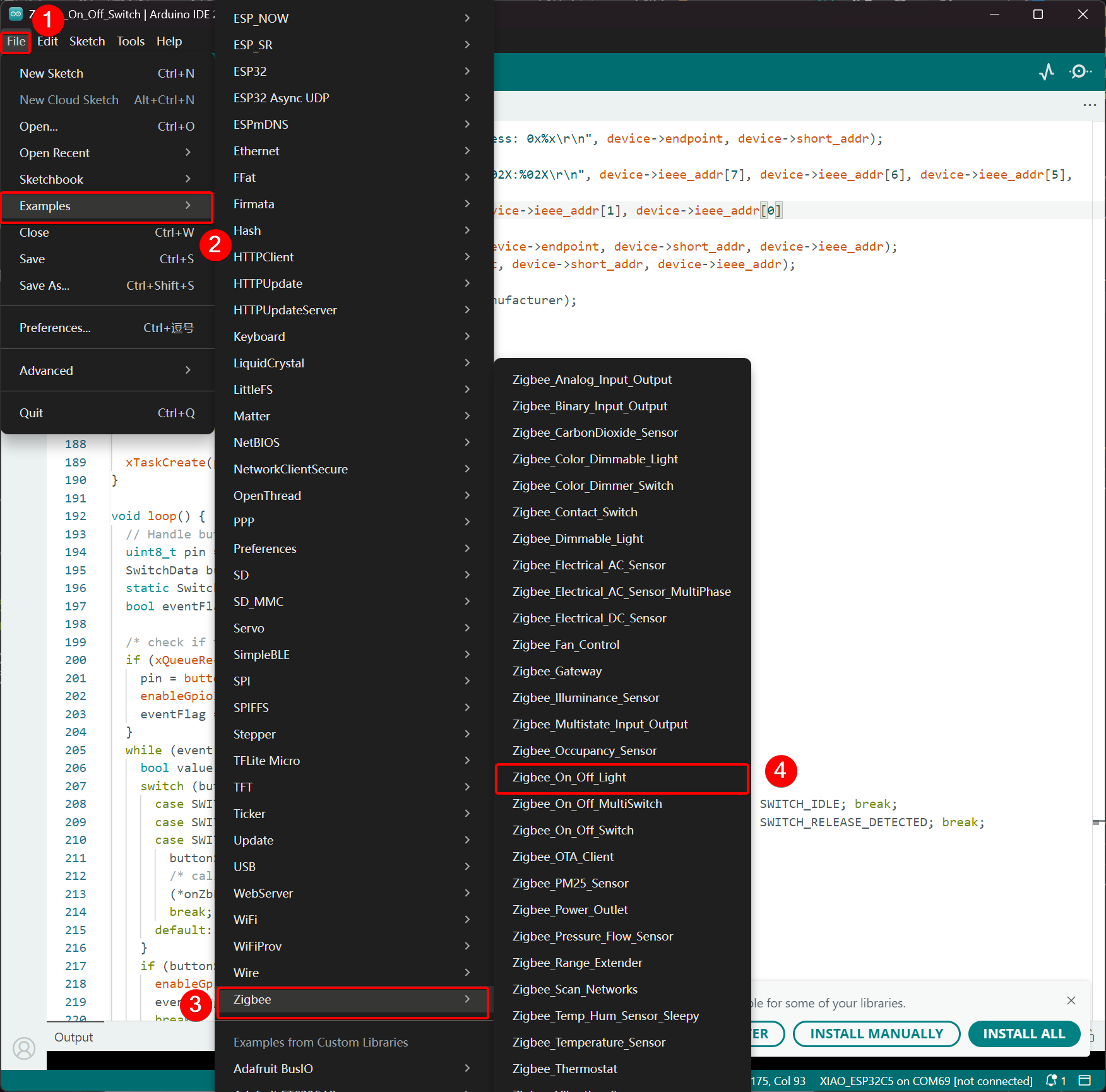
Step 1. select the example from the Arduino IDE via the path: File -> Examples -> Zigbee -> Zigbee_On_Off_Light.
Step 2. Set the End Device and Partition Scheme
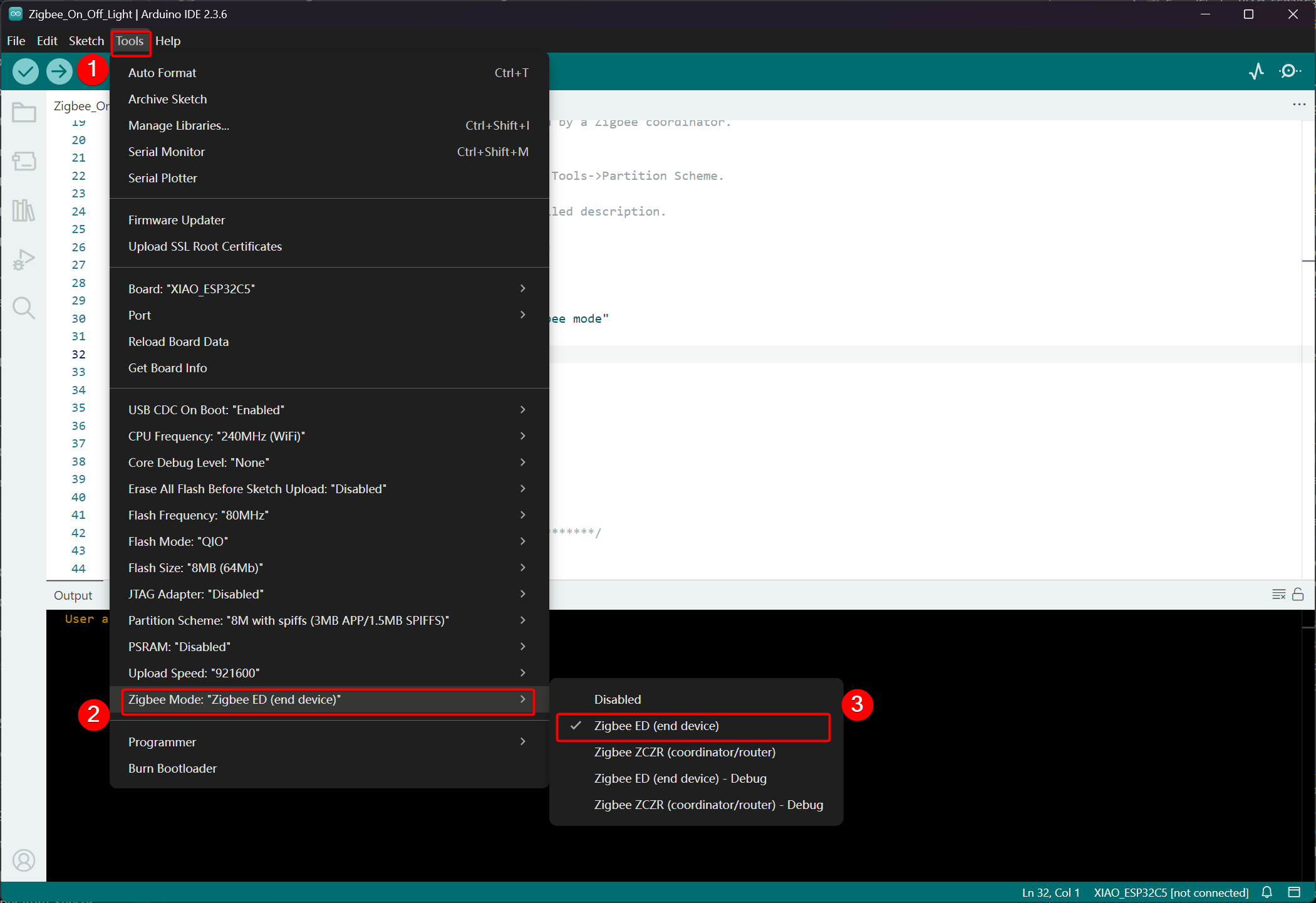
- Click Tools -> Zigbee Mode and select the mode as Zigbee ED (End Device).
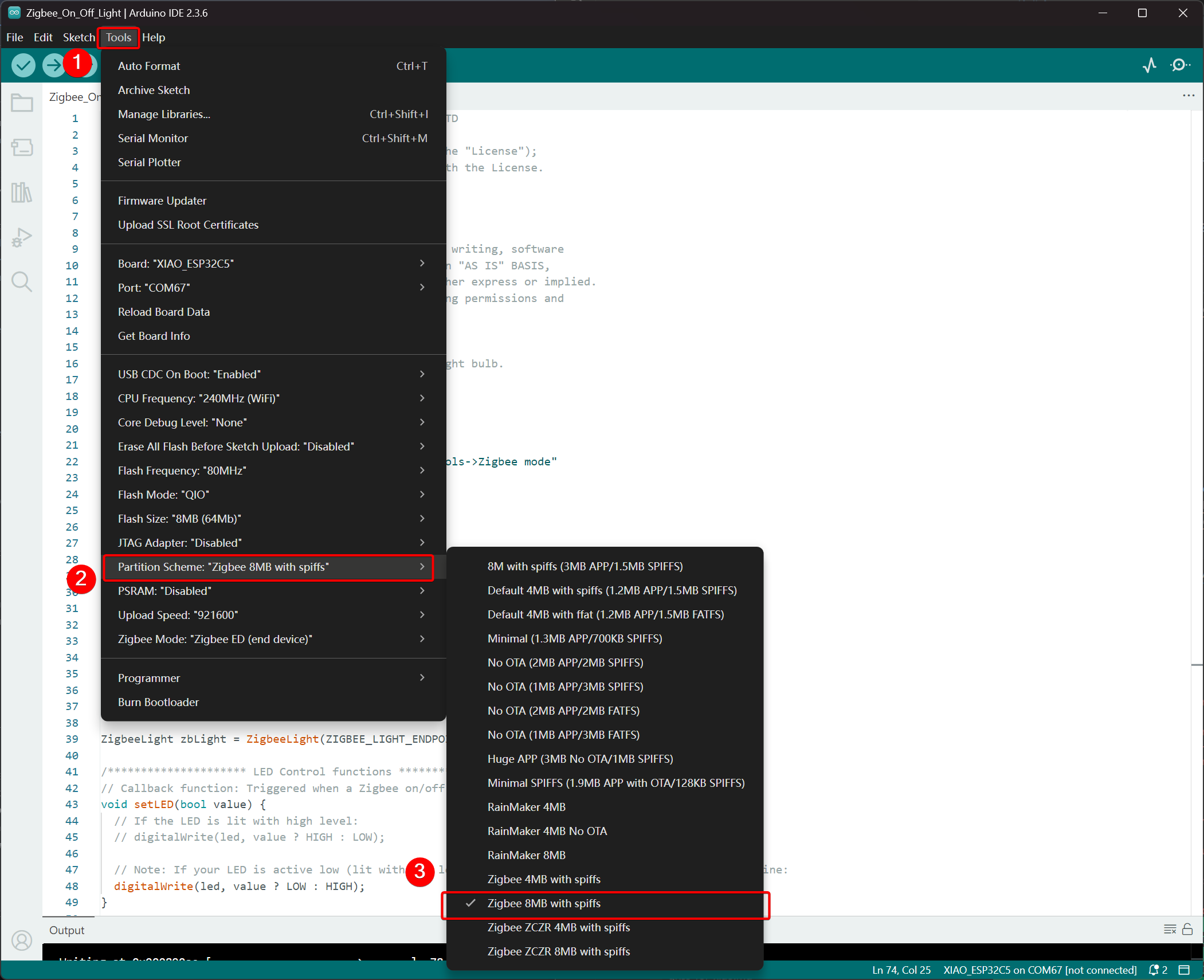
- Select Partition Scheme, go to Tools -> Partition Scheme -> Zigbee 8MB with spiffs
The FLASH memory of the XIAO ESP32-C5 is 8MB. When selecting a partition scheme, it is recommended to choose Zigbee 8MB with spiffs.
Step 3. Modify the LED Pin and Name
- Locate the code related to pin configuration in the example.
uint8_t led = RGB_BUILTIN;
- In the XIAO ESP32-C5, the onboard USER LED corresponds to pin GPIO27, which needs to be modified.
uint8_t led = 27;
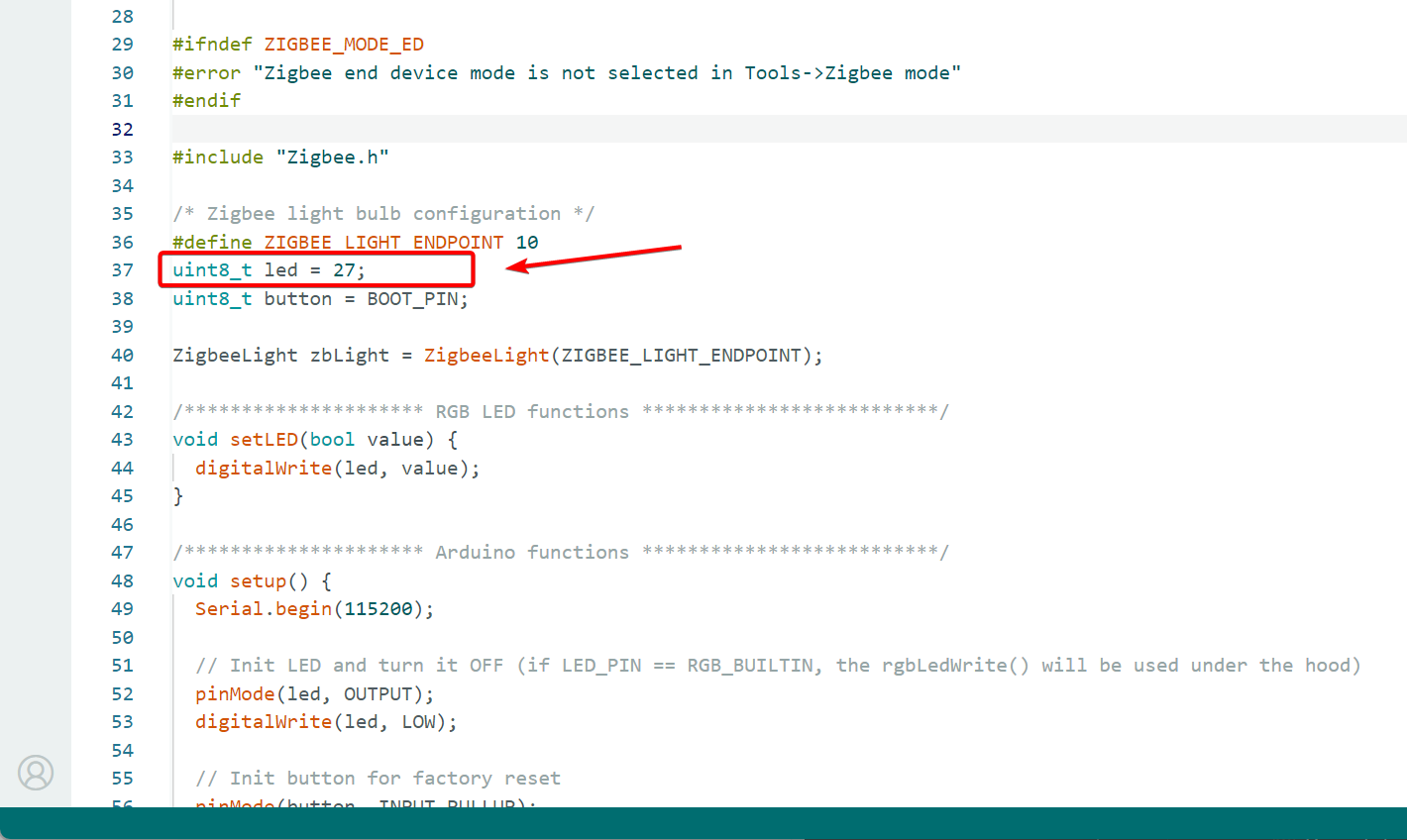
- In the XIAO ESP32-C5, the onboard USER LED corresponds to pin GPIO27, which needs to be modified.
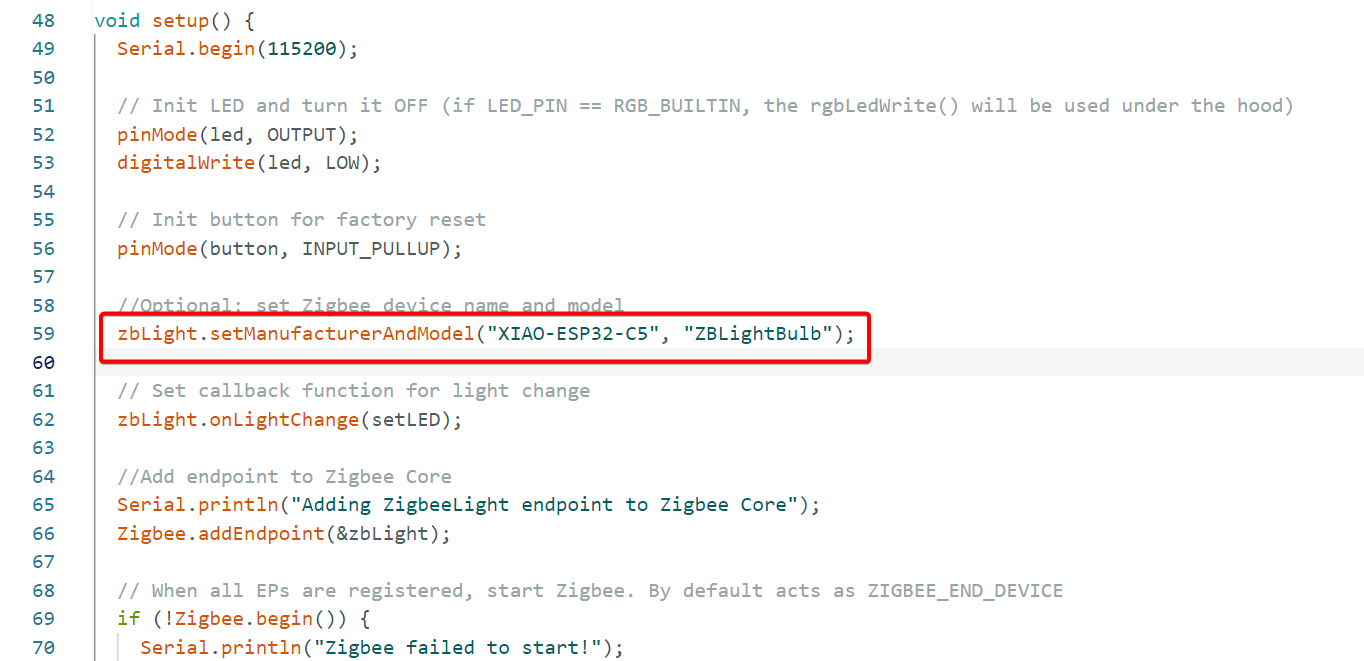
zbLight.setManufacturerAndModel("Espressif", "ZBLightBulb");
- Modified
zbLight.setManufacturerAndModel("XIAO-ESP32-C5", "ZBLightBulb");
Step 4. Upload
Upload the example code with modified pins to the XIAO ESP32-C5.
Connect to the Zigbee Network
onnect the XIAO ESP32-C5 (configured as a Zigbee End Device) to the Zigbee network created in Home Assistant.
Step 1. Discover End Devices
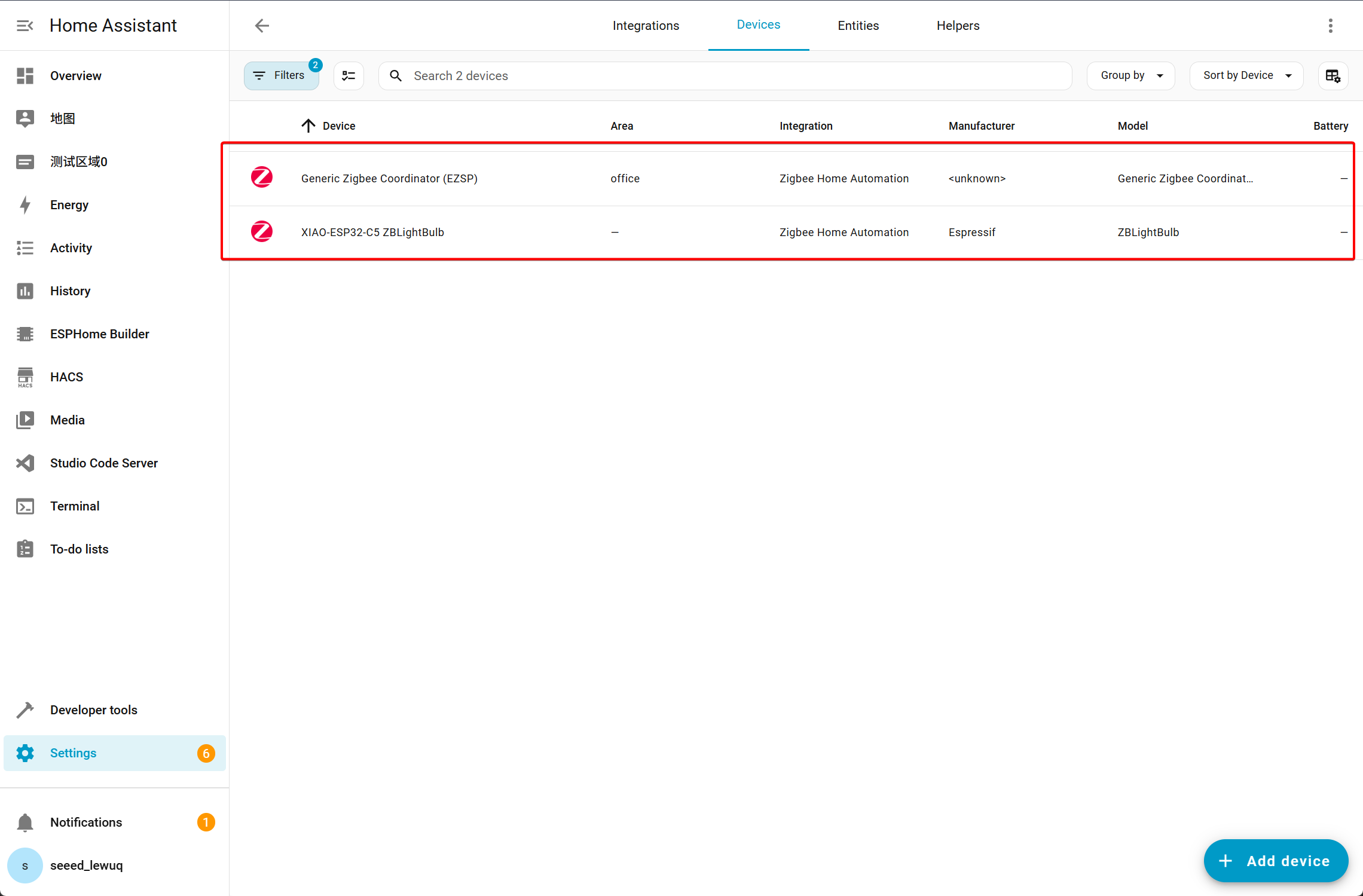
- After flashing the example code to the XIAO ESP32-C5, it will automatically join the Zigbee network. Open the Integrations page, and you will see two Zigbee devices appear.
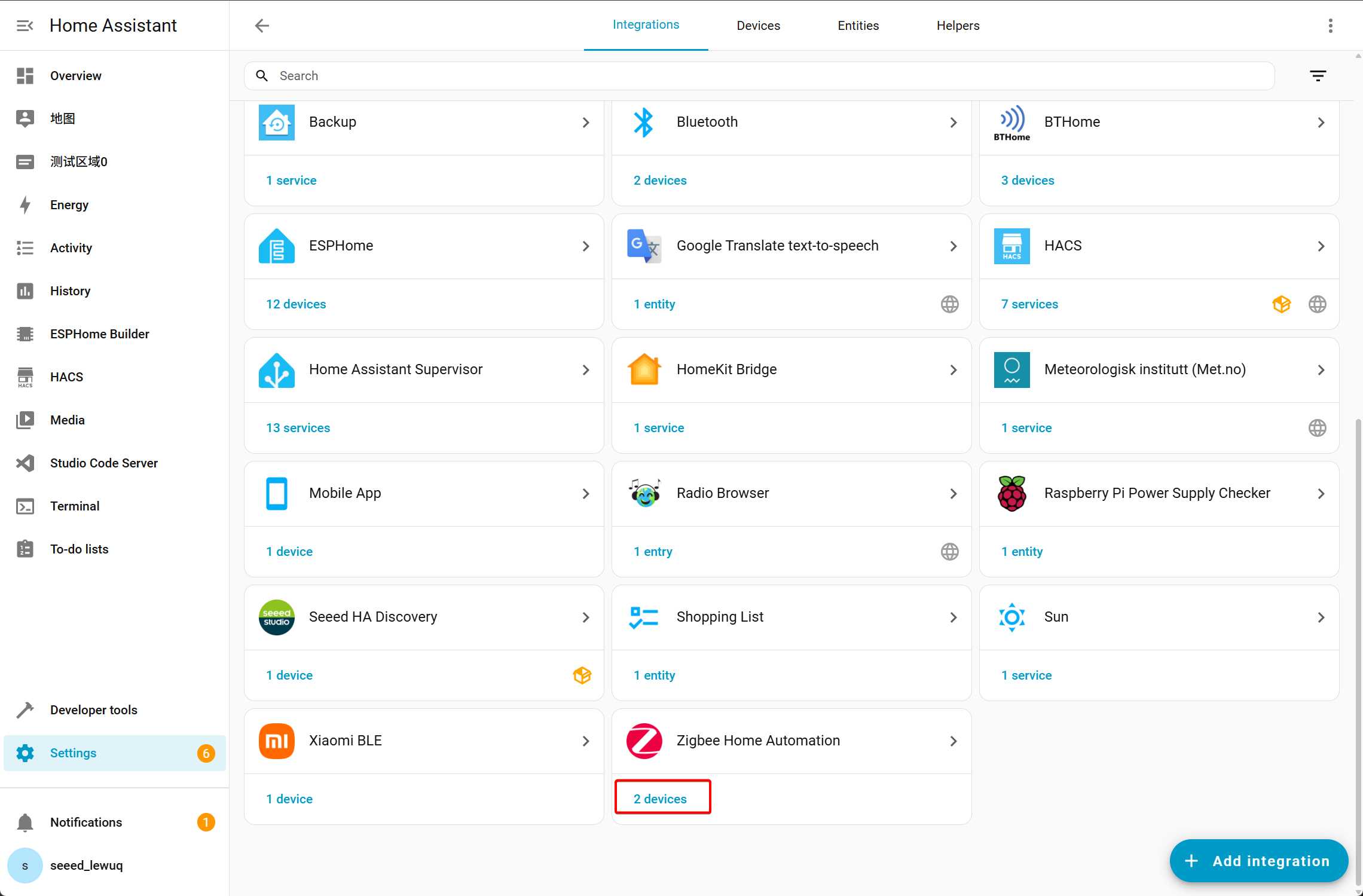
- One is the Coordinator device (the ZBDongle-E connected to Home Assistant Green), and the other is the End Device (XIAO-ESP32-C5 ZBLightBulb).
To join the Zigbee network faster and more stably, you can connect the FPC flexible antenna from the package to the XIAO ESP32-C5.
Step 2. Add to Dashboard
- Click on the XIAO-ESP32-C5 ZBLightBulb device and add it to the dashboard.
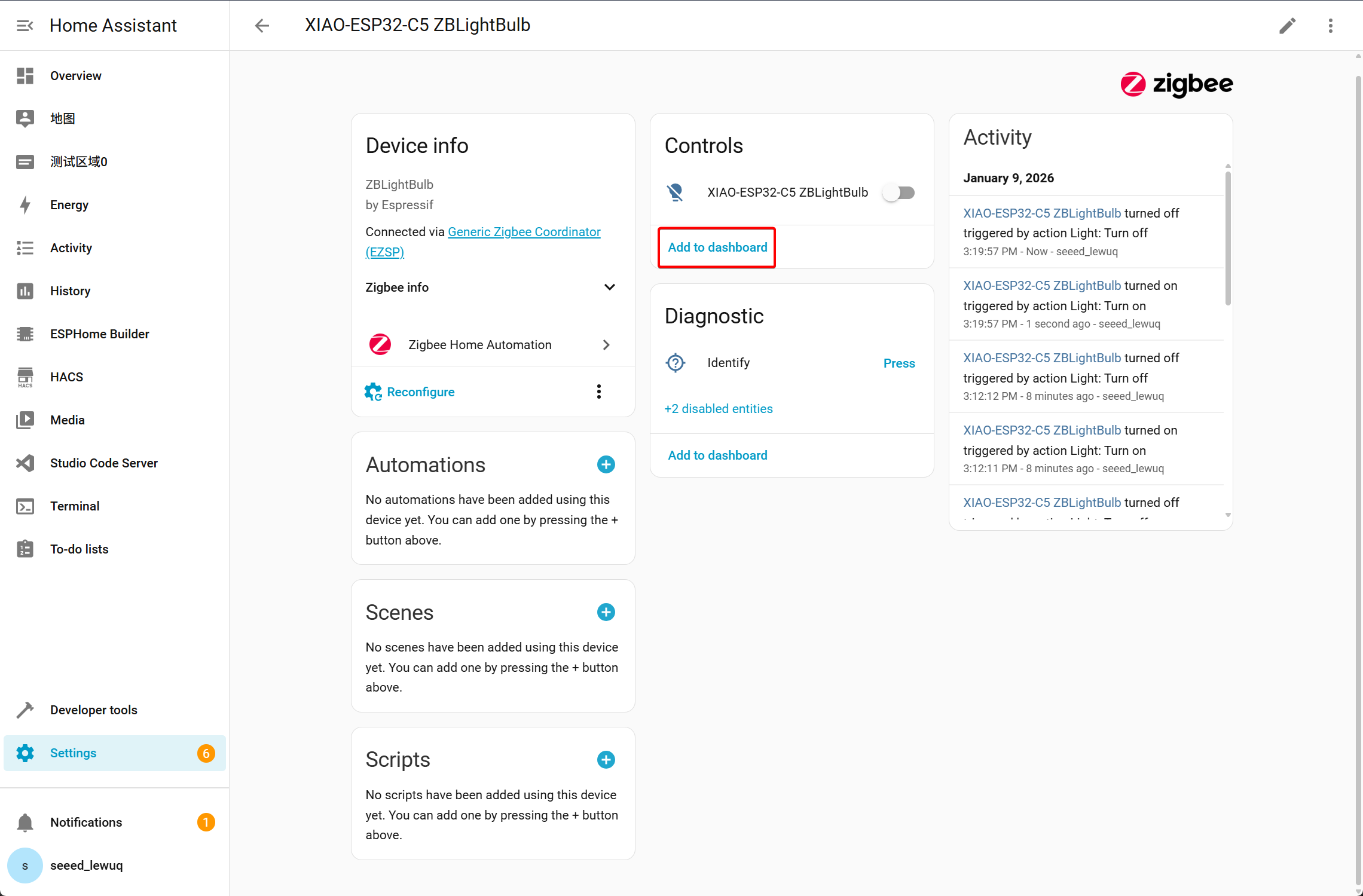
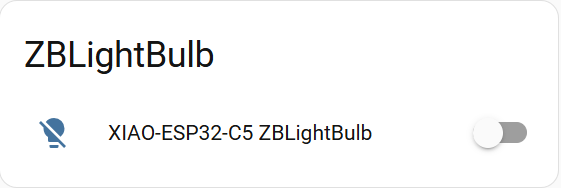
- You can find the XIAO-ESP32-C5 ZBLightBulb device in the dashboard, where you can send control commands to it.
Effect Presentation
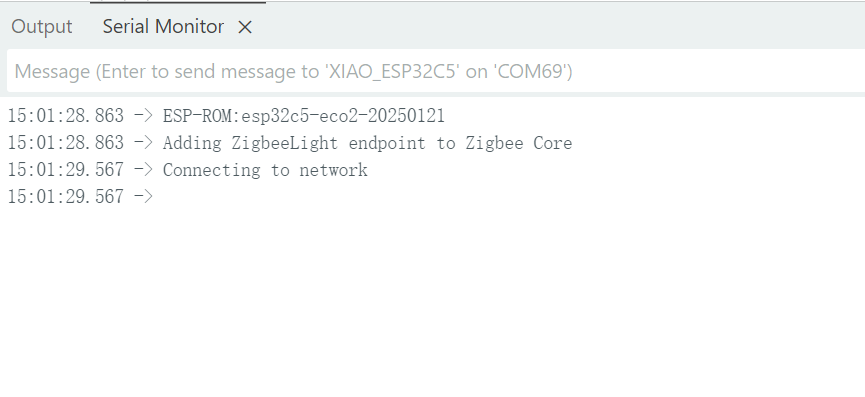
- When the XIAO ESP32-C5 end device successfully joins the Zigbee network, it will be displayed in the Serial Monitor.
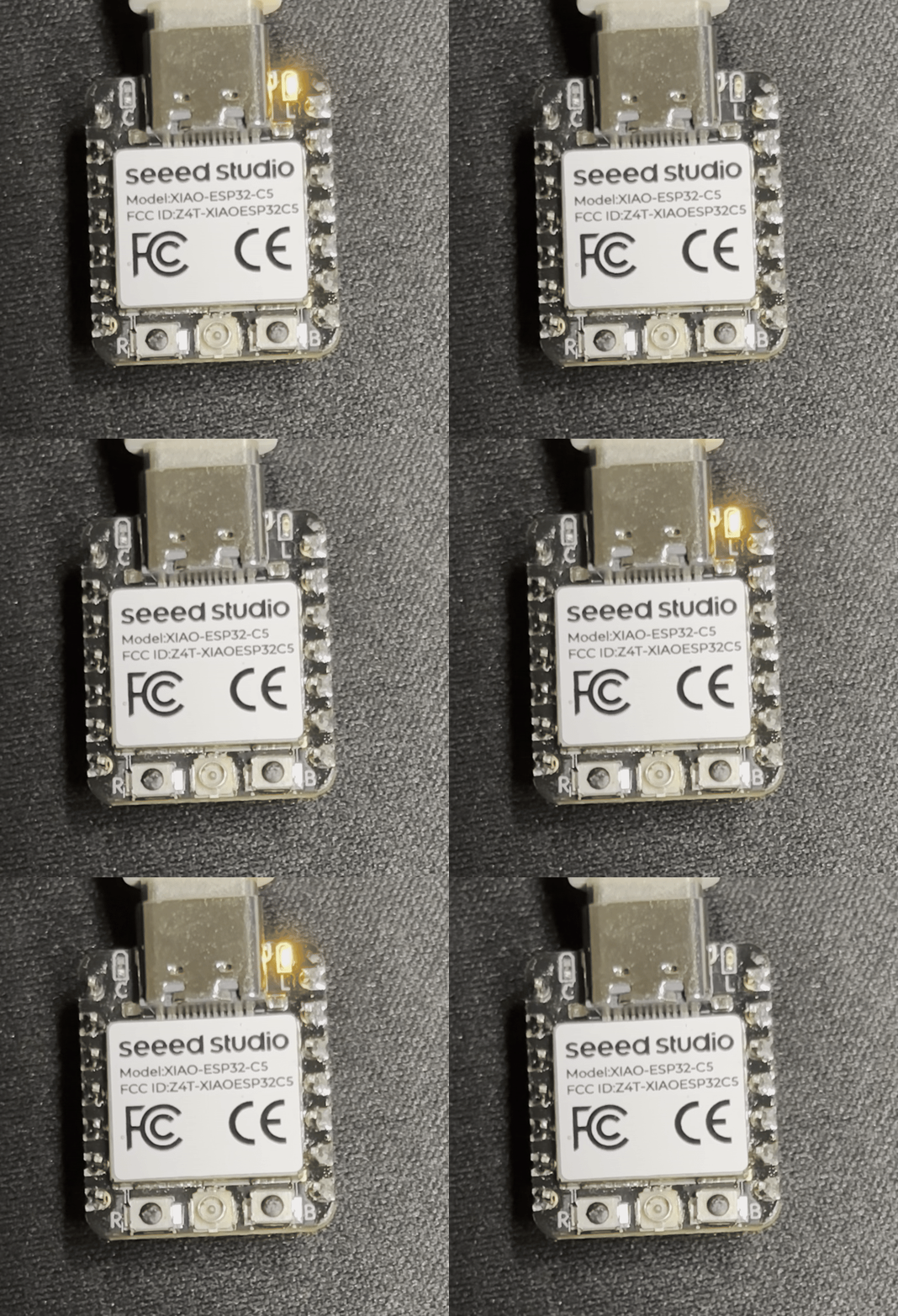
- Actual Effect
Conclusion
Espressif offers a diverse range of Zigbee device types and an extensive Zigbee SDK, enabling developers to easily create their own Zigbee devices. By following this tutorial, you have learned how to integrate the XIAO ESP32-C5 into Home Assistant using Zigbee, adding custom devices to your smart home ecosystem.
With the flexibility of the Espressif Zigbee SDK, you can start building your own Zigbee devices for various applications and features, and seamlessly add them to Home Assistant for centralized control. Happy building!
Tech Support & Product Discussion
Thank you for choosing our products! We are here to provide you with different support to ensure that your experience with our products is as smooth as possible. We offer several communication channels to cater to different preferences and needs.