Setting up a MQTT Gateway
Why do you need Meshtastic + mqtt
Integrating MQTT with Meshtastic extends off-grid communication by bridging distant networks. This enables global messaging, provides a backup when mesh signals are weak, and ensures faster message delivery via the internet. Perfect for remote areas and emergency situations.
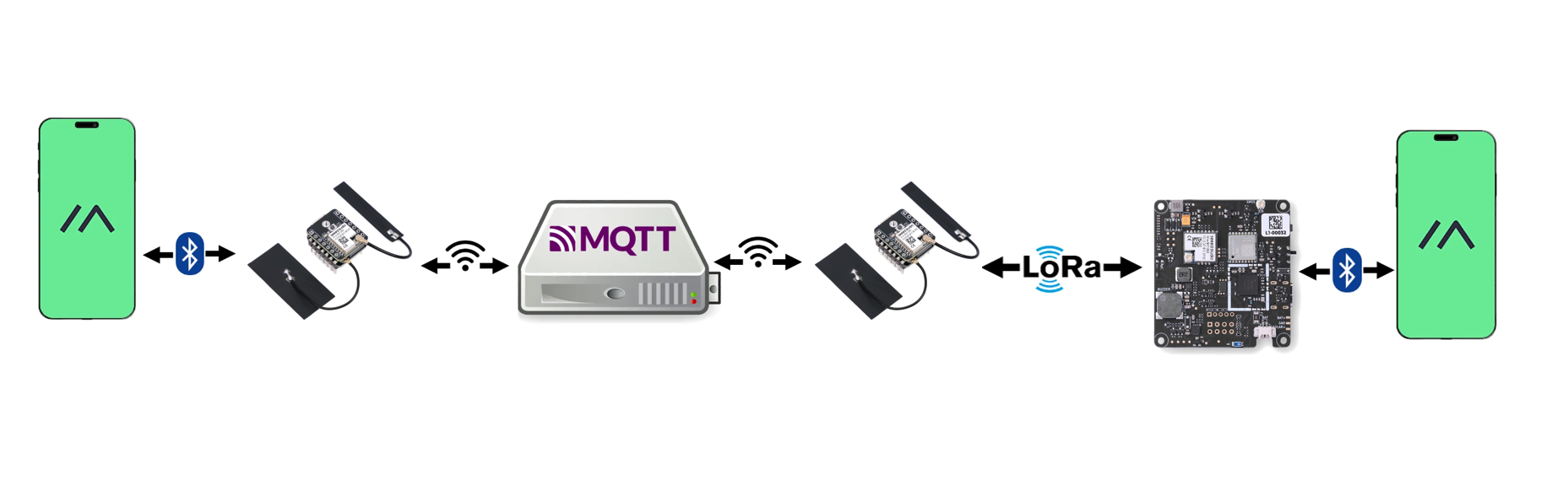
Hardware Preparation
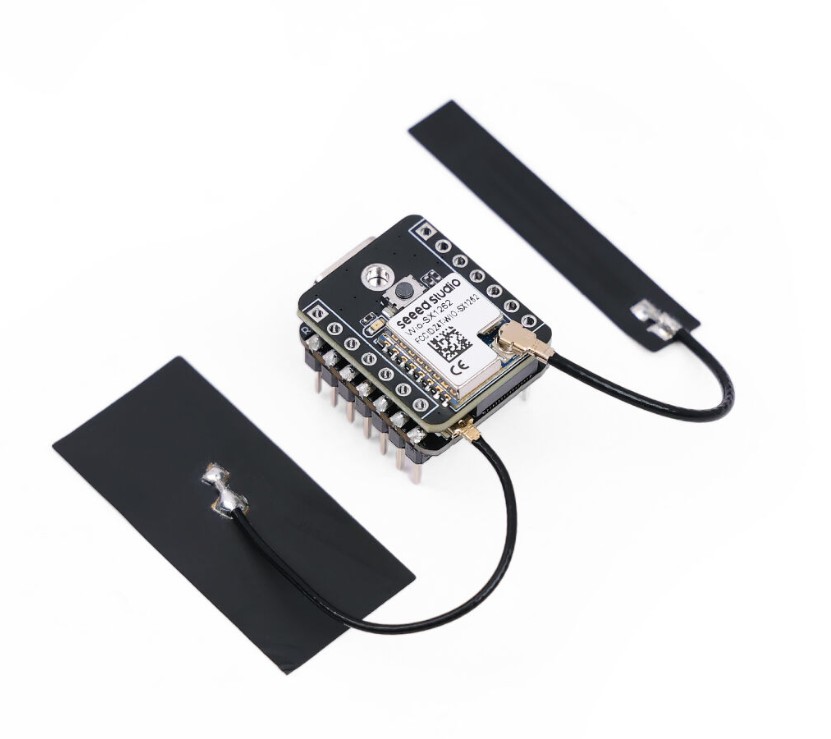
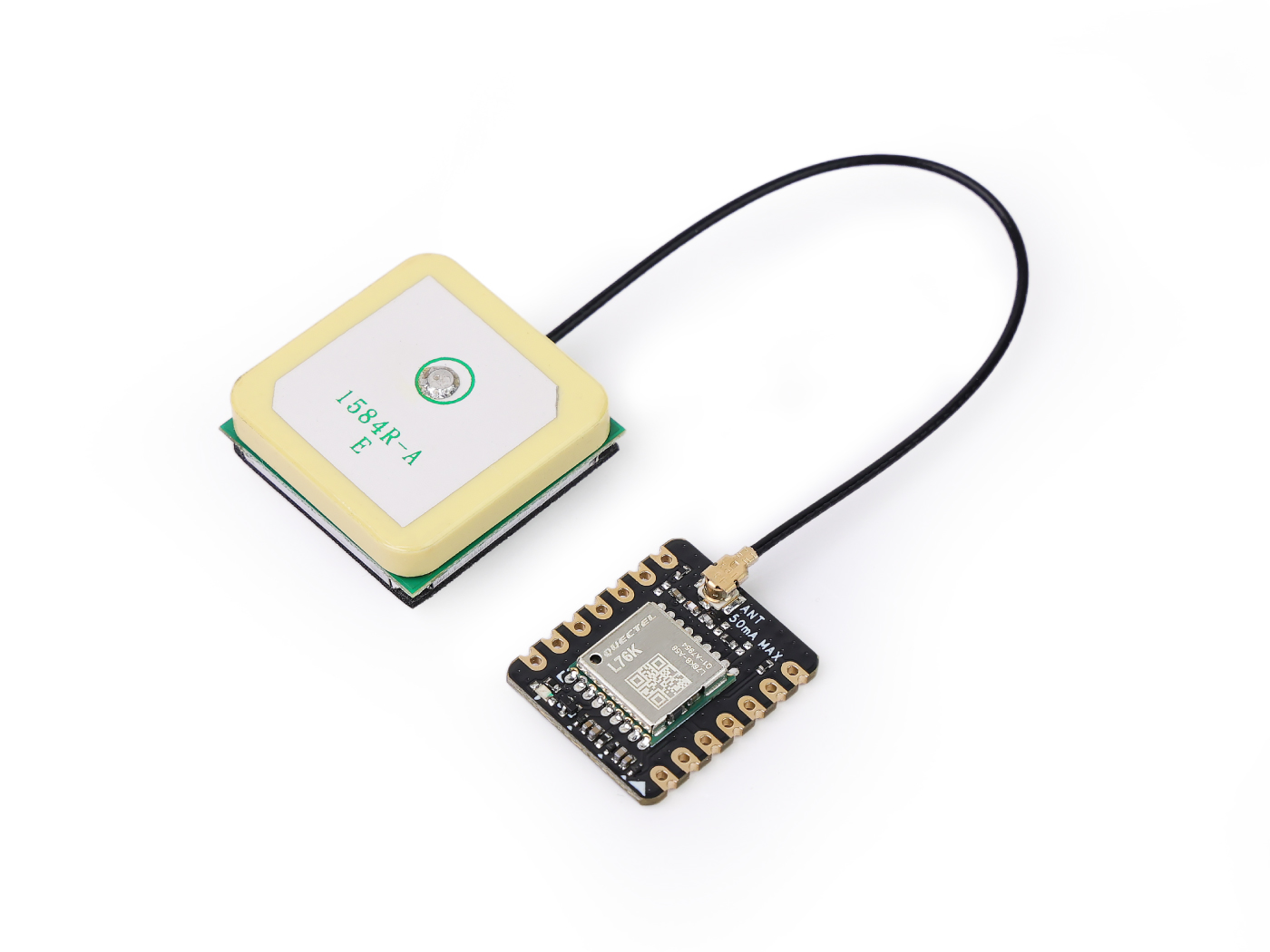
Setting up a Meshtastic Gateway requires a device that can both run LoRa and Wifi. Additionally, if you want to share your gateway's location via mqtt, you can add a GPS module.
| XIAO ESP32S3 & Wio-SX1262 Kit for Meshtastic & LoRa | (Optional) L76K GNSS Module |
|---|---|
 |  |
Hardware Installation
Connected to battery
The XIAO ESP32S3 has a built-in power management chip that allows the XIAO ESP32S3 to be powered independently by using a battery or to charge the battery through the XIAO ESP32S3's USB port.
If you want to connect the battery for XIAO, we recommend you to purchase qualified rechargeable 3.7V lithium battery with protection circuit. When soldering the battery, please be careful to distinguish between the positive and negative terminals. The negative terminal of the power supply should be the side closest to the USB port, and the positive terminal of the power supply is the side away from the USB port.
Connected to SX-1262
The SX-1262 can be connected to the Xiao ESP32-S3 via the B2B interface. The SX-1262 uses SPI to communicate with Xiao ESP32-S3.
The compatible SX-1262 can only be bought within the kit.
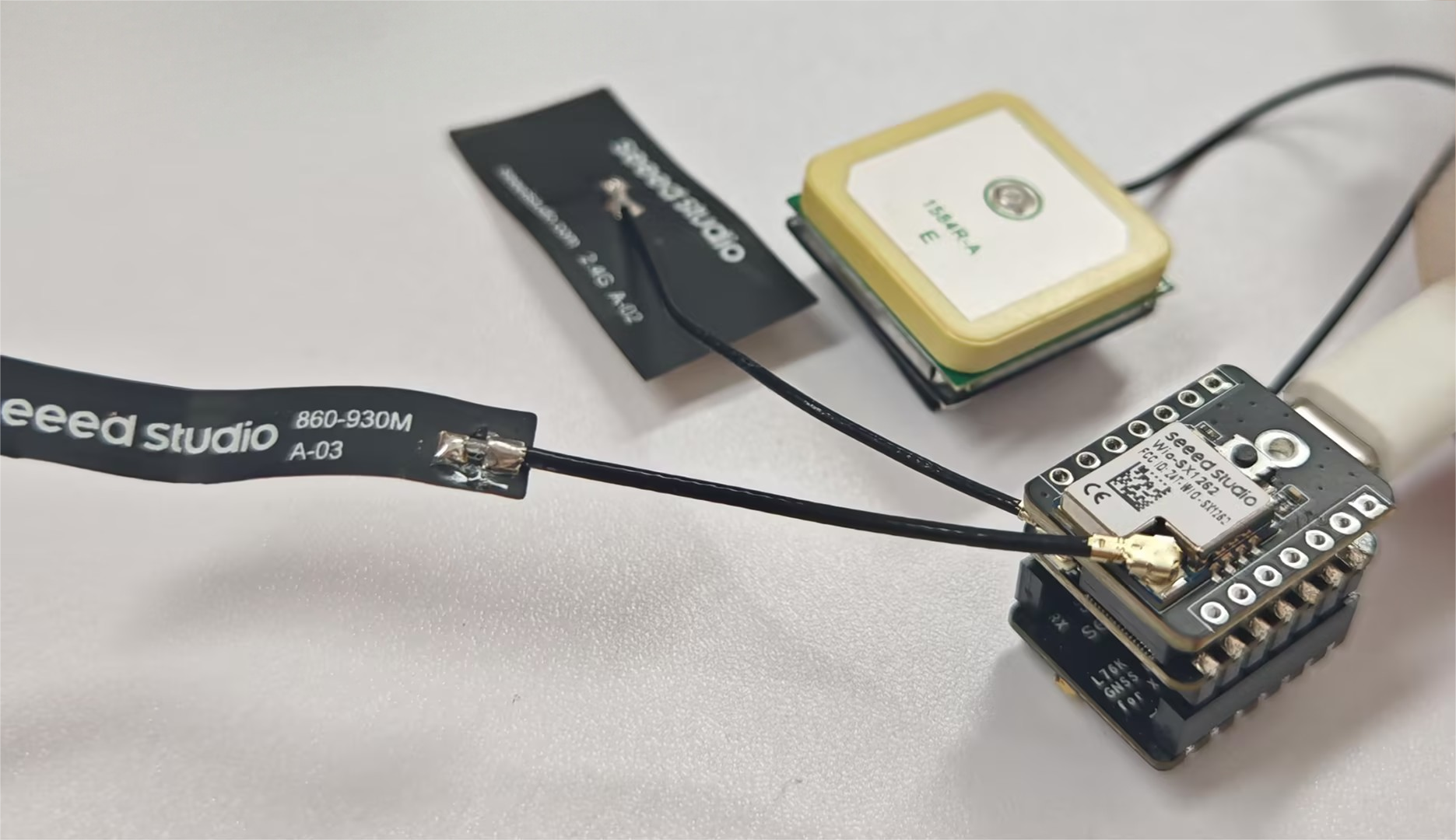
(Optional) Connected to L76K GNSS Module
Set Up
Step1 Flash Firmware
1: Firstly, open a browser and visit https://flasher.meshtastic.org/# requires Chrome or Edge browser.
2: Then, use a suitable USB cable to connect the device to the PC. You may need to turn off, then press and hold the BOOT button while plugging in the USB cable.
3: Follow the following instruction provided to perform the subsequent flashing operations. Select the Device as "Seeed XIAO S3", Firmware as the lastest one, and then click "Flash". Don't forget to tick "Full Erase and Install" if you want to cover previous firmware.
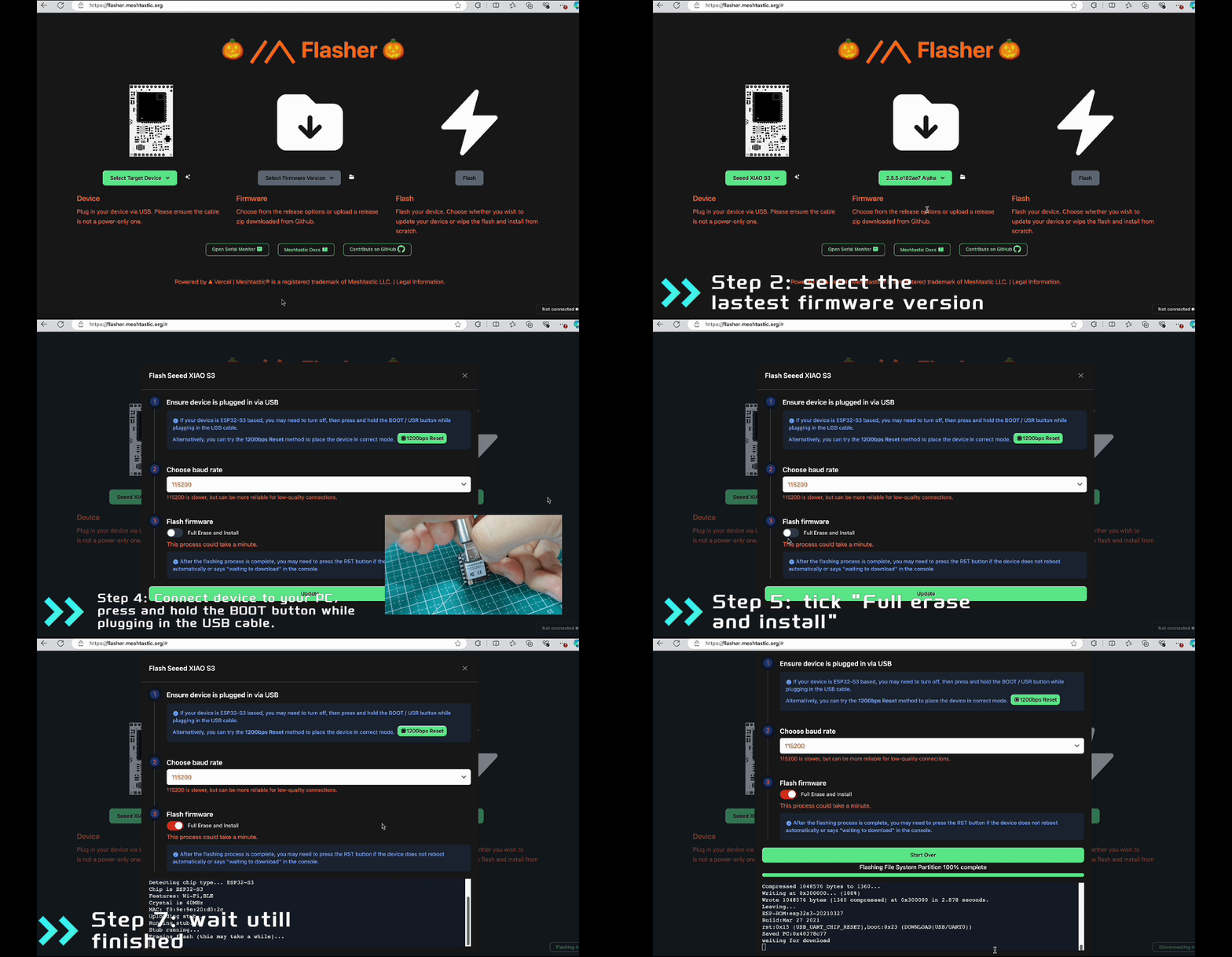
Step2 Check your Device ID
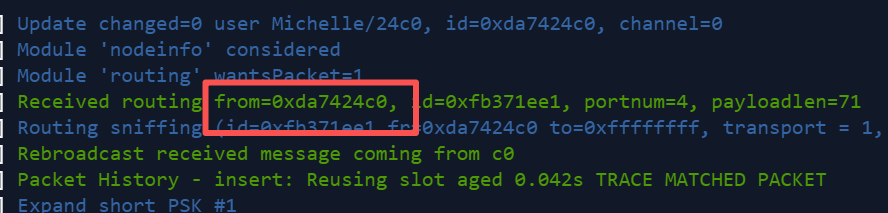
The device ID is normally the last four digits of the MAC address. You can open the serial port monitor to check.
Conect the device via a USB cable. Then click here to go to the Meshtastic web flasher. Click Open the serial port monitor. Select the Device as Seeed XIAO S3 or Tiny USB XXX
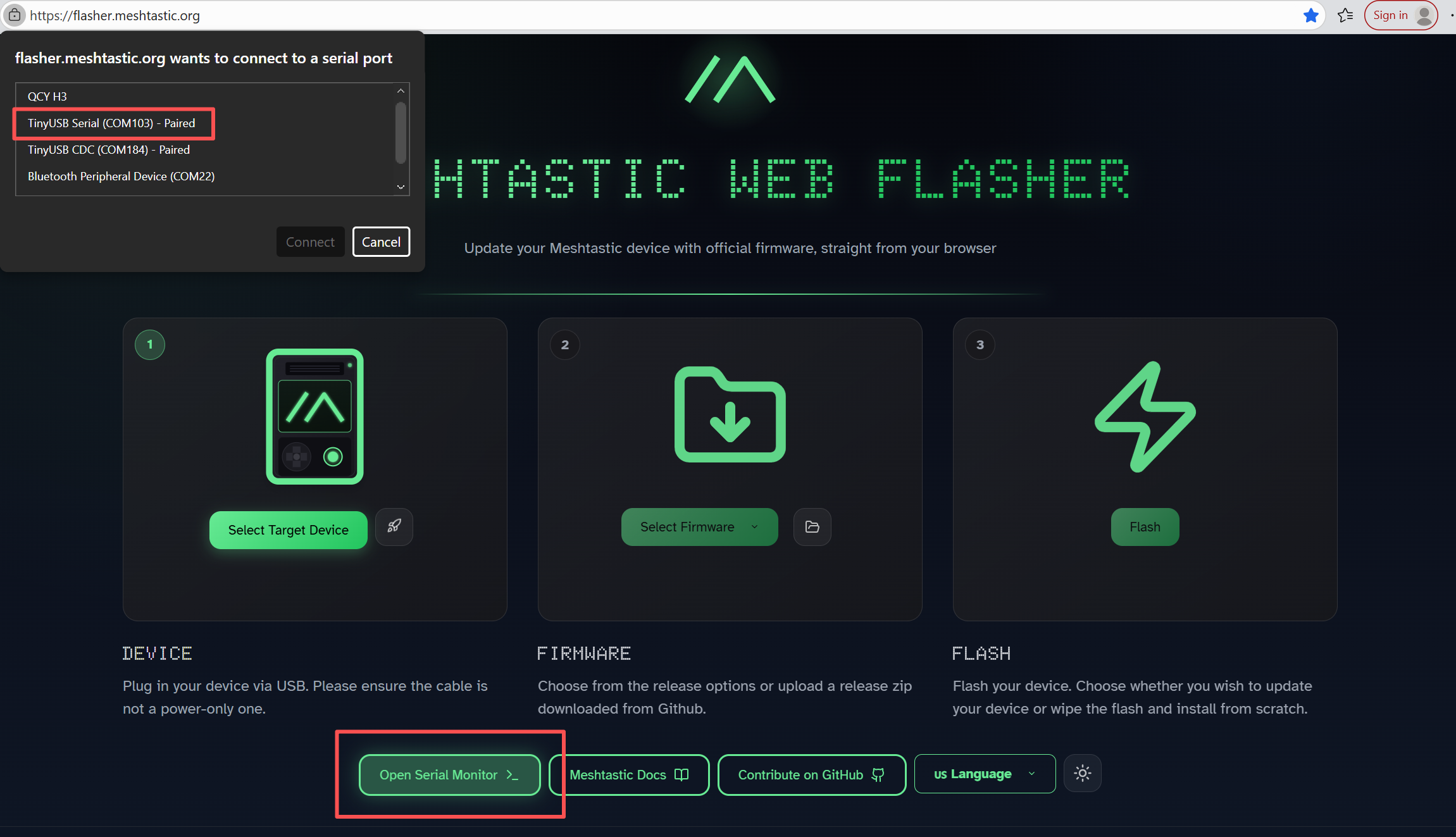
Check your device ID in the serial port log. For example, the log below shows indicates that the device ID is 24c0.
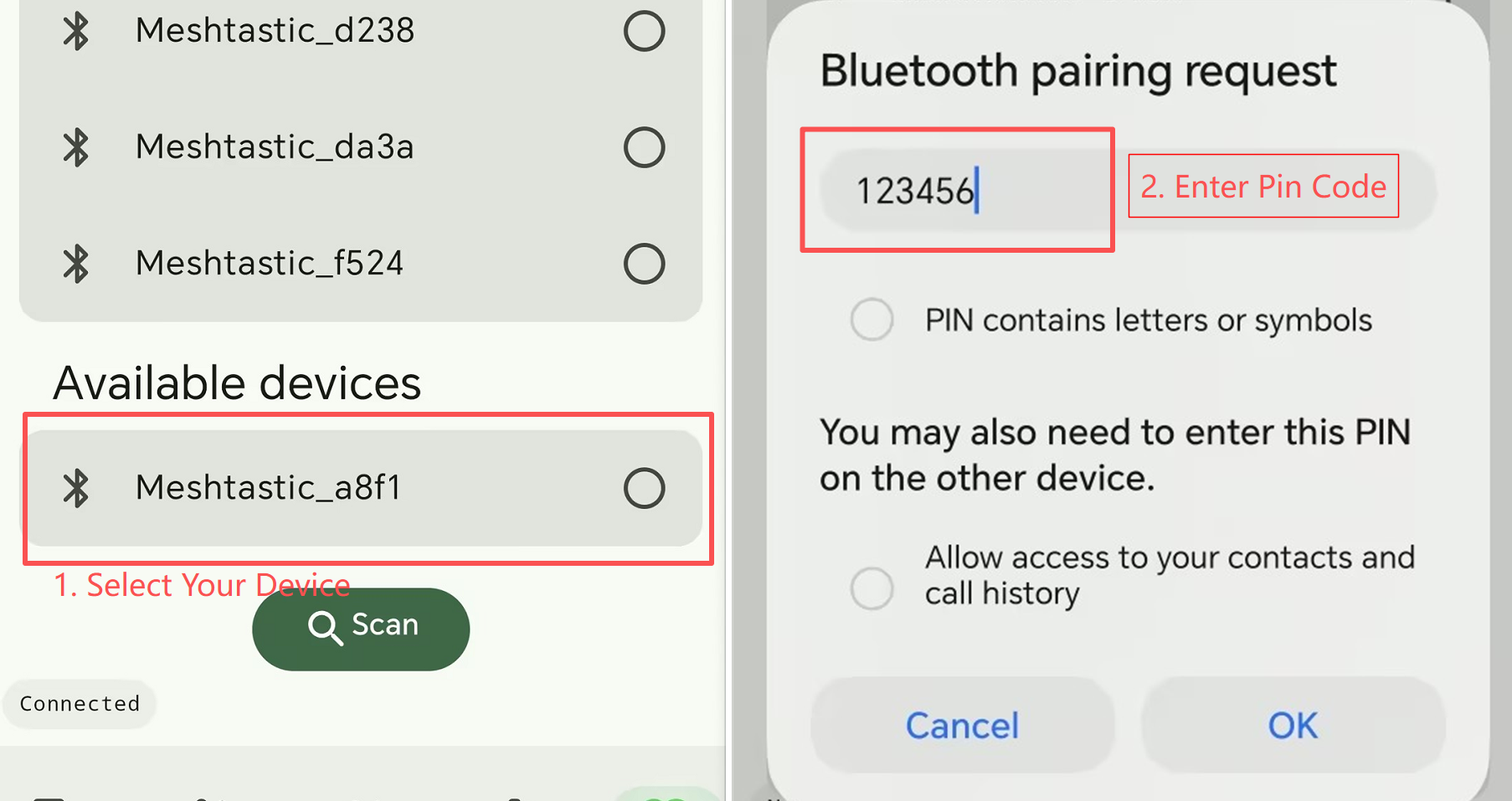
Step3 APP Connection
open the Meshtastic Android app and connect to your device via Bluetooth. The default pin code is 123456
Step4 Set up Xiao ESP32S3 Mesh-mqtt Gateway
- Android
- IOS
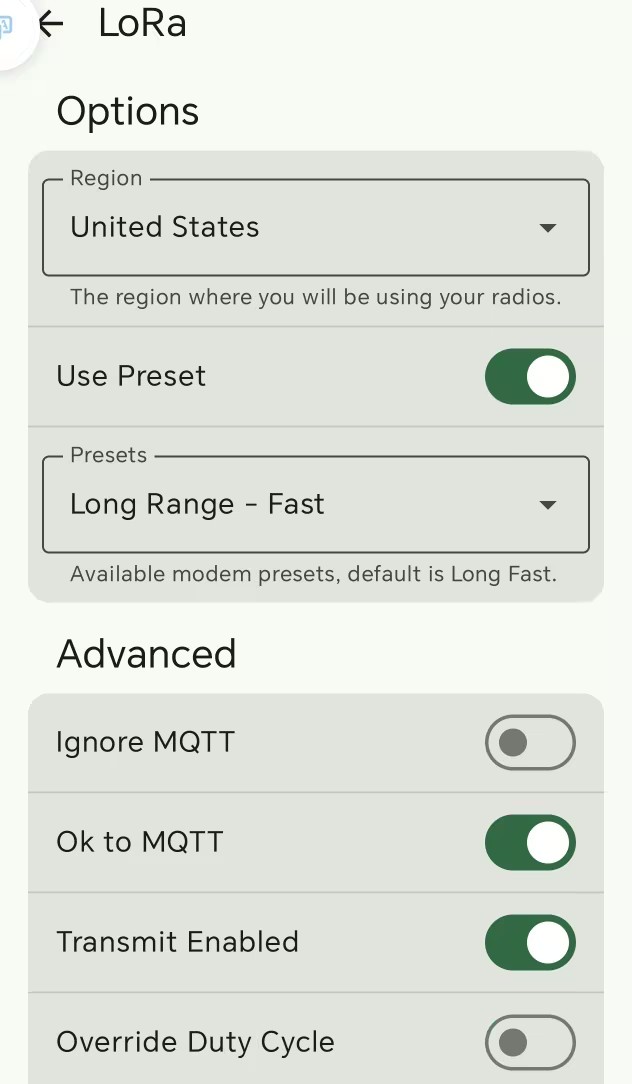
1. LoRa Configuration
- change the region from UNSET to your country/region (e.g., EU868 for Europe, US for USA, etc.).
- Choose
OK to MQTT - Click Send
- The device reboots and reconnects automatically. The device will automatically reboot and reconnect. This may take 30s to 2 mins.
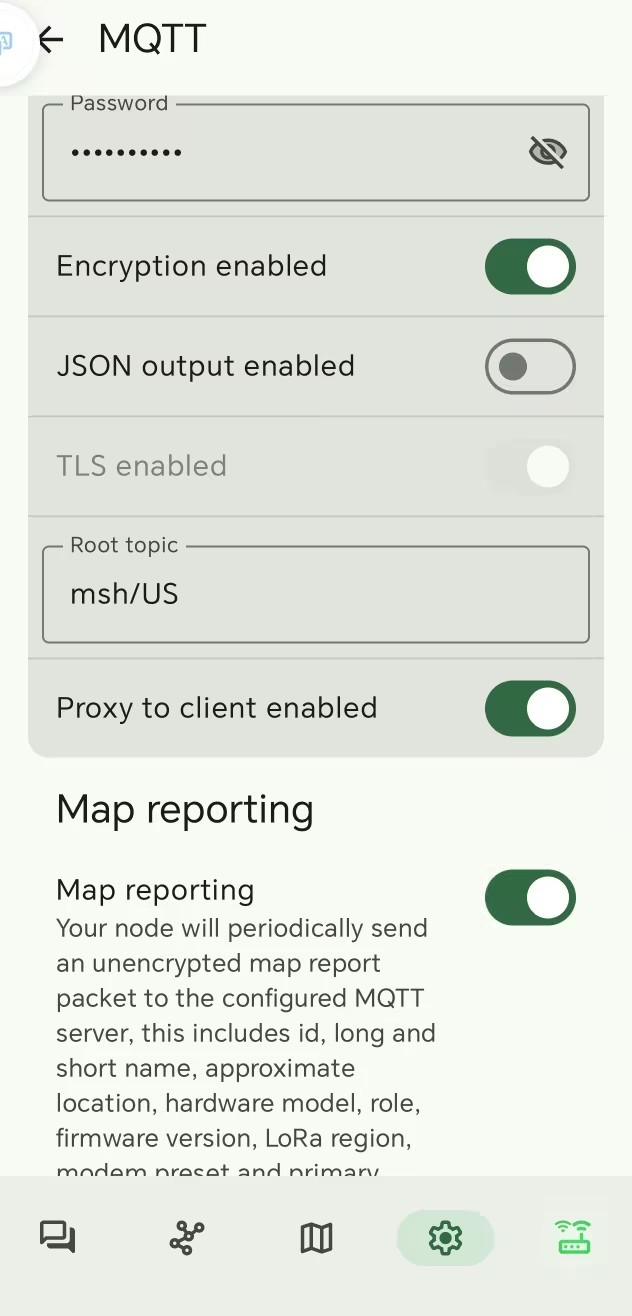
2. MQTT Configuration
- You can use the default
MQTT Address(mqtt.meshtastic.org),User name(meshdev) andPassword(large4cats). - Choose
MQTT Enabled - Choose
MQTT Client Proxy Enabled - (Optional)If you want other mqtt users to see you on the map, please choose
Map ReportingandI agree. - Click Send
- The device reboots and reconnects automatically. The device will automatically reboot and reconnect. This may take 30s to 2 mins.
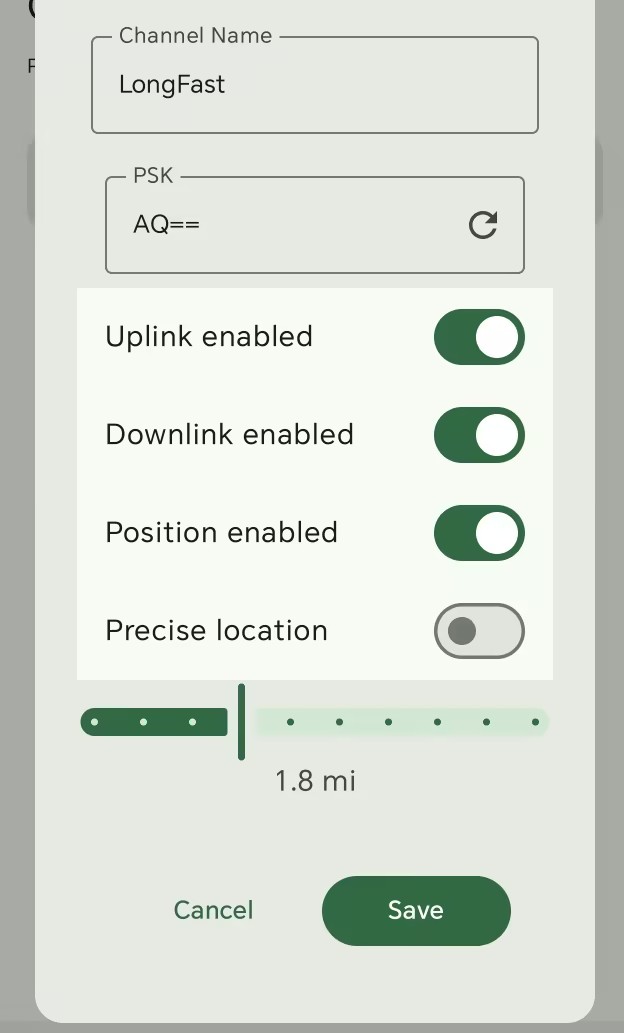
3. Chanel Configuration
- open
Uplink enabledandDownlink enabledfor your primary chanel - Click Send
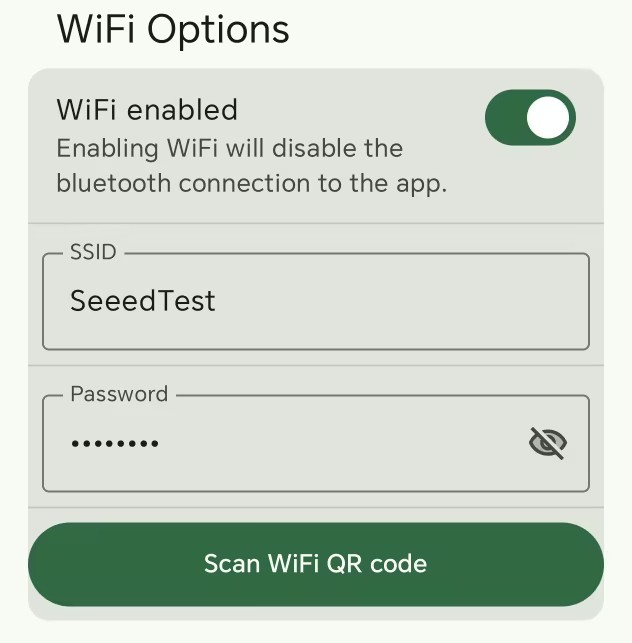
4. Network Configuration
After this configuration, your device will not be able to connect to your APP via Bluetooth. But it can connect to your APP via network.
- Fill in the SSID (Wifi Name) and the Wifi password. The wifi you expect to use should be 2.4G.
- Click Send
- The device reboots automatically.
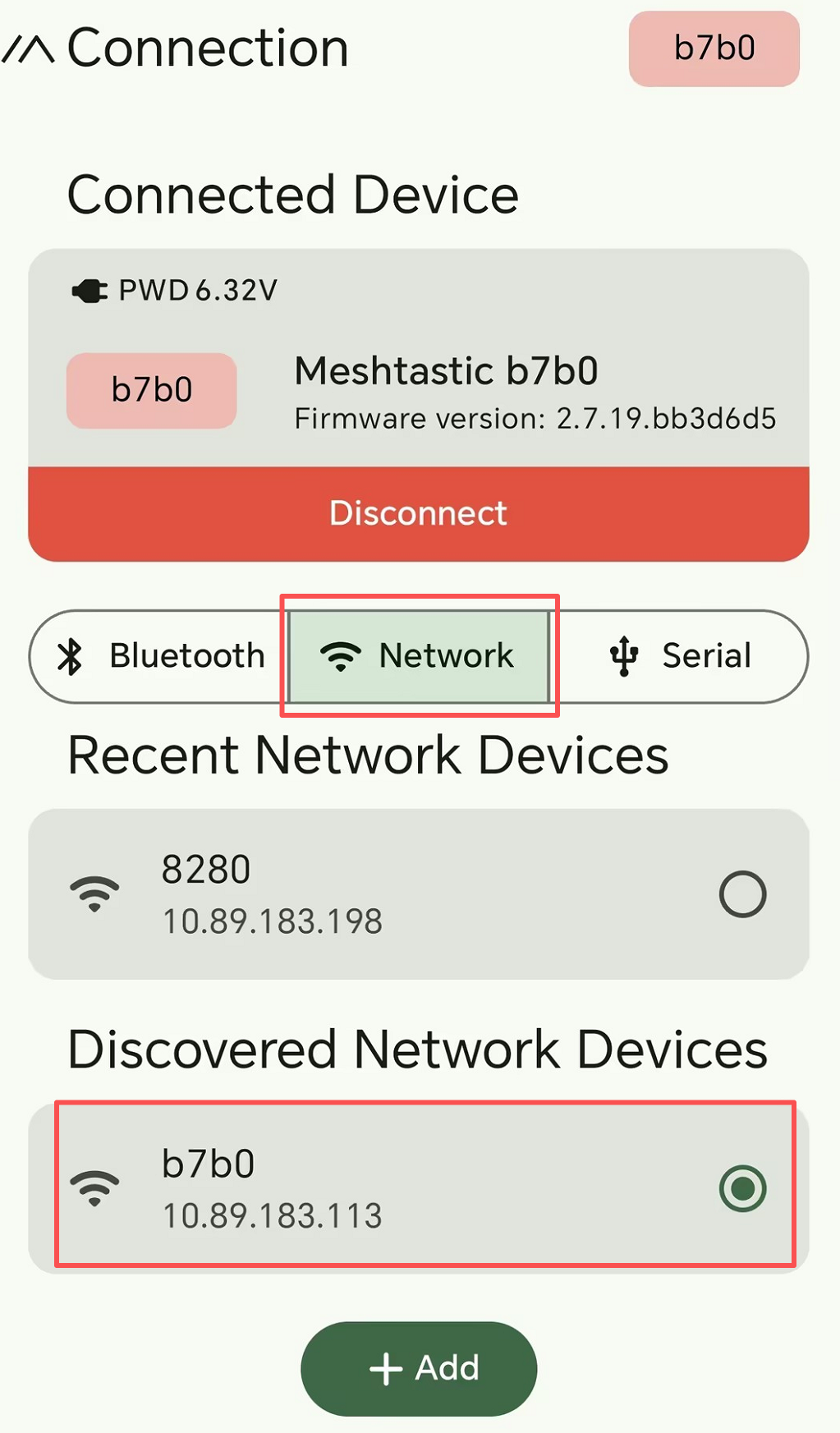
5. APP Connection
Now your device can not be connected via Bluetooth. But you can connect via Network.
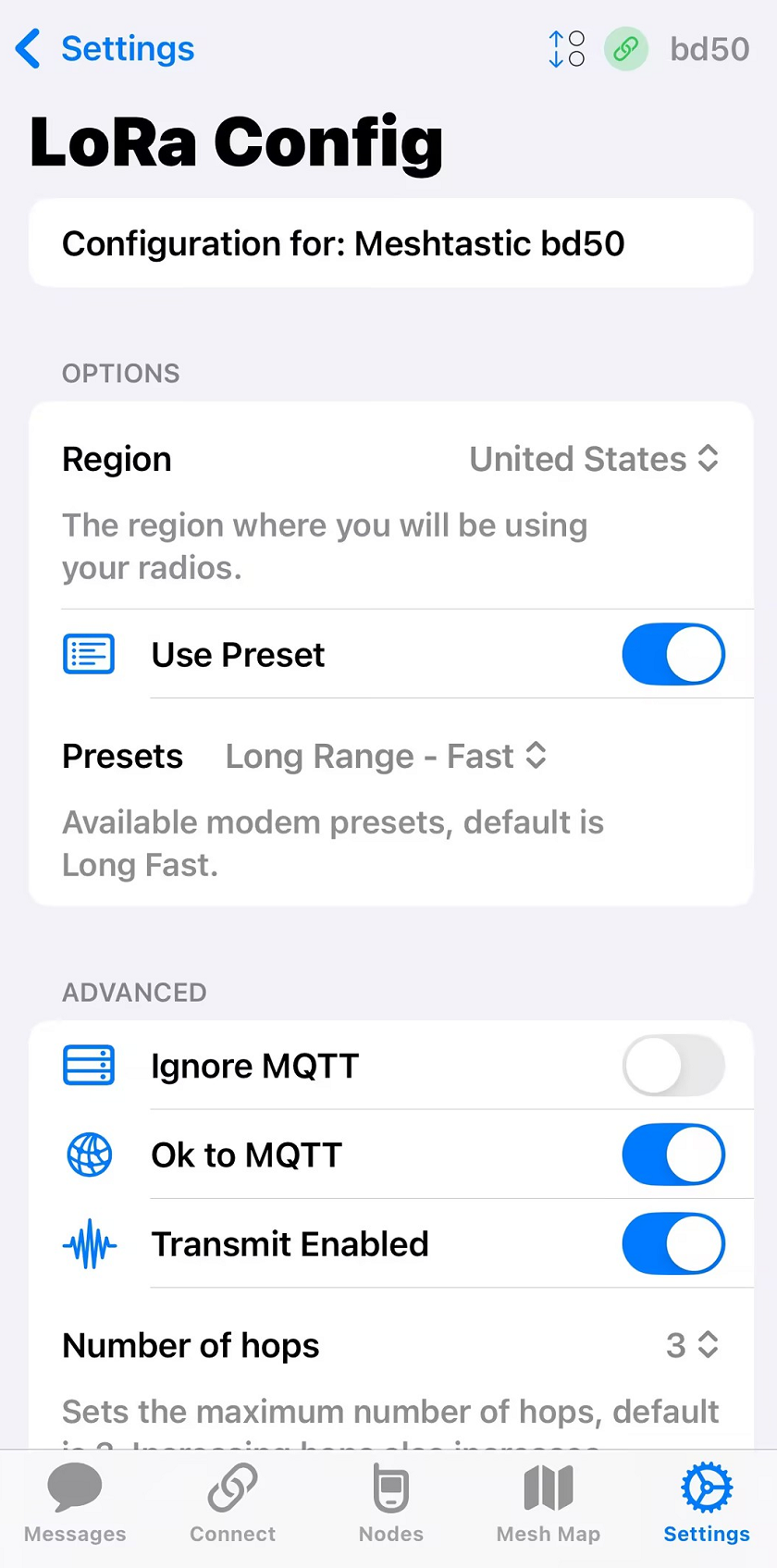
1. LoRa Configuration
- change the region from UNSET to your country/region (e.g., EU868 for Europe, US for USA, etc.).
- Choose
OK to MQTT - Click Send
- The device reboots and reconnects automatically. The device will automatically reboot and reconnect. This may take 30s to 2 mins.
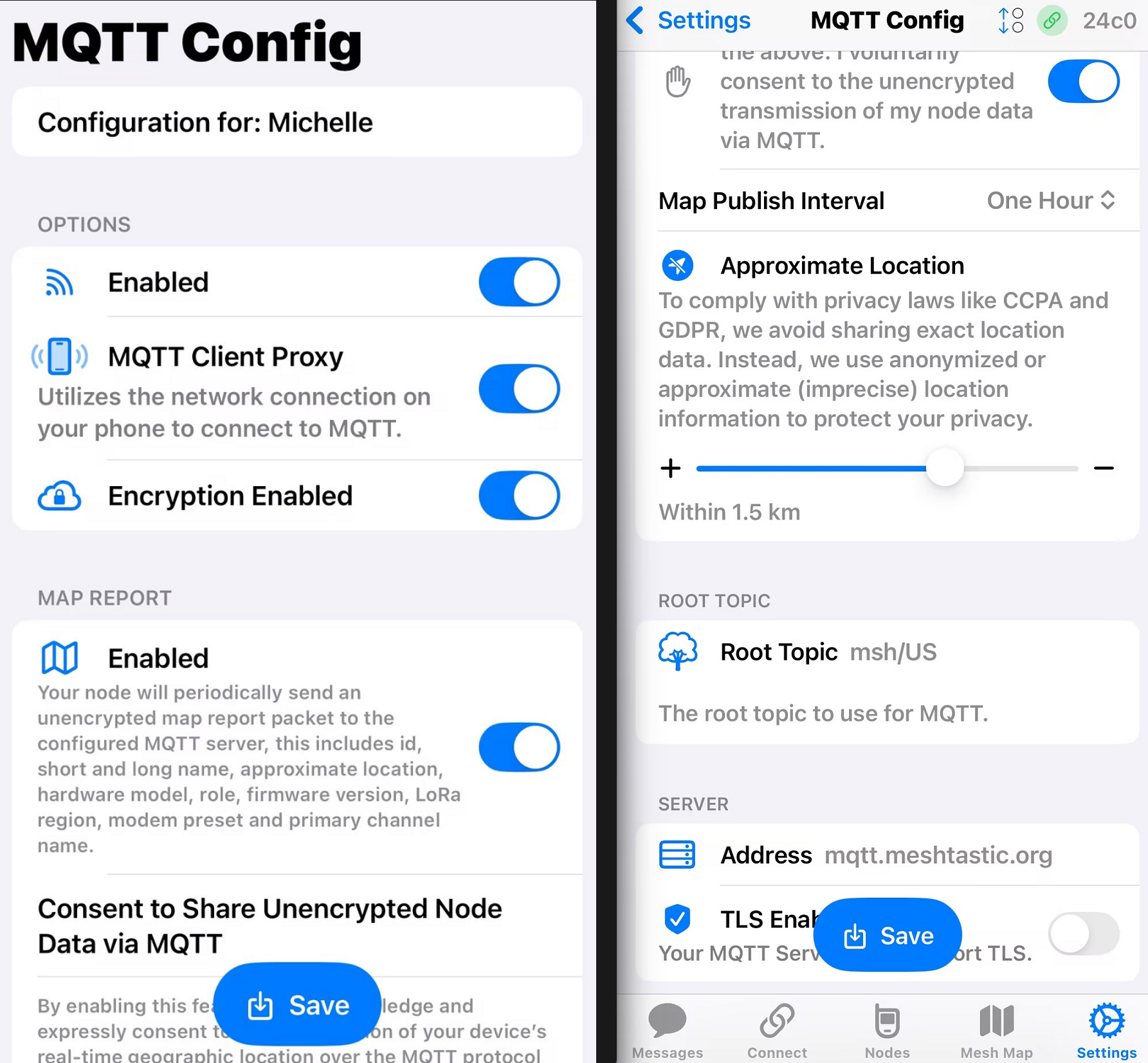
2. MQTT Configuration
- You can use the default
MQTT Address(mqtt.meshtastic.org),User name(meshdev) andPassword(large4cats). - Choose
MQTT Enabled - Choose
MQTT Client Proxy Enabled - (Optional)If you want other mqtt users to see you on the map, please choose
Map ReportingandI agree. - Click Send
- The device reboots and reconnects automatically. The device will automatically reboot and reconnect. This may take 30s to 2 mins.
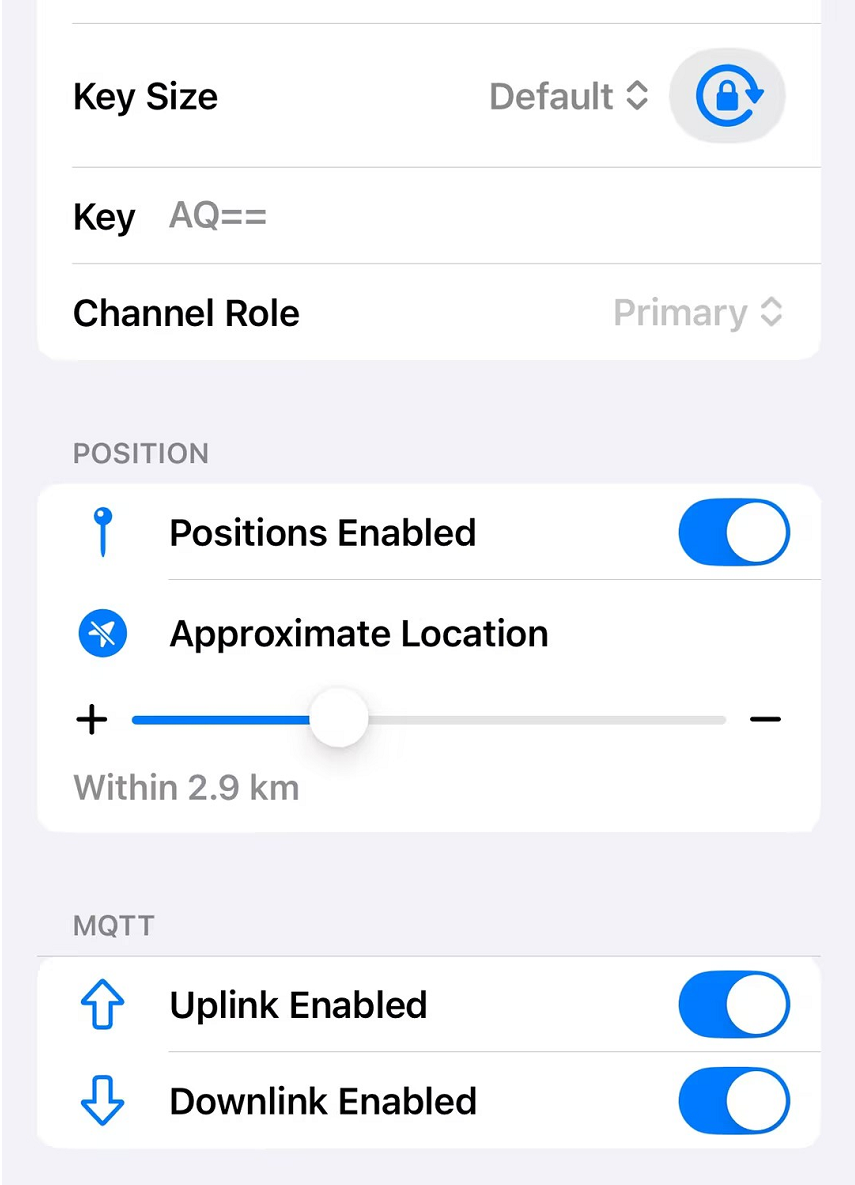
3. Chanel Configuration
- open
Uplink enabledandDownlink enabledfor your primary chanel - Click Send
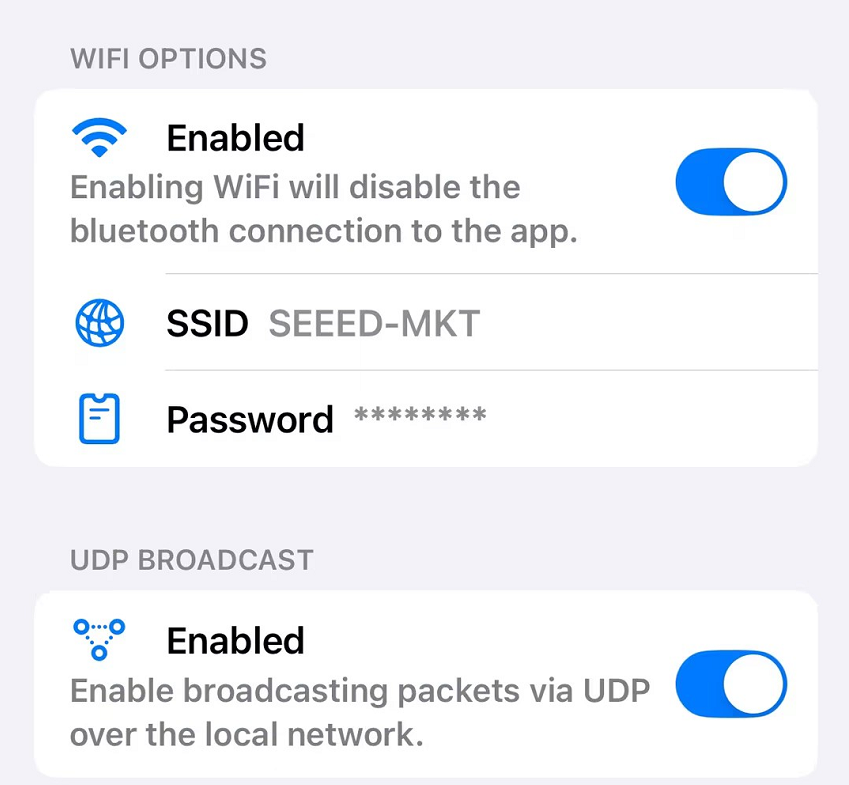
4. Network Configuration
After this configuration, your device will not be able to connect to your APP via Bluetooth. But it can connect to your APP via network.
- Fill in the SSID (Wifi Name) and the Wifi password. The wifi you expect to use should be 2.4G.
- Click Send
- The device reboots automatically.
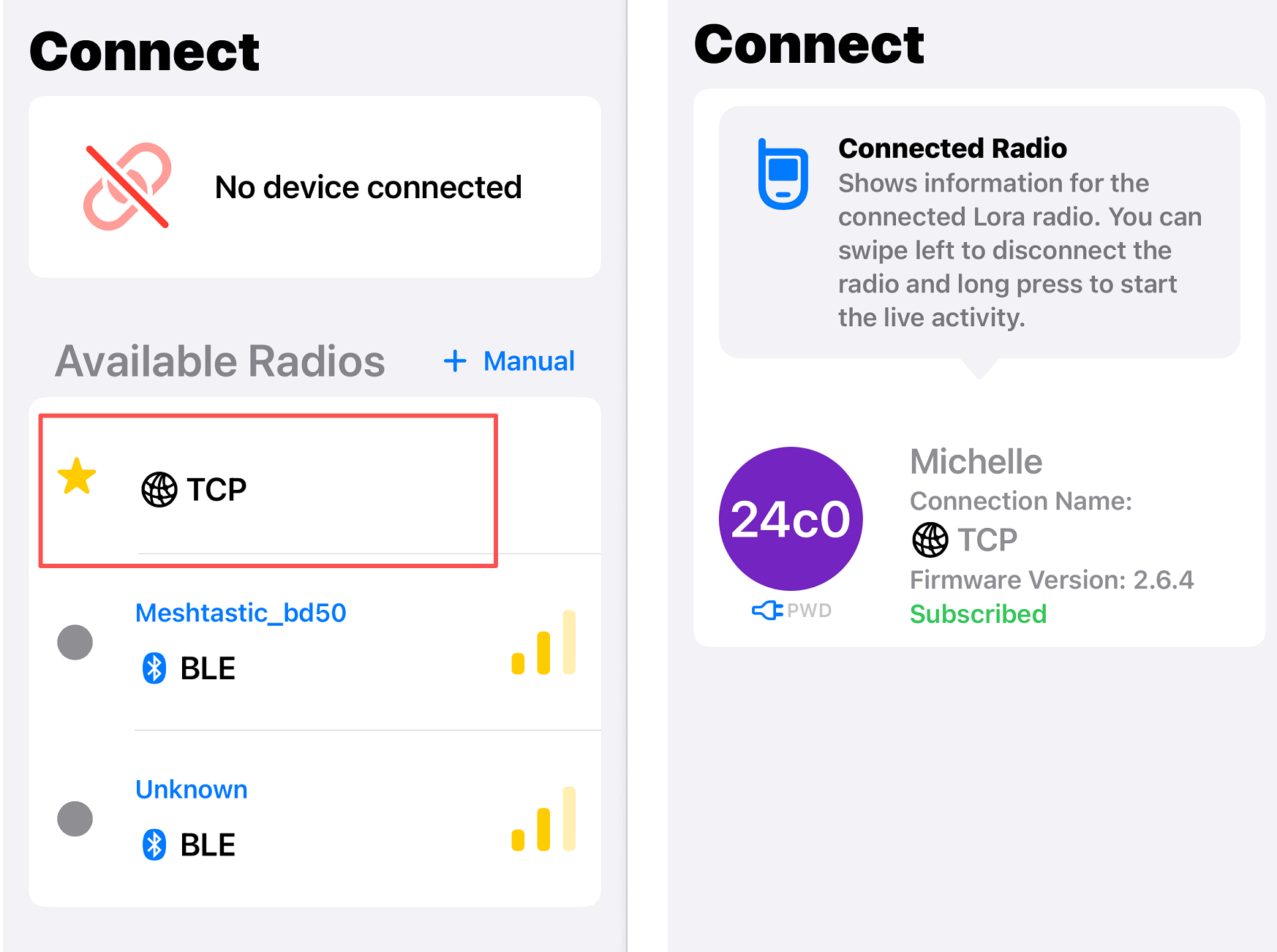
5. APP Connection
Now your device can not be connected via Bluetooth. But you can connect via Network.
Messgage Sending
Now you can communicate with other people from internet.
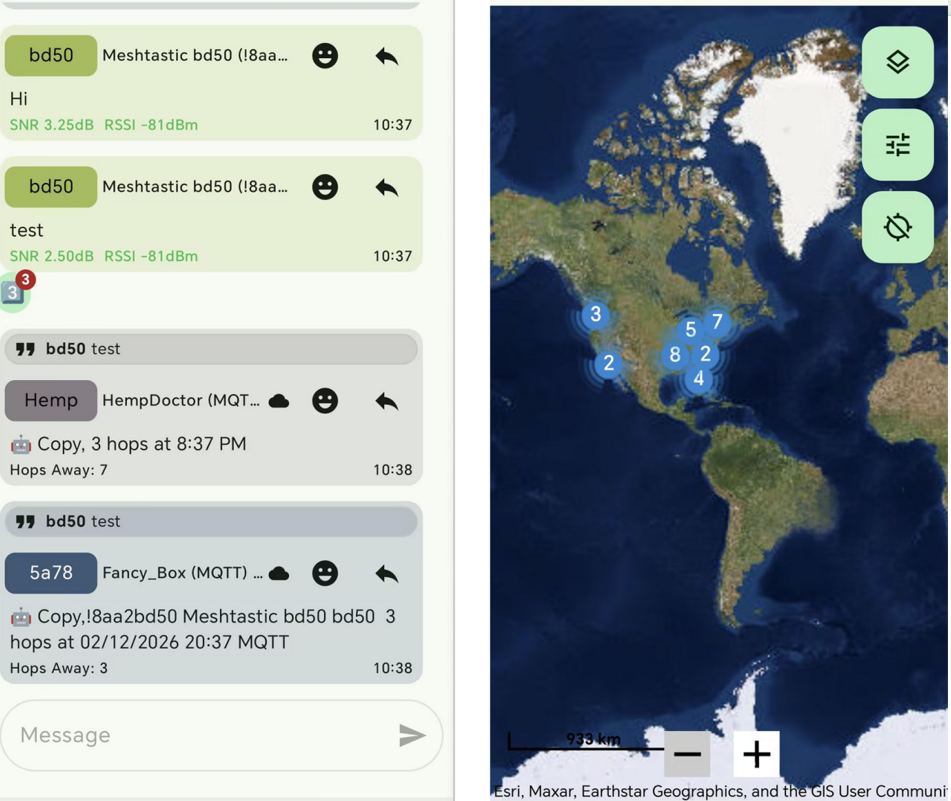
If you have another Meshtastic device that is in the same frenquency band with the ESP32S3 MQTT Gateway, it can transmit message via the ESP32S3 with other people in internet too.