Driving E-Paper and SD Card with XIAO nRF54LM20A Sense
The XIAO nRF54LM20A supports development with peripheral modules of the XIAO series and is fully compatible with the entire development ecosystem of XIAO products. This article demonstrates its ecosystem compatibility using the ePaper driver and MicroSD card read/write functions of the XIAO series as examples.
This tutorial is developed based on the PlatformIO build system and Zephyr RTOS. If you are not familiar with creating a project for the XIAO nRF54LM20A under PlatformIO, you can jump to Getting Sarted With Seeed Studio XIAO nRF54LM20A.
Hardware Preperation
Before you start, prepare an XIAO nRF54LM20A and the corresponding peripherals.
| Seeed Studio XIAO nRF54LM20A Sense | ePaper Driver Board for Seeed Studio XIAO | 2.13" Monochrome eInk | Seeed Studio Expansion Board Base for XIAO |
|---|---|---|---|
 |  |  |  |
Epaer with 2.13" Monochrome eInk
This section shows you how to use the ePaper Breakout Board to drive the 2.13" Monochrome eInk display and render target graphics.
Software Preperation
- Modify the device tree file app.overlay and write the hardware configuration for the target display driver.
/ {
	chosen {
		zephyr,display = &ssd16xx_2in13_epaper_gdey0213b74;
	};

	mipi_dbi_2in13_epaper_gdey0213b74 {
		compatible = "zephyr,mipi-dbi-spi";
		spi-dev = <&xiao_spi>;
		dc-gpios = <&xiao_d 3 GPIO_ACTIVE_HIGH>;
		reset-gpios = <&xiao_d 0 GPIO_ACTIVE_LOW>;
		#address-cells = <1>;
		#size-cells = <0>;

		ssd16xx_2in13_epaper_gdey0213b74: ssd16xxfb@0 {
			compatible = "gooddisplay,gdey0213b74", "solomon,ssd1680";
			mipi-max-frequency = <4000000>;
			reg = <0>;
			/* Adjust to an integer multiple of 8, the actual resolution is 250x122.*/
			width = <256>;
			height = <122>;
			busy-gpios = <&xiao_d 2 GPIO_ACTIVE_HIGH>;	/* D7 */

			tssv = <0x80>;

			full {
				border-waveform = <0x05>;
			};

			partial {
				border-waveform = <0x3c>;
			};
		};
	};
};

&xiao_spi {
    status = "okay";
	cs-gpios = <&xiao_d 1 GPIO_ACTIVE_LOW>;
};
- Modify prj.conf to enable software configurations.
CONFIG_MAIN_STACK_SIZE=4096
CONFIG_HEAP_MEM_POOL_SIZE=16384

CONFIG_LOG=y
CONFIG_LOG_DEFAULT_LEVEL=3

CONFIG_MIPI_DBI_SPI=y
CONFIG_DISPLAY=y

CONFIG_LVGL=y
CONFIG_LV_Z_MEM_POOL_SIZE=49152
CONFIG_LV_USE_MONKEY=y

CONFIG_LV_USE_LABEL=y

CONFIG_LV_USE_THEME_DEFAULT=y
CONFIG_LV_Z_VDB_SIZE=64
CONFIG_LV_COLOR_DEPTH_1=y

CONFIG_LV_FONT_MONTSERRAT_12=y
CONFIG_LV_FONT_MONTSERRAT_14=y
CONFIG_LV_FONT_MONTSERRAT_16=y
CONFIG_LV_FONT_MONTSERRAT_18=y
CONFIG_LV_FONT_MONTSERRAT_24=y

# Benchmark Demo
CONFIG_LV_USE_FONT_COMPRESSED=y
- Modify the main.c file and implement the display logic and content.
main.c
#include <zephyr/kernel.h>
#include <zephyr/device.h>
#include <zephyr/drivers/display.h>
#include <lvgl.h>

#define LOG_LEVEL CONFIG_LOG_DEFAULT_LEVEL
#include <zephyr/logging/log.h>
LOG_MODULE_REGISTER(epaper);

int main(void)
{
    // Get display device
    const struct device *display_dev = DEVICE_DT_GET(DT_CHOSEN(zephyr_display));
    if (!device_is_ready(display_dev)) {
        LOG_ERR("Display device not ready!");
        return 0;
    }
    LOG_INF("Display device ready.");

    // Initialize LVGL
    // Must be called before any LVGL object creation or operation
    lv_init();

    // Turn off display blanking (for ePaper, this usually triggers a full refresh to clear old content)
    if (display_blanking_off(display_dev)) {
        LOG_ERR("Failed to turn off display blanking!");
        return 0;
    }
    LOG_INF("Display blanking is off. Screen should be cleared by full refresh.");

    // Get the current active screen and set its background to white
    // This is also an LVGL-level "clear" operation to ensure the canvas is white
    lv_obj_t *scr = lv_scr_act();
    lv_obj_set_style_bg_color(scr, lv_color_white(), LV_STATE_DEFAULT);
    lv_obj_set_style_bg_opa(scr, LV_OPA_COVER, LV_STATE_DEFAULT);

    // Remove screen padding and scrollbar
    lv_obj_set_style_pad_all(scr, 0, LV_STATE_DEFAULT);
    lv_obj_set_scrollbar_mode(scr, LV_SCROLLBAR_MODE_OFF);


    // Get display width and height (for layout)
    lv_disp_t *disp = lv_disp_get_default();
    lv_coord_t width = lv_disp_get_hor_res(disp);
    lv_coord_t height = lv_disp_get_ver_res(disp);
    LOG_INF("Display width: %d, height: %d", width, height);


    // Create a centered panel
    lv_obj_t *panel = lv_obj_create(scr);
    lv_obj_set_size(panel, 230, 50);
    lv_obj_align(panel, LV_ALIGN_CENTER, 0, 0);

    // Set panel background to white, border to black for visibility
    lv_obj_set_style_bg_color(panel, lv_color_white(), LV_STATE_DEFAULT);
    lv_obj_set_style_border_color(panel, lv_color_black(), LV_STATE_DEFAULT);
    lv_obj_set_style_border_width(panel, 2, LV_STATE_DEFAULT);
    lv_obj_set_style_pad_all(panel, 10, LV_STATE_DEFAULT);


    // Add text to the panel
    lv_obj_t *label = lv_label_create(panel);
    lv_label_set_text(label, "nRF54LM20A Hello World");

    // Set text color to black for visibility on white background
    lv_obj_set_style_text_color(label, lv_color_black(), LV_STATE_DEFAULT);
    lv_obj_set_style_text_font(label, &lv_font_montserrat_16, LV_STATE_DEFAULT);
    lv_obj_align(label, LV_ALIGN_CENTER, 0, 0);

    // Add a time label at the top right
    lv_obj_t *time_label = lv_label_create(scr);
    lv_label_set_text(time_label, "07:21 PM");
    lv_obj_set_style_text_color(time_label, lv_color_black(), LV_STATE_DEFAULT);
    lv_obj_set_style_text_font(time_label, &lv_font_montserrat_12, LV_STATE_DEFAULT);
    lv_obj_align(time_label, LV_ALIGN_TOP_RIGHT, -11, 5);

    // Add a Zephyr logo at the bottom left
    lv_obj_t *zephyr_label = lv_label_create(scr);
    lv_label_set_text(zephyr_label, "Zephyr");
    lv_obj_set_style_text_color(zephyr_label, lv_color_black(), LV_STATE_DEFAULT);
    lv_obj_set_style_text_font(zephyr_label, &lv_font_montserrat_12, LV_STATE_DEFAULT);
    lv_obj_align(zephyr_label, LV_ALIGN_BOTTOM_LEFT, 5, -5);

    // Add author label at the bottom right
    lv_obj_t *author_label = lv_label_create(scr);
    lv_label_set_text(author_label, "Seeed Studio");
    lv_obj_set_style_text_color(author_label, lv_color_black(), LV_STATE_DEFAULT);
    lv_obj_set_style_text_font(author_label, &lv_font_montserrat_12, LV_STATE_DEFAULT);
    lv_obj_align(author_label, LV_ALIGN_BOTTOM_RIGHT, -11, -5);


    // Add four squares at the top left with a for loop
    lv_obj_t *squares[4];
    int square_offsets = 5;
    for (int i = 0; i < 4; i++) {
        squares[i] = lv_obj_create(scr);
        lv_obj_set_size(squares[i], 10, 10);
        lv_obj_set_style_bg_color(squares[i], lv_color_white(), LV_STATE_DEFAULT);
        lv_obj_set_style_border_color(squares[i], lv_color_black(), LV_STATE_DEFAULT);
        lv_obj_set_style_border_width(squares[i], 1, LV_STATE_DEFAULT);
        lv_obj_set_style_radius(squares[i], 0, LV_STATE_DEFAULT);
        lv_obj_align(squares[i], LV_ALIGN_TOP_LEFT, square_offsets, 5);
        square_offsets+=15;
    }

    while (1) {
        lv_task_handler();
        k_sleep(K_MSEC(1000)); // Lower refresh rate, suitable for ePaper
    }
    return 0;
}
If you need to drive displays of other sizes and types, please visit the repository link below.
Result
After flashing the program and powering on the device, the text nRF54LM20A Hello World will be shown on the 2.13" Monochrome eInk display.

SD Card
Before starting this sample, besides the Expansion Board Base for XIAO, you also need a MicroSD card formatted as FAT32 with a capacity no larger than 32 GB. The card slot is located on the back of the Expansion Board Base for XIAO.
Software Preperation
- Modify the device tree file app.overlay and add SPI protocol configurations for SD card read and write operations.
&xiao_spi {
	status = "okay";
	cs-gpios = <&xiao_d 2 GPIO_ACTIVE_LOW>;

	sdhc0: sdhc@0 {
		compatible = "zephyr,sdhc-spi-slot";
		reg = <0>;
		status = "okay";
		mmc {
			compatible = "zephyr,sdmmc-disk";
			disk-name = "SD";
			status = "okay";
		};
		spi-max-frequency = <24000000>;
	};
};
- Enable the SPI software configuration in prj.conf.
CONFIG_DISK_ACCESS=y
CONFIG_LOG=y

# Enable SDHC interface
CONFIG_DISK_DRIVERS=y
CONFIG_DISK_DRIVER_SDMMC=y

# Allocate buffer on RAM for transferring chunk of data
# from Flash to SPI — increased from 8 to 64 for SD card reliability
CONFIG_SPI_NRFX_RAM_BUFFER_SIZE=64
# SDHC driver for SD card interface
CONFIG_SDHC=y

# FAT filesystem for SD card
CONFIG_FILE_SYSTEM=y
CONFIG_FAT_FILESYSTEM_ELM=y
CONFIG_FS_FATFS_LFN=y
CONFIG_FS_FATFS_LFN_MODE_STACK=y
CONFIG_FS_FATFS_EXFAT=y
CONFIG_FS_FATFS_MAX_LFN=255

# Increased stack and heap sizes for SD card operations
CONFIG_SYSTEM_WORKQUEUE_STACK_SIZE=16384
CONFIG_HEAP_MEM_POOL_SIZE=16384
CONFIG_MAIN_STACK_SIZE=32000
CONFIG_IDLE_STACK_SIZE=8192

# Shell for filesystem operations
CONFIG_SHELL=y
CONFIG_SHELL_STACK_SIZE=16000
CONFIG_FILE_SYSTEM_SHELL=y
- Add the logic for writing data to the SD card in main.c. Since the code is quite lengthy, it is recommended to refer to the sample code in the repository.
Result
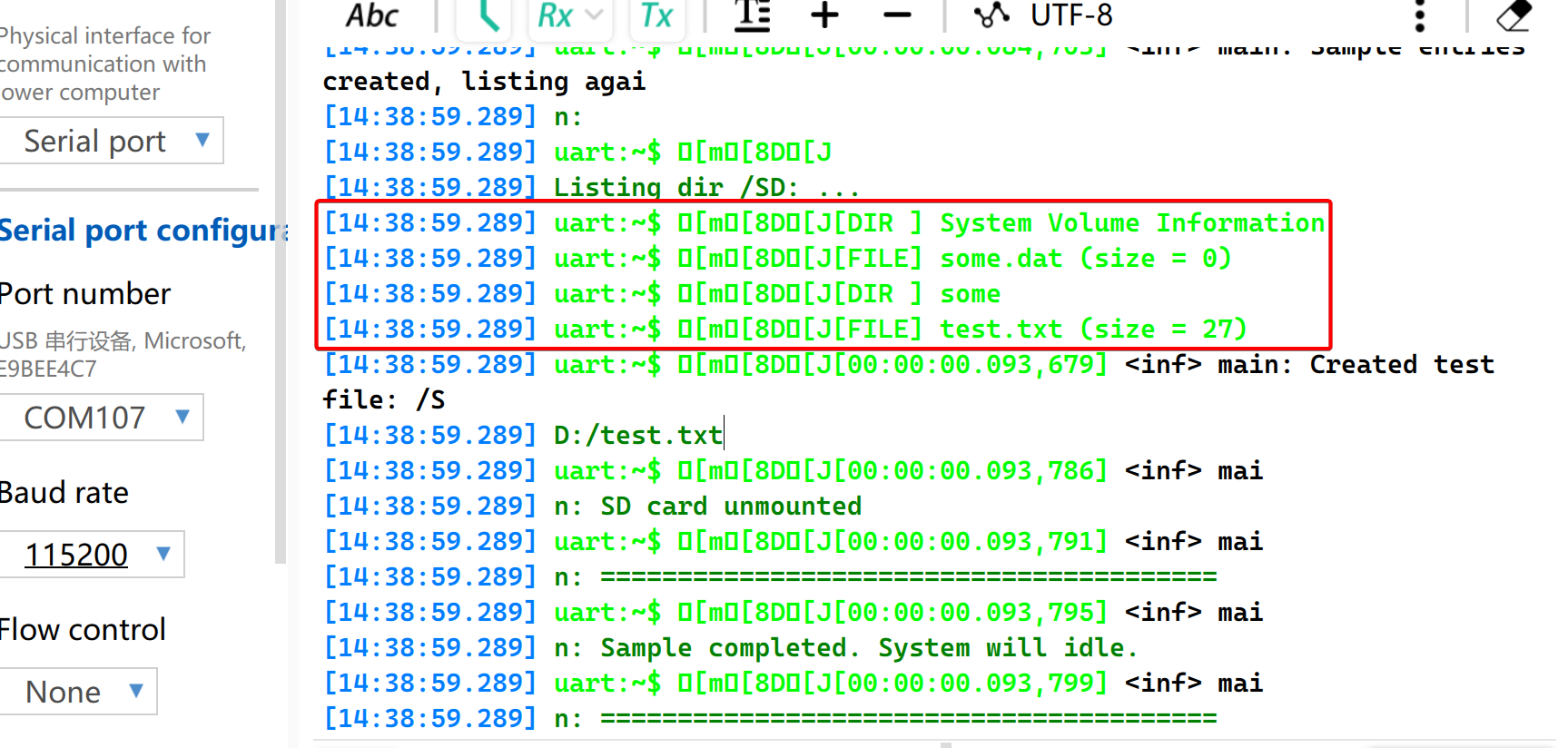
- Insert the MicroSD card into the card slot of the Expansion Board for XIAO. Power on the device and open the serial monitor. The system will read the size of the SD card, test the mounting function, and then write files.
- Create a new folder named
some - Create a new file named
some.dat - Create a new file named
test.txtand write content into it
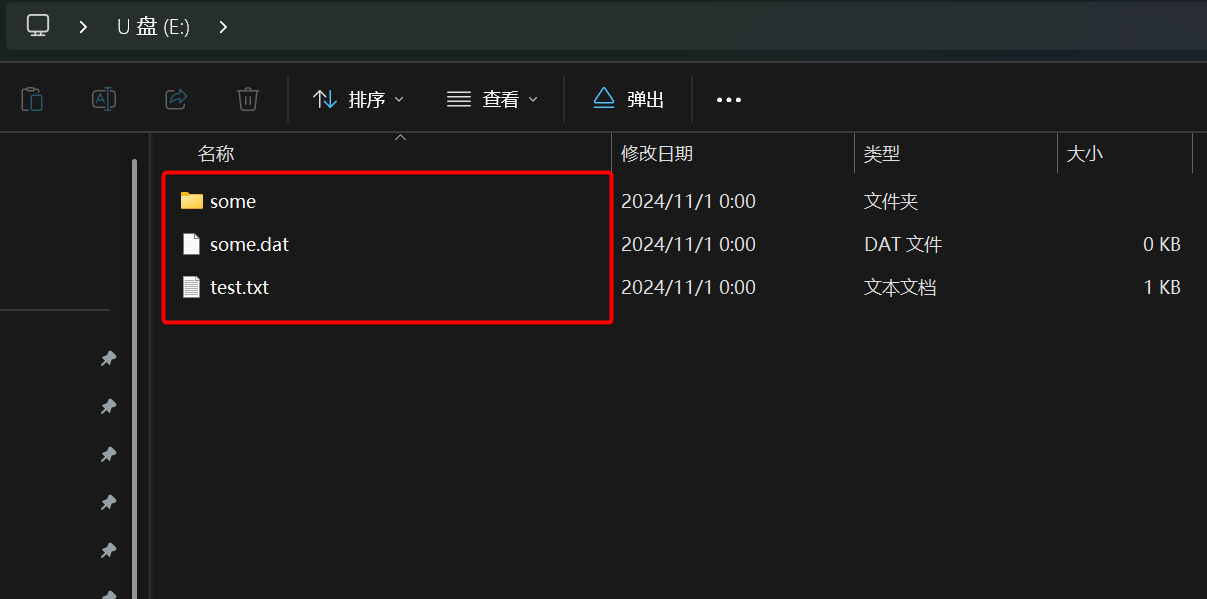
- Use a card reader to access the SD card, and you will find the three created files with content inside.
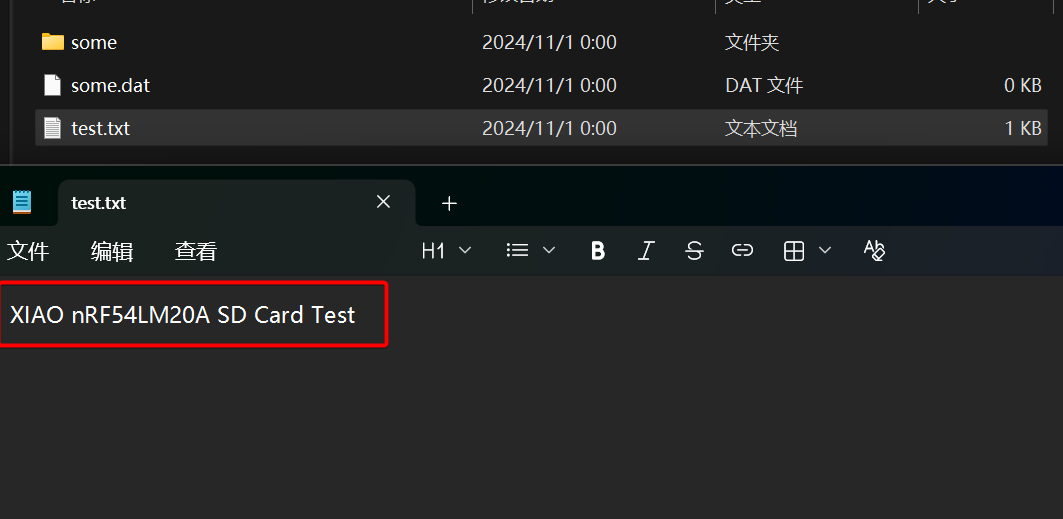
- Open the TXT file. Its content is
XIAO nRF54LM20A SD Card Test, which verifies successful writing to the SD card.
Summary
With the above examples, you should now have a good grasp of using the ePaper display and MicroSD card on the XIAO nRF54LM20A. Feel free to share your ideas with the open-source community.
Tech Support & Product Discussion
Thank you for choosing our products! We are here to provide you with different support to ensure that your experience with our products is as smooth as possible. We offer several communication channels to cater to different preferences and needs.