Seeed Studio XIAO RA4M1 With MicroPython
MicroPython is a Python interprer with a partial native code compilation feature. It provides a subset of Python 3.5 features, implemented for embedded processors and constrained systems. It is different from CircuitPython and you can read more about the differences in the MicroPython documentation.
Using MicroPython with XIAO RA4M1
Next, I will guide you through how to use MicroPython on the XIAO MG24 Senese and program it with Thonny IDE, based on the Windows operating system.
Hardware Preparation
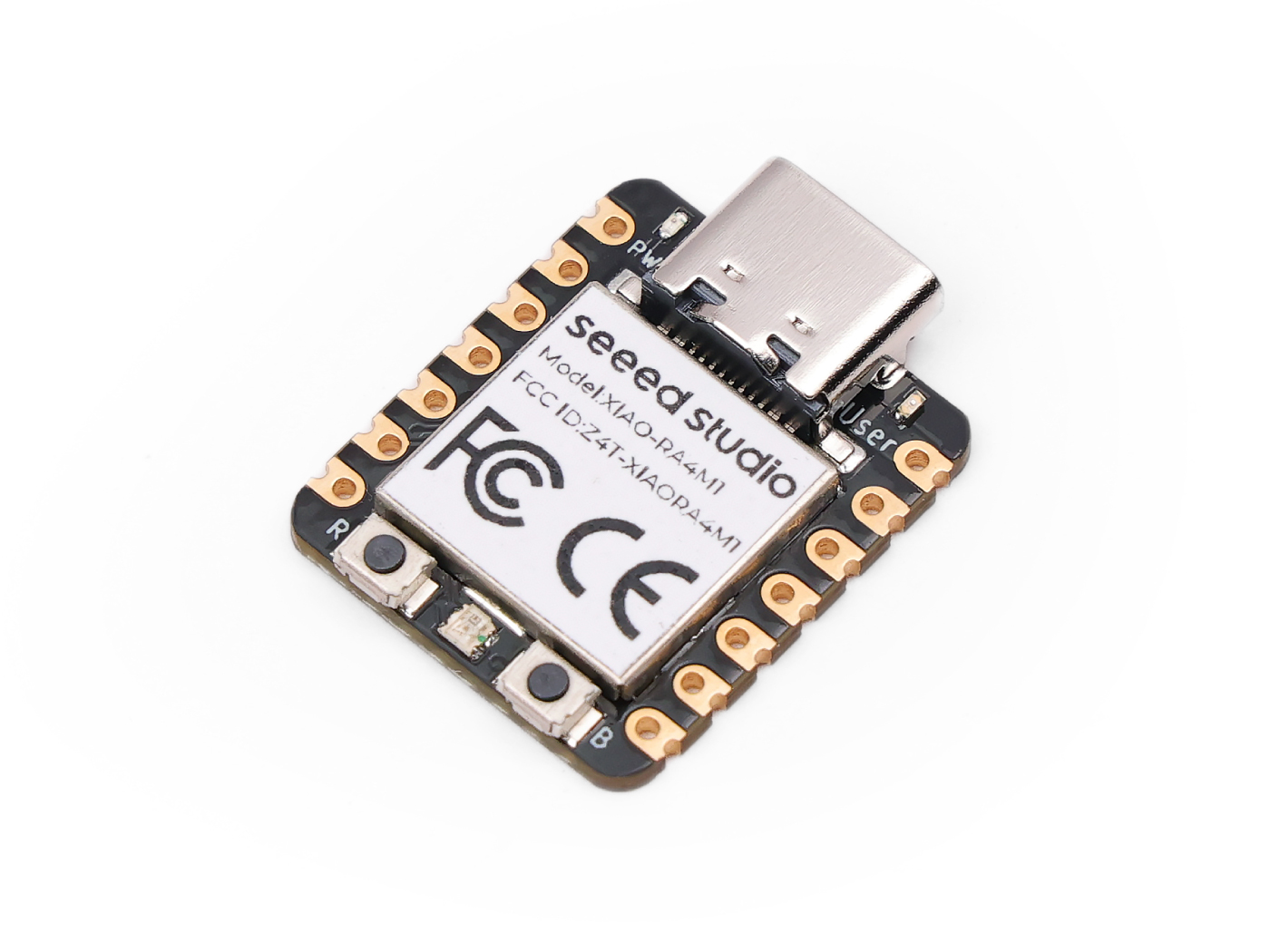
| Seeed Studio XIAO RA4M1 | Seeed Studio XIAO Debug Mate |
|---|---|
 |  |
Install Thonny IDE
Choose the appropriate version for installation. Here, I am installing it on a Windows system, so I have selected the Windows version.
Follow the instructions for the desired Python version.
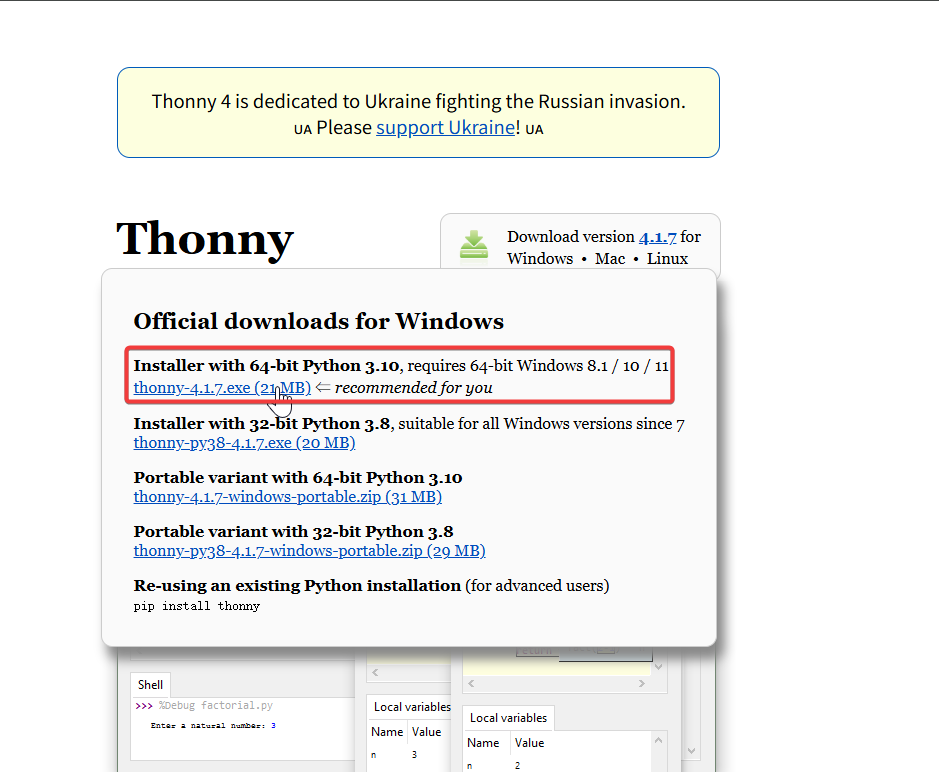
Then, simply follow the default steps for configuration.
Download the repository
Clone it to the local machine, and then remember the path where this XIAO RA4M1 MicroPython is stored. This path will be used later.
git clone https://github.com/Seeed-Studio/micropython-seeed-boards.git
LED Blinking Example
Here we will show you how to light up the USER LED on the XIAO MG24 using MicroPython with Thonny IDE.
Step 1. Flash the MicroPython firmware
-
Download the XIAO RA4M1 MicroPython Firmware package and extract it to the appropriate location.Then open the terminal in this folder.
-
Insert the XIAO RA4M1 into the XIAO XIAO Debug Mate.

- Click xiao_ra4m1_flash.bat and wait for the programming to complete.

- For Mac / Linux
sudo chmod +x xiao_ra4m1_flash.sh && ./xiao_ra4m1_flash.sh
This script has preconfigured flashing toolchain commands. If you are using it for the first time, it may take a little time.
After you have finished programming the firmware, you need to unplug the XIAO RA4M1 from the XIAO XIAO XIAO Debug Mate and connect it via USB-C.
Step 2. Interpreter Configuration
Open Thonny IDE, then click the bottom right corner of the interface to configure the interpreter options. Select MicroPython (generic) and Port. After successful configuration, the MicroPython version information will be displayed in the Shell.

Step 3. Upload the boards file
- Open the view, select File, and the file manager path will be displayed on the left sidebar.

- Open the path of the cloned or downloaded file, and open
micropython-seeed-boards-master\examples-There are multiple xiao Python files in the boards folder, but the flash memory capacity of the XIAO RAM41 is limited, so you only need to keep the two files:xiao.pyandxiao_ra4m1.py.

- Select the boards folder and upload it to the flash. Then, you will be able to see the uploaded file on the MicroPython device/flash.

Step 4. Run the Code
Click File -> New to create a new file and save it as blink.py.
import time
from boards.xiao import XiaoPin

led = "led"

try:
    # Initialize LED
    led = XiaoPin(led, XiaoPin.OUT)
    while True:
        # LED 0.5 seconds on, 0.5 seconds off
        led.value(1)
        time.sleep(0.5)
        led.value(0)
        time.sleep(0.5)
except KeyboardInterrupt:
    print("\nProgram interrupted by user")
except Exception as e:
    print("\nError occurred: %s" % {e})
finally:
    led.value(1)
Code Explain:
-
Import Modules
timeImports the time moduleXiao PinImports the pin control class for the Seeed Xiao development board from the boards.xiao module, which is used to operate the pins on the board.
-
Define Pins
led = "led""Specifies that the pin is connected to theledpin of the development board (here, the USER pin)
-
Main Logic (try block)
- The USER LED will blink at 0.5-second intervals.
Copy the above code, then click the green button or press F5 to run it.

Once the code starts running, the USER LED will blink at 0.5-second intervals.
The result is as follows:

PWM Example
In the XIAO RA4M1, pins D5–D10 support the PWM function. We will introduce how to use the PWM function with a PWM breathing light as an example.
Hardware Preparation
| Seeed Studio XIAO RA4M1 | Seeed Studio Grove Base for XIAO | Grove - Variable Color LED |
|---|---|---|
|  |  |
Software
- Create a new file named pwm.py and copy the reference code into it.
- Since only pins D5–D10 of the XIAO RA4M1 support the PWM function, pin D9 is selected here.
import time
from boards.xiao import XiaoPWM

led = 9   #D9

try:
    # set the frequency and period of the PWM signal
    FREQ = 1000
    PERIOD_NS = int(1_000_000_000 // FREQ)
    # set the number of steps to fade the LED and the delay between steps
    FADE_STEPS = 255
    STEP_DELAY = 0.01
    STEP_SIZE = 3

    # initialize the PWM with a frequency and a 0% duty cycle
    pwm = XiaoPWM(led)
    pwm.init(freq=FREQ, duty=0)
    while True:
        # fade the LED in and out
        for fade in range(0, FADE_STEPS + 1, STEP_SIZE):
            duty_ns = int((fade * PERIOD_NS) / FADE_STEPS)
            if duty_ns < 20:
                duty_ns = 20
            elif duty_ns > 960000:
                duty_ns = 960000
            pwm.duty_ns(duty_ns)
            time.sleep(STEP_DELAY)
        # fade the LED in and out again
        for fade in range(FADE_STEPS, -1, -STEP_SIZE):
            duty_ns = int((fade * PERIOD_NS) / FADE_STEPS)
            if duty_ns < 20:
                duty_ns = 20
            elif duty_ns > 960000:
                duty_ns = 960000
            pwm.duty_ns(duty_ns)
            time.sleep(STEP_DELAY)
except KeyboardInterrupt:
    print("\nProgram interrupted by user")
except Exception as e:
    print("\nError occurred: %s",repr(e))
finally:
    if pwm is not None:
        try:
            pwm.deinit()
        except Exception:
            pass
Code Explain:
-
Import Modules
time: Imports the standard time module to handle delays (used for controlling the speed of the breathing effect).XiaoPWM: Imports the PWM (Pulse Width Modulation) control class from theboards.xiaomodule, used to generate analog-like signals on the digital pin.
-
Define Pins & Constants
PIN = 0: Specifies that the device is connected to pin D0 on the development board. -FREQ / PERIOD_NS: Sets the PWM frequency to 1000 Hz and calculates the total period in nanoseconds (1 second / 1000).FADE_STEPS / STEP_DELAY: Configures the animation resolution (255 steps) and the speed (0.01s wait between changes).
-
Main Logic (try block)
- Initialization: The code initializes the PWM object on pin D0 starting with 0% brightness (duty cycle).
- Breathing Loop: Inside the infinite
while Trueloop, twoforloops control the LED brightness:- Fade In: Gradually increases the
duty_ns(pulse width) from 0 to the full period duration. - Fade Out: Gradually decreases the
duty_nsfrom the full period back to 0.
- Fade In: Gradually increases the
-
Duty Cycle Calculation: The formula
(fade * PERIOD_NS) // FADE_STEPSmaps the loop step (0-255) to the required nanosecond timing for the PWM hardware.- Safety/Cleanup: The
finallyblock ensurespwm.deinit()is called to release hardware resources if the program is stopped (e.g., via Ctrl+C).
- Safety/Cleanup: The
Result graph
After the program runs, the LED will achieve a fading effect, and you can adjust the PWM step size according to your actual needs.

Analog Example
XIAO RA4M1 Development Board have to 12 bit ADC for high-resolution reading of analog sensor values , it can help us to read more accurate values.
Next , We will choose two sensors to reflect the characteristics of ADC .
Hardware Preparation
| Seeed Studio XIAO RA4M1 | Seeed Studio Grove Base for XIAO | Grove - Variable Color LED | Grove-Rotary Angle Sensor |
|---|---|---|---|
| | |  |
Software
- Create a new file named adc.py and copy the reference code into it.
import time
from boards.xiao import XiaoPin, XiaoADC, XiaoPWM

adc_pin = 0   #D0
pwm_pin = 9   #D9

try:
    adc = XiaoADC(adc_pin)
    pwm = XiaoPWM(pwm_pin)

    FREQ = 1000
    PERIOD_NS = 1000000000 // FREQ


    pwm.freq(FREQ)
    pwm.duty_ns(0)

    MAX_VOLTAGE = 3.3
    DEAD_ZONE = 0.02
    last_duty = -1

    while True:
        raw_value = adc.read_u16()
        voltage = (raw_value / 65535.0) * MAX_VOLTAGE

        # Calculate the base percentage (0.0 - 1.0)
        duty_percent = voltage / MAX_VOLTAGE

        # scope limitation
        if duty_percent < 0: duty_percent = 0
        if duty_percent > 1: duty_percent = 1

        if abs(duty_percent - last_duty) < DEAD_ZONE:
            time.sleep(0.05)
            continue

        inverted_duty = 1.0 - duty_percent
        duty_ns = int(inverted_duty * PERIOD_NS)

        if duty_ns < 20: duty_ns = 20
        elif duty_ns > (PERIOD_NS * 0.96): duty_ns = int(PERIOD_NS * 0.96)

        pwm.duty_ns(duty_ns)

        print("Voltage: {:.2f}V, Brightness: {:.1f}%".format(voltage, duty_percent * 100))

        last_duty = duty_percent
        time.sleep(0.05)

except KeyboardInterrupt:
    print("\nProgram interrupted by user")
except Exception as e:
    print("\nError occurred: {}".format(e))
finally:
    pwm.deinit()
-
Import Modules
time: Imports the standard time module to handle delays (used for controlling the speed of the breathing effect).XiaoPWM: Imports the PWM (Pulse Width Modulation) control class from theboards.xiaomodule, used to generate analog-like signals on the digital pin. Code Explain:
-
Import Modules
time: Imports the standard time module to handle delays (used to control the sampling rate of the loop).XiaoADC,XiaoPWM: Imports the hardware control classes from theboards.xiaomodule.XiaoADChandles the analog input (potentiometer), andXiaoPWMhandles the pulse width modulation output (LED).
-
Define Pins & Constants
adc_pin = 0/pwm_pin = 1: Maps the physical pins. Pin D0 is used for the input sensor, and Pin D1 is used for the output LED.FREQ / PERIOD_NS: Sets the PWM operating frequency to 1000 Hz and calculates the period duration in nanoseconds (1,000,000 ns).MAX_VOLTAGE / DEAD_ZONE: Defines the reference voltage (3.3V) and a 2% dead zone threshold to filter out electrical noise and prevents the LED from flickering.
-
Main Logic (try block)
- Initialization: Sets up the ADC and PWM objects. The PWM starts with a duty cycle of 0.
- Control Loop: Inside the
while Trueloop, the code continuously monitors the sensor:- Read & Normalize: Reads the raw 16-bit integer (0-65535) from the ADC and converts it into a floating-point voltage (0.0V - 3.3V).
- Jitter Filter: Compares the current reading with
last_duty. If the change is less than theDEAD_ZONE, the loop skips the update to maintain stability.
-
Duty Cycle Calculation & Logic Inversion
- Active Low Logic: The line
inverted_duty = 1.0 - duty_percentreverses the logic. - Reason: Your LED is likely Active Low (connected to VCC).
- Effect: As voltage increases,
duty_nsbecomes smaller (pulling the pin LOW for longer), making the LED brighter.
- Active Low Logic: The line
-
Safety Clamps: The code limits the output signal between a minimum of 20ns and a maximum of 96% of the period. This protects the hardware and ensures the signal remains within a valid range.
-
Output & Cleanup
- Feedback: Prints the current voltage and brightness percentage to the console using
.format()for compatibility with older MicroPython versions. - Safety/Cleanup: The
finallyblock guarantees thatpwm.deinit()is executed when the program stops, safely turning off the PWM hardware resources.
- Feedback: Prints the current voltage and brightness percentage to the console using
Result graph
- Rotate the Grove-Rotary Angle Sensor, and the brightness of the LED will change accordingly.

- The Shell window will also print the voltage and brightness percentage.

UART Example
UART is one of the most commonly used communication protocols. It allows data transmission with just two data lines, and its low cost makes it widely used in many fields. Next, we will demonstrate the application of serial communication by taking the transmission of GPS module data as an example.
Hardware Preparation
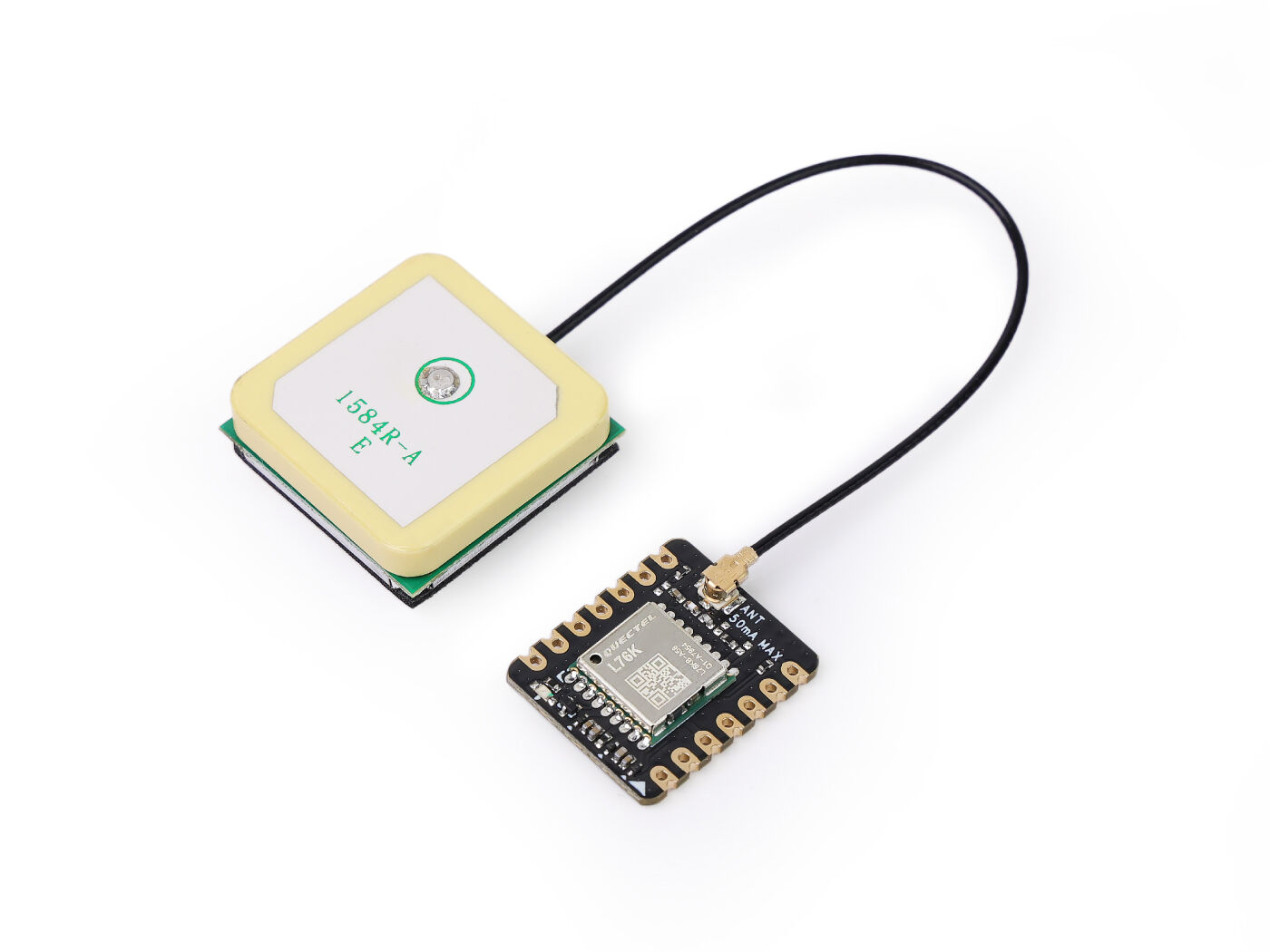
| Seeed Studio XIAO RA4M1 | L76K GNSS Module for Seeed Studio XIAO |
|---|---|
|  |
Software
- Create a new file named uart.py and copy the reference code into it.
Reference Code
from boards.xiao import XiaoUART
import time
import math

uart = "uart1"
baudrate = 9600
tx = 6              # D6
rx = 7              # D7

# Coordinate structure
class Coordinates:
    def __init__(self, Lon=0.0, Lat=0.0):
        self.Lon = Lon
        self.Lat = Lat

# GPS data structure
class GNRMC:
    def __init__(self):
        self.Lon = 0.0      # GPS Longitude
        self.Lat = 0.0      # GPS Latitude
        self.Lon_area = ''  # E or W
        self.Lat_area = ''  # N or S
        self.Time_H = 0     # Time Hour
        self.Time_M = 0     # Time Minute
        self.Time_S = 0     # Time Second
        self.Status = 0     # 1: Successful positioning, 0: Positioning failed

# Convert WGS-84 to GCJ-02
def transformLat(x, y):
    ret = -100.0 + 2.0 * x + 3.0 * y + 0.2 * y * y + 0.1 * x * y + 0.2 * math.sqrt(abs(x))
    ret += (20.0 * math.sin(6.0 * x * pi) + 20.0 * math.sin(2.0 * x * pi)) * 2.0 / 3.0
    ret += (20.0 * math.sin(y * pi) + 40.0 * math.sin(y / 3.0 * pi)) * 2.0 / 3.0
    ret += (160.0 * math.sin(y / 12.0 * pi) + 320 * math.sin(y * pi / 30.0)) * 2.0 / 3.0
    return ret

# Convert WGS-84 to GCJ-02
def transformLon(x, y):
    ret = 300.0 + x + 2.0 * y + 0.1 * x * x + 0.1 * x * y + 0.1 * math.sqrt(abs(x))
    ret += (20.0 * math.sin(6.0 * x * pi) + 20.0 * math.sin(2.0 * x * pi)) * 2.0 / 3.0
    ret += (20.0 * math.sin(x * pi) + 40.0 * math.sin(x / 3.0 * pi)) * 2.0 / 3.0
    ret += (150.0 * math.sin(x / 12.0 * pi) + 300.0 * math.sin(x / 30.0 * pi)) * 2.0 / 3.0
    return ret

# Convert GCJ-02 to BD-09
def bd_encrypt(gg):
    bd = Coordinates()
    x = gg.Lon
    y = gg.Lat
    z = math.sqrt(x * x + y * y) + 0.00002 * math.sin(y * x_pi)
    theta = math.atan2(y, x) + 0.000003 * math.cos(x * x_pi)
    bd.Lon = z * math.cos(theta) + 0.0065
    bd.Lat = z * math.sin(theta) + 0.006
    return bd

# Convert WGS-84 to GCJ-02
def transform(gps):
    gg = Coordinates()
    dLat = transformLat(gps.Lon - 105.0, gps.Lat - 35.0)
    dLon = transformLon(gps.Lon - 105.0, gps.Lat - 35.0)
    radLat = gps.Lat / 180.0 * pi
    magic = math.sin(radLat)
    magic = 1 - ee * magic * magic
    sqrtMagic = math.sqrt(magic)
    dLat = (dLat * 180.0) / ((a * (1 - ee)) / (magic * sqrtMagic) * pi)
    dLon = (dLon * 180.0) / (a / sqrtMagic * math.cos(radLat) * pi)
    gg.Lat = gps.Lat + dLat
    gg.Lon = gps.Lon + dLon
    return gg

# Convert to Baidu coordinates (BD-09)
def L76X_Baidu_Coordinates(gps):
    wgs84_coords = Coordinates(gps.Lon, gps.Lat)
    gcj02_coords = transform(wgs84_coords)
    bd09_coords = bd_encrypt(gcj02_coords)
    return bd09_coords

# Convert to Google coordinates (GCJ-02)
def L76X_Google_Coordinates(gps):
    wgs84_coords = Coordinates(gps.Lon, gps.Lat)
    gcj02_coords = transform(wgs84_coords)
    return gcj02_coords

# Parse GNRMC NMEA sentence
def parse_gnrmc(nmea_sentence):
    gps = GNRMC()

    if not nmea_sentence.startswith(b'$GNRMC') and not nmea_sentence.startswith(b'$PNRMC'):
        return gps

    try:
        # Convert to string and split by commas
        sentence_str = nmea_sentence.decode('ascii', 'ignore')
        fields = sentence_str.split(',')

        if len(fields) < 12:
            return gps

        # Parse time field (HHMMSS.sss)
        if fields[1]:
            time_str = fields[1]
            if '.' in time_str:
                time_str = time_str.split('.')[0]
            if len(time_str) >= 6:
                gps.Time_H = int(time_str[0:2]) + 8  # GMT+8
                gps.Time_M = int(time_str[2:4])
                gps.Time_S = int(time_str[4:6])
                if gps.Time_H >= 24:
                    gps.Time_H -= 24

        # Parse status
        gps.Status = 1 if fields[2] == 'A' else 0

        if gps.Status == 1:
            # Parse latitude (DDMM.MMMMM)
            if fields[3] and fields[4]:
                lat_str = fields[3]
                if '.' in lat_str:
                    degrees = float(lat_str[0:2])
                    minutes = float(lat_str[2:])
                    gps.Lat = degrees + minutes / 60.0
                    gps.Lat_area = fields[4]

            # Parse longitude (DDDMM.MMMMM)
            if fields[5] and fields[6]:
                lon_str = fields[5]
                if '.' in lon_str:
                    degrees = float(lon_str[0:3])
                    minutes = float(lon_str[3:])
                    gps.Lon = degrees + minutes / 60.0
                    gps.Lon_area = fields[6]

    except Exception as e:
        print("Parse error:", e)

    return gps

# Print formatted GPS data
def print_gps_data(gps):
    print("\n--- GPS Data ---")
    print("Time (GMT+8): {:02d}:{:02d}:{:02d}".format(gps.Time_H, gps.Time_M, gps.Time_S))
    if gps.Status == 1:
        print("Latitude (WGS-84): {:.6f} {}".format(gps.Lat, gps.Lat_area))
        print("Longitude (WGS-84): {:.6f} {}".format(gps.Lon, gps.Lon_area))

        # Coordinate conversion
        baidu_coords = L76X_Baidu_Coordinates(gps)
        google_coords = L76X_Google_Coordinates(gps)

        print("Baidu Latitude: {:.6f}".format(baidu_coords.Lat))
        print("Baidu Longitude: {:.6f}".format(baidu_coords.Lon))
        print("Google Latitude: {:.6f}".format(google_coords.Lat))
        print("Google Longitude: {:.6f}".format(google_coords.Lon))
        print("GPS positioning successful.")
    else:
        print("GPS positioning failed or no valid data.")

try:
    uart = XiaoUART(uart, baudrate, tx, rx)
    # Initialize UART
    uart.init(9600, bits=8, parity=None, stop=1)
    # Buffer to accumulate complete messages
    buffer = bytearray()
    # Constants for coordinate transformation
    pi = 3.14159265358979324
    a = 6378245.0
    ee = 0.00669342162296594323
    x_pi = 3.14159265358979324 * 3000.0 / 180.0
    while True:
        available = uart.any()
        if available > 0:
            # Read all available bytes
            data = uart.read(available)
            buffer.extend(data)
            # Check if we have a complete line (ends with newline)
            if b'\n' in buffer:
                # Find the newline position
                newline_pos = buffer.find(b'\n')
                # Extract the complete message
                complete_message = buffer[:newline_pos + 1]
                # Remove the processed part from buffer
                buffer = buffer[newline_pos + 1:]
                # Parse GNRMC sentences
                if complete_message.startswith(b'$GNRMC') or complete_message.startswith(b'$PNRMC'):
                    gps_data = parse_gnrmc(complete_message)
                    print_gps_data(gps_data)
except KeyboardInterrupt:
    print("\nProgram interrupted by user")
except Exception as e:
    print("\nError occurred: %s" % {e})
finally:
    uart.deinit()
Code Explain:
-
Import Modules
XiaoUARTImports the UART communication class for the Seeed Xiao development board from theboards.xiaomodule, used to initialize and control serial communication.timeImports the time module to support timing-related functions (though not directly used here, it’s imported for potential future use or compatibility).mathImports mathematical functions (sin,cos,sqrt,atan2, etc.) required for coordinate transformation algorithms.
-
Define UART Configuration
uart = "uart1"Specifies the UART controller instance to use — here,uart1.baudrate = 9600Sets the baud rate for serial communication to 9600 bps.tx = 6Specifies that the UART transmit pin (TX) is connected to digital pin D6.rx = 7Specifies that the UART receive pin (RX) is connected to digital pin D7.
-
Define Data Structures
CoordinatesClass: A simple container for storing longitude/latitude values as floating-point numbers.GNRMCClass: Represents parsed GPS data from a$GNRMCNMEA sentence. Contains:- Latitude/Longitude in decimal degrees
- Hemisphere indicators (
N/S,E/W) - Time (hour, minute, second — adjusted to GMT+8)
- Status flag (1 = valid fix, 0 = no fix)
-
Coordinate Transformation Functions
transformLat(x, y)&transformLon(x, y)— Helper functions implementing part of the WGS-84 → GCJ-02 conversion algorithm (used in China for map obfuscation).bd_encrypt(gg)— Converts GCJ-02 coordinates to Baidu’s BD-09 coordinate system by applying additional offset and rotation.transform(gps)— Main function converting WGS-84 (raw GPS) coordinates to GCJ-02 using complex trigonometric formulas based on elliptical Earth model.L76X_Baidu_Coordinates(gps)— Wrapper that converts raw GPS (WGS-84) → GCJ-02 → BD-09 (Baidu Maps format).L76X_Google_Coordinates(gps)— Wrapper that converts raw GPS (WGS-84) → GCJ-02 (Google Maps format in China).
-
Parse GNRMC Sentence
parse_gnrmc(nmea_sentence)— Parses a raw NMEA$GNRMCor$PNRMCstring into structuredGNRMCobject.- Extracts time (converts from UTC to GMT+8).
- Checks status (
A= active/valid fix,V= invalid). - Parses latitude/longitude from DDMM.MMMMM format → decimal degrees.
- Returns populated
GNRMCobject or default empty one if parsing fails.
-
Display Formatted GPS Data
print_gps_data(gps)— Prints human-readable GPS info including:- Local time (GMT+8)
- Raw WGS-84 coordinates with hemisphere
- Converted GCJ-02 (Google-compatible) and BD-09 (Baidu-compatible) coordinates
- Status message indicating whether positioning succeeded
-
Main Logic (try block)
- Initializes UART interface with specified parameters.
- Defines global constants needed for coordinate math (
pi,a,ee,x_pi) — Earth ellipsoid parameters and scaling factors. - Enters infinite loop to continuously read incoming GPS data via UART.
- Uses
bufferto accumulate partial messages until a complete line (ending with\n) is received. - When a complete line arrives:
- Checks if it starts with
$GNRMCor$PNRMC - If so, parses it using
parse_gnrmc() - Displays formatted output via
print_gps_data()
- Checks if it starts with
- Uses
- Handles exceptions:
KeyboardInterrupt: Gracefully exits on Ctrl+C.- General
Exception: Catches and prints any unexpected errors.
- Finally, calls
uart.deinit()to clean up UART resources before exiting.
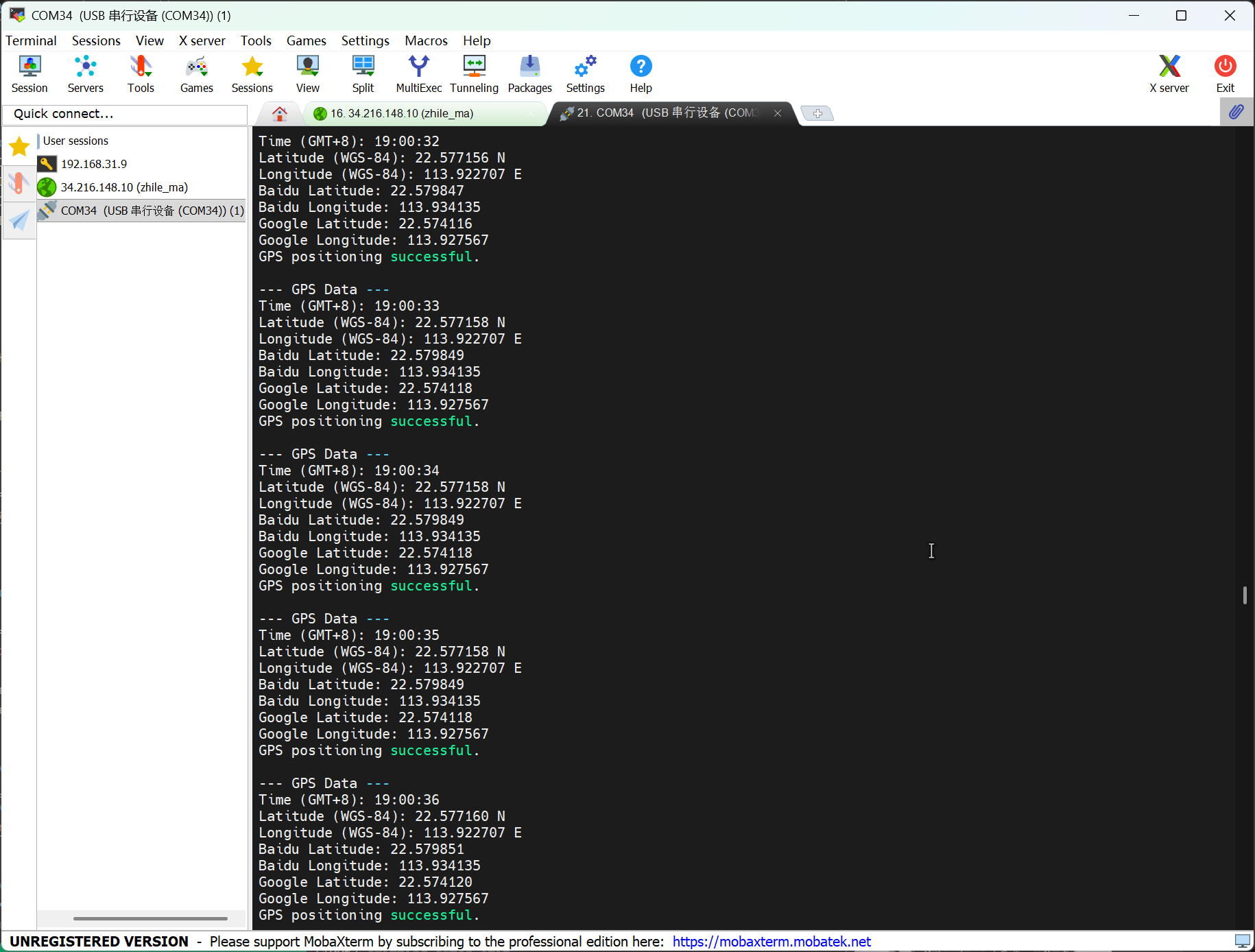
Result graph
- Open any serial port tool and set the baud rate to 9600.
- The GPS module should be used in an open outdoor area.
- The program will print the GPS information of your location.
I2C Example
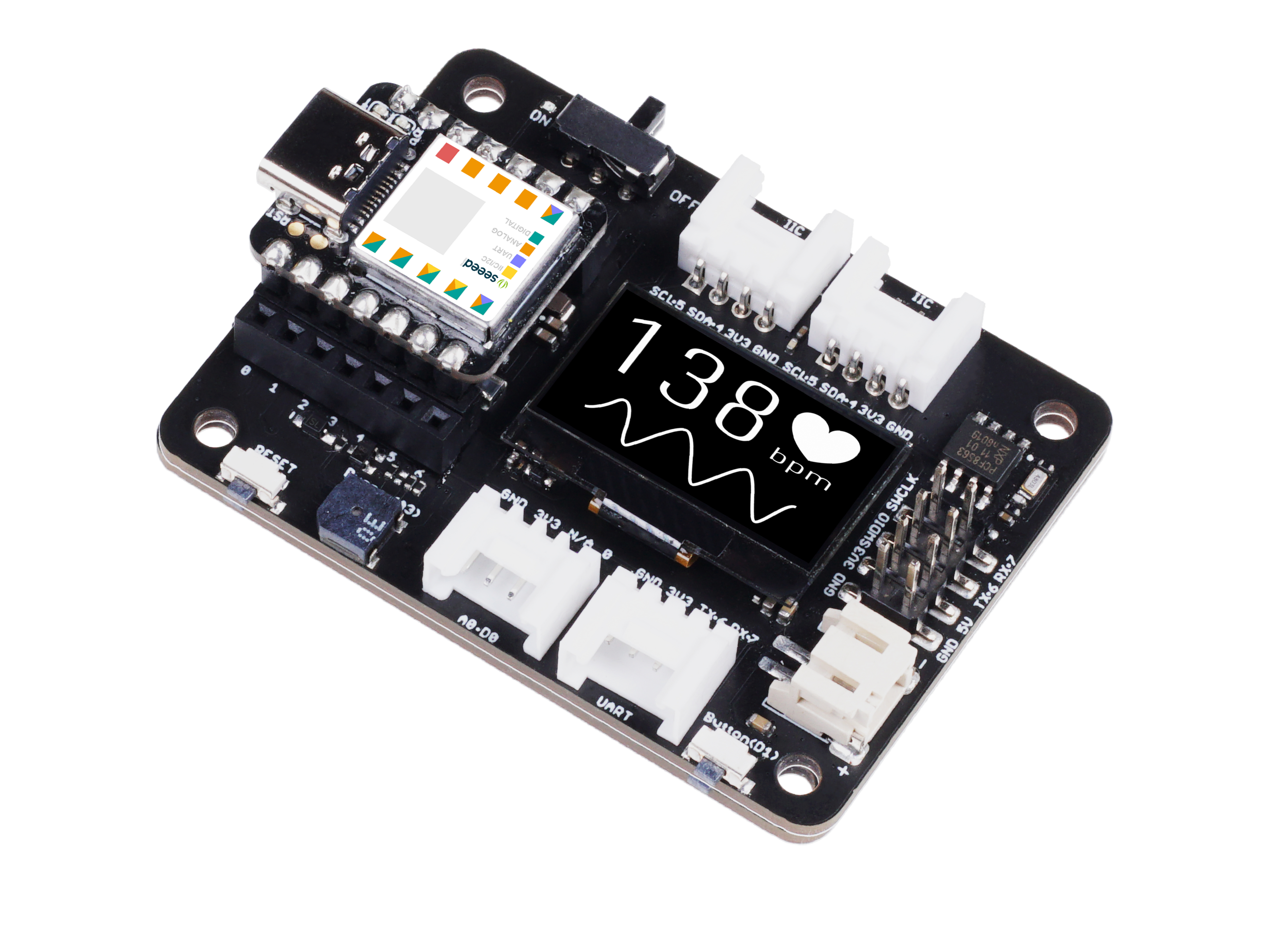
XIAO RAM41 has an I2C interface that can be used for data transmission and parsing of many sensors, as well as for using OLED screens.
Hardware Preparation
| Seeed Studio XIAO RA4M1 | Seeed Studio Expansion Base for XIAO with Grove OLED |
|---|---|
|  |
Software
- Create a new file named i2c.py and copy the reference code into it.
Reference Code
import time
from boards.xiao import XiaoI2C

sda = 4        #D4
scl = 5        #D5
i2c = "i2c0"
frq = 400000
i2c = XiaoI2C(i2c, sda, scl, frq)

# Basic 8x8 font
font_data = {
    ' ': [0x00,0x00,0x00,0x00,0x00,0x00,0x00,0x00],
    'D': [0x78,0x44,0x42,0x42,0x42,0x44,0x78,0x00],
    'E': [0x7C,0x40,0x40,0x78,0x40,0x40,0x7C,0x00],
    'H': [0x44,0x44,0x44,0x7C,0x44,0x44,0x44,0x00],
    'L': [0x40,0x40,0x40,0x40,0x40,0x40,0x7C,0x00],
    'O': [0x3C,0x42,0x42,0x42,0x42,0x42,0x3C,0x00],
    'R': [0x7C,0x42,0x42,0x7C,0x48,0x44,0x42,0x00],
    'W': [0x42,0x42,0x42,0x42,0x5A,0x66,0x42,0x00],
}

# Write a single command byte to SSD1306 via I2C
def ssd1306_write_command(cmd):
    i2c.writeto(0x3C, bytes([0x00, cmd]))

# Write multiple command bytes to SSD1306 via I2C
def ssd1306_write_commands(cmds):
    data = bytearray([0x00] + list(cmds))
    i2c.writeto(0x3C, data)

# Write display data bytes to SSD1306 via I2C
def ssd1306_write_data(data):
    buffer = bytearray(len(data) + 1)
    buffer[0] = 0x40
    buffer[1:] = data
    i2c.writeto(0x3C, buffer)

# Clear the entire SSD1306 display
def ssd1306_clear():
    ssd1306_write_commands(bytearray([0x21, 0, 127]))
    ssd1306_write_commands(bytearray([0x22, 0, 7]))

    empty_data = bytearray(128)
    for _ in range(8):
        ssd1306_write_data(empty_data)
    ssd1306_write_commands([0x21, 0, 127])

# Initialize SSD1306 display with recommended settings
def ssd1306_init():
    commands = [
        bytearray([0xAE]),
        bytearray([0xD5, 0x80]),
        bytearray([0xA8, 63]),
        bytearray([0xD3, 0x00]),
        bytearray([0x40]),
        bytearray([0x8D, 0x14]),
        bytearray([0x20, 0x00]),
        bytearray([0xA1]),
        bytearray([0xC8]),
        bytearray([0xDA, 0x12]),
        bytearray([0x81, 0xCF]),
        bytearray([0xD9, 0xF1]),
        bytearray([0xDB, 0x40]),
        bytearray([0xA4]),
        bytearray([0xA6]),
        bytearray([0xAF])
    ]

    for cmd in commands:
        ssd1306_write_commands(cmd)

    ssd1306_clear()
    print("SSD1306 initialized successfully")
    ssd1306_write_commands([0x21, 0, 127])

# Draw a string of text at specified column and page (row) on SSD1306
def ssd1306_draw_text(text, x, y):
    ssd1306_write_commands(bytearray([0x21, x, x + len(text) * 8 - 1]))
    ssd1306_write_commands(bytearray([0x22, y, y + 0]))

    display_data = bytearray()
    for char in text:
        font_bytes = font_data.get(char.upper(), font_data[' '])
        for col in range(7, -1, -1):
            val = 0
            for row in range(8):
                if font_bytes[row] & (1 << col):
                    val |= (1 << row)
            display_data.append(val)

    ssd1306_write_data(display_data)

try:
    i2c_addr = i2c.scan()
    if 0x3C not in i2c_addr:
        raise Exception("SSD1306 not found on I2C bus")
    else:
        print("SSD1306 found on I2C bus: 0x3C")
    # Initialize display
    ssd1306_init()
    ssd1306_draw_text("HELLO WORLD", 20, 4)
    while True:
        time.sleep(1)
except KeyboardInterrupt:
    print("\nProgram interrupted by user")
except Exception as e:
    print("\nError occurred: %s" % {e})
Code Explain:
-
Import Modules
time: Imports the standard time module to handle program pauses and delays (used here for thewhileloop sleep).XiaoI2C: Imports the hardware-specific I2C class fromboards.xiao, which handles the low-level communication protocol for the XIAO development board.
-
Define I2C Configuration
sda = 4,scl = 5: Assigns the I2C data (SDA) and clock (SCL) lines to digital pins D4 and D5 respectively. -i2c = "i2c0": Selects the specific hardware I2C peripheral bus (bus 0) on the microcontroller.frq = 400000: Sets the communication speed to 400 kHz (Fast Mode), allowing for rapid screen updates.i2c = XiaoI2C(...): Instantiates the I2C object with the defined pinout and frequency settings.
-
Define Font Data
font_data: A dictionary acting as a lookup table. It maps characters (like 'H', 'E') to a list of 8 hexadecimal bytes. These bytes represent the bitmask for the pixels of that character in an 8x8 grid.
-
Helper Functions (Low-Level Driver)
ssd1306_write_command(cmd): Sends a single control instruction to the display. It prefixes the byte with0x00, telling the SSD1306 controller that the following byte is a command, not pixel data.ssd1306_write_commands(cmds): Efficiently sends a sequence of setup commands in a single I2C transaction to minimize overhead.ssd1306_write_data(data): Sends graphic data to the screen RAM. It prefixes the data with0x40, indicating that the following bytes represent pixels to be lit up.
-
Helper Functions (High-Level Control)
ssd1306_clear(): Wipes the screen content. It sets the column address (0-127) and page address (0-7) to cover the whole screen, then writes zeros (blank pixels) to every memory location.ssd1306_init(): Sends a strict sequence of hex codes (e.g.,0xAEfor display off,0x8D 0x14for charge pump enable) to configure the OLED panel's voltage, scanning direction, and addressing mode before turning it on.ssd1306_draw_text(text, x, y): The core graphics function.- It sets the drawing window on the screen using commands
0x21(Column Address) and0x22(Page Address). - It iterates through the input string, retrieves the font bytes, and performs bitwise operations (
val |= (1 << row)) to transpose/rotate the data to match the SSD1306's specific memory structure.
-
Main Logic (Execution Flow)
i2c.scan(): Detects all devices connected to the I2C bus to ensure wiring is correct.- Address Validation: Checks if the display is present at address
0x3C. If not found, it raises an error to stop execution; otherwise, it prints a confirmation. ssd1306_init(): Wakes up the display and applies configuration settings.ssd1306_draw_text("HELLO WORLD", 20, 4): Renders the text "HELLO WORLD" starting at pixel column 20 on page 4 (approx. middle-left of the screen).while True: Enters an infinite loop that sleeps for 1 second repeatedly, keeping the program running so the display remains active.try...except: Wraps the main logic in an error handler to catch issues (like missing hardware) or a user interrupt (Ctrl+C), ensuring the program exits gracefully with a readable message.
Result graph
- Once the program starts running, it will display HELLO WORLD on the screen.

Summary
Congratulations! Having completed the tutorials above, you have acquired the capability for basic development and debugging with XIAO RA4M1 and MicroPython. We look forward to seeing you create more interesting projects based on these foundational skills
Tech Support & Product Discussion
Thank you for choosing our products! We are here to provide you with different support to ensure that your experience with our products is as smooth as possible. We offer several communication channels to cater to different preferences and needs.